Poster Design in CorelDraw, Easy Method, Step By Step, Download Source File
Hello Friends, Welcome to Corelclass.com In This Post I am Going to Teach you How to Create Poster Design in CorelDraw. In This Project, You Can Learn How to Design a Poster in CorelDraw Application in an Easy Method. Poster Design in CorelDraw
Durgakund 8808888478Rathyatra 9415802061दोनों branch सुबह 7 से रात 8 बजे तक खुली रहती हैं।
You Can Also Download the Practice File in This Post. So Let’s Start To Learn This Project, Before starting I request You to Please Follow the Given Below Step to Learn Properly step by step.
- First Press Window + R to Open the Run Dialogue box.

- Type coreldrw then Press Ok.

- Then you can see Open Application CorelDraw.
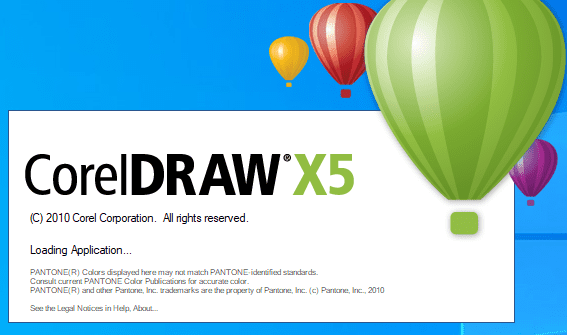
- Press CTRL + N open New Page Window.
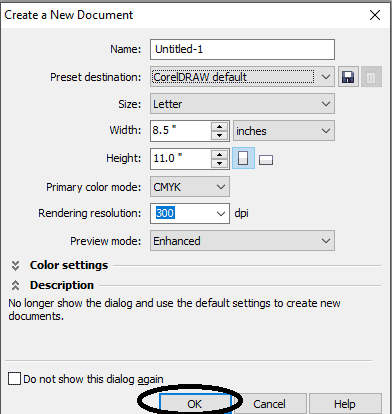
- Press Ok.

- Double Click on Rectangle tool.

- Click on Basic Shapes tool > Select triangle and Draw in Page.
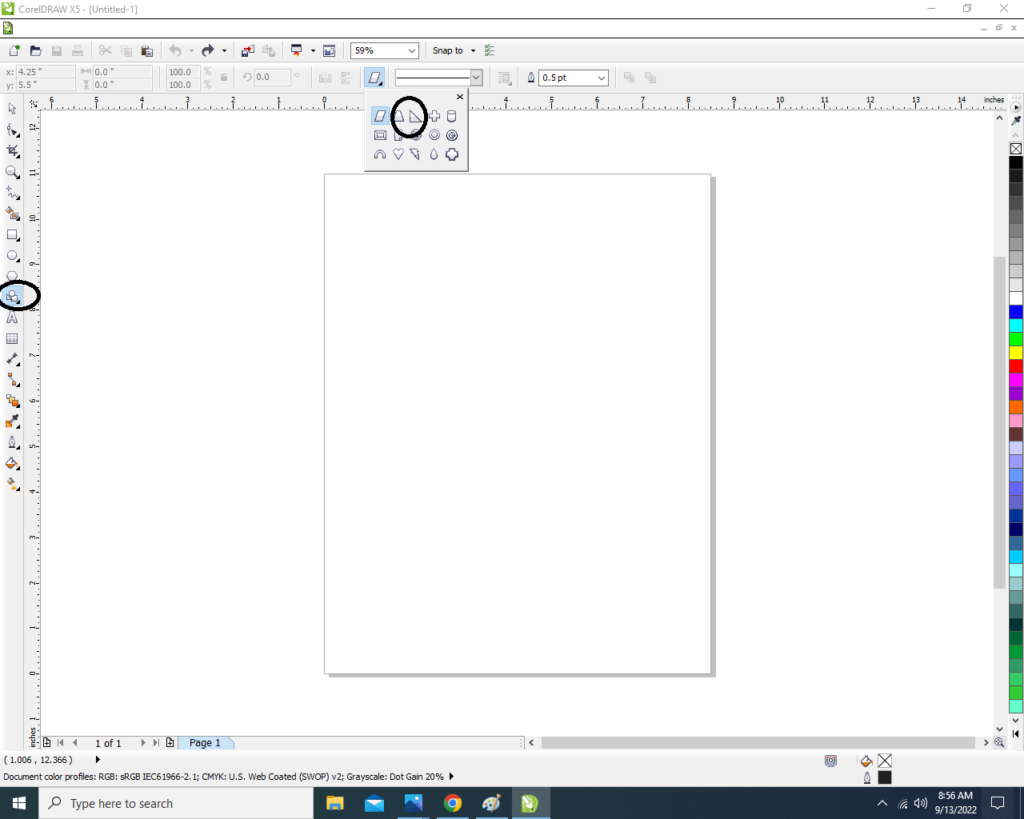
- Draw the Small Triangle. Then Double click on Triangle to Rotate the shape.

- Now Fix the Triangle Top & Center of the Page > Fill any Color > No Outline.

- Apply the Transparency go to Blend Tool > click on Transparency option.
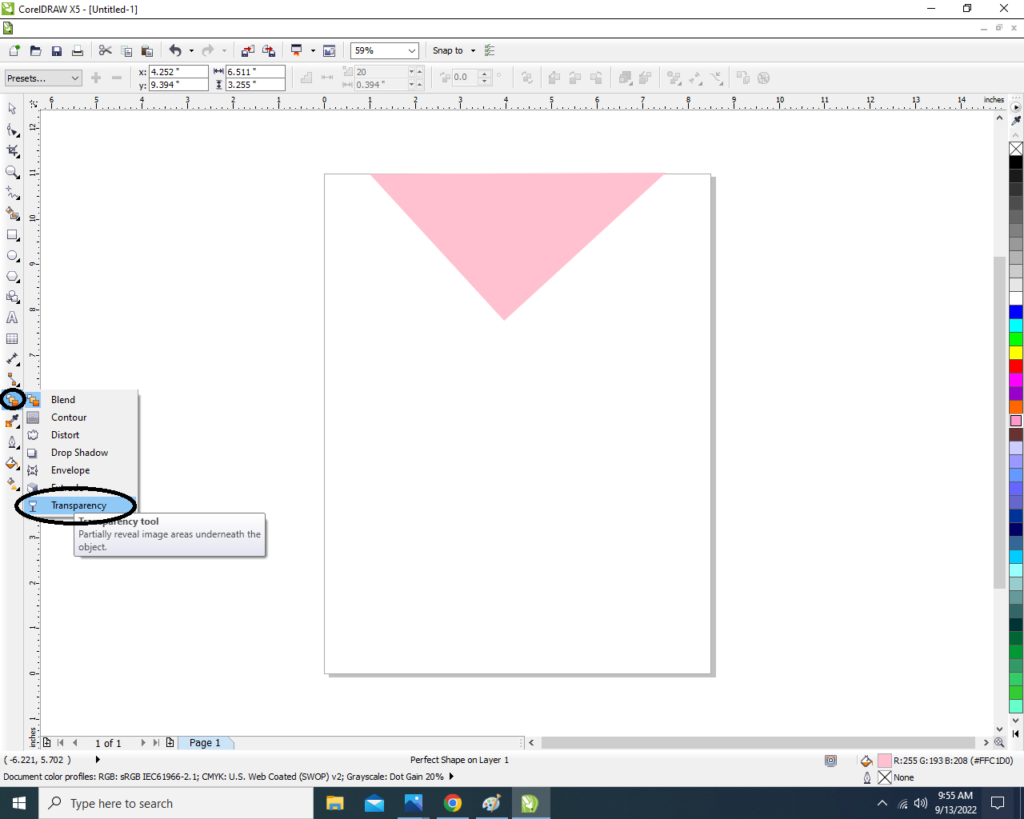
- Then apply the Transparent the triangle like this.

- Than Draw the Rectangle Shape and apply the same Process > Fill any color > No Outline > Apply Transparency.
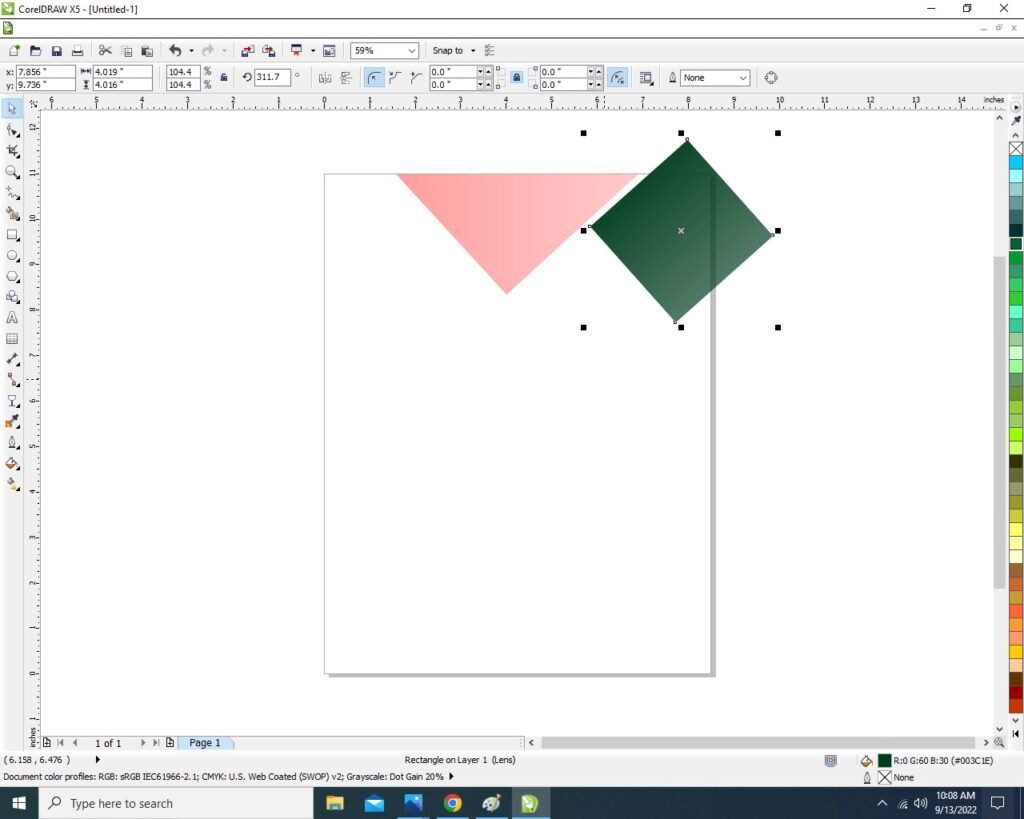
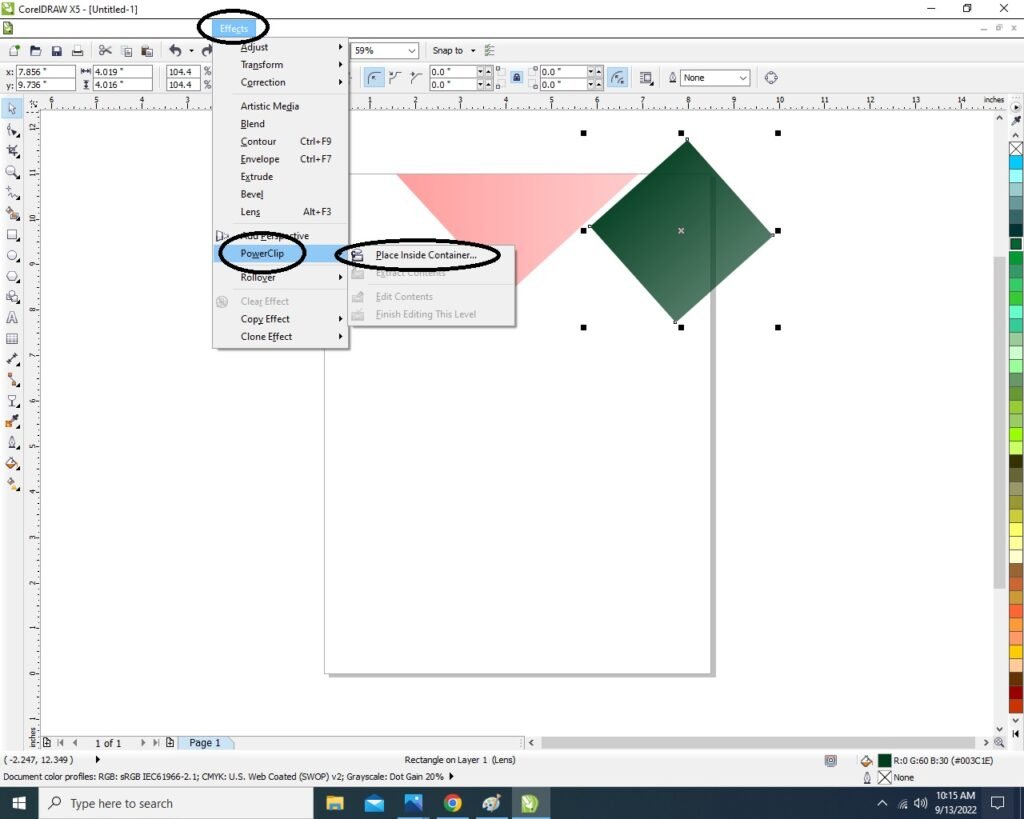
- Select the Object ( Rectangle) & Click on the Menu bar > Effect > Power clip > Place inside container.
- Then Click On the Page.
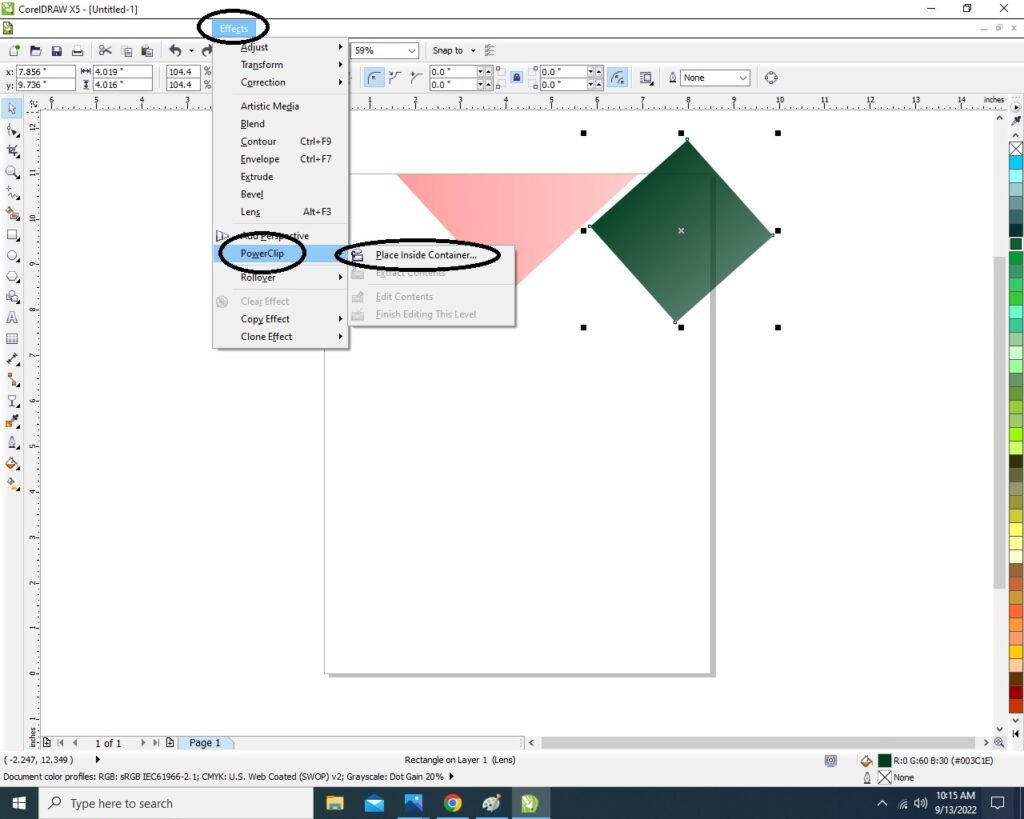
- Then Click on the Page > Then the Rectangle Shape that was outside the page will be hidden Inside like this I show.
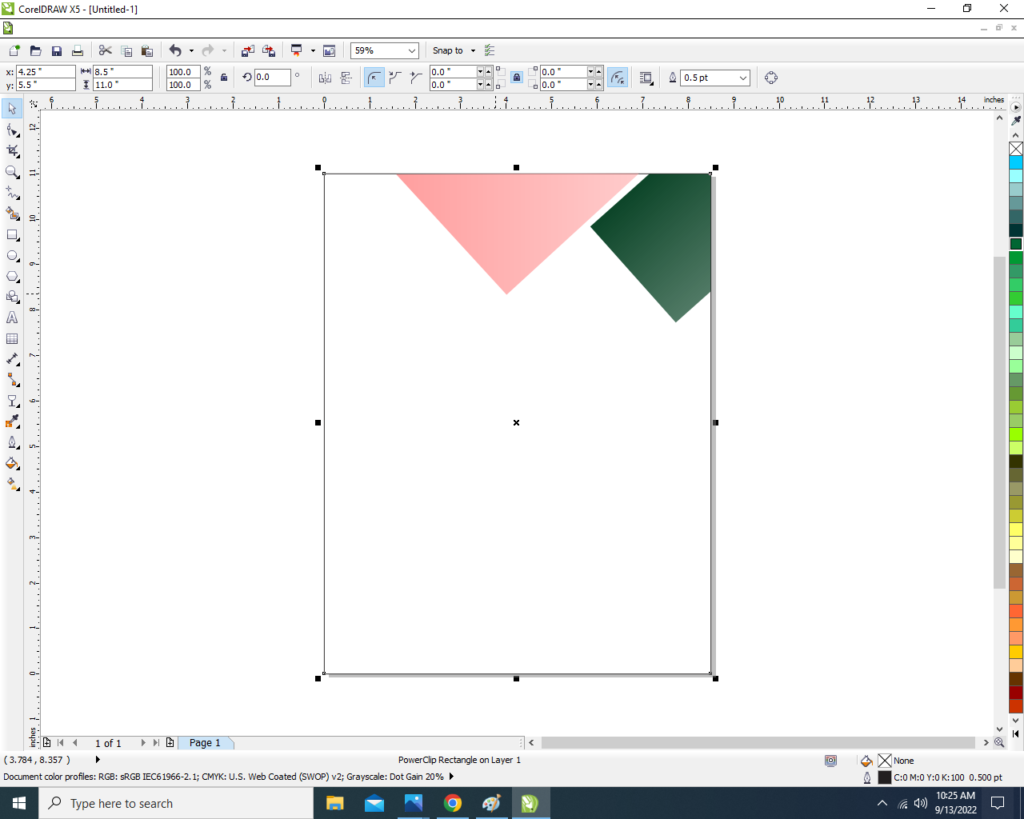
- Then Draw the New Rectangle > No fill > No Outline .
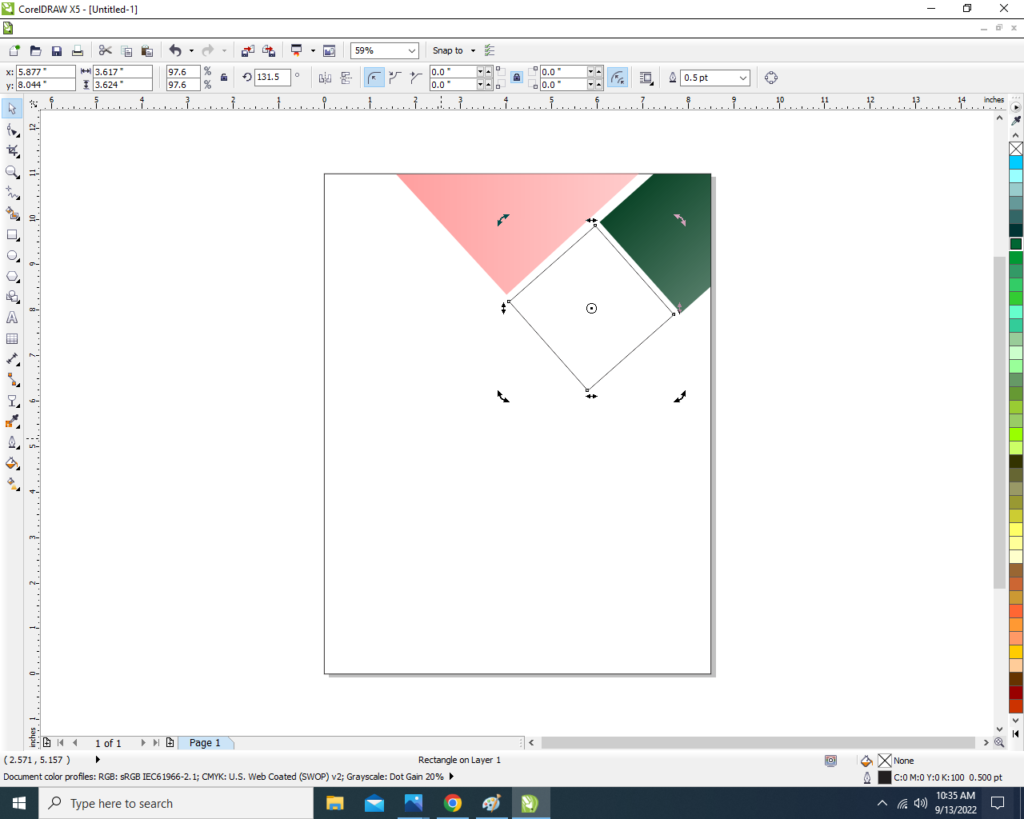
- Then Insert the any picture in Page.

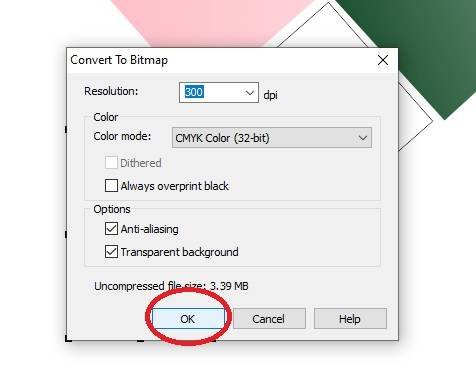
- Then Select the Picture > Click on Menu bar Bitmaps >Click Convert to Bitmaps option .

- Then Press Ok.
- Select the Picture > Click On Effect Menu > PowerClip > Place Inside Container.

- Then Click On the Rectangle > Then Picture will Disappear like this.
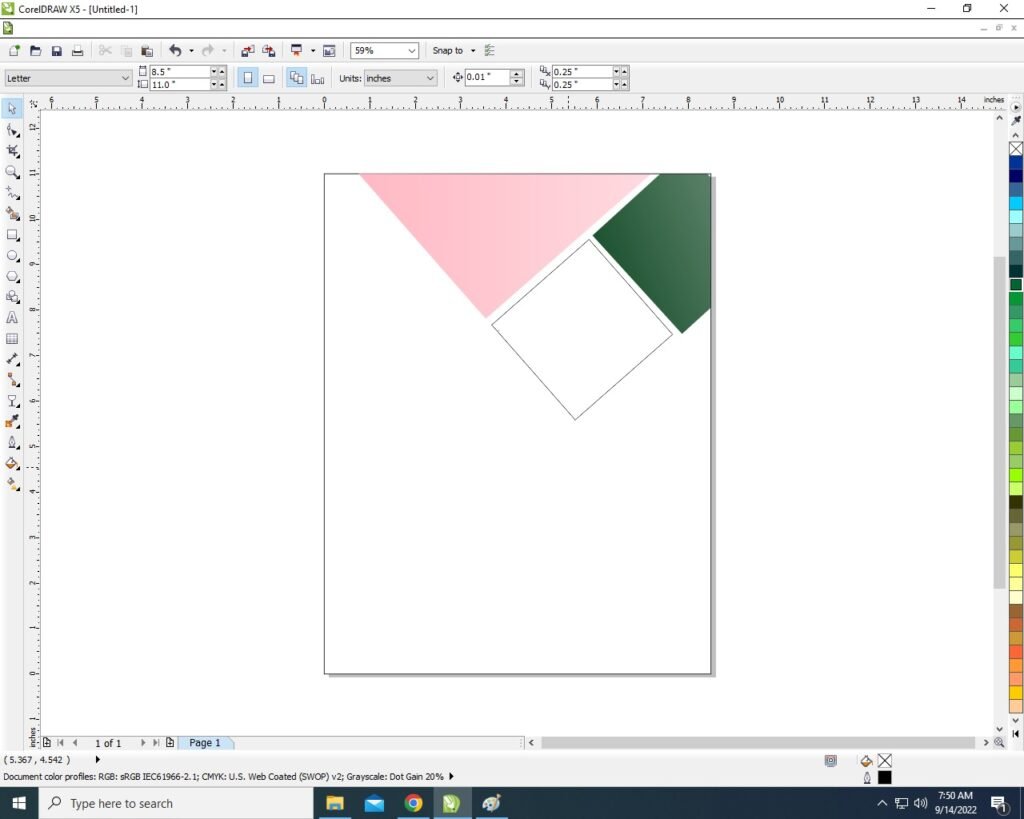
- Then CTRL + Double Click in Rectangle Shape > Properly Fix the Picture on the Rectangle Shape Like this .

- CTRL + Double Click again Outside the Page.

- Then Create a new Triangle Like This Picture I will show.
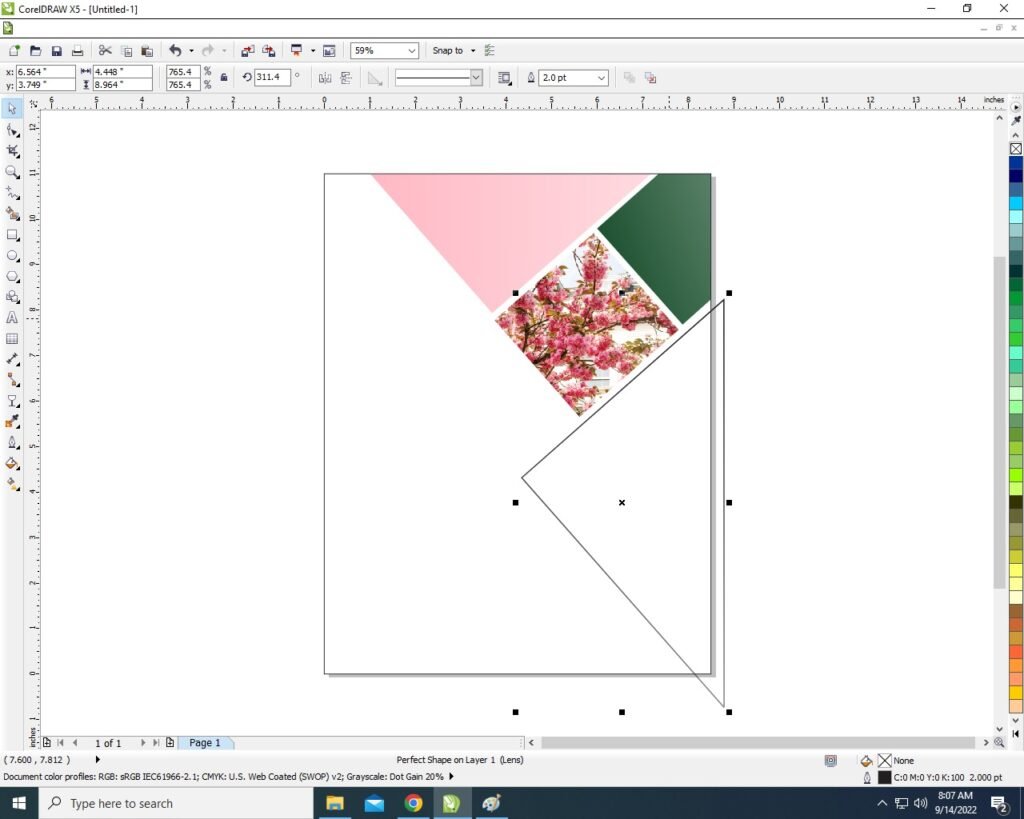
- Will Insert Picture in this Triangle & No Outline just Like we did above Step by Step .

- Will PowerClip even More like This I show you.

- Then Create a New 2 Rectangle . I will show You

- Will Insert Photo in a Rectangle and fill the Color in Another Rectangle & Both Rectangle Outline is None.
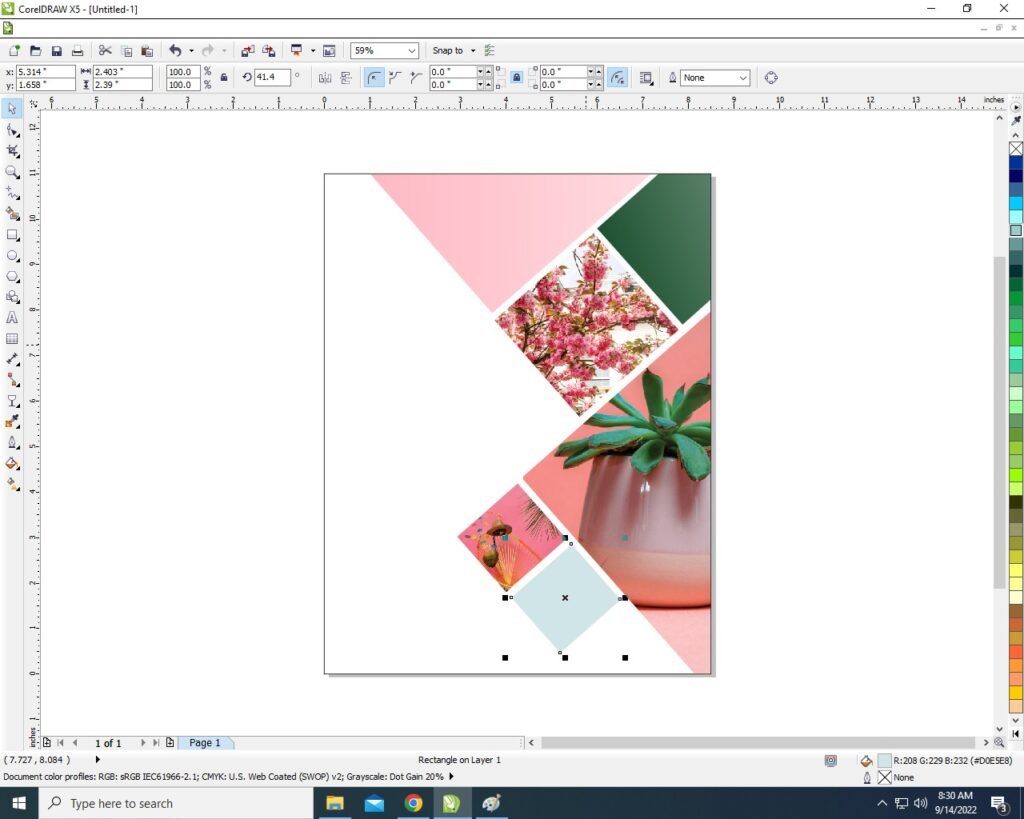
- Then Again Create a New Triangle > Fill any Color > Apply Transparency > No Outline.

- Now write Whatever Title name & Mention your Address & Professional Information you want to write on the page.

- You can Insert the LOGO of your Company or Institute & Press CTRL + F11 Insert Many Character Example that Twitter Facebook etc. Like I show .
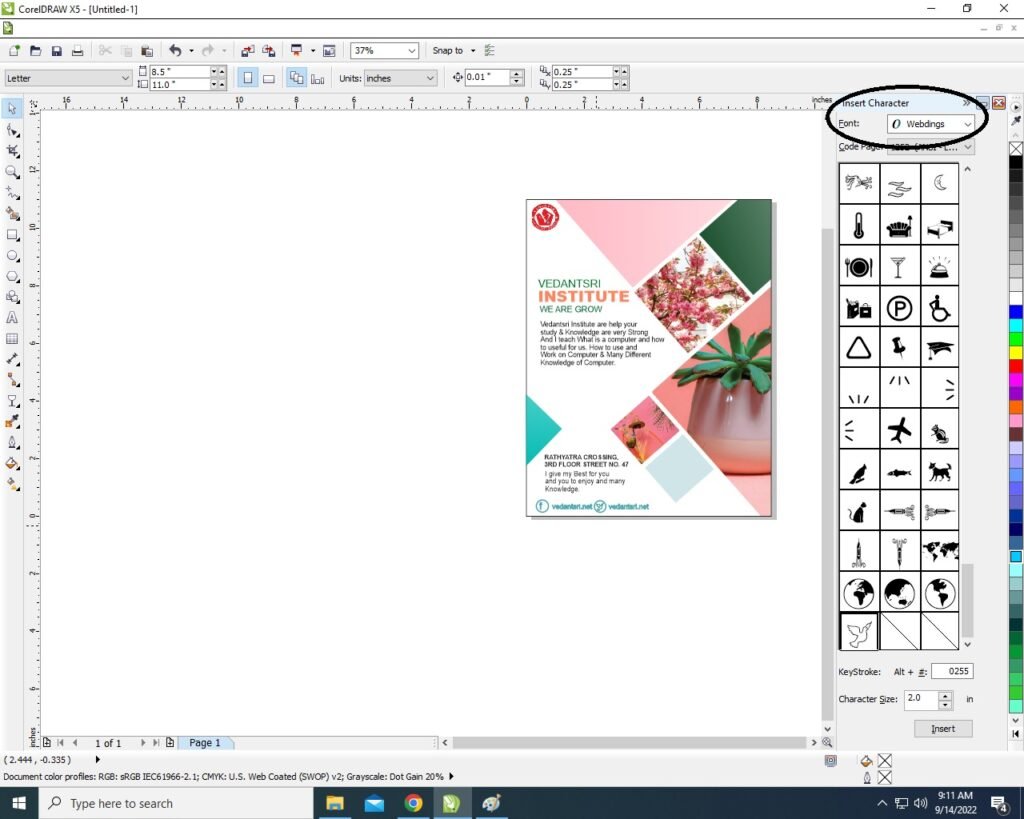
- Then Completed your poster card.

Created and Explained by Shikha Singh.
Important Links
1-VedantSri Official Website:- https://vedantsri.com
2-Student Support Website:- https://www.vedantsri.net
3-Jobs Assist Website:- https://www.jobdo.in
External Link
1-VedantSri Official Website:- https://vedantsri.com
2-Course Store Website:- https://vedantsri.in
3-Jobs Assist Website:- https://www.jobdo.in
4-MS Word Class:- https://mswordclass.com/
5-Corel Free Class:- https://corelclass.com/
6-Free Excel Class:- https://msexcelclass.com/