Web Banner Design CorelDraw, Easy Method, Step by Step, Download Source File
Hello Friends, Welcome to Corelclass.com In This Post I am Going to Teach you How to Create Web Design in CorelDraw. In This Project, You Can Learn How to Design a Web Banner in CorelDraw Application in an Easy Method. You Can Also Download the Practice File in This Post. Web Banner Design CorelDraw
Durgakund 8808888478Rathyatra 9415802061दोनों branch सुबह 7 से रात 8 बजे तक खुली रहती हैं।
So Let’s Start To Learn This Project, Before starting I request You to Please Follow the Given Below Step to Learn Properly step by step. Web Banner Design CorelDraw, Easy Method, Step by Step, Download Source File
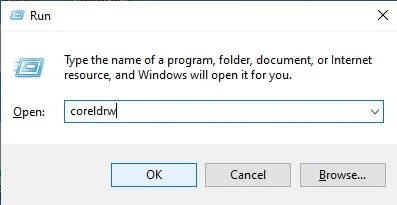
- Press Window + R to Open Run Dialogue Box & Type CorelDraw Then Press OK.
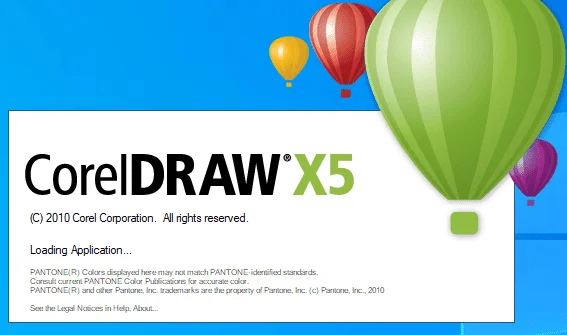
- Then You Can See the Open Application of CorelDraw. Web Banner Design CorelDraw, Easy Method, Step by Step, Download Source File
- Press CTRL + N to Open a New Page Window.
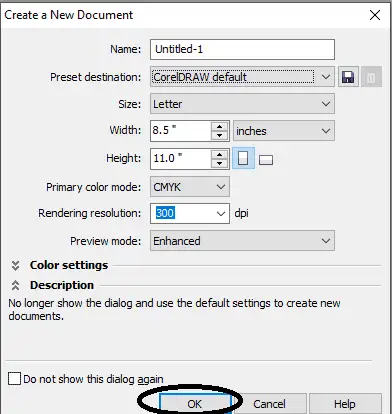
- Press OK.

- Then Change the page Size , I will show you Page Size.
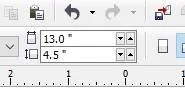
- Press Enter.
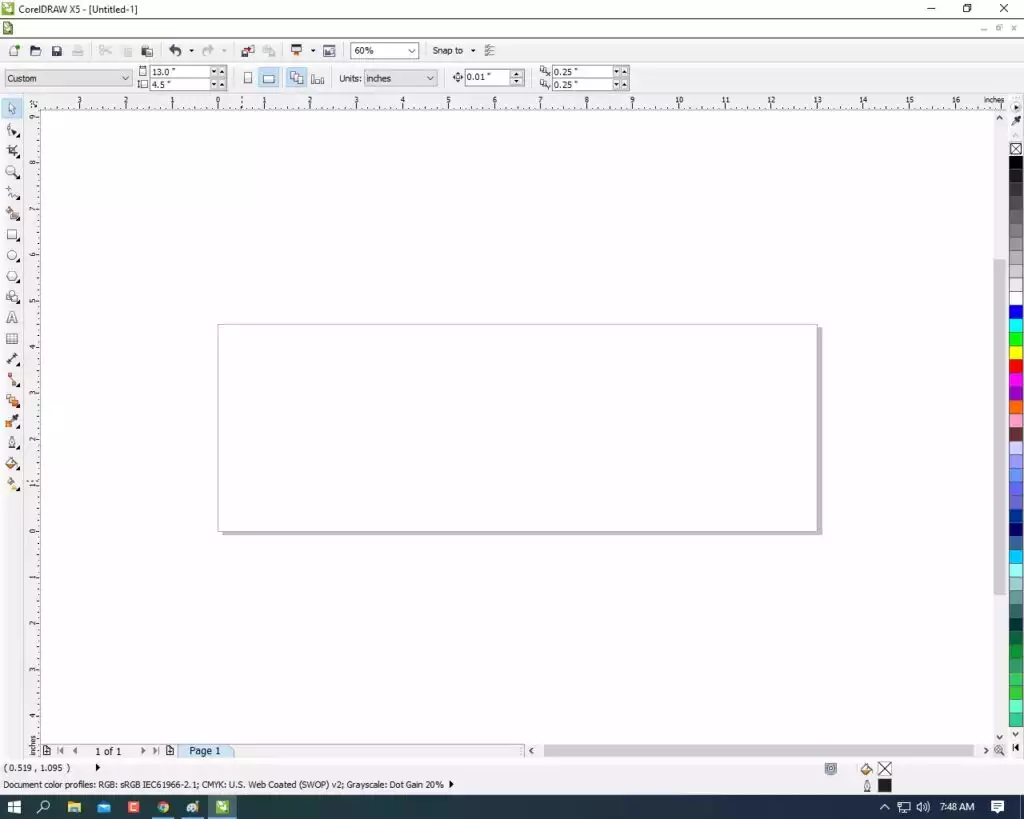
- Then Double Click on the Rectangle Tool.

- Fill in Any Color in the Shape. Web Banner Design CorelDraw, Easy Method, Step by Step, Download Source File

- Then Draw a Circle > Press CTRL + Shift then Draw the circle.

- Then Select the Object (circle) & Click on the Menu Bar > Effect > PowerClip > Place Inside Container.
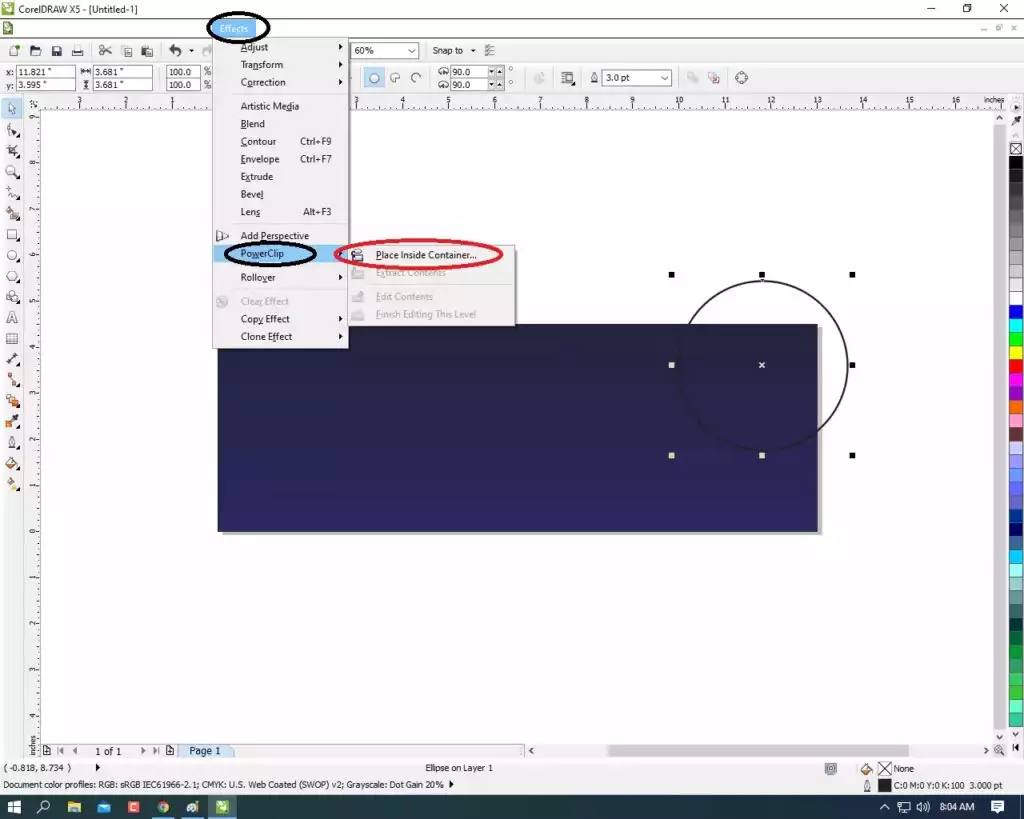
- Then Click On the page > Then the Circle Shape that was Outside the page will be Hidden Inside Like this I show.

- Then CTRL + Double Click On Circle ( to Enter The Clipping Circle).

- Then Insert the any picture on page.

- You can see picture is very big on the page > To shrink it, First Press SHIFT + F2 >Then any hold one Corner and shorten it. Like I Show

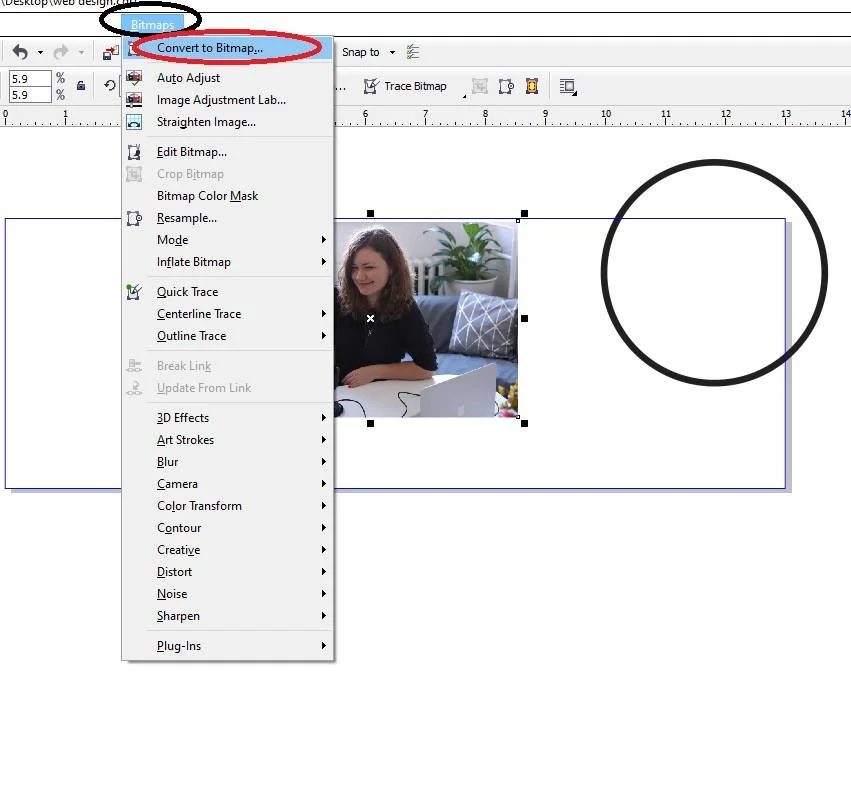
- First select the picture Then Click On Menu Bitmaps > Convert to Bitmaps.
- Select the picture > Menu Effect > PowerClip > Place Inside Container.
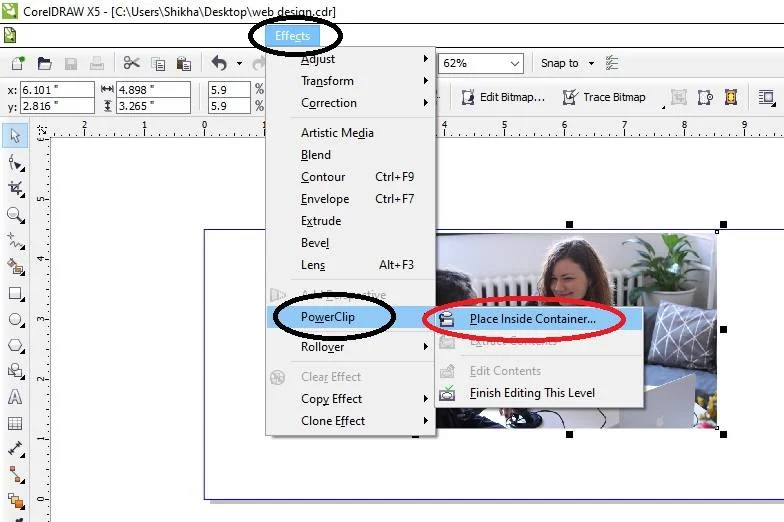
- Then Click on the Shape ( circle) Then Picture will disappear. Like I show .

- Then CTRL + Double Click on the shape you have clipping Picture.

- Fix the Picture on the Rectangle Shape.

- Then CTRL + Click on page.
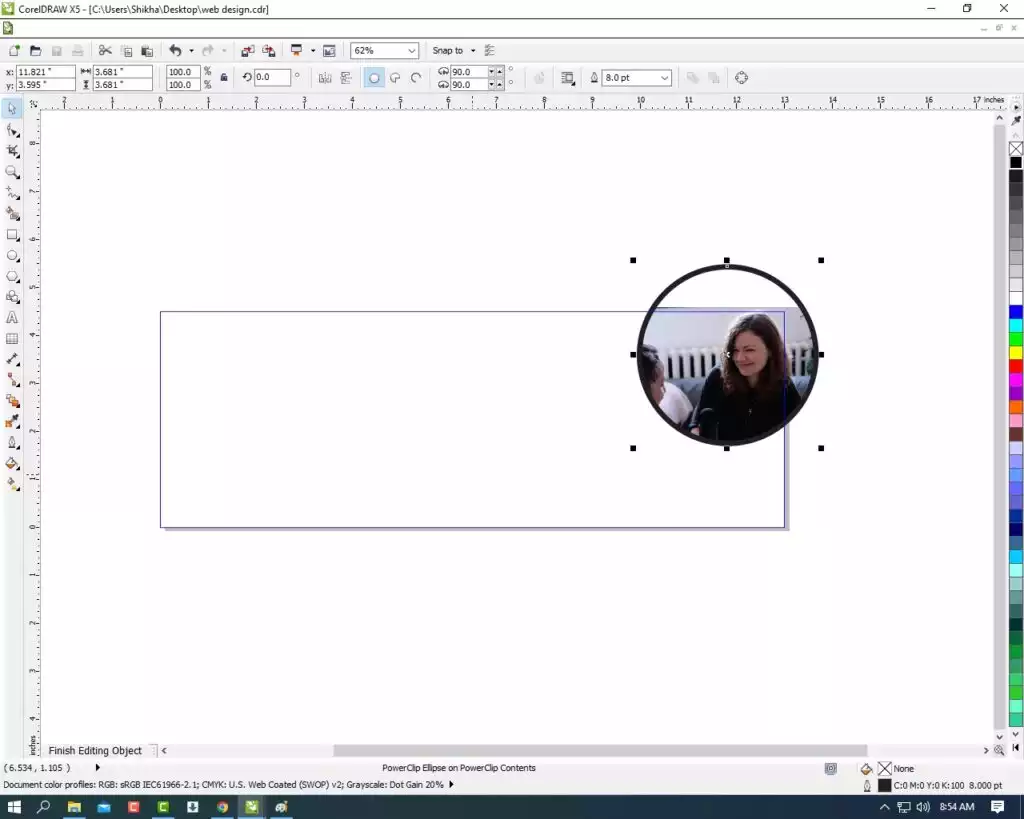
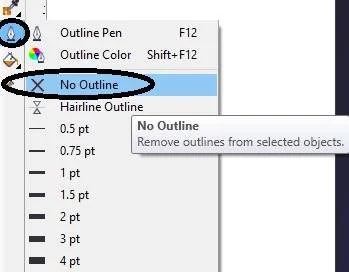
- Select the Shape ( circle ) > Outline Pen > No Outline.
- Press CTRL + Double Click On Out of page ( any where ).

- Then draw a new Circle on the Page.

- Fill any Color on the circle and No Outline In the Shape I will showing you.

- Then Select the Object and Go to Effect Menu > PowerClip > Place Inside Container > Click on the Page .
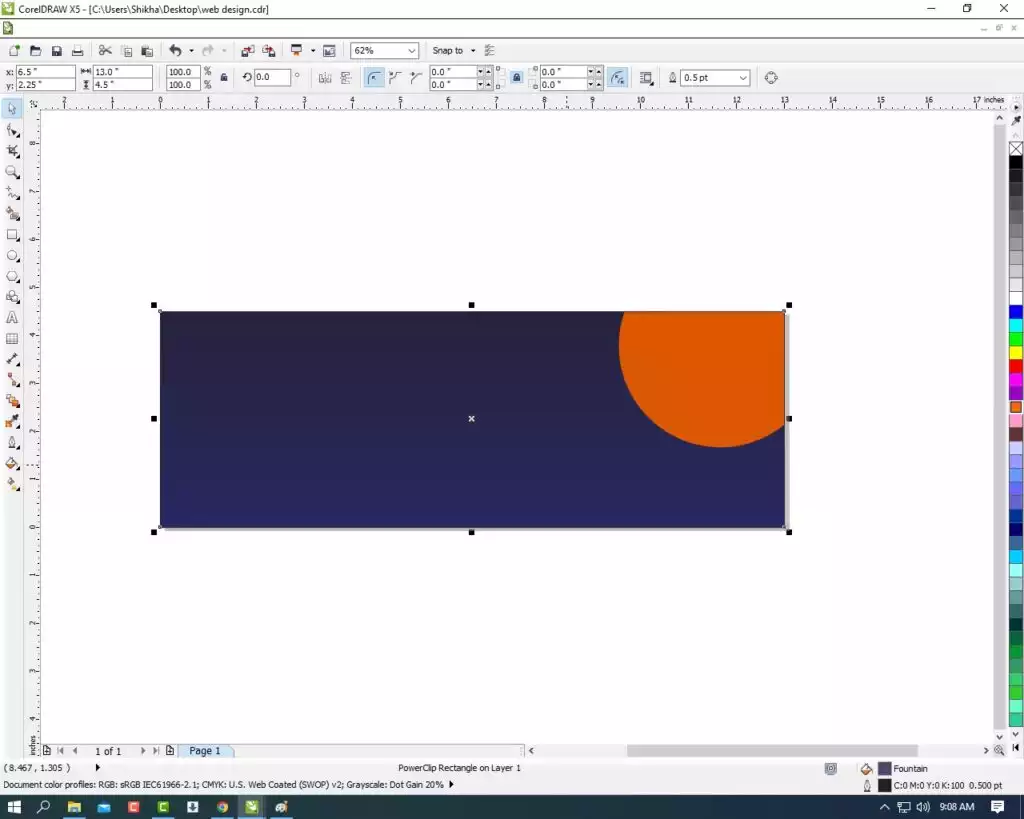
- Then CTRL + Double Click on the Circle. Web Banner Design CorelDraw, Easy Method, Step by Step, Download Source File
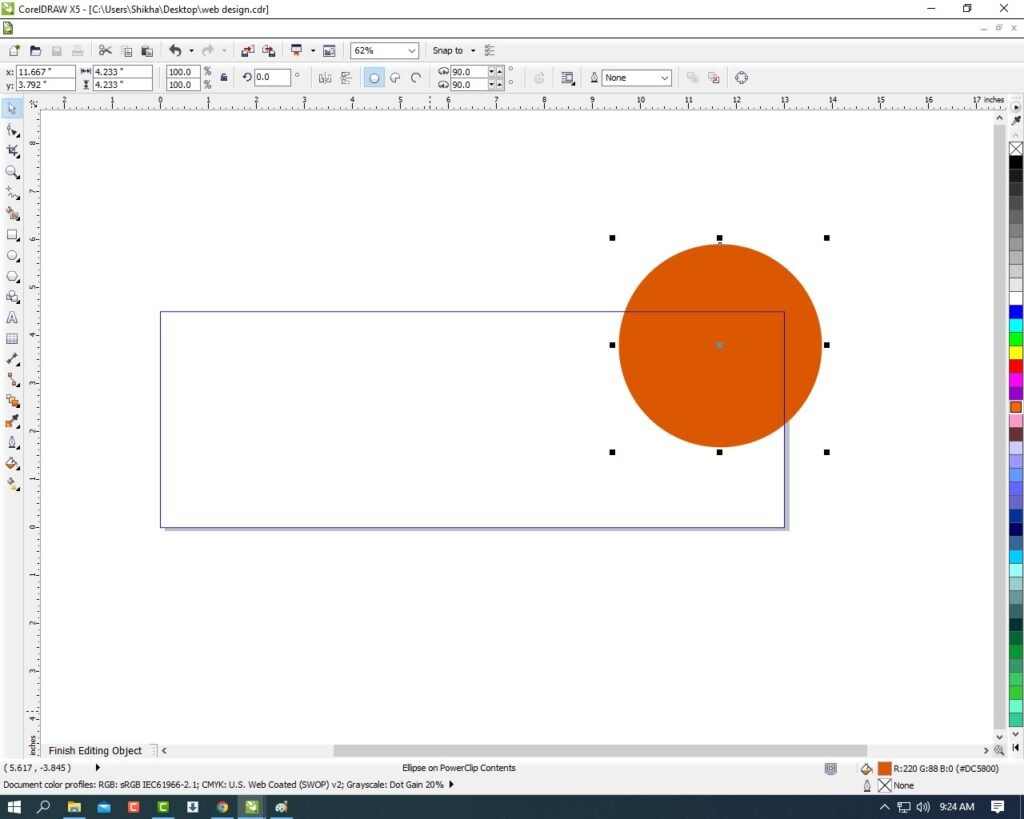
- Press CTRL + Page Down.
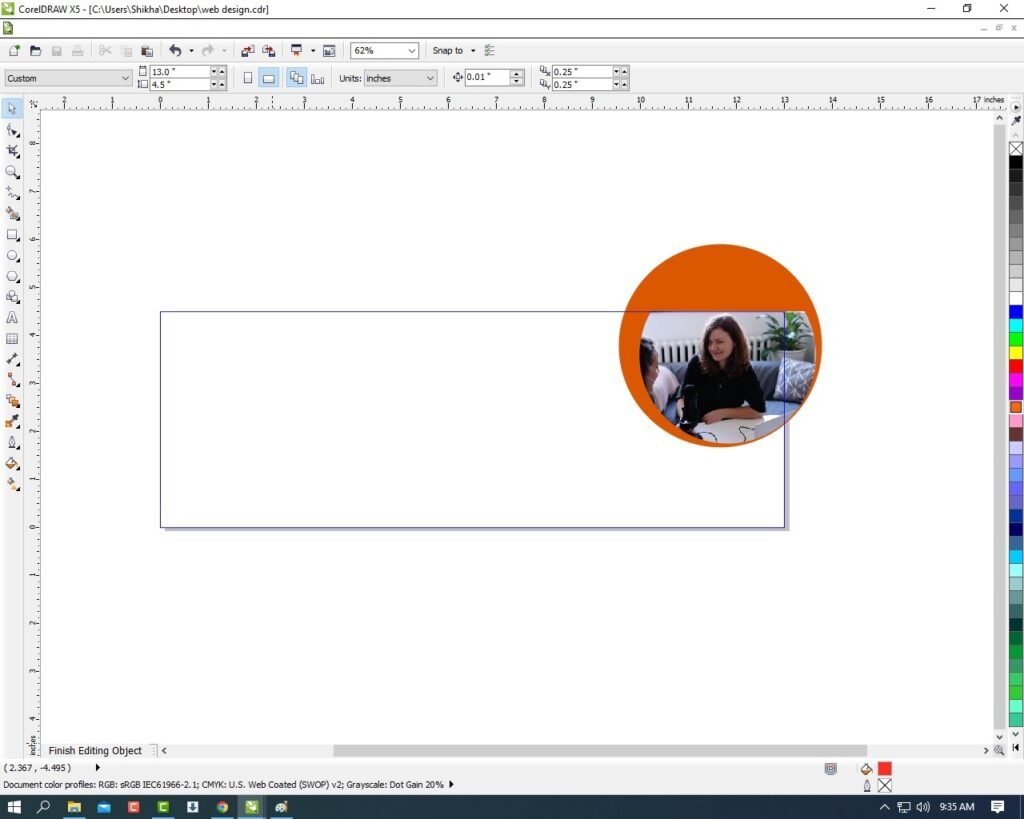
- Then Select the Circle and Press CTRL + D to Duplicate the Object (circle) > Fill any different color and Press CTRL + Page Down & Increase the size and Fix the object as I Show. Web Banner Design CorelDraw, Easy Method, Step by Step, Download Source File

- Fill any color this object > Then CTRL + Double Click on Out of the Page.
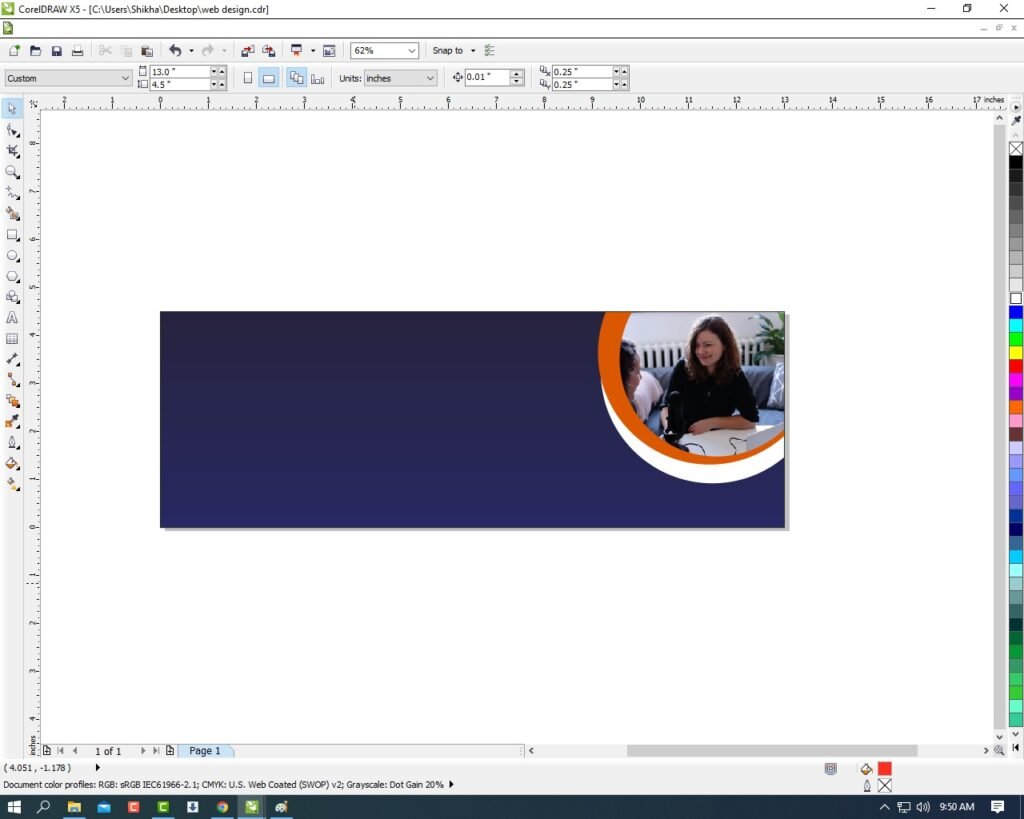
- Then Type your Company/Institute/College/school Name.

- Then Draw a one triangle.

- Then Press F10 > Click on the Center of Circle > then Now Click Right on This Point > Click ADD Option.
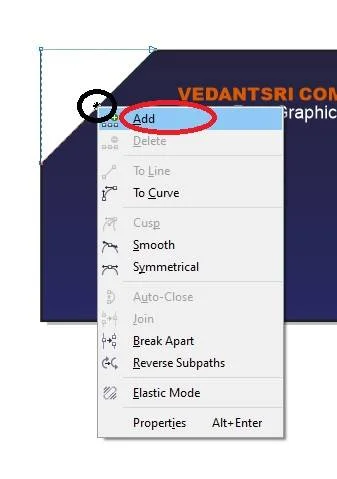
- Then Click on right the center Point > Click on the To Curve Option.
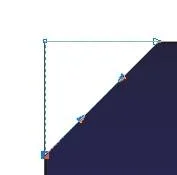
- Then Move the Arrows and Make a new Shape like I show.
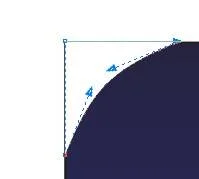
- Then Click on Pick Tool.

- Then You Can Insert Your Company/Institute/College/School Logo.
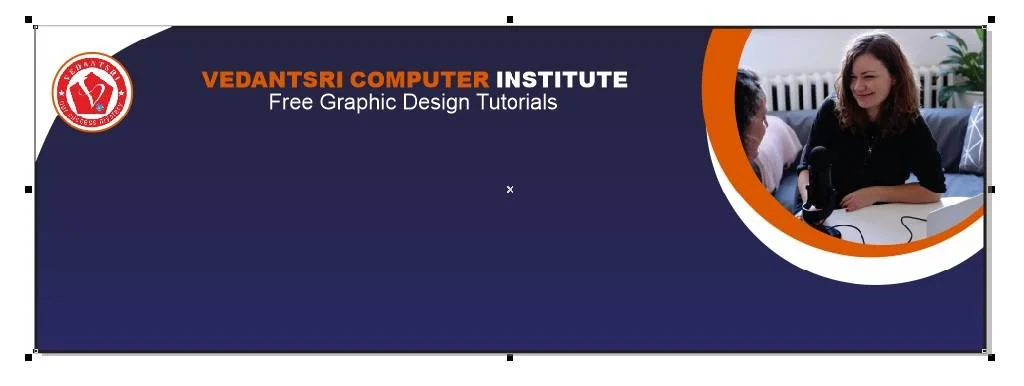
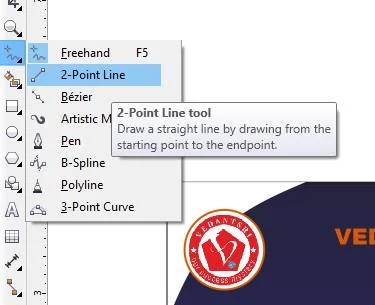
- Then Go to the Freehand tool > Click on 2-Point Line Option.
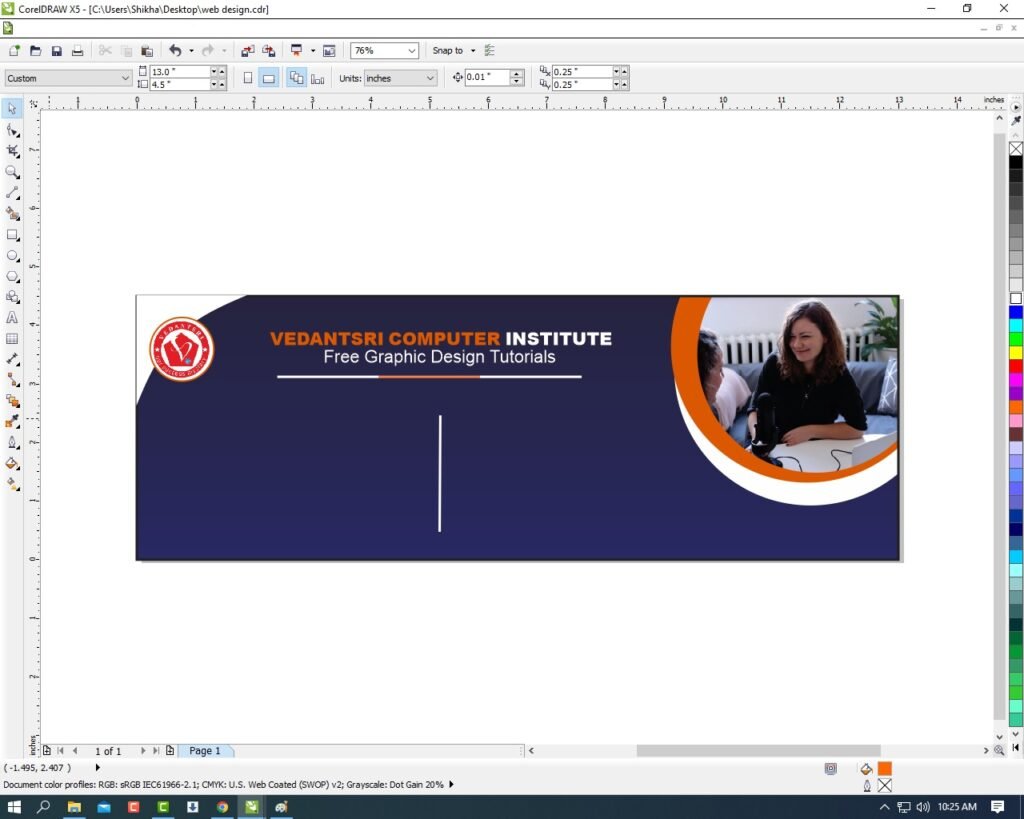
- Then Press Shift and draw the Line > Outline 3pt and fill any color in outline.
- Then Press CTRL + F11 > Type Webdings and Insert The Symbol.
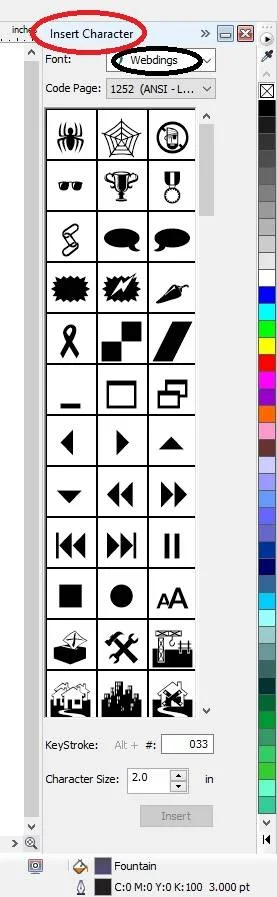
- Then Insert the Character > Fill any Color > No outline and Fix It. As I show. Web Banner Design CorelDraw, Easy Method, Step by Step, Download Source File
- Then Type Your Company Or Institute Location/Address/Contact Details.
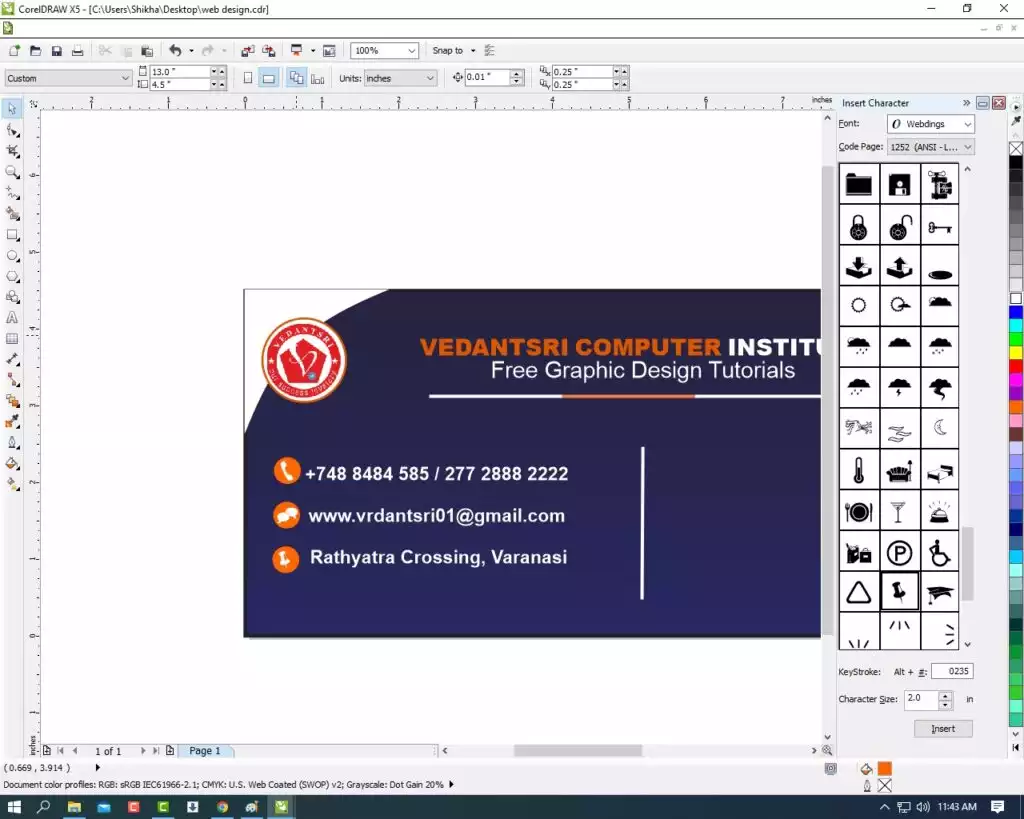
- Then Draw a Small Circle like a symbol > Fill any color and Write About Your Courses. Like I show.
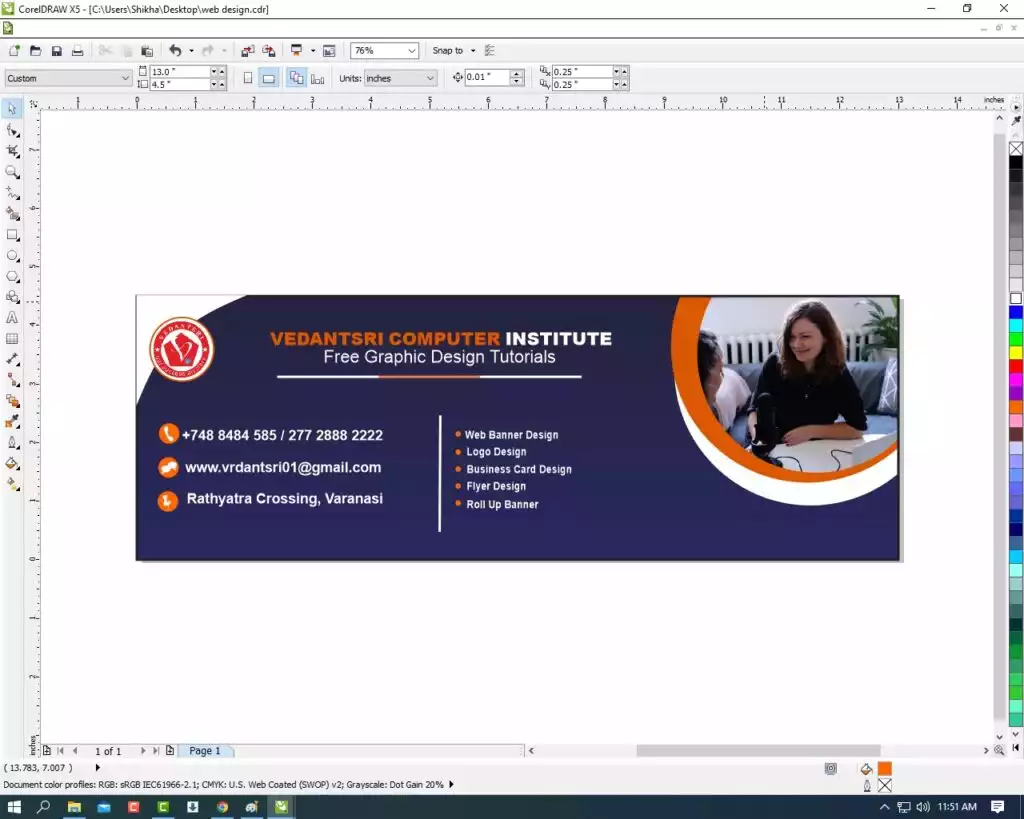
- Draw New Rectangle > Fill any Color > And Type On Rectangle Your Website Account Any Thing. Like I showing.

- Then You Can Insert the Symbol to look Very Creative Like I Show.

- Then Complete this Web Banner Design.

Created and Explained By Shikha Singh
Important link
Visit at – https://www.corelclass.com
Read Also it – https://msexcelclass.com/
Also, Read- Tally Course Fees, Duration, Scope, Syllabus, Admission, Institutes
Also Read – CCC Course Fees, Syllabus, Duration, Scope, Jobs, and Institute
Important Link – DFA Course Fees, Syllabus, Duration, Scope, Jobs, and Institute
Visit – https://mswordclass.com/