Visiting Card Design in CorelDRAW, Easy and Simple Method, Step By Step, Download Source File
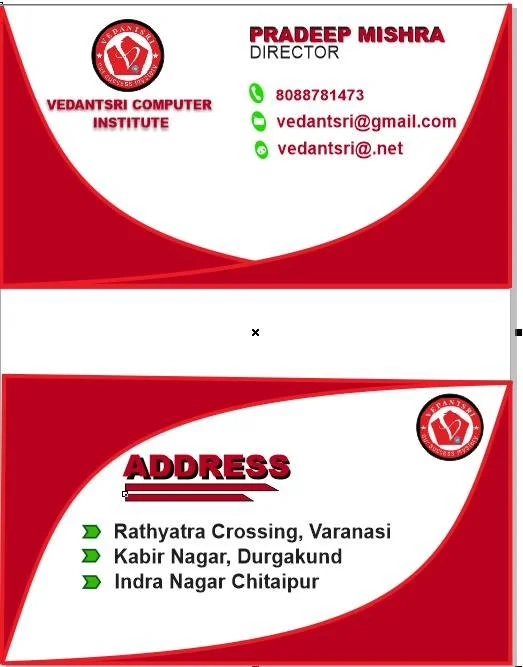
Hello Friends, welcome to Corelclass.com. In This Post, I am going to teach you how to create a visiting card design in CorelDRAW. In This Project, you can learn how to design a visiting card in the CorelDRAW application using an Easy Method. Visiting Card Design in CorelDRAW
Durgakund 8808888478Rathyatra 9415802061दोनों branch सुबह 7 से रात 8 बजे तक खुली रहती हैं।
You Can Also Download the Practice File in This Post. So Let’s Start To Learn This Project. Before starting, I request you to Please Follow the steps given below to Learn Properly, step by step. Visiting Card Design in CorelDRAW, Easy and Simple Method, Step By Step, Download Source File
- Press Window + R to open the Run dialog box> type CorelDraw> press OK ..
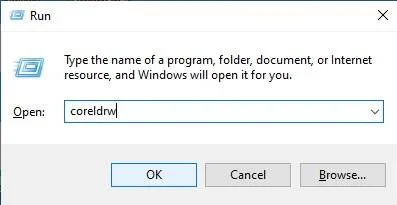
- You Can See the open application, CorelDRAW.
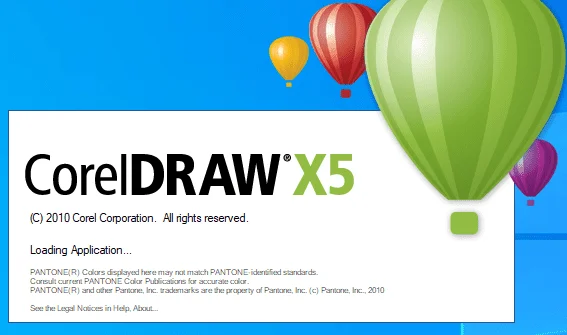
- Press CTRL + N to open a new page window.Visiting Card Design in CorelDRAW, Easy and Simple Method, Step By Step, Download Source File
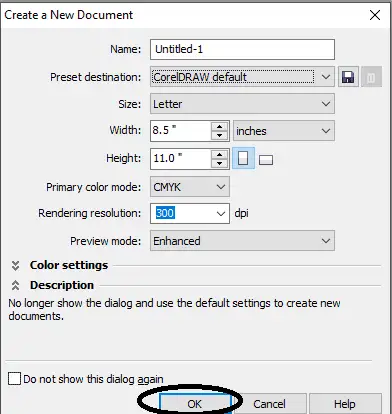
- Press Ok.
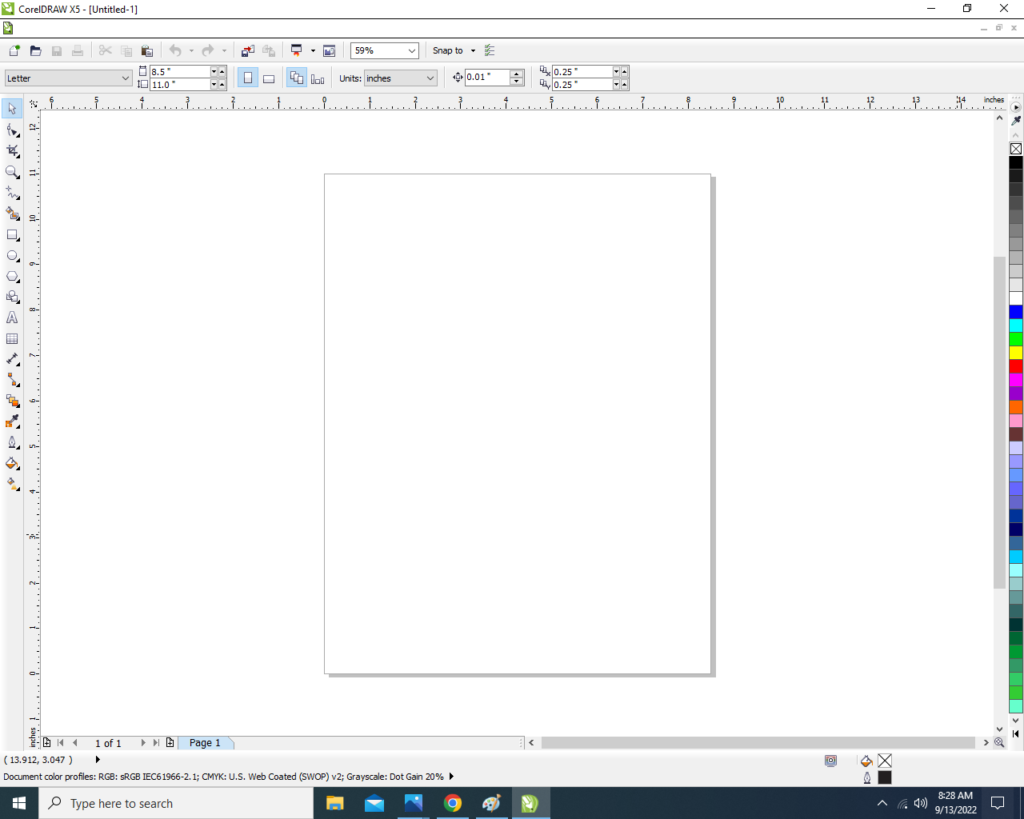
- Draw a Half Rectangle.
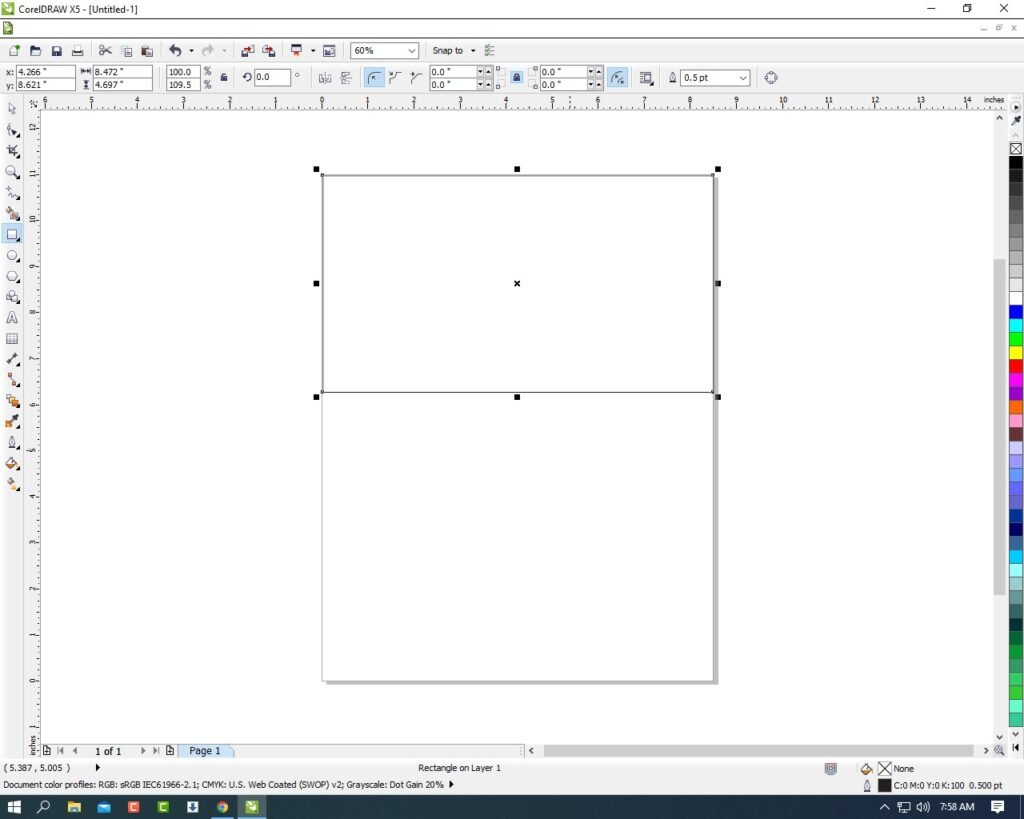
- Then Draw a new rectangle in the rectangle shape.
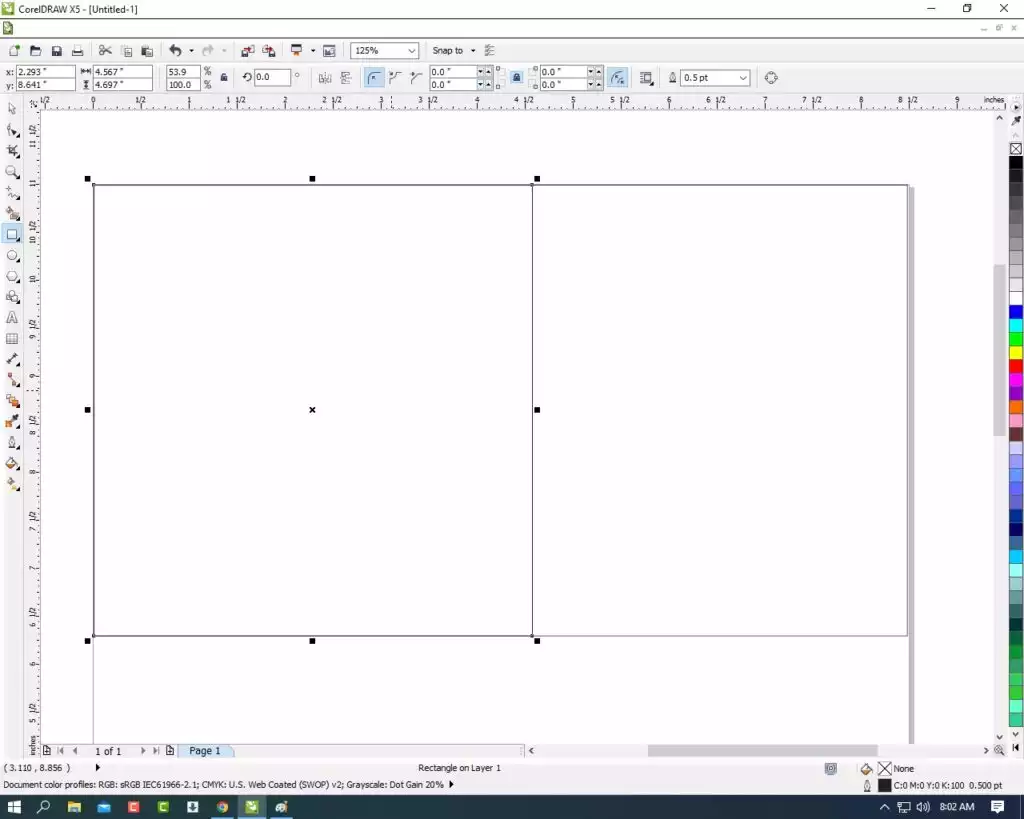
- Then select the Rectangle Shape > Press F10 > CTRL + Q.
Visiting Card Size in CorelDraw: Standard Size Setup
CorelDraw me visiting card design shuru karne se pehle sabse important step hota hai page size sahi set karna. India me standard visiting card size in CorelDraw 3.5 × 2 inches (85mm × 55mm) hota hai. Agar aap print ke liye bleed add karna chahte hain, to page size 3.75 × 2.25 inches (95mm × 60mm) rakhein.
| Type | Size (Inches) | Size (MM) |
| Standard Visiting Card | 3.5 × 2 | 85 × 55 |
| With Bleed | 3.75 × 2.25 | 95 × 60 |

- Then Click Right On the corner of the rectangle> click on To Curve Option > Move the Arrows To Create A new Shape. Like I show.

- Fill Any Color and any outline color.

- Then create the same shape on the opposite side. I will show you.

- Then you can insert a logo on your Institute/company/collage.

- Mention Your Institute/Company/Collage Name.

- Then you can Mention Your Institute/Collage/Company Personal & Professional Details.
- Press CTRL + F11 to insert characters & symbols.

- Then Draw a New Rectangle.
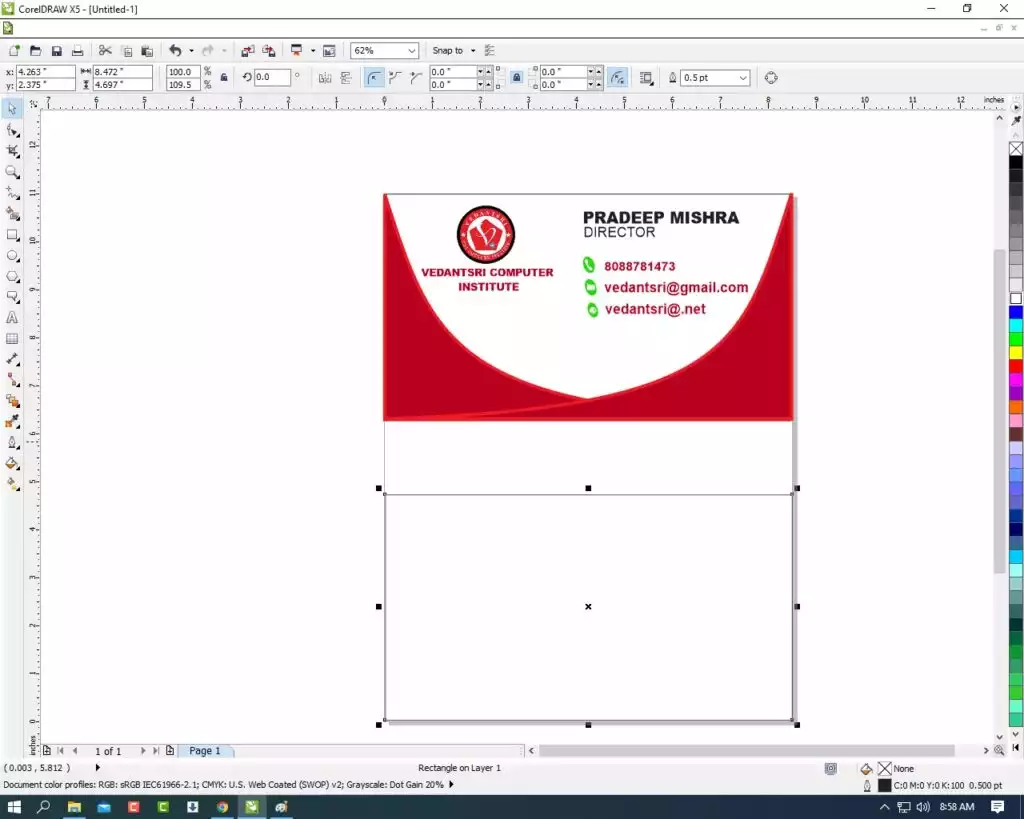
- Then repeat the same process: draw a rectangle in Rectangle Shape > Press F10 > CTRL + Q > Then right-click on the corner of the rectangle shape> Click on the Curve Option, Then Move the Arrow to create a New Shape. I Will Show This
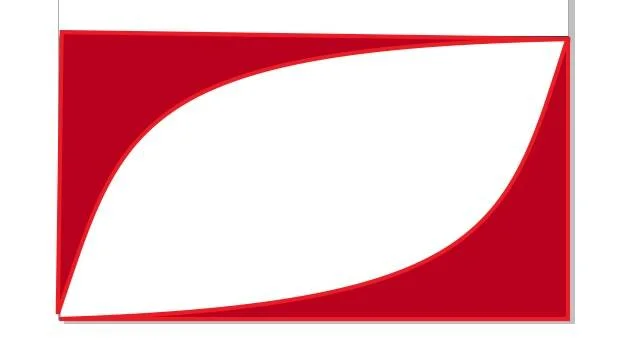
- Then insert the logo & Mention Your Address. Visiting Card Design in CorelDRAW, Easy and Simple Method, Step By Step, Download Source File
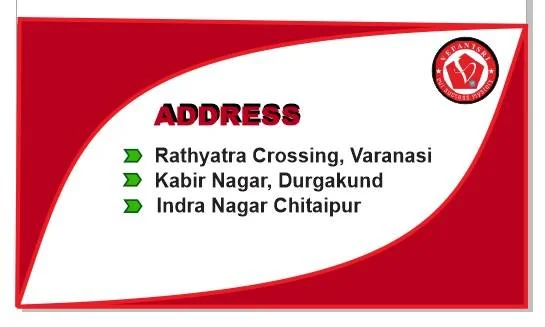
- Then you can see I applied the shadow to the text.
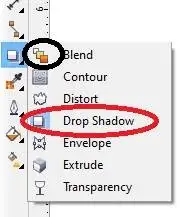
- Go to the Blend tool > Click on Drop Shadow Option & apply any text as you wish.
- Draw a New Small Rectangle > Fill any Color > 1 pt outline; fill any Color in Outline.
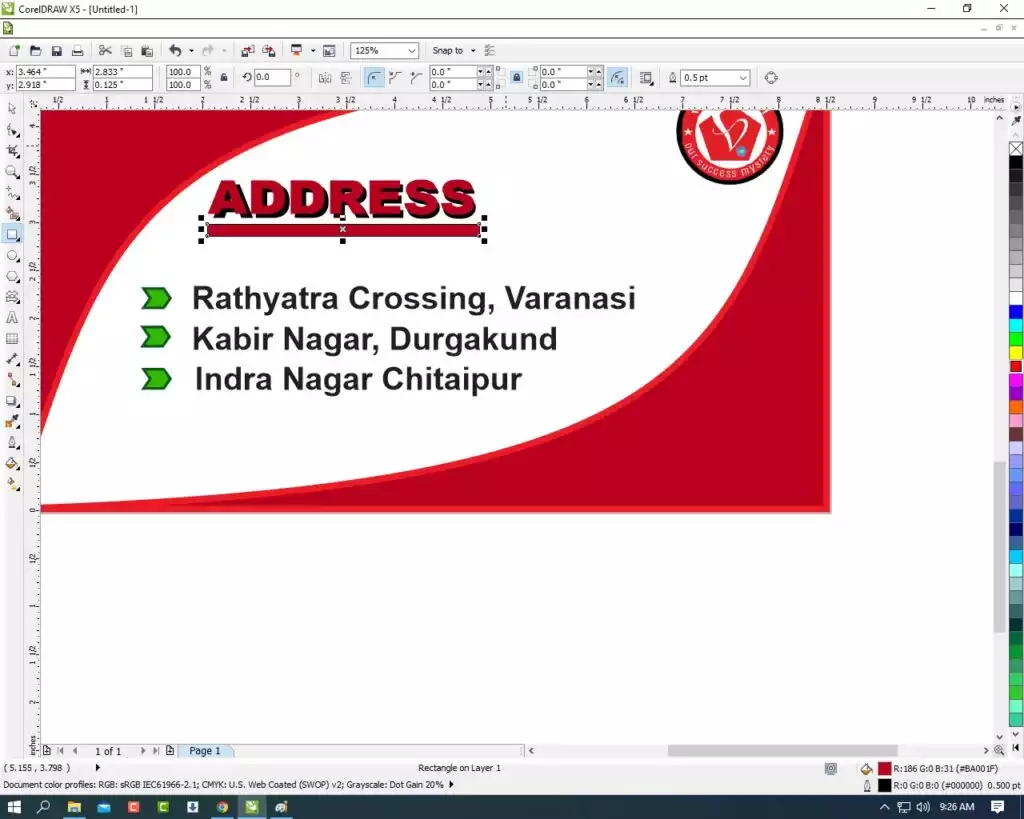
- Select the Rectangle > F10 > CTRL + Q > Move the Point to create a New Shape I will show.

- Then Press CTRL + D to duplicate this object and fix it like I show.
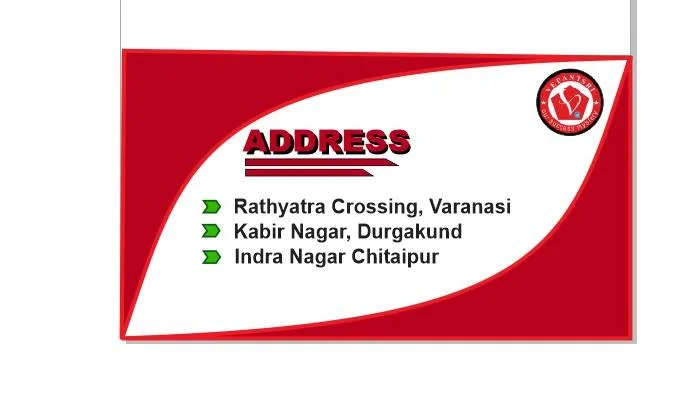
- Then finally, complete this project. I hope you all understand all steps.
- Thank you.
Created and Explained By Shikha Singh
Important link
Visit at – https://www.corelclass.com
Read also – https://msexcelclass.com/
Also, Read- Tally Course Fees, Duration, Scope, Syllabus, Admission, Institutes
Also Read – CCC Course Fees, Syllabus, Duration, Scope, Jobs, and Institute
Important Link – DFA Course Fees, Syllabus, Duration, Scope, Jobs, and Institute
Visit – https://mswordclass.com/
CorelDraw par ye lekh bhi kaam ke hain: Latest Navratri card in CorelDraw, Step By Step, Download Source File.