Poster Design in CorelDraw, Easy Method, Step By Step, Download Source File
Hello Friends, Welcome to Corelclass.com In This Post I am Going to Teach you How to Create Poster Design in CorelDraw. In This Project, You Can Learn How to Design a Poster in CorelDraw Application in an Easy Method. Poster Design in CorelDraw
You Can Also Download the Practice File in This Post. So Let’s Start To Learn This Project, Before starting I request You to Please Follow the Given Below Step to Learn Properly step by step.
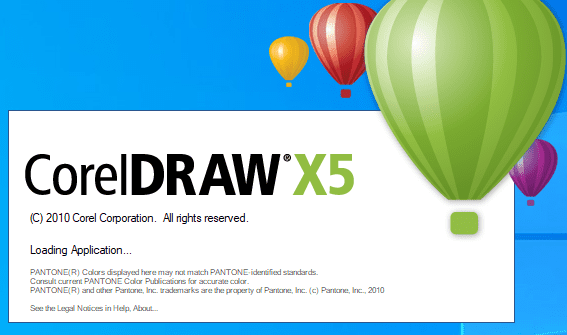
- First Press Window + R to Open the Run Dialogue box.

- Type coreldrw then Press Ok.

- Then you can see Open Application CorelDraw.
- Press CTRL + N open New Page Window.
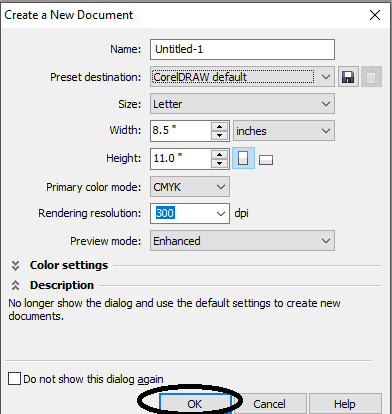
- Press Ok.

- Double Click on Rectangle tool.

- Click on Basic Shapes tool > Select triangle and Draw in Page.
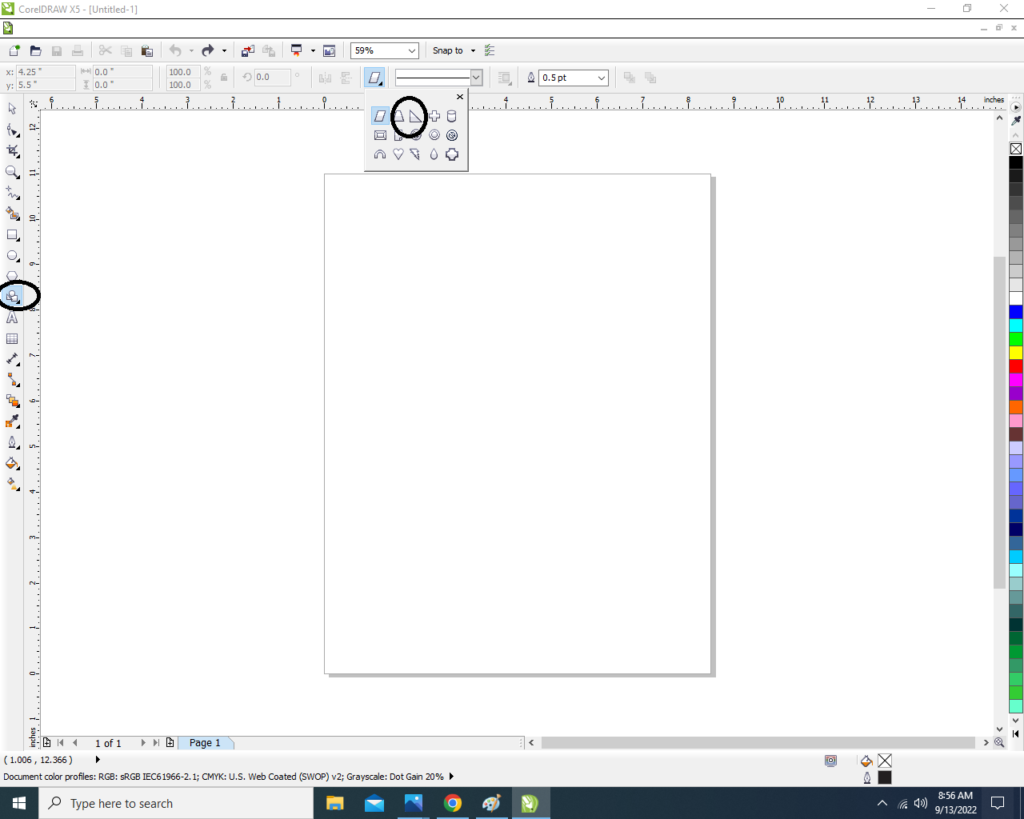
- Draw the Small Triangle. Then Double click on Triangle to Rotate the shape.

- Now Fix the Triangle Top & Center of the Page > Fill any Color > No Outline.

- Apply the Transparency go to Blend Tool > click on Transparency option.
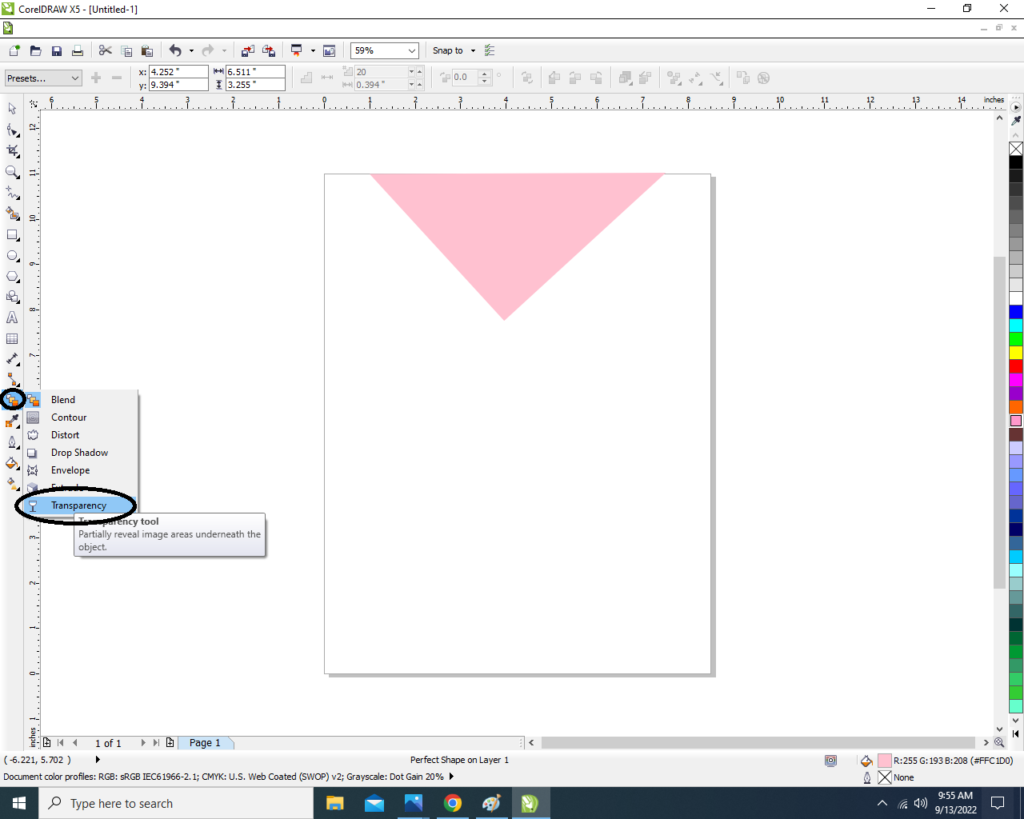
- Then apply the Transparent the triangle like this.

- Than Draw the Rectangle Shape and apply the same Process > Fill any color > No Outline > Apply Transparency.
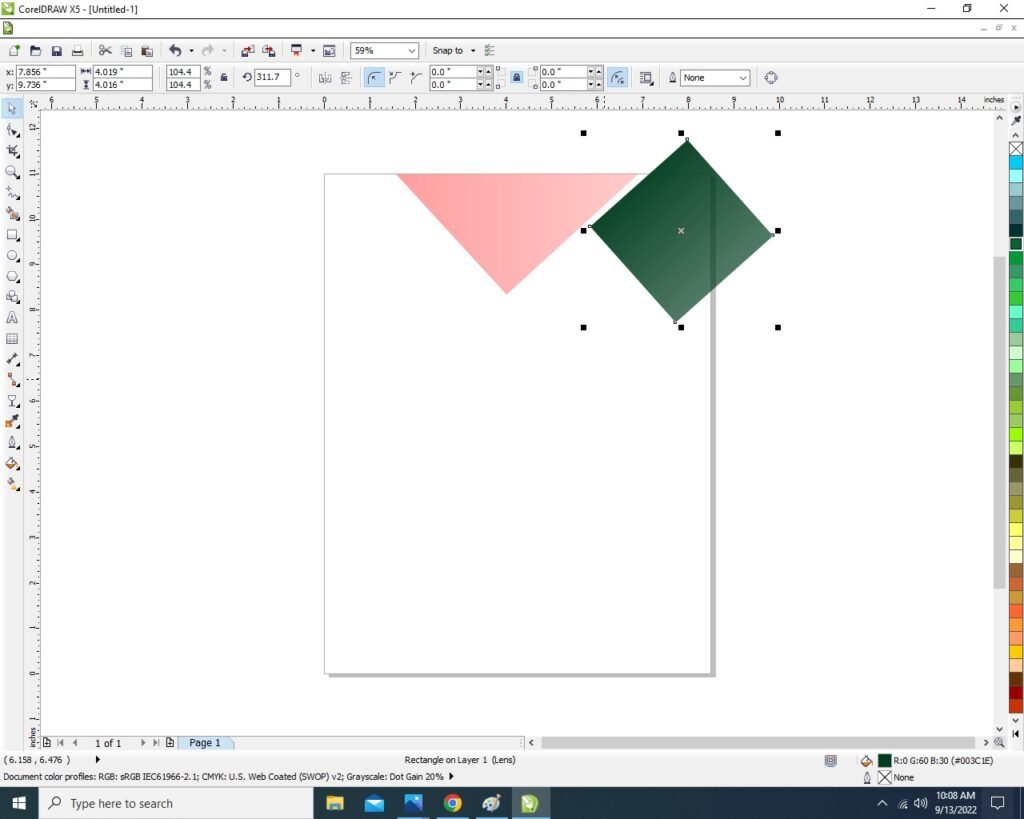
- Select the Object ( Rectangle) & Click on the Menu bar > Effect > Power clip > Place inside container.
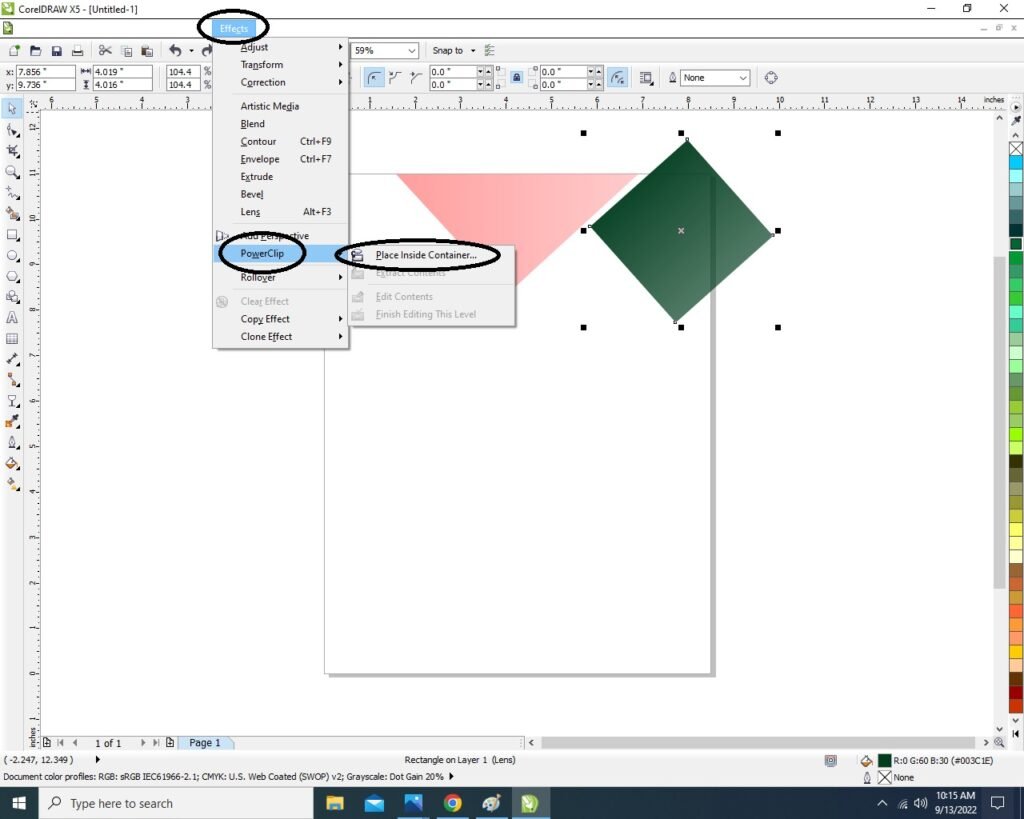
- Then Click On the Page.
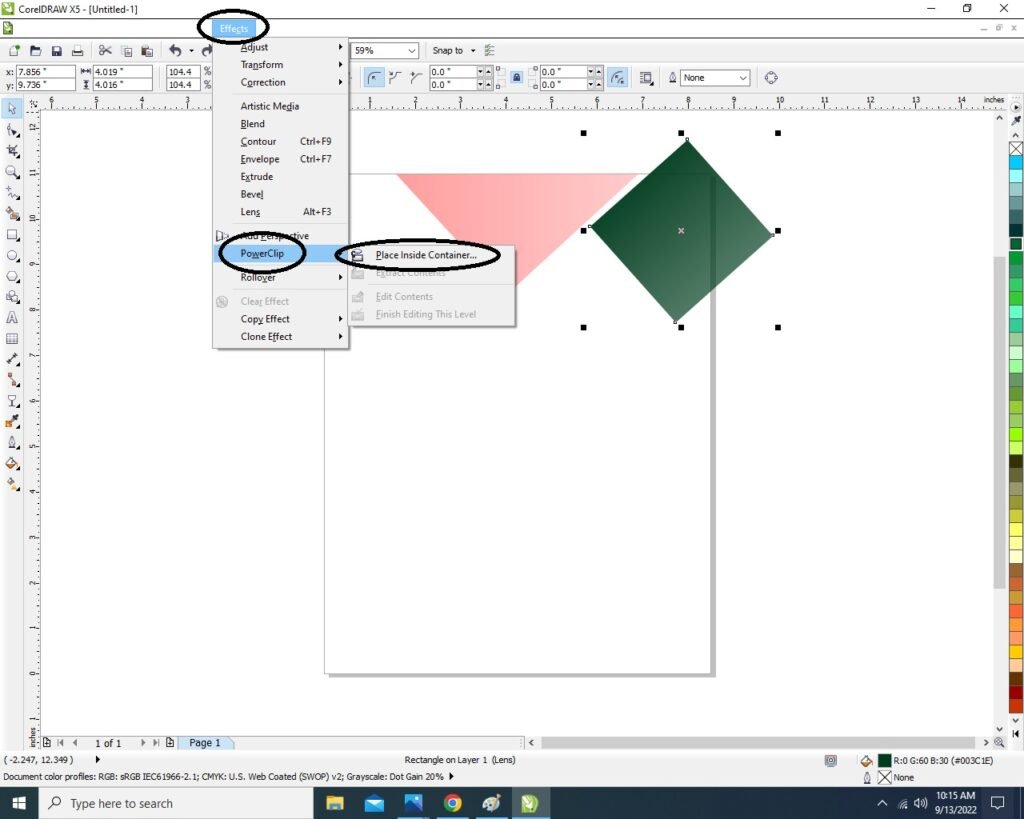
- Then Click on the Page > Then the Rectangle Shape that was outside the page will be hidden Inside like this I show.
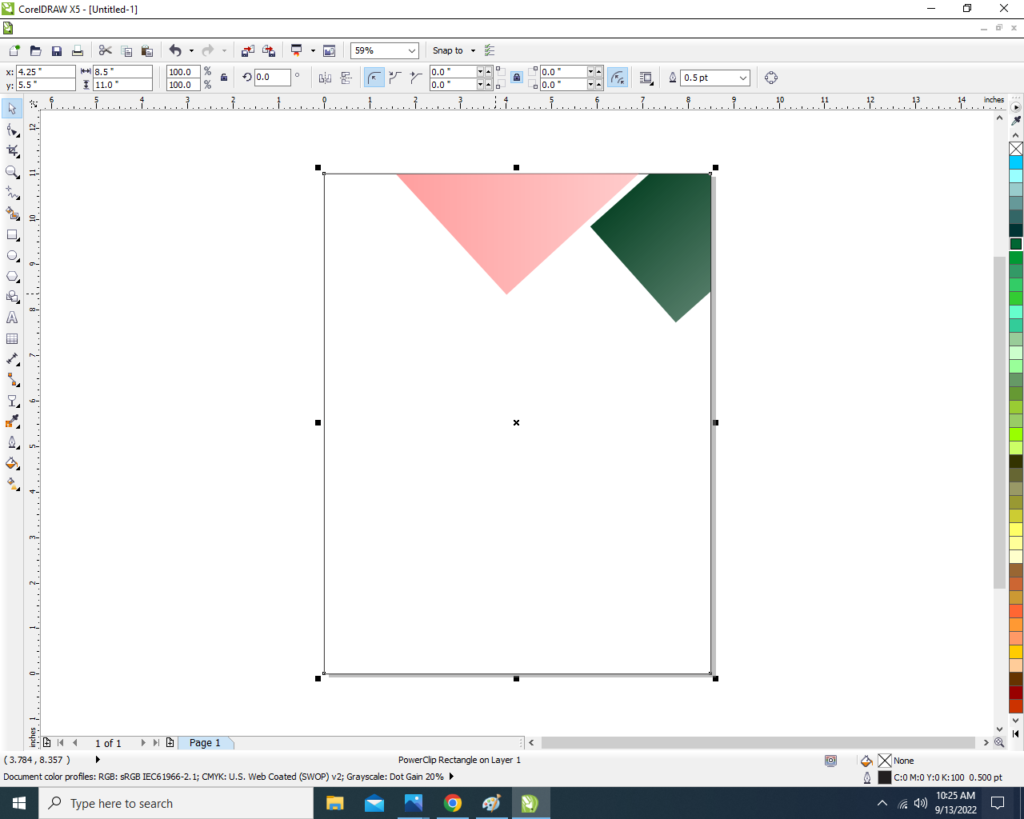
- Then Draw the New Rectangle > No fill > No Outline .
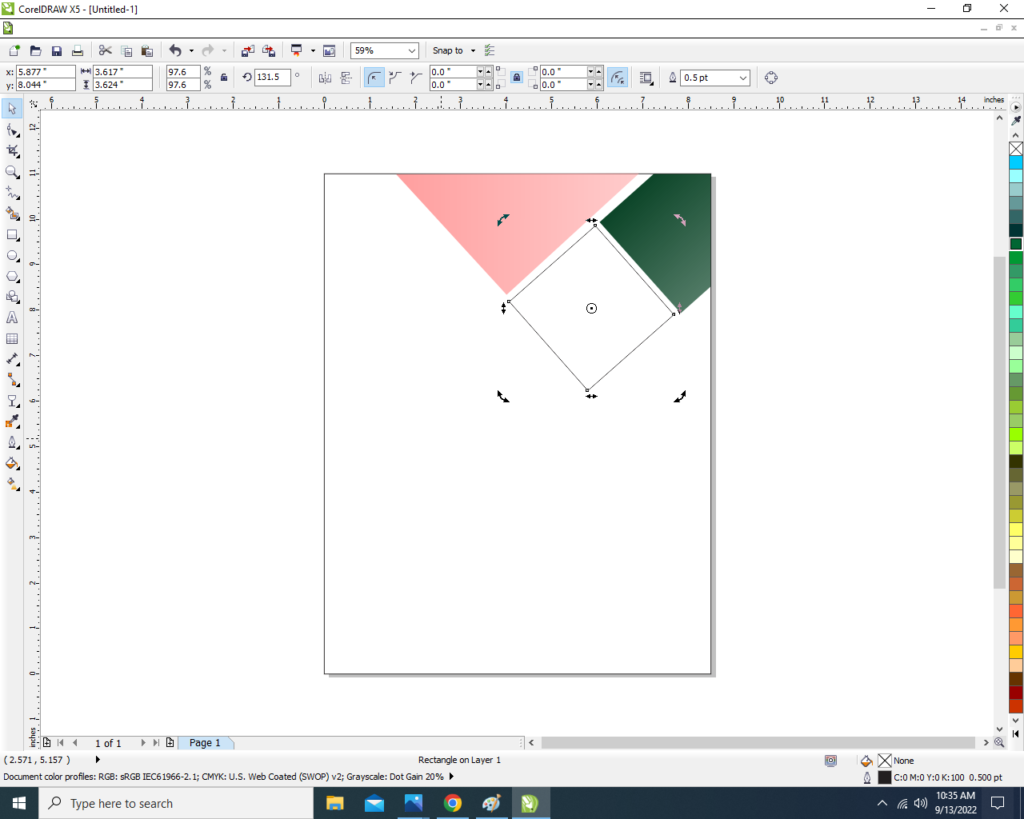
- Then Insert the any picture in Page.

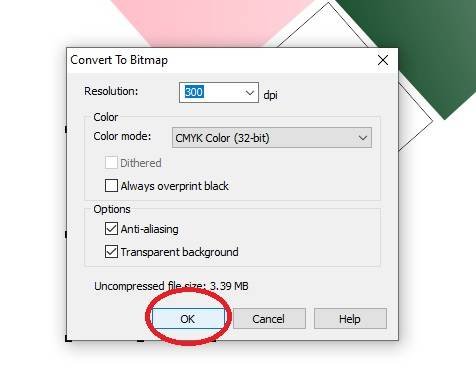
- Then Select the Picture > Click on Menu bar Bitmaps >Click Convert to Bitmaps option .

- Then Press Ok.
- Select the Picture > Click On Effect Menu > PowerClip > Place Inside Container.

- Then Click On the Rectangle > Then Picture will Disappear like this.
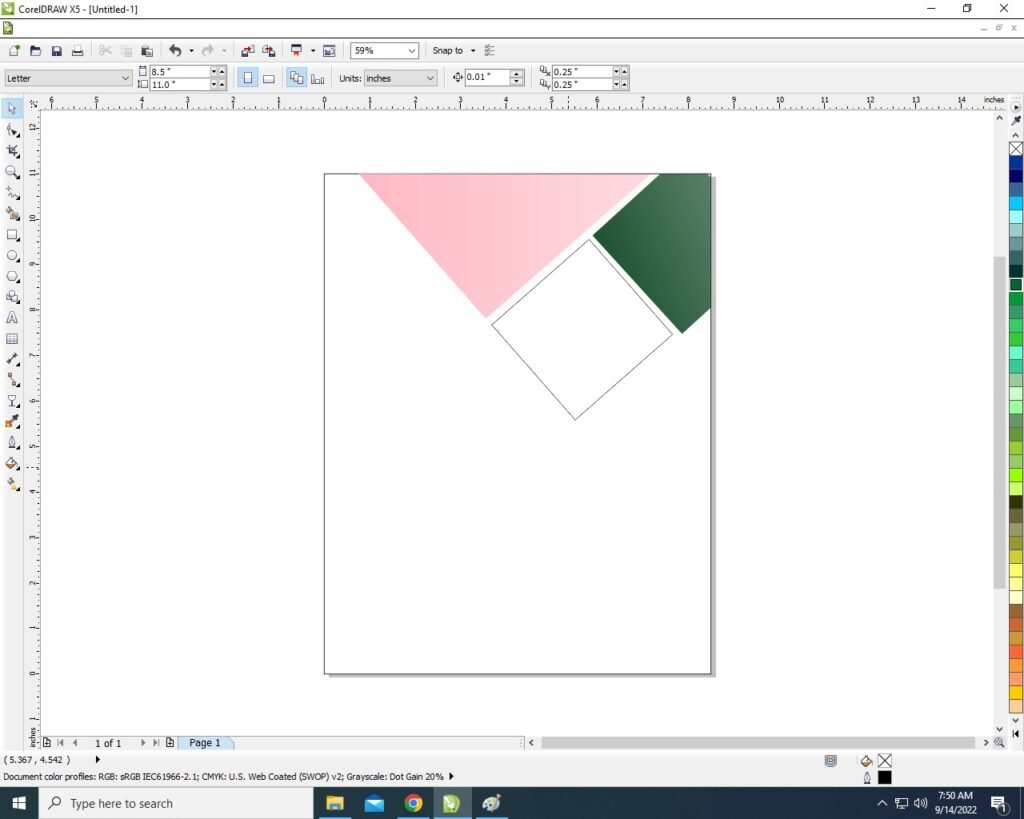
- Then CTRL + Double Click in Rectangle Shape > Properly Fix the Picture on the Rectangle Shape Like this .

- CTRL + Double Click again Outside the Page.

- Then Create a new Triangle Like This Picture I will show.
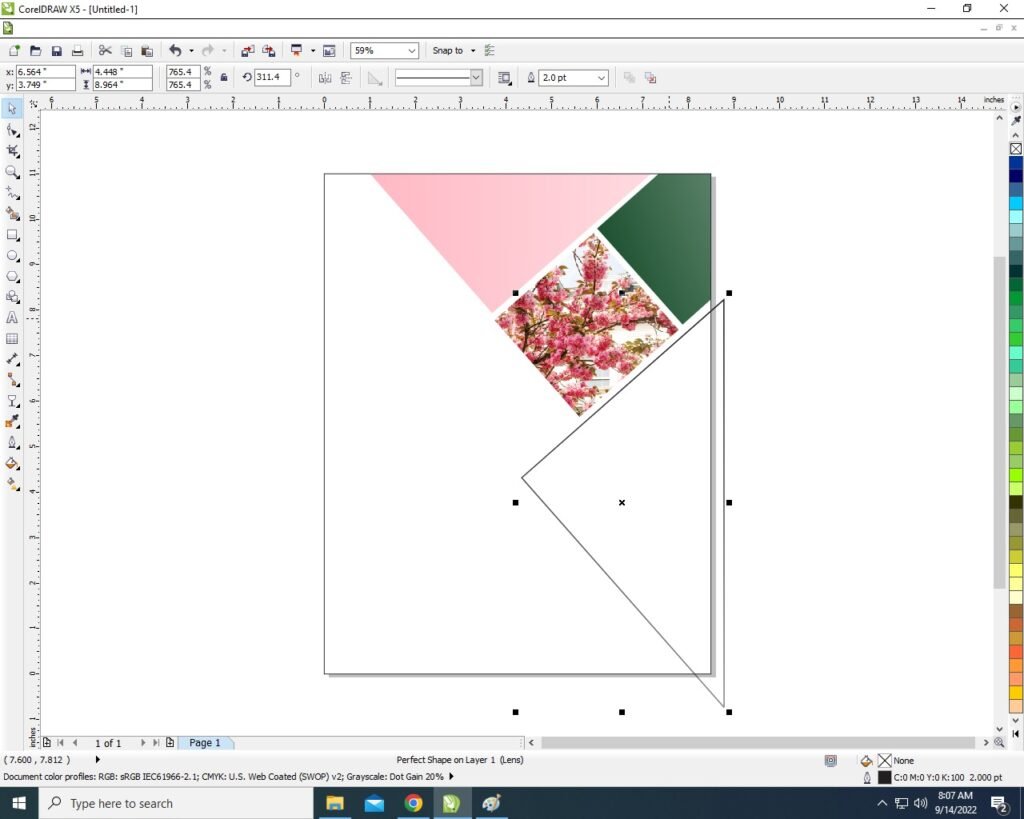
- Will Insert Picture in this Triangle & No Outline just Like we did above Step by Step .

- Will PowerClip even More like This I show you.

- Then Create a New 2 Rectangle . I will show You

- Will Insert Photo in a Rectangle and fill the Color in Another Rectangle & Both Rectangle Outline is None.
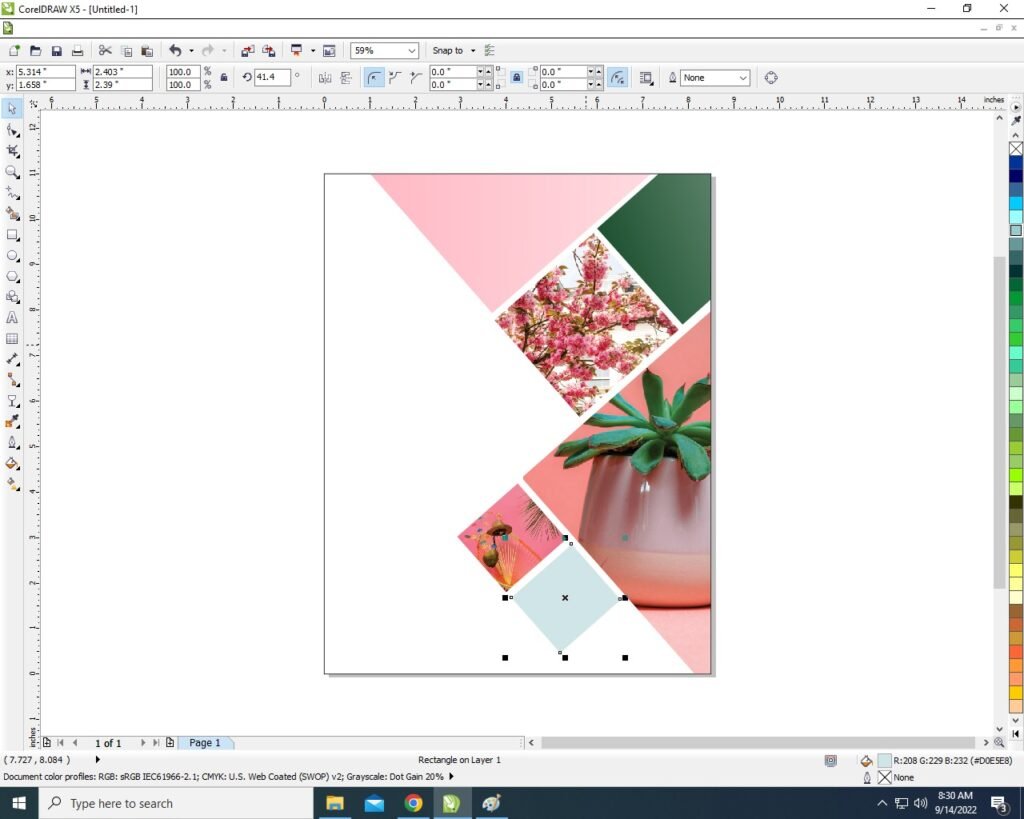
- Then Again Create a New Triangle > Fill any Color > Apply Transparency > No Outline.

- Now write Whatever Title name & Mention your Address & Professional Information you want to write on the page.

- You can Insert the LOGO of your Company or Institute & Press CTRL + F11 Insert Many Character Example that Twitter Facebook etc. Like I show .
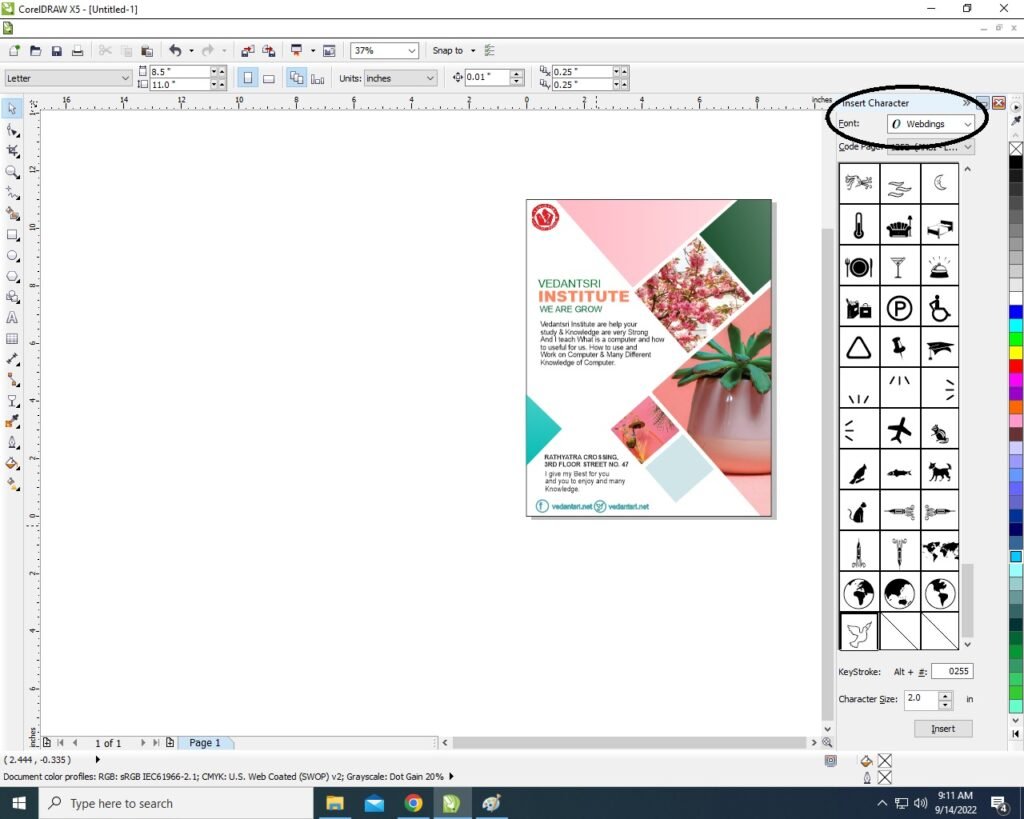
- Then Completed your poster card.

Created and Explained by Shikha Singh.
Important Links
1-VedantSri Official Website:- https://vedantsri.com
2-Student Support Website:- https://www.vedantsri.net
3-Jobs Assist Website:- https://www.jobdo.in
External Link
1-VedantSri Official Website:- https://vedantsri.com
2-Course Store Website:- https://vedantsri.in
3-Jobs Assist Website:- https://www.jobdo.in
4-MS Word Class:- https://mswordclass.com/
5-Corel Free Class:- https://corelclass.com/
6-Free Excel Class:- https://msexcelclass.com/