Message Card in CorelDraw, Simple Method Step By Step, Download Source File
Hello! Friends Welcome to www.vedantsri.net In this Project I am going to Teach you How To Create a Message Card in CorelDraw. In this Project, you can Learn How to Design a Message Card in CorelDraw Application in Easy Method. Simple Method to Create a Beautiful Wishing Card in CorelDraw. You Can also Download the Practice File in This Post. So Let’s Start This Project. Before Starting This Project I Request You Please Follow the Given Below Steps to Learn Properly
- Press Window + R to Open Run Dialogue Box > Type CorelDraw.
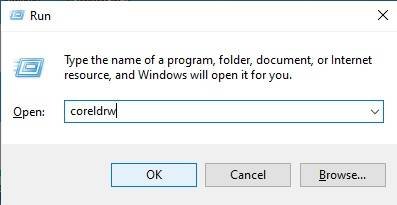
- Press Ok.

- Click New Blank Document.
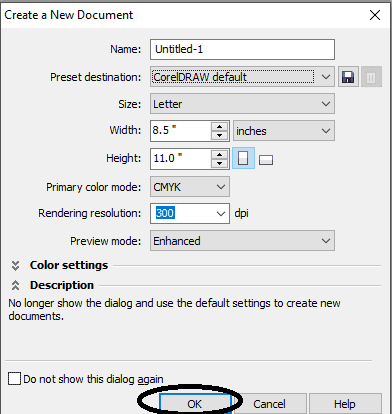
- Press Ok.
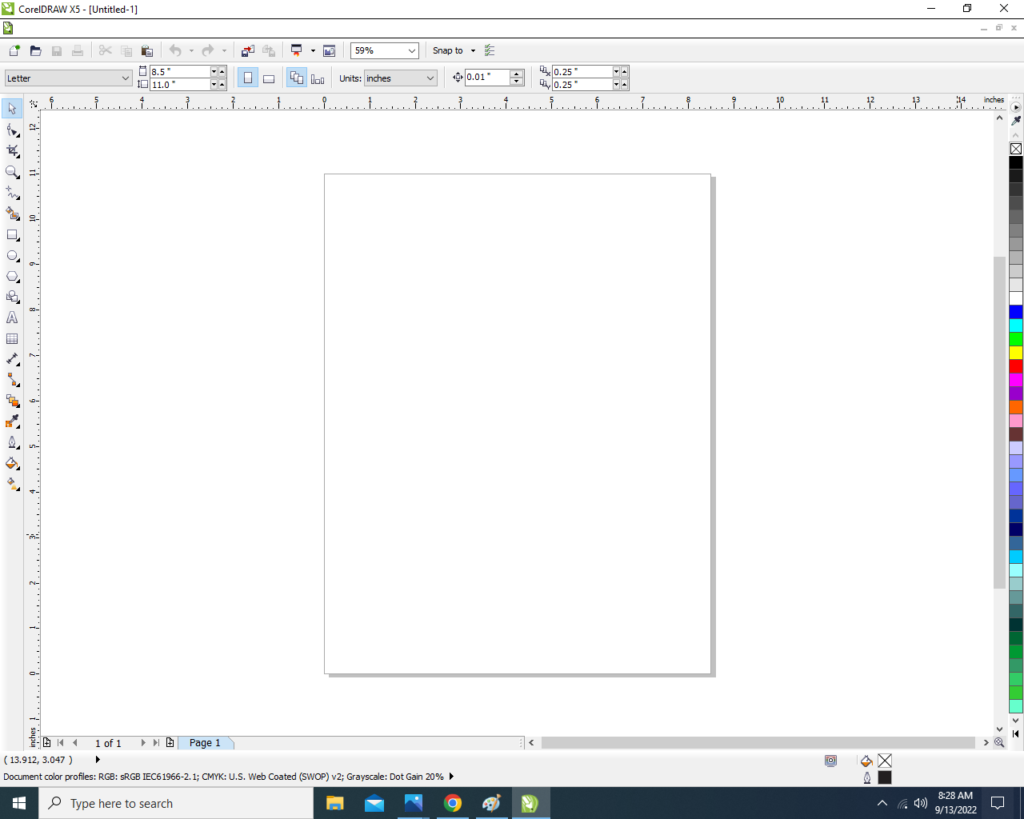
- Mention Page Size > W- 7 > H-13.

- Double Click on Rectangle Tool.

- Go to Fill Tool > Click Fountain Fill Option.
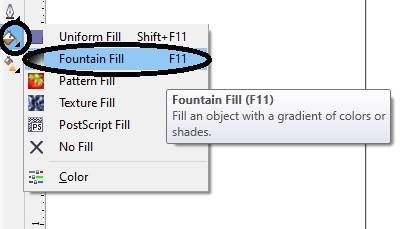
- Fill any two Color at the Page.

- Insert Some Png Pictures and Designs.
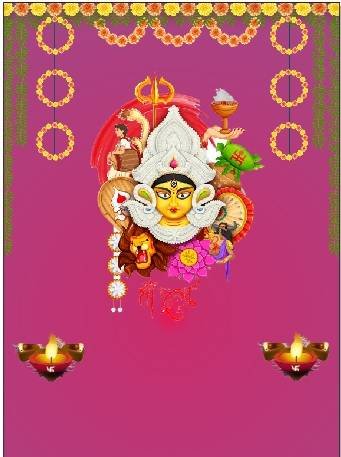
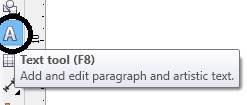
- Go to Text Tool > Write Durga Pooja Then Apply Formatting on the Text.
- Type Some Lines > go to Pick Tool & Font List To Apply Formatting on the Text.

- Write wishes then Same apply Formatting on matter.

- Insert your Company/Institute LOGO & Name.

- I have Completed this Project, I hope you guys have understood all the Step.

Created and Explained By Shikha Singh
Important Links
1-VedantSri Official Website:- https://vedantsri.com
2-Student Support Website:- https://www.vedantsri.net
3-Jobs Assist Website:- https://www.jobdo.in
External Link
1-VedantSri Official Website:- https://vedantsri.com
2-Course Store Website:- https://vedantsri.in
3-Jobs Assist Website:- https://www.jobdo.in
4-MS Word Class:- https://mswordclass.com/
5-Corel Free Class:- https://corelclass.com/
6-Free Excel Class:- https://msexcelclass.com/