
Certificate Design in CorelDraw, Simple and Easy Method, Download Source File.
Certificate Design in CorelDraw, Simple and Easy Method, Download Source File.
Hello! Friends Welcome to www.vedantsri.net In this Project I am going to Teach you How To Create a Certificate in CorelDraw. In this Project, you can Learn How to Design a Certificate in CorelDraw Application an Easy Method. (Certificate Design in CorelDraw, Simple and Easy Method, Download Source File.)
- Press Windows + R on Keyboard.
- To Open > Run Dialog Box.

- Type CorelDraw in Run Dialog Box > As a Run Command.
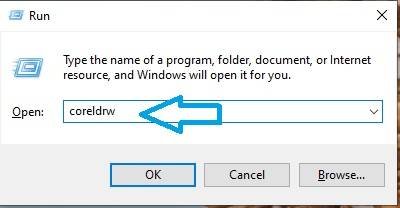
- Click on OK.
- Click on New Blank Document.

- Fill all Information > Regarding Page.
- Double Click at Rectangle Tool > From Tool Option.

- Draw a Rectangle on the Page.

- Press F10 > Ctrl + Q > Click at To Curve Option > To Convert in Curve.
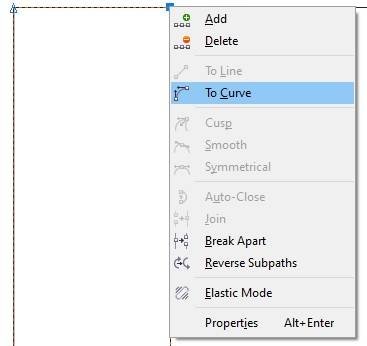
- Left Click at Bottom Corner of Rectangle > Click at To Curve > 2 nodes appear >like this.
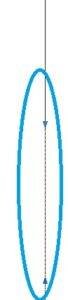
- Click at Nodes One by One > Give shape > Like this.

- Click at Rectangle > Press Ctrl + D > to Duplicate Shape > Duplicate Rectangle > Set like this.
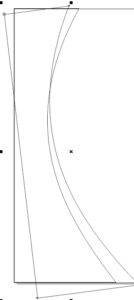
- Select Rectangle > One by One > Change Color of Rectangle > From Color Palate > Like this.
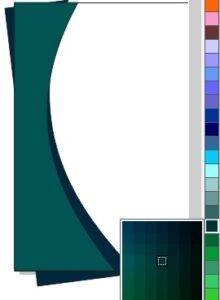
- Select Both Rectangles with Shift + Mouse Click > Click at Effect Menu > Click at Power Clip option > Click at Place Inside Container.
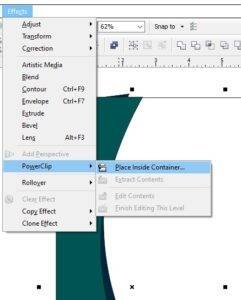
- Something like this appears.

- Draw a rectangle > Press F10 Shape Rectangle like this > Set like this > Select and Power Clip.

- Put LOGO on Certificate > Go to File Folder > Select Photo > Drag Photo to CorelDraw Application > Put at Page > like this.

- Draw a Circle > For Outer Design > Select Circle > Increase Outline from here.

- Change the Color of the Circle > Select LOGO and Outer Circle > Press Ctrl + G > To Group both.
- Click on Text Tool > To type matter.

- Click on Page > Type Institution Name.

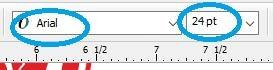
- Select Text > Change Font Style > From Font List > Increase or Decrease Size of Font From Font size.
- Type Matter > Regarding Certificate like this.

- Now Certificate is Ready

Created and Explained By Sakshi Rawat.
Important Links
1-VedantSri Official Website:- https://vedantsri.com
2-Student Support Website:- https://www.vedantsri.net
3-Jobs Assist Website:- https://www.jobdo.in
External Link
1-VedantSri Official Website:- https://vedantsri.com
2-Course Store Website:- https://vedantsri.in
3-Jobs Assist Website:- https://www.jobdo.in
4-MS Word Class:- https://mswordclass.com/
5-Corel Free Class:- https://corelclass.com/
6-Free Excel Class:- https://msexcelclass.com/
इसे भी पढ़ें
Advance Login System Excel VBA Software Pradip VedantSri
Advance Login System Excel VBA Software Pradip VedantSri Yah This Workbook Code hai Yah Userform1 as Login Software ka code hai Yah…
Excel VBA DataEntry Software Project Beginner to Advance | Data Entry, Search, Update, Print in Excel
Excel VBA DataEntry Software Project Beginner to Advance | Data Entry, Search, Update, Print in Excel This is UserForm1 Code Yah Userform2…
Excel VBA Typing Master Project for beginners | Excel VBA Project by Pradip VedantSri
Excel VBA Typing Master Project for beginners | Excel VBA Project by Pradip VedantSri This Workbook ka code Private Sub Workbook_Open()Application.Visible =…
Top 10 Methods to Speed Up your Slow Computer System in 2026
Top 10 Methods to Speed Up Your Slow Computer System in 2026 1- Checks for issues within the system image 👉Download link…

Top 20 Microsoft Word-Related Jobs in India
Top 20 Microsoft Word-Related Jobs in India In India’s dynamic job market, proficiency in Microsoft Word remains a fundamental skill sought after…

20 Best Computer Courses for Jobs, Salary & Career in India
20 Best Computer Courses for Jobs, Salary & Career in India Choosing the right computer course can help in 20 Best Computer…