Home Blog Page 18

Visiting Card in CorelDraw, Easy and simple Method Step By Step, Download Source file

Visiting Card in CorelDraw, Easy and simple Method Step By Step, Download Source file

Hello! Friends Welcome to www.vedantsri.net In this Project I am going to Teach you How To Create Visiting Card in CorelDraw. In this Project, you can Learn How to Design Visiting Card in CorelDraw Application in Easy Method.

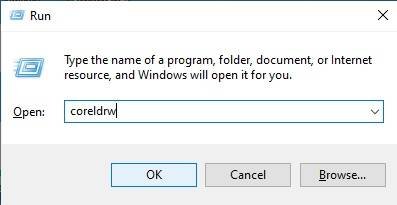
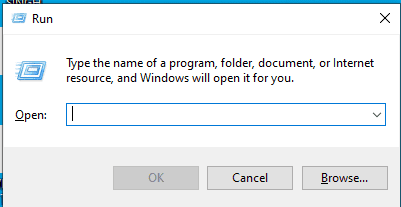
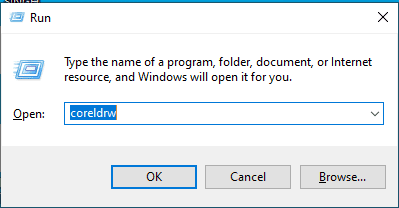
  • Press Window + R To Open Run Dialogue Box > Type coreldrw.
Visiting Card in CorelDraw
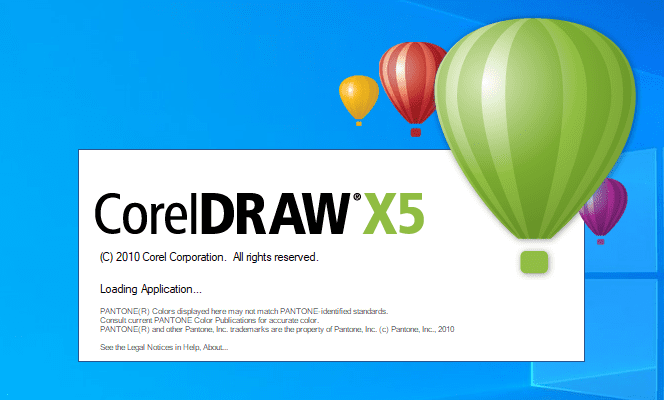
  • Then Press Ok.
3 8
Visiting Card in CorelDraw, Easy and simple Method Step By Step, Download Source file 28
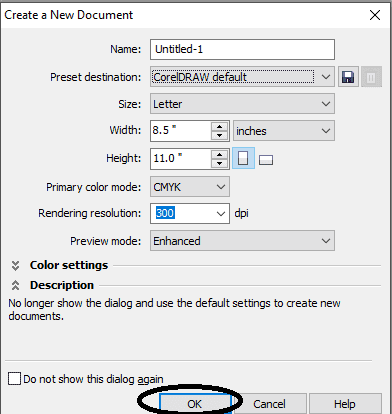
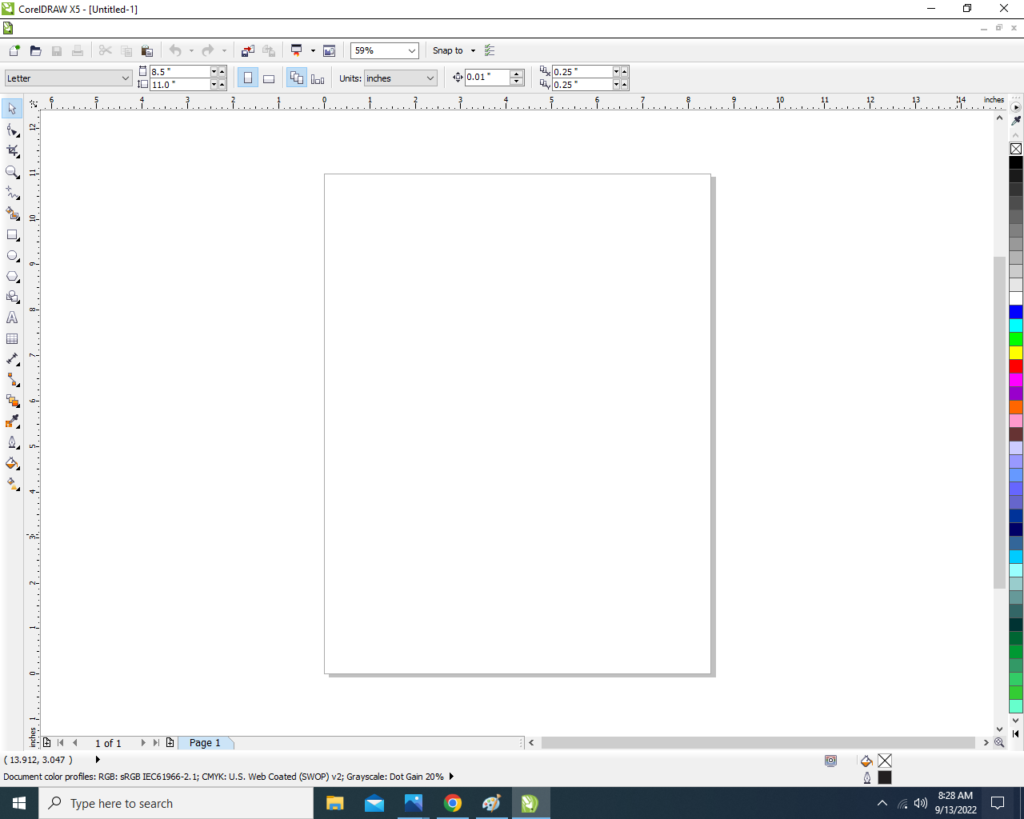
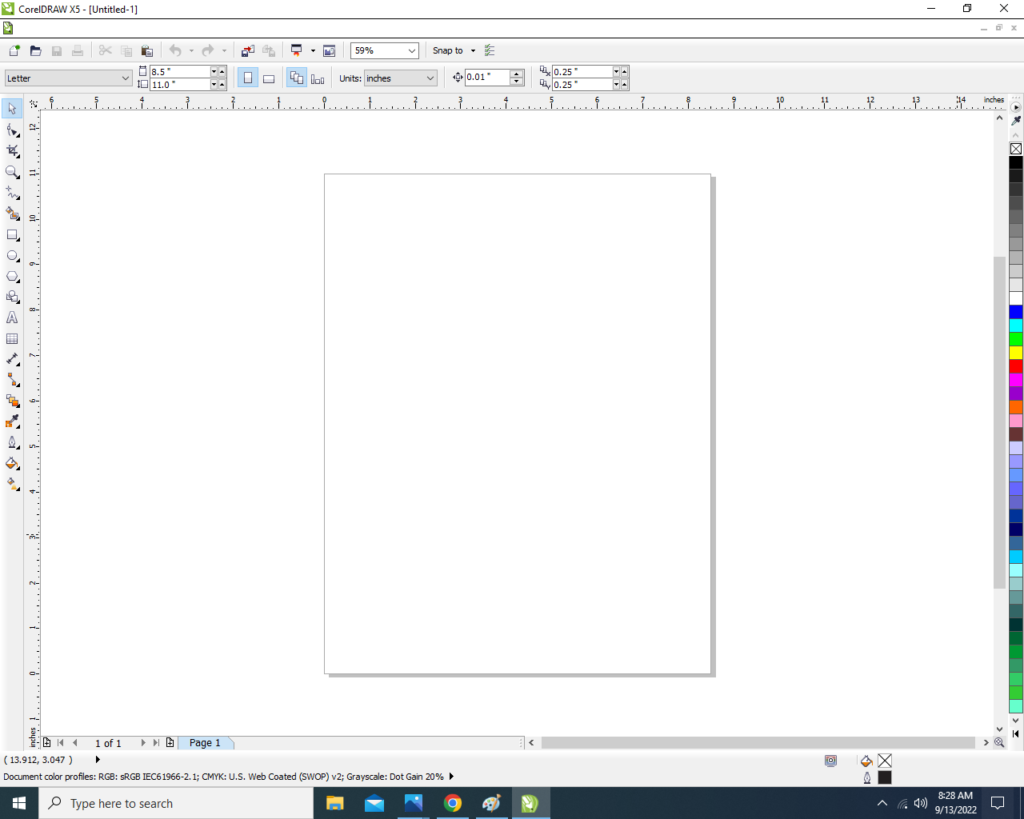
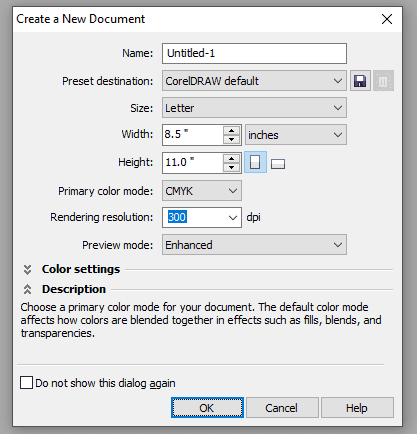
  • Press CTRL + N to Open New Page Window.
4 6
Visiting Card in CorelDraw, Easy and simple Method Step By Step, Download Source file 29
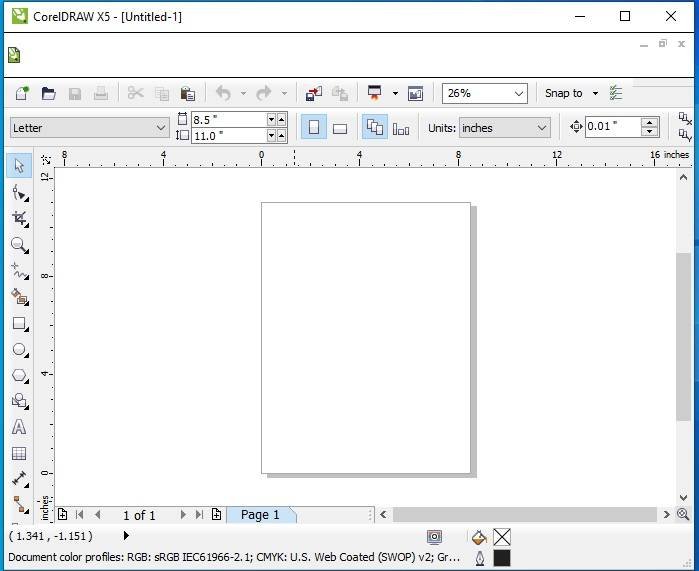
  • Then Press Ok.
5 5
Visiting Card in CorelDraw
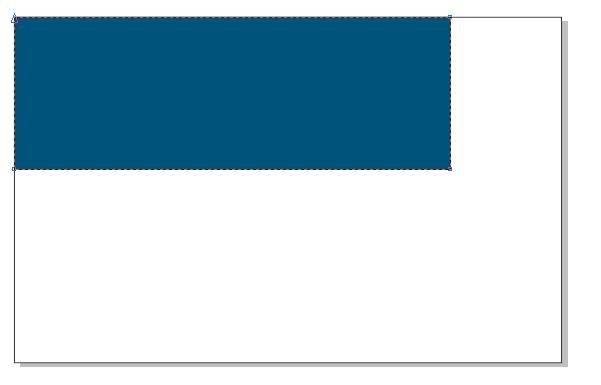
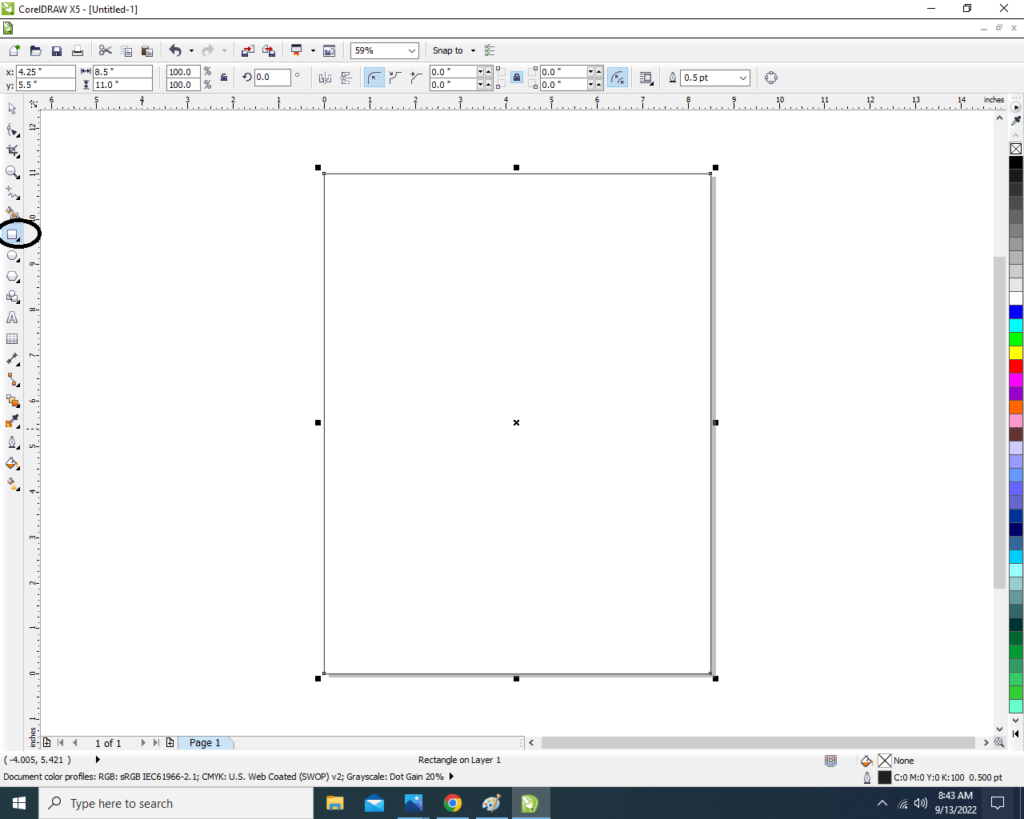
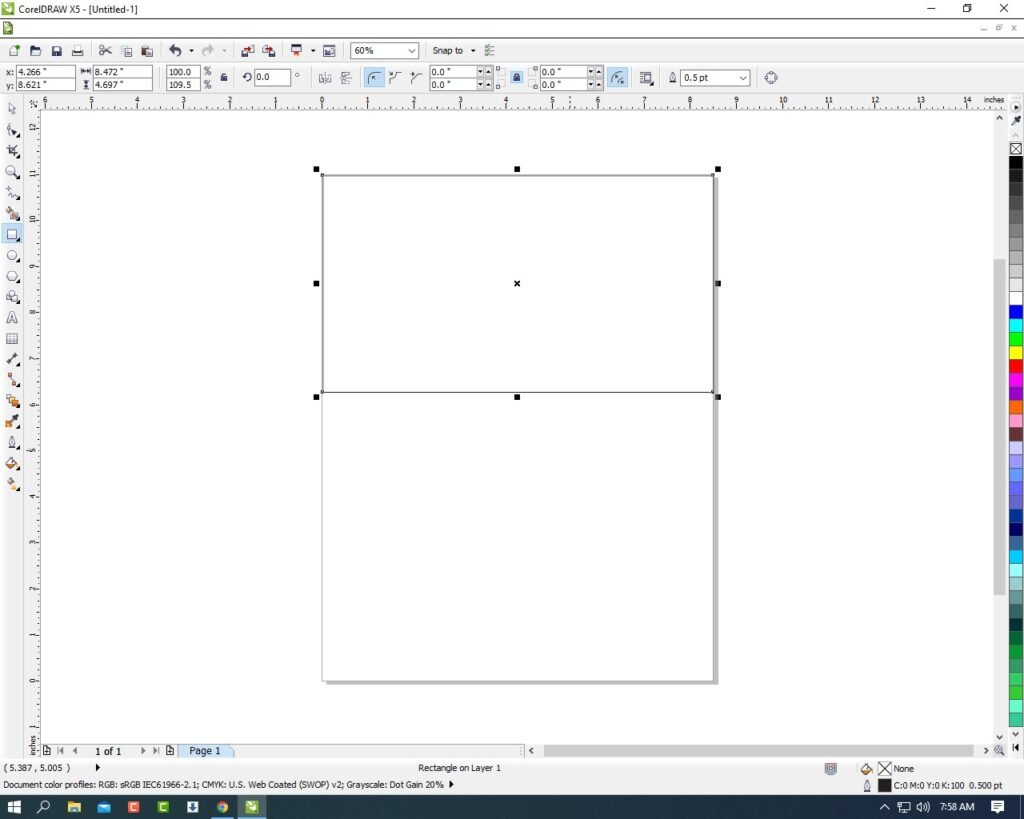
  • Draw a Small Rectangle.
1 3
Visiting Card in CorelDraw, Easy and simple Method Step By Step, Download Source file 30
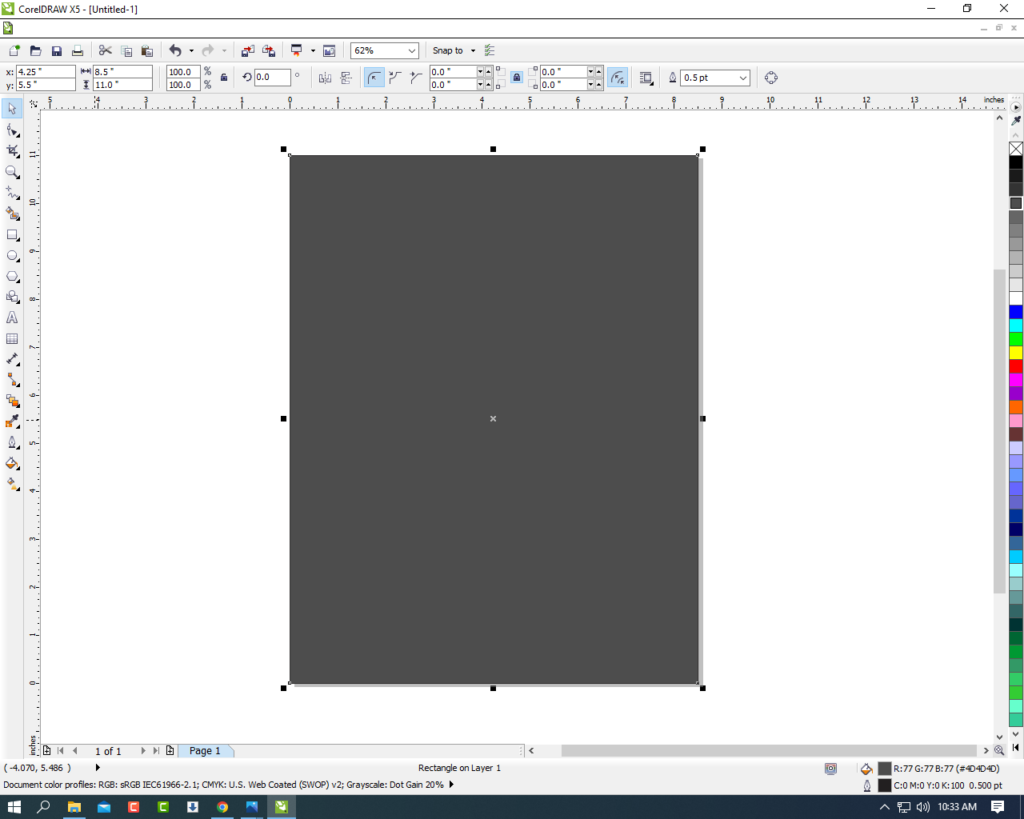
  • Fil Orange Color on Rectangle Shape.
4 10
Visiting Card in CorelDraw, Easy and simple Method Step By Step, Download Source file 31
  • Select the Rectangle > No Outline.
5 8
Visiting Card in CorelDraw, Easy and simple Method Step By Step, Download Source file 32
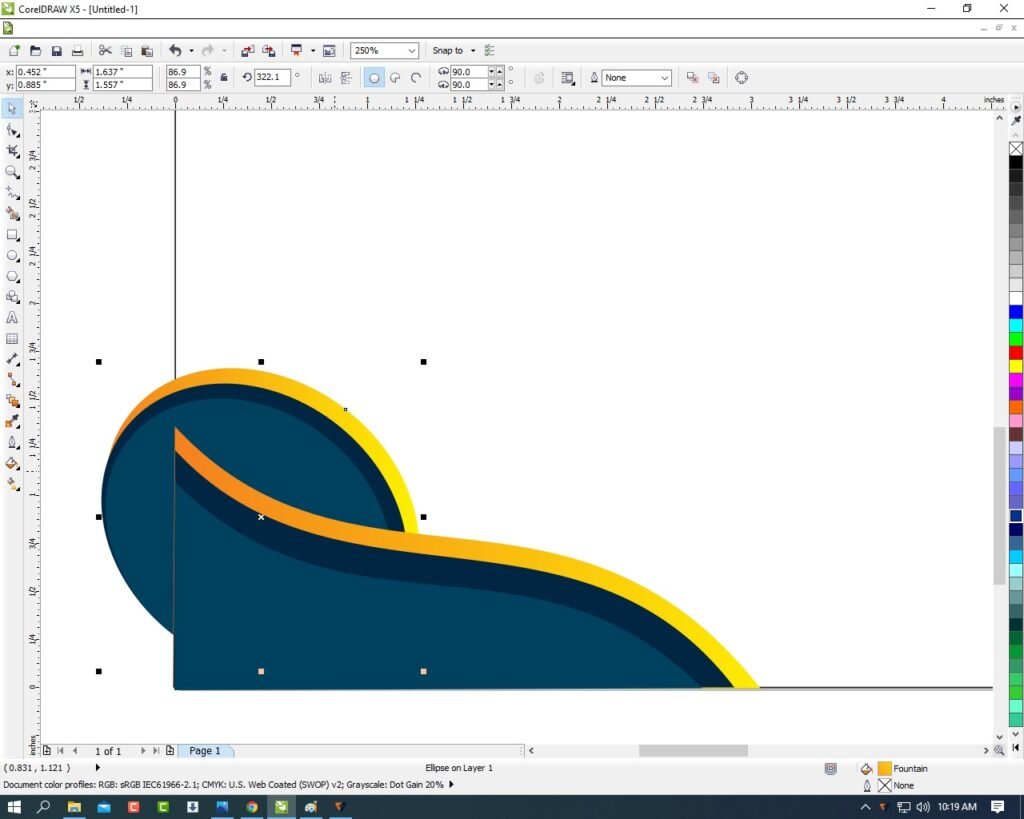
  • Then Draw a Circle > Go to Eclipse Tool > Press Shift + CTRL and Draw the Circle Fill any color in Circle > No Outline.
6 10
Visiting Card in CorelDraw, Easy and simple Method Step By Step, Download Source file 33
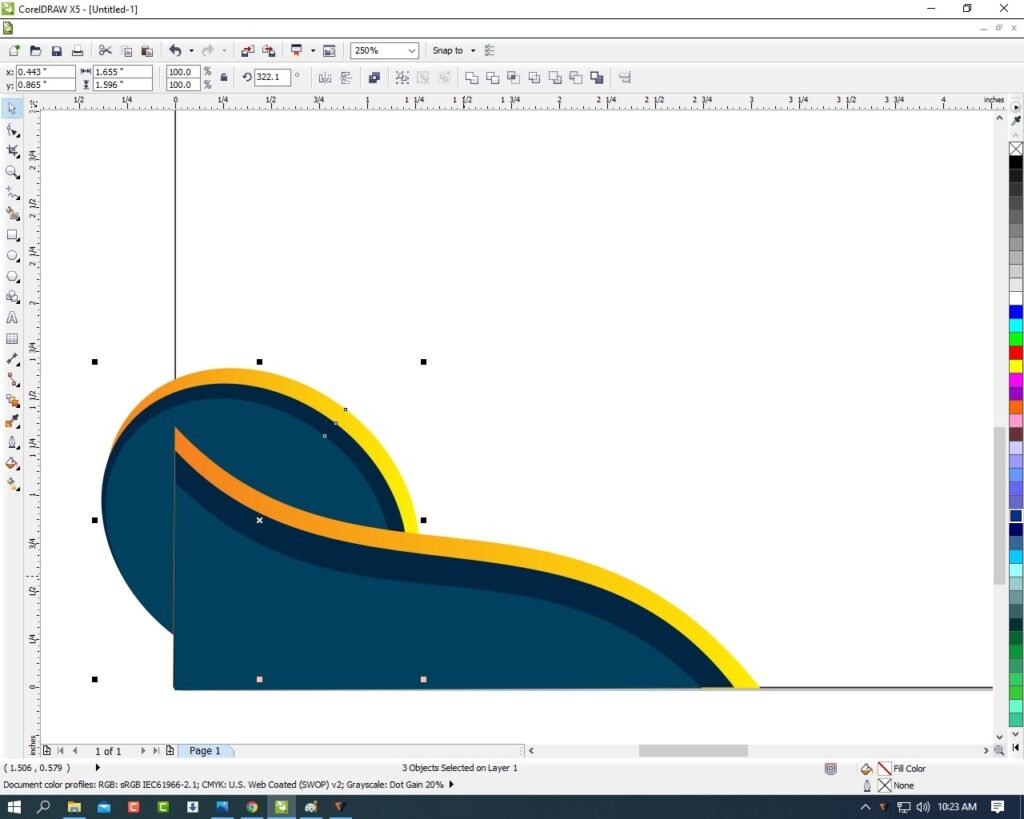
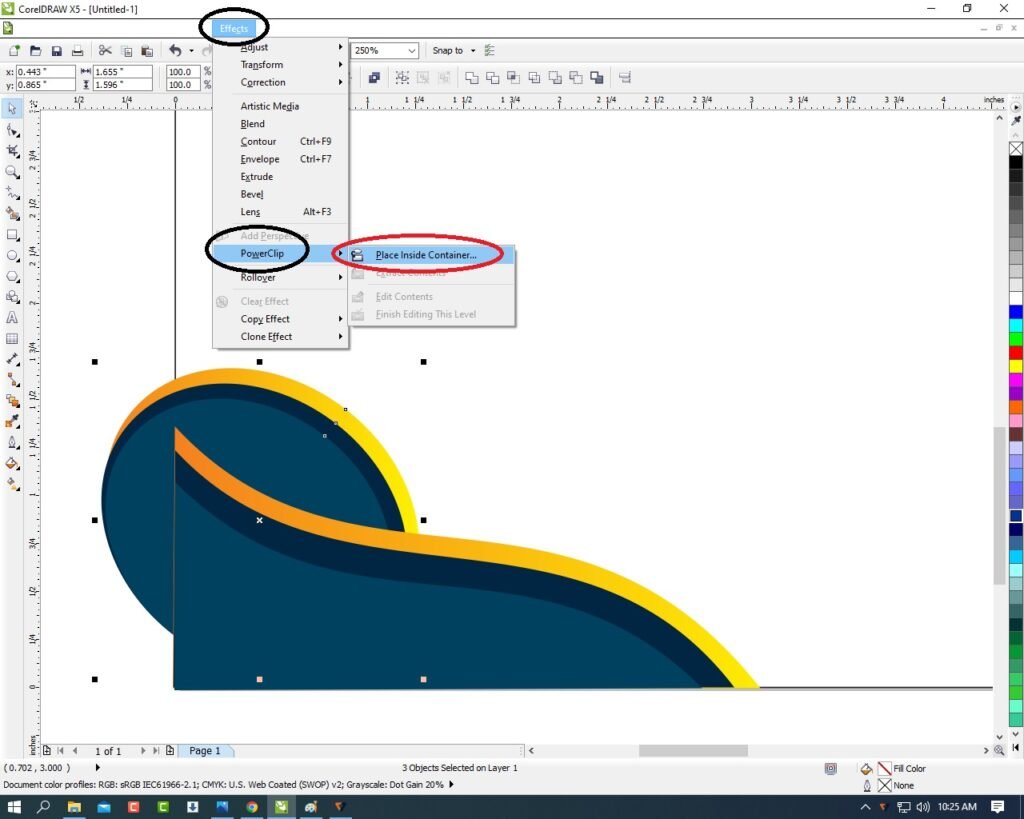
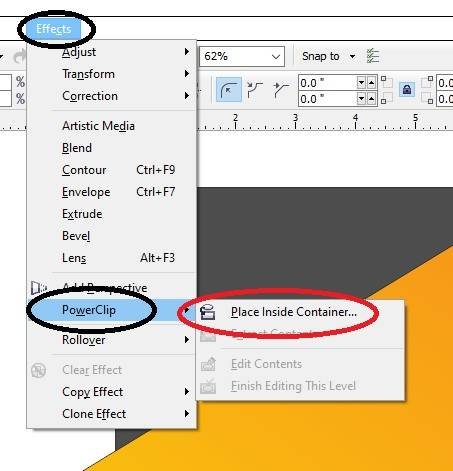
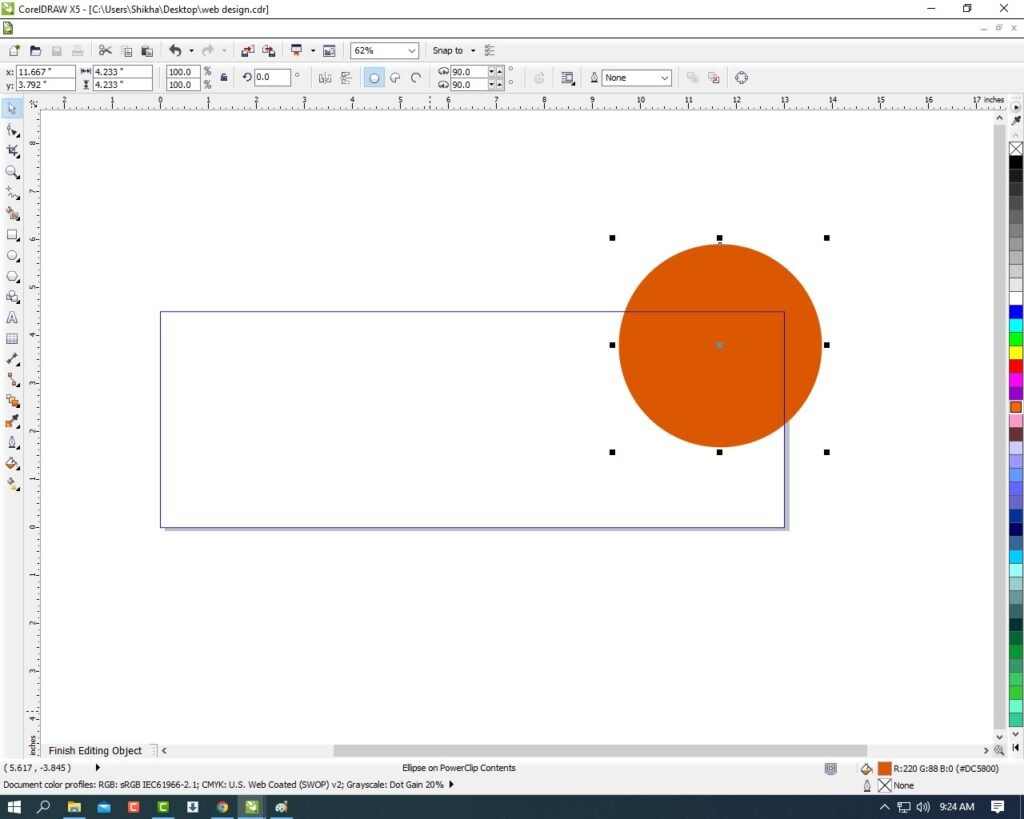
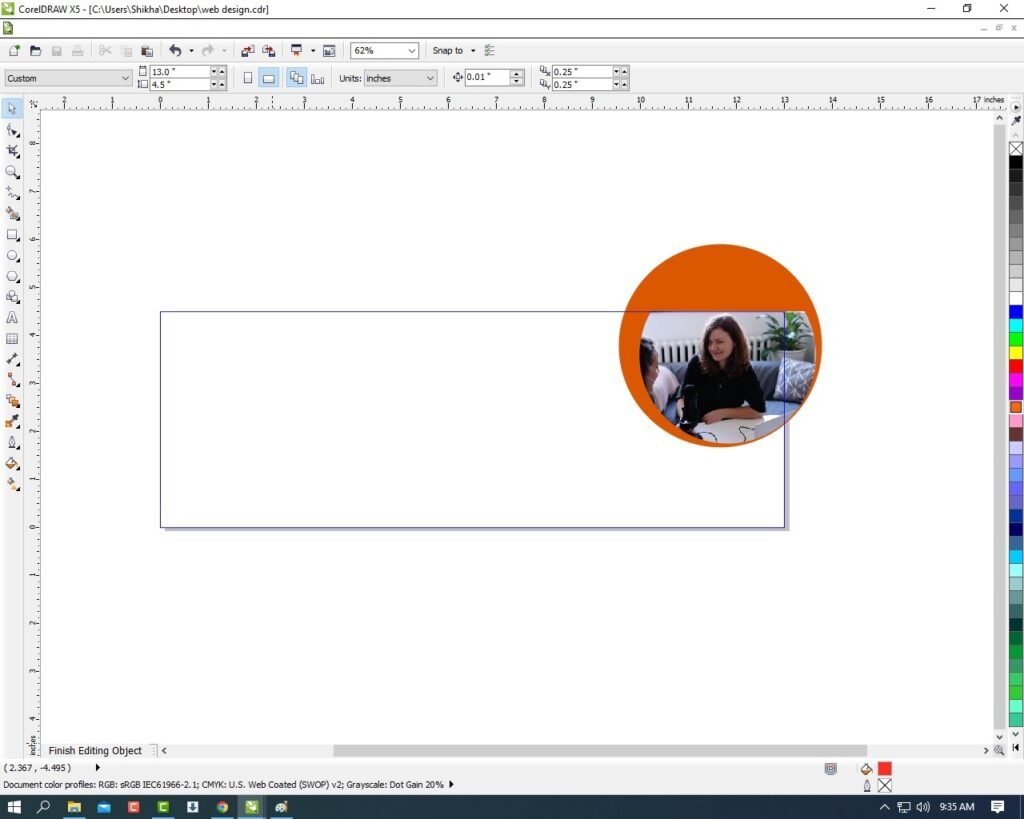
  • Select the Circle and Go To Effect Menu > Click On PowerClip Option > Place Inside Container.
7 9
Visiting Card in CorelDraw, Easy and simple Method Step By Step, Download Source file 34
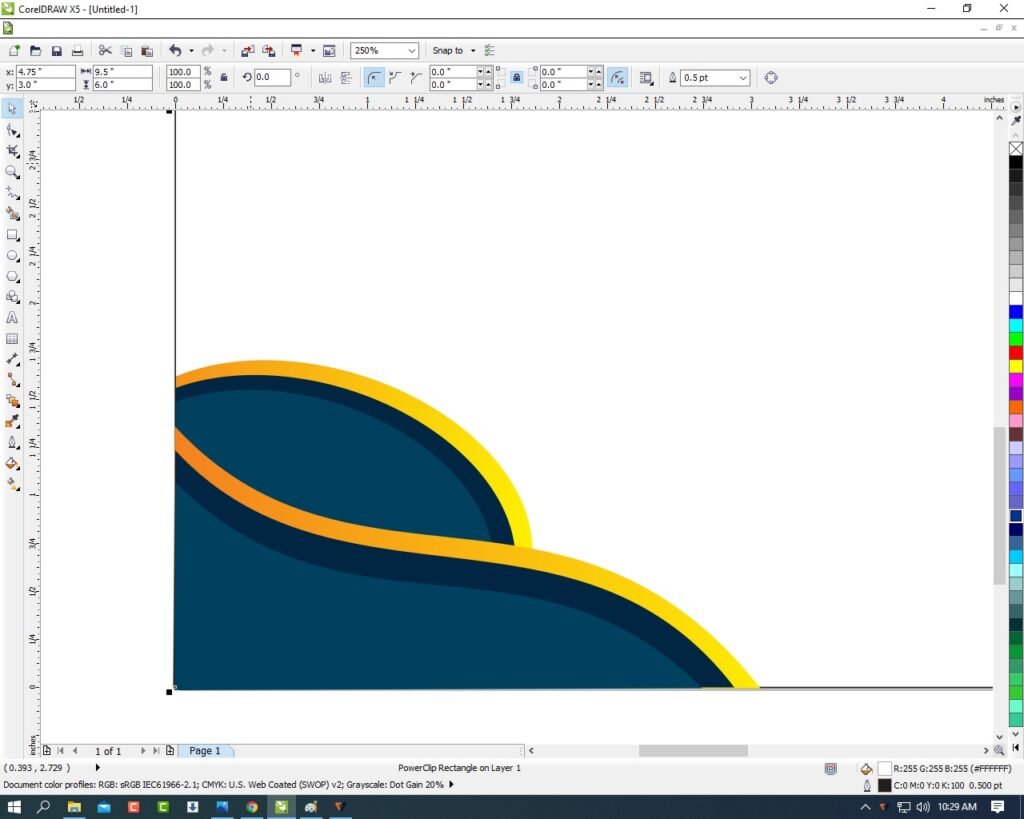
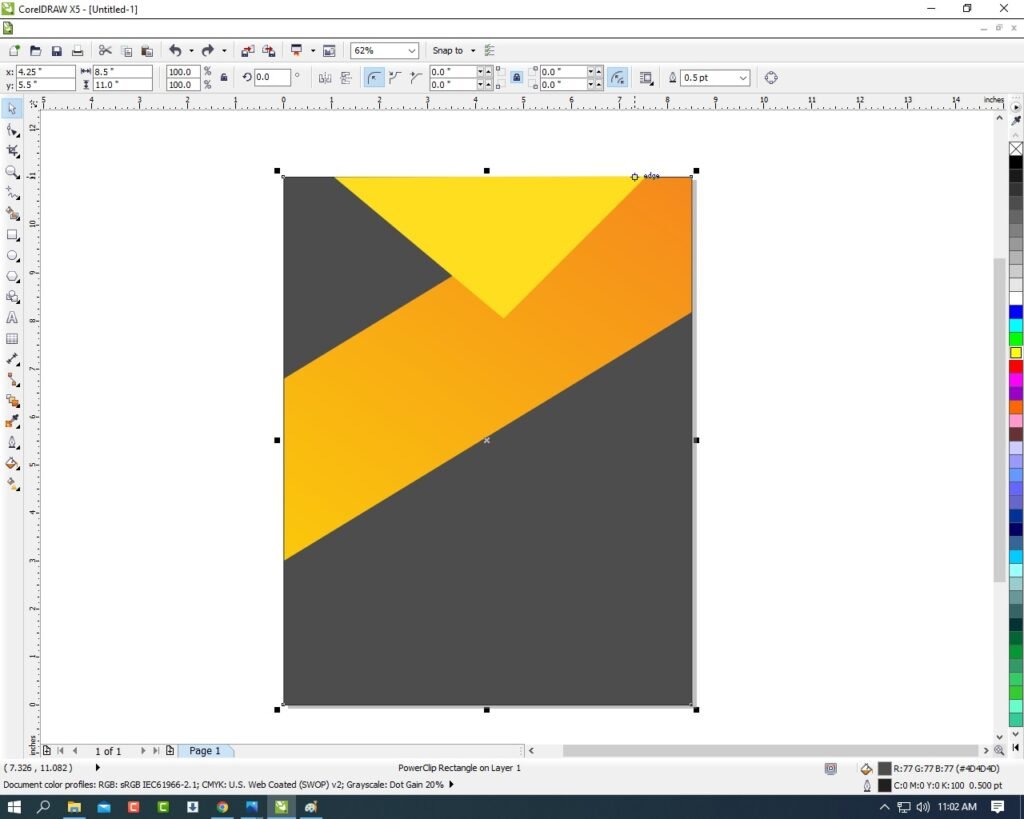
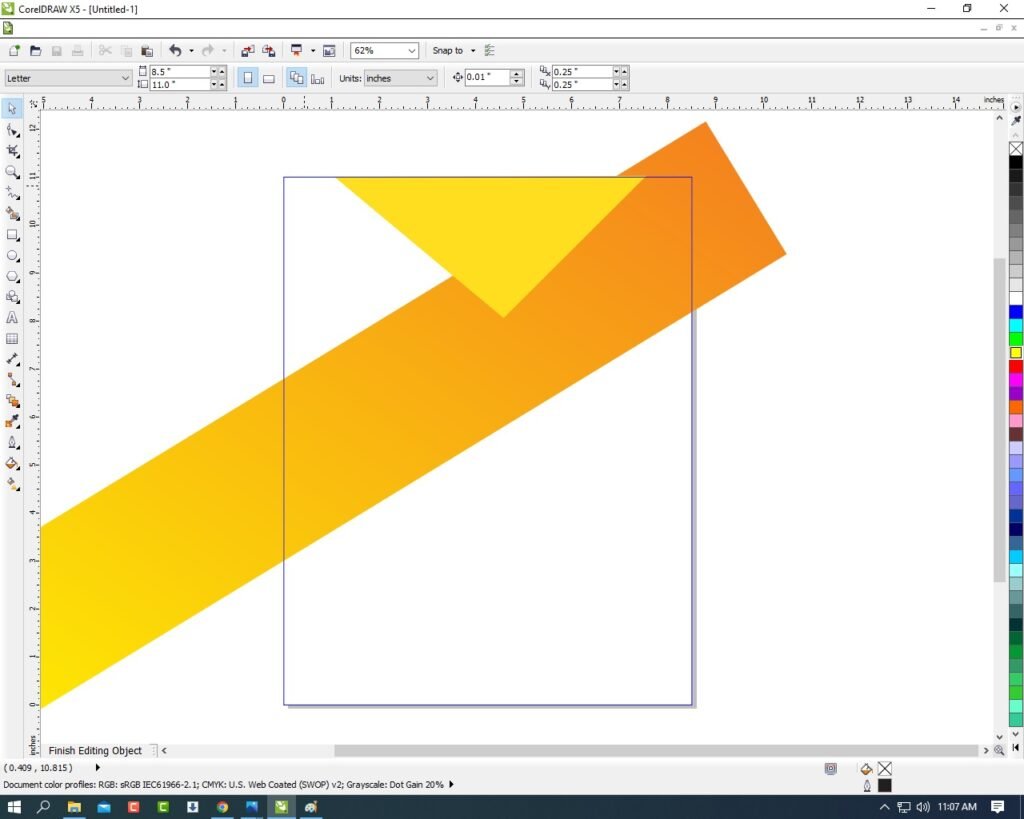
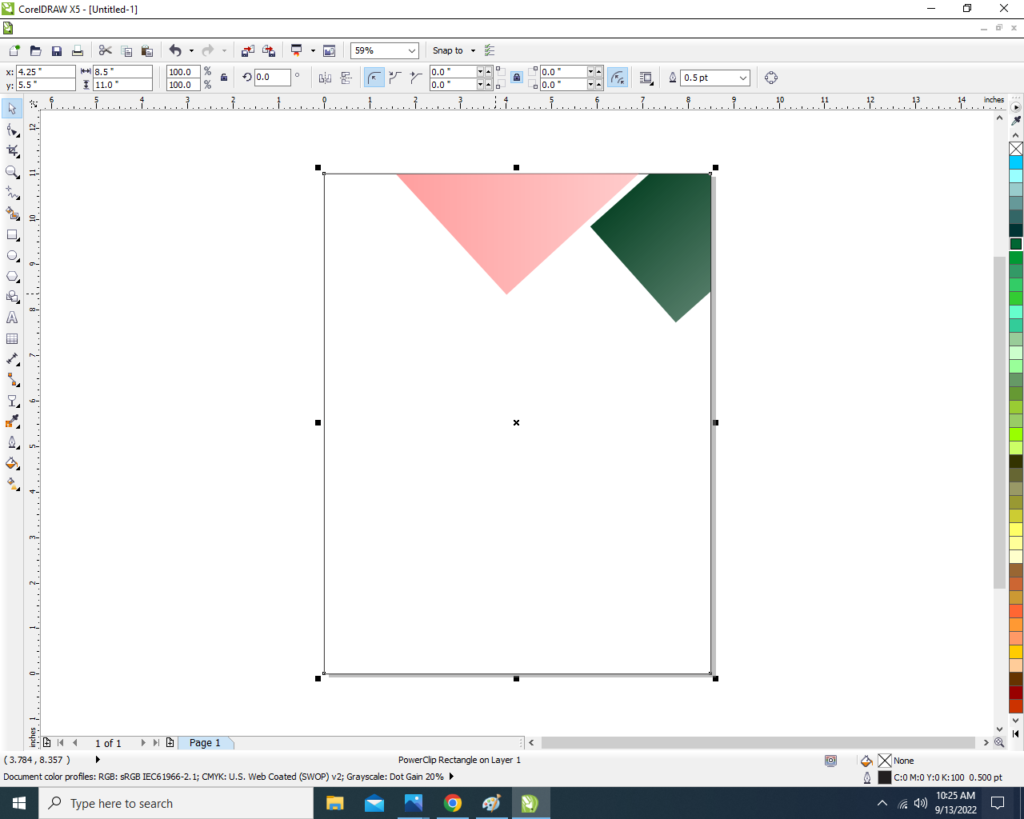
  • Click On the Rectangle Shape. Then you can See extra aria of Circle is Clip on the Rectangle shape.
8 7
Visiting Card in CorelDraw, Easy and simple Method Step By Step, Download Source file 35
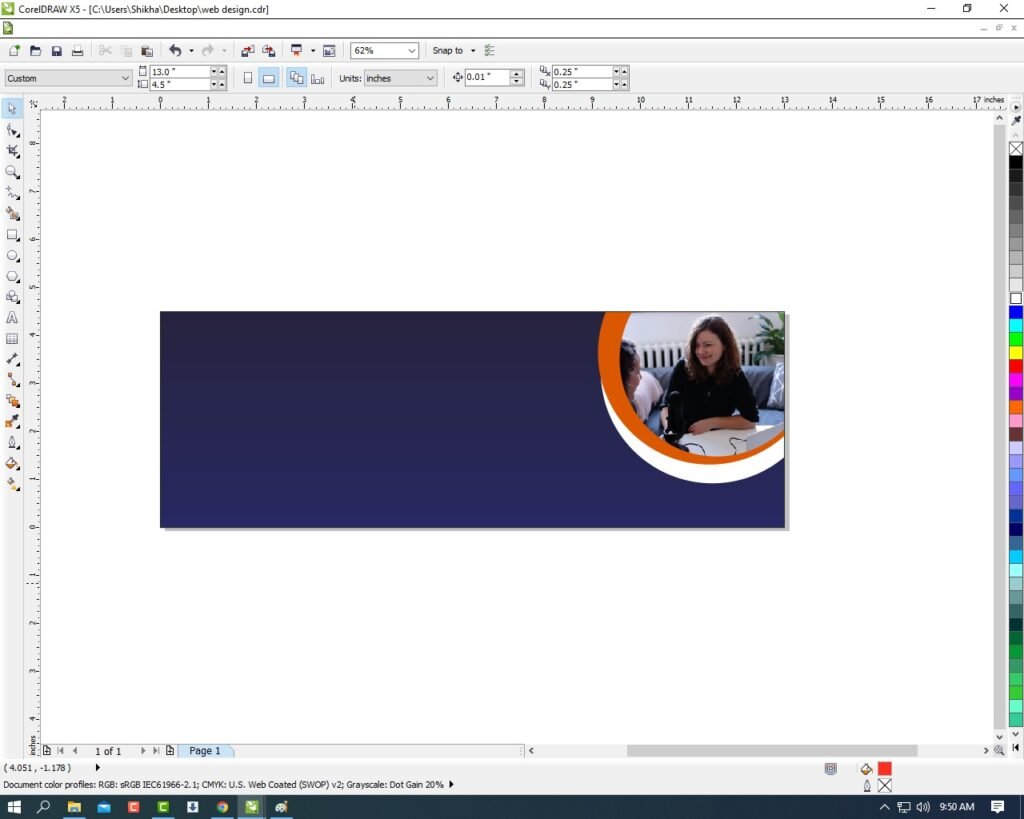
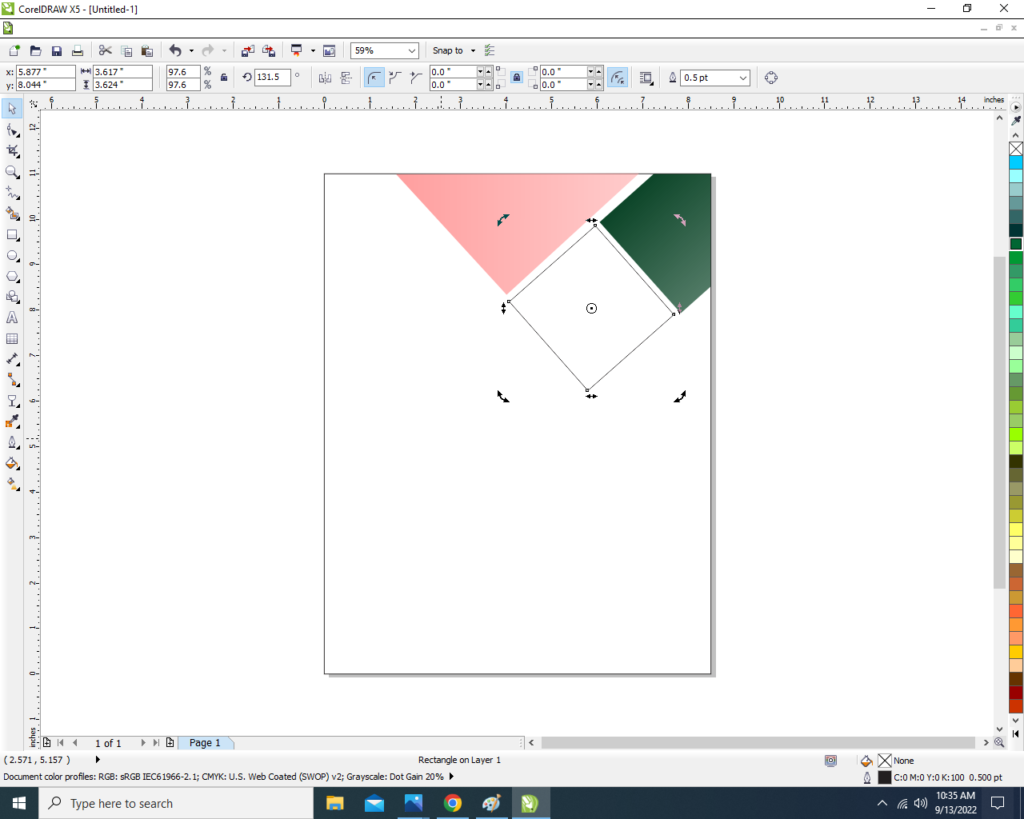
  • Go to Polygene Tool and Draw it > Fill Black Color on the Polygene Shape > No Outline.
9 9
Visiting Card in CorelDraw, Easy and simple Method Step By Step, Download Source file 36
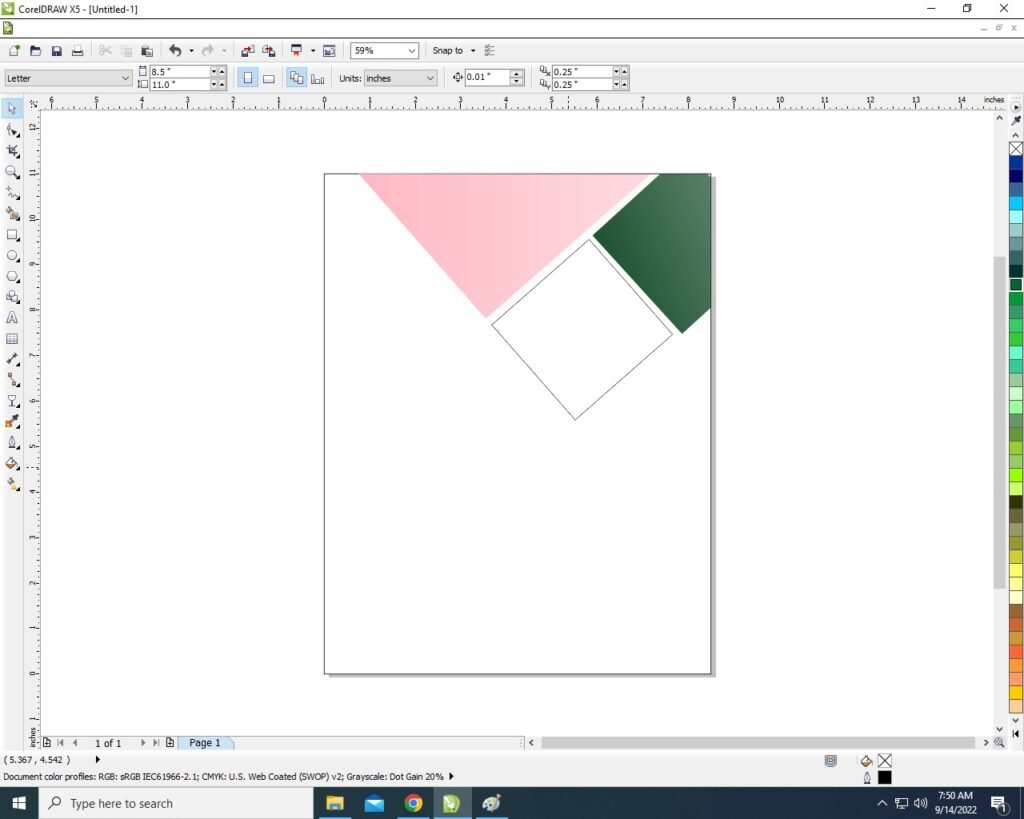
  • you can Increase the Polygene Points & Side.
10 6
Visiting Card in CorelDraw, Easy and simple Method Step By Step, Download Source file 37
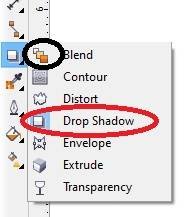
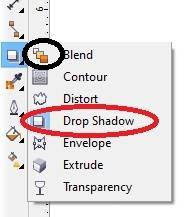
  • Then select the Polygene > Go to Blend Tool > Click On Drop Shadow Option .
11 8
Visiting Card in CorelDraw, Easy and simple Method Step By Step, Download Source file 38
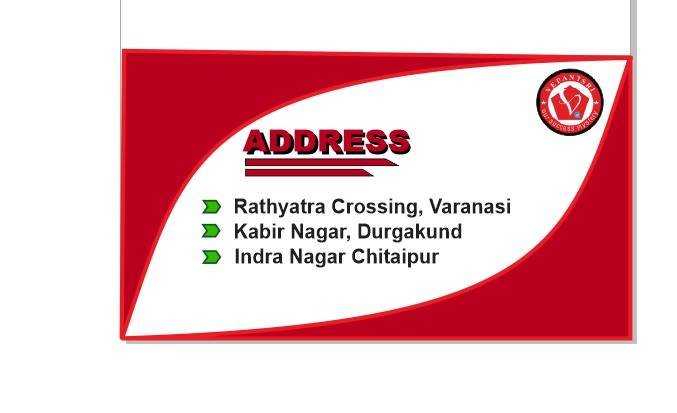
  • Apply Shadow on the Polygene Like I show.
12 8
Visiting Card in CorelDraw, Easy and simple Method Step By Step, Download Source file 39
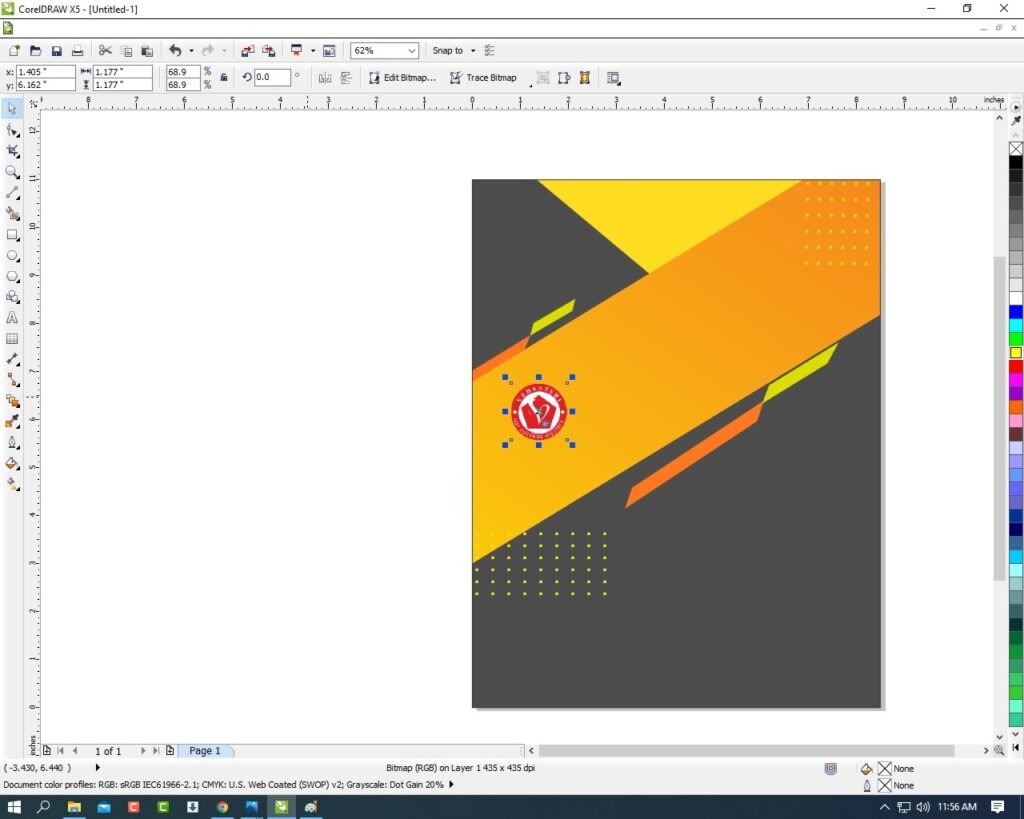
  • Then You can Insert LOGO On your Company or Institute.
13 8
Visiting Card in CorelDraw, Easy and simple Method Step By Step, Download Source file 40
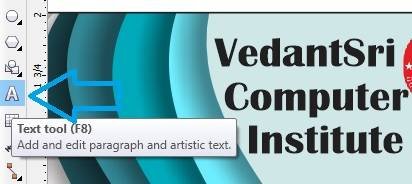
  • Then Go to Text Tool and Type Your Company or Institute Name.
14 8
Visiting Card in CorelDraw, Easy and simple Method Step By Step, Download Source file 41
  • Then Click on Pick Tool and Change color of Text and Fix it > Press CTRL + K to Break the Word and Fix It Like I Do.
15 9
Visiting Card in CorelDraw, Easy and simple Method Step By Step, Download Source file 42
  • Then Fill any website on Your Company or Institute.
16 8
Visiting Card in CorelDraw, Easy and simple Method Step By Step, Download Source file 43
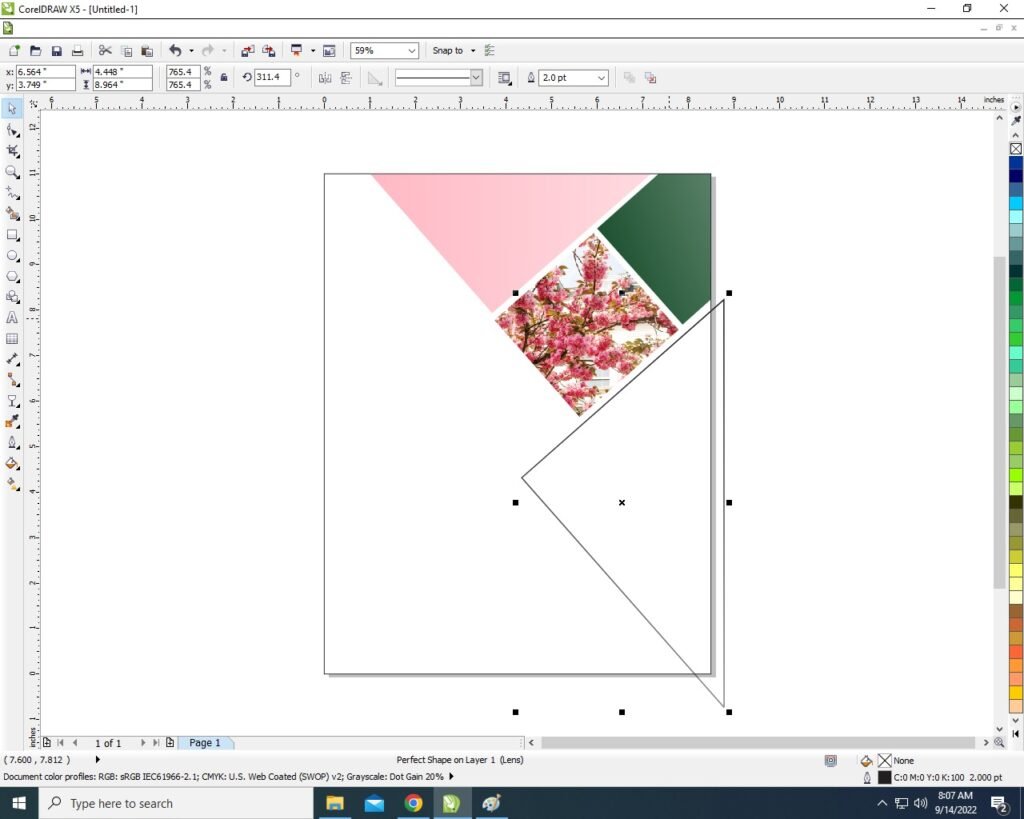
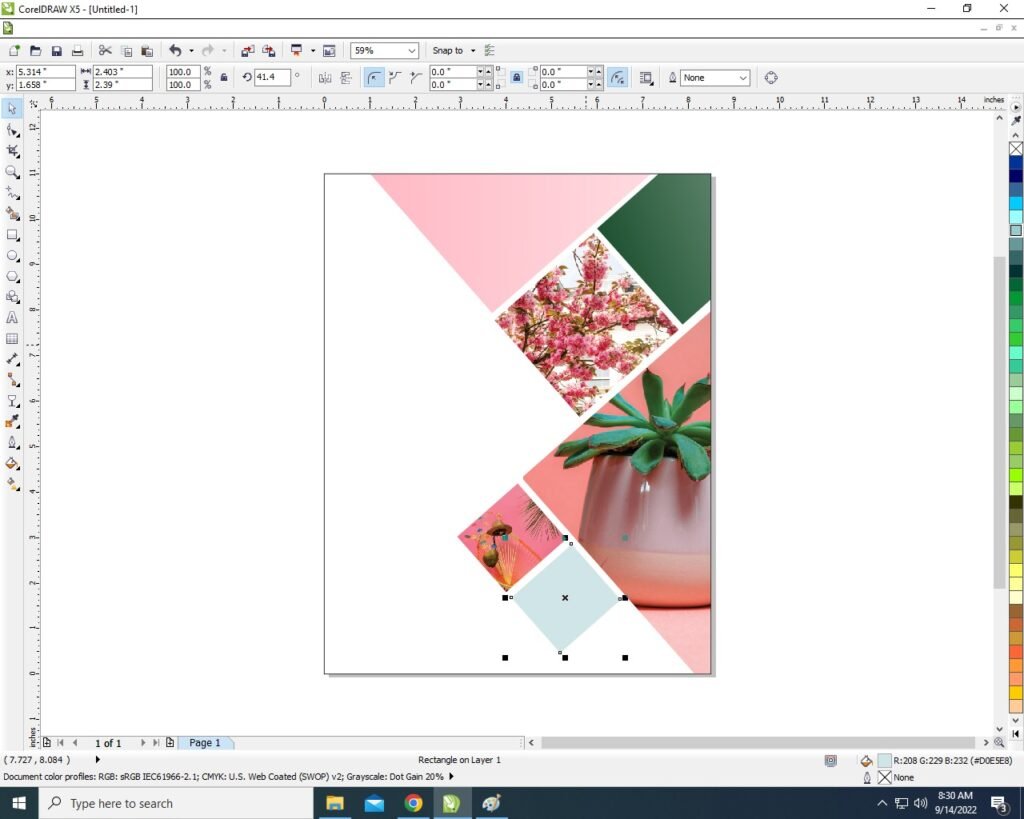
  • Draw a new Rectangle and Fill Same Color > No Outline.
17 6
Visiting Card in CorelDraw, Easy and simple Method Step By Step, Download Source file 44
  • Then Repeat Same Process > Draw Circle Fill Any color > No Outline > Go to Effect Tool > Click on PowerClip Option > Place Inside Container > Click on the Rectangle.
18 6
Visiting Card in CorelDraw, Easy and simple Method Step By Step, Download Source file 45
  • Same Process > Go to Polygene Tool > Draw > Increase the Point > Fill any color > Go to Blend tool & Apply Drop Shadow.
20 8
Visiting Card in CorelDraw, Easy and simple Method Step By Step, Download Source file 46
  • Then Go to Text Tool and Fill owner name of Your Company or Institute.
21 7
Visiting Card in CorelDraw, Easy and simple Method Step By Step, Download Source file 47
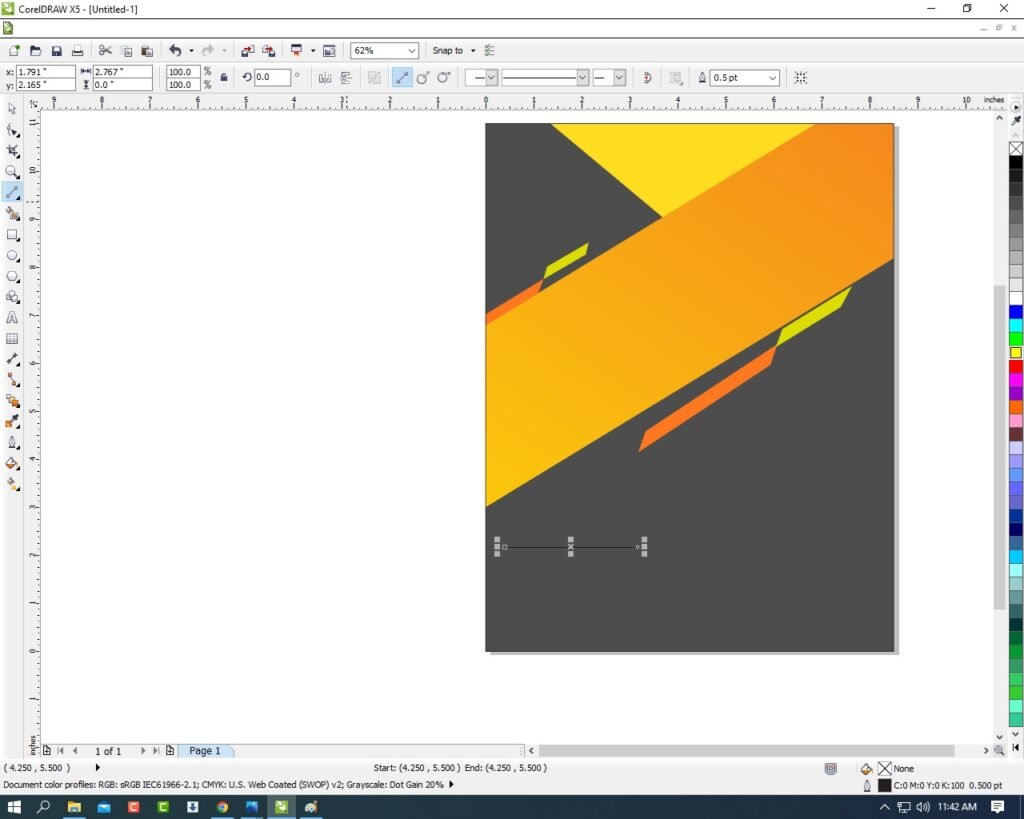
  • Go to Freehand Tool > Click on 2-Point Line Option > Press Shift and Draw it.
22 6
Visiting Card in CorelDraw, Easy and simple Method Step By Step, Download Source file 48
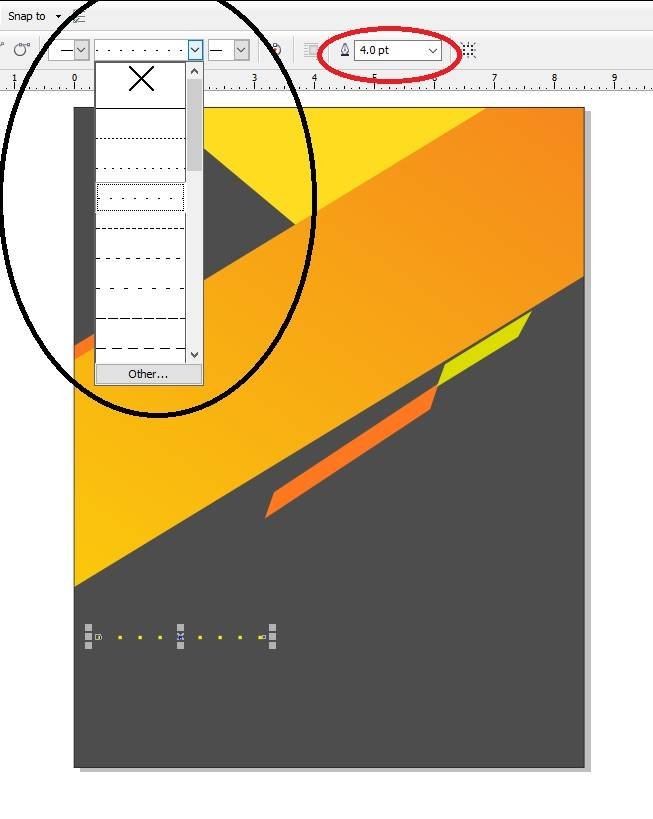
  • Go to Pen Tool > Fill Any Color In lines And Outline 3pt.
23 8
Visiting Card in CorelDraw, Easy and simple Method Step By Step, Download Source file 49
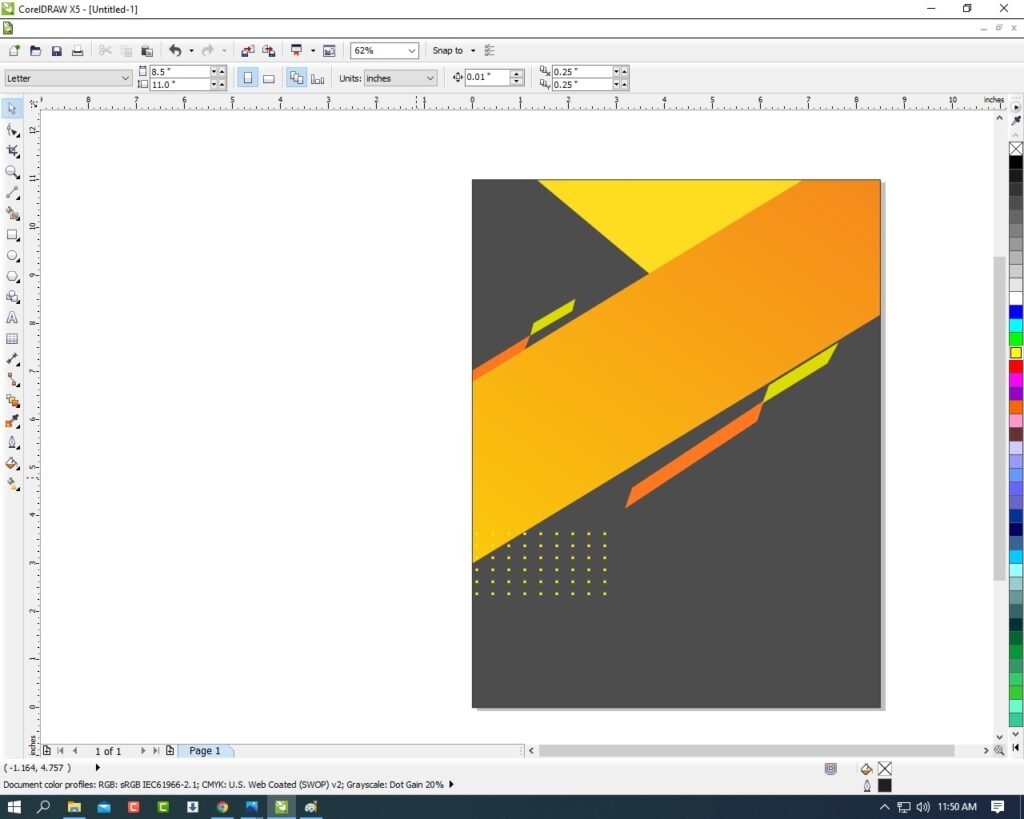
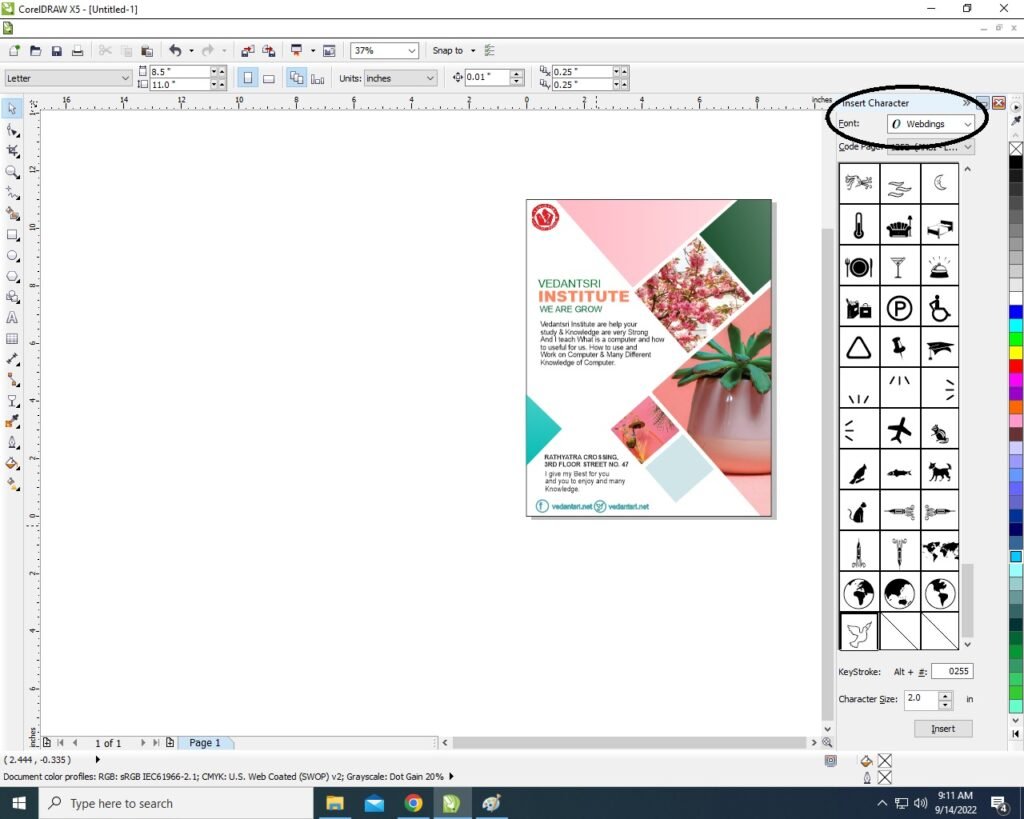
  • Then Press CTRL + F11 To Insert Character > Type Webdings > Insert any Character Like Calling Symbol/Facebook/Twitter etc.
25 7
Visiting Card in CorelDraw, Easy and simple Method Step By Step, Download Source file 50
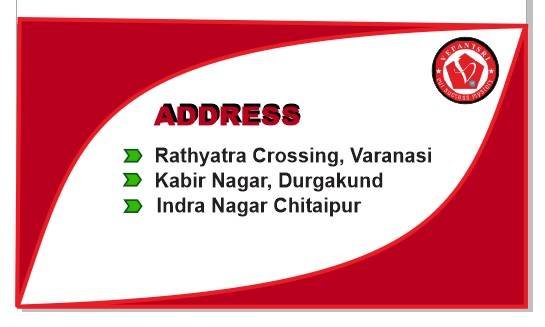
  • Then Type Your Company Personal Details and fix to all Symbol I will show.
26 6
Visiting Card in CorelDraw, Easy and simple Method Step By Step, Download Source file 51
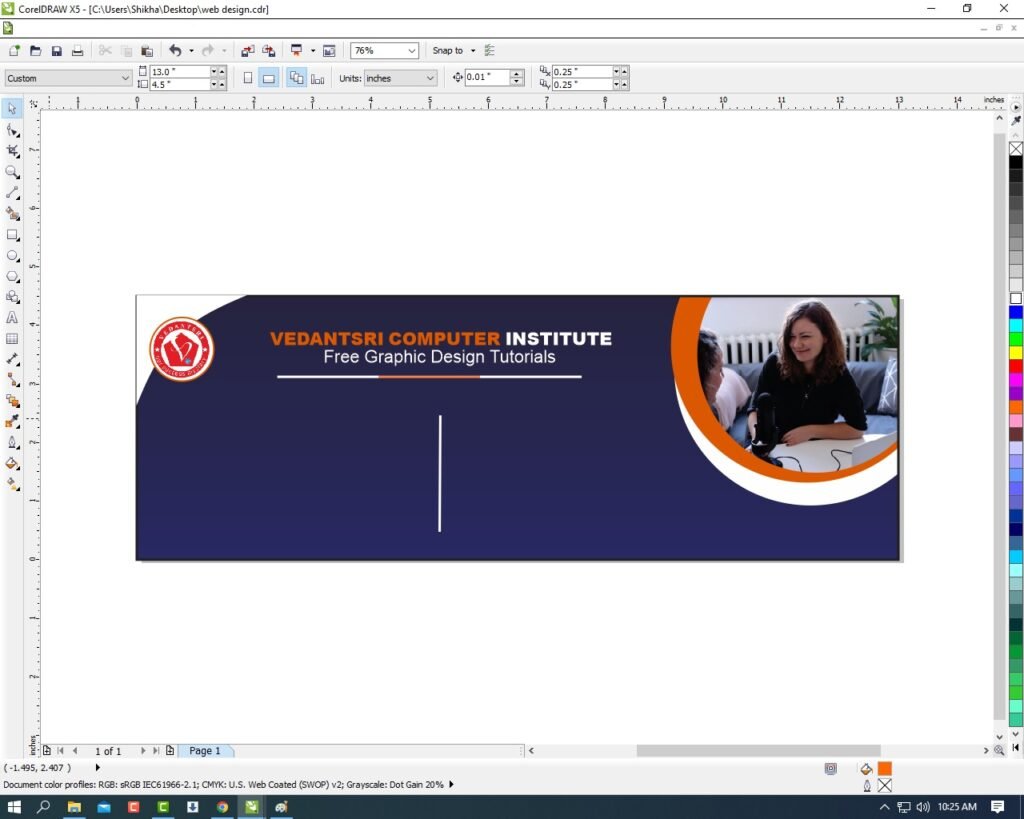
  • I have Completed this Project, I hope you guys have understood all the Step.
28 5
Visiting Card in CorelDraw, Easy and simple Method Step By Step, Download Source file 52

Created and Explained By Shikha Singh

1-VedantSri Official Website:- https://vedantsri.com

2-Student Support Website:- https://www.vedantsri.net

3-Jobs Assist Website:- https://www.jobdo.in

External Link

1-VedantSri Official Website:- https://vedantsri.com

2-Course Store Website:- https://vedantsri.in

3-Jobs Assist Website:- https://www.jobdo.in

4-MS Word Class:- https://mswordclass.com/

5-Corel Free Class:- https://corelclass.com/

6-Free Excel Class:- https://msexcelclass.com/

Pamphlet Design in CorelDraw, Easy And Simple Method, Download Source file

Pamphlet Design in CorelDraw, Easy And Simple Method, Download Source file

Hello Friend Welcome To Vedantsri.net In This Video I am Going To Teach You How to Create Pamphlet Designs in CorelDraw. Pamphlet Design in CorelDraw In This Project, You Can Learn How To Design a Pamphlet in CorelDraw Application. Pamphlet Design in CorelDraw, Easy And Simple Method, Download Source file

Created & Explained By Pratibha Modanwal

About VedantSri Computer Institute Varanasi

VedantSri Computer Institute in Varanasi is the Government recognized and ISO Certified Computer Institute in Varanasi running since 2011. It Provides Computer Courses, Classes, and Training through its own different branches all over Varanasi. There is Computer Scholarship Courses DCE Scholarship (Diploma in Computer Engineering), DIT’s most trusted computer course Available under Scholarship Test Scheme.

Varanasi Computer Institute VedantSri works at different places to ensure students get better computer education. VedantSri Computer Classes has Diploma courses and advanced diploma courses on the computerVedantSri Institute provides the latest version of computer application training in computer courses. Pamphlet Design in CorelDraw, Easy And Simple Method, Download Source file

Pamphlet Design in CorelDraw

वेदांतश्री कम्प्यूटर इंस्टिट्यूट’ वाराणसी में पिछले 10 वर्षो से बेहतर व न्यूनतम शुल्क में कम्प्यूटर शिक्षा प्रदान करने वाली एक कम्प्यूटर ट्रेनिंग इंस्टिट्यूट है | यह संस्था कम्प्यूटर व इंग्लिश स्पीकिंग कोर्स की ट्रेनिंग प्रदान करती है | वाराणसी में कम्प्यूटर शिक्षा को बेहतर व न्यूनतम शुल्क में छात्रो तक पहुचाने में वेदांतश्री पिछले 10 वर्षो से प्रयासरत है | Pamphlet Design in CorelDraw, Easy And Simple Method, Download Source file

Free To Learn In VedantSri Computer Institute in Varanasi

इस वेबसाइट का यूज़ वेदांतश्री में पढ़ रहे छात्रो को कोर्स से सम्बंधित ऑनलाइन सपोर्ट करने से सम्बंधित है | इस वेबसाइट पर उपलब्ध विडियो, टेस्ट शीट, Questions & Answer सेशन, ट्रिक्स, टिप्स वेदांतश्री में सिख रहे कोर्सेज से सम्बंधित है | उपलब्ध कंटेंट संस्था में सिख रहे छात्रो के डिमांड पर अपडेट किया जाता है | उपलब्ध कंटेंट वेदांतश्री में पढ़ रहे छात्रो व सम्बंधित छात्रो को निशुल्क प्रदान किया जाता है जिसका कोई अलग से शुल्क नही लिया जाता है | इस वेबसाइट पर उपलब्ध कंटेंट कम्प्यूटर कोर्सेज व इंग्लिश स्पीकिंग कोर्सेज से सम्बंधित अपडेट किया जाता है | VedantSri Computer Institute Varanasi Pamphlet Design in CorelDraw, Easy And Simple Method, Download Source file

About CCC Online Test 2023

CCC Online Test 2023:- This is the CCC Online Test Website Page. If You are preparing for CCC Exam or any competitive exam then you should visit this www.vedantsri.net website.

you can also download this app from the play store and you find Just like many more Online Test Series Related For Example MS Word, MS Excel, MS PowerPoint, and Internet-related. Pamphlet Design in CorelDraw, Easy And Simple Method, Download Source file Pamphlet Design in CorelDraw, Easy And Simple Method, Download Source file

VedantSri Computer Institute Varanasi provides this. The VedantSri Provides the Best Computer Classes, Courses, coaching, and Computer Training in Varanasi Uttar Pradesh India. Pamphlet Design in CorelDraw, Easy And Simple Method, Download Source file

Important Link

Visit at – https://www.corelclass.com

Also, Read it – CorelDraw Course Fees, Duration, Scope, Syllabus, Admission, Institutes

Read Also – Tally Course Fees, Duration, Scope, Syllabus, Admission, Institutes

Also Read – CCC Course Fees, Syllabus, Duration, Scope, Jobs, and Institute

Important Link – DFA Course Fees, Syllabus, Duration, Scope, Jobs, and Institute

Visit – ADCA Course Fees, Duration, Scope, Syllabus, Admission, Institutes

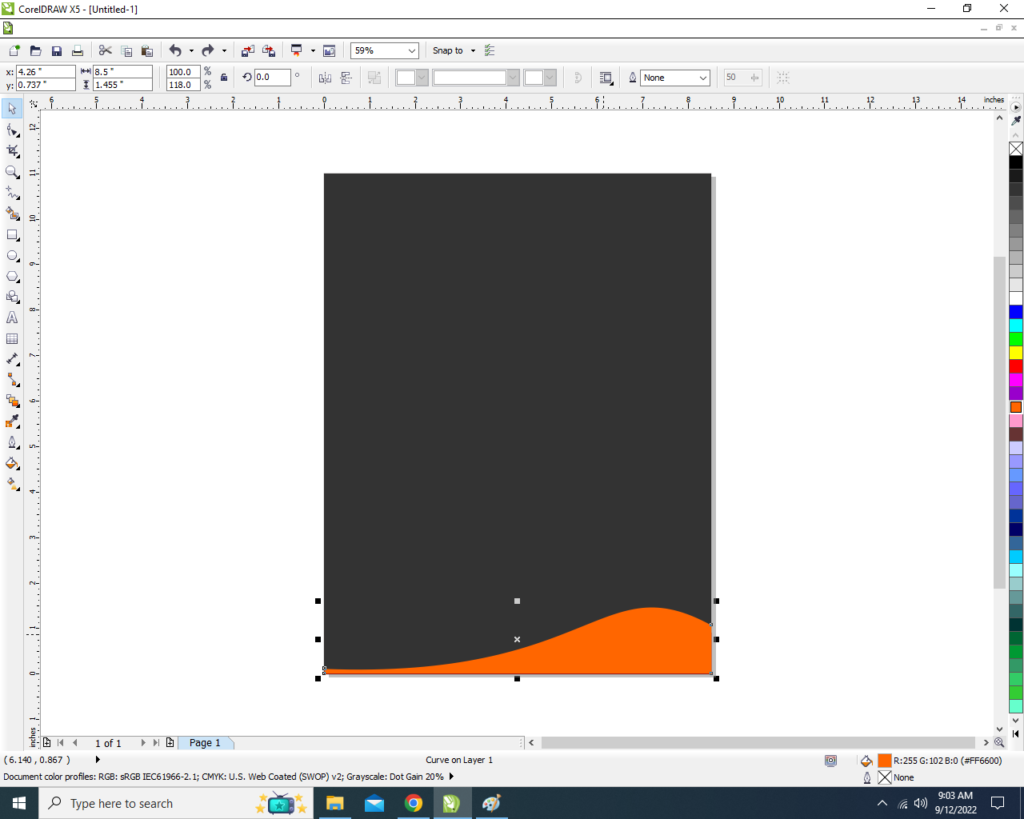
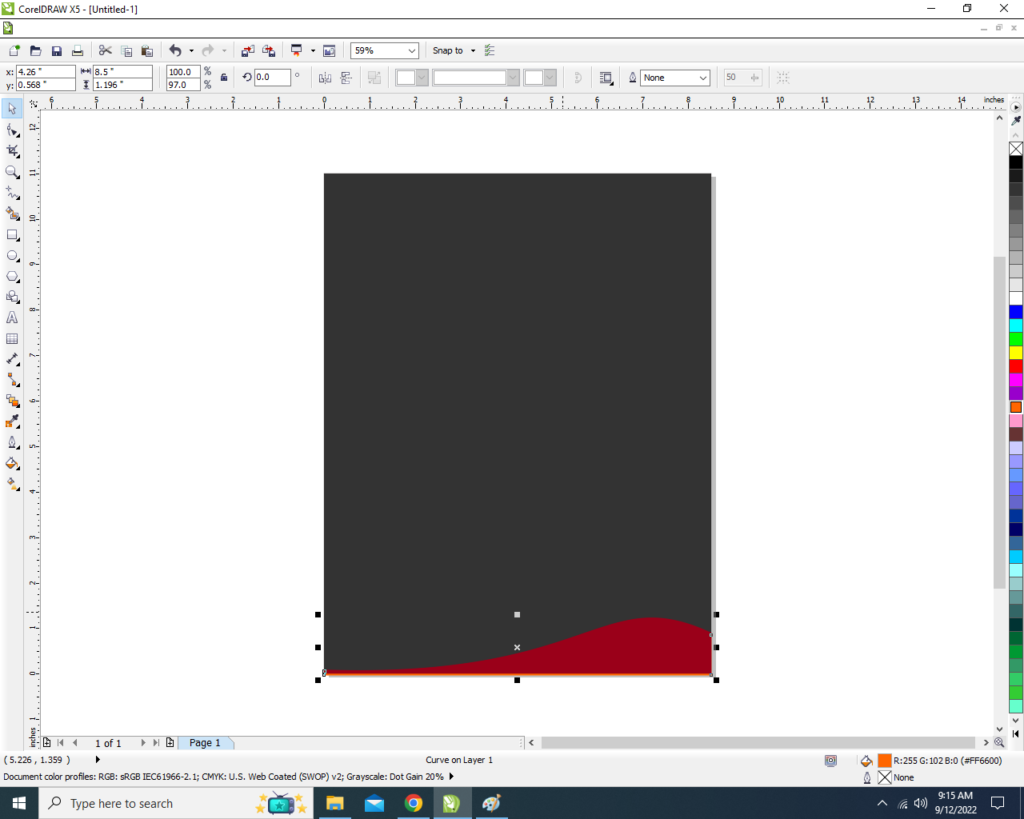
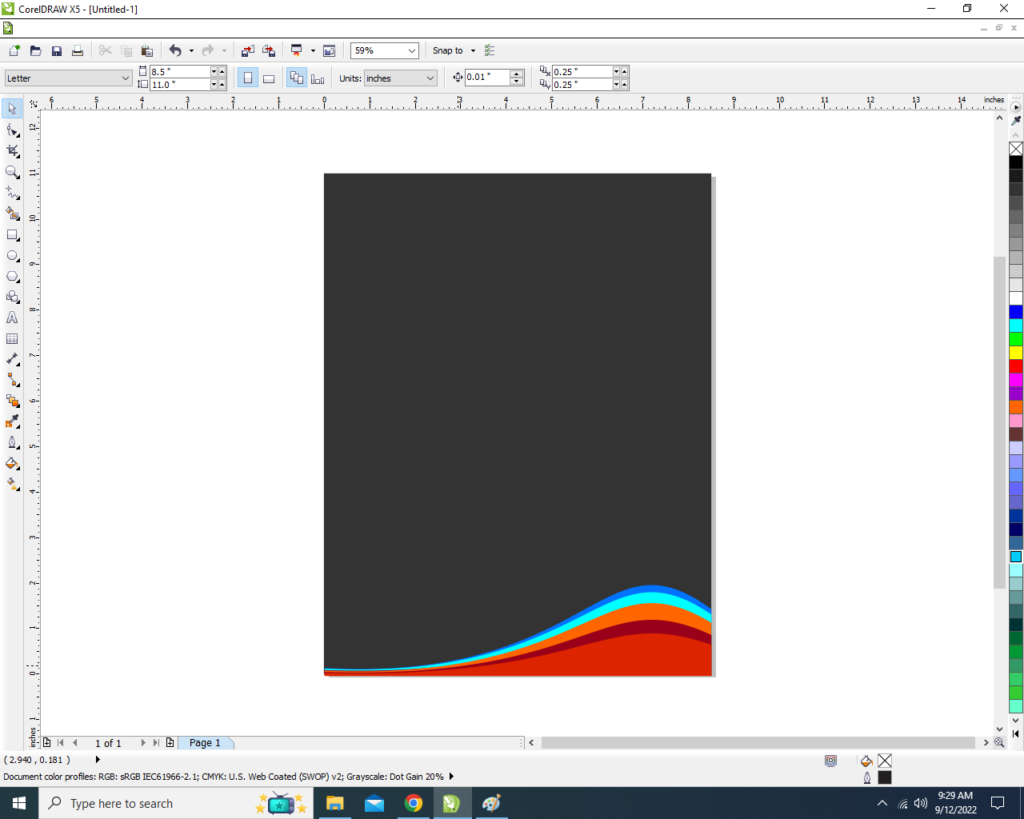
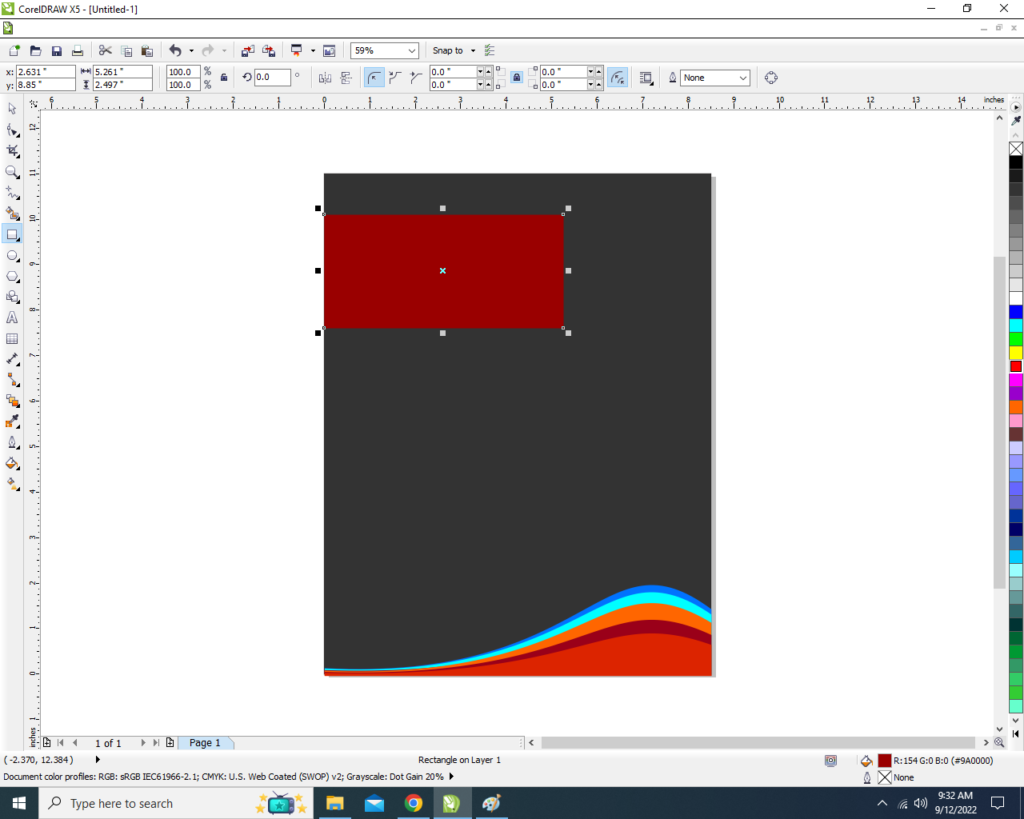
Visiting Card Design in CorelDraw, Simple Method, Download Source File.

visiting card Design in Corel, Simple Method, Download Source File.

Hello! Friends Welcome to www.vedantsri.net In this Project, I am going to Teach you How To Create a Poster in CorelDraw. In this Project, you can Learn How to Design a Poster in CorelDraw Application an Easy Method.

  • Press Windows + R on Keyboard
  • To Open Run Dialog
  • Type Run Command in Run Dialog Box > Like this.
  • Press OK.
  • Click at New Blank Document.
  • Fill all information > Regarding New Document.

  • Click at Rectangle Tool
  • Draw a Rectangle > like this
  • Click at Rectangle > Press Ctrl + D > To Duplicate > like this
  • Change Color of both Rectangles > From Color Palate.
  • Draw a Rectangle > Change Color > From Color palate.
  • Draw a Polygon > From Polygon tool.
  • Increase Points of polygon > From Here
  • Increase Outline of Polygon > From Here
  • Select Rectangle > Press Ctrl + Page Down
  • Duplicate polygon > Set like this.
  • Draw these Polygon > In another Rectangle > Like this.
  • Fill Picture in Rectangle and Polygon.
  • Click at Rectangle and Polygon > Power Clip > From Effect menu > Power clip > Place Insider.
  • Put LOGO of an Institution > Type an institution Name > Like This.
  • Draw Circle > Press Ctrl + F11 > To Insert Characters
  • Select Characters > Set like this.
  • Type Contact Information > like this
  • Now Visiting card is Ready.

Created and Explained By Sakshi Rawat.

Important Link

Visit at – https://www.corelclass.com

Also, Read it – CorelDraw Course Fees, Duration, Scope, Syllabus, Admission, Institutes

Read Also – Tally Course Fees, Duration, Scope, Syllabus, Admission, Institutes

Also Read – CCC Course Fees, Syllabus, Duration, Scope, Jobs, and Institute

Important Link – DFA Course Fees, Syllabus, Duration, Scope, Jobs, and Institute

Visit – ADCA Course Fees, Duration, Scope, Syllabus, Admission, Institutes

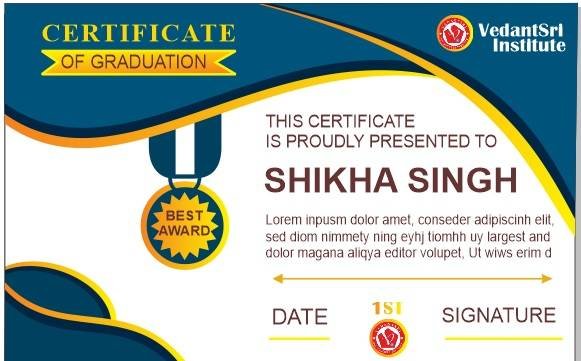
Certificate Design in CorelDraw, Easy and Step by Step, Download Source File.

Certificate Design in CorelDraw, Easy and Step by Step, Download Source File.

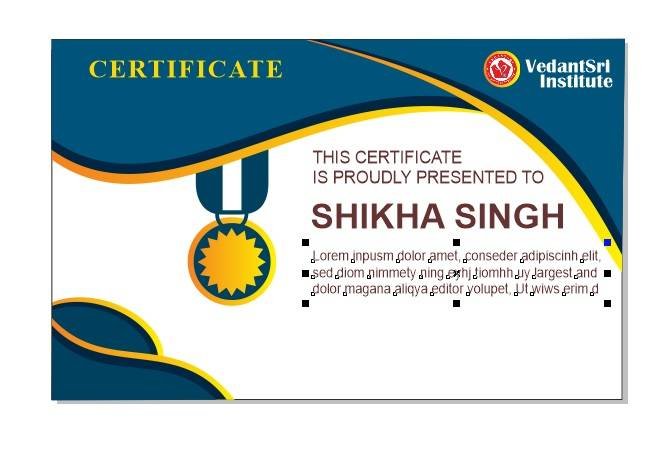
Hello Friends, Welcome to Corelclass.com In This Post I am Going to Teach you How to Create a Certificate Design in CorelDraw. In This Project, You Can Learn How to Design a Certificate in CorelDraw Application in Easy Method. You Can Also Download the Practice File in This Post. So Let’s Start To Learn This Project Before Starting I request You to Please Follow the Given Below Step to Learn Properly step by step.

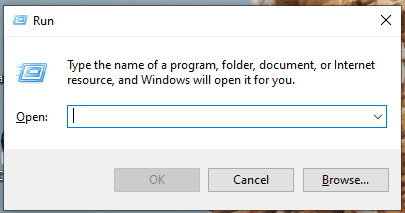
  • Press Window + R To Open Run Dialogue Box > Type coreldrw.
Certificate Design in CorelDraw
  • Press OK.
3 7
Certificate Design in CorelDraw, Easy and Step by Step, Download Source File. 136
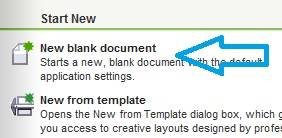
  • Then Press CTRL + N > Ok > to Open New Page Window.
Certificate Design in CorelDraw
Certificate Design in CorelDraw, Easy and Step by Step, Download Source File. 137
  • Will Mention Page Size.
Certificate Design in CorelDraw
Certificate Design in CorelDraw, Easy and Step by Step, Download Source File. 138
  • Then Double Click on Rectangle Tool.
2 11
Certificate Design in CorelDraw, Easy and Step by Step, Download Source File. 139
  • Fill White Color on Page.
Certificate Design in CorelDraw
Certificate Design in CorelDraw, Easy and Step by Step, Download Source File. 140
  • Then Draw a New Rectangle Shape on the Page > Fill in any Color > No Outline.
Certificate Design in CorelDraw
  • Select the Rectangle Shape > Press F10 > CTRL + Q .
Certificate Design in CorelDraw
Certificate Design in CorelDraw, Easy and Step by Step, Download Source File. 141
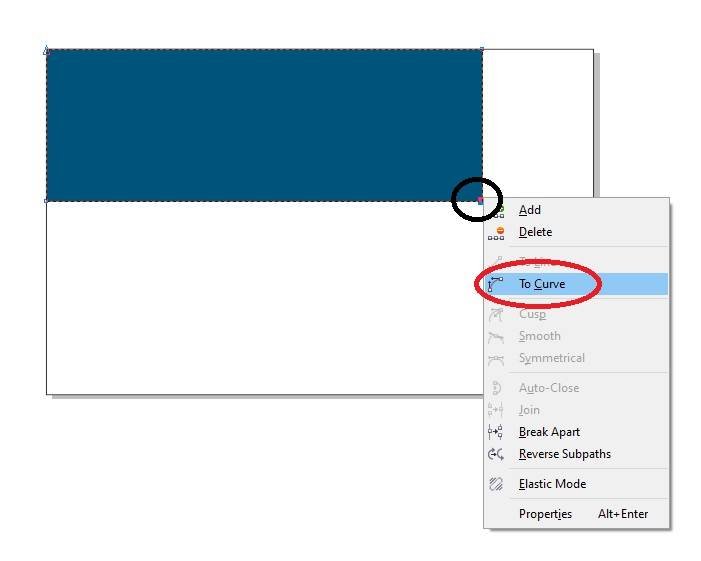
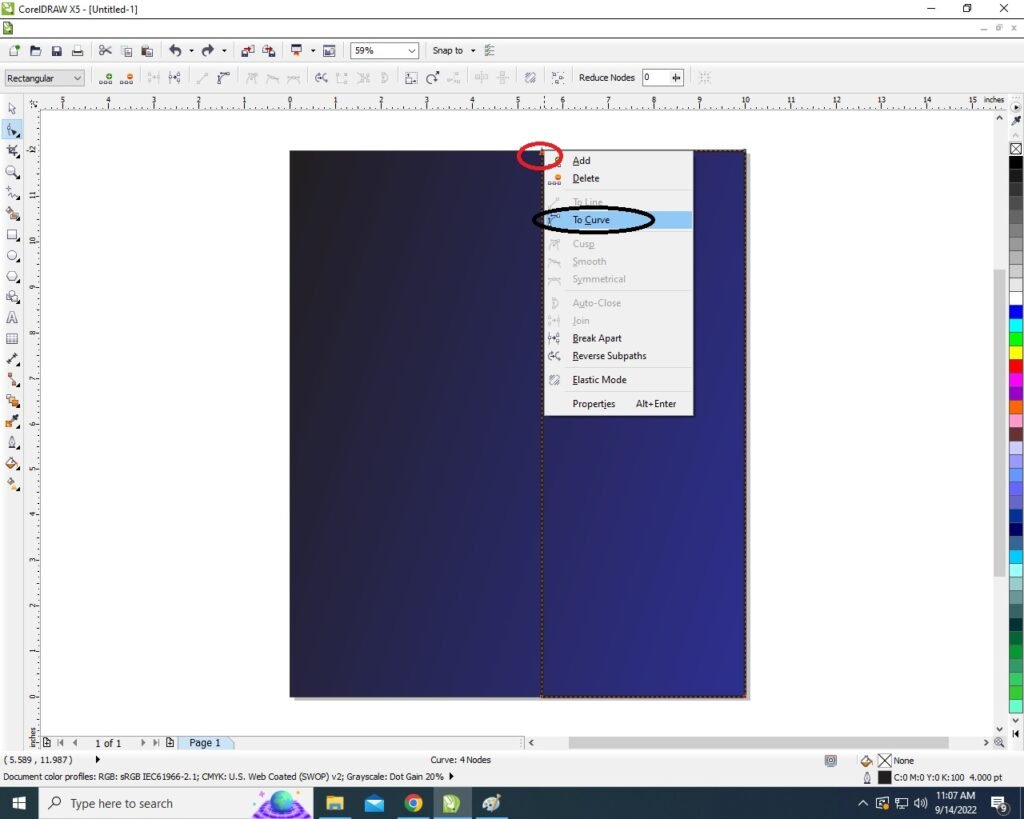
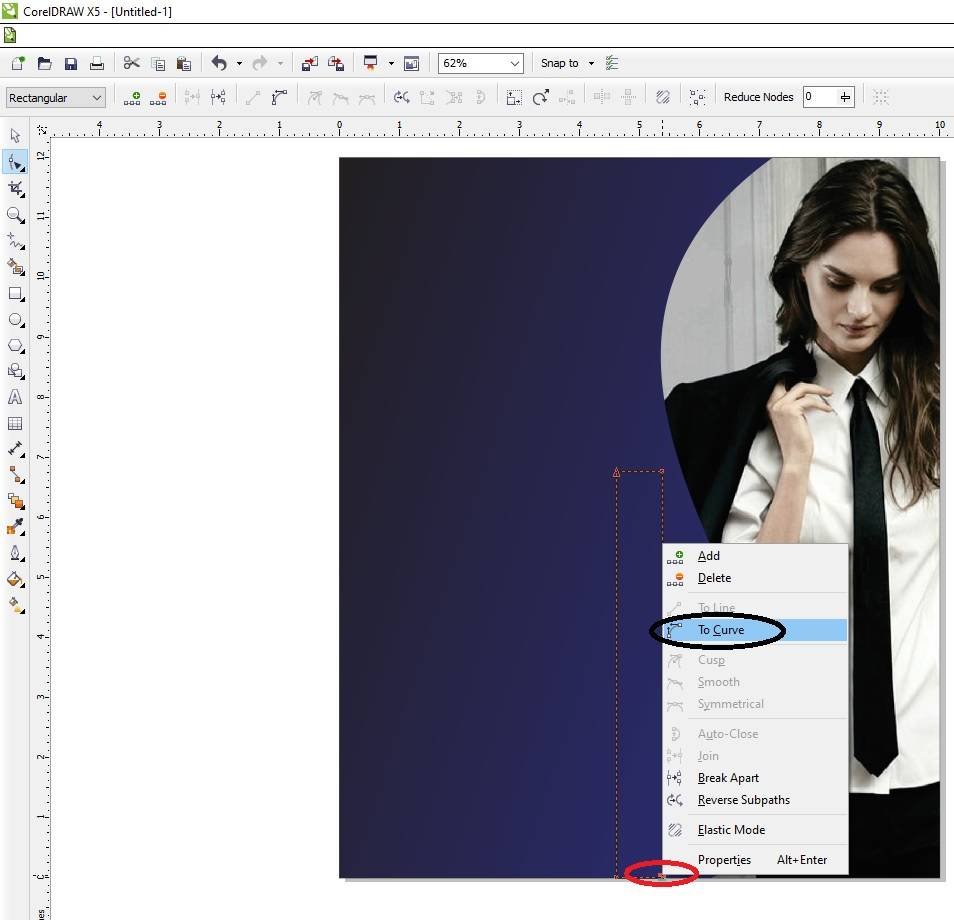
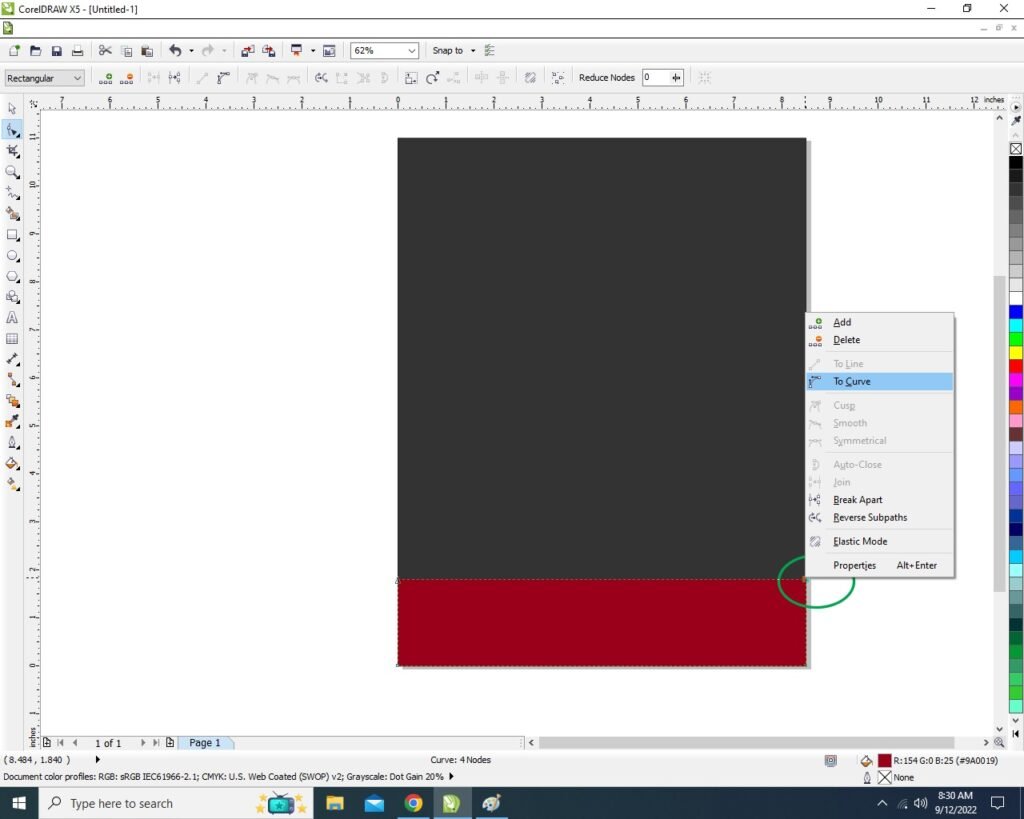
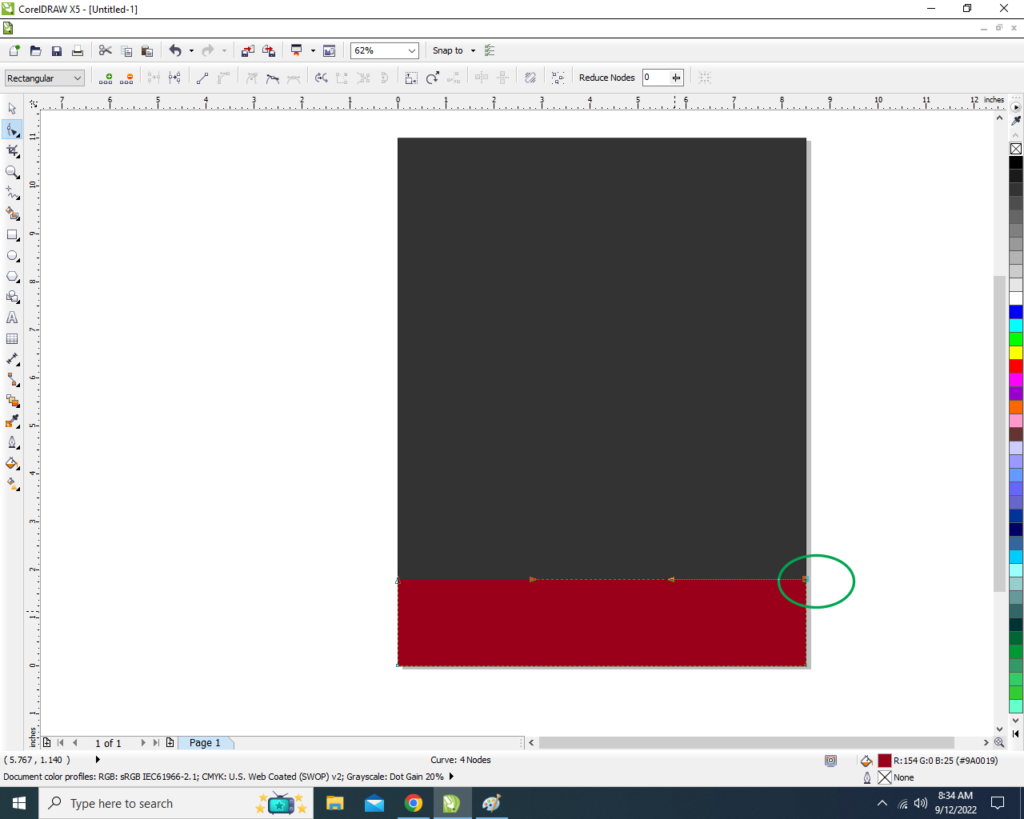
  • Click Right On the any Rectangle Corner > Click To Curve Option.
6 6
Certificate Design in CorelDraw, Easy and Step by Step, Download Source File. 142
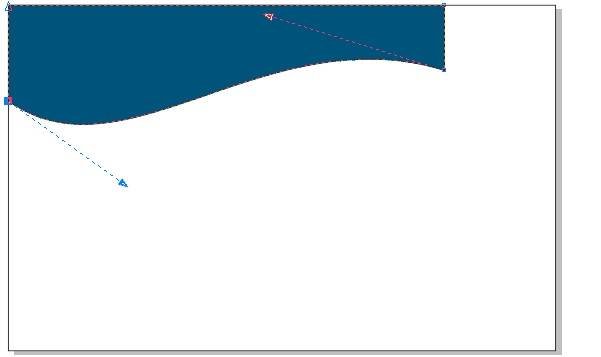
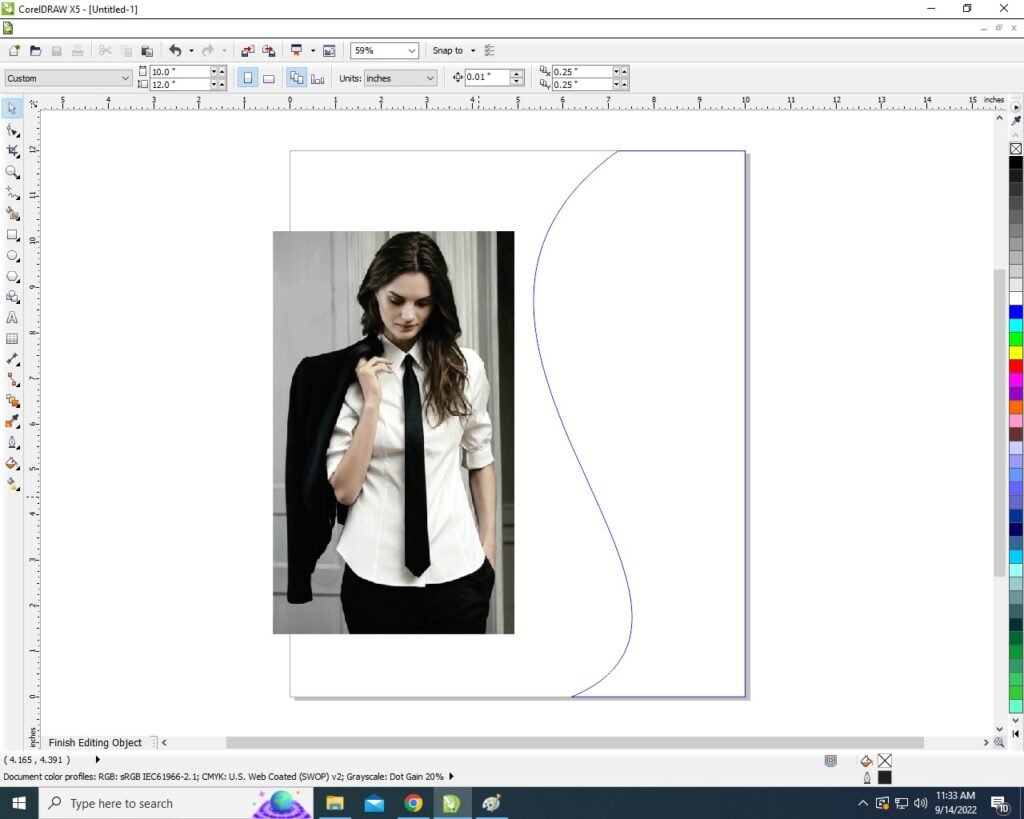
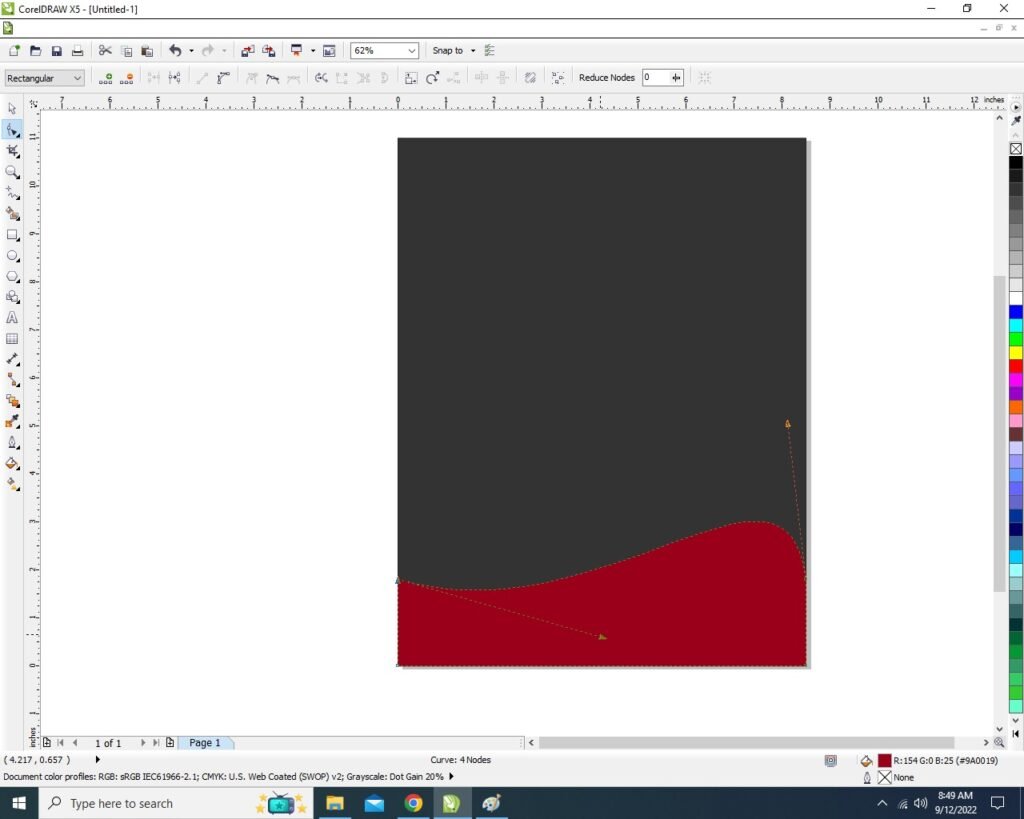
  • Then Move the Arrows and Make New Different Shape. Like I Show.
7 7
Certificate Design in CorelDraw, Easy and Step by Step, Download Source File. 143
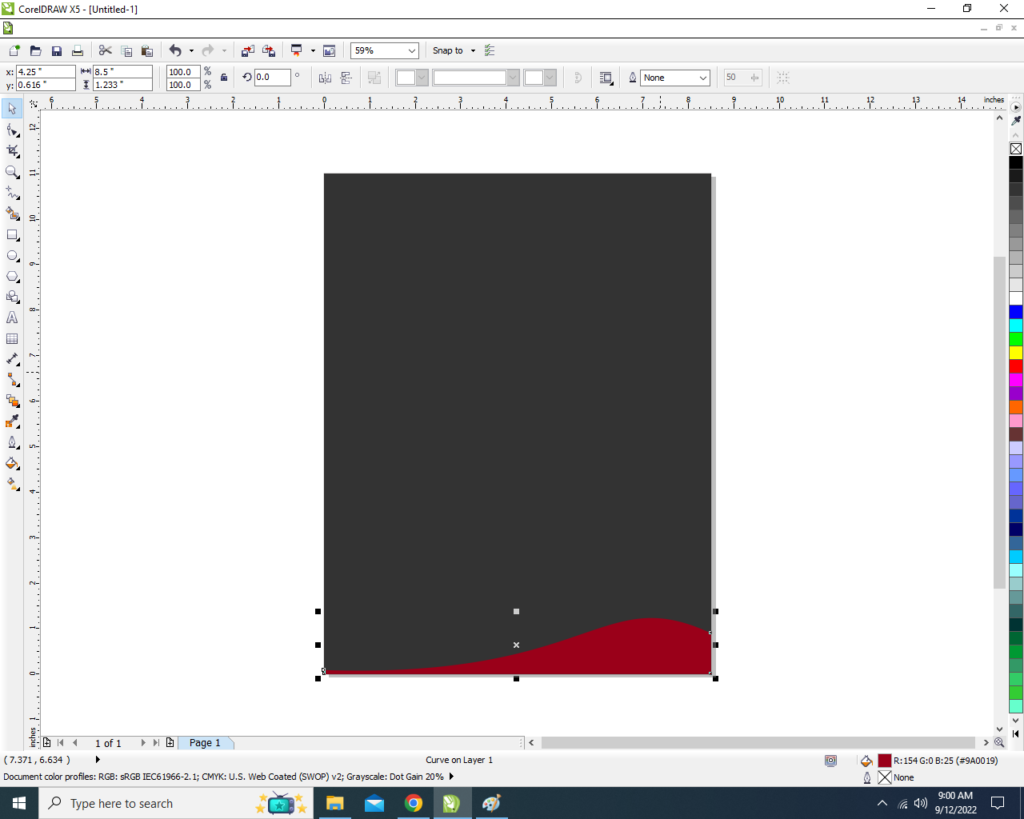
  • Then Click On Pick Tool > Select the Shape And Go to Pen Tool > No Outline.
8 5
Certificate Design in CorelDraw, Easy and Step by Step, Download Source File. 144
  • Select the Rectangle > Press CTRL + D (Duplicate) > Fill any Different Color > Press CTRL + Page Down Fix Like This I will show.
9 7
Certificate Design in CorelDraw, Easy and Step by Step, Download Source File. 145
  • The Same Process Make a One More Duplicate this Shape > Go to Fill tool > Click On Fountain Fill Option and Fill any color.
10 4
Certificate Design in CorelDraw
  • Then Press CTRL + Page Down > Fix It.
11 6
Certificate Design in CorelDraw
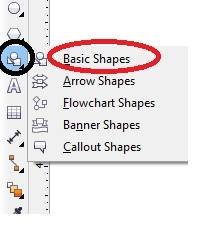
  • Go to Basic Shape tool
12 6
Certificate Design in CorelDraw, Easy and Step by Step, Download Source File. 146
  • Then Click On Perfect Tool.
14 6
Certificate Design in CorelDraw, Easy and Step by Step, Download Source File. 147
  • Draw a Triangle > Fill any Color > No Outline.
113
Certificate Design in CorelDraw
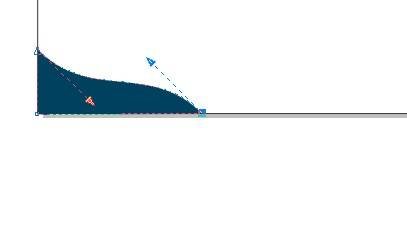
  • Press F10 > CTRL + Q > Click Right On the any Triangle Corner > Click To Curve Option > Make a New Shape. Like This.
13 6
Certificate Design in CorelDraw, Easy and Step by Step, Download Source File. 148
  • Then Same Process make a Two Duplicates Fill Any Color and Press CTRL + Page Down Send Backword the Shape > Press F10 > CTRL + Q to Change a Shape. Then Fix It Like I Show.
Certificate Design in CorelDraw
Certificate Design in CorelDraw, Easy and Step by Step, Download Source File. 149
  • Draw a New Triangle > Fill any Color > No Outline.
16 5
Certificate Design in CorelDraw, Easy and Step by Step, Download Source File. 150
  • Then Same Process Select Triangle > Press F10 > CTRL + Q > Click Right On the any Triangle Corner > Click To Curve Option > Make a New Shape. Like This.
18 5
Certificate Design in CorelDraw, Easy and Step by Step, Download Source File. 151
  • Then Same Process make a Two Duplicates Fill Any Color and Press CTRL + Page Down Send Backword the Shape > Press F10 > CTRL + Q to Change a Shape. Then Fix It Like I Show.
19 3
Certificate Design in CorelDraw, Easy and Step by Step, Download Source File. 152
  • Go to Eclipse Tool to draw a Circle.
20 6
Certificate Design in CorelDraw, Easy and Step by Step, Download Source File. 153
  • Fill any color and No Outline.
21 5
Certificate Design in CorelDraw, Easy and Step by Step, Download Source File. 154
  • Then Select the Circle > Press CTRL + Page Down > Fix It Like I Will Show.
22 4
Certificate Design in CorelDraw, Easy and Step by Step, Download Source File. 155
  • Then Create Duplicates As I will show you.
23 6
Certificate Design in CorelDraw, Easy and Step by Step, Download Source File. 156
  • Then Select all Circles Press Shift Then Click To Select all Circles.
25 5
Certificate Design in CorelDraw, Easy and Step by Step, Download Source File. 157
  • Go To Effect Menu > Click Option PowerClip > Place Inside Container.
26 4
Certificate Design in CorelDraw, Easy and Step by Step, Download Source File. 158
  • Click on page > Then the extra shapes aria will Disappear.
27 5
Certificate Design in CorelDraw, Easy and Step by Step, Download Source File. 159
  • Then I will Insert the Symbol > Press CTRL + F11 To Insert Character > Type Webdings
28 4
Certificate Design in CorelDraw, Easy and Step by Step, Download Source File. 160
  • Insert Symbols and Character As I Show.
29 2
Certificate Design in CorelDraw, Easy and Step by Step, Download Source File. 161
  • Then Insert Your School/College/Institute LOGO.
30 4
Certificate Design in CorelDraw, Easy and Step by Step, Download Source File. 162
  • Then Go the Text Tool and Write Your College/School/Institute Name and Fill Details.
31 3
Certificate Design in CorelDraw, Easy and Step by Step, Download Source File. 163
  • Fill Details.
Certificate Design in CorelDraw
Certificate Design in CorelDraw, Easy and Step by Step, Download Source File. 164
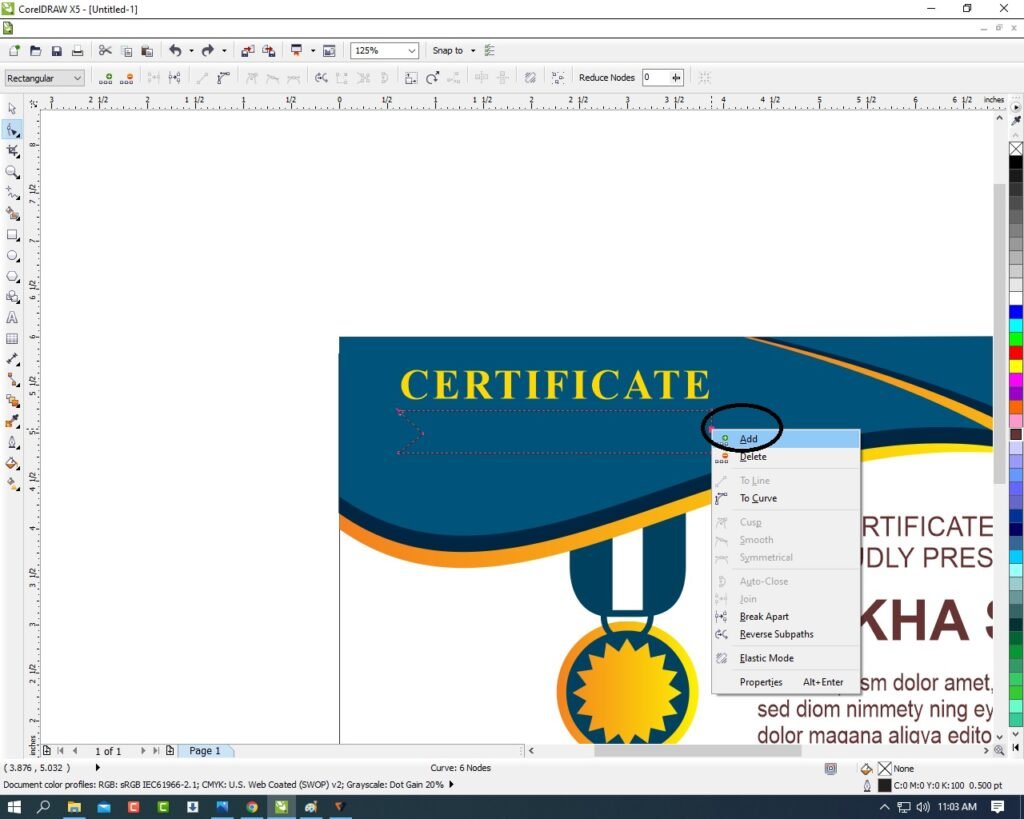
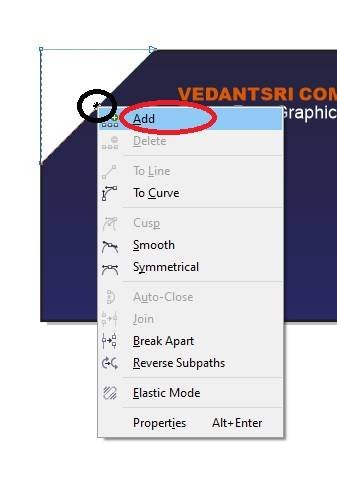
  • Draw a Rectangle and Press F10 > CTRL + Q then click on the right rectangle > Click Add Option.
35 1
Certificate Design in CorelDraw, Easy and Step by Step, Download Source File. 165
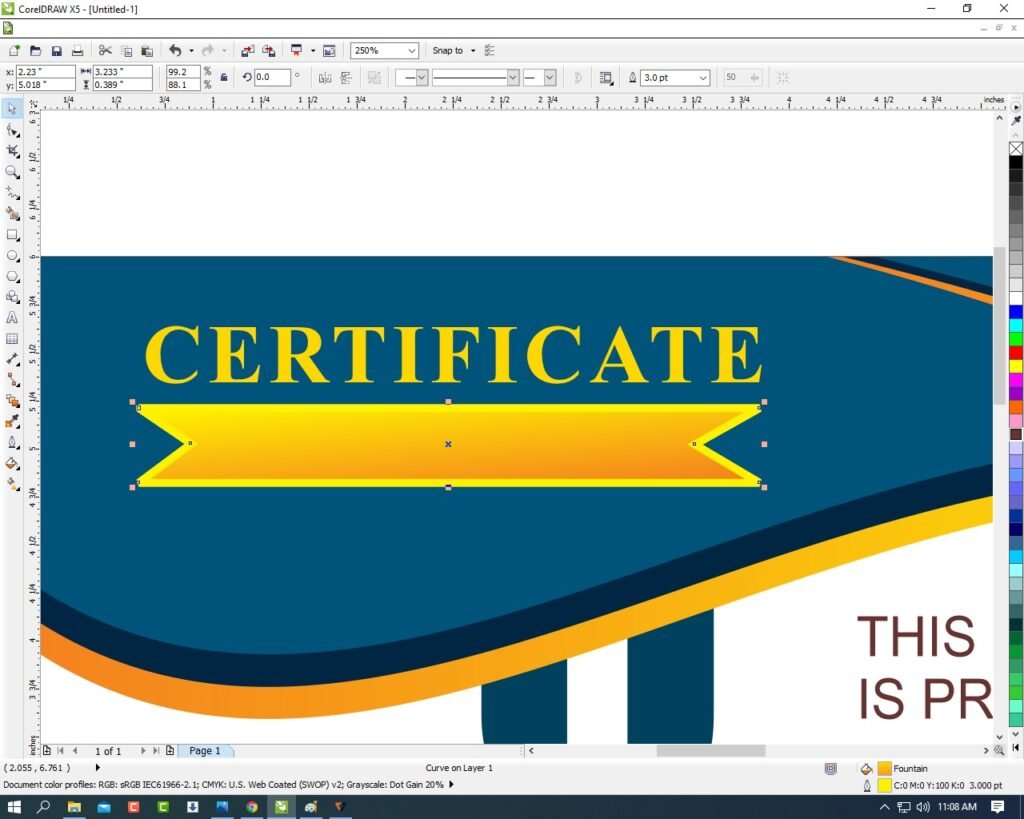
  • Fill any color & Outline.
36 1
Certificate Design in CorelDraw, Easy and Step by Step, Download Source File. 166
  • Then Type In Rectangle.
37 1
Certificate Design in CorelDraw, Easy and Step by Step, Download Source File. 167
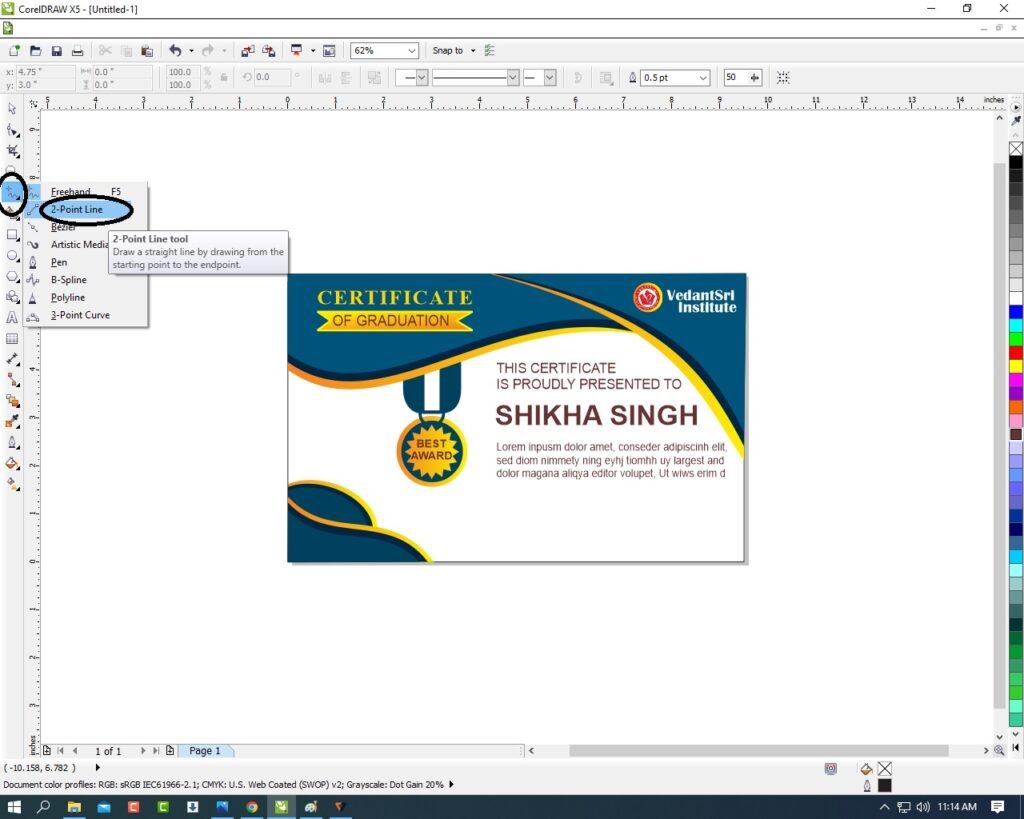
  • Then go to Freehand Tool > 2-point line Option.
39
Certificate Design in CorelDraw, Easy and Step by Step, Download Source File. 168
  • Press shift and draw > Then Outline 3pt fill any color > Then go to End arrowhead to Change the Last Point design.
Certificate Design in CorelDraw
Certificate Design in CorelDraw, Easy and Step by Step, Download Source File. 169
42
Certificate Design in CorelDraw, Easy and Step by Step, Download Source File. 170
  • I have Completed this Project, I hope you guys have understood all the Steps.
Certificate Design in CorelDraw
Certificate Design in CorelDraw, Easy and Step by Step, Download Source File. 171

Created and Explained By Shikha Singh

1-VedantSri Official Website:- https://vedantsri.com

2-Student Support Website:- https://www.vedantsri.net

3-Jobs Assist Website:- https://www.jobdo.in

External Link

1-VedantSri Official Website:- https://vedantsri.com

2-Course Store Website:- https://vedantsri.in

3-Jobs Assist Website:- https://www.jobdo.in

4-MS Word Class:- https://mswordclass.com/

5-Corel Free Class:- https://corelclass.com/

6-Free Excel Class:- https://msexcelclass.com/

Banner Design in CorelDraw, Easy Method, Complete Steps, Download Practice file

Banner Design in CorelDraw, Easy Method, Complete Steps, Download Practice file

Hello Friends, Welcome to Vedantsri.net In This Post I am Going To Teach You How To Create Banner Design in CorelDraw. In This Project, You can Learn How To Design a Banner in CorelDraw Application with an easy Method. You can also Download the Practice File in This Post. So Let’s Start To Learn This project, Before starting I request You to Please Follow Given below Step to Learn Properly Step By step.(Banner Design in CorelDraw, Easy Method, Complete Steps, Download Practice file)

  • CorelDraw Open करने के लिए Windows + R Button Press करके Run Box Open करे। Banner Design in CorelDraw
  • Run Box मे Coreldrw Type करे।
  • अब Ok par Click करके CorelDraw के application को open करे।
  • अब CTRL + N Press करे New Page का Window open होगा
  • Ok पर Click करे Or CorelDraw का main Page Open करे।
  • Page की size को Landscape मे करे
  • Rectangle Tool पर Double click करे।
  • Rectangle Shape के Outline का Width 10Pt करे।
  • अब Photo Insert करे या Download करे।
  • Menu bar मे > Bitmaps Option > Auto Adjust Option पर click करे
  • Menu bar मे >Effects Option > Power Clip > Place Inside Container Option पर click करे।
  • फिर Page पर Click करे फिर CTRL + Mouse से click करे।
  • अब Image को Page पर set करे।
  • अब Page बाहर CTRL + Mouse से Click करे।
  • Rectangle shape draws करे Or उसे Rotate करे Outline 10 Pt करे.
  • CTRL + D Press करे Or Shape का Duplicate बनाये
  • Shape को page पर set करे।
  • अब Hum Shape मे Image Insert करे या download करके Set करे
  • Menu bar मे > Bitmaps Option > Auto Adjust Option पर click करे
  • Menu bar मे >Effects Option > Power Clip > Place Inside Container Option पर click करे।
  • Shape par Click करे फिर CTRL + Mouse से Click करे
  • अब image को shape पर Set करे Page बाहर CTRL + Mouse से Click करे।
  • इसी तरह सारे Shape पर Image को set करेगे।
  • अब एक Rectangle shape draw करे CTRL + D से Duplicate बनाये
  • Shape मे Color fill करे Or Outline 3 Pt, Outline का color Fill करे।
  • Shape पर Click करे Shift के साथ सारे Shape को Select करे
  • CTRL + G से सारे Shape को Group करने के बाद
  • Menu bar मे >Effects Option > Power Clip > Place Inside Container Option पर click करे।
  • फिर Page पर Click करे।
  • अब Text tool से VEDANTSRI लिखेगे, Font style, Size Or Color fill करे
  • Text tool पर Drop Shadow Tool का Use करेगे।
  • Hum Logo को File से Insert कर सकते या Download करे।
  • Basic shape Tool से Star shape Draw करे Or Duplicate बनाए
  • अब Text tool से सारे detail fill करेगे
  • अब hum File को CTRL + S से Save करेगे।

Created & Explained By Pratibha Modanwal

1-VedantSri Official Website:- https://vedantsri.com

2-Student Support Website:- https://www.vedantsri.net

3-Jobs Assist Website:- https://www.jobdo.in

External Link

1-VedantSri Official Website:- https://vedantsri.com

2-Course Store Website:- https://vedantsri.in

3-Jobs Assist Website:- https://www.jobdo.in

4-MS Word Class:- https://mswordclass.com/

5-Corel Free Class:- https://corelclass.com/

6-Free Excel Class:- https://msexcelclass.com/

Poster Design in CorelDraw, Top 1 Best Easy and Simple Method, Download Source File.

Poster Design in CorelDraw, Top 1 Best Easy and Simple Method, Download Source File.

Hello! Friends Welcome to www.vedantsri.net In this Project, I am going to Teach you How To Create a Poster in CorelDraw. In this Project you can Learn How to Design a Poster in CorelDraw Application an Easy Method. Poster Design in CorelDraw

  • Press Windows + R on Keyboard.
  • Something like this appears.
  • Type Run Command of Application in Run Dialog Box. Poster Design in CorelDraw
Poster Design in CorelDraw
  • Click at New Blank Document.
  • Fill all information > Regarding New page like this. Poster Design in CorelDraw
  • Click on the OK option.
  • Change Size of page from here. Poster Design in CorelDraw
  • Double Click at Rectangle tool > From tool Option. Poster Design in CorelDraw
  • Something like this appear.
  • Draw a Rectangle at Page like this.
  • Click on Page > Change colour of Page > From Color palate. Poster Design in CorelDraw
  • Select a Rectangle > Change Color from Color palate > Remove Outline from here.
  • Press F10 in Keyboard > Something like this appear.
  • Click at Top Corner > Press Ctrl + Q > Right Click of Mouse > Click at To Curve Option > like this.
  • 4 Nodes appear like this.
  • Curve like this.
  • Select Curved Rectangle > Press Ctrl + D > To Duplicate shapes > Change Color of Duplicate Rectangle > From Color palate.
  • Select Curved Rectangle > Duplicate them > Change Color >From Color Palate > like this.
  • Set all the Curved Rectangle > Set like this.
  • Select all Rectangles > Click at Effect Menu > Click at Power Clip Option > Place inside Container > Click at Page > something like this appear.
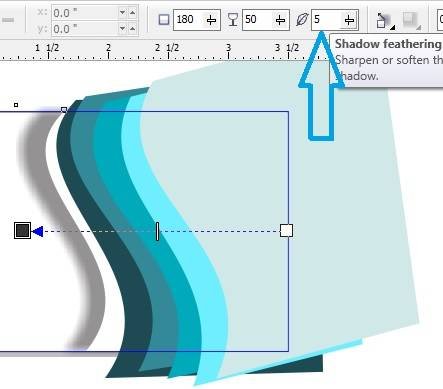
  • Click at Page > Press Ctrl + Left Click of Mouse > Select Rectangle One by One > Apply Drop Shadow On Rectangle > From Blend tool Option > Decrease shadow feathering like this.
  • Select One By One Rectangle > Apply Shadow > Click at Page.
  • Put LOGO of an Institute > like this.
22 3
Poster Design in CorelDraw, Top 1 Best Easy and Simple Method, Download Source File. 258
  • Type Institute Name > From text tool.
  • Apply Drop Shadow on Text > Drop Shadow Tool.
  • Type Matter of an Institute > like this.
  • Draw circle > Press Ctrl + F11 > To insert Characters > Set like this > Type information.
  • Give Heading CONTACT US > Like this
  • Now Poster is Ready.

Created and Explained by Sakshi Rawat.

Important link

Visit at – https://www.corelclass.com

Read Also it – https://msexcelclass.com/

Also Read- Tally Course Fees, Duration, Scope, Syllabus, Admission, Institutes

Also Read – CCC Course Fees, Syllabus, Duration, Scope, Jobs, and Institute

Important Link – DFA Course Fees, Syllabus, Duration, Scope, Jobs, and Institute

Visit – https://mswordclass.com/

Poster Design In CorelDraw, Easy and Step by Step, Download Source File.

Poster Design In CorelDraw, Easy and Step by Step, Download Source File.

Hello Friends, Welcome to Corelclass.com In This Post I am Going to Teach you How to Create Poster Design in CorelDraw. In This Project, You Can Learn How to Design a Poster in CorelDraw Application in an Easy Method. You Can Also Download the Practice File in This Post. So Let’s Start To Learn This Project, Before starting I request You to Please Follow the Given Below Step to Learn Properly step by step.

  • First of all Press Window + R To Open Run Dialogue Box >Type coreldrw .
2 7
Poster Design In CorelDraw
  • Press Ok.
Poster Design In CorelDraw
  • Press CTRL + N to Open a New Page Window.
Poster Design In CorelDraw
  • Double Click on Rectangle Tool.
Poster Design In CorelDraw
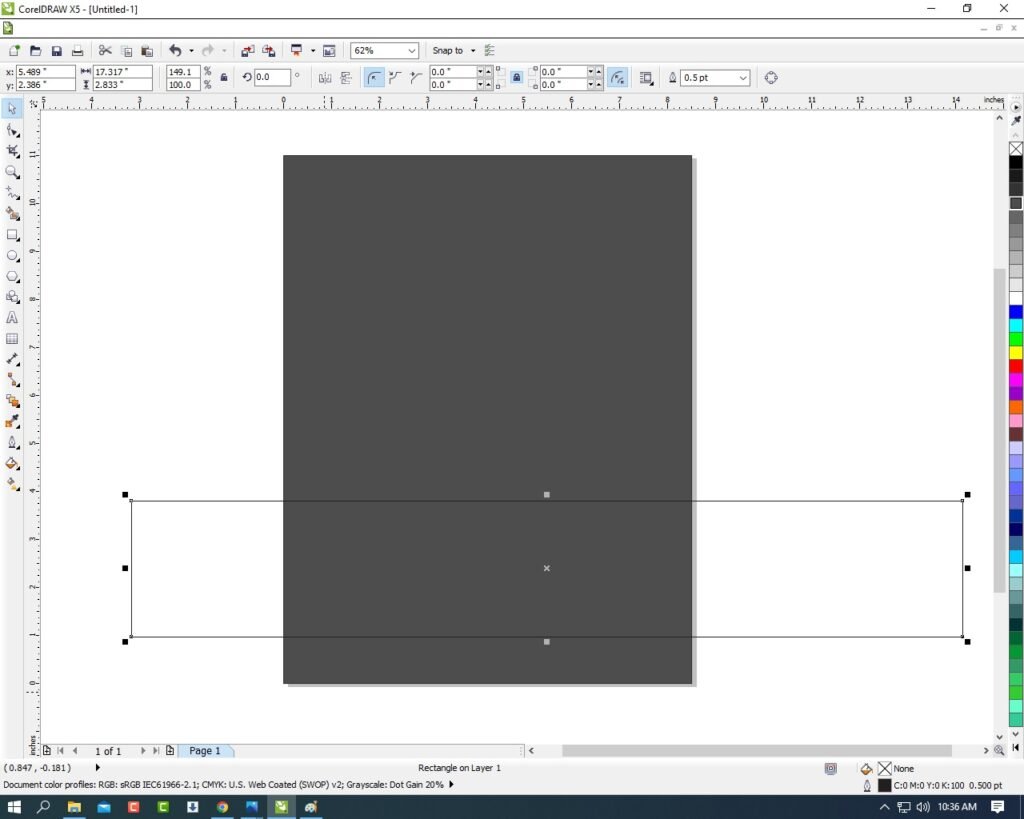
  • Then Fill any Color in the page.
1 1
Poster Design In CorelDraw, Easy and Step by Step, Download Source File. 295
  • Draw Rectangle in the page.
Poster Design In CorelDraw
Poster Design In CorelDraw, Easy and Step by Step, Download Source File. 296
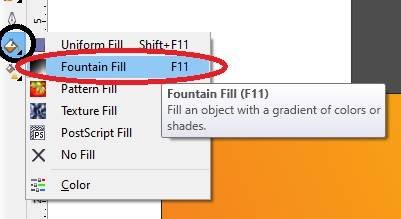
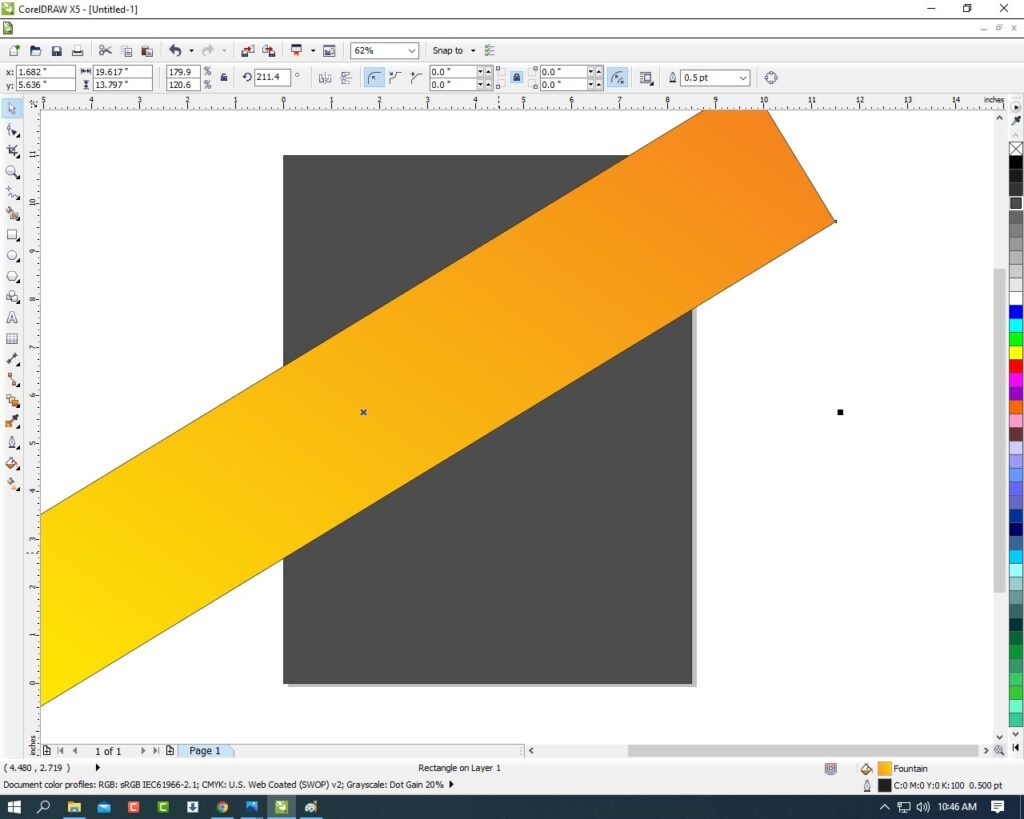
  • Then Fill any color > I’m Fill Fountain color First of all go to Fill Tool > Click on Fountain Fill > Then Fill any Color as your Wish.
3 4
Poster Design In CorelDraw, Easy and Step by Step, Download Source File. 297
  • Then Double Click on the shape > Rotate the Rectangle Like I Do .
4 3
Poster Design In CorelDraw, Easy and Step by Step, Download Source File. 298
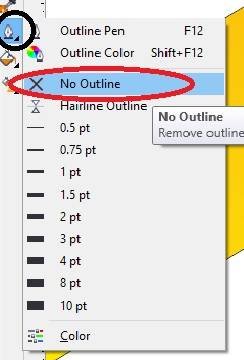
  • Then Select the Rectangle > Go to Outline Pen Tool > No Outline.
Poster Design In CorelDraw
Poster Design In CorelDraw, Easy and Step by Step, Download Source File. 299
  • Then Select the Rectangle > Go to Effect Menu > Click on PowerClip Option > Place Inside Container.
6 4
Poster Design In CorelDraw, Easy and Step by Step, Download Source File. 300
  • Then you Can see Extra Aria are clip on the page inside.
7 5
Poster Design In CorelDraw, Easy and Step by Step, Download Source File. 301
  • Draw a Triangle > Fill any Color > No Outline.
Poster Design In CorelDraw
Poster Design In CorelDraw, Easy and Step by Step, Download Source File. 302
  • Then Same Process > Go Effect Menu > PowerClip > Place Inside Container > Click on the Page.
  • Then CTRL + Double Click On the Shape > Go to Inside the Page.
9 5
Poster Design In CorelDraw, Easy and Step by Step, Download Source File. 303
  • Then Select the Triangle Press CTRL + Page Down.
10 2
Poster Design In CorelDraw, Easy and Step by Step, Download Source File. 304
  • Then CTRL + Double Click on Out Of Page .
Poster Design In CorelDraw
Poster Design In CorelDraw, Easy and Step by Step, Download Source File. 305
  • Then Draw a Very Small Rectangle > Fill any Color > No Outline.
12 4
Poster Design In CorelDraw, Easy and Step by Step, Download Source File. 306
  • Then Rotate the Shape > Press F10 > CTRL + Q > to make a New shape and Fix it Like I show.
13 3
Poster Design In CorelDraw, Easy and Step by Step, Download Source File. 307
  • Select the Shape > Effect Menu > PowerClip > Inside the Container > Click on the Page.
14 4
Poster Design In CorelDraw, Easy and Step by Step, Download Source File. 308
  • Then Draw a New Rectangle Shape > Fill any Color > No Outline > Then Repeat same process Press F10 > CTRL + Q > To Make a New shape and Fix It Like Me.
15 5
Poster Design In CorelDraw, Easy and Step by Step, Download Source File. 309
  • Then Draw the Rectangle & Repeat Same process I will show.
16 3
Poster Design In CorelDraw, Easy and Step by Step, Download Source File. 310
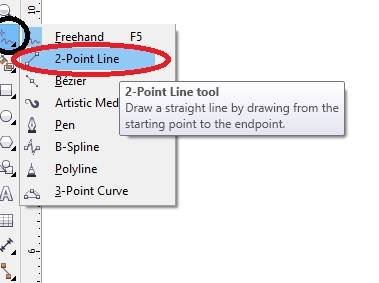
  • Then Go to FreeHand tool > Click on 2-Point Line > Then press shift and Draw the line.
17 3
Poster Design In CorelDraw, Easy and Step by Step, Download Source File. 311
18 3
Poster Design In CorelDraw, Easy and Step by Step, Download Source File. 312
  • Then Go to Line Style > Choose any style as your wish > Outline 4pt > Outline Color White.
19 2
Poster Design In CorelDraw, Easy and Step by Step, Download Source File. 313
  • Then Make a many Duplicate (CTRL + D) > Fix It I will Show.
20 3
Poster Design In CorelDraw, Easy and Step by Step, Download Source File. 314
  • Select all Lines and Press CTRL + G to Group all Line & Press CTRL + D To Duplicate and Fix It.
21 3
Poster Design In CorelDraw, Easy and Step by Step, Download Source File. 315
  • Then You Can Insert LOGO Your Institute or Company.
22 2
Poster Design In CorelDraw, Easy and Step by Step, Download Source File. 316
  • Apply Shadow on the LOGO > Go To Blend Tool > Click Drop Shadow Option and apply.
13 4
Poster Design In CorelDraw, Easy and Step by Step, Download Source File. 317
  • Then Type Your Institute or Company name & Details.
23 3
Poster Design In CorelDraw, Easy and Step by Step, Download Source File. 318
  • Create a LOGO. Like Instagram/WhatsApp/Facebook etc.
20 4
Poster Design In CorelDraw, Easy and Step by Step, Download Source File. 319
  • I hope You guys have understood all the Step. Thank you .
  • I have completed this Project.
Poster Design In CorelDraw
Poster Design In CorelDraw, Easy and Step by Step, Download Source File. 320

1-VedantSri Official Website:- https://vedantsri.com

2-Student Support Website:- https://www.vedantsri.net

3-Jobs Assist Website:- https://www.jobdo.in

External Link

1-VedantSri Official Website:- https://vedantsri.com

2-Course Store Website:- https://vedantsri.in

3-Jobs Assist Website:- https://www.jobdo.in

4-MS Word Class:- https://mswordclass.com/

5-Corel Free Class:- https://corelclass.com/

6-Free Excel Class:- https://msexcelclass.com/

Visiting Card Design In CorelDraw, Easy and Simple Method, Step By Step, Download Source File

Visiting Card Design In CorelDraw, Easy and Simple Method, Step By Step, Download Source File

Hello Friends, Welcome to Corelclass.com In This Post, I am Going to Teach you How to Create Visiting Design in CorelDraw. In This Project, You Can Learn How Design Visiting Card in CorelDraw Application an Easy Method. Visiting Card Design In CorelDraw

You Can Also Download the Practice File in This Post. So Let’s Start To Learn This Project, Before starting I request You to Please Follow the Given Below Step to Learn Properly step by step. Visiting Card Design In CorelDraw, Easy and Simple Method, Step By Step, Download Source File

  • Press Window + R to Open Run Dialogue Box> Type CorelDraw> Press OK ..
2 5
Visiting Card Design In CorelDraw, Easy and Simple Method, Step By Step, Download Source File 342
  • You Can See the open Application CorelDraw.
Visiting Card Design In CorelDraw, Easy and Simple Method, Step By Step, Download Source File
Visiting Card Design In CorelDraw, Easy and Simple Method, Step By Step, Download Source File 343
  • Press CTRL + N to Open New Page Window.Visiting Card Design In CorelDraw, Easy and Simple Method, Step By Step, Download Source File
4 4
Visiting Card Design In CorelDraw, Easy and Simple Method, Step By Step, Download Source File 344
  • Press Ok.
Visiting Card Design In CorelDraw
Visiting Card Design In CorelDraw, Easy and Simple Method, Step By Step, Download Source File 345
  • Draw a Half Rectangle.
1 1
Visiting Card Design In CorelDraw, Easy and Simple Method, Step By Step, Download Source File 346
  • Then Draw a New Rectangle In Rectangle Shape.
Visiting Card Design In CorelDraw, Easy and Simple Method, Step By Step, Download Source File
Visiting Card Design In CorelDraw, Easy and Simple Method, Step By Step, Download Source File 347
  • Then Select the Rectangle Shape > Press F10 > CTRL + Q.
3 3
Visiting Card Design In CorelDraw, Easy and Simple Method, Step By Step, Download Source File 348
  • Then Click Right On the corner of Rectangle >Click on To Curve Option > Move the Arrows To Create A new Shape. Like I show.
4 2
Visiting Card Design In CorelDraw, Easy and Simple Method, Step By Step, Download Source File 349
  • Fill Any Color and Any Color of Outline.
5 3
Visiting Card Design In CorelDraw, Easy and Simple Method, Step By Step, Download Source File 350
  • Then Create a Same Shape in Opposite Side. I will show you.
Visiting Card Design In CorelDraw
Visiting Card Design In CorelDraw, Easy and Simple Method, Step By Step, Download Source File 351
  • Then You can Insert Logo on your Institute/company/collage.
7 4
Visiting Card Design In CorelDraw, Easy and Simple Method, Step By Step, Download Source File 352

  • Mention Your Institute/Company/Collage Name.
8 2
Visiting Card Design In CorelDraw, Easy and Simple Method, Step By Step, Download Source File 353
  • Then You can Mention Your Institute/Collage/Company Personal & Professional Details.
  • Press CTRL + F11 to Insert the Character & Symbol.
9 4
Visiting Card Design In CorelDraw, Easy and Simple Method, Step By Step, Download Source File 354
  • Then Draw a New Rectangle.
10 1
Visiting Card Design In CorelDraw, Easy and Simple Method, Step By Step, Download Source File 355
  • Then Repeat a same Process draw Rectangle in Rectangle Shape > Press F10 > CTRL + Q > Then Click Right on Corner of Rectangle Shape > Click On to Curve Option, Then Move the Arrow to Create a New Shape I Will Show This
11 3
Visiting Card Design In CorelDraw, Easy and Simple Method, Step By Step, Download Source File 356
  • Then Insert LOGO & Mention Your Address. Visiting Card Design In CorelDraw, Easy and Simple Method, Step By Step, Download Source File
12 3
Visiting Card Design In CorelDraw, Easy and Simple Method, Step By Step, Download Source File 357
  • Then You can see I Apply the Shadow on Text.
  • Go to Blend tool > Click on Drop Shadow Option & Apply any Text As Your Wish.
Visiting Card Design In CorelDraw, Easy and Simple Method, Step By Step, Download Source File
Visiting Card Design In CorelDraw, Easy and Simple Method, Step By Step, Download Source File 358
  • Draw a New Small Rectangle > Fill any Color > 1pt Outline Fill any Color in Outline.
Visiting Card Design In CorelDraw
Visiting Card Design In CorelDraw, Easy and Simple Method, Step By Step, Download Source File 359
  • Select the Rectangle > F10 > CTRL + Q > Move the Point create a New Shape I will Show .
15 4
Visiting Card Design In CorelDraw, Easy and Simple Method, Step By Step, Download Source File 360
  • Then Press CTRL + D to duplicate this Object And Fix Like This I show.
Visiting Card Design In CorelDraw, Easy and Simple Method, Step By Step, Download Source File
Visiting Card Design In CorelDraw, Easy and Simple Method, Step By Step, Download Source File 361
  • Then Finally Complete this Project I hope You all understand the all Step.
  • Thank you.
Visiting Card Design In CorelDraw, Easy and Simple Method, Step By Step, Download Source File

Created and Explained By Shikha Singh

Important link

Visit at – https://www.corelclass.com

Read Also it – https://msexcelclass.com/

Also, Read- Tally Course Fees, Duration, Scope, Syllabus, Admission, Institutes

Also Read – CCC Course Fees, Syllabus, Duration, Scope, Jobs, and Institute

Important Link – DFA Course Fees, Syllabus, Duration, Scope, Jobs, and Institute

Visit – https://mswordclass.com/

Template Design in CorelDraw, Easy and Simple method, Step By Step, Download Video File

Template Design in CorelDraw, Easy and Simple method, Step By Step, Download Source File

Hello Friends, Welcome to Corelclass.com In This Video, I am Going to Teach you How to Create a Template Design in CorelDraw. In This Video, You Can Learn How to Design Templates in CorelDraw applications in an Easy Method. Template Design in CorelDraw

So Let’s Start To Learn This Video, Before starting, I request You to Please Follow the Given Below Step to Learn Properly step by step. Template Design in CorelDraw, Easy and Simple method, Step By Step, Download Video File

Poster Design in CorelDraw

Invitation Card in CorelDraw

About VedantSri Computer Institute Varanasi

VedantSri Computer Institute in Varanasi is the Government recognized and ISO Certified Computer Institute in Varanasi running since 2011. It Provides Computer Courses, Classes, and Training through its own different branches all over Varanasi. There is Computer Scholarship Courses DCE Scholarship (Diploma in Computer Engineering), DIT’s most trusted computer course Available under Scholarship Test Scheme. Template Design in CorelDraw

Varanasi Computer Institute vedantsri works at different places to ensure students get better computer education. VedantSri Computer Classes has Diploma courses and advanced diploma courses on the computerVedantSri Institute provides the latest version of computer application training in computer courses. Template Design in CorelDraw

Template Design in CorelDraw

वेदांतश्री कम्प्यूटर इंस्टिट्यूट’ वाराणसी में पिछले 10 वर्षो से बेहतर व न्यूनतम शुल्क में कम्प्यूटर शिक्षा प्रदान करने वाली एक कम्प्यूटर ट्रेनिंग इंस्टिट्यूट है | यह संस्था कम्प्यूटर व इंग्लिश स्पीकिंग कोर्स की ट्रेनिंग प्रदान करती है | वाराणसी में कम्प्यूटर शिक्षा को बेहतर व न्यूनतम शुल्क में छात्रो तक पहुचाने में वेदांतश्री पिछले 10 वर्षो से प्रयासरत है | Template Design in CorelDraw, Easy and Simple method, Step By Step, Download Video File

Free To Learn In VedantSri Computer Institute in Varanasi

Template Design in CorelDraw

About CCC Online Test 2022

CCC Online Test 2022:- This is the CCC Online Test Website Page. If You are preparing for CCC Exam or any competitive exam then you should visit this www.vedantsri.net website. Template Design in CorelDraw, Easy and Simple method, Step By Step, Download Video File

you can also download this app from the play store and you find Just like many more Online Test Series Related For Examples MS Word, MS Excel, MS PowerPoint, and Internet-related Template Design in CorelDraw, Easy and Simple method, Step By Step, Download Video File

Important Link

Visit at – https://www.corelclass.com

Also, Read it – CorelDraw Course Fees, Duration, Scope, Syllabus, Admission, Institutes

Read Also – Tally Course Fees, Duration, Scope, Syllabus, Admission, Institutes

Also Read – CCC Course Fees, Syllabus, Duration, Scope, Jobs, and Institute

Important Link – DFA Course Fees, Syllabus, Duration, Scope, Jobs, and Institute

Visit – ADCA Course Fees, Duration, Scope, Syllabus, Admission, Institutes

Web Banner Design CorelDraw, Easy Method, Step by Step, Download Source File

Web Banner Design CorelDraw, Easy Method, Step by Step, Download Source File

Hello Friends, Welcome to Corelclass.com In This Post I am Going to Teach you How to Create Web Design in CorelDraw. In This Project, You Can Learn How to Design a Web Banner in CorelDraw Application in an Easy Method. You Can Also Download the Practice File in This Post. Web Banner Design CorelDraw

So Let’s Start To Learn This Project, Before starting I request You to Please Follow the Given Below Step to Learn Properly step by step. Web Banner Design CorelDraw, Easy Method, Step by Step, Download Source File

  • Press Window + R to Open Run Dialogue Box & Type CorelDraw Then Press OK.
2 3
Web Banner Design CorelDraw, Easy Method, Step by Step, Download Source File 407
  • Then You Can See the Open Application of CorelDraw. Web Banner Design CorelDraw, Easy Method, Step by Step, Download Source File
Web Banner Design CorelDraw, Easy Method, Step by Step, Download Source File
Web Banner Design CorelDraw, Easy Method, Step by Step, Download Source File 408
  • Press CTRL + N to Open a New Page Window.
Web Banner Design CorelDraw
Web Banner Design CorelDraw, Easy Method, Step by Step, Download Source File 409
  • Press OK.
Web Banner Design CorelDraw, Easy Method, Step by Step, Download Source File
Web Banner Design CorelDraw, Easy Method, Step by Step, Download Source File 410
  • Then Change the page Size , I will show you Page Size.
1
Web Banner Design CorelDraw, Easy Method, Step by Step, Download Source File 411
  • Press Enter.
2 4
Web Banner Design CorelDraw, Easy Method, Step by Step, Download Source File 412
  • Then Double Click on the Rectangle Tool.
Web Banner Design CorelDraw
Web Banner Design CorelDraw, Easy Method, Step by Step, Download Source File 413
  • Fill in Any Color in the Shape. Web Banner Design CorelDraw, Easy Method, Step by Step, Download Source File
4 1
Web Banner Design CorelDraw, Easy Method, Step by Step, Download Source File 414
  • Then Draw a Circle > Press CTRL + Shift then Draw the circle.
5 2
Web Banner Design CorelDraw, Easy Method, Step by Step, Download Source File 415
  • Then Select the Object (circle) & Click on the Menu Bar > Effect > PowerClip > Place Inside Container.
6 2
Web Banner Design CorelDraw, Easy Method, Step by Step, Download Source File 416
  • Then Click On the page > Then the Circle Shape that was Outside the page will be Hidden Inside Like this I show.
7 3
Web Banner Design CorelDraw, Easy Method, Step by Step, Download Source File 417
  • Then CTRL + Double Click On Circle ( to Enter The Clipping Circle).
  • Then Insert the any picture on page.
9 3
Web Banner Design CorelDraw, Easy Method, Step by Step, Download Source File 419
  • You can see picture is very big on the page > To shrink it, First Press SHIFT + F2 >Then any hold one Corner and shorten it. Like I Show
10
Web Banner Design CorelDraw, Easy Method, Step by Step, Download Source File 420
  • First select the picture Then Click On Menu Bitmaps > Convert to Bitmaps.
11 2
Web Banner Design CorelDraw, Easy Method, Step by Step, Download Source File 421
  • Select the picture > Menu Effect > PowerClip > Place Inside Container.
12 2
Web Banner Design CorelDraw, Easy Method, Step by Step, Download Source File 422
  • Then Click on the Shape ( circle) Then Picture will disappear. Like I show .
13 1
Web Banner Design CorelDraw, Easy Method, Step by Step, Download Source File 423
  • Then CTRL + Double Click on the shape you have clipping Picture.
14 1
Web Banner Design CorelDraw, Easy Method, Step by Step, Download Source File 424
  • Fix the Picture on the Rectangle Shape.
15 3
Web Banner Design CorelDraw, Easy Method, Step by Step, Download Source File 425
  • Then CTRL + Click on page.
Web Banner Design CorelDraw
Web Banner Design CorelDraw, Easy Method, Step by Step, Download Source File 426
  • Select the Shape ( circle ) > Outline Pen > No Outline.
14 2
Web Banner Design CorelDraw, Easy Method, Step by Step, Download Source File 427
  • Press CTRL + Double Click On Out of page ( any where ).
17 1
Web Banner Design CorelDraw, Easy Method, Step by Step, Download Source File 428
  • Then draw a new Circle on the Page.
Web Banner Design CorelDraw, Easy Method, Step by Step, Download Source File
Web Banner Design CorelDraw, Easy Method, Step by Step, Download Source File 429
  • Fill any Color on the circle and No Outline In the Shape I will showing you.
19
Web Banner Design CorelDraw, Easy Method, Step by Step, Download Source File 430
  • Then Select the Object and Go to Effect Menu > PowerClip > Place Inside Container > Click on the Page .
20 2
Web Banner Design CorelDraw, Easy Method, Step by Step, Download Source File 431
  • Then CTRL + Double Click on the Circle. Web Banner Design CorelDraw, Easy Method, Step by Step, Download Source File
Web Banner Design CorelDraw
Web Banner Design CorelDraw, Easy Method, Step by Step, Download Source File 432
  • Press CTRL + Page Down.
22 1
Web Banner Design CorelDraw, Easy Method, Step by Step, Download Source File 433
  • Then Select the Circle and Press CTRL + D to Duplicate the Object (circle) > Fill any different color and Press CTRL + Page Down & Increase the size and Fix the object as I Show. Web Banner Design CorelDraw, Easy Method, Step by Step, Download Source File
23 2
Web Banner Design CorelDraw, Easy Method, Step by Step, Download Source File 434

  • Fill any color this object > Then CTRL + Double Click on Out of the Page.
24 2
Web Banner Design CorelDraw, Easy Method, Step by Step, Download Source File 435
  • Then Type your Company/Institute/College/school Name.
Web Banner Design CorelDraw, Easy Method, Step by Step, Download Source File
Web Banner Design CorelDraw, Easy Method, Step by Step, Download Source File 436
  • Then Draw a one triangle.
25 2
Web Banner Design CorelDraw, Easy Method, Step by Step, Download Source File 437
  • Then Press F10 > Click on the Center of Circle > then Now Click Right on This Point > Click ADD Option.
26 2
Web Banner Design CorelDraw, Easy Method, Step by Step, Download Source File 438
  • Then Click on right the center Point > Click on the To Curve Option.
27 2
Web Banner Design CorelDraw, Easy Method, Step by Step, Download Source File 439
  • Then Move the Arrows and Make a new Shape like I show.
28 2
Web Banner Design CorelDraw, Easy Method, Step by Step, Download Source File 440
  • Then Click on Pick Tool.
29
Web Banner Design CorelDraw, Easy Method, Step by Step, Download Source File 441
  • Then You Can Insert Your Company/Institute/College/School Logo.
30 3
Web Banner Design CorelDraw, Easy Method, Step by Step, Download Source File 442
  • Then Go to the Freehand tool > Click on 2-Point Line Option.
31 2
Web Banner Design CorelDraw, Easy Method, Step by Step, Download Source File 443
  • Then Press Shift and draw the Line > Outline 3pt and fill any color in outline.
32 3
Web Banner Design CorelDraw, Easy Method, Step by Step, Download Source File 444
  • Then Press CTRL + F11 > Type Webdings and Insert The Symbol.
33 1
Web Banner Design CorelDraw, Easy Method, Step by Step, Download Source File 445

  • Then Insert the Character > Fill any Color > No outline and Fix It. As I show. Web Banner Design CorelDraw, Easy Method, Step by Step, Download Source File
  • Then Type Your Company Or Institute Location/Address/Contact Details.
34 2
Web Banner Design CorelDraw, Easy Method, Step by Step, Download Source File 446
  • Then Draw a Small Circle like a symbol > Fill any color and Write About Your Courses. Like I show.
35
Web Banner Design CorelDraw, Easy Method, Step by Step, Download Source File 447
  • Draw New Rectangle > Fill any Color > And Type On Rectangle Your Website Account Any Thing. Like I showing.
36
Web Banner Design CorelDraw, Easy Method, Step by Step, Download Source File 448
  • Then You Can Insert the Symbol to look Very Creative Like I Show.
Web Banner Design CorelDraw, Easy Method, Step by Step, Download Source File
Web Banner Design CorelDraw, Easy Method, Step by Step, Download Source File 449
  • Then Complete this Web Banner Design.
Web Banner Design CorelDraw, Easy Method, Step by Step, Download Source File

Created and Explained By Shikha Singh

Important link

Visit at – https://www.corelclass.com

Read Also it – https://msexcelclass.com/

Also, Read- Tally Course Fees, Duration, Scope, Syllabus, Admission, Institutes

Also Read – CCC Course Fees, Syllabus, Duration, Scope, Jobs, and Institute

Important Link – DFA Course Fees, Syllabus, Duration, Scope, Jobs, and Institute

Visit – https://mswordclass.com/

Banner Design CorelDraw, Easy Method, Step by Step, Download Source File

Banner Design CorelDraw, Easy Method, Step by Step, Download Source File

Hello Friends, Welcome to Corelclass.com In This Post I am Going to Teach you How to Create Banner Designs in CorelDraw. In This Project, You Can Learn How to Design a Banner in CorelDraw Application in an Easy Method. Banner Design CorelDraw

You Can Also Download the Practice File in This Post. So Let’s Start To Learn This Project, Before starting I request You to Please Follow the Given Below Step to Learn Properly step by step.

  • Press Window + R to Open Run Dialogue Box & Type CorelDraw then press ok.
Banner Design CorelDraw, Easy Method, Step by Step, Download Source File
Banner Design CorelDraw, Easy Method, Step by Step, Download Source File 489
  • Then you can see the Open Application of CorelDraw.
Banner Design CorelDraw, Easy Method, Step by Step, Download Source File
Banner Design CorelDraw, Easy Method, Step by Step, Download Source File 490
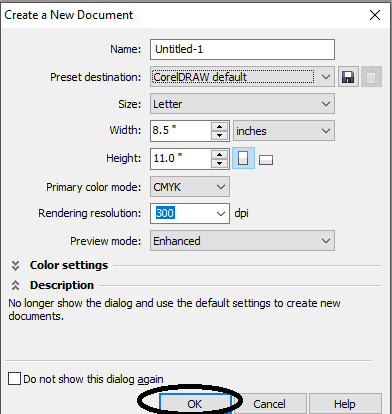
  • Press CTRL + N to Open a New Page Window.
Banner Design CorelDraw, Easy Method, Step by Step, Download Source File
Banner Design CorelDraw, Easy Method, Step by Step, Download Source File 491
  • Press ok.
Banner Design CorelDraw, Easy Method, Step by Step, Download Source File
Banner Design CorelDraw, Easy Method, Step by Step, Download Source File 492
  • Double Click on Rectangle Tool.
Banner Design CorelDraw, Easy Method, Step by Step, Download Source File
Banner Design CorelDraw, Easy Method, Step by Step, Download Source File 493
  • Then Increase the page Size, and I will show you the page size.
1
Banner Design CorelDraw, Easy Method, Step by Step, Download Source File 494
  • Select the Page And Fill Fountain Color > Go to Fill Tool > Fountain Fill.
2
Banner Design CorelDraw, Easy Method, Step by Step, Download Source File 495
  • Fill in any Color as your wish then Press Ok.
Banner Design CorelDraw, Easy Method, Step by Step, Download Source File
Banner Design CorelDraw, Easy Method, Step by Step, Download Source File 496
  • Draw the New Rectangle on the Page.
3 3
Banner Design CorelDraw, Easy Method, Step by Step, Download Source File 497
  • Select the Rectangle Then Press F10 > CTRL + Q.
Banner Design CorelDraw, Easy Method, Step by Step, Download Source File
Banner Design CorelDraw, Easy Method, Step by Step, Download Source File 498
  • Click On the Right in Rectangle Corner > Click To Curve Option.
5 1
Banner Design CorelDraw, Easy Method, Step by Step, Download Source File 499
  • You will see two arrows move them to Create a new shape > Like this Picture I will show.
Banner Design CorelDraw
Banner Design CorelDraw, Easy Method, Step by Step, Download Source File 500
  • Then Click on Pick Tool.
Banner Design CorelDraw, Easy Method, Step by Step, Download Source File
Banner Design CorelDraw, Easy Method, Step by Step, Download Source File 501
  • Then Insert Any picture on the page.
8
Banner Design CorelDraw, Easy Method, Step by Step, Download Source File 502
  • Select the Picture > Click On Menu Bitmaps > Click on Convert to Bitmaps.
Banner Design CorelDraw, Easy Method, Step by Step, Download Source File
Banner Design CorelDraw, Easy Method, Step by Step, Download Source File 503
  • Select Picture > Click on Effect Menu > PowerClip > Place Inside Container.
10 5
Banner Design CorelDraw, Easy Method, Step by Step, Download Source File 504
  • Click on the Rectangle > Then the Picture will disappear. like I show
Banner Design CorelDraw, Easy Method, Step by Step, Download Source File
Banner Design CorelDraw, Easy Method, Step by Step, Download Source File 505
  • Press CTRL + Double Click On the shape you have clipping the picture.
12 1
Banner Design CorelDraw, Easy Method, Step by Step, Download Source File 506
  • Fix the picture on the Rectangle Shape.
  • Press CTRL + Double Click again Outside the Page.
  • Then Select the Rectangle > Outline Pen > No Outline.
14
Banner Design CorelDraw, Easy Method, Step by Step, Download Source File 507
Banner Design CorelDraw, Easy Method, Step by Step, Download Source File
Banner Design CorelDraw, Easy Method, Step by Step, Download Source File 508
  • Then Draw a New small Rectangle.
16
Banner Design CorelDraw, Easy Method, Step by Step, Download Source File 509
  • Select Rectangle > Press F10 > CTRL + Q.
Banner Design CorelDraw, Easy Method, Step by Step, Download Source File
Banner Design CorelDraw, Easy Method, Step by Step, Download Source File 510
  • Click On the Right in Rectangle Corner > Click To Curve Option.
18 1
Banner Design CorelDraw, Easy Method, Step by Step, Download Source File 511
  • You will see two arrows move them to Create a new shape > Like this Picture I will show.
19 1
Banner Design CorelDraw, Easy Method, Step by Step, Download Source File 512
  • Will set Something like this I show.
Banner Design CorelDraw, Easy Method, Step by Step, Download Source File
Banner Design CorelDraw, Easy Method, Step by Step, Download Source File 513
  • you can Insert the logo of your Company Or Institute.
21 1
Banner Design CorelDraw, Easy Method, Step by Step, Download Source File 514
  • Now We will Mention the name of our Institute or Company on the Page.
Banner Design CorelDraw, Easy Method, Step by Step, Download Source File
Banner Design CorelDraw, Easy Method, Step by Step, Download Source File 515
  • Then Draw a Small rectangle > Fill in any Color > No Outline.
23 1
Banner Design CorelDraw, Easy Method, Step by Step, Download Source File 516
  • Select the Rectangle > Press F10 > CTRL + Q.
24 1
Banner Design CorelDraw, Easy Method, Step by Step, Download Source File 517
  • We will do one Corner of both Right and left, one inside and one outside as I show you.
25 1
Banner Design CorelDraw, Easy Method, Step by Step, Download Source File 518
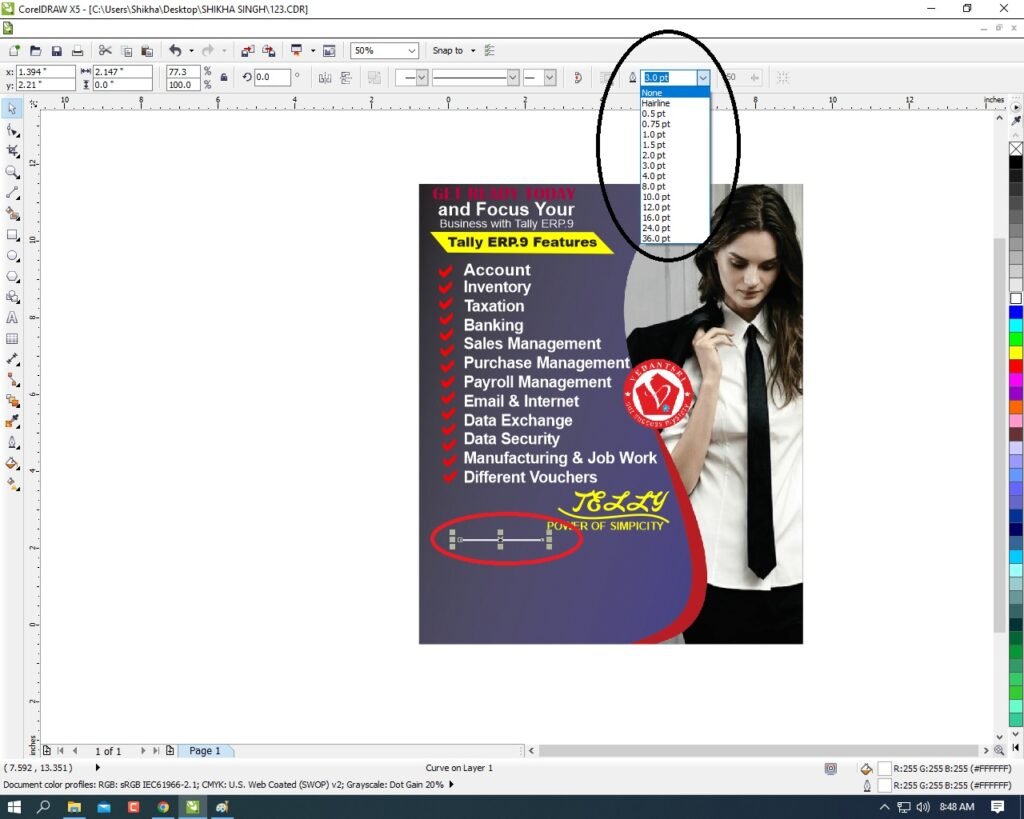
  • Then Type in Rectangle ( Tally ERP.9 Features)
26 1
Banner Design CorelDraw, Easy Method, Step by Step, Download Source File 519
  • Then Press CTRL + F11 To Insert the Character Symbol > Type Webdings > Insert symbol.
27 1
Banner Design CorelDraw, Easy Method, Step by Step, Download Source File 520
  • Insert the Symbol > Fill Any Color > No Outline.
28 1
Banner Design CorelDraw, Easy Method, Step by Step, Download Source File 521
  • Then Type The Tally Features like I do this.
Banner Design CorelDraw, Easy Method, Step by Step, Download Source File
Banner Design CorelDraw, Easy Method, Step by Step, Download Source File 522
  • Then Click on the Freehand Tool > To Point Line > Press Shift and draw the line on the page.
Banner Design CorelDraw
Banner Design CorelDraw, Easy Method, Step by Step, Download Source File 523
  • Then Draw a line on the page > Fill any color > Increase the outline Widths.
31 1
Banner Design CorelDraw, Easy Method, Step by Step, Download Source File 524
  • Then Draw a Very Small Circle.
32 2
Banner Design CorelDraw, Easy Method, Step by Step, Download Source File 525
  • Then Type Thing About Your company or Institute.
33
Banner Design CorelDraw, Easy Method, Step by Step, Download Source File 526
  • Then Complete my Benner. I show.
Banner Design CorelDraw, Easy Method, Step by Step, Download Source File
Banner Design CorelDraw, Easy Method, Step by Step, Download Source File 527

Created and Explained by Shikha Singh.

1-VedantSri Official Website:- https://vedantsri.com

2-Student Support Website:- https://www.vedantsri.net

3-Jobs Assist Website:- https://www.jobdo.in

External Link

1-VedantSri Official Website:- https://vedantsri.com

2-Course Store Website:- https://vedantsri.in

3-Jobs Assist Website:- https://www.jobdo.in

4-MS Word Class:- https://mswordclass.com/

5-Corel Free Class:- https://corelclass.com/

6-Free Excel Class:- https://msexcelclass.com/

Poster Design in CorelDraw, Easy Method, Step By Step, Download Source File

Poster Design in CorelDraw, Easy Method, Step By Step, Download Source File

Hello Friends, Welcome to Corelclass.com In This Post I am Going to Teach you How to Create Poster Design in CorelDraw. In This Project, You Can Learn How to Design a Poster in CorelDraw Application in an Easy Method. Poster Design in CorelDraw

You Can Also Download the Practice File in This Post. So Let’s Start To Learn This Project, Before starting I request You to Please Follow the Given Below Step to Learn Properly step by step.

  • First Press Window + R to Open the Run Dialogue box.
poster
Poster Design in CorelDraw
  • Type coreldrw then Press Ok.
Poster Design in CorelDraw
  • Then you can see Open Application CorelDraw.
3 1
Poster Design in CorelDraw
  • Press CTRL + N open New Page Window.
4 1
Poster Design in CorelDraw, Easy Method, Step By Step, Download Source File 560

  • Press Ok.
5
Poster Design in CorelDraw, Easy Method, Step By Step, Download Source File 561
  • Double Click on Rectangle tool.
6
Poster Design in CorelDraw, Easy Method, Step By Step, Download Source File 562
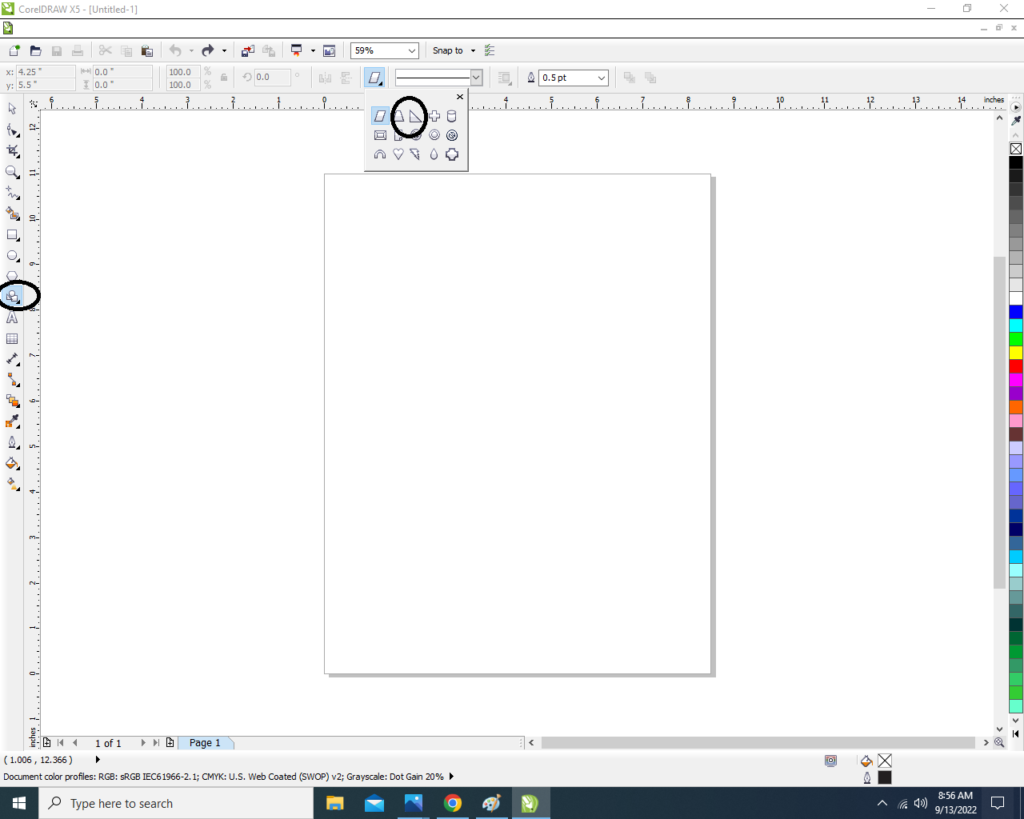
  • Click on Basic Shapes tool > Select triangle and Draw in Page.
7
Poster Design in CorelDraw, Easy Method, Step By Step, Download Source File 563
  • Draw the Small Triangle. Then Double click on Triangle to Rotate the shape.
8 2
Poster Design in CorelDraw, Easy Method, Step By Step, Download Source File 564
  • Now Fix the Triangle Top & Center of the Page > Fill any Color > No Outline.
Poster Design in CorelDraw
Poster Design in CorelDraw, Easy Method, Step By Step, Download Source File 565
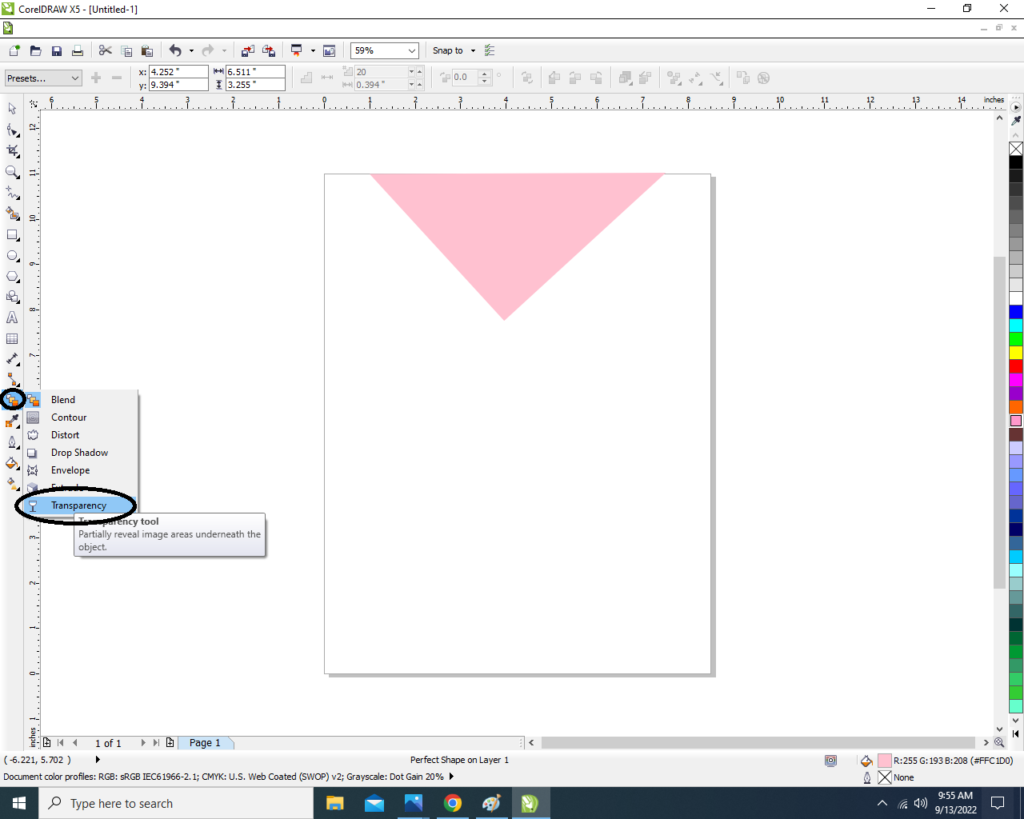
  • Apply the Transparency go to Blend Tool > click on Transparency option.
10 4
Poster Design in CorelDraw, Easy Method, Step By Step, Download Source File 566
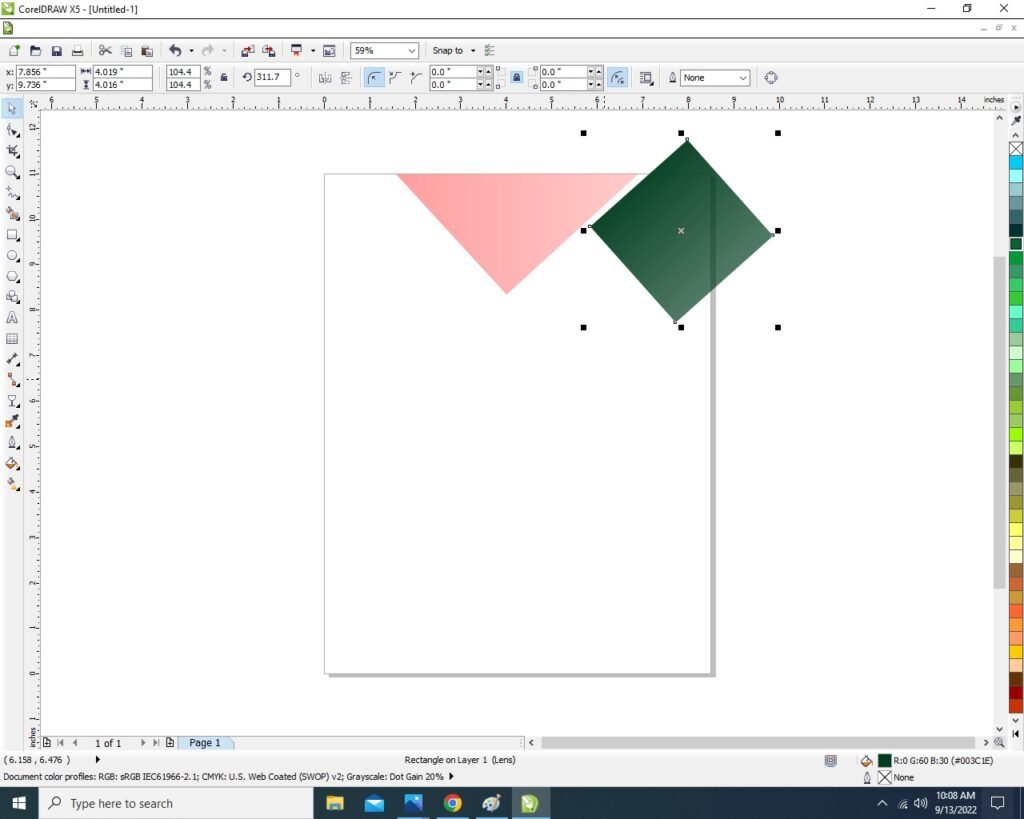
  • Then apply the Transparent the triangle like this.
11
Poster Design in CorelDraw, Easy Method, Step By Step, Download Source File 567
  • Than Draw the Rectangle Shape and apply the same Process > Fill any color > No Outline > Apply Transparency.
12
Poster Design in CorelDraw, Easy Method, Step By Step, Download Source File 568
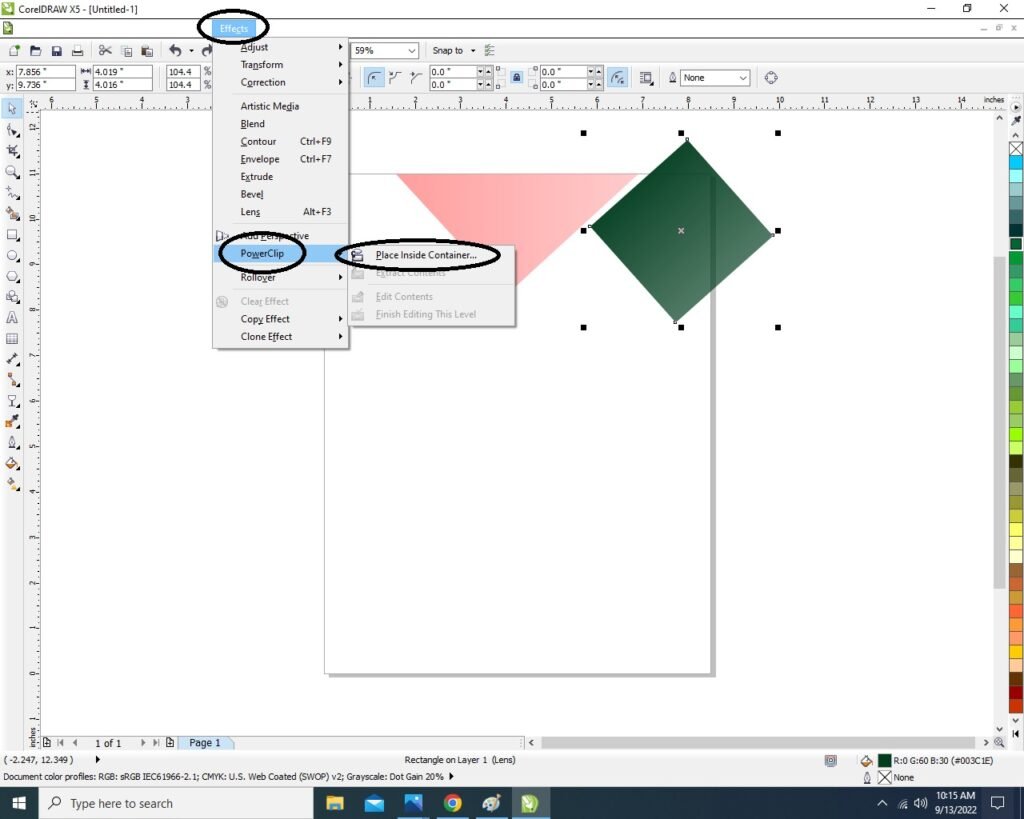
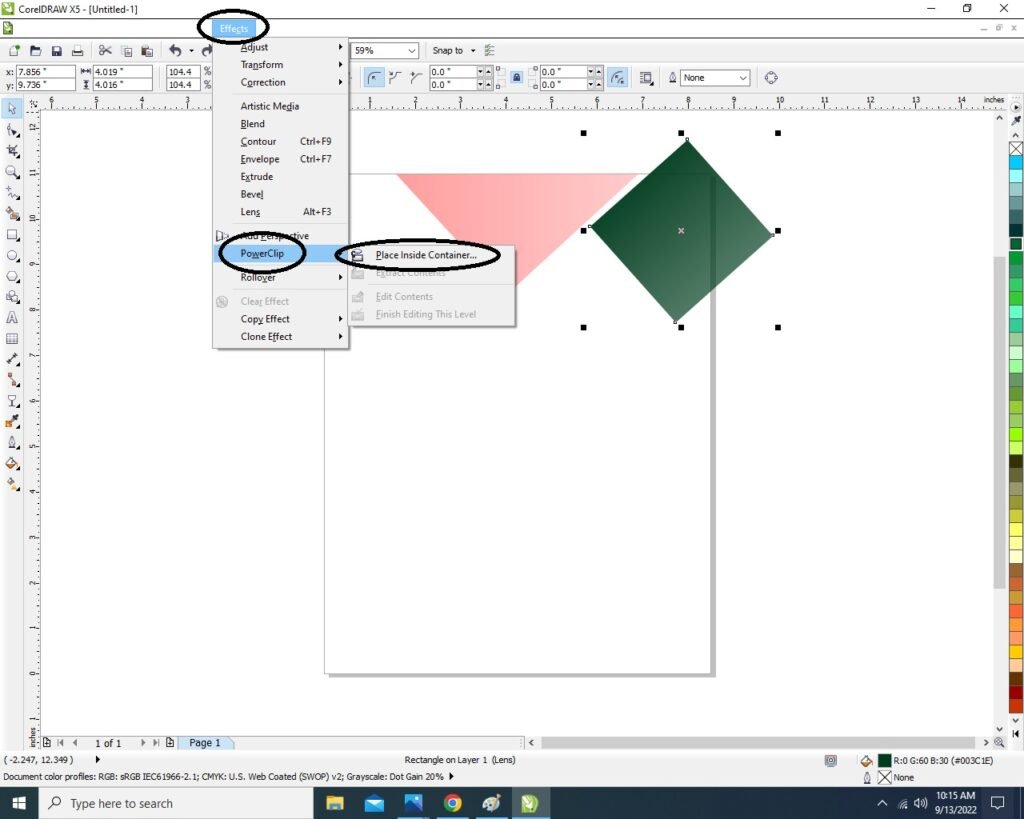
  • Select the Object ( Rectangle) & Click on the Menu bar > Effect > Power clip > Place inside container.
15 2
Poster Design in CorelDraw, Easy Method, Step By Step, Download Source File 569
  • Then Click On the Page.
15 1
Poster Design in CorelDraw, Easy Method, Step By Step, Download Source File 570
  • Then Click on the Page > Then the Rectangle Shape that was outside the page will be hidden Inside like this I show.
16 1
Poster Design in CorelDraw, Easy Method, Step By Step, Download Source File 571
  • Then Draw the New Rectangle > No fill > No Outline .
17 1
Poster Design in CorelDraw, Easy Method, Step By Step, Download Source File 572
  • Then Insert the any picture in Page.
18
Poster Design in CorelDraw, Easy Method, Step By Step, Download Source File 573
  • Then Select the Picture > Click on Menu bar Bitmaps >Click Convert to Bitmaps option .
Poster Design in CorelDraw
Poster Design in CorelDraw, Easy Method, Step By Step, Download Source File 574
  • Then Press Ok.
20
Poster Design in CorelDraw, Easy Method, Step By Step, Download Source File 575
  • Select the Picture > Click On Effect Menu > PowerClip > Place Inside Container.
21
Poster Design in CorelDraw, Easy Method, Step By Step, Download Source File 576
  • Then Click On the Rectangle > Then Picture will Disappear like this.
Poster Design in CorelDraw
Poster Design in CorelDraw, Easy Method, Step By Step, Download Source File 577
  • Then CTRL + Double Click in Rectangle Shape > Properly Fix the Picture on the Rectangle Shape Like this .
23
Poster Design in CorelDraw, Easy Method, Step By Step, Download Source File 578
  • CTRL + Double Click again Outside the Page.
24
Poster Design in CorelDraw, Easy Method, Step By Step, Download Source File 579
  • Then Create a new Triangle Like This Picture I will show.
Poster Design in CorelDraw
Poster Design in CorelDraw, Easy Method, Step By Step, Download Source File 580
  • Will Insert Picture in this Triangle & No Outline just Like we did above Step by Step .
26
Poster Design in CorelDraw, Easy Method, Step By Step, Download Source File 581
  • Will PowerClip even More like This I show you.
27
Poster Design in CorelDraw, Easy Method, Step By Step, Download Source File 582
  • Then Create a New 2 Rectangle . I will show You
28
Poster Design in CorelDraw, Easy Method, Step By Step, Download Source File 583
  • Will Insert Photo in a Rectangle and fill the Color in Another Rectangle & Both Rectangle Outline is None.
29
Poster Design in CorelDraw, Easy Method, Step By Step, Download Source File 584
  • Then Again Create a New Triangle > Fill any Color > Apply Transparency > No Outline.
30
Poster Design in CorelDraw, Easy Method, Step By Step, Download Source File 585
  • Now write Whatever Title name & Mention your Address & Professional Information you want to write on the page.
31
Poster Design in CorelDraw, Easy Method, Step By Step, Download Source File 586
  • You can Insert the LOGO of your Company or Institute & Press CTRL + F11 Insert Many Character Example that Twitter Facebook etc. Like I show .
32
Poster Design in CorelDraw, Easy Method, Step By Step, Download Source File 587
  • Then Completed your poster card.
Poster Design in CorelDraw
Poster Design in CorelDraw, Easy Method, Step By Step, Download Source File 588

Created and Explained by Shikha Singh.

1-VedantSri Official Website:- https://vedantsri.com

2-Student Support Website:- https://www.vedantsri.net

3-Jobs Assist Website:- https://www.jobdo.in

External Link

1-VedantSri Official Website:- https://vedantsri.com

2-Course Store Website:- https://vedantsri.in

3-Jobs Assist Website:- https://www.jobdo.in

4-MS Word Class:- https://mswordclass.com/

5-Corel Free Class:- https://corelclass.com/

6-Free Excel Class:- https://msexcelclass.com/

Invitation Card Design CorelDraw, Easy Method, Step By Step, Download Source File

Invitation Card Design CorelDraw, Easy Method, Step By Step, Download Source File

Hello Friends, Welcome to Corelclass.com In This Post I am Going To Teach you How To Create Invitation Card Design CorelDraw. In This Project, You Can Learn How To Design Invitation Card Design in CorelDraw Application an Easy Method. Invitation Card Design CorelDraw

You can also Download the Practice File in This Post. So Let’s Start To Learn This Project, Before starting I request you to Please Follow Given below step to Learn Properly step by step. Invitation Card Design CorelDraw, Easy Method, Step By Step, Download Source File

  • Press Window + R to Open the Run dialogue Box.
Invitation Card Design CorelDraw, Easy Method, Step By Step, Download Source File
Invitation Card Design CorelDraw, Easy Method, Step By Step, Download Source File 616
  • Type CorelDraw than Press ok.
image 1
Invitation Card Design CorelDraw, Easy Method, Step By Step, Download Source File 617
  • Open Application CorelDraw.
Invitation Card Design CorelDraw
Invitation Card Design CorelDraw, Easy Method, Step By Step, Download Source File 618
  • Press Ctrl + N to open the New page window.
image 3
Invitation Card Design CorelDraw, Easy Method, Step By Step, Download Source File 619
  • Then Press Ok
1 VedantSri
Invitation Card Design CorelDraw, Easy Method, Step By Step, Download Source File 620
  • Double Click on the Rectangle tool.
Invitation Card Design CorelDraw
Invitation Card Design CorelDraw, Easy Method, Step By Step, Download Source File 621
  • Then fill in any color on the page.
3
Invitation Card Design CorelDraw, Easy Method, Step By Step, Download Source File 622
  • Draw a small Rectangle.
4
Invitation Card Design CorelDraw, Easy Method, Step By Step, Download Source File 623
  • Fill any color in Rectangle and no outline.
5
Invitation Card Design CorelDraw, Easy Method, Step By Step, Download Source File 624
  • Press F10 > CTRL + Q > Then Click on Right in Rectangle Corner. Invitation Card Design CorelDraw, Easy Method, Step By Step, Download Source File
6
Invitation Card Design CorelDraw, Easy Method, Step By Step, Download Source File 625
  • Click on to Curve option.
Invitation Card Design CorelDraw
Invitation Card Design CorelDraw, Easy Method, Step By Step, Download Source File 626
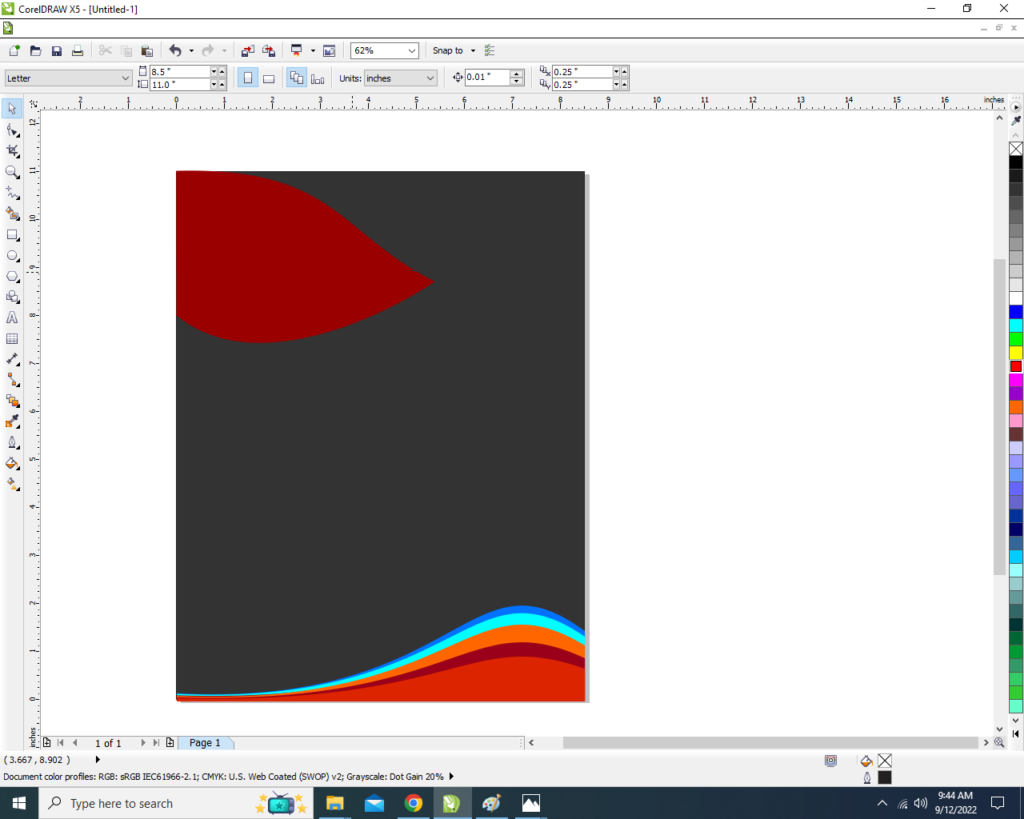
  • Then Move the Arrows and make a new shape .
9 1
Invitation Card Design CorelDraw, Easy Method, Step By Step, Download Source File 627
Invitation Card Design CorelDraw, Easy Method, Step By Step, Download Source File
Invitation Card Design CorelDraw, Easy Method, Step By Step, Download Source File 628
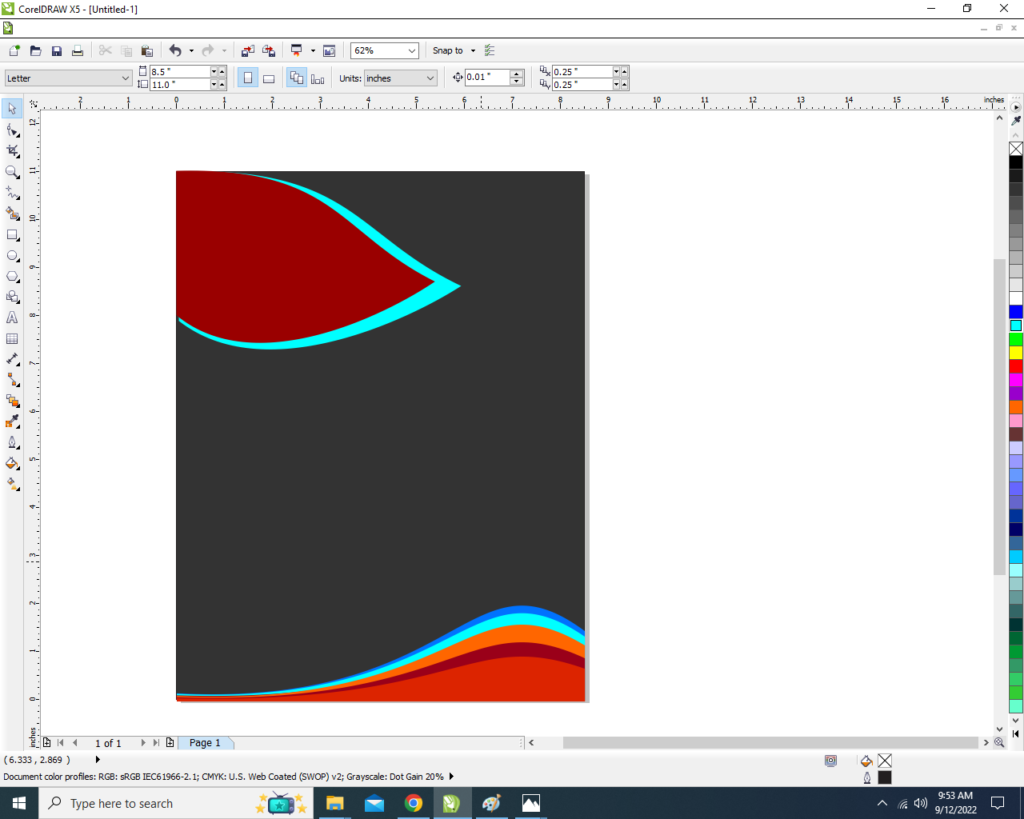
  • Press CTRL + D to make a Duplicate of this shape and Fill in any different color.
11
Invitation Card Design CorelDraw, Easy Method, Step By Step, Download Source File 629

  • Than Press CTRL + Page Down to Move the Shape in backsword.
12
Invitation Card Design CorelDraw, Easy Method, Step By Step, Download Source File 630
  • Make the back shape a little bigger than the front shape.
  • to help of pick tool > Grab the middle point and move it upwards. Invitation Card Design CorelDraw, Easy Method, Step By Step, Download Source File
13
Invitation Card Design CorelDraw, Easy Method, Step By Step, Download Source File 631
  • So many duplicates will do and fill different colors in the shapes.
14
Invitation Card Design CorelDraw, Easy Method, Step By Step, Download Source File 632
  • Draw the new Rectangle and fill any color and no outline in the shape .
Invitation Card Design CorelDraw, Easy Method, Step By Step, Download Source File
Invitation Card Design CorelDraw, Easy Method, Step By Step, Download Source File 633
  • This shape will also be made a new shape with the help of F10 & CTRL + Q to curve the shape.
Invitation Card Design CorelDraw
Invitation Card Design CorelDraw, Easy Method, Step By Step, Download Source File 634
  • Now make a duplicate of this shape and fill any color in shape.
  • then press CTRL + page down to send Backward the shape.
17
Invitation Card Design CorelDraw, Easy Method, Step By Step, Download Source File 635
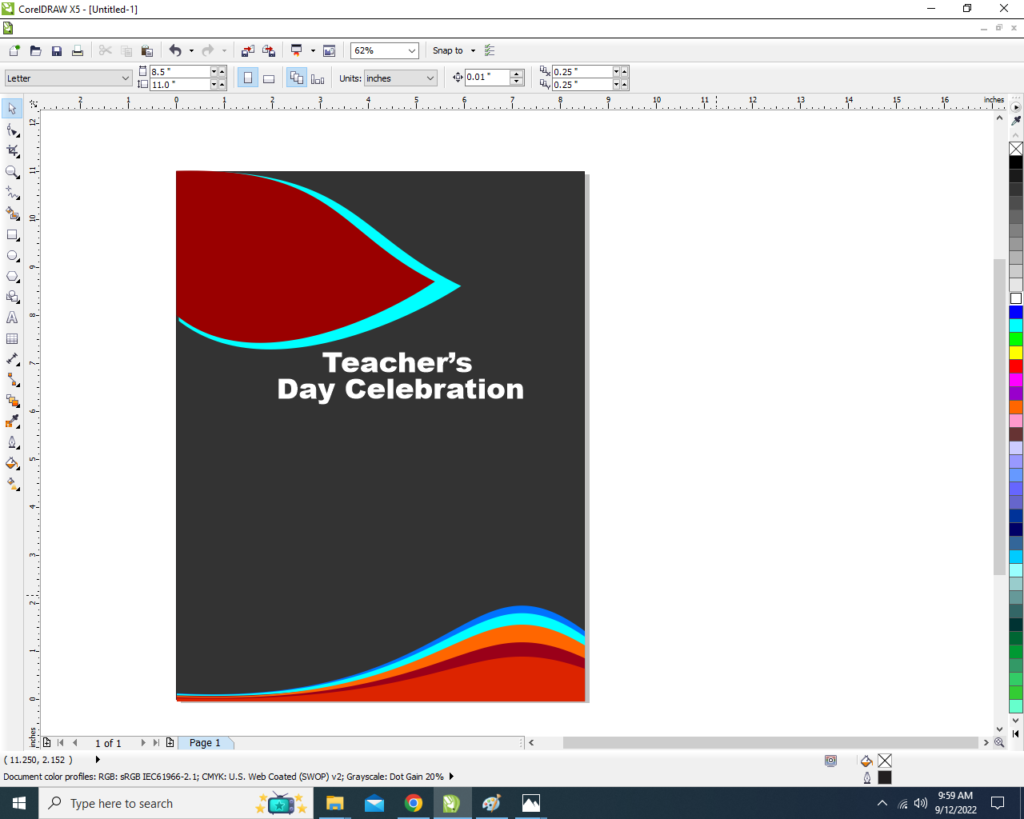
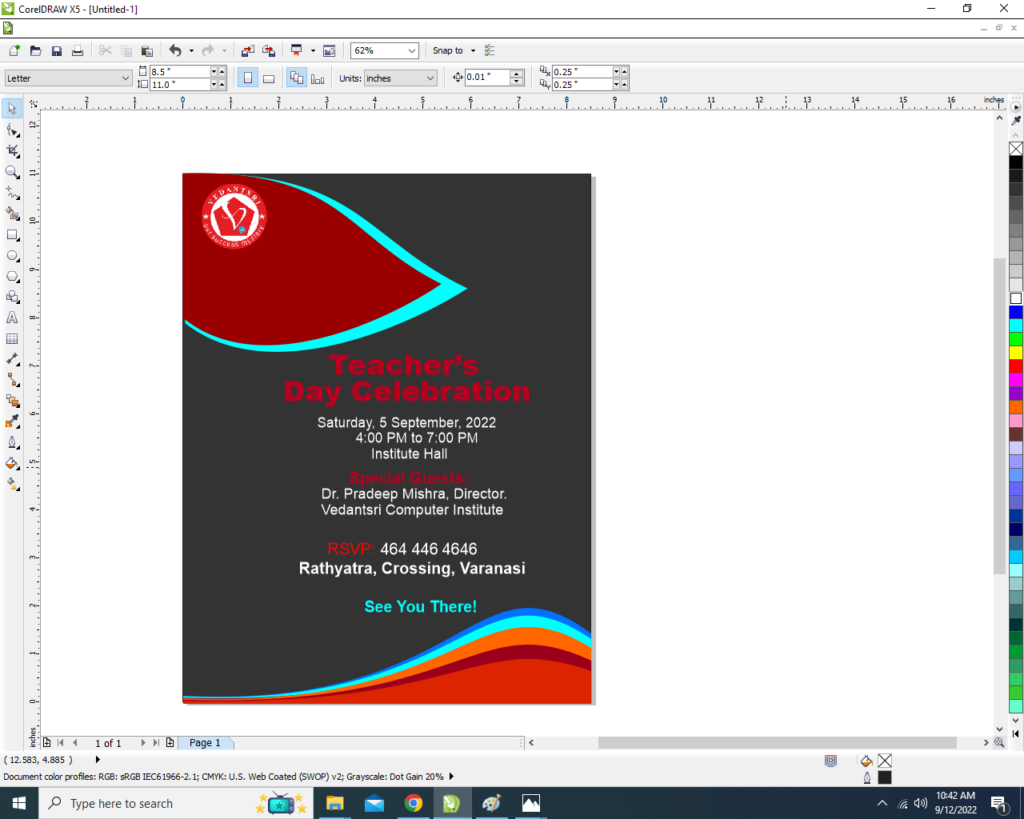
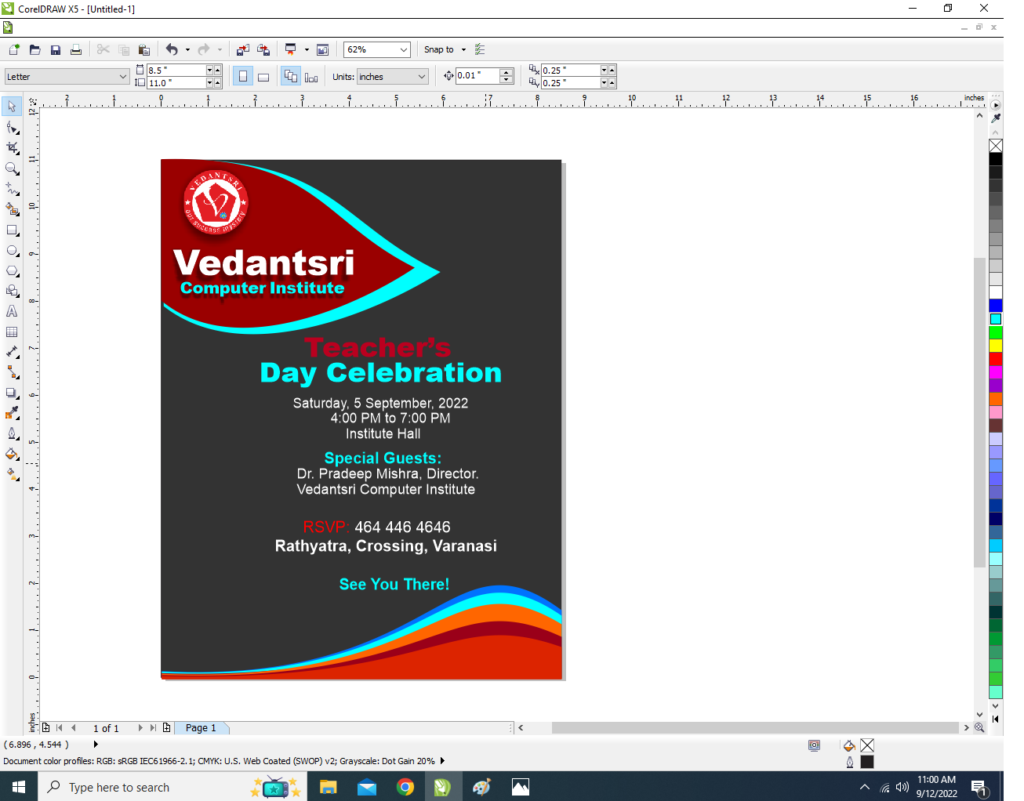
  • Now we will go to the text tool & will write.
18 1
Invitation Card Design CorelDraw, Easy Method, Step By Step, Download Source File 636
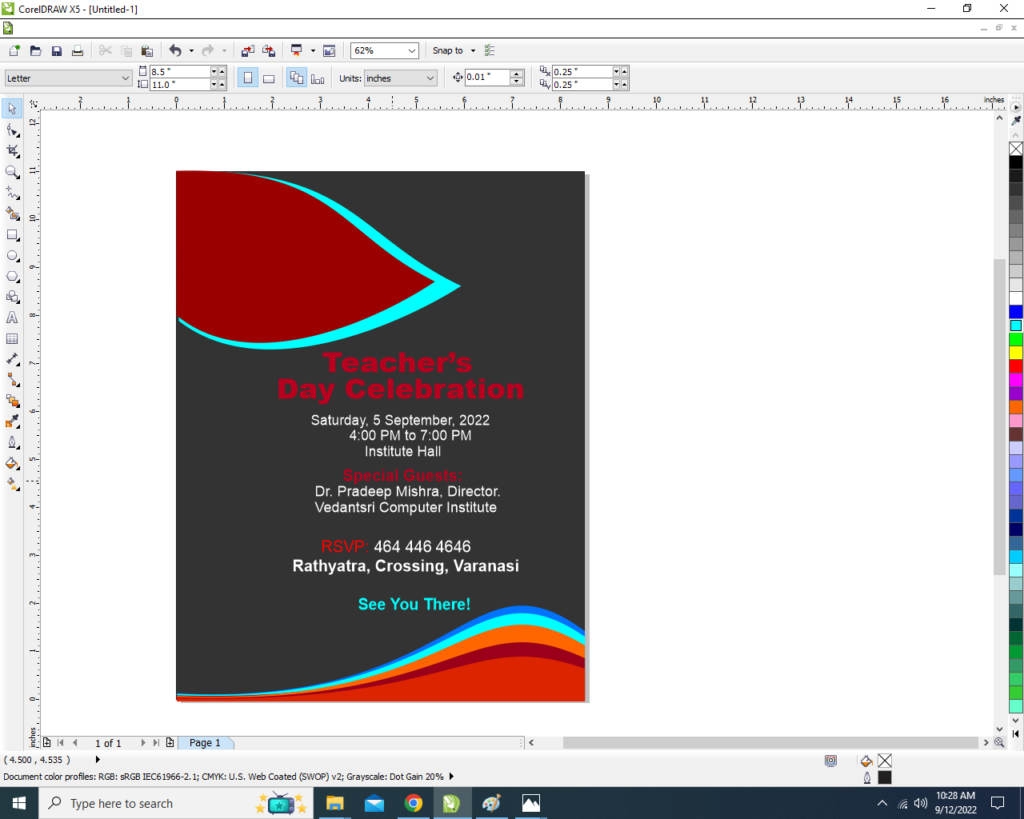
  • After writing the Teacher’s Day celebration, We Will add more lines to it, for Example the timing location address, etc.
19
Invitation Card Design CorelDraw, Easy Method, Step By Step, Download Source File 637
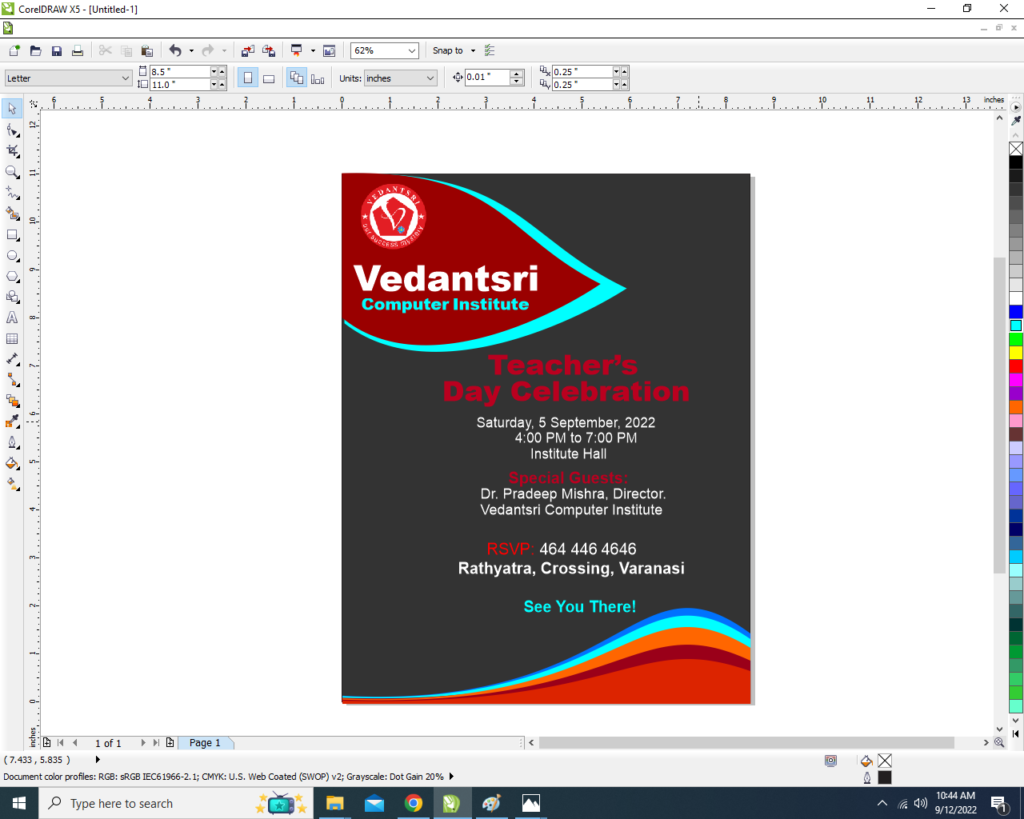
  • You can adjust the color and size of the letters.
  • Then you insert your logo.
Invitation Card Design CorelDraw, Easy Method, Step By Step, Download Source File
Invitation Card Design CorelDraw, Easy Method, Step By Step, Download Source File 638
  • Then you can write the name of your Institute/college/school. Invitation Card Design CorelDraw, Easy Method, Step By Step, Download Source File
Invitation Card Design CorelDraw, Easy Method, Step By Step, Download Source File
Invitation Card Design CorelDraw, Easy Method, Step By Step, Download Source File 639
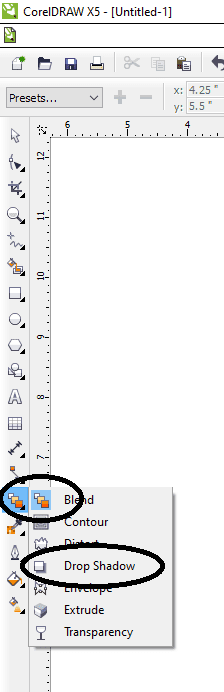
  • You can Apply shadow on letters.
  • Click on Blend tool > then click option Drop Shadow.
23
Invitation Card Design CorelDraw, Easy Method, Step By Step, Download Source File 640
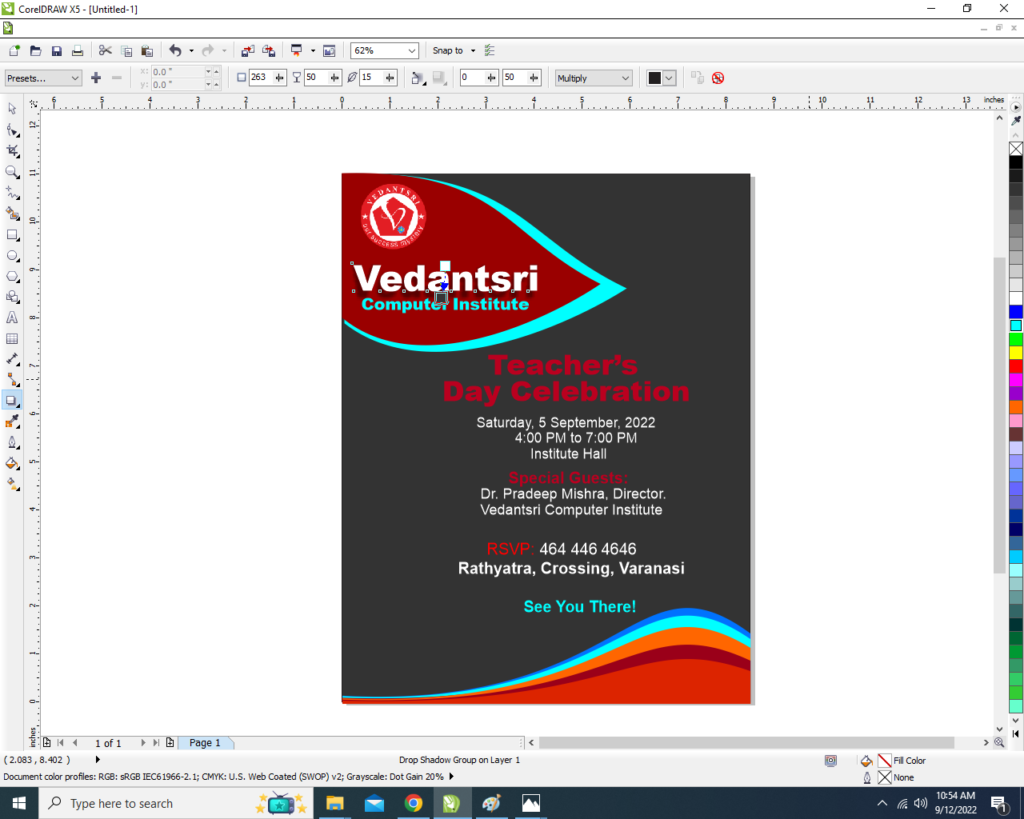
  • Select the letter on which you want to apply the Drop Shadow.
Invitation Card Design CorelDraw
Invitation Card Design CorelDraw, Easy Method, Step By Step, Download Source File 641
  • Similarly, You can apply drop shadow on whichever letter & Object you want.
Invitation Card Design CorelDraw, Easy Method, Step By Step, Download Source File

Created & Explained By Shikha Singh

Important link

Visit at – https://www.corelclass.com

Read Also it – https://msexcelclass.com/

Also, Read- Tally Course Fees, Duration, Scope, Syllabus, Admission, Institutes

Also Read – CCC Course Fees, Syllabus, Duration, Scope, Jobs, and Institute

Important Link – DFA Course Fees, Syllabus, Duration, Scope, Jobs, and Institute

Visit – https://mswordclass.com/

TCS Tax in Sales Voucher Entry in Tally Prime | TCS Entry in Tally Prime | How to Calculate TCS

TCS Tax in Sales Voucher Entry in Tally Prime | TCS Entry in Tally Prime | How to Calculate TCS

In this post, I’m going to tell you about TCS Tax in Sales Voucher Entry in Tally Prime | TCS Entry in Tally Prime | How to Calculate TCS. how to record transactions based on TCS in tally prime. TCS Tax in Sales Voucher Entry

TCS is text collected at the source. A company when paying an amount so by government applicable section text collected is mandatory. TCS Tax in Sales Voucher Entry

So in this post, we’ll teach you a company what kind of amount in what section going to calculate during sales. TCS Tax in Sales Voucher Entry in Tally Prime

TCS Tax in Sales Voucher Entry in Tally Prime | TCS Entry in Tally Prime | How to Calculate TCS
TCS Tax in Sales Voucher Entry in Tally Prime | TCS Entry in Tally Prime | How to Calculate TCS 643

In this class, I’m going to teach you how to record transactions on Sales plus how to applicable TCS with Sales equipment Entry. The complete process of TCS with Sales Entry is going to teach in this class. So I’m going to create a company in TallyPrime Following Complete Process for TCS in Sales. TCS Tax in Sales Voucher Entry

Read Also:- TDS Tax Rate List Latest

Important Link

  1. VedantSri Official Website:- https://vedantsri.com
  2. Course Store Website:- https://vedantsri.in
  3. Jobs Assist Website:- https://www.jobdo.in
  4. MS Word Class:- https://mswordclass.com/
  5. Corel Free Class:- https://corelclass.com/

TCS Tax in Purchase Voucher Entry in Tally Prime | TCS Entry in Tally Prime | How to Calculate TCS

TCS Tax in Purchase Voucher Entry in Tally Prime | TCS Entry in Tally Prime | How to Calculate TCS

In this post, I’m going to tell you about TCS Tax in Purchase Voucher Entry in Tally Prime | TCS Entry in Tally Prime | How to Calculate TCS. Also how to record transactions based on TCS. TCS Tax in Purchase Voucher Entry

first of all, I welcome you to my class in this class, we are going to learn about TCS in full form text collected at the source. This post will teach you how to make a transition on purchase with the TCS applicable. TCS Tax in Purchase Voucher Entry in Tally Prime

Read Also:- TDS Tax Rate List Latest

In this class, I’m going to teach you how to record transactions on purchases plus how to applicable TCS with purchases. The complete process of TCS with purchase vouchers is going to teach in this class. TCS Tax in Purchase Voucher Entry

So I’m going to create a company in TAllyPrime Following Complete Process for TCS in Purchase. TCS Tax in Purchase Voucher Entry in Tally Prime

Important Link

Visit at – https://www.corelclass.com

Also, Read it – CorelDraw Course Fees, Duration, Scope, Syllabus, Admission, Institutes

Read Also – Tally Course Fees, Duration, Scope, Syllabus, Admission, Institutes

Also Read – CCC Course Fees, Syllabus, Duration, Scope, Jobs, and Institute

Important Link – DFA Course Fees, Syllabus, Duration, Scope, Jobs, and Institute

Visit – ADCA Course Fees, Duration, Scope, Syllabus, Admission, Institutes

1-VedantSri Official Website:- https://vedantsri.com

2-Course Store Website:- https://vedantsri.in

3-Jobs Assist Website:- https://www.jobdo.in

4-MS Word Class:- https://mswordclass.com/

5-Corel Free Class:- https://corelclass.com/

TDS Rate List 2026-27

TDS Rate List 2026-27

In this post, we are going to learn about what is TDS Rate List 2026-27 is. TDs full form is tax deducted at the source. So there is given list below about the TDs rate list. This is the updated TDs rate list of the government of India. TDS Rate List 2026-27

Moreover, you can understand the first column about the section on TDs. There are various sections described in this list which is including a text-deducted section. TDS Rate List 2026-27

TDS Rate List 2023-24

Also, The second column is about the payment methods. Basically, Which is defined clearly for what purposes businesses deduct TDs. There is a third column in this list which is described the threshold limit of payment on which TDs deducted. TDS Rate List 2026-27

And the last fourth column is about the TDs tax rate on related payments. TDS Rate List 2026-27

Read Also: –Tally Prime Course Details

TDS Rate Chart for FY 2026-27

SectionPayment ForThreshold limitTDS Rate %
192Salary IncomeRs 2,50,00010%
192 AEPF – Premature withdrawalRs 50,00010%
193Interest in Govt SecuritiesRs. 10,00010%
194DividendRs 5,00010%
194 AInterest by banks/post offices other than on securitiesRS. 40000, (Rs 50,000 for Senior Citizens)10%
194 AInterest by others other than in securitiesRs. 5,00010%
194 BWinnings from Lotteries / Puzzle / GameRs. 10,00030%
194 BBWinnings from Horse RaceRs. 10,00030%
194CContractRs 30,000 (Single Transaction) Rs 1,00,000 (Aggregate of Transactions)1% (Individuals/HUF) 2% (Others)
194 DPayment of Insurance CommissionRs. 15,0005% (10% in the case of domestic companies)
194DAMaturity of Life Insurance PolicyRs 1,00,0005%
194EPayment to non-resident sportsmen/sports associationRs 020% + Cess
194 GCommission on Sale of Lottery ticketsRs 15,0005%
194 HCommission or BrokerageRs 15,0005%
194 IRent of Land, Building, or FurnitureRs. 2,40,00010%
194 IRent of Plant & MachineryRs. 2,40,0002%
194 IATransfer of Immovable Property, other than Agricultural landRs. 50 lakhs1%
194 IBOther RentRs 50,000 (per month)5%
194ICInterest in Infrastructure Bond to NRIRs 010%
194JFees for professional or technical servicesRs 30,000 (Rs 0 in case of Directors)2% (Technical services or call centers), 10% (Professional services)
194KIncome in respect of units (UTI/MF)Rs 5,00010%
194LAPayment of compensation on acquisition of certain immovable propertyRs 2,50,00010%
194 LBInterest from Infrastructure Bond to NRINA10%
194 LDInterest on Rupee denominated bonds, municipal debt security, also govt. SecuritiesNA5%
194MContract, commission, brokerage, or professional fee (other than 194C, 194H, or 194J)50 Lakh5%
194NCash withdrawal from bank and ITR filed Rs 1cr2%
194NCash withdrawal from bank and ITR not filed Rs 20 Lakh2%
194NTDS on Senior Citizens above 75 Years (No ITR filing cases) Rs 1cr5%
194OE-commerce saleRs 5 lakh1%
194PTDS on Senior Citizen above 75 Years (No ITR filing cases)Rs 3 lakhSlab Rates
194QPurchase of goodsRs 50 lakh0.10%
194RBenefits or perquisites arising from business or professionRs 20,00010%
194STDS on payment for Virtual Digital Assets or cryptocurrency (w.e.f. 01.07.2026) TDS Rate List 2026-271%
206AATDS rate in case of Non-availability of PANHigher ofTwice the rate or rate in force
TDS Rate List 2026-27

Important link

TDS Rate List 2026-27

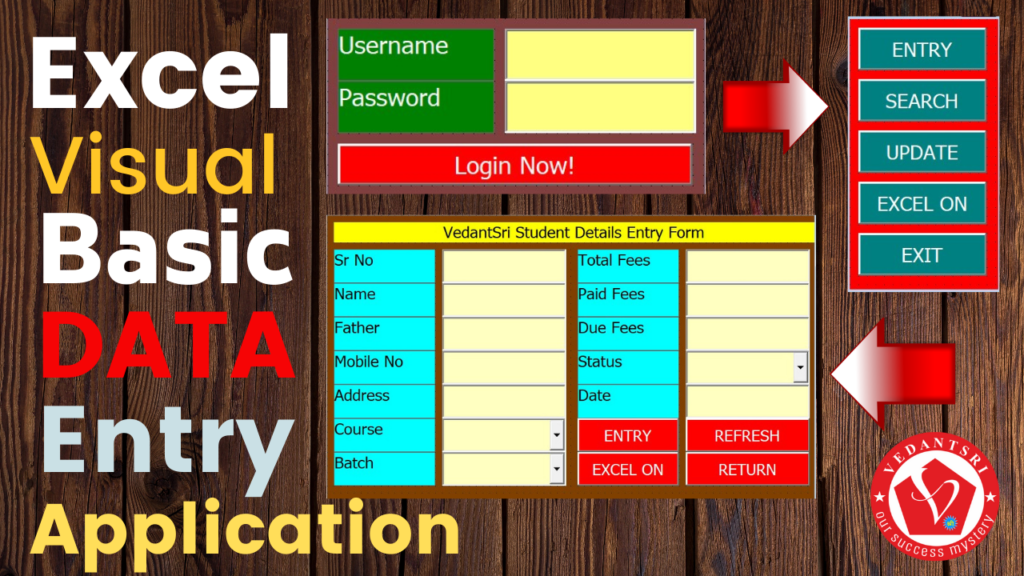
Excel VBA DataEntry Application Part 2 of Coding, Setup, Method Complete Knowledge Video

Excel VBA DataEntry Application, Part 2 of Coding, Setup, Method Complete Knowledge Video

Welcome to this Excel VBA DataEntry Application, Part 2 of Coding, Setup, Method Complete Knowledge Video. in this post, we are going to learn Ms excel visual basic data entry project Part 2. Excel VBA DataEntry Application

Excel VBA DataEntry Application, Part 2 of Coding, Setup, Method Complete Knowledge Video

this project’s very useful if you are working in the office and your work is based on data entry in excel. this project will teach you from basics to advance. how to design data entry form for excel plus it will also teach you how to use formulas or how to data entry on excel by this visual basic user form. Excel VBA DataEntry Application

Excel VBA DataEntry Application, Part 2 of Coding, Setup, Method Complete Knowledge

Use of VBA DataEntry Form

This project is also very important if you are learning Microsoft Excel and you want to improve yourself in Microsoft visual basic. Excel page is called a worksheet and if you want to work on advanced tasks on a worksheet then it is very necessary to understand properly about Microsoft visual basic. Excel VBA DataEntry Application

Microsoft visual basic is an inbuilt program of Microsoft Office. This inbuilt program is used to develop more convenient and efficient program applications depending on user requirements. Excel VBA DataEntry Application

About Part 2 Information

This post is Part 2 of the Microsoft excel visual basic data entry project. So if you did not read part one of this post so I like to request you please go through the given below link to previous posts and read properly then come back to this Part 2 data entry project. Excel VBA DataEntry Application

Part:-1 of This Excel VBA DataEntry Application

Point You will Learn

In this post, I taught you how to type the user form command button formula for entry. you will learn that when you type data on the user form after clicking on the entry command button all data will insert into the excel sheet properly in columns. Also, you are going to learn how to show automatic serial numbers and automatic current dates in the user form textbox. I thought you how to show range data in a combo box of the user form. So this post will teach you complete knowledge about data entry user form formula, function, and coding.

1-VedantSri Official Website:- https://vedantsri.com

2-Course Store Website:- https://vedantsri.in

3-Jobs Assist Website:- https://www.jobdo.in

4-MS Word Class:- https://mswordclass.com/

5-Corel Free Class:- https://corelclass.com/

6-Free Excel Class:- https://msexcelclass.com/

Professional BioData for Beginners in Wordpad

Professional BioData for Beginners in Wordpad

This Post Allows you to learn how to Professional BioData for Beginners in Wordpad For Jobs Interview purposes. So Click the Below Button to Download BioData, After downloading Right Click on Downloaded Folder Then Unzip File from the Zip folder.

Then You Open This Files on Wordpad. and Edit This BioData Format and Change it according to your need. Professional BioData for Beginners in Wordpad

Watch Video To Create Jobs Required BioData

About VedantSri

Wordpad Simple Resume Matter By VedantSri Varanasi

VedantSri Computer Institute provides the best Computer Courses, Classes, and Training in Varanasi. There is NEILIT Courses CCC, BCC, O’level, Certificates, and Diploma Computer Courses available with the best training materials. Also Available Top 100 Best Computer Courses For Example OM, DCA, ADCA, DTP, DFA, ADAM, ADTP, ADFA, DCE, and MS Office. Professional BioData for Beginners in Wordpad VedantSri Computer Coaching update CCC Online Test 2023 on www.vedantsri.net. There are some important computer Courses for jobs CCC Classes, Typing, Internships, And Spoken English Available Free of cost with Offer. More than 50 Computer Courses are available with a 50% Fee Discount in VedantSri Varanasi. Professional BioData for Beginners in Wordpad

You can get the Best Digital Marketing Course at Varanasi Institute VedantSri. There is the Latest Computer Course offered in ADCA Computer Course, DCA Computer Course, CCC Computer Course & English Spoken. Professional BioData for Beginners in Wordpad

About CCC Online Test 2024

MS-Word Online Test 2024:- This is the CCC Online Test Website Page. If You are preparing for CCC Exam or a competitive exam then you should visit the www.vedantsri.net website. You can download this app from the play store and find Just like many more Online Test Series Related. Professional BioData for Beginners in Wordpad

For Example MS Word, MS Excel, MS PowerPoint, and Internet-related. VedantSri Computer Institute in Varanasi provides this. The VedantSri Provides the Best Computer Classes, Courses, Coaching, and Computer Training in Varanasi Uttar Pradesh India. Professional BioData for Beginners in Wordpad

Visit at – https://www.corelclass.com

Read Also it – https://msexcelclass.com/

Also, Read- Tally Course Fees, Duration, Scope, Syllabus, Admission, Institutes

Also Read – CCC Course Fees, Syllabus, Duration, Scope, Jobs, and Institute

Important Link – DFA Course Fees, Syllabus, Duration, Scope, Jobs, and Institute

Visit – https://mswordclass.com/

Excel VBA DataEntry Application, Top 1 Best of Design, Setup, Method Complete Knowledge Video

Excel VBA DataEntry Application, Top 1 Best of Design, Setup, Method Complete Knowledge Video

Welcome to Excel VBA DataEntry Application, Part 1 of Design, Setup, Method Complete Knowledge Video, in this post I’m going to teach one of the most useful projects learning in This Post. Excel VBA DataEntry Application

This project teaches you how to enter data related to product services and customer clients from any small firm or big organization. Excel VBA DataEntry Application

Excel VBA DataEntry Application, Part 1 of Design, Setup, Method Complete Knowledge
Excel VBA DataEntry Application, Top 1 Best of Design, Setup, Method Complete Knowledge Video 650

This Post is based on Microsoft Excel visual basic. If you are a beginner and you want to become an expert in Ms excel so this Class will teach you how to use excel professionally in the job place. Excel VBA DataEntry Application

Read Also: – MS Excel No-1 Project for Beginner

About VedantSri Computer Institute Varanasi

VedantSri Computer Institute in Varanasi is the Government recognized and ISO Certified Computer Institute in Varanasi running since 2011. It Provides Computer Courses, Classes, and Training through its own different branches all over Varanasi. Excel VBA DataEntry Application

There is Computer Scholarship Courses DCE Scholarship (Diploma in Computer Engineering), DIT’s most trusted computer course Available under Scholarship Test Scheme. Excel VBA DataEntry Application

Varanasi Computer Institute vedantsri works at different places to ensure students get better computer education. VedantSri Computer Classes has Diploma courses and advanced diploma courses on the computerVedantSri Institute provides the latest version of computer application training in computer courses. Excel VBA DataEntry Application

वेदांतश्री कम्प्यूटर इंस्टिट्यूट’ वाराणसी में पिछले 10 वर्षो से बेहतर व न्यूनतम शुल्क में कम्प्यूटर शिक्षा प्रदान करने वाली एक कम्प्यूटर ट्रेनिंग इंस्टिट्यूट है | यह संस्था कम्प्यूटर व इंग्लिश स्पीकिंग कोर्स की ट्रेनिंग प्रदान करती है | वाराणसी में कम्प्यूटर शिक्षा को बेहतर व न्यूनतम शुल्क में छात्रो तक पहुचाने में वेदांतश्री पिछले 10 वर्षो से प्रयासरत है | Excel VBA DataEntry Application

Free To Learn In VedantSri Computer Institute in Varanasi

इस वेबसाइट का यूज़ वेदांतश्री में पढ़ रहे छात्रो को कोर्स से सम्बंधित ऑनलाइन सपोर्ट करने से सम्बंधित है | इस वेबसाइट पर उपलब्ध विडियो, टेस्ट शीट, Questions & Answer सेशन, ट्रिक्स, टिप्स वेदांतश्री में सिख रहे कोर्सेज से सम्बंधित है | उपलब्ध कंटेंट संस्था में सिख रहे छात्रो के डिमांड पर अपडेट किया जाता है | उपलब्ध कंटेंट वेदांतश्री में पढ़ रहे छात्रो व सम्बंधित छात्रो को निशुल्क प्रदान किया जाता है जिसका कोई अलग से शुल्क नही लिया जाता है | इस वेबसाइट पर उपलब्ध कंटेंट कम्प्यूटर कोर्सेज व इंग्लिश स्पीकिंग कोर्सेज से सम्बंधित अपडेट किया जाता है Excel VBA DataEntry Application| VedantSri Computer Institute Varanasi

About CCC Online Test 2023

CCC Online Test 2023:- This is the CCC Online Test Website Page. If You are preparing for CCC Exam or any competitive exam then you should visit this www.vedantsri.net website.

you can also download this app from the play store and you find Just like many more Online Test Series Related For Example MS Word, MS Excel, MS PowerPoint, and Internet-related. Excel VBA DataEntry Application

VedantSri Computer Institute Varanasi provides this. The VedantSri Provides Best Computer Classes, Courses, coaching, and Computer Training in Varanasi Uttar Pradesh India.

Important Link

Visit at – https://www.corelclass.com

Also, Read it – CorelDraw Course Fees, Duration, Scope, Syllabus, Admission, Institutes

Read Also – Tally Course Fees, Duration, Scope, Syllabus, Admission, Institutes

Also Read – CCC Course Fees, Syllabus, Duration, Scope, Jobs, and Institute

Important Link – DFA Course Fees, Syllabus, Duration, Scope, Jobs, and Institute

Visit – ADCA Course Fees, Duration, Scope, Syllabus, Admission, Institutes

1-VedantSri Official Website:- https://vedantsri.com

2-Course Store Website:- https://vedantsri.in

3-Jobs Assist Website:- https://www.jobdo.in

4-MS Word Class:- https://mswordclass.com/

5-Corel Free Class:- https://corelclass.com/

6-Free Excel Class:- https://msexcelclass.com/

MS Word Brochure Design Project by VedantSri Varanasi

MS Word Brochure Design Project by VedantSri Varanasi

In This Post, we are going to learn MS Word Class which is most important for those who seeking to job in Office or Official System. In The Office, Person has to create multi-type of documents that present office products or services in written format. MS Word Brochure Design Project by VedantSri Varanasi

MS Word has hundreds of tools that have the power to create professional documents with creative format. MS Word Brochure Design Project by VedantSri Varanasi

MS Word Brochure Design Project by VedantSri Varanasi

In The Office, There are so many types of documents just as flyers, Cover Page, Pamphlate, posters, banners, hoarding, posts, brochures, etc. All These Documents are important at Different times of use.

If Someone works in Office or Preparing to work in the office then They must know to Create all Types of Documents. If You Don’t Have Knowledge about creating the above type of document. then don’t worry about it Because VedantSri Varanasi Providing Free of Cost MS Word Document Project Training Classes.

Read Also: – MS Word Brochure Project-2

So The Class MS Word Document Creating Project Training, Today We are Going to Learn One of the Most Useful Documents Called Brochures. Let’s Learn MS Word Brochure Design Project.

MS Word Brochure Design

Important link

Visit at – https://www.corelclass.com

Read Also it – https://msexcelclass.com/

Also, Read- Tally Course Fees, Duration, Scope, Syllabus, Admission, Institutes

Also Read – CCC Course Fees, Syllabus, Duration, Scope, Jobs, and Institute

Important Link – DFA Course Fees, Syllabus, Duration, Scope, Jobs, and Institute

Visit – https://mswordclass.com/
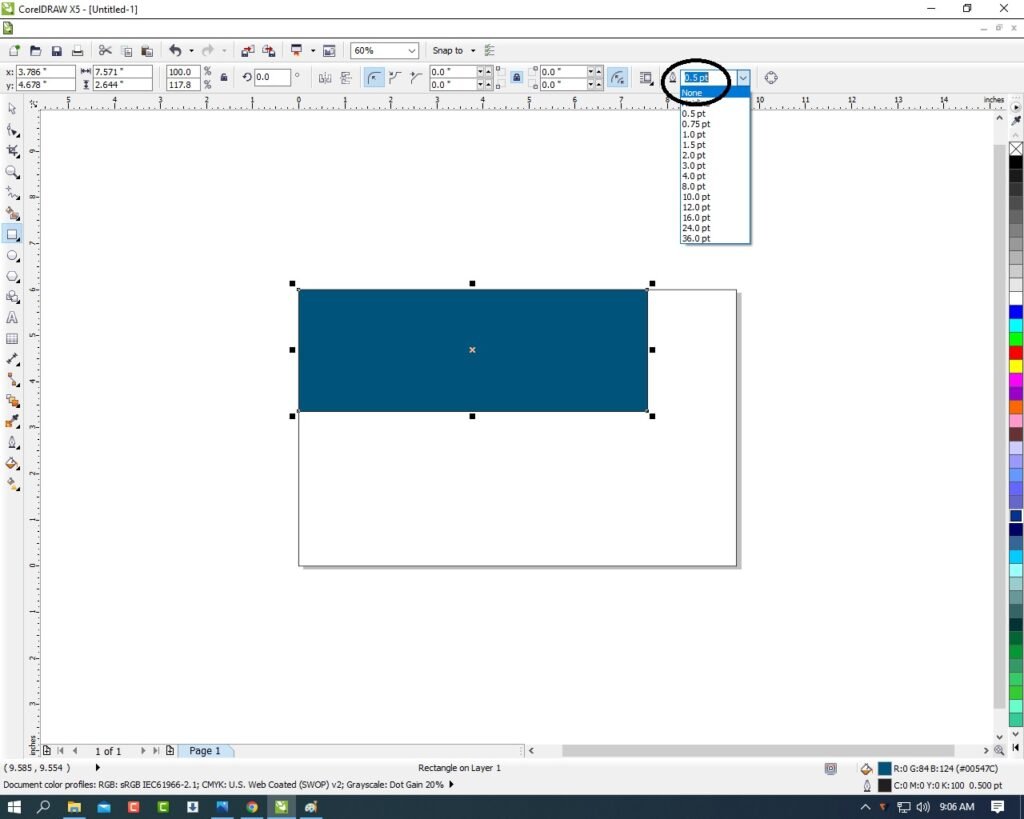
0%
1105
A To Z Tally Shortcut Keys Online Test Series 2026 Pradip VedantSri

A To Z Tally Shortcut Keys Online Test Series 2026

1 / 36
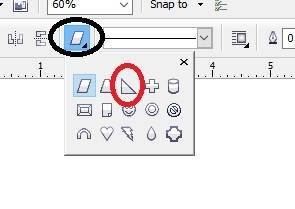
Tally Shortcut key to Change Current date?

2 / 36
Press Alt+F5 to Open Which Voucher

3 / 36

Tally Shortcut to Open Help Website?

4 / 36

Shortcut Key To Check Tally Product Information

5 / 36

Press Ctrl+F6 To Open

6 / 36

Shortcut Key To Open Purchase Order Voucher?

7 / 36

Press Ctrl+F4 To Open

8 / 36

F7 Open Journal Voucher in Tally

9 / 36

Tally Shortcut Key To Open Company Menu

10 / 36

Press F3 in Tally To Open

11 / 36

Contra Voucher Used To Record Banks Related Entry in Tally

12 / 36

Press Ctrl+Alt+R in Tally To Open

13 / 36

Press F5 To Open

14 / 36

Tally F4 To Open

15 / 36

Press Alt+F8 To Open

16 / 36

Shortcut Key To Open Configuration Setting in Tally?

17 / 36

Shortcut Key to Open Physical Stock in Tally?

18 / 36

Tally Shortcut Key To Check Installed Release

19 / 36

F1 Key

20 / 36

Press Alt+F9 To Open

21 / 36

Press F6 to Open

22 / 36

Tally Shortcut Key to Open Others Voucher?

23 / 36

Use of Ctrl+A in Tally

24 / 36

Tally Shortcut key To Change Date Periods?

25 / 36

Shortcut key To Open Stock Journal in Tally?

26 / 36

F9 Open Purchase Return Voucher

27 / 36

Esc Key Press to Go Back/Previous Pages in Tally

28 / 36

Double Underline Represent in Tally

29 / 36

Shortcut key To Open Features Setting In Tally?

30 / 36

Press F8 To Open

31 / 36

Single Underline Represents in Tally

32 / 36

Press Ctrl+F5 To Open Rejection Out Voucher in Tally

33 / 36

Press Ctrl+F8 To Open

34 / 36

Press Ctrl+F3 in Tally To Open

35 / 36

Press Backspace Key Go to Previous Options in Tally

36 / 36

Press Alt+F3 in Tally Open

Your score is

The average score is 30%

0%