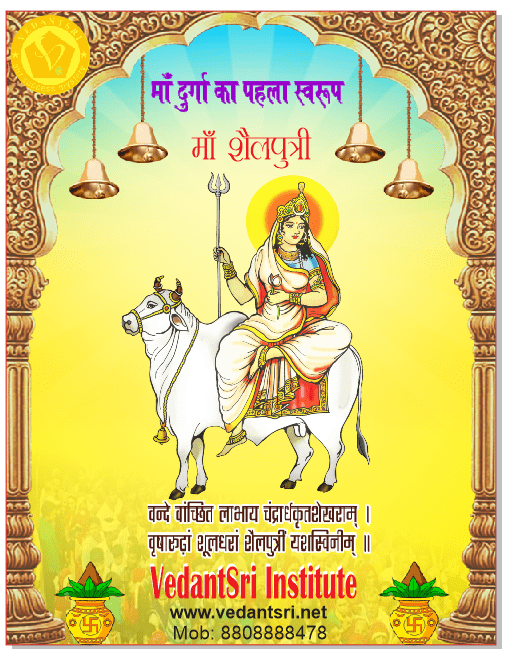
Navratri poster Design In CorelDraw, Easy Method, Complete Steps, download practice File
Hello Friends, Welcome To VedantSri.net In This Post I am Going To Teach you how To Create Navratri Poster Design In CorelDraw. In This project, you can Learn How to Design Navratri Poster Design In CorelDraw Application Easy Method. Navratri Poster Design In CorelDraw, Easy Method, Complete Steps, download practice File
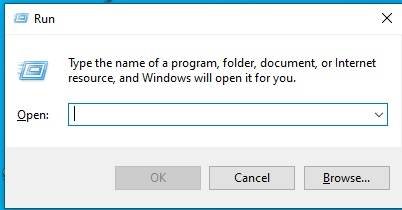
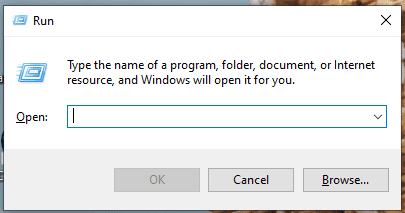
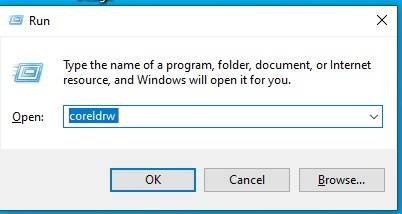
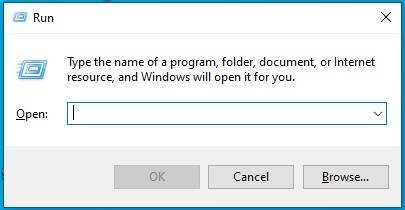
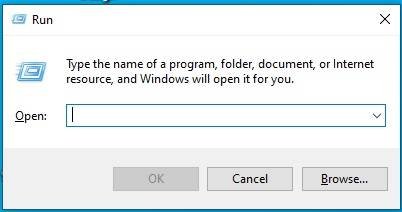
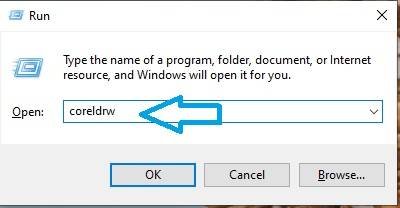
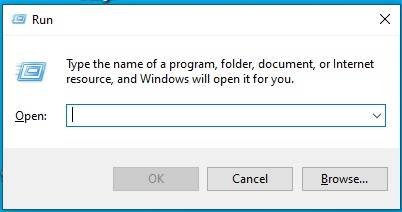
CorelDraw Open करने के लिए Window + R Press करके Run Box open करे।
Navratri Poster Design In CorelDraw, Easy Method, Complete Steps, download practice File
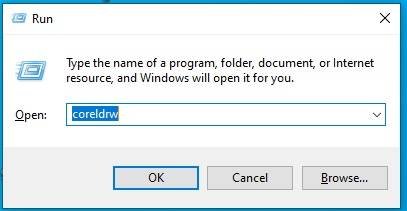
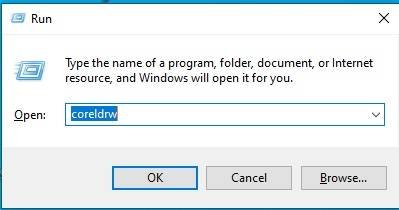
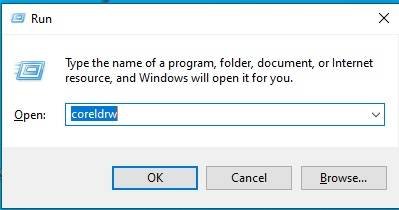
Run Box मे coreldrw type करे।
Navratri Poster Design In CorelDraw, Easy Method, Complete Steps, download practice File 14
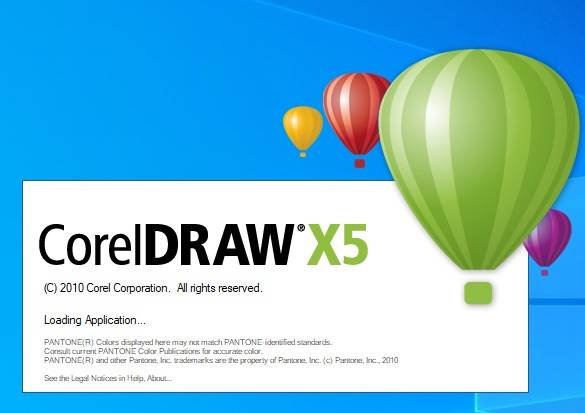
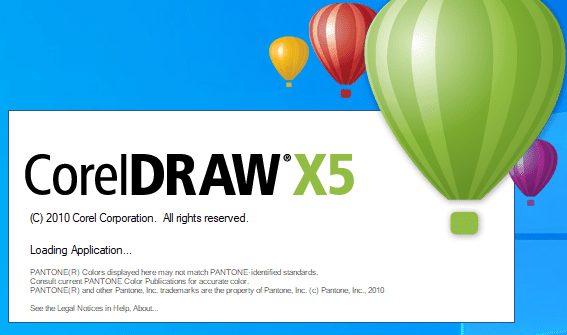
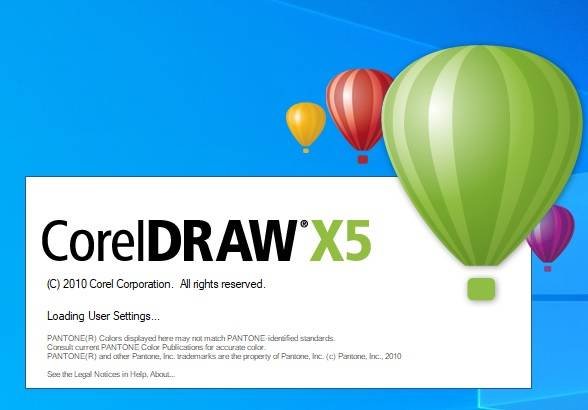
अब Ok पर Click करेके CorelDraw के application को Open करे। Navratri Poster Design In CorelDraw, Easy Method, Complete Steps, download practice File
Navratri Poster Design In CorelDraw, Easy Method, Complete Steps, download practice File 15
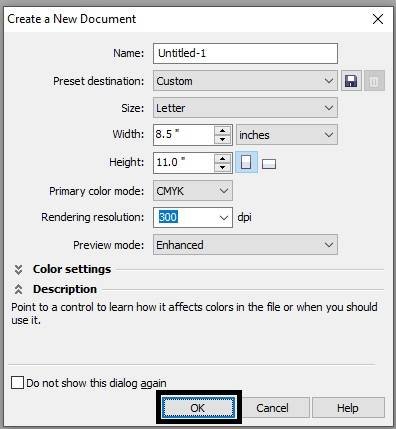
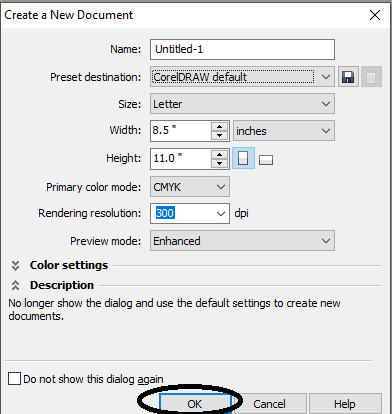
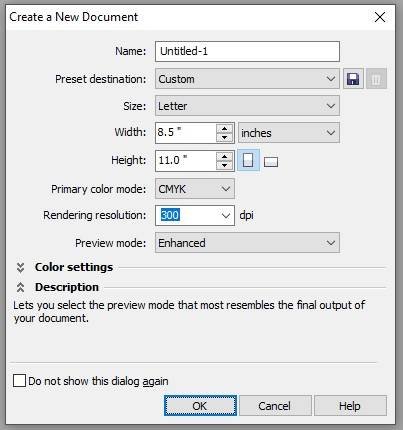
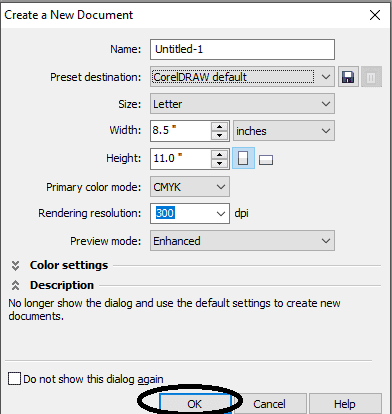
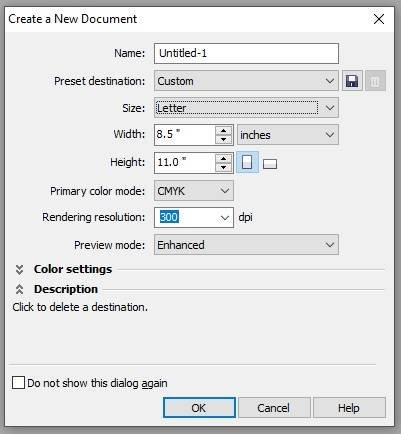
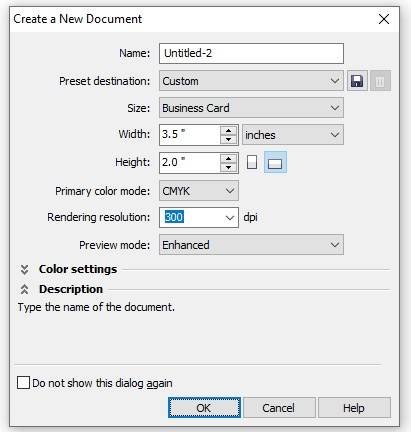
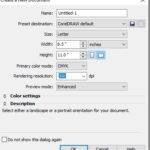
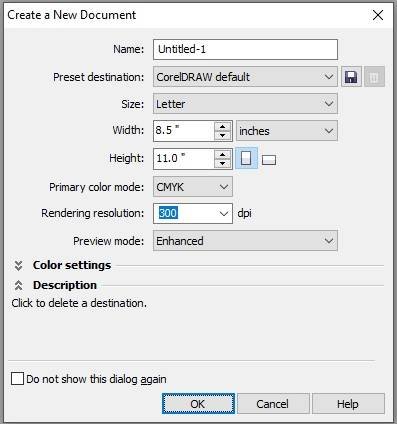
अब CTRL + N Press करे New Page का Window open करे।
Navratri Poster Design In CorelDraw, Easy Method, Complete Steps, download practice File 16
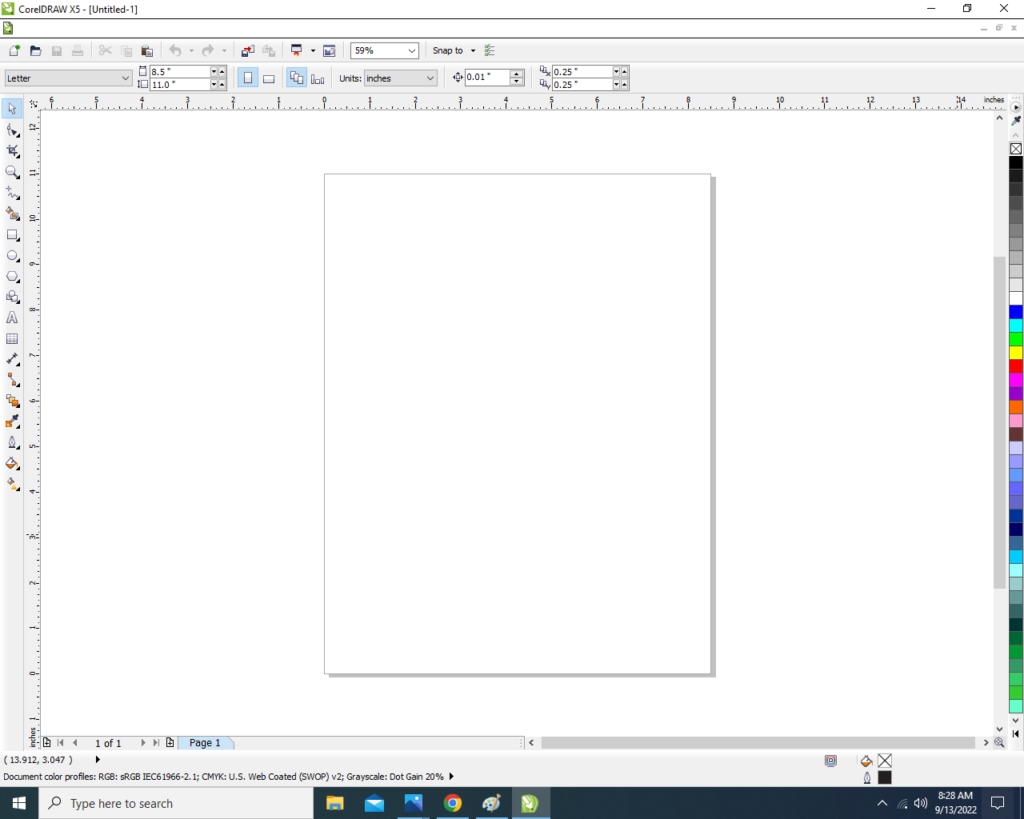
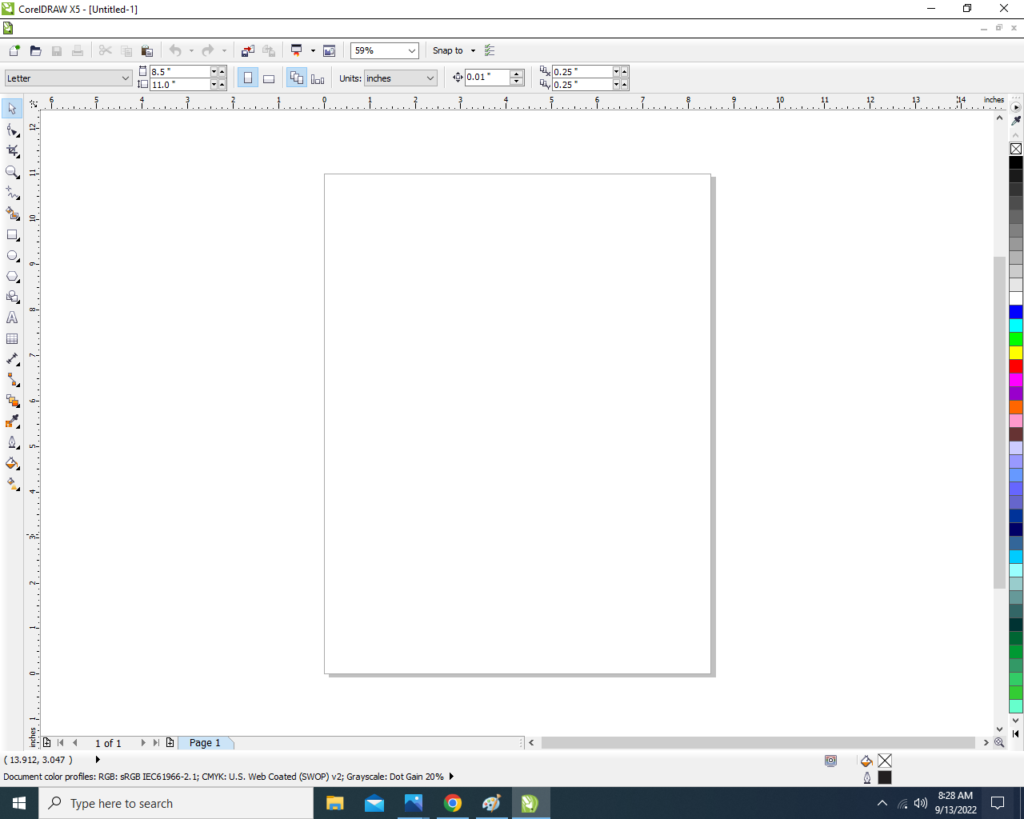
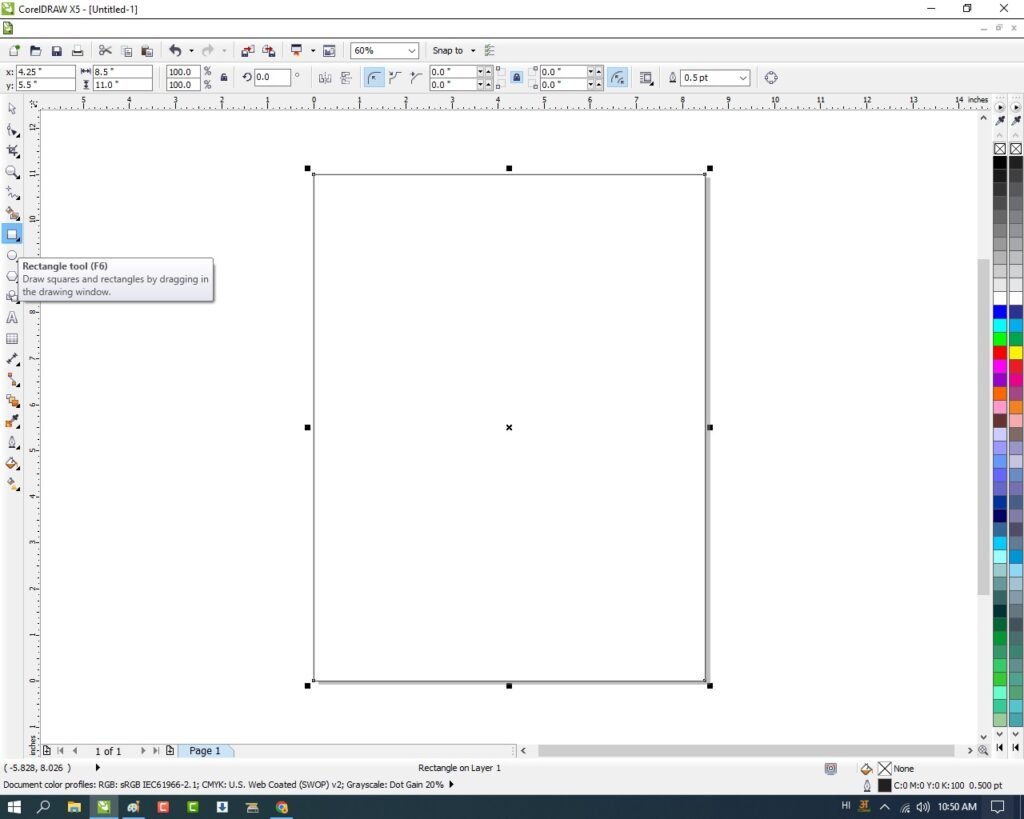
अब Ok पर Click करे तथा CorelDraw का Main Page Open करे।
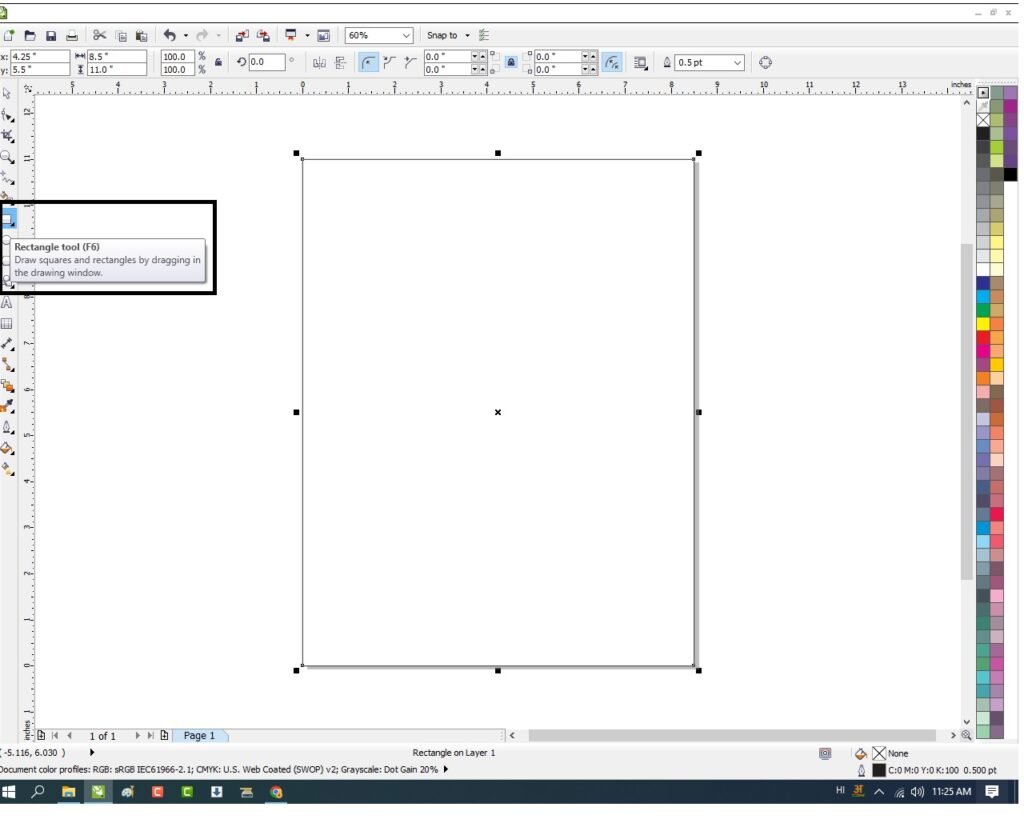
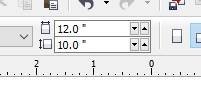
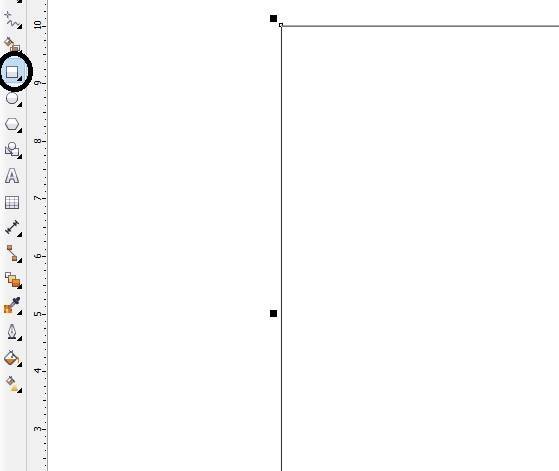
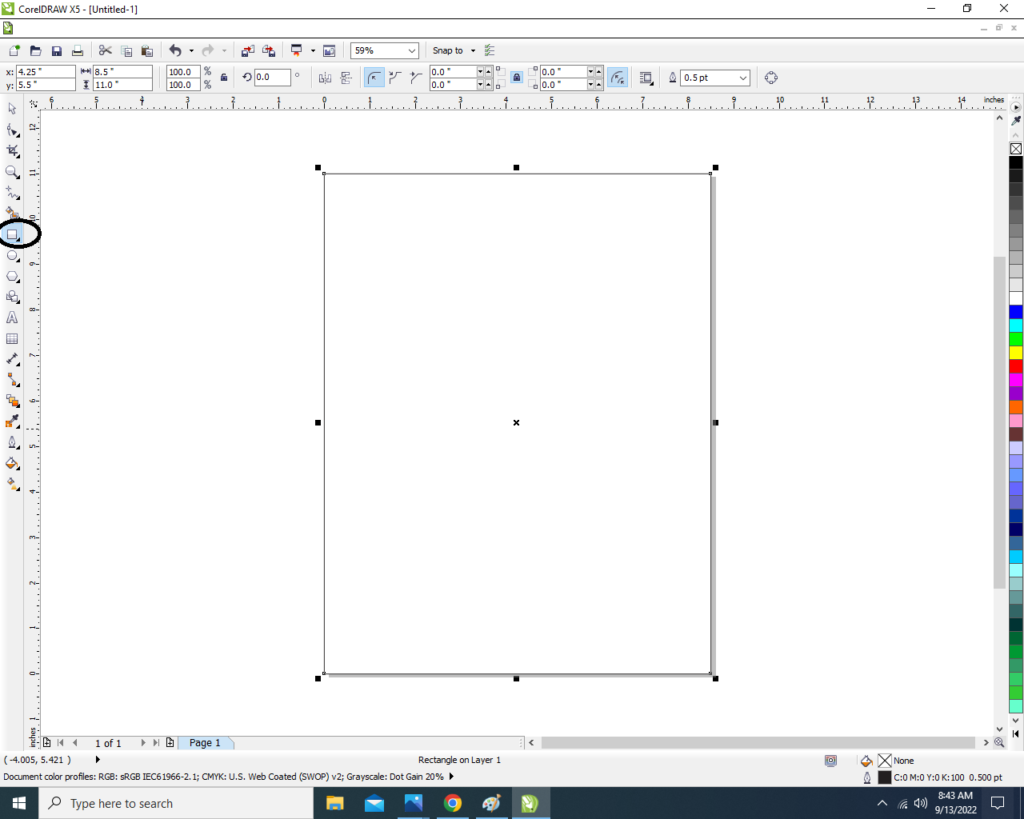
Rectangle Shape Double Click करे।
Navratri Poster Design In CorelDraw, Easy Method, Complete Steps, download practice File 17
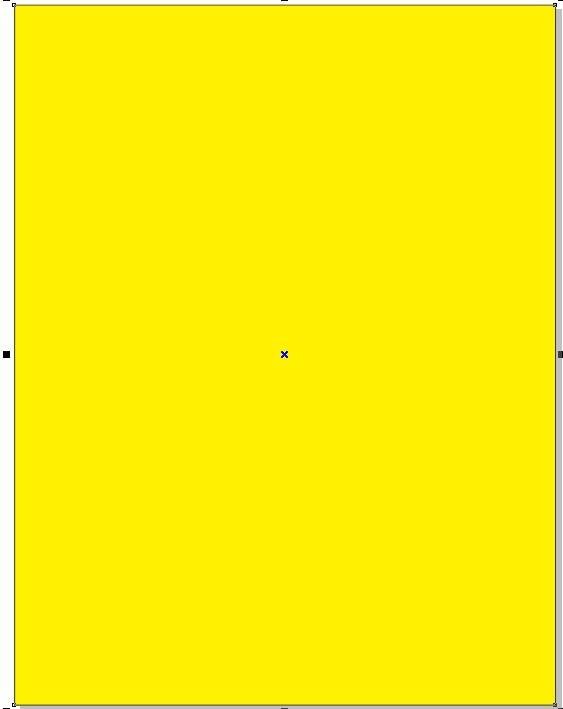
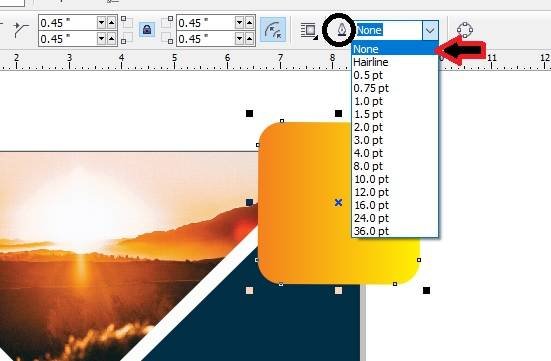
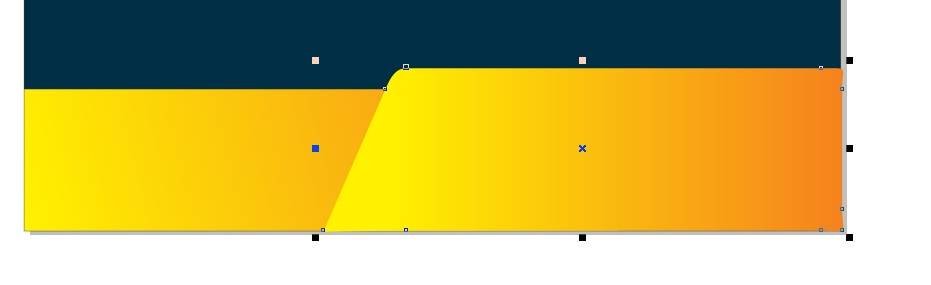
अब Interactive Fill Tool से Shape को Fill करे।
Navratri Poster Design In CorelDraw, Easy Method, Complete Steps, download practice File
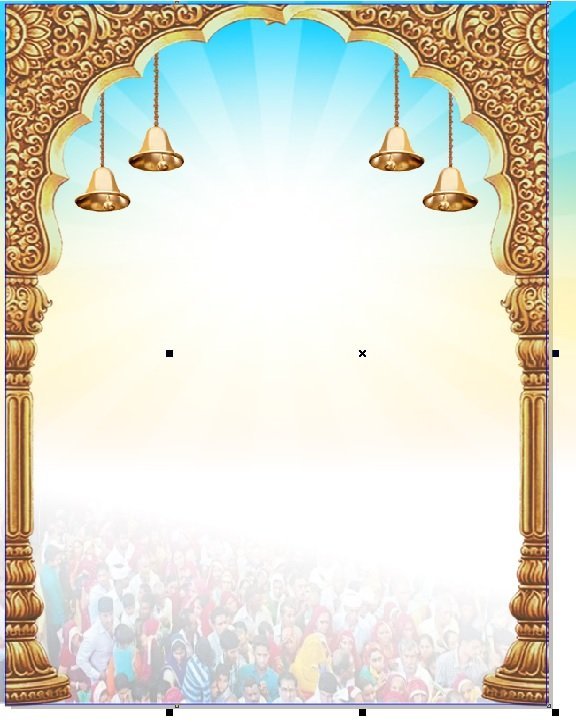
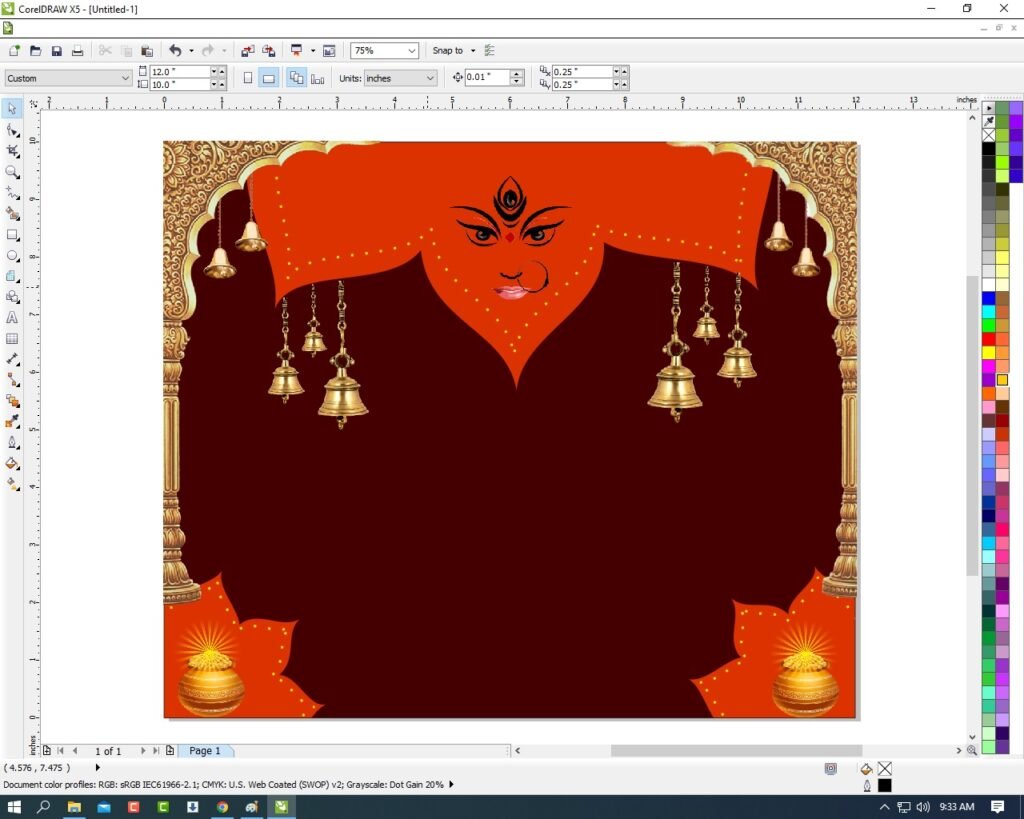
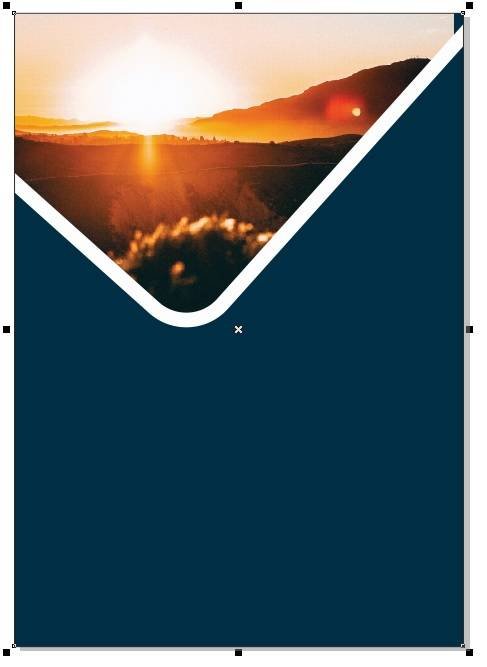
अब Google से Image Download करे Or Page पर Set करे।
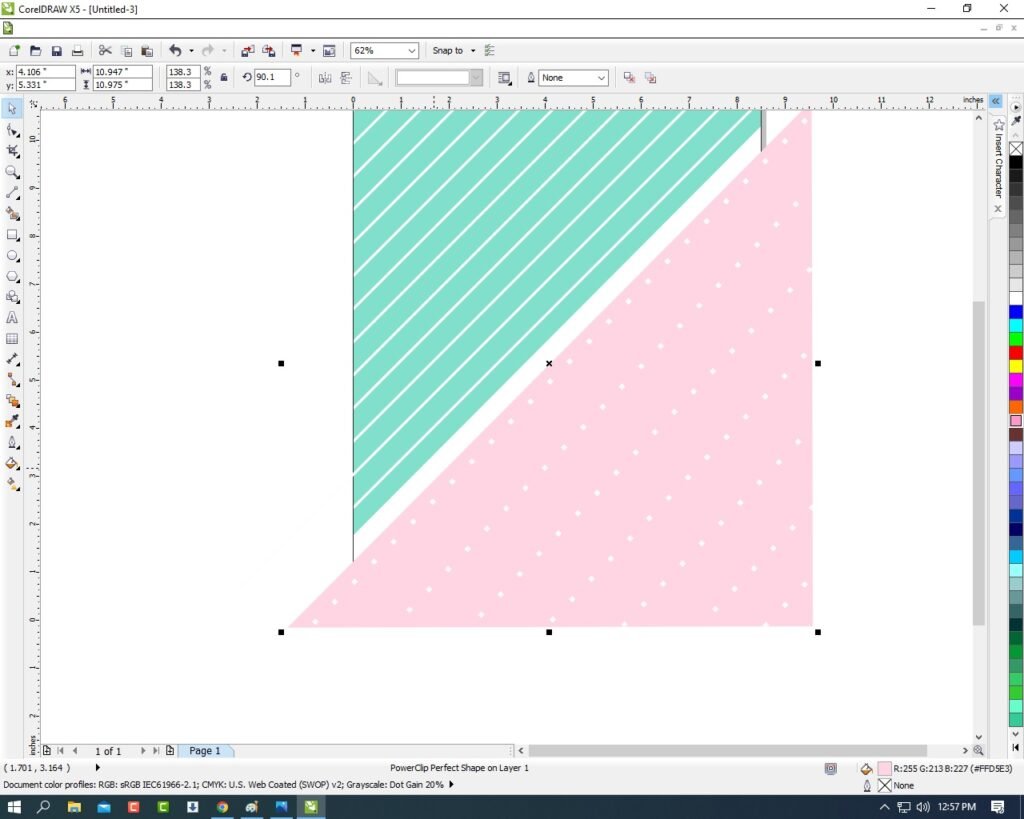
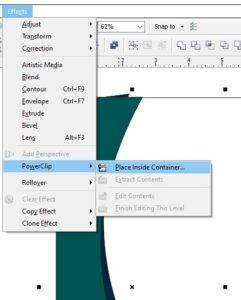
Menu bar >Effects Option > Power Clip > Place Inside Container Option पर click करे।
Page पर CTRL + Mouse से Left Click करने बाद
Page के बाहर CTRL + Mouse से Left Click करे।
Navratri Poster Design In CorelDraw, Easy Method, Complete Steps, download practice File 18
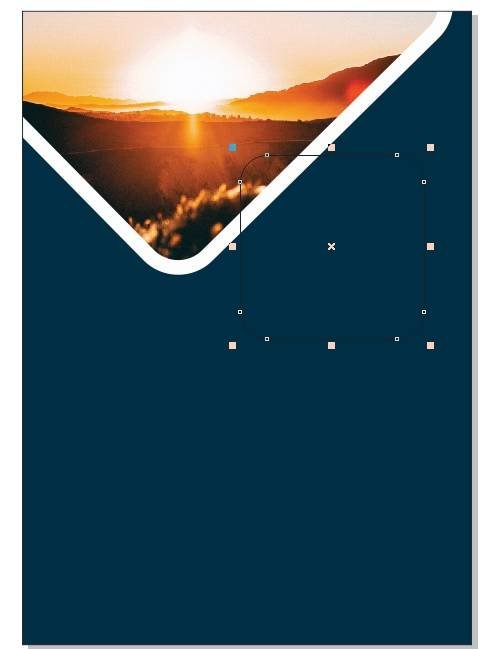
अब Google से Image Download करे
Menu bar > Bitmaps Option>Auto Adjust Option पर Click करे।
Navratri Poster Design In CorelDraw, Easy Method, Complete Steps, download practice File
अब Google से Image Download करे Or Page पर Set करे।
Menu bar >Effects Option > Power Clip > Place Inside Container Option पर click करे।
Page पर CTRL + Mouse से Left Click करने बाद
Page के बाहर CTRL + Mouse से Left Click करे।
Navratri Poster Design In CorelDraw, Easy Method, Complete Steps, download practice File 19
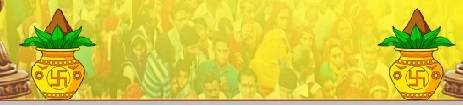
अब Google से Image Download करे Or Page पर Set करे।
Menu bar >Effects Option > Power Clip > Place Inside Container Option पर click करे
CTRL + D से Image का Duplicate करे।
Page पर CTRL + Mouse से Left Click करने बाद
Page के बाहर CTRL + Mouse से Left Click करे।
Navratri Poster Design In CorelDraw, Easy Method, Complete Steps, download practice File 20
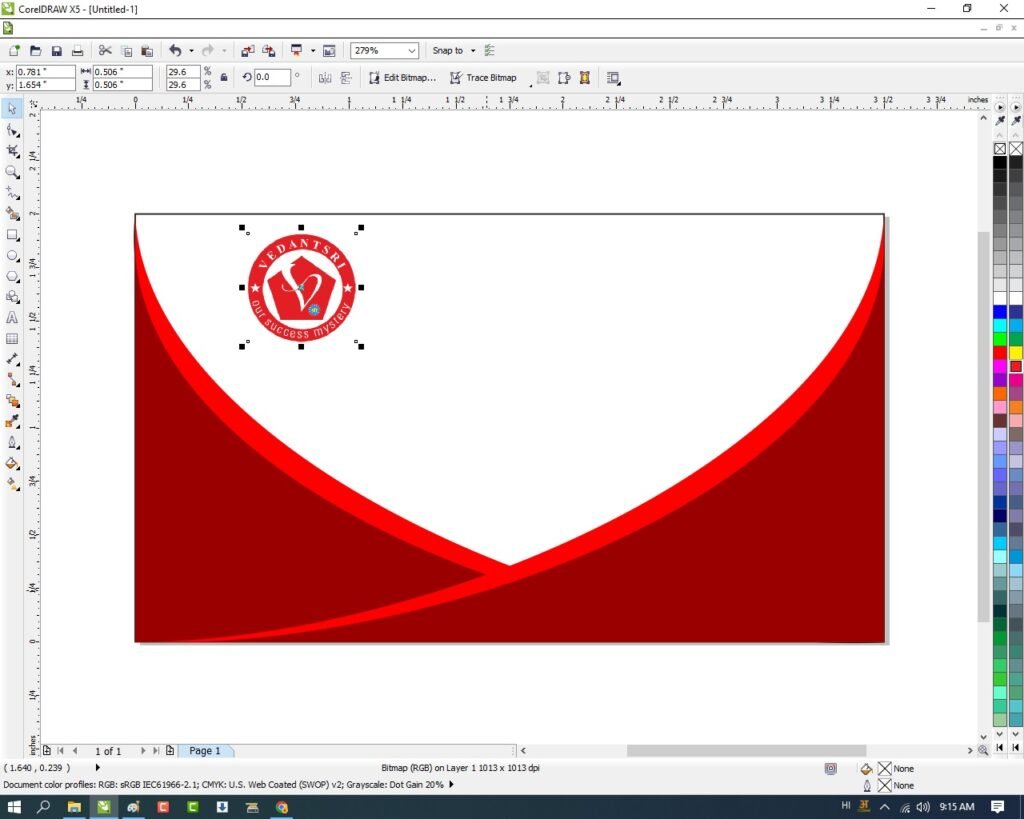
अब File से LOGO Insert करे Or Logo का Color Change करे।
Navratri Poster Design In CorelDraw, Easy Method, Complete Steps, download practice File 21
अब Google से Image Download करे Or Page पर Set करे
Navratri Poster Design In CorelDraw, Easy Method, Complete Steps, download practice File 22
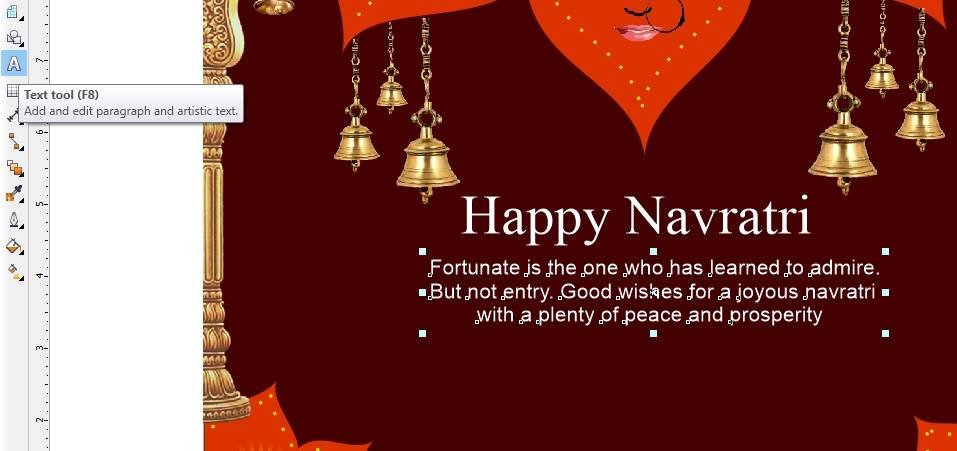
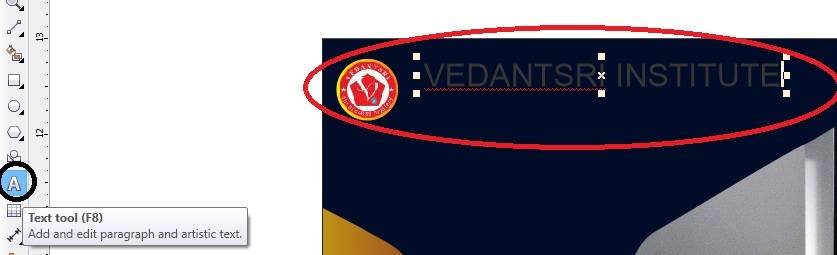
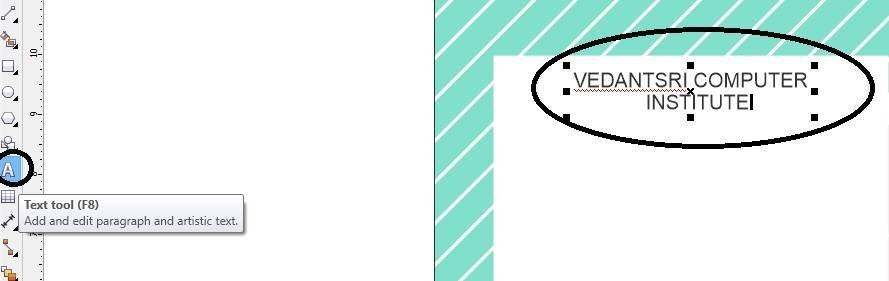
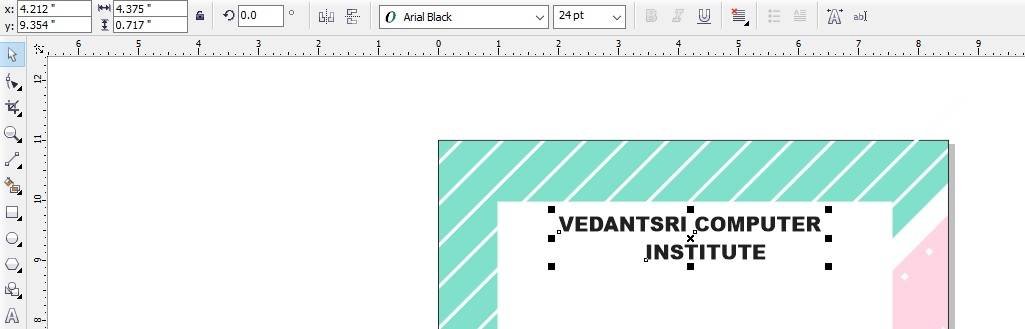
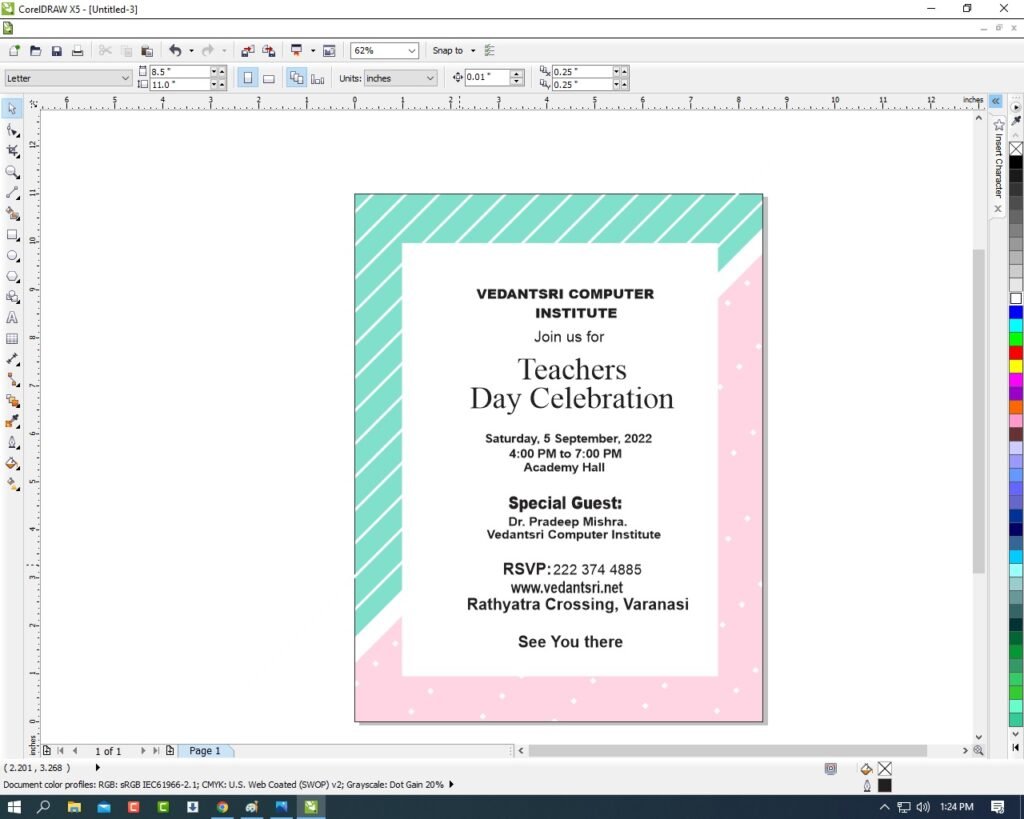
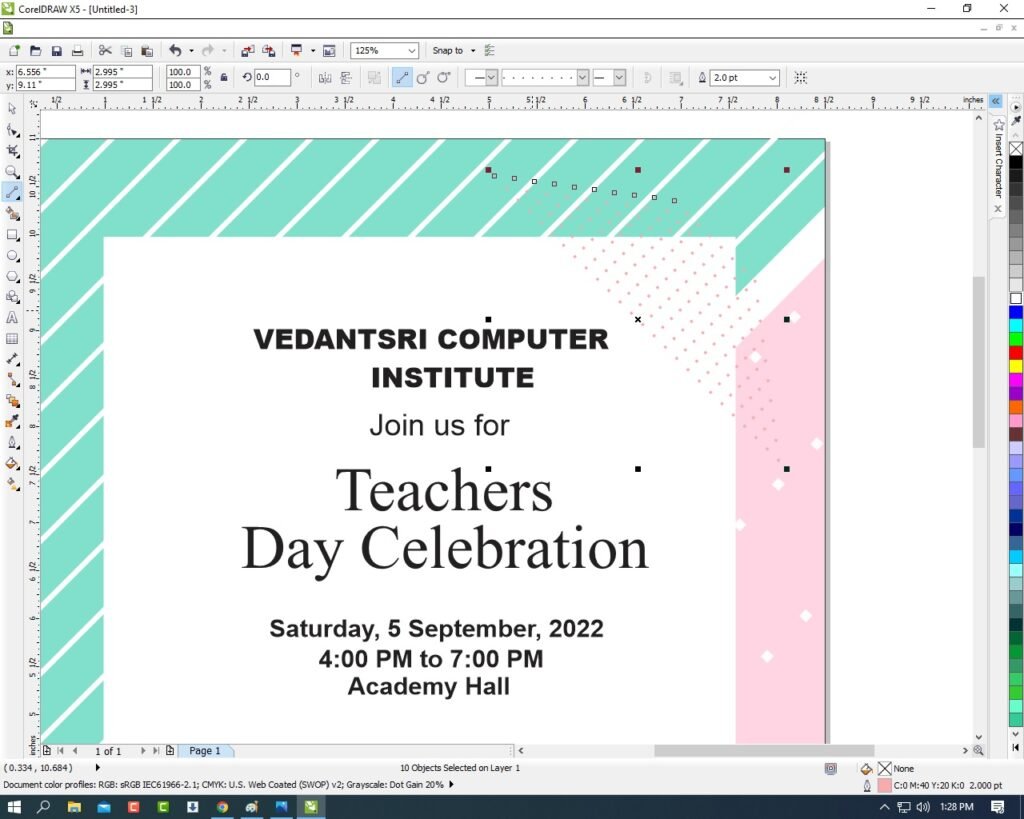
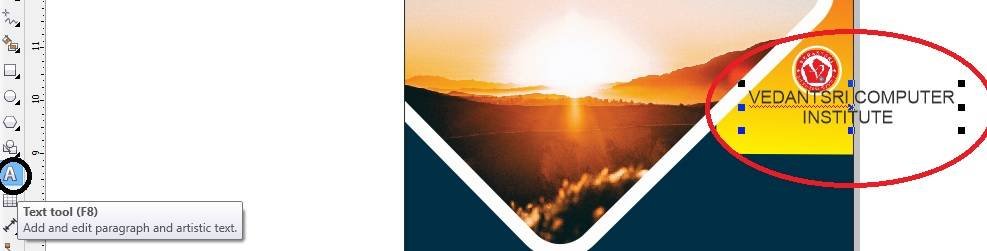
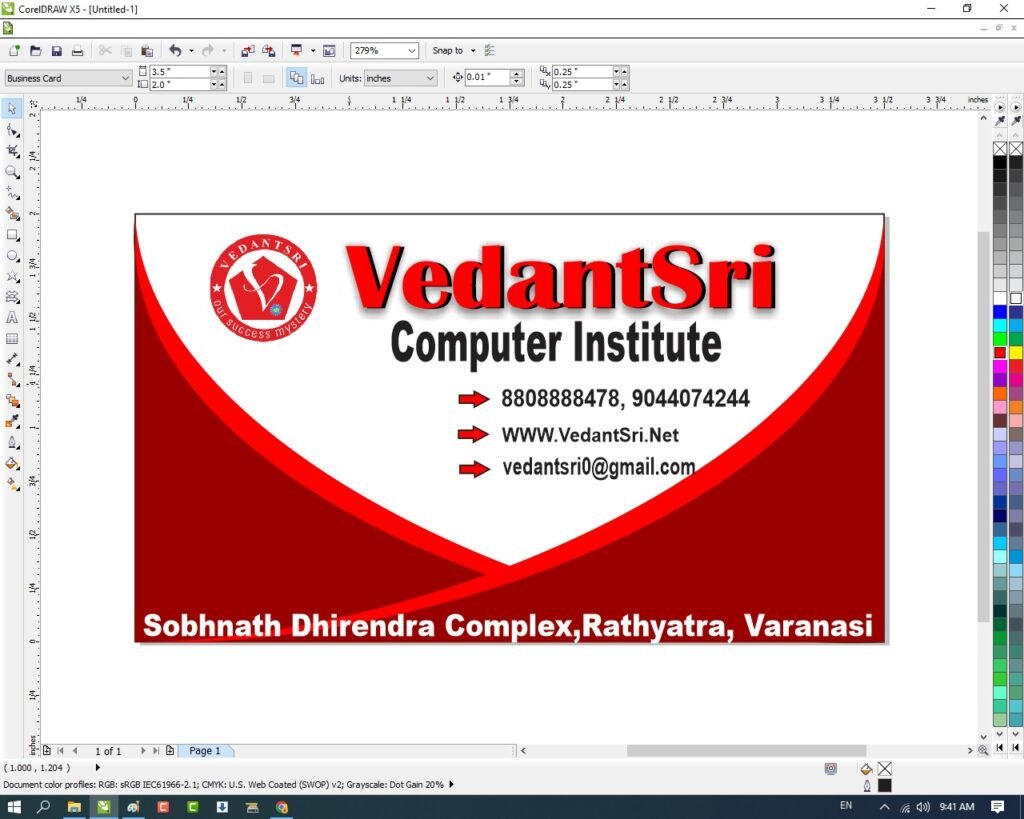
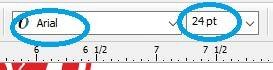
अब Text Tool से सारे Detail Fill करे Or Font Style, Size, Color change करे
Page पर Text को Set करे।
Navratri Poster Design In CorelDraw, Easy Method, Complete Steps, download practice File
Navratri Poster Design in CorelDraw, Step by Step Method, Download Source File
Hello! Friends Welcome to www.vedantsri.net In this Project I am going to Teach you How To Create Navratri Card in CorelDraw. In this Project you can Learn How to Design Navratri Card in CorelDraw Application in Easy Method. You can also Download Practice File in this Post . So let’s Start this Project. Before Starting this Project I request you to Please Follow given below Steps to Learn Properly Step by step.
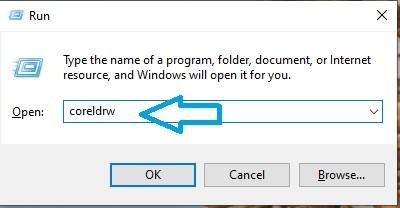
Press Windows + R in Keyboard.
To Open Run Dialog Box > Like this
Navratri Poster Design in CorelDraw
Type coreldrw in Run Dialog Box > As a Run Command.
Navratri Poster Design in CorelDraw, Step by Step Method, Download Source File 39
Click at Ok.
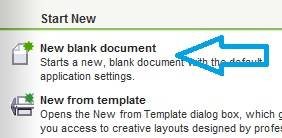
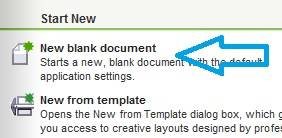
Click at New Blank Document.
Navratri Poster Design in CorelDraw, Step by Step Method, Download Source File 40
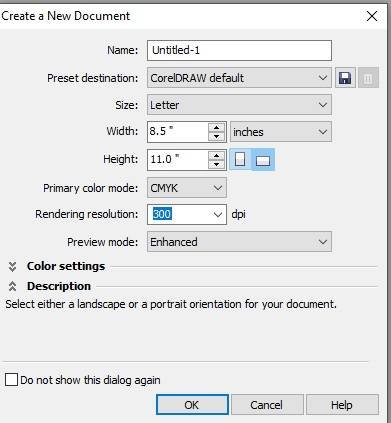
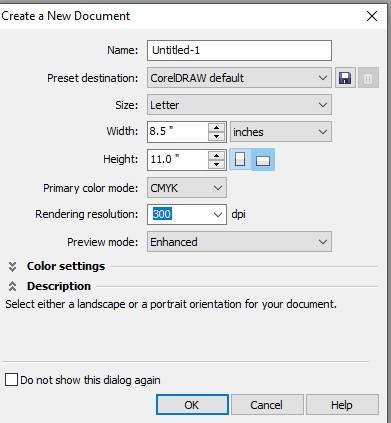
Fill all Information > Regarding new document.
Navratri Poster Design in CorelDraw, Step by Step Method, Download Source File 41
Click at OK.
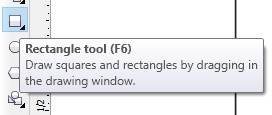
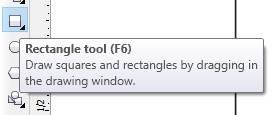
Click at Rectangle Tool.
Navratri Poster Design in CorelDraw, Step by Step Method, Download Source File 42
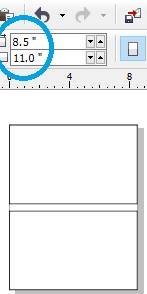
Double Click at Rectangle Tool.
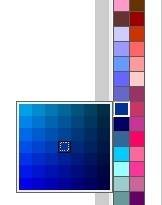
Click at Page > Go to Color Palate > To Color Rectangle Shape.
Navratri Poster Design in CorelDraw, Step by Step Method, Download Source File 43
Fill Color > From Color Palate.
Navratri Poster Design in CorelDraw, Step by Step Method, Download Source File 44
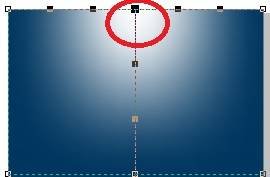
Click at Interactive tool > Select Mesh fill tool.
Navratri Poster Design in CorelDraw, Step by Step Method, Download Source File 45
Click at this Point > Fill white Color > Something Like this appear
Navratri Poster Design in CorelDraw, Step by Step Method, Download Source File 46
Go To File Folder > Select PNG picture > like this.
Navratri Poster Design in CorelDraw, Step by Step Method, Download Source File 47
Pick One by One Pictures > like this
Navratri Poster Design in CorelDraw, Step by Step Method, Download Source File 48
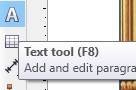
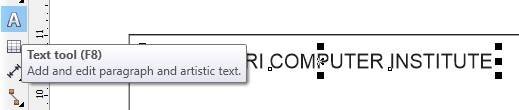
Click at Text tool > To Type matter.
Navratri Poster Design in CorelDraw, Step by Step Method, Download Source File 49
Type matter > Like this > Select and Change > Font Style in Krutidev > like this.
Navratri Poster Design in CorelDraw, Step by Step Method, Download Source File 50
Put LOGO at page > Set Like this.
Navratri Poster Design in CorelDraw, Step by Step Method, Download Source File 51
Click at Text Tool > Type Institution Name and Contact Information.
Navratri Card Design in CorelDraw, Easy, and Step By Step, Download Source File
Hello! Friends Welcome to www.vedantsri.net In this Project I am going to Teach you How To Create Navratri Card in CorelDraw. In this Project, you can Learn How to Design Navratri cards in CorelDraw Application in Easy Method. You can also Download the Practice File in this Post. So let’s start this Project.
Press Windows + R in the Keyboard.
To Open Run Dialog Box > Like this.
Navratri Card Design in CorelDraw, Easy and Step By Step, Download Source File 70
Type Run Command > In Run Dialog Box > Like this.
Navratri Card Design in CorelDraw, Easy and Step By Step, Download Source File 71
Click on OK.
Click New Blank Document. Navratri Card Design in CorelDraw, Easy and Step By Step, Download Source File
Navratri Card Design in CorelDraw, Easy and Step By Step, Download Source File 72
Fill all information Regarding > New Document.
Navratri Card Design in CorelDraw, Easy and Step By Step, Download Source File 73
Click at Rectangle Tool > From Tool Option
Navratri Card Design in CorelDraw, Easy and Step By Step, Download Source File 74
Double Click at Rectangle Tool.
Navratri Card Design in CorelDraw, Easy and Step By Step, Download Source File 75
Click at Page > Go To Color Palate > Change Color of Page > Like this.
Navratri Card Design in CorelDraw, Easy and Step By Step, Download Source File 76
Click on Interactive tool > Click at Mesh Fill Tool. Navratri Card Design in CorelDraw, Easy and Step By Step, Download Source File
Navratri Card Design in CorelDraw, Easy and Step By Step, Download Source File 77
Something like this appear.
Navratri Card Design in CorelDraw, Easy and Step By Step, Download Source File 78
Draw Rectangle > Press 10 > Select this > Drag from Corner.
Navratri Card Design in CorelDraw, Easy and Step By Step, Download Source File 79
Something like this Appear.
Navratri Card Design in CorelDraw, Easy and Step By Step, Download Source File 80
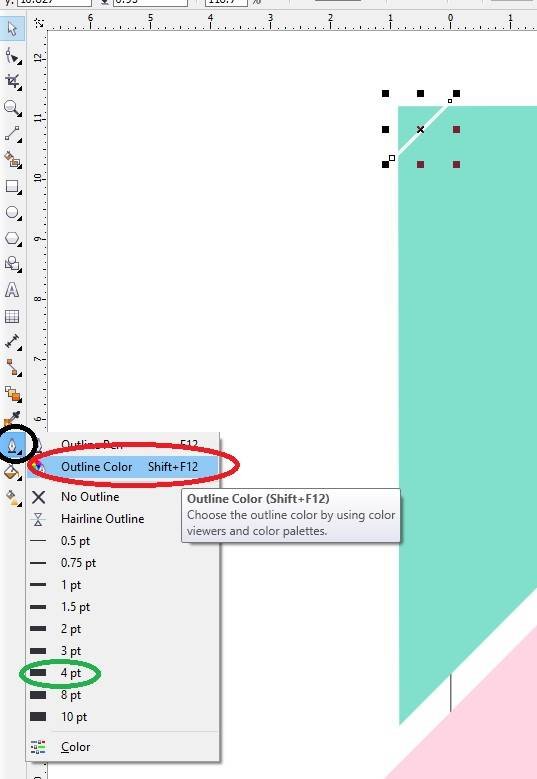
Change Outline Color > From here.
Navratri Card Design in CorelDraw, Easy and Step By Step, Download Source File 81
Something like this appear.
Navratri Card Design in CorelDraw, Easy and Step By Step, Download Source File 82
Insert Removed Background Photos > Set like this.
Navratri Card Design in CorelDraw, Easy and Step By Step, Download Source File 83
Click at Text Tool > To Type Matter.
Navratri Card Design in CorelDraw, Easy and Step By Step, Download Source File 84
Type Matter > like this.
Navratri Card Design in CorelDraw, Easy and Step By Step, Download Source File 85
Put LOGO of an Institution > Type Contact Information > like this
Navratri Card Design in CorelDraw, Easy and Step By Step, Download Source File 86
Now Navratri card is Ready.
Navratri Card Design in CorelDraw, Easy and Step By Step, Download Source File 87
Navratri Banner Design in CorelDraw, Easy Method, Complete Steps, Download practice File
Hello Friends, Welcome to VedantSri.net In This Post I am Going To Teach You How To Create Navratri Banner Design in CorelDraw. In This project You Can Learn How To Design Navratri Banner Design in CorelDraw Application In Easy Method.
CorelDraw Open करने के लिए Window + R Press करके Run Box Open करे।
Navratri Banner Design in CorelDraw
Run Box मे coreldrw Type करे।
Navratri Banner Design in CorelDraw, Easy Method, Complete steps, Download practice File 105
अब Ok पर Click करके CorelDraw के Application को Open करे।
Navratri Banner Design in CorelDraw, Easy Method, Complete steps, Download practice File 106
अब CTRL + N Press करे New Page का Window Open करे।
Navratri Banner Design in CorelDraw, Easy Method, Complete steps, Download practice File 107
Ok पर Click करे तथा CorelDraw का Main Page Open करे।
Landscape Option पर Click करे।
Navratri Banner Design in CorelDraw, Easy Method, Complete steps, Download practice File 108
अब Interactive Fill Tool से Shape मे Color Fil करे।
Navratri Banner Design in CorelDraw, Easy Method, Complete steps, Download practice File 109
अब Diya Shape Draw करे।
Navratri Banner Design in CorelDraw, Easy Method, Complete steps, Download practice File 110
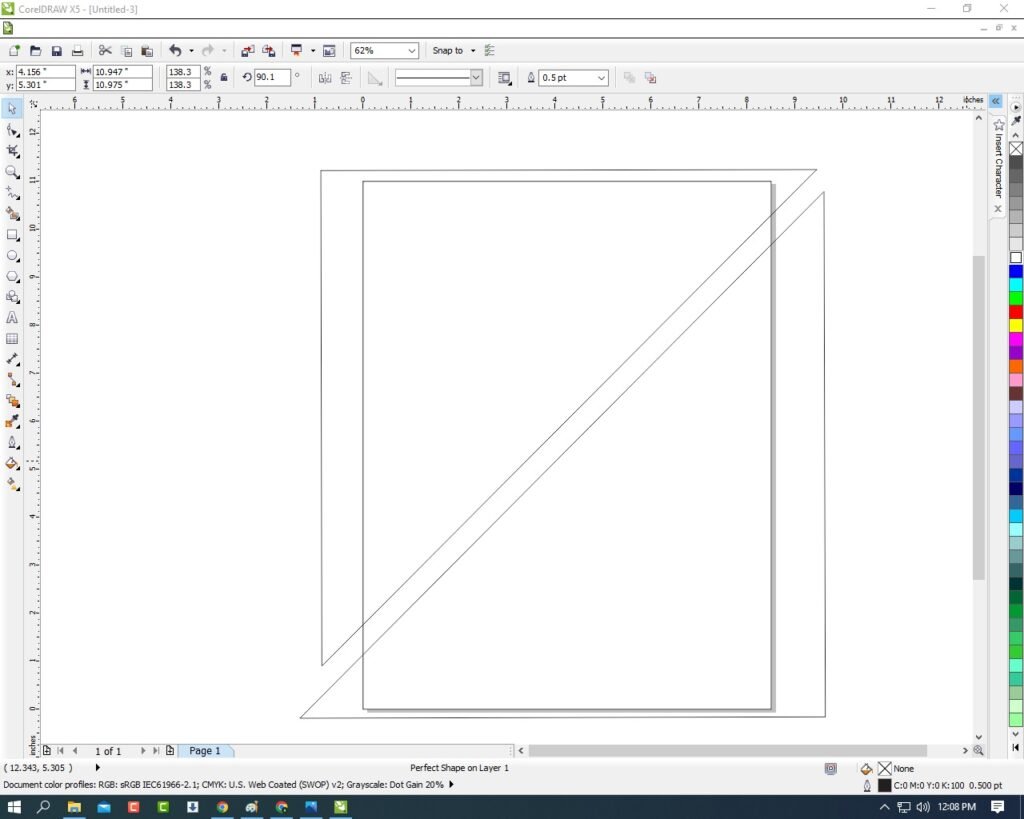
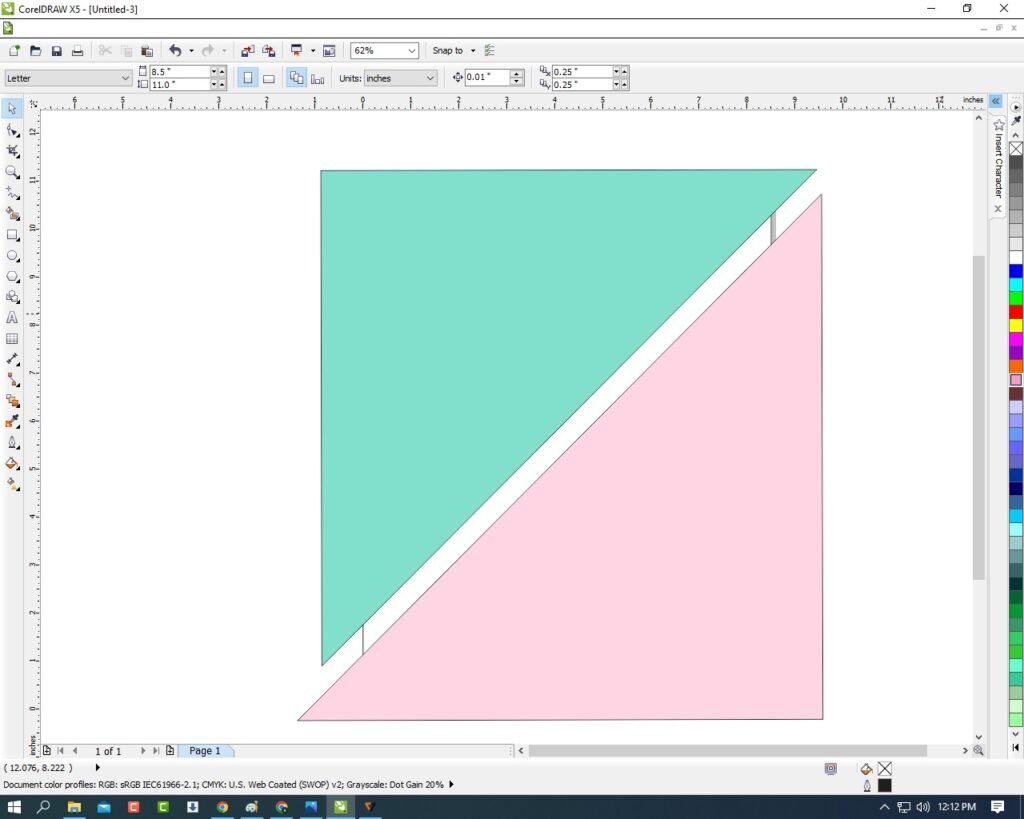
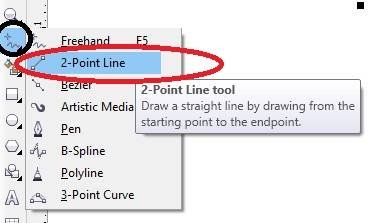
2- Point Line tool से Line Draw करे
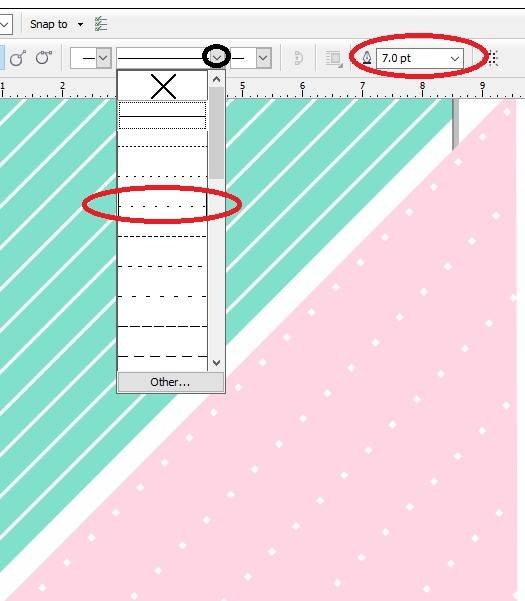
Line Style Option Click करे Or Color Change करे।
Navratri Banner Design in CorelDraw, Easy Method, Complete steps, Download practice File 111
CTRL+ D से Duplicate करे।
Navratri Banner Design in CorelDraw, Easy Method, Complete steps, Download practice File 112
Shift के साथ Shape को Select करे Or CTRL + G से shape को Group करे
CTRL + D से Duplicate करे Or Mirror Horizontally Option पर Click करे।
Navratri Banner Design in CorelDraw, Easy Method, Complete steps, Download practice File 113
CTRL + D से Duplicate करे Or Shape को Page पर Set करे।
Navratri Banner Design in CorelDraw, Easy Method, Complete steps, Download practice File 114
अब Image को Download करे।
Navratri Banner Design in CorelDraw, Easy Method, Complete steps, Download practice File 115
CTRL+ D से Image का Duplicate करे।
Menu bar > Effects Option > Power Clip > Place Inside Container पर Click करने के बाद
page पर Click करे।
Navratri Banner Design in CorelDraw, Easy Method, Complete steps, Download practice File 116
अब Image को Download करे Or Page पर set करे।
Navratri Banner Design in CorelDraw, Easy Method, Complete steps, Download practice File 117
Text Tool से Happy Navratri लिखेगे Or Font Style, Size, color Change करे।
Navratri Banner Design in CorelDraw, Easy Method, Complete steps, Download practice File 118
अब Logo Insert करे Or Page पर Set करे।
Navratri Banner Design in CorelDraw, Easy Method, Complete steps, Download practice File 119
अब CTRL + S Press करे Or File को Save करे।
Navratri Banner Design in CorelDraw, Easy Method, Complete steps, Download practice File 120
Navratri Card Design in CorelDraw, Simple Method, Step By Step, Download Source File
Hello! Friends Welcome to www.vedantsri.net In this Project I am going to Teach you How To Create Navratri Card Design in CorelDraw. In this Project, you can Learn How to Design Navratri cards in CorelDraw Application in Easy Method. Navratri Card Design in CorelDraw, Simple Method, Step By Step, Download Source File
Press Window + R to Open Run Dialogue Box > Type CorelDraw.
Navratri Card Design in CorelDraw, Simple Method, Step By Step, Download Source File 142
Press Ok.
Navratri Card Design in CorelDraw, Simple Method, Step By Step, Download Source File 143
Press CTRL + N to Open New Page Window.
Navratri Card Design in CorelDraw, Simple Method, Step By Step, Download Source File 144
Press Ok.
Navratri Card Design in CorelDraw, Simple Method, Step By Step, Download Source File 145
Mention the page Size.
Navratri Card Design in CorelDraw, Simple Method, Step By Step, Download Source File 146
Double Click on Rectangle Tool. Navratri Card Design in CorelDraw, Simple Method, Step By Step, Download Source File
Navratri Card Design in CorelDraw, Simple Method, Step By Step, Download Source File 147
Fill Red Color on the Page. Navratri Card Design in CorelDraw, Simple Method, Step By Step, Download Source File
Navratri Card Design in CorelDraw, Simple Method, Step By Step, Download Source File 148
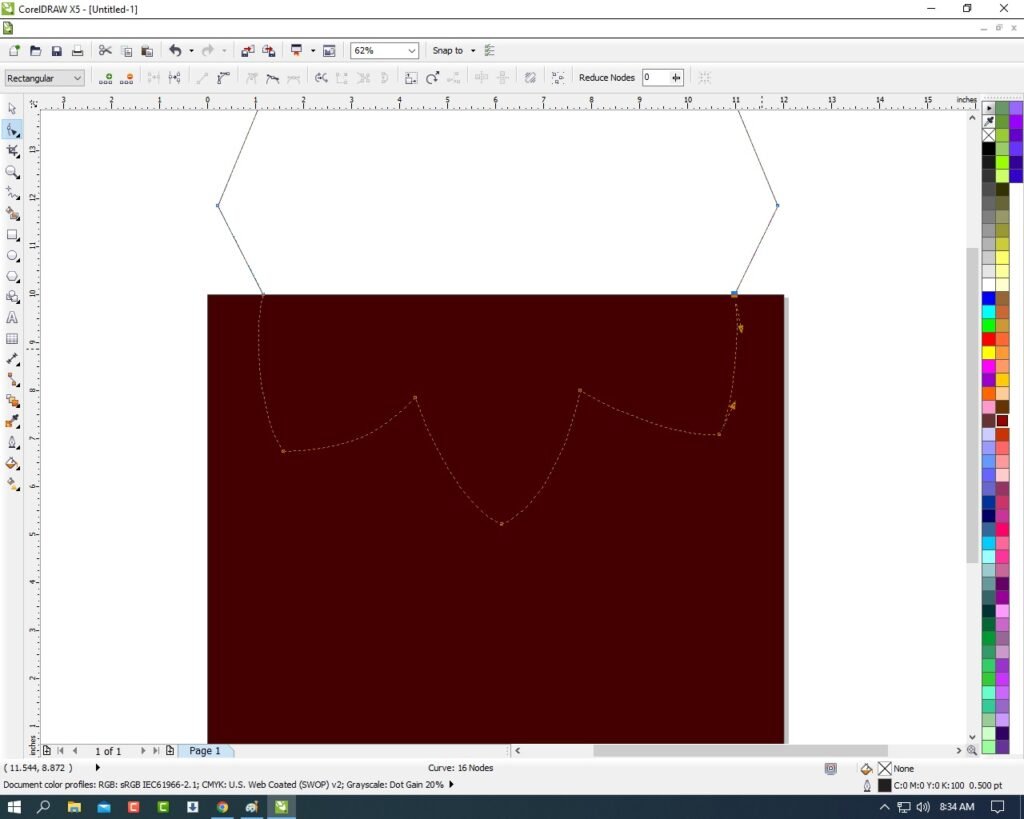
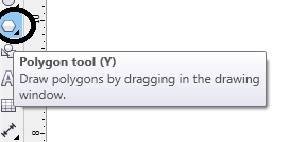
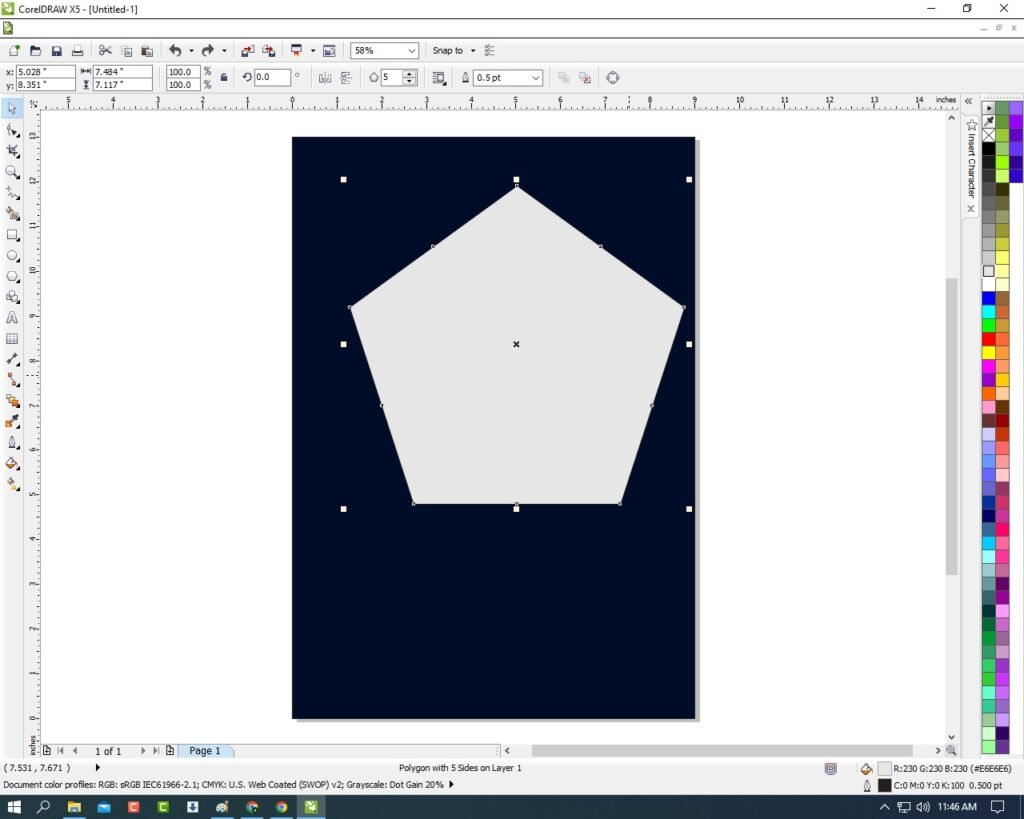
Draw Polygon Shape.
Navratri Card Design in CorelDraw, Simple Method, Step By Step, Download Source File 149
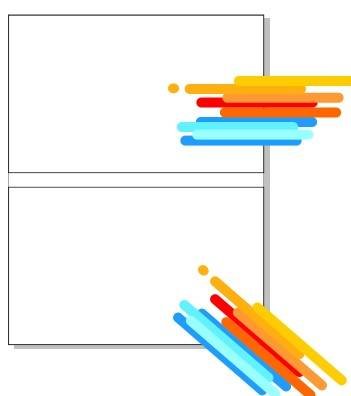
Press F10 > CTRL + Q > Make a New Shape Design Like this.
Navratri Card Design in CorelDraw, Simple Method, Step By Step, Download Source File 150
Click at Pick Tool > Fill Any Color on Polygon Shape.
Navratri Card Design in CorelDraw, Simple Method, Step By Step, Download Source File 151
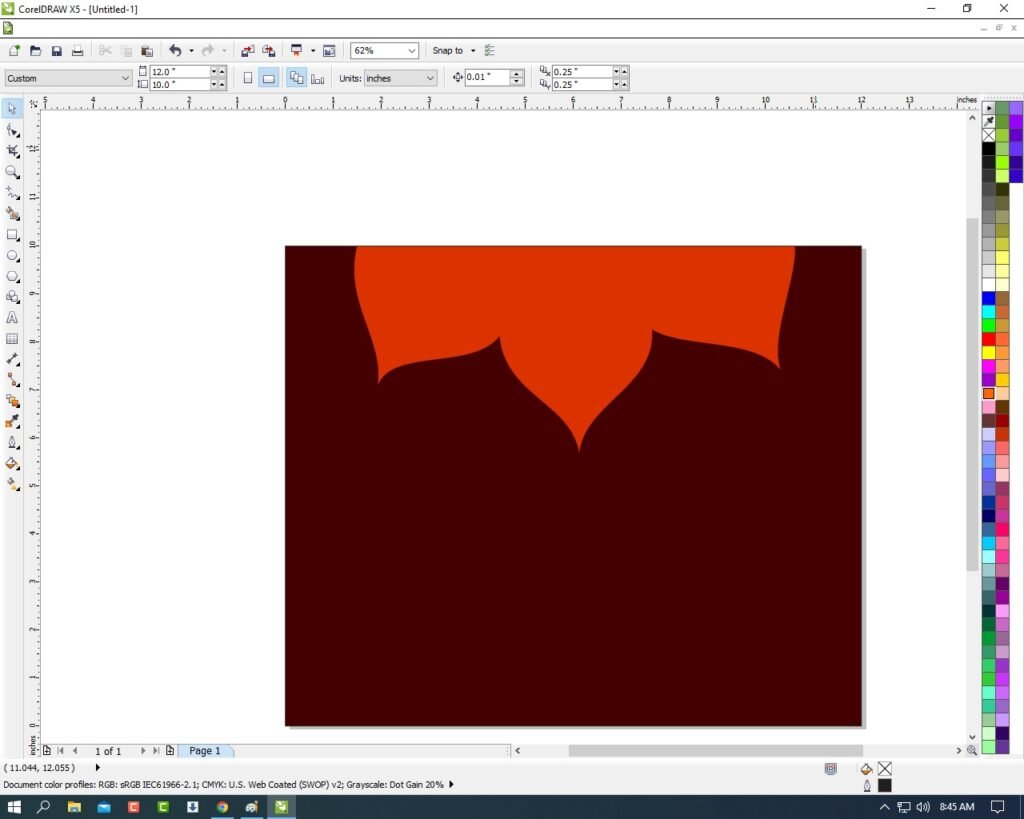
Select Polygon Shape > Go to Effect Tool > Click On PowerClip Option > Click Place Inside Container Option.
Navratri Card Design in CorelDraw, Simple Method, Step By Step, Download Source File 152
Then Click on Page > You can see Extra Polygon aria are Clip in the Page.
Navratri Card Design in CorelDraw, Simple Method, Step By Step, Download Source File 153
Then Press CTRL + Double Click at page > Go to Page Backword aria.
Navratri Card Design in CorelDraw, Simple Method, Step By Step, Download Source File 154
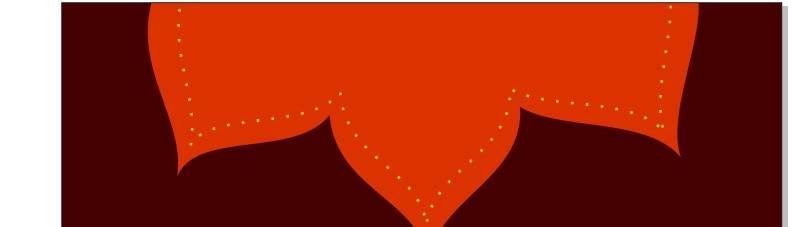
Select the Polygon shape > Press CTRL + D to Duplicate this shape > No Fill > Outline 3pt.
Navratri Card Design in CorelDraw, Simple Method, Step By Step, Download Source File 155
Then CTRL + Double Click Out of the Page area.
Navratri Card Design in CorelDraw, Simple Method, Step By Step, Download Source File 156
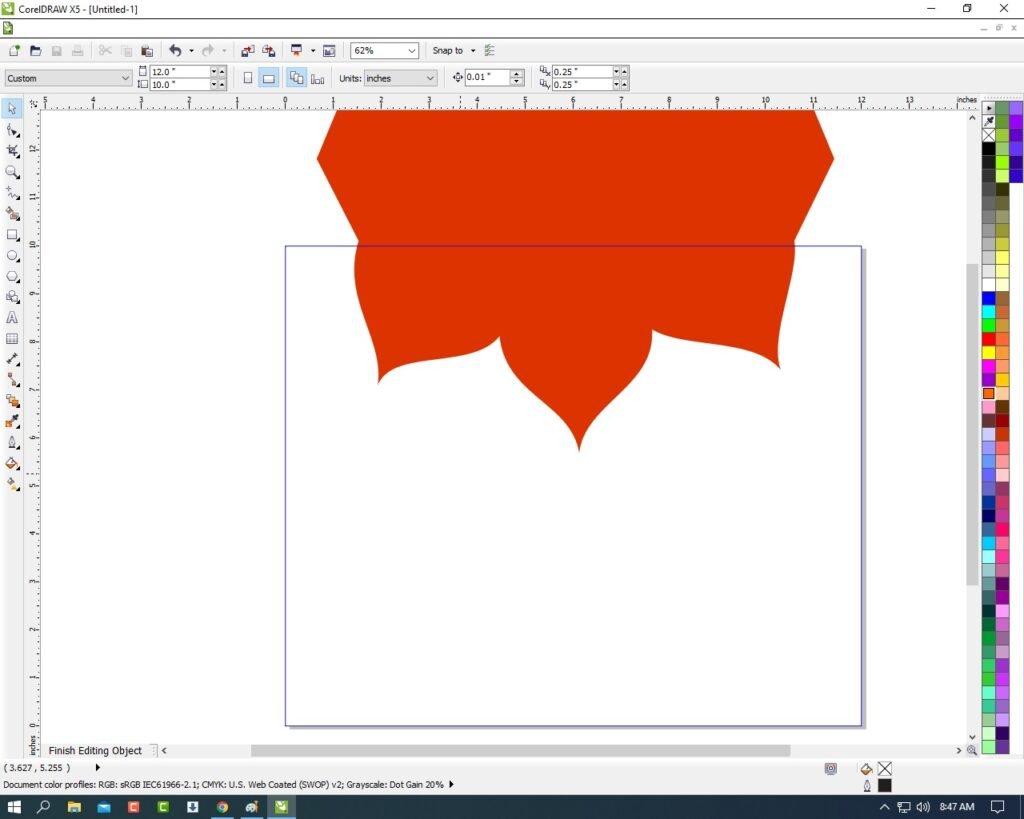
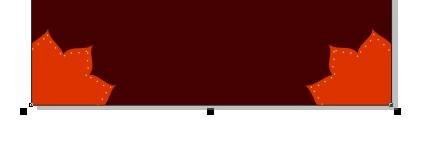
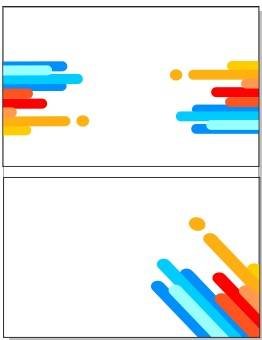
Make Same Design Create corner at Page.
Navratri Card Design in CorelDraw, Simple Method, Step By Step, Download Source File 157
Then Insert a Picture Like This.
Navratri Card Design in CorelDraw, Simple Method, Step By Step, Download Source File 158
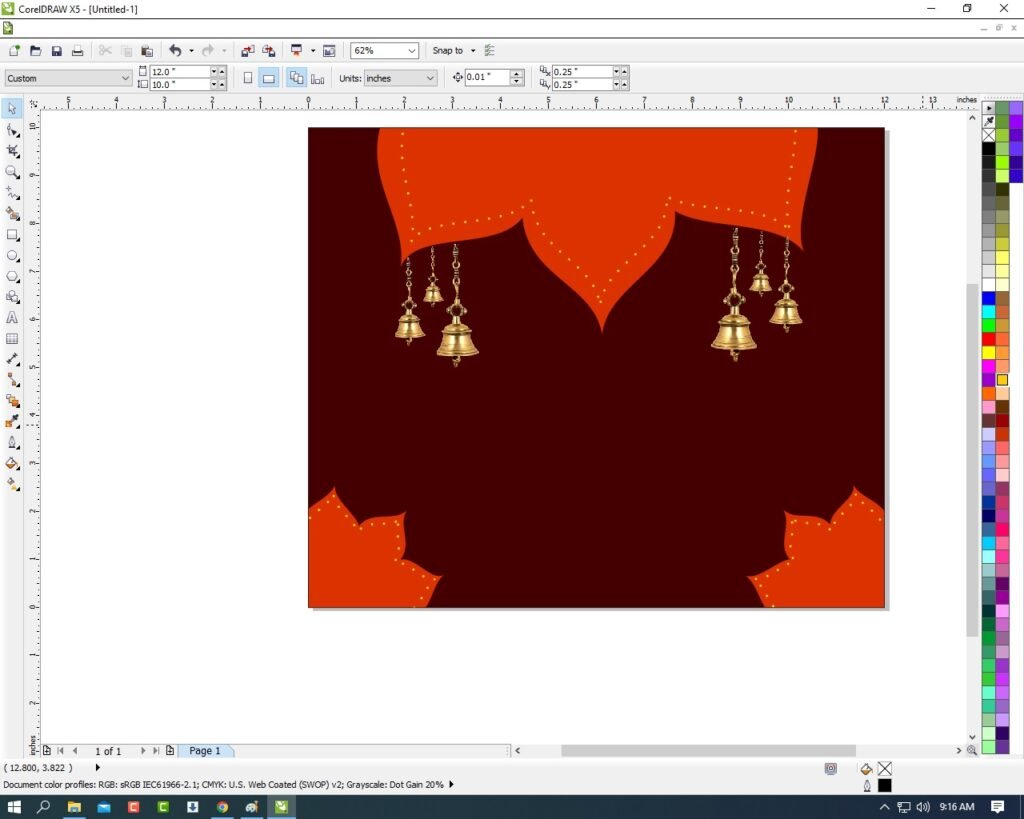
Insert Many Background Removed Pictures to Look Very Creative Card Design As I Will Show.
Navratri Card Design in CorelDraw, Simple Method, Step By Step, Download Source File 159
Then Go the text Tool and Type Happy Navratri.
Navratri Card Design in CorelDraw, Simple Method, Step By Step, Download Source File 160
Insert your company or Institute LOGO.
Navratri Card Design in CorelDraw, Simple Method, Step By Step, Download Source File 161
I have Completed this Project, I hope you guys have understood all the Steps.
Navratri Card Design in CorelDraw, Simple Method, Step By Step, Download Source File
Visiting Card Design in CorelDraw, Easy, and Innovative, Download Source File
Hello! Friends Welcome to www.vedantsri.net In this Project I am going to Teach you How To Create Visiting Card in CorelDraw. In this Project, you can Learn How to Design Visiting Card in CorelDraw Application an Easy Method.
Press Windows + R on Keyboard.
To Open Run Dialog Box.
Visiting Card Design in CorelDraw
Type coreldrw in Run Dialog Box > As a Run Command
Visiting Card Design in CorelDraw, Easy, and Innovative, Download Source File 188
Click on Ok.
Click on New Blank Document.
Visiting Card Design in CorelDraw
Fill in all Information > Regarding document.
Visiting Card Design in CorelDraw
Click on Rectangle tool > From tool Option.
Visiting Card Design in CorelDraw, Easy, and Innovative, Download Source File 189
Draw Two rectangles> like this.
Visiting Card Design in CorelDraw, Easy, and Innovative, Download Source File 190
Select Both Rectangles > Change Color > From Color Palate.
Visiting Card Design in CorelDraw, Easy, and Innovative, Download Source File 191
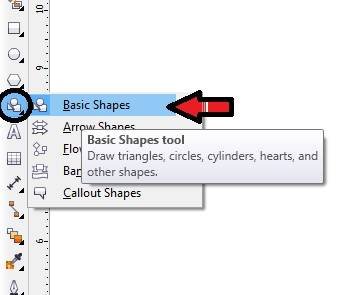
Click at the Basic Shape tool.
Visiting Card Design in CorelDraw, Easy, and Innovative, Download Source File 192
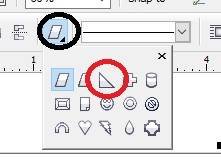
Select triangle shape > From here.
Visiting Card Design in CorelDraw, Easy, and Innovative, Download Source File 193
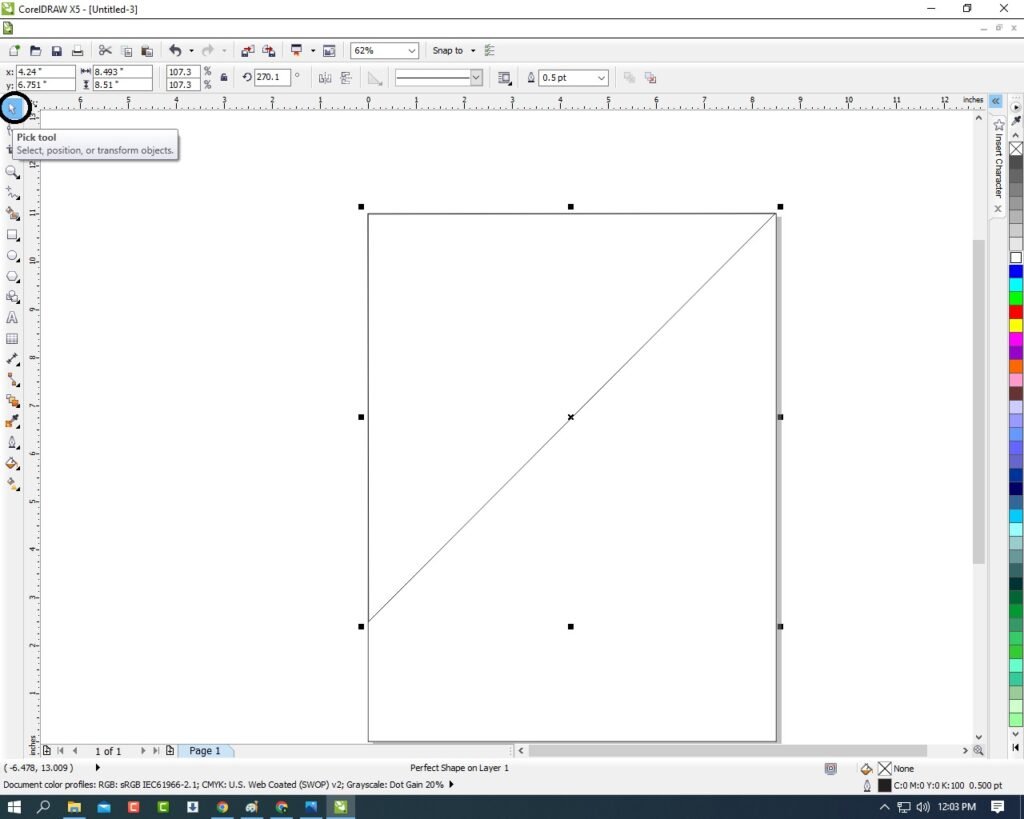
Draw this at Page > Change Color > From Color Palate.
Visiting Card Design in CorelDraw, Easy, and Innovative, Download Source File 194
Select Triangle > Remove Background > from here.
Visiting Card Design in CorelDraw, Easy, and Innovative, Download Source File 195
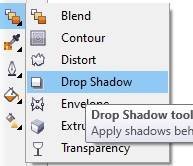
Click at Blend Tool > Select Drop Shadow > like this.
Visiting Card Design in CorelDraw, Easy, and Innovative, Download Source File 196
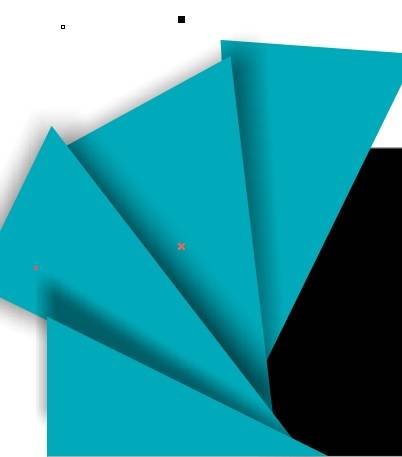
Apply like this.
Visiting Card Design in CorelDraw, Easy, and Innovative, Download Source File 197
Select Triangle > Press Ctrl + D > Duplicate > Duplicate Triangle One by One > Set like this.
Visiting Card Design in CorelDraw, Easy, and Innovative, Download Source File 198
Press Ctrl + G > To Group >Triangles > Set in second Rectangle > like this.
Visiting Card Design in CorelDraw, Easy, and Innovative, Download Source File 199
Select both Grouped Triangle > Click at effect Menu > Click at Power Clip Option > Click at Place inside Container option.
Visiting Card Design in CorelDraw, Easy, and Innovative, Download Source File 200
Something like this appear.
Visiting Card Design in CorelDraw, Easy, and Innovative, Download Source File 201
Draw a Rectangle > At first Rectangle > like this.
Visiting Card Design in CorelDraw, Easy, and Innovative, Download Source File 202
Fill black Color > At Rectangle > Click at Blend Tool > Select Transparency Tool.
Visiting Card Design in CorelDraw, Easy, and Innovative, Download Source File 203
Apply like this.
Visiting Card Design in CorelDraw, Easy, and Innovative, Download Source File 204
Then Duplicate > Transparency Rectangle > Set in Second Rectangle.
Put LOGO of an institution > like this.
Visiting Card Design in CorelDraw, Easy, and Innovative, Download Source File 205
Click at Text tool >Type Institution Name > At Rectangle > like this.
Visiting Card Design in CorelDraw, Easy, and Innovative, Download Source File 206
Give Contact Information > Press Ctrl + F11 > To Open Character window > like this.
Visiting Card Design in CorelDraw, Easy, and Innovative, Download Source File 207
Select Characters > According to need > Change in White Color > Decrease Size of Characters.
Visiting Card Design in CorelDraw, Easy, and Innovative, Download Source File 208
Type Matter Regarding > Contact Information > Like this.
Visiting Card Design in CorelDraw, Easy, and Innovative, Download Source File 209
Now Visiting Card is Ready.
Visiting Card Design in CorelDraw, Easy, and Innovative, Download Source File 210
Poster Design in CorelDraw, Simple and Easy Method Step By Step, Download Source File
Hello! Friends Welcome to www.vedantsri.net In this Project I am going to Teach you How To Create Poster Design in CorelDraw. In this Project, you can Learn How to Design a Poster in CorelDraw Application an Easy Method. (Poster Design in CorelDraw, Simple, and Easy Method Step By Step, Download Source File)
Press Window + R to Open Run Dialogue Box > Type CorelDraw.
Poster Design in CorelDraw, Simple and Easy Method Step By Step, Download Source File 244
Press OK.
Poster Design in CorelDraw, Simple and Easy Method Step By Step, Download Source File 245
Click On New Blank Document.
Poster Design in CorelDraw, Simple and Easy Method Step By Step, Download Source File 246
Press OK.
Poster Design in CorelDraw, Simple and Easy Method Step By Step, Download Source File 247
Then Mention the Page Size.
Poster Design in CorelDraw, Simple and Easy Method Step By Step, Download Source File 248
Double-click on Rectangle Tool.
Poster Design in CorelDraw, Simple and Easy Method Step By Step, Download Source File 249
Fill Blue color at page.
Poster Design in CorelDraw, Simple and Easy Method Step By Step, Download Source File 250
Go to Polygon Tool > Press Shift and Draw at Page.
Poster Design in CorelDraw, Simple and Easy Method Step By Step, Download Source File 251Poster Design in CorelDraw, Simple and Easy Method Step By Step, Download Source File 252
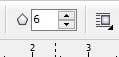
Then Click On Point & Sides Option > 6.
Poster Design in CorelDraw, Simple and Easy Method Step By Step, Download Source File 253
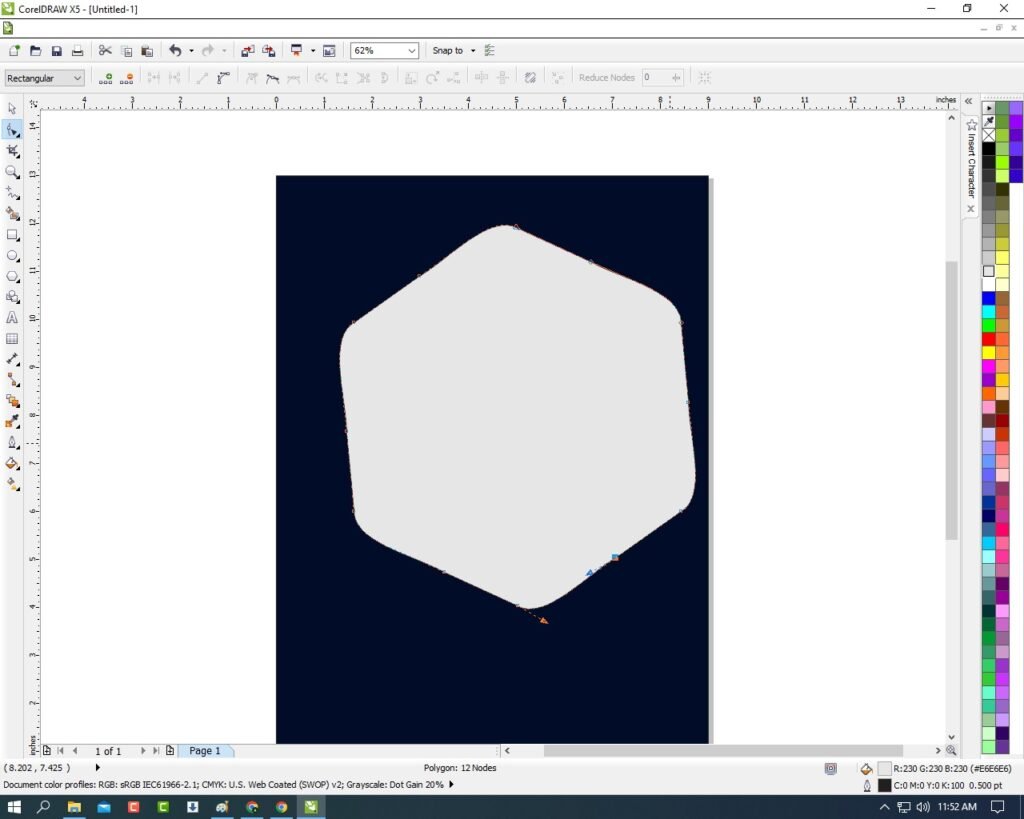
Press F10 & Select the Points > and Curve it > Like This.
Poster Design in CorelDraw, Simple and Easy Method Step By Step, Download Source File 254
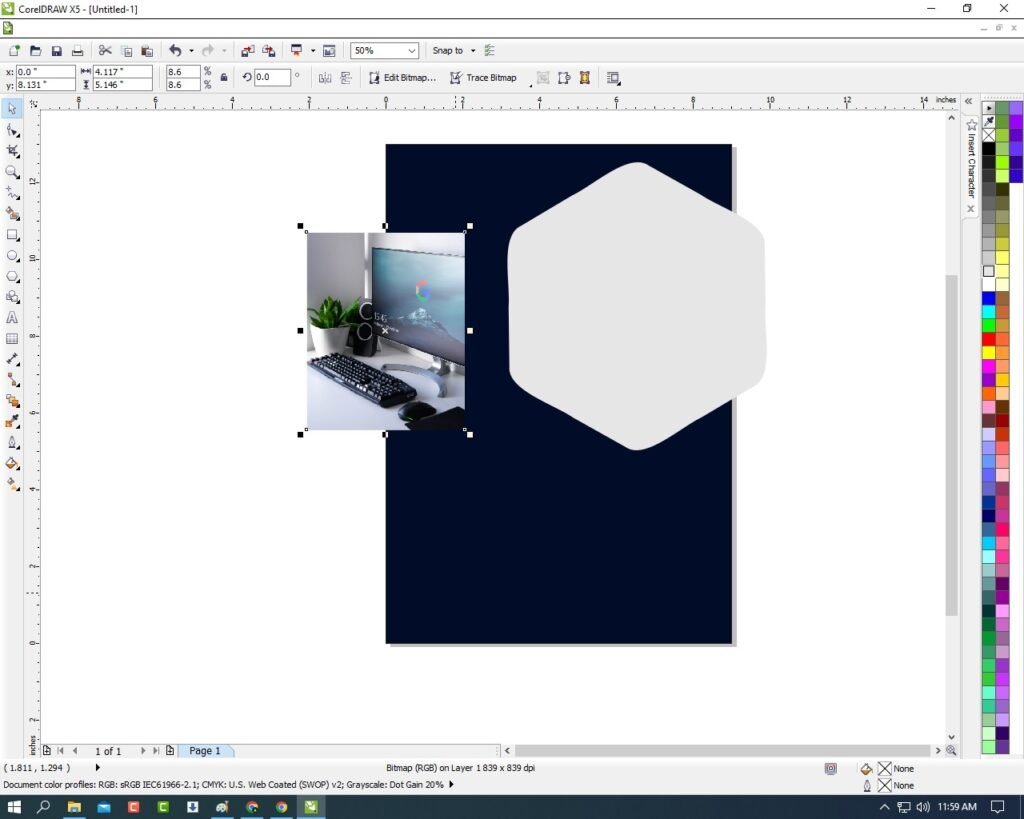
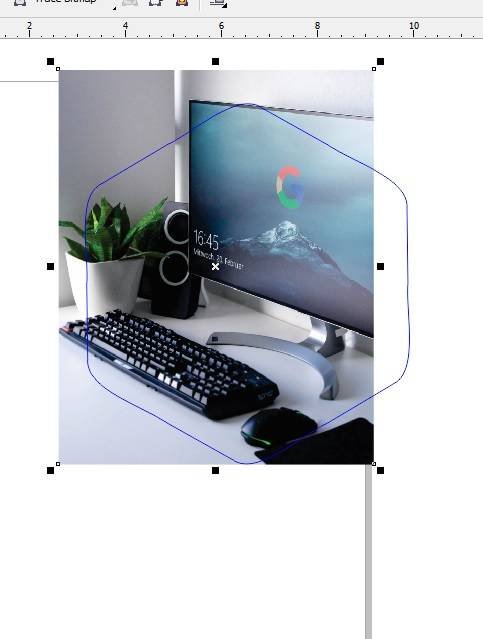
Then Insert the picture on the Shape > Shrink it with Shift + F2 > grab the Corner and Shorten.>.
Poster Design in CorelDraw, Simple and Easy Method Step By Step, Download Source File 255
Then Select the Picture > Go to Bitmaps Menu > Click on Convert to Bitmaps Option > Press Ok.
Poster Design in CorelDraw, Simple and Easy Method Step By Step, Download Source File 256
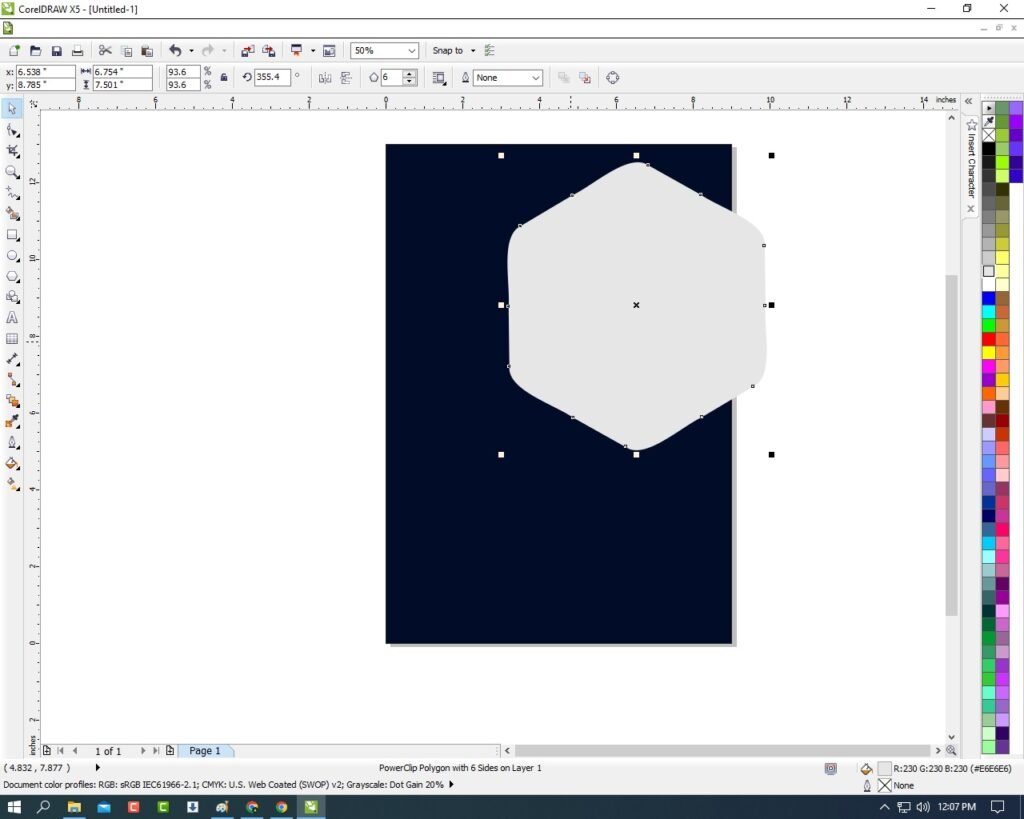
Then select the Picture > Go to Effect Menu > Click on PowerClip Option > Click Place Inside Container.
Poster Design in CorelDraw, Simple and Easy Method Step By Step, Download Source File 257
Click at page > Picture will Disappear.
Poster Design in CorelDraw, Simple and Easy Method Step By Step, Download Source File 258
Press CTRL + Double Click at page > fix this Picture Like This.
Poster Design in CorelDraw, Simple and Easy Method Step By Step, Download Source File 259
Then Press CTRL + Double Click at Out of the Page Aria.
Poster Design in CorelDraw, Simple and Easy Method Step By Step, Download Source File 260
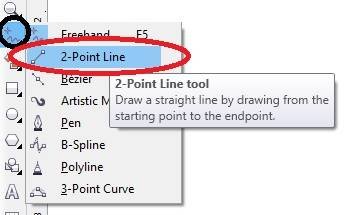
Go to Freehand Tool > Click 2-Point line Option.
Poster Design in CorelDraw, Simple and Easy Method Step By Step, Download Source File 261
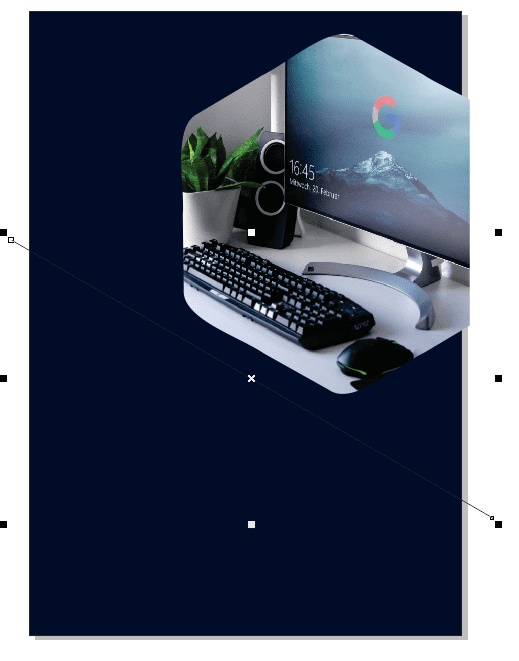
Press Shift and Draw it Like This.
Poster Design in CorelDraw, Simple and Easy Method Step By Step, Download Source File 262
Go to Pen Tool > Outline 3pt > Fill yellow color in Outline .
Poster Design in CorelDraw, Simple and Easy Method Step By Step, Download Source File 263
Draw Rectangle > Fill any color in Rectangle > No Outline.
Poster Design in CorelDraw, Simple and Easy Method Step By Step, Download Source File 264
Press F10 > Grab a Corner and Bring it Down.
Poster Design in CorelDraw, Simple and Easy Method Step By Step, Download Source File 265
Then Fix it > and PowerClip this shape like I will show.
Poster Design in CorelDraw, Simple and Easy Method Step By Step, Download Source File 266
Draw Polygon Shape > Fill any Color > No Outline.
Poster Design in CorelDraw, Simple and Easy Method Step By Step, Download Source File 267
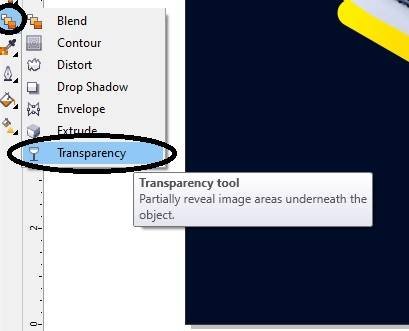
Then apply Transparency > Select the Shape > Go to Blend Tool > Click Transparency option.
Poster Design in CorelDraw, Simple and Easy Method Step By Step, Download Source File 268
Apply like this.
Poster Design in CorelDraw, Simple and Easy Method Step By Step, Download Source File 269
Then Draw the Many Shape to Look Very Creative Like This.
Poster Design in CorelDraw, Simple and Easy Method Step By Step, Download Source File 270
Insert LOGO in your Company/Institute.
Poster Design in CorelDraw, Simple and Easy Method Step By Step, Download Source File 271
Then Go to Text Tool > Write Your Company or Institute Name.
Poster Design in CorelDraw, Simple and Easy Method Step By Step, Download Source File 272
Click on Pick tool To Apply Formatting on text.
Poster Design in CorelDraw, Simple and Easy Method Step By Step, Download Source File 273
Then Fill Personal & Professional Details of Your Company Or Institute.
Poster Design in CorelDraw, Simple and Easy Method Step By Step, Download Source File 274
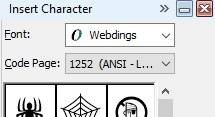
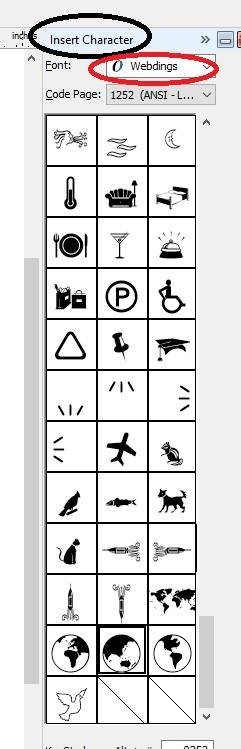
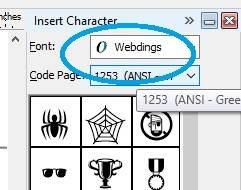
Press CTRL + F11 to Insert Character Window > Type Webding > Then Insert Many Character like I Insert Now.
Poster Design in CorelDraw, Simple and Easy Method Step By Step, Download Source File 275
I have Completed this Project, I hope you guys have understood all the Steps.
Poster Design in CorelDraw, Simple and Easy Method Step By Step, Download Source File 276
Pamphlet Design In CorelDraw, Easy Method, Complete Steps, Download Practice File
Hello Friends, welcome to Vedantsri.net In This Post, I am Going To Teach You How To Create a Pamphlet Design In CorelDraw. In This Project, You Can Learn How To Design a Pamphlet Design In CorelDraw Application an Easy Method. Pamphlet Design In CorelDraw, Easy Method, Complete Steps, Download Practice File
CorelDraw Open करने के लिए Window + R Press करके Run Box open करे।
Pamphlet Design In CorelDraw, Easy Method, Complete Steps, Download Practice File 296
Run Box मे Coreldrw Type करे।
Pamphlet Design In CorelDraw, Easy Method, Complete Steps, Download Practice File 297
Ok पर Click करके CorelDraw का Application Open करे.
Pamphlet Design In CorelDraw, Easy Method, Complete Steps, Download Practice File 298
CTRL + N Press करके New Page का Window Open होगा।
Pamphlet Design In CorelDraw, Easy Method, Complete Steps, Download Practice File 299
Ok पर Click करके CorelDraw का Main Page Open करे।
Pamphlet Design In CorelDraw, Easy Method, Complete Steps, Download Practice File 300
Rectangle tool पर Double Click करे। Pamphlet Design In CorelDraw, Easy Method, Complete Steps, Download Practice File
Pamphlet Design In CorelDraw, Easy Method, Complete Steps, Download Practice File 301
अब Shape मे Color Fill करे।
Pamphlet Design In CorelDraw, Easy Method, Complete Steps, Download Practice File 302
अब Rectangle Shape Draw करे Or F10 > CTRL + Q Press करे,
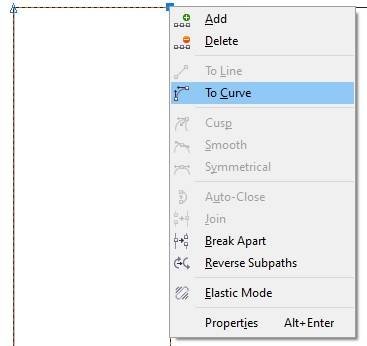
Shape के Line के बीच Right Click करे Or To Curve Option पर Click करे।
Pamphlet Design In CorelDraw, Easy Method, Complete Steps, Download Practice File 303
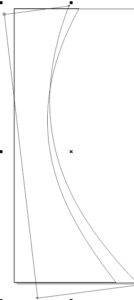
Shape को Curve करके CTRL + D से Shape को Duplicate बनाये
Outline Width 4.0 Pt. Or Outline का Color Change Color करे। Pamphlet Design In CorelDraw, Easy Method, Complete Steps, Download Practice File
Pamphlet Design In CorelDraw, Easy Method, Complete Steps, Download Practice File 304
अब Image Insert करे या Download करे Shift + F2 से Image का Size Set करे
Menu bar >Bitmaps Option par >Auto Adjust Option par Click करे।
Pamphlet Design In CorelDraw, Easy Method, Complete Steps, Download Practice File 305
Menu bar > Effects >Power Clip > Place Inside Container option Click करे
Shape पर Click करे।
Pamphlet Design In CorelDraw, Easy Method, Complete Steps, Download Practice File 306
Shape पर CTRL + Mouse से Left Click करे Or Image को Shape पर Set करे।
Pamphlet Design In CorelDraw, Easy Method, Complete Steps, Download Practice File 307
Shape के बाहर CTRL + Mouse से Left Click करे।
Pamphlet Design In CorelDraw, Easy Method, Complete Steps, Download Practice File 308
अब File से LOGO Insert करे या Google से Download करे।
Pamphlet Design In CorelDraw, Easy Method, Complete Steps, Download Practice File 309
2- Point line Tool से Shape Draw करे Or F10 > CTRL + Q Press करे
Shape के Line के बीच Right Click करे Or To Curve Option पर Click करे
Shape को Curve करे Or Smart Fill Tool से Shape को Fill करे
अब Shape मे Color Change करे।
Pamphlet Design In CorelDraw, Easy Method, Complete Steps, Download Practice File 310
RectangleTool से Shape Draw करे Or F10 Press करे
Round Corner Option Click करे।
Pamphlet Design In CorelDraw, Easy Method, Complete Steps, Download Practice File 311
अब VEDANTSRI लिखे Or Text tool से Detail Fill करे।
Pamphlet Design In CorelDraw, Easy Method, Complete Steps, Download Practice File 312
Basic Shape Tool > Arrow Shape पर Click कर
Arrow Shape मे Color Fill करे
CTRL+ D से Duplicate करे Or Page पर Shape को Set करे।
Pamphlet Design In CorelDraw, Easy Method, Complete Steps, Download Practice File 313
CTRL + S से Pamphlet Save करे।
Pamphlet Design In CorelDraw, Easy Method, Complete Steps, Download Practice File
Basic Poster Design in CorelDraw, Easy and Innovative, Download Source File.
Hello! Friends Welcome to www.vedantsri.net In this Project I am going to Teach you How To Create Poster Design in CorelDraw. In this Project you can Learn How to Design Poster in CorelDraw Application in Easy Method .
Press Windows + R in Keyboard.
To Open Run dialog Box.
Basis Poster Design in CorelDraw
Type coreldrw in Run Dialog Box > As a Run Command.
Basis Poster Design in CorelDraw
Press OK.
Click at New Blank Document .
Basis Poster Design in CorelDraw
Fill all Information > Regarding new document.
Basis Poster Design in CorelDraw, Easy, and Innovative, Download Source File. 341
Click at OK.
Click at Rectangle Tool.
Basis Poster Design in CorelDraw, Easy, and Innovative, Download Source File. 342
Double Click at Rectangle Tool > like this.
Basis Poster Design in CorelDraw, Easy, and Innovative, Download Source File. 343
Click at Page > Go To Color Palate > Change Color of Rectangle.
Basis Poster Design in CorelDraw, Easy, and Innovative, Download Source File. 344
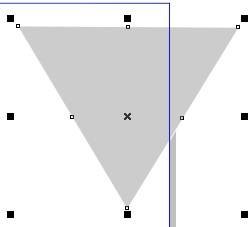
Draw a Triangle > From Polygon Shape > Decrease Points > like this.
Basis Poster Design in CorelDraw, Easy, and Innovative, Download Source File. 345
Draw Like > Double Click at Triangle > Rotate like this > Set like this.
Basis Poster Design in CorelDraw, Easy, and Innovative, Download Source File. 346
Select Triangle > Change Color of Triangle > From Color Palate.
Basis Poster Design in CorelDraw, Easy, and Innovative, Download Source File. 347
Increase Size of Triangle > Remove Outline > From here.
Basis Poster Design in CorelDraw, Easy, and Innovative, Download Source File. 348
Select Triangle > Go To effect Menu > Click at Power Clip Option > Click at Place Inside Container .
Basis Poster Design in CorelDraw, Easy, and Innovative, Download Source File. 349
Something like this appear.
Basis Poster Design in CorelDraw, Easy, and Innovative, Download Source File. 350
Press Ctrl + Left Click of Mouse >To Edit Shape > Select Triangle > Press Ctrl + D > Duplicate > Decrease size of Triangle.
Basis Poster Design in CorelDraw, Easy, and Innovative, Download Source File. 351
Select Duplicated Triangle > Click at Blend Tool > Click at Drop Shadow Option.
Basis Poster Design in CorelDraw, Easy, and Innovative, Download Source File. 352
Apply like this > Decrease feather > From here.
Basis Poster Design in CorelDraw, Easy, and Innovative, Download Source File. 353
Change Color of Second Triangle > In White > From Color palate.
Basis Poster Design in CorelDraw, Easy, and Innovative, Download Source File. 354
Draw a Rectangle > Press F10 > Ctrl + Q >Shape a Rectangle > Like this.
Basis Poster Design in CorelDraw, Easy, and Innovative, Download Source File. 355
Select Rectangle > Increase Outline > From here > 12pt.
Basis Poster Design in CorelDraw, Easy, and Innovative, Download Source File. 356
Certificate Design In CorelDraw, Easy Method, Complete Steps, Download Practice Fill
Hello Friends, Welcome to Vedantsri.net In This Post I am Going To Teach You How To Create a Certificate Design In CorelDraw. In This Project, You Can Learn How To Design a Certificate Design In CorelDraw Application an Easy Method.
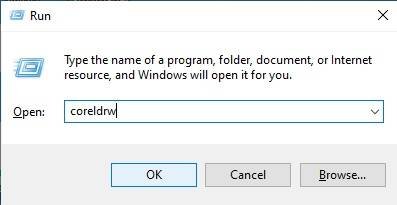
CorelDraw Open करने के लिए Window + R Press करके Run Box Open करे
Certificate Design In CorelDraw, Easy Method, Complete Steps, Download Practice Fill 383
Run Box मे Coreldrw Type करे।
Certificate Design In CorelDraw, Easy Method, Complete Steps, Download Practice Fill 384
अब Ok पर Click करके CorelDraw के Application को Open करे
Certificate Design In CorelDraw, Easy Method, Complete Steps, Download Practice Fill 385
अब CTRL + N Press करे New Page का Window Open होगा।
Certificate Design In CorelDraw, Easy Method, Complete Steps, Download Practice Fill 386
Ok par Click करके तथा CorelDraw का main page open करे
फिर Landscape Option पर Click करे। Certificate Design In CorelDraw, Easy Method, Complete Steps, Download Practice Fill
Certificate Design In CorelDraw, Easy Method, Complete Steps, Download Practice Fill 387
Rectangle Tool पर Double Click करे।
Certificate Design In CorelDraw, Easy Method, Complete Steps, Download Practice Fill 388
Basic Shape Tool > Triangle Shape Draw करे।
Certificate Design In CorelDraw, Easy Method, Complete Steps, Download Practice Fill 389
Triangle Shape पर F 10 > CTRL + Q Press करके Shape को Set करे
Shape मे Color Fill करे। Certificate Design In CorelDraw, Easy Method, Complete Steps, Download Practice Fill
Certificate Design In CorelDraw, Easy Method, Complete Steps, Download Practice Fill 390
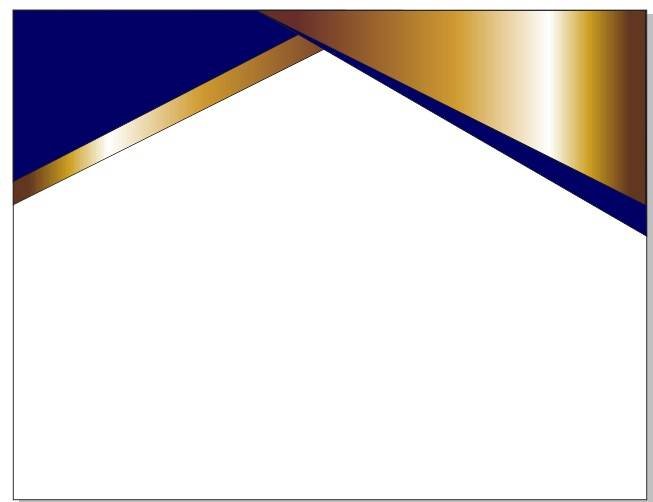
CTRL + D Shape का Duplicate करे
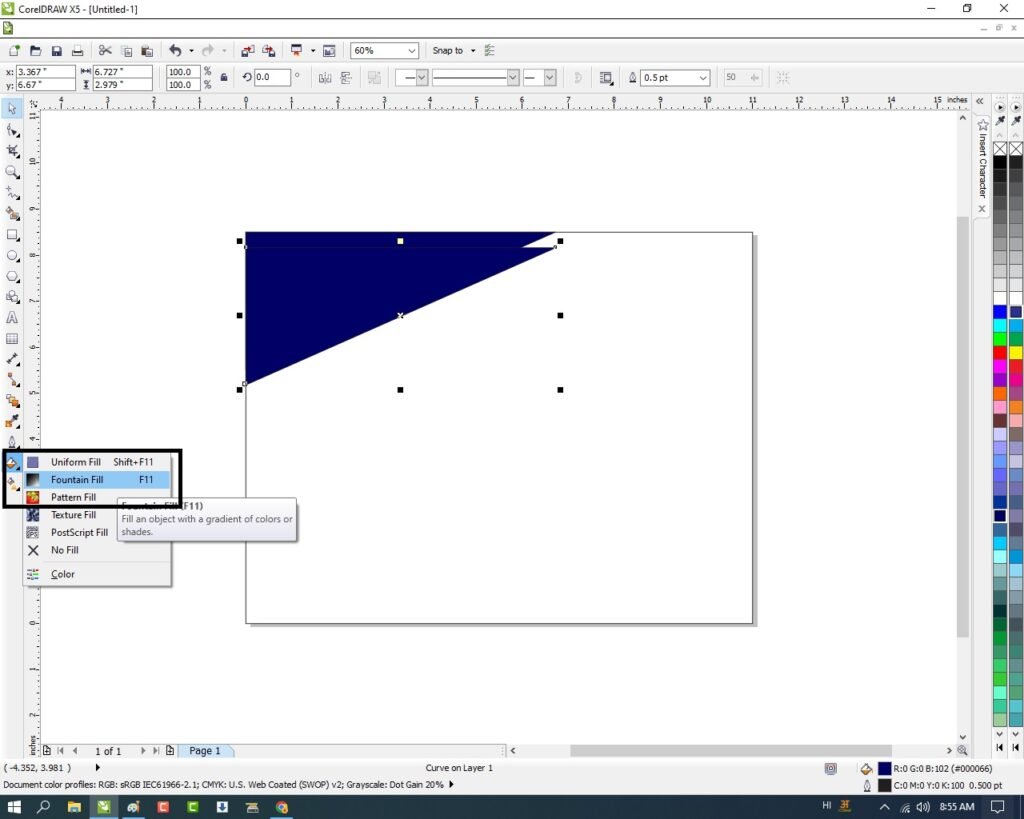
Fill Tool > Fountain Fill Option पर Click करे।
Certificate Design In CorelDraw, Easy Method, Complete Steps, Download Practice Fill 391
अब Fountain Fill Window Open करे Or Golden Color Option पर Click करे
फिर Ok पर Click करे।
Certificate Design In CorelDraw, Easy Method, Complete Steps, Download Practice Fill 392
CTRL + Page Down से Shape को पहले Shape के पीछे भेजे।
Certificate Design In CorelDraw, Easy Method, Complete Steps, Download Practice Fill 393
CTRL + D से Shape का Duplicate बनाये
F 10 > CTRL + Q Press करके Shape को Page पर set करे।
Certificate Design In CorelDraw, Easy Method, Complete Steps, Download Practice Fill 394
Shape को Shift के साथ Select करे Or CTRL + G से Group करे
CTRL + D से Shape का Duplicate बनाये Or Page पर Set करे।
Certificate Design In CorelDraw, Easy Method, Complete Steps, Download Practice Fill 395
Shape को Shift के साथ Select करे Or CTRL + G से Group करे
CTRL + D से Shape का Duplicate बनाये Or Page पर Set करे
Movement Key से Page पर Shape को Set कर सकते है ।
Certificate Design In CorelDraw, Easy Method, Complete Steps, Download Practice Fill 396
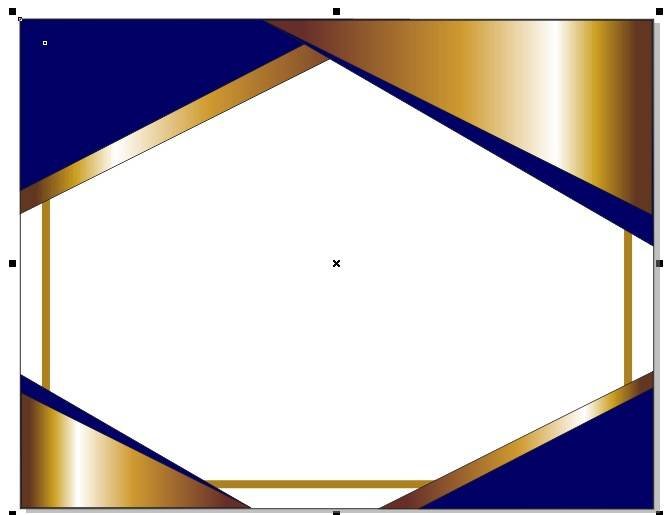
अब Rectangle Shape Draw करे Or Color Fill करे
CTRL + Page Down से Shape को सारे Shape के पीछे भेजे। Certificate Design In CorelDraw, Easy Method, Complete Steps, Download Practice Fill
Certificate Design In CorelDraw, Easy Method, Complete Steps, Download Practice Fill 397
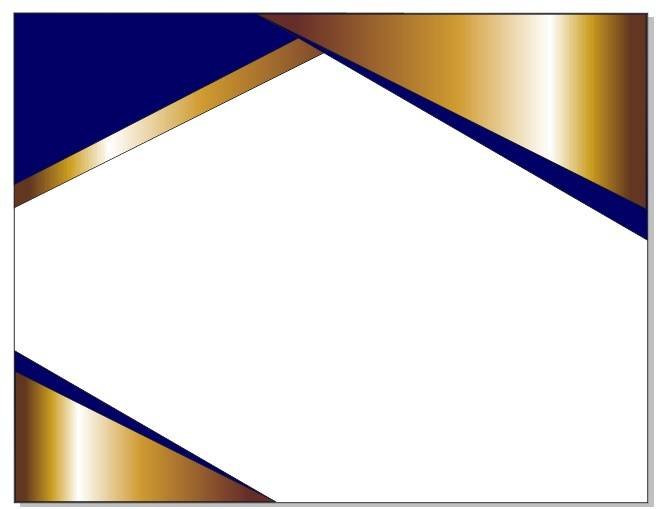
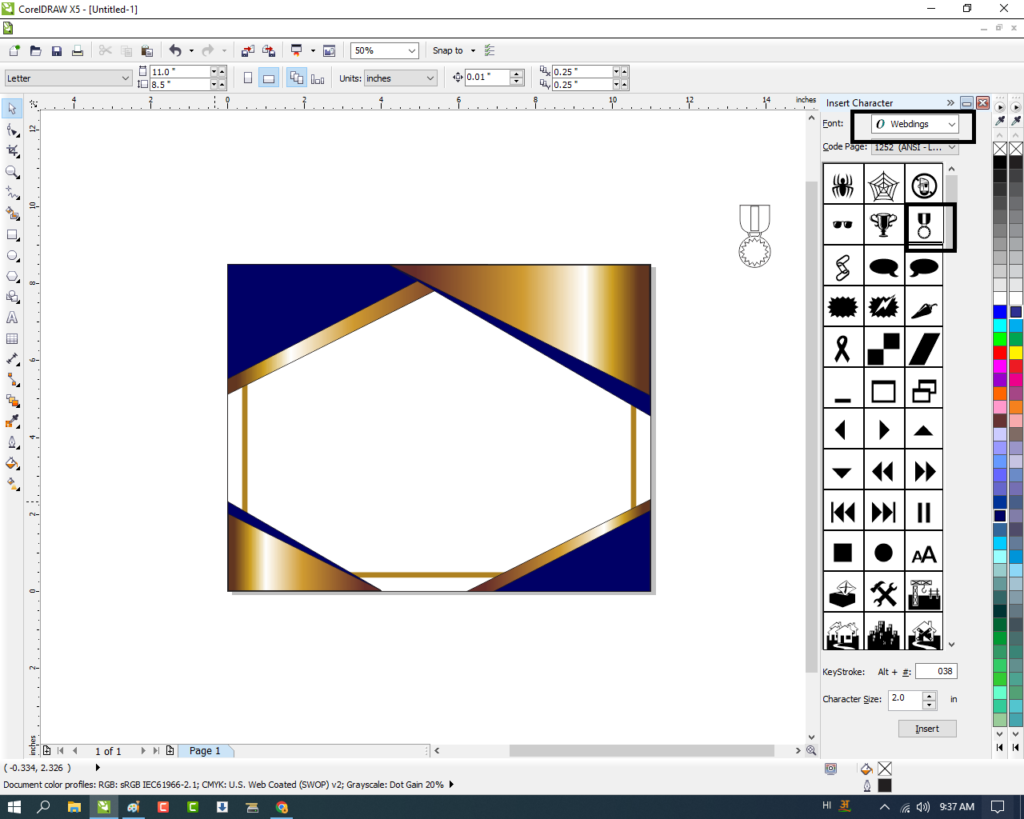
CTRL + F11 Press करे Or Webdings Option Click करे
Character Insert करे।
Certificate Design In CorelDraw, Easy Method, Complete Steps, Download Practice Fill 398
Shape का Color Change करे।
Certificate Design In CorelDraw, Easy Method, Complete Steps, Download Practice Fill 399
अब File से Logo insert करे Or Shape पर Set करे।
Certificate Design In CorelDraw, Easy Method, Complete Steps, Download Practice Fill 400
2 Point- Line Tool से एक Line draw करे Or CTRL + D से line Duplicate बनाये, Color Fill करे
Text tool से सारे Detail लिखे।
Certificate Design In CorelDraw, Easy Method, Complete Steps, Download Practice Fill
Brochure Design in CorelDraw, Step By Step Simple Method, Download Source File
Hello! Friends Welcome to www.vedantsri.net In this Project I am going to Teach you How To Create a Brochure Design in CorelDraw. In this Project, you can Learn How to Design a Brochure in CorelDraw Application an Easy Method.
Press Window + R to > Open Run Dialogue Box > Type coreldrw.
Brochure Design in CorelDraw
Press Ok.
Brochure Design in CorelDraw
Press CTRL + N to Open New Page Window.
Brochure Design in CorelDraw, Step By Step Simple Method, Download Source File 431
Press ok.
Brochure Design in CorelDraw
Double Click on Rectangle Tool.
Brochure Design in CorelDraw, Step By Step Simple Method, Download Source File 432
Then Draw Rectangle at Page > Double Click on shape to Rotate like this.
Brochure Design in CorelDraw, Step By Step Simple Method, Download Source File 433
Select the Rectangle > Press F10 > Grab a Corner and Bring it Down.
Brochure Design in CorelDraw, Step By Step Simple Method, Download Source File 434
Click on Pick Tool > Fill White Color in Rectangle Shape.
Brochure Design in CorelDraw, Step By Step Simple Method, Download Source File 435
Select the Rectangle Shape > Go to Effect Menu > Click on PowerClip Option > Click Place Inside Container.
Brochure Design in CorelDraw, Step By Step Simple Method, Download Source File 436
Click at page.
Brochure Design in CorelDraw, Step By Step Simple Method, Download Source File 437
Select the Page > Fill any Color.
Brochure Design in CorelDraw, Step By Step Simple Method, Download Source File 438
Then CTRL + Double Click at the Rectangle shape or Page.
Brochure Design in CorelDraw, Step By Step Simple Method, Download Source File 439
Select the Rectangle > Go to Pen Tool > No outline > CTRL + double Click at out of the Page Aria.
Brochure Design in CorelDraw, Step By Step Simple Method, Download Source File 440
Draw a New Rectangle Shape > Then Repeat same Process > Press F10 > Grab a Corner and Bring it Down.
Brochure Design in CorelDraw, Step By Step Simple Method, Download Source File 441
Select the Rectangle > Insert Picture > Picture are too Big Screen.
Brochure Design in CorelDraw, Step By Step Simple Method, Download Source File 442
Shrink it with Shift + F2 > grab the Corner and Shorten.
Brochure Design in CorelDraw, Step By Step Simple Method, Download Source File 443
Then Select the Picture > Go to Bitmaps Menu > Click on Convert to Bitmaps Option > Press Ok.
Brochure Design in CorelDraw, Step By Step Simple Method, Download Source File 444
Then select the Picture > Go to Effect Menu > Click on PowerClip Option > Click Place Inside Container > Then Click at the Page > Picture will Disappear.
Brochure Design in CorelDraw, Step By Step Simple Method, Download Source File 445
Then same Process > Double Click at the Rectangle & Fix Picture > Then Click CTRL + Double Click In Out of Page.
Brochure Design in CorelDraw, Step By Step Simple Method, Download Source File 446
Select the Rectangle > Go to Effect Tool > PowerClip > Place Inside Container > Click at Page.
Brochure Design in CorelDraw, Step By Step Simple Method, Download Source File 447
Draw a New Rectangle > and Repeat same Process.
Brochure Design in CorelDraw, Step By Step Simple Method, Download Source File 448
Draw Two Rectangle fill any color and clip in corner.
Brochure Design in CorelDraw, Step By Step Simple Method, Download Source File 449
Then Draw some Small Rectangle > Fill any Color > No Outline.
Brochure Design in CorelDraw, Step By Step Simple Method, Download Source File 450
Go to Text Tool > Type Your Company/Institute Name.
Brochure Design in CorelDraw, Step By Step Simple Method, Download Source File 451
Then Click on Pick Tool > Apply Color on Text and Change Font Style.
Brochure Design in CorelDraw, Step By Step Simple Method, Download Source File 452
Then Insert LOGO on Your Company/Institute.
Brochure Design in CorelDraw, Step By Step Simple Method, Download Source File 453
Then Go to Blend Tool > Click Option Drop Shadow > Apply any shape as Your wish.
Brochure Design in CorelDraw, Step By Step Simple Method, Download Source File 454
Apply Drop Shadow.
Brochure Design in CorelDraw, Step By Step Simple Method, Download Source File 455
Then Mention Your Personal Details Ex. Contact/website.
Brochure Design in CorelDraw, Step By Step Simple Method, Download Source File 456
I have Completed this Project, I hope you guys have understood all the Step.
Brochure Design in CorelDraw, Step By Step Simple Method, Download Source File 457
Invitation Card in CorelDraw, Simple Method to Create, Download Source File.
Hello! Friends Welcome to www.vedantsri.net In this Project I am going to Teach you How To Create an Invitation Card in CorelDraw. In this Project, you can Learn How to Design Invitation Cards in CorelDraw Application an Easy Method. (Invitation Card in CorelDraw, Simple Method to Create, Download Source File.)
Press Window + R To open Run Dialogue Box > Type CorelDraw.
Invitation Card in CorelDraw, Simple Method to Create, Download Source File. 488
Press Ok.
Invitation Card in CorelDraw, Simple Method to Create, Download Source File. 489
Then Press CTRL + N to Open New Page Window.
Invitation Card in CorelDraw, Simple Method to Create, Download Source File. 490
Press Ok.
Invitation Card in CorelDraw, Simple Method to Create, Download Source File. 491
Double Click on Rectangle Tool.
Invitation Card in CorelDraw, Simple Method to Create, Download Source File. 492
Then Fill White Color in the Rectangle Shape.
Invitation Card in CorelDraw, Simple Method to Create, Download Source File. 493
Then Go to Basic Shapes Tool > Click on Basic Tools Option.
Invitation Card in CorelDraw, Simple Method to Create, Download Source File. 494
Click on Perfect Shape Option > Select Triangle.
Invitation Card in CorelDraw, Simple Method to Create, Download Source File. 495
Then Draw a Triangle on the page > Click on Pick Tool > Double Click On Triangle to Rotate the Shape > Fix Like This.
Invitation Card in CorelDraw, Simple Method to Create, Download Source File. 496
Select the Rectangle > Press CTRL + D to Duplicate > Then Fix Like This.
Invitation Card in CorelDraw, Simple Method to Create, Download Source File. 497
Fill any in both Triangle shapes.
Invitation Card in CorelDraw, Simple Method to Create, Download Source File. 498
Press Shift Then Select Both Tringles> Go to Pen tool > No Outline.
Invitation Card in CorelDraw, Simple Method to Create, Download Source File. 499
Then Go to Freehand Tool > Select 2-Point Line Option.
Invitation Card in CorelDraw, Simple Method to Create, Download Source File. 500
Press Shift and Draw the Line In Triangle > Outline 4pt > Fill White Color in Outline Like I show.
Invitation Card in CorelDraw, Simple Method to Create, Download Source File. 501
Then Press CTRL + D to Duplicates Like This.
Invitation Card in CorelDraw, Simple Method to Create, Download Source File. 502
Press Shift > Select all Lines.
Invitation Card in CorelDraw, Simple Method to Create, Download Source File. 503
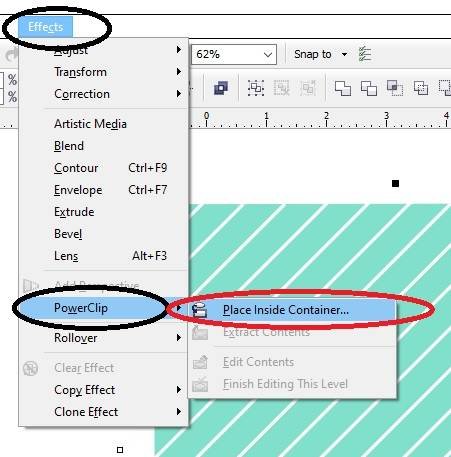
Then Go to Effect Menu > PowerClip > Place Inside Container.
Invitation Card in CorelDraw, Simple Method to Create, Download Source File. 504
Then Click at the Triangle Shape.
Invitation Card in CorelDraw, Simple Method to Create, Download Source File. 505
Then Select the triangle > Go to Effect tool > PowerClip > Place Inside Container > Click at the Page.
Invitation Card in CorelDraw, Simple Method to Create, Download Source File. 506
Then Repeat the same Process and draw Line at Second Triangle Shape.
Invitation Card in CorelDraw, Simple Method to Create, Download Source File. 507
Select all Lines > Go to Line Style Tool and make it like this.
Invitation Card in CorelDraw, Simple Method to Create, Download Source File. 508
Then Select the Lines > Go to Effect Tool > PowerClip > Place Inside Container > Click at Triangle Shape.
Invitation Card in CorelDraw, Simple Method to Create, Download Source File. 509
Then Select the triangle > Go to Effect Menu > PowerClip > Place Inside Container > Click On The Page.
Invitation Card in CorelDraw, Simple Method to Create, Download Source File. 510
Draw New Rectangle at Page > Fill White Color > No Outline.
Invitation Card in CorelDraw, Simple Method to Create, Download Source File. 511
Go to Text Tool and Write Your College/coaching/Institute Name.
Invitation Card in CorelDraw, Simple Method to Create, Download Source File. 512
Then Go to Pick tool > Fill any Color on Text.
Invitation Card in CorelDraw, Simple Method to Create, Download Source File. 513
Then fill in Details on Your Function in the Card.
Invitation Card in CorelDraw, Simple Method to Create, Download Source File. 514
Then Draw a Line Like This.
Invitation Card in CorelDraw, Simple Method to Create, Download Source File. 515
Then Go to Effect Menu > PowerClip > Place InsideContainer > Click On The Rectangle Shape.
Invitation Card in CorelDraw, Simple Method to Create, Download Source File. 516
Then Same Repeat the Process.
I have Completed this Project, I hope you guys have understood all the Step.
Invitation Card in CorelDraw, Simple Method to Create, Download Source File. 517
Template Design in CorelDraw, Easy Method, Complete Steps, Download Practice File
Hello Friend, Welcome to VedantSri.net In This Post I am Going To Teach You How To Create a Template Design in CorelDraw. In This Project, You can Learn How to Design a Template Design in CorelDraw Application In Easy Method. Template Design in CorelDraw, Easy Method, Complete Steps, Download practice File
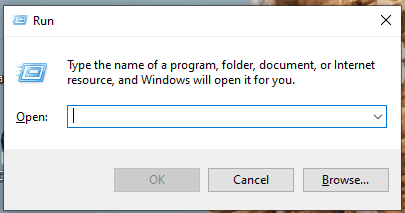
CorelDraw open करने के लिए Window + R Press करके Run Box Open करे।
Template Design in CorelDraw, Easy Method, Complete Steps, Download practice File
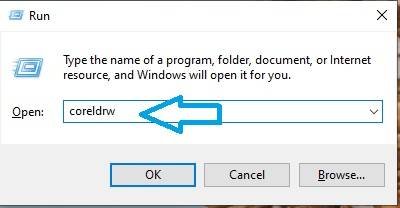
Run Box मे Coreldrw type करे।
Template Design in CorelDraw, Easy Method, Complete Steps, Download practice File 533
अब Ok पर Click करके CorelDraw का Application Open करे
Template Design in CorelDraw, Easy Method, Complete Steps, Download practice File 534
अब CTRL + N Press करे New Page का Window open करे।
Template Design in CorelDraw, Easy Method, Complete Steps, Download practice File 535
अब Ok पर Click करे CorelDraw का main Page Open करे।
Template Design in CorelDraw, Easy Method, Complete Steps, Download practice File 536
Rectangle tool par Double Click करे।
Template Design in CorelDraw, Easy Method, Complete Steps, Download practice File 537
अब एक Polygon shape draw करे
Template Design in CorelDraw, Easy Method, Complete Steps, Download practice File 538
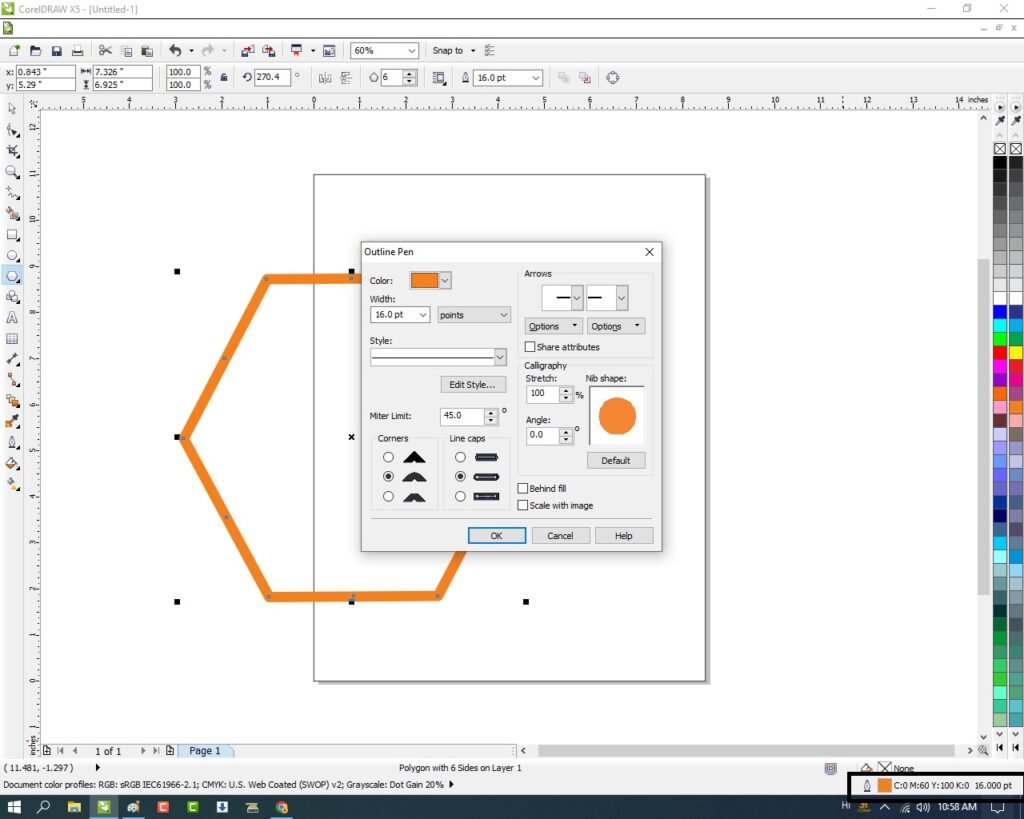
Outline pen Double Click करे
Outline Pen Window मे Shape का Color, Width Change करे।
Template Design in CorelDraw, Easy Method, Complete Steps, Download practice File 539
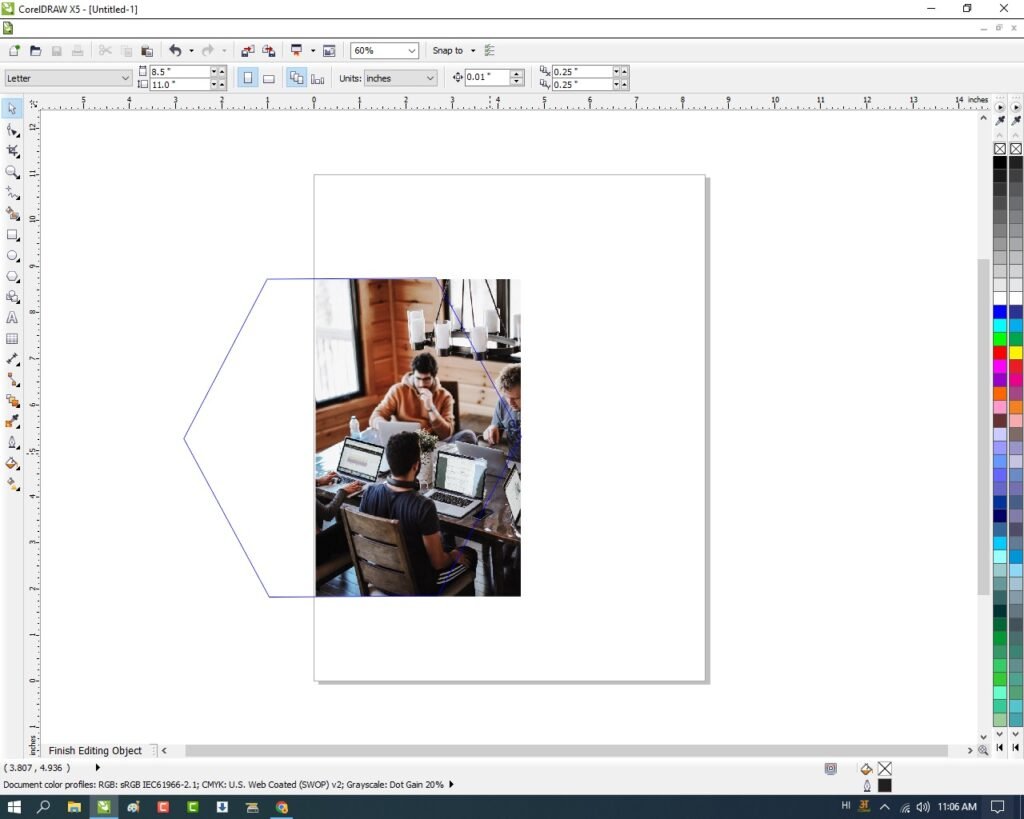
अब Photo Insert करे तथा Download करे
Menu bra > Bitmaps Option पर Click > Auto Adjust option पर click करे
Menu bar >Effects Option > Power Clip >Place Inside Container पर click करे
Shape पर Click करे
Shape पर CTRL + Mouse से Left Click करे।
Template Design in CorelDraw, Easy Method, Complete Steps, Download practice File 540
Image को shape पर set करे।
Template Design in CorelDraw, Easy Method, Complete Steps, Download practice File 541
Shape के बाहर CTRL + Mouse से Left Click करे
Menu bar >Effects Option > Power Clip >Place Inside Container पर click करे
Page पर Click करे।
Template Design in CorelDraw, Easy Method, Complete Steps, Download practice File 542
CTRL + D से Shape का Duplicate करे Shape मे Color Fill करे।
Template Design in CorelDraw, Easy Method, Complete Steps, Download practice File 543
Shape को Select करे
Menu bar >Effects Option > Power Clip >Place Inside Container पर click करे
Template Design in CorelDraw, Easy Method, Complete Steps, Download practice File 544
CTRL + D Shape का Duplicate Or Image Set करे
File से LOGO Insert करे Download कर सकते है।
Template Design in CorelDraw, Easy Method, Complete Steps, Download practice File 545
Basic Shape tool से Star Shape Draw करे Or Color Fill, CTRL + D से Shape का Duplicate करे
Text Tool से Detail Fill करे।
Template Design in CorelDraw, Easy Method, Complete Steps, Download Practice File
Visiting Card Design In CorelDraw, Simple Method, Download Source File.
Hello! Friends, welcome to www.vedantsri.net. In this Project, I am going to teach you How To Create a Visiting Card in CorelDRAW. In this Project, you can Learn How to design a Visiting Card in the CorelDRAW application in an Easy Method.
Press Windows + R > To Open Run Dialogue Box.
Visiting Card Design In CorelDRAW
Type coreldrw in the Run Dialogue Box > As a Run Command.
Visiting Card Design In CorelDRAW
Press OK.
Click on New Blank Document.
Visiting Card Design In CorelDRAW
Fill in all information > regarding the new document.
Flyer Design In CorelDraw, Easy and Simple Method, Download Flyer Vector Design
Hello! Friends Welcome to www.vedantsri.net In this Project I am going to Teach you How To Create a Flyer Design in CorelDraw. In this Project, you can Learn How to Design Flyers in CorelDraw Application in an Easy Method.
Press Window + R to Open Run Dialogue Box.
Type CorelDraw. Flyer Design In CorelDraw, Easy and Simple Method, Download Flyer Vector Design
Flyer Design In CorelDraw, Easy and Simple Method, Download Flyer Vector Design 612
Press Ok.
Flyer Design In CorelDraw, Easy and Simple Method, Download Flyer Vector Design 613
Press CTRL + N to Open the New page Window. Flyer Design In CorelDraw, Easy and Simple Method, Download Flyer Vector Design
Flyer Design In CorelDraw, Easy and Simple Method, Download Flyer Vector Design 614
Press ok.
Flyer Design In CorelDraw, Easy and Simple Method, Download Flyer Vector Design 615
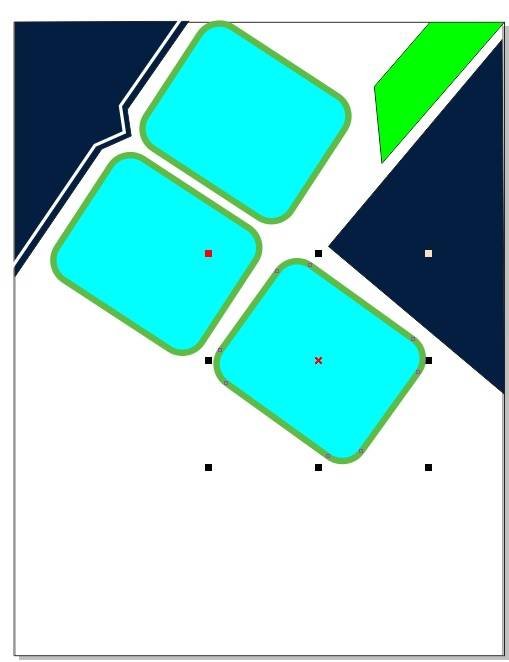
Mention the page size, I will showing.
Flyer Design In CorelDraw, Easy and Simple Method, Download Flyer Vector Design 616
Then Double Click On Rectangle Tool.
Flyer Design In CorelDraw, Easy and Simple Method, Download Flyer Vector Design 617
Fill any Color on Page.
Flyer Design In CorelDraw, Easy and Simple Method, Download Flyer Vector Design 618
Then Draw a New Rectangle Shape on the Page.
Flyer Design In CorelDraw, Easy and Simple Method, Download Flyer Vector Design 619
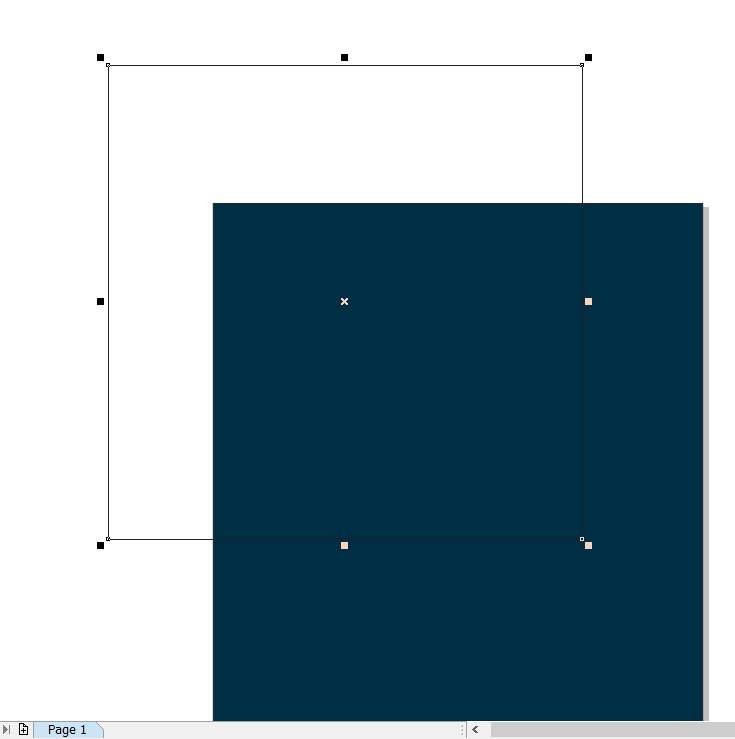
Select the Rectangle > Press F10 > Grab a Corner and Bring it Down.
Flyer Design In CorelDraw, Easy and Simple Method, Download Flyer Vector Design 620
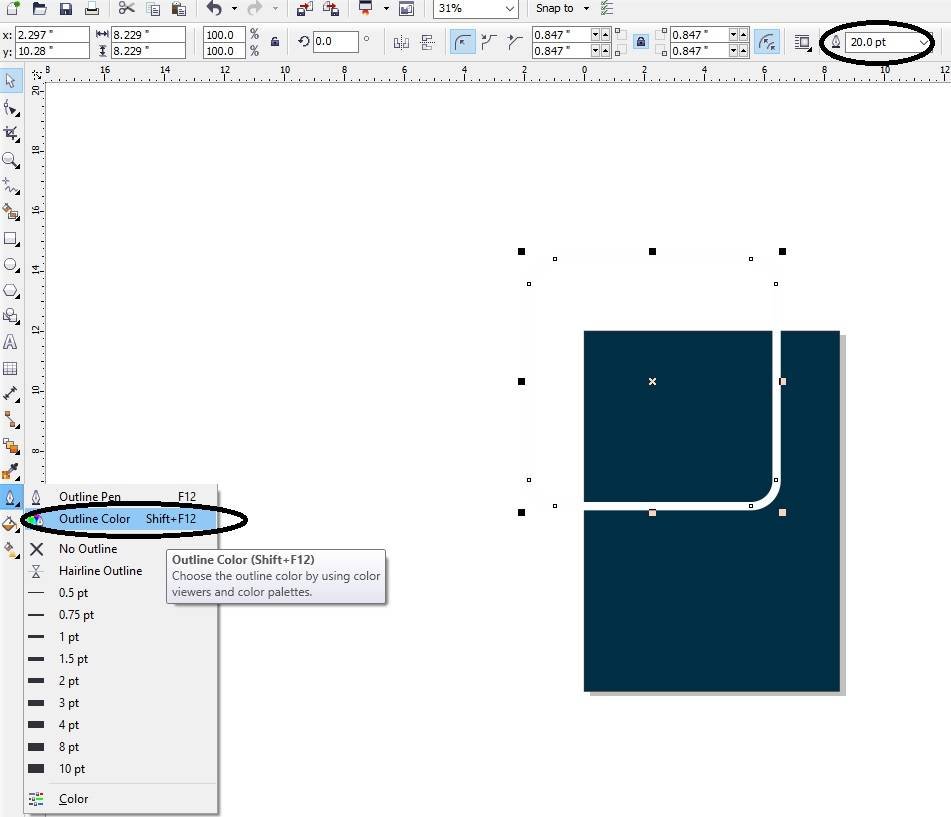
Press Space Bar > Go to Pen Tool > Outline20pt > Outline Color White.
Flyer Design In CorelDraw, Easy and Simple Method, Download Flyer Vector Design 621
Select the Rectangle > Insert Picture > You will see the Photo as too Big.
Flyer Design In CorelDraw, Easy and Simple Method, Download Flyer Vector Design 622
Shrink it with Shift + F2 > grab the Corner and Shorten.
Flyer Design In CorelDraw, Easy and Simple Method, Download Flyer Vector Design 623
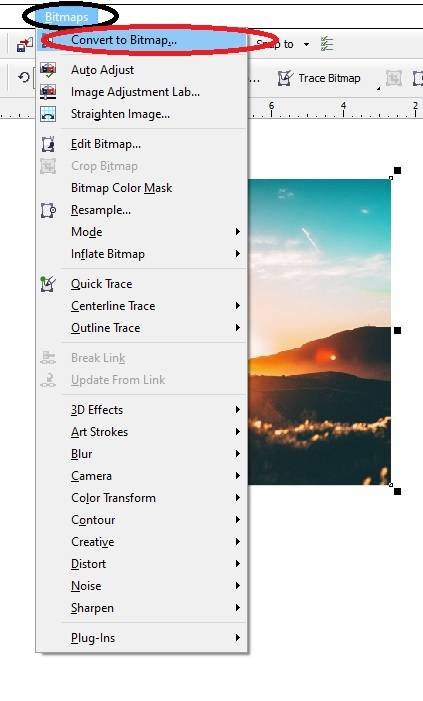
Then Select the Picture > Go to Bitmaps Menu > Click on Convert to Bitmaps Option > Press Ok.
Flyer Design In CorelDraw, Easy and Simple Method, Download Flyer Vector Design 624
Then select the Image > Go to Effect Menu > Click on PowerClip Option > Click Place Inside Container.
Flyer Design In CorelDraw, Easy and Simple Method, Download Flyer Vector Design 625
Click on the Rectangle, Then Picture will Disappear.
Flyer Design In CorelDraw, Easy and Simple Method, Download Flyer Vector Design 626
Then CTRL + Double Click On Rectangle.
Flyer Design In CorelDraw, Easy and Simple Method, Download Flyer Vector Design 627
Fix the Picture on Shape > Then Press CTRL + Double Click on out of the page aria.
Flyer Design In CorelDraw, Easy and Simple Method, Download Flyer Vector Design 628
Then select the Rectangle > Go to Effect Menu > Click on PowerClip Option > Click Place Inside Container > Then Click at the Page.
Flyer Design In CorelDraw, Easy and Simple Method, Download Flyer Vector Design 629
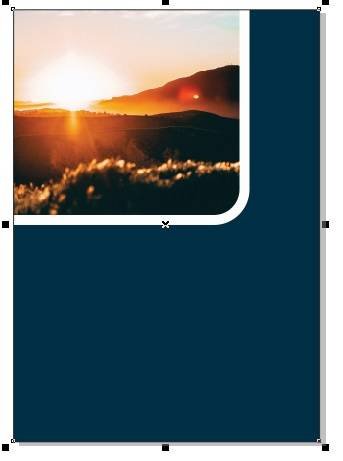
Then Same Process > CTRL + Double Click at the Page > and Fix the Shape > Double Click to Rotate a Shape Like will I Show.
Flyer Design In CorelDraw, Easy and Simple Method, Download Flyer Vector Design 630
Then CTRL + Double Click at out of the Page.
Flyer Design In CorelDraw, Easy and Simple Method, Download Flyer Vector Design 631
Then Draw a New Rectangle Shape > Press F10 > Grab a Corner and Bring it Down.
Flyer Design In CorelDraw, Easy and Simple Method, Download Flyer Vector Design 632
Select the Rectangle > Go to Fill Tool > Click Fountain Fill Option & Fill Any Color As your Wish.
Flyer Design In CorelDraw, Easy and Simple Method, Download Flyer Vector Design 633
No Outline this Shape & Fix Like This.
Flyer Design In CorelDraw, Easy and Simple Method, Download Flyer Vector Design 634
Then select the Rectangle > Go to Effect Menu > Click on PowerClip Option > Click Place Inside Container > Then Click at the Page.
Flyer Design In CorelDraw, Easy and Simple Method, Download Flyer Vector Design 635
The Same Process > CTRL + Double Click at the Page > Select the Rectangle the Rectangle > Press CTRL + Page Down > Then CTRL + Double Click at Out of the Page.
Flyer Design In CorelDraw, Easy and Simple Method, Download Flyer Vector Design 636
Then Insert Your Company or Institute LOGO.
Flyer Design In CorelDraw, Easy and Simple Method, Download Flyer Vector Design 637
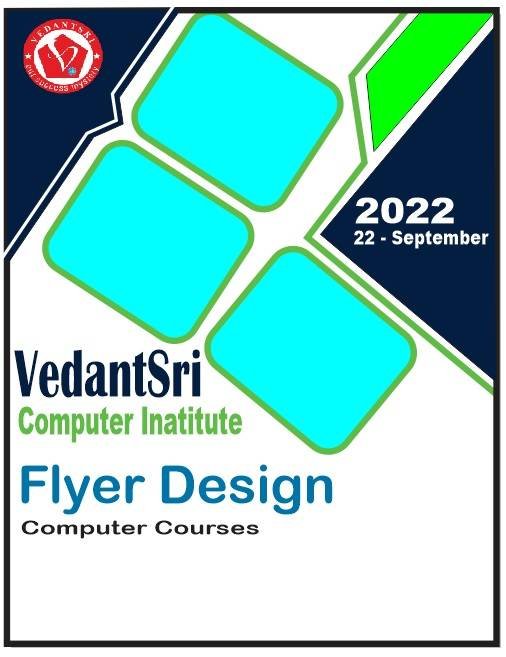
Go to Text Tool and Write Your Institute Or Company Name. Flyer Design In CorelDraw, Easy and Simple Method, Download Flyer Vector Design
Flyer Design In CorelDraw, Easy and Simple Method, Download Flyer Vector Design 638
Then Go to Pick Tool > Fill any Color In Text > and adjust & Fix Like This.
Flyer Design In CorelDraw, Easy and Simple Method, Download Flyer Vector Design 639
Then Draw New rectangle Repeat same Process. I will Showing
Flyer Design In CorelDraw, Easy and Simple Method, Download Flyer Vector Design 640
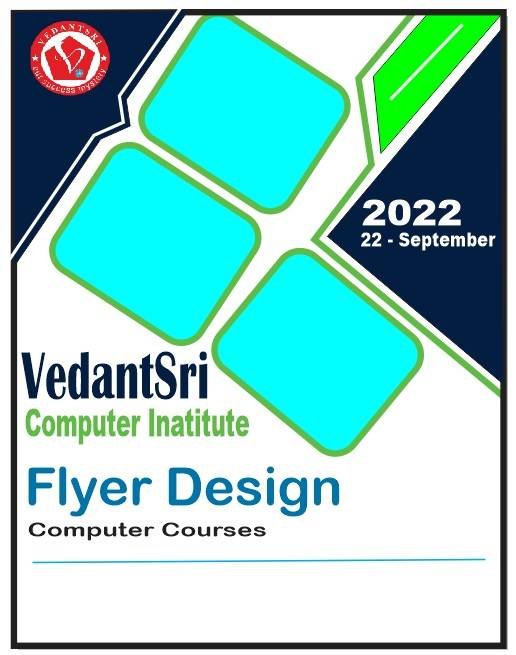
Then Type About Your Flyer.
Flyer Design In CorelDraw, Easy and Simple Method, Download Flyer Vector Design 641
Then Type Many Details About Your Company or Institute.
Flyer Design In CorelDraw, Easy and Simple Method, Download Flyer Vector Design 642
Draw a New Rectangle Shape > Fill Fountain Fill > No Outline this Shape.
Flyer Design In CorelDraw, Easy and Simple Method, Download Flyer Vector Design 643
Draw a New Rectangle Shape > Fill Fountain Fill > Press F10 > Grab a Corner and Bring it Down.
Flyer Design In CorelDraw, Easy and Simple Method, Download Flyer Vector Design 644
Then Type Your Contact Details.
Flyer Design In CorelDraw, Easy and Simple Method, Download Flyer Vector Design 645
I have Completed this Project, I hope you guys have understood all the Steps. Flyer Design In CorelDraw, Easy and Simple Method, Download Flyer Vector Design
Flyer Design In CorelDraw, Easy and Simple Method, Download Flyer Vector Design 646
Visiting Card Design In CorelDraw, Easy Method, Complete Steps, Download Practice File
Hello Friends, Welcome To VedantSri.net In This Post I am Going To Teach You How To Create Visiting Card Design In CorelDraw. In This project, You Can Learn How To Design Visiting Card Design In CorelDraw Application In Easy Method.
CorelDraw Open करने के लिए Windows + R Press करके Run Box Open करे
Visiting Card Design In CorelDraw
Run Box मे Coreldrw Type करे।
Visiting Card Design In CorelDraw,
अब Ok पर Click करके CorelDraw के Application को open करे।
Visiting Card Design In CorelDraw, Easy Method, Complete Steps, Download Practice File 662
अब CTRL + N Press करके New Page का Window Open करे।
Visiting Card Design In CorelDraw, Easy Method, Complete Steps, Download Practice File 663
अब Ok पर Click करके CorelDraw का main Page open करे।
Visiting Card Design In CorelDraw, Easy Method, Complete Steps, Download Practice File 664
Rectangle Tool पर Double Click करे
Visiting Card Design In CorelDraw, Easy Method, Complete Steps, Download Practice File 665
अब Freehand tool से एक Shape Draw करे।
Visiting Card Design In CorelDraw, Easy Method, Complete Steps, Download Practice File 666
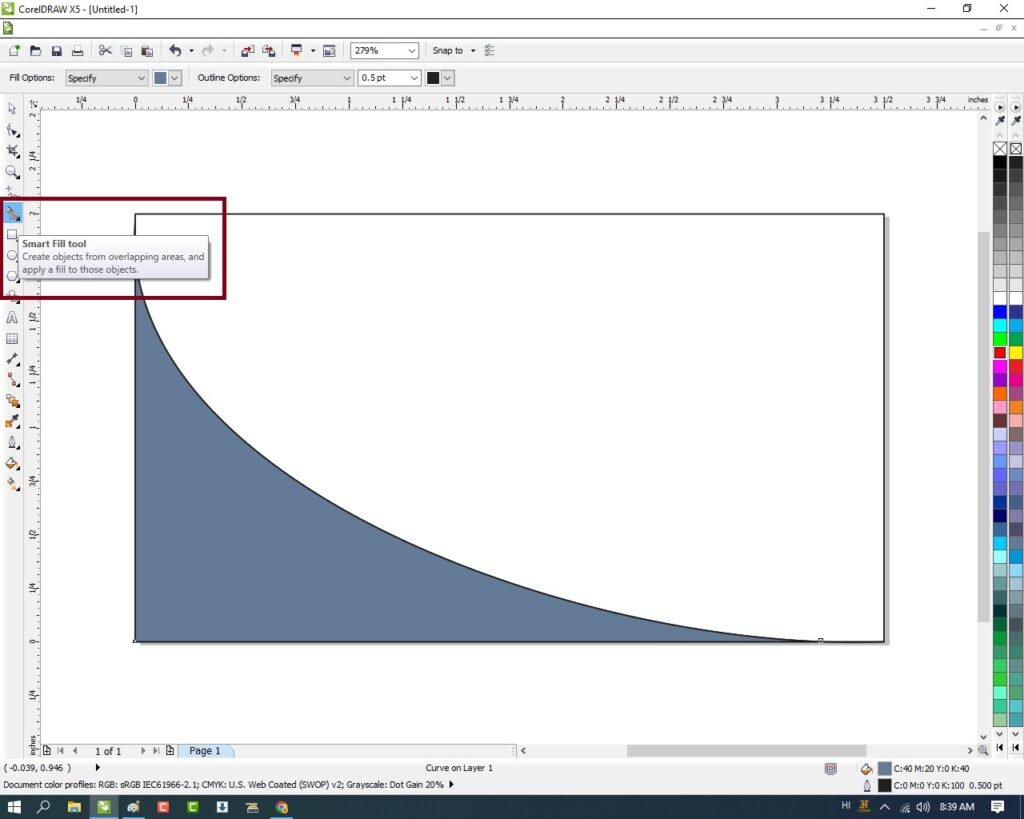
Smart Fill Tool से Shape को Fill करे।
Visiting Card Design In CorelDraw, Easy Method, Complete Steps, Download Practice File 667
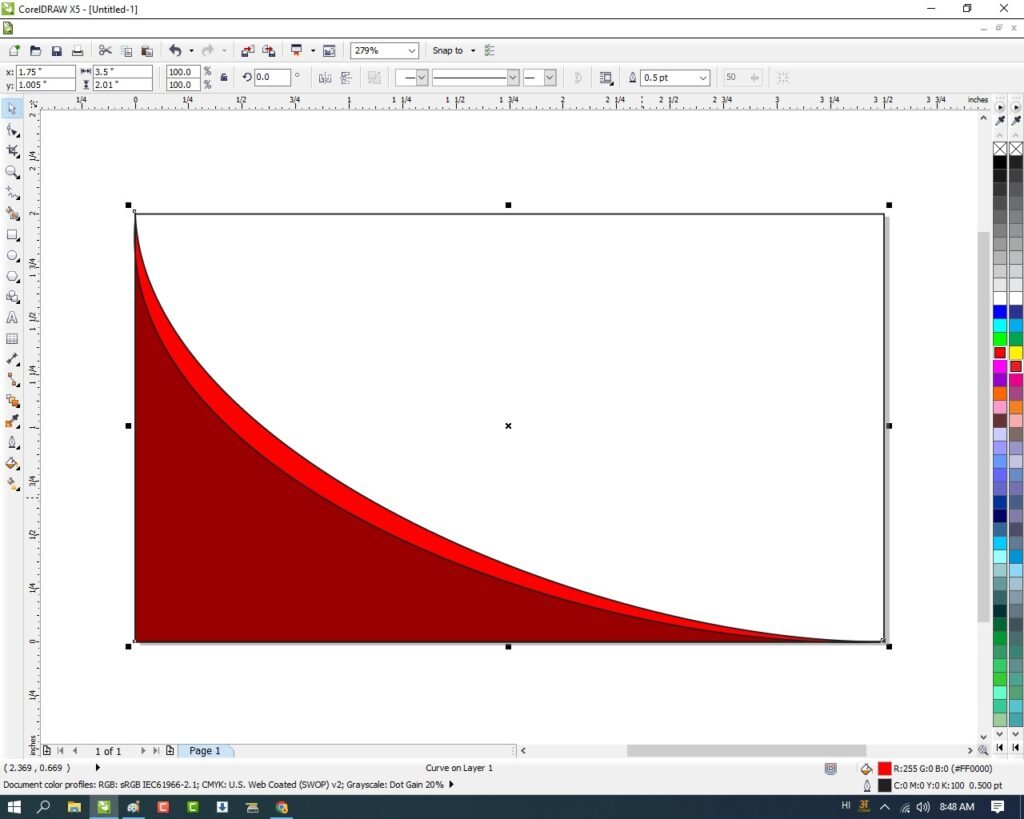
Shape मे Color Fill करे।
Visiting Card Design In CorelDraw, Easy Method, Complete Steps, Download Practice File 668
CTRL + D से Shape का Duplicate बनाये Or Color Change करे
CTRL + Page Down से पहले Shape के पीछे करे
Shape पर Set करने के लिए F10 > CTRL + Q Press करे।
Visiting Card Design In CorelDraw, Easy Method, Complete Steps, Download Practice File 669
Shape पर Click करके Shift के साथ Shape को Select करे
CTRL + G से shape को Group कर
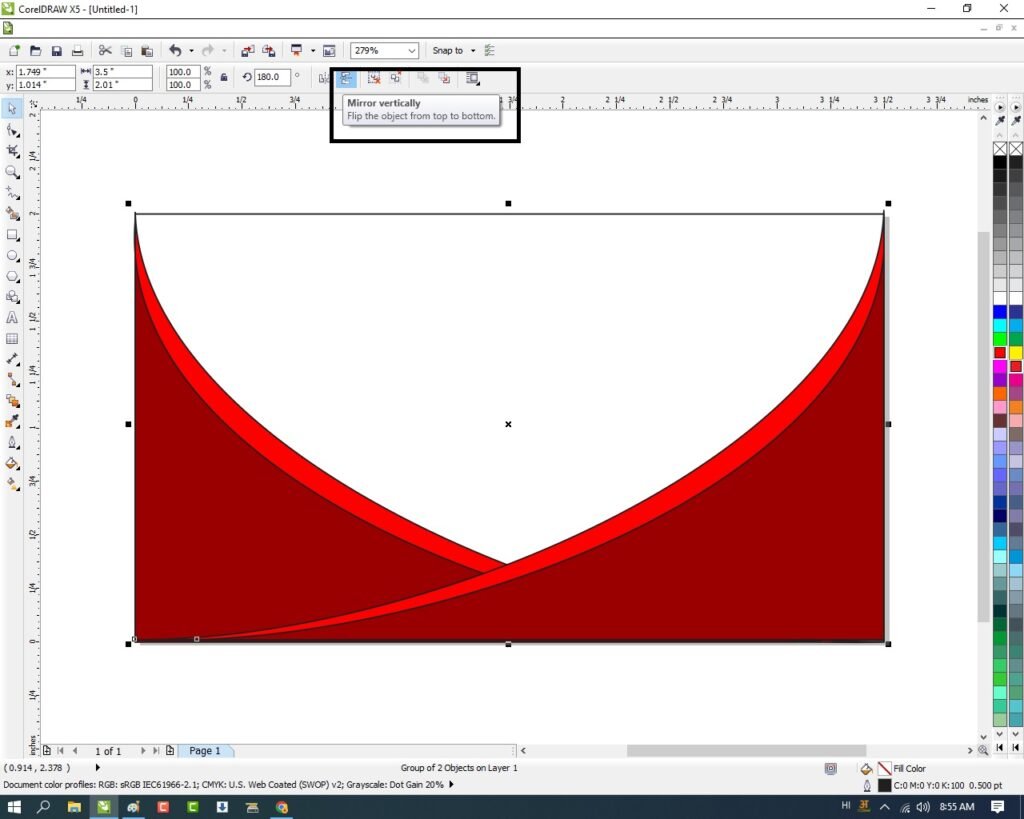
CTRL + D से Shape का Duplicate बनाये
Mirror vertically से Shape को Page पर Set करे।
Visiting Card Design In CorelDraw, Easy Method, Complete Steps, Download Practice File 670
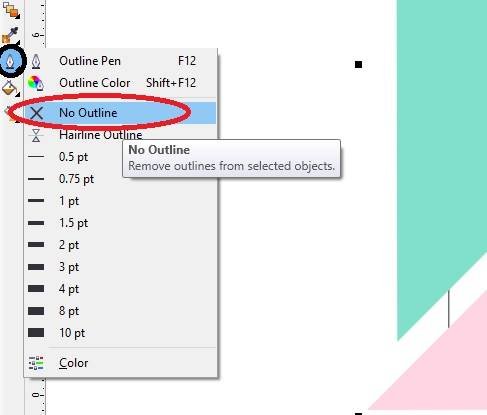
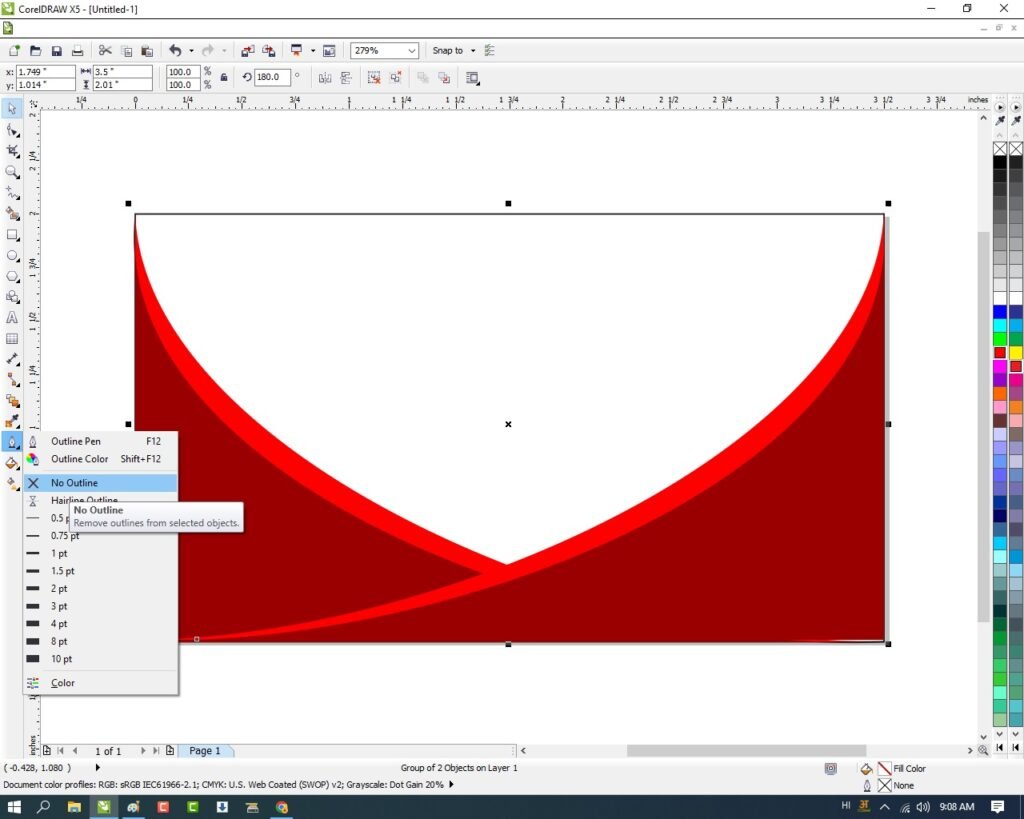
Shape को Select करके Outline pen tool > No Outline Option पर Click करे।
Visiting Card Design In CorelDraw, Easy Method, Complete Steps, Download Practice File 671
अब File से LOGO Insert करे Or Page पर Set करे।
Visiting Card Design In CorelDraw, Easy Method, Complete Steps, Download Practice File 672
Text tool से VEDANTSRI लिखेगे Or Text का Font Style, Color Change करे
Blend Tool > Drop Shadow Tool से text पर Shadow Apply करे।
Visiting Card Design In CorelDraw, Easy Method, Complete Steps, Download Practice File 673
Text Tool से detail Fill करे।
Visiting Card Design In CorelDraw, Easy Method, Complete Steps, Download Practice File 674
Certificate Design in CorelDraw, Simple and Easy Method, Download Source File.
Hello! Friends Welcome to www.vedantsri.net In this Project I am going to Teach you How To Create a Certificate in CorelDraw. In this Project, you can Learn How to Design a Certificate in CorelDraw Application an Easy Method. (Certificate Design in CorelDraw, Simple and Easy Method, Download Source File.)
Press Windows + R on Keyboard.
To Open > Run Dialog Box.
Certificate Design in CorelDraw, Simple and Easy Method, Download Source File. 696
Type CorelDraw in Run Dialog Box > As a Run Command.
Certificate Design in CorelDraw, Simple and Easy Method, Download Source File. 697
Click on OK.
Click on New Blank Document.
Certificate Design in CorelDraw, Simple and Easy Method, Download Source File. 698
Fill all Information > Regarding Page.
Certificate Design in CorelDraw, Simple and Easy Method, Download Source File. 699
Double Click at Rectangle Tool > From Tool Option.
Certificate Design in CorelDraw, Simple and Easy Method, Download Source File. 700
Draw a Rectangle on the Page.
Certificate Design in CorelDraw, Simple and Easy Method, Download Source File. 701
Press F10 > Ctrl + Q > Click at To Curve Option > To Convert in Curve.
Certificate Design in CorelDraw, Simple and Easy Method, Download Source File. 702
Left Click at Bottom Corner of Rectangle > Click at To Curve > 2 nodes appear >like this.
Certificate Design in CorelDraw, Simple and Easy Method, Download Source File. 703
Click at Nodes One by One > Give shape > Like this.
Certificate Design in CorelDraw, Simple and Easy Method, Download Source File. 704
Click at Rectangle > Press Ctrl + D > to Duplicate Shape > Duplicate Rectangle > Set like this.
Certificate Design in CorelDraw, Simple and Easy Method, Download Source File. 705
Select Rectangle > One by One > Change Color of Rectangle > From Color Palate > Like this.
Certificate Design in CorelDraw, Simple and Easy Method, Download Source File. 706
Select Both Rectangles with Shift + Mouse Click > Click at Effect Menu > Click at Power Clip option > Click at Place Inside Container.
Certificate Design in CorelDraw, Simple and Easy Method, Download Source File. 707
Something like this appears.
Certificate Design in CorelDraw, Simple and Easy Method, Download Source File. 708
Draw a rectangle > Press F10 Shape Rectangle like this > Set like this > Select and Power Clip.
Certificate Design in CorelDraw, Simple and Easy Method, Download Source File. 709
Put LOGO on Certificate > Go to File Folder > Select Photo > Drag Photo to CorelDraw Application > Put at Page > like this.
Certificate Design in CorelDraw, Simple and Easy Method, Download Source File. 710
Draw a Circle > For Outer Design > Select Circle > Increase Outline from here.
Certificate Design in CorelDraw, Simple and Easy Method, Download Source File. 711
Change the Color of the Circle > Select LOGO and Outer Circle > Press Ctrl + G > To Group both.
Click on Text Tool > To type matter.
Certificate Design in CorelDraw, Simple and Easy Method, Download Source File. 712
Click on Page > Type Institution Name.
Certificate Design in CorelDraw, Simple and Easy Method, Download Source File. 713
Select Text > Change Font Style > From Font List > Increase or Decrease Size of Font From Font size.
Certificate Design in CorelDraw, Simple and Easy Method, Download Source File. 714
Type Matter > Regarding Certificate like this.
Certificate Design in CorelDraw, Simple and Easy Method, Download Source File. 715
Now Certificate is Ready
Certificate Design in CorelDraw, Simple and Easy Method, Download Source File. 716
Visiting Card Design in CorelDraw, Easy and Step Wise, Download Source File.
Hello! Friends Welcome to www.vedantsri.net In this Project I am going to Teach you How To Create Visiting Card in CorelDraw. In this Project, you can Learn How to Design a Template in CorelDraw Application an Easy Method. Visiting Card Design in CorelDraw, Easy and Step Wise, Download Source File.
Press Window + R in Keyboard > To Open Run Dialog Box.
Visiting Card Design in CorelDraw, Easy and Step Wise, Download Source File. 740
Type Run Command in Run Dialog Box.
Visiting Card Design in CorelDraw, Easy and Step Wise, Download Source File. 741
Click at OK.
Click at New Blank Document.
Visiting Card Design in CorelDraw, Easy and Step Wise, Download Source File. 742
Fill information > Regarding New Document.
Visiting Card Design in CorelDraw, Easy and Step Wise, Download Source File. 743
Click at OK.
Click at Rectangle Tool.
Visiting Card Design in CorelDraw, Easy and Step Wise, Download Source File. 744
Draw a Rectangle > At Page > Like this > Duplicate Rectangle > Set like this
Visiting Card Design in CorelDraw, Easy and Step Wise, Download Source File. 745
Select both Rectangle > Change Color > From Color Palate > like this.
Visiting Card Design in CorelDraw, Easy and Step Wise, Download Source File. 746
Something like this appears.
Visiting Card Design in CorelDraw, Easy and Step Wise, Download Source File. 747
Draw a Circle at Rectangle > Like this.
Visiting Card Design in CorelDraw, Easy and Step Wise, Download Source File. 748
Press Ctrl + C, Ctrl + V > To Draw shapes Equally.
Visiting Card Design in CorelDraw, Easy and Step Wise, Download Source File. 749
Click at Second Rectangle > Increase Outline of Circle > From here.
Visiting Card Design in CorelDraw, Easy and Step Wise, Download Source File. 750
Change color of Outline > From here.
Visiting Card Design in CorelDraw, Easy and Step Wise, Download Source File. 751
Select first Circle > Click at Blend Tool > From Tool Option > Apply like this.
Visiting Card Design in CorelDraw, Easy and Step Wise, Download Source File. 752
Click at Shadow feathering > Decrease feather > From Feather Option > Type 5.
Visiting Card Design in CorelDraw, Easy and Step Wise, Download Source File. 753
Duplicate white Circle > Increase Size of Circle > Like this.
Visiting Card Design in CorelDraw, Easy and Step Wise, Download Source File. 754
Select One by One Circle > With Shift + Mouse Click > Press Ctrl + G > To Group > Duplicate Grouped Circle. Visiting Card Design in CorelDraw, Easy and Step Wise, Download Source File.
Visiting Card Design in CorelDraw, Easy and Step Wise, Download Source File. 755
Set in Second Rectangle .
Visiting Card Design in CorelDraw, Easy and Step Wise, Download Source File. 756
Select Circle > Power Clip > From Effect Menu
Put LOGO in Center of Circle > like this.
Visiting Card Design in CorelDraw, Easy and Step Wise, Download Source File. 757
Click at Freehand Tool > Select 2d Point -Line
Visiting Card Design in CorelDraw, Easy and Step Wise, Download Source File. 758
Then Draw Two Lines > like this > Increase Outline From Outline Width Option > Change Color of Outline from Outline Color Option.
Visiting Card Design in CorelDraw, Easy and Step Wise, Download Source File. 759
Then Click at Text tool > From tool Option > Type text > Change Font Style > From Font List > Increase Size of Font.
Visiting Card Design in CorelDraw, Easy and Step Wise, Download Source File. 760
Flyer Design in CorelDraw, Easy Method, Complete Steps, Download Practice File
Hello Friends, Welcome to Vedantsri.net In This Post I am Going To Teach You How To Create Flyer Design in CorelDraw. In This Project You can Learn How To Design Flyer Design in CorelDraw Application In Easy Method. You Can also Download Practice File in This Post. So Let’s Start To Learn This Project, Before Start I request You to Please Follow Given below Step to Learn Properly Step by Step.
CorelDraw Open करने के लिए Windows + R Press करके Run Box Open करे।
Flyer Design in CorelDraw
Run Box मे Coreldrw Type करे।
Flyer Design in CorelDraw, Easy Method, Complete Steps, Download Practice File 781
अब Ok पर Click करके CorelDraw के Application को Open करे
Flyer Design in CorelDraw
अब CTRL + N Press करे New Page का Window Open होगा।
Flyer Design in CorelDraw, Easy Method, Complete Steps, Download Practice File 782
अब Ok पर Click करे तथा CorelDraw का Main Page open होगा।
Rectangle Tool Double Click करे।
Flyer Design in CorelDraw, Easy Method, Complete Steps, Download Practice File 783
अब एक Triangles Shape Draw करे।
Flyer Design in CorelDraw, Easy Method, Complete Steps, Download Practice File 784
F 10 > CTRL + Q press करके Shape को Curve करे
Shape मे Color Fill करे.
Flyer Design in CorelDraw, Easy Method, Complete Steps, Download Practice File 785
अब CTRL + D से Shape का Duplicate बनाये Or Color को None करे
Outline 2 Pt.करे
Flyer Design in CorelDraw, Easy Method, Complete Steps, Download Practice File 786
अब एक Triangles Shape Draw करे Or Color Fill करे।
Flyer Design in CorelDraw, Easy Method, Complete Steps, Download Practice File 787
अब Rectangle Shape Draw करे फिर F 10 > CTRL + Q press करे
फिर Shape के Note को Drag करे।
Flyer Design in CorelDraw, Easy Method, Complete Steps, Download Practice File 788
अब Shape मे Color Fill करे Or Shape को Page पर Set करे
Menu bar > Effects option > Power Clip Option > Place Inside Container Option पर Click करे
फिर Page पर Click करे।
Flyer Design in CorelDraw, Easy Method, Complete Steps, Download Practice File 789
अब Rectangle Shape Draw करे फिर F 10 > CTRL + Q press करे
फिर Shape को Curve करे Or Outline 8 Pt, Outline Color fill करे।
Flyer Design in CorelDraw, Easy Method, Complete Steps, Download Practice File 790
CTRL + D Shape का Duplicate बनाये।
Flyer Design in CorelDraw, Easy Method, Complete Steps, Download Practice File 791
अब 2 Point line Tool से Shape का Outline Draw करे
Outline का Color Fill करे, Width 8 Pt. करे।
Flyer Design in CorelDraw, Easy Method, Complete Steps, Download Practice File 792
अब Rectangle Shape के Outline का Color Fill करे
Outline Width 8 Pt. करे
Flyer Design in CorelDraw, Easy Method, Complete Steps, Download Practice File 793
अब हम Logo को Fill से Insert करेगे या आप Google से Download कर सकते है।
Flyer Design in CorelDraw, Easy Method, Complete Steps, Download Practice File 794
अब Text Tool से सारे detail Fill करेगे,
Flyer Design in CorelDraw, Easy Method, Complete Steps, Download Practice File 795
अब 2 Point line Tool से Line Draw करेगे
Line पर Color fill करेगे Or Outline 4 Pt. करे।
Flyer Design in CorelDraw, Easy Method, Complete Steps, Download Practice File 796
अब Text tool से Address, Or Phone number लिखेगे।
Flyer Design in CorelDraw, Easy Method, Complete Steps, Download Practice File 797
अब Rectangle shape मे Photo set करेगे
Menu bar > Bitmaps option > Auto Adjust Option पर Click करे
Menu bar > Effects Option > Power Clip > Place Inside Container Option पर Click करे
फिर Shape पर Click करेगे Or CTRL + Mouse से Click करे
Shape पर photo set करे Or Page के बाहर CTRL + Mouse से Click करे।
Flyer Design in CorelDraw, Easy Method, Complete Steps, Download Practice File 798
Easy Template Design in CorelDraw, Simple, and Step and Step, Download Source File.
Hello! Friends Welcome to www.vedantsri.net In this Project I am going to Teach you How To Create a Template in CorelDraw. In this Project, you can Learn How to Design a Template in CorelDraw Application an Easy Method . Easy Template Design in CorelDraw, Simple, and Step and Step, Download Source File.
Press Windows + R on the Keyboard
To Open Run Dialog Box
Easy Template Design in CorelDraw, Simple, and Step and Step, Download Source File. 831
Type Run Command in Run Dialog Box > CorelDRAW.
Easy Template Design in CorelDraw, Simple, and Step and Step, Download Source File. 832
Press OK.
Click on New Blank Document.
Easy Template Design in CorelDraw, Simple, and Step and Step, Download Source File. 833
Fill in all information > Regarding document.
Easy Template Design in CorelDraw, Simple, and Step and Step, Download Source File. 834
Press OK.
Double Click at Rectangle tool > From tool Option.
Easy Template Design in CorelDraw, Simple, and Step and Step, Download Source File. 835
Like this. Easy Template Design in CorelDraw, Simple, and Step and Step, Download Source File.
Easy Template Design in CorelDraw, Simple, and Step and Step, Download Source File. 836
Draw a Rectangle at Page > Size of Rectangle is Weight-4.5 , Height-4.0 .
Easy Template Design in CorelDraw, Simple, and Step and Step, Download Source File. 837
Press F10 > Drag from this Corner > like this.
Easy Template Design in CorelDraw, Simple, and Step and Step, Download Source File. 838
Double click at Rectangle > Rotate like this. Easy Template Design in CorelDraw, Simple, and Step and Step, Download Source File.
Easy Template Design in CorelDraw, Simple, and Step and Step, Download Source File. 839
Click at Rectangle > Change Color of Rectangle > From Color Palate > Like this.
Easy Template Design in CorelDraw, Simple, and Step and Step, Download Source File. 840
Select Rectangle > Press Ctrl + D > To Duplicate Shape > Decrease size of Duplicated Rectangle > Like this.
Easy Template Design in CorelDraw, Simple, and Step and Step, Download Source File. 841
Select Rectangle > Change Color > From Color Palate.
Easy Template Design in CorelDraw, Simple, and Step and Step, Download Source File. 842
Select Rectangle > Press Ctrl + Page Down in Keyboard > Set Like this.
Easy Template Design in CorelDraw, Simple, and Step and Step, Download Source File. 843
Duplicate Blue Rectangle > Increase Size > Set Like this. Easy Template Design in CorelDraw, Simple, and Step and Step, Download Source File.
Easy Template Design in CorelDraw, Simple, and Step and Step, Download Source File. 844
Select Both Blue Rectangle > Go To Effect Menu > Click at Power Clip Option > Place Consider > Like this.
Easy Template Design in CorelDraw, Simple, and Step and Step, Download Source File. 845
Something like this appears.
Easy Template Design in CorelDraw, Simple, and Step and Step, Download Source File. 846
Click at Page > Press Ctrl + Left Click of Mouse > To Edit.
Select Yellow Rectangle > Duplicate > Set Like this.
Easy Template Design in CorelDraw, Simple, and Step and Step, Download Source File. 847
Press Ctrl + Left Click of Mouse.
Draw a Rectangle > Like this.
Easy Template Design in CorelDraw, Simple, and Step and Step, Download Source File. 848
Press F10 > Drag Like this.
Easy Template Design in CorelDraw, Simple, and Step and Step, Download Source File. 849
Set like this.
Easy Template Design in CorelDraw, Simple, and Step and Step, Download Source File. 850
Power Clip > Edited Rectangle .
Put Picture On Rectangle > From File Folder > Decrease size of Picture > With Shift + F2 > Like this.
Easy Template Design in CorelDraw, Simple, and Step and Step, Download Source File. 851
Select Picture > Click Effect Menu > Power Clip > Click at Shape > Press Ctrl + Left Click of Mouse > set Like this.
Easy Template Design in CorelDraw, Simple, and Step and Step, Download Source File. 852
Double Click at Page > Remove Outline > From Pen tool
Easy Template Design in CorelDraw, Simple, and Step and Step, Download Source File. 853
Press Ctrl + Left Click of Mouse > Click at Rectangle > Apply Drop Shadow > Blend Tool.
Easy Template Design in CorelDraw, Simple, and Step and Step, Download Source File. 854
Apply Shadow > Both Blue Rectangle like this.
Easy Template Design in CorelDraw, Simple, and Step and Step, Download Source File. 855
Something like this appear.
Easy Template Design in CorelDraw, Simple, and Step and Step, Download Source File. 856
Click at Text tool > To Type matter > Tool Option.
Easy Template Design in CorelDraw, Simple, and Step and Step, Download Source File. 857
Put LOGO of an Institution > Top of Rectangle > like this.
Easy Template Design in CorelDraw, Simple, and Step and Step, Download Source File. 858
Type Text.
Easy Template Design in CorelDraw, Simple, and Step and Step, Download Source File. 859
Change Font Style > From Font List.
Easy Template Design in CorelDraw, Simple, and Step and Step, Download Source File. 860
Press Ctrl + F11 > To Open > Insert Character Window > Select and Insert Characters > Set like this.
Easy Template Design in CorelDraw, Simple, and Step and Step, Download Source File. 861
Now Template is Ready.
Easy Template Design in CorelDraw, Simple, and Step and Step, Download Source File. 862