
Excel Online Test Series: Exam Pattern, Questions aur Marks Guide
Excel Online Test Series: Exam Pattern, Questions aur Marks Guide
Excel Online Test Series 5437 (Basic) Test शुरू करने से पहले अपनी जानकारी भरिए
Excel Online Test practice karna chahte hain? VedantSri ka Excel Online Test aapko exam pattern, questions, marks aur time ki clear jankari deta hai. Aap MS Excel online test aur mock test ke through apni taiyari samajh sakte hain. Test ka pattern 2026 ke liye update hai ya nahi, ise office se confirm karein.
Click To See Today's Toppers: 20 Students of Excel Basic Online Test
| Pos. | Name | Score | Duration | Points |
|---|---|---|---|---|
| 1 | Rohan Tiwari | 100 % | 51 seconds | 36 / 36 |
| 2 | Rohan Tiwari | 100 % | 52 seconds | 36 / 36 |
| 3 | Rohan Tiwari | 100 % | 53 seconds | 36 / 36 |
| 4 | Rohan Tiwari | 100 % | 54 seconds | 36 / 36 |
| 5 | Rohan Tiwari | 100 % | 55 seconds | 36 / 36 |
| 6 | Satyam singh | 100 % | 57 seconds | 36 / 36 |
| 7 | Satyam singh | 100 % | 59 seconds | 36 / 36 |
| 8 | Shahbaz alam | 100 % | 1 minutes 1 seconds | 36 / 36 |
| 9 | Rohan Tiwari | 100 % | 1 minutes 4 seconds | 36 / 36 |
| 10 | Shahbaz alam | 100 % | 1 minutes 5 seconds | 36 / 36 |
| 11 | Shahbaz alam | 100 % | 1 minutes 7 seconds | 36 / 36 |
| 12 | Rohan Tiwari | 100 % | 1 minutes 8 seconds | 36 / 36 |
| 13 | Shahbaz alam | 100 % | 1 minutes 8 seconds | 36 / 36 |
| 14 | Shahbaz alam | 100 % | 1 minutes 11 seconds | 36 / 36 |
| 15 | Shahbaz alam | 100 % | 1 minutes 11 seconds | 36 / 36 |
| 16 | Somu & Amaan | 100 % | 1 minutes 11 seconds | 50 / 50 |
| 17 | Shubhanshu Maurya | 100 % | 1 minutes 11 seconds | 50 / 50 |
| 18 | Shahbaz alam | 100 % | 1 minutes 12 seconds | 36 / 36 |
| 19 | Ashish vishwakarma | 100 % | 1 minutes 12 seconds | 50 / 50 |
| 20 | Anwarul | 100 % | 1 minutes 13 seconds | 36 / 36 |
| 21 | SOMU AND AMAAN | 100 % | 1 minutes 13 seconds | 50 / 50 |
| 22 | Shubhanshu Maurya | 100 % | 1 minutes 14 seconds | 50 / 50 |
| 23 | Kausar Azam | 100 % | 1 minutes 14 seconds | 36 / 36 |
| 24 | Md sohail akhtar | 100 % | 1 minutes 15 seconds | 36 / 36 |
| 25 | Raunak Yadav | 100 % | 1 minutes 15 seconds | 50 / 50 |
| 26 | Ravi jha | 100 % | 1 minutes 17 seconds | 50 / 50 |
| 27 | SOMU RAI | 100 % | 1 minutes 17 seconds | 50 / 50 |
| 28 | AMAAN X SOMU | 100 % | 1 minutes 17 seconds | 50 / 50 |
| 29 | Adarsh Tiwari | 100 % | 1 minutes 18 seconds | 50 / 50 |
| 30 | Ravi Jha | 100 % | 1 minutes 18 seconds | 50 / 50 |
| 31 | Ashish vishwakarma | 100 % | 1 minutes 19 seconds | 50 / 50 |
| 32 | Aman Choubey | 100 % | 1 minutes 19 seconds | 50 / 50 |
| 33 | Ravi jha | 100 % | 1 minutes 20 seconds | 50 / 50 |
| 34 | Ashish vishwakarma | 100 % | 1 minutes 21 seconds | 50 / 50 |
| 35 | Kausar Azam | 100 % | 1 minutes 21 seconds | 36 / 36 |
| 36 | Adarsh tiwari | 100 % | 1 minutes 23 seconds | 50 / 50 |
| 37 | Amaan Hashmi | 100 % | 1 minutes 23 seconds | 50 / 50 |
| 38 | Raunak Yadav | 100 % | 1 minutes 23 seconds | 50 / 50 |
| 39 | Shahbaz alam | 100 % | 1 minutes 24 seconds | 36 / 36 |
| 40 | Aman chaubey | 100 % | 1 minutes 24 seconds | 50 / 50 |
| 41 | Aanchal Vishwakarma | 100 % | 1 minutes 24 seconds | 50 / 50 |
| 42 | Shahbaz alam | 100 % | 1 minutes 28 seconds | 36 / 36 |
| 43 | Ashish vishwakarma | 100 % | 1 minutes 28 seconds | 50 / 50 |
| 44 | Shabir Alam | 100 % | 1 minutes 28 seconds | 36 / 36 |
| 45 | Priyanshu Singh | 100 % | 1 minutes 29 seconds | 36 / 36 |
| 46 | Harshit Mishra | 100 % | 1 minutes 30 seconds | 50 / 50 |
| 47 | Harshit Mishra | 100 % | 1 minutes 30 seconds | 50 / 50 |
| 48 | Vivek chaurasiya | 100 % | 1 minutes 33 seconds | 50 / 50 |
| 49 | Sayed zishan raza | 100 % | 1 minutes 35 seconds | 50 / 50 |
| 50 | Aanchal Vishwakarma | 100 % | 1 minutes 38 seconds | 50 / 50 |
| 51 | Deepak | 100 % | 1 minutes 39 seconds | 50 / 50 |
| 52 | Nitin kumar | 100 % | 1 minutes 40 seconds | 50 / 50 |
| 53 | Divyansh Gupta | 100 % | 1 minutes 40 seconds | 50 / 50 |
| 54 | Amar raj kuwar shukla | 100 % | 1 minutes 40 seconds | 50 / 50 |
| 55 | Aashish vishwakarma | 100 % | 1 minutes 42 seconds | 50 / 50 |
| 56 | Shabir Alam | 100 % | 1 minutes 42 seconds | 36 / 36 |
| 57 | Akhilesh Vishwakarma | 100 % | 1 minutes 42 seconds | 36 / 36 |
| 58 | Hardik Harsh | 100 % | 1 minutes 43 seconds | 50 / 50 |
| 59 | Vishal yadav | 100 % | 1 minutes 47 seconds | 50 / 50 |
| 60 | Gayatri | 100 % | 1 minutes 47 seconds | 50 / 50 |
| 61 | Anchal Yadav | 100 % | 1 minutes 48 seconds | 50 / 50 |
| 62 | Akanksha | 100 % | 1 minutes 50 seconds | 50 / 50 |
| 63 | Sourabh gupta | 100 % | 1 minutes 50 seconds | 36 / 36 |
| 64 | Nitin Kumar | 100 % | 1 minutes 52 seconds | 50 / 50 |
| 65 | Anchal Yadav | 100 % | 1 minutes 52 seconds | 50 / 50 |
| 66 | Shaukat Ali | 100 % | 1 minutes 53 seconds | 36 / 36 |
| 67 | Gayatri | 100 % | 1 minutes 53 seconds | 50 / 50 |
| 68 | Deepak | 100 % | 1 minutes 54 seconds | 50 / 50 |
| 69 | Mayank chaudhary | 100 % | 1 minutes 55 seconds | 50 / 50 |
| 70 | Krishna Kumar Gond | 100 % | 1 minutes 55 seconds | 50 / 50 |
| 71 | Deepali maurya | 100 % | 1 minutes 57 seconds | 50 / 50 |
| 72 | Gayatri | 100 % | 1 minutes 58 seconds | 50 / 50 |
| 73 | Akanksha | 100 % | 1 minutes 58 seconds | 50 / 50 |
| 74 | Sweeti Jha | 100 % | 2 minutes 1 seconds | 50 / 50 |
| 75 | Narayan | 100 % | 2 minutes 1 seconds | 50 / 50 |
| 76 | Shiva | 100 % | 2 minutes 2 seconds | 50 / 50 |
| 77 | Gayatri | 100 % | 2 minutes 2 seconds | 50 / 50 |
| 78 | Gayatri | 100 % | 2 minutes 2 seconds | 50 / 50 |
| 79 | Vishal yadav | 100 % | 2 minutes 4 seconds | 50 / 50 |
| 80 | Gayatri | 100 % | 2 minutes 4 seconds | 50 / 50 |
| 81 | Akhilesh Vishwakarma | 100 % | 2 minutes 4 seconds | 36 / 36 |
| 82 | Gayatri | 100 % | 2 minutes 5 seconds | 50 / 50 |
| 83 | Gayatri | 100 % | 2 minutes 6 seconds | 50 / 50 |
| 84 | Sumit Gupta | 100 % | 2 minutes 11 seconds | 50 / 50 |
| 85 | Gayatri | 100 % | 2 minutes 12 seconds | 50 / 50 |
| 86 | Sourabh gupta | 100 % | 2 minutes 13 seconds | 36 / 36 |
| 87 | Nitin pal | 100 % | 2 minutes 15 seconds | 50 / 50 |
| 88 | Gayatri | 100 % | 2 minutes 15 seconds | 50 / 50 |
| 89 | Siddhi Keshari | 100 % | 2 minutes 18 seconds | 50 / 50 |
| 90 | Megha Singh | 100 % | 2 minutes 19 seconds | 50 / 50 |
| 91 | Gayatri | 100 % | 2 minutes 19 seconds | 50 / 50 |
| 92 | Kartik | 100 % | 2 minutes 21 seconds | 50 / 50 |
| 93 | Gayatri | 100 % | 2 minutes 21 seconds | 50 / 50 |
| 94 | Shabir Alam | 100 % | 2 minutes 21 seconds | 36 / 36 |
| 95 | Priyansh jaiswal | 100 % | 2 minutes 22 seconds | 50 / 50 |
| 96 | Shabir Alam | 100 % | 2 minutes 22 seconds | 36 / 36 |
| 97 | Gayatri | 100 % | 2 minutes 23 seconds | 50 / 50 |
| 98 | satyam Rai | 100 % | 2 minutes 24 seconds | 50 / 50 |
| 99 | Akanksha | 100 % | 2 minutes 24 seconds | 50 / 50 |
| 100 | Madhu | 100 % | 2 minutes 27 seconds | 50 / 50 |
| 101 | Vishal yadav | 100 % | 2 minutes 27 seconds | 50 / 50 |
| 102 | Shaukat Ali | 100 % | 2 minutes 27 seconds | 36 / 36 |
| 103 | Akhilesh Vishwakarma | 100 % | 2 minutes 27 seconds | 36 / 36 |
| 104 | Kunal | 100 % | 2 minutes 31 seconds | 50 / 50 |
| 105 | Rahul | 100 % | 2 minutes 33 seconds | 50 / 50 |
| 106 | Nandani Patel | 100 % | 2 minutes 36 seconds | 50 / 50 |
| 107 | MAYANK | 100 % | 2 minutes 37 seconds | 36 / 36 |
| 108 | Aanchal vishwakarma | 100 % | 2 minutes 41 seconds | 50 / 50 |
| 109 | Anshika | 100 % | 2 minutes 42 seconds | 36 / 36 |
| 110 | Sumit Gupta | 100 % | 2 minutes 42 seconds | 50 / 50 |
| 111 | Anshika | 100 % | 2 minutes 43 seconds | 50 / 50 |
| 112 | Shaukat Ali | 100 % | 2 minutes 43 seconds | 36 / 36 |
| 113 | Rahul | 100 % | 2 minutes 44 seconds | 50 / 50 |
| 114 | Rishabh keshari | 100 % | 2 minutes 55 seconds | 50 / 50 |
| 115 | Manisha Bind | 100 % | 2 minutes 57 seconds | 50 / 50 |
| 116 | Shiva | 100 % | 3 minutes 9 seconds | 50 / 50 |
| 117 | pragati mourya | 100 % | 3 minutes 9 seconds | 50 / 50 |
| 118 | Krishna kumar Gond | 100 % | 3 minutes 10 seconds | 50 / 50 |
| 119 | Gayatri | 100 % | 3 minutes 11 seconds | 50 / 50 |
| 120 | Shashi bhushan yadav | 100 % | 3 minutes 13 seconds | 50 / 50 |
| 121 | Vijeta Verma | 100 % | 3 minutes 14 seconds | 50 / 50 |
| 122 | Madhu | 100 % | 3 minutes 16 seconds | 50 / 50 |
| 123 | Srijan tripathi | 100 % | 3 minutes 16 seconds | 50 / 50 |
| 124 | Ganesh | 100 % | 3 minutes 17 seconds | 50 / 50 |
| 125 | pragati mourya | 100 % | 3 minutes 20 seconds | 50 / 50 |
| 126 | Gayatri | 100 % | 3 minutes 22 seconds | 50 / 50 |
| 127 | Riyaz Ahmad | 100 % | 3 minutes 38 seconds | 36 / 36 |
| 128 | Riyaz Ahmad | 100 % | 3 minutes 40 seconds | 36 / 36 |
| 129 | Yashvi | 100 % | 3 minutes 42 seconds | 50 / 50 |
| 130 | Manisha Bind | 100 % | 3 minutes 48 seconds | 50 / 50 |
| 131 | saloni kumari | 100 % | 3 minutes 57 seconds | 36 / 36 |
| 132 | Deepak | 100 % | 4 minutes 1 seconds | 50 / 50 |
| 133 | Aditya singh | 100 % | 4 minutes 12 seconds | 50 / 50 |
| 134 | Vikram Singh | 100 % | 4 minutes 22 seconds | 50 / 50 |
| 135 | Hritika Gaur | 100 % | 4 minutes 42 seconds | 50 / 50 |
| 136 | Preeti | 100 % | 4 minutes 48 seconds | 50 / 50 |
| 137 | Tanish | 100 % | 4 minutes 58 seconds | 50 / 50 |
| 138 | Siddhartha Shukla | 100 % | 5 minutes 2 seconds | 36 / 36 |
| 139 | Priya Patel | 100 % | 5 minutes 46 seconds | 50 / 50 |
| 140 | Hritika Gaur | 100 % | 6 minutes 39 seconds | 50 / 50 |
| 141 | Mayanksingh | 100 % | 11 minutes 59 seconds | 50 / 50 |
| 142 | Md Abdullah | 100 % | 13 minutes 6 seconds | 50 / 50 |
| 143 | Shubhanshu Maurya | 98 % | 1 minutes 7 seconds | 49 / 50 |
| 144 | Shubhanshu Maurya | 98 % | 1 minutes 9 seconds | 49 / 50 |
| 145 | Shubhanshu Maurya | 98 % | 1 minutes 10 seconds | 49 / 50 |
| 146 | Ashish vishwakarma | 98 % | 1 minutes 14 seconds | 49 / 50 |
| 147 | Karan Singh | 98 % | 1 minutes 15 seconds | 49 / 50 |
| 148 | Karan Singh | 98 % | 1 minutes 15 seconds | 49 / 50 |
| 149 | Ravi jha | 98 % | 1 minutes 16 seconds | 49 / 50 |
| 150 | Ayush Sharma | 98 % | 1 minutes 16 seconds | 49 / 50 |
| 151 | Karan Singh | 98 % | 1 minutes 17 seconds | 49 / 50 |
| 152 | Ravi Jha | 98 % | 1 minutes 18 seconds | 49 / 50 |
| 153 | Adarsh Maurya | 98 % | 1 minutes 18 seconds | 49 / 50 |
| 154 | Ashish vishwakarma | 98 % | 1 minutes 18 seconds | 49 / 50 |
| 155 | Karan Singh | 98 % | 1 minutes 18 seconds | 49 / 50 |
| 156 | Adarsh maurya | 98 % | 1 minutes 20 seconds | 49 / 50 |
| 157 | Aman Chaubey | 98 % | 1 minutes 21 seconds | 49 / 50 |
| 158 | Ayush Sharma | 98 % | 1 minutes 21 seconds | 49 / 50 |
| 159 | Karan Singh | 98 % | 1 minutes 23 seconds | 49 / 50 |
| 160 | Adarsh Maurya | 98 % | 1 minutes 25 seconds | 49 / 50 |
| 161 | Shubhanshu Maurya | 98 % | 1 minutes 26 seconds | 49 / 50 |
| 162 | Mohammad Naved | 98 % | 1 minutes 27 seconds | 49 / 50 |
| 163 | Somu | 98 % | 1 minutes 28 seconds | 49 / 50 |
| 164 | Nishu verma | 98 % | 1 minutes 28 seconds | 49 / 50 |
| 165 | Aman Choubey | 98 % | 1 minutes 28 seconds | 49 / 50 |
| 166 | Karan Singh | 98 % | 1 minutes 28 seconds | 49 / 50 |
| 167 | Shubhanshu Maurya | 98 % | 1 minutes 28 seconds | 49 / 50 |
| 168 | Ashish vishwakarma | 98 % | 1 minutes 29 seconds | 49 / 50 |
| 169 | Adarsh maurya | 98 % | 1 minutes 30 seconds | 49 / 50 |
| 170 | Mohammad Naved | 98 % | 1 minutes 30 seconds | 49 / 50 |
| 171 | Adarsh Tiwari | 98 % | 1 minutes 31 seconds | 49 / 50 |
| 172 | Shama parveen | 98 % | 1 minutes 31 seconds | 49 / 50 |
| 173 | Adarsh tiwari | 98 % | 1 minutes 32 seconds | 49 / 50 |
| 174 | Sayed zishan raza | 98 % | 1 minutes 32 seconds | 49 / 50 |
| 175 | Priyansh Jaiswal | 98 % | 1 minutes 32 seconds | 49 / 50 |
| 176 | Nishu kumari | 98 % | 1 minutes 33 seconds | 49 / 50 |
| 177 | Himanshu Dubey | 98 % | 1 minutes 33 seconds | 49 / 50 |
| 178 | Nishu verma | 98 % | 1 minutes 34 seconds | 49 / 50 |
| 179 | Harshit Mishra | 98 % | 1 minutes 34 seconds | 49 / 50 |
| 180 | Arpita pandey | 98 % | 1 minutes 34 seconds | 49 / 50 |
| 181 | Nishu | 98 % | 1 minutes 36 seconds | 49 / 50 |
| 182 | Nishu kumari | 98 % | 1 minutes 36 seconds | 49 / 50 |
| 183 | Harshit Mishra | 98 % | 1 minutes 36 seconds | 49 / 50 |
| 184 | Ruhan | 98 % | 1 minutes 36 seconds | 49 / 50 |
| 185 | Harsh | 98 % | 1 minutes 36 seconds | 49 / 50 |
| 186 | Ravi jha | 98 % | 1 minutes 37 seconds | 49 / 50 |
| 187 | Piyush | 98 % | 1 minutes 37 seconds | 49 / 50 |
| 188 | Nishu verma | 98 % | 1 minutes 38 seconds | 49 / 50 |
| 189 | Rishu chaurasiya | 98 % | 1 minutes 38 seconds | 49 / 50 |
| 190 | Rishu chaurasiya | 98 % | 1 minutes 38 seconds | 49 / 50 |
| 191 | Ravi jha | 98 % | 1 minutes 39 seconds | 49 / 50 |
| 192 | Anurag | 98 % | 1 minutes 39 seconds | 49 / 50 |
| 193 | Nidhi Pandey | 98 % | 1 minutes 40 seconds | 49 / 50 |
| 194 | Harshit Mishra | 98 % | 1 minutes 40 seconds | 49 / 50 |
| 195 | Rishu chaurasiya | 98 % | 1 minutes 40 seconds | 49 / 50 |
| 196 | Rishu chaurasiya | 98 % | 1 minutes 40 seconds | 49 / 50 |
| 197 | Priyanshu Pandey | 98 % | 1 minutes 41 seconds | 49 / 50 |
| 198 | Priyansh Jaiswal | 98 % | 1 minutes 41 seconds | 49 / 50 |
| 199 | Vanshika | 98 % | 1 minutes 41 seconds | 49 / 50 |
| 200 | NIDHI PANDEY | 98 % | 1 minutes 42 seconds | 49 / 50 |
| 201 | Divyansh Gupta | 98 % | 1 minutes 42 seconds | 49 / 50 |
| 202 | DEEPMALA SINGH | 98 % | 1 minutes 43 seconds | 49 / 50 |
| 203 | Shivam Patel | 98 % | 1 minutes 43 seconds | 49 / 50 |
| 204 | Nishu | 98 % | 1 minutes 43 seconds | 49 / 50 |
| 205 | Pratham Gupta | 98 % | 1 minutes 44 seconds | 49 / 50 |
| 206 | Sufiya parveen | 98 % | 1 minutes 45 seconds | 49 / 50 |
| 207 | Saumya maurya | 98 % | 1 minutes 46 seconds | 49 / 50 |
| 208 | Aditya singh | 98 % | 1 minutes 46 seconds | 49 / 50 |
| 209 | Vivek chaurasiya | 98 % | 1 minutes 46 seconds | 49 / 50 |
| 210 | Shivam Patel | 98 % | 1 minutes 47 seconds | 49 / 50 |
| 211 | Saroj | 98 % | 1 minutes 48 seconds | 49 / 50 |
| 212 | Nitin Kumar ☃️ | 98 % | 1 minutes 49 seconds | 49 / 50 |
| 213 | Sneha Sonkar | 98 % | 1 minutes 49 seconds | 49 / 50 |
| 214 | Vikas Yadav | 98 % | 1 minutes 49 seconds | 49 / 50 |
| 215 | Akash sur | 98 % | 1 minutes 49 seconds | 49 / 50 |
| 216 | Ankit yadav | 98 % | 1 minutes 49 seconds | 49 / 50 |
| 217 | Raunak Yadav | 98 % | 1 minutes 50 seconds | 49 / 50 |
| 218 | Narayan | 98 % | 1 minutes 50 seconds | 49 / 50 |
| 219 | Harsh | 98 % | 1 minutes 51 seconds | 49 / 50 |
| 220 | NIDHI PANDEY | 98 % | 1 minutes 52 seconds | 49 / 50 |
| 221 | Himanshu Dubey | 98 % | 1 minutes 52 seconds | 49 / 50 |
| 222 | Aradhya Singh | 98 % | 1 minutes 53 seconds | 49 / 50 |
| 223 | Md Abdul Tawwab | 98 % | 1 minutes 54 seconds | 49 / 50 |
| 224 | Zainab khan | 98 % | 1 minutes 55 seconds | 49 / 50 |
| 225 | Vikas Yadav | 98 % | 1 minutes 55 seconds | 49 / 50 |
| 226 | Kashish sonkar | 98 % | 1 minutes 55 seconds | 49 / 50 |
| 227 | Rajnandini | 98 % | 1 minutes 55 seconds | 49 / 50 |
| 228 | Nandini | 98 % | 1 minutes 55 seconds | 49 / 50 |
| 229 | Deepali maurya | 98 % | 1 minutes 56 seconds | 49 / 50 |
| 230 | Ashish vishwakarma | 98 % | 1 minutes 57 seconds | 49 / 50 |
| 231 | Himanshu Dubey | 98 % | 1 minutes 57 seconds | 49 / 50 |
| 232 | Narayan | 98 % | 1 minutes 57 seconds | 49 / 50 |
| 233 | Karan Singh | 98 % | 1 minutes 57 seconds | 49 / 50 |
| 234 | Zeeshan | 98 % | 1 minutes 58 seconds | 49 / 50 |
| 235 | Nidhi Pandey | 98 % | 1 minutes 58 seconds | 49 / 50 |
| 236 | Nidhi Pandey | 98 % | 1 minutes 58 seconds | 49 / 50 |
| 237 | Ashutosh Yadav | 98 % | 1 minutes 58 seconds | 49 / 50 |
| 238 | Kartik | 98 % | 1 minutes 59 seconds | 49 / 50 |
| 239 | Aditya bharti | 98 % | 1 minutes 59 seconds | 49 / 50 |
| 240 | Ashutosh Yadav | 98 % | 1 minutes 59 seconds | 49 / 50 |
| 241 | Somu | 98 % | 2 minutes | 49 / 50 |
| 242 | Shubham Kumar | 98 % | 2 minutes | 49 / 50 |
| 243 | Fuh | 98 % | 2 minutes 1 seconds | 49 / 50 |
| 244 | Ayush prajapati | 98 % | 2 minutes 2 seconds | 49 / 50 |
| 245 | Shubham kumar gupta | 98 % | 2 minutes 2 seconds | 49 / 50 |
| 246 | Nandini | 98 % | 2 minutes 2 seconds | 49 / 50 |
| 247 | Gayatri | 98 % | 2 minutes 2 seconds | 49 / 50 |
| 248 | Gayatri | 98 % | 2 minutes 2 seconds | 49 / 50 |
| 249 | Shivangi | 98 % | 2 minutes 3 seconds | 49 / 50 |
| 250 | Santam | 98 % | 2 minutes 4 seconds | 49 / 50 |
| 251 | AYUSH SHARMA | 98 % | 2 minutes 4 seconds | 49 / 50 |
| 252 | Himanshu Dubey | 98 % | 2 minutes 4 seconds | 49 / 50 |
| 253 | Priyanshu pandey | 98 % | 2 minutes 4 seconds | 49 / 50 |
| 254 | Gayatri | 98 % | 2 minutes 5 seconds | 49 / 50 |
| 255 | Nandini | 98 % | 2 minutes 5 seconds | 49 / 50 |
| 256 | Anchal Yadav | 98 % | 2 minutes 5 seconds | 49 / 50 |
| 257 | vishal kumar | 98 % | 2 minutes 6 seconds | 49 / 50 |
| 258 | NIDHI PANDEY | 98 % | 2 minutes 6 seconds | 49 / 50 |
| 259 | Khushi gupta | 98 % | 2 minutes 6 seconds | 49 / 50 |
| 260 | Gayatri | 98 % | 2 minutes 6 seconds | 49 / 50 |
| 261 | Sagar srivastava | 98 % | 2 minutes 7 seconds | 49 / 50 |
| 262 | Ankit Gupta | 98 % | 2 minutes 7 seconds | 49 / 50 |
| 263 | Ashutosh Maurya | 98 % | 2 minutes 8 seconds | 49 / 50 |
| 264 | Abhishek Kumar Bind | 98 % | 2 minutes 9 seconds | 49 / 50 |
| 265 | Priyansh Jaiswal | 98 % | 2 minutes 9 seconds | 49 / 50 |
| 266 | Ranjeet Yadav | 98 % | 2 minutes 9 seconds | 49 / 50 |
| 267 | Somu Rai | 98 % | 2 minutes 9 seconds | 49 / 50 |
| 268 | Somu & satyam | 98 % | 2 minutes 9 seconds | 49 / 50 |
| 269 | Santam | 98 % | 2 minutes 9 seconds | 49 / 50 |
| 270 | Shruti Singh | 98 % | 2 minutes 10 seconds | 49 / 50 |
| 271 | Alisha | 98 % | 2 minutes 11 seconds | 49 / 50 |
| 272 | NIDHI PANDEY | 98 % | 2 minutes 11 seconds | 49 / 50 |
| 273 | Gayatri | 98 % | 2 minutes 11 seconds | 49 / 50 |
| 274 | Gayatri | 98 % | 2 minutes 12 seconds | 49 / 50 |
| 275 | Kaushal | 98 % | 2 minutes 13 seconds | 49 / 50 |
| 276 | AHMAD ABDUL AJEEM | 98 % | 2 minutes 13 seconds | 49 / 50 |
| 277 | Gayatri | 98 % | 2 minutes 13 seconds | 49 / 50 |
| 278 | Amrinder Singh | 98 % | 2 minutes 15 seconds | 49 / 50 |
| 279 | Megha Singh | 98 % | 2 minutes 15 seconds | 49 / 50 |
| 280 | Gayatri | 98 % | 2 minutes 15 seconds | 49 / 50 |
| 281 | SOMU | 98 % | 2 minutes 16 seconds | 49 / 50 |
| 282 | satyam rai | 98 % | 2 minutes 16 seconds | 49 / 50 |
| 283 | Saurabh Singh | 98 % | 2 minutes 17 seconds | 49 / 50 |
| 284 | Yash singh | 98 % | 2 minutes 17 seconds | 49 / 50 |
| 285 | Prahlad Mishra | 98 % | 2 minutes 17 seconds | 49 / 50 |
| 286 | Saksham Jaiswal | 98 % | 2 minutes 17 seconds | 49 / 50 |
| 287 | Sumit Gupta | 98 % | 2 minutes 17 seconds | 49 / 50 |
| 288 | Anuj verma | 98 % | 2 minutes 17 seconds | 49 / 50 |
| 289 | Ravi jha | 98 % | 2 minutes 17 seconds | 49 / 50 |
| 290 | Anjali | 98 % | 2 minutes 18 seconds | 49 / 50 |
| 291 | naitik | 98 % | 2 minutes 18 seconds | 49 / 50 |
| 292 | Aman | 98 % | 2 minutes 19 seconds | 49 / 50 |
| 293 | Nitin pal | 98 % | 2 minutes 20 seconds | 49 / 50 |
| 294 | Anjali soni | 98 % | 2 minutes 20 seconds | 49 / 50 |
| 295 | Shruti Singh | 98 % | 2 minutes 20 seconds | 49 / 50 |
| 296 | Sattu | 98 % | 2 minutes 20 seconds | 49 / 50 |
| 297 | Satyam Rai | 98 % | 2 minutes 20 seconds | 49 / 50 |
| 298 | Priyanshu gautam | 98 % | 2 minutes 21 seconds | 49 / 50 |
| 299 | Satyam & somu | 98 % | 2 minutes 21 seconds | 49 / 50 |
| 300 | Shivansh | 98 % | 2 minutes 21 seconds | 49 / 50 |
| 301 | Tripti Dubey | 98 % | 2 minutes 21 seconds | 49 / 50 |
| 302 | Tripti dubey | 98 % | 2 minutes 21 seconds | 49 / 50 |
| 303 | Kartikey Verma | 98 % | 2 minutes 21 seconds | 49 / 50 |
| 304 | Manya Sachdeva | 98 % | 2 minutes 23 seconds | 49 / 50 |
| 305 | Monika sharma | 98 % | 2 minutes 23 seconds | 49 / 50 |
| 306 | Yashseth | 98 % | 2 minutes 23 seconds | 49 / 50 |
| 307 | SWATI DUBEY | 98 % | 2 minutes 25 seconds | 49 / 50 |
| 308 | Ankit | 98 % | 2 minutes 25 seconds | 49 / 50 |
| 309 | Gayatri | 98 % | 2 minutes 25 seconds | 49 / 50 |
| 310 | Gayatri | 98 % | 2 minutes 25 seconds | 49 / 50 |
| 311 | Piyush Chaurasia | 98 % | 2 minutes 26 seconds | 49 / 50 |
| 312 | Saurabh Singh | 98 % | 2 minutes 26 seconds | 49 / 50 |
| 313 | Ashwani Yadav | 98 % | 2 minutes 26 seconds | 49 / 50 |
| 314 | Amar raj kuwar shukla | 98 % | 2 minutes 27 seconds | 49 / 50 |
| 315 | Sumit Gupta | 98 % | 2 minutes 28 seconds | 49 / 50 |
| 316 | Nidhi Pandey | 98 % | 2 minutes 30 seconds | 49 / 50 |
| 317 | Ganesh kannoujiya | 98 % | 2 minutes 31 seconds | 49 / 50 |
| 318 | Manya Sachdeva | 98 % | 2 minutes 32 seconds | 49 / 50 |
| 319 | Rimjhim Singh | 98 % | 2 minutes 32 seconds | 49 / 50 |
| 320 | Rishabh keshari | 98 % | 2 minutes 33 seconds | 49 / 50 |
| 321 | Siddhi Keshari | 98 % | 2 minutes 33 seconds | 49 / 50 |
| 322 | Ankit maurya | 98 % | 2 minutes 33 seconds | 49 / 50 |
| 323 | Nafeesa | 98 % | 2 minutes 33 seconds | 49 / 50 |
| 324 | Madhu sonkar | 98 % | 2 minutes 34 seconds | 49 / 50 |
| 325 | Shahid juned | 98 % | 2 minutes 34 seconds | 49 / 50 |
| 326 | Nandani Patel | 98 % | 2 minutes 35 seconds | 49 / 50 |
| 327 | Gayatri | 98 % | 2 minutes 35 seconds | 49 / 50 |
| 328 | Aanchal vishwakarma | 98 % | 2 minutes 35 seconds | 49 / 50 |
| 329 | Komal kasera | 98 % | 2 minutes 35 seconds | 49 / 50 |
| 330 | Vaishnavi yadav | 98 % | 2 minutes 36 seconds | 49 / 50 |
| 331 | Megha Singh | 98 % | 2 minutes 36 seconds | 49 / 50 |
| 332 | Gayatri kumari | 98 % | 2 minutes 36 seconds | 49 / 50 |
| 333 | Aaman | 98 % | 2 minutes 37 seconds | 49 / 50 |
| 334 | Dakshya bagga | 98 % | 2 minutes 37 seconds | 49 / 50 |
| 335 | Ritika Thapa | 98 % | 2 minutes 37 seconds | 49 / 50 |
| 336 | Siddhi Keshari | 98 % | 2 minutes 38 seconds | 49 / 50 |
| 337 | Aniket patel | 98 % | 2 minutes 38 seconds | 49 / 50 |
| 338 | Manya Sachdeva | 98 % | 2 minutes 38 seconds | 49 / 50 |
| 339 | Soumya | 98 % | 2 minutes 38 seconds | 49 / 50 |
| 340 | Akanksha | 98 % | 2 minutes 38 seconds | 49 / 50 |
| 341 | Sanskriti jaiswal | 98 % | 2 minutes 38 seconds | 49 / 50 |
| 342 | SWATI DUBEY | 98 % | 2 minutes 39 seconds | 49 / 50 |
| 343 | krishna pandey | 98 % | 2 minutes 39 seconds | 49 / 50 |
| 344 | Tarun verma | 98 % | 2 minutes 40 seconds | 49 / 50 |
| 345 | Swati Chakravarty | 98 % | 2 minutes 40 seconds | 49 / 50 |
| 346 | Ashutosh Rajbhar | 98 % | 2 minutes 41 seconds | 49 / 50 |
| 347 | Rishabh keshari | 98 % | 2 minutes 41 seconds | 49 / 50 |
| 348 | Priyanshu prajapati | 98 % | 2 minutes 42 seconds | 49 / 50 |
| 349 | Riya jaiswal | 98 % | 2 minutes 42 seconds | 49 / 50 |
| 350 | Yasharth Singh | 98 % | 2 minutes 43 seconds | 49 / 50 |
| 351 | Mahtab Alam | 98 % | 2 minutes 43 seconds | 49 / 50 |
| 352 | Madhu | 98 % | 2 minutes 44 seconds | 49 / 50 |
| 353 | Ritika Thapa | 98 % | 2 minutes 44 seconds | 49 / 50 |
| 354 | Gayatri | 98 % | 2 minutes 46 seconds | 49 / 50 |
| 355 | Killer | 98 % | 2 minutes 47 seconds | 49 / 50 |
| 356 | Satyam Rai | 98 % | 2 minutes 48 seconds | 49 / 50 |
| 357 | Komal | 98 % | 2 minutes 48 seconds | 49 / 50 |
| 358 | Anshika | 98 % | 2 minutes 48 seconds | 49 / 50 |
| 359 | Satyam | 98 % | 2 minutes 49 seconds | 49 / 50 |
| 360 | Priyansh jaiswal | 98 % | 2 minutes 49 seconds | 49 / 50 |
| 361 | Ritika Thapa | 98 % | 2 minutes 49 seconds | 49 / 50 |
| 362 | Shivansh keshari | 98 % | 2 minutes 49 seconds | 49 / 50 |
| 363 | Annu singh | 98 % | 2 minutes 49 seconds | 49 / 50 |
| 364 | Akash Singh | 98 % | 2 minutes 49 seconds | 49 / 50 |
| 365 | Ranjeet | 98 % | 2 minutes 50 seconds | 49 / 50 |
| 366 | Saksham singh | 98 % | 2 minutes 50 seconds | 49 / 50 |
| 367 | Roshan sharma | 98 % | 2 minutes 51 seconds | 49 / 50 |
| 368 | Manav | 98 % | 2 minutes 53 seconds | 49 / 50 |
| 369 | Tanu Singh | 98 % | 2 minutes 54 seconds | 49 / 50 |
| 370 | Kritika | 98 % | 2 minutes 55 seconds | 49 / 50 |
| 371 | Ashutosh Bhardwaj | 98 % | 2 minutes 56 seconds | 49 / 50 |
| 372 | Simran singh | 98 % | 2 minutes 57 seconds | 49 / 50 |
| 373 | Shivani Singh | 98 % | 2 minutes 59 seconds | 49 / 50 |
| 374 | Sapna Chauhan | 98 % | 3 minutes | 49 / 50 |
| 375 | Prakhar Srivastava | 98 % | 3 minutes | 49 / 50 |
| 376 | Sumit | 98 % | 3 minutes | 49 / 50 |
| 377 | Shahid juned | 98 % | 3 minutes 1 seconds | 49 / 50 |
| 378 | Pallabi bhowmik | 98 % | 3 minutes 1 seconds | 49 / 50 |
| 379 | Sapna Chauhan | 98 % | 3 minutes 3 seconds | 49 / 50 |
| 380 | Ashish | 98 % | 3 minutes 5 seconds | 49 / 50 |
| 381 | Kartik mishra | 98 % | 3 minutes 5 seconds | 49 / 50 |
| 382 | Manju | 98 % | 3 minutes 5 seconds | 49 / 50 |
| 383 | Sushil Singh | 98 % | 3 minutes 6 seconds | 49 / 50 |
| 384 | Shahid Afridi | 98 % | 3 minutes 6 seconds | 49 / 50 |
| 385 | Shubham verma | 98 % | 3 minutes 6 seconds | 49 / 50 |
| 386 | Anshika | 98 % | 3 minutes 7 seconds | 49 / 50 |
| 387 | Deepak | 98 % | 3 minutes 7 seconds | 49 / 50 |
| 388 | Ankit Kushwaha | 98 % | 3 minutes 8 seconds | 49 / 50 |
| 389 | Nitin pal | 98 % | 3 minutes 9 seconds | 49 / 50 |
| 390 | Harsita singh | 98 % | 3 minutes 9 seconds | 49 / 50 |
| 391 | Manisha Bind | 98 % | 3 minutes 10 seconds | 49 / 50 |
| 392 | Tanya | 98 % | 3 minutes 11 seconds | 49 / 50 |
| 393 | Ritika Thapa | 98 % | 3 minutes 13 seconds | 49 / 50 |
| 394 | Komal | 98 % | 3 minutes 13 seconds | 49 / 50 |
| 395 | Sapna Chauhan | 98 % | 3 minutes 14 seconds | 49 / 50 |
| 396 | Simaran | 98 % | 3 minutes 15 seconds | 49 / 50 |
| 397 | Ansh yadav | 98 % | 3 minutes 15 seconds | 49 / 50 |
| 398 | Priyanka Sahani | 98 % | 3 minutes 15 seconds | 49 / 50 |
| 399 | Akash patel | 98 % | 3 minutes 22 seconds | 49 / 50 |
| 400 | Priyanshu gautam | 98 % | 3 minutes 23 seconds | 49 / 50 |
| 401 | Sauban | 98 % | 3 minutes 23 seconds | 49 / 50 |
| 402 | Astha | 98 % | 3 minutes 23 seconds | 49 / 50 |
| 403 | Vaishnavi yadav | 98 % | 3 minutes 24 seconds | 49 / 50 |
| 404 | Santam | 98 % | 3 minutes 24 seconds | 49 / 50 |
| 405 | Tarun verma | 98 % | 3 minutes 26 seconds | 49 / 50 |
| 406 | AKASH | 98 % | 3 minutes 27 seconds | 49 / 50 |
| 407 | Shlok | 98 % | 3 minutes 28 seconds | 49 / 50 |
| 408 | Amritesh | 98 % | 3 minutes 30 seconds | 49 / 50 |
| 409 | Chhavi | 98 % | 3 minutes 31 seconds | 49 / 50 |
| 410 | Rajiv Ranjan | 98 % | 3 minutes 32 seconds | 49 / 50 |
| 411 | Ritika Thapa | 98 % | 3 minutes 32 seconds | 49 / 50 |
| 412 | Ritika Thapa | 98 % | 3 minutes 32 seconds | 49 / 50 |
| 413 | Akanksha Gupta | 98 % | 3 minutes 33 seconds | 49 / 50 |
| 414 | Gayatri | 98 % | 3 minutes 33 seconds | 49 / 50 |
| 415 | Anju | 98 % | 3 minutes 33 seconds | 49 / 50 |
| 416 | Soumya | 98 % | 3 minutes 33 seconds | 49 / 50 |
| 417 | Akanksha Tripathi | 98 % | 3 minutes 33 seconds | 49 / 50 |
| 418 | Sumit | 98 % | 3 minutes 34 seconds | 49 / 50 |
| 419 | Harsita singh | 98 % | 3 minutes 34 seconds | 49 / 50 |
| 420 | Ayeshakhan | 98 % | 3 minutes 34 seconds | 49 / 50 |
| 421 | Sonali | 98 % | 3 minutes 35 seconds | 49 / 50 |
| 422 | Durgawati Singh | 98 % | 3 minutes 35 seconds | 49 / 50 |
| 423 | Riyaaa | 98 % | 3 minutes 35 seconds | 49 / 50 |
| 424 | SWATI DUBEY | 98 % | 3 minutes 37 seconds | 49 / 50 |
| 425 | Sapna Chauhan | 98 % | 3 minutes 38 seconds | 49 / 50 |
| 426 | Kritika | 98 % | 3 minutes 38 seconds | 49 / 50 |
| 427 | Divya bind | 98 % | 3 minutes 39 seconds | 49 / 50 |
| 428 | Nikhil | 98 % | 3 minutes 40 seconds | 49 / 50 |
| 429 | Roji bano | 98 % | 3 minutes 44 seconds | 49 / 50 |
| 430 | Sonali | 98 % | 3 minutes 45 seconds | 49 / 50 |
| 431 | Sarika | 98 % | 3 minutes 45 seconds | 49 / 50 |
| 432 | Trisha baranwal | 98 % | 3 minutes 46 seconds | 49 / 50 |
| 433 | Shreya | 98 % | 3 minutes 47 seconds | 49 / 50 |
| 434 | SWATI DUBEY | 98 % | 3 minutes 49 seconds | 49 / 50 |
| 435 | Vinay Maurya | 98 % | 3 minutes 49 seconds | 49 / 50 |
| 436 | Nikhil | 98 % | 3 minutes 50 seconds | 49 / 50 |
| 437 | Md Hajikul | 98 % | 3 minutes 51 seconds | 49 / 50 |
| 438 | pragati mourya | 98 % | 3 minutes 52 seconds | 49 / 50 |
| 439 | Atharv Yadav | 98 % | 3 minutes 52 seconds | 49 / 50 |
| 440 | vishal | 98 % | 3 minutes 53 seconds | 49 / 50 |
| 441 | Varsha kumari | 98 % | 3 minutes 56 seconds | 49 / 50 |
| 442 | Ravish jaiswal | 98 % | 3 minutes 57 seconds | 49 / 50 |
| 443 | Muskan bhari | 98 % | 3 minutes 58 seconds | 49 / 50 |
| 444 | Atharv yadav | 98 % | 4 minutes | 49 / 50 |
| 445 | Divya bind | 98 % | 4 minutes 1 seconds | 49 / 50 |
| 446 | Ankit maurya | 98 % | 4 minutes 2 seconds | 49 / 50 |
| 447 | Shivam | 98 % | 4 minutes 3 seconds | 49 / 50 |
| 448 | riti umari | 98 % | 4 minutes 4 seconds | 49 / 50 |
| 449 | Varsha kumari | 98 % | 4 minutes 5 seconds | 49 / 50 |
| 450 | AKASH | 98 % | 4 minutes 6 seconds | 49 / 50 |
| 451 | rohit seth | 98 % | 4 minutes 6 seconds | 49 / 50 |
| 452 | Aditya | 98 % | 4 minutes 8 seconds | 49 / 50 |
| 453 | Dhananjay patel | 98 % | 4 minutes 8 seconds | 49 / 50 |
| 454 | Shivansh | 98 % | 4 minutes 8 seconds | 49 / 50 |
| 455 | arsalan | 98 % | 4 minutes 10 seconds | 49 / 50 |
| 456 | Krishna kumar Gond | 98 % | 4 minutes 11 seconds | 49 / 50 |
| 457 | Anshika bind | 98 % | 4 minutes 17 seconds | 49 / 50 |
| 458 | Ankit Kumar MAURY | 98 % | 4 minutes 18 seconds | 49 / 50 |
| 459 | Saijal Vishwakarma | 98 % | 4 minutes 18 seconds | 49 / 50 |
| 460 | Deepak | 98 % | 4 minutes 20 seconds | 49 / 50 |
| 461 | Anuradha Patel | 98 % | 4 minutes 21 seconds | 49 / 50 |
| 462 | Akanksha. | 98 % | 4 minutes 21 seconds | 49 / 50 |
| 463 | Durgawati Singh | 98 % | 4 minutes 21 seconds | 49 / 50 |
| 464 | Yadav | 98 % | 4 minutes 26 seconds | 49 / 50 |
| 465 | Aditya singh | 98 % | 4 minutes 27 seconds | 49 / 50 |
| 466 | Kajal | 98 % | 4 minutes 28 seconds | 49 / 50 |
| 467 | Vikash Mukherjee | 98 % | 4 minutes 30 seconds | 49 / 50 |
| 468 | Ritika | 98 % | 4 minutes 35 seconds | 49 / 50 |
| 469 | Triptanshu Verma | 98 % | 4 minutes 43 seconds | 49 / 50 |
| 470 | SWATI DUBEY | 98 % | 4 minutes 45 seconds | 49 / 50 |
| 471 | SHIVANG KUMAR SINGH | 98 % | 4 minutes 46 seconds | 49 / 50 |
| 472 | Divyanka Chaurasia | 98 % | 4 minutes 47 seconds | 49 / 50 |
| 473 | Jatin | 98 % | 4 minutes 47 seconds | 49 / 50 |
| 474 | sonal | 98 % | 4 minutes 48 seconds | 49 / 50 |
| 475 | rishu | 98 % | 4 minutes 48 seconds | 49 / 50 |
| 476 | Abhimanyu Kumar | 98 % | 4 minutes 52 seconds | 49 / 50 |
| 477 | Priya Sharma | 98 % | 4 minutes 53 seconds | 49 / 50 |
| 478 | suchita kushwaha | 98 % | 4 minutes 55 seconds | 49 / 50 |
| 479 | JAYA | 98 % | 4 minutes 55 seconds | 49 / 50 |
| 480 | Devansh | 98 % | 4 minutes 58 seconds | 49 / 50 |
| 481 | abhishek sharma | 98 % | 4 minutes 58 seconds | 49 / 50 |
| 482 | Kritagya | 98 % | 5 minutes | 49 / 50 |
| 483 | Pooja mishra | 98 % | 5 minutes | 49 / 50 |
| 484 | Aryan pandey | 98 % | 5 minutes | 49 / 50 |
| 485 | Praveen | 98 % | 5 minutes 3 seconds | 49 / 50 |
| 486 | Alok roy | 98 % | 5 minutes 3 seconds | 49 / 50 |
| 487 | nidhi yadav | 98 % | 5 minutes 3 seconds | 49 / 50 |
| 488 | Reetika | 98 % | 5 minutes 8 seconds | 49 / 50 |
| 489 | Anshika Chaurasia | 98 % | 5 minutes 9 seconds | 49 / 50 |
| 490 | Aryan | 98 % | 5 minutes 9 seconds | 49 / 50 |
| 491 | Shivam | 98 % | 5 minutes 10 seconds | 49 / 50 |
| 492 | Prachi sharma | 98 % | 5 minutes 15 seconds | 49 / 50 |
| 493 | Durgawati Singh | 98 % | 5 minutes 16 seconds | 49 / 50 |
| 494 | Shivani Sahani | 98 % | 5 minutes 23 seconds | 49 / 50 |
| 495 | Manju | 98 % | 5 minutes 23 seconds | 49 / 50 |
| 496 | Kishan Raj Keshari | 98 % | 5 minutes 25 seconds | 49 / 50 |
| 497 | priya | 98 % | 5 minutes 26 seconds | 49 / 50 |
| 498 | Shreyashi Singh | 98 % | 5 minutes 27 seconds | 49 / 50 |
| 499 | Prabhat Srivastava | 98 % | 5 minutes 29 seconds | 49 / 50 |
| 500 | Abhay benbanshi | 98 % | 5 minutes 30 seconds | 49 / 50 |
Useful Link: MS Excel Course Details, Fees, Duration, Scope, Syllabus, Admission, Institutes & Jobs
MS Excel Online Test: Skill Assessment Kaise Hota Hai
In today's data-driven world, proficiency in Microsoft Excel is not just an added advantage; it's a necessity. Whether you're a student, a professional, or someone looking to polish your Excel skills, an Excel Test Series is your gateway to mastering this essential tool. Designed to be SEO-friendly and plagiarism-free, this blog post will guide you through the importance of engaging with an Excel Test Series.

"Is Excel Online Test Series mein aapko mock tests aur MCQ questions milenge. A to Z Excel shortcut online test ke saath aap apni speed aur accuracy dono improve kar sakte hain. Har exam mock test ka pattern upar table mein diya gaya hai.
Excel Mock Test: Real-Time Feedback aur Progress Tracking
An Excel Online Test offers a wide range of tests covering various aspects of Excel, from basic functionalities to advanced formulas and data analysis techniques. Participating gives you a holistic view of your proficiency, helping you identify strengths and areas needing improvement.
Flexible and Convenient Learning
One of the significant advantages of an Excel series is the flexibility it offers. You can access these tests from anywhere, at any time, making it easier to fit learning into your busy schedule. This convenience helps you practice consistently and improve your skills without disrupting your daily routine.
Real-Time Feedback and Progress Tracking
Immediate feedback is crucial for effective learning. Excel Test provides instant results and detailed performance analysis. This real-time feedback allows you to understand your mistakes, learn from them, and track your progress over time. It's an invaluable tool for ensuring continuous improvement.
Preparation for Professional Challenges
Excel skills are highly valued in the job market. Engaging with an Excel Test prepares you for real-world challenges, making you more competitive and proficient. Whether it's for academic purposes, job preparation, or personal growth, these tests equip you with the skills needed to excel in various professional scenarios.
A Step Towards Score Grading
For those looking to gain formal recognition of their Excel skills, participating in an Excel Online Test is a step in the right direction. It's an excellent preparation tool for certification exams, providing the practice and confidence needed to succeed.
In conclusion, an Excel Test is an invaluable resource for anyone looking to master Excel. It offers a structured, flexible, and effective way to enhance your skills, making you more proficient and marketable in today's competitive world. Start your journey today and unlock the full potential of Microsoft Excel.
About Excel Online Test Series
This is the Online Test Website Page. If you are preparing for the Excel Exam or any competitive exam, you should visit the www.vedantsri.net website.
You can also download this app from the Play Store, and you will find it, just like many more Excel Online Test Series related to MS Word, MS Excel, MS PowerPoint, and Internet-related topics.
MS Excel MCQ Questions with Answers — Question Paper for SSC, Bank & CCC
Excel के 20 नए MCQ — formula, function, error और shortcut keys पर, जो CCC, O Level, SSC, Bank और job के skill test में आते हैं। “Test शुरू कीजिए” दबाइए, समय पूरा होने पर अपने-आप score।
Excel (2007 के बाद) की एक worksheet में कुल कितनी rows होती हैं?
- 10,48,576
- 1,00,000
- 16,384
- 65,536
उत्तर देखें
उत्तर: (a) 10,48,576 — 1,048,576 rows और 16,384 columns (आख़िरी column XFD)।
Excel में आख़िरी column का नाम क्या है?
- XFZ
- ZZ
- IV
- XFD
उत्तर देखें
उत्तर: (d) XFD — Excel 2003 में IV था; 2007 के बाद XFD।
AutoSum की shortcut key:
- Ctrl + S
- Shift + =
- Ctrl + =
- Alt + =
उत्तर देखें
उत्तर: (d) Alt + = — Alt+= अपने-आप =SUM() लगा देता है।
आज की तारीख़ cell में डालने की key:
- Ctrl + ;
- Ctrl + D
- Alt + ;
- Ctrl + Shift + ;
उत्तर देखें
उत्तर: (a) Ctrl + ; — Ctrl+; = तारीख़ (fixed), Ctrl+Shift+; = समय। हर दिन बदलने वाली तारीख़ के लिए =TODAY()।
Cell में नई line (एक ही cell के अंदर) डालने की key:
- Shift + Enter
- Ctrl + Enter
- Alt + Enter
- Enter
उत्तर देखें
उत्तर: (c) Alt + Enter — Alt+Enter cell के अंदर line तोड़ता है।
Format Cells dialog खोलने की key:
- Ctrl + T
- Ctrl + 1
- Ctrl + F
- F2
उत्तर देखें
उत्तर: (b) Ctrl + 1 — Ctrl+1 से number, alignment, border, fill सब बदलते हैं।
Cell को edit करने की key:
- F7
- F4
- F2
- F5
उत्तर देखें
उत्तर: (c) F2 — F2 = edit; F4 = reference absolute/relative बदलना।
सिर्फ़ numbers वाली cells गिनने का function:
- SUM
- COUNTBLANK
- COUNTA
- COUNT
उत्तर देखें
उत्तर: (d) COUNT — COUNT = numbers; COUNTA = कोई भी भरी cell; COUNTBLANK = ख़ाली।
VLOOKUP में exact match के लिए आख़िरी argument क्या रखते हैं?
- Blank
- TRUE
- 1
- FALSE (0)
उत्तर देखें
उत्तर: (d) FALSE (0) — =VLOOKUP(ढूँढना, table, column no, FALSE) → exact match।
Lookup में value न मिले तो कौन-सी error आती है?
- #REF!
- #NAME?
- #N/A
- #DIV/0!
उत्तर देखें
उत्तर: (c) #N/A — #N/A = Not Available (value नहीं मिली)।
किसी संख्या को 0 से भाग देने पर error:
- #NULL!
- #N/A
- #VALUE!
- #DIV/0!
उत्तर देखें
उत्तर: (d) #DIV/0! — #DIV/0! = division by zero।
गलत spelling वाला function (जैसे =SUMM) लिखने पर error:
- #NAME?
- #REF!
- #VALUE!
- #NUM!
उत्तर देखें
उत्तर: (a) #NAME? — #NAME? = Excel को नाम समझ नहीं आया।
Filter लगाने/हटाने की key:
- Ctrl + Shift + F
- Ctrl + L
- Ctrl + Shift + L
- Alt + F
उत्तर देखें
उत्तर: (c) Ctrl + Shift + L — Ctrl+Shift+L = AutoFilter on/off।
Data को Table में बदलने की key:
- Alt + T
- Ctrl + T
- Ctrl + B
- Ctrl + Shift + T
उत्तर देखें
उत्तर: (b) Ctrl + T — Ctrl+T (या Ctrl+L) से Format as Table।
Flash Fill (pattern देखकर अपने-आप भरना) की key:
- Ctrl + E
- Ctrl + D
- Ctrl + F
- Ctrl + R
उत्तर देखें
उत्तर: (a) Ctrl + E — Ctrl+E — जैसे पूरे नाम से first name निकालना।
ऊपर वाली cell की value नीचे copy (Fill Down) करने की key:
- Ctrl + B
- Ctrl + D
- Ctrl + U
- Ctrl + R
उत्तर देखें
उत्तर: (b) Ctrl + D — Ctrl+D = Fill Down; Ctrl+R = Fill Right।
नई worksheet डालने की key:
- Ctrl + N
- Shift + F11
- F11
- Alt + F1
उत्तर देखें
उत्तर: (b) Shift + F11 — Shift+F11 नई sheet; F11 अलग sheet पर chart; Alt+F1 उसी sheet पर chart।
फ़ालतू spaces हटाने का function:
- TRIM
- SUBSTITUTE
- CLEAN
- LEN
उत्तर देखें
उत्तर: (a) TRIM — =TRIM(A1) शब्दों के बीच एक space छोड़कर बाक़ी हटाता है।
Freeze Panes किस tab में है?
- View
- Home
- Data
- Review
उत्तर देखें
उत्तर: (a) View — View tab → Freeze Panes (heading row स्थिर रखने के लिए)।
Duplicate entries हटाने का option:
- Review → Delete
- Home → Delete
- Data → Remove Duplicates
- View → Clean
उत्तर देखें
उत्तर: (c) Data → Remove Duplicates — Data tab → Data Tools → Remove Duplicates।
Excel Interview Questions and Answers (Data Entry, MIS, Office Job)
Data entry operator, MIS executive, accountant और office assistant के interview में Excel के सबसे ज़्यादा पूछे जाने वाले सवाल:
VLOOKUP और XLOOKUP में क्या फ़र्क़ है?
VLOOKUP सिर्फ़ दाईं तरफ़ ढूँढता है और column number देना पड़ता है। XLOOKUP (Microsoft 365/2021) दोनों तरफ़ ढूँढता है, default exact match है और 'न मिले तो क्या दिखाएँ' भी लिख सकते हैं: =XLOOKUP(A2, B:B, C:C, "नहीं मिला")।
Absolute और Relative reference समझाइए।
A1 relative है — copy करने पर बदल जाता है। $A$1 absolute है — fix रहता है। $A1 या A$1 mixed। Formula लिखते समय F4 दबाकर बदलते हैं।
Pivot Table किस काम आती है?
बड़े data का सारांश (जैसे हर branch या हर महीने का कुल) कुछ clicks में बनाने के लिए। Insert → PivotTable, फिर fields को Rows, Columns, Values में खींचिए।
Data Validation क्या है? उदाहरण दीजिए।
Cell में सिर्फ़ सही data भरने देना — जैसे mobile में 10 अंक, या dropdown list (Male/Female)। Data tab → Data Validation।
Conditional Formatting का एक काम का उदाहरण बताइए।
जिन students के marks 33 से कम हैं उन्हें अपने-आप लाल करना: Home → Conditional Formatting → Highlight Cells Rules → Less Than।
SUMIF और COUNTIF कब लगाते हैं?
शर्त के साथ जोड़/गिनती के लिए: =SUMIF(B:B,"Durgakund",C:C) = Durgakund की कुल fees; =COUNTIF(D:D,">=60") = 60 या ज़्यादा वाले।
Data entry interview में Excel का practical test अक्सर कैसा होता है?
आम तौर पर: 1) दी गई list टाइप करना (speed + accuracy), 2) SUM/AVERAGE/IF लगाना, 3) Sort-Filter, 4) duplicate हटाना, 5) VLOOKUP से दूसरी sheet का data लाना, 6) Print setup। इन्हें time लगाकर practice कीजिए।
Excel में दो column का text कैसे जोड़ते हैं?
=A2&" "&B2 या =CONCAT(A2," ",B2)। उल्टा (एक column को तोड़ना) Data → Text to Columns या Ctrl+E (Flash Fill) से।
FAQ
Q:MS Excel shortcut keys?
MS Excel ki sabse zaroori shortcut keys Ctrl+C (copy), Ctrl+V (paste), Ctrl+S (save), Ctrl+B (bold) aur Ctrl+Z (undo) hain. Iske alawa Ctrl+X se cut aur Ctrl+O se file open hoti hai. Inhe yaad rakhna online test mein speed badhata hai aur practical kaam bhi tez hota hai.
Q: MS Excel sheet?
MS Excel sheet ek grid hoti hai jisme columns (A, B, C) aur rows (1, 2, 3) hote hain, aur inka intersection cell kehlata hai. Jaise A1 cell column A aur row 1 ka intersection hai. Har cell mein data, formula ya number store kiya ja sakta hai. Online test mein sheet ke structure se judin sawaal aam taur par poochhe jaate hain.
Q: Excel online test in english?
Excel online test ek computer-based practice test hai. Isme MS Excel ke formulas, shortcut keys, sheet structure aur menu options par sawaal poochhe jaate hain. Ye test aapki Excel skills check karne ke liye hota hai.
Q: Excel online test in Hindi?
एक्सेल ऑनलाइन टेस्ट एक कंप्यूटर आधारित अभ्यास परीक्षा है। इसमें MS Excel के फॉर्मूला, शॉर्टकट की, शीट की बनावट और मेनू विकल्पों पर सवाल पूछे जाते हैं। यह टेस्ट आपकी एक्सेल स्किल जाँचने के लिए होता है।
Q: Is an MS Excel certificate enough to get a job?
A certificate alone does not guarantee employment. Employers may check practical spreadsheet skills, accuracy, reporting ability and communication. Build real projects to demonstrate your knowledge during job applications.
Q: Can Excel be used for business accounting?
Yes. Excel can maintain expense records, sales registers, calculations and financial summaries. However, accounting knowledge is important for preparing accurate financial records and interpreting results.
About VedantSri Computer Institute, Varanasi
VedantSri Computer Institute in Varanasi is a government-recognised and ISO Certified Computer Institute in Varanasi, running since 2011. It Provides Computer Courses, Classes, and training through its own branches all over Varanasi. There are Computer Scholarship Courses, DCE Scholarship (Diploma in Computer Engineering), DIT's most trusted computer course, available under the Scholarship Test Scheme. VedantSri Computer Institute is a computer training institute in Varanasi, Uttar Pradesh. Students can enquire about computer courses and practical training at its Durgakund and Rathyatra branches. The institute provides a learning environment for students who want to improve their computer knowledge and practical skills.
VedantSri Computer Institute – Durgakund Branch
- Address: Block No. 9, Kabir Nagar Road, Durgakund, Naria, Varanasi, Uttar Pradesh – 221005.
- Phone: +91-8808888478
VedantSri Computer Institute – Rathyatra Branch
- Address: SobhNath, Dhirendra Complex, Rathyatra–Mahmoorganj Road, Rathyatra Crossing, Khanna Villa Colony, Bhelupur, Varanasi, Uttar Pradesh – 221010.
- Phone: +91-9415802061
Institute Opening Hours
Both branches are open from Monday to Saturday, 7:00 AM to 8:00 PM.
For course enquiries, students can call either branch on any day:
- Durgakund: 8808888478
- Rathyatra: 9415802061
Students can contact the institute to ask about available computer courses, course details and admission information.
Important Links
- VedantSri Official Website: https://vedantsri.com
- Course Store Website: https://vedantsri.in
- Jobs Assist Website: https://www.jobdo.in
- MS Word Class: https://mswordclass.com/
- Corel Free Class: https://corelclass.com/
- Free Excel Class: https://msexcelclass.com/
Test dene ke baad Excel ka abhyaas aage badhaiye: MS Excel Home Tab Online Test-25 Free MCQ Questions Answers aur MS-Excel Increase Decrease Height-Width — inhe padh kar test dobara dijiye, number apne aap behtar honge.
MS Excel Questions with Answers
MS Excel Questions with Answers – Set 1
- Ms. Excel Row और Column को क्या कहते है ?Answer: Cell
- किसी Cell मे उपस्थित नंबर, फॉर्मूला को क्या कहते है ?Answer: Lebal
- Excel मे Cut का Shortcut key क्या है ?Answer: Ctrl + X
- Excel मे Cut Tool का क्या Use है ?Answer: Selection को Remove करने के लिए
- Excel मे Copy का Shortcut Key क्या है ?Answer: Ctrl + c
- Excel मे Copy Tool का क्या Use हैAnswer: Selection को Copy करने के लिए
- MS Excel मे Row और Column से मिल कर क्या बनता है ?Answer: All
- Excel मे Paste Tool का Shortcut Key क्या है ?Answer: Ctrl + V
- Excel मे paste Tool का Use क्या है ?Answer: Copy किये गये Content को page पर paste करना
- Excel मे Bold करने का Shortcut Key क्या है ?Answer: Ctrl + B
MS Excel Questions with Answers – Set 6
- Excel मे Browse Add - Ins का क्या Use होता है?Answer: None
- Ms. Excel मे Add-ins Tool Box मे कीतने Tools होते है?Answer: 5
- Excel मे Recommended Charts Tool का क्या Use है?Answer: Data पर Chart बनाने के लिए
- Excel मे Insert Column or Bar Chart Tool का क्या Use होता है?Answer: उपरोक्त सभी
- Excel मे Insert Line or Area Chart Tool का क्या Use है?Answer: उपरोक्त सभी
- Excel मे Insert Pie or Doughnut Chart का क्या Use है?Answer: उपरोक्त सभी
- Excel मे Insert Hierarchy Chart Tool का क्या Use है ?Answer: A our B दोनों
- Excel मे Insert Statistic Chart Tool का क्या Use है?Answer: Show Histogram Data Chart
- Excel मे Recommended Chart किस Tool Box मे होता है?Answer: Charts Tool Box मे
- Ms. Excel मे Pivot Chart किस Tool Box मे होता है ?Answer: Charts Tool Box मे
MS Excel Questions with Answers – Set 11
- Ms. Excel मे Page Setup Tool मे कितने Tools होते है?Answer: 7
- Excel मे Width Tool का क्या Use होते है?Answer: Pages Number की Width को Printout के लिए
- Excel मे Height Tool का क्या Use है?Answer: Pages Number की Height को Printout के लिए
- Excel मे Scale Tool का क्या Use होता है?Answer: None
- Ms. Excel मे Scale to Fit Tool मे कितने Tool होते है?Answer: 3
- Ms. Excel मे Margins Tool किस Tool मे होता हैAnswer: Page Setup
- Excel मे View Gridlines Tool का क्या Use होता है?Answer: Sheet पर Row or Column Lines Show करने के लिए
- Excel मे Print Gridlines Tool का क्या Use है?Answer: Sheet पर Row or Column Lines Read
- Excel मे View Headings Tool का क्या Use होता है?Answer: Show Column Headings
- Excel मे Print Headings Tool का क्या Use है?Answer: Print Row or Column Headings
MS Excel Questions with Answers – Set 16
- Ms. Excel मे Auto Sum Tool किस Tool मे होता है?Answer: Function Library Tool मे
- Excel मे Get Data Tool का क्या Use होता है?Answer: Content or Combine data Form, को Easily खोज करने के लिए
- Excel मे From Text/CSV Tool का क्या Use होता है?Answer: Data From को Import करने के लिए
- Excel मे From Web Tool का Use होता है?Answer: Web Page से Data From को Import करने के लिए
- Excel मे Form Table/Range Tool का क्या Use होता है?Answer: A और B दोनों
- Excel मे Recent Sources Tool का क्या Use है?Answer: Manage And Connect को Recent Sources
- Excel मे Existing Connections Tool का क्या Use है?Answer: A और B दोनों
- Ms. Excel मे Get & Transform Data Tool मे कितने Tools होते है?Answer: 6
- Ms. Excel मे From Web Tool किस Tool मे होता हैAnswer: Get & Transform Data Tool मे
- Excel मे Refresh All Tool का क्या Use है?Answer: Latest Data को Refreshing करने के लिए
MS Excel Questions with Answers – Set 21
- Total menus in Excel Applications?Answer: 7
- Total bar in Excel Applications?Answer: 5
- Total Columns in 1 Sheet According to alphabets?Answer: XFD
- In which toolbox delete tool?Answer: Cells
- Bold shortcut key in Excel?Answer: Ctrl+B
- Font Minimum Default Size in Excel?Answer: 8
- Font Maximum Size?Answer: 409
- Sheet minimum size?Answer: 10%
- Sheet maximum Size?Answer: 400%
- Merge & Center Shortcut keys?Answer: Alt+H+M+C
MS Excel Questions with Answers – Set 26
- What is the use of Increase Font Size in MS Excel?Answer: Make Your Text Bit Bigger
- What is the use of Decrease Font Size in MS Excel?Answer: Make your Text Bit Smaller
- What is the use of Top Align Tool in MS Excel?Answer: Align Text to the Top
- What is the use of Align Left Tool in MS Excel?Answer: Align Your Content to the Left
- What is the Use of Center Tool in MS Excel?Answer: Center Your Content
- What is the Use of Insert Tool in MS Excel?Answer: Add Cell, Row, Column, Sheet to your Workbook
- What is the Use of Delete Cell Tool in MS Excel?Answer: Delete Cell, Row, Column, Sheet to your Workbook
- What is the use of Sum Tool in MS Excel?Answer: Automatically, add it up
- What is the use of Clear Tool in MS Excel?Answer: Delete Everything in the Cell
- What is the Use of CTRL+X in MS Excel?Answer: Cut
MS Excel Questions with Answers – Set 31
- What is the Use of Recently Used Tool in MS Excel?Answer: Quickly Choose form function you Recently used
- What is the Use of Financial Tool in MS Excel?Answer: Add a Financial Function to your Sheet
- What is the Use of Logical Tool in MS Excel?Answer: Add a Logical Function to Your Sheet
- What is the use of Text Function Tool in MS Excel?Answer: Add a text Function to your sheet
- What is the Use of Date & Time Tool in MS Excel?Answer: Add a Time Function
- What is the use of Lookup & Reference Tool in MS Excel?Answer: Add a Lookup & Reference in your Sheet
- What is the Use of Math & Trig Tool in MS Excel?Answer: Add a Math or Trigonometry function on your Worksheet
- What is the Use of Name Manager Tool in MS Excel?Answer: Create Edit, Delete, and Find all the Name used in a worksheet
- What is the Shortcut Key for Name Manager Tool in MS Excel?Answer: B & C both
- What is the Use of Define Name Tool in MS Excel?Answer: Define & Apply Name
MS Excel Questions with Answers – Set 36
- Which Tool Used to Color Range by Logic?Answer: Conditional Formatting
- Which Tool Used To Filter Columns of the Database?Answer: Pivot Table
- Which Tool Used To Filter Rows of the Database?Answer: Table
- What is the correct formula for Auto Border?Answer: =$A1""
- What is the Correct Formula for Calculating the Year of Age?Answer: =DATEDIF($B2,TODAY(),"Y")
- What is the Correct formula for LookUP in the following picture?Answer: =LOOKUP($F$4,$A:B)
- Shortcut Key to Sort Data...Answer: Alt+H+S+S
- Difference between LookUP and VlookUP?Answer: Data should be Sorted in Lookup
- In This VlookUP Formula\"=VLOOKUP($H$4,KuchBhi,COLUMNS($A:B),0)\" KuchBhi Stands for?Answer: Database Name
- In this VlookUP Formula Zero is for Exact Match?Answer: True
इसे भी पढ़ें
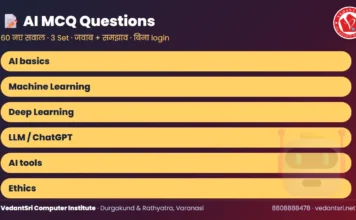
AI MCQ Questions with Answers: Artificial Intelligence Practice Sets (Hindi + English) – Free Online Test
AI MCQ questions की पूरी तैयारी: Artificial Intelligence के 60 नए सवाल (3 set) — AI की बुनियाद, Machine Learning, Deep Learning,…
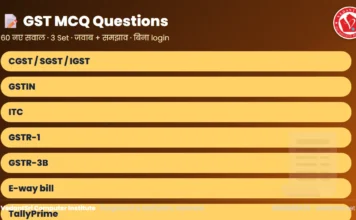
GST MCQ Questions with Answers: Practice Sets + GST Mock Test (Hindi + English)
GST MCQ questions और mock test की तैयारी: 60 नए सवाल (3 set) — GST की बुनियाद, CGST/SGST/IGST, GSTIN, returns (GSTR-1, GSTR-3B,…
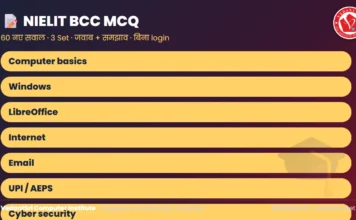
NIELIT BCC MCQ Questions with Answers: BCC Online Test Practice Sets (Hindi + English)
NIELIT BCC MCQ की तैयारी के लिए 60 नए सवाल (3 set) — computer की बुनियाद, operating system, LibreOffice Writer, Calc और…
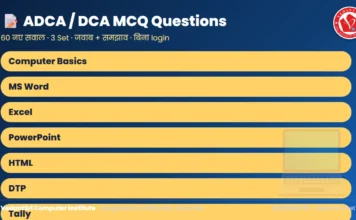
ADCA / DCA MCQ Questions with Answers: Practice Sets (Hindi + English) – Free Online Test
ADCA MCQ questions और DCA की परीक्षा की तैयारी के लिए यहाँ 60 नए सवाल हैं (3 set) — computer basics, MS…
Accountant Interview Questions and Answers: Tally, GST & Accounting MCQ Practice Sets (Hindi + English)
Accountant interview questions की पूरी तैयारी: 60 नए MCQ (3 set) — accounting की बुनियाद (golden rules, journal, BRS, depreciation), TallyPrime की…
Basic Computer Interview Questions and Answers: Computer Operator & Office Job MCQ Practice Sets (Hindi + English)
Basic computer interview questions की तैयारी: computer operator, office assistant, receptionist और data entry की नौकरी में पूछे जाने वाले 60 नए…
3 टिप्पणियाँ
Correct answer is Alt+F+T
Alt+F+T is correct answer of Opening Customiz Ribbon Option in Excel 2019
Alt+F+T is correct ans of opening "Customize Ribbon" option in MS Excel 2019