PowerPoint Home Menu Online Test Set 1
Durgakund 8808888478Rathyatra 9415802061दोनों शाखाएँ सोमवार–शनिवार सुबह 7 से रात 8 बजे तक खुली हैं। कोर्स की जानकारी के लिए Durgakund 8808888478 और Rathyatra 9415802061 पर सातों दिन, किसी भी समय कॉल कर सकते हैं।
| Pos. | Name | Score | Duration | Points |
|---|---|---|---|---|
| 1 | Prashant | 84 % | 3 minutes 53 seconds | 21 / 25 |
| 2 | Mannat | 56 % | 3 minutes 32 seconds | 14 / 25 |
| 3 | mahima | 52 % | 7 minutes 16 seconds | 13 / 25 |
| 4 | Abhinav | 48 % | 3 minutes 41 seconds | 12 / 25 |
| 5 | PROTIMA | 48 % | 5 minutes 8 seconds | 12 / 25 |
| 6 | Richa | 48 % | 5 minutes 41 seconds | 12 / 25 |
| 7 | Prashant | 40 % | 3 minutes 34 seconds | 10 / 25 |
| 8 | rk | 40 % | 4 minutes 1 seconds | 10 / 25 |
| 9 | Richa | 36 % | 5 minutes 5 seconds | 9 / 25 |
| 10 | Laxmi kumari | 28 % | 2 minutes 37 seconds | 7 / 25 |
Useful Link:-PowerPoint Course Details, Fees, Duration, Scope, Syllabus, Admission, Institutes & Jobs
MS PowerPoint Home Menu Online Test helps students understand basic Home tab commands and practice important PowerPoint MCQs. This guide explains Clipboard, Slides, Font and Paragraph tools with practical examples, keyboard shortcuts and common mistakes.

PowerPoint Home Menu Test: What Does Home Menu Cover?
PowerPoint Home Menu covers basic commands used to create slides, edit text, copy content and format presentation paragraphs. These tools are important for preparing and editing PowerPoint presentations.
The main topics include:
- Clipboard Group
- Cut, Copy and Paste
- Format Painter
- New Slide
- Slide Layout
- Reset Slide
- Slide Sections
- Font Formatting
- Bullets and Numbering
- Text Alignment
- Line Spacing
These commands are useful for beginners who want to understand the PowerPoint Home tab.
PowerPoint Home Menu Test: What Is an MS PowerPoint Online Test?
An MS PowerPoint online test is a computer-based practice quiz. It contains multiple-choice questions about PowerPoint tools, commands and their functions.
Students can use these tests to revise important topics and check their software knowledge.
How Does the Class Test and Revision Test Work?
The VedantSri online test page provides two practice options.
- Class Test: Enter the requested mobile number and attempt the test. The result is displayed on the test dashboard.
- Revision Test: Practise Basic, Intermediate and Final questions. The system provides immediate correct-or-incorrect feedback.
- Complete the Class Test first to access the Revision Test. Revision attempts are not recorded as test marks.
- Students should read every question carefully and understand the purpose of each command before selecting an answer.
PowerPoint Home Menu: What Are the Main Home Tab Groups?
The Home tab contains tools for slide creation, text formatting and paragraph management. These commands are arranged into groups according to their functions.
PowerPoint Home Menu: What Is the Use of the Clipboard Group?
The Clipboard group contains commands for copying, moving and applying formatting to presentation content.
| Command | Function |
| Cut | Removes selected content and places it on the Clipboard |
| Copy | Copies selected content |
| Paste | Inserts copied or cut content |
| Format Painter | Copies formatting from one object to another |
PowerPoint Home Menu: How to Use Copy and Paste in PowerPoint
- Open your PowerPoint presentation.
- Select the text, picture or object you want to copy.
- Press Ctrl + C.
- Select the destination slide.
- Press Ctrl + V.
- Check the pasted content.
PowerPoint Home Menu: How to Use Format Painter
- Select the text or object whose formatting you want to copy.
- Open the Home tab.
- Click Format Painter in the Clipboard group.
- Click or drag over the target content.
- Check the copied formatting.
For multiple formatting applications, double-click Format Painter where supported. Press Esc to stop using it.
Example: You have created a heading with blue colour, bold formatting and a particular font size. Use Format Painter to apply the same formatting to another heading.
PowerPoint Home Menu: What Is the Use of the Slides Group?
The Slides group helps users create new slides and manage their layouts.
| Command | Function |
| New Slide | Adds a new slide |
| Layout | Changes the slide layout |
| Reset | Restores the selected slide’s layout formatting |
| Section | Organises slides into groups |
How to Insert a New Slide in PowerPoint Home Menu
- Open your presentation.
- Select the Home tab.
- Click New Slide.
- Choose the required layout.
- A new slide appears in the presentation.
- Enter your text and other content.
PowerPoint Home Menu: How to Change Slide Layout
- Select the slide.
- Open the Home tab.
- Click Layout.
- Choose Title Slide, Title and Content, Comparison or another available layout.
- Check the new arrangement.
A layout provides predefined placeholders for slide content.
PowerPoint Home Menu: How to Use the Reset Command
- Select the slide.
- Open the Home tab.
- Click Reset in the Slides group.
- PowerPoint restores the selected slide’s placeholders to their layout positions and formatting.
Reset does not delete the content you have entered.
PowerPoint Home Menu: What Is the Use of Sections in PowerPoint?
Sections help organise a large presentation into smaller groups of slides.
For example, a Computer Education presentation may contain these sections:
- Introduction
- Computer Hardware
- Software
- Networking
- Conclusion
To create a section:
- Select the slide where the new section should begin.
- Open the Home tab.
- Click Section.
- Select Add Section.
- Enter a section name.
- Press Enter.
Sections make large presentations easier to manage.
PowerPoint Home Menu: How to Use Font and Text Formatting?
The Font group controls the appearance of text in PowerPoint. It contains commands for changing font style, size, colour and text effects.
PowerPoint Home Menu: Important Font Group Commands
| Command | Function |
| Font Name | Changes the typeface |
| Font Size | Changes text size |
| Bold | Makes text thicker |
| Italic | Makes text slanted |
| Underline | Adds a line below text |
| Font Colour | Changes text colour |
| Text Shadow | Adds a shadow effect |
| Clear All Formatting | Removes manual formatting |
PowerPoint Home Menu: How to Change Font Size and Font Style?
Follow these steps:
- Open the presentation.
- Select the required text.
- Open the Home tab.
- Find the Font group.
- Select the required Font Name.
- Choose the Font Size.
- Apply Bold, Italic or Underline if required.
- Review the text.
Practical Example: Select the presentation heading and apply Bold formatting. Increase its font size to make it more visible.
PowerPoint Home Menu: How to Change Font Colour?
- Select the text.
- Open the Home tab.
- Find Font Colour.
- Click the drop-down arrow.
- Select the required colour.
- Check the result.
Use readable colour combinations. Avoid very light text on a light background.
PowerPoint Home Menu: What Is the Use of Change Case?
Change Case changes the capitalisation of selected text.
Common options include:
| Option | Example |
| Sentence case | Microsoft PowerPoint is useful. |
| lowercase | microsoft powerpoint is useful. |
| UPPERCASE | MICROSOFT POWERPOINT |
| Capitalize Each Word | Microsoft PowerPoint |
| tOGGLE cASE | mICROSOFT pOWERpOINT |
Select the text and choose Change Case from the Font group.
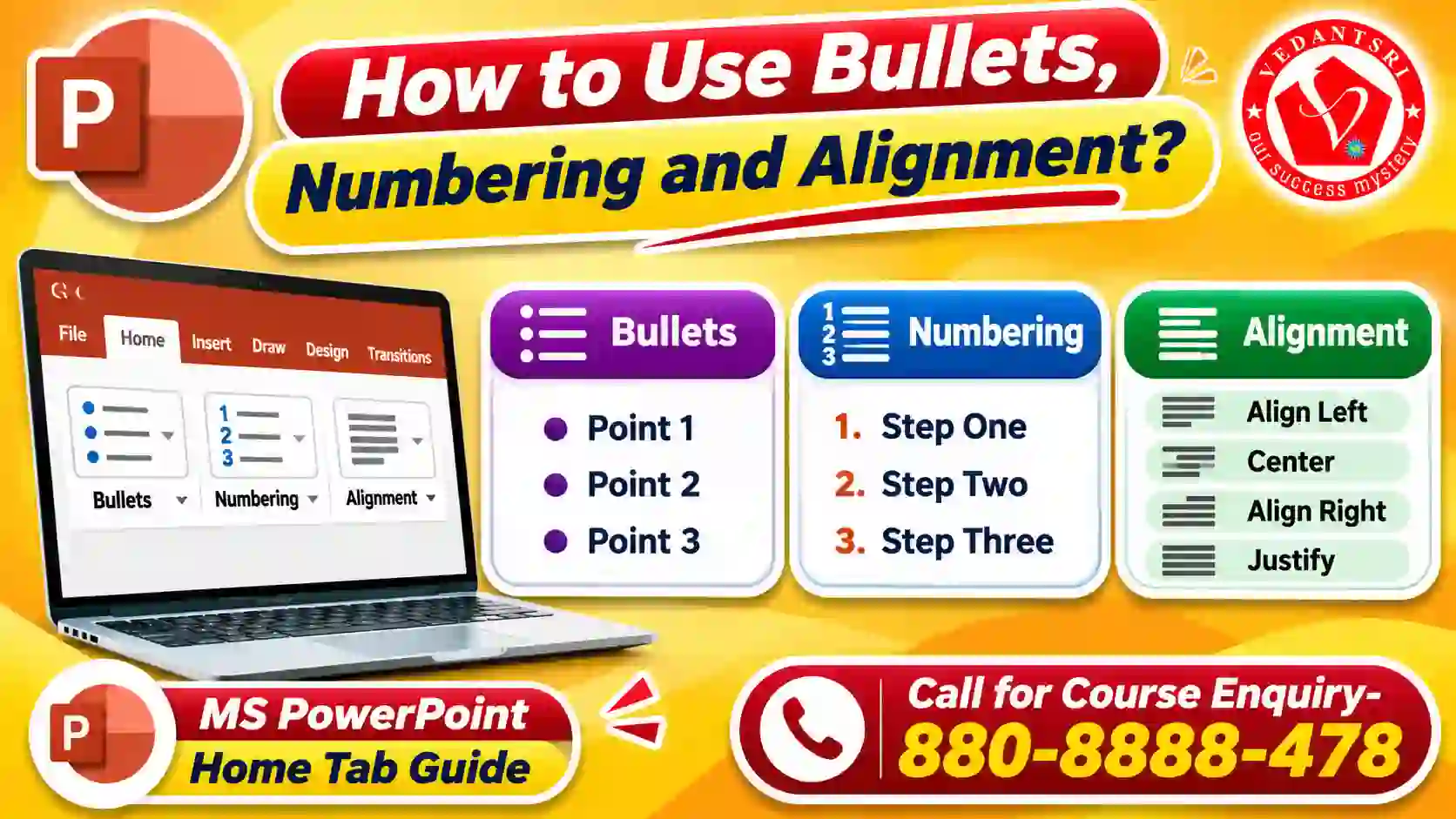
PowerPoint Home Menut: How to Use Bullets, Numbering and Alignment?
The Paragraph group helps users organise text into lists and control its alignment, indentation and spacing.
What Is the Use of Bullets in PowerPoint?
Bullets display information as a list of points. They are useful when presenting several related ideas.
Follow these steps:
- Select a text placeholder.
- Open the Home tab.
- Click Bullets in the Paragraph group.
- Select a bullet style.
- Type your list items.
Example:
Computer Components
- Monitor
- Keyboard
- Mouse
- CPU
What Is the Use of Numbering?
Numbering displays list items in a sequence. It is useful for instructions and processes.
Follow these steps:
- Select the required text.
- Open Home.
- Click Numbering.
- Select a numbering style.
- Enter the list items.
Example:
- Open PowerPoint.
- Create a new presentation.
- Insert a slide.
- Save the file.
How to Change Paragraph Alignment?
PowerPoint provides different alignment options.
| Alignment | Function |
| Align Left | Places text towards the left |
| Center | Places text in the centre |
| Align Right | Places text towards the right |
| Justify | Aligns text along both sides where supported |
Follow these steps:
- Select the paragraph.
- Open the Home tab.
- Find the Paragraph group.
- Select the required alignment.
- Review the text position.
PowerPoint Home Menu: What Is the Use of Line Spacing?
Line Spacing controls the distance between lines of text. It helps make slide content easier to read.
Follow these steps:
- Select the paragraph.
- Open the Home tab.
- Click Line Spacing.
- Choose Single, 1.5 Lines or Double.
- Check the text appearance.
Avoid very tight spacing when a slide contains several lines of information.
PowerPoint Home Menu: Practical Example Using Home Menu Commands
Suppose you want to create a presentation about Computer Education. You need a title slide, an introduction and a list of computer components.
Follow these steps:
- Create: Open PowerPoint and create a new presentation.
- Add: Use New Slide to create additional slides.
- Select: Choose suitable layouts for each slide.
- Format: Apply Bold, Italic and Font Colour to important text.
- Copy: Use Format Painter to copy heading formatting.
- Organise: Use Bullets to display computer components.
- Number: Use Numbering to display step-by-step instructions.
- Align: Use Center or Align Left as required.
- Save: Save your presentation.
This practical activity covers the basic Home tab commands.
PowerPoint Home Menu in Hindi: Important Home Menu Words
Students who prefer simple Hindi explanations can use this table to understand the English command names.
| English Command | Simple Hindi Meaning |
| Clipboard | कॉपी और पेस्ट के टूल |
| Cut | हटाकर कॉपी करना |
| Copy | नकल करना |
| Paste | चिपकाना |
| Format Painter | फॉर्मेट की नकल करना |
| New Slide | नई स्लाइड |
| Layout | स्लाइड की व्यवस्था |
| Reset | मूल व्यवस्था वापस करना |
| Section | स्लाइड का समूह |
| Font | लिखावट की शैली |
| Bold | मोटा अक्षर |
| Italic | तिरछा अक्षर |
| Underline | रेखांकित करना |
| Font Colour | अक्षरों का रंग |
| Bullets | बिंदुओं वाली सूची |
| Numbering | क्रम संख्या |
| Alignment | टेक्स्ट की स्थिति |
| Line Spacing | पंक्तियों के बीच की दूरी |
The software commands usually appear in English on the Ribbon. Learning these names will help students identify the correct options during practical work.
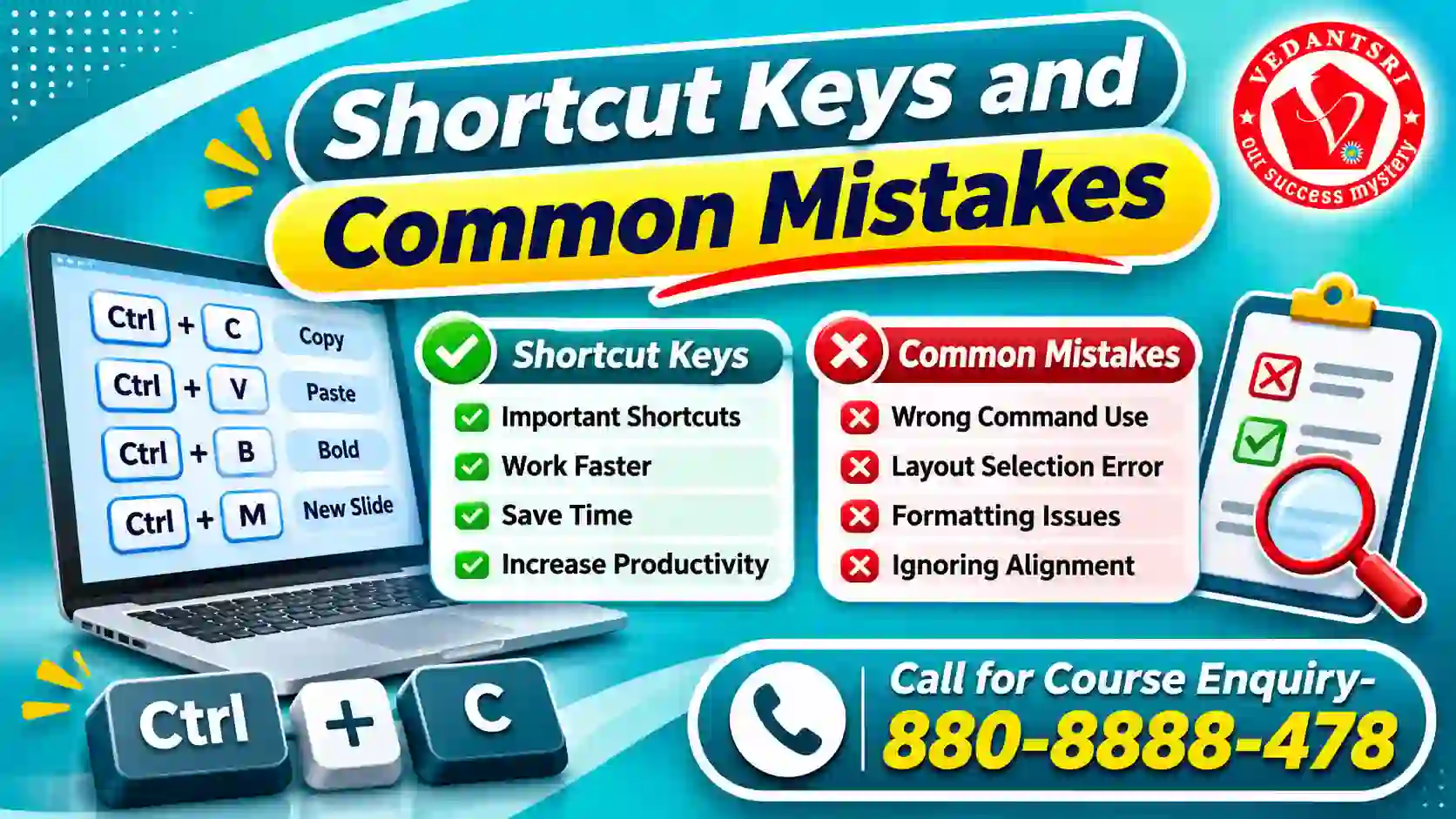
PowerPoint Home Menu Series: Shortcut Keys and Common Mistakes
Keyboard shortcuts help users perform common PowerPoint tasks quickly.
PowerPoint Home Menu: Important PowerPoint Shortcut Keys
The following shortcuts are for PowerPoint on Windows.
| Shortcut Key | Function |
| Alt + H | Opens the Home tab |
| Ctrl + C | Copies selected content |
| Ctrl + X | Cuts selected content |
| Ctrl + V | Pastes content |
| Ctrl + M | Inserts a new slide |
| Ctrl + B | Applies Bold |
| Ctrl + I | Applies Italic |
| Ctrl + U | Applies Underline |
| Ctrl + Z | Undo |
| Ctrl + Y | Redo |
| Ctrl + Shift + C | Copies formatting |
| Ctrl + Shift + V | Pastes formatting |
PowerPoint Home Menu: Common Mistakes While Using the Home Tab
Mistake 1: Using Copy Instead of Cut
Copy creates another copy of the selected content. Cut removes the original content from its current location.
Solution: Use Cut when you want to move content. Use Copy when you want to keep the original.
Mistake 2: Selecting the Wrong Slide Layout
A layout with unsuitable placeholders can make slide content difficult to arrange.
Solution: Select a layout that matches the type of information you want to present.
Mistake 3: Using Too Many Fonts
Different font styles on every slide make a presentation look inconsistent.
Solution: Use a small number of readable font styles throughout the presentation.
Mistake 4: Applying Bullets to the Wrong Text
Students sometimes select only one word or part of a sentence before applying bullets.
Solution: Select the complete list paragraphs before using the Bullets command.
Mistake 5: Ignoring Paragraph Alignment
Text may appear uneven when different paragraphs use different alignment settings.
Solution: Select the required text and apply a consistent alignment.
Mistake 6: Changing Font Colour Without Checking the Background
Some text colours are difficult to read against certain backgrounds.
Solution: Use enough contrast between the text and slide background.
PowerPoint Home Menu: 10 Practice Questions
Attempt these questions to check your understanding of the basic Home tab commands.
Question 1. Which group contains Cut, Copy and Paste commands?
A. Font
B. Clipboard
C. Paragraph
D. Slides
Correct Answer: B. Clipboard
👉 Reason: The Clipboard group manages copied, cut and pasted content.
Question 2. Which shortcut inserts a new slide in PowerPoint?
A. Ctrl + N
B. Ctrl + M
C. Ctrl + S
D. Ctrl + D
Correct Answer: B. Ctrl + M
👉 Reason: Ctrl + M creates a new slide.
Question 3. Which command restores the selected slide’s layout formatting?
A. New Slide
B. Reset
C. Copy
D. Paste
Correct Answer: B. Reset
👉 Reason: Reset restores the selected slide’s placeholders to their layout settings.
Question 4. Which feature copies formatting from one object to another?
A. Format Painter
B. Find
C. Replace
D. New Slide
Correct Answer: A. Format Painter
👉 Reason: Format Painter copies font and object formatting.
Question 5. Which command makes selected text thicker?
A. Italic
B. Underline
C. Bold
D. Font Colour
Correct Answer: C. Bold
👉 Reason: Bold makes selected text appear thicker.
Question 6. Which Paragraph command creates a point-wise list?
A. Center
B. Bullets
C. Font Size
D. Paste
Correct Answer: B. Bullets
👉 Reason: Bullets displays information as separate points.
Question 7. Which feature organises slides into separate groups?
A. Section
B. Font
C. Clipboard
D. Underline
Correct Answer: A. Section
👉 Reason: Sections organise slides into manageable groups.
Question 8. Which shortcut copies formatting in PowerPoint for Windows?
A. Ctrl + C
B. Ctrl + V
C. Ctrl + Shift + C
D. Ctrl + M
Correct Answer: C. Ctrl + Shift + C
👉 Reason: This shortcut copies the formatting of the selected object.
Question 9. Which command changes selected text into UPPERCASE in PowerPoint?
A. Font Colour
B. Change Case
C. Format Painter
D. Clear All Formatting
Correct Answer: B. Change Case
👉 Reason: Change Case converts selected text into uppercase, lowercase and other capitalization formats.
Question 10. Which command changes the placeholder arrangement of a selected slide?
A. Reset
B. Section
C. Layout
D. Format Painter
Correct Answer: C. Layout
👉 Reason: Layout allows users to select a different predefined arrangement of slide placeholders.
FAQ
What Is the Use of Clear All Formatting in PowerPoint?
Clear All Formatting removes direct formatting such as bold, italics, underline, colour and superscript from selected text. It keeps the original words, so you can apply a consistent text style.
Can I Replace a Font Throughout an Entire PowerPoint Presentation?
Yes. Desktop PowerPoint provides a Replace Fonts option under Home > Replace > Replace Fonts. Select the existing font and choose its replacement to update matching text throughout the presentation.
How Can I Create a Sub-Bullet in PowerPoint?
Place the cursor at the beginning of a list paragraph and select Increase List Level in the Paragraph group. You can also press Tab to create a sub-bullet and Shift + Tab to decrease its level.
How Can I Remove Bullets Without Deleting the Text?
Select the bulleted paragraph and click the Bullets button again. PowerPoint removes the bullet formatting while keeping the original text. You can then format the paragraph as normal text.
Why Are Some Home Tab Commands Disabled in PowerPoint?
Some commands require selected text, an object or an editable placeholder. Click inside the text box or select the required object first. The relevant formatting commands should then become available.
What Is the Use of Slide Master for Font Formatting?
Slide Master controls shared presentation formatting, including theme fonts for slides using that master. Use View > Slide Master to set consistent title and body fonts across multiple slides.
Does PowerPoint for the Web Support All Home Tab Commands?
No. PowerPoint for the web supports common formatting, bullets and paragraph alignment, but some desktop features are limited or unavailable. For example, the Replace command is unavailable in the web version.
Why Does Pasted Text Keep Its Original Formatting in PowerPoint?
When you paste text in PowerPoint for the web, it generally retains formatting from its source. You can select the pasted text and use Home tab formatting tools to match the destination slide.
यदि आप MsWord Visiting Card Projects सिखाना चाहते है तो इस लिंक जाए
External Link
- VedantSri Official Website:- https://vedantsri.com
- Course Store Website:- https://vedantsri.in
- Jobs Assist Website:- https://www.jobdo.in
- MS Word Class:- https://mswordclass.com/
- Corel Free Class:- https://corelclass.com/
- Free Excel Class:- https://msexcelclass.com/
सीधे institute से — VedantSri Computer Institute, Varanasi
- दो अपनी branch, वाराणसी में — Durgakund (Kabir Nagar Road, Naria) और Rathyatra (Dhirendra Complex, Rathyatra Crossing). दोनों शाखाएँ सोमवार–शनिवार सुबह 7 से रात 8 बजे तक खुली हैं। कोर्स की जानकारी के लिए Durgakund 8808888478 और Rathyatra 9415802061 पर सातों दिन, किसी भी समय कॉल कर सकते हैं।
- 3,300+ admission — January 2023 से हमारे digital record में.
- 1,267 certificate जारी — हर certificate QR से vedantsri.net/certificate पर verify होता है.
- Classes हमारे अपने classroom और computer lab में होती हैं — admission से पहले आकर देख सकते हैं.
PowerPoint Questions with Answers
PowerPoint Questions with Answers – Set 3
- How to set the slide sizeAnswer: to slide size
- use of transition?Answer: to apply transition effect on slide
- what is the name of transition levels?Answer: Subtlel, exciting, dynamic content
- the use of the effect option?Answer: to rotate transaction effect
- use of on mouse click?Answer: Use mouse click to next slide
- what is the name of the first type of animation effect?Answer: Entrance
- use of add animation?Answer: To apply multiple animation effect on text matter object
- use of rehearse timing?Answer: To Set Timing of Slides
- Browsed by an Individual (Window)?Answer: To Play Animation Window Size Wise
- Use of From Current Slide?Answer: To Play Presentation from 1st Slide