MS Word Online Test 50 Question Set
Durgakund 8808888478Rathyatra 9415802061दोनों शाखाएँ सोमवार–शनिवार सुबह 7 से रात 8 बजे तक खुली हैं। कोर्स की जानकारी के लिए Durgakund 8808888478 और Rathyatra 9415802061 पर सातों दिन, किसी भी समय कॉल कर सकते हैं।
MS Word Online Test 50 Question Set gives you 50 multiple-choice questions to practice important Microsoft Word tools and features. It covers document formatting, Insert tools, page breaks, shortcuts, tables, pictures, and document review. Use this practice set to check your knowledge and find topics that need more revision.
MS Word Online Test 50 Question Set : 50 Practice Questions
MS Word Online Test 50 Question Set is a 50-question online practice test for students who want to check their knowledge of Microsoft Word. The questions cover common Word tools, keyboard shortcuts, formatting options, and document features. Each question has four answer options.
This test is useful for beginners and students who are learning MS Word as part of their computer studies. You can use it for revision after learning a topic in class. Read each question carefully before selecting an answer.
The current test set includes questions about hyperlinks, charts, comments, page breaks, pictures, tables, icons, SmartArt, shapes, bookmarks, headers, and other Word features.
Start the online test below and attempt all 50 questions in MS Word Online Test 50 Question Set.
What Does the MS Word Basic Online Test Series Cover?
The MS Word Basic Online Test Series covers important tools used to create, format, edit, and organise Word documents. The topics include basic formatting as well as Insert and Review features.
Text Formatting and Paragraph Tools
Text formatting changes the appearance of content in a document. You can change the font, font size, font colour, and text style. Paragraph tools help you set alignment, spacing, borders, and shading.
Common options include:
- Font size and font style
- Bold, Italic, and Underline
- Left, Center, Right, and Justify alignment
- Line and paragraph spacing
- Borders and shading
- Format Painter and Styles

Insert Menu and Document Elements
The Insert tab helps you add different items to a document. These tools are useful when preparing reports, letters, assignments, and other documents.
The practice set includes questions on:
- Tables, pictures, charts, and screenshots
- Shapes, icons, SmartArt, and 3D Models
- Hyperlinks and bookmarks
- Header, footer, and cover page
- Blank page and page break
- Cross-reference and text box
Review and Editing Tools
Review and editing tools help you check and improve a document. Find and Replace can locate text and change it. Comments allow readers to add notes about selected content. Cross-references help readers move to related headings, figures, and other parts of a document.
How to Practice for an MS Word Online Test 50 Question Set?
The best way to prepare for an MS Word mock test is to practise the same tools in a real document. Do not only memorise answers. Open Word and follow these steps.
- Create a new blank document using File > New > Blank Document.
- Format a heading from the Home tab. Select the text and apply Bold, font size, and font colour.
- Align a paragraph using Home > Paragraph. Try Left, Center, Right, and Justify alignment.
- Insert a table using Insert > Table. Select a 3 × 3 table and enter sample student information.
- Add a picture or hyperlink using the Insert tab. Check how the inserted item appears in the document.
- Adjust the page using Layout > Margins or Layout > Orientation. Check the Portrait and Landscape options.
- Review the document using Review > New Comment or Track Changes. Observe how comments and edits appear.
- Save your document using Ctrl + S in the desktop version of Word.
After this exercise, attempt the online test again. You will understand the purpose of each tool more clearly.
MS Word Shortcut Keys: A-to-Z Practice in MS Word Online Test 50 Question Set
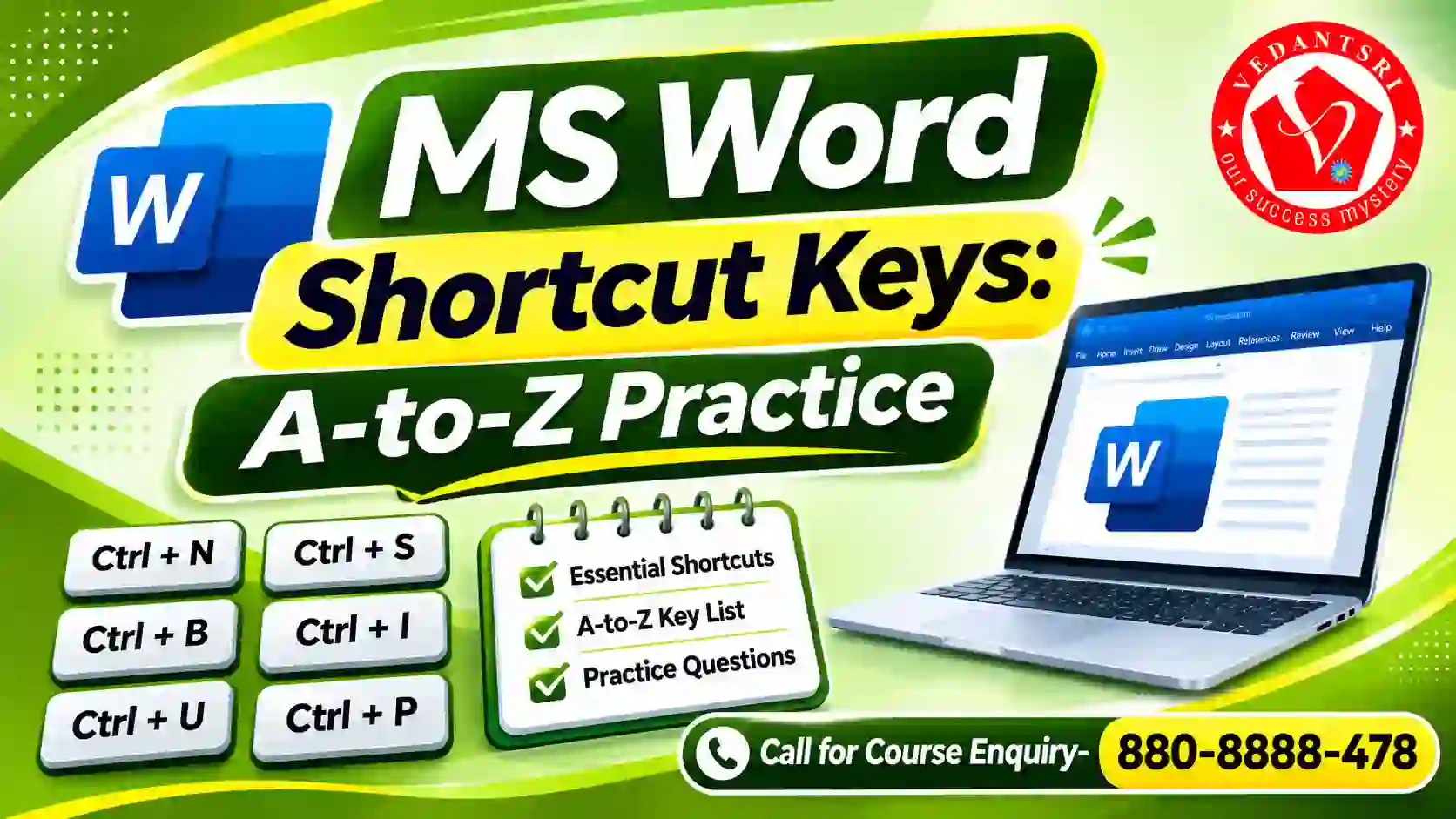
MS Word shortcut keys help you complete common tasks quickly with the keyboard in MS Word Online Test 50 Question Set. The following shortcuts are useful for daily document work and online test preparation.
| Shortcut Key | Work |
| Ctrl + N | Create a new document |
| Ctrl + O | Open a document |
| Ctrl + S | Save a document |
| Ctrl + A | Select all document content |
| Ctrl + B | Apply Bold formatting |
| Ctrl + I | Apply Italic formatting |
| Ctrl + U | Apply Underline formatting |
| Ctrl + F | Find text in a document |
| Ctrl + H | Find and Replace text |
| Ctrl + K | Insert a hyperlink |
| Ctrl + Enter | Insert a page break |
| Ctrl + P | Open the Print screen |
| Ctrl + G | Open the Go To option |
| Ctrl + Z | Undo the last action |
| Ctrl + Shift + E | Turn Track Changes on or off |
These are common Windows shortcuts for desktop Word. Some keyboard commands and ribbon access keys can differ between Word versions and platforms in MS Word Online Test 50 Question Set. Practice the commands in the version installed on your computer.
MS Word Online Test Series Final: Common Mistakes and Their Solutions in MS Word Online Test 50 Question Set
Revision is important because students can confuse similar Word tools and keyboard shortcuts in MS Word Online Test 50 Question Set .Check these common mistakes before attempting the final practice test.
| Common Mistake | Correct Method |
| Pressing Enter many times to start a new page | Use Ctrl + Enter for a page break |
| Confusing Find with Replace | Use Ctrl + F to find and Ctrl + H to replace |
| Applying formatting without selecting text | Select the required text before applying formatting |
| Using the wrong alignment option | Check the paragraph alignment from the Home tab |
| Forgetting to save a desktop document | Press Ctrl + S regularly |
Ribbon access keys such as Alt sequences may vary with the Word version and interface. When a shortcut does not work, use the Search box in Word and type the name of the required command.
Questions with Answers an MS Word Online Test 50 Question Set
Try these seven additional questions after completing the main 50-question test. They cover useful commands that can also help in practical work.
1. Which shortcut opens the Go To option in Word?
A. Ctrl + F
B. Ctrl + G
C. Ctrl + H
D. Ctrl + P
Correct Answer: B. Ctrl + G
Reason: Go To helps you move to a specific page or location in a document.
2. Which shortcut turns Track Changes on or off in Windows desktop Word?
A. Ctrl + Shift + E
B. Ctrl + Shift + C
C. Ctrl + Alt + M
D. Ctrl + E
Correct Answer: A. Ctrl + Shift + E
Reason: Track Changes marks edits so that they can be reviewed later.
3. Which shortcut selects all the content in a Word document?
A. Ctrl + S
B. Ctrl + A
C. Ctrl + D
D. Ctrl + K
Correct Answer: B. Ctrl + A
Reason: It selects the entire document content.
4. Which shortcut opens the Print screen?
A. Ctrl + O
B. Ctrl + N
C. Ctrl + P
D. Ctrl + R
Correct Answer: C. Ctrl + P
Reason: It opens the print options for the document.
5. Which shortcut reverses the last action?
A. Ctrl + Y
B. Ctrl + Z
C. Ctrl + X
D. Ctrl + V
Correct Answer: B. Ctrl + Z
Reason: Undo reverses the last action performed in the document.
6. Where can you find the Navigation Pane in desktop Word?
A. View tab
B. Insert tab
C. Design tab
D. Mailings tab
Correct Answer: A. View tab
Reason: You can open the Navigation Pane from View, or use Ctrl + F to search within the document.
7. Which shortcut applies Bold formatting to selected text?
A. Ctrl + I
B. Ctrl + U
C. Ctrl + B
D. Ctrl + J
Correct Answer: C. Ctrl + B
Reason: Bold makes the selected text appear thicker and darker.
Frequently Asked Questions
Is this MS Word Online Test Set 2 suitable for beginners?
Yes. The questions cover common Word tools and basic document work. Beginners can first learn the related features and then attempt the questions for revision.
Is the MS Word Online Test available in Hindi?
The questions currently displayed in this Set 2 test are in English. A Hindi question option is not confirmed for this particular test page.
Is MS Word Online Test the same as the WordPad Online Test?
No. Microsoft Word and WordPad are different applications. This page is for Microsoft Word practice. A WordPad-specific test requires separate questions.
How can I improve my MS Word mock test score?
Review every question you answered incorrectly. Open Word and practise the related tool. Repeat the test after revising the topic. Practical use helps you remember commands and features.
Important link
- Visit: https://www.corelclass.com
- Read also – https://msexcelclass.com/
- Also, Read- Tally Course Fees, Duration, Scope, Syllabus, Admission, Institutes
- Also Read – CCC Course Fees, Syllabus, Duration, Scope, Jobs, and Institute
- Important Link – DFA Course Fees, Syllabus, Duration, Scope, Jobs, and Institute
- Visit – https://mswordclass.com/
Word के तीनों level के online test
Word पूरा सीखना है? VedantSri Varanasi की अपनी नज़दीकी branch पर कॉल कीजिए:
📞 Durgakund 8808888478📞 Rathyatra 9415802061सीधे institute से — VedantSri Computer Institute, Varanasi
- दो अपनी branch, वाराणसी में — Durgakund (Kabir Nagar Road, Naria) और Rathyatra (Dhirendra Complex, Rathyatra Crossing). दोनों शाखाएँ सोमवार–शनिवार सुबह 7 से रात 8 बजे तक खुली हैं। कोर्स की जानकारी के लिए Durgakund 8808888478 और Rathyatra 9415802061 पर सातों दिन, किसी भी समय कॉल कर सकते हैं।
- 3,300+ admission — January 2023 से हमारे digital record में.
- 1,265 certificate जारी — हर certificate QR से vedantsri.net/certificate पर verify होता है.
- Classes हमारे अपने classroom और computer lab में होती हैं — admission से पहले आकर देख सकते हैं.
MS Word Questions with Answers
MS Word Questions with Answers – Set 1
- MS Word Extension Name?Answer: .Docx
- What is the Use of Subscript in MS Word?Answer: To Switch Selected Text Diagonal Down at Previous Text
- Use of Superscript in MS Word?Answer: To Switch Selected Text Diagonal Up at Previous Text
- What is the use of Decrease Indent in MS Word?Answer: To move paragraph closer to margin
- What is the Use of Increase Indent in MS Word?Answer: Move paragraph farther away from margin
- What is the Shortcut Key for Insert Page Break?Answer: Both A and B option
- What is the use of Page Break in MS Word?Answer: End the current page and move to next page
- What is the use of Icon in MS Word?Answer: Both C and D option
- What is the use of Online video in MS Word?Answer: Find and insert Videos from online source
- What is the use of Bookmark in MS Word?Answer: It works with hyperlink to let you jump to a Specific place
MS Word Questions with Answers – Set 6
- Insert Citation, Manage Sources, Style, and Bibliography tools under which Toolbox?Answer: Citation & Bibliography
- What is the use of Bibliography Style in MS Word?Answer: It allows to choose the citation Style to the document
- What is the use of Mark Citation in MS Word?Answer: Add the selected text to the Table of Authorities
- What is the use of Insert Table of Authorities in MS Word?Answer: Add a list of cases, Statutes, and other Authorities
- What is the use of Update Table in MS Word?Answer: Update the Table of Authorities to include all the citation
- Mark Citation, Insert Table of authorities, and Update table these tools come under which Toolbox?Answer: Table of Authorities
- What is the use of Envelops in MS Word?Answer: Both A and B options
- What is the use of Labels in MS Word?Answer: Label is needed Sending mail
- Envelope, Labels these two tools come under which Toolbox?Answer: Create
- What is the use of Start Mail Merge in MS Word?Answer: Create one document and send it to multiple people
MS Word Questions with Answers – Set 11
- What is the Hide Ink in MS Word?Answer: Hide all of the Ink in the document
- What is the use of Read Mode in MS Word?Answer: It provides best way to read document
- What is the Use of Print Layout in MS Word?Answer: See how the document look if printed
- What is the use of Web Layout in MS Word?Answer: See how the document look as a webpage
- What is the Use of Outline in MS Word?Answer: See document in outline form where the Content is shown as Bullet points
- What is the use of Draft in MS Word?Answer: Switch View to see just the text in the document
- Read Mode, Page Layout, Web Layout Outline, and Draft these tools come Under which toolbox?Answer: View
- What is the use of Immersive Reader in MS Word?Answer: Switch to an immersive editing skills that helps to improve reading skill
- What is the use of Gridlines in MS Word?Answer: Distribute text evenly between the margin
- Ruler, Navigation Pane, and Gridlines these three tools come under which toolbox?Answer: Show
MS Word Questions with Answers – Set 16
- To Use Already Saved Recipients List?Answer: use an existing list option
- To Edit Recipients Columns?Answer: customize column options
- No. of Recipients Columns by Default?Answer: 13
- Recipients List Extension Name?Answer: .mdb
- Use of Highlight Merge Fields?Answer: highlight inserted field of document
- Use of Address Block?Answer: to add address in document
- Use of Insert Merge Field?Answer: to add recipient field in document
- Use of Rules?Answer: to create reminder Rules in document
- Line Spacing is in the _____ of MS Word.Answer: Home tab
- Which of the following is not available on the ruler of ms word screen?Answer: Center indent
MS Word Questions with Answers – Set 21
- What is the use of Align left in MS Word?Answer: Align the text to the left margin
- What is the use of Center in MS Word?Answer: Center the Content on the page
- What is the use of Align Right in MS Word?Answer: Align Content with the right margin
- What is the use of Justify in MS Word?Answer: Distribute the text eventually between the margin
- What is the Shortcut Key for Insert Menu in Ms.Word?Answer: Alt + N
- What is the Use of Cover Page Tool in Ms. Word?Answer: Add a Cover Page
- What is the Use of Blank Page Tool in Ms. Word?Answer: Add a Blank Page
- What is the Use of the Page Break Tool in Ms. Word?Answer: Both A & B
- What is the Use of the Pictures Tool in Ms. Word?Answer: Insert Pictures
- What is the Use of the Shapes Tool in Ms. Word?Answer: Insert ready-made-Shapes
MS Word Questions with Answers – Set 26
- What is the Shortcut Key for the Mailings Menu in Ms. Word?Answer: Alt + M
- What is the Use of the Envelopes Tool in Ms. Word?Answer: Sending Mail Needs an Envelope
- What is the Use of the Labels Tool in Ms. Word?Answer: Sending Mail Needs an label
- What is the Use of the Start Mail Merge Tool in Ms. Word?Answer: Create one document and Sent it to multiple People
- What is the Use of the Select Recipients Tool in Ms. Word?Answer: Choose the list of People you d like to Sent you the Document to
- What is the Use of the Edit Recipient List Tool in Ms. Word?Answer: Make a Change to your Recipient list
- What is the Use of Highlight Merge Fields Tool in Ms. Word?Answer: Highlight the Fields in Document
- What is the Use of Address Block Tool in Ms. Word?Answer: Add an Address to letter
- What is the Use of the Greeting Line Tool in Ms. Word?Answer: Add a Greeting to Document
- What is the Use of Rules Tool in Ms. Word?Answer: Specify Rules for the Mail Merge