Photoshop Basic Online Test 2026 – Photoshop MCQ Online Test, Quiz & Shortcut Keys
Photoshop Basic Online Test 2026 - Photoshop MCQ Online Test
Photoshop Basic Online Test 5513 (Basic)
Test शुरू करने से पहले अपनी जानकारी भरिए
- What is the purpose of the Quick Mask mode?
- How do you hide a layer?
- What is a layer in Photoshop?
- What is the shortcut to swap foreground/background colors?
- What is the shortcut to reset colors to default?
- What is the default foreground/background color?
- Which format supports transparency?
- What is the shortcut for the Crop Tool?
- What does the Crop Tool do?
- What is the shortcut for the Hand Tool?
- What is the purpose of the History Panel?
- What is the shortcut to view the image at 100%?
- What is the shortcut to fit the image on screen?
- What is the shortcut for the Zoom Tool?
- What does the Zoom Tool do?
- What is the shortcut for the Eraser Tool?
- Which tool is used to erase pixels?
- What is the shortcut for the Eyedropper Tool?
- Which tool is used to sample colors?
- What is the standard resolution for web images?
- What is the standard resolution for print images?
- Which color mode is best for printing?
- Which color mode is best for web graphics?
- What is the shortcut for the Brush Tool?
- Which tool is used to select irregular shapes?
- What is the shortcut to open the Layers Panel?
- Which panel is used to manage layers?
- What is the shortcut key for the Move Tool?
- Which tool is used to move objects in Photoshop?
- What is the default file format for Adobe Photoshop?
Click To See Today's Toppers: 20 Students of Photoshop Online Test Series
| Pos. | Name | Score | Duration | Points |
|---|---|---|---|---|
| 1 | Sheetal | 100 % | 38 seconds | 26 / 26 |
| 2 | Manish maurya | 100 % | 38 seconds | 26 / 26 |
| 3 | Sheetal | 100 % | 39 seconds | 26 / 26 |
| 4 | Sheetal | 100 % | 39 seconds | 26 / 26 |
| 5 | Sheetal | 100 % | 40 seconds | 26 / 26 |
| 6 | Sheetal | 100 % | 40 seconds | 26 / 26 |
| 7 | Sheetal | 100 % | 40 seconds | 26 / 26 |
| 8 | Sheetal | 100 % | 40 seconds | 26 / 26 |
| 9 | Sheetal | 100 % | 41 seconds | 26 / 26 |
| 10 | Sheetal | 100 % | 41 seconds | 26 / 26 |
| 11 | Shivam Verma | 100 % | 41 seconds | 26 / 26 |
| 12 | Aditya | 100 % | 41 seconds | 26 / 26 |
| 13 | Shivam Verma | 100 % | 42 seconds | 26 / 26 |
| 14 | Sheetal | 100 % | 42 seconds | 26 / 26 |
| 15 | Sheetal | 100 % | 43 seconds | 26 / 26 |
| 16 | Sheetal | 100 % | 43 seconds | 26 / 26 |
| 17 | Rohit singh | 100 % | 43 seconds | 26 / 26 |
| 18 | Rohit singh | 100 % | 43 seconds | 26 / 26 |
| 19 | Rose Singh | 100 % | 43 seconds | 26 / 26 |
| 20 | Manish Singh | 100 % | 43 seconds | 26 / 26 |
| 21 | Shivam Verma | 100 % | 44 seconds | 26 / 26 |
| 22 | Rohit singh | 100 % | 44 seconds | 26 / 26 |
| 23 | Rohit singh | 100 % | 44 seconds | 26 / 26 |
| 24 | Sheetal | 100 % | 45 seconds | 26 / 26 |
| 25 | Sheetal | 100 % | 45 seconds | 26 / 26 |
| 26 | Sheetal | 100 % | 45 seconds | 26 / 26 |
| 27 | Rohit singh | 100 % | 45 seconds | 26 / 26 |
| 28 | Lalbahadur | 100 % | 45 seconds | 26 / 26 |
| 29 | Rahul | 100 % | 45 seconds | 26 / 26 |
| 30 | Rohit singh | 100 % | 47 seconds | 26 / 26 |
| 31 | Rohit singh | 100 % | 47 seconds | 26 / 26 |
| 32 | Lalbahadur | 100 % | 47 seconds | 26 / 26 |
| 33 | Harsh Sharma | 100 % | 48 seconds | 26 / 26 |
| 34 | Rohit singh | 100 % | 48 seconds | 26 / 26 |
| 35 | Rohit singh rajput | 100 % | 48 seconds | 26 / 26 |
| 36 | Sanskar Singh | 100 % | 48 seconds | 26 / 26 |
| 37 | Sheetal | 100 % | 48 seconds | 26 / 26 |
| 38 | Divyansh keshari | 100 % | 49 seconds | 26 / 26 |
| 39 | Sanskar Singh | 100 % | 49 seconds | 26 / 26 |
| 40 | Sanskar Singh | 100 % | 49 seconds | 26 / 26 |
| 41 | Sanskar Singh | 100 % | 49 seconds | 26 / 26 |
| 42 | Lalbahadur | 100 % | 49 seconds | 26 / 26 |
| 43 | Rimjhim yadav | 100 % | 49 seconds | 26 / 26 |
| 44 | Rimjhim yadav | 100 % | 49 seconds | 26 / 26 |
| 45 | Divyansh | 100 % | 50 seconds | 26 / 26 |
| 46 | Lalbahadur | 100 % | 50 seconds | 26 / 26 |
| 47 | rishu | 100 % | 50 seconds | 26 / 26 |
| 48 | Rohit singh | 100 % | 51 seconds | 26 / 26 |
| 49 | Lalbahadur | 100 % | 51 seconds | 26 / 26 |
| 50 | Ankit kashyap | 100 % | 52 seconds | 26 / 26 |
| 51 | Tanu | 100 % | 52 seconds | 26 / 26 |
| 52 | Ankit kashyap | 100 % | 52 seconds | 26 / 26 |
| 53 | Megha Singh | 100 % | 52 seconds | 26 / 26 |
| 54 | Shweta Singh | 100 % | 52 seconds | 26 / 26 |
| 55 | Ankit kashyap | 100 % | 53 seconds | 26 / 26 |
| 56 | Prashant maurya | 100 % | 53 seconds | 26 / 26 |
| 57 | Rahul k | 100 % | 53 seconds | 26 / 26 |
| 58 | Ujjwal Kumar Sahu | 100 % | 53 seconds | 26 / 26 |
| 59 | Khushi | 100 % | 53 seconds | 26 / 26 |
| 60 | Lalbahadur | 100 % | 53 seconds | 26 / 26 |
| 61 | Sheetal | 100 % | 53 seconds | 26 / 26 |
| 62 | Shivam Verma | 100 % | 53 seconds | 26 / 26 |
| 63 | Sneha Sonkar | 100 % | 54 seconds | 26 / 26 |
| 64 | Rohit singh | 100 % | 54 seconds | 26 / 26 |
| 65 | Tanu | 100 % | 54 seconds | 26 / 26 |
| 66 | Vishal | 100 % | 54 seconds | 26 / 26 |
| 67 | Tanu | 100 % | 54 seconds | 26 / 26 |
| 68 | ALI KHAN | 100 % | 54 seconds | 26 / 26 |
| 69 | Srishti Singh | 100 % | 54 seconds | 26 / 26 |
| 70 | Vishal | 100 % | 54 seconds | 26 / 26 |
| 71 | Vishal | 100 % | 54 seconds | 26 / 26 |
| 72 | Ankit kashyap | 100 % | 54 seconds | 26 / 26 |
| 73 | Lalbahadur | 100 % | 54 seconds | 26 / 26 |
| 74 | Vishal | 100 % | 54 seconds | 26 / 26 |
| 75 | ALI KHAN | 100 % | 54 seconds | 26 / 26 |
| 76 | Shivam Verma | 100 % | 54 seconds | 26 / 26 |
| 77 | Manish | 100 % | 55 seconds | 26 / 26 |
| 78 | Sahil | 100 % | 55 seconds | 26 / 26 |
| 79 | Tanu | 100 % | 55 seconds | 26 / 26 |
| 80 | ALI KHAN | 100 % | 55 seconds | 26 / 26 |
| 81 | Tanu | 100 % | 55 seconds | 26 / 26 |
| 82 | Srishti Singh | 100 % | 55 seconds | 26 / 26 |
| 83 | Rohit singh rajput | 100 % | 56 seconds | 26 / 26 |
| 84 | Srishti Singh | 100 % | 56 seconds | 26 / 26 |
| 85 | Vishal | 100 % | 56 seconds | 26 / 26 |
| 86 | ALI KHAN | 100 % | 56 seconds | 26 / 26 |
| 87 | Shivam Verma | 100 % | 56 seconds | 26 / 26 |
| 88 | Shivam Verma | 100 % | 56 seconds | 26 / 26 |
| 89 | Harsh Sharma | 100 % | 57 seconds | 26 / 26 |
| 90 | Ankit kashyap | 100 % | 57 seconds | 26 / 26 |
| 91 | ALI KHAN | 100 % | 57 seconds | 26 / 26 |
| 92 | Ankit kashyap | 100 % | 57 seconds | 26 / 26 |
| 93 | Rimjhim yadav | 100 % | 57 seconds | 26 / 26 |
| 94 | Ankit kashyap | 100 % | 58 seconds | 26 / 26 |
| 95 | Ankit kashyap | 100 % | 58 seconds | 26 / 26 |
| 96 | Shivam Verma | 100 % | 58 seconds | 26 / 26 |
| 97 | Vishal | 100 % | 59 seconds | 26 / 26 |
| 98 | ALI KHAN | 100 % | 59 seconds | 26 / 26 |
| 99 | Pooja Pandey | 100 % | 59 seconds | 26 / 26 |
| 100 | Tanu | 100 % | 59 seconds | 26 / 26 |
| 101 | Lalbahadur | 100 % | 59 seconds | 26 / 26 |
| 102 | Ankit kashyap | 100 % | 1 minutes | 26 / 26 |
| 103 | Vishal | 100 % | 1 minutes | 26 / 26 |
| 104 | Vishal | 100 % | 1 minutes | 26 / 26 |
| 105 | Rose Singh | 100 % | 1 minutes | 26 / 26 |
| 106 | Ankit kashyap | 100 % | 1 minutes | 26 / 26 |
| 107 | Rohit singh | 100 % | 1 minutes 1 seconds | 26 / 26 |
| 108 | Srishti Singh | 100 % | 1 minutes 1 seconds | 26 / 26 |
| 109 | Ankit kashyap | 100 % | 1 minutes 1 seconds | 26 / 26 |
| 110 | Shivam Verma | 100 % | 1 minutes 1 seconds | 26 / 26 |
| 111 | Shivam Verma | 100 % | 1 minutes 1 seconds | 26 / 26 |
| 112 | Shashank Mishra | 100 % | 1 minutes 1 seconds | 26 / 26 |
| 113 | Sneha Sonkar | 100 % | 1 minutes 2 seconds | 26 / 26 |
| 114 | Vishal yadav | 100 % | 1 minutes 2 seconds | 26 / 26 |
| 115 | Srishti Singh | 100 % | 1 minutes 2 seconds | 26 / 26 |
| 116 | Ankit kashyap | 100 % | 1 minutes 2 seconds | 26 / 26 |
| 117 | Pragati Jaiswal | 100 % | 1 minutes 2 seconds | 26 / 26 |
| 118 | Shivam Verma | 100 % | 1 minutes 2 seconds | 26 / 26 |
| 119 | Shivam Verma | 100 % | 1 minutes 2 seconds | 26 / 26 |
| 120 | rishu | 100 % | 1 minutes 2 seconds | 26 / 26 |
| 121 | Rohit singh | 100 % | 1 minutes 3 seconds | 26 / 26 |
| 122 | Rohit singh rajput | 100 % | 1 minutes 3 seconds | 26 / 26 |
| 123 | Sanskar Singh | 100 % | 1 minutes 4 seconds | 26 / 26 |
| 124 | Sheetal | 100 % | 1 minutes 4 seconds | 26 / 26 |
| 125 | Ankit kashyap | 100 % | 1 minutes 5 seconds | 26 / 26 |
| 126 | Ankit kashyap | 100 % | 1 minutes 5 seconds | 26 / 26 |
| 127 | Shivam Verma | 100 % | 1 minutes 5 seconds | 26 / 26 |
| 128 | Rohit singh | 100 % | 1 minutes 6 seconds | 26 / 26 |
| 129 | Krishna rawat | 100 % | 1 minutes 7 seconds | 26 / 26 |
| 130 | Harsh | 100 % | 1 minutes 7 seconds | 26 / 26 |
| 131 | Adarsh | 100 % | 1 minutes 7 seconds | 26 / 26 |
| 132 | Shivam Verma | 100 % | 1 minutes 7 seconds | 26 / 26 |
| 133 | Sakti | 100 % | 1 minutes 7 seconds | 26 / 26 |
| 134 | Rishu chaurasia | 100 % | 1 minutes 7 seconds | 26 / 26 |
| 135 | Ritesh Chaurasia | 100 % | 1 minutes 8 seconds | 26 / 26 |
| 136 | Vishal | 100 % | 1 minutes 8 seconds | 26 / 26 |
| 137 | Vishal | 100 % | 1 minutes 8 seconds | 26 / 26 |
| 138 | Vishal | 100 % | 1 minutes 8 seconds | 26 / 26 |
| 139 | Sumit | 100 % | 1 minutes 9 seconds | 26 / 26 |
| 140 | Srishti Singh | 100 % | 1 minutes 9 seconds | 26 / 26 |
| 141 | Ab | 100 % | 1 minutes 9 seconds | 26 / 26 |
| 142 | Manish Singh | 100 % | 1 minutes 9 seconds | 26 / 26 |
| 143 | Megha Singh | 100 % | 1 minutes 9 seconds | 26 / 26 |
| 144 | Pooja Pandey | 100 % | 1 minutes 10 seconds | 26 / 26 |
| 145 | Priyanshu kumar rai | 100 % | 1 minutes 10 seconds | 26 / 26 |
| 146 | Udita | 100 % | 1 minutes 11 seconds | 26 / 26 |
| 147 | Tanu | 100 % | 1 minutes 11 seconds | 26 / 26 |
| 148 | Anjali kharwar | 100 % | 1 minutes 12 seconds | 26 / 26 |
| 149 | Akash | 100 % | 1 minutes 12 seconds | 26 / 26 |
| 150 | Gaurav Srivastava | 100 % | 1 minutes 14 seconds | 26 / 26 |
| 151 | Aarti rai | 100 % | 1 minutes 14 seconds | 26 / 26 |
| 152 | Sanskar Singh | 100 % | 1 minutes 16 seconds | 26 / 26 |
| 153 | Shivam Verma | 100 % | 1 minutes 16 seconds | 26 / 26 |
| 154 | Vivek vishwakarma | 100 % | 1 minutes 16 seconds | 26 / 26 |
| 155 | Rakesh | 100 % | 1 minutes 17 seconds | 26 / 26 |
| 156 | Sonam | 100 % | 1 minutes 17 seconds | 26 / 26 |
| 157 | Srishti Singh | 100 % | 1 minutes 17 seconds | 26 / 26 |
| 158 | DK | 100 % | 1 minutes 18 seconds | 26 / 26 |
| 159 | Prateeksha Yadav | 100 % | 1 minutes 18 seconds | 26 / 26 |
| 160 | Huy | 100 % | 1 minutes 20 seconds | 26 / 26 |
| 161 | Jatin | 100 % | 1 minutes 20 seconds | 26 / 26 |
| 162 | Nandani Prajapati | 100 % | 1 minutes 21 seconds | 26 / 26 |
| 163 | Iuuuu | 100 % | 1 minutes 21 seconds | 26 / 26 |
| 164 | Hhhh | 100 % | 1 minutes 21 seconds | 26 / 26 |
| 165 | Shweta Singh | 100 % | 1 minutes 21 seconds | 26 / 26 |
| 166 | Sattu | 100 % | 1 minutes 22 seconds | 26 / 26 |
| 167 | Vishal | 100 % | 1 minutes 23 seconds | 26 / 26 |
| 168 | Vishal | 100 % | 1 minutes 23 seconds | 26 / 26 |
| 169 | Sakti | 100 % | 1 minutes 23 seconds | 26 / 26 |
| 170 | neha prajapati | 100 % | 1 minutes 24 seconds | 26 / 26 |
| 171 | ssssssssssssssssssssssssssssssssssssssssssssssssssssssssssssss | 100 % | 1 minutes 24 seconds | 26 / 26 |
| 172 | Utsav Tyagi | 100 % | 1 minutes 26 seconds | 26 / 26 |
| 173 | Rohit Singh | 100 % | 1 minutes 27 seconds | 26 / 26 |
| 174 | Rohit singh rajput | 100 % | 1 minutes 28 seconds | 26 / 26 |
| 175 | Kashish | 100 % | 1 minutes 28 seconds | 26 / 26 |
| 176 | Vishal | 100 % | 1 minutes 29 seconds | 26 / 26 |
| 177 | Sangita kumari | 100 % | 1 minutes 29 seconds | 26 / 26 |
| 178 | Shivam Verma | 100 % | 1 minutes 29 seconds | 26 / 26 |
| 179 | Prateeksha Yadav | 100 % | 1 minutes 30 seconds | 26 / 26 |
| 180 | Pragati Chaurasia | 100 % | 1 minutes 30 seconds | 26 / 26 |
| 181 | Radhika kumari | 100 % | 1 minutes 30 seconds | 26 / 26 |
| 182 | Shruti Seth | 100 % | 1 minutes 31 seconds | 26 / 26 |
| 183 | Gaurav Srivastava | 100 % | 1 minutes 32 seconds | 26 / 26 |
| 184 | Avinash Yadav | 100 % | 1 minutes 32 seconds | 26 / 26 |
| 185 | Bhakti | 100 % | 1 minutes 32 seconds | 26 / 26 |
| 186 | Atul yadav | 100 % | 1 minutes 33 seconds | 26 / 26 |
| 187 | Anmol | 100 % | 1 minutes 33 seconds | 26 / 26 |
| 188 | Anjali Dubey | 100 % | 1 minutes 34 seconds | 26 / 26 |
| 189 | Krishna | 100 % | 1 minutes 34 seconds | 26 / 26 |
| 190 | Shivam Verma | 100 % | 1 minutes 34 seconds | 26 / 26 |
| 191 | farhan | 100 % | 1 minutes 34 seconds | 26 / 26 |
| 192 | Ankur vishwakarma | 100 % | 1 minutes 34 seconds | 26 / 26 |
| 193 | Diwakar kumar mishra | 100 % | 1 minutes 34 seconds | 26 / 26 |
| 194 | Babita Kumari | 100 % | 1 minutes 36 seconds | 26 / 26 |
| 195 | Akash tiria | 100 % | 1 minutes 36 seconds | 26 / 26 |
| 196 | Arjun | 100 % | 1 minutes 36 seconds | 26 / 26 |
| 197 | Priyanshi sharma | 100 % | 1 minutes 36 seconds | 26 / 26 |
| 198 | Kalua | 100 % | 1 minutes 37 seconds | 26 / 26 |
| 199 | Xxxvx | 100 % | 1 minutes 37 seconds | 26 / 26 |
| 200 | Shruti Verma | 100 % | 1 minutes 38 seconds | 26 / 26 |
| 201 | Shreya | 100 % | 1 minutes 38 seconds | 26 / 26 |
| 202 | Rohini Gaurav | 100 % | 1 minutes 38 seconds | 26 / 26 |
| 203 | Abhishek Seth | 100 % | 1 minutes 38 seconds | 26 / 26 |
| 204 | Harsh | 100 % | 1 minutes 39 seconds | 26 / 26 |
| 205 | Farheen | 100 % | 1 minutes 39 seconds | 26 / 26 |
| 206 | Srishti Singh | 100 % | 1 minutes 39 seconds | 26 / 26 |
| 207 | Sneha pandey | 100 % | 1 minutes 39 seconds | 26 / 26 |
| 208 | Sheetal | 100 % | 1 minutes 40 seconds | 26 / 26 |
| 209 | Diwakar kumar mishra | 100 % | 1 minutes 41 seconds | 26 / 26 |
| 210 | Pooja Vishwakarma | 100 % | 1 minutes 42 seconds | 26 / 26 |
| 211 | Somen Mandal | 100 % | 1 minutes 42 seconds | 26 / 26 |
| 212 | Sangita Kumari | 100 % | 1 minutes 43 seconds | 26 / 26 |
| 213 | dfdfdf | 100 % | 1 minutes 43 seconds | 26 / 26 |
| 214 | Anjali choudhary | 100 % | 1 minutes 43 seconds | 26 / 26 |
| 215 | Amisha | 100 % | 1 minutes 44 seconds | 26 / 26 |
| 216 | Anubhav Kushwaha | 100 % | 1 minutes 45 seconds | 26 / 26 |
| 217 | Pooja Vishwakarma | 100 % | 1 minutes 46 seconds | 26 / 26 |
| 218 | Aman | 100 % | 1 minutes 46 seconds | 26 / 26 |
| 219 | bvv | 100 % | 1 minutes 46 seconds | 26 / 26 |
| 220 | Nitin kumar | 100 % | 1 minutes 46 seconds | 26 / 26 |
| 221 | Nidhi Kumari | 100 % | 1 minutes 48 seconds | 26 / 26 |
| 222 | nidhi pandey | 100 % | 1 minutes 49 seconds | 26 / 26 |
| 223 | Pawan sahani | 100 % | 1 minutes 49 seconds | 26 / 26 |
| 224 | Khushi Sonkar | 100 % | 1 minutes 50 seconds | 26 / 26 |
| 225 | GAURAV SRIVASTAVA | 100 % | 1 minutes 51 seconds | 26 / 26 |
| 226 | Arpita Sharma | 100 % | 1 minutes 51 seconds | 26 / 26 |
| 227 | Anjali Dubey | 100 % | 1 minutes 52 seconds | 26 / 26 |
| 228 | Saumya kumari | 100 % | 1 minutes 52 seconds | 26 / 26 |
| 229 | Dipanjali Aditya pal ji 🌞 | 100 % | 1 minutes 52 seconds | 26 / 26 |
| 230 | Aditya prajapati | 100 % | 1 minutes 52 seconds | 26 / 26 |
| 231 | vaishnavi rajbhar | 100 % | 1 minutes 52 seconds | 26 / 26 |
| 232 | ss | 100 % | 1 minutes 53 seconds | 26 / 26 |
| 233 | kishan | 100 % | 1 minutes 53 seconds | 26 / 26 |
| 234 | dasf | 100 % | 1 minutes 55 seconds | 26 / 26 |
| 235 | Somen Mandal | 100 % | 1 minutes 56 seconds | 26 / 26 |
| 236 | Soumya Yadav | 100 % | 1 minutes 56 seconds | 26 / 26 |
| 237 | Dhayananthan | 100 % | 1 minutes 56 seconds | 26 / 26 |
| 238 | Lovely Maurya | 100 % | 1 minutes 57 seconds | 26 / 26 |
| 239 | Shivam Verma | 100 % | 1 minutes 59 seconds | 26 / 26 |
| 240 | priti kumari | 100 % | 1 minutes 59 seconds | 26 / 26 |
| 241 | Sheetal bharti | 100 % | 1 minutes 59 seconds | 26 / 26 |
| 242 | Sulochana | 100 % | 2 minutes | 26 / 26 |
| 243 | anuj | 100 % | 2 minutes | 26 / 26 |
| 244 | Honey | 100 % | 2 minutes 2 seconds | 26 / 26 |
| 245 | chanchal sharma | 100 % | 2 minutes 2 seconds | 26 / 26 |
| 246 | SUDHA BALAMANI | 100 % | 2 minutes 4 seconds | 26 / 26 |
| 247 | Anjali Singh | 100 % | 2 minutes 4 seconds | 26 / 26 |
| 248 | chanda kumari | 100 % | 2 minutes 5 seconds | 26 / 26 |
| 249 | Babita Kumari | 100 % | 2 minutes 5 seconds | 26 / 26 |
| 250 | Yash | 100 % | 2 minutes 6 seconds | 26 / 26 |
| 251 | janhavi gupta | 100 % | 2 minutes 6 seconds | 26 / 26 |
| 252 | Princi singh | 100 % | 2 minutes 6 seconds | 26 / 26 |
| 253 | bobe | 100 % | 2 minutes 6 seconds | 26 / 26 |
| 254 | D | 100 % | 2 minutes 7 seconds | 26 / 26 |
| 255 | MANAS AGRAWAL | 100 % | 2 minutes 8 seconds | 26 / 26 |
| 256 | u | 100 % | 2 minutes 8 seconds | 26 / 26 |
| 257 | Manshi Singh | 100 % | 2 minutes 11 seconds | 26 / 26 |
| 258 | sonal upadhyay | 100 % | 2 minutes 12 seconds | 26 / 26 |
| 259 | RITU | 100 % | 2 minutes 13 seconds | 26 / 26 |
| 260 | mjhytredf | 100 % | 2 minutes 14 seconds | 26 / 26 |
| 261 | PRIYANSHI AGRAWAL | 100 % | 2 minutes 14 seconds | 26 / 26 |
| 262 | Sumit bharti | 100 % | 2 minutes 15 seconds | 26 / 26 |
| 263 | Anubhav kushwaha | 100 % | 2 minutes 15 seconds | 26 / 26 |
| 264 | Yash Gupta | 100 % | 2 minutes 17 seconds | 26 / 26 |
| 265 | Arjun | 100 % | 2 minutes 17 seconds | 26 / 26 |
| 266 | Khushi Kumari | 100 % | 2 minutes 18 seconds | 26 / 26 |
| 267 | Anjali kharwar | 100 % | 2 minutes 19 seconds | 26 / 26 |
| 268 | Aditi | 100 % | 2 minutes 19 seconds | 26 / 26 |
| 269 | Anuradha Patel | 100 % | 2 minutes 21 seconds | 26 / 26 |
| 270 | Payal maurya | 100 % | 2 minutes 21 seconds | 26 / 26 |
| 271 | varsha jadon | 100 % | 2 minutes 21 seconds | 30 / 30 |
| 272 | farhan | 100 % | 2 minutes 22 seconds | 26 / 26 |
| 273 | P | 100 % | 2 minutes 22 seconds | 26 / 26 |
| 274 | rashika sonkar | 100 % | 2 minutes 23 seconds | 26 / 26 |
| 275 | A | 100 % | 2 minutes 24 seconds | 26 / 26 |
| 276 | Rana ji | 100 % | 2 minutes 24 seconds | 26 / 26 |
| 277 | GAGAN DEEP | 100 % | 2 minutes 25 seconds | 26 / 26 |
| 278 | raheeba | 100 % | 2 minutes 25 seconds | 30 / 30 |
| 279 | abhijith | 100 % | 2 minutes 26 seconds | 26 / 26 |
| 280 | kanika | 100 % | 2 minutes 26 seconds | 26 / 26 |
| 281 | Anmol Raj | 100 % | 2 minutes 28 seconds | 26 / 26 |
| 282 | Rimjhim yadav | 100 % | 2 minutes 29 seconds | 26 / 26 |
| 283 | Sanjiv | 100 % | 2 minutes 30 seconds | 26 / 26 |
| 284 | Akd | 100 % | 2 minutes 31 seconds | 26 / 26 |
| 285 | Namrata And Shubhangi | 100 % | 2 minutes 32 seconds | 26 / 26 |
| 286 | TalatNaz | 100 % | 2 minutes 33 seconds | 26 / 26 |
| 287 | vaishnavi rajbhar | 100 % | 2 minutes 33 seconds | 26 / 26 |
| 288 | Arjun | 100 % | 2 minutes 33 seconds | 26 / 26 |
| 289 | kajal yadav | 100 % | 2 minutes 35 seconds | 26 / 26 |
| 290 | Nitin kumar | 100 % | 2 minutes 36 seconds | 26 / 26 |
| 291 | Aditya kumar | 100 % | 2 minutes 36 seconds | 26 / 26 |
| 292 | bhavya | 100 % | 2 minutes 37 seconds | 26 / 26 |
| 293 | farhan | 100 % | 2 minutes 38 seconds | 26 / 26 |
| 294 | Annu | 100 % | 2 minutes 39 seconds | 26 / 26 |
| 295 | Devendra | 100 % | 2 minutes 39 seconds | 26 / 26 |
| 296 | Pinki Vishwakarma | 100 % | 2 minutes 39 seconds | 26 / 26 |
| 297 | Pooja Sharma | 100 % | 2 minutes 40 seconds | 26 / 26 |
| 298 | farhan | 100 % | 2 minutes 40 seconds | 26 / 26 |
| 299 | rp | 100 % | 2 minutes 40 seconds | 26 / 26 |
| 300 | Nargis | 100 % | 2 minutes 42 seconds | 26 / 26 |
| 301 | Radha Soni | 100 % | 2 minutes 43 seconds | 26 / 26 |
| 302 | arshi | 100 % | 2 minutes 44 seconds | 26 / 26 |
| 303 | sneha sonkar | 100 % | 2 minutes 46 seconds | 26 / 26 |
| 304 | Shruti | 100 % | 2 minutes 49 seconds | 26 / 26 |
| 305 | Melina | 100 % | 2 minutes 56 seconds | 26 / 26 |
| 306 | ghiknkbk | 100 % | 3 minutes | 30 / 30 |
| 307 | sanchit | 100 % | 3 minutes 2 seconds | 26 / 26 |
| 308 | H | 100 % | 3 minutes 2 seconds | 26 / 26 |
| 309 | sss | 100 % | 3 minutes 4 seconds | 26 / 26 |
| 310 | Gaurav | 100 % | 3 minutes 4 seconds | 26 / 26 |
| 311 | Khushaboo | 100 % | 3 minutes 4 seconds | 26 / 26 |
| 312 | A | 100 % | 3 minutes 4 seconds | 26 / 26 |
| 313 | Ruchi maurya | 100 % | 3 minutes 8 seconds | 26 / 26 |
| 314 | Arpita Sharma | 100 % | 3 minutes 8 seconds | 26 / 26 |
| 315 | Deepak Thakur | 100 % | 3 minutes 9 seconds | 26 / 26 |
| 316 | rr | 100 % | 3 minutes 9 seconds | 26 / 26 |
| 317 | E | 100 % | 3 minutes 9 seconds | 26 / 26 |
| 318 | Saranya | 100 % | 3 minutes 11 seconds | 26 / 26 |
| 319 | Priyanshi agrawal | 100 % | 3 minutes 12 seconds | 26 / 26 |
| 320 | Prem | 100 % | 3 minutes 12 seconds | 26 / 26 |
| 321 | Bhavya | 100 % | 3 minutes 14 seconds | 26 / 26 |
| 322 | deeksha | 100 % | 3 minutes 14 seconds | 26 / 26 |
| 323 | Shweta verma | 100 % | 3 minutes 17 seconds | 26 / 26 |
| 324 | Swati Sharma | 100 % | 3 minutes 17 seconds | 26 / 26 |
| 325 | priyanshi Agrawal | 100 % | 3 minutes 18 seconds | 26 / 26 |
| 326 | ttfds | 100 % | 3 minutes 22 seconds | 26 / 26 |
| 327 | Saumya Maurya | 100 % | 3 minutes 22 seconds | 26 / 26 |
| 328 | Saloni yadav | 100 % | 3 minutes 22 seconds | 26 / 26 |
| 329 | www | 100 % | 3 minutes 23 seconds | 26 / 26 |
| 330 | sonalika | 100 % | 3 minutes 23 seconds | 26 / 26 |
| 331 | Suryansh Tripathi | 100 % | 3 minutes 23 seconds | 26 / 26 |
| 332 | vivek | 100 % | 3 minutes 29 seconds | 30 / 30 |
| 333 | sonalika | 100 % | 3 minutes 34 seconds | 26 / 26 |
| 334 | chandni | 100 % | 3 minutes 36 seconds | 30 / 30 |
| 335 | K | 100 % | 3 minutes 37 seconds | 26 / 26 |
| 336 | Rahul Gupta | 100 % | 3 minutes 41 seconds | 26 / 26 |
| 337 | Saranya | 100 % | 3 minutes 50 seconds | 26 / 26 |
| 338 | l | 100 % | 3 minutes 53 seconds | 26 / 26 |
| 339 | Babita Kumari | 100 % | 4 minutes | 26 / 26 |
| 340 | Sam | 100 % | 4 minutes 2 seconds | 26 / 26 |
| 341 | KAMINI | 100 % | 4 minutes 5 seconds | 26 / 26 |
| 342 | kamendra kumar | 100 % | 4 minutes 8 seconds | 26 / 26 |
| 343 | Okay | 100 % | 4 minutes 10 seconds | 26 / 26 |
| 344 | babi | 100 % | 4 minutes 12 seconds | 26 / 26 |
| 345 | B | 100 % | 4 minutes 13 seconds | 26 / 26 |
| 346 | Shivani | 100 % | 4 minutes 17 seconds | 26 / 26 |
| 347 | Arpita Sharma | 100 % | 4 minutes 18 seconds | 26 / 26 |
| 348 | Ankit kashyap | 100 % | 4 minutes 29 seconds | 26 / 26 |
| 349 | J | 100 % | 4 minutes 33 seconds | 26 / 26 |
| 350 | chandni | 100 % | 4 minutes 35 seconds | 30 / 30 |
| 351 | deepu | 100 % | 4 minutes 44 seconds | 30 / 30 |
| 352 | deep | 100 % | 4 minutes 53 seconds | 26 / 26 |
| 353 | a | 100 % | 5 minutes 19 seconds | 26 / 26 |
| 354 | Muskan bharti | 100 % | 5 minutes 29 seconds | 26 / 26 |
| 355 | Nandini | 100 % | 5 minutes 55 seconds | 26 / 26 |
| 356 | Sneha | 100 % | 7 minutes 22 seconds | 26 / 26 |
| 357 | AAA | 100 % | 13 minutes 30 seconds | 26 / 26 |
| 358 | varsha jadon | 97 % | 3 minutes 1 seconds | 29 / 30 |
| 359 | varsha jadon | 97 % | 3 minutes 34 seconds | 29 / 30 |
| 360 | kanchan | 97 % | 3 minutes 58 seconds | 29 / 30 |
| 361 | prachi | 97 % | 11 minutes 11 seconds | 29 / 30 |
| 362 | Rishu chaurasiya | 96 % | 45 seconds | 25 / 26 |
| 363 | Rahul | 96 % | 45 seconds | 25 / 26 |
| 364 | Sanskar Singh | 96 % | 47 seconds | 25 / 26 |
| 365 | Rose Singh | 96 % | 47 seconds | 25 / 26 |
| 366 | Prashant maurya | 96 % | 48 seconds | 25 / 26 |
| 367 | Vishal | 96 % | 50 seconds | 25 / 26 |
| 368 | Sanskar Singh | 96 % | 51 seconds | 25 / 26 |
| 369 | Gaurav Srivastava | 96 % | 51 seconds | 25 / 26 |
| 370 | Vishal | 96 % | 51 seconds | 25 / 26 |
| 371 | Rishu chaurasiya | 96 % | 52 seconds | 25 / 26 |
| 372 | Prashant maurya | 96 % | 52 seconds | 25 / 26 |
| 373 | Prashant maurya | 96 % | 52 seconds | 25 / 26 |
| 374 | Prashant maurya | 96 % | 52 seconds | 25 / 26 |
| 375 | Rahul Sahani | 96 % | 53 seconds | 25 / 26 |
| 376 | Sanskar Singh | 96 % | 54 seconds | 25 / 26 |
| 377 | R.k | 96 % | 54 seconds | 25 / 26 |
| 378 | Adarsh | 96 % | 56 seconds | 25 / 26 |
| 379 | Prashant maurya | 96 % | 56 seconds | 25 / 26 |
| 380 | ANSHUMAN | 96 % | 56 seconds | 25 / 26 |
| 381 | ALI KHAN | 96 % | 57 seconds | 25 / 26 |
| 382 | rishu | 96 % | 57 seconds | 25 / 26 |
| 383 | Shivam Verma | 96 % | 58 seconds | 25 / 26 |
| 384 | Prashant maurya | 96 % | 59 seconds | 25 / 26 |
| 385 | Lalbahadur | 96 % | 59 seconds | 25 / 26 |
| 386 | Krish | 96 % | 1 minutes | 25 / 26 |
| 387 | Pooja Pandey | 96 % | 1 minutes | 25 / 26 |
| 388 | Lalbahadur | 96 % | 1 minutes | 25 / 26 |
| 389 | Lalbahadur | 96 % | 1 minutes | 25 / 26 |
| 390 | Ujjwal Kumar Sahu | 96 % | 1 minutes 1 seconds | 25 / 26 |
| 391 | Abhi | 96 % | 1 minutes 2 seconds | 25 / 26 |
| 392 | Shashank Mishra | 96 % | 1 minutes 2 seconds | 25 / 26 |
| 393 | Adarsh | 96 % | 1 minutes 3 seconds | 25 / 26 |
| 394 | Adity | 96 % | 1 minutes 3 seconds | 25 / 26 |
| 395 | ALI KHAN | 96 % | 1 minutes 3 seconds | 25 / 26 |
| 396 | ALI KHAN | 96 % | 1 minutes 3 seconds | 25 / 26 |
| 397 | ALI KHAN | 96 % | 1 minutes 5 seconds | 25 / 26 |
| 398 | Rahul | 96 % | 1 minutes 6 seconds | 25 / 26 |
| 399 | rishu | 96 % | 1 minutes 6 seconds | 25 / 26 |
| 400 | Krish | 96 % | 1 minutes 8 seconds | 25 / 26 |
| 401 | Manish maurya | 96 % | 1 minutes 9 seconds | 25 / 26 |
| 402 | Akay | 96 % | 1 minutes 11 seconds | 25 / 26 |
| 403 | Tanu | 96 % | 1 minutes 12 seconds | 25 / 26 |
| 404 | Sonam Gupta | 96 % | 1 minutes 16 seconds | 25 / 26 |
| 405 | Gaurav verma | 96 % | 1 minutes 16 seconds | 25 / 26 |
| 406 | Sanskar Singh | 96 % | 1 minutes 16 seconds | 25 / 26 |
| 407 | Nitin | 96 % | 1 minutes 16 seconds | 25 / 26 |
| 408 | Pooja Pandey | 96 % | 1 minutes 17 seconds | 25 / 26 |
| 409 | Pawan sahani | 96 % | 1 minutes 17 seconds | 25 / 26 |
| 410 | Rakesh | 96 % | 1 minutes 18 seconds | 25 / 26 |
| 411 | Jjjb | 96 % | 1 minutes 18 seconds | 25 / 26 |
| 412 | Sonali Yadav | 96 % | 1 minutes 19 seconds | 25 / 26 |
| 413 | Amisha | 96 % | 1 minutes 19 seconds | 25 / 26 |
| 414 | P | 96 % | 1 minutes 20 seconds | 25 / 26 |
| 415 | Krishna Rawat | 96 % | 1 minutes 21 seconds | 25 / 26 |
| 416 | Udita | 96 % | 1 minutes 21 seconds | 25 / 26 |
| 417 | Shivam Verma | 96 % | 1 minutes 21 seconds | 25 / 26 |
| 418 | Manisha kumari | 96 % | 1 minutes 22 seconds | 25 / 26 |
| 419 | Gaurav verma | 96 % | 1 minutes 22 seconds | 25 / 26 |
| 420 | Ruchi | 96 % | 1 minutes 22 seconds | 25 / 26 |
| 421 | Pooja rai | 96 % | 1 minutes 22 seconds | 25 / 26 |
| 422 | Vivek vishwakarma | 96 % | 1 minutes 22 seconds | 25 / 26 |
| 423 | Nitin kumar | 96 % | 1 minutes 22 seconds | 25 / 26 |
| 424 | Nitin 🚫 | 96 % | 1 minutes 22 seconds | 25 / 26 |
| 425 | Gaurav verma | 96 % | 1 minutes 23 seconds | 25 / 26 |
| 426 | . | 96 % | 1 minutes 23 seconds | 25 / 26 |
| 427 | Ankit kashyap | 96 % | 1 minutes 24 seconds | 25 / 26 |
| 428 | Prateeksha Yadav | 96 % | 1 minutes 24 seconds | 25 / 26 |
| 429 | Shashank Mishra | 96 % | 1 minutes 24 seconds | 25 / 26 |
| 430 | Melina | 96 % | 1 minutes 25 seconds | 25 / 26 |
| 431 | Aarti rai | 96 % | 1 minutes 25 seconds | 25 / 26 |
| 432 | Gungun Mishra | 96 % | 1 minutes 26 seconds | 25 / 26 |
| 433 | Udita | 96 % | 1 minutes 27 seconds | 25 / 26 |
| 434 | Jatin | 96 % | 1 minutes 27 seconds | 25 / 26 |
| 435 | Mahboob Hasan | 96 % | 1 minutes 29 seconds | 25 / 26 |
| 436 | Rakesh | 96 % | 1 minutes 29 seconds | 25 / 26 |
| 437 | Gyandeep sonkar | 96 % | 1 minutes 30 seconds | 25 / 26 |
| 438 | Vedika Singh | 96 % | 1 minutes 31 seconds | 25 / 26 |
| 439 | Jjjj | 96 % | 1 minutes 33 seconds | 25 / 26 |
| 440 | Vivek vishwakarma | 96 % | 1 minutes 36 seconds | 25 / 26 |
| 441 | neha prajapati | 96 % | 1 minutes 37 seconds | 25 / 26 |
| 442 | Priya Tamang | 96 % | 1 minutes 38 seconds | 25 / 26 |
| 443 | uy | 96 % | 1 minutes 38 seconds | 25 / 26 |
| 444 | Manisha | 96 % | 1 minutes 38 seconds | 25 / 26 |
| 445 | Manish | 96 % | 1 minutes 39 seconds | 25 / 26 |
| 446 | Anubhav Kushwaha | 96 % | 1 minutes 39 seconds | 25 / 26 |
| 447 | Ankur vishwakarma | 96 % | 1 minutes 39 seconds | 25 / 26 |
| 448 | Prashant maurya | 96 % | 1 minutes 40 seconds | 25 / 26 |
| 449 | Gaurav verma | 96 % | 1 minutes 41 seconds | 25 / 26 |
| 450 | Sangita Kumari | 96 % | 1 minutes 43 seconds | 25 / 26 |
| 451 | Deepak Jais | 96 % | 1 minutes 43 seconds | 25 / 26 |
| 452 | fy | 96 % | 1 minutes 44 seconds | 25 / 26 |
| 453 | Somen Mandal | 96 % | 1 minutes 44 seconds | 25 / 26 |
| 454 | farhan | 96 % | 1 minutes 44 seconds | 25 / 26 |
| 455 | Pawan sahani | 96 % | 1 minutes 46 seconds | 25 / 26 |
| 456 | Kashish | 96 % | 1 minutes 48 seconds | 25 / 26 |
| 457 | Avinash Yadav | 96 % | 1 minutes 49 seconds | 25 / 26 |
| 458 | Anurag Gupta | 96 % | 1 minutes 50 seconds | 25 / 26 |
| 459 | Sahil Singh | 96 % | 1 minutes 53 seconds | 25 / 26 |
| 460 | Aditya prajapati | 96 % | 1 minutes 55 seconds | 25 / 26 |
| 461 | Divyanshi | 96 % | 1 minutes 55 seconds | 25 / 26 |
| 462 | Priyanka | 96 % | 1 minutes 56 seconds | 25 / 26 |
| 463 | Deepanshu Singh bhan ka laj nd | 96 % | 1 minutes 56 seconds | 25 / 26 |
| 464 | Poonam | 96 % | 1 minutes 56 seconds | 25 / 26 |
| 465 | Sneha Vishwakarma | 96 % | 1 minutes 58 seconds | 25 / 26 |
| 466 | Anushka thakur | 96 % | 2 minutes | 25 / 26 |
| 467 | Srishti Singh | 96 % | 2 minutes | 25 / 26 |
| 468 | Krishna | 96 % | 2 minutes | 25 / 26 |
| 469 | Sammar | 96 % | 2 minutes | 25 / 26 |
| 470 | kashish | 96 % | 2 minutes | 25 / 26 |
| 471 | Nidhi Kumari | 96 % | 2 minutes | 25 / 26 |
| 472 | Nitin | 96 % | 2 minutes 1 seconds | 25 / 26 |
| 473 | janhavi gupta | 96 % | 2 minutes 2 seconds | 25 / 26 |
| 474 | Ishan Aman | 96 % | 2 minutes 3 seconds | 25 / 26 |
| 475 | Avinash Yadav | 96 % | 2 minutes 4 seconds | 25 / 26 |
| 476 | Sadhna | 96 % | 2 minutes 5 seconds | 25 / 26 |
| 477 | Shruti Verma | 96 % | 2 minutes 5 seconds | 25 / 26 |
| 478 | Sonali | 96 % | 2 minutes 5 seconds | 25 / 26 |
| 479 | Hhh | 96 % | 2 minutes 5 seconds | 25 / 26 |
| 480 | arushi yadav | 96 % | 2 minutes 5 seconds | 25 / 26 |
| 481 | Khushi | 96 % | 2 minutes 6 seconds | 25 / 26 |
| 482 | Anushka thakur | 96 % | 2 minutes 7 seconds | 25 / 26 |
| 483 | Rahul sahani | 96 % | 2 minutes 7 seconds | 25 / 26 |
| 484 | anupam kumar | 96 % | 2 minutes 8 seconds | 25 / 26 |
| 485 | t | 96 % | 2 minutes 8 seconds | 25 / 26 |
| 486 | Adarsh maurya | 96 % | 2 minutes 9 seconds | 25 / 26 |
| 487 | RITU | 96 % | 2 minutes 10 seconds | 25 / 26 |
| 488 | Khushi | 96 % | 2 minutes 10 seconds | 25 / 26 |
| 489 | Anubhav Kushwaha | 96 % | 2 minutes 10 seconds | 25 / 26 |
| 490 | lpplpplplllll | 96 % | 2 minutes 10 seconds | 25 / 26 |
| 491 | Princi singh | 96 % | 2 minutes 10 seconds | 25 / 26 |
| 492 | chanda kumari | 96 % | 2 minutes 11 seconds | 25 / 26 |
| 493 | Manshi Singh | 96 % | 2 minutes 11 seconds | 25 / 26 |
| 494 | Sandhvi | 96 % | 2 minutes 11 seconds | 25 / 26 |
| 495 | Pratishtha kumari Tyagi | 96 % | 2 minutes 13 seconds | 25 / 26 |
| 496 | Dun | 96 % | 2 minutes 13 seconds | 25 / 26 |
| 497 | Mohak | 96 % | 2 minutes 14 seconds | 25 / 26 |
| 498 | Sachi | 96 % | 2 minutes 14 seconds | 25 / 26 |
| 499 | Divya bind | 96 % | 2 minutes 14 seconds | 25 / 26 |
| 500 | Anurag Pandit | 96 % | 2 minutes 16 seconds | 25 / 26 |
Useful Link: Photoshop Course Fees, Duration, Scope, Syllabus, Admission, Institutes & Jobs in Varanasi
What Is Photoshop Basic Online Test 2026?
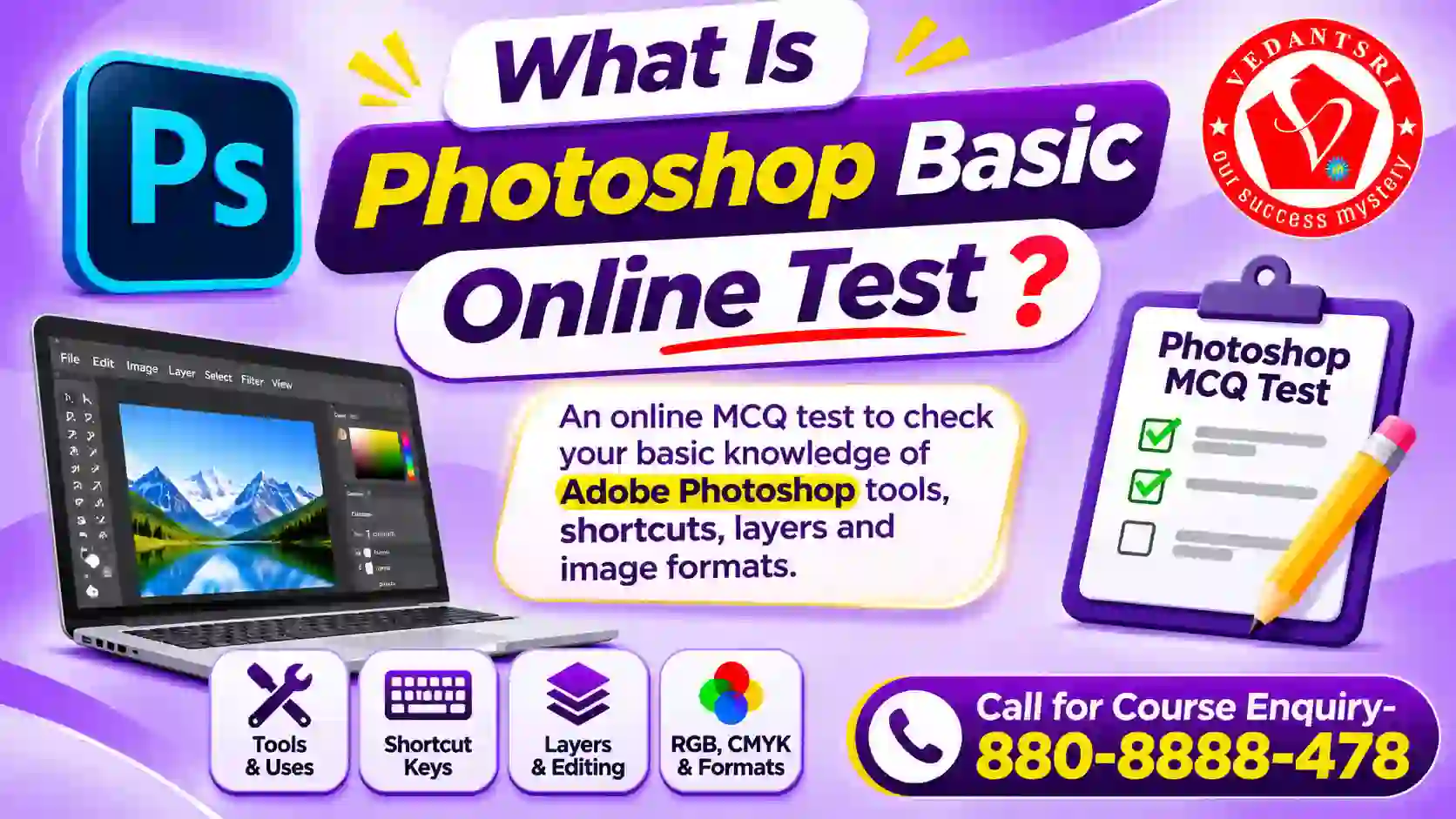
Photoshop Basic Online Test 2026 is an interactive MCQ practice test designed to check your basic knowledge of Adobe Photoshop. It contains 26 questions covering important tools, commands, shortcut keys and image-editing concepts.
Students can attempt the questions online and check their performance after completing the test.
This practice test is useful for:
- Students learning Adobe Photoshop.
- Beginners studying graphic designing.
- Students preparing for computer-related examinations.
- Candidates revising Photoshop tools and shortcut keys.
- Learners who want to improve their basic computer application knowledge.
The questions focus on practical software knowledge. You do not need advanced graphic designing experience to attempt this test.
Photoshop Basic Online Test 2026: Important MCQ Topics

A basic Photoshop test checks how well you understand the common tools and functions of the software.
The following topics are important for preparation.
1. Photoshop Tools and Their Uses
Photoshop provides different tools for selecting, editing, painting and modifying images.
Students should understand the uses of these tools:
- Move Tool
- Marquee Tool
- Lasso Tool
- Quick Selection Tool
- Crop Tool
- Eyedropper Tool
- Brush Tool
- Spot Healing Brush Tool
- Gradient Tool
- Frame Tool
For example, the Marquee Tool creates geometric selections. The Lasso Tool helps make freehand selections. The Crop Tool changes the visible boundaries of an image. Understanding the purpose of each tool will help you answer Photoshop basic questions more accurately.
2. Photoshop Shortcut Keys
- Shortcut keys make image editing faster. They help users select tools and perform common operations without repeatedly opening menus.
- Practise the shortcuts for Move, Crop, Lasso, Marquee, Quick Selection and Eyedropper tools.
- Also learn the common commands for creating a new document, opening an image, saving a file and duplicating a layer.
- Do not learn shortcuts only by memorising letters. Practise each shortcut on an actual image so you understand its function.
3. Layers and Image Editing
Layers are an important part of Photoshop.
They allow users to work with different elements separately. You can edit, move, hide, duplicate or organise layers without directly changing every element in the image.
Students should understand:
- What is a layer?
- What is a background layer?
- How to create a new layer.
- How to duplicate a layer.
- How to hide or show a layer.
- How to change layer order.
These concepts are useful for both basic MCQs and practical image-editing work.
4. RGB, CMYK and Image Formats
- Colour modes and image formats are also important Photoshop topics.
- RGB stands for Red, Green and Blue. It is commonly used for digital screens.
- CMYK stands for Cyan, Magenta, Yellow and Black. It is commonly used in colour printing workflows.
- Students should also understand the basic differences between JPEG, PNG and GIF files.
- PNG supports transparency with an alpha channel. GIF can also support transparency, but its transparency handling is more limited. JPEG generally does not support transparency.
- DPI means Dots Per Inch. It is a measurement used when discussing image and print resolution.
Photoshop MCQ Questions and Answers — 60 नए सवाल (3 Practice Sets)
ऊपर के test के अलावा यहाँ Photoshop MCQ के 60 नए सवाल हैं — tools, shortcut keys, layers, color mode और file format। DTP, Graphic Design, ADCA के exam और designer की नौकरी के test के लिए। “Test शुरू कीजिए” दबाइए — न login, न phone number; आख़िर में score और समझाव।
Photoshop Tools MCQ — Photoshop Multiple Choice Questions (Set 1)
Adobe Photoshop मुख्य रूप से किस तरह का software है?
- Spreadsheet
- Raster (pixel) image editing
- Vector drawing
- Video editing
उत्तर देखें
उत्तर: (b) Raster (pixel) image editing — Photoshop pixel वाली (raster) image पर काम करता है; CorelDRAW/Illustrator vector पर।
Photoshop को कौन-सी कंपनी बनाती है?
- Corel
- Adobe
- Microsoft
उत्तर देखें
उत्तर: (c) Adobe — Photoshop Adobe का software है, आज Creative Cloud subscription के साथ आता है।
Photoshop की अपनी (native) file का extension क्या है?
- .ai
- .psd
- .docx
- .cdr
उत्तर देखें
उत्तर: (b) .psd — PSD में layers, mask और effect सब बचे रहते हैं।
Image का कोई हिस्सा काटकर बाकी हटाने के लिए कौन-सा tool है?
- Hand Tool
- Brush Tool
- Type Tool
- Crop Tool
उत्तर देखें
उत्तर: (d) Crop Tool — Crop Tool (C) से image का अनचाहा किनारा हटता है।
एक जैसे रंग वाले हिस्से को एक click में select करने वाला tool कौन-सा है?
- Pen Tool
- Magic Wand Tool
- Zoom Tool
- Eraser Tool
उत्तर देखें
उत्तर: (b) Magic Wand Tool — Magic Wand रंग के आधार पर select करता है; Tolerance से दायरा तय होता है।
Photo से दाग़/धब्बा हटाकर आस-पास जैसा texture भरने वाला tool कौन-सा है?
- Gradient Tool
- Move Tool
- Spot Healing Brush
- Marquee Tool
उत्तर देखें
उत्तर: (c) Spot Healing Brush — Spot Healing Brush आस-पास के pixel से दाग़ भर देता है।
Image के एक हिस्से की हूबहू नकल दूसरी जगह पेंट करने वाला tool कौन-सा है?
- Clone Stamp Tool
- Dodge Tool
- Blur Tool
- Type Tool
उत्तर देखें
उत्तर: (a) Clone Stamp Tool — Clone Stamp में Alt दबाकर source चुनते हैं, फिर दूसरी जगह पेंट करते हैं।
Image के किसी हिस्से को हल्का (bright) करने वाला tool कौन-सा है?
- Sponge Tool
- Burn Tool
- Smudge Tool
- Dodge Tool
उत्तर देखें
उत्तर: (d) Dodge Tool — Dodge हल्का करता है, Burn गहरा, Sponge रंग की तीव्रता बदलता है।
Smooth curve वाला सटीक path बनाने के लिए कौन-सा tool है?
- Pen Tool
- Lasso Tool
- Paint Bucket
- Eyedropper
उत्तर देखें
उत्तर: (a) Pen Tool — Pen Tool से anchor point और curve वाला path बनता है — product cut-out में काम आता है।
Image से रंग उठाकर foreground color बनाने वाला tool कौन-सा है?
- Eyedropper Tool
- Hand Tool
- Slice Tool
- Crop Tool
उत्तर देखें
उत्तर: (a) Eyedropper Tool — Eyedropper (I) से किसी भी pixel का रंग उठता है।
Selection के किनारे को नरम (soft) करने की सेटिंग क्या कहलाती है?
- Feather
- Opacity
- Tolerance
- Resolution
उत्तर देखें
उत्तर: (a) Feather — Feather से selection का किनारा धुंधला-सा होकर image में घुल जाता है।
Photo में से कोई चीज़ हटाकर Photoshop से अपने आप भराव करवाने की सुविधा क्या है?
- Content-Aware Fill
- Canvas Size
- Free Transform
- Image Trace
उत्तर देखें
उत्तर: (a) Content-Aware Fill — Edit → Content-Aware Fill आस-पास देखकर हटाई गई जगह भर देता है।
Photo में चेहरा/शरीर को खींचकर आकार बदलने वाला filter कौन-सा है?
- Gaussian Blur
- Mosaic
- Liquify
- Emboss
उत्तर देखें
उत्तर: (c) Liquify — Filter → Liquify से pixel को धकेलकर आकार बदलते हैं।
Image को धुंधला करने का सबसे आम filter कौन-सा है?
- Find Edges
- Posterize
- Unsharp Mask
- Gaussian Blur
उत्तर देखें
उत्तर: (d) Gaussian Blur — Gaussian Blur background धुंधला करने और softness में काम आता है।
Image को तेज़ (sharp) करने वाला पुराना भरोसेमंद filter कौन-सा है?
- Unsharp Mask
- Diffuse
- Gaussian Blur
- Motion Blur
उत्तर देखें
उत्तर: (a) Unsharp Mask — नाम उल्टा लगता है, पर Unsharp Mask sharpening करता है।
Photoshop में text लिखने का tool कौन-सा है?
- Brush Tool
- Patch Tool
- Type Tool
- Pen Tool
उत्तर देखें
उत्तर: (c) Type Tool — Type Tool (T) से अलग text layer बनती है।
रंग धीरे-धीरे एक से दूसरे में बदलता भराव बनाने वाला tool कौन-सा है?
- Gradient Tool
- Ruler Tool
- Eraser Tool
- Paint Bucket Tool
उत्तर देखें
उत्तर: (a) Gradient Tool — Gradient Tool से background और button में रंग का घुलाव बनता है।
Photo की 3.5 × 4.5 cm size सबसे ज़्यादा किस काम में बनती है?
- Poster
- Banner
- Passport size photo
- Visiting card
उत्तर देखें
उत्तर: (c) Passport size photo — भारत में passport size photo आमतौर पर 3.5 × 4.5 cm की बनती है।
Print के लिए image का आम resolution कितना रखते हैं?
- 1200 ppi हमेशा
- 72 ppi
- 10 ppi
- 300 ppi
उत्तर देखें
उत्तर: (d) 300 ppi — Print के लिए 300 ppi, screen/web के लिए आमतौर पर 72-150 ppi काफ़ी है।
Photoshop का कौन-सा AI फ़ीचर लिखे हुए निर्देश (prompt) से image का हिस्सा बना देता है?
- Generative Fill
- Magic Wand
- Histogram
- Clone Stamp
उत्तर देखें
उत्तर: (a) Generative Fill — Generative Fill (Adobe Firefly) selection में prompt के अनुसार नई चीज़ बना देता है।
Photoshop Shortcut Keys MCQ — Photoshop Quiz (Set 2)
Photoshop में Free Transform (आकार/घुमाव बदलना) का shortcut क्या है?
- Ctrl + F
- Ctrl + T
- Ctrl + Y
- Ctrl + R
उत्तर देखें
उत्तर: (b) Ctrl + T — Ctrl + T से चुनी layer का size, rotate और skew बदलता है।
चुनी हुई layer की copy (duplicate) बनाने का shortcut क्या है?
- Ctrl + D
- Ctrl + J
- Ctrl + K
- Ctrl + E
उत्तर देखें
उत्तर: (b) Ctrl + J — Ctrl + J = Layer via Copy; selection हो तो सिर्फ़ उतना हिस्सा नई layer में।
Selection हटाने (Deselect) का shortcut क्या है?
- Ctrl + S
- Ctrl + Q
- Ctrl + D
- Ctrl + W
उत्तर देखें
उत्तर: (c) Ctrl + D — Ctrl + D से selection की चलती लाइन हट जाती है।
Selection को उल्टा (Inverse) करने का shortcut क्या है?
- Ctrl + I
- Ctrl + Alt + I
- Shift + I
- Ctrl + Shift + I
उत्तर देखें
उत्तर: (d) Ctrl + Shift + I — Ctrl + Shift + I से जो चुना नहीं था वो चुन जाता है — background हटाने में काम आता है।
Ctrl + I दबाने से image पर क्या होता है?
- नई layer बनती है
- Italic text
- Image size खुलता है
- रंग उल्टे (Invert) हो जाते हैं
उत्तर देखें
उत्तर: (d) रंग उल्टे (Invert) हो जाते हैं — Ctrl + I = Invert, negative जैसा असर।
Image Size dialog खोलने का shortcut क्या है?
- Ctrl + Shift + S
- Ctrl + Alt + C
- Ctrl + N
- Ctrl + Alt + I
उत्तर देखें
उत्तर: (d) Ctrl + Alt + I — Ctrl + Alt + I = Image Size; Ctrl + Alt + C = Canvas Size।
Canvas Size बदलने का shortcut क्या है?
- Ctrl + Alt + C
- Ctrl + C
- Ctrl + Alt + I
- Alt + C
उत्तर देखें
उत्तर: (a) Ctrl + Alt + C — Canvas Size से image के चारों ओर जगह बढ़ती-घटती है।
नई खाली layer बनाने का shortcut क्या है?
- Ctrl + N
- Ctrl + L
- Ctrl + Shift + L
- Ctrl + Shift + N
उत्तर देखें
उत्तर: (d) Ctrl + Shift + N — Ctrl + Shift + N = New Layer; Ctrl + N = नई file।
Layer को नीचे वाली layer में मिलाने (Merge Down) का shortcut क्या है?
- Ctrl + M
- Ctrl + G
- Ctrl + B
- Ctrl + E
उत्तर देखें
उत्तर: (d) Ctrl + E — Ctrl + E = Merge Down; Ctrl + Shift + E = सारी दिखती layer मिलाना।
कई layers को एक group में रखने का shortcut क्या है?
- Ctrl + G
- Ctrl + J
- Ctrl + E
- Ctrl + U
उत्तर देखें
उत्तर: (a) Ctrl + G — Ctrl + G से चुनी layers एक folder (group) में चली जाती हैं।
Hue/Saturation का shortcut क्या है?
- Ctrl + S
- Ctrl + H
- Ctrl + B
- Ctrl + U
उत्तर देखें
उत्तर: (d) Ctrl + U — Ctrl + U से रंग (hue), तीव्रता (saturation) और रोशनी बदलती है।
Levels खोलने का shortcut क्या है?
- Ctrl + V
- Ctrl + M
- Ctrl + L
- Ctrl + K
उत्तर देखें
उत्तर: (c) Ctrl + L — Ctrl + L = Levels; Ctrl + M = Curves।
Curves खोलने का shortcut क्या है?
- Ctrl + R
- Ctrl + L
- Ctrl + M
- Ctrl + C
उत्तर देखें
उत्तर: (c) Ctrl + M — Curves से रोशनी और contrast बारीकी से ठीक होता है।
Photo को black & white (Desaturate) करने का shortcut क्या है?
- Ctrl + Shift + B
- Ctrl + U
- Ctrl + D
- Ctrl + Shift + U
उत्तर देखें
उत्तर: (d) Ctrl + Shift + U — Ctrl + Shift + U रंग हटाकर grey कर देता है।
Layer को foreground color से भरने का shortcut क्या है?
- Alt + Backspace
- Ctrl + Backspace
- Shift + Delete
- Ctrl + Delete
उत्तर देखें
उत्तर: (a) Alt + Backspace — Alt + Backspace = foreground से भराव; Ctrl + Backspace = background color से।
Brush का size छोटा-बड़ा करने की keys कौन-सी हैं?
- + और -
- < और >
- [ और ]
- PgUp और PgDn
उत्तर देखें
उत्तर: (c) [ और ] — [ से brush छोटा, ] से बड़ा।
Foreground और background color आपस में बदलने की key कौन-सी है?
- D
- X
- S
- C
उत्तर देखें
उत्तर: (b) X — X से दोनों रंग बदलते हैं; D से default काला-सफ़ेद।
Rulers दिखाने/छिपाने का shortcut क्या है?
- Ctrl + R
- Ctrl + G
- Ctrl + U
- Ctrl + H
उत्तर देखें
उत्तर: (a) Ctrl + R — Ctrl + R से ऊपर और बाईं ओर ruler आते हैं, जिनसे guide खींचते हैं।
Image को screen पर पूरा fit करके दिखाने का shortcut क्या है?
- Ctrl + 1
- Ctrl + 9
- Ctrl + 0
- Alt + 0
उत्तर देखें
उत्तर: (c) Ctrl + 0 — Ctrl + 0 = Fit on Screen; Ctrl + 1 = 100%।
Clipping Mask बनाने का shortcut क्या है?
- Ctrl + Shift + G
- Ctrl + Alt + G
- Ctrl + G
- Alt + G
उत्तर देखें
उत्तर: (b) Ctrl + Alt + G — Ctrl + Alt + G से ऊपर वाली layer सिर्फ़ नीचे वाली layer के आकार में दिखती है।
Layers, Color Mode और File Format — Photoshop Test Questions (Set 3)
Layer Mask में काला रंग भरने से क्या होता है?
- उस हिस्से की layer छिप जाती है
- Layer मिट जाती है हमेशा के लिए
- Layer का रंग काला हो जाता है
- कुछ नहीं होता
उत्तर देखें
उत्तर: (a) उस हिस्से की layer छिप जाती है — Mask में काला = छिपाओ, सफ़ेद = दिखाओ; pixel मिटते नहीं।
Adjustment Layer का सबसे बड़ा फ़ायदा क्या है?
- File छोटी हो जाती है
- असली pixel बदले बिना कभी भी सुधार बदल सकते हैं
- Print तेज़ होता है
- Text बन जाता है
उत्तर देखें
उत्तर: (b) असली pixel बदले बिना कभी भी सुधार बदल सकते हैं — Adjustment layer non-destructive है — बाद में setting बदलो या हटा दो।
Smart Object में बदलने से क्या फ़ायदा होता है?
- रंग अपने आप ठीक
- File JPG बन जाती है
- Layer छिप जाती है
- छोटा-बड़ा करने पर quality नहीं गिरती
उत्तर देखें
उत्तर: (d) छोटा-बड़ा करने पर quality नहीं गिरती — Smart Object असली data बचाकर रखता है, इसलिए बार-बार resize पर भी quality बनी रहती है।
Blending mode 'Multiply' का असर क्या होता है?
- कोई असर नहीं
- Image गहरी (dark) होती है, सफ़ेद हिस्सा गायब
- Image हल्की होती है
- Image उल्टी होती है
उत्तर देखें
उत्तर: (b) Image गहरी (dark) होती है, सफ़ेद हिस्सा गायब — Multiply गहरा करता है; Screen उसका उल्टा — हल्का करता है।
Blending mode 'Screen' का असर क्या होता है?
- Image हल्की (light) होती है, काला हिस्सा गायब
- Image कट जाती है
- Image धुंधली होती है
- Image गहरी होती है
उत्तर देखें
उत्तर: (a) Image हल्की (light) होती है, काला हिस्सा गायब — Screen से रोशनी और glow वाले effect बनते हैं।
Layer Style (fx) में कौन-सा effect मिलता है?
- Mail Merge
- Drop Shadow
- Pivot Table
- Slide Transition
उत्तर देखें
उत्तर: (b) Drop Shadow — Drop Shadow, Stroke, Bevel & Emboss, Outer Glow — सब layer style हैं।
Screen (monitor, mobile) के लिए design किस color mode में बनाते हैं?
- Grayscale हमेशा
- CMYK
- RGB
- Bitmap
उत्तर देखें
उत्तर: (c) RGB — RGB = Red, Green, Blue — रोशनी वाले screen के लिए।
Print (press) के लिए आमतौर पर कौन-सा color mode चाहिए?
- Lab ही हमेशा
- CMYK
- RGB
- Indexed
उत्तर देखें
उत्तर: (b) CMYK — CMYK = Cyan, Magenta, Yellow, Black — छपाई की स्याही।
Transparent background वाली image save करने के लिए आम format कौन-सा है?
- BMP
- PDF हमेशा
- PNG
- JPEG
उत्तर देखें
उत्तर: (c) PNG — PNG पारदर्शिता रखता है; JPEG में transparent background नहीं रहता।
JPEG format की खास बात क्या है?
- सिर्फ़ 2 रंग
- Transparency रखता है
- Layers बचाता है
- Lossy compression — file छोटी, quality थोड़ी घटती
उत्तर देखें
उत्तर: (d) Lossy compression — file छोटी, quality थोड़ी घटती — JPEG photo के लिए छोटा format है, पर बार-बार save से quality गिरती है।
GIF format में अधिकतम कितने रंग होते हैं?
- 256
- 16 लाख
- 64
- 1024
उत्तर देखें
उत्तर: (a) 256 — GIF 256 रंग और छोटा animation रखता है।
2 GB से बड़ी या बहुत बड़ी Photoshop file किस format में रखते हैं?
- .jpg
- .psd
- .png
- .psb (Large Document Format)
उत्तर देखें
उत्तर: (d) .psb (Large Document Format) — PSB बहुत बड़े document के लिए है।
Opacity और Fill में क्या फ़र्क है?
- Opacity सिर्फ़ background पर
- Fill घटाने पर layer style (जैसे shadow) बचा रहता है
- Fill सिर्फ़ text पर
- दोनों बिल्कुल एक जैसे
उत्तर देखें
उत्तर: (b) Fill घटाने पर layer style (जैसे shadow) बचा रहता है — Opacity पूरी layer + style को पारदर्शी करता है, Fill सिर्फ़ layer के pixel को।
Histogram क्या दिखाता है?
- Font की सूची
- File का size
- Layers की संख्या
- Image में अंधेरे से रोशनी तक pixel कितने हैं
उत्तर देखें
उत्तर: (d) Image में अंधेरे से रोशनी तक pixel कितने हैं — Histogram से पता चलता है कि photo बहुत dark या overexposed तो नहीं।
History panel का काम क्या है?
- Font लगाना
- Color mode बदलना
- Print करना
- पिछले कदमों पर वापस जाना
उत्तर देखें
उत्तर: (d) पिछले कदमों पर वापस जाना — History panel में किए गए काम की सूची होती है; किसी भी कदम पर लौट सकते हैं।
Layer को lock करने का फ़ायदा क्या है?
- गलती से हिलने या बदलने से बचती है
- File छोटी होती है
- Layer छिप जाती है
- रंग बदलता है
उत्तर देखें
उत्तर: (a) गलती से हिलने या बदलने से बचती है — Lock से position, pixel या transparency बदलने से रोक सकते हैं।
Quick Mask mode की key कौन-सी है?
- K
- Q
- W
- M
उत्तर देखें
उत्तर: (b) Q — Q से Quick Mask में brush से selection बनाते/सुधारते हैं।
Photo को social media या web के लिए हल्का करके export करने का रास्ता कौन-सा है?
- Image → Mode → CMYK
- Filter → Liquify
- File → Export → Export As
- Layer → Merge
उत्तर देखें
उत्तर: (c) File → Export → Export As — Export As में format, size और quality चुनकर हल्की file बनती है।
Camera Raw Filter किस काम आता है?
- Text लिखना
- Layer group बनाना
- Exposure, रंग, sharpness जैसे photo सुधार एक जगह
- Vector logo बनाना
उत्तर देखें
उत्तर: (c) Exposure, रंग, sharpness जैसे photo सुधार एक जगह — Filter → Camera Raw Filter (Shift + Ctrl + A) photo सुधार का पूरा panel है।
Photoshop में vector shape (rectangle, ellipse) बनाने वाला tool group कौन-सा है?
- Lasso Tool (L)
- Healing Tool (J)
- Blur Tool
- Shape Tool (U)
उत्तर देखें
उत्तर: (d) Shape Tool (U) — Shape tool से बनी आकृति vector होती है, resize पर किनारा साफ़ रहता है।
Photoshop Interview Questions (Graphic Designer / DTP Operator)
Raster और Vector image में क्या फ़र्क है?
Raster pixel से बनती है (photo, Photoshop) — ज़्यादा बड़ा करने पर फटती है। Vector गणित की रेखाओं से बनती है (logo, CorelDRAW/Illustrator) — कितना भी बड़ा करो, साफ़ रहती है।
Background कैसे हटाएँगे?
Select Subject या Quick Selection से चीज़ चुनिए, Select and Mask से किनारे ठीक कीजिए, फिर Layer Mask लगाइए — ताकि ज़रूरत पड़ने पर वापस ला सकें।
Print के लिए file भेजने से पहले क्या जाँचेंगे?
Size और resolution (300 ppi), color mode CMYK, किनारे पर bleed, text की spelling और final PDF/TIFF format।
Non-destructive editing का क्या मतलब है?
असली photo को छुए बिना सुधार — adjustment layer, layer mask, smart object और smart filter से। बाद में कुछ भी बदल सकते हैं।
Photoshop Online Test से जुड़े ज़रूरी सवाल
Photoshop MCQ Online Test free है?
हाँ। ऊपर का पुराना test और ये तीनों नए sets free हैं; नए sets के लिए login या phone नंबर नहीं चाहिए।
Photoshop के सवाल किस exam और interview में आते हैं?
DTP, Graphic Design और ADCA के exam, press/studio की नौकरी के test और graphic designer के interview में — tools, shortcut keys, layers, color mode और file format से।
Photoshop की shortcut keys कैसे याद करें?
रोज़ के काम में shortcut इस्तेमाल कीजिए — Ctrl + T, Ctrl + J, Ctrl + D, Ctrl + Shift + I — और Set 2 को बार-बार दीजिए।
Design की और तैयारी: Graphic Designing Course, 6 महीने का DTP Course और Video Editing Course। Computer basics के लिए Computer Basic Online Test।
Frequently Asked Questions
How many questions are included in Photoshop Basic Online Test 2026?
The existing VedantSri Photoshop Basic Online Test contains 26 multiple-choice questions. These questions cover basic Photoshop tools, shortcut keys, image formats, colour modes and editing concepts.
Is Photoshop Basic Online Test suitable for beginners?
Yes. The test focuses on basic Photoshop knowledge. Students who have recently started learning image editing can use it to revise important concepts and identify topics that require more practice.
What type of questions are asked in Photoshop MCQ Online Test?
Questions cover tool functions, shortcut keys, layers, RGB, CMYK, GIF, PNG, DPI and common Photoshop commands. Most questions check basic software understanding.
Can I use this Photoshop test for CCC preparation?
You can use it to practise Photoshop-related computer knowledge. However, this test should not be treated as an official CCC examination or a complete replacement for the prescribed CCC syllabus.
Is Photoshop an image-editing software?
Yes. Adobe Photoshop is an image-editing and raster graphics application. It is widely used for photo correction, image composition, digital artwork and graphic design
External Link
- VedantSri Official Website: https://vedantsri.com
- Course Store Website: https://vedantsri.in
- Jobs Assist Website: https://www.jobdo.in
- MS Word Class: https://mswordclass.com/
- Corel Free Class: https://corelclass.com/
- Free Excel Class: https://msexcelclass.com/
Test dene ke baad Photoshop ka abhyaas aage badhaiye: How to Create an Animated GIF in Photoshop: Easy Guide aur Photoshop Viewing Shortcut Keys — inhe padh kar test dobara dijiye, number apne aap behtar honge.
Photoshop Questions with Answers
Photoshop Questions with Answers – Set 2
- What is the Shortcut Key for Move Tool in Photoshop?Answer: V
- What is the Use of the Move Tool in Photoshop?Answer: Move a Selection or Layer
- What is the Shortcut Key for Rectangular Marquee Tool in Photoshop?Answer: M
- What is the Use of Rectangular Marquee Tool in Photoshop?Answer: Makes a Selection in the Shape of a Rectangle
- What is the Shortcut Key for Lasso Tool in Photoshop?Answer: L
- What is the Use of the Lasso Tool in Photoshop?Answer: Makes Freehand Selections
- What is the Shortcut Key for Quick Selection Tool in Photoshop?Answer: W
- What is the Use of Quick Selection Tool in Photoshop?Answer: Makes a Selection by Finding and Following the Edges in an Image
- What is Shortcut Key for Crop Tool in Photoshop?Answer: C
- What is the Use of Crop Tool in Photoshop?Answer: Trims or expands the edges of an Image
Photoshop Questions with Answers – Set 8
- What is the function of the Healing Brush Tool?Answer: Blends textures
- What is the shortcut for the Healing Brush?Answer: J
- What does the Magic Wand Tool do?Answer: Selects by color
- What is the shortcut for the Magic Wand?Answer: W
- What is a Smart Object?Answer: A non-destructive container
- What is the purpose of a Clipping Mask?Answer: Uses the bottom layer as a mask
- What is the shortcut for the Shape Tool?Answer: U
- What is the purpose of Layer Styles?Answer: Adds effects like drop shadows and strokes
- What is the shortcut to open the Color Panel?Answer: F6
- What is the shortcut to open the Info Panel?Answer: F8
Photoshop Questions with Answers – Set 10
- What is the function of the Paint Bucket Tool?Answer: Fills areas with color
- What is the purpose of the Smudge Tool?Answer: Blends colors
- What does the Sharpen Tool do?Answer: Increases contrast
- What does the Dodge Tool do?Answer: Lightens areas
- What does the Burn Tool do?Answer: Darkens areas
- What does the Sponge Tool do?Answer: Changes saturation
- What is the shortcut for the Dodge/Burn tool?Answer: O
- What is the purpose of the Notes Tool?Answer: Adds non-printing notes
- What is the purpose of the Count Tool?Answer: Counts objects
- What is the shortcut for the Screen Modes?Answer: F
Photoshop Questions with Answers – Set 13
- What is Perspective Warp?Answer: Adjusts perspective of objects
- What is the purpose of the Timeline Panel?Answer: Video editing and animation
- What is Frame Animation?Answer: Creates animations frame by frame
- What is the Video Timeline?Answer: Creates animations using keyframes
- What is the purpose of the Render Video command?Answer: Exports video
- What is the 'Export As' feature?Answer: Exports optimized images for web
- What is a Script in Photoshop?Answer: Automates tasks
- What is the Preset Manager?Answer: Manages brushes, swatches, etc.
- What is the purpose of the Adaptive Wide Angle filter?Answer: Corrects lens distortion
- What is the Oil Paint filter?Answer: Applies an oil painting effect
Also read

Python Online Test Series Final – The Smartest Way to Test Your Coding Skills
Python Online Test Series Final – The Smartest Way to Test Your Coding Skills Let me be honest with you. I have…

A to Z Python Online Test Series Intermediate – Guide That Actually Makes You Job-Ready
A to Z Python Online Test Series Intermediate – Guide That Actually Makes You Job-Ready Let me be honest with you. I…

HTML CSS Online Test Series Final
HTML CSS Online Test Series Final Let me be honest with you. You have watched many videos. You have read many notes.…