Home Blog Page 15

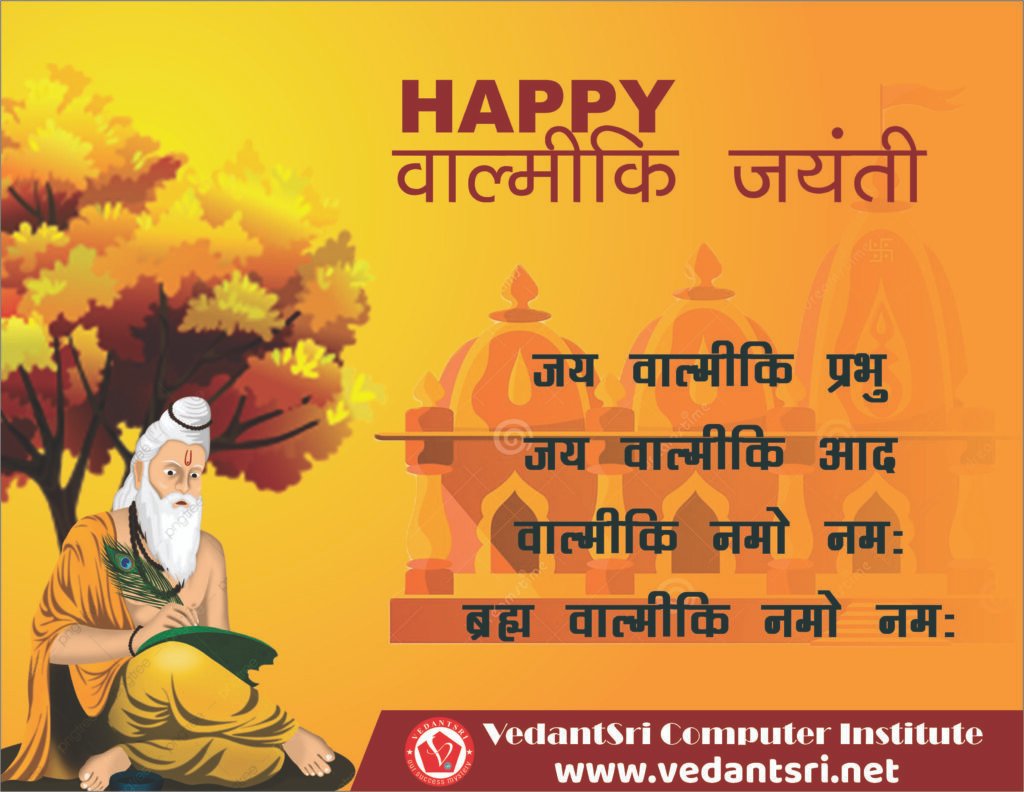
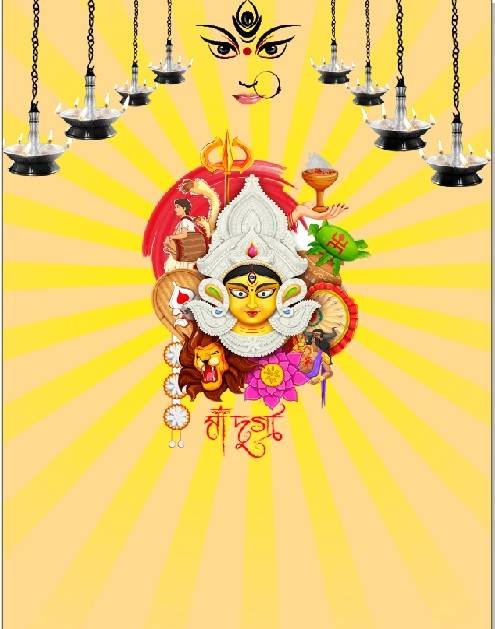
Happy Valmiki Jayanti Poster Design in CorelDraw, Top 1 Best Easy and Effective, Download Source File

Happy Valmiki Jayanti Poster Design in CorelDraw, Top 1 Best Easy and Effective, Download Source File

Hello! Friends Welcome to www.vedantsri.net In this Project, I am going to Teach you How To Design Valmiki Jayanti posters in CorelDraw. In this Project, you can Learn How to make a Design in CorelDraw Application an Easy Method. You can also Download the Practice File in this Post. So let’s start this Project. Before Starting this Project I request you to Please Follow given below Steps to Learn Properly Step by step.

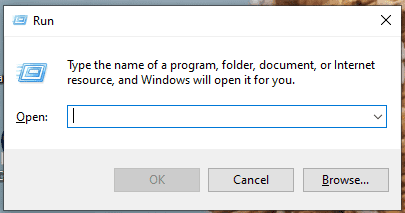
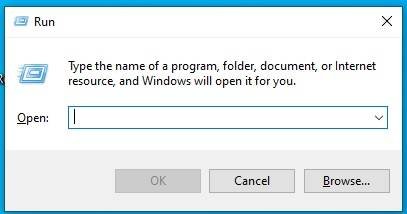
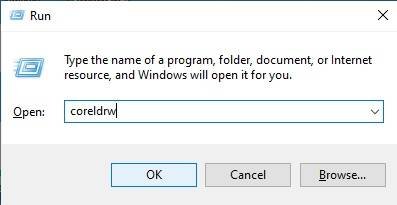
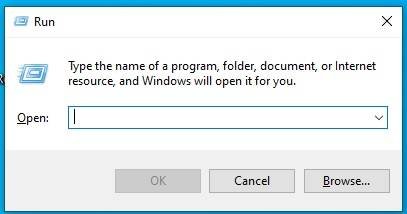
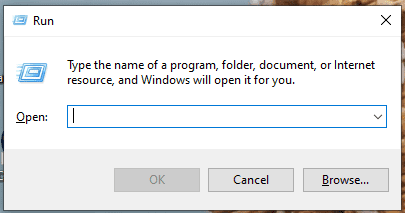
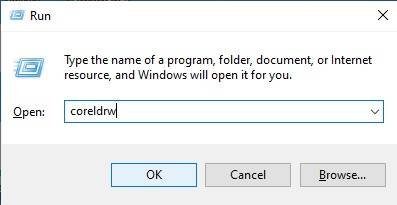
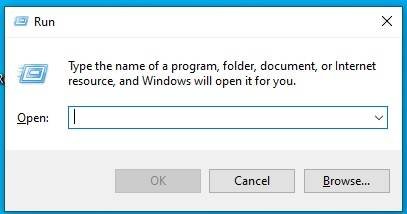
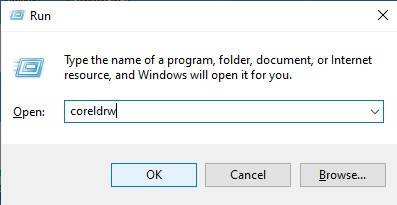
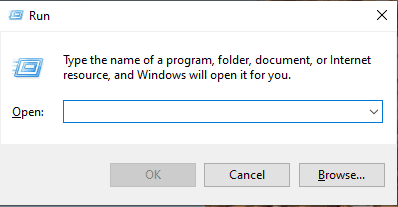
  • Press Windows + R on the keyboard.
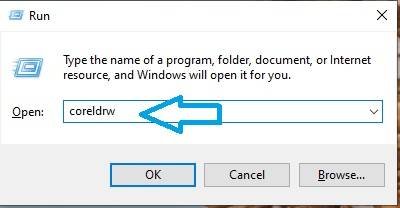
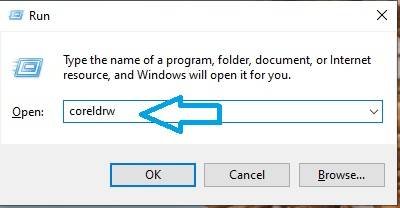
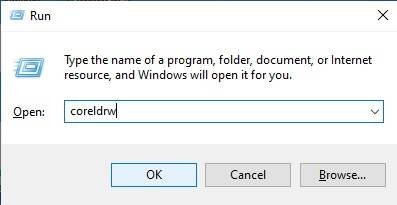
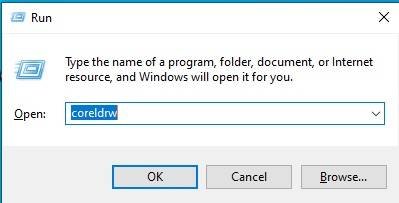
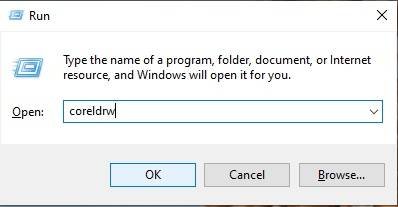
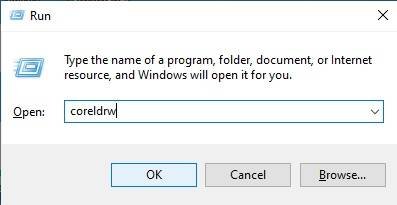
  • Type coreldrw in Run Dialog Box.
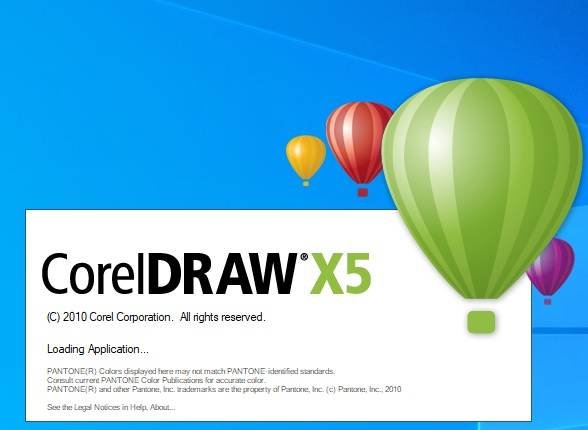
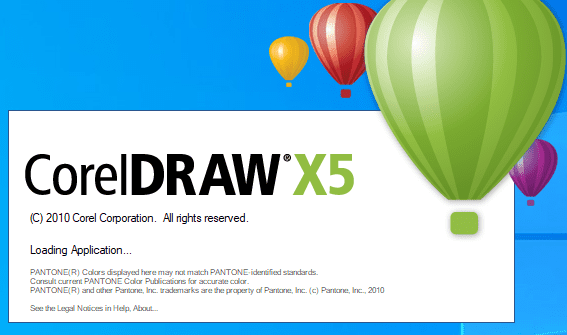
  • Click on OK.
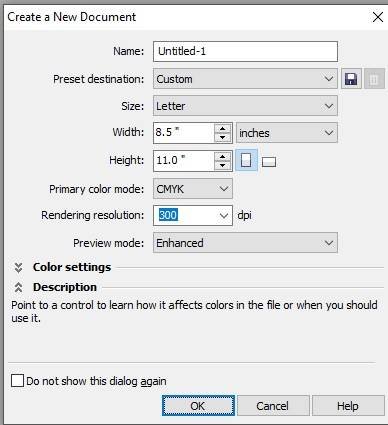
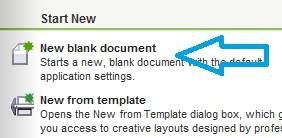
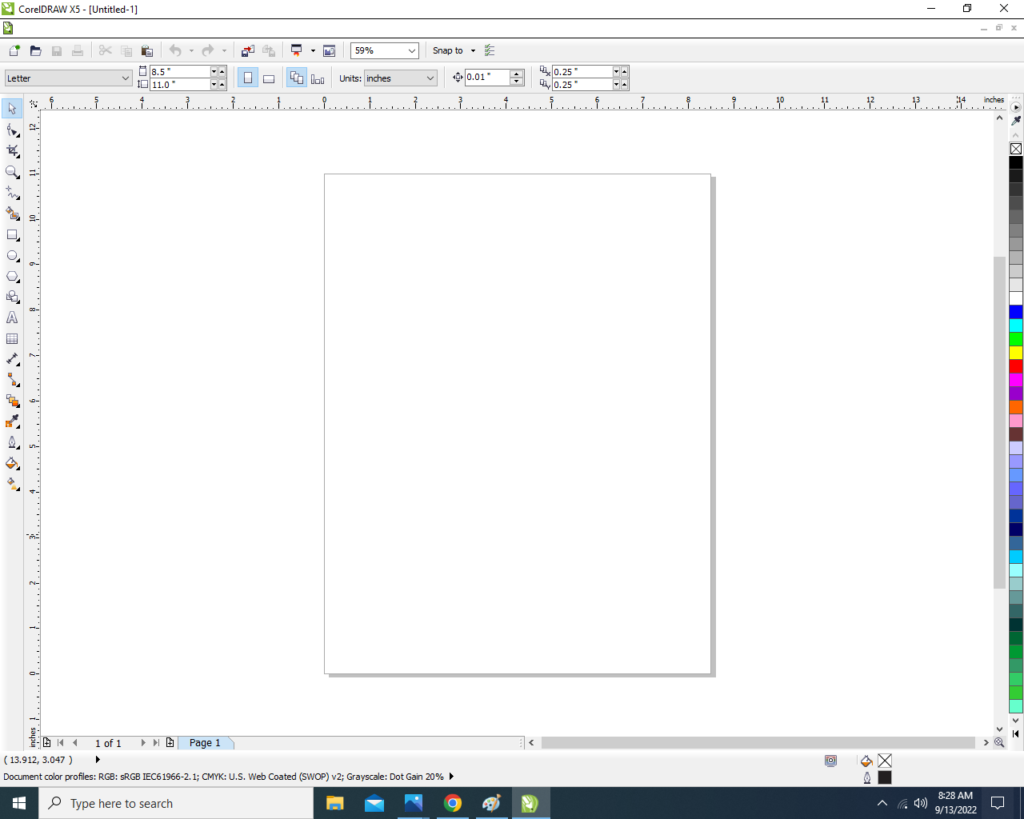
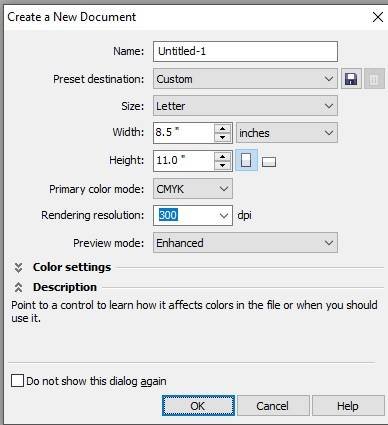
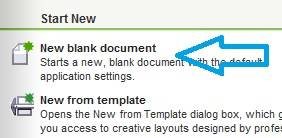
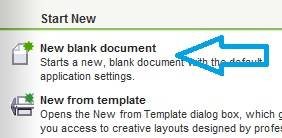
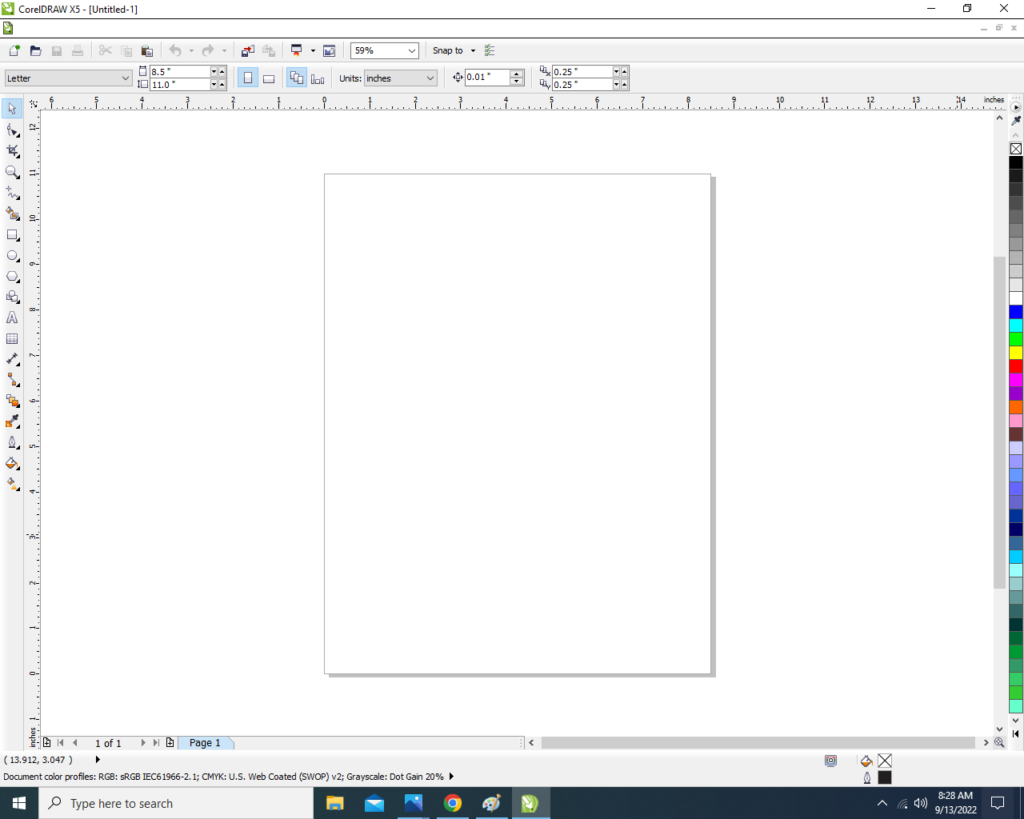
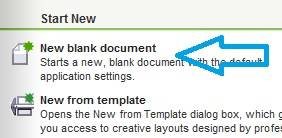
  • Click on New Blank Document.
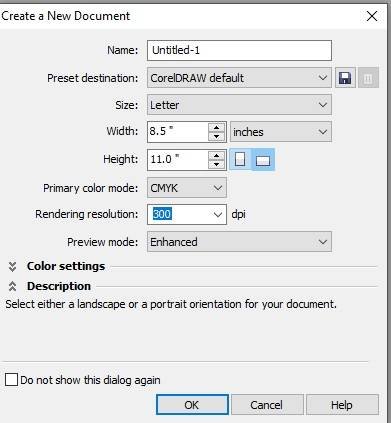
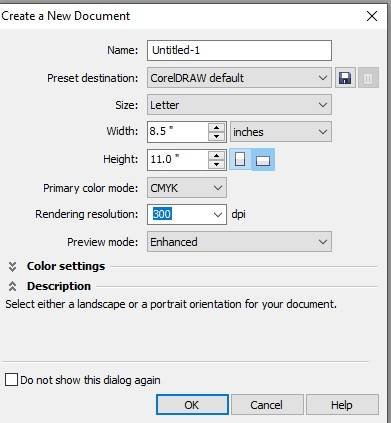
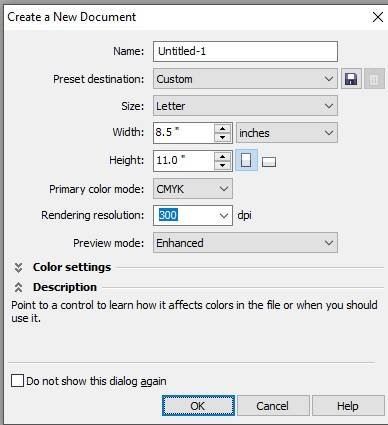
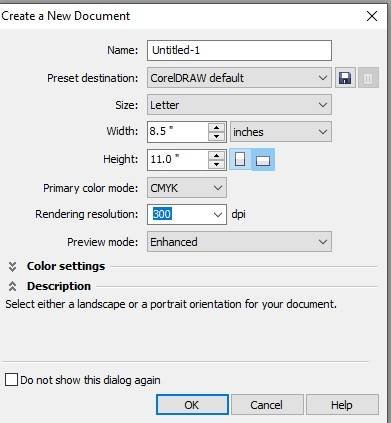
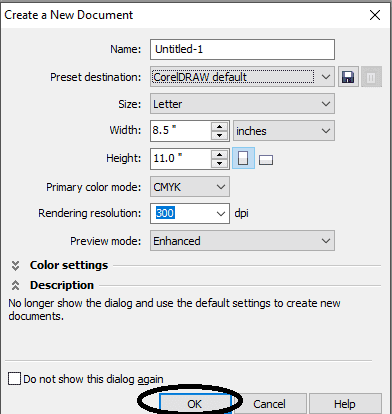
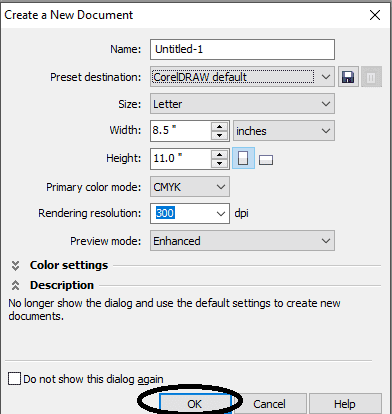
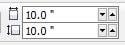
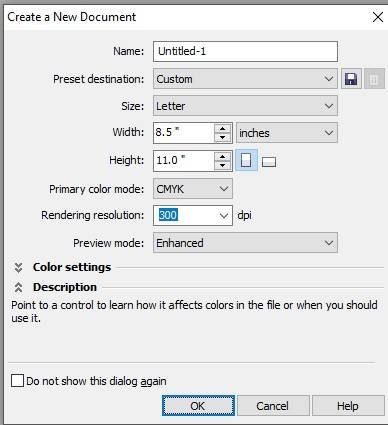
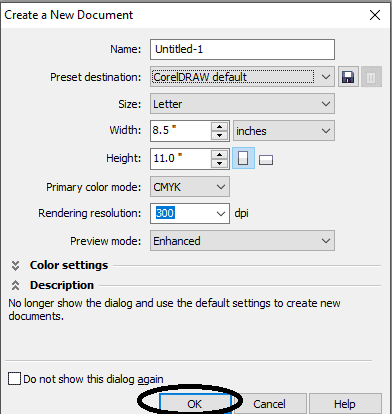
  • Fill al Information > Regarding New Document.
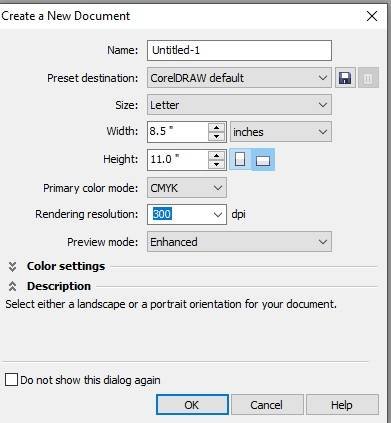
  • Click at Ok.
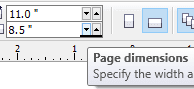
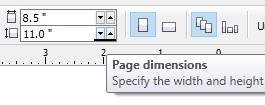
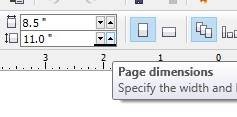
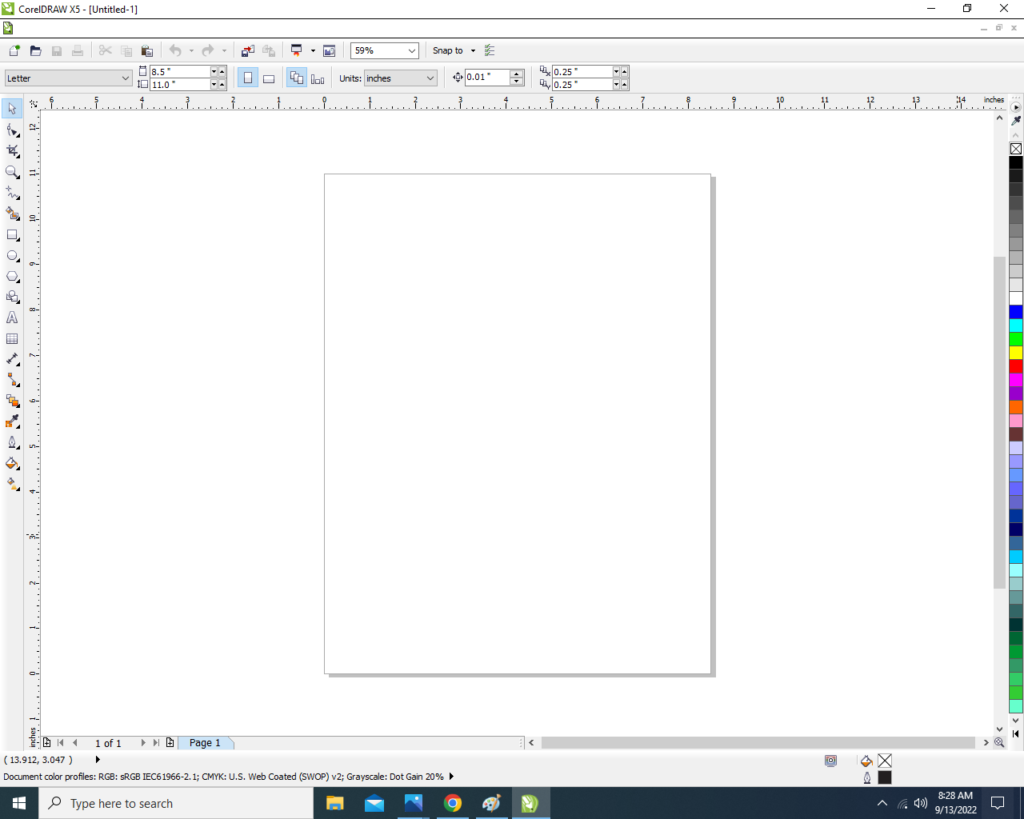
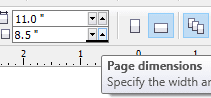
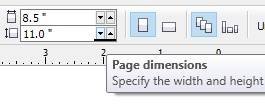
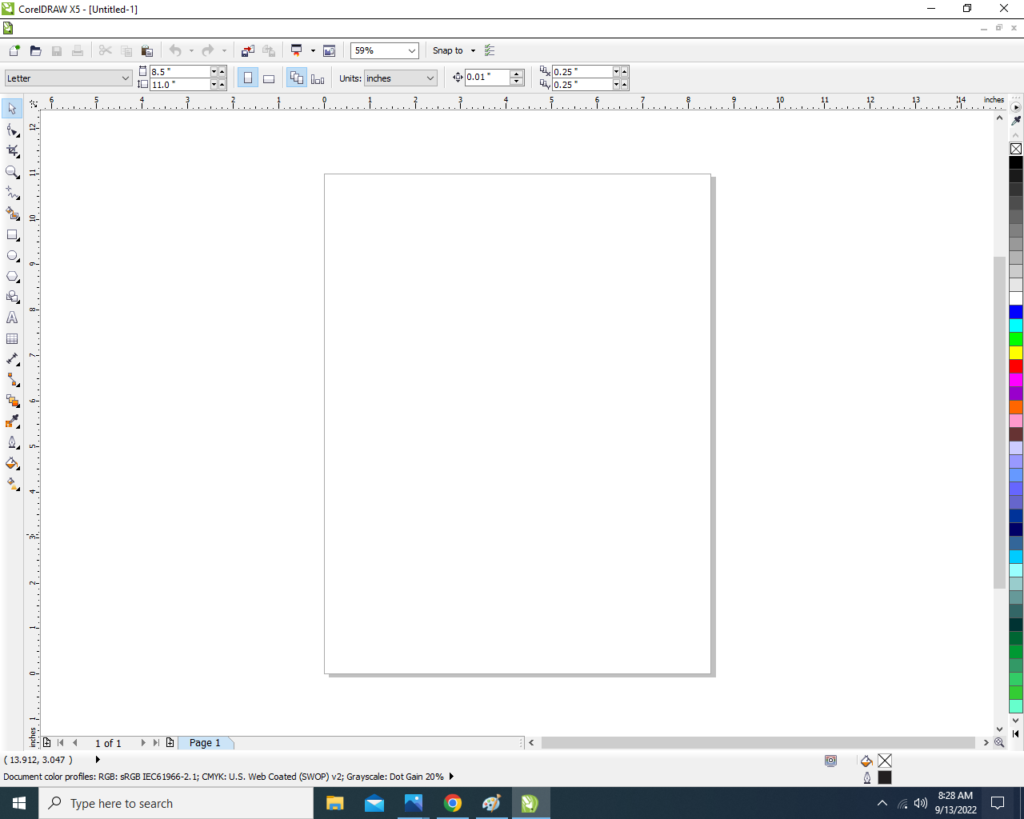
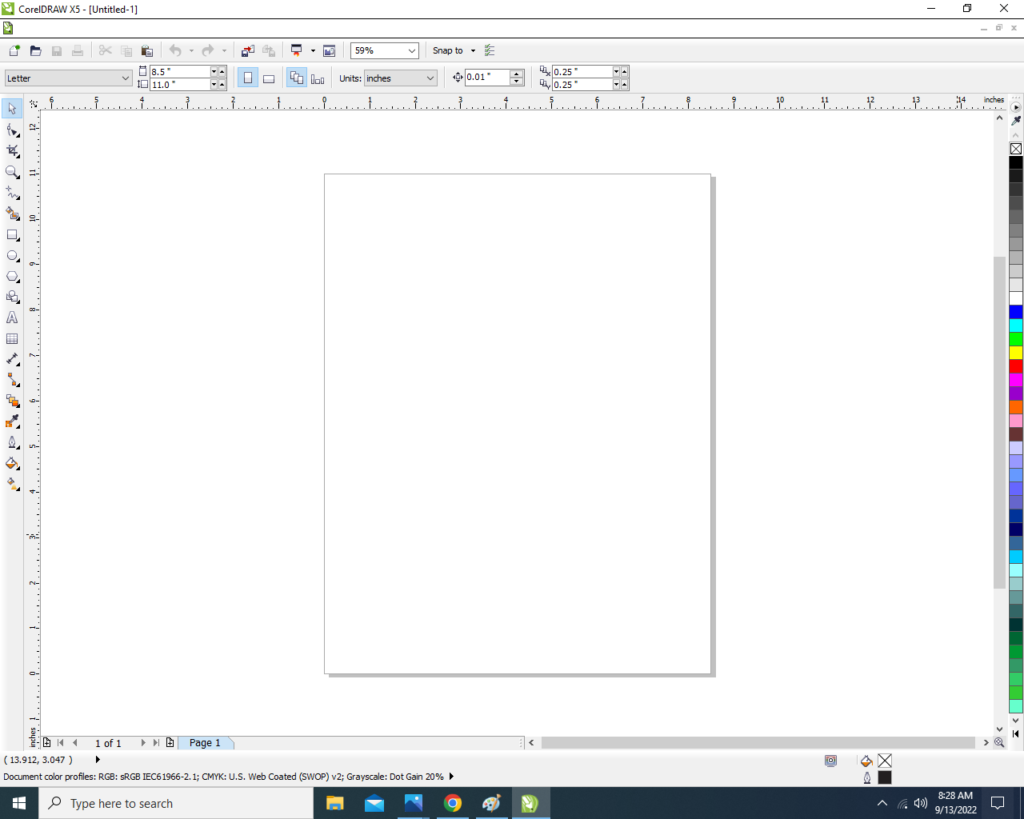
  • Define Page.
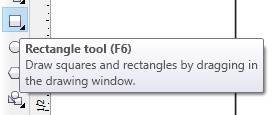
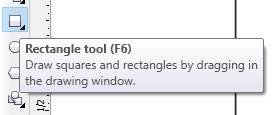
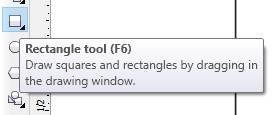
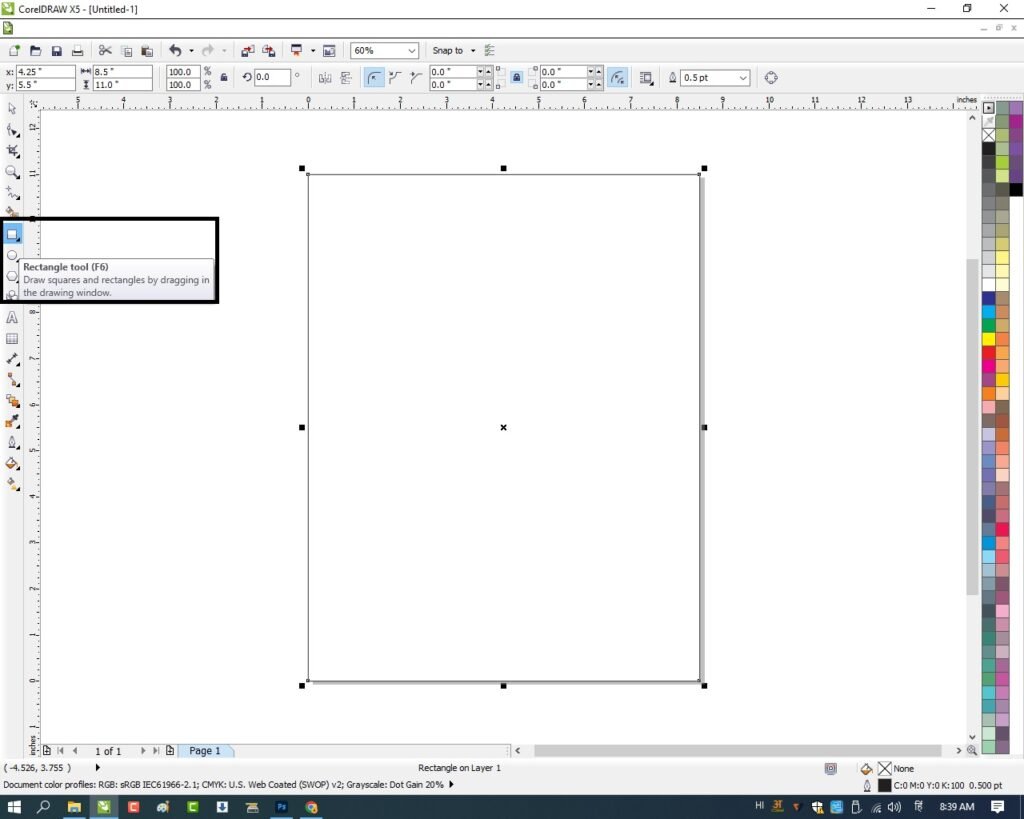
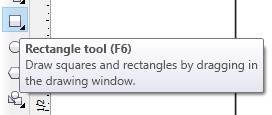
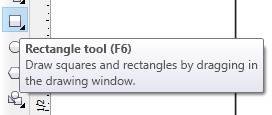
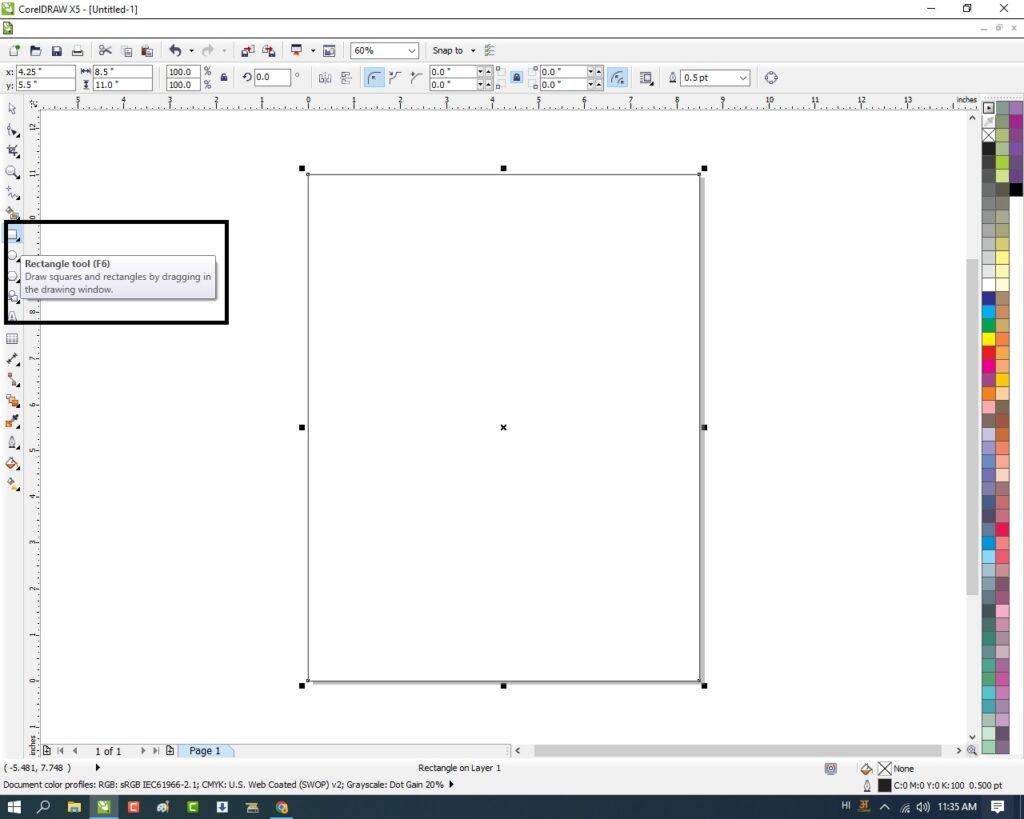
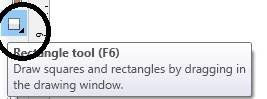
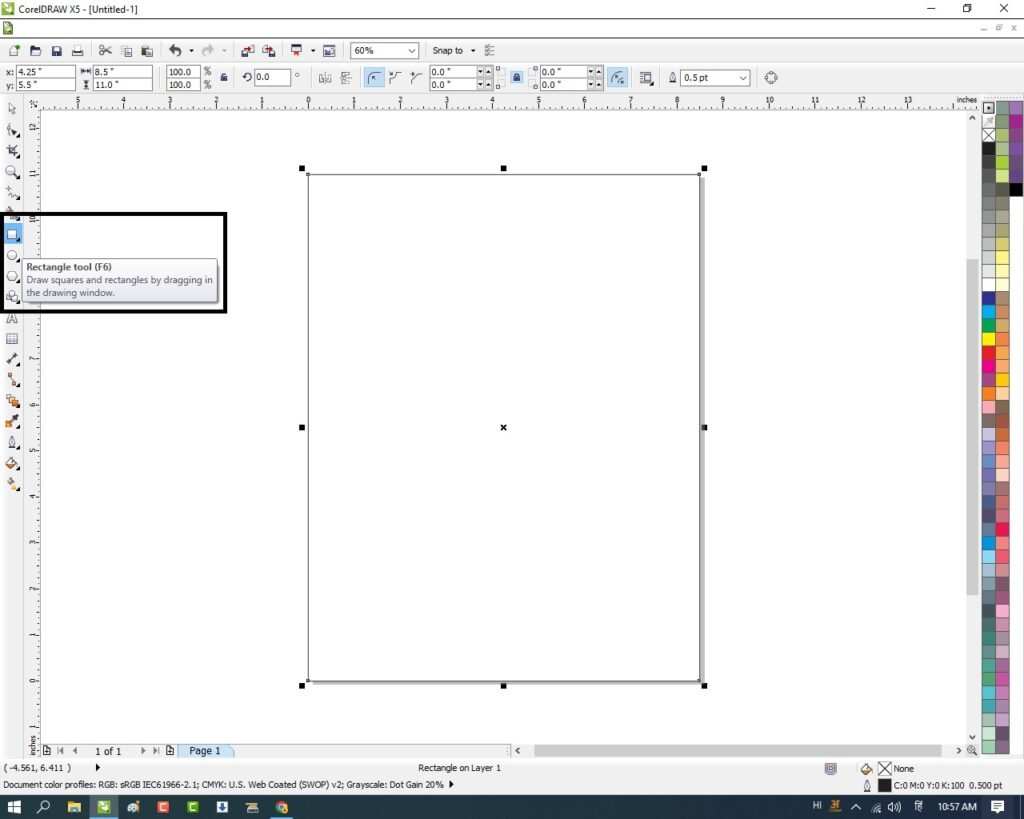
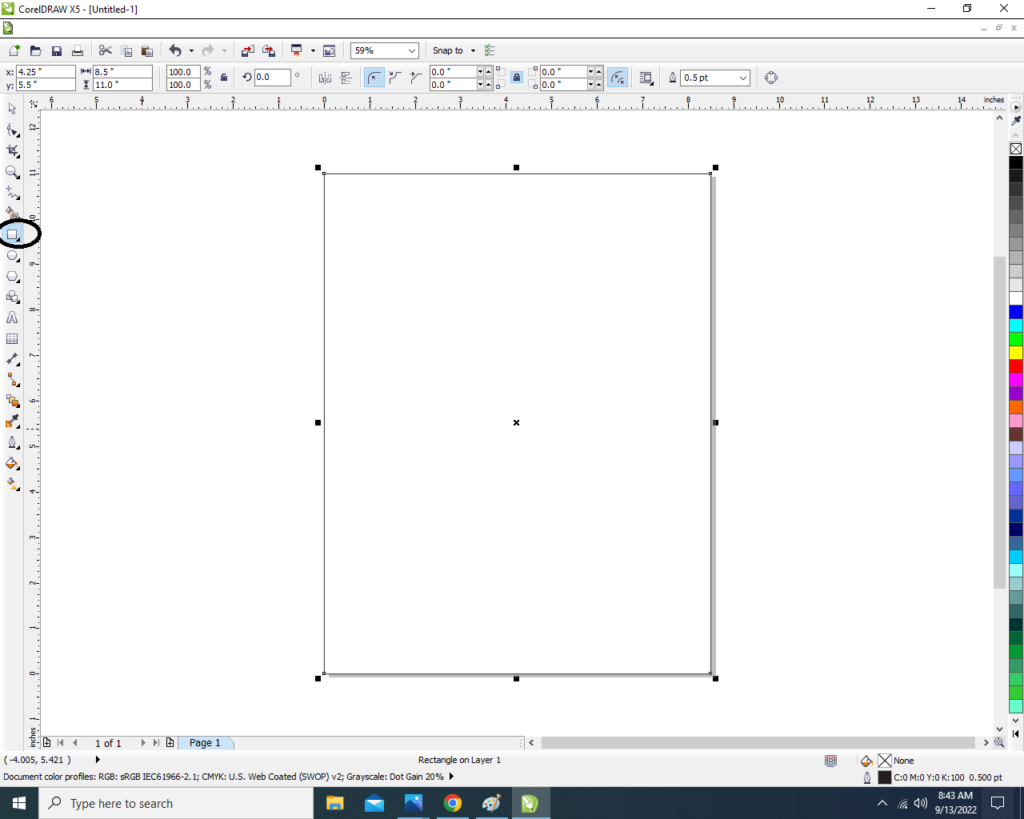
  • Go to Rectangle Tool.
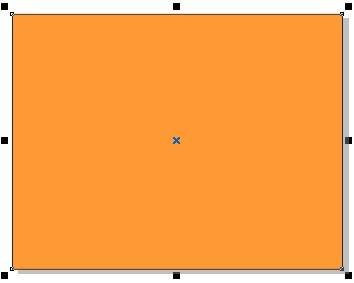
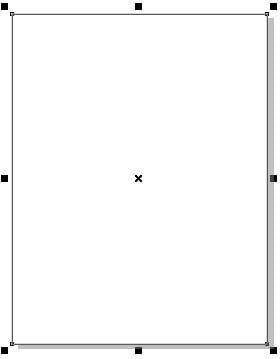
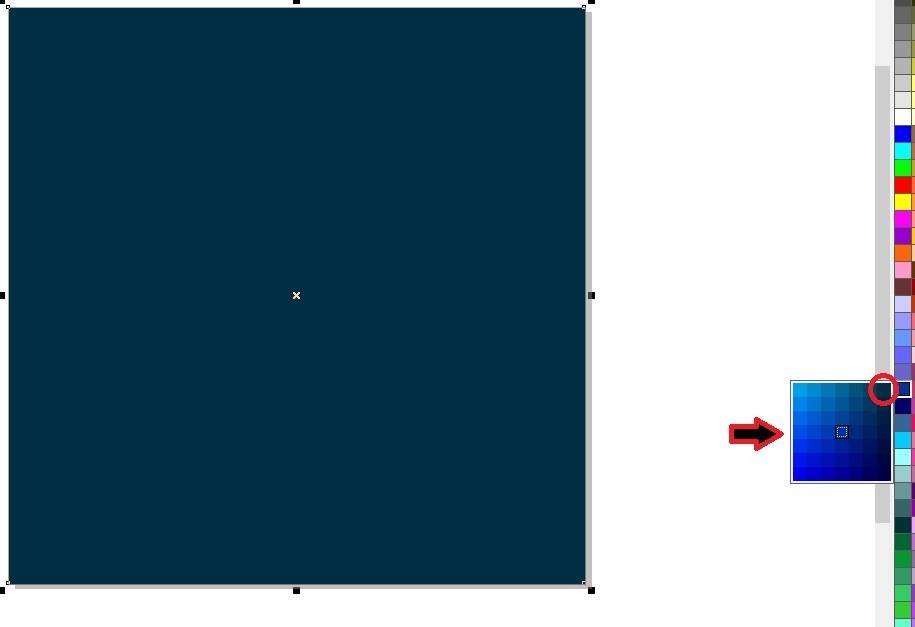
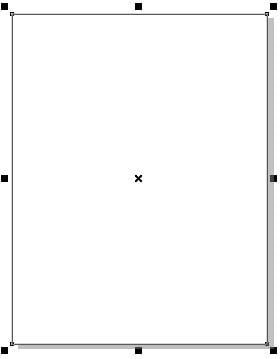
  • Double Click at Rectangle > Something like this appear.
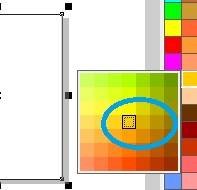
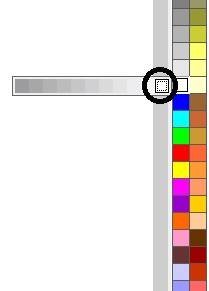
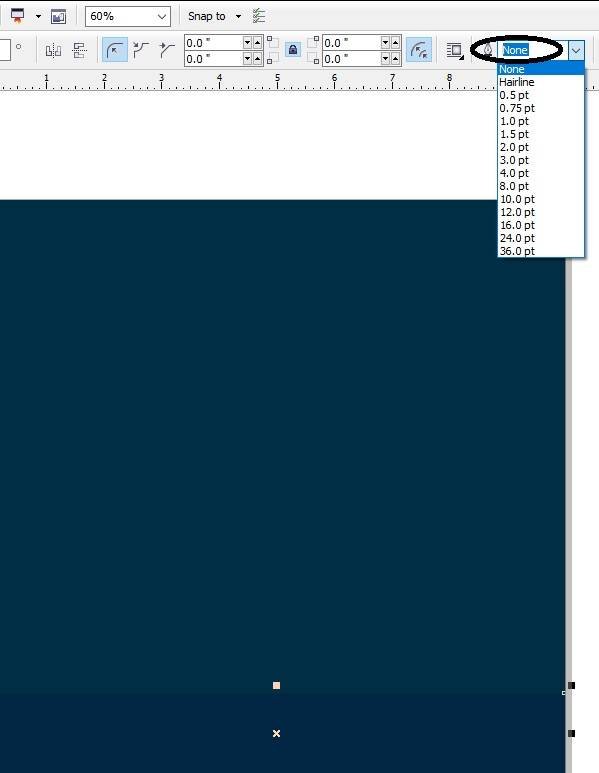
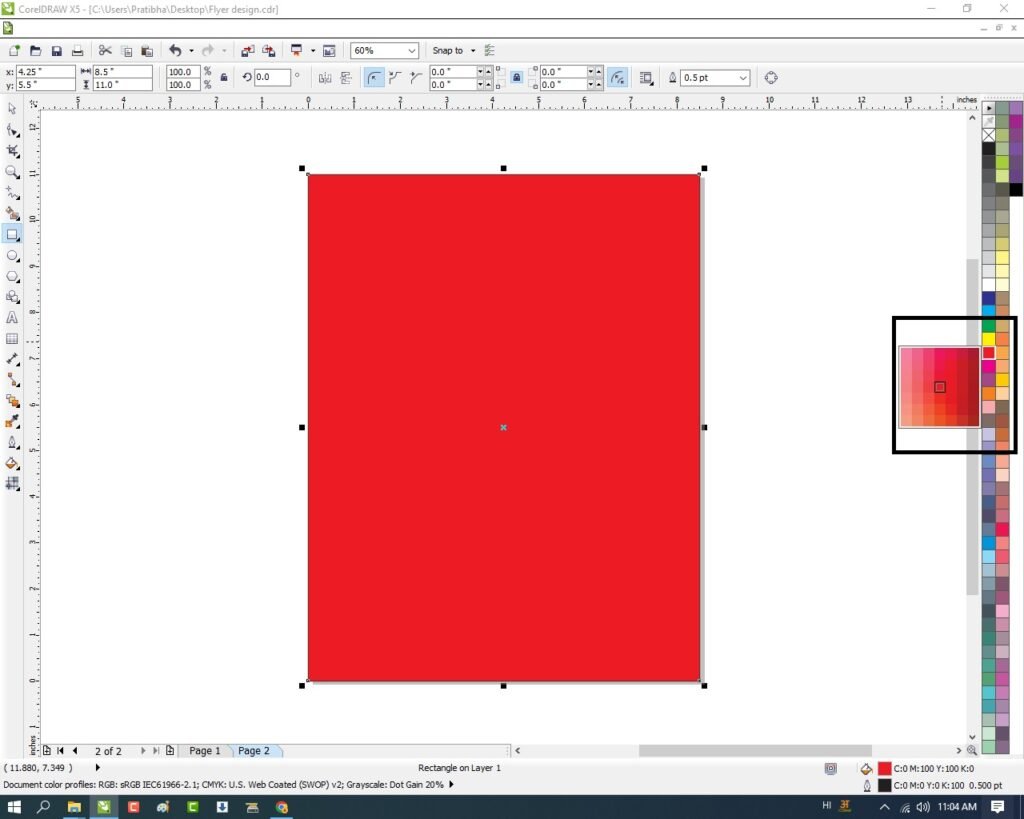
  • Go to Color Palette > Click at Page > Select Color like this.
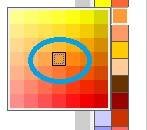
  • Something like this appear.
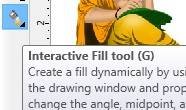
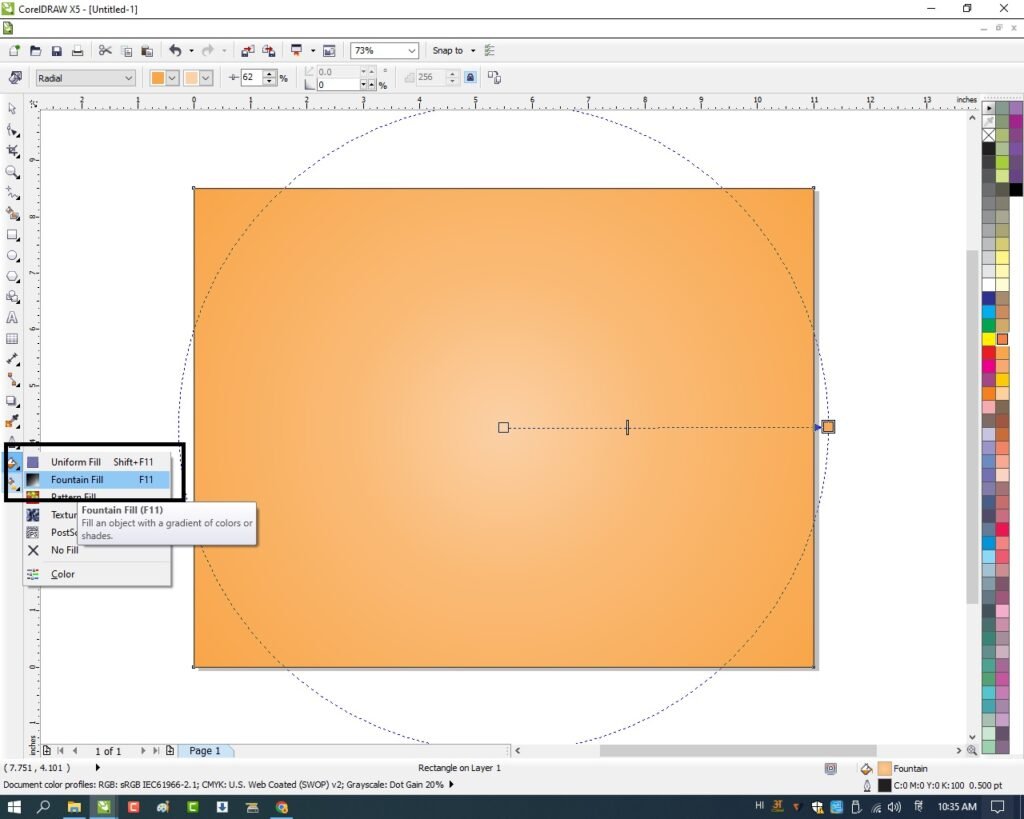
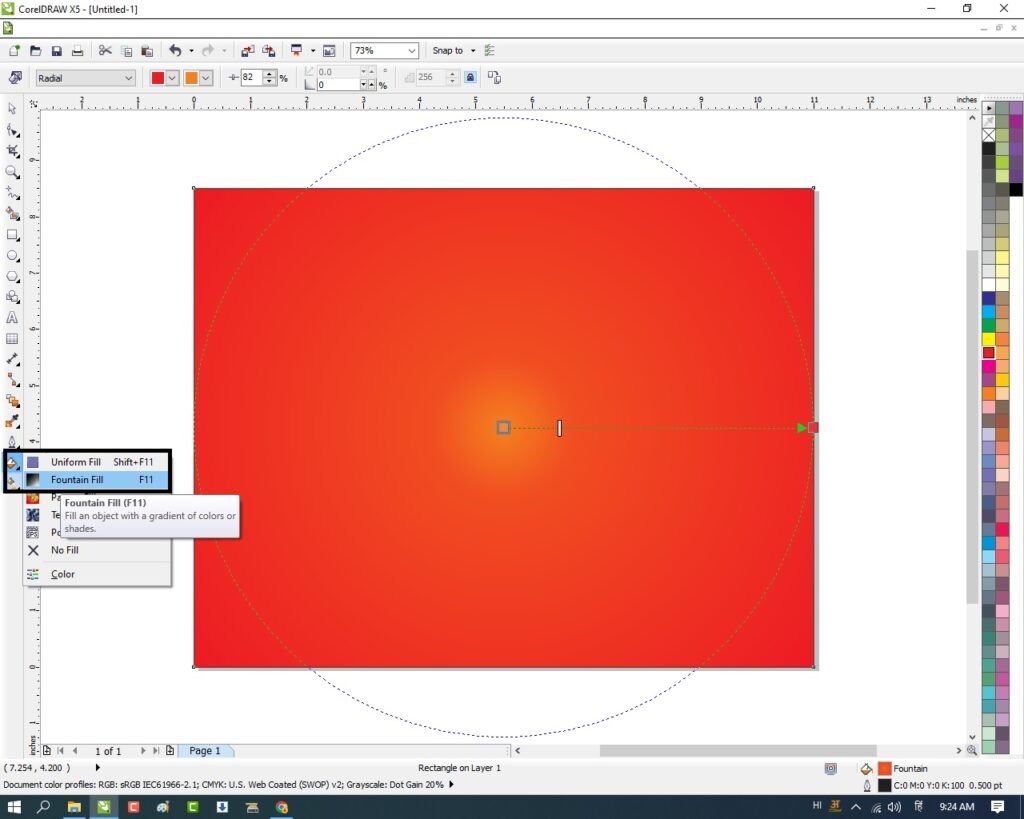
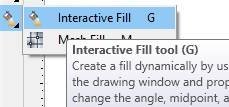
  • Click at Interactive Fill Tool
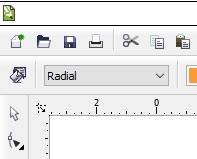
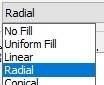
  • Select Radial Option From here.
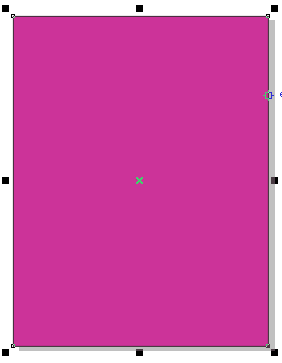
  • Something like this appear > Fill color like this.
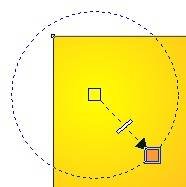
  • Something like this appear.
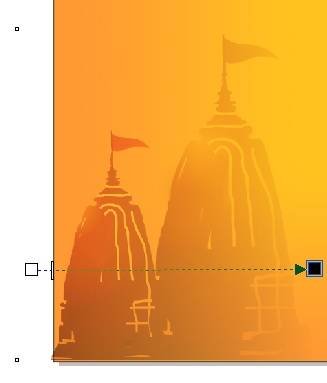
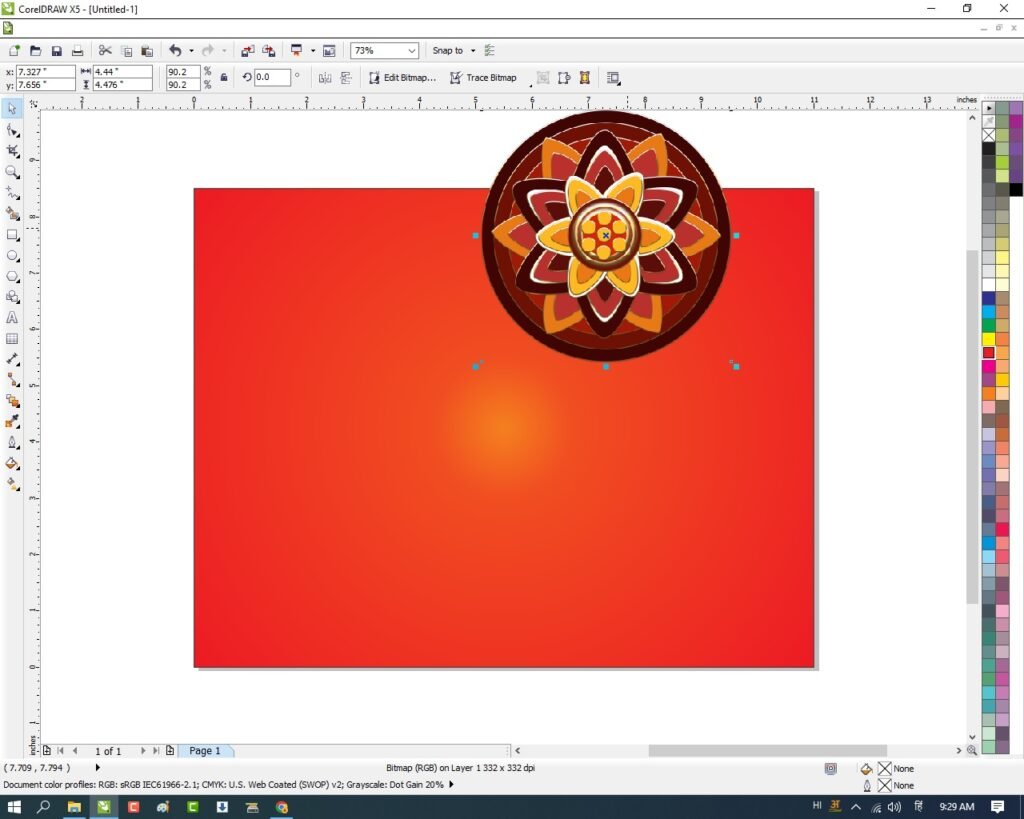
  • Insert Picture of Temple > at Page.
  • Download Temple PNG image Below.
  • Click at Blend Tool Option > Select Transparency Tool.
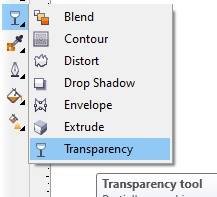
  • Apply like this.
  • Insert Tree Picture > at Page > like this
  • Download Tree PNG image Below
  • Insert Valmiki Ji Picture > at Page > like this
  • Download Rishi Valmiki PNG image.
  • Something like this appear > At Page.
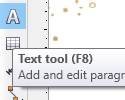
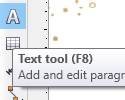
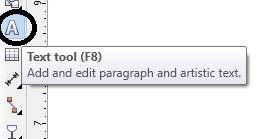
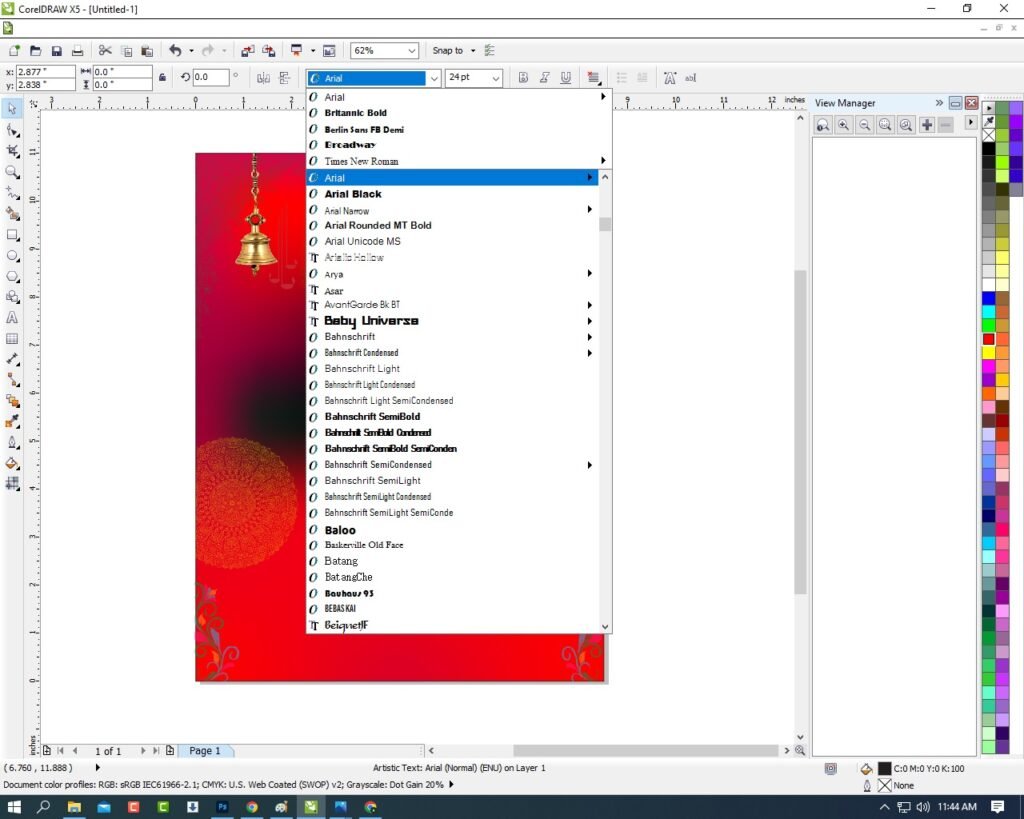
  • Click at Text Tool > From Tool Option.
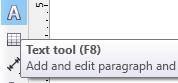
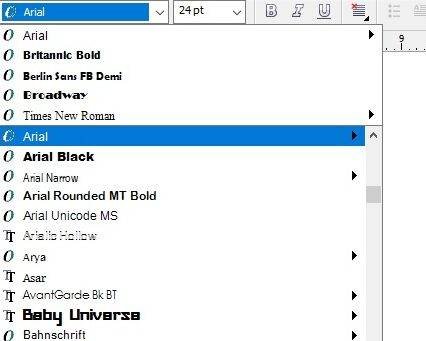
  • Type Matter in Hindi Font > at Page > Like this.
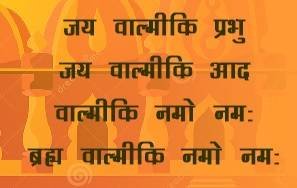
  • Type Happy Valmiki Jayanti > At page > like this
  • Type Institution Name and Site >at Page.

  • Insert LOGO of an Institution > at page
  • Download VedantSri LOGO image.
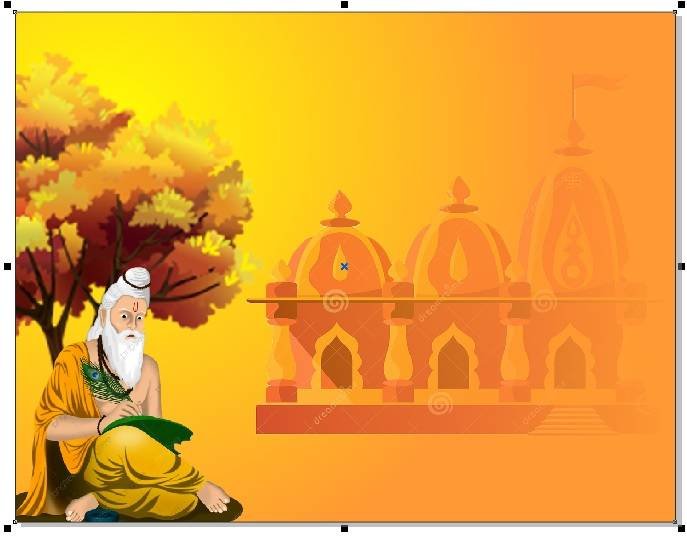
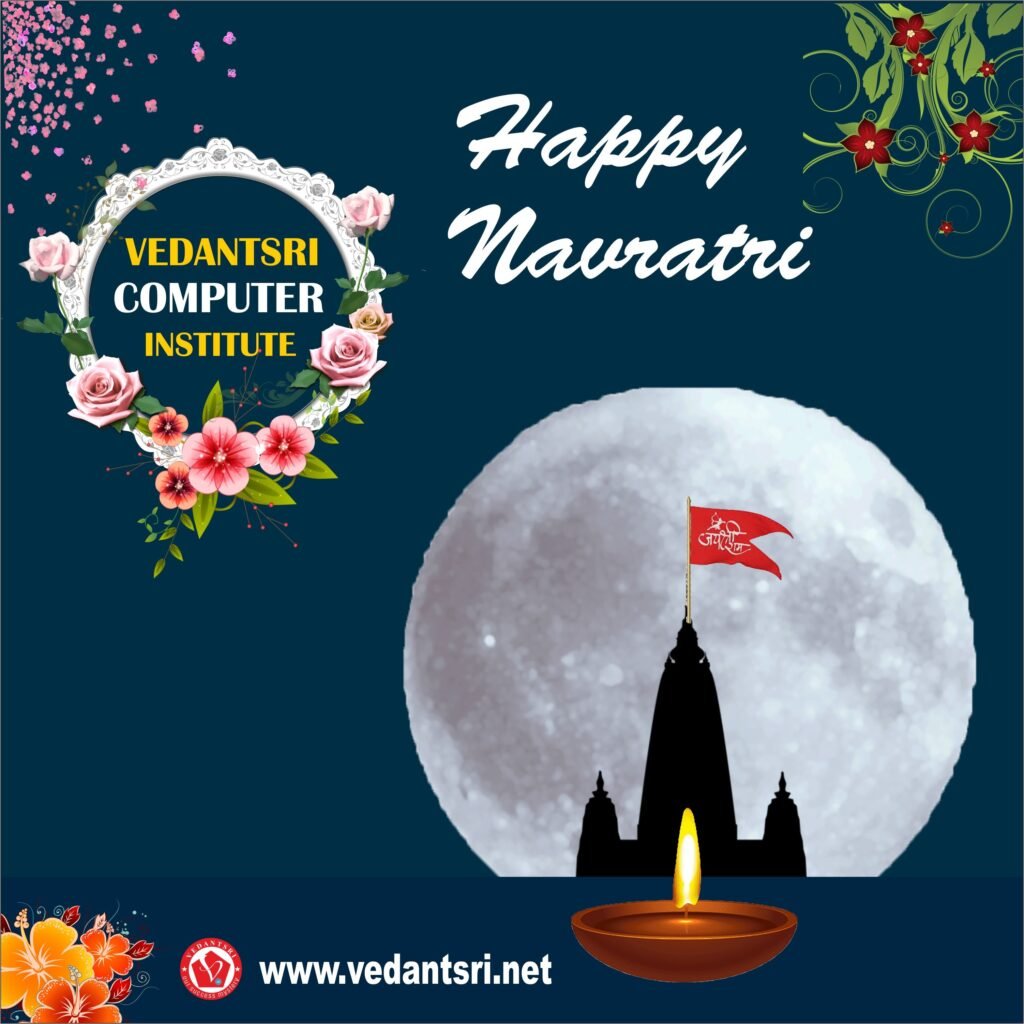
  • Now Valmiki Jayanti Poster is Ready.

Created and Explained by Sakshi Rawat

Visit Also – https://www.corelclass.com

Read it – CorelDraw Course Fees, Duration, Scope, Syllabus, Admission, Institutes & Jobs in Varanasi

Read Also – Tally Course Fees, Duration, Scope, Syllabus, Admission, Institutes & Jobs in Varanasi

Also Read – CCC Course Fees, Syllabus, Duration, Scope, Jobs, and Institute in Varanasi

Important Link – DFA Course Fees, Syllabus, Duration, Scope, Jobs, and Institute in Varanasi

Visit at – ADCA Course Fees, Duration, Scope, Syllabus, Admission, Institutes & Jobs in Varanasi
Vijayadhasmi Card in CorelDraw, Top 5 Best Step By Step, Download Source File

Vijayadhasmi Card in CorelDraw, Top 5 Best Step By Step, Download Source File

Hello, Friends Welcome To VedantSri.net In This Post I am Going To Teach you How to Create Vijayadhasmi Card in CorelDraw. In This Project, You can Learn How to Design Vijayadashami Card in CorelDraw Application an Easy Method. You Can also Download the Practice File in This Post. So Let’s start to Learn This Project, Before starting, I Request You Please Follow Given below Step to Learn Properly Step by Step. Vijayadhasmi Card in CorelDraw

  • Press Window + R to Open Run Dialogue Box > Type CorelDraw.
2 25
Vijayadhasmi Card in CorelDraw
  • Press Ok.
3 3
Vijayadhasmi Card in CorelDraw, Top 5 Best Step By Step, Download Source File 59
  • Click New Blank Document option.
4 3
Vijayadhasmi Card in CorelDraw, Top 5 Best Step By Step, Download Source File 60
  • Press OK.
5 4
Vijayadhasmi Card in CorelDraw, Top 5 Best Step By Step, Download Source File 61
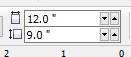
  • Mention Page Size.
1 8
Vijayadhasmi Card in CorelDraw, Top 5 Best Step By Step, Download Source File 62
  • Double Click on Rectangle tool.
6 13
Vijayadhasmi Card in CorelDraw, Top 5 Best Step By Step, Download Source File 63
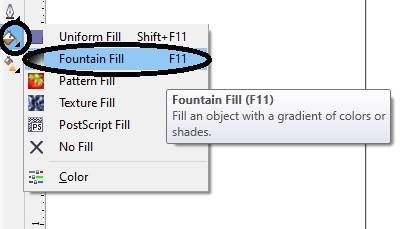
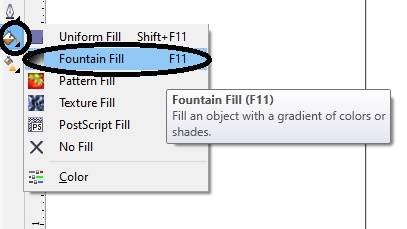
  • Go to Fill Tool > Click Fountain Fill Option.
3 53
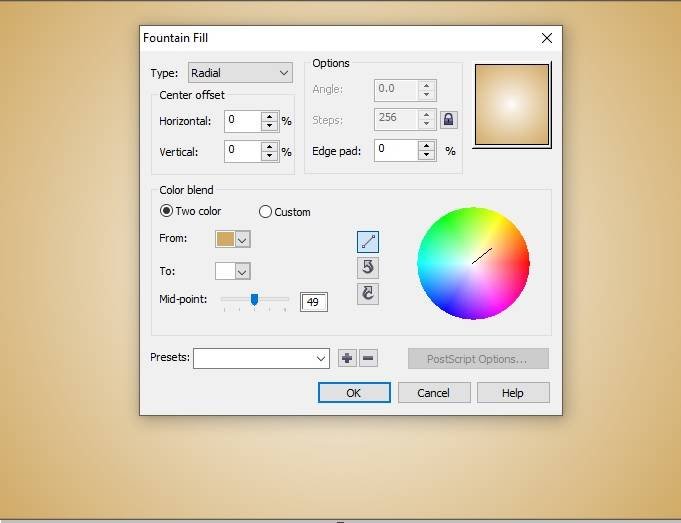
Vijayadhasmi Card in CorelDraw, Top 5 Best Step By Step, Download Source File 64
  • Fill like this.
2 26
Vijayadhasmi Card in CorelDraw, Top 5 Best Step By Step, Download Source File 65
  • Insert Png Pictures like I show you.
3 18
Vijayadhasmi Card in CorelDraw, Top 5 Best Step By Step, Download Source File 66
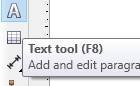
  • Go to Text Tool.
9 4
Vijayadhasmi Card in CorelDraw, Top 5 Best Step By Step, Download Source File 67
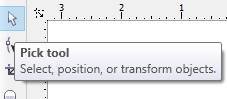
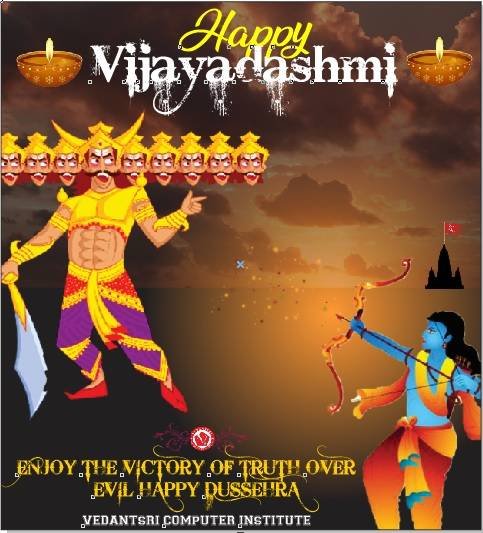
  • Write Happy Vijayadhasmi > Click Pick Tool.
Vijayadhasmi Card in CorelDraw
Vijayadhasmi Card in CorelDraw, Top 5 Best Step By Step, Download Source File 68
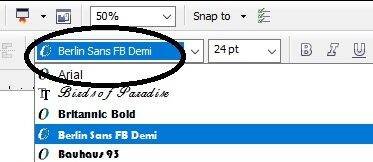
  • Go to Font List Tool > Apply style on the Text.
12 22 edited
Vijayadhasmi Card in CorelDraw, Top 5 Best Step By Step, Download Source File 69
  • Fix like I Will Showing.
5 9
Vijayadhasmi Card in CorelDraw, Top 5 Best Step By Step, Download Source File 70
  • Then Insert Your Company/Institute Name & LOGO.
8 8
Vijayadhasmi Card in CorelDraw
  • I have Completed this Project, I hope you guys have understood all the Step.
Vijayadhasmi Card in CorelDraw

Created and Explained By Shikha Singh

Important Link

Visit at – https://www.corelclass.com

Also, Read it – CorelDraw Course Fees, Duration, Scope, Syllabus, Admission, Institutes

Read Also – Tally Course Fees, Duration, Scope, Syllabus, Admission, Institutes

Also Read – CCC Course Fees, Syllabus, Duration, Scope, Jobs, and Institute

Important Link – DFA Course Fees, Syllabus, Duration, Scope, Jobs, and Institute

Visit – ADCA Course Fees, Duration, Scope, Syllabus, Admission, Institutes

Dussehra Card Design In CorelDraw, Easy Method, Effective Download Source File

Dussehra Card Design In CorelDraw, Easy Method, Effective Download Source File

Hello! Friends Welcome to www.vedantsri.net In this Project, I am going to Teach you How To Design Dussehra Card Design In CorelDraw. In this Project, you can Learn How to make Card Design in CorelDraw Application an Easy Method. Dussehra Card Design In CorelDraw

You can also Download the Practice File in this Post. So let’s start this Project. Before Starting this Project I request you to Please Follow given below Steps to Learn Properly Step by step. (Dussehra Card Design In CorelDraw, Easy Method, Effective Download Source File)

How to Start CorelDraw Application

  • CorelDraw Open करने के लिए Window + R Press करे Run Box Open करे।
  • Run Box मे coreldrw Type करे।
  • अब Ok पर Click करे CorelDraw का Application Open होगा।
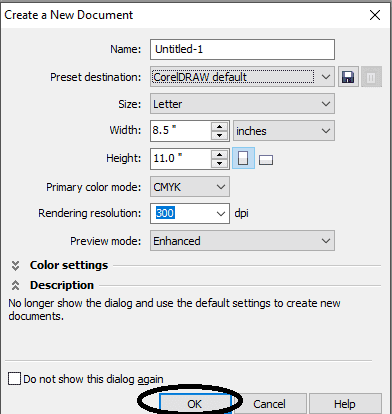
  • CTRL + N Press करके New Page का Window Open करे।
  • अब Ok पर Click करके Main Page का Window open करे।
  • Rectangle Tool पर Double Click करे।
  • अब Fountain Fill Tool से shape मे Color Fill करे।
  • अब Png Image Google से Download करे Page पर set करे।
  • अब Png Images Google से Download करे Page पर set करे।
  • Menu Bar > Effects Option> Power Clip > Place Inside Container Option पर Click करे।
  • CTRL + Mouse से Left Click करे Image को Page पर Set करे
  • Page के बाहर CTRL + Mouse से Left Click करे।
  • अब Png Image Google से Download करे Page पर set करे।
  • Menu Bar > Effects Option> Power Clip > Place Inside Container Option पर Click करे।
  • CTRL + Mouse से Left Click करे Image को Page पर Set करे
  • Page के बाहर CTRL + Mouse से Left Click करे।
  • Ellipse Shape Tool से Shape Draw करे,Fill None करे Outline 8 Pt, Color Change करे।
  • अब Logo Insert करके Shape मे logo को Set करे।
  • अब Png Image Google से Download करे Page पर set करे।
  • Text Tool से Detail fill करे, Font Style, Size, Color Change करे
  • Text पर Drop Shadow tool का Use करे।
  • CTRL + S से file Save करे।

Visit Also – https://www.corelclass.com

Read it – CorelDraw Course Fees, Duration, Scope, Syllabus, Admission, Institutes & Jobs in Varanasi
Read Also – Tally Course Fees, Duration, Scope, Syllabus, Admission, Institutes & Jobs in Varanasi
Also Read – CCC Course Fees, Syllabus, Duration, Scope, Jobs, and Institute in Varanasi

Important Link – DFA Course Fees, Syllabus, Duration, Scope, Jobs, and Institute in Varanasi

Visit – ADCA Course Fees, Duration, Scope, Syllabus, Admission, Institutes & Jobs in Varanasi
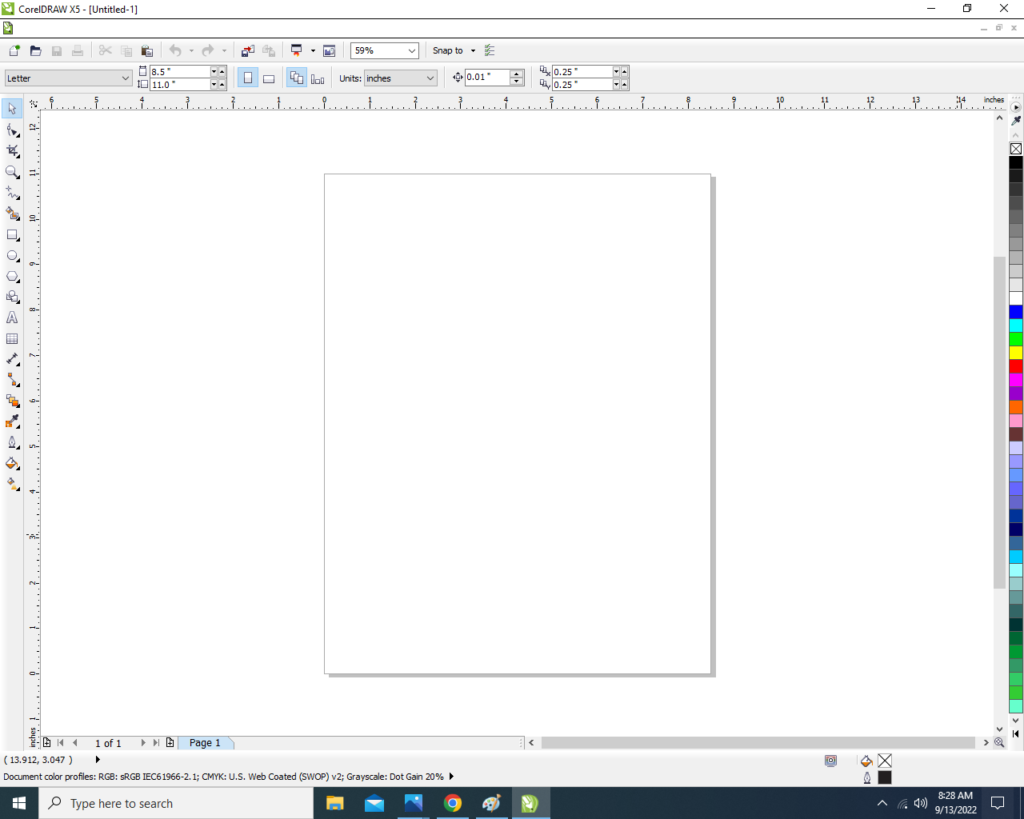
Created & Explained By Pratibha Modanwal

Vijayadashmi Poster in CorelDraw, Top 1 Best Easy and Effective, Download Source File

Vijayadashmi Poster in CorelDraw, Top 1 Best Easy and Effective, Download source File
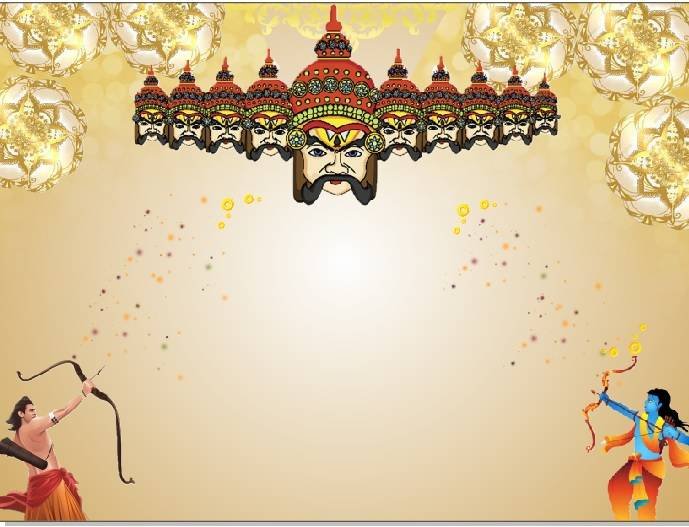
Hello! Friends Welcome to www.vedantsri.net In this Project, I am going to Teach you How To Design Vijayadashami Poster in CorelDraw. In this Project, you can Learn How to make a Design in CorelDraw Application an Easy Method. Dussehra Card Design In CorelDraw

You can also Download the Practice File in this Post. So let’s start this Project. Before Starting this Project I request you to Please Follow given below Steps to Learn Properly Step by step.

  • Press Windows + R on Keyboard.
  • To Open Run Dialog Box.
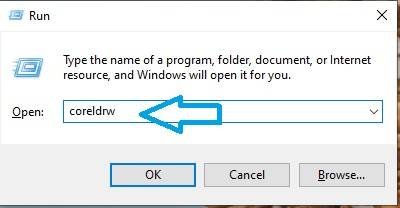
  • Type coreldrw in Run Dialog Box.
  • Click at OK.
  • Click at New Blank Document
  • Fill all information > regarding new page.
  • Click at OK.
  • Define Page Dimension.
  • Go to Rectangle Tool > From Tool Option.
  • Double Click at Rectangle Tool > Something like this appears.
  • Go To Color Palate > Click at Page >Select Color > like this.
  • Go to Interactive Tool > Click at Interactive tool
  • Select this Option.
  • Fill another color > like this
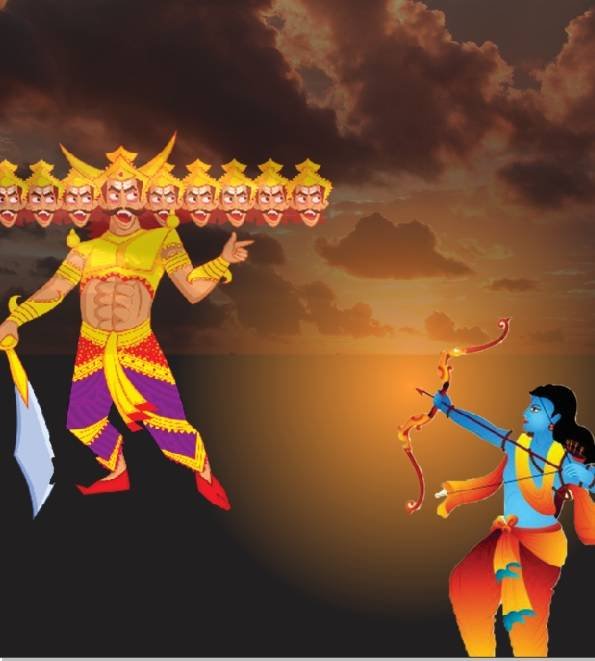
  • Insert a Picture of Shree Ram
  • Insert Ravan Picture > at page.
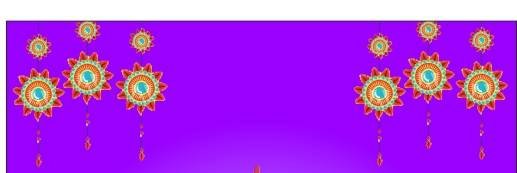
  • Insert Decorative Hanging > In Both Corners.
  • Insert Clip art design in Corner > like this.
  • Go to Text tool > type Happy vijayadashmi > like This > Change Font Style > Font List.
  • Insert Clip art in Side border.
  • Type Institution Site > in bottom side
  • Insert LOGO of an Institution.
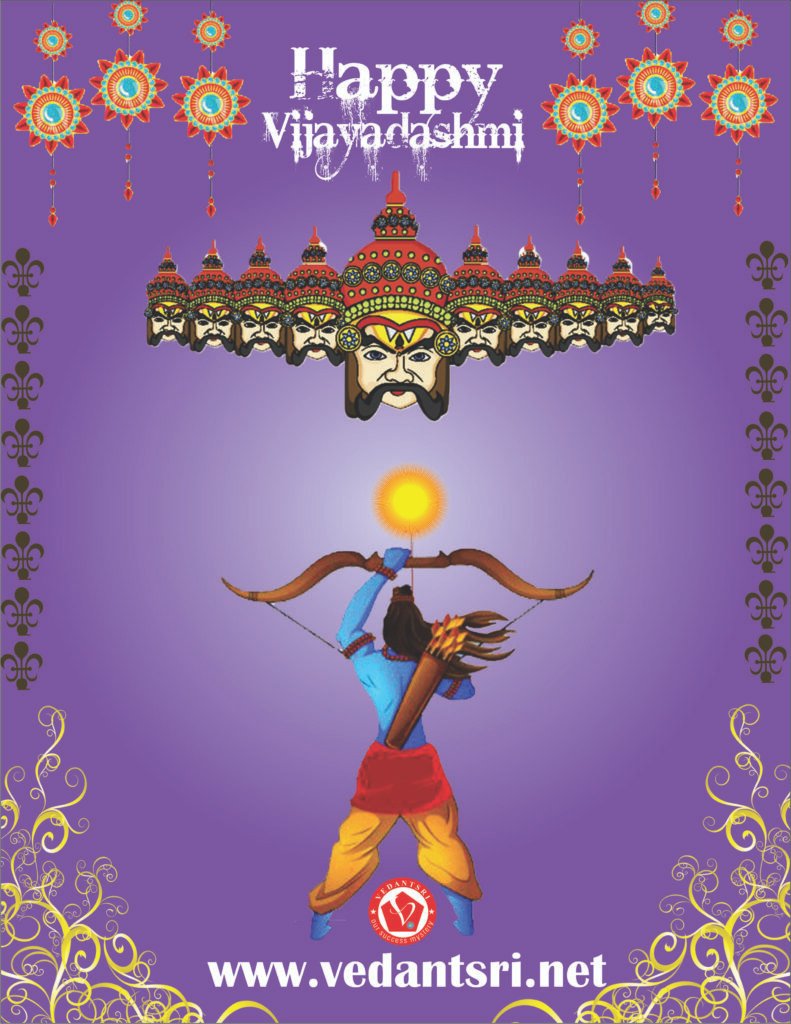
  • Now Vijayadashmi Poster is Ready.

Created and Explained By Sakshi Rawat

Important link

Visit at – https://www.corelclass.com

Read Also it – https://msexcelclass.com/

Also Read- Tally Course Fees, Duration, Scope, Syllabus, Admission, Institutes

Also Read – CCC Course Fees, Syllabus, Duration, Scope, Jobs, and Institute

Important Link – DFA Course Fees, Syllabus, Duration, Scope, Jobs, and Institute

Visit – https://mswordclass.com/

Dussehra Invitation Card, Top 1 Best Easy and Effective, Download Source File

Dussehra Invitation Card, Easy and Effective, Download Source File

Hello! Friends Welcome to www.vedantsri.net In this Project, I am going to Teach you How To Design Dussehra Invitation Card in CorelDraw. In this Project you can Learn How to make Design in CorelDraw Application an Easy Method. You can also Download Practice File in this Post . So let’s start this Project. Before Starting this Project I request you to Please Follow given below Steps to Learn Properly Step by step.

  • Press windows + R on Keyboard.
  • To Open Run Dialog Box.
  • Type coreldrw in Run Dialog Box.
  • Click at Ok.
  • Click at New Blank Document.
  • Fill all Information > Regarding New document.
  • Click at OK.
  • Define Page Dimension.
  • Go to Rectangle Tool > From Tool Option.

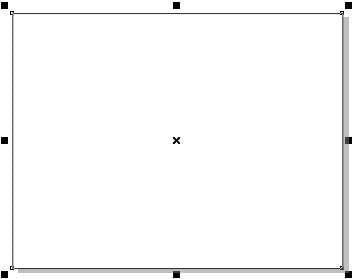
  • Double Click at the rectangle Tool
  • Something like this appear.
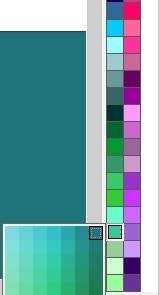
  • Click at Page > Go To Color palate > Select Yellow Color > Like this.
  • Something like this appear.
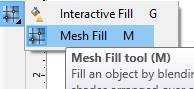
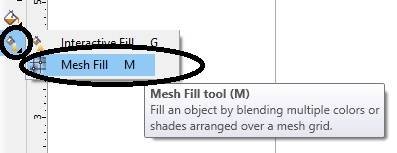
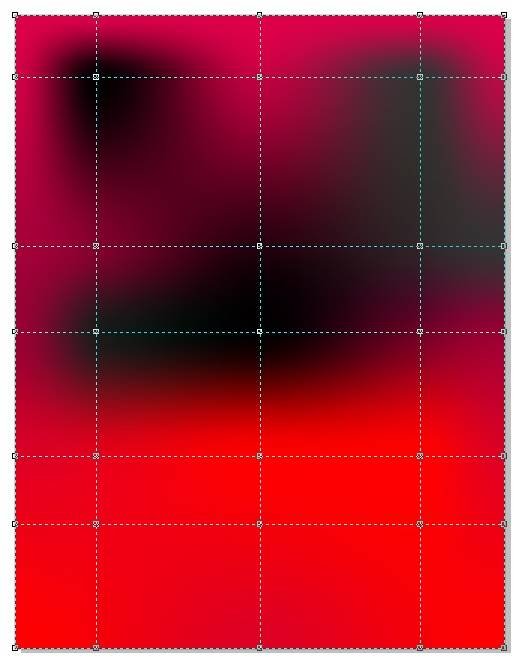
  • Click at Interactive Tool > Select Mesh fill Tool.
  • Click at Top Corner Point.
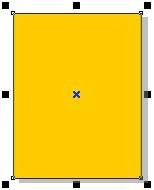
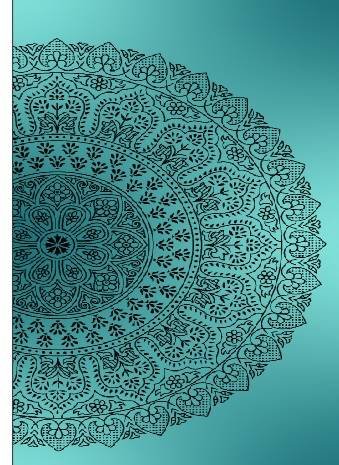
  • Insert Flower Picture > At Page > Select flower
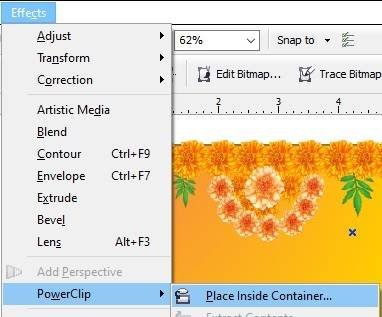
  • Power Clip Flower picture > Like this.
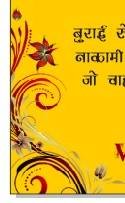
  • Something like this appear > at Page.
  • Insert Shree Ram Png Picture > Like this.
  • Insert Ravan Png Picture.
  • Go to Text Tool
  • Type Matter in Hindi Language > like this.
  • Apply Drop Shadow In Text > from Blend tool Option.
  • Insert Logo of an Institution > like this.
  • Type message related to Dussehra > like this.
  • Insert Clip art > like this.
  • Type Institution name Site > Change Font style > Font list.
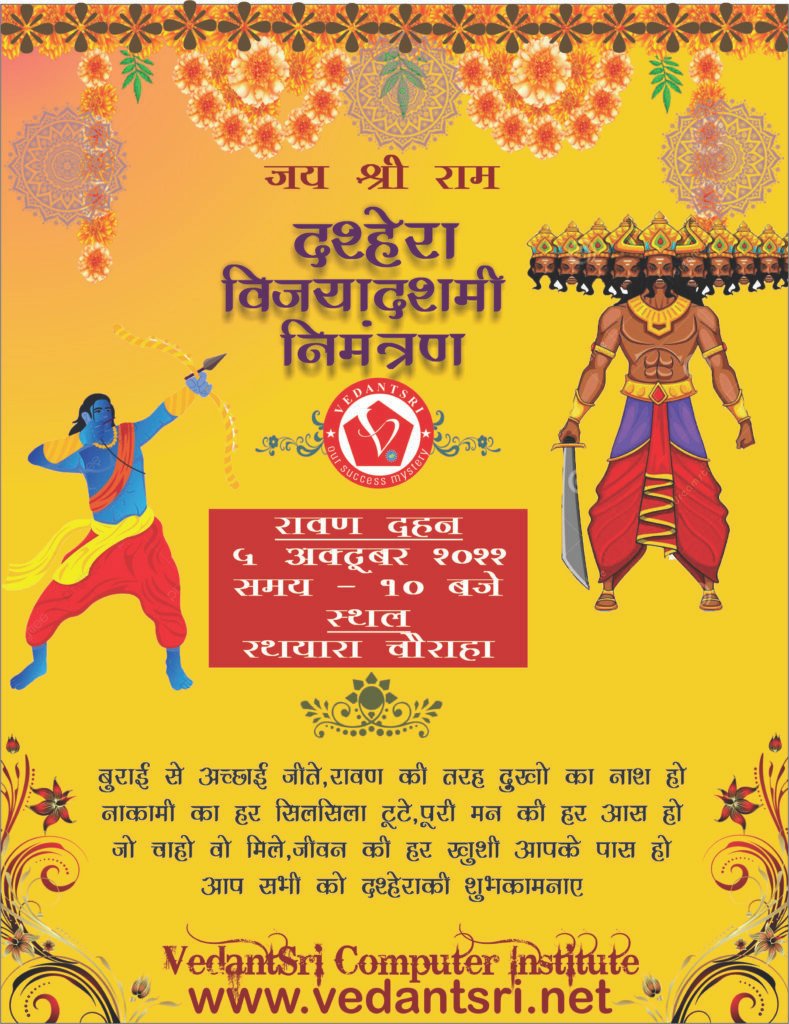
  • Now Dussehra Invitation Card is Ready.

Created and Explained By Sakshi Rawat

Important link

Visit at – https://www.corelclass.com

Read Also it – https://msexcelclass.com/

Also Read- Tally Course Fees, Duration, Scope, Syllabus, Admission, Institutes

Also Read – CCC Course Fees, Syllabus, Duration, Scope, Jobs, and Institute

Important Link – DFA Course Fees, Syllabus, Duration, Scope, Jobs, and Institute

Visit – https://mswordclass.com/

Dussehra Wishes Card in CorelDraw, Top 5 Best Step By Step, Download Source File

Dussehra Wishes Card in CorelDraw, Top 5 Best Step By Step, Download Source File

Hello, Friends Welcome To VedantSri.net In This Post I am Going To Teach you How to Create Dussehra Wishes Card in CorelDraw. In This Project, You can Learn How to Design Wishes Cards in CorelDraw Application in Easy Method. You Can also Download the Practice File in This Post. So Let’s start to Learn This Project, Before starting, I Request You Please Follow Given below Step to Learn Properly Step by Step. Dussehra Wishes Card in CorelDraw

  • Press Window + R to Open Run Dialogue Box > Type CorelDraw.
2 18
Dussehra Wishes Card in CorelDraw, Top 5 Best Step By Step, Download Source File 193
  • Press OK.
Dussehra Wishes Card in CorelDraw
Dussehra Wishes Card in CorelDraw, Top 5 Best Step By Step, Download Source File 194
  • Click New Blank Document.
3 13
Dussehra Wishes Card in CorelDraw, Top 5 Best Step By Step, Download Source File 195
  • Open a Create a New Document Window.
4 10
Dussehra Wishes Card in CorelDraw, Top 5 Best Step By Step, Download Source File 196
  • Then Press Ok.
5 3
Dussehra Wishes Card in CorelDraw, Top 5 Best Step By Step, Download Source File 197
  • Mention Page Size.
1 7
Dussehra Wishes Card in CorelDraw, Top 5 Best Step By Step, Download Source File 198
  • Double Click on Rectangle Tool.
6 7
Dussehra Wishes Card in CorelDraw, Top 5 Best Step By Step, Download Source File 199
  • Fill White Color at the Page.
2 22
Dussehra Wishes Card in CorelDraw, Top 5 Best Step By Step, Download Source File 200
  • Insert Some Png Pictures & Fix like this.
Dussehra Wishes Card in CorelDraw
  • Then Go to Text Tool.
16
Dussehra Wishes Card in CorelDraw, Top 5 Best Step By Step, Download Source File 201
  • Write Happy Dussehra & Write Some Wishes.
5 7
Dussehra Wishes Card in CorelDraw, Top 5 Best Step By Step, Download Source File 202
  • Go to Pick Tool Move the Text and Apply Formatting on Text.
5 40
Dussehra Wishes Card in CorelDraw, Top 5 Best Step By Step, Download Source File 203
  • Go to Font List Tool To Apply any Style to the Text. Dussehra Wishes Card in CorelDraw
Dussehra Wishes Card in CorelDraw
Dussehra Wishes Card in CorelDraw, Top 5 Best Step By Step, Download Source File 204
  • Then Fix like this I will Show.
Dussehra Wishes Card in CorelDraw
  • Insert Your Company/Institute Name & LOGO.
8 6
Dussehra Wishes Card in CorelDraw, Top 5 Best Step By Step, Download Source File 205
  • I have Completed this Project, I hope you guys have understood all the Steps.
Dussehra Wishes Card in CorelDraw

Created and Explained By Shikha Singh

Important Link

Visit at – https://www.corelclass.com

Also, Read it – CorelDraw Course Fees, Duration, Scope, Syllabus, Admission, Institutes

Read Also – Tally Course Fees, Duration, Scope, Syllabus, Admission, Institutes

Also Read – CCC Course Fees, Syllabus, Duration, Scope, Jobs, and Institute

Important Link – DFA Course Fees, Syllabus, Duration, Scope, Jobs, and Institute

Visit – ADCA Course Fees, Duration, Scope, Syllabus, Admission, Institutes

Dussehra Poster Design In CorelDraw, Easy Method, Complete Steps, Download Practice File

Dussehra Poster Design In CorelDraw, Easy Method, Complete Steps, Download Practice File

Hello! Friends Welcome to www.vedantsri.net In this Project I am going to Teach you How To Design Dussehra Poster Design in CorelDraw. In this Project, you can Learn How to make Poster Design in CorelDraw Application in Easy Method. Dussehra Poster Design In CorelDraw

You can also Download the Practice File in this Post. So let’s start this Project. Before Starting this Project I request you to Please Follow given below Steps to Learn Properly Step by step. Dussehra Poster Design In CorelDraw, Easy Method, Complete Steps, Download Practice File

  • CorelDraw Open करने के लिए Window + R Press करे Run Box Open करे।
  • Run Box मे coreldrw Type करे।
  • अब Ok पर करे CorelDraw का Application Open करे।
  • CTRL + N Press करके New page का Window Open करे।
  • अब Ok Click करे CorelDraw का Main page Open करे।
  • Rectangle Tool पर Double Click करे।
  • अब Fountain Fill Tool से Shape मे Color Fill करे। Dussehra Poster Design In CorelDraw, Easy Method, Complete Steps, Download Practice File
  • अब Png Image Google से Download करे Page पर Set करे।
  • अब Png Image Google से Download करे
  • Logo Insert करे Image पर Set करे।
  • अब Text tool से Detail fill करे Font Style, Size, Color, Change करे।
  • Text पर Drop Shadow Tool का Use करे।
  • अब Png Image Google से Download करे Page पर Set करे।
  • Text tool से Detail लिखे Font Style, Size, Color, Change करे।
  • अब CTRL + S से Poster को Save करे।

Created & Explained By Pratibha Modanwal

Dussehra Poster Design

Important Link

Visit at – https://www.corelclass.com

Also, Read it – CorelDraw Course Fees, Duration, Scope, Syllabus, Admission, Institutes

Read Also – Tally Course Fees, Duration, Scope, Syllabus, Admission, Institutes

Also Read – CCC Course Fees, Syllabus, Duration, Scope, Jobs, and Institute

Important Link – DFA Course Fees, Syllabus, Duration, Scope, Jobs, and Institute

Visit – ADCA Course Fees, Duration, Scope, Syllabus, Admission, Institutes

Latest Dussehra card in CorelDraw, Top 5 Best Simple Method, Download Source File

Latest Dussehra card in CorelDraw, Top 5 Best Simple Method, Download Source File

Hello, Friends welcome To VedantSri.net In This Post I am Going To Teach you How to Create Dussehra Card in CorelDraw. In This Project, You can Learn How to Design Dussehra Card in CorelDraw Application in an Easy Method. Latest Dussehra card in CorelDraw

You Can also Download the Practice File in This Post. So Let’s start to Learn This Project, Before Starting I Request You to Please Follow Given below Step to Learn Properly Step by Step. Latest Dussehra card in CorelDraw

  • Press Window + R to Open Run Dialogue Box > Type CorelDraw.
2 16
Latest Dussehra card in CorelDraw, Top 5 Best Simple Method, Download Source File 243
  • Press OK.
Latest Dussehra card in CorelDraw
Latest Dussehra card in CorelDraw, Top 5 Best Simple Method, Download Source File 244
  • Click New Blank Document.
4 2
Latest Dussehra card in CorelDraw, Top 5 Best Simple Method, Download Source File 245
  • Press OK.
Latest Dussehra card in CorelDraw
Latest Dussehra card in CorelDraw, Top 5 Best Simple Method, Download Source File 246
  • Mention Page Size.
Latest Dussehra card in CorelDraw
Latest Dussehra card in CorelDraw, Top 5 Best Simple Method, Download Source File 247
  • Double Click on Rectangle Tool.
6 7
Latest Dussehra card in CorelDraw, Top 5 Best Simple Method, Download Source File 248
  • Go to Fill Tool > Click Fountain Fill Option.
Latest Dussehra card in CorelDraw
Latest Dussehra card in CorelDraw, Top 5 Best Simple Method, Download Source File 249
  • Fill like This.
2 17
Latest Dussehra card in CorelDraw, Top 5 Best Simple Method, Download Source File 250
  • Insert Some Png Pictures.
Latest Dussehra card in CorelDraw
Latest Dussehra card in CorelDraw, Top 5 Best Simple Method, Download Source File 251
  • Go to Text Tool.

16 19
Latest Dussehra card in CorelDraw, Top 5 Best Simple Method, Download Source File 252
  • Write some Lines like I Show.
4 9
Latest Dussehra card in CorelDraw, Top 5 Best Simple Method, Download Source File 253
  • Go to Pick Tool > Apply Formatting on the Text.
5 40
Latest Dussehra card in CorelDraw
  • Go to Font List Option > Apply any style on Your Text.
Latest Dussehra card in CorelDraw
  • Write Some More Lines > & Apply Formatting.

Latest Dussehra card in CorelDraw
Latest Dussehra card in CorelDraw, Top 5 Best Simple Method, Download Source File 254
  • Insert Your Company/Institute Name or LOGO.
6 9
Latest Dussehra card in CorelDraw, Top 5 Best Simple Method, Download Source File 255
  • I have Completed this Project, I hope you guys have understood all the Steps. Latest Dussehra card in CorelDraw
Latest Dussehra card in CorelDraw

Created and Explained By Shikha Singh

Important Link

Visit at – https://www.corelclass.com

Also, Read it – CorelDraw Course Fees, Duration, Scope, Syllabus, Admission, Institutes

Read Also – Tally Course Fees, Duration, Scope, Syllabus, Admission, Institutes

Also Read – CCC Course Fees, Syllabus, Duration, Scope, Jobs, and Institute

Important Link – DFA Course Fees, Syllabus, Duration, Scope, Jobs, and Institute

Visit – ADCA Course Fees, Duration, Scope, Syllabus, Admission, Institutes

Dussehra Flyer Design in CorelDraw, Top 1 Best Simple and Effective, Download Source File

Dussehra Flyer Design in CorelDraw, Top 1 Best Simple and Effective, Download Source File

Hello! Friends Welcome to www.vedantsri.net In this Project, I am going to Teach you How To Design Dussehra Flyer in CorelDraw. In this Project, you can Learn How to make Flyer Design in CorelDraw Application an Easy Method. Dussehra Flyer Design in CorelDraw

You can also Download the Practice File in this Post. So Let’s Start this Project. Before Starting this Project I request you to Please Follow given below Steps to Learn Properly Step by step.

  • Press Windows + R on Keyboard.
  • To Open Run Dialog Box.
  • Type coreldrw in Run Dialog Box.
  • Click at OK.
  • Click at New Blank Document.
  • Fill all Information > Regarding New Document.
  • Click at OK.
  • Go to Rectangle Tool > From Tool Option > Like this.
  • Define Page Dimension.
  • Double Click at Rectangle Tool > Something like this appear.
  • Go to Color Palate > Select Color > From Color Palate.
  • Go to Interactive Tool > Select Mesh Fill Tool.
  • Click at Three Points > like this > Fill Orange Color.
  • Something like this appear.
  • Insert Ravan Picture > At page >like this.
  • Insert Temple Picture > At Page > Go to Blend Tool > Select Transparency Tool > Apply like this.
  • Insert Shree Ram Picture > At Page > Like this.
  • Go To Text Tool > Type Matter like this.
  • Give Institution Name > and Institution Site.
  • Insert Happy Dussehra Png image > like this.
  • Type Dussehra Message > like this
  • Now Dussehra Flyer is Ready.

Created and Explained By Sakshi Rawat

Important link

Visit at – https://www.corelclass.com

Read Also it – https://msexcelclass.com/

Also Read- Tally Course Fees, Duration, Scope, Syllabus, Admission, Institutes

Also Read – CCC Course Fees, Syllabus, Duration, Scope, Jobs, and Institute

Important Link – DFA Course Fees, Syllabus, Duration, Scope, Jobs, and Institute

Visit – https://mswordclass.com/

Dussehra Banner Design In CorelDraw, Easy Method, Complete Steps, Download Practice File

Dussehra Banner Design In CorelDraw, Easy Method, Complete Steps, Download Practice File

Hello, Friends welcome To VedantSri.net In This Post, I am Going To Teach you How to Create Dussehra Banner Design In CorelDraw. In This Project, You can Learn How to Design Dussehra Banner Design In CorelDraw Application in Easy Method. You Can also Download the Practice File in This Post. So Let’s start to Learn This Project, Before Starting I Request You to Please Follow Given below Step to Learn Properly Step by Step.

  • CorelDraw Open करने के लिए Window + R Press करके Run Box Open करे
  • Run Box मे coreldrw Type करे।
  • अब Ok पर Click करके CorelDraw का Application Open करे।
  • CTRL + N Press करके New Page का Window Open करे।
  • अब Ok पर Click करके CorelDraw का main Page open करे।
  • Page की Size 11।0″ , 8.5″ Set करे।
  • Rectangle Tool पर Double Click करे।
  • अब Fountain Fill Tool से Shape को Fill करे।
  • अब Png Image को Download करे Page पर Set करे।
  • CTRL + D से Image का Duplicate करे।
  • Shift के साथ Image को select करे CTRL + G से Image कोGroup करे।
  • Menu bar > Effects Option > Power Clip >Place Inside Container पर Click करे।
  • CTRL + Mouse से Left Click करे Image को Page पर Set करे।
  • Page के बाहर CTRL + Mouse से Left Click करे।
  • अब Png Image को Download करे Page पर Set करे।
  • Ellipse shape Draw करे,Fill None करे, Outline 4 Pt, Color Change करे।
  • File Logo Insert करे Page पर Set करे।
  • Text Tool से Detail Fill करे, Font Style, Size, Color Change करे।
  • Text पर Drop Shadow Tool का Use करे।
  • CTRL + S से Banner Design को File मे Save करे।

Created & Explained By Pratibha Modanwal

1-VedantSri Official Website:- https://vedantsri.com

2-Student Support Website:- https://www.vedantsri.net

3-Jobs Assist Website:- https://www.jobdo.in

External Link

1-VedantSri Official Website:- https://vedantsri.com

2-Course Store Website:- https://vedantsri.in

3-Jobs Assist Website:- https://www.jobdo.in

4-MS Word Class:- https://mswordclass.com/

5-Corel Free Class:- https://corelclass.com/

6-Free Excel Class:- https://msexcelclass.com/

Dussehra Poster Design in CorelDraw, Top 1 Best Effective and Easy, Download Source File

Dussehra Poster Design in CorelDraw, Top 1 Best Effective and Easy, Download Source File

Hello! Friends Welcome to www.vedantsri.net In this Project, I am going to Teach you How To Design Dussehra Poster in CorelDraw. In this Project, you can Learn How to make Poster Design in CorelDraw Application an Easy Method. You can also Download the Practice File in this Post. So Let’s Start this Project. Before Starting this Project I request you to Please Follow given below Steps to Learn Properly Step by step.

  • Press Windows + R on Keyboard.
  • To Open Run Dialog Box.
  • Type coreldrw in Run Dialog Box.
  • Click at OK.
  • Cluck at New Blank Document.
  • Fill all Information > Regarding New Document.
  • Click on Ok.
  • Define Page Dimension.
  • Go to Rectangle Tool > From tool Option.
  • Double click at Rectangle tool.
  • Something like this appear.
  • Click at Page > Go to Color Palate > Select Color > like this.
  • Something look like this.
  • Go to Interactive Tool > Select Mesh Fill option.
  • Something appear like this > Click Centre Point > Fill light color.
  • Something like this appear.
  • Insert Rangoli Clipart > From File Folder > like this.
  • Insert Shree Ram Picture >at page > From File Folder.
  • Go To text Tool > Type Matter Like this.
  • Change Font Style > From here.
  • Type Institution Name.
  • Insert Institution Logo.
  • Type an Institution Site.
  • Now Dussehra poster is Ready.

Created and Explained By Sakshi Rawat

Important link

Visit at – https://www.corelclass.com

Read Also it – https://msexcelclass.com/

Also Read- Tally Course Fees, Duration, Scope, Syllabus, Admission, Institutes

Also Read – CCC Course Fees, Syllabus, Duration, Scope, Jobs, and Institute

Important Link – DFA Course Fees, Syllabus, Duration, Scope, Jobs, and Institute

Visit – https://mswordclass.com/

Durga Pooja Card in CorelDraw, Step By Step, Download Source File

Durga Pooja Card in CorelDraw, Step By Step, Download Source File

Hello, Friends welcome To VedantSri.net In This Post, I am Going To Teach you How to Create Durga Pooja Card in CorelDraw. In This Project, You can Learn How to Design Durga Pooja in CorelDraw Application an Easy Method. You Can also Download the Practice File in This Post. So Let’s start to Learn This Project, Before Starting I Request You to Please Follow Given below Step to Learn Properly Step by Step. Durga Pooja Card in CorelDraw

  • Press Window + R to Open Run Dialogue Box > Type CorelDraw.
Durga Pooja Card in CorelDraw
  • Press Ok.
Durga Pooja Card in CorelDraw
Durga Pooja Card in CorelDraw, Step By Step, Download Source File 364
  • Click New Blank Document.
4 1
Durga Pooja Card in CorelDraw, Step By Step, Download Source File 365
  • Press Ok.
5 1
Durga Pooja Card in CorelDraw, Step By Step, Download Source File 366
  • Double click on Rectangle tool.
Durga Pooja Card in CorelDraw
Durga Pooja Card in CorelDraw, Step By Step, Download Source File 367
  • Fill any Color at the Page Like I will Show.
1
Durga Pooja Card in CorelDraw, Step By Step, Download Source File 368
  • Insert Some Png Pictures & Characters.
2 12
Durga Pooja Card in CorelDraw, Step By Step, Download Source File 369
  • Go to Text Tool and Write Some Lines.
16 19
Durga Pooja Card in CorelDraw, Step By Step, Download Source File 370
  • Write Some Text and Go To Pick Tool to apply Formatting on the Text.
Durga Pooja Card in CorelDraw
Durga Pooja Card in CorelDraw, Step By Step, Download Source File 371
  • Change Font Style > Go to Font List Option > Apply any Style.
6 55 edited 1
Durga Pooja Card in CorelDraw, Step By Step, Download Source File 372
  • Apply any Color on the Text.
60
Durga Pooja Card in CorelDraw, Step By Step, Download Source File 373
  • Then Write Your Company/Institute Name or LOGO and Fix Like This.
70
Durga Pooja Card in CorelDraw, Step By Step, Download Source File 374
  • I have Completed this Project, I hope you guys have understood all the Step.
Durga Pooja Card in CorelDraw
Durga Pooja Card in CorelDraw, Step By Step, Download Source File 375

Created and Explained By Shikha Singh

1-VedantSri Official Website:- https://vedantsri.com

2-Student Support Website:- https://www.vedantsri.net

3-Jobs Assist Website:- https://www.jobdo.in

External Link

1-VedantSri Official Website:- https://vedantsri.com

2-Course Store Website:- https://vedantsri.in

3-Jobs Assist Website:- https://www.jobdo.in

4-MS Word Class:- https://mswordclass.com/

5-Corel Free Class:- https://corelclass.com/

6-Free Excel Class:- https://msexcelclass.com/

Navratri Flyer Design in CorelDraw, Easy Method, Complete Steps, Download Practice file

Navratri Flyer Design in CorelDraw, Easy Method, Complete Steps, Download Practice file

Hello Friends welcome To VedantSri.net In This Post I am Going To Teach you How to Create Navratri Flyer Design in CorelDraw. In This Project You can Learn How to Design Navratri Flyer Design in CorelDraw Application in Easy Method. You Can also Download Practice File in This Post. So Let’s start to Learn This Project , Before Start I Request You to Please Follow Given below Step to Learn Properly Step by Step. Navratri Flyer Design in CorelDraw, Easy Method, Complete Steps, Download Practice file

  • CorelDraw Open करने के लिए Window + R Press करके Run Box Open करे।
  • Run Box मे coreldrw type करे।
  • अब Ok पर Click करे CorelDraw का Application Open करे।
  • CTRL + N Press करे New Page का Window Open करे। Navratri Flyer Design in CorelDraw, Easy Method, Complete Steps, Download Practice file
  • अब Ok पर Click करे CorelDraw का Main Page Open करे।
  • Rectangle Tool पर Double Click करे।
  • Fountain Fill tool से Shape मे Color Fill करे।
  • अब Google से Png Image Download करे।
  • Menu Bar > Effects Option > Power Clip > Place Inside Container Option पर Click करे, Navratri Flyer Design in CorelDraw, Easy Method, Complete Steps, Download Practice file
  • Page पर Click करे CTRL + Mouse से Left Click करे page पर Image set करे।
  • Page के बाहर CTRL + Mouse से Left Click करे।
  • अब Google से Png Image Download करे।
  • Menu Bar > Effects Option > Power Clip > Place Inside Container Option पर Click करे,
  • Page पर Click करे CTRL + Mouse से Left Click करे page पर Image set करे।
  • Page के बाहर CTRL + Mouse से Left Click करे।
  • अब Google से Png Image Download करे।
  • Menu Bar > Effects Option > Power Clip > place Inside Container Option पर Click करे,
  • Page पर Click करे CTRL + Mouse से Left Click करे page पर Image set करे।
  • Page के बाहर CTRL + Mouse से Left Click करे।
  • Ellipse shape Draw करे,Outline 8 Pt, Color Change, Fill None करे।
  • अब Logo Insert करे Shape पर Set करे।
  • अब Google से Png text Download करे।

created & Explained By Pratibha Modanwal

Important link

Visit at – https://www.corelclass.com

Read Also it – https://msexcelclass.com/

Also, Read- Tally Course Fees, Duration, Scope, Syllabus, Admission, Institutes

Also Read – CCC Course Fees, Syllabus, Duration, Scope, Jobs, and Institute

Important Link – DFA Course Fees, Syllabus, Duration, Scope, Jobs, and Institute

Visit – https://mswordclass.com/

Ram Navami Poster Design in CorelDraw, Top 1 Best Easy and Effective, Download Source File

Ram Navami Poster Design in CorelDraw, Top 1 Best Easy and Effective, Download Source File

Hello! Friends Welcome to www.vedantsri.net In this Project, I am going to Teach you How To Design Ram Navami Poster in CorelDraw. In this Project, you can Learn How to make Ram Navami Poster Design in CorelDraw Application in Easy Method. You can also Download the Practice File in this Post. So Let’s Start this Project. Before Starting this Project I request you to Please Follow given below Steps to Learn Properly Step by step.

  • Press Windows + R on Keyboard.
  • To Open Run Dialog Box.
  • Type coreldrw in Run Dialog Box > As a Run Command.
  • Click at OK.
  • Click at New Blank Document.
  • Fill all Information Regarding > New document.
  • Click at OK.
  • Define Page Dimension.
  • Go to Rectangle Tool > From Tool Option.
  • Double Click at Rectangle Tool > Something like this appear.
  • Draw One More Rectangle at Page > Remove outline from pen tool
  • Go to Color Palate > Select Color > From Color Palate
  • Go to Blend Tool > From Tool Option > Select Option Drop Shadow > Apply like this.
  • Insert Temple Picture > From File Folder > like this.
  • Insert Rangoli > At Page > from file folder
  • Draw a Rectangle > like this > Change Color From Color palate
  • Go to Text tool > Type Type Ram Navami like this.
  • Type Same as in Other Side > like this
  • Insert Pillar This Side > like this > From File Folder.
  • Add design like this > From Clip art
  • Type Institution Name > Institution Site
  • Now Ram Navami Poster is Ready.

Created and Explained by Sakshi Rawat

Important link

Visit at – https://www.corelclass.com

Read Also it – https://msexcelclass.com/

Also Read- Tally Course Fees, Duration, Scope, Syllabus, Admission, Institutes

Also Read – CCC Course Fees, Syllabus, Duration, Scope, Jobs, and Institute

Important Link – DFA Course Fees, Syllabus, Duration, Scope, Jobs, and Institute

Visit – https://mswordclass.com/

Navratri Banner Design In CorelDraw, Easy Method, Complete Steps, Download Practice File

Navratri Banner Design In CorelDraw, Easy Method, Complete Steps, Download Practice File

Hello Friends, Welcome to VedantSri.net. In This Post, I am Going To Teach you how to create a Navratri Banner Design in CorelDRAW.

In This Project, you can Learn How to Design Navratri Banner Design in the CorelDraw Application an Easy Method.

You can also download the Practice File in This Post. So let’s start to Learn This Project. Before Starting I Request You to please follow the steps given below to Learn Properly Step by Step.

  • CorelDraw Open करने के लिए Windows + R Press करके Run Box Open करें।
  • Run Box मे coreldrw Type करे।
  • अब Ok पर click करें, CorelDraw का application open होगा।
  • CTRL + N Press करके New Page का window Open करे।
  • अब Ok पर Click करे CorelDraw का Main page open करे
  • Page की Size 8.0″,8.0″ Set करे।
  • Rectangle Tool पर Double Click करें।
  • Fountain Fill Tool से Shape मे Color Fill करे।
  • अब Google से Png Images Download करे Page पर Set करे।
  • Shift के साथ Shape को select करे CTRL + G से image को Group करे
  • CTRL + D से Image का Duplicate करे Page पर Set करे।
  • अब Google से Png Image Download करे Page पर Set करे।
  • अब Google से Png Photo Download करे Page पर Set करे।
  • Ellipse Shape Draw करे Fill None, Outline 8Pt करे, Outline Color Change करे
  • अब Logo Insert करके Shape पर Set करे।
  • अब Google से Png Image Download करे Page पर Set करे।
  • Shift के साथ Shape को select करे CTRL + G से image को Group करे
  • CTRL + D से Image का Duplicate करे Page पर Set करे।
  • अब Text tool से Detail fill करे Font Style, size, Color Change करे।
  • CTRL + S File को Save करे।

Created & Explained Pratibha Modanwal

Navratri Banner Design In CorelDraw, Navratri Poster Design in CorelDraw, Easy Method, Complete Steps, Download Practice File

Important link

Navratri Flyer Design in CorelDraw, Top 1 Best Easy and Effective, Download Source File

Navratri Flyer Design in CorelDraw, Top 1 Best Easy and Effective, Download Source File

Hello! Friends Welcome to www.vedantsri.net In this Project, I am going to Teach you How To Design Navratri Flyer in CorelDraw. In this Project, you can Learn How to make Navratri Flyer Design in CorelDraw Application in Easy Method. Navratri Flyer Design in CorelDraw

You can also Download the Practice File in this Post. So Let’s Start this Project. Before Starting this Project I request you to Please Follow given below Steps to Learn Properly Step by step.

  • Press Windows + R in Keyboard.
  • To Open Run Dialog Box.
  • Type coreldrw in Run Dialog Box > As a Run Command.
  • Click at OK.
  • Click at New Blank Document.
  • Fill all Information Regarding > New Document.
  • Click at OK.
  • Define Page Dimension
  • Go to Rectangle Tool > From Tool Option.
  • Double Click at Rectangle > Something like this appear.
  • Click at page > Go to Color Palate > Select Color > like this.
  • Click at Interactive Tool > Select Mesh Fill Tool.
  • Click at Centre Point > And Fill light Color > like this.
  • Insert Rangoli Picture at page > From File Folder Like this.
  • Click Blend Tool > Select Drop Shadow Option
  • Select Rangoli > And apply Drop shadow like this
  • Something like this appear
  • Duplicate Rangoli > With Ctrl + D > Set in remain Corners > Like this.
  • Draw a line > From a 2D Point line Tool > Press F10 > Ctrl + Q > Right Click at point > Select Option To Curve > Curve like this
  • Draw Two Circle > In two Different Size.
  • Duplicate Both Circles > Set like this.
  • Insert Clip art Design > At Page.
  • Insert Devi Maa Picture > In center
  • Draw a Line > From 2D Point line > And Insert Clip Art > like this.
  • Click at Text Tool > From Tool Option > Type Institution Name > Institution Site.
  • Insert LOGO of an Institution > At Top of Page > Like this.
  • Now Navratri Flyer is Ready.

Created and Explained By Sakshi Rawat

Important link

Visit at – https://www.corelclass.com

Read Also it – https://msexcelclass.com/

Also Read- Tally Course Fees, Duration, Scope, Syllabus, Admission, Institutes

Also Read – CCC Course Fees, Syllabus, Duration, Scope, Jobs, and Institute

Important Link – DFA Course Fees, Syllabus, Duration, Scope, Jobs, and Institute

Visit – https://mswordclass.com/

Easy Navratri Card Design in CorelDraw, Step By Step, Download Source File

Easy Navratri Card Design in CorelDraw, Step By Step, Download Source File

Hello, Friends welcome To VedantSri.net In This Post I am Going To Teach you How to Create Navratri Card in CorelDraw. In This Project, You can Learn How to Design Navratri Card in CorelDraw Application in an Easy Method. You Can also Download the Practice File in This Post. So Let’s start to Learn This Project, Before Starting I Request You to Please Follow Given below Step to Learn Properly Step by Step.

  • Press Window + R to Open Run Dialogue Box > Type CorelDraw.
Easy Navratri Card Design in CorelDraw
  • Press OK.
3
Easy Navratri Card Design in CorelDraw
  • Then Click New Blank Document.
4
Easy Navratri Card Design in CorelDraw
  • Press OK.
5
Easy Navratri Card Design in CorelDraw, Step By Step, Download Source File 509
  • Mention Page Size.

1
Easy Navratri Card Design in CorelDraw, Step By Step, Download Source File 510
  • Double Click on Rectangle Tool.
2 3
Easy Navratri Card Design in CorelDraw, Step By Step, Download Source File 511
  • Then Fill Blue Color at the Page.
3 3
Easy Navratri Card Design in CorelDraw, Step By Step, Download Source File 512
  • Then Draw Rectangle at the page > Fill Blue Color > No Outline > Fix Like This.
4 1
Easy Navratri Card Design in CorelDraw, Step By Step, Download Source File 513
  • Then Insert Some Png Pictures Like I will Showing You.
Easy Navratri Card Design in CorelDraw
Easy Navratri Card Design in CorelDraw, Step By Step, Download Source File 514
  • Then Go to Text Tool > Write Happy Navratri.
16 19
Easy Navratri Card Design in CorelDraw, Step By Step, Download Source File 515
  • Then Go to Pick tool Apply Formatting on the Text.
5 40
Easy Navratri Card Design in CorelDraw, Step By Step, Download Source File 516
  • Then Click at the Font List tool > Apply any Style on the Text.
Easy Navratri Card Design in CorelDraw
Easy Navratri Card Design in CorelDraw, Step By Step, Download Source File 517
  • Write some line like I will show.
Easy Navratri Card Design in CorelDraw
Easy Navratri Card Design in CorelDraw, Step By Step, Download Source File 518
  • Then Insert Your Company/Institute LOGO > and Write Your Website ID.
7 1
Easy Navratri Card Design in CorelDraw, Step By Step, Download Source File 519
  • I have Completed this Project, I hope you guys have understood all the Step.
Easy Navratri Card Design in CorelDraw
Easy Navratri Card Design in CorelDraw, Step By Step, Download Source File 520

Created and Explained By Shikha Singh

1-VedantSri Official Website:- https://vedantsri.com

2-Student Support Website:- https://www.vedantsri.net

3-Jobs Assist Website:- https://www.jobdo.in

External Link

1-VedantSri Official Website:- https://vedantsri.com

2-Course Store Website:- https://vedantsri.in

3-Jobs Assist Website:- https://www.jobdo.in

4-MS Word Class:- https://mswordclass.com/

5-Corel Free Class:- https://corelclass.com/

6-Free Excel Class:- https://msexcelclass.com/

Durga Puja flyer Design in CorelDraw, Easy Method, Complete Steps, Download File

Durga Puja flyer Design in CorelDraw, Easy Method, Complete Steps, Download File

Hello Friends welcome To VedantSri.net In This Post I am Going To Teach you How to Create Durga Puja flyer Design in CorelDraw . In This Project You can Learn How to Design Durga Puja flyer Design in CorelDraw Application in Easy Method. You Can also Download Practice File in This Post. So Let’s start to Learn This Project , Before Start I Request You to Please Follow Given below Step to Learn Properly Step by Step.

  • CorelDraw Open करने के लिए Window + R Press करके Run Box Open करे

  • Run Box मे coreldrw Type करे।
  • अब Ok पर Click करे CorelDraw का Application Open करे।
  • CTRL + N Press करके New Page का Window Open करे।
  • अब Ok पर Click करके CorelDraw का Main Page Open करे।
  • Rectangle Tool पर Double Click करे।
  • Shape मे Color Fill करे।
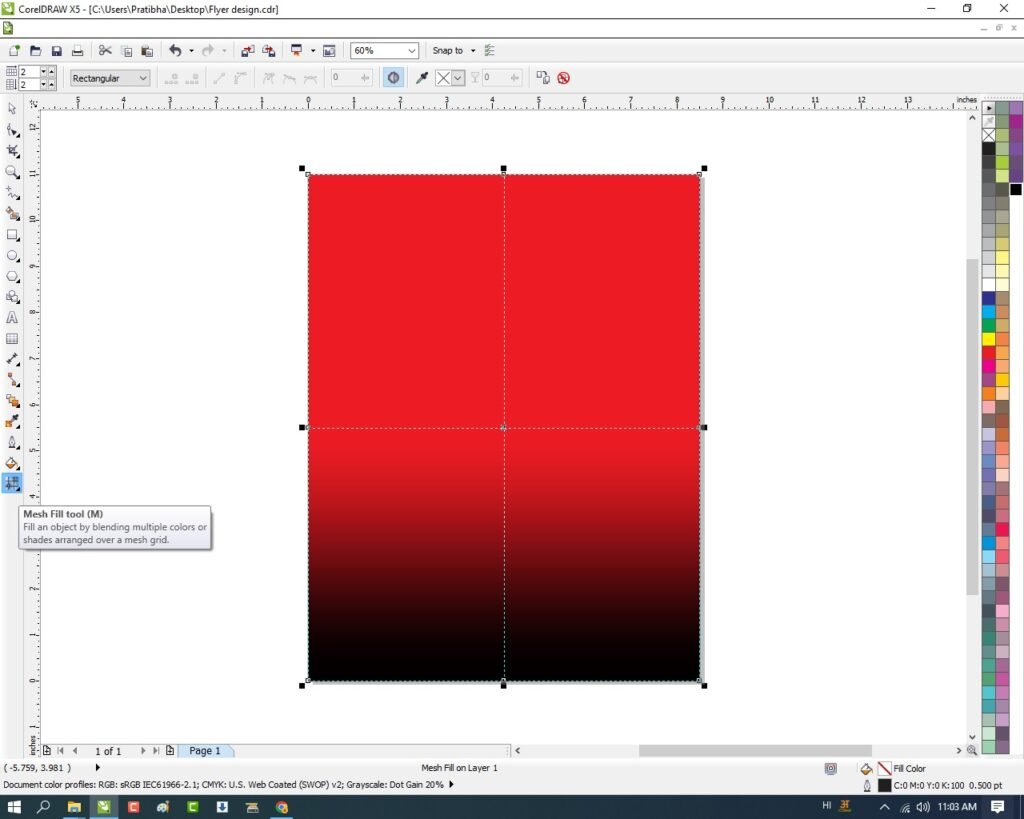
  • अब Mesh Fill Tool से Color fill करे।
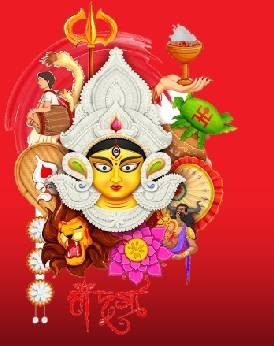
  • अब Photo Google से Download करे Page पर Set करे।
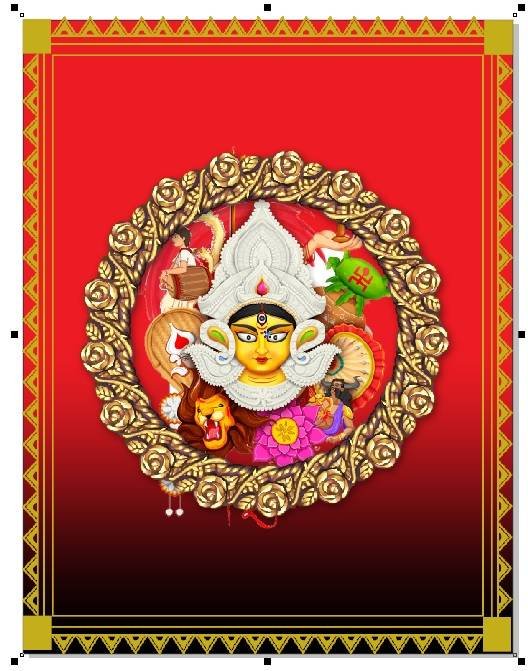
  • अब Image Google से Download करे Page पर Set करे।
  • अब Image Google से Download करे Page पर Set करे।
  • अब Image Google से Download करे Page पर Set करे।
  • Image को Shift के साथ Select करे CTRL + G Group करे
  • CTRL + D से Image का Duplicate करे page पर Set करे।
  • अब Image Google से Download करे Page पर Set करे।
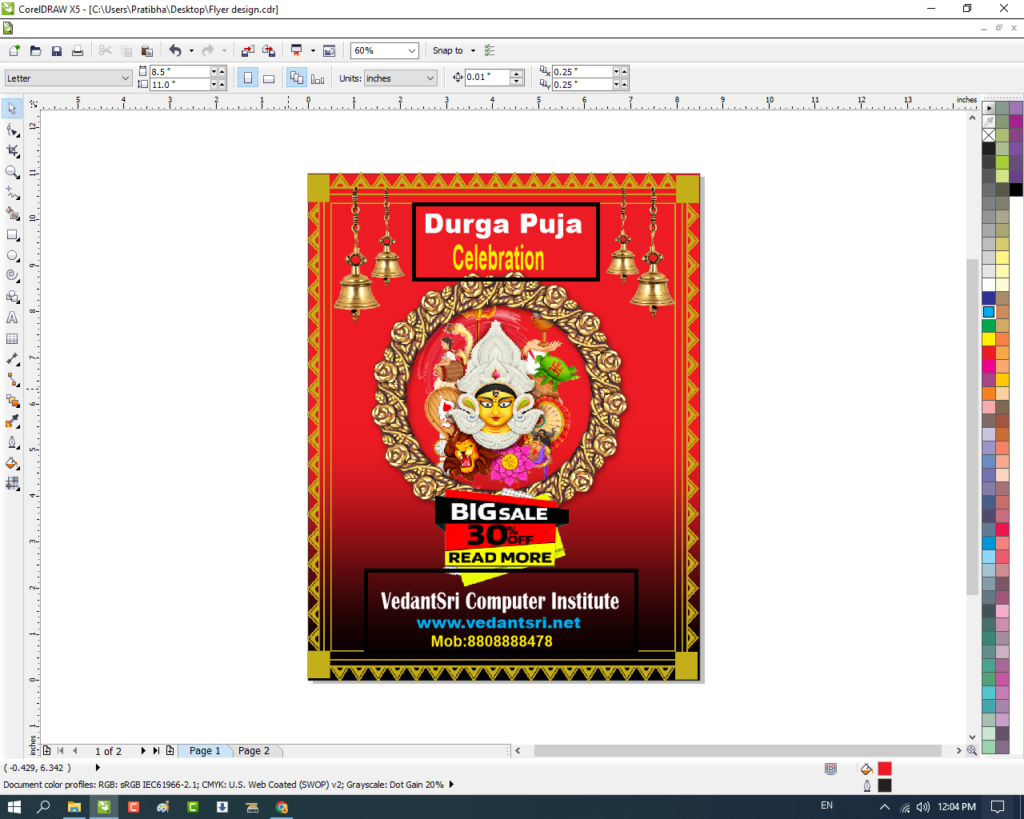
  • अब Text Tool से Detail लिखे Font Style, Size, Color Change करे।
  • अब CTRL + S से File मे Save करे,

Created & Explained By Pratibha Modanwa

1-VedantSri Official Website:- https://vedantsri.com

2-Student Support Website:- https://www.vedantsri.net

3-Jobs Assist Website:- https://www.jobdo.in

External Link

1-VedantSri Official Website:- https://vedantsri.com

2-Course Store Website:- https://vedantsri.in

3-Jobs Assist Website:- https://www.jobdo.in

4-MS Word Class:- https://mswordclass.com/

5-Corel Free Class:- https://corelclass.com/

6-Free Excel Class:- https://msexcelclass.com/

Offers Navratri Card in CorelDraw, Simple Method, Download Source File

Offers Navratri Card in CorelDraw, Simple Method, Download Source File

Hello! Friends Welcome to www.vedantsri.net In this Project I am going to Teach you How To Create Offers Cards in CorelDraw. In this Project, you can Learn How to Design a Message Card in CorelDraw Application an Easy Method. Simple Method to Create a Beautiful Offers Card in CorelDraw. You Can also Download the Practice File in This Post. So Let’s Start This Project. Before Starting This Project I Request You Please Follow the Given Below Steps to Learn Properly. Offers Navratri Card in CorelDraw, Simple Method, Download Source File

  • Press Window + R To Open Run Dialogue Box > Type CorelDraw.
2 74
Offers Navratri Card in CorelDraw, Simple Method, Download Source File 563
  • Then Press ok.
Offers Navratri Card in CorelDraw, Simple Method, Download Source File
  • Click New Blank Document.
4 20
Offers Navratri Card in CorelDraw, Simple Method, Download Source File 564
  • Press Ok.
5 18
Offers Navratri Card in CorelDraw, Simple Method, Download Source File 565
  • Then Double Click on the Rectangle Tool.
6 10
Offers Navratri Card in CorelDraw, Simple Method, Download Source File 566
  • Go to Interactive Fill Tool > Click on Mesh Fill Option.
1 24
Offers Navratri Card in CorelDraw, Simple Method, Download Source File 567
  • Then Fill Like I Show You.
Offers Navratri Card in CorelDraw
Offers Navratri Card in CorelDraw, Simple Method, Download Source File 568
  • Insert some Png Pictures and Designs Like I will Show.
Offers Navratri Card in CorelDraw, Simple Method, Download Source File
  • Then Go to Text Tool.
14 23
Offers Navratri Card in CorelDraw, Simple Method, Download Source File 569
  • Then Type Some about your Offers like How many Discounts.
4 54
Offers Navratri Card in CorelDraw, Simple Method, Download Source File 570
  • Then Go Pick the tool to apply Formatting & Move the Text and fix anywhere.
5 40
Offers Navratri Card in CorelDraw, Simple Method, Download Source File 571
  • Go to Font List To Change Style on the Text > You can apply any font style on the Text.
6 55
Offers Navratri Card in CorelDraw, Simple Method, Download Source File 572
  • Then You can Insert Your Company/Institute Name Or LOGO.
Offers Navratri Card in CorelDraw
Offers Navratri Card in CorelDraw, Simple Method, Download Source File 573
  • I have Completed this Project, I hope you guys have understood all the Steps.
Offers Navratri Card in CorelDraw, Simple Method, Download Source File
Offers Navratri Card in CorelDraw, Simple Method, Download Source File 574

Created and explained By Shikha Singh

Dandiya Invitation Card in CorelDraw, Simple & Step By Step, Download Source File

Important link

Visit at – https://www.corelclass.com

Read Also it – https://msexcelclass.com/

Also, Read- Tally Course Fees, Duration, Scope, Syllabus, Admission, Institutes

Also Read – CCC Course Fees, Syllabus, Duration, Scope, Jobs, and Institute

Important Link – DFA Course Fees, Syllabus, Duration, Scope, Jobs, and Institute

Visit – https://mswordclass.com/

Durga Puja Template Design in CorelDraw, Effective and Innovative, Download Source File

Durga Puja Template Design in CorelDraw, Effective and Innovative, Download Source File

Hello! Friends Welcome to www.vedantsri.net In this Project I am going to Teach you How To Design Durga Puja Template in CorelDraw. In this Project you can Learn How to make Basic Durga Puja Card in CorelDraw Application in Easy Method. You can also Download Practice File in this Post . So let’s Start this Project. Before Starting this Project I request you to Please Follow given below Steps to Learn Properly Step by step.

  • Press Windows + R in Keyboard.
  • To Open Run Dialog Box.
  • Type coreldrw in Run Dialog Box.
  • Click at OK.
  • Click at New Blank Document.
  • Fill all Information > Regarding Document.
  • Click at OK.
  • Define Page Dimension.
  • Go To Rectangle Tool.
  • Double Click at Rectangle Tool > Something like this appear.
  • Click at Page > Go to Color Palate > Select Color > like this.
  • Something like this appear.
  • Click at Interactive Tool > Select Mesh Fill Option.
  • Something look like this > Click at Center Point > And Fill Different Color.
  • Insert Rangoli Png > At Page >From File Folder Like this.
  • Insert Devi Maa Picture > Page Like this.
  • Insert Discount Png > at Page >like this.
  • Insert Some Different Design > At Top of Page > like this
  • Insert Two Swastiks > In Both corners.
  • Insert Two Lamps > In both Corners > like this.
  • Insert a Clip art Design.
  • Insert LOGO of an Institution.
  • Click at Text tool > From Tool Option
  • Type Institution Name > Institution Site > Change in White Color > From Color Palate.
  • Now Template is Ready.

1-VedantSri Official Website:- https://vedantsri.com

2-Student Support Website:- https://www.vedantsri.net

3-Jobs Assist Website:- https://www.jobdo.in

External Link

1-VedantSri Official Website:- https://vedantsri.com

2-Course Store Website:- https://vedantsri.in

3-Jobs Assist Website:- https://www.jobdo.in

4-MS Word Class:- https://mswordclass.com/

5-Corel Free Class:- https://corelclass.com/

6-Free Excel Class:- https://msexcelclass.com/

0%
1108
A To Z Tally Shortcut Keys Online Test Series 2026 Pradip VedantSri

A To Z Tally Shortcut Keys Online Test Series 2026

1 / 36

Press Ctrl+F4 To Open

2 / 36

Double Underline Represent in Tally

3 / 36

F9 Open Purchase Return Voucher

4 / 36

Esc Key Press to Go Back/Previous Pages in Tally

5 / 36

F7 Open Journal Voucher in Tally

6 / 36

Press Alt+F8 To Open

7 / 36

Tally Shortcut Key to Open Others Voucher?

8 / 36

Press Ctrl+F5 To Open Rejection Out Voucher in Tally

9 / 36

Shortcut Key To Open Configuration Setting in Tally?

10 / 36

Tally Shortcut key to Change Current date?

11 / 36

Press Alt+F5 to Open Which Voucher

12 / 36

Shortcut Key To Open Purchase Order Voucher?

13 / 36

Press F8 To Open

14 / 36

Use of Ctrl+A in Tally

15 / 36

Contra Voucher Used To Record Banks Related Entry in Tally

16 / 36

Tally Shortcut to Open Help Website?

17 / 36

Tally F4 To Open

18 / 36

Tally Shortcut Key To Open Company Menu

19 / 36

Press Ctrl+F3 in Tally To Open

20 / 36

Shortcut Key To Check Tally Product Information

21 / 36

Tally Shortcut Key To Check Installed Release

22 / 36

Press Alt+F3 in Tally Open

23 / 36

Press Ctrl+Alt+R in Tally To Open

24 / 36

F1 Key

25 / 36

Single Underline Represents in Tally

26 / 36

Tally Shortcut key To Change Date Periods?

27 / 36

Press Ctrl+F6 To Open

28 / 36

Press Backspace Key Go to Previous Options in Tally

29 / 36

Press F6 to Open

30 / 36

Shortcut Key to Open Physical Stock in Tally?

31 / 36

Press F3 in Tally To Open

32 / 36

Press F5 To Open

33 / 36

Shortcut key To Open Features Setting In Tally?

34 / 36

Shortcut key To Open Stock Journal in Tally?

35 / 36

Press Ctrl+F8 To Open

36 / 36

Press Alt+F9 To Open

Your score is

The average score is 30%

0%