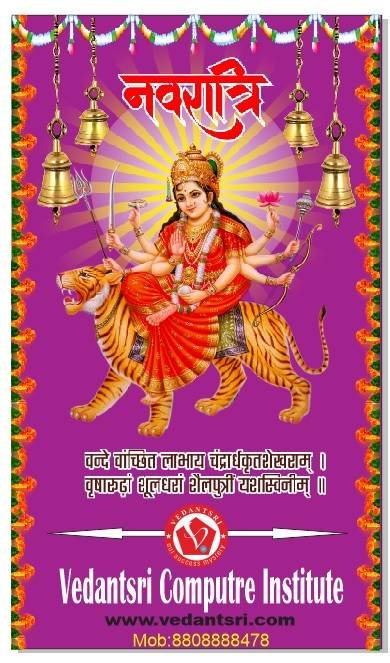
Message Card in CorelDraw, Simple Method Step By Step, Download Source File
Hello! Friends Welcome to www.vedantsri.net In this Project I am going to Teach you How To Create a Message Card in CorelDraw. In this Project, you can Learn How to Design a Message Card in CorelDraw Application in Easy Method. Simple Method to Create a Beautiful Wishing Card in CorelDraw. You Can also Download the Practice File in This Post. So Let’s Start This Project. Before Starting This Project I Request You Please Follow the Given Below Steps to Learn Properly
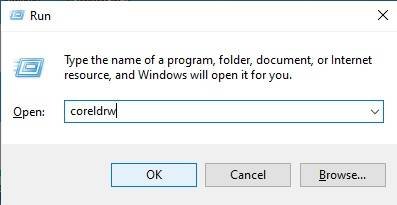
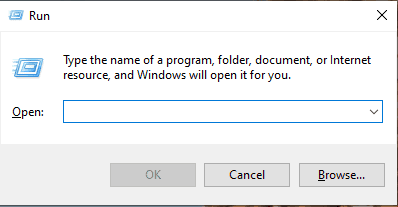
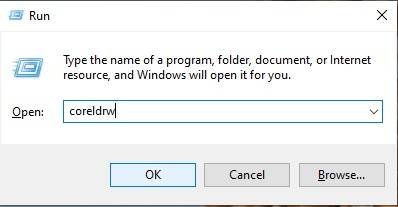
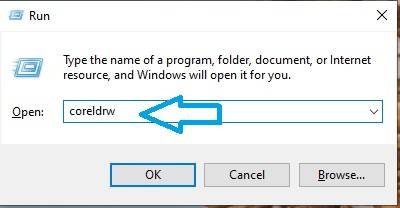
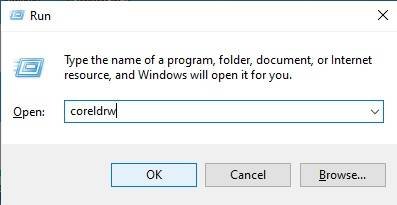
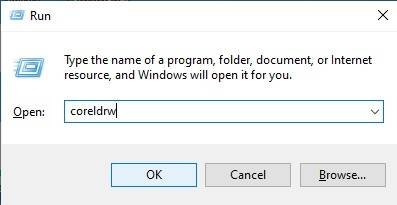
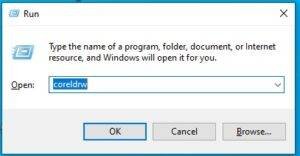
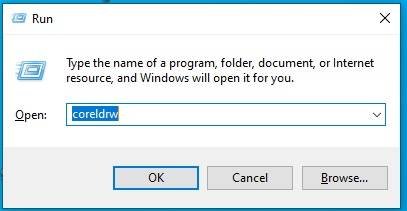
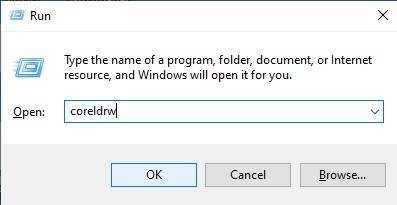
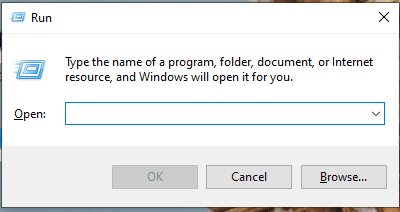
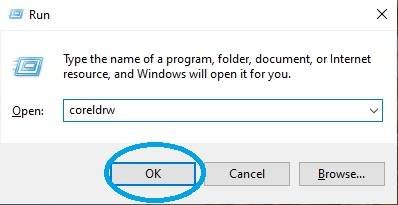
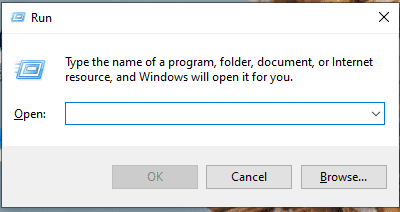
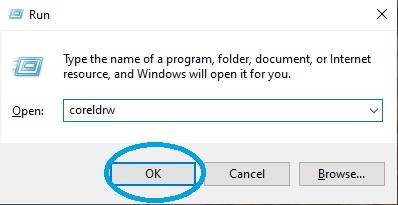
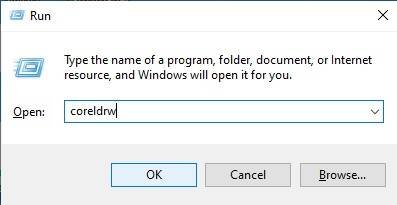
Press Window + R to Open Run Dialogue Box > Type CorelDraw.
Message Card in CorelDraw, Simple Method Step By Step, Download Source File 15
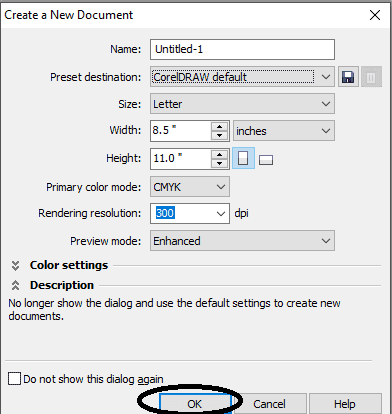
Press Ok.
Message Card in CorelDraw, Simple Method Step By Step, Download Source File 16
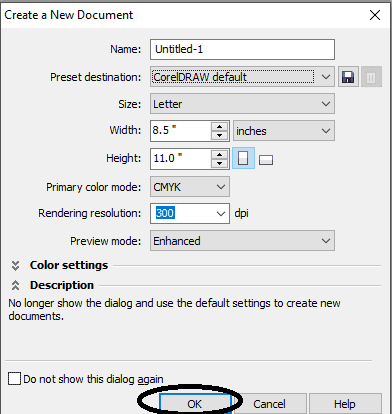
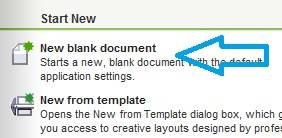
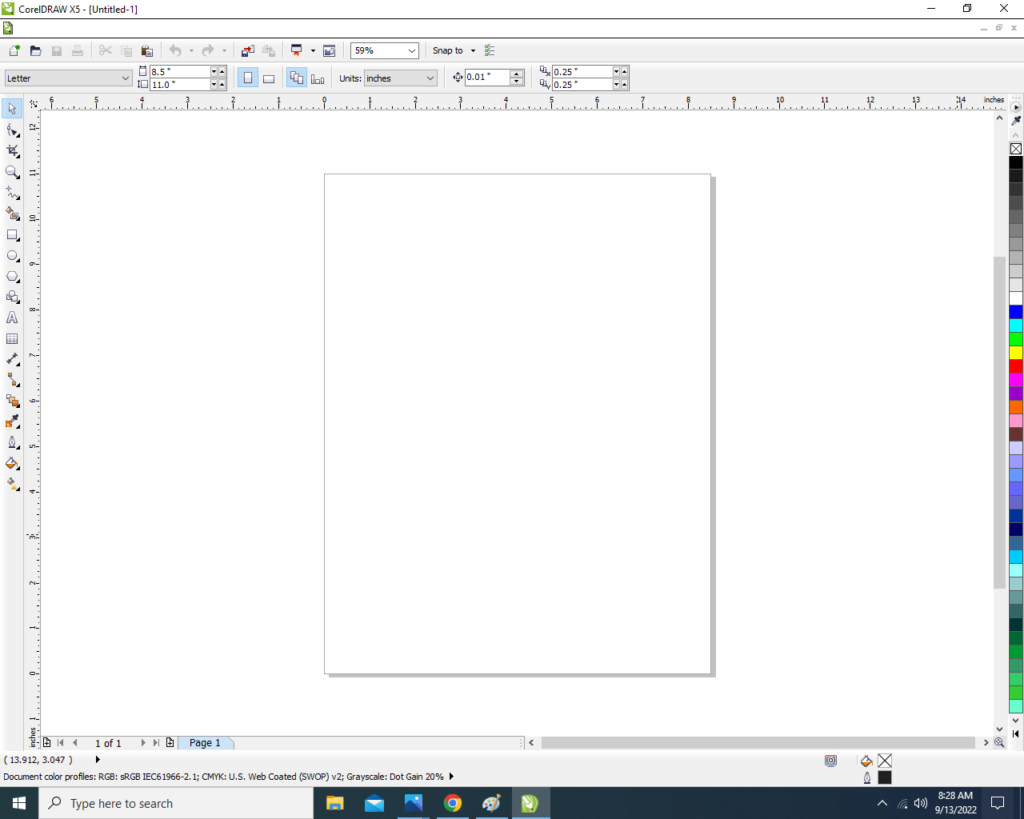
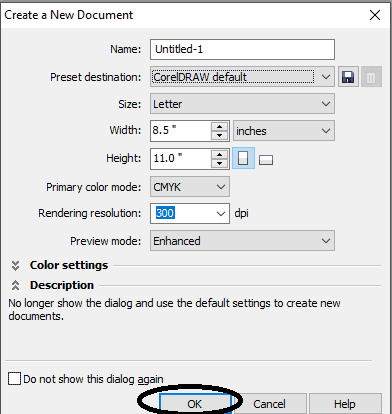
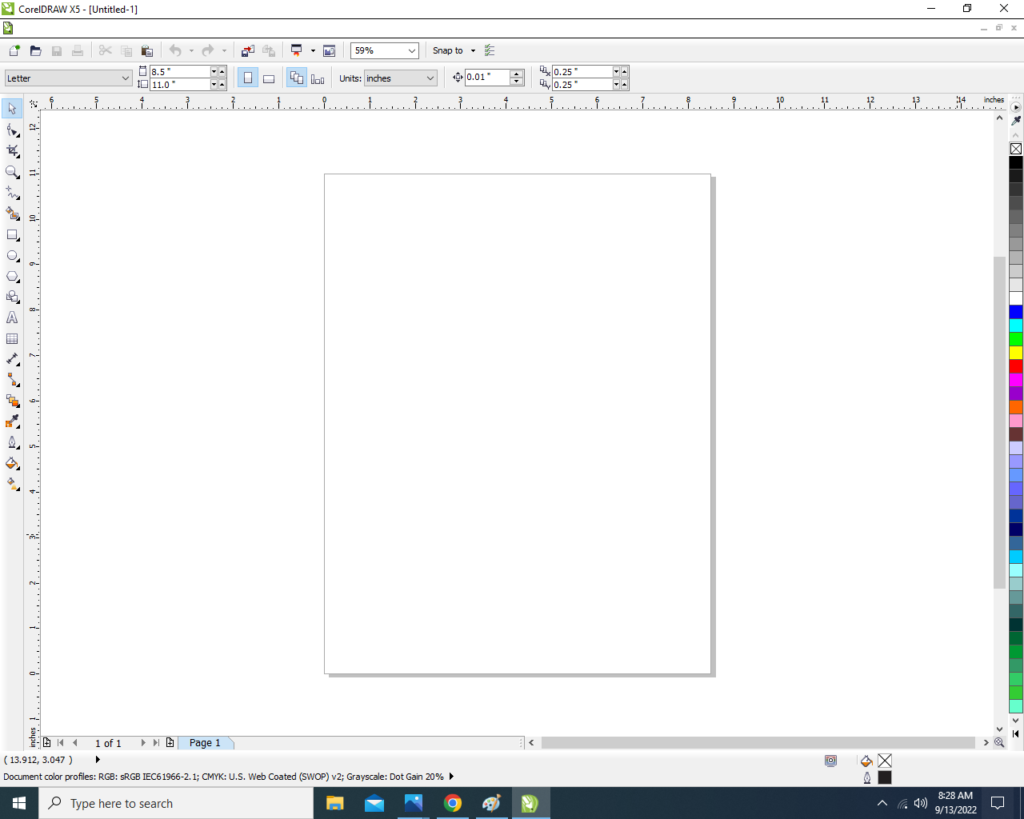
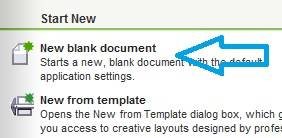
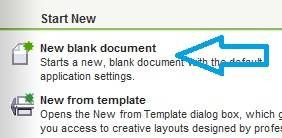
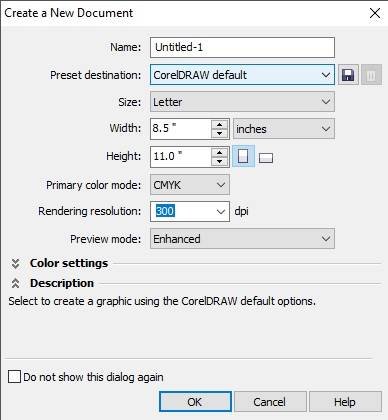
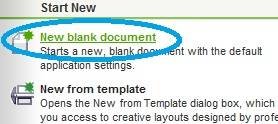
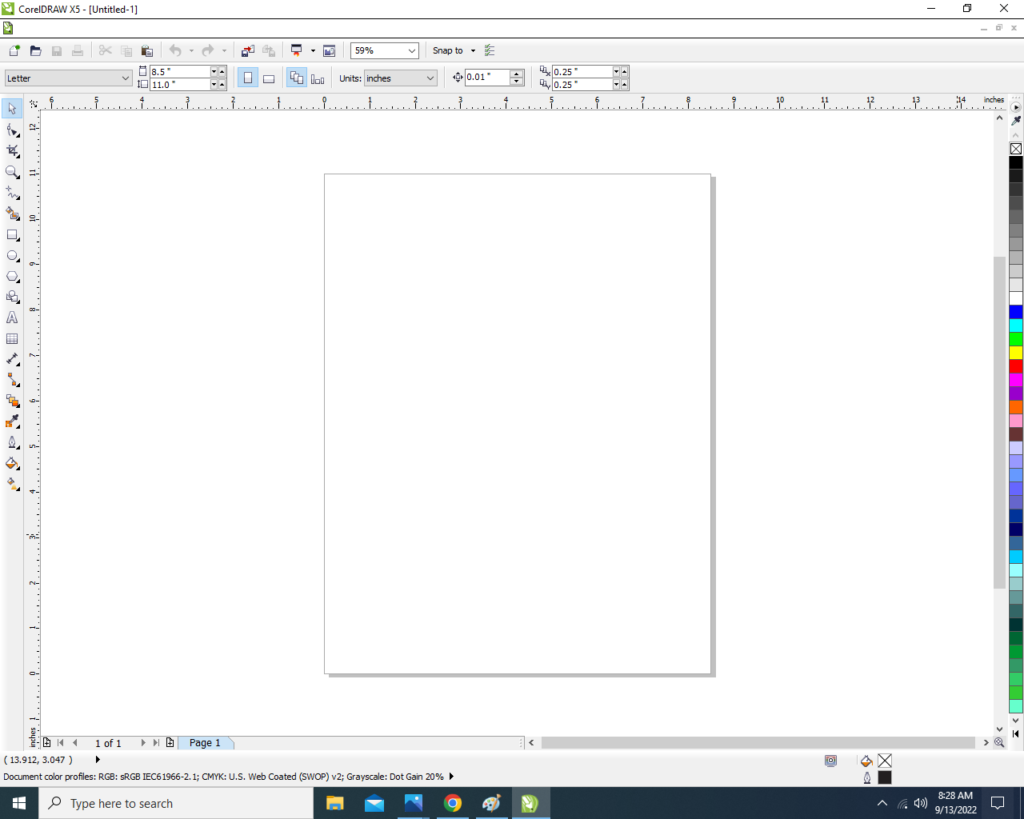
Click New Blank Document.
Message Card in CorelDraw, Simple Method Step By Step, Download Source File 17
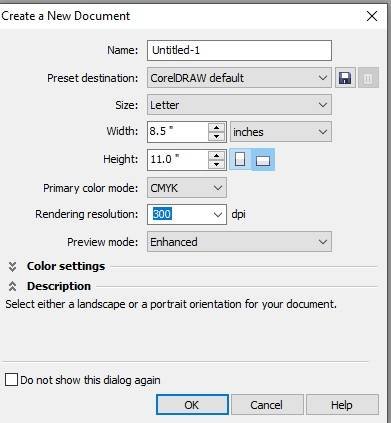
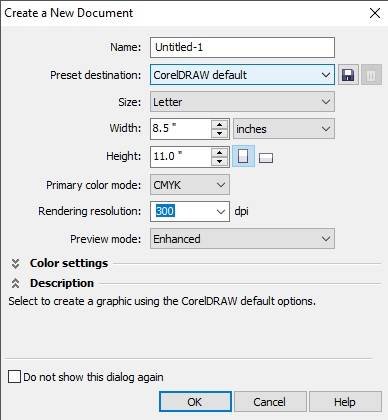
Press Ok.
Message Card in CorelDraw, Simple Method Step By Step, Download Source File 18
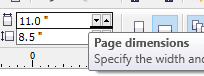
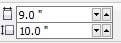
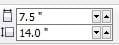
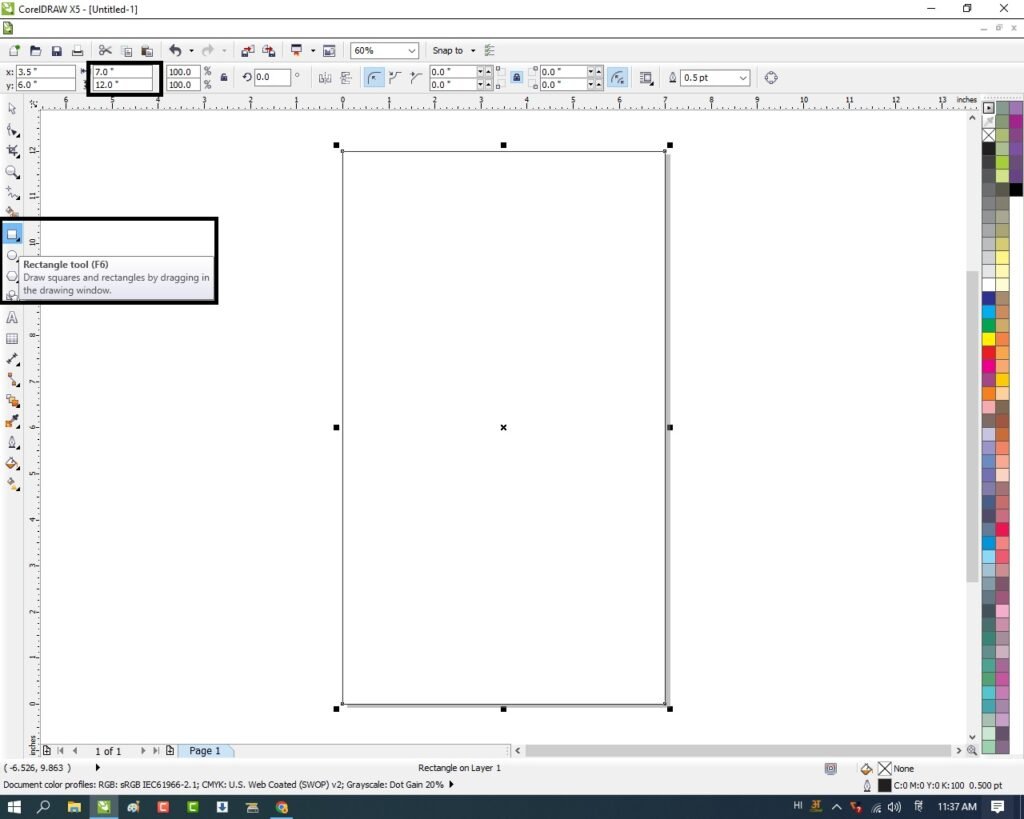
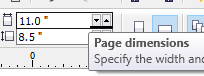
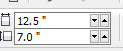
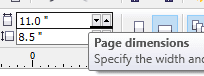
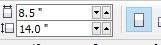
Mention Page Size > W- 7 > H-13.
Message Card in CorelDraw, Simple Method Step By Step, Download Source File 19
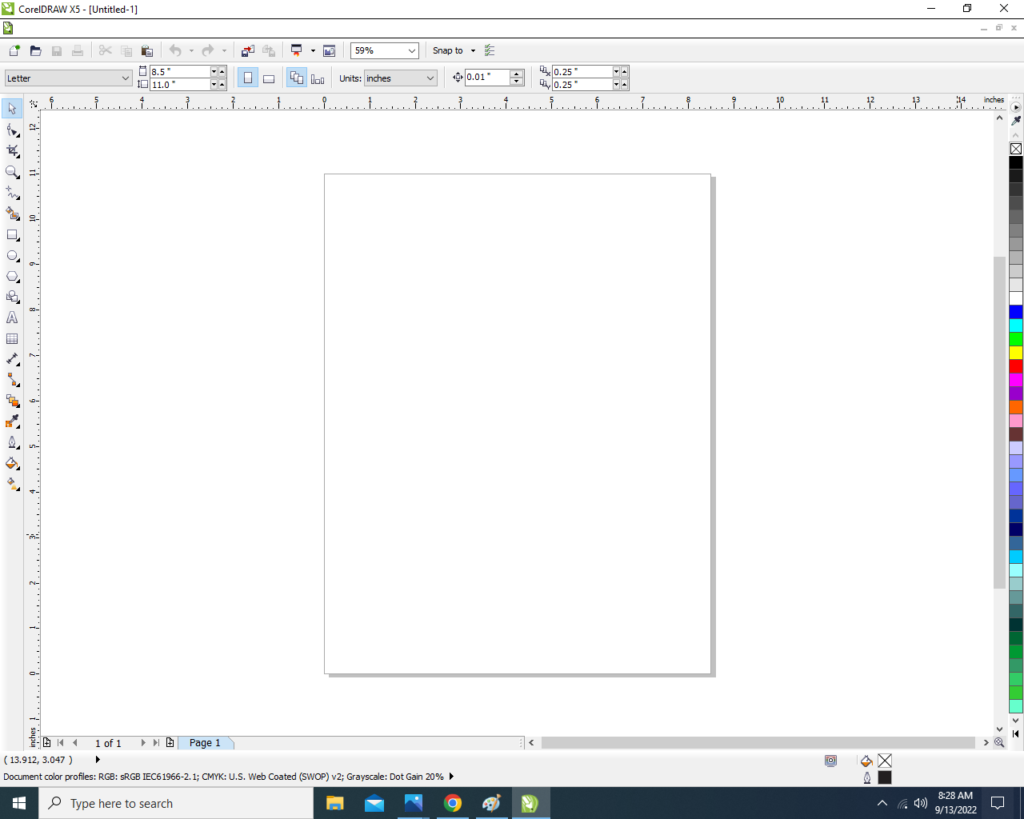
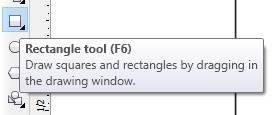
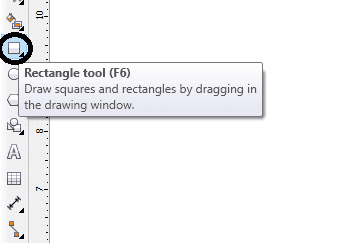
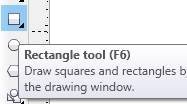
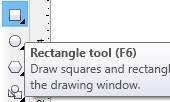
Double Click on Rectangle Tool.
Message Card in CorelDraw, Simple Method Step By Step, Download Source File 20
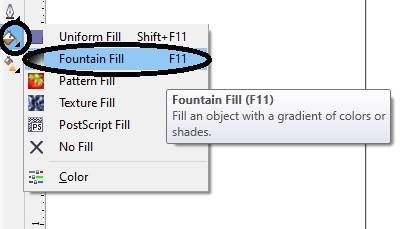
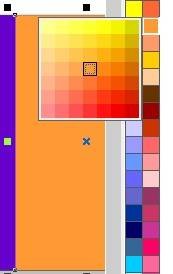
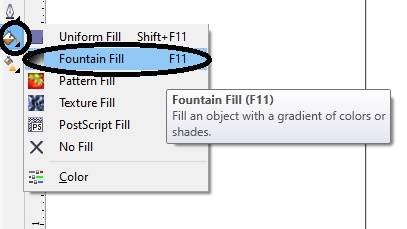
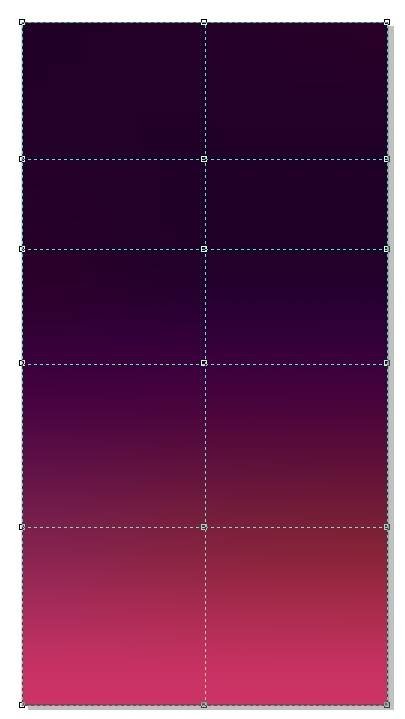
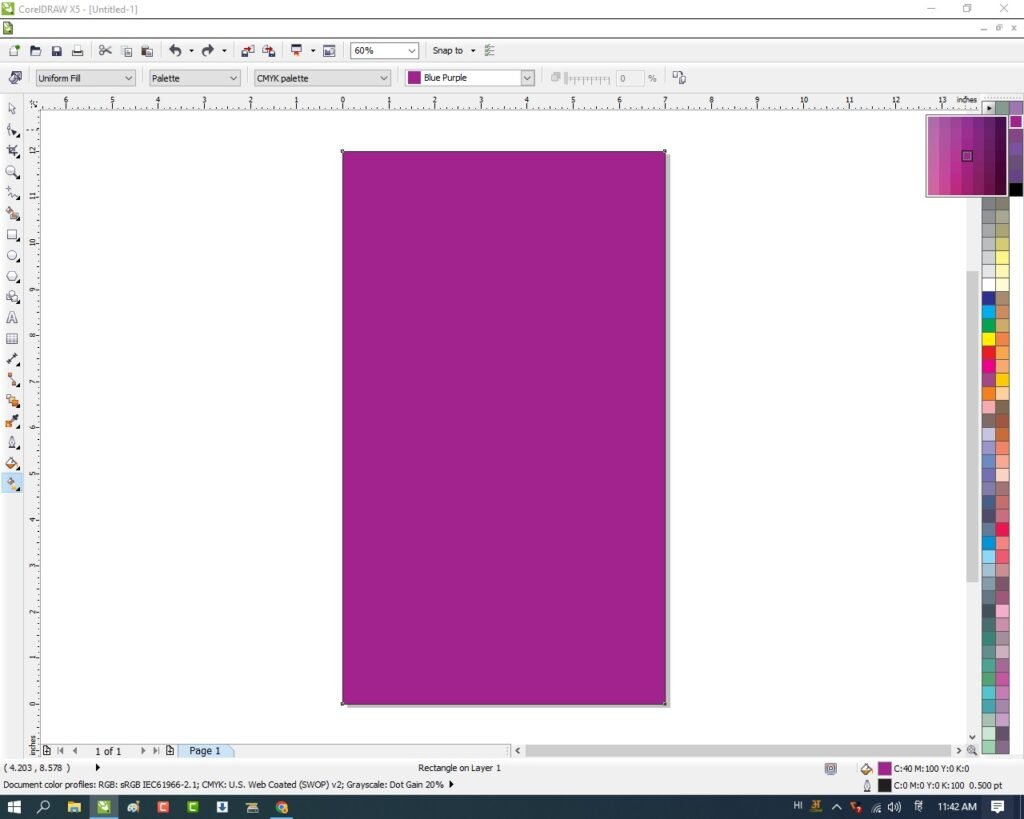
Go to Fill Tool > Click Fountain Fill Option.
Message Card in CorelDraw, Simple Method Step By Step, Download Source File 21
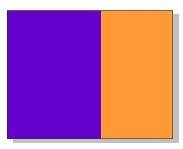
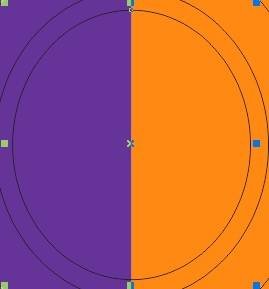
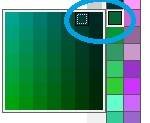
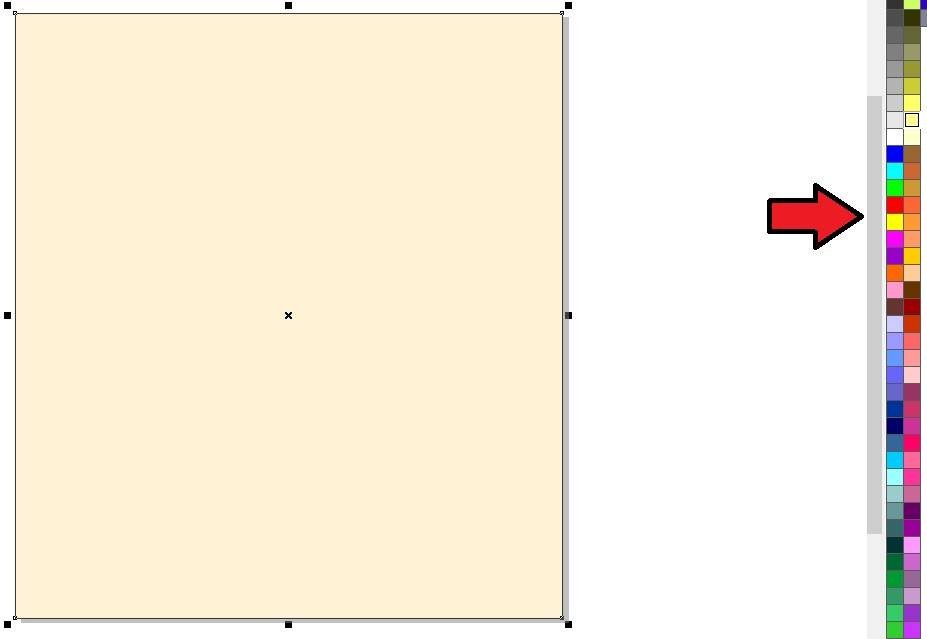
Fill any two Color at the Page.
Message Card in CorelDraw, Simple Method Step By Step, Download Source File 22
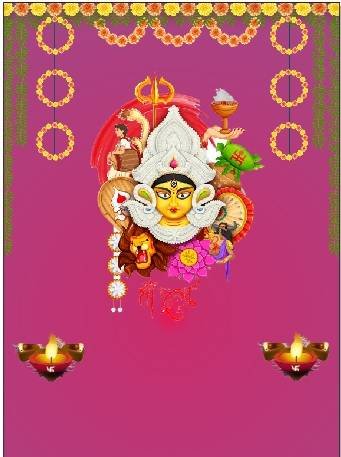
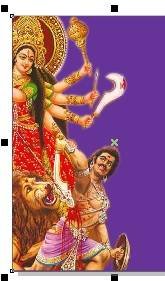
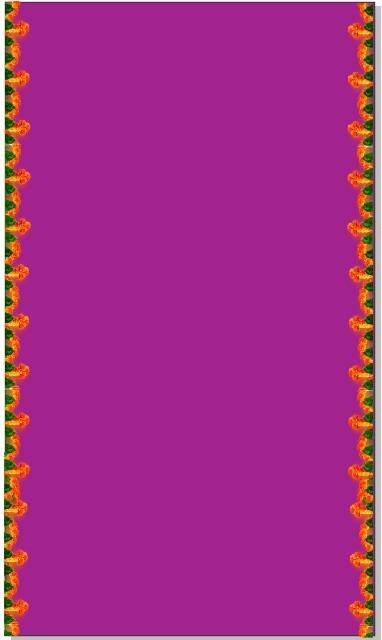
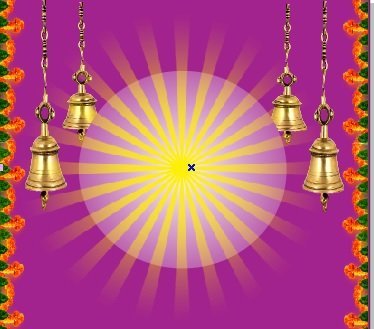
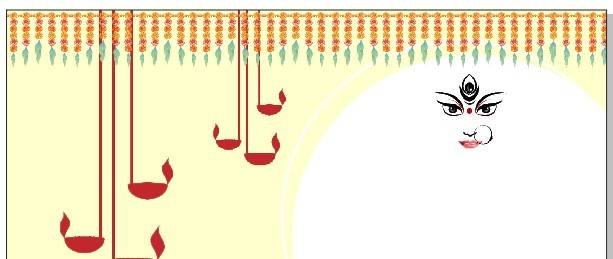
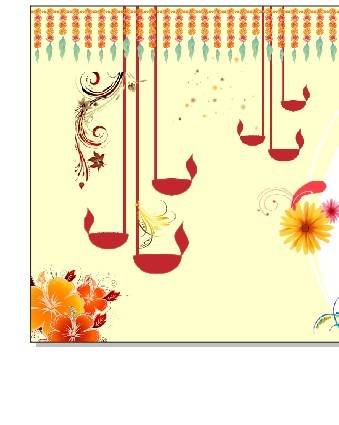
Insert Some Png Pictures and Designs.
Message Card in CorelDraw, Simple Method Step By Step, Download Source File 23
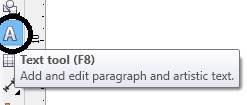
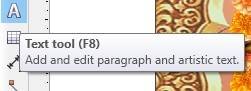
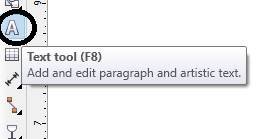
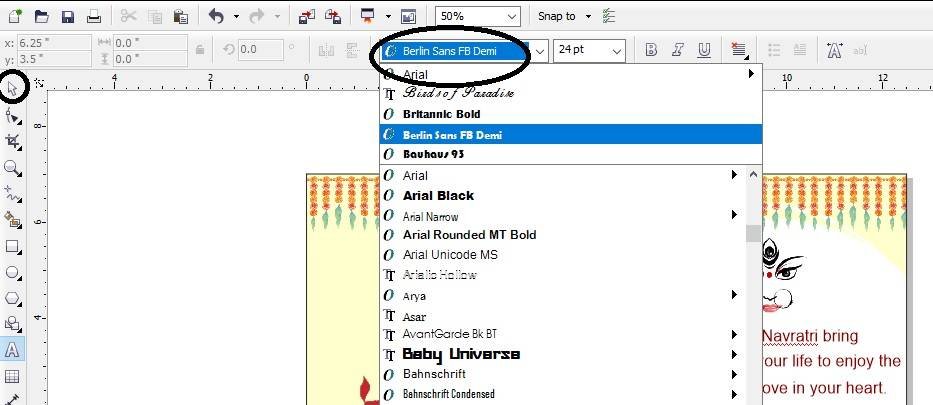
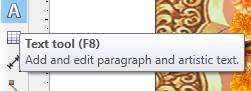
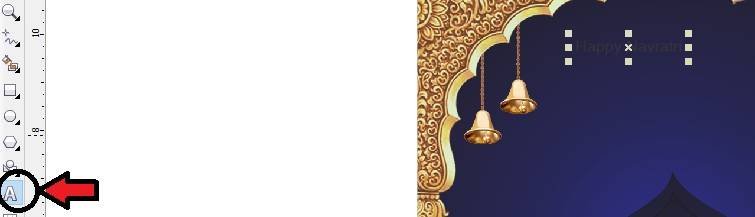
Go to Text Tool > Write Durga Pooja Then Apply Formatting on the Text.
Message Card in CorelDraw, Simple Method Step By Step, Download Source File 24
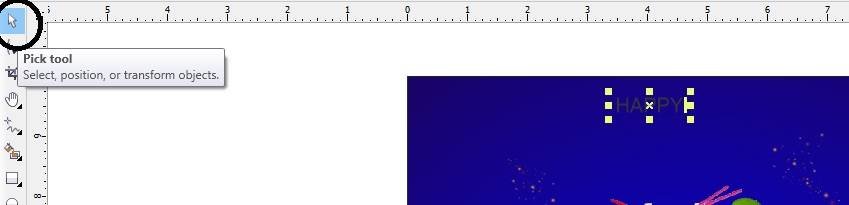
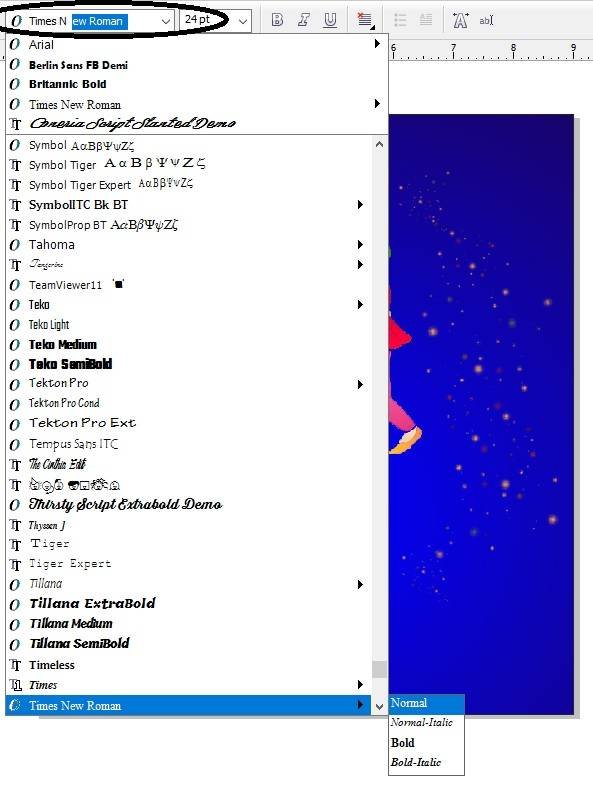
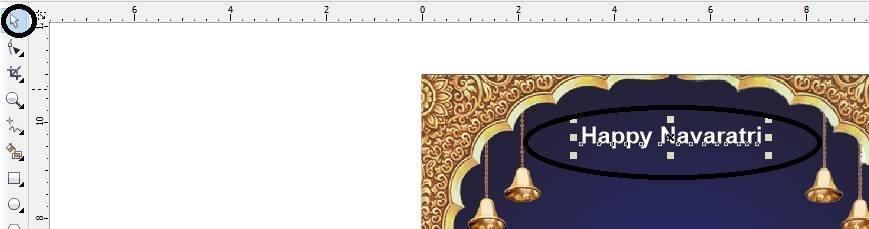
Type Some Lines > go to Pick Tool & Font List To Apply Formatting on the Text.
Message Card in CorelDraw, Simple Method Step By Step, Download Source File 25
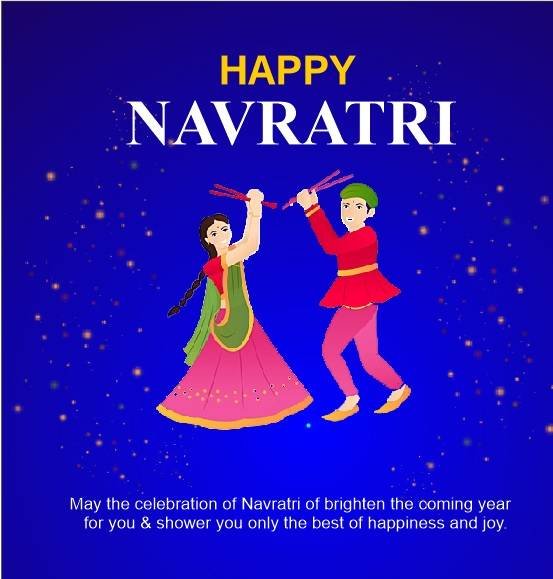
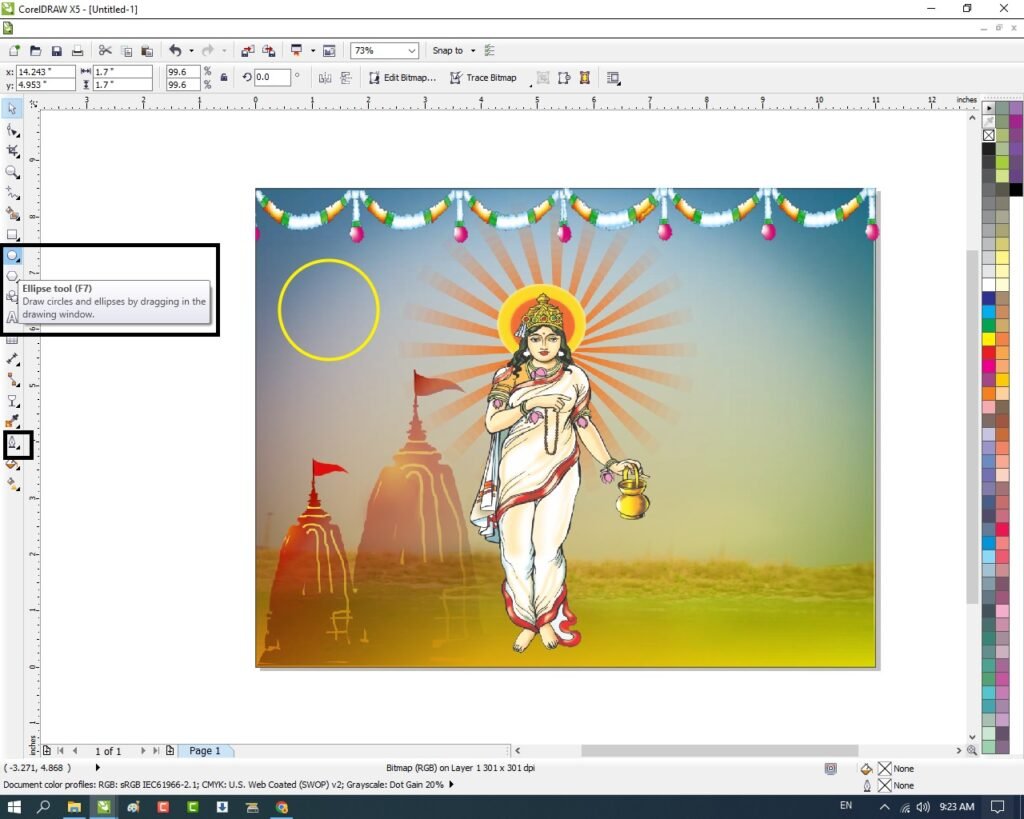
Write wishes then Same apply Formatting on matter.
Message Card in CorelDraw, Simple Method Step By Step, Download Source File 26
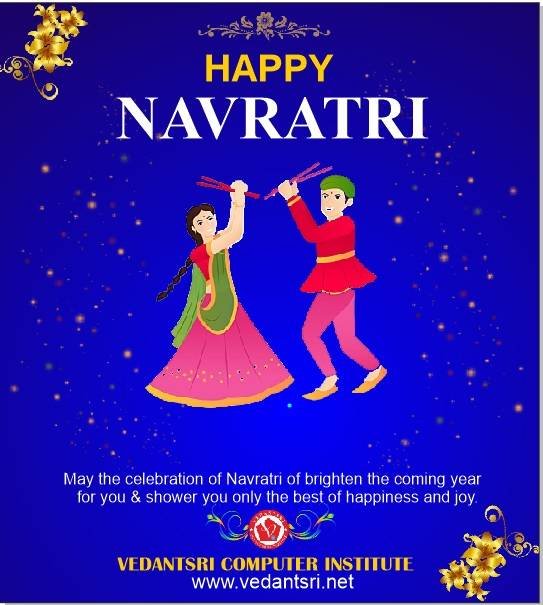
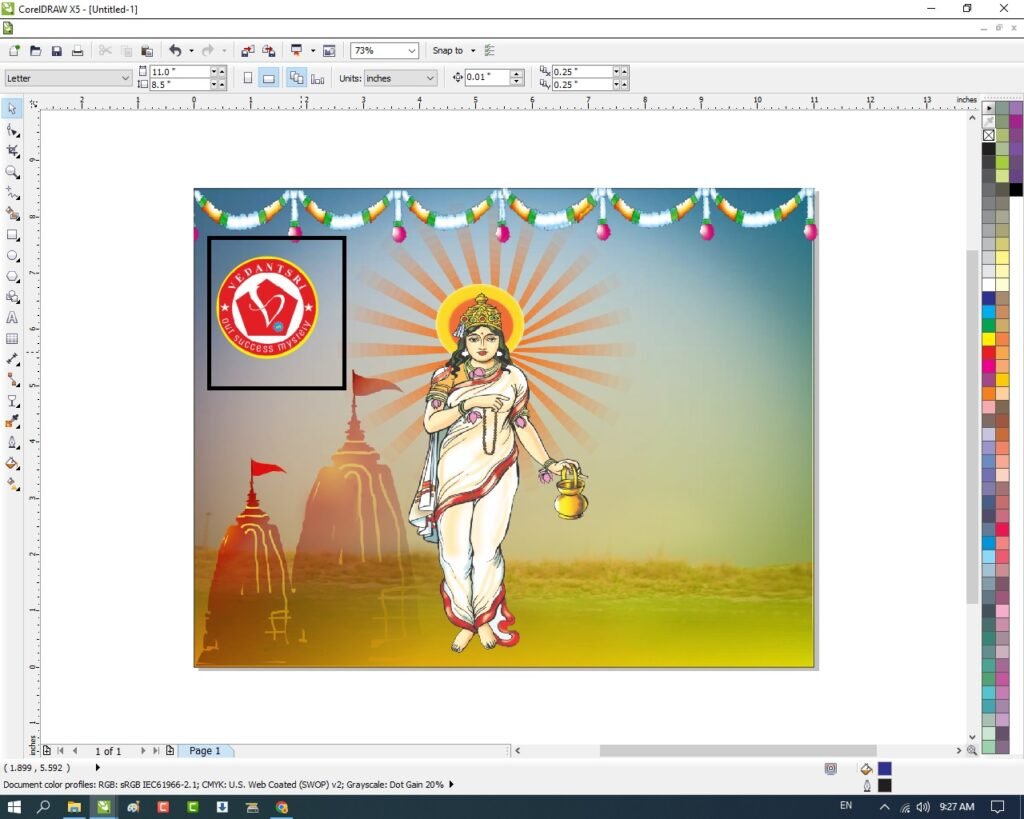
Insert your Company/Institute LOGO & Name.
Message Card in CorelDraw, Simple Method Step By Step, Download Source File 27
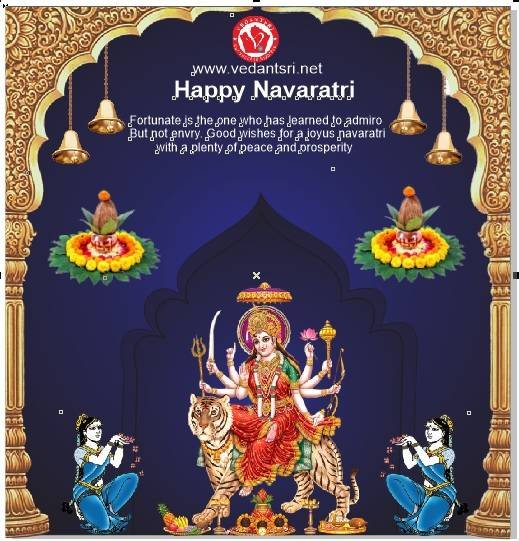
I have Completed this Project, I hope you guys have understood all the Step.
Basic Durga Puja Card Design in CorelDraw, Easy and Innovative, Download Source File
Hello! Friends Welcome to www.vedantsri.net In this Project, I am going to Teach you How To Design Durga Puja Card in CorelDraw. In this Project, you can Learn How to make Basic Durga Puja Card in CorelDraw Application in Easy Method.
You can also Download the Practice File in this Post. So let’s start this Project. Before Starting this Project I request you to follow the steps below to Learn Properly Step by step.
Basic Durga Puja Card Design in CorelDraw Steps
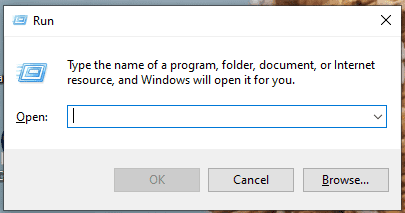
Press Windows + R on Keyboard.
To Open Run Dialog Box.
Basic Durga Puja Card Design in CorelDraw, Easy and Innovative, Download Source File 50
Type coreldrw in Run Dialog Box > As a Run Command.
Basic Durga Puja Card Design in CorelDraw, Easy and Innovative, Download Source File 51
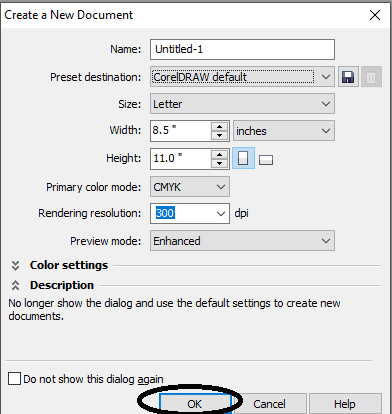
Click on OK.
Click on New Blank Document.
Basic Durga Puja Card Design in CorelDraw, Easy and Innovative, Download Source File 52
Fill in all Information > Regarding Document.
Basic Durga Puja Card Design in CorelDraw, Easy and Innovative, Download Source File 53
Click on OK.
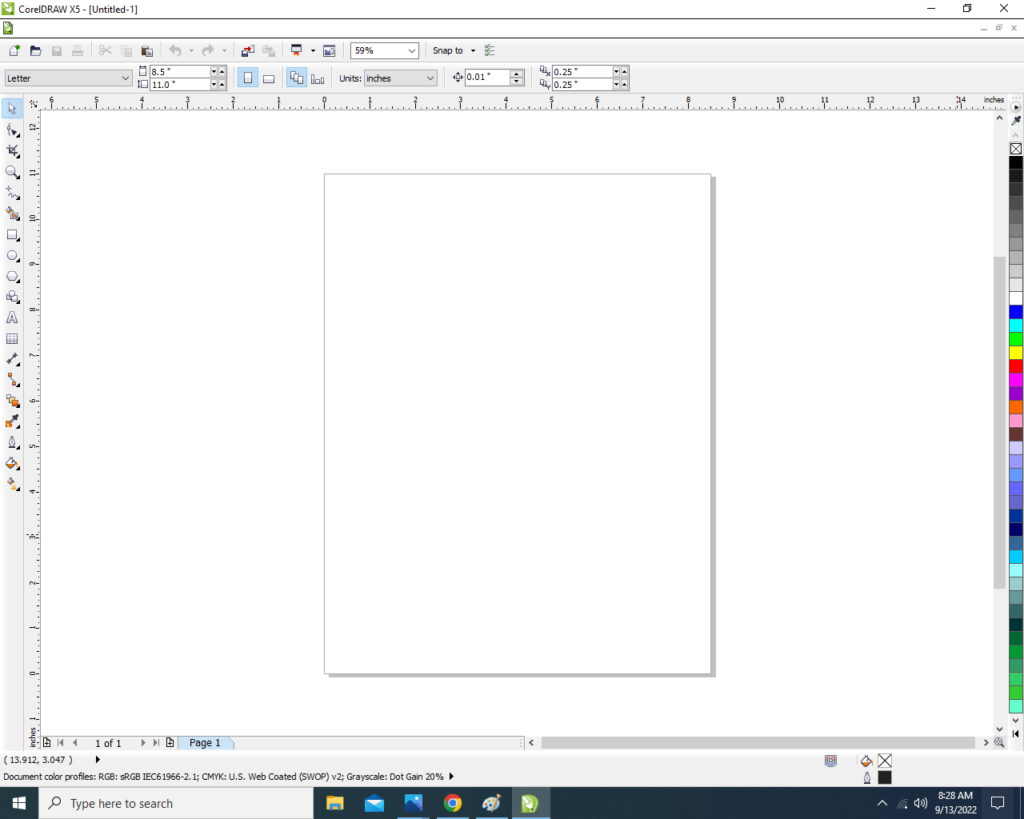
Define Page Dimension.
Basic Durga Puja Card Design in CorelDraw, Easy and Innovative, Download Source File 54
Click on Rectangle Tool.
Basic Durga Puja Card Design in CorelDraw, Easy and Innovative, Download Source File 55
Double Click on Rectangle Tool.
Something appears like this
Basic Durga Puja Card Design in CorelDraw, Easy and Innovative, Download Source File 56
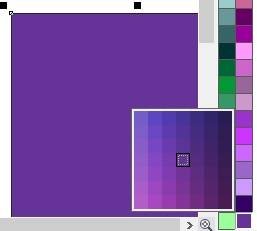
Click on Page > Go to Color Palate > Select Color.
Basic Durga Puja Card Design in CorelDraw, Easy and Innovative, Download Source File 57
Something like this appears.
Basic Durga Puja Card Design in CorelDraw, Easy and Innovative, Download Source File 58
Draw a Rectangle > Once again.
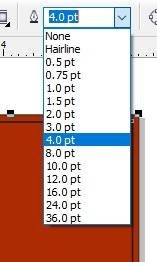
Select Rectangle > Increase Point >From Here.
Basic Durga Puja Card Design in CorelDraw, Easy and Innovative, Download Source File 59
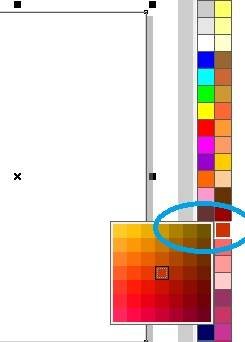
Change Outline Color > From here
Basic Durga Puja Card Design in CorelDraw, Easy and Innovative, Download Source File 60
Something like this appears.
Basic Durga Puja Card Design in CorelDraw, Easy and Innovative, Download Source File 61
Select Yellow Rectangle > Press Ctrl + C > Ctrl + V > Change Outline Color.
Basic Durga Puja Card Design in CorelDraw, Easy and Innovative, Download Source File 62
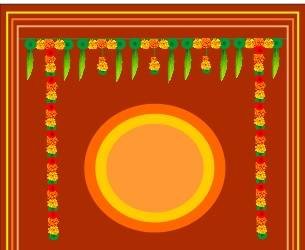
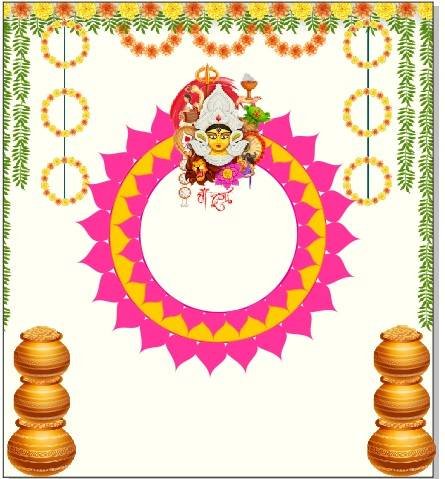
Insert Flower and Leave > At Page > From File Folder > like this.
Basic Durga Puja Card Design in CorelDraw, Easy and Innovative, Download Source File 63
Duplicate Flowers and leave > With Ctrl + D > Set like this.
Basic Durga Puja Card Design in CorelDraw, Easy and Innovative, Download Source File 64
Draw There Circles > Set like this > Change Color > From Color Palate.
Basic Durga Puja Card Design in CorelDraw, Easy and Innovative, Download Source File 65
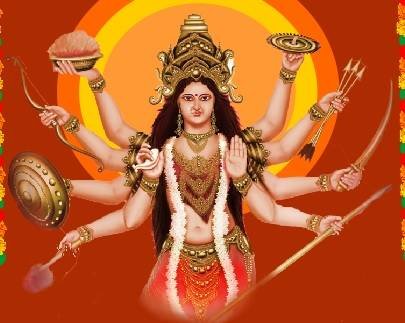
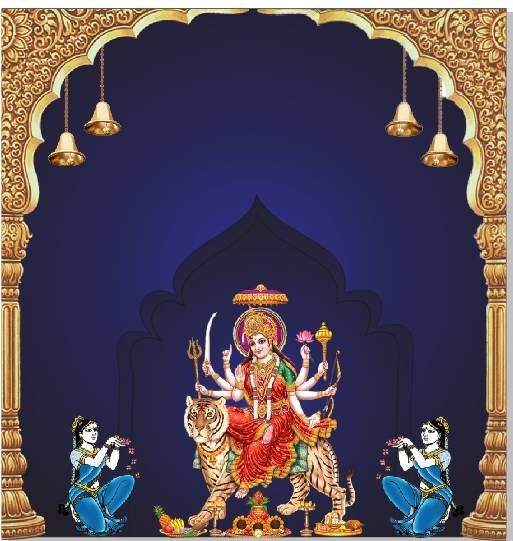
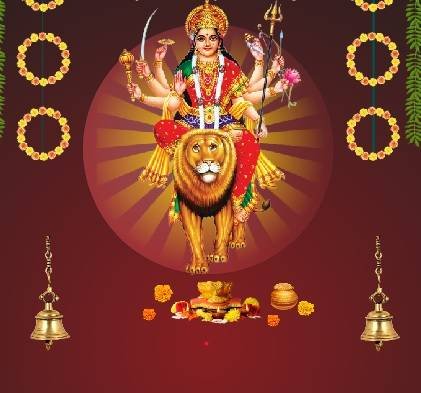
Insert Devi Maa Picture > At Page.
Basic Durga Puja Card Design in CorelDraw, Easy and Innovative, Download Source File 66
Insert Message Box > like this.
Basic Durga Puja Card Design in CorelDraw, Easy and Innovative, Download Source File 67
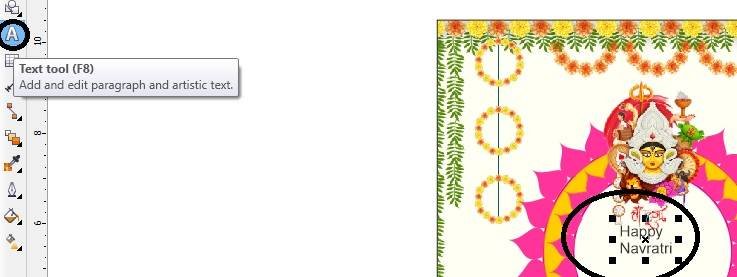
Click on the Text tool
Basic Durga Puja Card Design in CorelDraw, Easy and Innovative, Download Source File 68
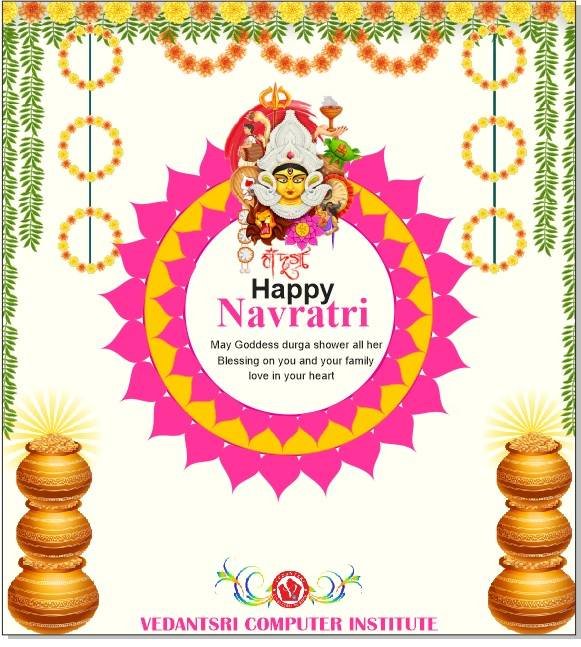
Add a message in the message box > Insert LOGO of an Institution.
Basic Durga Puja Card Design in CorelDraw, Easy and Innovative, Download Source File 69
Type Institution Name > Institution Site.
Basic Durga Puja Card Design in CorelDraw, Easy and Innovative, Download Source File 70
Navratri Poster Design in CorelDraw, Easy Method, Complete Steps, Download Practice File
Hello, Friends welcome To VedantSri.net In This Post, I am Going To Teach you How to Create Navratri Poster Design in CorelDraw. In This Project, You can Learn How to Design Navratri Poster Design in CorelDraw Application an Easy Method. You Can also Download the Practice File in This Post. So Let’s start to Learn This Project, Before Starting I Request You to Please Follow Given below Step to Learn Properly Step by Step. (Navratri Poster Design in CorelDraw, Easy Method, Complete Steps, Download Practice File)
CorelDraw Open करने के लिए Window + R Press करे Run Box Open करे।
Navratri Poster Design in CorelDraw, Easy Method, Complete Steps, Download Practice File 82
Run Box मे coreldrw Type करे
Navratri Poster Design in CorelDraw, Easy Method, Complete Steps, Download Practice File 83
अब Ok पर Click करके CorelDraw का Application Open करे
Navratri Poster Design in CorelDraw, Easy Method, Complete Steps, Download Practice File 84
CTRL + N Press करके New Page का Window Open करे।
Navratri Poster Design in CorelDraw, Easy Method, Complete Steps, Download Practice File 85
अब Ok पर Click करे CorelDraw का Main Page open करे।
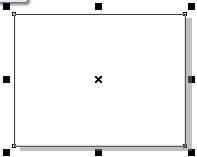
Rectangle Tool पर Double Click करे,
Navratri Poster Design in CorelDraw, Easy Method, Complete Steps, Download Practice File 86
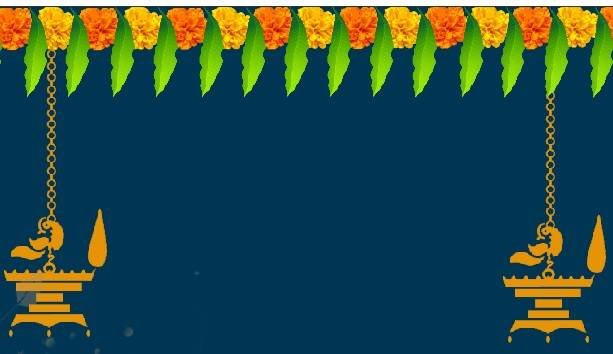
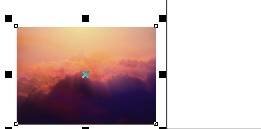
अब Background Image Download करे
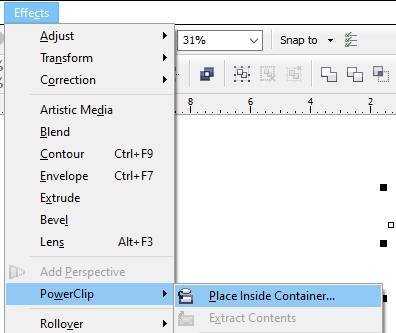
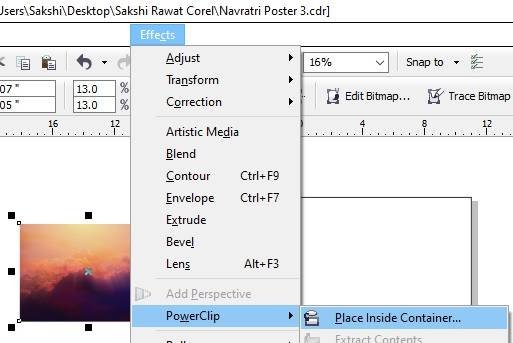
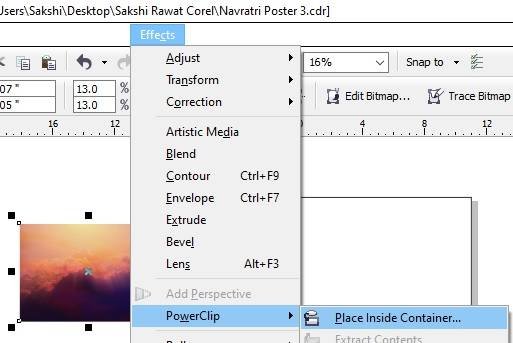
Menu Bar > Effects Option > Power Clip > Place Inside Container पर Click करे
Page पर Click करे CTRL + Mouse से Left Click करे Image को Page पर Set करे
page के बाहर CTRL + Mouse से Left Click करे।
Navratri Poster Design in CorelDraw, Easy Method, Complete Steps, Download Practice File 87
अब Png image Download करे
Menu bar > Bitmaps Option >Auto Adjust Option पर Click करे
Menu Bar > Effects Option > Power Clip > Place Inside Container पर Click करे
Page पर Click करे CTRL + Mouse से Left Click करे Image को Page पर Set करे
page के बाहर CTRL + Mouse से Left Click करे।
Navratri Poster Design in CorelDraw, Easy Method, Complete Steps, Download Practice File 88
अब Google से Photo Download करे Page पर Set करे।
Navratri Poster Design in CorelDraw, Easy Method, Complete Steps, Download Practice File 89
अब Png image Download करे CTRL + D से Image का Duplicate करके Page पर set करे।
Menu bar > Bitmaps Option >Auto Adjust Option पर Click करे
Menu Bar > Effects Option > Power Clip > Place Inside Container पर Click करे
Page पर Click करे CTRL + Mouse से Left Click करे Image को Page पर Set करे
page के बाहर CTRL + Mouse से Left Click करे।
Navratri Poster Design in CorelDraw, Easy Method, Complete Steps, Download Practice File 90
Text tool detail लिखे।
Navratri Poster Design in CorelDraw, Easy Method, Complete Steps, Download Practice File 91Navratri Poster Design in CorelDraw, Easy Method, Complete Steps, Download Practice File 92
Durga Puja Poster Design, Top 1 Best Effective and Innovative, Download Source File
Hello! Friends Welcome to www.vedantsri.net In this Project, I am going to Teach you How To Design Durga Puja Poster in CorelDraw. In this Project, you can Learn How to Design Durga Puja Poster in CorelDraw Application an Easy Method. You can also Download the Practice File in this Post. So Let’s Start this Project. Before Starting this Project I request you to Please Follow given below Steps to Learn Properly Step by step.
Press Windows + R on Keyboard.
To Open Run Dialog Box.
Durga Puja Poster Design
Type coreldrw in Run Dialog Box > As a Run Command
Durga Puja Poster Design
Click at OK.
Click at New Blank Document.
Durga Puja Poster Design
Fill all Information > Regarding New Document.
Durga Puja Poster Design
Click at OK.
Define Page Dimension.
Durga Puja Poster Design, Top 1 Best Effective and Innovative, Download Source File 115
Click at Rectangle Tool > From Tool Option.
Durga Puja Poster Design, Top 1 Best Effective and Innovative, Download Source File 116
Double Click at Rectangle
Something appear like this.
Durga Puja Poster Design, Top 1 Best Effective and Innovative, Download Source File 117
Draw Two more Rectangle > At page > like this.
Durga Puja Poster Design, Top 1 Best Effective and Innovative, Download Source File 118
Select One By One Rectangle > Change Color > From Color Palate
Durga Puja Poster Design, Top 1 Best Effective and Innovative, Download Source File 119Durga Puja Poster Design, Top 1 Best Effective and Innovative, Download Source File 120
Some thing like this appear.
Durga Puja Poster Design, Top 1 Best Effective and Innovative, Download Source File 121
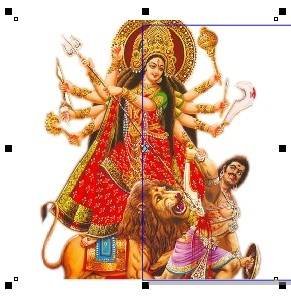
Insert Picture of Devi Maa > From File Folder.
Durga Puja Poster Design, Top 1 Best Effective and Innovative, Download Source File 122
Select Picture > Go To Effect Menu > Select Power Clip Option > Select Place Inside Container Option.
Durga Puja Poster Design, Top 1 Best Effective and Innovative, Download Source File 123
Set like this > With Ctrl + Left Click of Mouse.
Durga Puja Poster Design, Top 1 Best Effective and Innovative, Download Source File 124
Draw a Circle > Press Ctrl + C, Ctrl + V > To Duplicate circle > And create Circle.
Durga Puja Poster Design, Top 1 Best Effective and Innovative, Download Source File 125
Draw a Half Circle > like this > Color from color palate.
Durga Puja Poster Design, Top 1 Best Effective and Innovative, Download Source File 126
Draw a petals > like this > Color petals in different Color.
Durga Puja Poster Design, Top 1 Best Effective and Innovative, Download Source File 127
Something looks like this.
Durga Puja Poster Design, Top 1 Best Effective and Innovative, Download Source File 128
Click at Text Tool > Type matter > Like this.
Durga Puja Poster Design, Top 1 Best Effective and Innovative, Download Source File 129Durga Puja Poster Design, Top 1 Best Effective and Innovative, Download Source File 130
Type Institution Name and Institution Site.
Durga Puja Poster Design, Top 1 Best Effective and Innovative, Download Source File 131
Now Durga Puja Poster is Ready.
Durga Puja Poster Design, Top 1 Best Effective and Innovative, Download Source File 132
Latest Navratri card in CorelDraw, Step By Step, Download Source File
Hello! Friends Welcome to www.vedantsri.net In this Project, I am going to Teach you How To Create Navratri Card in CorelDraw. In this Project, you can Learn How to Design Navratri cards in CorelDraw Application in Easy Method.
Press Window + R to Open Run Dialogue Box > Type coreldrw.
Latest Navratri card in CorelDraw
Press Ok.
Latest Navratri card in CorelDraw
Click New Blank Document.
Latest Navratri card in CorelDraw, Step By Step, Download Source File 149
Press ok.
Latest Navratri card in CorelDraw, Step By Step, Download Source File 150
Mention Page Size.
Latest Navratri card in CorelDraw, Step By Step, Download Source File 151
Double Click on Rectangle Tool.
Latest Navratri card in CorelDraw, Step By Step, Download Source File 152
Go to Fill Tool > Click on Fountain Fill Option.
Latest Navratri card in CorelDraw, Step By Step, Download Source File 153
Fill in any color on the Page As I will show.
Latest Navratri card in CorelDraw, Step By Step, Download Source File 154
Then Insert Some Png Pictures.
Latest Navratri card in CorelDraw, Step By Step, Download Source File 155
Go to the Text tool.
Latest Navratri card in CorelDraw, Step By Step, Download Source File 156
Write Some Text As I Write Here > Go Pick Tool to apply Formatting on the Text.
Latest Navratri card in CorelDraw, Step By Step, Download Source File 157
Go to Font List Tool To Change Style.
Latest Navratri card in CorelDraw, Step By Step, Download Source File 158
Write More Lines in your Card.
Latest Navratri card in CorelDraw, Step By Step, Download Source File 159
Insert Your Company or Institute Name & LOGO.
Latest Navratri card in CorelDraw, Step By Step, Download Source File 160
Then again Insert Some Png pictures and Designs As I will Show.
Latest Navratri card in CorelDraw, Step By Step, Download Source File 161
I have Completed this Project, I hope you guys have understood all the Steps.
Latest Navratri card in CorelDraw, Step By Step, Download Source File 162
Dandiya Invitation Card in CorelDraw, Simple & Step By Step, Download Source File
Hello! Friends Welcome to www.vedantsri.net In this Project I am going to Teach you How To Create Dandiya Night Invitation Card in CorelDraw. In this Project, you can Learn How to Design Dandiya Night Invitation Card in Corel Application an Easy Method.
Press Window + R to Open Run Dialogue Box > Type CorelDraw.
Dandiya Invitation Card in CorelDraw, Simple & Step By Step, Download Source File 177
Press Ok
Dandiya Invitation Card in CorelDraw, Simple & Step By Step, Download Source File
Click on New Black Document.
Dandiya Invitation Card in CorelDraw, Simple & Step By Step, Download Source File 178
Press Ok.
Dandiya Invitation Card in CorelDraw, Simple & Step By Step, Download Source File 179
Mention Page Size.
Dandiya Invitation Card in CorelDraw, Simple & Step By Step, Download Source File 180
Double Click on Rectangle Tool.
Dandiya Invitation Card in CorelDraw, Simple & Step By Step, Download Source File 181
Go to Interactive Fill Tool > Click on Mesh Fill Option. Dandiya Invitation Card in CorelDraw, Simple & Step By Step, Download Source File
Dandiya Invitation Card in CorelDraw, Simple & Step By Step, Download Source File 182
Fill Like This.
Dandiya Invitation Card in CorelDraw, Simple & Step By Step, Download Source File 183
Click on Pick Tool.
Dandiya Invitation Card in CorelDraw, Simple & Step By Step, Download Source File 184
Then Insert Png Pictures.
Dandiya Invitation Card in CorelDraw, Simple & Step By Step, Download Source File
Go to Text Tool.
Dandiya Invitation Card in CorelDraw, Simple & Step By Step, Download Source File 185
Write Some Lines & Fill Details > Go To Pick Tool > Apply Formatting > Change Font Style > Go to Font List. Dandiya Invitation Card in CorelDraw, Simple & Step By Step, Download Source File Dandiya Invitation Card in CorelDraw, Simple & Step By Step, Download Source File
Dandiya Invitation Card in CorelDraw, Simple & Step By Step, Download Source File 186
Fill in Details as I Fill.
Dandiya Invitation Card in CorelDraw, Simple & Step By Step, Download Source File 187
I have Completed this Project, I hope you guys have understood all the Steps.
Dandiya Invitation Card in CorelDraw, Simple & Step By Step, Download Source File
Navratri Banner Design in CorelDraw, Easy Method, Complete Steps, Download Practice File
Hello Friends welcome To VedantSri.net In This Post I am Going To Teach you How to Create Navratri Banner Design in CorelDraw. In This Project You can Learn How to Design Navratri Banner Design in CorelDraw Application in Easy Method. You Can also Download Practice File in This Post. So Let’s start to Learn This Project , Before Start I Request You to Please Follow Given below Step to Learn Properly Step by Step.
CorelDraw Open करने के लिए Window + R Press करे Run Box Open करे।
Navratri Banner Design in CorelDraw, Easy Method, Complete Steps, Download Practice File 200
Run Box मे coreldrw Type करे।
Navratri Banner Design in CorelDraw
अब Ok पर Click करके CorelDraw के Application को Open करे।
Navratri Banner Design in CorelDraw, Easy Method, Complete Steps, Download Practice File 201
CTRL + N Press करके New Page का Window Open करे।
Navratri Banner Design in CorelDraw, Easy Method, Complete Steps, Download Practice File 202
अब Ok पर Click करे CorelDraw का Main Page Open करे।
Landscape Option पर Click करे।
Rectangle tool पर Double Click करे।
Navratri Banner Design in CorelDraw, Easy Method, Complete Steps, Download Practice File 203
Shape मे Color Fill करे।
Navratri Banner Design in CorelDraw, Easy Method, Complete Steps, Download Practice File 204
अब Png Image को Google से Download करे Page पर Set करे।
Menu bar > Effects Option > Power Clip >Place Inside Container Option पर Click करे।
Page पर Click करे CTRL + Mouse से Left Click करे Image को Page पर Set करे।
Page के बाहर CTRL + Mouse से Left Click करे।
Navratri Banner Design in CorelDraw, Easy Method, Complete Steps, Download Practice File 205
अब Rectangle Shape Draw करे F 10,CTRL + Q Button Press करे
Shape Curve करे Png Image को Google से Download करे Shape पर Set करे।
Menu bar > Effects Option > Power Clip >Place Inside Container Option पर Click करे।
Page पर Click करे CTRL + Mouse से Left Click करे Image को Page पर Set करे।
Page के बाहर CTRL + Mouse से Left Click करे।
Navratri Banner Design in CorelDraw, Easy Method, Complete Steps, Download Practice File 206
अब image Download करे Page पर Set करे।
Navratri Banner Design in CorelDraw, Easy Method, Complete Steps, Download Practice File 207
अब Text Tool Detail Fill करे Font Style, Size,Color Change करे।
Navratri Banner Design in CorelDraw, Easy Method, Complete Steps, Download Practice File 208
अब Google से Photo Download करे Shape मे Set करे।
Navratri Banner Design in CorelDraw, Easy Method, Complete Steps, Download Practice File 209
अब CTRL + S से File save करे।
Navratri Banner Design in CorelDraw, Easy Method, Complete Steps, Download Practice File 210
Navratri Poster Design in CorelDraw, Top 1 Best Easy and Effective, Download Source File.
Hello! Friends Welcome to www.vedantsri.net In this Project, I am going to Teach you How To Design Navratri Poster in CorelDraw. In this Project, you can Learn How to Design Navratri Poster in CorelDraw Application in an Easy Method. You can also Download the Practice File in this Post. So Let’s Start this Project. Before Starting this Project I request you to Please Follow given below Steps to Learn Properly Step by step.
Press Windows + R in Run Dialog Box.
Navratri Poster Design in CorelDraw
Type coreldrw in Run Dialog Box > As a Run Command.
To Open CorelDraw Application.
Navratri Poster Design in CorelDraw
Click at OK.
Click at New Blank Document.
Navratri Poster Design in CorelDraw
Fill all Information > Regarding New Document.
Navratri Poster Design in CorelDraw
Click at OK.
Set Page Dimension.
Navratri Poster Design in CorelDraw
Click at Rectangle Tool > From Tool Option.
Navratri Poster Design in CorelDraw, Top 1 Best Easy and Effective, Download Source File. 238
Double Click at Rectangle.
Navratri Poster Design in CorelDraw, Top 1 Best Easy and Effective, Download Source File. 239
Click at Page > Go to Color Palate > Select color from here.
Navratri Poster Design in CorelDraw, Top 1 Best Easy and Effective, Download Source File. 240
Something like this Appear.
Navratri Poster Design in CorelDraw, Top 1 Best Easy and Effective, Download Source File. 241
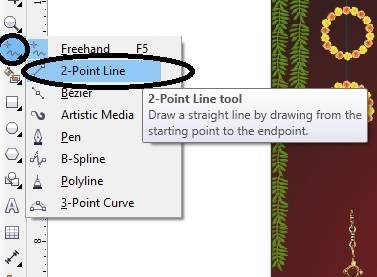
Click at 2D Point Line.
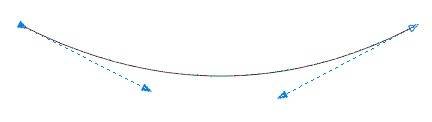
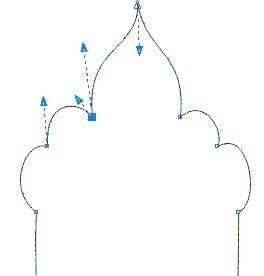
Draw One line > Press F10 > Click at this Corner > Press Left Click of Mouse > Select Option > To Curve.
Navratri Poster Design in CorelDraw, Top 1 Best Easy and Effective, Download Source File. 242
Then Curve > like this.
Navratri Poster Design in CorelDraw, Top 1 Best Easy and Effective, Download Source File. 243
Set like this > At Page.
Navratri Poster Design in CorelDraw, Top 1 Best Easy and Effective, Download Source File. 244
Then Duplicate Line > With Ctrl + D > To Duplicate > and set like this.
Navratri Poster Design in CorelDraw, Top 1 Best Easy and Effective, Download Source File. 245
Select Both Lines > Go to Effect Menu > Click at Power Clip Option > Click at Place inside Container.
Navratri Poster Design in CorelDraw, Top 1 Best Easy and Effective, Download Source File. 246
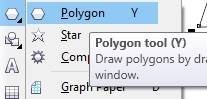
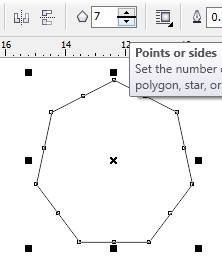
Click at Polygon Tool > Draw Polygon
Navratri Poster Design in CorelDraw, Top 1 Best Easy and Effective, Download Source File. 247
Decrease Points > From Here.
Navratri Poster Design in CorelDraw, Top 1 Best Easy and Effective, Download Source File. 248
Then Polygon > Convert into Triangle Shape.
Navratri Poster Design in CorelDraw, Top 1 Best Easy and Effective, Download Source File. 249
Change Color > From Color palate > Duplicate Triangle > Change in Different Color > Set Like this.
Navratri Poster Design in CorelDraw, Top 1 Best Easy and Effective, Download Source File. 250
Insert Devi Maa Picture > At page > From File Folder Like This.
Navratri Poster Design in CorelDraw, Top 1 Best Easy and Effective, Download Source File. 251
Insert Light Lamps > From File Folder > In both Corner like this.
Navratri Poster Design in CorelDraw, Top 1 Best Easy and Effective, Download Source File. 252
Insert Kalash > At page > like this.
Navratri Poster Design in CorelDraw, Top 1 Best Easy and Effective, Download Source File. 253
Insert Bell > At Top Corners > Like this.
Navratri Poster Design in CorelDraw, Top 1 Best Easy and Effective, Download Source File. 254
Click at Text Tool > From tool Option.
Navratri Poster Design in CorelDraw, Top 1 Best Easy and Effective, Download Source File. 255
Type Matter > At Page > Like This
Navratri Poster Design in CorelDraw, Top 1 Best Easy and Effective, Download Source File. 256
Insert LOGO of an Institution > Give Design in both Sides of logo.
Navratri Poster Design in CorelDraw, Top 1 Best Easy and Effective, Download Source File. 257
Type Institution Name and Institution Site.
Navratri Poster Design in CorelDraw, Top 1 Best Easy and Effective, Download Source File. 258
Now Design is Ready.
Navratri Poster Design in CorelDraw, Top 1 Best Easy and Effective, Download Source File. 259
Navratri Invitation card In CorelDraw, Easy Method, complete Steps, Download Practice File
Hello Friends welcome To VedantSri.net In This Post I am Going To Teach you How to Create Navratri Invitation Card in CorelDraw. In This Project You can Learn How to Design Navratri Invitation Card in CorelDraw Application in Easy Method. You Can also Download Practice File in This Post. So Let’s start to Learn This Project , Before Start I Request You to Please Follow Given below Step to Learn Properly Step by Step.
CorelDraw Open करने के लिए Window + R Press करे Run Box Open करे।
Navratri Invitation Card In CorelDraw
Run Box मे coreldrw Type करे।
Navratri Invitation Card In CorelDraw, Easy Method, complete Steps, Download Practice File 275
अब Ok पर Click करे CorelDraw के Application Open करे।
Navratri Invitation Card In CorelDraw, Easy Method, complete Steps, Download Practice File 276
CRTL + N Press करे New Page का Window open करे।
Navratri Invitation Card In CorelDraw, Easy Method, complete Steps, Download Practice File 277
अब Ok पर Click करे तथा CorelDraw का main Page open करे।
Page की Size Set करे
Rectangle Tool पर Double Click करे।
Navratri Invitation Card In CorelDraw, Easy Method, complete Steps, Download Practice File 278
Rectangle Shape को Fill करे।
Navratri Invitation Card In CorelDraw, Easy Method, complete Steps, Download Practice File 279
अब Png image को Google से Download करे
CTRL + D से Image का Duplicate करे Page पर set करे।
Navratri Invitation Card In CorelDraw, Easy Method, complete Steps, Download Practice File 280
अब Png image को Google से Download करे
Image को select करे Shift के साथ CTRL + G से Image को Group करे
CTRL + D से Image का Duplicate करे Page पर set करे page पर Set करे।
Navratri Invitation Card In CorelDraw, Easy Method, complete Steps, Download Practice File 281
Ellipse Shape Tool से Shape Draw करे , Outline को None करे
Fountain Fill > Radial option पर Click करे Shape को Fill करे।
Navratri Invitation Card In CorelDraw, Easy Method, complete Steps, Download Practice File 282
अब Png image को Google से Download करे
Navratri Invitation Card In CorelDraw, Easy Method, complete Steps, Download Practice File 283
अब Google से Photo Download करे Page पर Set करे
Navratri Invitation Card In CorelDraw, Easy Method, complete Steps, Download Practice File 284
अब Png image को Google से Download करे Page पर Set करे।
Navratri Invitation Card In CorelDraw, Easy Method, complete Steps, Download Practice File 285
अब Arrow Shape Draw करे Color Fill करे
File से Logo Insert करे Page पर set करे
Navratri Invitation Card In CorelDraw, Easy Method, complete Steps, Download Practice File 286
अब Text Tool से Detail fill करे Font Style, size, ColorChange करे।
Navratri Invitation Card In CorelDraw, Easy Method, complete Steps, Download Practice File 287
अब CTRL + S से File को Save करे।
Navratri Invitation Card In CorelDraw, Easy Method, complete Steps, Download Practice File 288
Navratri Template in CorelDraw, Step By Step Simple Method, Download Source File
Hello! Friends Welcome to www.vedantsri.net In this Project I am going to Teach you How To Create Navratri Template in CorelDraw. In this Project, you can Learn How to Design Navratri templates in CorelDraw Application an Easy Method. Navratri Template in CorelDraw, Step By Step Simple Method, Download Source File
Press Window + R to Open Run Dialogue Box > Type CorelDraw.
Navratri Template in CorelDraw, Step By Step Simple Method, Download Source File 302
Press Ok.
Navratri Template in CorelDraw, Step By Step Simple Method, Download Source File
Click New Blank Document Option.
Navratri Template in CorelDraw, Step By Step Simple Method, Download Source File 303
Then Press Ok.
Navratri Template in CorelDraw, Step By Step Simple Method, Download Source File 304
Mention Page Size. I will Show You.
Navratri Template in CorelDraw, Step By Step Simple Method, Download Source File 305
Double Click on Rectangle Tool.
Navratri Template in CorelDraw, Step By Step Simple Method, Download Source File 306
Then Fill Color at the page.
Navratri Template in CorelDraw, Step By Step Simple Method, Download Source File 307
Then Insert Png Pictures. like I Insert. I Will Showing
Navratri Template in CorelDraw, Step By Step Simple Method, Download Source File 308
Then Go to Text tool and Type Some Lines Like I will Write here.
Navratri Template in CorelDraw, Step By Step Simple Method, Download Source File 309
Then Go to Pick Tool to Apply Formatting on the Text.
Navratri Template in CorelDraw, Step By Step Simple Method, Download Source File 310
Press CTRL + K to Break Word > Change Font Style..
Navratri Template in CorelDraw, Step By Step Simple Method, Download Source File 311
Insert Your Company or Institute Logo.
Navratri Template in CorelDraw, Step By Step Simple Method, Download Source File 312
I have Completed this Project, I hope you guys have understood all the Steps.
Navratri Template in CorelDraw, Step By Step Simple Method, Download Source File
Navratri Banner Design in CorelDraw, Top 1 Best Easy and Effective, Download Source File
Hello! Friends Welcome to www.vedantsri.net In this Project, I am going to Teach you How To Design Navratri Banner in CorelDraw. In this Project, you can Learn How to Design Navratri Banner in CorelDraw Application an Easy Method. You can also Download the Practice File in this Post. So Let’s Start this Project. Before Starting this Project I request you to Please Follow given below Steps to Learn Properly Step by step.
Press Windows + R on Keyboard.
To open Run Dialog Box.
Navratri Banner Design in CorelDraw
Type coreldrw in Run Dialog Box > As a Run Command.
Navratri Banner Design in CorelDraw
Press OK.
Click at New Blank Document.
Navratri Banner Design in CorelDraw
Fill all information > Regarding New Document.
Navratri Banner Design in CorelDraw
Click at OK.
Change Page Dimension > From here.
Navratri Banner Design in CorelDraw
Click at Rectangle Tool > From Tool Option.
Navratri Banner Design in CorelDraw, Top 1 Best Easy and Effective, Download Source File 335
Double Click at Rectangle Tool > Something like this appear.
Navratri Banner Design in CorelDraw, Top 1 Best Easy and Effective, Download Source File 336
Click at page > Go to Color palate > Select Color > according to need.
Navratri Banner Design in CorelDraw, Top 1 Best Easy and Effective, Download Source File 337
Insert Flower at Page > From File Folder > Set Like this
Navratri Banner Design in CorelDraw, Top 1 Best Easy and Effective, Download Source File 338
Select all with Shift + Mouse Click.
Navratri Banner Design in CorelDraw, Top 1 Best Easy and Effective, Download Source File 339
Go To Effect Menu > Select Power Clip Option > Select Place Inside Container > like this.
Navratri Banner Design in CorelDraw, Top 1 Best Easy and Effective, Download Source File 340
Press Ctrl + Left Click of Mouse > Select all With Shift > Press Ctrl + G > To group all Flowers.
Navratri Banner Design in CorelDraw, Top 1 Best Easy and Effective, Download Source File 341
Press Ctrl + Left Click of Mouse > Comeback at page.
Insert leaf Picture at Page > From File Folder > Set like this
Navratri Banner Design in CorelDraw, Top 1 Best Easy and Effective, Download Source File 342
Insert Some Clipart > like this.
Navratri Banner Design in CorelDraw, Top 1 Best Easy and Effective, Download Source File 343
Insert light stand > In both corners like this.
Navratri Banner Design in CorelDraw, Top 1 Best Easy and Effective, Download Source File 344
Insert Picture of Devi Maa > Like this
Navratri Banner Design in CorelDraw, Top 1 Best Easy and Effective, Download Source File 345
Insert Kalash at Both Corners.
Navratri Banner Design in CorelDraw, Top 1 Best Easy and Effective, Download Source File 346
Click at Text Tool
Navratri Banner Design in CorelDraw, Top 1 Best Easy and Effective, Download Source File 347
Type matter like this.
Navratri Banner Design in CorelDraw, Top 1 Best Easy and Effective, Download Source File 348
Insert Logo of an Institution.
Navratri Banner Design in CorelDraw, Top 1 Best Easy and Effective, Download Source File 349
Type Institution Name > Institution Site.
Navratri Banner Design in CorelDraw, Top 1 Best Easy and Effective, Download Source File 350
Now Navratri Poster is Ready.
I hope, points are useful to you all.
Navratri Banner Design in CorelDraw, Top 1 Best Easy and Effective, Download Source File 351
Navratri Simple Poster Design in CorelDraw, Easy Method, Complete Steps, Download Practice File
Hello, Friends welcome To VedantSri.net In This Post I am Going To Teach you How to Create Navratri Poster Design in CorelDraw. In This Project, You can Learn How to Design Navratri Poster Design in CorelDraw Application an Easy Method.
CorelDraw Open करने के लिए Window + R Press करके Run Box Open करे।
Navratri Simple Poster Design in CorelDraw
Run Box मे Coreldrw Type करे।
Navratri Simple Poster Design in CorelDraw
अब Ok पर Click करके CorelDraw का Application को Open करे।
Navratri Simple Poster Design in CorelDraw
CTRL + N Press करके New Page का window Open करे।
Navratri Simple Poster Design in CorelDraw
अब Ok पर Click करे तथा CorelDraw का Main Page Open करे।
Rectangle Tool पर Double Click करे।
Navratri Simple Poster Design in CorelDraw
अब Fountain Fill Tool > Radial Option पर Click करे
Shape मे Color fill करे।
Navratri Simple Poster Design in CorelDraw, Easy Method, Complete Steps, Download Practice File 369
अब Png Image Google से Download करे
Menu Bar > Bitmaps option > Auto Adjust Option पर Click करे।
Menu bar > Effects Option > Power Clip > Place Inside container Option पर Click करे
Page Par Click करे CTRL + Mouse से Left Click करे
Image को page पर Set करने के बाद Page के बहर CTRL + Mouse से Left Click करे।
Navratri Simple Poster Design in CorelDraw, Easy Method, Complete Steps, Download Practice File 370
Ellipse Shape Draw करे, Color Fill करे, Outline None करे।
Menu Bar > Bitmaps option > Auto Adjust Option पर Click करे।
Menu bar > Effects Option > Power Clip > Place Inside container Option पर Click करे
Page Par Click करे CTRL + Mouse से Left Click करे
Image को page पर Set करने के बाद Page के बहर CTRL + Mouse से Left Click करे।
Navratri Simple Poster Design in CorelDraw, Easy Method, Complete Steps, Download Practice File 371
अब Png Image Google से Download करे
Menu bar > Effects Option > Power Clip > Place Inside container Option पर Click करे
Page Par Click करे CTRL + Mouse से Left Click करे
Image को page पर Set करने के बाद Page के बहर CTRL + Mouse से Left Click करे।
Navratri Simple Poster Design in CorelDraw, Easy Method, Complete Steps, Download Practice File 372
Rectangle Shape Tool से Shape Draw करे Distort Tool से Shape Create करे
Navratri Simple Poster Design in CorelDraw, Easy Method, Complete Steps, Download Practice File 373
Text too से Detail fill करे,Font Style, Size, Color Change करे।
Navratri Simple Poster Design in CorelDraw, Easy Method, Complete Steps, Download Practice File 374
अब Page पर Photo Insert करेंगे
Navratri Simple Poster Design in CorelDraw, Easy Method, Complete Steps, Download Practice File 375
Ellipse Shape Draw करे, Color Fill करे, Outline 8Pt करे।
File से Logo Insert करे Or Page पर Set करे।
Navratri Simple Poster Design in CorelDraw, Easy Method, Complete Steps, Download Practice File 376
Text too से HindiFont मे Detail fill करे,Font Style, Size, Color Change करे।
Navratri Simple Poster Design in CorelDraw, Easy Method, Complete Steps, Download Practice File 377
अब Png Image Google से Download करे CTRL + D से Image का Duplicate करे
Menu bar > Effects Option > Power Clip > Place Inside container Option पर Click करे
Page Par Click करे CTRL + Mouse से Left Click करे
Image को page पर Set करने के बाद Page के बहर CTRL + Mouse से Left Click करे।
Navratri Simple Poster Design in CorelDraw, Easy Method, Complete Steps, Download Practice File 378
अब Png Image Google से Download करे CTRL + D से Image का Duplicate करे
Menu bar > Effects Option > Power Clip > Place Inside container Option पर Click करे
Page Par Click करे CTRL + Mouse से Left Click करे
Image को page पर Set करने के बाद Page के बहर CTRL + Mouse से Left Click करे।
Navratri Wishes Card in CorelDraw, Easy and Simple, Download Source File
Hello! Friends Welcome to www.vedantsri.net In this Project I am going to Teach you How To Create Navratri Wishes Card in CorelDraw. In this Project, you can Learn How to Design Navratri Wishes cards in CorelDraw Application in Easy Method.
Press Window + R to Open Run Dialogue Box > Type CorelDraw.
Navratri Wishes Card in CorelDraw, Easy and Simple, Download Source File 398
Press OK.
Navratri Wishes Card in CorelDraw, Easy and Simple, Download Source File 399
Click New Blank Document.
Navratri Wishes Card in CorelDraw, Easy and Simple, Download Source File
Press OK.
Navratri Wishes Card in CorelDraw, Easy and Simple, Download Source File 400
Mention Page Size.
Navratri Wishes Card in CorelDraw, Easy and Simple, Download Source File 401
Double Click on Rectangle Tool.
Navratri Wishes Card in CorelDraw, Easy and Simple, Download Source File 402
Fill any Color on the Page.
Navratri Wishes Card in CorelDraw, Easy and Simple, Download Source File 403
Go to the Ellipse tool.
Navratri Wishes Card in CorelDraw, Easy and Simple, Download Source File 404
Press CTRL + Shift and Draw at Page> Fill white Color > No Outline > Fix Like this.
Navratri Wishes Card in CorelDraw, Easy and Simple, Download Source File
Then Select the Circle > Press CTRL + D to Duplicate this Shape > No Fill Color > Go to Pen Tool > Outline 4pt > Outline Color White.
Navratri Wishes Card in CorelDraw, Easy and Simple, Download Source File 405
Fix Like This Help of Movement Keys.
Navratri Wishes Card in CorelDraw, Easy and Simple, Download Source File
Press Shift Select Both Circles> Go to Effect Tool > Click on PowerClip Option > Click Place Inside Container Option.
Navratri Wishes Card in CorelDraw, Easy and Simple, Download Source File 406
Click at the page.
Navratri Wishes Card in CorelDraw, Easy and Simple, Download Source File 407
Then Insert Png Pictures.
Navratri Wishes Card in CorelDraw, Easy and Simple, Download Source File 408
Then Go to Text Tool > Write Some Lines.
Navratri Wishes Card in CorelDraw, Easy and Simple, Download Source File 409
Go to the Pick tool To apply Formatting this Text > Press CTRL + K To break the text.
Navratri Wishes Card in CorelDraw, Easy and Simple, Download Source File
Insert LOGO on your Company or Institute.
Navratri Wishes Card in CorelDraw, Easy and Simple, Download Source File 410
Insert some Clip Art Png.
Navratri Wishes Card in CorelDraw, Easy and Simple, Download Source File 411
I have Completed this Project, I hope you guys have understood all the Steps.
Navratri Wishes Card in CorelDraw, Easy and Simple, Download Source File
Navratri Basic Poster Design in CorelDraw, Top 1 Best Easy and Simple, Download Source File
Hello! Friends Welcome to www.vedantsri.net In this Project, I am going to Teach you How To Navratri Invitation Card Design in CorelDraw. In this Project, you can Learn How to Design Navratri Invitation Card in CorelDraw Application in Easy Method. You can also Download the Practice File in this Post. So let’s start this Project. Before Starting this Project I request you to Please Follow given below Steps to Learn Properly Step by step.
Press Windows + R on Keyboard.
To Open Run Dialog Box.
Navratri Basic Poster Design in CorelDraw
Type coreldrw in Run dialog Box > As a Run Command.
Navratri Basic Poster Design in CorelDraw
Press OK.
Click at New Blank Document.
Navratri Basic Poster Design in CorelDraw
Fill all Information > Regarding New Document.
Navratri Basic Poster Design in CorelDraw
Click at OK.
Define Page Dimension.
Navratri Basic Poster Design in CorelDraw, Top 1 Best Easy and Simple, Download Source File 432
Click at Rectangle tool > From Tool Option.
Navratri Basic Poster Design in CorelDraw, Top 1 Best Easy and Simple, Download Source File 433
Double Click at Rectangle Tool.
Navratri Basic Poster Design in CorelDraw, Top 1 Best Easy and Simple, Download Source File 434
Insert Picture > At Page > Go To File Folder > Drag Picture to CorelDraw Application > like This.
Navratri Basic Poster Design in CorelDraw, Top 1 Best Easy and Simple, Download Source File 435
Decrease size of Picture > With Shift + Mouse > like this.
Navratri Basic Poster Design in CorelDraw, Top 1 Best Easy and Simple, Download Source File 436
Select Picture > GO to Effect Menu > Click at Power Clip Option > Select Place Inside Container option.
Navratri Basic Poster Design in CorelDraw, Top 1 Best Easy and Simple, Download Source File 437
Press Ctrl + Left Click of Mouse > Set like this.
Navratri Basic Poster Design in CorelDraw, Top 1 Best Easy and Simple, Download Source File 438
Insert picture of pillars > Both Sides > From File Folder.
Navratri Basic Poster Design in CorelDraw, Top 1 Best Easy and Simple, Download Source File 439
Insert Picture of Flower > Like This.
Navratri Basic Poster Design in CorelDraw, Top 1 Best Easy and Simple, Download Source File 440
Insert Devi Picture at Page > like this.
Navratri Basic Poster Design in CorelDraw, Top 1 Best Easy and Simple, Download Source File 441
Insert Picture of Kalash > In both Corner > like this.
Navratri Basic Poster Design in CorelDraw, Top 1 Best Easy and Simple, Download Source File 442
Click at Text Tool > From Tool Option.
Navratri Basic Poster Design in CorelDraw, Top 1 Best Easy and Simple, Download Source File 443
Type Matter in Hindi Regarding > Navratri Poster > like This
Navratri Basic Poster Design in CorelDraw, Top 1 Best Easy and Simple, Download Source File 444
Insert Logo of an Institution >like this > Give Design > like this.
Navratri Basic Poster Design in CorelDraw, Top 1 Best Easy and Simple, Download Source File 445
Navratri Invitation Card Design in CorelDraw, Top 1 Best Simple and Easy, Download Source File
Hello! Friends Welcome to www.vedantsri.net In this Project, I am going to Teach you How To Navratri Invitation Card Design in CorelDraw. In this Project, you can Learn How to Design Navratri Invitation Card in CorelDraw Application in Easy Method. You can also Download the Practice File in this Post. So let’s start this Project. Before Starting this Project I request you to Please Follow given below Steps to Learn Properly Step by step.
Press Windows + R on Keyboard.
To Open Run Dialog Box.
Navratri Invitation Card Design in CorelDraw
Type coreldrw in Run Dialog Box > As a Run Command.
Navratri Invitation Card Design in CorelDraw
Click at OK.
Click at New Blank Document.
Navratri Invitation Card Design in CorelDraw
Fill all Information > Regarding Page.
Navratri Invitation Card Design in CorelDraw
Click at Ok.
Size of Page is
Navratri Invitation Card Design in CorelDraw, Top 1 Best Simple and Easy, Download Source File 462
Go to Rectangle Tool > From Tool Option
Navratri Invitation Card Design in CorelDraw, Top 1 Best Simple and Easy, Download Source File 463
Double Click at Rectangle Tool > Something like this appear.
Navratri Invitation Card Design in CorelDraw, Top 1 Best Simple and Easy, Download Source File 464
Click at Page > Go To Color Palate > Select Color > like this.
Navratri Invitation Card Design in CorelDraw, Top 1 Best Simple and Easy, Download Source File 465
Go to Interactive Tool > Select Option > Mesh Fill tool > Click at Centre Point > Fill light Color.
Navratri Invitation Card Design in CorelDraw, Top 1 Best Simple and Easy, Download Source File 466
Draw a Polygon Shape > Increase Point From Here > like this.
Navratri Invitation Card Design in CorelDraw, Top 1 Best Simple and Easy, Download Source File 467
Press F10 > Ctrl + Q > Click at Nodes
Navratri Invitation Card Design in CorelDraw, Top 1 Best Simple and Easy, Download Source File 468
Shape Like this.
Fill Color > From Color Palate.
Navratri Invitation Card Design in CorelDraw, Top 1 Best Simple and Easy, Download Source File 469
Put Picture One by One > like this.
Navratri Invitation Card Design in CorelDraw, Top 1 Best Simple and Easy, Download Source File 470
Go to Text Tool > add text > like this
Navratri Invitation Card Design in CorelDraw, Top 1 Best Simple and Easy, Download Source File 471
Add Some Photos > According to need.
Navratri Invitation Card Design in CorelDraw, Top 1 Best Simple and Easy, Download Source File 472
Now Invitation Card is ready
I hope, all steps are useful for you.
Navratri Invitation Card Design in CorelDraw, Top 1 Best Simple and Easy, Download Source File 473
Navratri Banner Design in CorelDraw, Easy Method, Complete steps, Download Practice Fill
Hello Friends welcome to VedantSri.net In This post I am Going To Teach You How To Create Navratri Banner Design in CorelDraw. In This Project You can Learn How to Design Navratri Banner Design n in CorelDraw in Easy Method.
CorelDraw Open करने के लिए Window + R Press करे Run Box Open करे।
Navratri Banner Design in CorelDraw
Run Box मे coreldrw Type करे।
Navratri Banner Design in CorelDraw
अब Ok पर Click करके CorelDraw का Application Open करे।
Navratri Banner Design in CorelDraw, Easy Method, Complete steps, Download Practice Fill 488
CTRL + N Press करे CorelDraw का Window Open होगा।
Navratri Banner Design in CorelDraw, Easy Method, Complete steps, Download Practice Fill 489
अब Ok पर Click करे तथा CorelDraw का Main Page करे।
Rectangle Tool Double Click करे।
Navratri Banner Design in CorelDraw, Easy Method, Complete steps, Download Practice Fill 490
Fountain FillTool > Radial Option पर Click करे Or Shape को Fill करे।
Navratri Banner Design in CorelDraw, Easy Method, Complete steps, Download Practice Fill 491
अब Google से Image Download करे।
Menu bar > Effects Option > Power Clip > Place Inside Container Option पर Click करे।
Page पर Click करे Or Image पर CTRL + Mouse से left Click करे
Image को page पर Set करे Page के बाहर CTRL + Mouse से left Click करे।
Navratri Banner Design in CorelDraw, Easy Method, Complete steps, Download Practice Fill 492
CTRL +D से Image का Duplicate करे।
Menu bar > Effects Option > Power Clip > Place Inside Container Option पर Click करे।
Page पर Click करे Or Image पर CTRL + Mouse से left Click करे
Image को page पर Set करे Page के बाहर CTRL + Mouse से left Click करे।
Navratri Banner Design in CorelDraw, Easy Method, Complete steps, Download Practice Fill 493
अब Google से Image Download करे। Or Page पर Set करे।
Navratri Banner Design in CorelDraw, Easy Method, Complete steps, Download Practice Fill 494
अब Google से Image Download करे। Or Page पर Set करे।
Navratri Banner Design in CorelDraw, Easy Method, Complete steps, Download Practice Fill 495
अब Text tool से DURGA POOJA लिखेगे Or Font Style, Size, Color change करे।
Navratri Banner Design in CorelDraw, Easy Method, Complete steps, Download Practice Fill 496
अब Spiral Shape Draw करे Or CTRL + D से Duplicate करे।
Navratri Banner Design in CorelDraw, Easy Method, Complete steps, Download Practice Fill 497
अब Text Tool से VedantSri Institute, Detail लिखे Or Font Style, Size, Color change करे।
Navratri Banner Design in CorelDraw, Easy Method, Complete steps, Download Practice Fill 498
CTRL + S File को Save करे।
Navratri Banner Design in CorelDraw, Easy Method, Complete steps, Download Practice Fill 499
Navratri Banner Design in CorelDraw, Step by Step, Download Source File
Hello! Friends Welcome to www.vedantsri.net In this Project, I am going to Teach you How To Create Banner Navratri Design in CorelDraw. In this Project, you can Learn How to Design Navratri Banner in CorelDraw Application an Easy Method.
Press Window + R to Open Run Dialogue Box > Type CorelDraw.
Banner Navratri Design in CorelDraw, Top 1 Best Step by Step, Download Source File 520
Press OK.
Banner Navratri Design in CorelDraw, Top 1 Best Step by Step, Download Source File 521
Click New Blank Document.
Banner Navratri Design in CorelDraw, Top 1 Best Step by Step, Download Source File 522
Press Ok.
Banner Navratri Design in CorelDraw, Top 1 Best Step by Step, Download Source File 523
Mention the Page Size.
Banner Navratri Design in CorelDraw, Top 1 Best Step by Step, Download Source File 524
Double Click on Rectangle Tool.
Banner Navratri Design in CorelDraw
Go to Fill Tool > Click Fountain Fill Option.
Banner Navratri Design in CorelDraw, Top 1 Best Step by Step, Download Source File 525
Then Fill Blue & Black Color at Page.
Banner Navratri Design in CorelDraw, Top 1 Best Step by Step, Download Source File 526
Then Go to Polygon Tool and Draw in page.
Banner Navratri Design in CorelDraw, Top 1 Best Step by Step, Download Source File 527
Press F10 > CTRL + Q > Then Fix Like This.
Banner Navratri Design in CorelDraw, Top 1 Best Step by Step, Download Source File 528
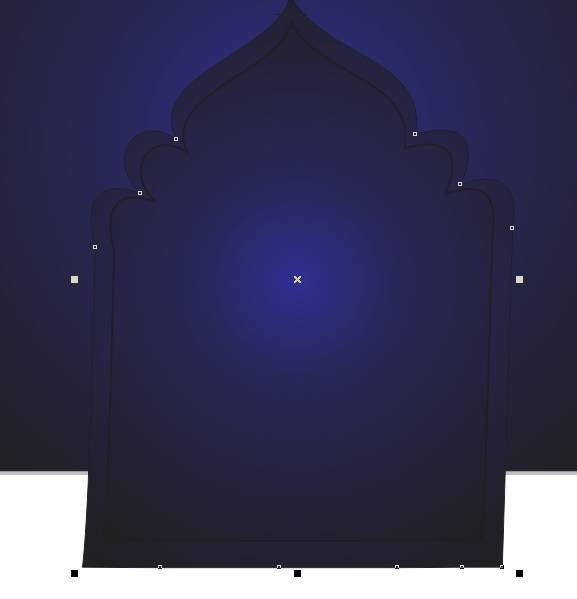
Then Go to Fill Tool > Click on Fountain Fill Options > Then Fill any color Like This.
Banner Navratri Design in CorelDraw, Top 1 Best Step by Step, Download Source File 529
Select the Shape > Press CTRL + D to Duplicate > Press Shift and Fix Like This.
Banner Navratri Design in CorelDraw, Top 1 Best Step by Step, Download Source File 530
Select the Both Shape > Go to Effect Menu > Click PowerClip Option > Place Inside Container.
Banner Navratri Design in CorelDraw, Top 1 Best Step by Step, Download Source File 531
Then Click at the Page.
Banner Navratri Design in CorelDraw, Top 1 Best Step by Step, Download Source File 532
Then Insert Png Pictures.
Banner Navratri Design in CorelDraw, Top 1 Best Step by Step, Download Source File 533
Go to Text tool.
Banner Navratri Design in CorelDraw, Top 1 Best Step by Step, Download Source File 534
Click on Pick Tool to Apply Formatting on the Text.
Banner Navratri Design in CorelDraw, Top 1 Best Step by Step, Download Source File 535
Then write Some Lines.
Banner Navratri Design in CorelDraw, Top 1 Best Step by Step, Download Source File 536
Insert LOGO on your Company/Institute.
Banner Navratri Design in CorelDraw, Top 1 Best Step by Step, Download Source File 537
I have Completed this Project, I hope you guys have understood all the Step.
Banner Navratri Design in CorelDraw, Top 1 Best Step by Step, Download Source File 538
Navratri Card Design in CorelDraw, Easy Method, Complete Steps, Download Practice File
Hello Friends, Welcome To VedantSri.net In This Post I am Going To Teach You How To Create Navratri Card Design in CorelDraw. In This Project, You can Learn How to Design Navratri Card Design in CorelDraw Application an Easy Method.
CorelDraw Open करने के लिए Window + R Press करके Run Box Open करे।
Navratri Card Design in CorelDraw, Easy Method, Complete Steps, Download Practice File 555
Run Box मे coreldrw Type करे।
Navratri Card Design in CorelDraw, Easy Method, Complete Steps, Download Practice File 556
Ok पर Click करके CorelDraw का Application Open करे।
Navratri Card Design in CorelDraw, Easy Method, Complete Steps, Download Practice File 557
अब CTRL + N Press करे New Page का Window Open करे।
Navratri Card Design in CorelDraw, Easy Method, Complete Steps, Download Practice File 558
अब Ok पर Click करे तथा CorelDraw का main Page Open करे।
Landscape Option पर Click करे।
Navratri Card Design in CorelDraw, Easy Method, Complete Steps, Download Practice File 559
Rectangle Tool पर Double Click करे।
Navratri Card Design in CorelDraw, Easy Method, Complete Steps, Download Practice File 560
अब Interactive Fill Tool से Shape मे Color Fill करे।
Navratri Card Design in CorelDraw, Easy Method, Complete Steps, Download Practice File 561
अब Background Photo को Google से Download करे।
Menu Bar > Effects Option > Power Clip > Place Inside Container Option पर Click करे।
Page पर Click करे Image पर CTRL + Mouse से Click करे Or Image को Page पर Set करे।
CTRL + Mouse से Page के बाहर Click करे।
Navratri Card Design in CorelDraw, Easy Method, Complete Steps, Download Practice File 562
अब Image को Google से Download करे
Menu Bar > Effects Option > Power Clip > Place Inside Container Option पर Click करे।
Page पर Click करे Image पर CTRL + Mouse से Click करे Or Image को Page पर Set करे।
CTRL + Mouse से Page के बाहर Click करे।
Navratri Card Design in CorelDraw, Easy Method, Complete Steps, Download Practice File 563
अब PngImage को Download करे Or Page पर Set करे।
Navratri Card Design in CorelDraw, Easy Method, Complete Steps, Download Practice File 564
अब PngImage को Download करे Or Page पर Set करे।
Navratri Card Design in CorelDraw, Easy Method, Complete Steps, Download Practice File 565
अब Photo को Google से Download करे Or Page पर Set करे।
Navratri Card Design in CorelDraw, Easy Method, Complete Steps, Download Practice File 566
Ellipse Tool से Shape Draw करे Or Fill None करे,Outline 4Pt, Color Change करे।
Navratri Card Design in CorelDraw, Easy Method, Complete Steps, Download Practice File 567
अब Logo को Insert करे या Google से Download करे।
Shape पर Set करे।
Navratri Card Design in CorelDraw, Easy Method, Complete Steps, Download Practice File 568
Rectangle Shape Draw करे F10 Press करे Shape को Curve Or Color Fill करे, Outline 4Pt करे।
Text tool से detail Fill करे।
Navratri Card Design in CorelDraw, Easy Method, Complete Steps, Download Practice File 569
CTRL + S से file का Save करे।
Navratri Card Design in CorelDraw, Easy Method, Complete Steps, Download Practice File 570
Navratri Banner Design in CorelDraw, Top 1 Best Easy and Effective, Download Source File
Hello! Friends Welcome to www.vedantsri.net In this Project, I am going to Teach you How To Create Navratri Banner in CorelDraw. In this Project, you can Learn How to Banner Design in CorelDraw Application an Easy Method. You can also Download the Practice File in this Post. So let’s start this Project. Before Starting this Project I request you to Please Follow given below Steps to Learn Properly Step by step.
Press Windows + R on Keyboard
To Open Run Dialog Box.
Navratri Banner Design in CorelDraw
Type coreldrw in Run Dialog Box > As a Run Command.
Navratri Banner Design in CorelDraw
Click at OK.
Click at New Blank Document.
Navratri Banner Design in CorelDraw, Top 1 Best Easy and Effective, Download Source File 589
Fill all Information > Regarding New Document.
Navratri Banner Design in CorelDraw, Top 1 Best Easy and Effective, Download Source File 590
Click at OK button.
Go To Rectangle Tool > From Tool Option.
Navratri Banner Design in CorelDraw, Top 1 Best Easy and Effective, Download Source File 591
Double Click at Rectangle Tool
To Draw Automatically Rectangle.
Navratri Banner Design in CorelDraw, Top 1 Best Easy and Effective, Download Source File 592
Click at Page > Change Color of Page > From Color Palate > like this.
Navratri Banner Design in CorelDraw, Top 1 Best Easy and Effective, Download Source File 593
Click at Interactive tool > Select Mesh fill tool > like this.
Navratri Banner Design in CorelDraw, Top 1 Best Easy and Effective, Download Source File 594
Click at Points > One by One.
Navratri Banner Design in CorelDraw, Top 1 Best Easy and Effective, Download Source File 595
Select Point > Fill Orange Color > Select Second Point Fill Orange Color > like this
Navratri Banner Design in CorelDraw, Top 1 Best Easy and Effective, Download Source File 596
Put Picture of Flower > From File Folder
Navratri Banner Design in CorelDraw, Top 1 Best Easy and Effective, Download Source File 597
Put Bell image > At Page > like this.
Navratri Banner Design in CorelDraw, Top 1 Best Easy and Effective, Download Source File 598
Put picture of GOD > at Page like this.
Navratri Banner Design in CorelDraw, Top 1 Best Easy and Effective, Download Source File 599
Put picture One by One > like this.
Navratri Banner Design in CorelDraw, Top 1 Best Easy and Effective, Download Source File 600
Put a LOGO of an Institution.
Navratri Banner Design in CorelDraw,
Draw a Rectangle > From Rectangle Tool > To Give Contact information.
Navratri Banner Design in CorelDraw, Top 1 Best Easy and Effective, Download Source File 601
Navratri Invitation Card in CorelDraw, Step By Step, Download Source File
Hello! Friends Welcome to www.vedantsri.net In this Project I am going to Teach you How To Create Navratri Invitation Card Design in CorelDraw. In this Project you can Learn How to Design Navratri Invitation Card in CorelDraw Application in Easy Method .
Press Window + R to Open Run Dialogue Box > Type coreldrw.
Navratri Invitation Card in CorelDraw
Press Ok.
Navratri Invitation Card in CorelDraw
Press CTRL + N to Open New Page Window.
Navratri Invitation Card in CorelDraw, Step By Step, Download Source File 622
Press Ok.
Navratri Invitation Card in CorelDraw, Step By Step, Download Source File 623
Mention Page Size.
Navratri Invitation Card in CorelDraw, Step By Step, Download Source File 624
Double Click on Rectangle Tool.
Navratri Invitation Card in CorelDraw, Step By Step, Download Source File 625
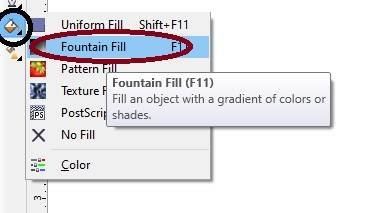
Go to Fill Tool > Click Fountain Fill Option.
Navratri Invitation Card in CorelDraw, Step By Step, Download Source File 626
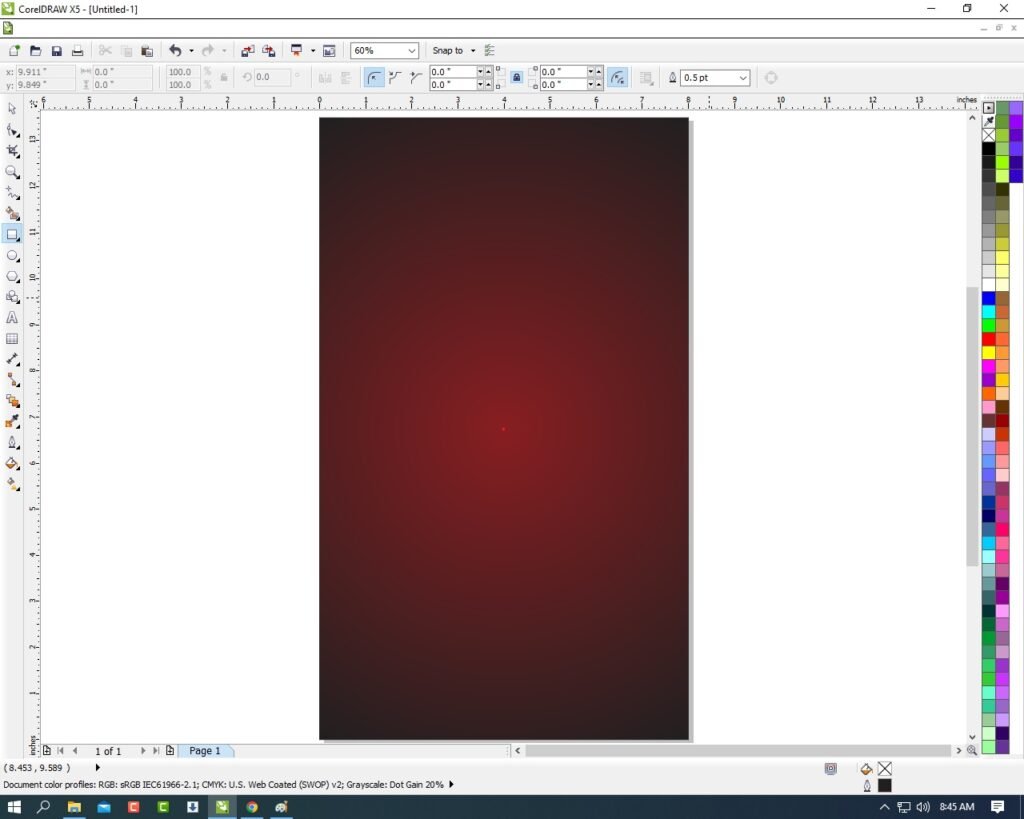
Fill Rad & Black Color.
Navratri Invitation Card in CorelDraw, Step By Step, Download Source File 627
Insert Png Pictures.
Navratri Invitation Card in CorelDraw, Step By Step, Download Source File 628
Draw Circle > No Outline.
Navratri Invitation Card in CorelDraw, Step By Step, Download Source File 629
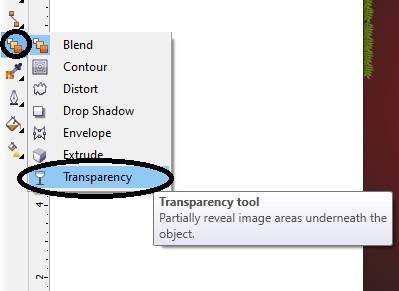
Fill Fountain Fill > Go to Blend Tool > Click Transparency Option.
Navratri Invitation Card in CorelDraw, Step By Step, Download Source File 630
Apply Transparency.
Navratri Invitation Card in CorelDraw, Step By Step, Download Source File 631
Insert Png Pictures this Circle.
Navratri Invitation Card in CorelDraw, Step By Step, Download Source File 632
Then Go to Text Tool and Write Information of Your Function.
Navratri Invitation Card in CorelDraw, Step By Step, Download Source File 633
Go to Pick tool and font Style To Apply Formatting & Change Style of Text.
Navratri Invitation Card in CorelDraw, Step By Step, Download Source File 634
Go to Freehand Tool > Click 2- Point Line Option.
Navratri Invitation Card in CorelDraw, Step By Step, Download Source File 635
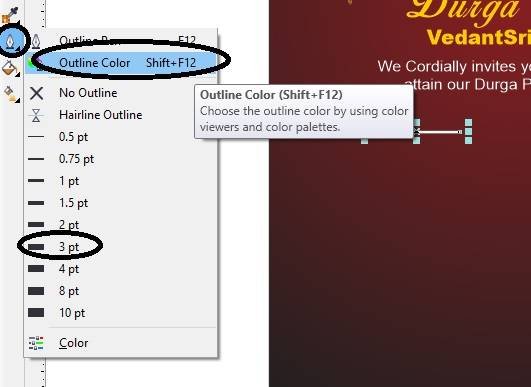
Press Shift and Draw This > Go to Pen Tool > Fill white in Outline > 3pt
Navratri Invitation Card in CorelDraw, Step By Step, Download Source File 636
Draw more Like This.
Navratri Invitation Card in CorelDraw, Step By Step, Download Source File 637
Then You can Insert Your Company/Institute Logo Or Name.
Navratri Invitation Card in CorelDraw, Step By Step, Download Source File 638
I have Completed this Project, I hope you guys have understood all the Step.
Navratri Invitation Card in CorelDraw, Step By Step, Download Source File 639