Home Blog Page 18

Poster Design in CorelDraw, Top 1 Best Easy and Simple Method, Download Source File.

Poster Design in CorelDraw, Top 1 Best Easy and Simple Method, Download Source File.

Hello! Friends Welcome to www.vedantsri.net In this Project, I am going to Teach you How To Create a Poster in CorelDraw. In this Project you can Learn How to Design a Poster in CorelDraw Application an Easy Method. Poster Design in CorelDraw

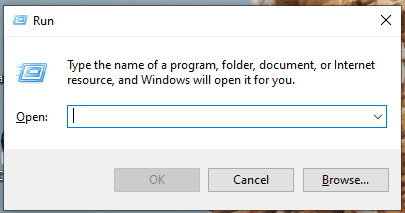
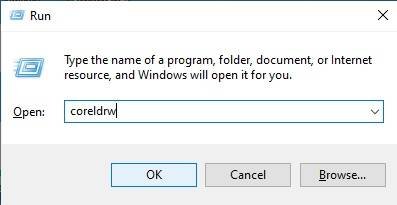
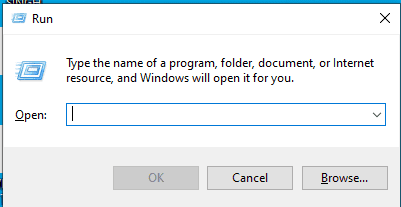
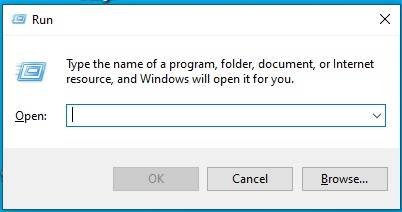
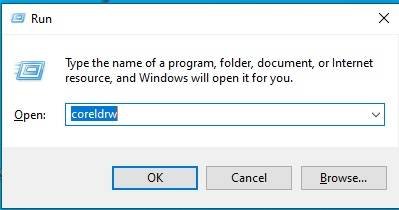
  • Press Windows + R on Keyboard.
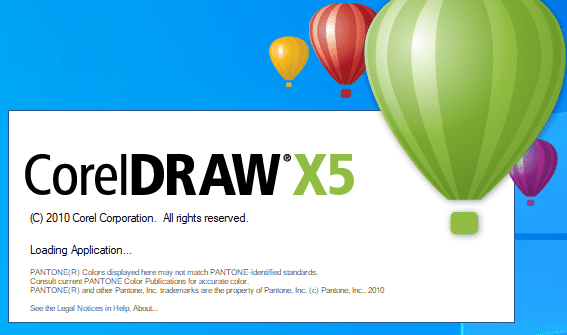
  • Something like this appears.
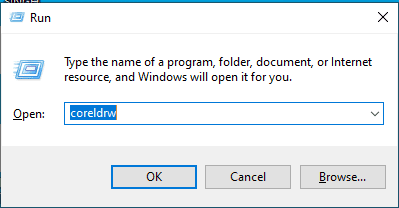
  • Type Run Command of Application in Run Dialog Box. Poster Design in CorelDraw
Poster Design in CorelDraw
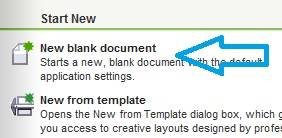
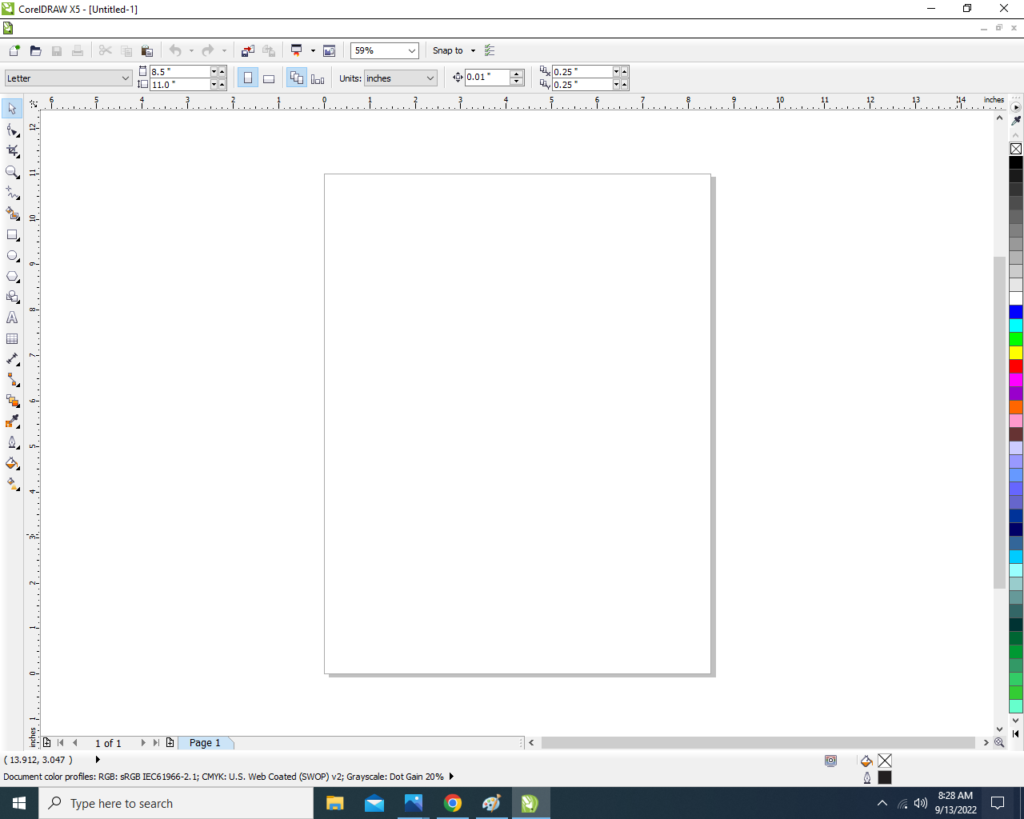
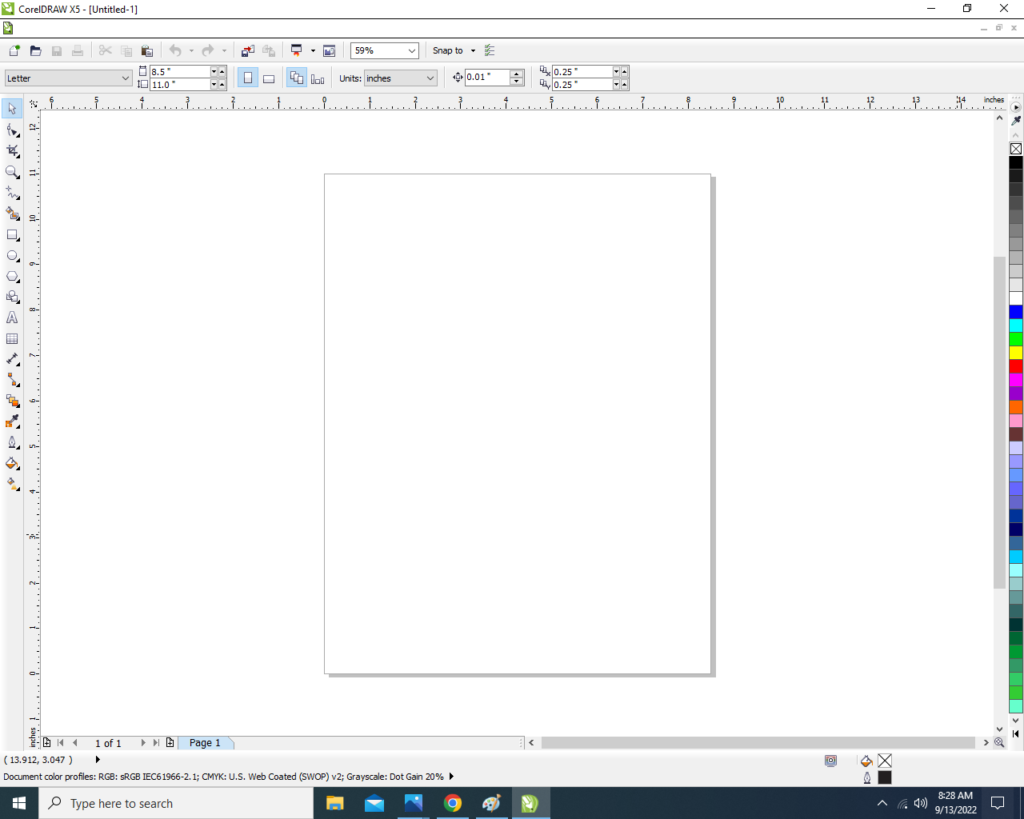
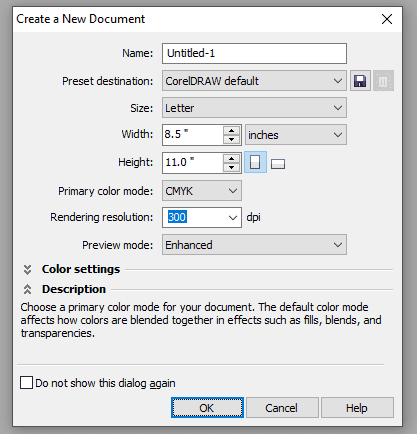
  • Click at New Blank Document.
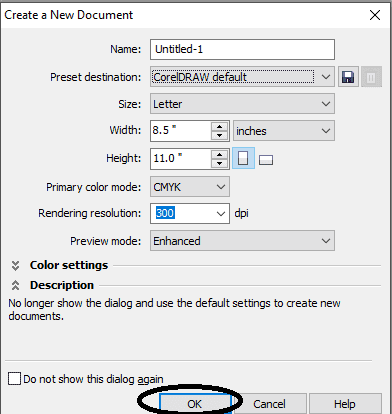
  • Fill all information > Regarding New page like this. Poster Design in CorelDraw
  • Click on the OK option.
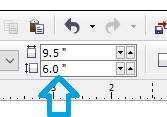
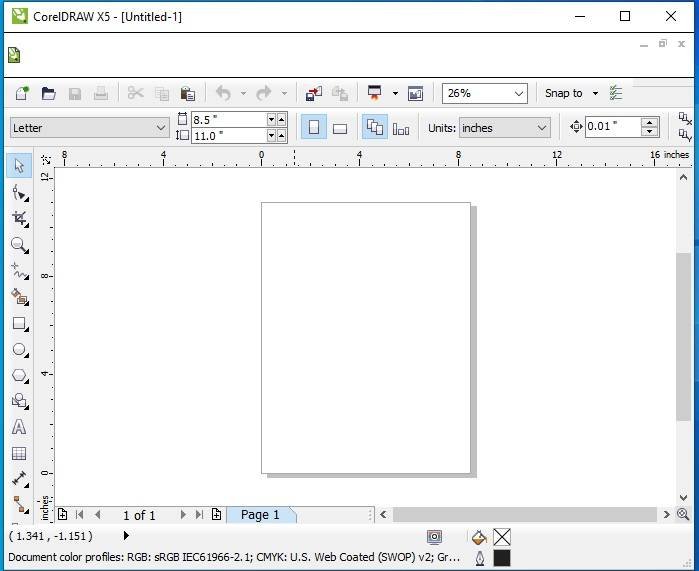
  • Change Size of page from here. Poster Design in CorelDraw
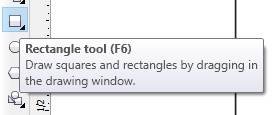
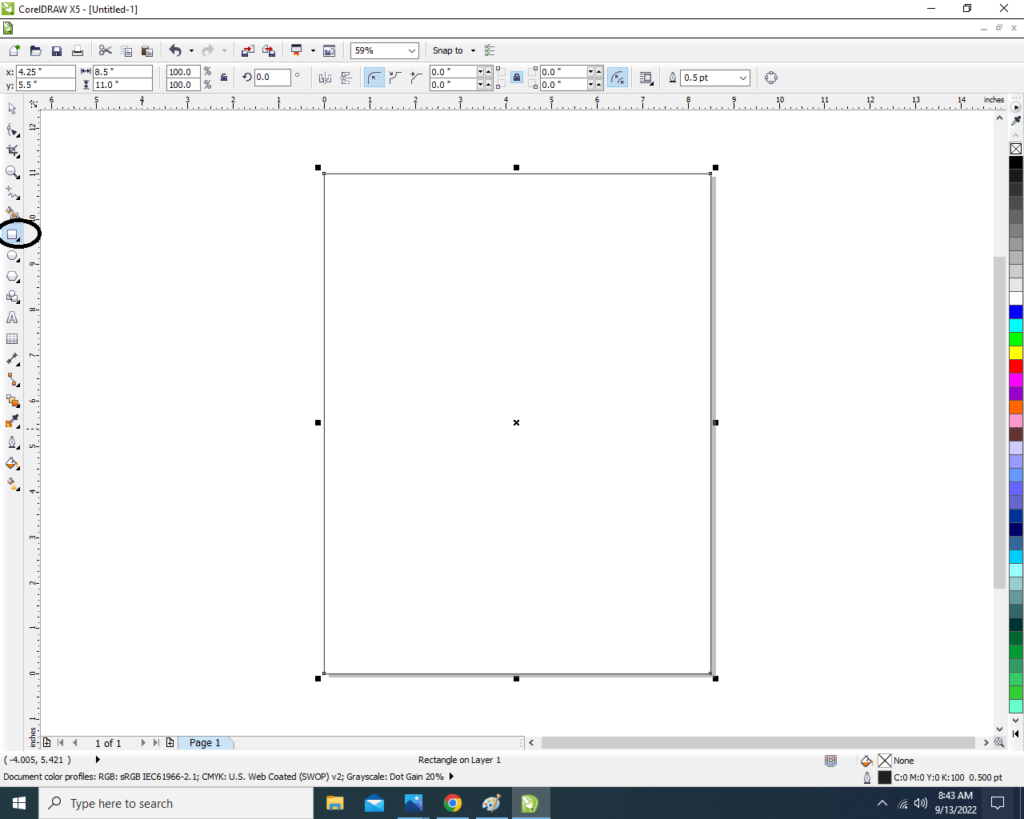
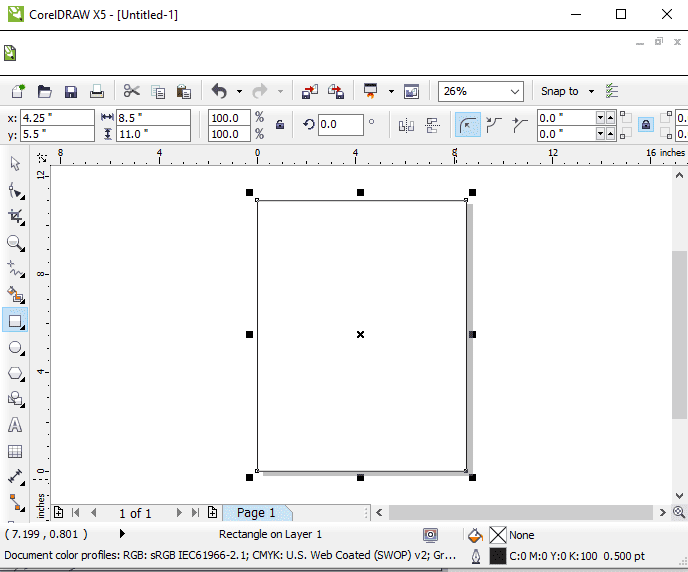
  • Double Click at Rectangle tool > From tool Option. Poster Design in CorelDraw
  • Something like this appear.
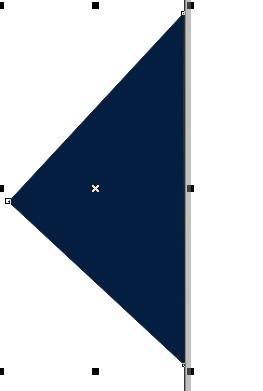
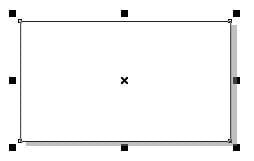
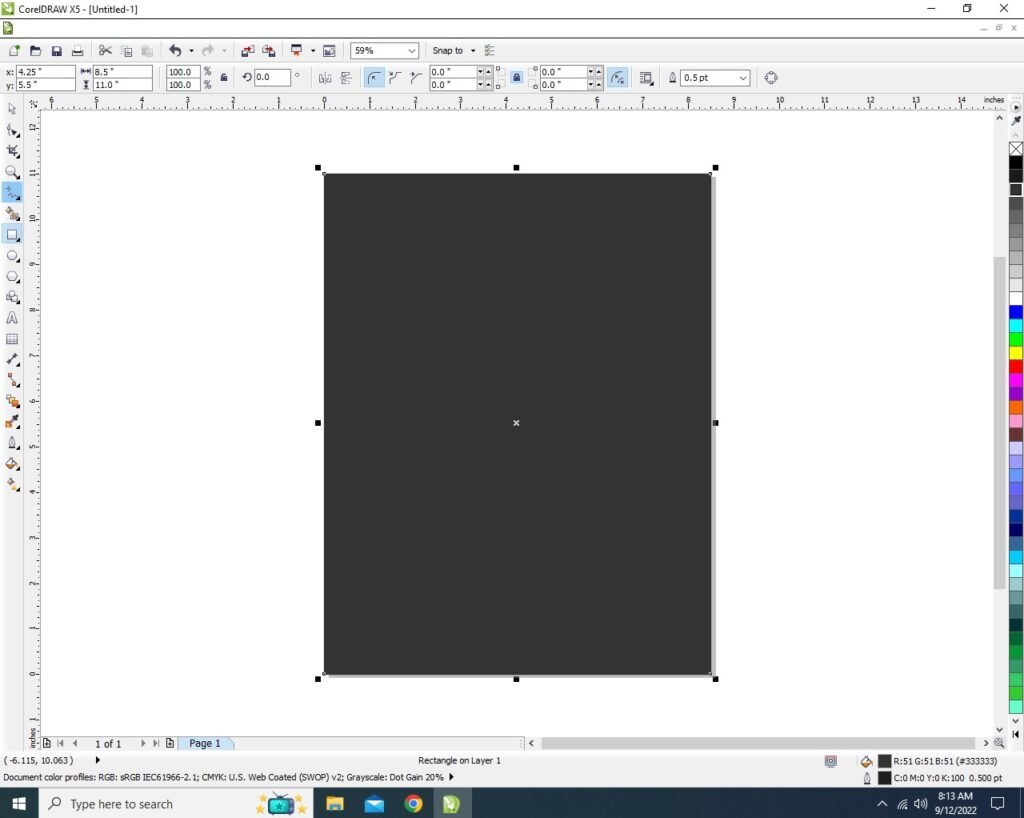
  • Draw a Rectangle at Page like this.
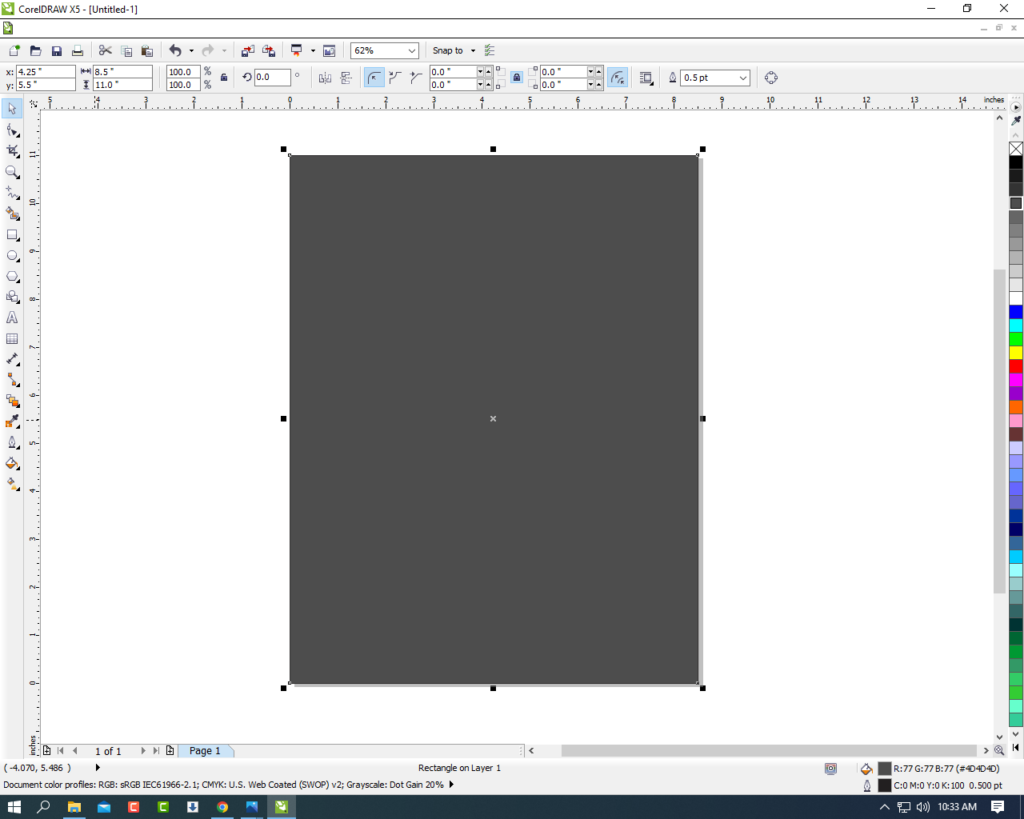
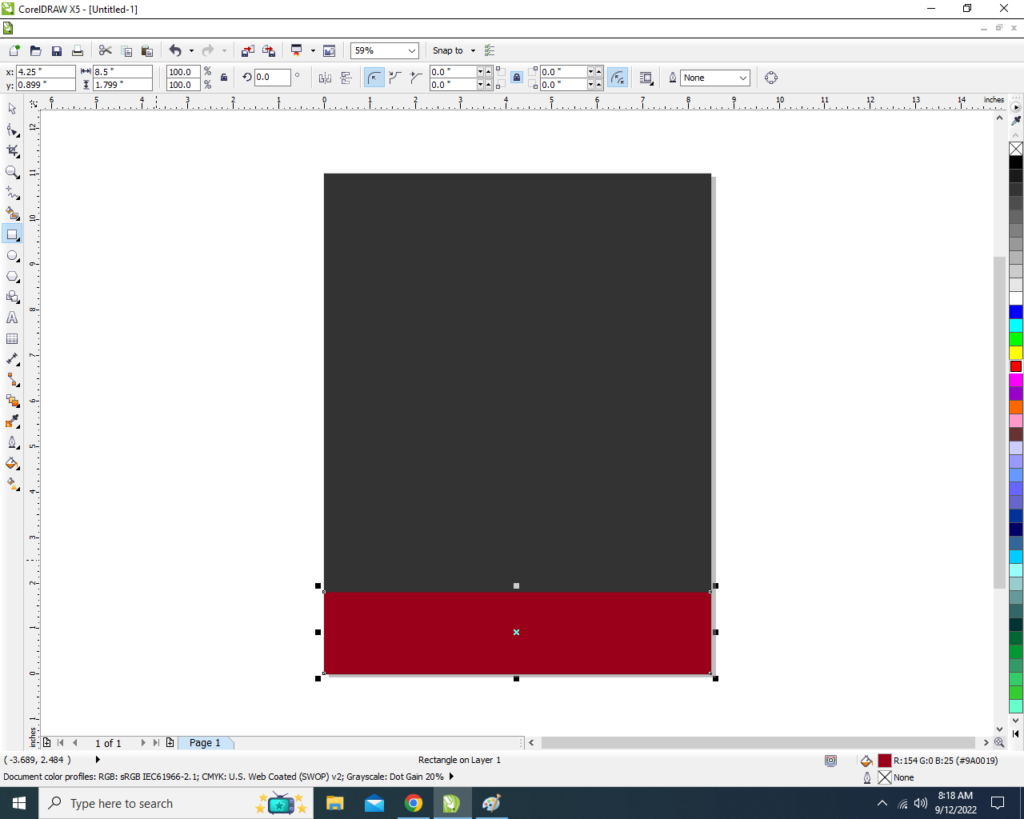
  • Click on Page > Change colour of Page > From Color palate. Poster Design in CorelDraw
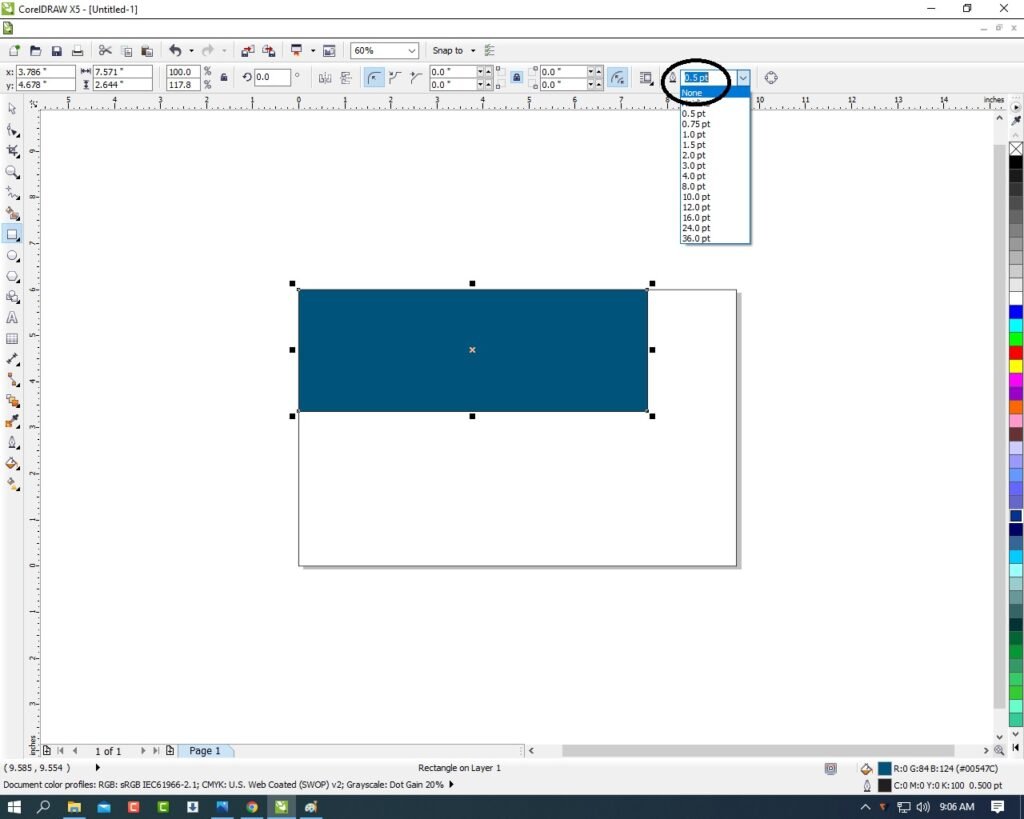
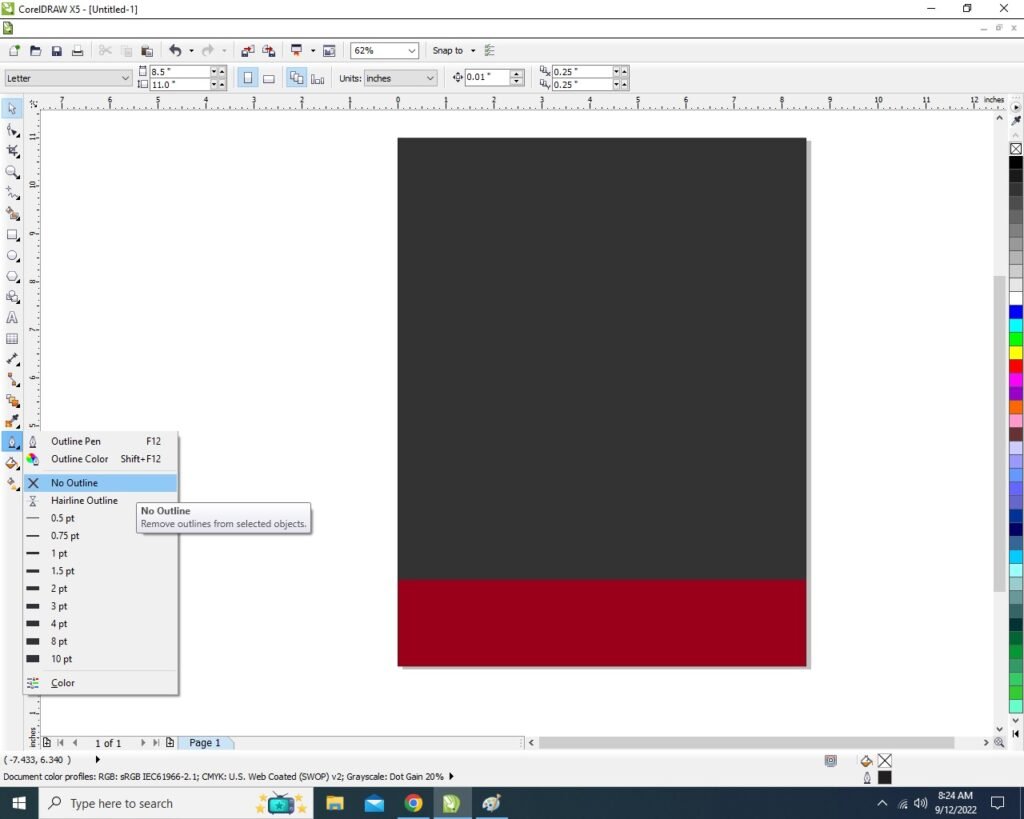
  • Select a Rectangle > Change Color from Color palate > Remove Outline from here.
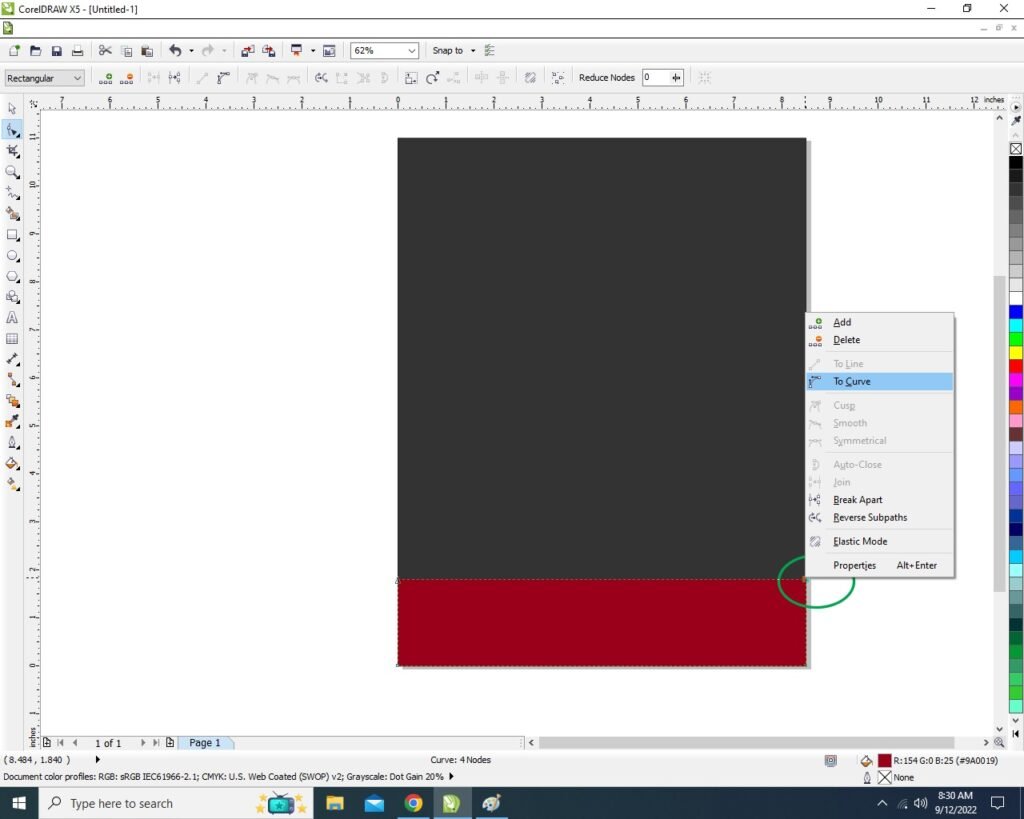
  • Press F10 in Keyboard > Something like this appear.
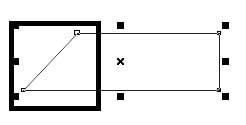
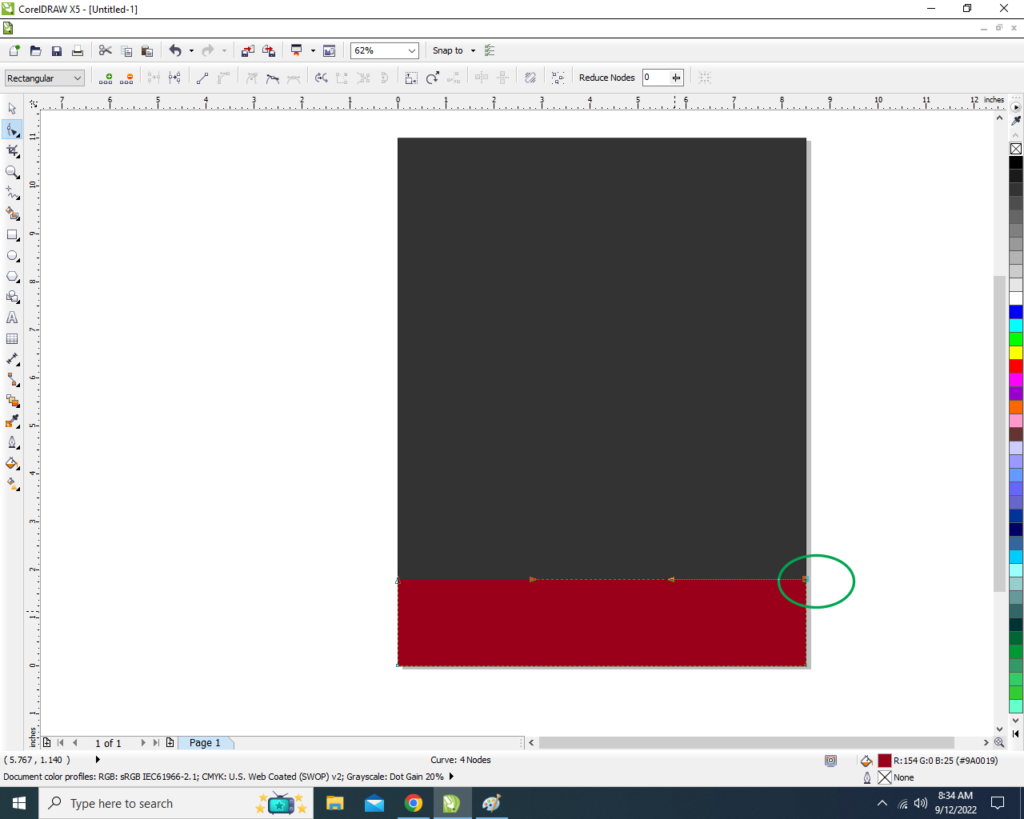
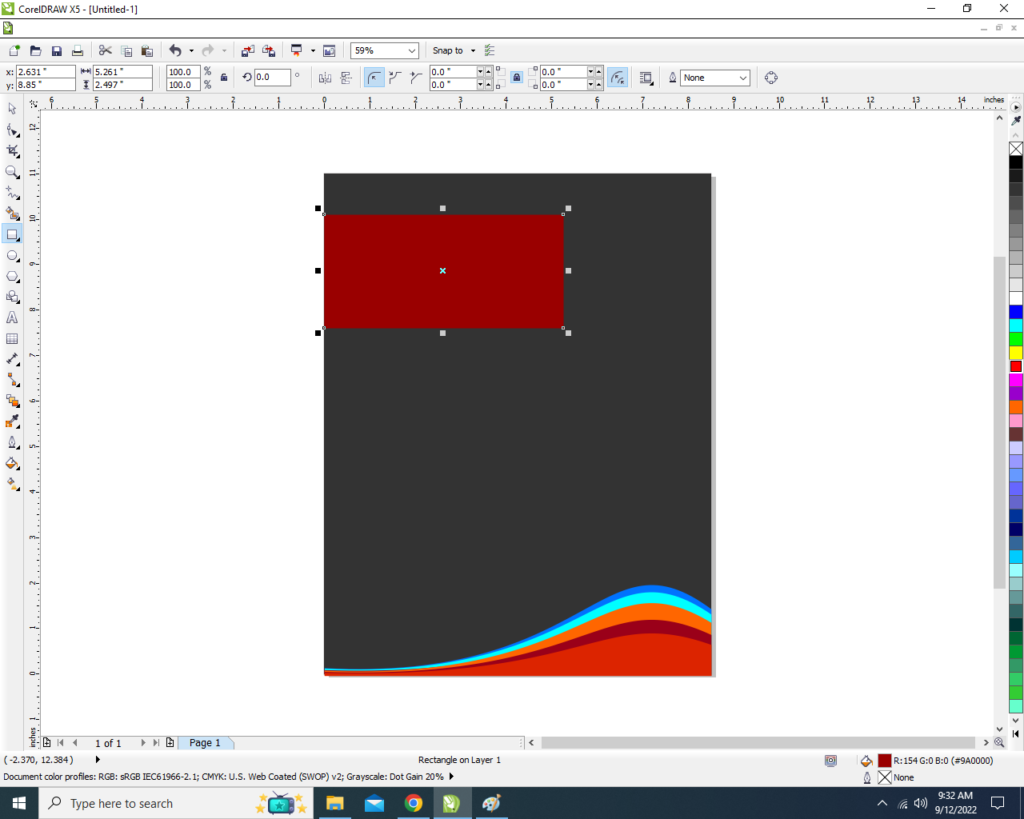
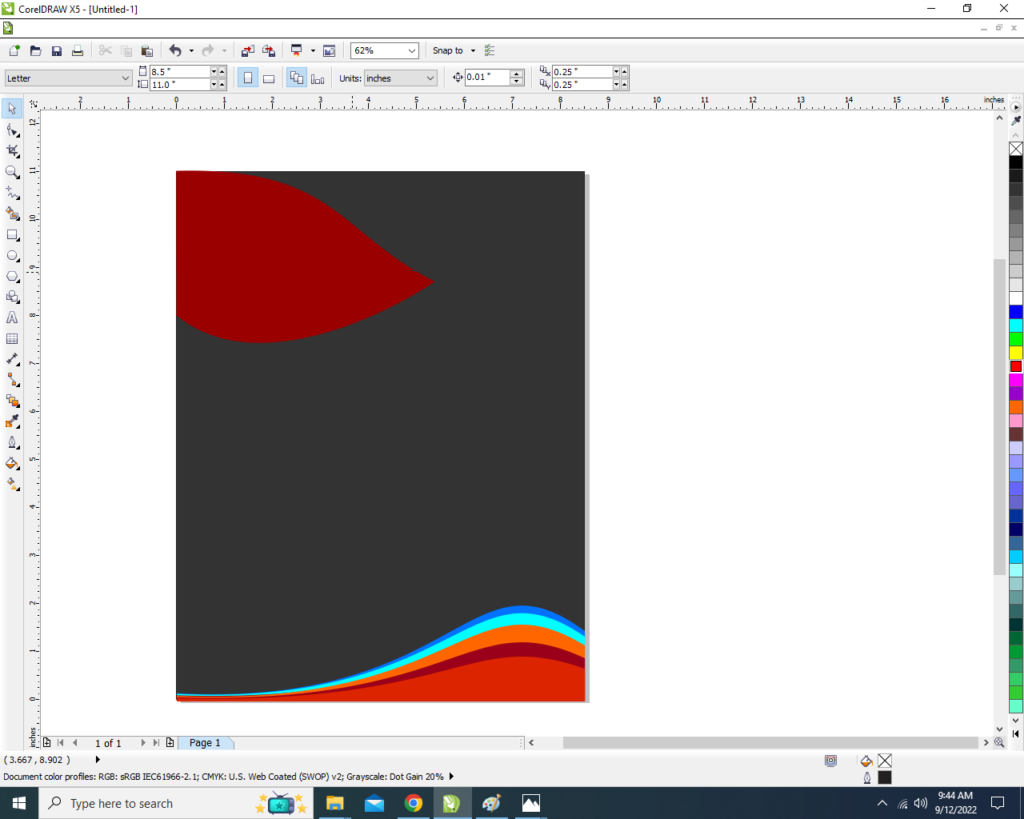
  • Click at Top Corner > Press Ctrl + Q > Right Click of Mouse > Click at To Curve Option > like this.
  • 4 Nodes appear like this.
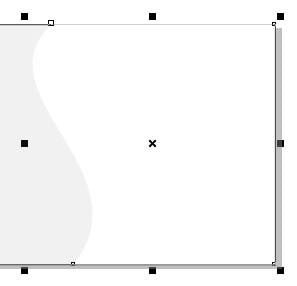
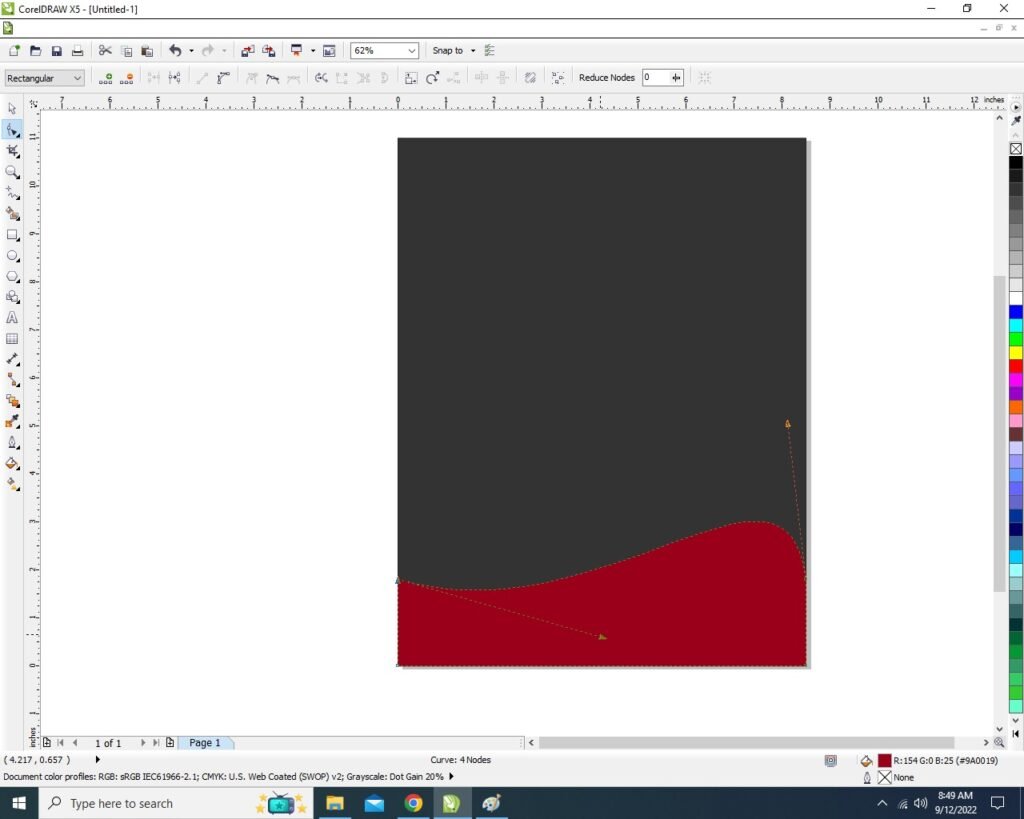
  • Curve like this.
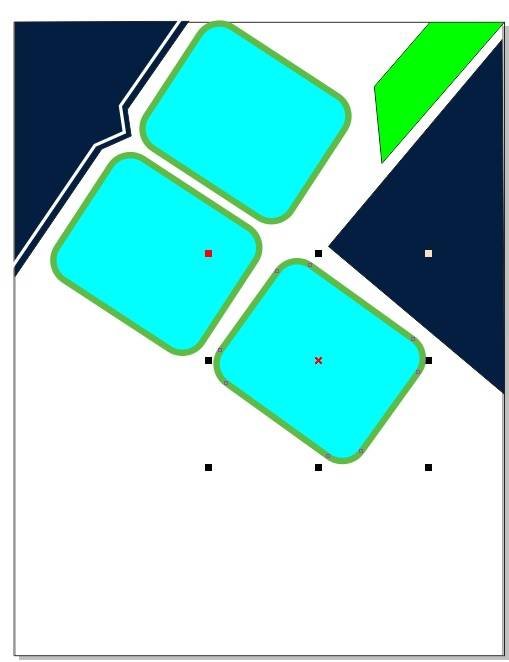
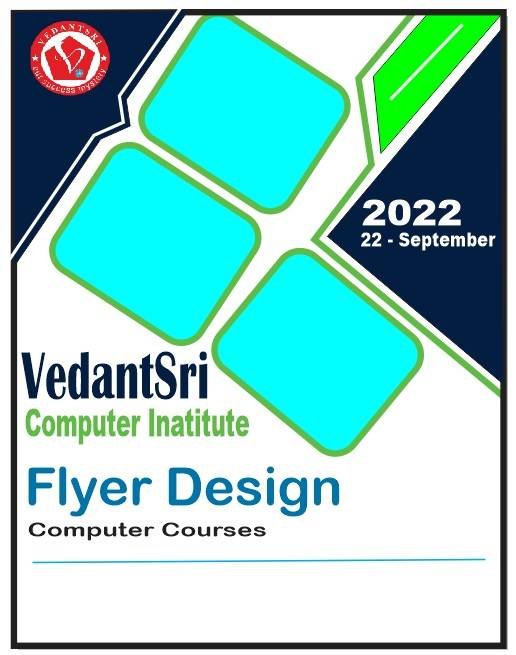
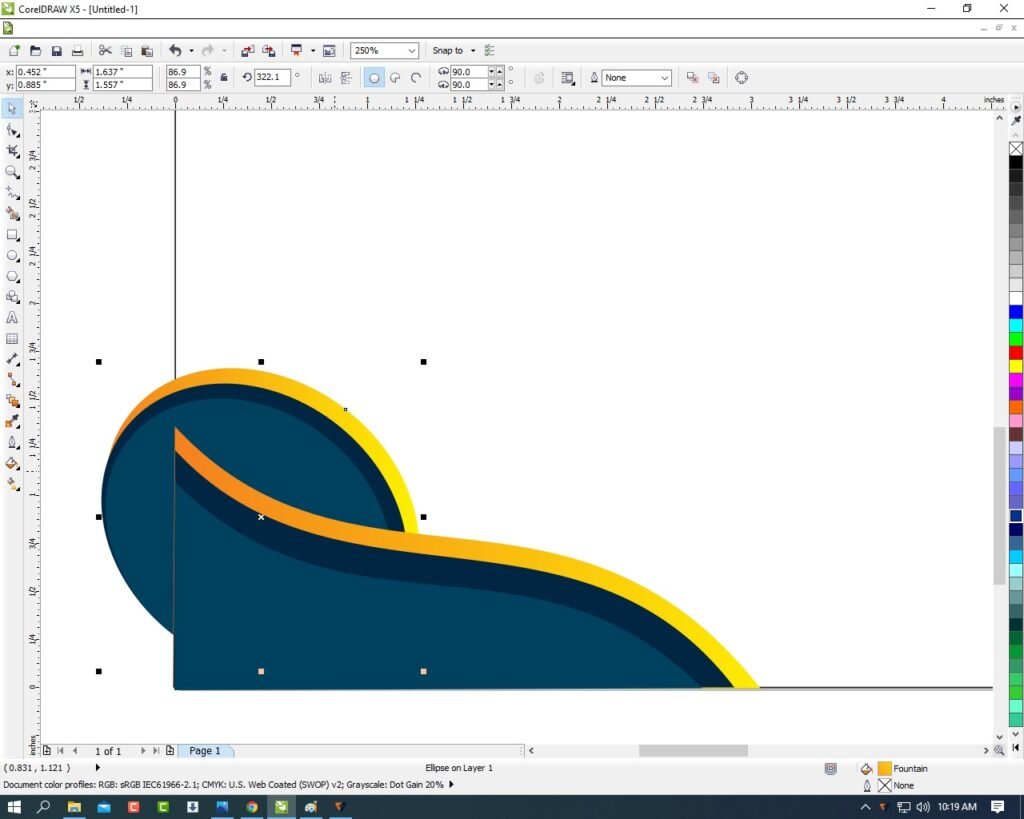
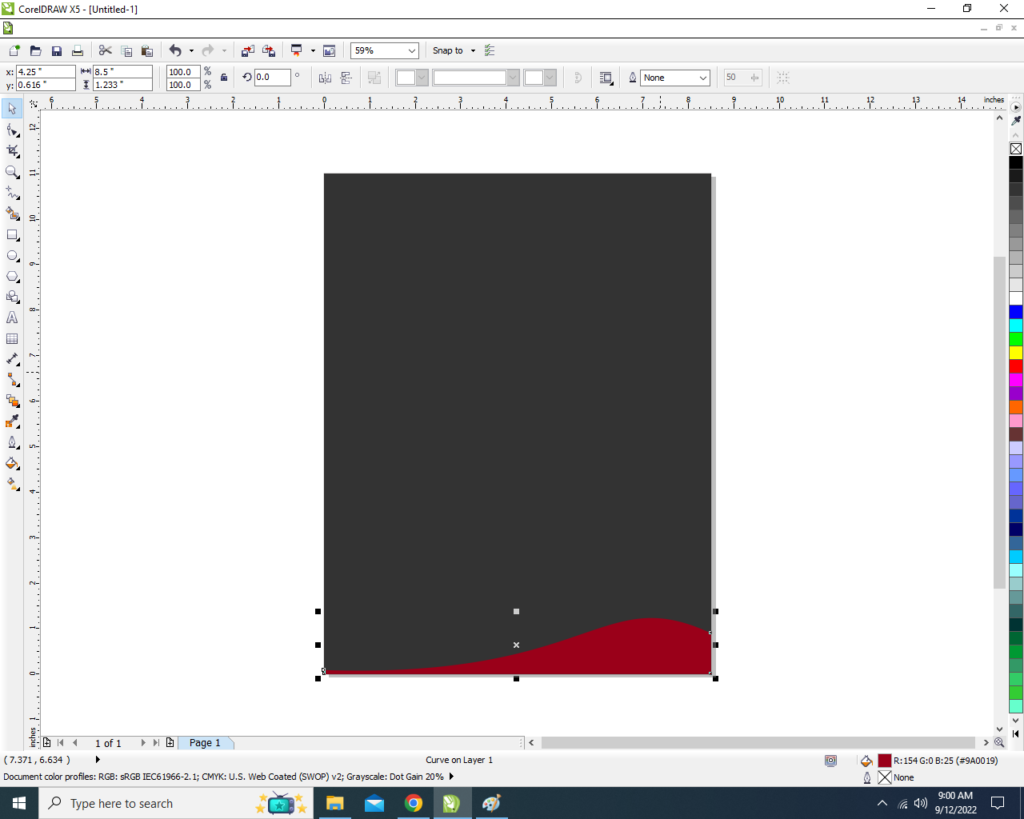
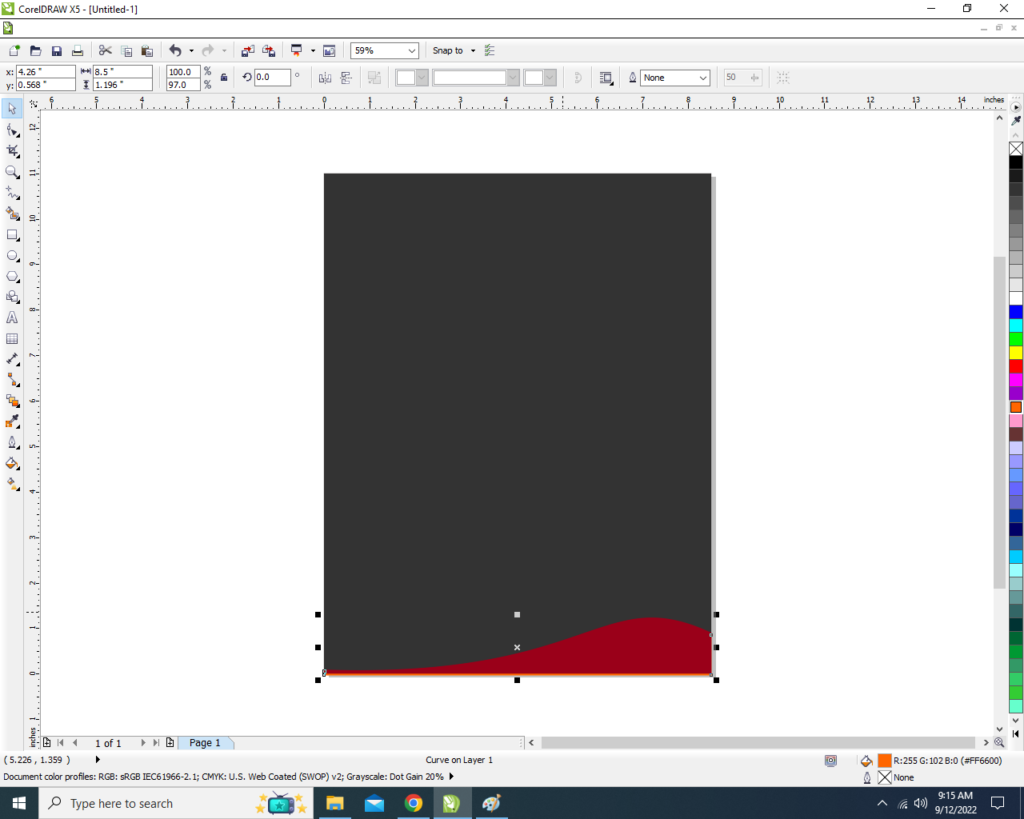
  • Select Curved Rectangle > Press Ctrl + D > To Duplicate shapes > Change Color of Duplicate Rectangle > From Color palate.
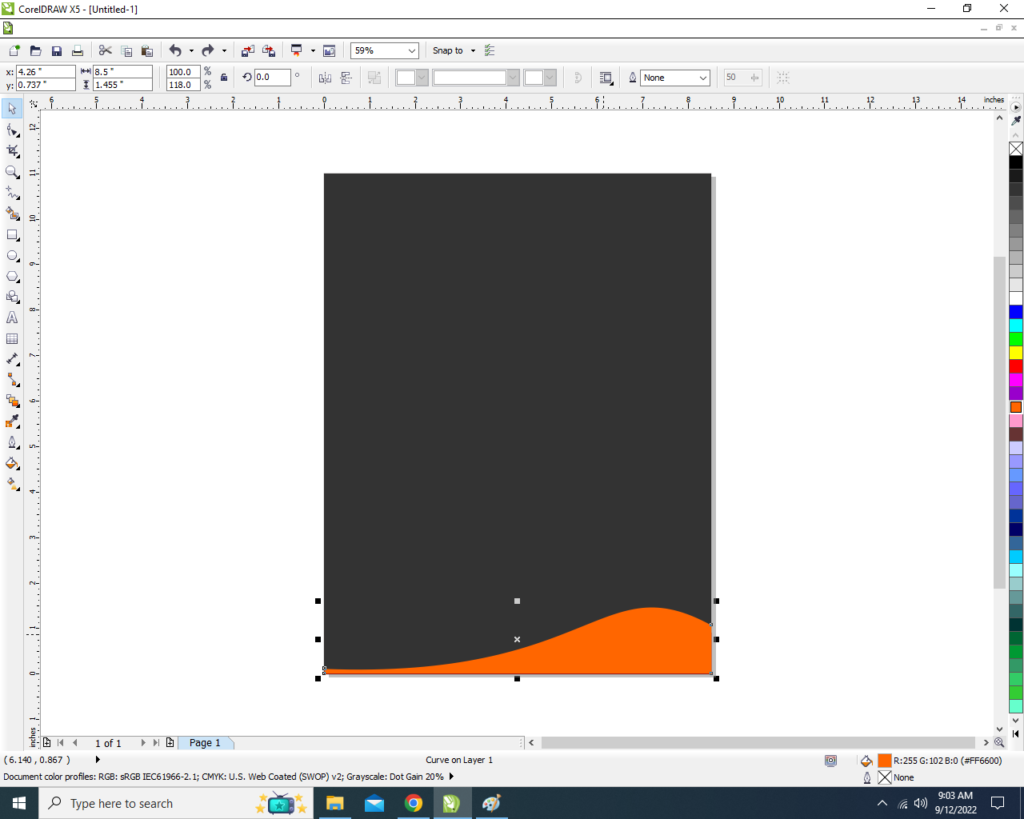
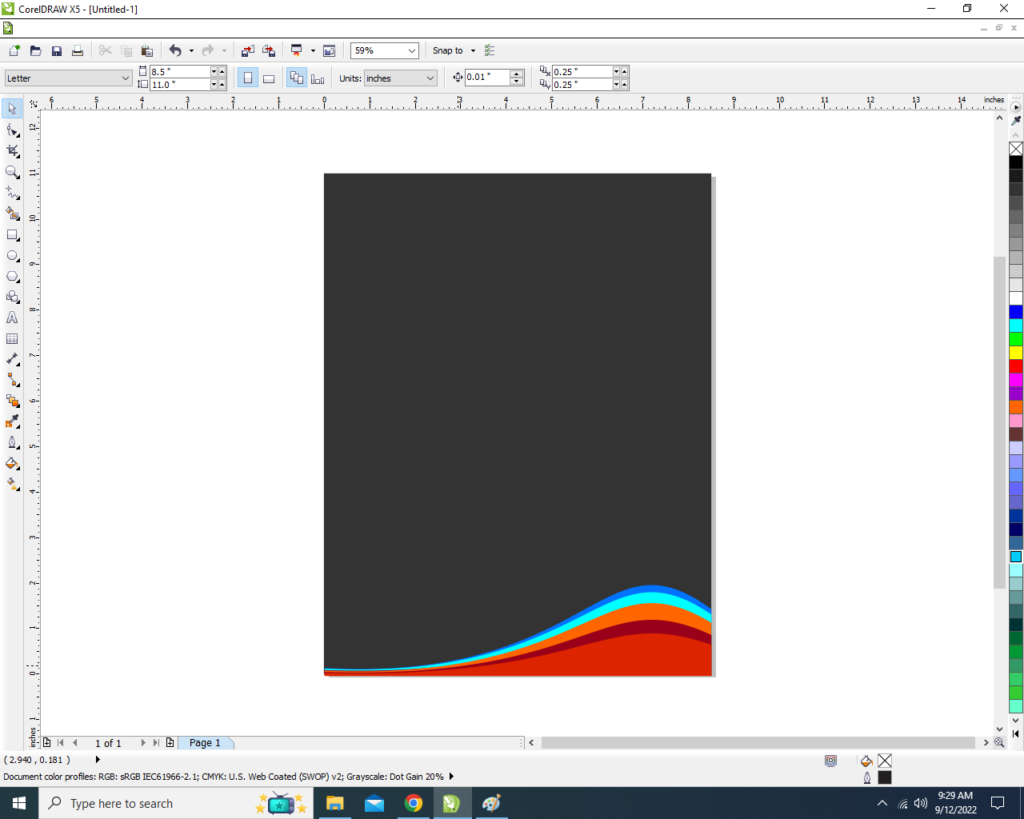
  • Select Curved Rectangle > Duplicate them > Change Color >From Color Palate > like this.
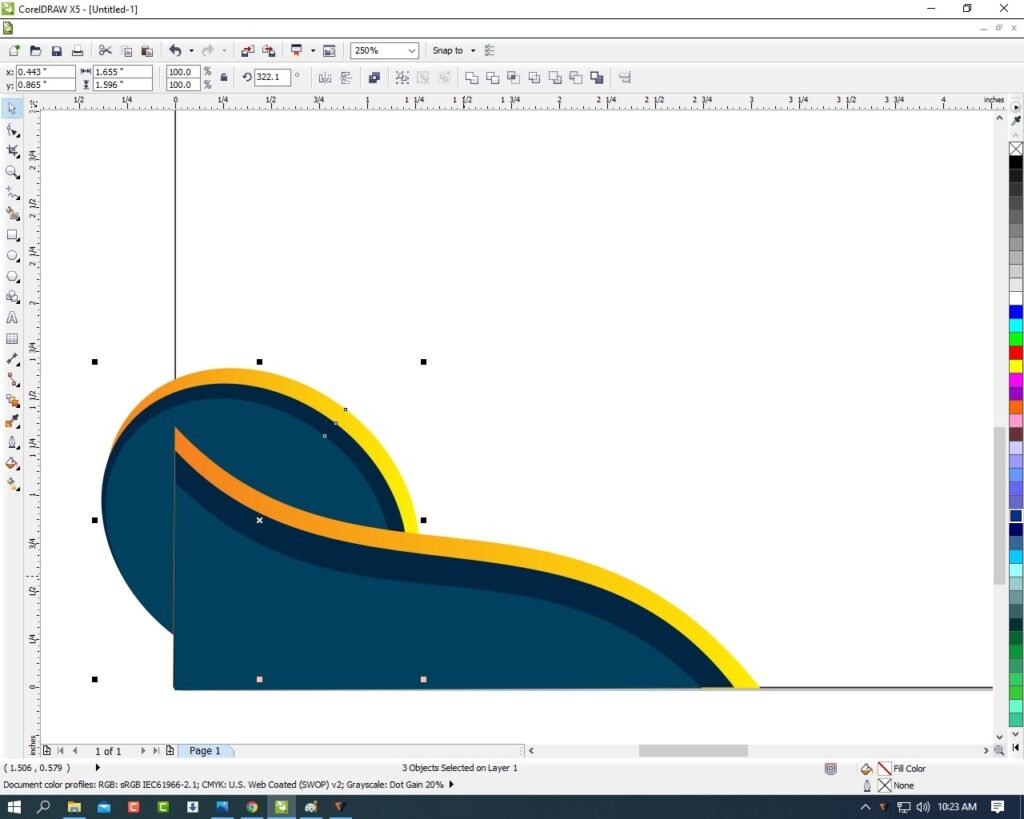
  • Set all the Curved Rectangle > Set like this.
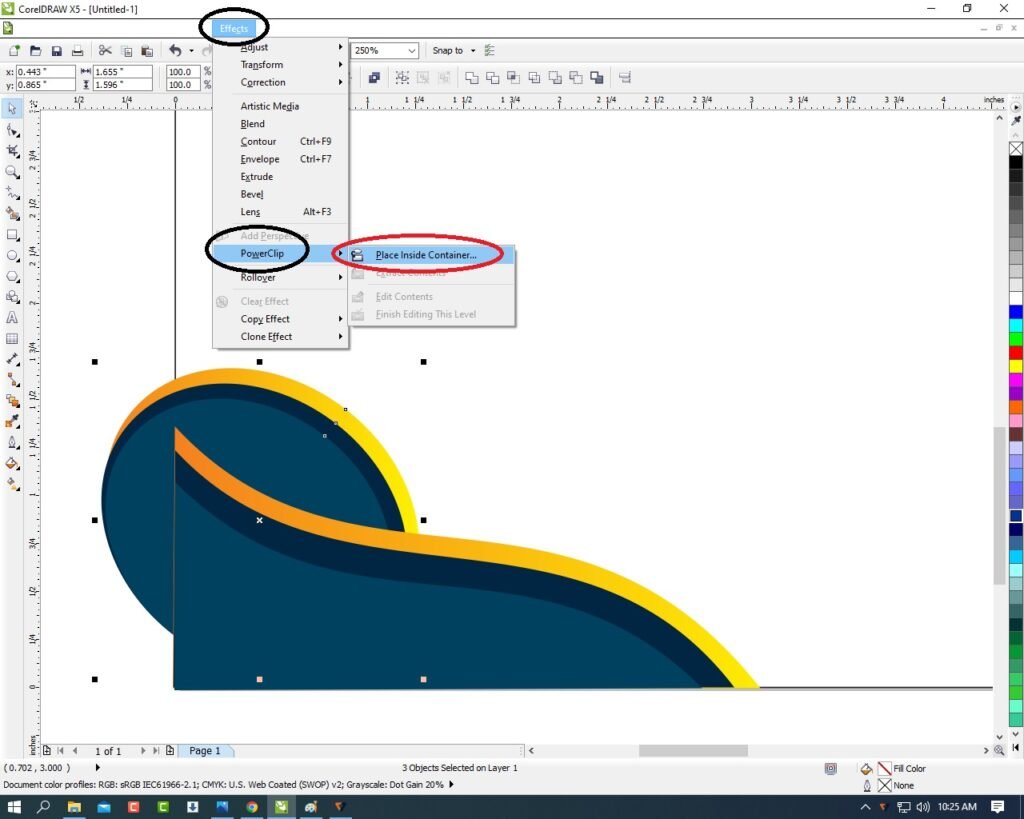
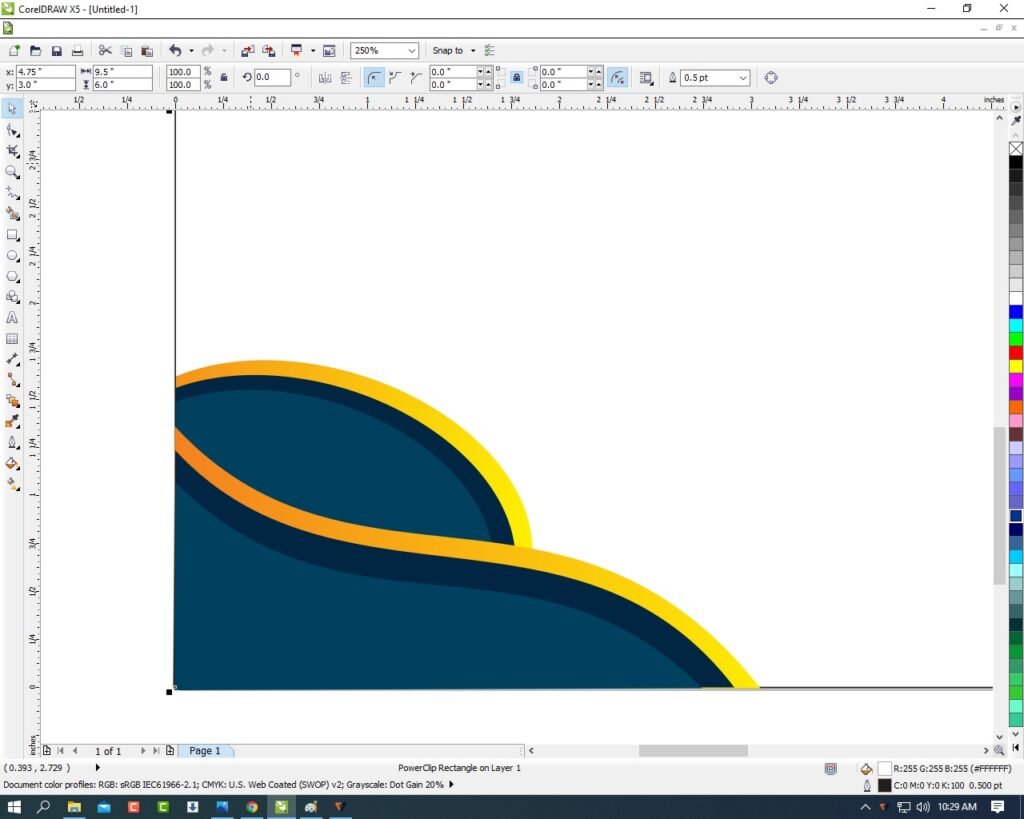
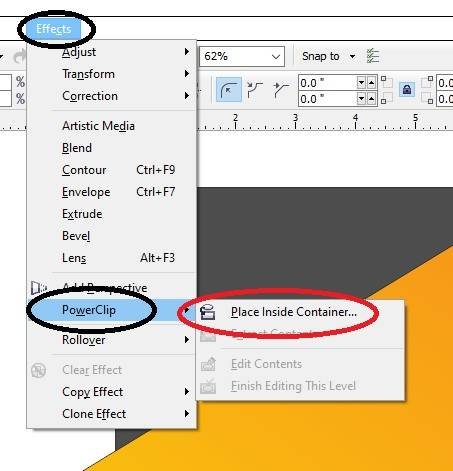
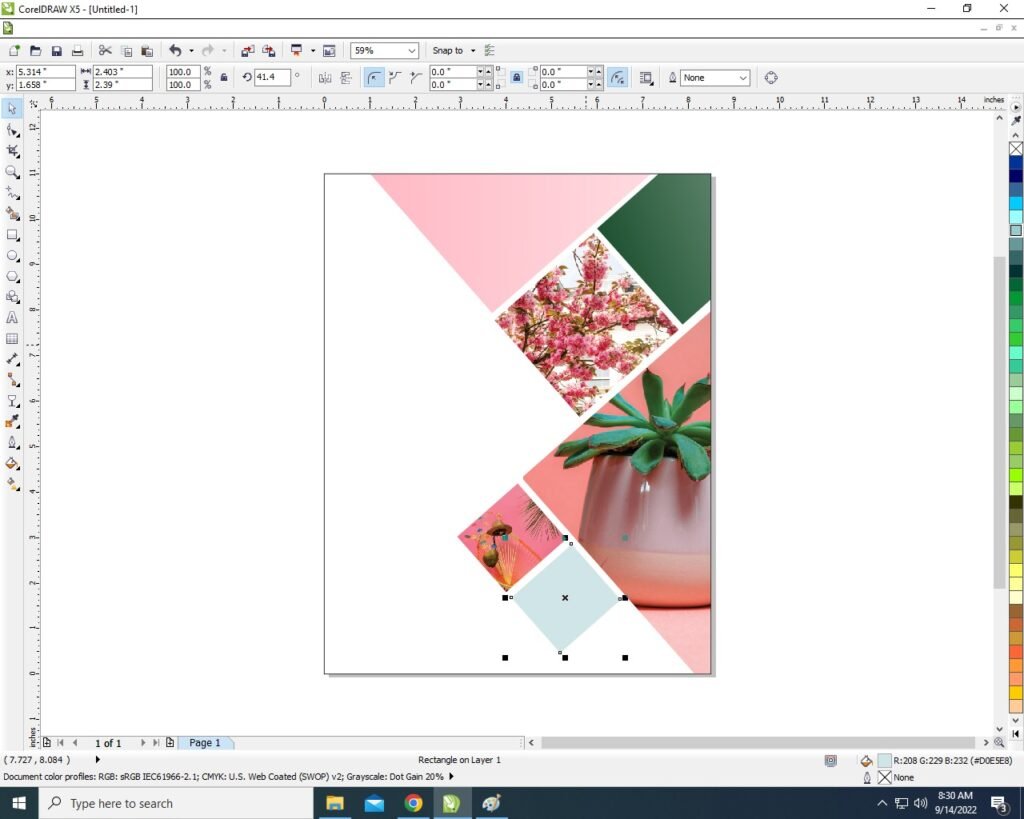
  • Select all Rectangles > Click at Effect Menu > Click at Power Clip Option > Place inside Container > Click at Page > something like this appear.
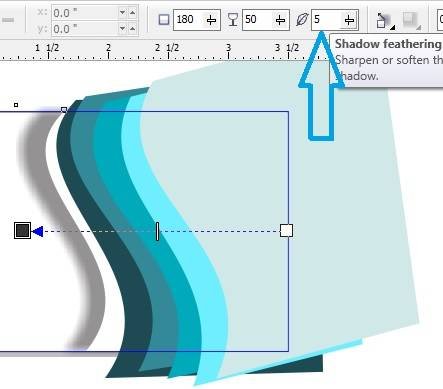
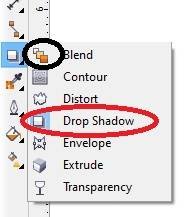
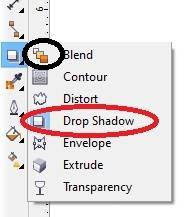
  • Click at Page > Press Ctrl + Left Click of Mouse > Select Rectangle One by One > Apply Drop Shadow On Rectangle > From Blend tool Option > Decrease shadow feathering like this.
  • Select One By One Rectangle > Apply Shadow > Click at Page.
  • Put LOGO of an Institute > like this.
22 3
Poster Design in CorelDraw, Top 1 Best Easy and Simple Method, Download Source File. 45
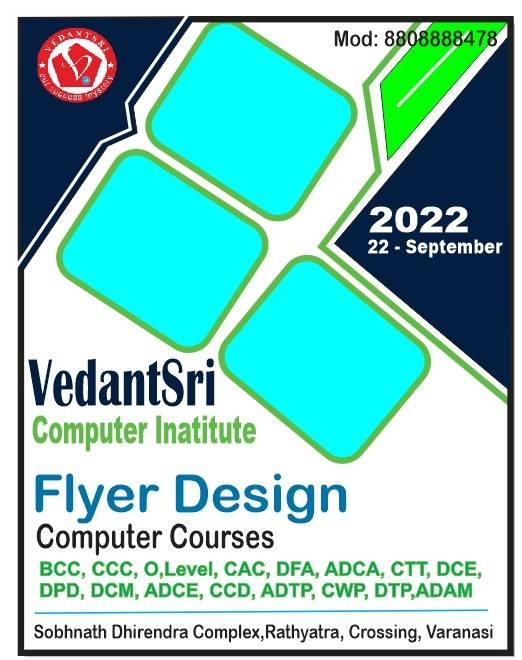
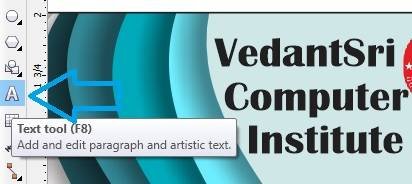
  • Type Institute Name > From text tool.
  • Apply Drop Shadow on Text > Drop Shadow Tool.
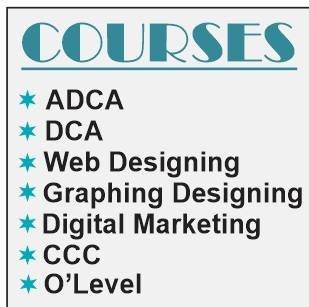
  • Type Matter of an Institute > like this.
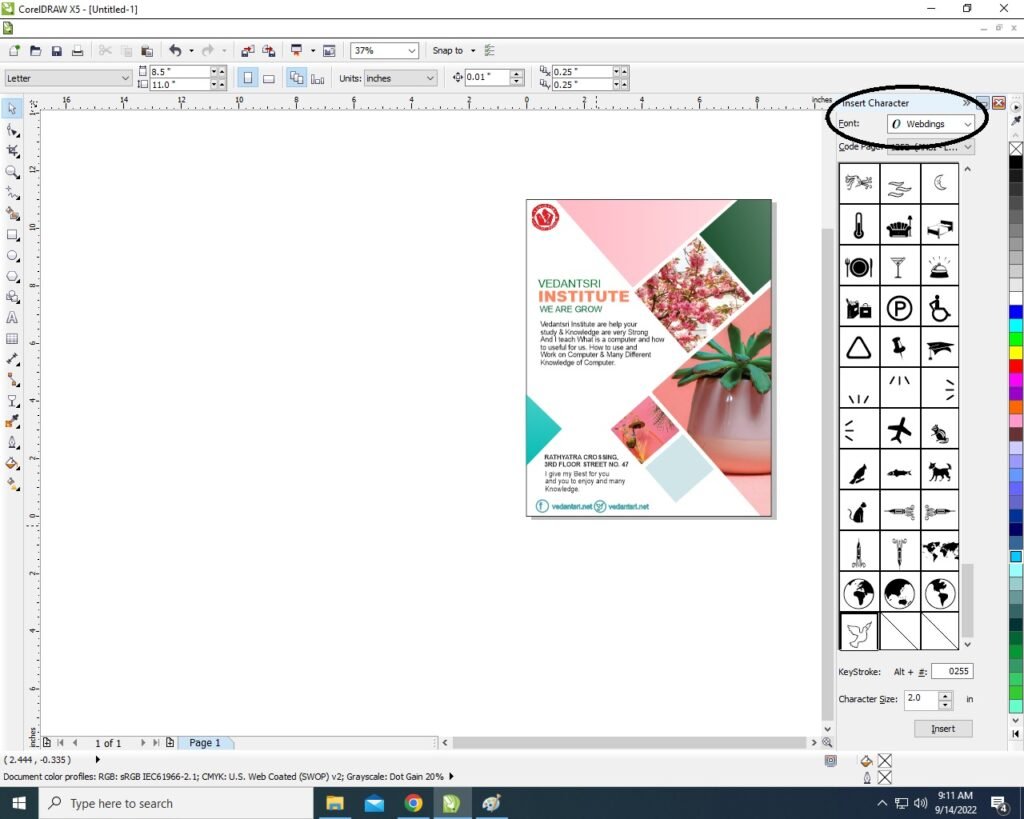
  • Draw circle > Press Ctrl + F11 > To insert Characters > Set like this > Type information.
  • Give Heading CONTACT US > Like this
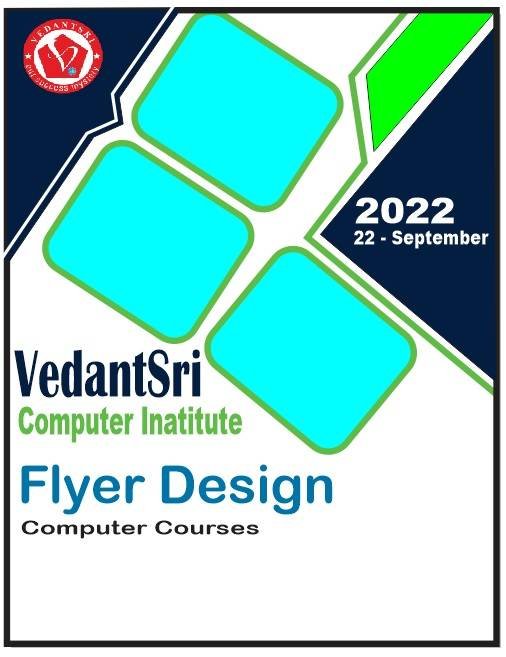
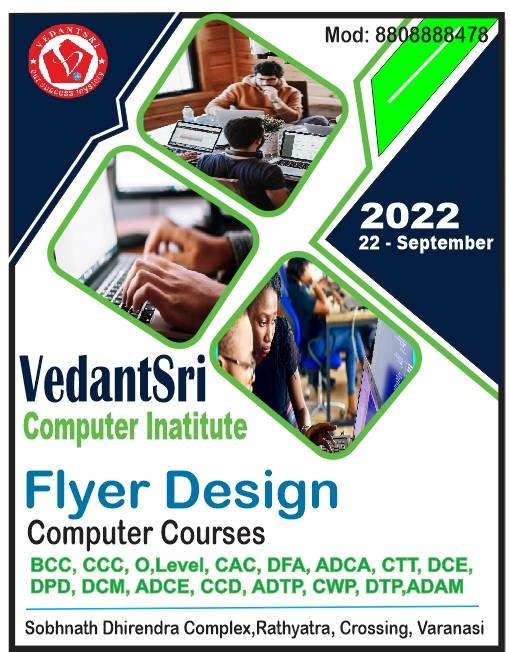
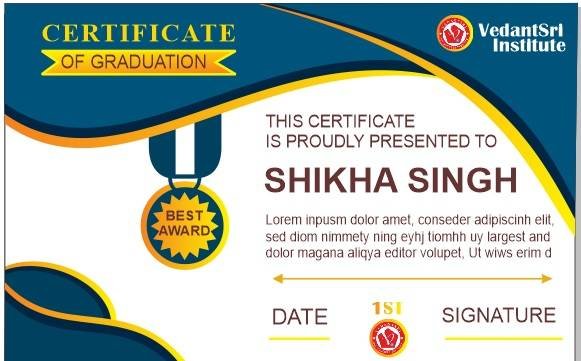
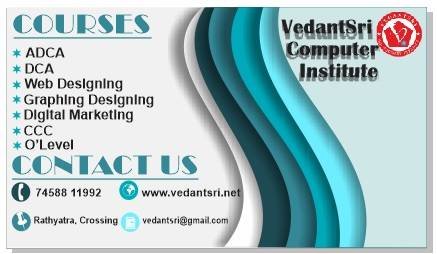
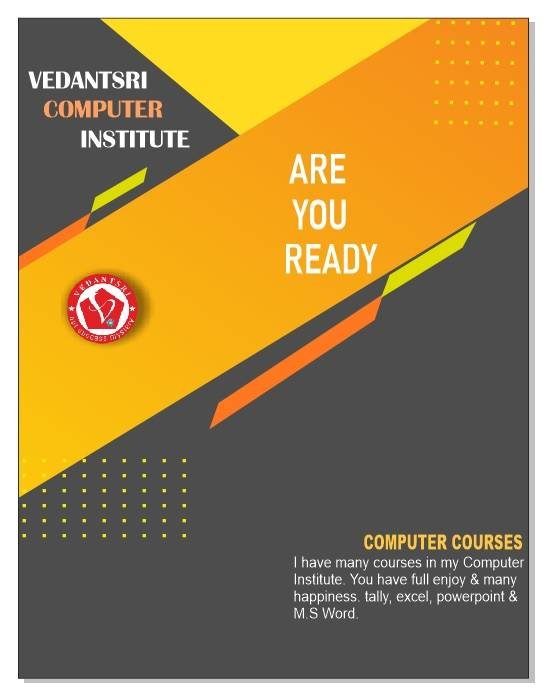
  • Now Poster is Ready.

Created and Explained by Sakshi Rawat.

Important link

Visit at – https://www.corelclass.com

Read Also it – https://msexcelclass.com/

Also Read- Tally Course Fees, Duration, Scope, Syllabus, Admission, Institutes

Also Read – CCC Course Fees, Syllabus, Duration, Scope, Jobs, and Institute

Important Link – DFA Course Fees, Syllabus, Duration, Scope, Jobs, and Institute

Visit – https://mswordclass.com/
Poster Design In CorelDraw, Easy and Step by Step, Download Source File.

Poster Design In CorelDraw, Easy and Step by Step, Download Source File.

Hello Friends, Welcome to Corelclass.com In This Post I am Going to Teach you How to Create Poster Design in CorelDraw. In This Project, You Can Learn How to Design a Poster in CorelDraw Application in an Easy Method. You Can Also Download the Practice File in This Post. So Let’s Start To Learn This Project, Before starting I request You to Please Follow the Given Below Step to Learn Properly step by step.

  • First of all Press Window + R To Open Run Dialogue Box >Type coreldrw .
2 7
Poster Design In CorelDraw
  • Press Ok.
Poster Design In CorelDraw
  • Press CTRL + N to Open a New Page Window.
Poster Design In CorelDraw
  • Double Click on Rectangle Tool.
Poster Design In CorelDraw
  • Then Fill any Color in the page.
1 1
Poster Design In CorelDraw, Easy and Step by Step, Download Source File. 82
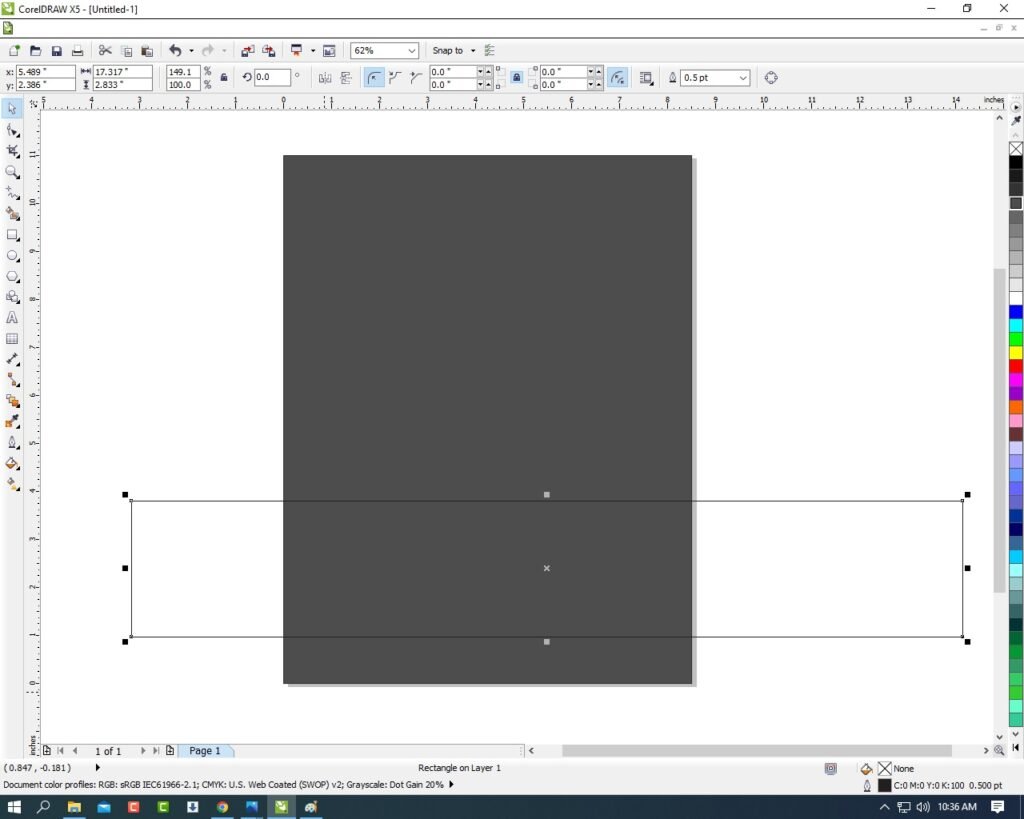
  • Draw Rectangle in the page.
Poster Design In CorelDraw
Poster Design In CorelDraw, Easy and Step by Step, Download Source File. 83
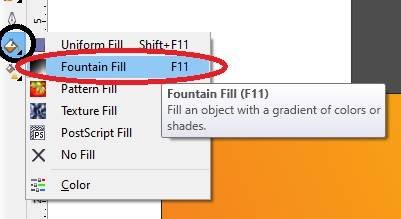
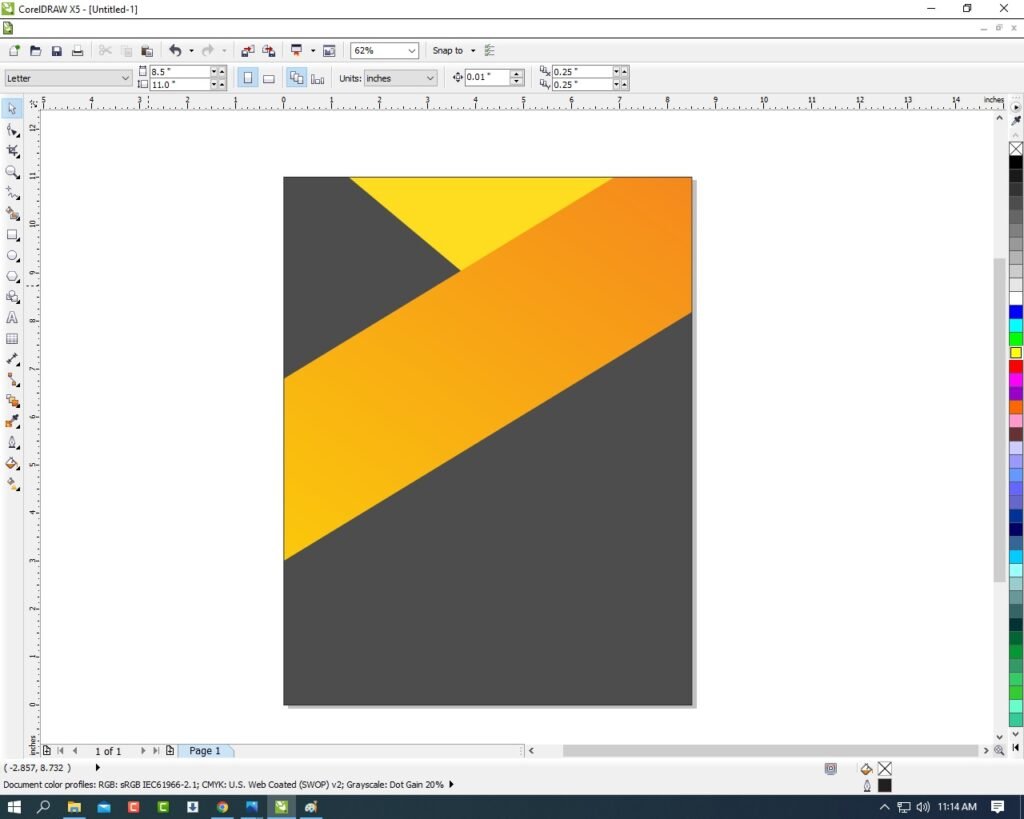
  • Then Fill any color > I’m Fill Fountain color First of all go to Fill Tool > Click on Fountain Fill > Then Fill any Color as your Wish.
3 4
Poster Design In CorelDraw, Easy and Step by Step, Download Source File. 84
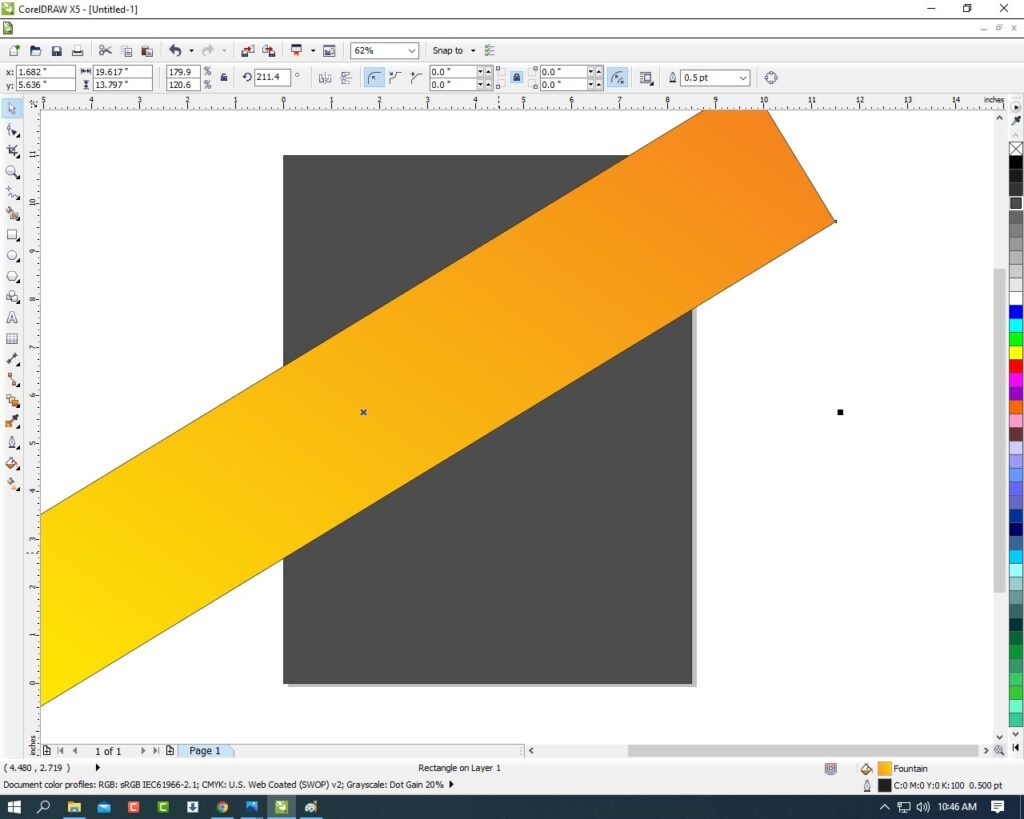
  • Then Double Click on the shape > Rotate the Rectangle Like I Do .
4 3
Poster Design In CorelDraw, Easy and Step by Step, Download Source File. 85
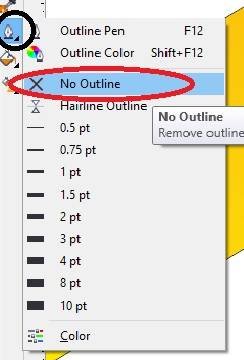
  • Then Select the Rectangle > Go to Outline Pen Tool > No Outline.
Poster Design In CorelDraw
Poster Design In CorelDraw, Easy and Step by Step, Download Source File. 86
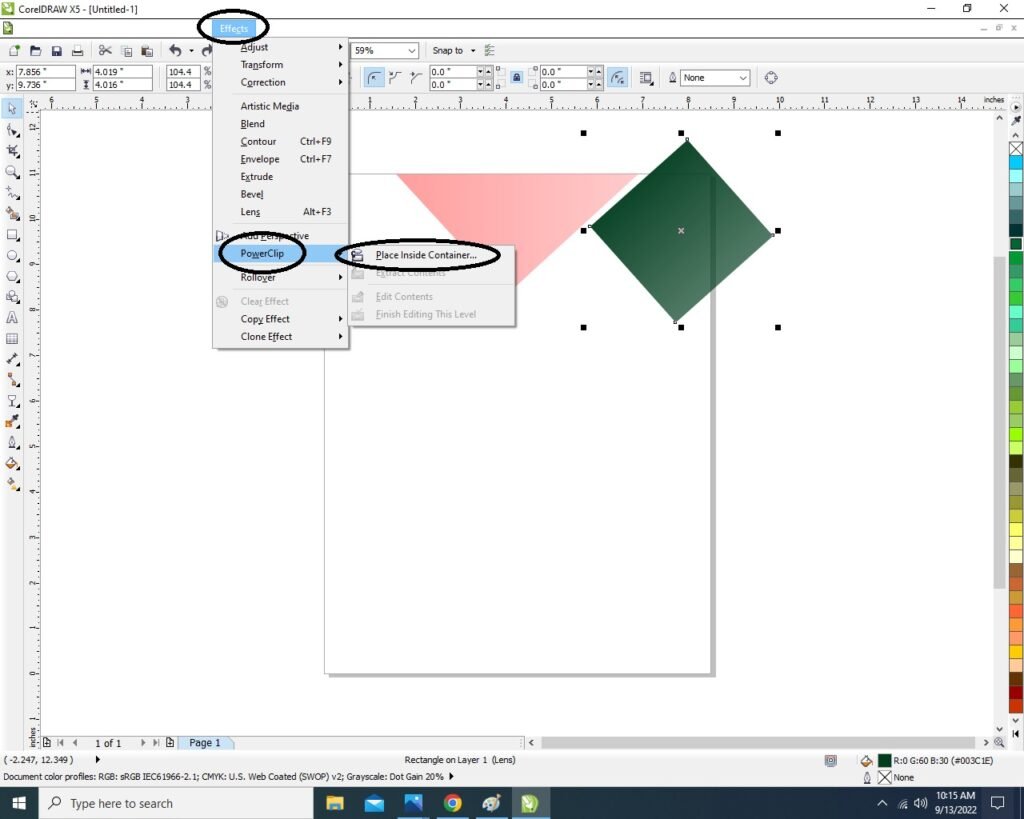
  • Then Select the Rectangle > Go to Effect Menu > Click on PowerClip Option > Place Inside Container.
6 4
Poster Design In CorelDraw, Easy and Step by Step, Download Source File. 87
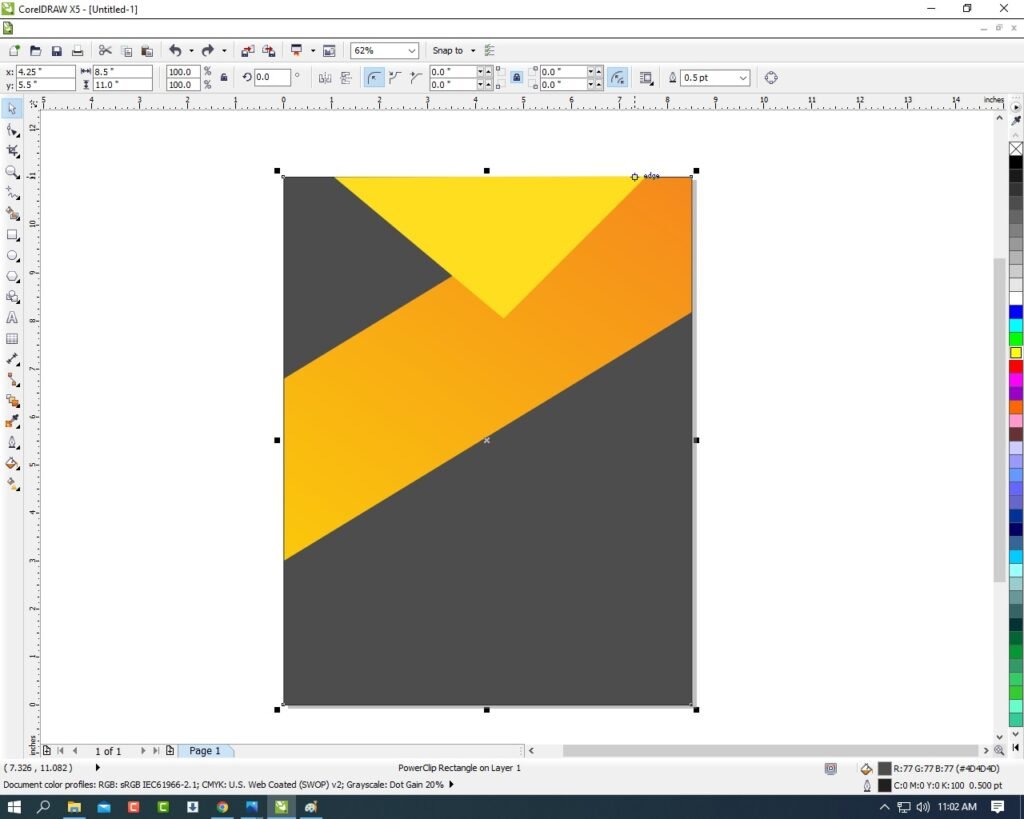
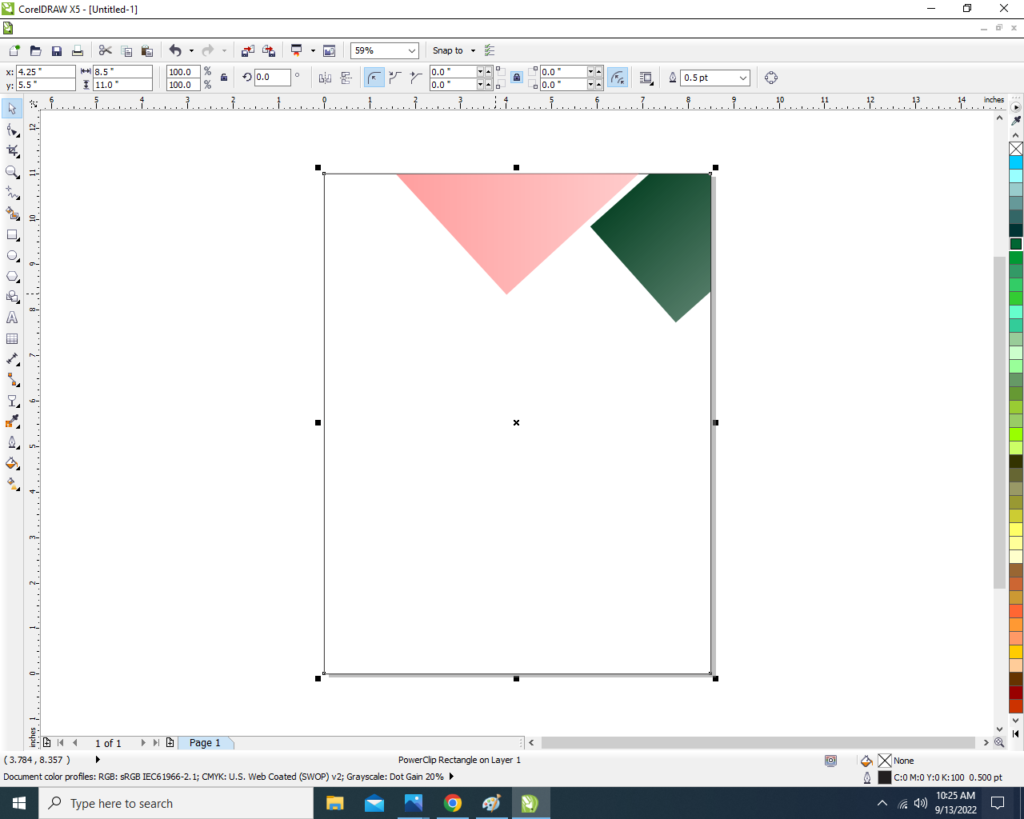
  • Then you Can see Extra Aria are clip on the page inside.
7 5
Poster Design In CorelDraw, Easy and Step by Step, Download Source File. 88
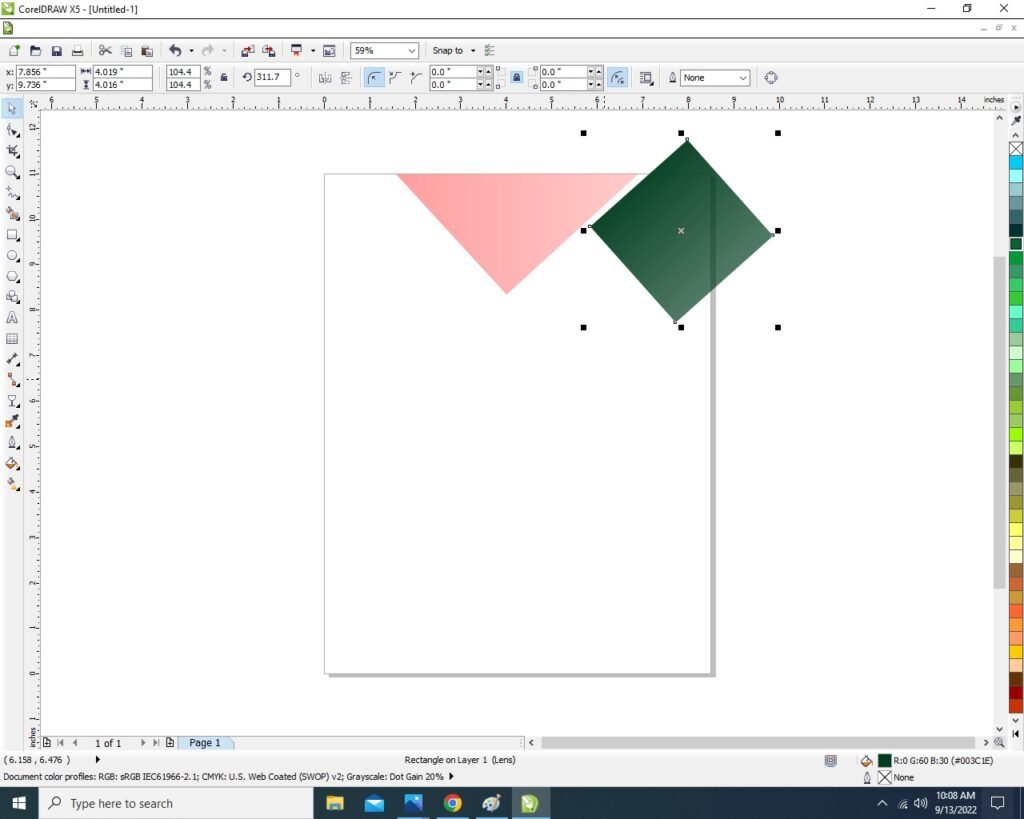
  • Draw a Triangle > Fill any Color > No Outline.
Poster Design In CorelDraw
Poster Design In CorelDraw, Easy and Step by Step, Download Source File. 89
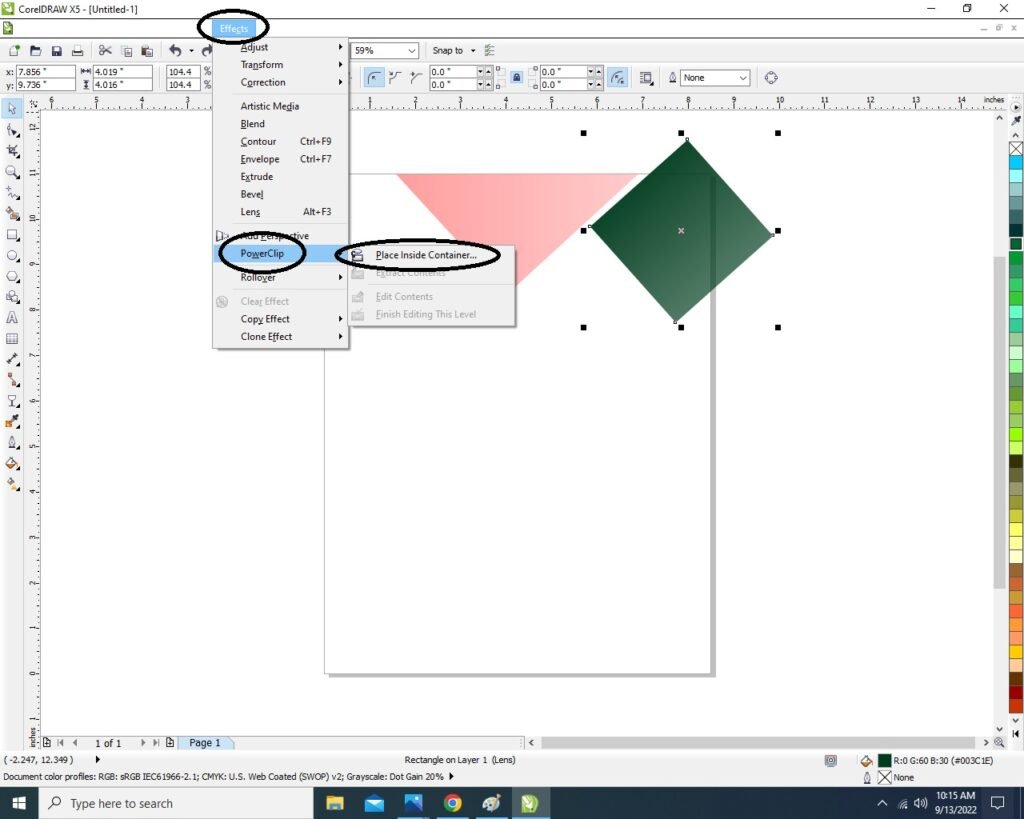
  • Then Same Process > Go Effect Menu > PowerClip > Place Inside Container > Click on the Page.
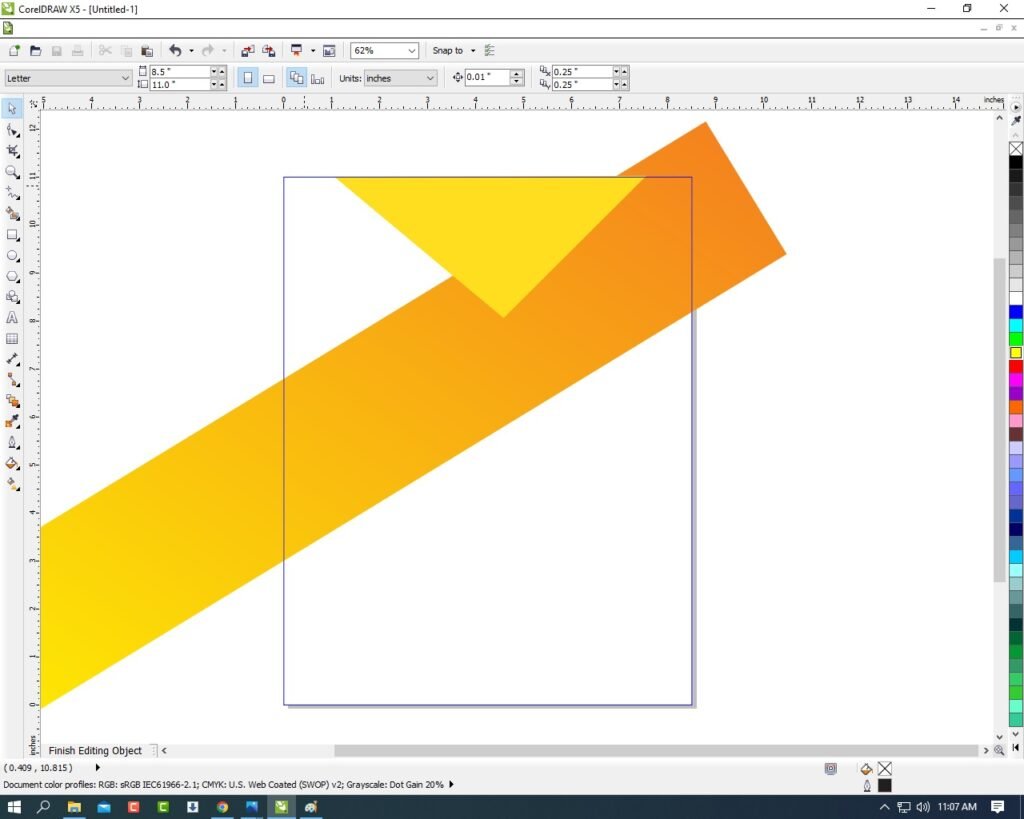
  • Then CTRL + Double Click On the Shape > Go to Inside the Page.
9 5
Poster Design In CorelDraw, Easy and Step by Step, Download Source File. 90
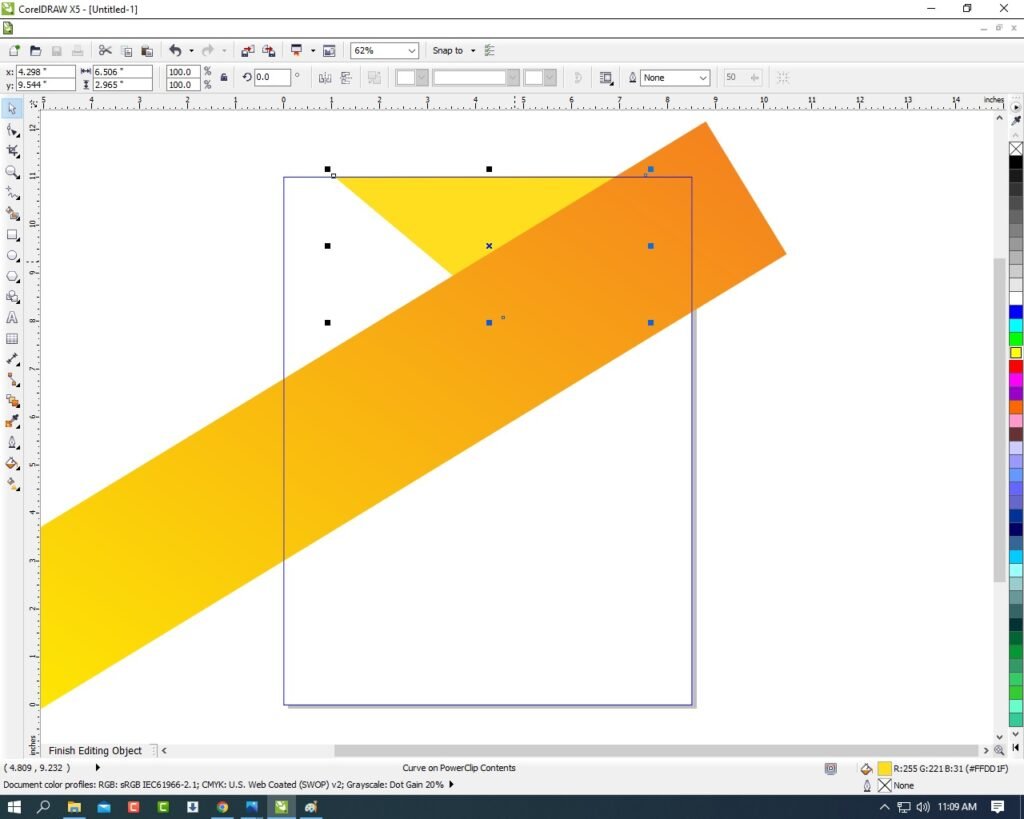
  • Then Select the Triangle Press CTRL + Page Down.
10 2
Poster Design In CorelDraw, Easy and Step by Step, Download Source File. 91
  • Then CTRL + Double Click on Out Of Page .
Poster Design In CorelDraw
Poster Design In CorelDraw, Easy and Step by Step, Download Source File. 92
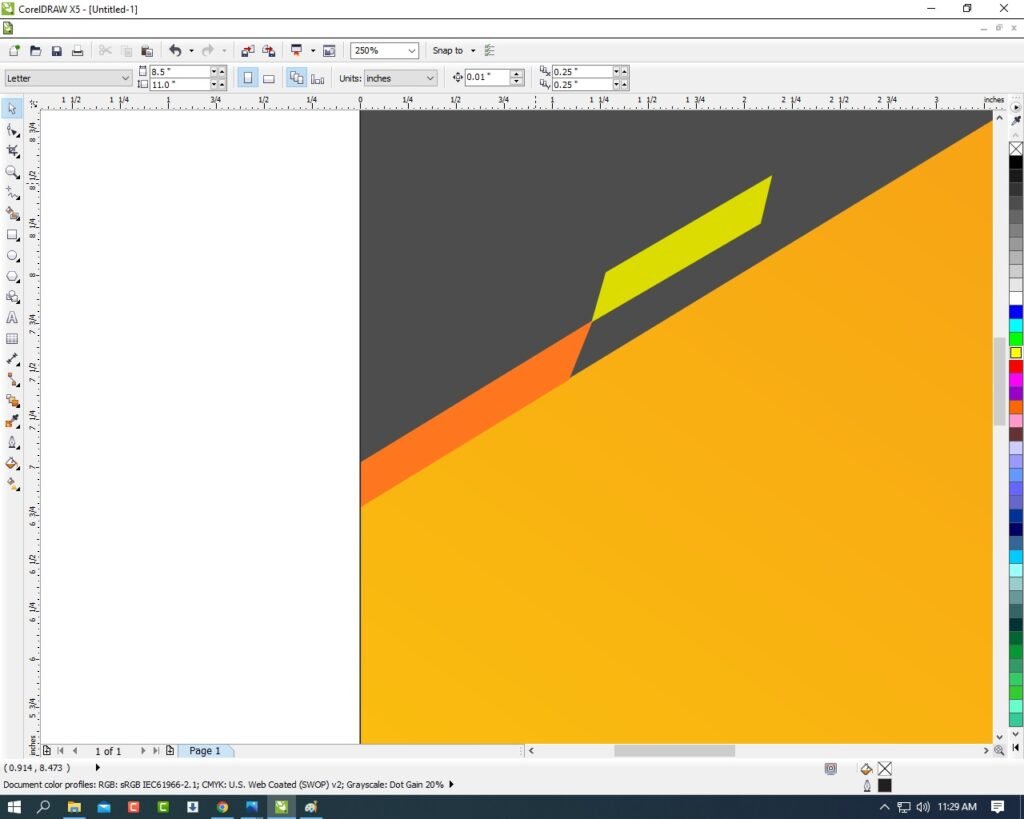
  • Then Draw a Very Small Rectangle > Fill any Color > No Outline.
12 4
Poster Design In CorelDraw, Easy and Step by Step, Download Source File. 93
  • Then Rotate the Shape > Press F10 > CTRL + Q > to make a New shape and Fix it Like I show.
13 3
Poster Design In CorelDraw, Easy and Step by Step, Download Source File. 94
  • Select the Shape > Effect Menu > PowerClip > Inside the Container > Click on the Page.
14 4
Poster Design In CorelDraw, Easy and Step by Step, Download Source File. 95
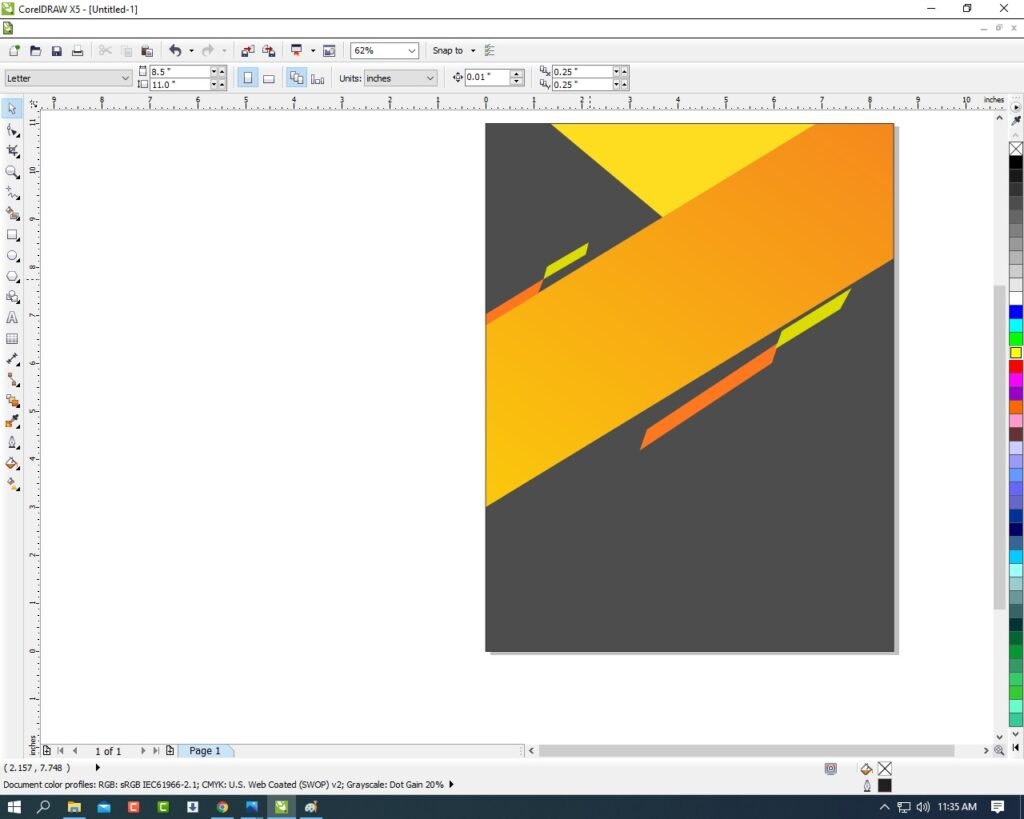
  • Then Draw a New Rectangle Shape > Fill any Color > No Outline > Then Repeat same process Press F10 > CTRL + Q > To Make a New shape and Fix It Like Me.
15 5
Poster Design In CorelDraw, Easy and Step by Step, Download Source File. 96
  • Then Draw the Rectangle & Repeat Same process I will show.
16 3
Poster Design In CorelDraw, Easy and Step by Step, Download Source File. 97
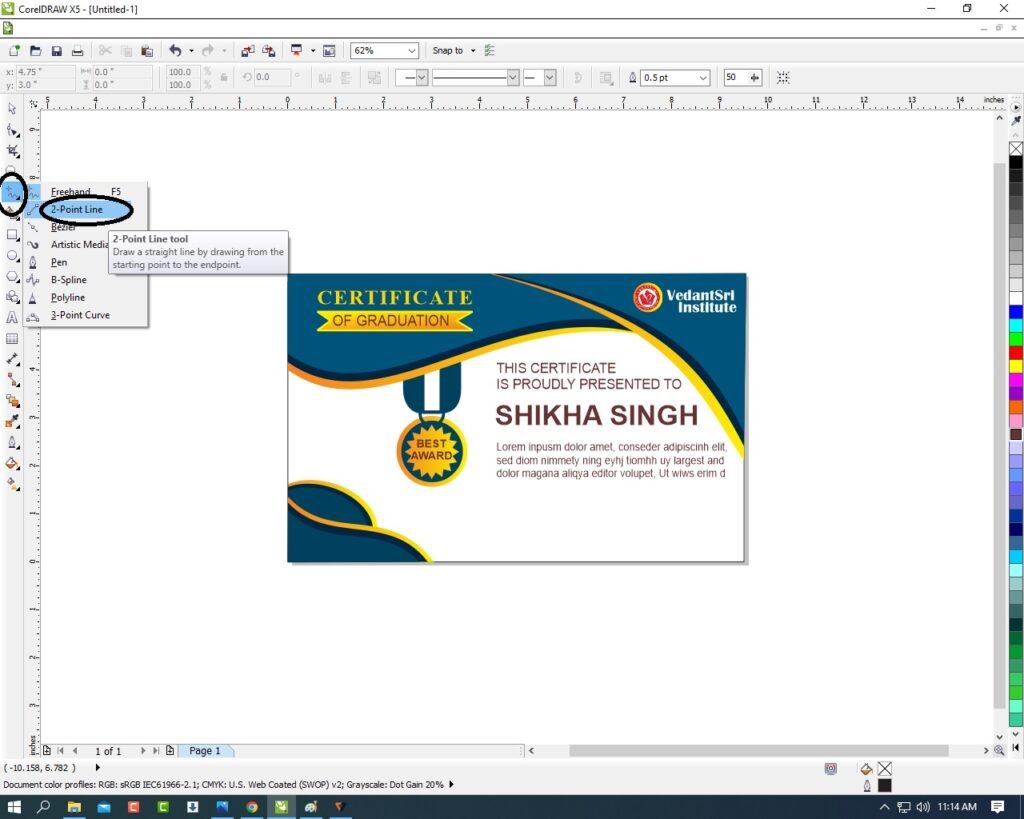
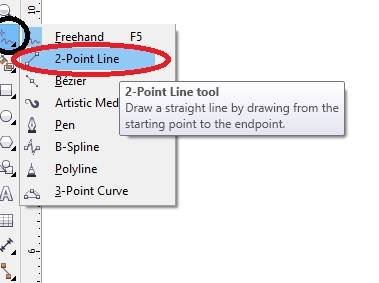
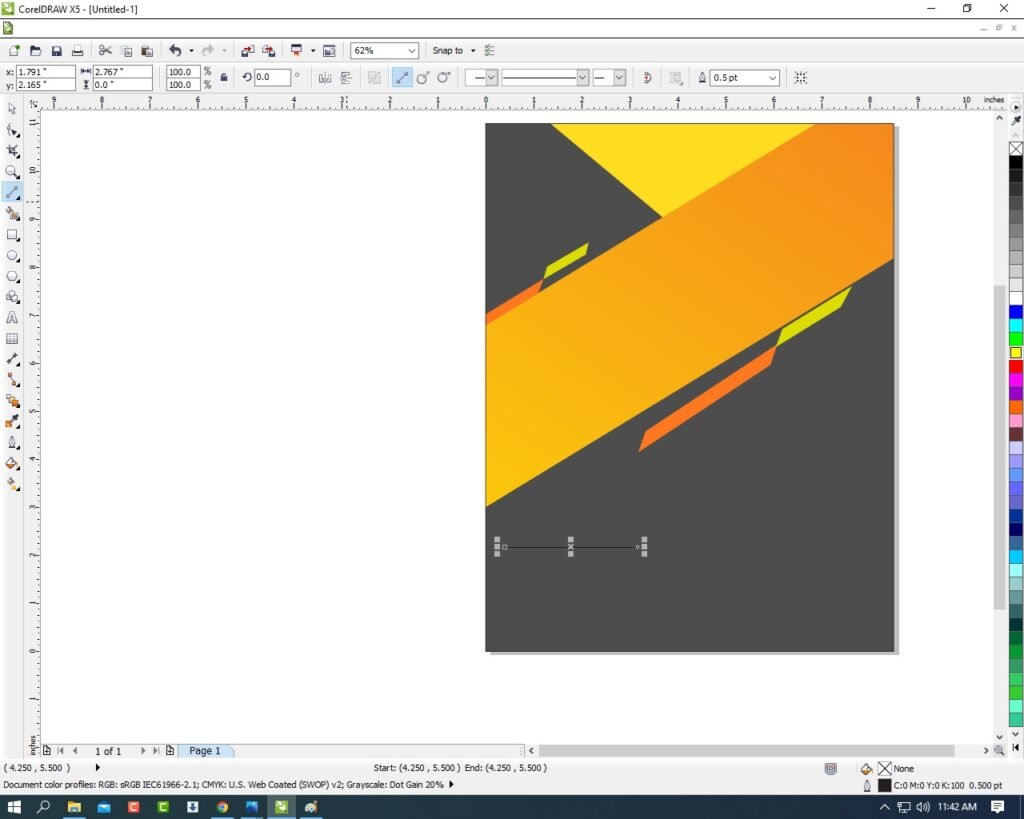
  • Then Go to FreeHand tool > Click on 2-Point Line > Then press shift and Draw the line.
17 3
Poster Design In CorelDraw, Easy and Step by Step, Download Source File. 98
18 3
Poster Design In CorelDraw, Easy and Step by Step, Download Source File. 99
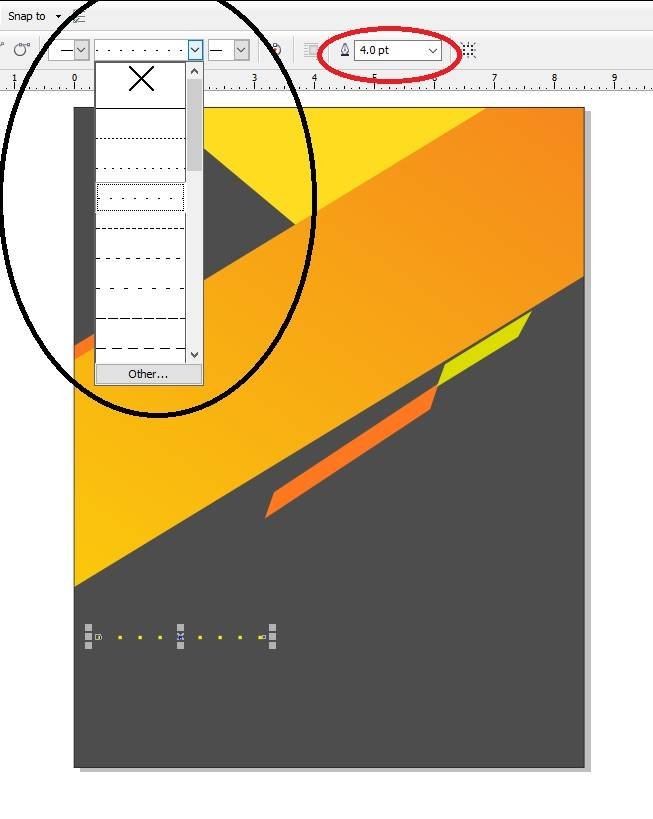
  • Then Go to Line Style > Choose any style as your wish > Outline 4pt > Outline Color White.
19 2
Poster Design In CorelDraw, Easy and Step by Step, Download Source File. 100
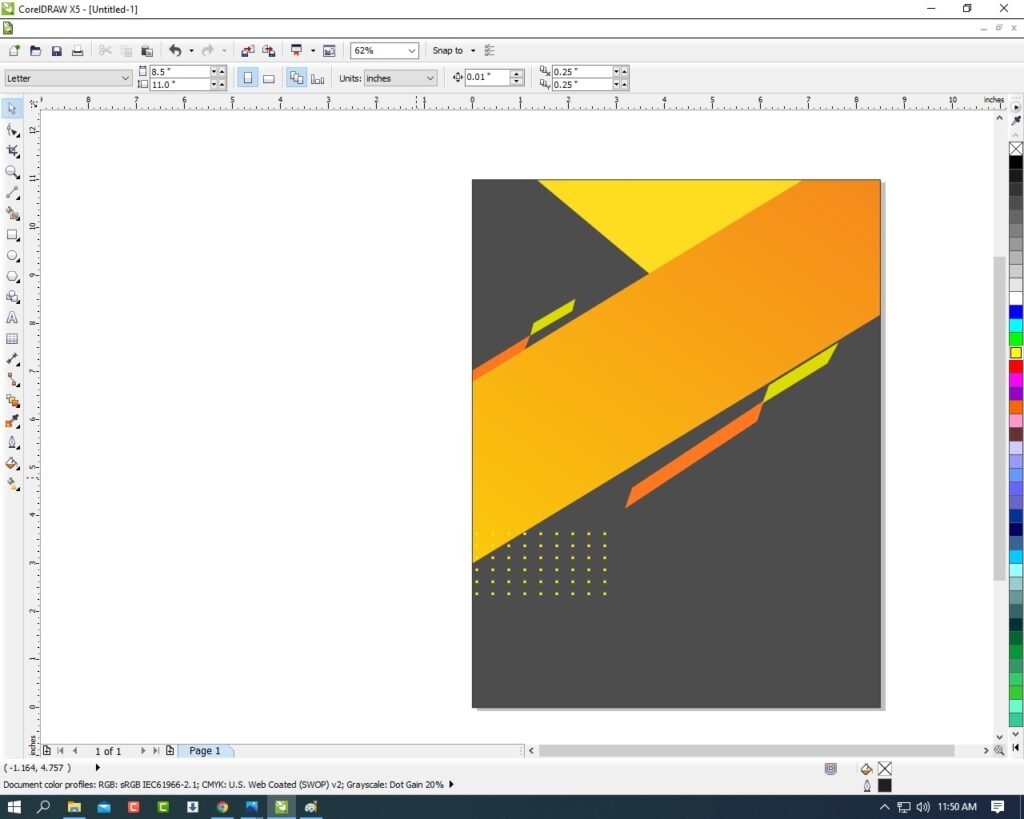
  • Then Make a many Duplicate (CTRL + D) > Fix It I will Show.
20 3
Poster Design In CorelDraw, Easy and Step by Step, Download Source File. 101
  • Select all Lines and Press CTRL + G to Group all Line & Press CTRL + D To Duplicate and Fix It.
21 3
Poster Design In CorelDraw, Easy and Step by Step, Download Source File. 102
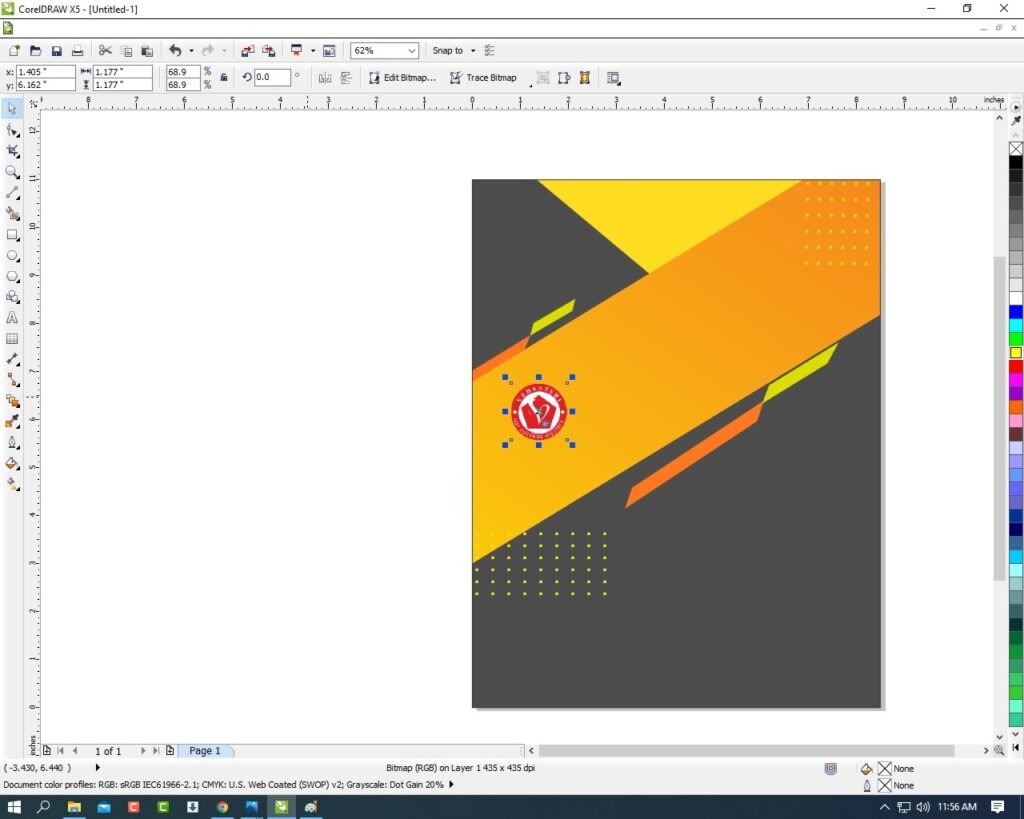
  • Then You Can Insert LOGO Your Institute or Company.
22 2
Poster Design In CorelDraw, Easy and Step by Step, Download Source File. 103
  • Apply Shadow on the LOGO > Go To Blend Tool > Click Drop Shadow Option and apply.
13 4
Poster Design In CorelDraw, Easy and Step by Step, Download Source File. 104
  • Then Type Your Institute or Company name & Details.
23 3
Poster Design In CorelDraw, Easy and Step by Step, Download Source File. 105
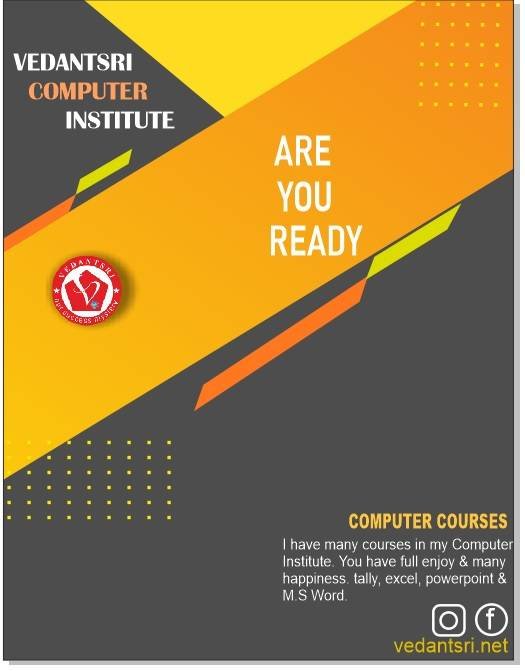
  • Create a LOGO. Like Instagram/WhatsApp/Facebook etc.
20 4
Poster Design In CorelDraw, Easy and Step by Step, Download Source File. 106
  • I hope You guys have understood all the Step. Thank you .
  • I have completed this Project.
Poster Design In CorelDraw
Poster Design In CorelDraw, Easy and Step by Step, Download Source File. 107

1-VedantSri Official Website:- https://vedantsri.com

2-Student Support Website:- https://www.vedantsri.net

3-Jobs Assist Website:- https://www.jobdo.in

External Link

1-VedantSri Official Website:- https://vedantsri.com

2-Course Store Website:- https://vedantsri.in

3-Jobs Assist Website:- https://www.jobdo.in

4-MS Word Class:- https://mswordclass.com/

5-Corel Free Class:- https://corelclass.com/

6-Free Excel Class:- https://msexcelclass.com/

Visiting Card Design In CorelDraw, Easy and Simple Method, Step By Step, Download Source File

Visiting Card Design In CorelDraw, Easy and Simple Method, Step By Step, Download Source File

Hello Friends, Welcome to Corelclass.com In This Post, I am Going to Teach you How to Create Visiting Design in CorelDraw. In This Project, You Can Learn How Design Visiting Card in CorelDraw Application an Easy Method. Visiting Card Design In CorelDraw

You Can Also Download the Practice File in This Post. So Let’s Start To Learn This Project, Before starting I request You to Please Follow the Given Below Step to Learn Properly step by step. Visiting Card Design In CorelDraw, Easy and Simple Method, Step By Step, Download Source File

  • Press Window + R to Open Run Dialogue Box> Type CorelDraw> Press OK ..
2 5
Visiting Card Design In CorelDraw, Easy and Simple Method, Step By Step, Download Source File 129
  • You Can See the open Application CorelDraw.
Visiting Card Design In CorelDraw, Easy and Simple Method, Step By Step, Download Source File
Visiting Card Design In CorelDraw, Easy and Simple Method, Step By Step, Download Source File 130
  • Press CTRL + N to Open New Page Window.Visiting Card Design In CorelDraw, Easy and Simple Method, Step By Step, Download Source File
4 4
Visiting Card Design In CorelDraw, Easy and Simple Method, Step By Step, Download Source File 131
  • Press Ok.
Visiting Card Design In CorelDraw
Visiting Card Design In CorelDraw, Easy and Simple Method, Step By Step, Download Source File 132
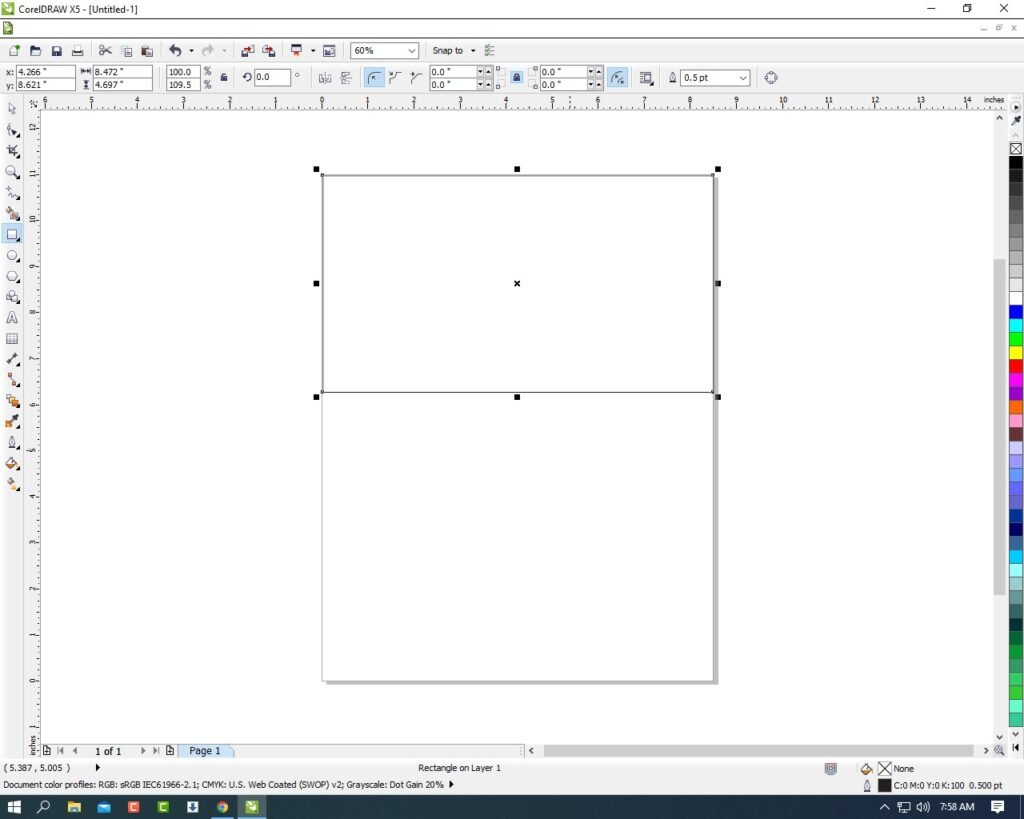
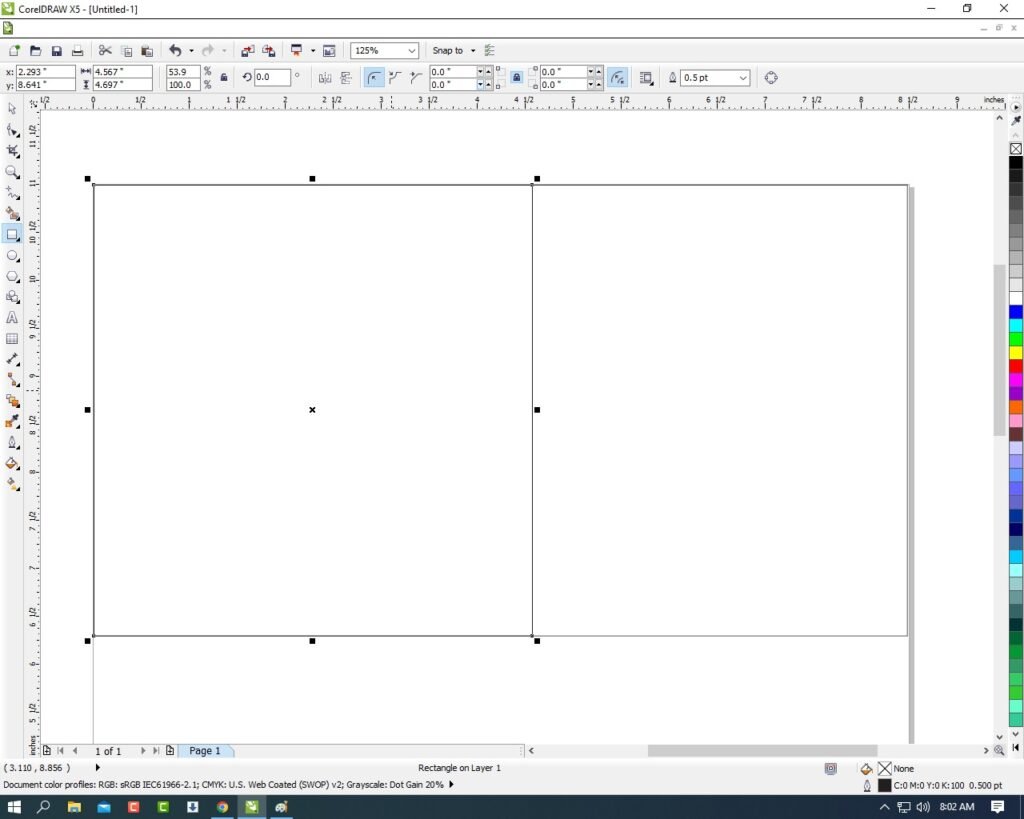
  • Draw a Half Rectangle.
1 1
Visiting Card Design In CorelDraw, Easy and Simple Method, Step By Step, Download Source File 133
  • Then Draw a New Rectangle In Rectangle Shape.
Visiting Card Design In CorelDraw, Easy and Simple Method, Step By Step, Download Source File
Visiting Card Design In CorelDraw, Easy and Simple Method, Step By Step, Download Source File 134
  • Then Select the Rectangle Shape > Press F10 > CTRL + Q.
3 3
Visiting Card Design In CorelDraw, Easy and Simple Method, Step By Step, Download Source File 135
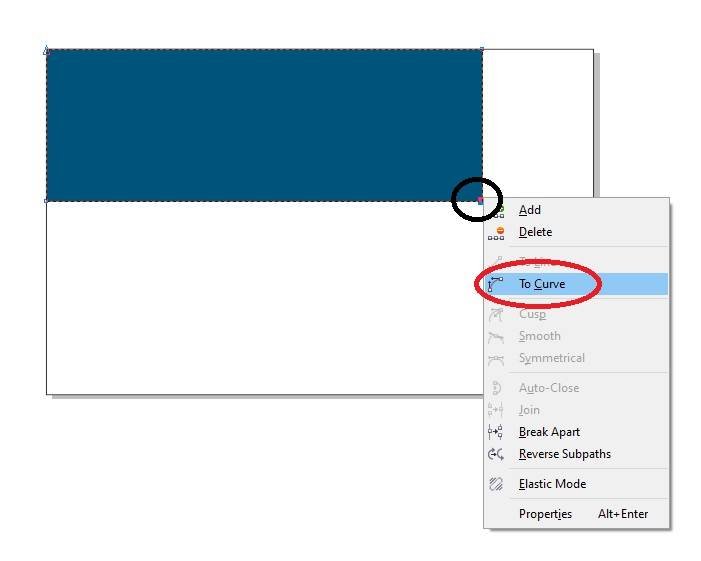
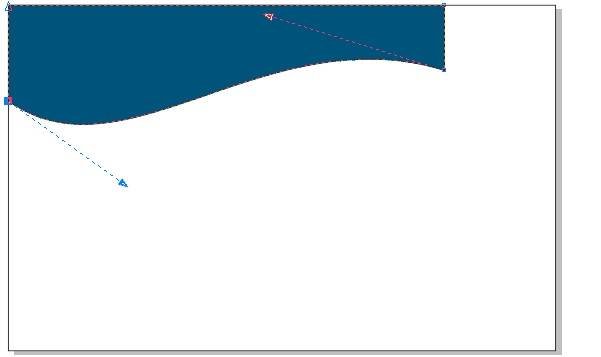
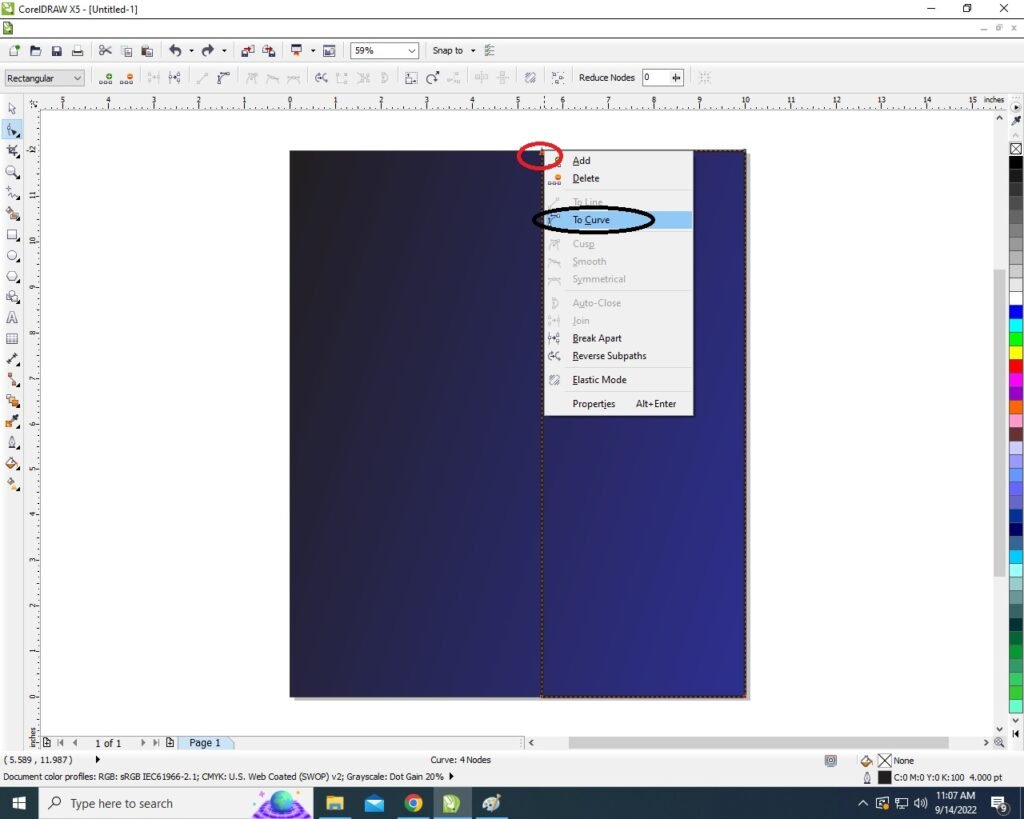
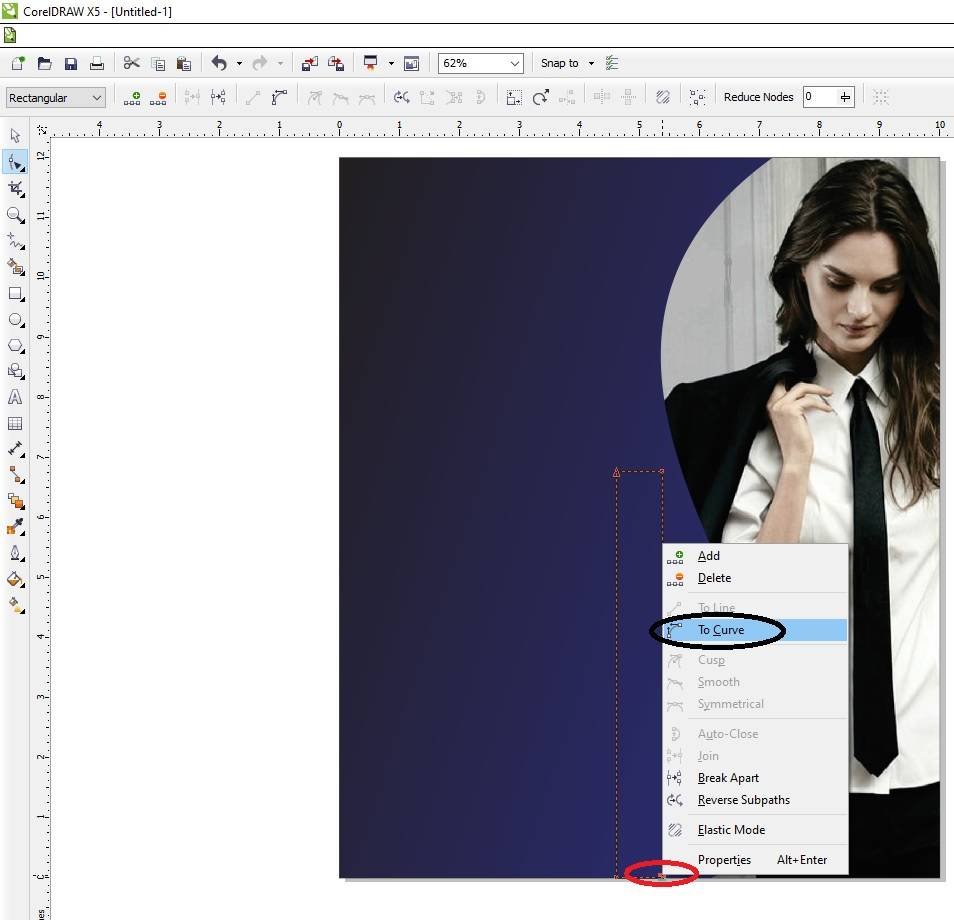
  • Then Click Right On the corner of Rectangle >Click on To Curve Option > Move the Arrows To Create A new Shape. Like I show.
4 2
Visiting Card Design In CorelDraw, Easy and Simple Method, Step By Step, Download Source File 136
  • Fill Any Color and Any Color of Outline.
5 3
Visiting Card Design In CorelDraw, Easy and Simple Method, Step By Step, Download Source File 137
  • Then Create a Same Shape in Opposite Side. I will show you.
Visiting Card Design In CorelDraw
Visiting Card Design In CorelDraw, Easy and Simple Method, Step By Step, Download Source File 138
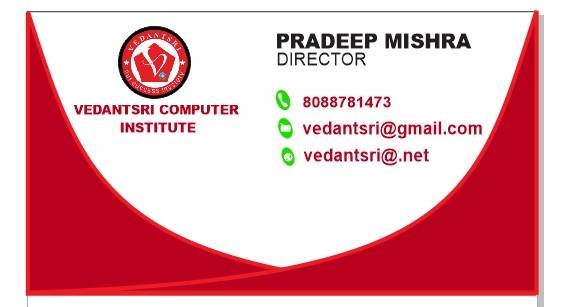
  • Then You can Insert Logo on your Institute/company/collage.
7 4
Visiting Card Design In CorelDraw, Easy and Simple Method, Step By Step, Download Source File 139

  • Mention Your Institute/Company/Collage Name.
8 2
Visiting Card Design In CorelDraw, Easy and Simple Method, Step By Step, Download Source File 140
  • Then You can Mention Your Institute/Collage/Company Personal & Professional Details.
  • Press CTRL + F11 to Insert the Character & Symbol.
9 4
Visiting Card Design In CorelDraw, Easy and Simple Method, Step By Step, Download Source File 141
  • Then Draw a New Rectangle.
10 1
Visiting Card Design In CorelDraw, Easy and Simple Method, Step By Step, Download Source File 142
  • Then Repeat a same Process draw Rectangle in Rectangle Shape > Press F10 > CTRL + Q > Then Click Right on Corner of Rectangle Shape > Click On to Curve Option, Then Move the Arrow to Create a New Shape I Will Show This
11 3
Visiting Card Design In CorelDraw, Easy and Simple Method, Step By Step, Download Source File 143
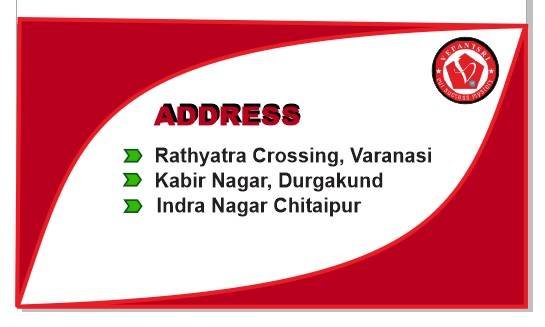
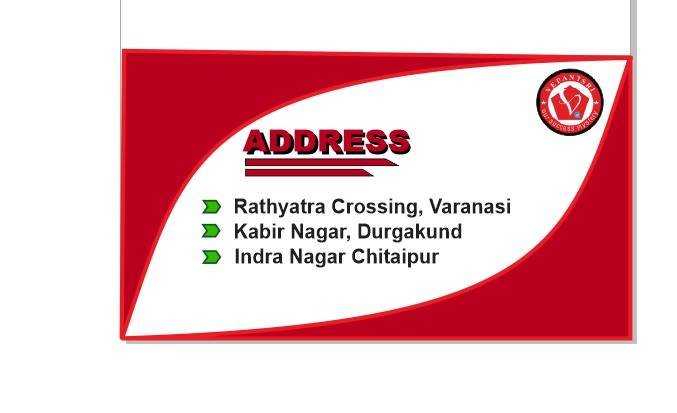
  • Then Insert LOGO & Mention Your Address. Visiting Card Design In CorelDraw, Easy and Simple Method, Step By Step, Download Source File
12 3
Visiting Card Design In CorelDraw, Easy and Simple Method, Step By Step, Download Source File 144
  • Then You can see I Apply the Shadow on Text.
  • Go to Blend tool > Click on Drop Shadow Option & Apply any Text As Your Wish.
Visiting Card Design In CorelDraw, Easy and Simple Method, Step By Step, Download Source File
Visiting Card Design In CorelDraw, Easy and Simple Method, Step By Step, Download Source File 145
  • Draw a New Small Rectangle > Fill any Color > 1pt Outline Fill any Color in Outline.
Visiting Card Design In CorelDraw
Visiting Card Design In CorelDraw, Easy and Simple Method, Step By Step, Download Source File 146
  • Select the Rectangle > F10 > CTRL + Q > Move the Point create a New Shape I will Show .
15 4
Visiting Card Design In CorelDraw, Easy and Simple Method, Step By Step, Download Source File 147
  • Then Press CTRL + D to duplicate this Object And Fix Like This I show.
Visiting Card Design In CorelDraw, Easy and Simple Method, Step By Step, Download Source File
Visiting Card Design In CorelDraw, Easy and Simple Method, Step By Step, Download Source File 148
  • Then Finally Complete this Project I hope You all understand the all Step.
  • Thank you.
Visiting Card Design In CorelDraw, Easy and Simple Method, Step By Step, Download Source File

Created and Explained By Shikha Singh

Important link

Visit at – https://www.corelclass.com

Read Also it – https://msexcelclass.com/

Also, Read- Tally Course Fees, Duration, Scope, Syllabus, Admission, Institutes

Also Read – CCC Course Fees, Syllabus, Duration, Scope, Jobs, and Institute

Important Link – DFA Course Fees, Syllabus, Duration, Scope, Jobs, and Institute

Visit – https://mswordclass.com/
Template Design in CorelDraw, Easy and Simple method, Step By Step, Download Video File

Template Design in CorelDraw, Easy and Simple method, Step By Step, Download Source File

Hello Friends, Welcome to Corelclass.com In This Video, I am Going to Teach you How to Create a Template Design in CorelDraw. In This Video, You Can Learn How to Design Templates in CorelDraw applications in an Easy Method. Template Design in CorelDraw

So Let’s Start To Learn This Video, Before starting, I request You to Please Follow the Given Below Step to Learn Properly step by step. Template Design in CorelDraw, Easy and Simple method, Step By Step, Download Video File

Poster Design in CorelDraw

Invitation Card in CorelDraw

About VedantSri Computer Institute Varanasi

VedantSri Computer Institute in Varanasi is the Government recognized and ISO Certified Computer Institute in Varanasi running since 2011. It Provides Computer Courses, Classes, and Training through its own different branches all over Varanasi. There is Computer Scholarship Courses DCE Scholarship (Diploma in Computer Engineering), DIT’s most trusted computer course Available under Scholarship Test Scheme. Template Design in CorelDraw

Varanasi Computer Institute vedantsri works at different places to ensure students get better computer education. VedantSri Computer Classes has Diploma courses and advanced diploma courses on the computerVedantSri Institute provides the latest version of computer application training in computer courses. Template Design in CorelDraw

Template Design in CorelDraw

वेदांतश्री कम्प्यूटर इंस्टिट्यूट’ वाराणसी में पिछले 10 वर्षो से बेहतर व न्यूनतम शुल्क में कम्प्यूटर शिक्षा प्रदान करने वाली एक कम्प्यूटर ट्रेनिंग इंस्टिट्यूट है | यह संस्था कम्प्यूटर व इंग्लिश स्पीकिंग कोर्स की ट्रेनिंग प्रदान करती है | वाराणसी में कम्प्यूटर शिक्षा को बेहतर व न्यूनतम शुल्क में छात्रो तक पहुचाने में वेदांतश्री पिछले 10 वर्षो से प्रयासरत है | Template Design in CorelDraw, Easy and Simple method, Step By Step, Download Video File

Free To Learn In VedantSri Computer Institute in Varanasi

Template Design in CorelDraw

About CCC Online Test 2022

CCC Online Test 2022:- This is the CCC Online Test Website Page. If You are preparing for CCC Exam or any competitive exam then you should visit this www.vedantsri.net website. Template Design in CorelDraw, Easy and Simple method, Step By Step, Download Video File

you can also download this app from the play store and you find Just like many more Online Test Series Related For Examples MS Word, MS Excel, MS PowerPoint, and Internet-related Template Design in CorelDraw, Easy and Simple method, Step By Step, Download Video File

Important Link

Visit at – https://www.corelclass.com

Also, Read it – CorelDraw Course Fees, Duration, Scope, Syllabus, Admission, Institutes

Read Also – Tally Course Fees, Duration, Scope, Syllabus, Admission, Institutes

Also Read – CCC Course Fees, Syllabus, Duration, Scope, Jobs, and Institute

Important Link – DFA Course Fees, Syllabus, Duration, Scope, Jobs, and Institute

Visit – ADCA Course Fees, Duration, Scope, Syllabus, Admission, Institutes

Web Banner Design CorelDraw, Easy Method, Step by Step, Download Source File

Web Banner Design CorelDraw, Easy Method, Step by Step, Download Source File

Hello Friends, Welcome to Corelclass.com In This Post I am Going to Teach you How to Create Web Design in CorelDraw. In This Project, You Can Learn How to Design a Web Banner in CorelDraw Application in an Easy Method. You Can Also Download the Practice File in This Post. Web Banner Design CorelDraw

So Let’s Start To Learn This Project, Before starting I request You to Please Follow the Given Below Step to Learn Properly step by step. Web Banner Design CorelDraw, Easy Method, Step by Step, Download Source File

  • Press Window + R to Open Run Dialogue Box & Type CorelDraw Then Press OK.
2 3
Web Banner Design CorelDraw, Easy Method, Step by Step, Download Source File 194
  • Then You Can See the Open Application of CorelDraw. Web Banner Design CorelDraw, Easy Method, Step by Step, Download Source File
Web Banner Design CorelDraw, Easy Method, Step by Step, Download Source File
Web Banner Design CorelDraw, Easy Method, Step by Step, Download Source File 195
  • Press CTRL + N to Open a New Page Window.
Web Banner Design CorelDraw
Web Banner Design CorelDraw, Easy Method, Step by Step, Download Source File 196
  • Press OK.
Web Banner Design CorelDraw, Easy Method, Step by Step, Download Source File
Web Banner Design CorelDraw, Easy Method, Step by Step, Download Source File 197
  • Then Change the page Size , I will show you Page Size.
1
Web Banner Design CorelDraw, Easy Method, Step by Step, Download Source File 198
  • Press Enter.
2 4
Web Banner Design CorelDraw, Easy Method, Step by Step, Download Source File 199
  • Then Double Click on the Rectangle Tool.
Web Banner Design CorelDraw
Web Banner Design CorelDraw, Easy Method, Step by Step, Download Source File 200
  • Fill in Any Color in the Shape. Web Banner Design CorelDraw, Easy Method, Step by Step, Download Source File
4 1
Web Banner Design CorelDraw, Easy Method, Step by Step, Download Source File 201
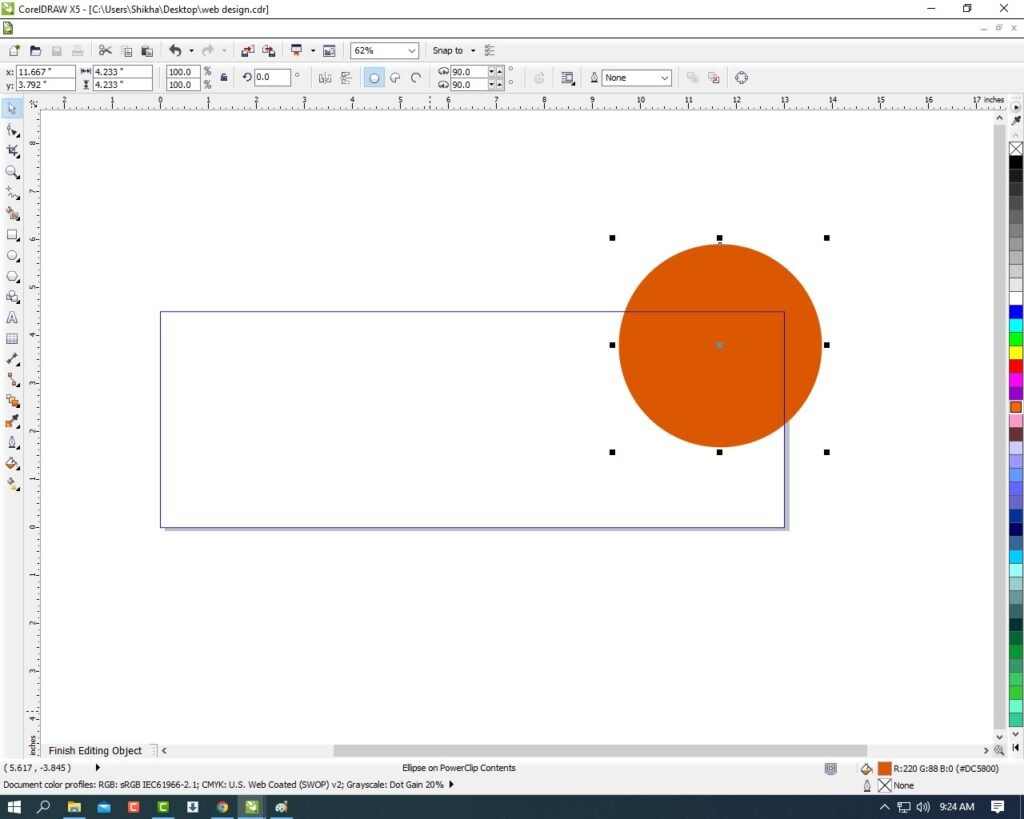
  • Then Draw a Circle > Press CTRL + Shift then Draw the circle.
5 2
Web Banner Design CorelDraw, Easy Method, Step by Step, Download Source File 202
  • Then Select the Object (circle) & Click on the Menu Bar > Effect > PowerClip > Place Inside Container.
6 2
Web Banner Design CorelDraw, Easy Method, Step by Step, Download Source File 203
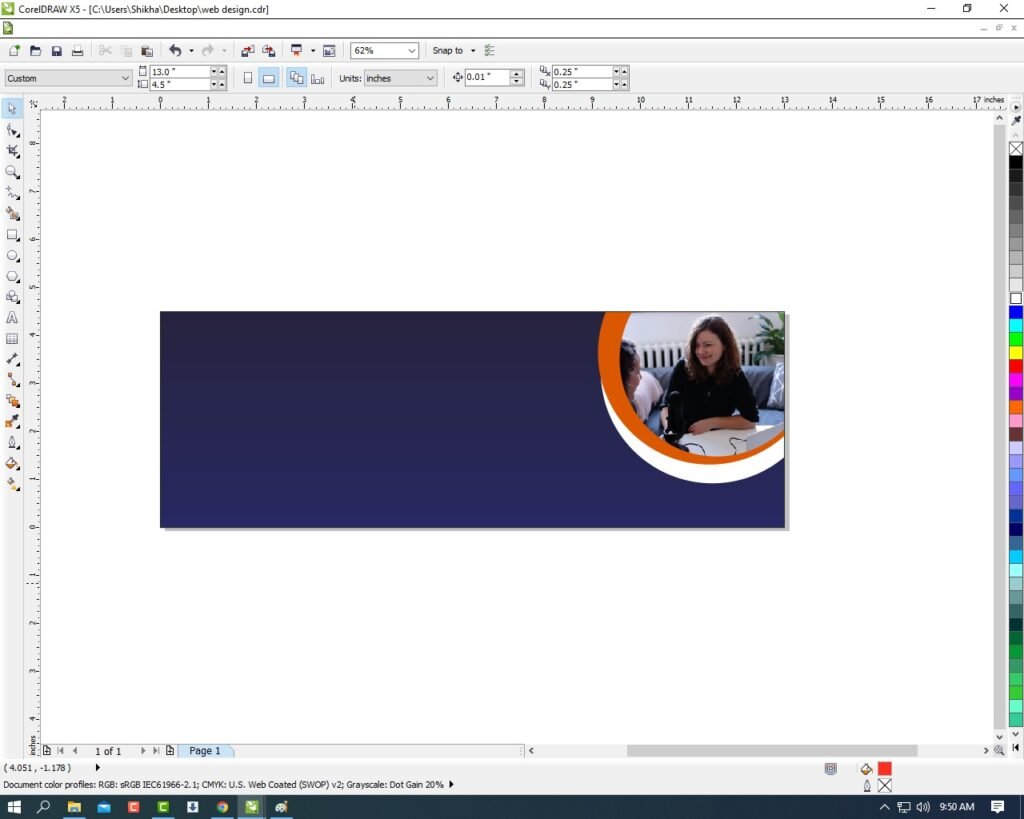
  • Then Click On the page > Then the Circle Shape that was Outside the page will be Hidden Inside Like this I show.
7 3
Web Banner Design CorelDraw, Easy Method, Step by Step, Download Source File 204
  • Then CTRL + Double Click On Circle ( to Enter The Clipping Circle).
  • Then Insert the any picture on page.
9 3
Web Banner Design CorelDraw, Easy Method, Step by Step, Download Source File 206
  • You can see picture is very big on the page > To shrink it, First Press SHIFT + F2 >Then any hold one Corner and shorten it. Like I Show
10
Web Banner Design CorelDraw, Easy Method, Step by Step, Download Source File 207
  • First select the picture Then Click On Menu Bitmaps > Convert to Bitmaps.
11 2
Web Banner Design CorelDraw, Easy Method, Step by Step, Download Source File 208
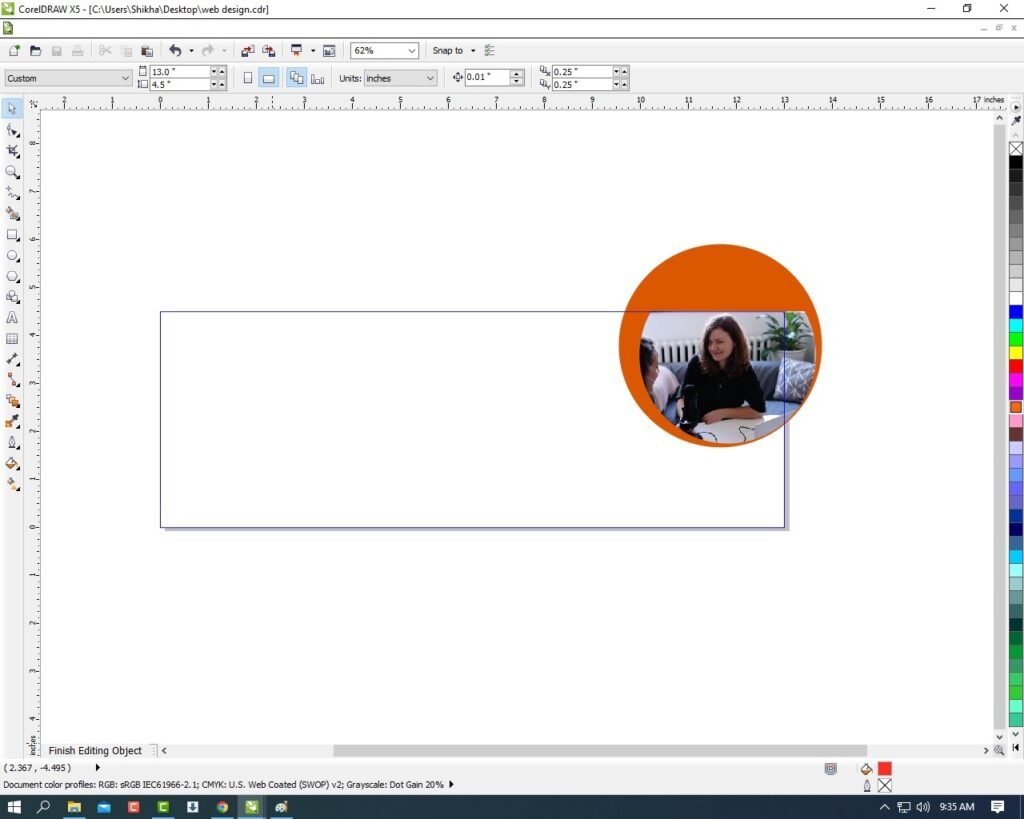
  • Select the picture > Menu Effect > PowerClip > Place Inside Container.
12 2
Web Banner Design CorelDraw, Easy Method, Step by Step, Download Source File 209
  • Then Click on the Shape ( circle) Then Picture will disappear. Like I show .
13 1
Web Banner Design CorelDraw, Easy Method, Step by Step, Download Source File 210
  • Then CTRL + Double Click on the shape you have clipping Picture.
14 1
Web Banner Design CorelDraw, Easy Method, Step by Step, Download Source File 211
  • Fix the Picture on the Rectangle Shape.
15 3
Web Banner Design CorelDraw, Easy Method, Step by Step, Download Source File 212
  • Then CTRL + Click on page.
Web Banner Design CorelDraw
Web Banner Design CorelDraw, Easy Method, Step by Step, Download Source File 213
  • Select the Shape ( circle ) > Outline Pen > No Outline.
14 2
Web Banner Design CorelDraw, Easy Method, Step by Step, Download Source File 214
  • Press CTRL + Double Click On Out of page ( any where ).
17 1
Web Banner Design CorelDraw, Easy Method, Step by Step, Download Source File 215
  • Then draw a new Circle on the Page.
Web Banner Design CorelDraw, Easy Method, Step by Step, Download Source File
Web Banner Design CorelDraw, Easy Method, Step by Step, Download Source File 216
  • Fill any Color on the circle and No Outline In the Shape I will showing you.
19
Web Banner Design CorelDraw, Easy Method, Step by Step, Download Source File 217
  • Then Select the Object and Go to Effect Menu > PowerClip > Place Inside Container > Click on the Page .
20 2
Web Banner Design CorelDraw, Easy Method, Step by Step, Download Source File 218
  • Then CTRL + Double Click on the Circle. Web Banner Design CorelDraw, Easy Method, Step by Step, Download Source File
Web Banner Design CorelDraw
Web Banner Design CorelDraw, Easy Method, Step by Step, Download Source File 219
  • Press CTRL + Page Down.
22 1
Web Banner Design CorelDraw, Easy Method, Step by Step, Download Source File 220
  • Then Select the Circle and Press CTRL + D to Duplicate the Object (circle) > Fill any different color and Press CTRL + Page Down & Increase the size and Fix the object as I Show. Web Banner Design CorelDraw, Easy Method, Step by Step, Download Source File
23 2
Web Banner Design CorelDraw, Easy Method, Step by Step, Download Source File 221

  • Fill any color this object > Then CTRL + Double Click on Out of the Page.
24 2
Web Banner Design CorelDraw, Easy Method, Step by Step, Download Source File 222
  • Then Type your Company/Institute/College/school Name.
Web Banner Design CorelDraw, Easy Method, Step by Step, Download Source File
Web Banner Design CorelDraw, Easy Method, Step by Step, Download Source File 223
  • Then Draw a one triangle.
25 2
Web Banner Design CorelDraw, Easy Method, Step by Step, Download Source File 224
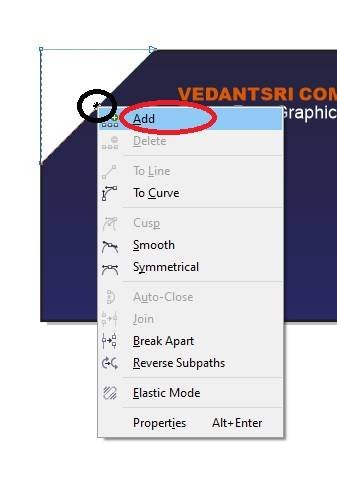
  • Then Press F10 > Click on the Center of Circle > then Now Click Right on This Point > Click ADD Option.
26 2
Web Banner Design CorelDraw, Easy Method, Step by Step, Download Source File 225
  • Then Click on right the center Point > Click on the To Curve Option.
27 2
Web Banner Design CorelDraw, Easy Method, Step by Step, Download Source File 226
  • Then Move the Arrows and Make a new Shape like I show.
28 2
Web Banner Design CorelDraw, Easy Method, Step by Step, Download Source File 227
  • Then Click on Pick Tool.
29
Web Banner Design CorelDraw, Easy Method, Step by Step, Download Source File 228
  • Then You Can Insert Your Company/Institute/College/School Logo.
30 3
Web Banner Design CorelDraw, Easy Method, Step by Step, Download Source File 229
  • Then Go to the Freehand tool > Click on 2-Point Line Option.
31 2
Web Banner Design CorelDraw, Easy Method, Step by Step, Download Source File 230
  • Then Press Shift and draw the Line > Outline 3pt and fill any color in outline.
32 3
Web Banner Design CorelDraw, Easy Method, Step by Step, Download Source File 231
  • Then Press CTRL + F11 > Type Webdings and Insert The Symbol.
33 1
Web Banner Design CorelDraw, Easy Method, Step by Step, Download Source File 232

  • Then Insert the Character > Fill any Color > No outline and Fix It. As I show. Web Banner Design CorelDraw, Easy Method, Step by Step, Download Source File
  • Then Type Your Company Or Institute Location/Address/Contact Details.
34 2
Web Banner Design CorelDraw, Easy Method, Step by Step, Download Source File 233
  • Then Draw a Small Circle like a symbol > Fill any color and Write About Your Courses. Like I show.
35
Web Banner Design CorelDraw, Easy Method, Step by Step, Download Source File 234
  • Draw New Rectangle > Fill any Color > And Type On Rectangle Your Website Account Any Thing. Like I showing.
36
Web Banner Design CorelDraw, Easy Method, Step by Step, Download Source File 235
  • Then You Can Insert the Symbol to look Very Creative Like I Show.
Web Banner Design CorelDraw, Easy Method, Step by Step, Download Source File
Web Banner Design CorelDraw, Easy Method, Step by Step, Download Source File 236
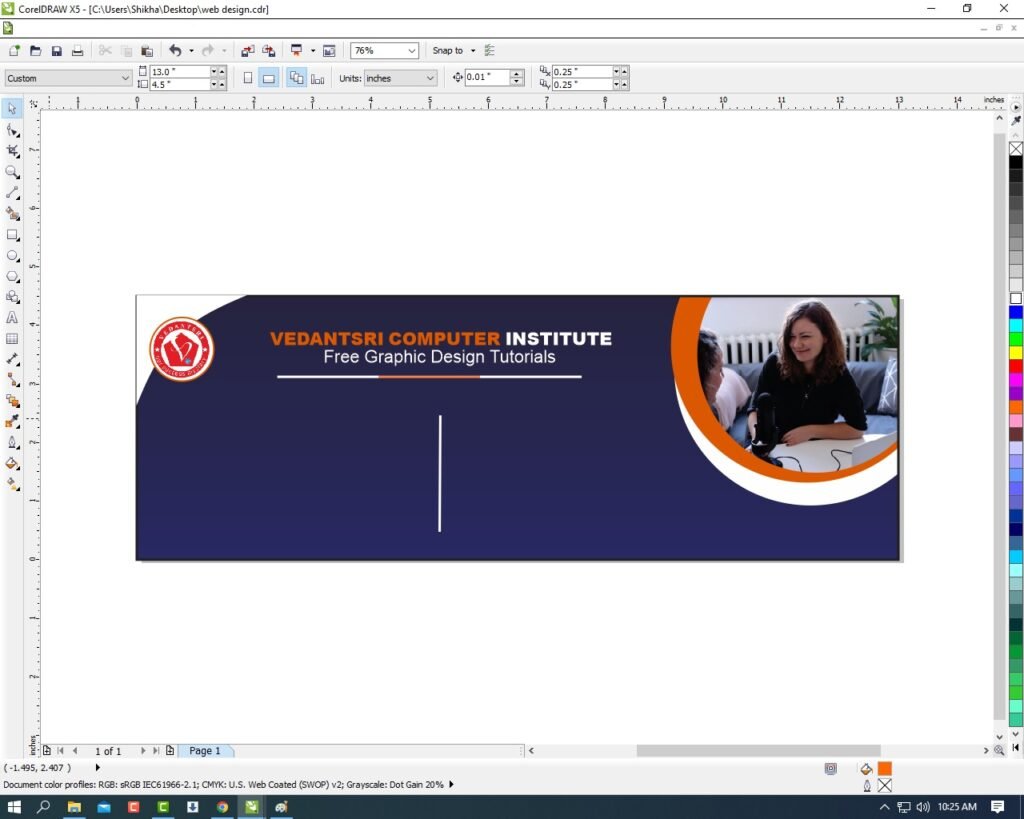
  • Then Complete this Web Banner Design.
Web Banner Design CorelDraw, Easy Method, Step by Step, Download Source File

Created and Explained By Shikha Singh

Important link

Visit at – https://www.corelclass.com

Read Also it – https://msexcelclass.com/

Also, Read- Tally Course Fees, Duration, Scope, Syllabus, Admission, Institutes

Also Read – CCC Course Fees, Syllabus, Duration, Scope, Jobs, and Institute

Important Link – DFA Course Fees, Syllabus, Duration, Scope, Jobs, and Institute

Visit – https://mswordclass.com/
Banner Design CorelDraw, Easy Method, Step by Step, Download Source File

Banner Design CorelDraw, Easy Method, Step by Step, Download Source File

Hello Friends, Welcome to Corelclass.com In This Post I am Going to Teach you How to Create Banner Designs in CorelDraw. In This Project, You Can Learn How to Design a Banner in CorelDraw Application in an Easy Method. Banner Design CorelDraw

You Can Also Download the Practice File in This Post. So Let’s Start To Learn This Project, Before starting I request You to Please Follow the Given Below Step to Learn Properly step by step.

  • Press Window + R to Open Run Dialogue Box & Type CorelDraw then press ok.
Banner Design CorelDraw, Easy Method, Step by Step, Download Source File
Banner Design CorelDraw, Easy Method, Step by Step, Download Source File 276
  • Then you can see the Open Application of CorelDraw.
Banner Design CorelDraw, Easy Method, Step by Step, Download Source File
Banner Design CorelDraw, Easy Method, Step by Step, Download Source File 277
  • Press CTRL + N to Open a New Page Window.
Banner Design CorelDraw, Easy Method, Step by Step, Download Source File
Banner Design CorelDraw, Easy Method, Step by Step, Download Source File 278
  • Press ok.
Banner Design CorelDraw, Easy Method, Step by Step, Download Source File
Banner Design CorelDraw, Easy Method, Step by Step, Download Source File 279
  • Double Click on Rectangle Tool.
Banner Design CorelDraw, Easy Method, Step by Step, Download Source File
Banner Design CorelDraw, Easy Method, Step by Step, Download Source File 280
  • Then Increase the page Size, and I will show you the page size.
1
Banner Design CorelDraw, Easy Method, Step by Step, Download Source File 281
  • Select the Page And Fill Fountain Color > Go to Fill Tool > Fountain Fill.
2
Banner Design CorelDraw, Easy Method, Step by Step, Download Source File 282
  • Fill in any Color as your wish then Press Ok.
Banner Design CorelDraw, Easy Method, Step by Step, Download Source File
Banner Design CorelDraw, Easy Method, Step by Step, Download Source File 283
  • Draw the New Rectangle on the Page.
3 3
Banner Design CorelDraw, Easy Method, Step by Step, Download Source File 284
  • Select the Rectangle Then Press F10 > CTRL + Q.
Banner Design CorelDraw, Easy Method, Step by Step, Download Source File
Banner Design CorelDraw, Easy Method, Step by Step, Download Source File 285
  • Click On the Right in Rectangle Corner > Click To Curve Option.
5 1
Banner Design CorelDraw, Easy Method, Step by Step, Download Source File 286
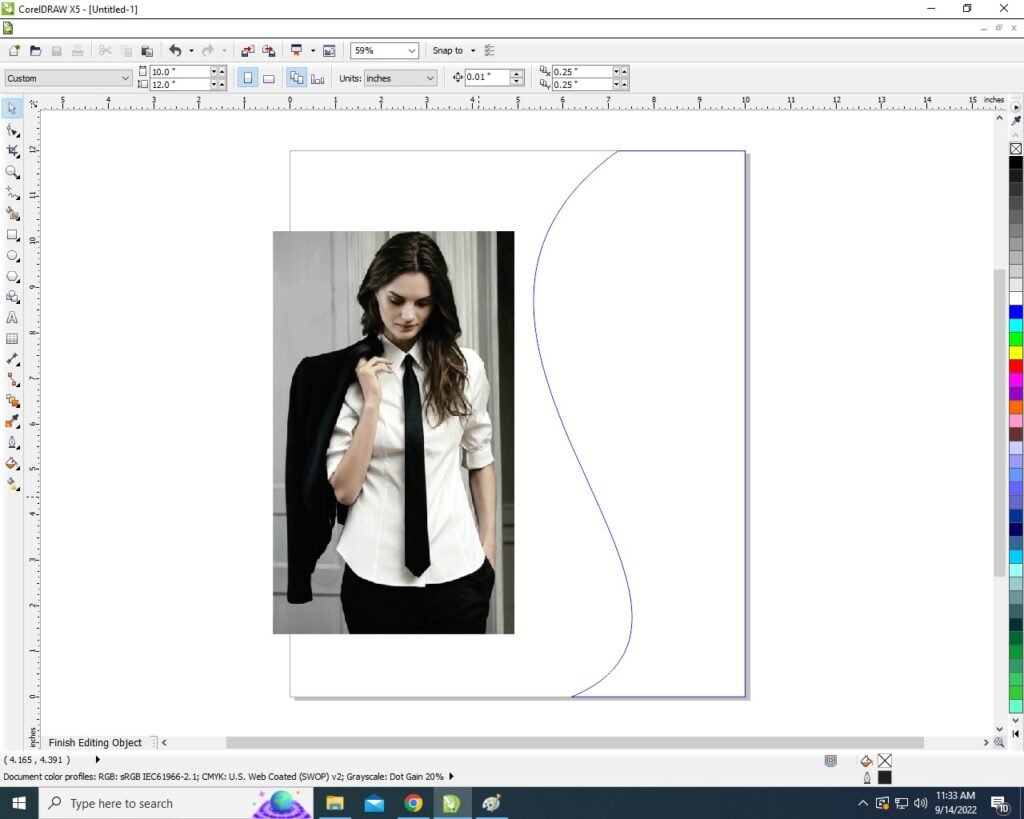
  • You will see two arrows move them to Create a new shape > Like this Picture I will show.
Banner Design CorelDraw
Banner Design CorelDraw, Easy Method, Step by Step, Download Source File 287
  • Then Click on Pick Tool.
Banner Design CorelDraw, Easy Method, Step by Step, Download Source File
Banner Design CorelDraw, Easy Method, Step by Step, Download Source File 288
  • Then Insert Any picture on the page.
8
Banner Design CorelDraw, Easy Method, Step by Step, Download Source File 289
  • Select the Picture > Click On Menu Bitmaps > Click on Convert to Bitmaps.
Banner Design CorelDraw, Easy Method, Step by Step, Download Source File
Banner Design CorelDraw, Easy Method, Step by Step, Download Source File 290
  • Select Picture > Click on Effect Menu > PowerClip > Place Inside Container.
10 5
Banner Design CorelDraw, Easy Method, Step by Step, Download Source File 291
  • Click on the Rectangle > Then the Picture will disappear. like I show
Banner Design CorelDraw, Easy Method, Step by Step, Download Source File
Banner Design CorelDraw, Easy Method, Step by Step, Download Source File 292
  • Press CTRL + Double Click On the shape you have clipping the picture.
12 1
Banner Design CorelDraw, Easy Method, Step by Step, Download Source File 293
  • Fix the picture on the Rectangle Shape.
  • Press CTRL + Double Click again Outside the Page.
  • Then Select the Rectangle > Outline Pen > No Outline.
14
Banner Design CorelDraw, Easy Method, Step by Step, Download Source File 294
Banner Design CorelDraw, Easy Method, Step by Step, Download Source File
Banner Design CorelDraw, Easy Method, Step by Step, Download Source File 295
  • Then Draw a New small Rectangle.
16
Banner Design CorelDraw, Easy Method, Step by Step, Download Source File 296
  • Select Rectangle > Press F10 > CTRL + Q.
Banner Design CorelDraw, Easy Method, Step by Step, Download Source File
Banner Design CorelDraw, Easy Method, Step by Step, Download Source File 297
  • Click On the Right in Rectangle Corner > Click To Curve Option.
18 1
Banner Design CorelDraw, Easy Method, Step by Step, Download Source File 298
  • You will see two arrows move them to Create a new shape > Like this Picture I will show.
19 1
Banner Design CorelDraw, Easy Method, Step by Step, Download Source File 299
  • Will set Something like this I show.
Banner Design CorelDraw, Easy Method, Step by Step, Download Source File
Banner Design CorelDraw, Easy Method, Step by Step, Download Source File 300
  • you can Insert the logo of your Company Or Institute.
21 1
Banner Design CorelDraw, Easy Method, Step by Step, Download Source File 301
  • Now We will Mention the name of our Institute or Company on the Page.
Banner Design CorelDraw, Easy Method, Step by Step, Download Source File
Banner Design CorelDraw, Easy Method, Step by Step, Download Source File 302
  • Then Draw a Small rectangle > Fill in any Color > No Outline.
23 1
Banner Design CorelDraw, Easy Method, Step by Step, Download Source File 303
  • Select the Rectangle > Press F10 > CTRL + Q.
24 1
Banner Design CorelDraw, Easy Method, Step by Step, Download Source File 304
  • We will do one Corner of both Right and left, one inside and one outside as I show you.
25 1
Banner Design CorelDraw, Easy Method, Step by Step, Download Source File 305
  • Then Type in Rectangle ( Tally ERP.9 Features)
26 1
Banner Design CorelDraw, Easy Method, Step by Step, Download Source File 306
  • Then Press CTRL + F11 To Insert the Character Symbol > Type Webdings > Insert symbol.
27 1
Banner Design CorelDraw, Easy Method, Step by Step, Download Source File 307
  • Insert the Symbol > Fill Any Color > No Outline.
28 1
Banner Design CorelDraw, Easy Method, Step by Step, Download Source File 308
  • Then Type The Tally Features like I do this.
Banner Design CorelDraw, Easy Method, Step by Step, Download Source File
Banner Design CorelDraw, Easy Method, Step by Step, Download Source File 309
  • Then Click on the Freehand Tool > To Point Line > Press Shift and draw the line on the page.
Banner Design CorelDraw
Banner Design CorelDraw, Easy Method, Step by Step, Download Source File 310
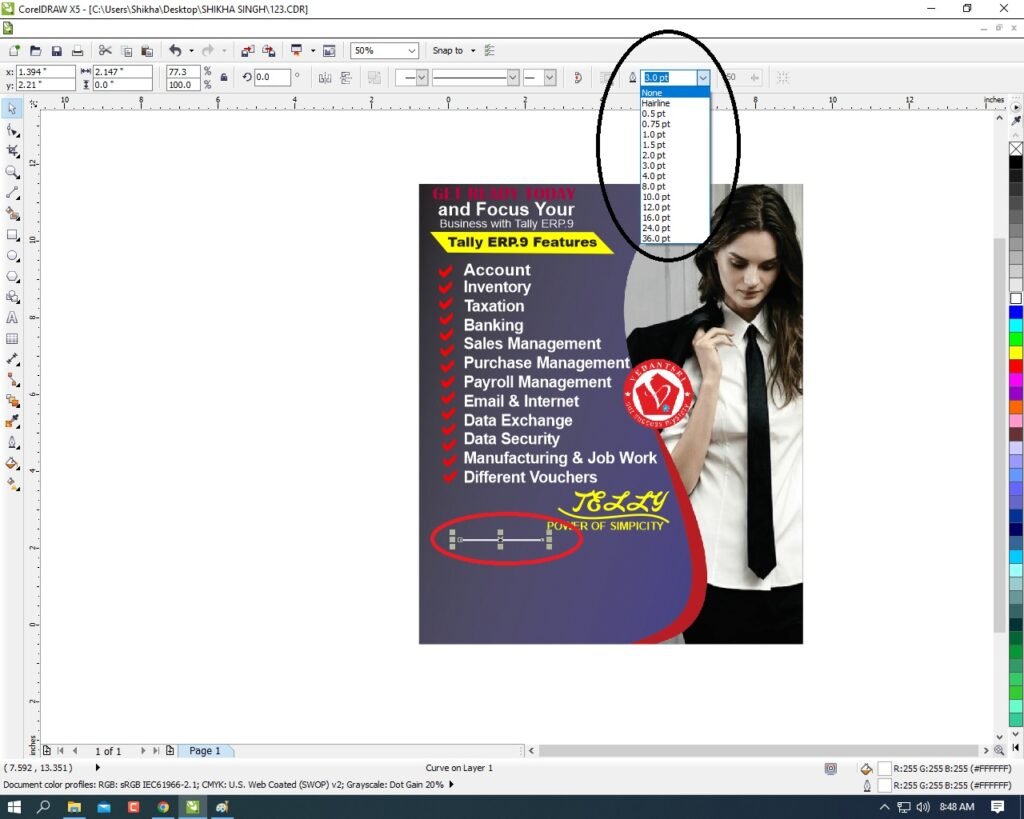
  • Then Draw a line on the page > Fill any color > Increase the outline Widths.
31 1
Banner Design CorelDraw, Easy Method, Step by Step, Download Source File 311
  • Then Draw a Very Small Circle.
32 2
Banner Design CorelDraw, Easy Method, Step by Step, Download Source File 312
  • Then Type Thing About Your company or Institute.
33
Banner Design CorelDraw, Easy Method, Step by Step, Download Source File 313
  • Then Complete my Benner. I show.
Banner Design CorelDraw, Easy Method, Step by Step, Download Source File
Banner Design CorelDraw, Easy Method, Step by Step, Download Source File 314

Created and Explained by Shikha Singh.

1-VedantSri Official Website:- https://vedantsri.com

2-Student Support Website:- https://www.vedantsri.net

3-Jobs Assist Website:- https://www.jobdo.in

External Link

1-VedantSri Official Website:- https://vedantsri.com

2-Course Store Website:- https://vedantsri.in

3-Jobs Assist Website:- https://www.jobdo.in

4-MS Word Class:- https://mswordclass.com/

5-Corel Free Class:- https://corelclass.com/

6-Free Excel Class:- https://msexcelclass.com/

Poster Design in CorelDraw, Easy Method, Step By Step, Download Source File

Poster Design in CorelDraw, Easy Method, Step By Step, Download Source File

Hello Friends, Welcome to Corelclass.com In This Post I am Going to Teach you How to Create Poster Design in CorelDraw. In This Project, You Can Learn How to Design a Poster in CorelDraw Application in an Easy Method. Poster Design in CorelDraw

You Can Also Download the Practice File in This Post. So Let’s Start To Learn This Project, Before starting I request You to Please Follow the Given Below Step to Learn Properly step by step.

  • First Press Window + R to Open the Run Dialogue box.
poster
Poster Design in CorelDraw
  • Type coreldrw then Press Ok.
Poster Design in CorelDraw
  • Then you can see Open Application CorelDraw.
3 1
Poster Design in CorelDraw
  • Press CTRL + N open New Page Window.
4 1
Poster Design in CorelDraw, Easy Method, Step By Step, Download Source File 347

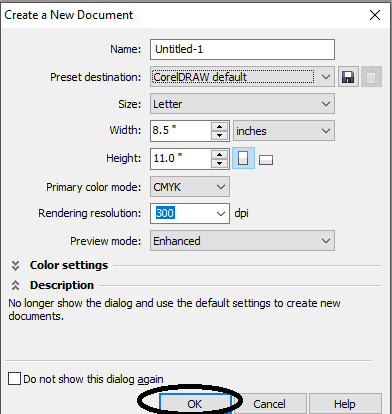
  • Press Ok.
5
Poster Design in CorelDraw, Easy Method, Step By Step, Download Source File 348
  • Double Click on Rectangle tool.
6
Poster Design in CorelDraw, Easy Method, Step By Step, Download Source File 349
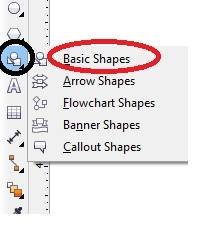
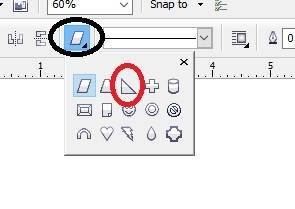
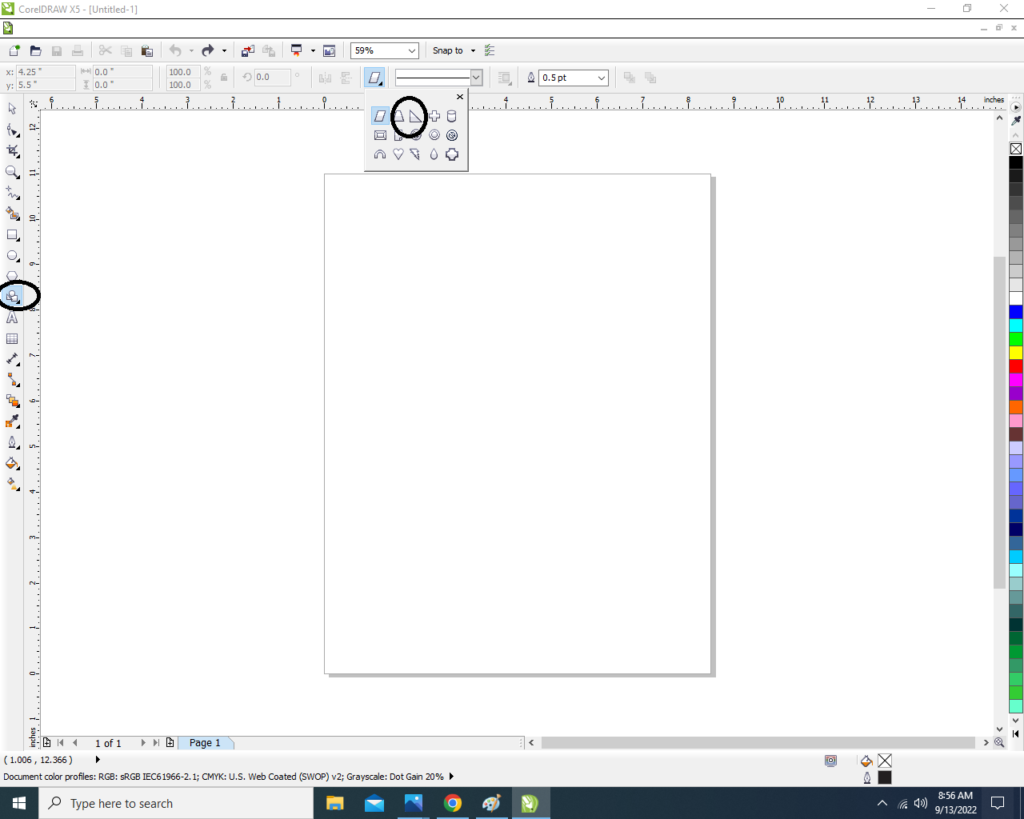
  • Click on Basic Shapes tool > Select triangle and Draw in Page.
7
Poster Design in CorelDraw, Easy Method, Step By Step, Download Source File 350
  • Draw the Small Triangle. Then Double click on Triangle to Rotate the shape.
8 2
Poster Design in CorelDraw, Easy Method, Step By Step, Download Source File 351
  • Now Fix the Triangle Top & Center of the Page > Fill any Color > No Outline.
Poster Design in CorelDraw
Poster Design in CorelDraw, Easy Method, Step By Step, Download Source File 352
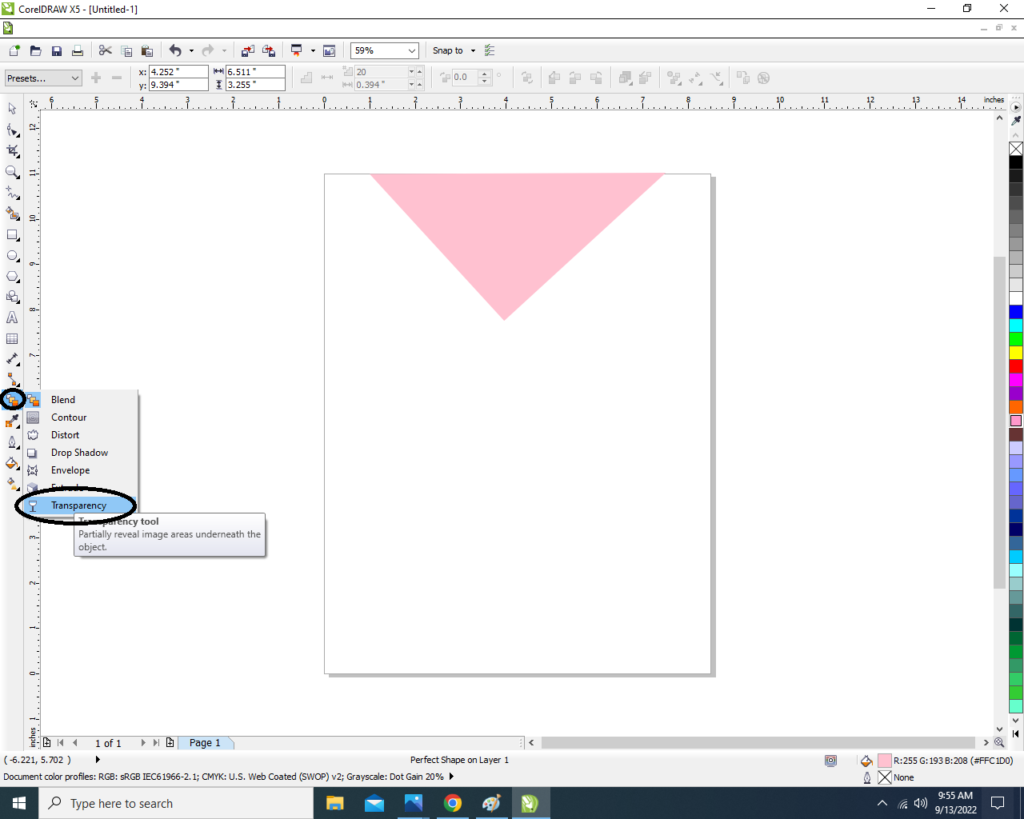
  • Apply the Transparency go to Blend Tool > click on Transparency option.
10 4
Poster Design in CorelDraw, Easy Method, Step By Step, Download Source File 353
  • Then apply the Transparent the triangle like this.
11
Poster Design in CorelDraw, Easy Method, Step By Step, Download Source File 354
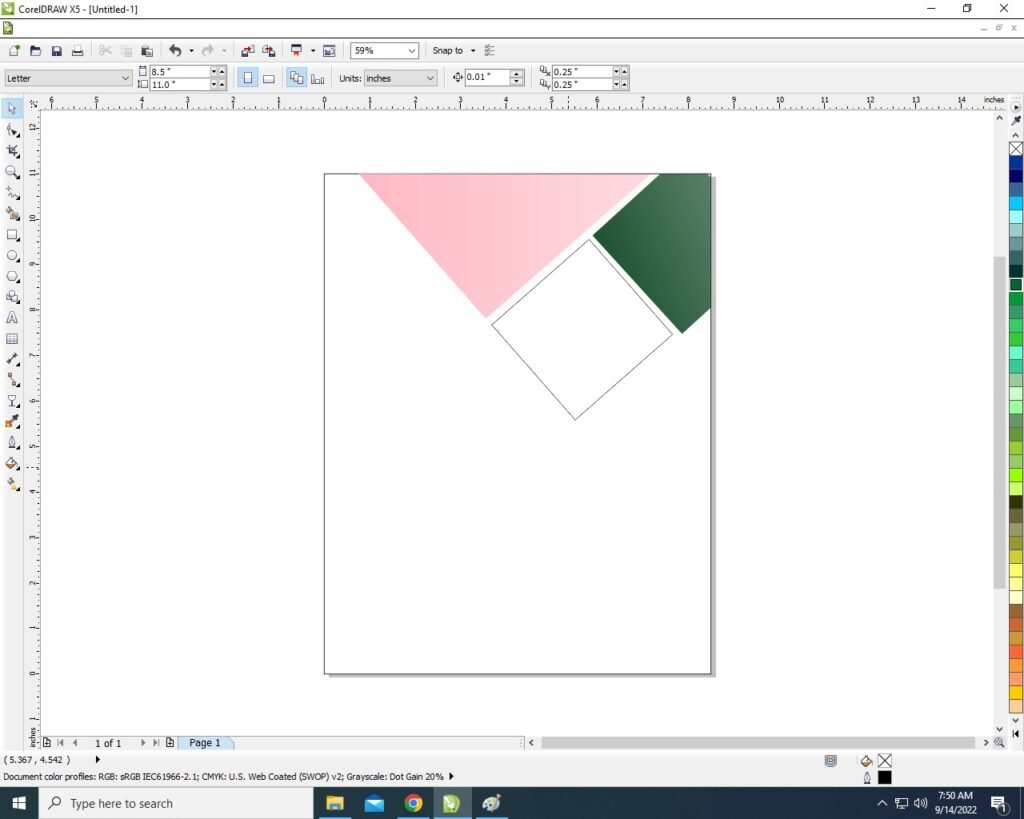
  • Than Draw the Rectangle Shape and apply the same Process > Fill any color > No Outline > Apply Transparency.
12
Poster Design in CorelDraw, Easy Method, Step By Step, Download Source File 355
  • Select the Object ( Rectangle) & Click on the Menu bar > Effect > Power clip > Place inside container.
15 2
Poster Design in CorelDraw, Easy Method, Step By Step, Download Source File 356
  • Then Click On the Page.
15 1
Poster Design in CorelDraw, Easy Method, Step By Step, Download Source File 357
  • Then Click on the Page > Then the Rectangle Shape that was outside the page will be hidden Inside like this I show.
16 1
Poster Design in CorelDraw, Easy Method, Step By Step, Download Source File 358
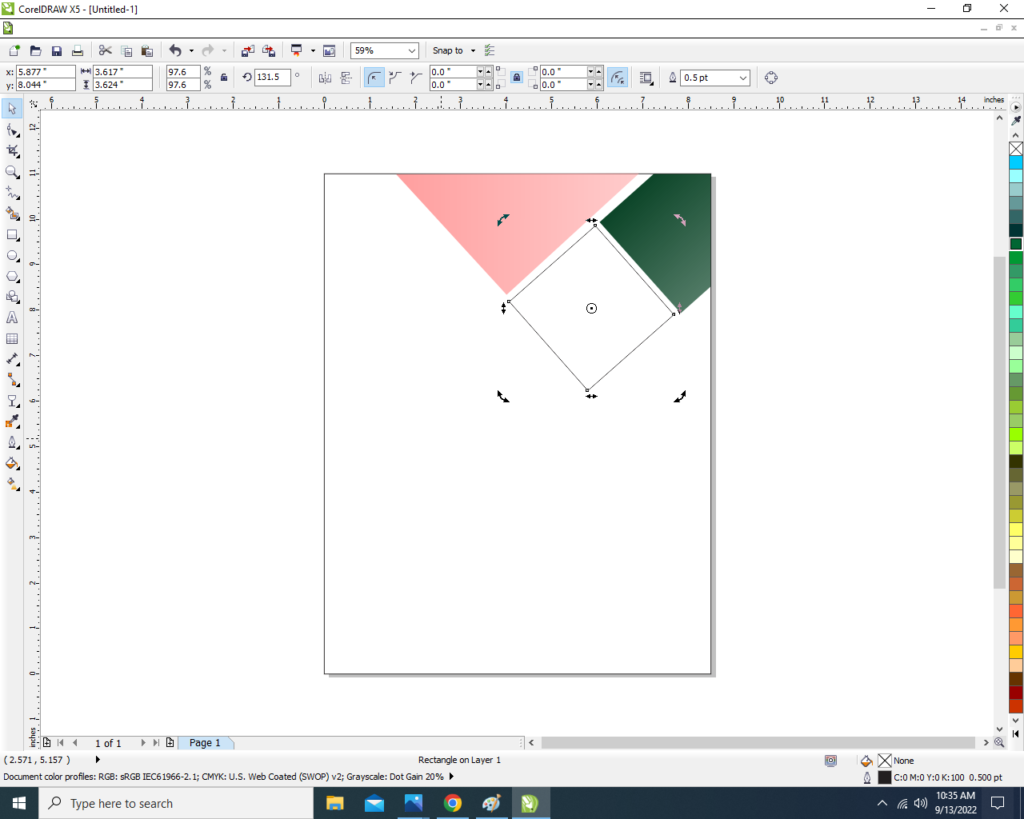
  • Then Draw the New Rectangle > No fill > No Outline .
17 1
Poster Design in CorelDraw, Easy Method, Step By Step, Download Source File 359
  • Then Insert the any picture in Page.
18
Poster Design in CorelDraw, Easy Method, Step By Step, Download Source File 360
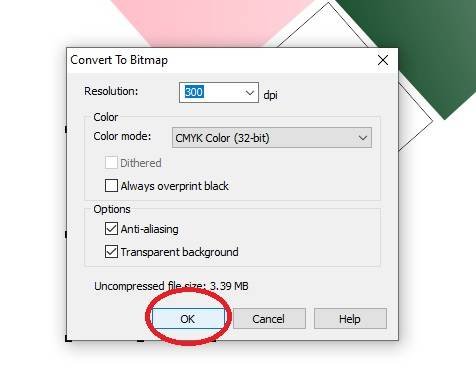
  • Then Select the Picture > Click on Menu bar Bitmaps >Click Convert to Bitmaps option .
Poster Design in CorelDraw
Poster Design in CorelDraw, Easy Method, Step By Step, Download Source File 361
  • Then Press Ok.
20
Poster Design in CorelDraw, Easy Method, Step By Step, Download Source File 362
  • Select the Picture > Click On Effect Menu > PowerClip > Place Inside Container.
21
Poster Design in CorelDraw, Easy Method, Step By Step, Download Source File 363
  • Then Click On the Rectangle > Then Picture will Disappear like this.
Poster Design in CorelDraw
Poster Design in CorelDraw, Easy Method, Step By Step, Download Source File 364
  • Then CTRL + Double Click in Rectangle Shape > Properly Fix the Picture on the Rectangle Shape Like this .
23
Poster Design in CorelDraw, Easy Method, Step By Step, Download Source File 365
  • CTRL + Double Click again Outside the Page.
24
Poster Design in CorelDraw, Easy Method, Step By Step, Download Source File 366
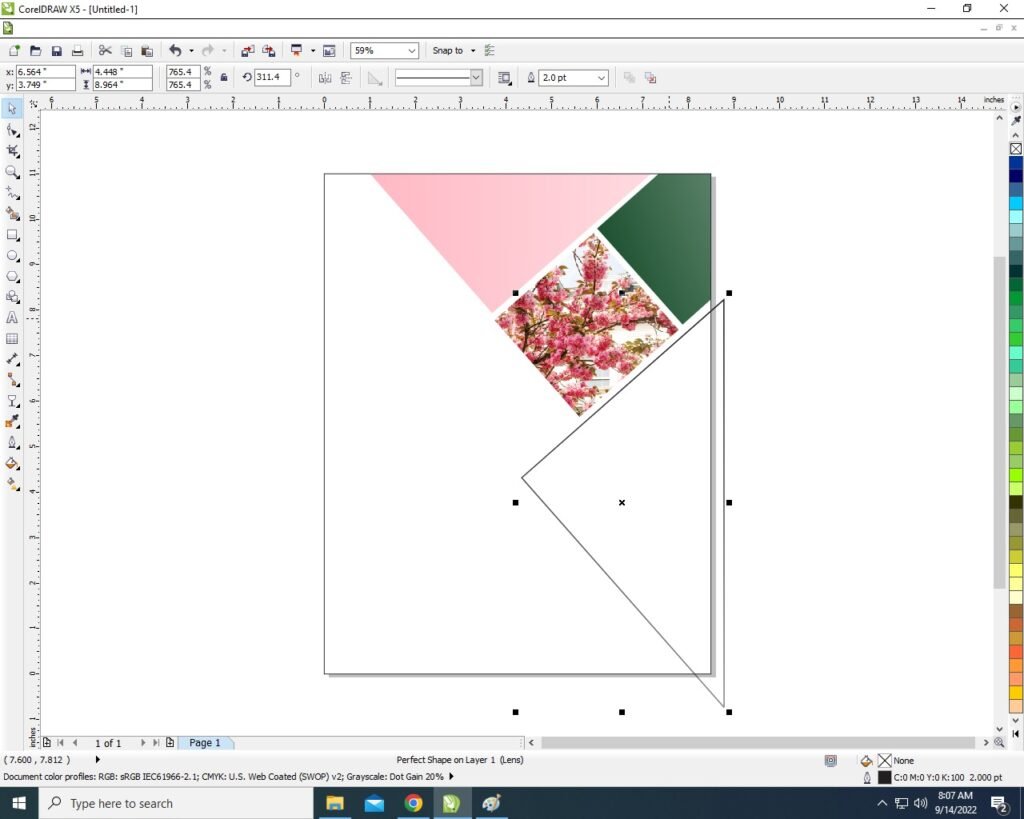
  • Then Create a new Triangle Like This Picture I will show.
Poster Design in CorelDraw
Poster Design in CorelDraw, Easy Method, Step By Step, Download Source File 367
  • Will Insert Picture in this Triangle & No Outline just Like we did above Step by Step .
26
Poster Design in CorelDraw, Easy Method, Step By Step, Download Source File 368
  • Will PowerClip even More like This I show you.
27
Poster Design in CorelDraw, Easy Method, Step By Step, Download Source File 369
  • Then Create a New 2 Rectangle . I will show You
28
Poster Design in CorelDraw, Easy Method, Step By Step, Download Source File 370
  • Will Insert Photo in a Rectangle and fill the Color in Another Rectangle & Both Rectangle Outline is None.
29
Poster Design in CorelDraw, Easy Method, Step By Step, Download Source File 371
  • Then Again Create a New Triangle > Fill any Color > Apply Transparency > No Outline.
30
Poster Design in CorelDraw, Easy Method, Step By Step, Download Source File 372
  • Now write Whatever Title name & Mention your Address & Professional Information you want to write on the page.
31
Poster Design in CorelDraw, Easy Method, Step By Step, Download Source File 373
  • You can Insert the LOGO of your Company or Institute & Press CTRL + F11 Insert Many Character Example that Twitter Facebook etc. Like I show .
32
Poster Design in CorelDraw, Easy Method, Step By Step, Download Source File 374
  • Then Completed your poster card.
Poster Design in CorelDraw
Poster Design in CorelDraw, Easy Method, Step By Step, Download Source File 375

Created and Explained by Shikha Singh.

1-VedantSri Official Website:- https://vedantsri.com

2-Student Support Website:- https://www.vedantsri.net

3-Jobs Assist Website:- https://www.jobdo.in

External Link

1-VedantSri Official Website:- https://vedantsri.com

2-Course Store Website:- https://vedantsri.in

3-Jobs Assist Website:- https://www.jobdo.in

4-MS Word Class:- https://mswordclass.com/

5-Corel Free Class:- https://corelclass.com/

6-Free Excel Class:- https://msexcelclass.com/

Invitation Card Design CorelDraw, Easy Method, Step By Step, Download Source File

Invitation Card Design CorelDraw, Easy Method, Step By Step, Download Source File

Hello Friends, Welcome to Corelclass.com In This Post I am Going To Teach you How To Create Invitation Card Design CorelDraw. In This Project, You Can Learn How To Design Invitation Card Design in CorelDraw Application an Easy Method. Invitation Card Design CorelDraw

You can also Download the Practice File in This Post. So Let’s Start To Learn This Project, Before starting I request you to Please Follow Given below step to Learn Properly step by step. Invitation Card Design CorelDraw, Easy Method, Step By Step, Download Source File

  • Press Window + R to Open the Run dialogue Box.
Invitation Card Design CorelDraw, Easy Method, Step By Step, Download Source File
Invitation Card Design CorelDraw, Easy Method, Step By Step, Download Source File 403
  • Type CorelDraw than Press ok.
image 1
Invitation Card Design CorelDraw, Easy Method, Step By Step, Download Source File 404
  • Open Application CorelDraw.
Invitation Card Design CorelDraw
Invitation Card Design CorelDraw, Easy Method, Step By Step, Download Source File 405
  • Press Ctrl + N to open the New page window.
image 3
Invitation Card Design CorelDraw, Easy Method, Step By Step, Download Source File 406
  • Then Press Ok
1 VedantSri
Invitation Card Design CorelDraw, Easy Method, Step By Step, Download Source File 407
  • Double Click on the Rectangle tool.
Invitation Card Design CorelDraw
Invitation Card Design CorelDraw, Easy Method, Step By Step, Download Source File 408
  • Then fill in any color on the page.
3
Invitation Card Design CorelDraw, Easy Method, Step By Step, Download Source File 409
  • Draw a small Rectangle.
4
Invitation Card Design CorelDraw, Easy Method, Step By Step, Download Source File 410
  • Fill any color in Rectangle and no outline.
5
Invitation Card Design CorelDraw, Easy Method, Step By Step, Download Source File 411
  • Press F10 > CTRL + Q > Then Click on Right in Rectangle Corner. Invitation Card Design CorelDraw, Easy Method, Step By Step, Download Source File
6
Invitation Card Design CorelDraw, Easy Method, Step By Step, Download Source File 412
  • Click on to Curve option.
Invitation Card Design CorelDraw
Invitation Card Design CorelDraw, Easy Method, Step By Step, Download Source File 413
  • Then Move the Arrows and make a new shape .
9 1
Invitation Card Design CorelDraw, Easy Method, Step By Step, Download Source File 414
Invitation Card Design CorelDraw, Easy Method, Step By Step, Download Source File
Invitation Card Design CorelDraw, Easy Method, Step By Step, Download Source File 415
  • Press CTRL + D to make a Duplicate of this shape and Fill in any different color.
11
Invitation Card Design CorelDraw, Easy Method, Step By Step, Download Source File 416

  • Than Press CTRL + Page Down to Move the Shape in backsword.
12
Invitation Card Design CorelDraw, Easy Method, Step By Step, Download Source File 417
  • Make the back shape a little bigger than the front shape.
  • to help of pick tool > Grab the middle point and move it upwards. Invitation Card Design CorelDraw, Easy Method, Step By Step, Download Source File
13
Invitation Card Design CorelDraw, Easy Method, Step By Step, Download Source File 418
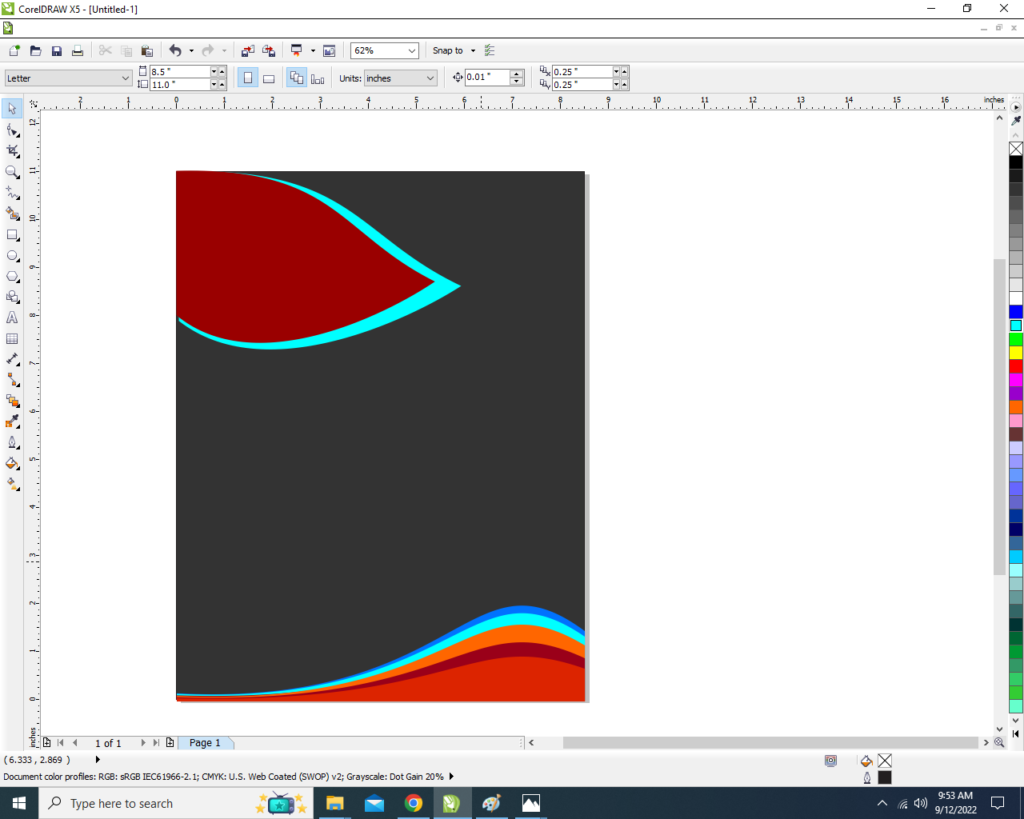
  • So many duplicates will do and fill different colors in the shapes.
14
Invitation Card Design CorelDraw, Easy Method, Step By Step, Download Source File 419
  • Draw the new Rectangle and fill any color and no outline in the shape .
Invitation Card Design CorelDraw, Easy Method, Step By Step, Download Source File
Invitation Card Design CorelDraw, Easy Method, Step By Step, Download Source File 420
  • This shape will also be made a new shape with the help of F10 & CTRL + Q to curve the shape.
Invitation Card Design CorelDraw
Invitation Card Design CorelDraw, Easy Method, Step By Step, Download Source File 421
  • Now make a duplicate of this shape and fill any color in shape.
  • then press CTRL + page down to send Backward the shape.
17
Invitation Card Design CorelDraw, Easy Method, Step By Step, Download Source File 422
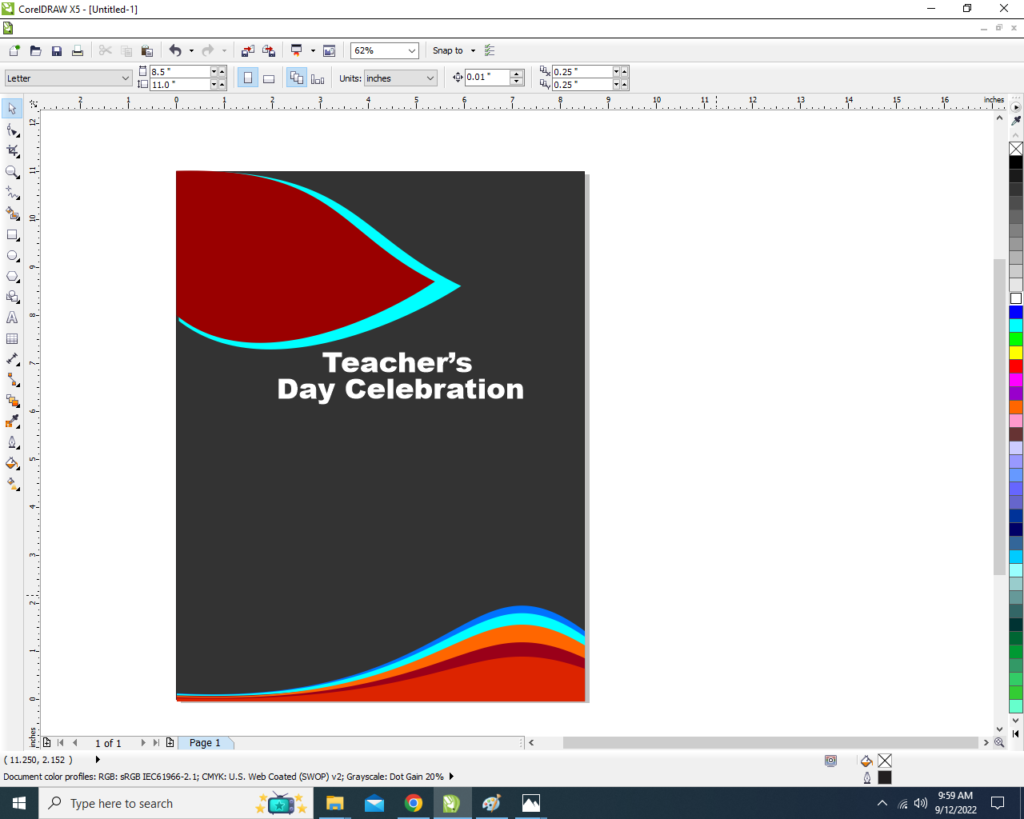
  • Now we will go to the text tool & will write.
18 1
Invitation Card Design CorelDraw, Easy Method, Step By Step, Download Source File 423
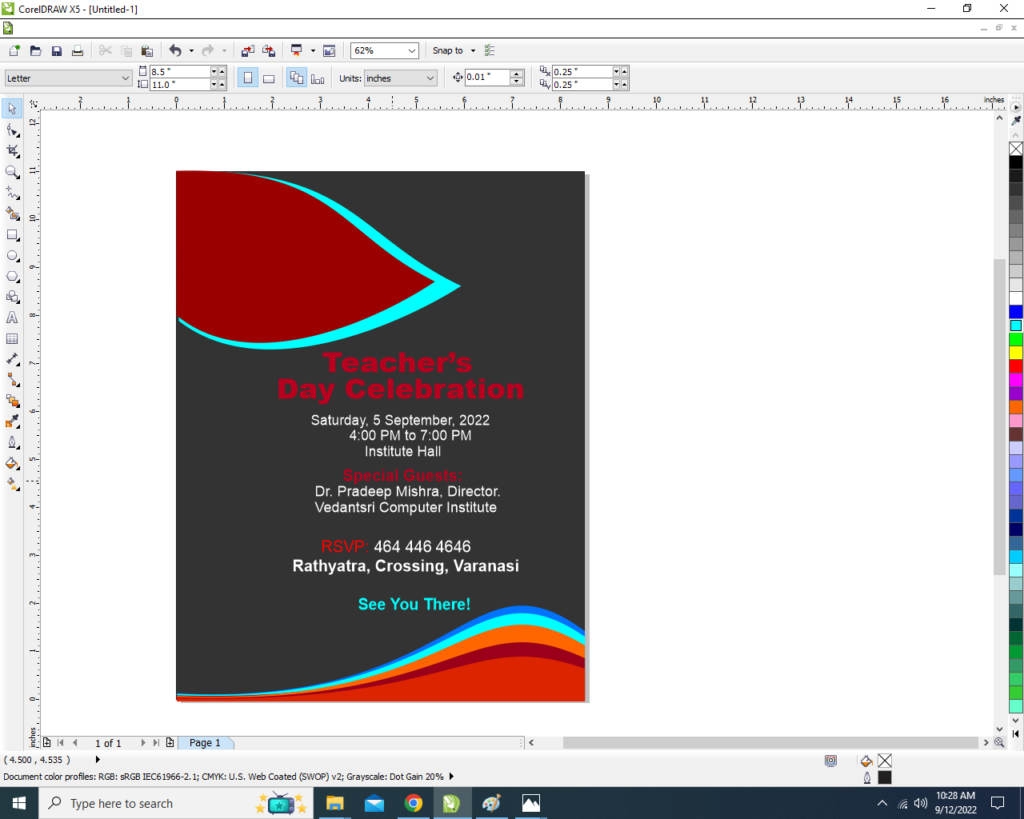
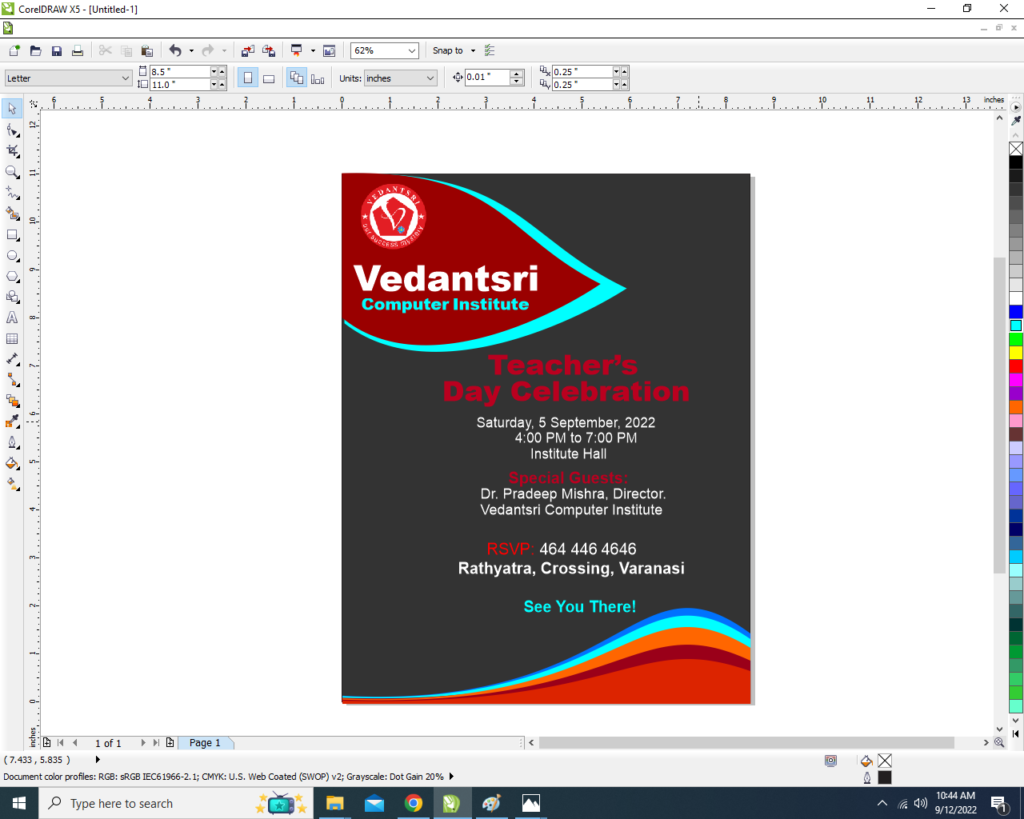
  • After writing the Teacher’s Day celebration, We Will add more lines to it, for Example the timing location address, etc.
19
Invitation Card Design CorelDraw, Easy Method, Step By Step, Download Source File 424
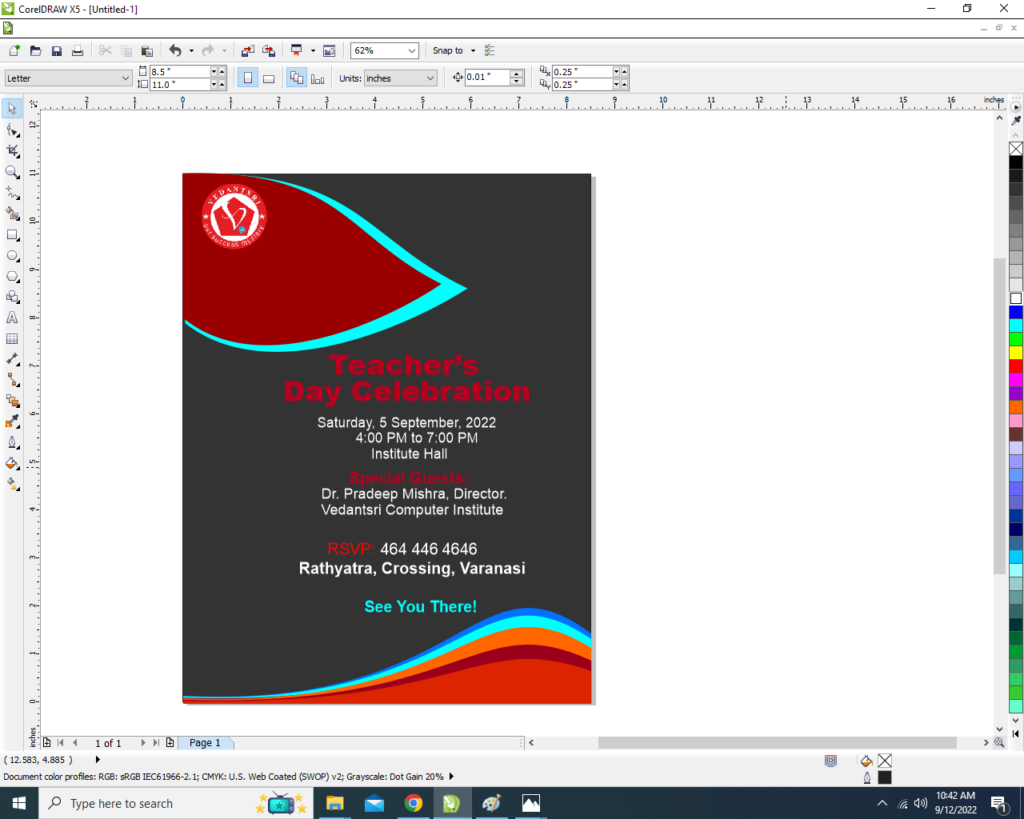
  • You can adjust the color and size of the letters.
  • Then you insert your logo.
Invitation Card Design CorelDraw, Easy Method, Step By Step, Download Source File
Invitation Card Design CorelDraw, Easy Method, Step By Step, Download Source File 425
  • Then you can write the name of your Institute/college/school. Invitation Card Design CorelDraw, Easy Method, Step By Step, Download Source File
Invitation Card Design CorelDraw, Easy Method, Step By Step, Download Source File
Invitation Card Design CorelDraw, Easy Method, Step By Step, Download Source File 426
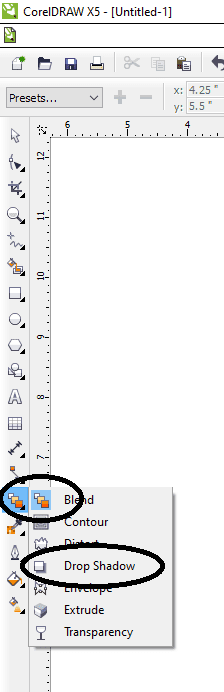
  • You can Apply shadow on letters.
  • Click on Blend tool > then click option Drop Shadow.
23
Invitation Card Design CorelDraw, Easy Method, Step By Step, Download Source File 427
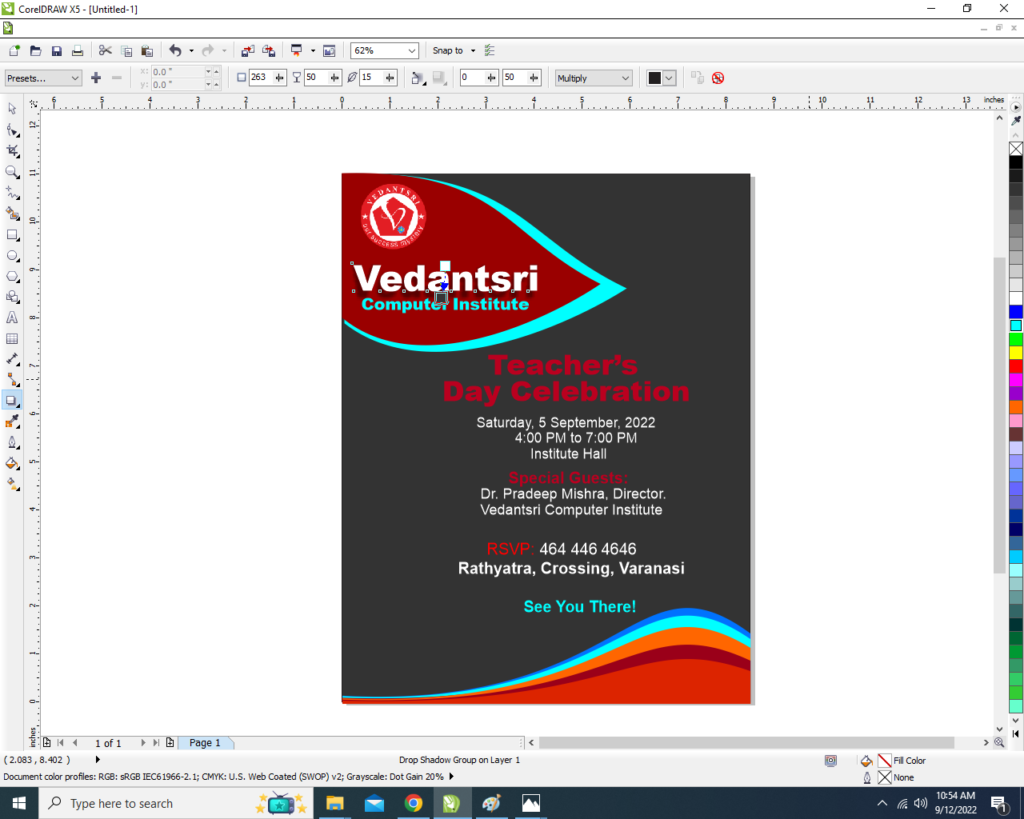
  • Select the letter on which you want to apply the Drop Shadow.
Invitation Card Design CorelDraw
Invitation Card Design CorelDraw, Easy Method, Step By Step, Download Source File 428
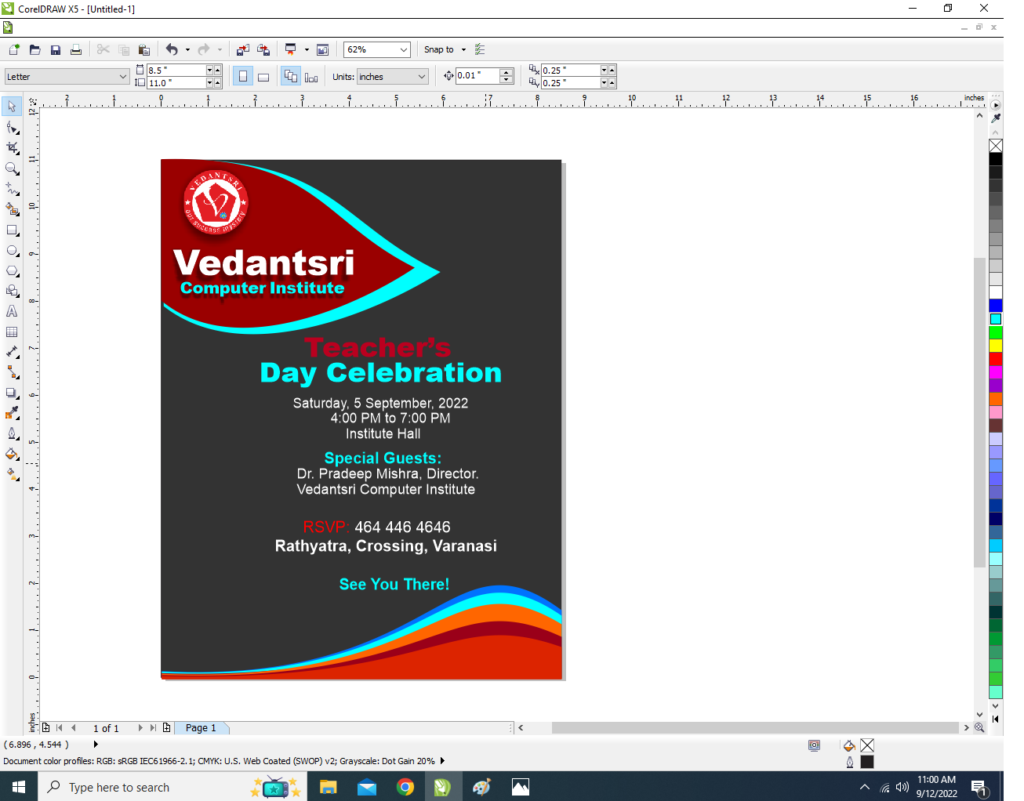
  • Similarly, You can apply drop shadow on whichever letter & Object you want.
Invitation Card Design CorelDraw, Easy Method, Step By Step, Download Source File

Created & Explained By Shikha Singh

Important link

Visit at – https://www.corelclass.com

Read Also it – https://msexcelclass.com/

Also, Read- Tally Course Fees, Duration, Scope, Syllabus, Admission, Institutes

Also Read – CCC Course Fees, Syllabus, Duration, Scope, Jobs, and Institute

Important Link – DFA Course Fees, Syllabus, Duration, Scope, Jobs, and Institute

Visit – https://mswordclass.com/
TCS Tax in Sales Voucher Entry in Tally Prime | TCS Entry in Tally Prime | How to Calculate TCS

TCS Tax in Sales Voucher Entry in Tally Prime | TCS Entry in Tally Prime | How to Calculate TCS

In this post, I’m going to tell you about TCS Tax in Sales Voucher Entry in Tally Prime | TCS Entry in Tally Prime | How to Calculate TCS. how to record transactions based on TCS in tally prime. TCS Tax in Sales Voucher Entry

TCS is text collected at the source. A company when paying an amount so by government applicable section text collected is mandatory. TCS Tax in Sales Voucher Entry

So in this post, we’ll teach you a company what kind of amount in what section going to calculate during sales. TCS Tax in Sales Voucher Entry in Tally Prime

TCS Tax in Sales Voucher Entry in Tally Prime | TCS Entry in Tally Prime | How to Calculate TCS
TCS Tax in Sales Voucher Entry in Tally Prime | TCS Entry in Tally Prime | How to Calculate TCS 430

In this class, I’m going to teach you how to record transactions on Sales plus how to applicable TCS with Sales equipment Entry. The complete process of TCS with Sales Entry is going to teach in this class. So I’m going to create a company in TallyPrime Following Complete Process for TCS in Sales. TCS Tax in Sales Voucher Entry

Read Also:- TDS Tax Rate List Latest

Important Link

  1. VedantSri Official Website:- https://vedantsri.com
  2. Course Store Website:- https://vedantsri.in
  3. Jobs Assist Website:- https://www.jobdo.in
  4. MS Word Class:- https://mswordclass.com/
  5. Corel Free Class:- https://corelclass.com/

TCS Tax in Purchase Voucher Entry in Tally Prime | TCS Entry in Tally Prime | How to Calculate TCS

TCS Tax in Purchase Voucher Entry in Tally Prime | TCS Entry in Tally Prime | How to Calculate TCS

In this post, I’m going to tell you about TCS Tax in Purchase Voucher Entry in Tally Prime | TCS Entry in Tally Prime | How to Calculate TCS. Also how to record transactions based on TCS. TCS Tax in Purchase Voucher Entry

first of all, I welcome you to my class in this class, we are going to learn about TCS in full form text collected at the source. This post will teach you how to make a transition on purchase with the TCS applicable. TCS Tax in Purchase Voucher Entry in Tally Prime

Read Also:- TDS Tax Rate List Latest

In this class, I’m going to teach you how to record transactions on purchases plus how to applicable TCS with purchases. The complete process of TCS with purchase vouchers is going to teach in this class. TCS Tax in Purchase Voucher Entry

So I’m going to create a company in TAllyPrime Following Complete Process for TCS in Purchase. TCS Tax in Purchase Voucher Entry in Tally Prime

Important Link

Visit at – https://www.corelclass.com

Also, Read it – CorelDraw Course Fees, Duration, Scope, Syllabus, Admission, Institutes

Read Also – Tally Course Fees, Duration, Scope, Syllabus, Admission, Institutes

Also Read – CCC Course Fees, Syllabus, Duration, Scope, Jobs, and Institute

Important Link – DFA Course Fees, Syllabus, Duration, Scope, Jobs, and Institute

Visit – ADCA Course Fees, Duration, Scope, Syllabus, Admission, Institutes

1-VedantSri Official Website:- https://vedantsri.com

2-Course Store Website:- https://vedantsri.in

3-Jobs Assist Website:- https://www.jobdo.in

4-MS Word Class:- https://mswordclass.com/

5-Corel Free Class:- https://corelclass.com/

TDS Rate List 2026-27

TDS Rate List 2026-27

In this post, we are going to learn about what is TDS Rate List 2026-27 is. TDs full form is tax deducted at the source. So there is given list below about the TDs rate list. This is the updated TDs rate list of the government of India. TDS Rate List 2026-27

Moreover, you can understand the first column about the section on TDs. There are various sections described in this list which is including a text-deducted section. TDS Rate List 2026-27

TDS Rate List 2023-24

Also, The second column is about the payment methods. Basically, Which is defined clearly for what purposes businesses deduct TDs. There is a third column in this list which is described the threshold limit of payment on which TDs deducted. TDS Rate List 2026-27

And the last fourth column is about the TDs tax rate on related payments. TDS Rate List 2026-27

Read Also: –Tally Prime Course Details

TDS Rate Chart for FY 2026-27

SectionPayment ForThreshold limitTDS Rate %
192Salary IncomeRs 2,50,00010%
192 AEPF – Premature withdrawalRs 50,00010%
193Interest in Govt SecuritiesRs. 10,00010%
194DividendRs 5,00010%
194 AInterest by banks/post offices other than on securitiesRS. 40000, (Rs 50,000 for Senior Citizens)10%
194 AInterest by others other than in securitiesRs. 5,00010%
194 BWinnings from Lotteries / Puzzle / GameRs. 10,00030%
194 BBWinnings from Horse RaceRs. 10,00030%
194CContractRs 30,000 (Single Transaction) Rs 1,00,000 (Aggregate of Transactions)1% (Individuals/HUF) 2% (Others)
194 DPayment of Insurance CommissionRs. 15,0005% (10% in the case of domestic companies)
194DAMaturity of Life Insurance PolicyRs 1,00,0005%
194EPayment to non-resident sportsmen/sports associationRs 020% + Cess
194 GCommission on Sale of Lottery ticketsRs 15,0005%
194 HCommission or BrokerageRs 15,0005%
194 IRent of Land, Building, or FurnitureRs. 2,40,00010%
194 IRent of Plant & MachineryRs. 2,40,0002%
194 IATransfer of Immovable Property, other than Agricultural landRs. 50 lakhs1%
194 IBOther RentRs 50,000 (per month)5%
194ICInterest in Infrastructure Bond to NRIRs 010%
194JFees for professional or technical servicesRs 30,000 (Rs 0 in case of Directors)2% (Technical services or call centers), 10% (Professional services)
194KIncome in respect of units (UTI/MF)Rs 5,00010%
194LAPayment of compensation on acquisition of certain immovable propertyRs 2,50,00010%
194 LBInterest from Infrastructure Bond to NRINA10%
194 LDInterest on Rupee denominated bonds, municipal debt security, also govt. SecuritiesNA5%
194MContract, commission, brokerage, or professional fee (other than 194C, 194H, or 194J)50 Lakh5%
194NCash withdrawal from bank and ITR filed Rs 1cr2%
194NCash withdrawal from bank and ITR not filed Rs 20 Lakh2%
194NTDS on Senior Citizens above 75 Years (No ITR filing cases) Rs 1cr5%
194OE-commerce saleRs 5 lakh1%
194PTDS on Senior Citizen above 75 Years (No ITR filing cases)Rs 3 lakhSlab Rates
194QPurchase of goodsRs 50 lakh0.10%
194RBenefits or perquisites arising from business or professionRs 20,00010%
194STDS on payment for Virtual Digital Assets or cryptocurrency (w.e.f. 01.07.2026) TDS Rate List 2026-271%
206AATDS rate in case of Non-availability of PANHigher ofTwice the rate or rate in force
TDS Rate List 2026-27

Important link

TDS Rate List 2026-27

Excel VBA DataEntry Application Part 2 of Coding, Setup, Method Complete Knowledge Video

Excel VBA DataEntry Application, Part 2 of Coding, Setup, Method Complete Knowledge Video

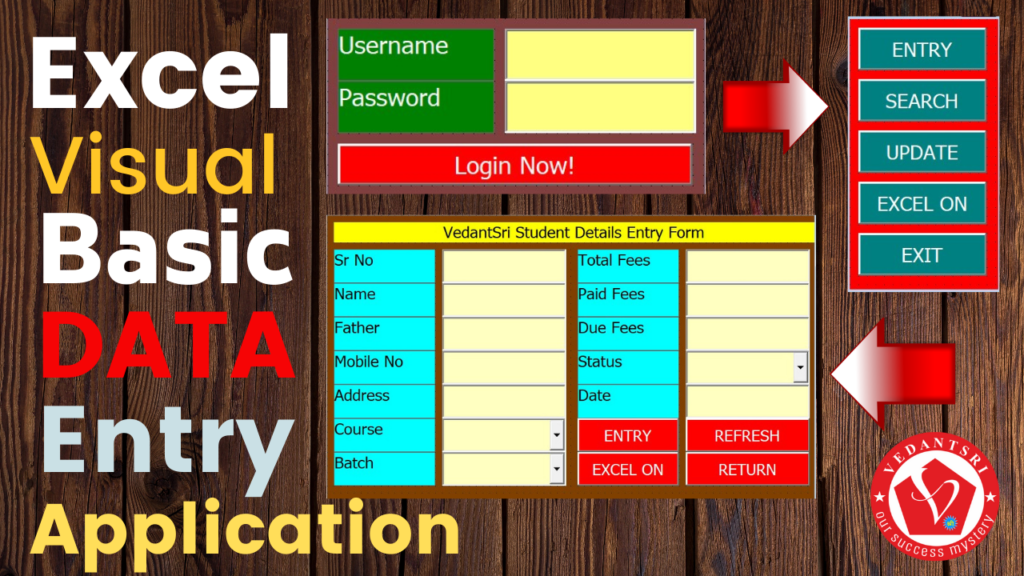
Welcome to this Excel VBA DataEntry Application, Part 2 of Coding, Setup, Method Complete Knowledge Video. in this post, we are going to learn Ms excel visual basic data entry project Part 2. Excel VBA DataEntry Application

Excel VBA DataEntry Application, Part 2 of Coding, Setup, Method Complete Knowledge Video

this project’s very useful if you are working in the office and your work is based on data entry in excel. this project will teach you from basics to advance. how to design data entry form for excel plus it will also teach you how to use formulas or how to data entry on excel by this visual basic user form. Excel VBA DataEntry Application

Excel VBA DataEntry Application, Part 2 of Coding, Setup, Method Complete Knowledge

Use of VBA DataEntry Form

This project is also very important if you are learning Microsoft Excel and you want to improve yourself in Microsoft visual basic. Excel page is called a worksheet and if you want to work on advanced tasks on a worksheet then it is very necessary to understand properly about Microsoft visual basic. Excel VBA DataEntry Application

Microsoft visual basic is an inbuilt program of Microsoft Office. This inbuilt program is used to develop more convenient and efficient program applications depending on user requirements. Excel VBA DataEntry Application

About Part 2 Information

This post is Part 2 of the Microsoft excel visual basic data entry project. So if you did not read part one of this post so I like to request you please go through the given below link to previous posts and read properly then come back to this Part 2 data entry project. Excel VBA DataEntry Application

Part:-1 of This Excel VBA DataEntry Application

Point You will Learn

In this post, I taught you how to type the user form command button formula for entry. you will learn that when you type data on the user form after clicking on the entry command button all data will insert into the excel sheet properly in columns. Also, you are going to learn how to show automatic serial numbers and automatic current dates in the user form textbox. I thought you how to show range data in a combo box of the user form. So this post will teach you complete knowledge about data entry user form formula, function, and coding.

1-VedantSri Official Website:- https://vedantsri.com

2-Course Store Website:- https://vedantsri.in

3-Jobs Assist Website:- https://www.jobdo.in

4-MS Word Class:- https://mswordclass.com/

5-Corel Free Class:- https://corelclass.com/

6-Free Excel Class:- https://msexcelclass.com/

Professional BioData for Beginners in Wordpad

Professional BioData for Beginners in Wordpad

This Post Allows you to learn how to Professional BioData for Beginners in Wordpad For Jobs Interview purposes. So Click the Below Button to Download BioData, After downloading Right Click on Downloaded Folder Then Unzip File from the Zip folder.

Then You Open This Files on Wordpad. and Edit This BioData Format and Change it according to your need. Professional BioData for Beginners in Wordpad

Watch Video To Create Jobs Required BioData

About VedantSri

Wordpad Simple Resume Matter By VedantSri Varanasi

VedantSri Computer Institute provides the best Computer Courses, Classes, and Training in Varanasi. There is NEILIT Courses CCC, BCC, O’level, Certificates, and Diploma Computer Courses available with the best training materials. Also Available Top 100 Best Computer Courses For Example OM, DCA, ADCA, DTP, DFA, ADAM, ADTP, ADFA, DCE, and MS Office. Professional BioData for Beginners in Wordpad VedantSri Computer Coaching update CCC Online Test 2023 on www.vedantsri.net. There are some important computer Courses for jobs CCC Classes, Typing, Internships, And Spoken English Available Free of cost with Offer. More than 50 Computer Courses are available with a 50% Fee Discount in VedantSri Varanasi. Professional BioData for Beginners in Wordpad

You can get the Best Digital Marketing Course at Varanasi Institute VedantSri. There is the Latest Computer Course offered in ADCA Computer Course, DCA Computer Course, CCC Computer Course & English Spoken. Professional BioData for Beginners in Wordpad

About CCC Online Test 2024

MS-Word Online Test 2024:- This is the CCC Online Test Website Page. If You are preparing for CCC Exam or a competitive exam then you should visit the www.vedantsri.net website. You can download this app from the play store and find Just like many more Online Test Series Related. Professional BioData for Beginners in Wordpad

For Example MS Word, MS Excel, MS PowerPoint, and Internet-related. VedantSri Computer Institute in Varanasi provides this. The VedantSri Provides the Best Computer Classes, Courses, Coaching, and Computer Training in Varanasi Uttar Pradesh India. Professional BioData for Beginners in Wordpad

Visit at – https://www.corelclass.com

Read Also it – https://msexcelclass.com/

Also, Read- Tally Course Fees, Duration, Scope, Syllabus, Admission, Institutes

Also Read – CCC Course Fees, Syllabus, Duration, Scope, Jobs, and Institute

Important Link – DFA Course Fees, Syllabus, Duration, Scope, Jobs, and Institute

Visit – https://mswordclass.com/
Excel VBA DataEntry Application, Top 1 Best of Design, Setup, Method Complete Knowledge Video

Excel VBA DataEntry Application, Top 1 Best of Design, Setup, Method Complete Knowledge Video

Welcome to Excel VBA DataEntry Application, Part 1 of Design, Setup, Method Complete Knowledge Video, in this post I’m going to teach one of the most useful projects learning in This Post. Excel VBA DataEntry Application

This project teaches you how to enter data related to product services and customer clients from any small firm or big organization. Excel VBA DataEntry Application

Excel VBA DataEntry Application, Part 1 of Design, Setup, Method Complete Knowledge
Excel VBA DataEntry Application, Top 1 Best of Design, Setup, Method Complete Knowledge Video 437

This Post is based on Microsoft Excel visual basic. If you are a beginner and you want to become an expert in Ms excel so this Class will teach you how to use excel professionally in the job place. Excel VBA DataEntry Application

Read Also: – MS Excel No-1 Project for Beginner

About VedantSri Computer Institute Varanasi

VedantSri Computer Institute in Varanasi is the Government recognized and ISO Certified Computer Institute in Varanasi running since 2011. It Provides Computer Courses, Classes, and Training through its own different branches all over Varanasi. Excel VBA DataEntry Application

There is Computer Scholarship Courses DCE Scholarship (Diploma in Computer Engineering), DIT’s most trusted computer course Available under Scholarship Test Scheme. Excel VBA DataEntry Application

Varanasi Computer Institute vedantsri works at different places to ensure students get better computer education. VedantSri Computer Classes has Diploma courses and advanced diploma courses on the computerVedantSri Institute provides the latest version of computer application training in computer courses. Excel VBA DataEntry Application

वेदांतश्री कम्प्यूटर इंस्टिट्यूट’ वाराणसी में पिछले 10 वर्षो से बेहतर व न्यूनतम शुल्क में कम्प्यूटर शिक्षा प्रदान करने वाली एक कम्प्यूटर ट्रेनिंग इंस्टिट्यूट है | यह संस्था कम्प्यूटर व इंग्लिश स्पीकिंग कोर्स की ट्रेनिंग प्रदान करती है | वाराणसी में कम्प्यूटर शिक्षा को बेहतर व न्यूनतम शुल्क में छात्रो तक पहुचाने में वेदांतश्री पिछले 10 वर्षो से प्रयासरत है | Excel VBA DataEntry Application

Free To Learn In VedantSri Computer Institute in Varanasi

इस वेबसाइट का यूज़ वेदांतश्री में पढ़ रहे छात्रो को कोर्स से सम्बंधित ऑनलाइन सपोर्ट करने से सम्बंधित है | इस वेबसाइट पर उपलब्ध विडियो, टेस्ट शीट, Questions & Answer सेशन, ट्रिक्स, टिप्स वेदांतश्री में सिख रहे कोर्सेज से सम्बंधित है | उपलब्ध कंटेंट संस्था में सिख रहे छात्रो के डिमांड पर अपडेट किया जाता है | उपलब्ध कंटेंट वेदांतश्री में पढ़ रहे छात्रो व सम्बंधित छात्रो को निशुल्क प्रदान किया जाता है जिसका कोई अलग से शुल्क नही लिया जाता है | इस वेबसाइट पर उपलब्ध कंटेंट कम्प्यूटर कोर्सेज व इंग्लिश स्पीकिंग कोर्सेज से सम्बंधित अपडेट किया जाता है Excel VBA DataEntry Application| VedantSri Computer Institute Varanasi

About CCC Online Test 2023

CCC Online Test 2023:- This is the CCC Online Test Website Page. If You are preparing for CCC Exam or any competitive exam then you should visit this www.vedantsri.net website.

you can also download this app from the play store and you find Just like many more Online Test Series Related For Example MS Word, MS Excel, MS PowerPoint, and Internet-related. Excel VBA DataEntry Application

VedantSri Computer Institute Varanasi provides this. The VedantSri Provides Best Computer Classes, Courses, coaching, and Computer Training in Varanasi Uttar Pradesh India.

Important Link

Visit at – https://www.corelclass.com

Also, Read it – CorelDraw Course Fees, Duration, Scope, Syllabus, Admission, Institutes

Read Also – Tally Course Fees, Duration, Scope, Syllabus, Admission, Institutes

Also Read – CCC Course Fees, Syllabus, Duration, Scope, Jobs, and Institute

Important Link – DFA Course Fees, Syllabus, Duration, Scope, Jobs, and Institute

Visit – ADCA Course Fees, Duration, Scope, Syllabus, Admission, Institutes

1-VedantSri Official Website:- https://vedantsri.com

2-Course Store Website:- https://vedantsri.in

3-Jobs Assist Website:- https://www.jobdo.in

4-MS Word Class:- https://mswordclass.com/

5-Corel Free Class:- https://corelclass.com/

6-Free Excel Class:- https://msexcelclass.com/

MS Word Brochure Design Project by VedantSri Varanasi

MS Word Brochure Design Project by VedantSri Varanasi

In This Post, we are going to learn MS Word Class which is most important for those who seeking to job in Office or Official System. In The Office, Person has to create multi-type of documents that present office products or services in written format. MS Word Brochure Design Project by VedantSri Varanasi

MS Word has hundreds of tools that have the power to create professional documents with creative format. MS Word Brochure Design Project by VedantSri Varanasi

MS Word Brochure Design Project by VedantSri Varanasi

In The Office, There are so many types of documents just as flyers, Cover Page, Pamphlate, posters, banners, hoarding, posts, brochures, etc. All These Documents are important at Different times of use.

If Someone works in Office or Preparing to work in the office then They must know to Create all Types of Documents. If You Don’t Have Knowledge about creating the above type of document. then don’t worry about it Because VedantSri Varanasi Providing Free of Cost MS Word Document Project Training Classes.

Read Also: – MS Word Brochure Project-2

So The Class MS Word Document Creating Project Training, Today We are Going to Learn One of the Most Useful Documents Called Brochures. Let’s Learn MS Word Brochure Design Project.

MS Word Brochure Design

Important link

Visit at – https://www.corelclass.com

Read Also it – https://msexcelclass.com/

Also, Read- Tally Course Fees, Duration, Scope, Syllabus, Admission, Institutes

Also Read – CCC Course Fees, Syllabus, Duration, Scope, Jobs, and Institute

Important Link – DFA Course Fees, Syllabus, Duration, Scope, Jobs, and Institute

Visit – https://mswordclass.com/
MS Excel Online Test Practice

MS Excel Online Test Practice

In This Post, You Will Get the Top 25 MS Excel Online Test Practice

0%
75
Excel Online Test Series 5440 VedantSri Institute scaled

MS Excel Online Test Practice 5440

1 / 50

Ms. Excel मे Show Formulas Tool का Shortcut key क्या है?

2 / 50

Ms. Excel मे Remove arrows Tool का Shortcut key क्या है?

3 / 50

Ms. Excel मे Math & Trig Tool का Shortcut Key क्या है?

4 / 50

Ms. Excel मे Trace Precedents Tool का Shortcut key क्या है?

5 / 50

Excel मे Date & Time Tool का क्या Use होता है?

6 / 50

Ms. Excel मे Lookup &  Reference Tool का Shortcut key क्या है?

7 / 50

Excel मे Group Toot का Kya Use होता है?

8 / 50

Ms. Excel मे Insert Function Tool किस Menu मे होता है

9 / 50

Excel मे Text Function Tool का Use होता है?

10 / 50

Ms. Excel मे Function Library Tool मे कितने Tools होते है?

11 / 50

Ms. Excel मे Name manager Tool का Shortcut Key Kya है?


12 / 50

Excel मे Use in Formula Tool का क्या Use होता है?

13 / 50

Excel मे Name Manager Tool का क्या Use होता है?

14 / 50

Ms. Excel मे Text Function Tool का Shortcut key क्या है?

15 / 50

Ms. Excel मे Group Tool Shortcut Key क्या है?

16 / 50

Ms. Excel मे Date & Time Tool का Shortcut Key क्या है?

17 / 50

Ms. Excel मे More Function Tool का Shortcut key क्या है?

18 / 50

Ms. Excel मे Align Tool का Shortcut key क्या है?

19 / 50

Excel मे Auto Sum Tool का क्या Use होता है?

20 / 50

Excel मे Financial Tool का क्या Use होता है?


21 / 50

Excel मे Remove arrows Tool का Shortcut key क्या है?

22 / 50

Ms. Excel मे Recently Used Tool का Shortcut key क्या है?

23 / 50

Excel मे Recently Used Tool का क्या Use होता है?

24 / 50

Ms. Excel मे Arrange Tool मे कितने Tools होते है?

25 / 50

Excel मे Define name Tool का क्या Use होता है ?

26 / 50

Ms. Excel मे Defined Names Tool मे कितने Tool होते है ?

27 / 50

Excel मे Trace Precedents Tool का Use होता है ?

28 / 50

Ms.Excel मे Trace Dependents Tool का Shortcut Key की क्या है?

29 / 50

Ms. Excel मे Logical Tool का Shortcut Key क्या है?

30 / 50

Excel मे More Function Tool का क्या Use होता है?

31 / 50

Excel मे Insert Function Tool का Use होता है?

32 / 50

Excel मे Math & Trig Tool का क्या Use होता है?

33 / 50

Excel मे Align Tool का क्या Use होता है?

34 / 50

Ms. Excel मे Create Form selection Tool का Shortcut key क्या है?

35 / 50

Excel मे Rotate Tool का क्या Use होता है?

36 / 50

Ms. Excel मे Auto Sum Tool का Shortcut Key क्या है?

37 / 50

Excel मे Create Form Selection Tool का क्या Use होता है?

38 / 50

Ms. Excel मे Insert Function Tool का Shortcut Key क्या है?

39 / 50

Excel मे Lookup & Reference Tool का क्या Use होता है?

40 / 50

Ms. Excel मे Rotate Tool का Shortcut Key क्या है?


41 / 50

Ms. Excel मे Use in Formula Tool का Shortcut key क्या है?

42 / 50

Excel मे Logical Tool का क्या Use होता है?

43 / 50

Excel मे Evaluate Formula Tool का क्या Use होता है?

44 / 50

Ms. Excel मे Financial Tool का Shortcut key क्या है?

45 / 50

Excel मे Trace Dependent Tool का Use होता है ?

46 / 50

Ms. Excel मे Define Name Tool का Shortcut Key क्या है?

47 / 50

Excel मे Error Checking Tool का क्या Use होता है?

48 / 50

Ms. Excel मे Evaluate Formula Tool का Shortcut Key है?

49 / 50

Ms. Excel मे Error Checking Tool का Shortcut key क्या है?

50 / 50

Excel मे Show Formulas Tool का क्या Use होता है?

Your score is

The average score is 13%

0%

Pos.NameScoreDurationPoints
1Ujjwal Kumar Sahu100 %2 minutes 58 seconds50 / 50
2Ujjwal Kumar Sahu96 %2 minutes 57 seconds48 / 50
3aryan86 %6 minutes 49 seconds43 / 50
4nanu72 %9 minutes 37 seconds36 / 50
5aryan70 %10 minutes 20 seconds35 / 50
6bts70 %11 minutes 7 seconds35 / 50
7Akanksha68 %6 minutes 49 seconds34 / 50
8JAYA68 %7 minutes 49 seconds34 / 50
9Janvi66 %10 minutes 53 seconds33 / 50
10Nidhiverma64 %12 minutes 4 seconds32 / 50
11Vhjhb62 %7 minutes 6 seconds31 / 50
12Gggh62 %7 minutes 28 seconds31 / 50
13As62 %10 minutes 1 seconds31 / 50
14Bhimaji Tathe62 %11 minutes 3 seconds31 / 50
15Dhareppa62 %11 minutes 53 seconds31 / 50
16Arpit58 %7 minutes 57 seconds29 / 50
17Sumit bharti58 %15 minutes 17 seconds29 / 50
18SANIYA56 %9 minutes 13 seconds28 / 50
19poja54 %6 minutes 33 seconds27 / 50
20Mohamed nishath54 %6 minutes 58 seconds27 / 50
21Mohammad ali52 %2 minutes 39 seconds26 / 50
22Mohammad ali52 %2 minutes 56 seconds26 / 50
23Rahul Gupta52 %9 minutes 53 seconds26 / 50
24Durvijay chauhan52 %10 minutes 4 seconds26 / 50
25Rahul Gupta50 %16 minutes 40 seconds25 / 50
26Priyanka48 %4 minutes 37 seconds24 / 50
27Mohamed nishath48 %5 minutes 1 seconds24 / 50
28Aditi48 %5 minutes 40 seconds24 / 50
29gest48 %6 minutes 43 seconds24 / 50
30Arti48 %10 minutes 50 seconds24 / 50
31MOHAMMAD ALI46 %3 minutes 20 seconds23 / 50
32anshu46 %10 minutes 1 seconds23 / 50
33MOHAMMAD ALI44 %3 minutes 30 seconds22 / 50
34Mohammad ali44 %3 minutes 38 seconds22 / 50
35Ankit kumar44 %9 minutes 41 seconds22 / 50
36Pramodini44 %11 minutes 40 seconds22 / 50
37Nahida44 %16 minutes 40 seconds22 / 50
38MOHAMMAD ALI42 %3 minutes 58 seconds21 / 50
39Nandani42 %9 minutes 2 seconds21 / 50
40Jagdish Kumar42 %16 minutes 28 seconds21 / 50
41Dhareppa42 %16 minutes 40 seconds21 / 50
42bts42 %16 minutes 40 seconds21 / 50
43Ayesha parveen40 %8 minutes 12 seconds20 / 50
44Rahul Gupta40 %8 minutes 53 seconds20 / 50
45Ujjwal Kumar Sahu38 %2 minutes 30 seconds19 / 50
46Anmol38 %4 minutes 26 seconds19 / 50
47Babita Kumari38 %11 minutes 34 seconds19 / 50
48Sunny36 %6 minutes 8 seconds18 / 50
49Sonam36 %6 minutes 50 seconds18 / 50
50Biswanath36 %9 minutes 15 seconds18 / 50
51Nahida36 %16 minutes 40 seconds18 / 50
52Subhanshu34 %1 minutes 38 seconds17 / 50
53Sonam34 %2 minutes 57 seconds17 / 50
54Rahul Gupta34 %11 minutes 9 seconds17 / 50
55Sonam Gupta32 %2 minutes 36 seconds16 / 50
56Ujjwal Kumar Sahu32 %3 minutes 24 seconds16 / 50
57Sneha Vishwakarma30 %5 minutes 55 seconds15 / 50
58Syed adnan28 %3 minutes 9 seconds14 / 50
59Kanchana28 %16 minutes 40 seconds14 / 50
60Anmol26 %5 minutes 7 seconds13 / 50
61Kusum26 %9 minutes 37 seconds13 / 50
62Nandani26 %16 minutes 40 seconds13 / 50
63Kanchan Kannaujiya24 %16 minutes 40 seconds12 / 50
64chitti24 %16 minutes 40 seconds12 / 50
65abhishek24 %16 minutes 40 seconds12 / 50
66Rahul22 %6 minutes 45 seconds11 / 50
67Pooja22 %1 hours 35 minutes 41 seconds11 / 50
68Pramodoni16 %1 hours 20 minutes8 / 50
69Kajal Singh12 %16 minutes 40 seconds6 / 50
70aruna12 %16 minutes 40 seconds6 / 50
71Shreya Soni12 %16 minutes 40 seconds6 / 50
72Bhjj8 %1 hours 42 minutes 3 seconds4 / 50
73Guest0 %0 second0 / 0
74Guest0 %0 second0 / 0
75Guest0 %0 second0 / 0
76Guest0 %0 second0 / 0
77Guest0 %0 second0 / 0
78Guest0 %0 second0 / 0
79Guest0 %0 second0 / 0
80Guest0 %0 second0 / 0
81Guest0 %0 second0 / 0
82Guest0 %0 second0 / 0
83Guest0 %0 second0 / 0
84Guest0 %0 second0 / 0
85Guest0 %0 second0 / 0
86Guest0 %0 second0 / 0
87Guest0 %0 second0 / 0
88Guest0 %0 second0 / 0
89Guest0 %0 second0 / 0
90Guest0 %0 second0 / 0
91Guest0 %0 second0 / 0
92Guest0 %0 second0 / 0
93Guest0 %0 second0 / 0
94Guest0 %0 second0 / 0
95Guest0 %0 second0 / 0
96Guest0 %0 second0 / 0
97Guest0 %0 second0 / 0
98Guest0 %0 second0 / 0
99Guest0 %0 second0 / 0
100Guest0 %0 second0 / 0
101Guest0 %0 second0 / 0
102Guest0 %0 second0 / 0
103Guest0 %0 second0 / 0
104Guest0 %0 second0 / 0
105Guest0 %0 second0 / 0
106Guest0 %0 second0 / 0
107Guest0 %0 second0 / 0
108Guest0 %0 second0 / 0
109Guest0 %0 second0 / 0
110Guest0 %0 second0 / 0
111Guest0 %0 second0 / 0
112Guest0 %0 second0 / 0
113Guest0 %0 second0 / 0
114Guest0 %0 second0 / 0
115Guest0 %0 second0 / 0
116Guest0 %0 second0 / 0
117Guest0 %0 second0 / 0
118Guest0 %0 second0 / 0
119Guest0 %0 second0 / 0
120Guest0 %0 second0 / 0
121Guest0 %0 second0 / 0
122Guest0 %0 second0 / 0
123Guest0 %0 second0 / 0
124Guest0 %0 second0 / 0
125Guest0 %0 second0 / 0
126Guest0 %0 second0 / 0
127Guest0 %0 second0 / 0
128Guest0 %0 second0 / 0
129Guest0 %0 second0 / 0
130Guest0 %0 second0 / 0
131Guest0 %0 second0 / 0
132Guest0 %0 second0 / 0
133Guest0 %0 second0 / 0
134Guest0 %0 second0 / 0
135Guest0 %0 second0 / 0
136Guest0 %0 second0 / 0
137Guest0 %0 second0 / 0
138Guest0 %0 second0 / 0
139Guest0 %0 second0 / 0
140Guest0 %0 second0 / 0
141Guest0 %0 second0 / 0
142Guest0 %0 second0 / 0
143Guest0 %0 second0 / 0
144Guest0 %0 second0 / 0
145Guest0 %0 second0 / 0
146Guest0 %0 second0 / 0
147Guest0 %0 second0 / 0
148Guest0 %0 second0 / 0
149Guest0 %0 second0 / 0
150Guest0 %0 second0 / 0
151Guest0 %0 second0 / 0
152Guest0 %0 second0 / 0
153Guest0 %0 second0 / 0
154Guest0 %0 second0 / 0
155Guest0 %0 second0 / 0
156Guest0 %0 second0 / 0
157Guest0 %0 second0 / 0
158Guest0 %0 second0 / 0
159Guest0 %0 second0 / 0
160Guest0 %0 second0 / 0
161Guest0 %0 second0 / 0
162Guest0 %0 second0 / 0
163Guest0 %0 second0 / 0
164Guest0 %0 second0 / 0
165Guest0 %0 second0 / 0
166Guest0 %0 second0 / 0
167Guest0 %0 second0 / 0
168Guest0 %0 second0 / 0
169Guest0 %0 second0 / 0
170Guest0 %0 second0 / 0
171Guest0 %0 second0 / 0
172Guest0 %0 second0 / 0
173Guest0 %0 second0 / 0
174Guest0 %0 second0 / 0
175Guest0 %0 second0 / 0
176Guest0 %0 second0 / 0
177Guest0 %0 second0 / 0
178Guest0 %0 second0 / 0
179Guest0 %0 second0 / 0
180Guest0 %0 second0 / 0
181Guest0 %0 second0 / 0
182Guest0 %0 second0 / 0
183Guest0 %0 second0 / 0
184Guest0 %0 second0 / 0
185Guest0 %0 second0 / 0
186Guest0 %0 second0 / 0
187Guest0 %0 second0 / 0
188Guest0 %0 second0 / 0
189Guest0 %0 second0 / 0
190Guest0 %0 second0 / 0
191Guest0 %0 second0 / 0
192Guest0 %0 second0 / 0
193Guest0 %0 second0 / 0
194Guest0 %0 second0 / 0
195Guest0 %0 second0 / 0
196Guest0 %0 second0 / 0
197Guest0 %0 second0 / 0
198Guest0 %0 second0 / 0
199Guest0 %0 second0 / 0
200Guest0 %0 second0 / 0
201Guest0 %0 second0 / 0
202Guest0 %0 second0 / 0
203Guest0 %0 second0 / 0
204Guest0 %0 second0 / 0
205Guest0 %0 second0 / 0
206Guest0 %0 second0 / 0
207Guest0 %0 second0 / 0
208Guest0 %0 second0 / 0
209Guest0 %0 second0 / 0
210Guest0 %0 second0 / 0
211Guest0 %0 second0 / 0
212Guest0 %0 second0 / 0
213Guest0 %0 second0 / 0
214Guest0 %0 second0 / 0
215Guest0 %0 second0 / 0
216Guest0 %0 second0 / 0
217Guest0 %0 second0 / 0
218Guest0 %0 second0 / 0
219Guest0 %0 second0 / 0
220Guest0 %0 second0 / 0
221Guest0 %0 second0 / 0
222Guest0 %0 second0 / 0
223Guest0 %0 second0 / 0
224Guest0 %0 second0 / 0
225Guest0 %0 second0 / 0
226Guest0 %0 second0 / 0
227Guest0 %0 second0 / 0
228Guest0 %0 second0 / 0
229Guest0 %0 second0 / 0
230Guest0 %0 second0 / 0
231Guest0 %0 second0 / 0
232Guest0 %0 second0 / 0
233Guest0 %0 second0 / 0
234Guest0 %0 second0 / 0
235Guest0 %0 second0 / 0
236Guest0 %0 second0 / 0
237Guest0 %0 second0 / 0
238Guest0 %0 second0 / 0
239Guest0 %0 second0 / 0
240Guest0 %0 second0 / 0
241Guest0 %0 second0 / 0
242Guest0 %0 second0 / 0
243THT0 %16 minutes 40 seconds0 / 50
244FGDF0 %16 minutes 40 seconds0 / 50
245Nahida0 %17 minutes 31 seconds0 / 50

More Excel Test:- Online Test of Word, Excel, PowerPoint, and More (MS Excel Online Test Practice)

About VedantSri Computer Institute Varanasi

VedantSri Computer Institute in Varanasi is the government-recognised and ISO Certified Computer Institute in Varanasi running since 2011. It Provides Computer Courses, Classes, and Training through its own different branches all over Varanasi. (MS Excel Online Test May 2022)

There is Computer Scholarship Courses DCE Scholarship (Diploma in Computer Engineering), DIT’s most trusted computer course Available under Scholarship Test Scheme. (MS Excel Online Test Practice)

Varanasi Computer Institute Vedantsri works at different places to ensure students get better computer education. VedantSri Computer Classes has Diploma courses and advanced diploma courses on the computerVedantSri Institute provides the latest version of computer application training in computer courses. (MS Excel Online Test May 2022)

MS Excel Online Test May 2022
MS Excel Online Test Practice

वेदांतश्री कम्प्यूटर इंस्टिट्यूट’ वाराणसी में पिछले 10 वर्षो से बेहतर व न्यूनतम शुल्क में कम्प्यूटर शिक्षा प्रदान करने वाली एक कम्प्यूटर ट्रेनिंग इंस्टिट्यूट है | यह संस्था कम्प्यूटर व इंग्लिश स्पीकिंग कोर्स की ट्रेनिंग प्रदान करती है | MS Excel Online Test May 2023

वाराणसी में कम्प्यूटर शिक्षा को बेहतर व न्यूनतम शुल्क में छात्रो तक पहुचाने में वेदांतश्री पिछले 10 वर्षो से प्रयासरत है | (MS Excel Online Test Practice)

Free To Learn In VedantSri Computer Institute in Varanasi

इस वेबसाइट का यूज़ वेदांतश्री में पढ़ रहे छात्रो को कोर्स से सम्बंधित ऑनलाइन सपोर्ट करने से सम्बंधित है | इस वेबसाइट पर उपलब्ध विडियो, टेस्ट शीट, Questions & Answer सेशन, ट्रिक्स, टिप्स वेदांतश्री में सिख रहे कोर्सेज से सम्बंधित है | उपलब्ध कंटेंट संस्था में सिख रहे छात्रो के डिमांड पर अपडेट किया जाता है | उपलब्ध कंटेंट वेदांतश्री में पढ़ रहे छात्रो व सम्बंधित छात्रो को निशुल्क प्रदान किया जाता है जिसका कोई अलग से शुल्क नही लिया जाता है | इस वेबसाइट पर उपलब्ध कंटेंट कम्प्यूटर कोर्सेज व इंग्लिश स्पीकिंग कोर्सेज से सम्बंधित अपडेट किया जाता है | VedantSri Computer Institute Varanasi (MS Excel Online Test Practice)

About CCC Online Test 2023

CCC Online Test 2023:- This is the CCC Online Test Website Page. If You are preparing for CCC Exam or any competitive exam then you should visit this www.vedantsri.net website. (MS Excel Online Test May 2023)

you can also download this app from the Play Store and you find Just like many more Online Test Series Related For Example MS Word, MS Excel, MS PowerPoint, and Internet-related (MS Excel Online Test May 2023)

1-VedantSri Official Website:- https://vedantsri.com

2-Course Store Website:- https://vedantsri.in

3-Jobs Assist Website:- https://www.jobdo.in

4-MS Word Class:- https://mswordclass.com/

5-Corel Free Class:- https://corelclass.com/

6-Free Excel Class:- https://msexcelclass.com/

Keyboard All Symbols or Character Name

Keyboard All Symbols or Character Name

In This Post, You will Learn the Keyboard and All Symbol Character names.

Keyword Symbol Name (Keyboard All Symbols or Character Name)

Keyboard-All-Symbols-or-Character-Name-by-VedantSri
1~Tilde
2`Back quote
3!Exclamation Mark
4@At Sign
5#Hash or number sign
6%Percent
7^Caret
8&And or Ampersand
9*Star or Asterisk
10(Small Close Parentheses
11)Semicolon
12_Hyphen
13+Addition
14/Forward Slash
15,Comma
16.Full stop
17=Equal
18<Less than
19>Greater than
20;Parentheses
21?Question mark
22Double Quotation mark
23Apostrophe
24{open Curly bracket
25}close Curly bracket
26[open Big bracket
27]close Big bracket
28\Backward Slash
29:Colon
30[ ]Bracket
31{}Curly bracket
32<>Angle bracket
33()Subtract
34Susbtract
Keyboard All Symbols or Character Name

By Anjali Pathak

Read More:- O Level Course Details, Fees, Duration, Syllabus, Scope, Institute, Admission, and Jobs in Varanasi

(Keyboard All Symbols or Character Name)

1-VedantSri Official Website:- https://vedantsri.com

2-Course Store Website:- https://vedantsri.in

3-Jobs Assist Website:- https://www.jobdo.in

4-MS Word Class:- https://mswordclass.com/

5-Corel Free Class:- https://corelclass.com/

6-Free Excel Class:- https://msexcelclass.com/

Tally Prime Course Fees, Duration, Scope, Syllabus, Admission, Institutes & Jobs

Tally Prime Course Fees, Duration, Scope, Syllabus, Admission, Institutes & Jobs

What’s the Tally PRIME Course?

For those who belong to an Accounting or non-accounting arts or science and are on the lookout for a job in accounting, taxation or payroll, should you search for a course that enhances your profession? Tally Prime Course Fees

VedantSri is introducing an accounting package deal, Tally PRIME ERP. It is a rather common accounting software program that certainly helps small and medium-sized companies. Tally Prime Course Fees

It has all the capabilities of accounting, taxation and payroll that a notably midsize enterprise wants. Most individuals assume that Tally PRIME might solely operate for a small enterprise; nevertheless, it has many more capabilities than that. Tally PRIME Course Fees

Tally PRIME isn’t just an accounting software program; after changing into an ERP, it has a lot widened to an amazing extent.

Tally Prime Course Fees, Duration, Scope, Syllabus, Admission, Institutes & Jobs
Tally Prime Course Fees, Duration, Scope, Syllabus, Admission, Institutes & Jobs 447

The demand for the Tally PRIME Course?

Laptop Information is probably the most demanded talent in any Sector of the Profession. And the Tally PRIME Course is likely one of the Greatest Talent Success Programs on the pc. Tally Prime Course Fees, Duration, Scope, Syllabus, Admission, Institutes & Jobs

Tally PRIME, this program opens up varied avenues for college students. After the completion of this system, as a beginner, you possibly can start your career as: – Tally PRIME Course Fees, Duration, Scope, Syllabus, Admission, Institutes & Jobs. Tally Prime Course Fees, Duration, Scope, Syllabus, Admission, Institutes & Jobs

  • Accounts govt
  • Junior Accountant
  • Information entry operator
  • Accounts Assistant
  • Tally PRIME operator
  • Accountant trainee

Abilities in the Tally PRIME Course?

If you have any Laptop Information, then you will have some Abilities on the Laptop. However, the Tally PRIME Course supplies you with A lot of the Demanded Abilities in the computer job Sector.

With the abilities of the Tally PRIME Course, Individuals can make Skilled Ledger and Voucher entries, Information Entry Work, Information Administration, Tally PRIME Accounting, and Enterprise Taxation entries. Tally PRIME Course Fees

Tally Prime Course Fees, Duration, Scope, Syllabus, Admission, Institutes & Jobs
Tally PRIME Course Fees

Functions in Tally PRIME Course?

Tally PRIME’s software packages are suitable for any enterprise, large or small. Their ease of use is tough to beat. You may observe your income and bills with only a few clicks. Some functions are given under: –

  • Gross sales, stock, and buy administration
  • Built-in payroll administration
  • Entry and safety management
  • Statutory compliance
  • GST invoicing
  • Budgets and situation administration
  • Payroll accounting
  • Enterprise forecasting
  • Variance reporting
  • Auto financial institution reconciliation
  • Information backups and knowledge synchronisation
Tally Prime Course Fees, Duration, Scope, Syllabus, Admission, Institutes & Jobs
Tally PRIME Course Fees

Full form of the Tally PRIME Course?

The full type of Tally PRIME is Transactions Allowed in Linear Line Yards. Principally, Tally PRIME is an accounting software program that has decreased the burdens of large organisations. Tally Prime Course Fees, Duration, Scope, Syllabus, Admission, Institutes & Jobs

Read Also:- DFA Course Fees, Syllabus, Duration, Scope, Jobs, and Institute in Varanasi

Duration of Tally PRIME Course?

Tally PRIME is a useful course, and its length is 3 months. Tally Prime Course Fees, Duration, Scope, Syllabus, Admission, Institutes & Jobs

Syllabus of Tally PRIME Course?

The primary core options of Tally PRIME are defined hereby: –

ACCOUNTING: Basically, Accounting is a very powerful characteristic of Tally PRIMEERP.P The primary thought that involves thoughts of an individual when listening to Tally PRIME is accounting. Tally Prime Course Fees, Duration, Scope, Syllabus, Admission, Institutes & Jobs

BILLING: Also, Billing is a vital part of the enterprise; this characteristic is included in Tally PRIME. Truly, billing is included within the accounting characteristic every time you make an accounting entry; concurrently, an invoice is generated which can be utilised for elevating or sending a bill. Tally PRIME Course Fees

PAYROLL: Basically, this characteristic is of use when you’re having a diverse variety of workers. For sustaining payroll in Tally PRIME, there are capabilities like worker classes, worker teams, attendance, pay heads, and course workers. Tally PRIME Course Fees

INVENTORY: Upkeep of inventory is an important part of the enterprise because it provides better management of the enterprise’s gross sales; therefore, the movement of inventory is an integral part that can be monitored under management. Tally Prime Course Fees, Duration, Scope, Syllabus, Admission, Institutes & Jobs

BANKING: Also, in this period of digitalisation, without banking, no enterprise can survive. Banking performance may be properly lined by Tally PRIME. Although it was not current in earlier variations of Tally PRIME, it may be helpful in ERP-9 TAXATION: TDS GST. Each direct and oblique tax will be calculated mechanically. Tally PRIME Course Fees

Tally Prime Course Fees, Duration
Tally PRIME Course Fees, Duration, Scope, Syllabus, Admission, Institutes & Jobs

Tally PRIME Course Fees?

Admission Charges for the Tally PRIME course are about 6 to 12 thousand. However, in Supply VedantSri supplies Tally PRIME Course in Varanasi, solely 2500/- Whole and No Further Admission Cost.

Read Also:-MS Office Course, Fees, Duration, Scope, Syllabus, Admission, Institutes & Jobs in Varanasi

Supply the Tally PRIME Course?

Basically, if folks wish to study the Greatest Laptop Course in Varanasi, then they need to additionally Study Laptop Typing, English Speaking, Character growth, and many others.

However, the Excellent news is for individuals who wish to study the Tally PRIME Course. As a result, VedantSri is offering 5 Courses Utterly Free in the present, and the Free Programs are listed under: –

  • Free Typing for 3 Months.
  • Free Character Improvement.
  • Free CTT coaching for 3 Months.
  • Free CCC Class.

Low cost in Tally PRIME Course?

From time to time, VedantSri Institute offers a Low cost on completely different presents.

And presently, the VedantSri Low cost offer is 50% OFF on any course Charges, and likewise, admission Price is FREE on this offer.

Amenities in the Tally PRIME Course?

Firstly, there are numerous services within the Tally PRIME Course: –

  • Projector Display screen Classroom.
  • 4-Ways Approach.
  • Undertaking-Based Coaching.
  • Online Check Amenities.
  • Online Weblog Help.
  • Free Programs Coaching.

Further Free Programs in Tally PRIME Course Supply?

Read Also:-ADCA Course Fees, Duration, Scope, Syllabus, Admission, Institutes & Jobs in Varanasi

The educational technique of the Tally PRIME Course?

Method to Train for the Tally PRIME Course in VedantSri: –

  • Undertaking-Based.
  • The Greatest Educated Lecturers train a scholar with a projector.
  • Supplied a single system for a single scholar.
  • Time-to-time checks are taken with the associated course.
  • Dwell presentation.
  • Alternate Days Idea, Tasks, and Sensible Session.
  • IF college students miss their lab or class, the associated video is available on the website

What’s the Course Class of the Tally PRIME Course?

The course Class of Tally PRIME is a Diploma in Tally PRIME Accounting.

Tally PRIME Course Fees

A profession in the Tally PRIME Course?

Also, Tally PRIME is a PC program that’s typically utilised for accounting purposes for probably half of small and medium-sized companies. Nonetheless, there are even completely different highlights of Tally PRIME, but it’s commonly often called accounting software. Tally PRIME Course Fees

After the arrival of the Tally PRIME ERP kind, this product isn’t solely an accounting program. The ERP (Enterprise Resource Planning) kind utterly modified the means of Tally PRIME programming. Presently, this product is utilised for Accounting, Payroll, Billing, Gross sales, Revenue Evaluation, Auditing, Banking Stock, and Taxation, for instance, VAT, TDS, and TCS. Tally PRIME Course Fees

Job Placement in Tally PRIME Course?

Also, an unlimited variety of employment alternatives is being provided to the graduates of the private and public sectors. A few of the job alternatives that a candidate can discover are listed under: –

  • Administrator Govt
  • Accounts Govt
  • Evaluate Govt
  • Cash Associated Analyst
  • Account Supervisor
  • Senior Accountant

Does eligibility require the Tally PRIME Course? 

No, Laptop Primary Information isn’t Required for the Tally PRIME Course. As a result, fundamental data is taught in the Tally PRIME Course. Tally Prime Course Fees, Duration, Scope, Syllabus, Admission, Institutes & Jobs

Educating Language in the Tally PRIME Course?

Principally, the language of the pc is English; however, you can study it in English and Hindi. Tally PRIME Course Fees

FAQs

Q: What are the eligibility criteria for the Tally Prime course?

A: The primary eligibility criterion is the completion of 10+2 or equivalent from a recognised board. A basic knowledge of computers is preferred, but not mandatory.

Q: Can I pursue the Tally Prime course online?

A: Yes, many institutes offer online Tally Prime courses, providing flexibility for working professionals and students who prefer distance learning.

Q: What are the career prospects after completing the Tally Prime course?

A: Completing a Tally Prime course (especially with GST modules) can open up strong career opportunities, particularly in the accounting, finance, and business administration fields. Since Tally is one of the most widely used accounting software in India, certified professionals are in steady demand.
Growth Path After Tally Prime
Start as Junior Accountant → move up to Accounts ExecutiveSenior AccountantAccounts/Finance Manager.

With further certifications (e.g., GST, SAP, QuickBooks, MBA in Finance), you can progress to Financial Analyst, Tax Consultant, or CFO roles.

Q: How do I choose the right institute for the Tally Prime course in Varanasi?

A: Consider factors like the institute’s reputation, faculty experience, infrastructure, placement assistance, and course fees when choosing an institute.

Q: Is there any entrance exam for the Tally Prime course?

A: The Tally Prime course does not usually require any entrance exam. It is considered a job-oriented skill course, so admission is generally through direct enrollment.

Q: What are the fees for the Tally Prime course syllabus?

A: INR 6,000 to 12,000

Q: Is Tally Prime good for a job?

A: Tally Prime is good for a job, especially if you are looking for opportunities in accounting, taxation, and finance. Since 80–90% of small and medium businesses in India use Tally for bookkeeping and GST compliance, trained professionals are always in demand.

Q: What is the duration of the Tally Prime certificate?

A: As soon as the Certificate is achieved, when the Course is completed, and the Course Certificate Completion Duration is 12 Months Only.

Important link

Top 1 Best Digital Mar keting Course Fee, Institute, Syllabus, Jobs

Digital Marketing Course Fee, Institute, Syllabus, Jobs

Top 1 Best Digital Marketing Course Fee, Institute, Syllabus, Jobs. This quantity is anticipated to develop quickly with the appearance of Digitalisation within the nation. Digital Advertising and Marketing Course Charges Top 1 Best Digital Marketing Course Fee

The professional scope

The professional scope within the trade is attracting plenty, and this is among the reasons why numerous professionals are studying the course to enter the trade. Digital Advertising and Marketing Course Charges, Institute, Syllabus, Jobs, Digital Top 1 Best Digital Marketing Course Fee

Digital Advertising

The present market standing of Digital Advertising and marketing reveals that it’s at its peak, and is going to remain so for apparent reasons. Top 1 Best Digital Marketing Course Fee

The demand for the Digital Marketing Course?

Digital advertising and marketing encompasses all advertising and marketing efforts that use digital media or the web.

Companies leverage digital channels equivalent to engines like Google, social media, e-mail, and different websites to connect with present and potential clients. Digital Advertising and Marketing Course Charges: Digital Marketing Course Fee

Inbound Marketer

A seasoned inbound marketer would possibly say inbound advertising and marketing and digital advertising and marketing are just about identical; however, there are some minor variations. Top 1 Best Digital Marketing Course Fee

Top 1 Best Digital Marketing Course Fee
Digital Marketing Course Fee, Institute, Syllabus, Jobs

What Abilities are Required for the Digital Marketing Course?

If you happen to wish to excel within the discipline of digital advertising and marketing, then you should possess some primary expertise. This expertise is imagined to make you stand out from the remaining. Digital Marketing Course Fee, Institute, Syllabus, Jobs

Initially, there’s a particular set of expertise that you should educate yourself on to place yourself in a greater position in this discipline. Digital Marketing Course Fee, Institute, Syllabus, Jobs

Particular Set of Expertise

  1. Conscious of the tendencies.
  2. Good understanding of the viewers and knowing what sells.
  3. Particular advertising and marketing experience.
  4. Content writing expertise.
  5. This means handling instruments and expertise.
  6. Interactive expertise.
  7. Gross sales talent.
  8. A mix of creativity and analytical expertise.
  9. Fundamental design expertise.
  10. Politeness and endurance.

Also Read: – DCA Course Fees, Duration, Scope, Syllabus, Admission, Institutes & Jobs in Varanasi

Functions in Digital Marketing Course?

The Digital Advertising Functions are listed beneath:-

You’ll be able to be taught and know correctly about

Advertising and marketing Basis

social media administration,

automation

content material advertising and marketing

neighborhood constructing

GEO Advertising and marketing.

Running a blog.

Website Design utilising WordPress CMS.

Also Read: – About O Level Course, Top 1 Best Syllabus, Duration, Fees, Scope, Institute, and Jobs in Varanasi

Top 1 Best Digital Marketing Course Fee

Length of Digital Marketing Course?

Digital Advertising and marketing is a useful diploma. And its length is 6 months. Top 1 Best Digital Marketing Course Fee

Syllabus of Digital Marketing Course?

The Digital Advertising Syllabus of our Digital Advertising and Marketing Course with 20 Modules offers you a complete image of what digital advertising and marketing expertise you may acquire at the end of the course. Top 1 Best Digital Marketing Course Fee

In different phrases, our classroom teaching program consists of 3 primary modules

1. Basis

2. The marketer

3. Skilled

that may cover all the digital advertising and marketing ideas with superior subjects which have been proven within the digital advertising and marketing syllabus:-

Also Read: – CCC Course Fees, Syllabus, Duration, Scope, Jobs, and Institute in Varanasi

Top 1 Best Digital Marketing Course Fee
Digital Marketing and Marketing Course, VedantSri, Varanasi
  1. Digital Advertising and Marketing Basis.
  2. Competitor and Website Evaluation.
  3. Market Analysis & Area of Interest Potential.
  4. Website Design utilising WordPress CMS.
  5. E-mail Advertising and Marketing.
  6. Content Creation and Promotion.
  7. Search Engine Optimisation.
  8. Social Media Advertising and Marketing, Optimisation & Promoting.
  9. Bing Promoting.
  10. Cellular Advertising and marketing (SMS Advertising and marketing).
  11. GEO Advertising and marketing.
  12. YouTube Video Advertising and Marketing & Promoting.
  13. Website Information Analytics.
  14. Running a blog.
  15. Google AdSense.
  16. Digital Advertising and Marketing Plan & Finances Forecast
  17. Product Advertising and marketing (Google Ads, Instagram, Facebook).
  18. Paid Adverts Optimisation Methods. Digital Marketing Course Fee, Institute, Syllabus, Jobs
  19. Case Research.
  20. Profession: Counselling and Interview Preparation Steerage.
Top 1 Best Digital Marketing Course Fee

Admission in the Digital Marketing Course?

Admission Charges for Digital Advertising are about 25 thousand. And the provided price is 5000/- Rs thousand solely. 80% OFF on the course of Digital Advertising.

Also Read: – DIT Course Details, Fees, Duration, Scope, Syllabus, Admission, Institutes & Jobs

Provide in the Digital Advertising and marketing Course?

If folks wish to be taught the Greatest Pc Course, then they must also learn Pc Typing, English Speaking, Personality development, and so on. Digital Marketing Course Fee, Institute, Syllabus, Jobs

However, the Excellent news for many who wish to be taught Digital Advertising. As a result of VedantSri is offering 5 courses fully Free in provides and The Free Programs are listed beneath:-

  1. Pc Typing for 3 Months.
  2. English Spoken For 3 Months.
  3. Personal Growth.
  4. CTT coaching for six Months.
  5. CCC Lessons.

Also Read: – Top 3 Computer Diploma Courses, 6 Months of Computer Diploma, After 12th Pass Out Computer Courses.

Low cost in Digital Advertising and marketing Course?

From time to time, VedantSri Institute gives a reduction on completely different providers. Top 1 Best Digital Marketing Course Fee

And presently, the VedantSri Low cost provides 80% OFF on Digital Advertising and marketing course Charges, and in addition, admission Payment is FREE within the Course provided. Top 1 Best Digital Marketing Course Fee

Top 1 Best Digital Marketing Course Fee
Make a Free Website

Amenities in the Digital Advertising and Marketing Course?

There are a lot of further free Programs in Digital Advertising courses:-

  1. Projector Display Classroom
  2. 4-ways Approach
  3. Venture-Primarily based Coaching
  4. Online Check Amenities
  5. Online Weblog Help
  6. Free Programs Coaching
  7. CTT Internship Coaching

Also Read: – OM Course Fees, Duration, Scope, Syllabus, Admission, Institutes & Jobs in Varanasi

Additional Free Course in Digital Advertising Course Provided?

There are a lot of further free Programs in Digital Advertising courses:-

  1. Typing Coaching.
  2. English Spoken Class.
  3. Personal Growth.
  4. CCC Class.
  5. CTT Coaching.
  6. Free Online Check.

Approach to the Training of Digital Advertising and Marketing Course?

Approach to the Training of Digital Marketing Course In VedantSri:

  1. Venture-Primarily based.
  2. The Greatest Educated Academics educate the coed with the projector.
  3. Offered a single system for a single pupil.
  4. Time-to-time exams are taken with the associated course.
  5. Reside presentation.
  6. Alternate Days Principle, Tasks, and Sensible Session.
  7. Pupil skips their lab or Principal class-related video out there on VedantSri Android apps.
  8. Offered Newest Venture Coaching.
  9. Online Check.
  10. Dwell Lessons.

Class of Digital Marketing Course?

Diploma Course Class

A profession in Digital Marketing Courses?

You may get a job in digital advertising and marketing if in case you have ardour and creativity. Among the potential careers in Digital advertising and marketing are:-

Digital Advertising and Marketing Guide

Content material Advertising and marketing Government

Content material Author

Inbound Marketer

Social Media Advertising and Marketing Professional

Search Engine Marketer

Top 1 Best Digital Marketing Course Fee
Digital Advertising and Marketing Course Charges

search engine optimisation Government

Conversion Price Optimiser

Net Analytics Government

Email Marketer

Copywriters

Job Placement in Course?

Lately, Digital Advertising and marketing have gained immense recognition, and at the moment, it is among the most sought-after professional choices. Top 1 Best Digital Marketing Course Fee

As each enterprise is shifting to the digital platform, it’s anticipated that extra jobs will probably be created in Digital Advertising and Marketing, and the demand for educated professionals will increase manifold.

In line with payscale.com, presently, the beginning wage of a Digital Advertising and marketing Supervisor is Rs 4 lakh and upwards in India.

Top 1 Best Digital Marketing Course Fee
VedantSri Varanasi

Among the prime Digital Advertising and marketing jobs given beneath:-

Market Analysis Analyst

Content material Supervisor

Digital Advertising and marketing Guide

Conversion Price Optimiser

search engine optimisation Supervisor/Professional lakh and upwards

Social Media Supervisor

PPC Search Supervisor

search engine optimisation Government

Email Marketer

Digital Marketer

Online Model Administration skilled

Digital Advertising and marketing teacher

Does eligibility require the Digital Advertising and Marketing Course?

Sure, you probably have accomplished 10, then you might be eligible for the Digital Advertising and Marketing Course.

Does Pc Fundamental Data Require For the Course?

Sure, Pc Fundamental Data is Required For the Digital Advertising and Marketing Course. As a result, primary data is important for the Digital Advertising and Marketing Course. Digital Marketing Course Fee, Institute, Syllabus, Jobs

Instructing Language in Digital Advertising and Marketing Course?

Principally, the language of the pc is English, but you may be taught it in both Hindi and English. Top 1 Best Digital Marketing Course Fee

FAQs

Q: What are the eligibility criteria for the Top 1 Best Digital Marketing course?

A: Top 1 Best Digital Marketing Course and its eligibility criteria. Since Digital Marketing courses are offered in different formats (certificate, diploma, postgraduate diploma, online professional training), the criteria vary depending on the level.

If you’re looking for the Top 1 Best Digital Marketing Course (12 months professional level), the eligibility is 10+2 (any stream), though some reputed institutes may prefer graduates.

Q: Can I pursue the Top 1 best Digital Marketing course online?

A: Yes, you can definitely pursue the Top 1 Best Digital Marketing Course online — in fact, online mode is the most popular option for this field because Digital Marketing itself is internet-based.

If you want free + beginner level → Google Digital Garage.

If you want a job-oriented with internship + placement → IIM Skills, UpGrad, or Simplilearn.

If you want a globally recognised certificate → Coursera (Meta/Google).

Q: What are the career prospects after completing the Top 1 best Digital Marketing course?

A: Digital Marketing is one of the fastest-growing career fields in India and globally. After completing the Top 1 Best Digital Marketing Course, you open the door to multiple job roles, freelancing, and even entrepreneurship.

Job Roles You Can Apply For:

Digital Marketing Executive / Specialist

SEO Analyst / SEO Manager (Search Engine Optimisation)

PPC / SEM Specialist (Google Ads, Bing Ads, YouTube Ads)

Social Media Manager (Facebook, Instagram, LinkedIn, Twitter, etc.)

Content Marketing Specialist / Copywriter

Email Marketing Specialist

Web Analytics Expert (Google Analytics, Data Studio)

Affiliate Marketing Manager

E-commerce Specialist (Amazon, Flipkart, Shopify, etc.)

Digital Marketing Manager (after experience)

Q: How do I choose the right institute for the Top 1 best Digital Marketing course in Varanasi?

A: Infotech Academy, IIDE (online), IIM Skills (online), Digital Vidya, SkillFloor, and NDMIT, all with solid reputations across India.

Q: Is there any entrance exam for the Top 1 best Digital Marketing course?

A: No, there is no entrance exam for the Top Digital Marketing courses

Q: What are the fees for the Top 1 best Digital Marketing course syllabus?

A: INR 25,000

Q: Is Top 1 the best Digital Marketing for a job?

A: Yes, the Top Digital Marketing Course is excellent for getting a job. If you’re in Varanasi, you can join a reputed institute (like Metrics Institute, DIDM, Digiperform, IIM Skills) or even choose a top online program (IIM Skills, Coursera, IIDE, Simplilearn). Both lead to strong career opportunities.

Q: What is the duration of the Top 1 best Digital Marketing certificate?

A: Professional Certification (Job-oriented, most popular)Duration: 6–12 months
IIM Skills, NIIT, UpGrad, Simplilearn, IIDE
live projects, internships, and placement support

Visit at – https://www.corelclass.com

Read Also it – https://msexcelclass.com/

Also, Read- Tally Course Fees, Duration, Scope, Syllabus, Admission, Institutes

Also Read – CCC Course Fees, Syllabus, Duration, Scope, Jobs, and Institute

Important Link – DFA Course Fees, Syllabus, Duration, Scope, Jobs, and Institute

Visit – https://mswordclass.com/

TallyERP Shortcut Keys List

TallyERP Shortcut Keys List

TallyERP Shortcut Keys List:-Short cut Type              –                     Explanation

F1: – Shut Company –

  • Shortcuts with a single underline
  • With single line means ALT is the additional key used with the key displayed.
  • For example, ALT + F1 is the shortcut for shutting the Company.

F8: – Credit Note –

  • Shortcut with a double underline
  • With double line means CTRL is the additional key used with the key displayed on the screen. TallyERP Shortcut Keys List TallyERP Shortcut Keys List
  • For example, CTRL + F8 is the shortcut key for selecting Credit Note Voucher.

F2 : – Date –

  • The shortcut with no underline.
  • No line means only the displayed key is the shortcut key of that function.
  • For example, F2 is the key to date.

Shortcut KeyWhat is the functionWhere to find
F1 : –To select the company or to open the company.On Gateway of Tally
CTRL + F1 : –To select payroll voucher from Inventory Voucher/Accounting ScreenOn Gateway of Tally > Inventory Voucher/Accounting Voucher > Payroll Voucher
CTRL + F4 : –To select Purchase Order Voucher from Accounting Voucher ScreenOn Gateway of Tally > Accounting Voucher / Inventory Voucher > Purchase Order Voucher
CTRL + F10 : –To select memorandum voucherOn Gateway of Tally > Accounting Voucher / Inventory Voucher > Memorandum Voucher
CTRL + F9 : –To select Debit Note VoucherOn Gateway of Tally > Accounting Voucher  > Debit Note
CTRL + F8 : –To select Credit Note VoucherOn Gateway of Tally > Accounting Voucher  > Credit Note
F8 : –To Select Sales VoucherOn Gateway of Tally > Accounting Voucher  > Sales Voucher
F9 : –To select Purchase VoucherOn Gateway of Tally > Accounting Voucher  > Purchase Voucher
F7 : –To select Journal VoucherOn Gateway of Tally > Accounting Voucher  > Journal Voucher
F6 : –To select Receipts VoucherOn Gateway of Tally > Accounting Voucher  > Receipts Voucher
F5 : –To select Payments VoucherOn Gateway of Tally > Accounting Voucher  > Payments Voucher
F4 : –To Select Contra VoucherOn Gateway of Tally > Accounting Voucher  > Contra Voucher
ALT + J : –To select Job work out order voucherOn Gateway of Tally > Accounting Voucher / Inventory Voucher > Job Work Out Order
ALT + W : –To select Job work in order to VoucherOn Gateway of Tally > Accounting Voucher  > Job work in order Voucher.
ESC: –To remove what has been typed into the data field while preparing a voucher.At all data entry or typing field
ALT + D  : –To delete a voucher/ To delete a masterAll the reports screen can be viewed in columnar format
ALT + C : –To create a masterAt the Voucher entry screen
ALT + X : –To cancel a voucherFrom day book or list of vouchers
CTRL + A : –To accept a form.Wherever you use this key combination, that screen or report gets accepted as it is. This is a quick save option.
CTRL + V : –To toggle between invoice and voucher modeAt the creation of the Sales/ Purchase Voucher screen
ALT + I : –Insert a VoucherWhen you want to toggle between Item and Accounting Invoice
ALT + 2 : –To duplicate a voucherAt sales ledger/ day book/ Ledgers > Place the cursor on the entry and press this shortcut key to duplicate a Voucher. TallyERP Shortcut Keys List
CTRL + N : –To switch to the calculatorDuring all data entry
ALT + N : –To view the reports in automatic columnsMultiple column’s at all reports, Trail balance, Cash/bank books, group summary, and journal register. TallyERP Shortcut Keys List
ALT + R : –To remove/hide the line in a reportAt all reports screen
ALT + P : –To print the reportAt all reports screen
ALT + E : –To export the report in ASCII, Excel, HTML, PDF, or XML formatAt all reports screen
ALT + F1 : –To view a detailed reportAt all reports screen
Alt + J : –To get a statutory adjustment voucherIn journal voucher, In all GSTR Reports
Alt + S : –To get a statutory payment voucherIn payment voucher
CTRL + O : –To open the GST portalIn all GSTR Report
CTRL + E : –To export returnIn all GSTR Report
CTRL + A : –To view accepted as it isIn all GSTR Report

TallyERP Shortcut Keys List

Read Also:-DFA Course Fees, Syllabus, Duration, Scope, Jobs, and Institute in Varanasi

यदि आप2nd Surprise Test Result 2021 की जानकारी चाहते हैं तो इस लिंक पर जाए

About VedantSri

TallyERP Shortcut Keys List

VedantSri Computer Institute provides the best Computer Courses, Classes, and Training in Varanasi. There is NEILIT Courses CCC, BCC, O’level, Certificates, and Diploma Computer Courses available with the best training materials. TallyERP Shortcut Keys List

TallyERP Shortcut Keys List

Also Available Top 100 Best Computer Courses, For Example, OM, DCA, ADCA, DTP, DFA, ADAM, ADTP, ADFA, DCE, and MS Office. VedantSri Computer Coaching updates CCC Online Test 2022 on www.vedantsri.net. There are some important computer Courses for jobs CCC Classes, Typing, Internships, And Spoken English Available Free of cost with Offer. TallyERP Shortcut Keys List

More than 50 Computer Courses are available with a 50% Fee Discount in VedantSri Varanasi. TallyERP Shortcut Keys List

You can get the Best Digital Marketing Course at Varanasi Institute VedantSri. There is the Latest Computer Course Offer in ADCA Computer Course, DCA Computer Course, CCC Computer Course & English Spoken. TallyERP Shortcut Keys List

यदि आप Varanasi Computer Institute की जानकारी चाहते हैं तो इस लिंक पर जाए

(TallyERP Shortcut Keys List)

यदि आप Design Blogger as Website को बनाना सीखना चाहते हैं तो इस लिंक पर जाए

Important Links

यदि आप Varanasi Rathyatra Branch की जानकारी चाहते हैं तो इस लिंक पर जाए

1-VedantSri Official Website:- https://vedantsri.com

2-VedantSri Student Support Website:- https://www.vedantsri.net

3-Students Jobs Assist Website:- https://www.jobdo.in

यदि आप Tools Shortcut Setup को बनाना सीखना चाहते हैं तो इस लिंक पर जाए

(TallyERP Shortcut Keys List)

0%
1175
A To Z Tally Shortcut Keys Online Test Series 102

A To Z Tally Shortcut Keys Online Test Series 2025

1 / 36

Press F5 To Open

2 / 36

Shortcut Key To Open Purchase Order Voucher?

3 / 36

Press Ctrl+F6 To Open

4 / 36

F1 Key

5 / 36

Esc Key Press to Go Back/Previous Pages in Tally

6 / 36

Tally F4 To Open

7 / 36

Tally Shortcut Key To Open Company Menu

8 / 36

Press Ctrl+F5 To Open Rejection Out Voucher in Tally

9 / 36

Shortcut Key to Open Physical Stock in Tally?

10 / 36

Tally Shortcut Key to Open Others Voucher?

11 / 36

Shortcut Key To Open Configuration Setting in Tally?

12 / 36

Tally Shortcut key to Change Current date?

13 / 36

Use of Ctrl+A in Tally

14 / 36

Contra Voucher Used To Record Banks Related Entry in Tally

15 / 36

Press Ctrl+F8 To Open

16 / 36

Shortcut key To Open Features Setting In Tally?

17 / 36

Press Backspace Key Go to Previous Options in Tally

18 / 36

Press Alt+F8 To Open

19 / 36

Press Alt+F5 to Open Which Voucher

20 / 36

Press Alt+F9 To Open

21 / 36

Double Underline Represent in Tally

22 / 36

Press Alt+F3 in Tally Open

23 / 36

Press F3 in Tally To Open

24 / 36

Shortcut Key To Check Tally Product Information

25 / 36

Shortcut key To Open Stock Journal in Tally?

26 / 36

Press Ctrl+Alt+R in Tally To Open

27 / 36

Press F6 to Open

28 / 36

Press Ctrl+F4 To Open

29 / 36

Tally Shortcut to Open Help Website?

30 / 36

F7 Open Journal Voucher in Tally

31 / 36

Press Ctrl+F3 in Tally To Open

32 / 36

Single Underline Represents in Tally

33 / 36

Press F8 To Open

34 / 36

F9 Open Purchase Return Voucher

35 / 36

Tally Shortcut key To Change Date Periods?

36 / 36

Tally Shortcut Key To Check Installed Release

Your score is

The average score is 32%

0%