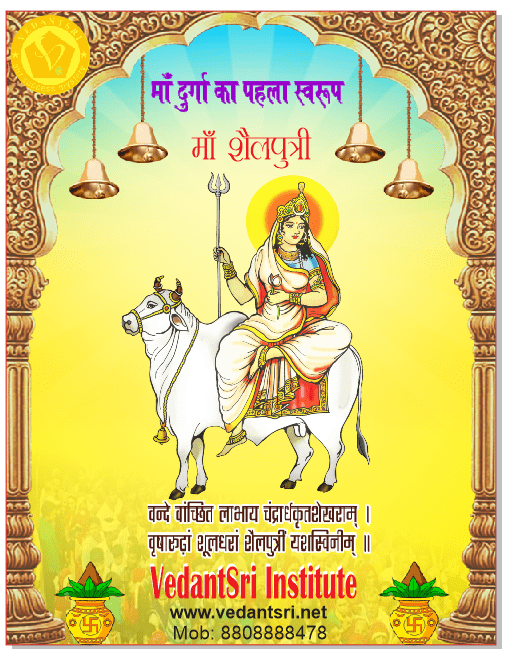
Navratri Card Design in CorelDraw, Easy Method, Complete Steps, Download Practice File
Hello Friends, Welcome To VedantSri.net In This Post I am Going To Teach You How To Create Navratri Card Design in CorelDraw. In This Project, You can Learn How to Design Navratri Card Design in CorelDraw Application an Easy Method.
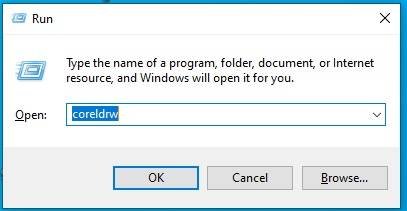
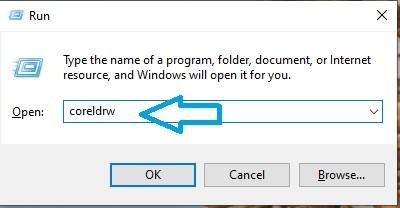
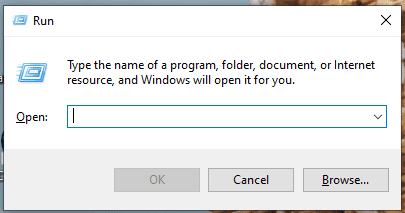
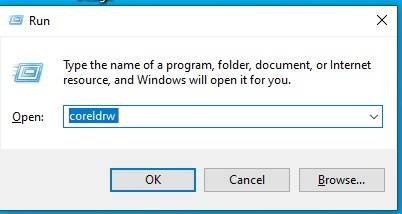
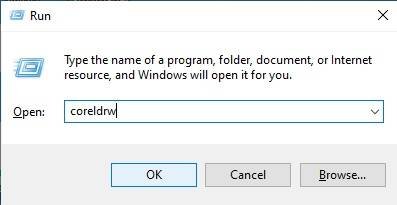
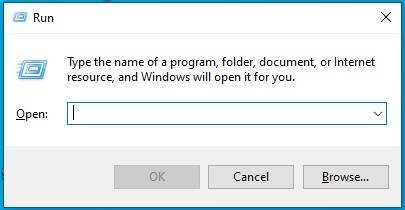
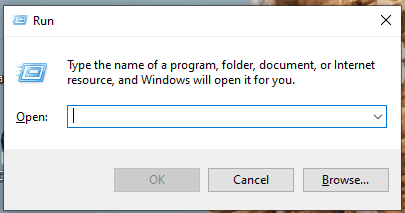
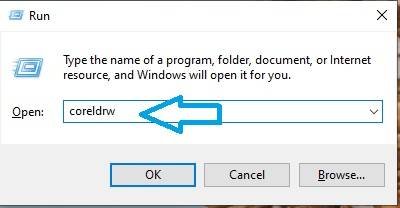
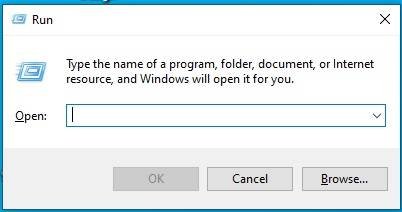
CorelDraw Open करने के लिए Window + R Press करके Run Box Open करे।
Navratri Card Design in CorelDraw, Easy Method, Complete Steps, Download Practice File 17
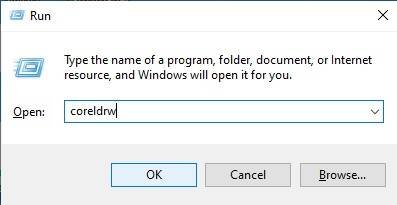
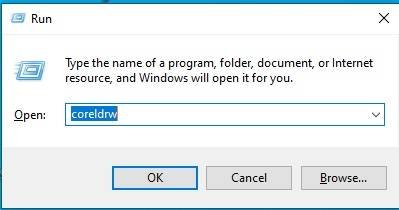
Run Box मे coreldrw Type करे।
Navratri Card Design in CorelDraw, Easy Method, Complete Steps, Download Practice File 18
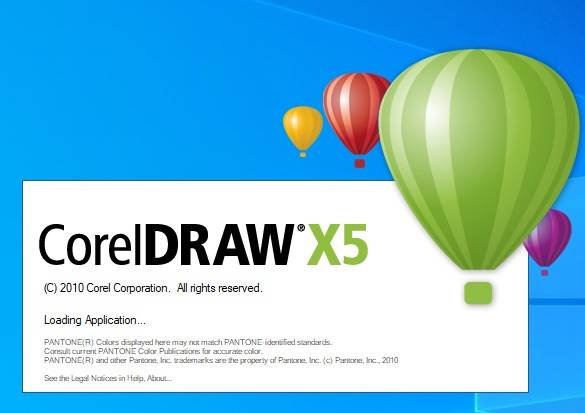
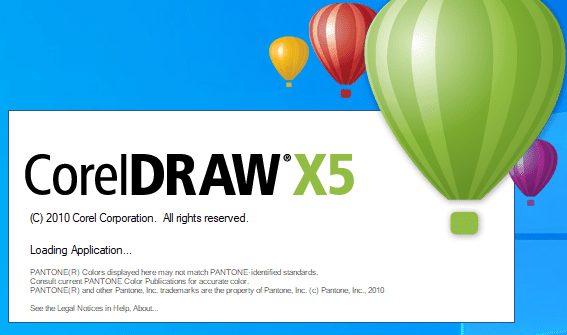
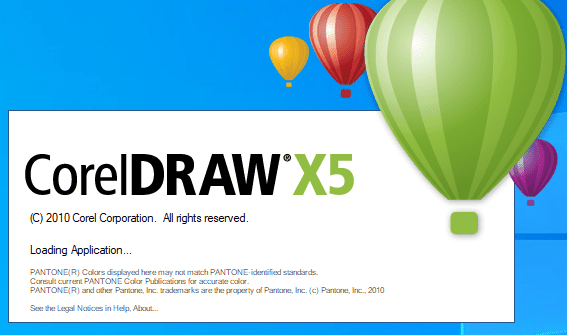
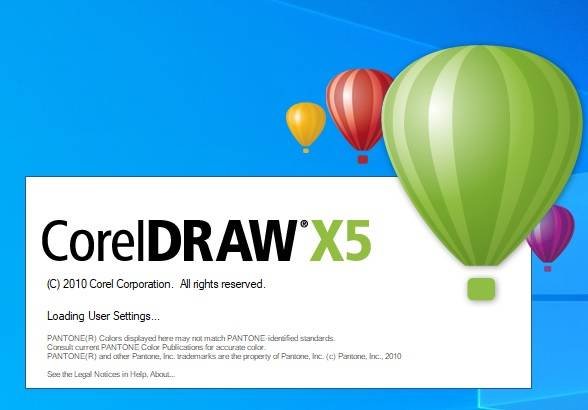
Ok पर Click करके CorelDraw का Application Open करे।
Navratri Card Design in CorelDraw, Easy Method, Complete Steps, Download Practice File 19
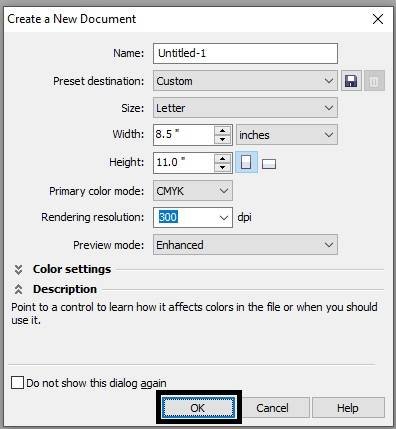
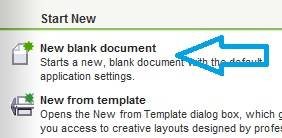
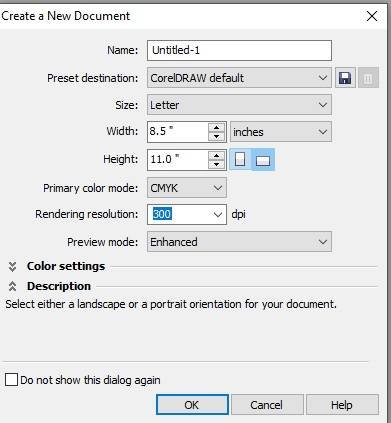
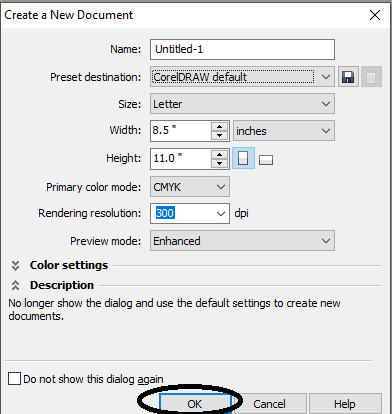
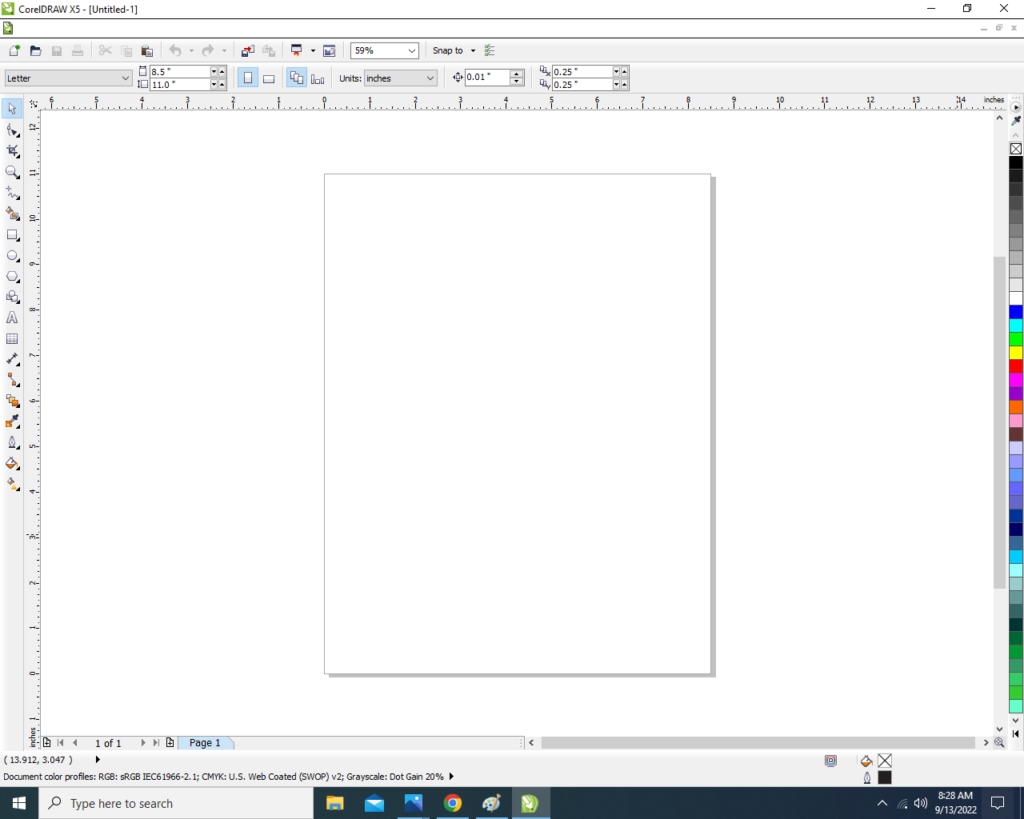
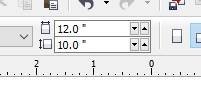
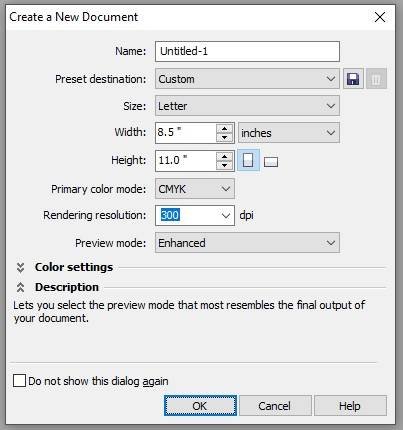
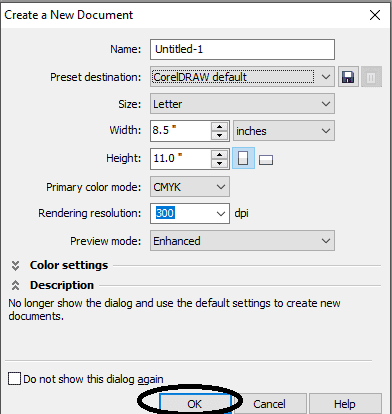
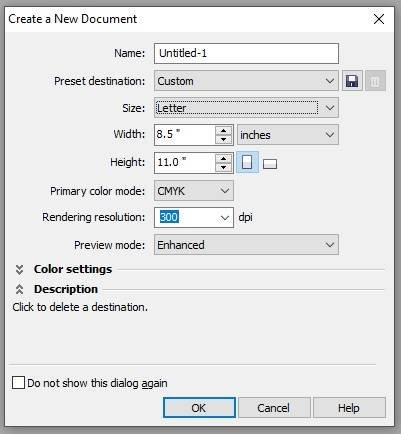
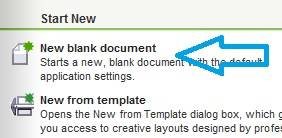
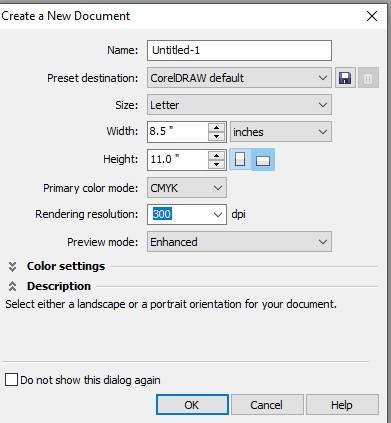
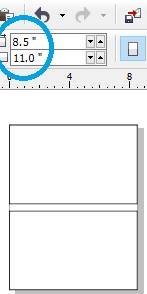
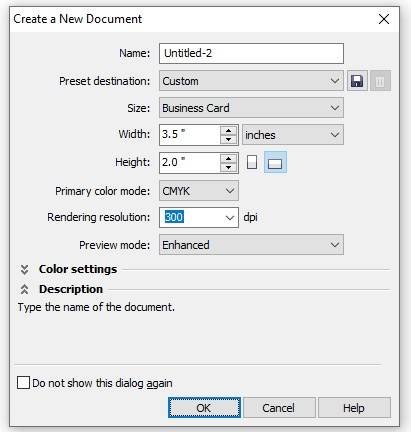
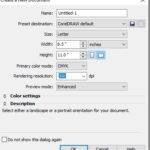
अब CTRL + N Press करे New Page का Window Open करे।
Navratri Card Design in CorelDraw, Easy Method, Complete Steps, Download Practice File 20
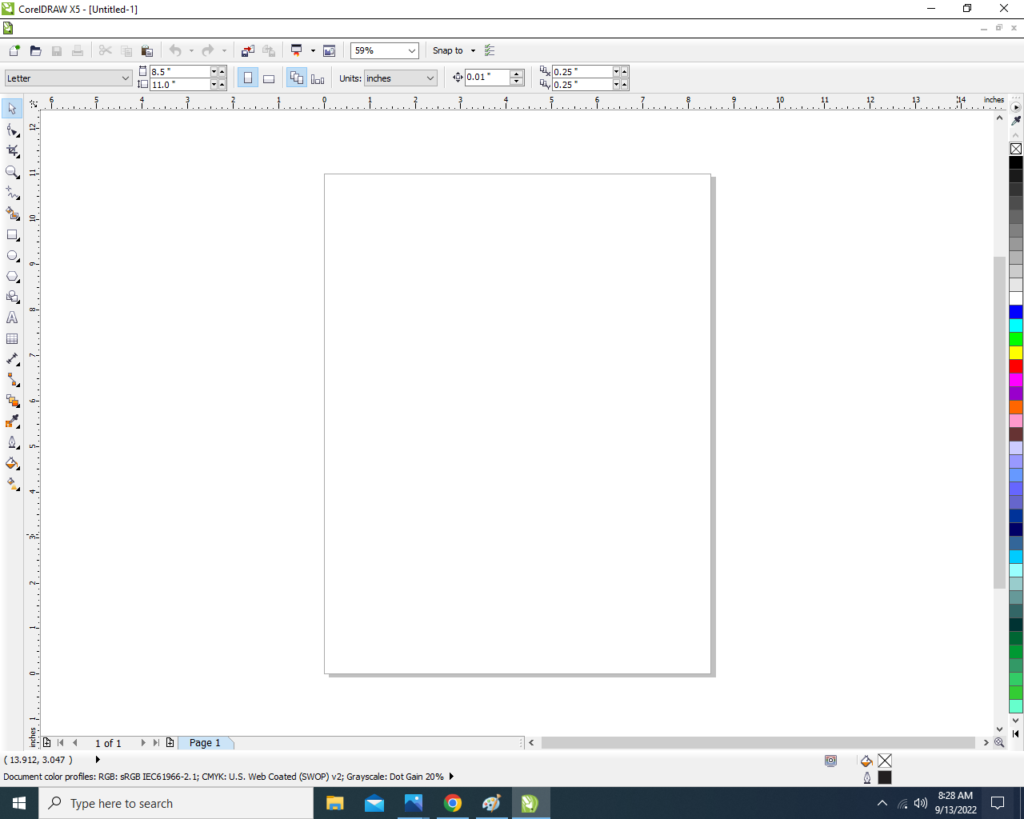
अब Ok पर Click करे तथा CorelDraw का main Page Open करे।
Landscape Option पर Click करे।
Navratri Card Design in CorelDraw, Easy Method, Complete Steps, Download Practice File 21
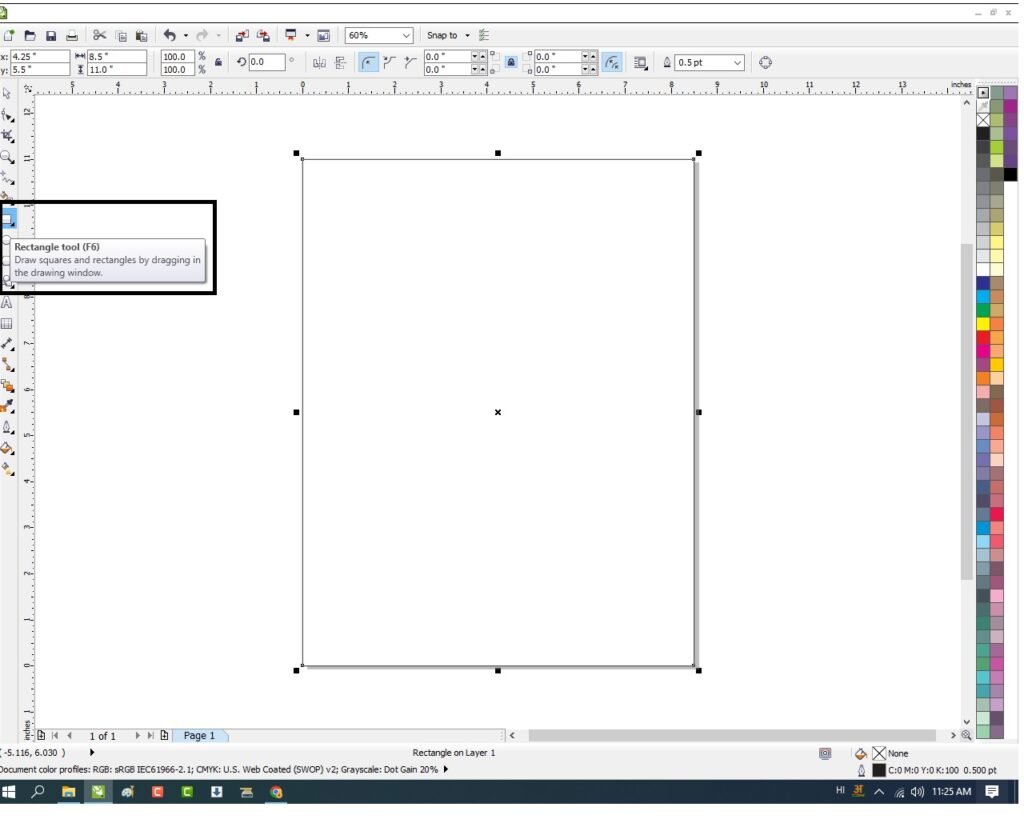
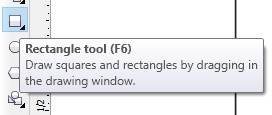
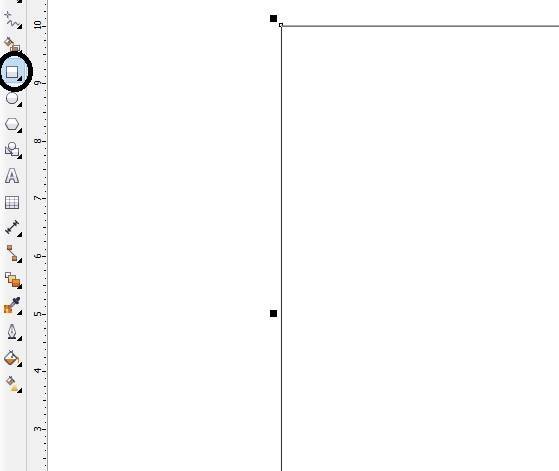
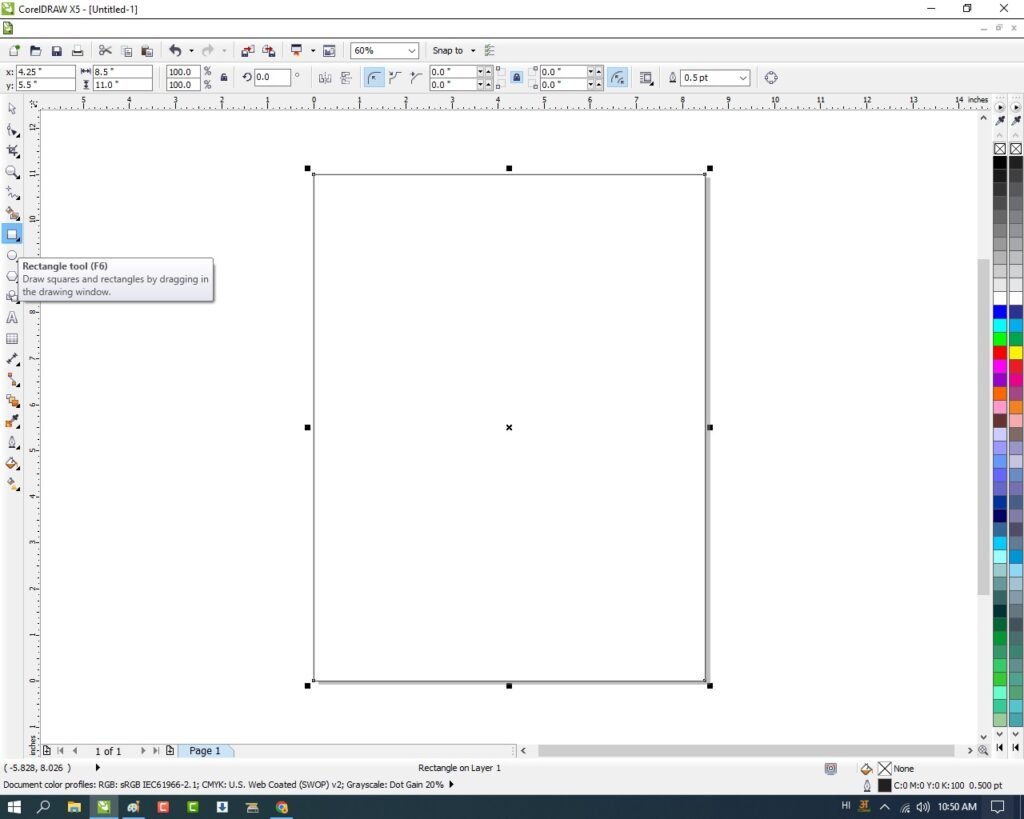
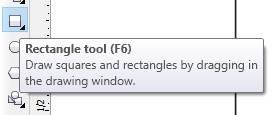
Rectangle Tool पर Double Click करे।
Navratri Card Design in CorelDraw, Easy Method, Complete Steps, Download Practice File 22
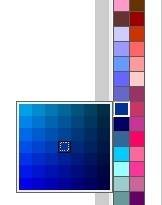
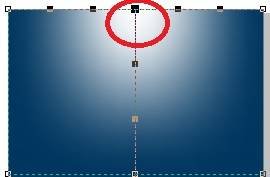
अब Interactive Fill Tool से Shape मे Color Fill करे।
Navratri Card Design in CorelDraw, Easy Method, Complete Steps, Download Practice File 23
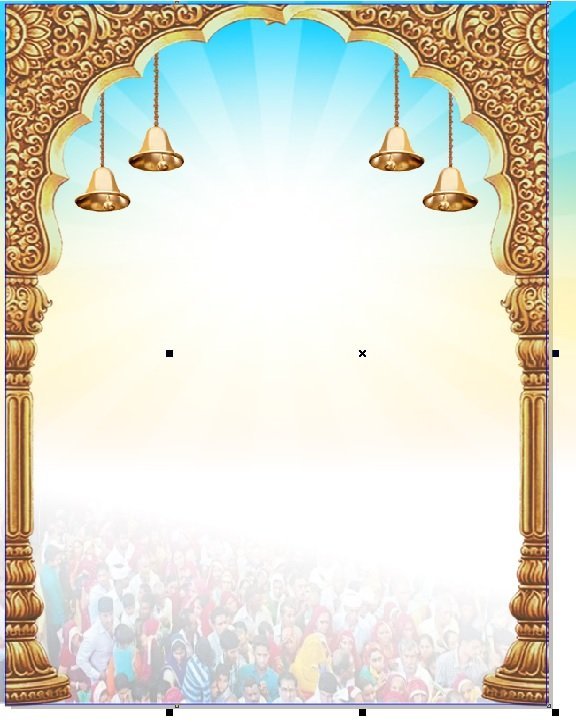
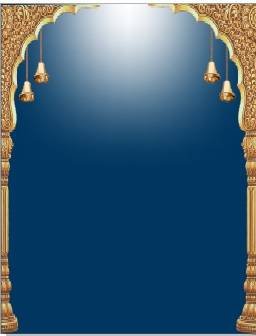
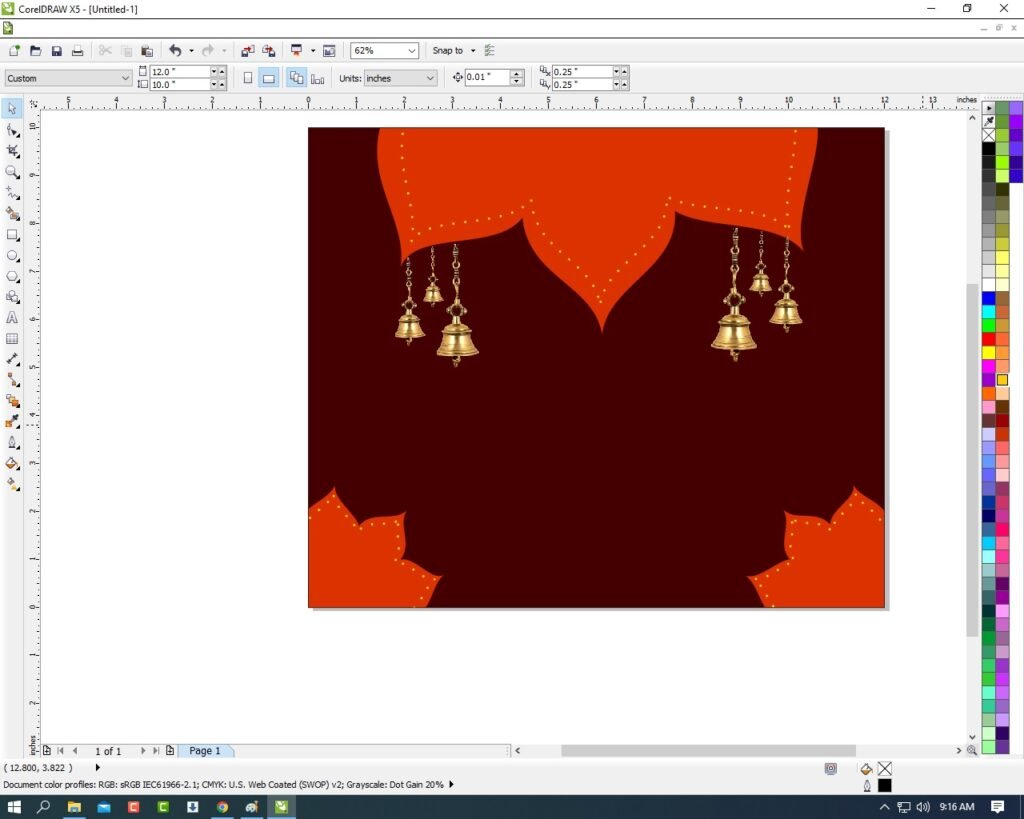
अब Background Photo को Google से Download करे।
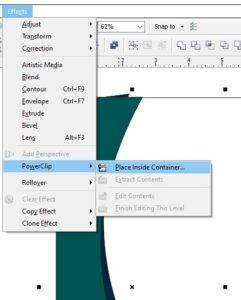
Menu Bar > Effects Option > Power Clip > Place Inside Container Option पर Click करे।
Page पर Click करे Image पर CTRL + Mouse से Click करे Or Image को Page पर Set करे।
CTRL + Mouse से Page के बाहर Click करे।
Navratri Card Design in CorelDraw, Easy Method, Complete Steps, Download Practice File 24
अब Image को Google से Download करे
Menu Bar > Effects Option > Power Clip > Place Inside Container Option पर Click करे।
Page पर Click करे Image पर CTRL + Mouse से Click करे Or Image को Page पर Set करे।
CTRL + Mouse से Page के बाहर Click करे।
Navratri Card Design in CorelDraw, Easy Method, Complete Steps, Download Practice File 25
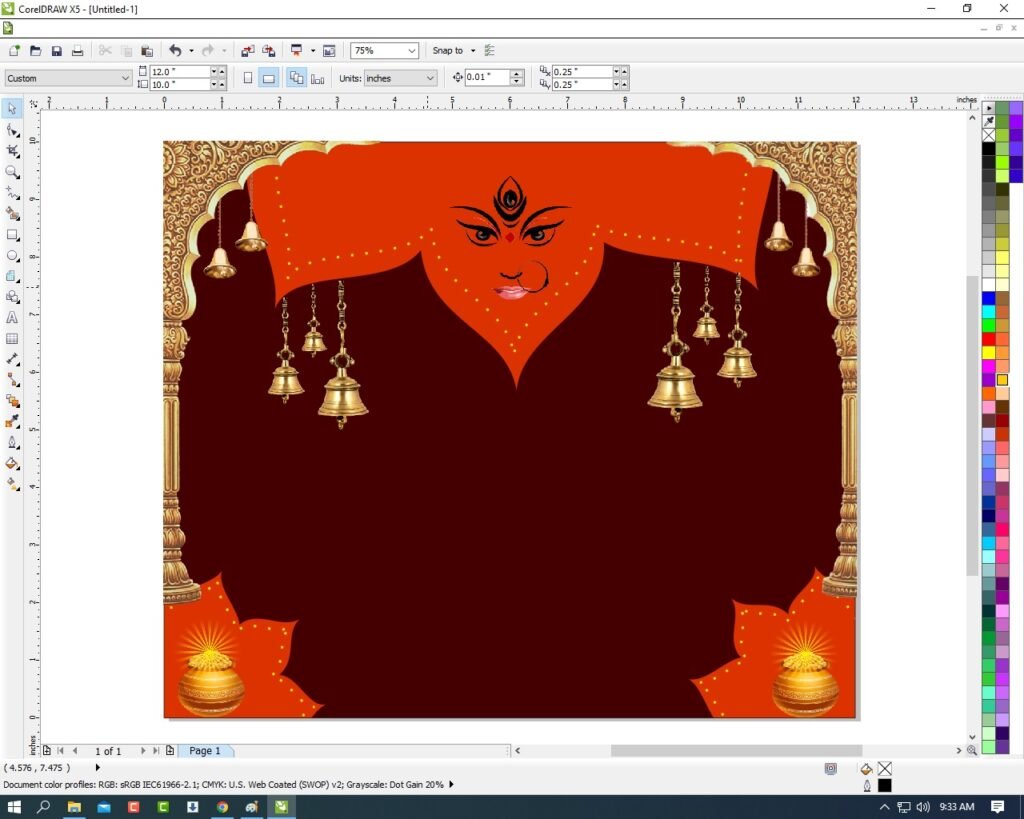
अब PngImage को Download करे Or Page पर Set करे।
Navratri Card Design in CorelDraw, Easy Method, Complete Steps, Download Practice File 26
अब PngImage को Download करे Or Page पर Set करे।
Navratri Card Design in CorelDraw, Easy Method, Complete Steps, Download Practice File 27
अब Photo को Google से Download करे Or Page पर Set करे।
Navratri Card Design in CorelDraw, Easy Method, Complete Steps, Download Practice File 28
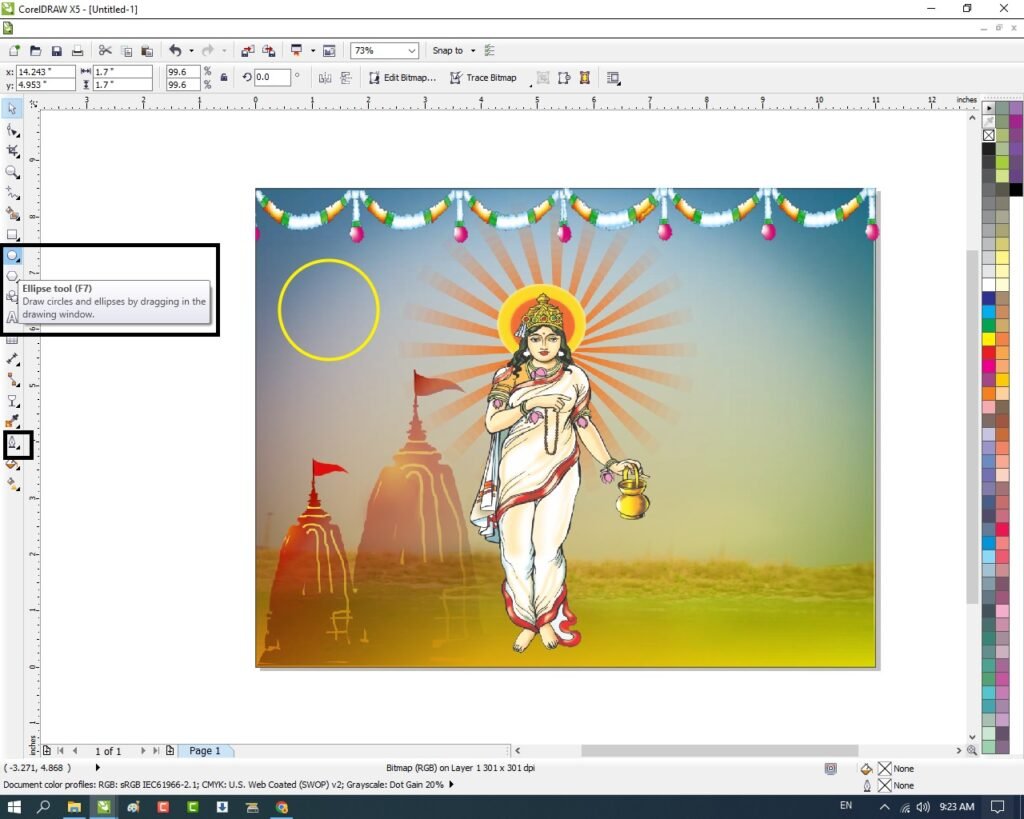
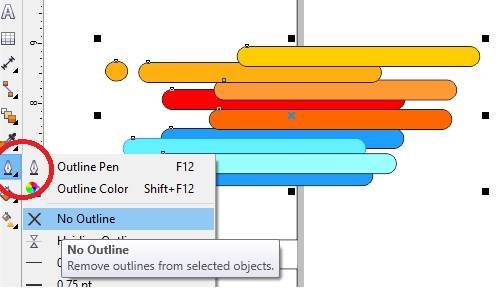
Ellipse Tool से Shape Draw करे Or Fill None करे,Outline 4Pt, Color Change करे।
Navratri Card Design in CorelDraw, Easy Method, Complete Steps, Download Practice File 29
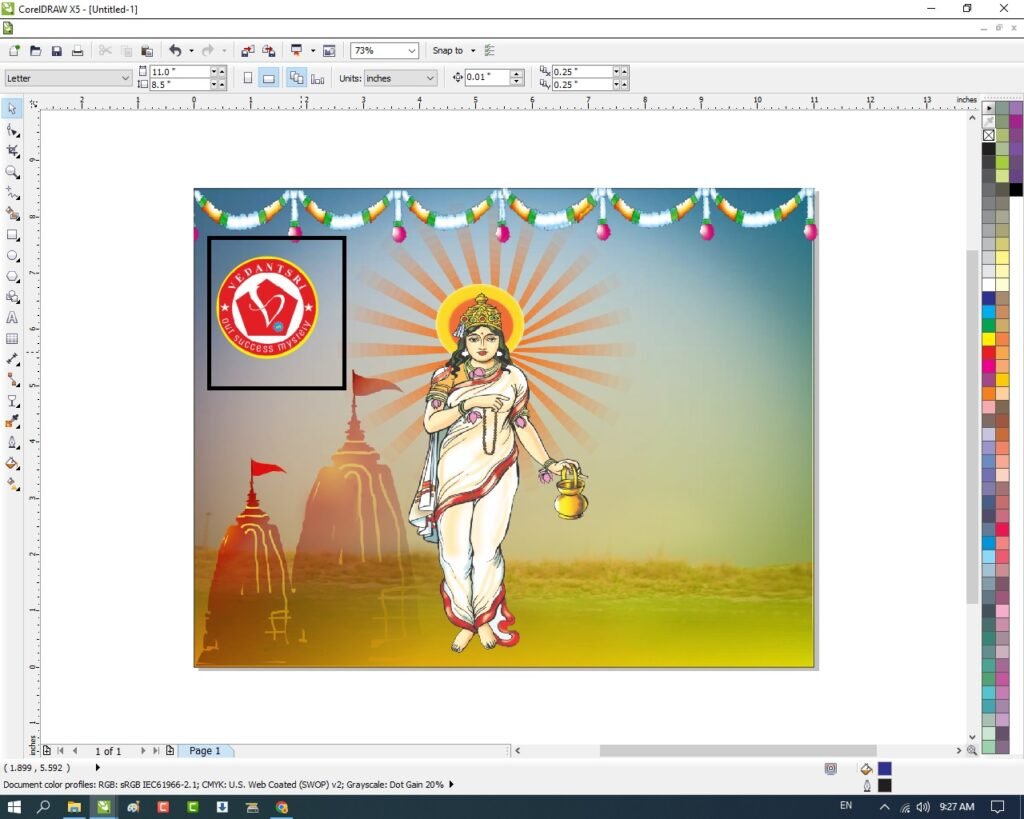
अब Logo को Insert करे या Google से Download करे।
Shape पर Set करे।
Navratri Card Design in CorelDraw, Easy Method, Complete Steps, Download Practice File 30
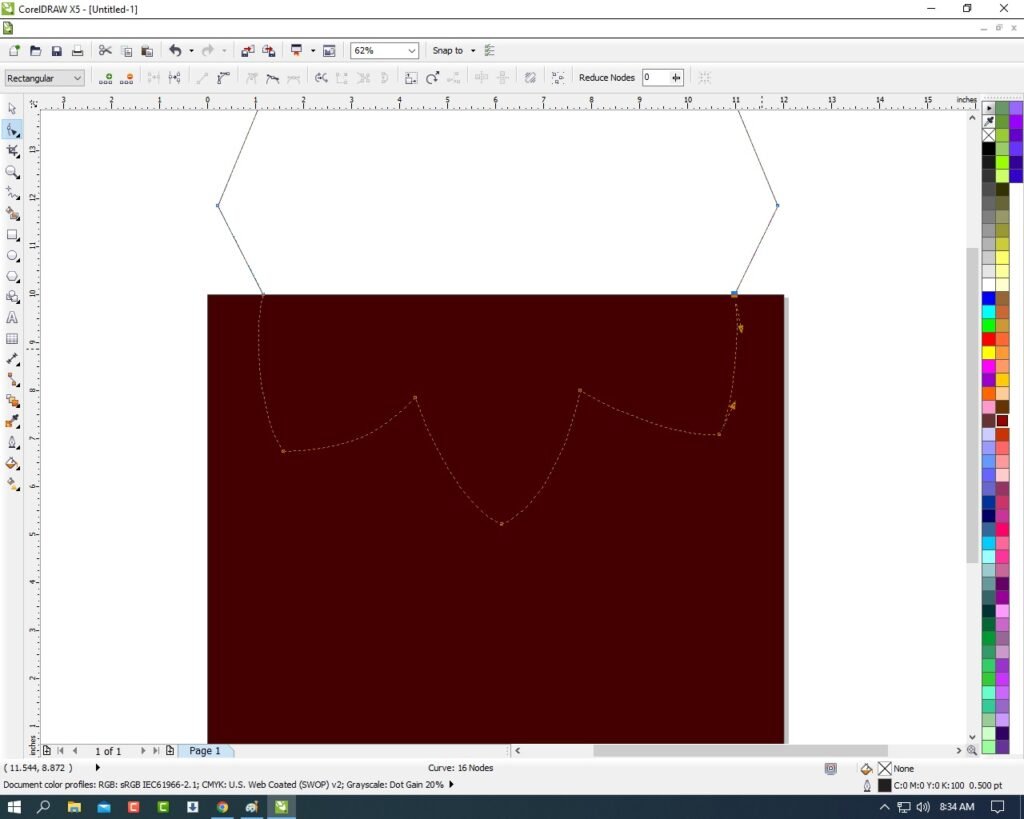
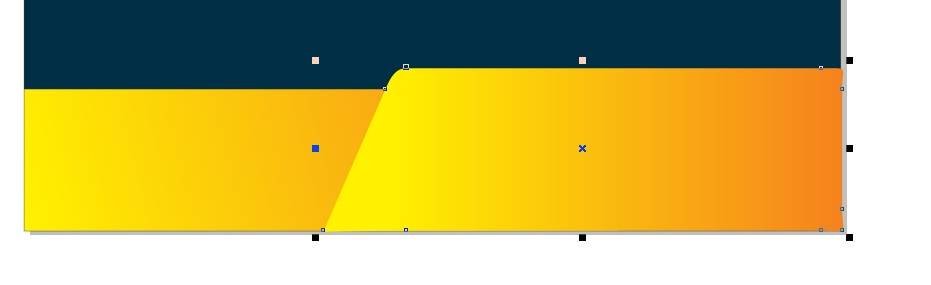
Rectangle Shape Draw करे F10 Press करे Shape को Curve Or Color Fill करे, Outline 4Pt करे।
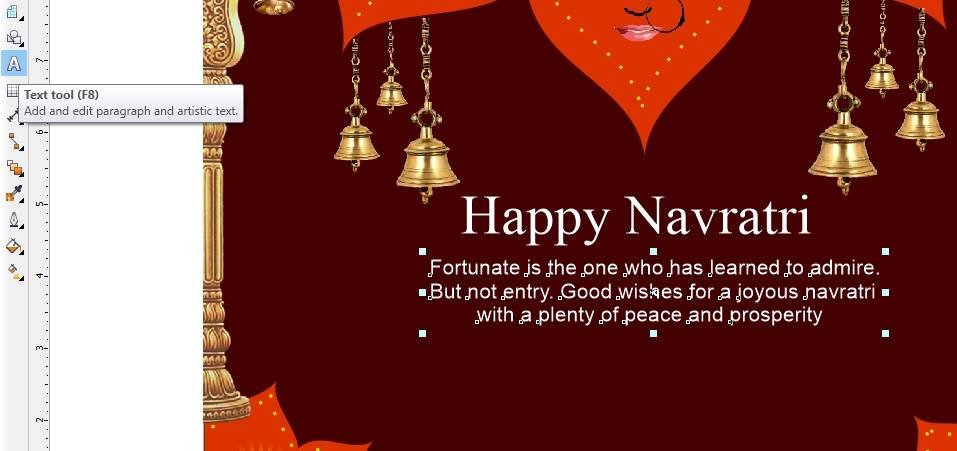
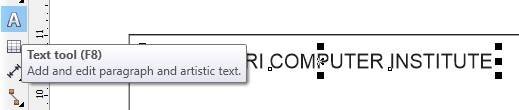
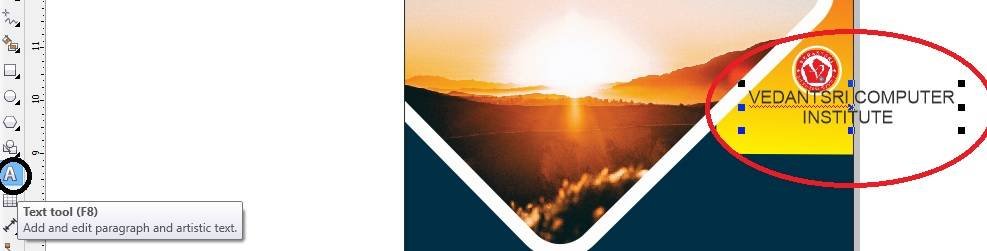
Text tool से detail Fill करे।
Navratri Card Design in CorelDraw, Easy Method, Complete Steps, Download Practice File 31
CTRL + S से file का Save करे।
Navratri Card Design in CorelDraw, Easy Method, Complete Steps, Download Practice File 32
Navratri Banner Design in CorelDraw, Top 1 Best Easy and Effective, Download Source File
Hello! Friends Welcome to www.vedantsri.net In this Project, I am going to Teach you How To Create Navratri Banner in CorelDraw. In this Project, you can Learn How to Banner Design in CorelDraw Application an Easy Method. You can also Download the Practice File in this Post. So let’s start this Project. Before Starting this Project I request you to Please Follow given below Steps to Learn Properly Step by step.
Press Windows + R on Keyboard
To Open Run Dialog Box.
Navratri Banner Design in CorelDraw
Type coreldrw in Run Dialog Box > As a Run Command.
Navratri Banner Design in CorelDraw
Click at OK.
Click at New Blank Document.
Navratri Banner Design in CorelDraw, Top 1 Best Easy and Effective, Download Source File 51
Fill all Information > Regarding New Document.
Navratri Banner Design in CorelDraw, Top 1 Best Easy and Effective, Download Source File 52
Click at OK button.
Go To Rectangle Tool > From Tool Option.
Navratri Banner Design in CorelDraw, Top 1 Best Easy and Effective, Download Source File 53
Double Click at Rectangle Tool
To Draw Automatically Rectangle.
Navratri Banner Design in CorelDraw, Top 1 Best Easy and Effective, Download Source File 54
Click at Page > Change Color of Page > From Color Palate > like this.
Navratri Banner Design in CorelDraw, Top 1 Best Easy and Effective, Download Source File 55
Click at Interactive tool > Select Mesh fill tool > like this.
Navratri Banner Design in CorelDraw, Top 1 Best Easy and Effective, Download Source File 56
Click at Points > One by One.
Navratri Banner Design in CorelDraw, Top 1 Best Easy and Effective, Download Source File 57
Select Point > Fill Orange Color > Select Second Point Fill Orange Color > like this
Navratri Banner Design in CorelDraw, Top 1 Best Easy and Effective, Download Source File 58
Put Picture of Flower > From File Folder
Navratri Banner Design in CorelDraw, Top 1 Best Easy and Effective, Download Source File 59
Put Bell image > At Page > like this.
Navratri Banner Design in CorelDraw, Top 1 Best Easy and Effective, Download Source File 60
Put picture of GOD > at Page like this.
Navratri Banner Design in CorelDraw, Top 1 Best Easy and Effective, Download Source File 61
Put picture One by One > like this.
Navratri Banner Design in CorelDraw, Top 1 Best Easy and Effective, Download Source File 62
Put a LOGO of an Institution.
Navratri Banner Design in CorelDraw,
Draw a Rectangle > From Rectangle Tool > To Give Contact information.
Navratri Banner Design in CorelDraw, Top 1 Best Easy and Effective, Download Source File 63
Navratri Invitation Card in CorelDraw, Step By Step, Download Source File
Hello! Friends Welcome to www.vedantsri.net In this Project I am going to Teach you How To Create Navratri Invitation Card Design in CorelDraw. In this Project you can Learn How to Design Navratri Invitation Card in CorelDraw Application in Easy Method .
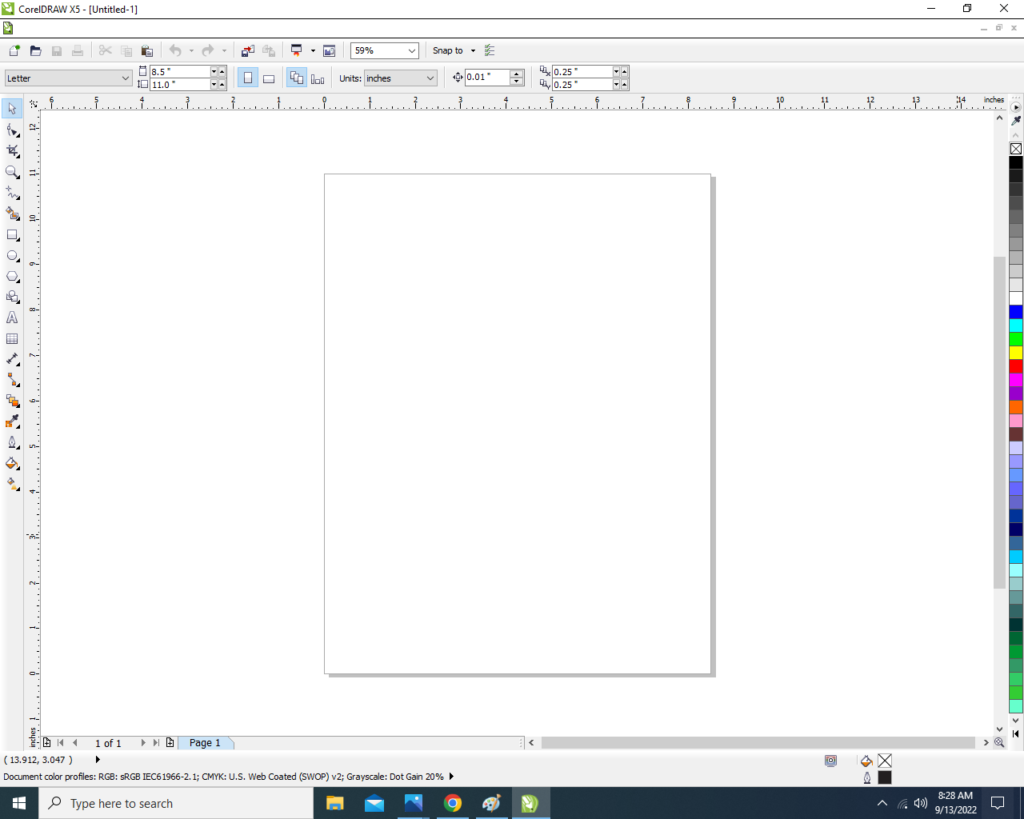
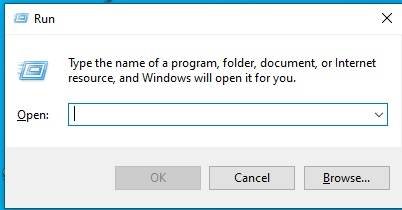
Press Window + R to Open Run Dialogue Box > Type coreldrw.
Navratri Invitation Card in CorelDraw
Press Ok.
Navratri Invitation Card in CorelDraw
Press CTRL + N to Open New Page Window.
Navratri Invitation Card in CorelDraw, Step By Step, Download Source File 84
Press Ok.
Navratri Invitation Card in CorelDraw, Step By Step, Download Source File 85
Mention Page Size.
Navratri Invitation Card in CorelDraw, Step By Step, Download Source File 86
Double Click on Rectangle Tool.
Navratri Invitation Card in CorelDraw, Step By Step, Download Source File 87
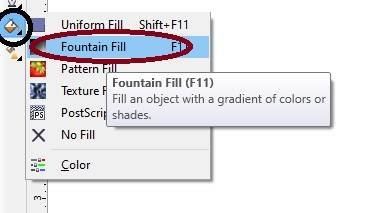
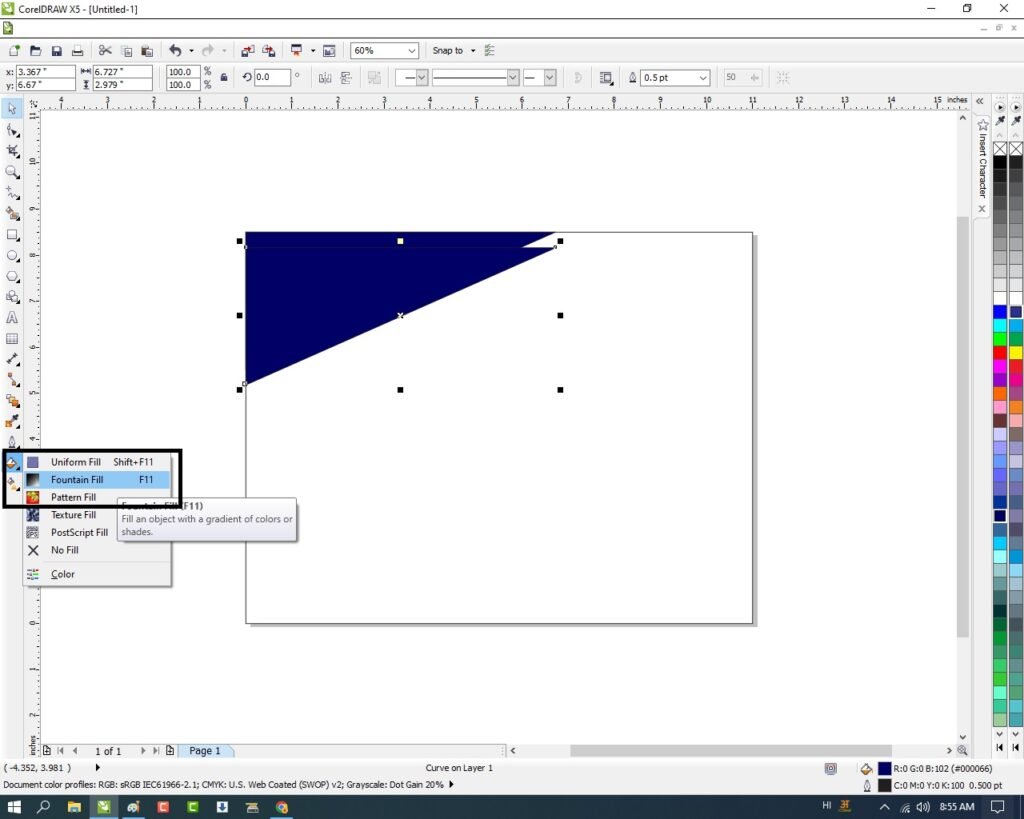
Go to Fill Tool > Click Fountain Fill Option.
Navratri Invitation Card in CorelDraw, Step By Step, Download Source File 88
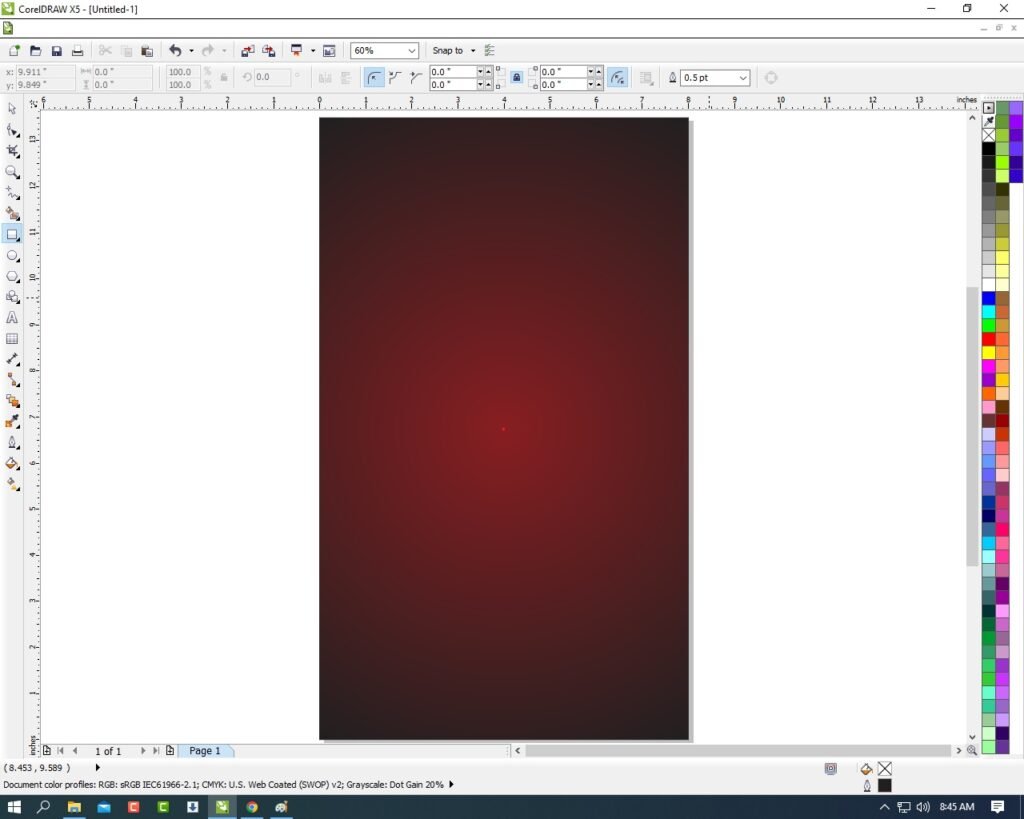
Fill Rad & Black Color.
Navratri Invitation Card in CorelDraw, Step By Step, Download Source File 89
Insert Png Pictures.
Navratri Invitation Card in CorelDraw, Step By Step, Download Source File 90
Draw Circle > No Outline.
Navratri Invitation Card in CorelDraw, Step By Step, Download Source File 91
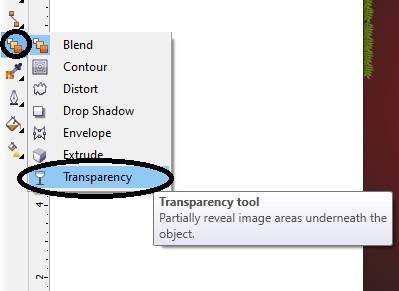
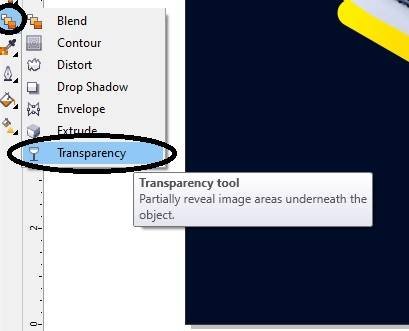
Fill Fountain Fill > Go to Blend Tool > Click Transparency Option.
Navratri Invitation Card in CorelDraw, Step By Step, Download Source File 92
Apply Transparency.
Navratri Invitation Card in CorelDraw, Step By Step, Download Source File 93
Insert Png Pictures this Circle.
Navratri Invitation Card in CorelDraw, Step By Step, Download Source File 94
Then Go to Text Tool and Write Information of Your Function.
Navratri Invitation Card in CorelDraw, Step By Step, Download Source File 95
Go to Pick tool and font Style To Apply Formatting & Change Style of Text.
Navratri Invitation Card in CorelDraw, Step By Step, Download Source File 96
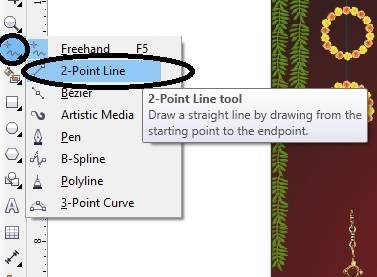
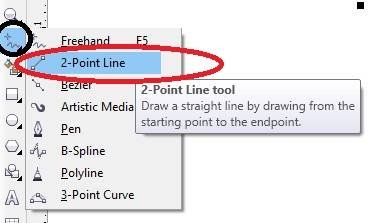
Go to Freehand Tool > Click 2- Point Line Option.
Navratri Invitation Card in CorelDraw, Step By Step, Download Source File 97
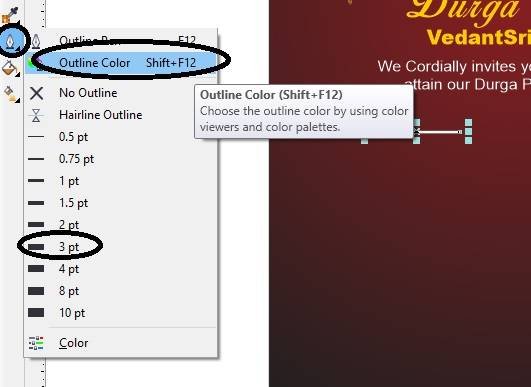
Press Shift and Draw This > Go to Pen Tool > Fill white in Outline > 3pt
Navratri Invitation Card in CorelDraw, Step By Step, Download Source File 98
Draw more Like This.
Navratri Invitation Card in CorelDraw, Step By Step, Download Source File 99
Then You can Insert Your Company/Institute Logo Or Name.
Navratri Invitation Card in CorelDraw, Step By Step, Download Source File 100
I have Completed this Project, I hope you guys have understood all the Step.
Navratri Invitation Card in CorelDraw, Step By Step, Download Source File 101
Navratri poster Design In CorelDraw, Easy Method, Complete Steps, download practice File
Hello Friends, Welcome To VedantSri.net In This Post I am Going To Teach you how To Create Navratri Poster Design In CorelDraw. In This project, you can Learn How to Design Navratri Poster Design In CorelDraw Application Easy Method. Navratri Poster Design In CorelDraw, Easy Method, Complete Steps, download practice File
CorelDraw Open करने के लिए Window + R Press करके Run Box open करे।
Navratri Poster Design In CorelDraw, Easy Method, Complete Steps, download practice File
Run Box मे coreldrw type करे।
Navratri Poster Design In CorelDraw, Easy Method, Complete Steps, download practice File 115
अब Ok पर Click करेके CorelDraw के application को Open करे। Navratri Poster Design In CorelDraw, Easy Method, Complete Steps, download practice File
Navratri Poster Design In CorelDraw, Easy Method, Complete Steps, download practice File 116
अब CTRL + N Press करे New Page का Window open करे।
Navratri Poster Design In CorelDraw, Easy Method, Complete Steps, download practice File 117
अब Ok पर Click करे तथा CorelDraw का Main Page Open करे।
Rectangle Shape Double Click करे।
Navratri Poster Design In CorelDraw, Easy Method, Complete Steps, download practice File 118
अब Interactive Fill Tool से Shape को Fill करे।
Navratri Poster Design In CorelDraw, Easy Method, Complete Steps, download practice File
अब Google से Image Download करे Or Page पर Set करे।
Menu bar >Effects Option > Power Clip > Place Inside Container Option पर click करे।
Page पर CTRL + Mouse से Left Click करने बाद
Page के बाहर CTRL + Mouse से Left Click करे।
Navratri Poster Design In CorelDraw, Easy Method, Complete Steps, download practice File 119
अब Google से Image Download करे
Menu bar > Bitmaps Option>Auto Adjust Option पर Click करे।
Navratri Poster Design In CorelDraw, Easy Method, Complete Steps, download practice File
अब Google से Image Download करे Or Page पर Set करे।
Menu bar >Effects Option > Power Clip > Place Inside Container Option पर click करे।
Page पर CTRL + Mouse से Left Click करने बाद
Page के बाहर CTRL + Mouse से Left Click करे।
Navratri Poster Design In CorelDraw, Easy Method, Complete Steps, download practice File 120
अब Google से Image Download करे Or Page पर Set करे।
Menu bar >Effects Option > Power Clip > Place Inside Container Option पर click करे
CTRL + D से Image का Duplicate करे।
Page पर CTRL + Mouse से Left Click करने बाद
Page के बाहर CTRL + Mouse से Left Click करे।
Navratri Poster Design In CorelDraw, Easy Method, Complete Steps, download practice File 121
अब File से LOGO Insert करे Or Logo का Color Change करे।
Navratri Poster Design In CorelDraw, Easy Method, Complete Steps, download practice File 122
अब Google से Image Download करे Or Page पर Set करे
Navratri Poster Design In CorelDraw, Easy Method, Complete Steps, download practice File 123
अब Text Tool से सारे Detail Fill करे Or Font Style, Size, Color change करे
Page पर Text को Set करे।
Navratri Poster Design In CorelDraw, Easy Method, Complete Steps, download practice File
Navratri Poster Design in CorelDraw, Step by Step Method, Download Source File
Hello! Friends Welcome to www.vedantsri.net In this Project I am going to Teach you How To Create Navratri Card in CorelDraw. In this Project you can Learn How to Design Navratri Card in CorelDraw Application in Easy Method. You can also Download Practice File in this Post . So let’s Start this Project. Before Starting this Project I request you to Please Follow given below Steps to Learn Properly Step by step.
Press Windows + R in Keyboard.
To Open Run Dialog Box > Like this
Navratri Poster Design in CorelDraw
Type coreldrw in Run Dialog Box > As a Run Command.
Navratri Poster Design in CorelDraw, Step by Step Method, Download Source File 140
Click at Ok.
Click at New Blank Document.
Navratri Poster Design in CorelDraw, Step by Step Method, Download Source File 141
Fill all Information > Regarding new document.
Navratri Poster Design in CorelDraw, Step by Step Method, Download Source File 142
Click at OK.
Click at Rectangle Tool.
Navratri Poster Design in CorelDraw, Step by Step Method, Download Source File 143
Double Click at Rectangle Tool.
Click at Page > Go to Color Palate > To Color Rectangle Shape.
Navratri Poster Design in CorelDraw, Step by Step Method, Download Source File 144
Fill Color > From Color Palate.
Navratri Poster Design in CorelDraw, Step by Step Method, Download Source File 145
Click at Interactive tool > Select Mesh fill tool.
Navratri Poster Design in CorelDraw, Step by Step Method, Download Source File 146
Click at this Point > Fill white Color > Something Like this appear
Navratri Poster Design in CorelDraw, Step by Step Method, Download Source File 147
Go To File Folder > Select PNG picture > like this.
Navratri Poster Design in CorelDraw, Step by Step Method, Download Source File 148
Pick One by One Pictures > like this
Navratri Poster Design in CorelDraw, Step by Step Method, Download Source File 149
Click at Text tool > To Type matter.
Navratri Poster Design in CorelDraw, Step by Step Method, Download Source File 150
Type matter > Like this > Select and Change > Font Style in Krutidev > like this.
Navratri Poster Design in CorelDraw, Step by Step Method, Download Source File 151
Put LOGO at page > Set Like this.
Navratri Poster Design in CorelDraw, Step by Step Method, Download Source File 152
Click at Text Tool > Type Institution Name and Contact Information.
Navratri Card Design in CorelDraw, Easy, and Step By Step, Download Source File
Hello! Friends Welcome to www.vedantsri.net In this Project I am going to Teach you How To Create Navratri Card in CorelDraw. In this Project, you can Learn How to Design Navratri cards in CorelDraw Application in Easy Method. You can also Download the Practice File in this Post. So let’s start this Project.
Press Windows + R in the Keyboard.
To Open Run Dialog Box > Like this.
Navratri Card Design in CorelDraw, Easy and Step By Step, Download Source File 171
Type Run Command > In Run Dialog Box > Like this.
Navratri Card Design in CorelDraw, Easy and Step By Step, Download Source File 172
Click on OK.
Click New Blank Document. Navratri Card Design in CorelDraw, Easy and Step By Step, Download Source File
Navratri Card Design in CorelDraw, Easy and Step By Step, Download Source File 173
Fill all information Regarding > New Document.
Navratri Card Design in CorelDraw, Easy and Step By Step, Download Source File 174
Click at Rectangle Tool > From Tool Option
Navratri Card Design in CorelDraw, Easy and Step By Step, Download Source File 175
Double Click at Rectangle Tool.
Navratri Card Design in CorelDraw, Easy and Step By Step, Download Source File 176
Click at Page > Go To Color Palate > Change Color of Page > Like this.
Navratri Card Design in CorelDraw, Easy and Step By Step, Download Source File 177
Click on Interactive tool > Click at Mesh Fill Tool. Navratri Card Design in CorelDraw, Easy and Step By Step, Download Source File
Navratri Card Design in CorelDraw, Easy and Step By Step, Download Source File 178
Something like this appear.
Navratri Card Design in CorelDraw, Easy and Step By Step, Download Source File 179
Draw Rectangle > Press 10 > Select this > Drag from Corner.
Navratri Card Design in CorelDraw, Easy and Step By Step, Download Source File 180
Something like this Appear.
Navratri Card Design in CorelDraw, Easy and Step By Step, Download Source File 181
Change Outline Color > From here.
Navratri Card Design in CorelDraw, Easy and Step By Step, Download Source File 182
Something like this appear.
Navratri Card Design in CorelDraw, Easy and Step By Step, Download Source File 183
Insert Removed Background Photos > Set like this.
Navratri Card Design in CorelDraw, Easy and Step By Step, Download Source File 184
Click at Text Tool > To Type Matter.
Navratri Card Design in CorelDraw, Easy and Step By Step, Download Source File 185
Type Matter > like this.
Navratri Card Design in CorelDraw, Easy and Step By Step, Download Source File 186
Put LOGO of an Institution > Type Contact Information > like this
Navratri Card Design in CorelDraw, Easy and Step By Step, Download Source File 187
Now Navratri card is Ready.
Navratri Card Design in CorelDraw, Easy and Step By Step, Download Source File 188
Navratri Banner Design in CorelDraw, Easy Method, Complete Steps, Download practice File
Hello Friends, Welcome to VedantSri.net In This Post I am Going To Teach You How To Create Navratri Banner Design in CorelDraw. In This project You Can Learn How To Design Navratri Banner Design in CorelDraw Application In Easy Method.
CorelDraw Open करने के लिए Window + R Press करके Run Box Open करे।
Navratri Banner Design in CorelDraw
Run Box मे coreldrw Type करे।
Navratri Banner Design in CorelDraw, Easy Method, Complete steps, Download practice File 206
अब Ok पर Click करके CorelDraw के Application को Open करे।
Navratri Banner Design in CorelDraw, Easy Method, Complete steps, Download practice File 207
अब CTRL + N Press करे New Page का Window Open करे।
Navratri Banner Design in CorelDraw, Easy Method, Complete steps, Download practice File 208
Ok पर Click करे तथा CorelDraw का Main Page Open करे।
Landscape Option पर Click करे।
Navratri Banner Design in CorelDraw, Easy Method, Complete steps, Download practice File 209
अब Interactive Fill Tool से Shape मे Color Fil करे।
Navratri Banner Design in CorelDraw, Easy Method, Complete steps, Download practice File 210
अब Diya Shape Draw करे।
Navratri Banner Design in CorelDraw, Easy Method, Complete steps, Download practice File 211
2- Point Line tool से Line Draw करे
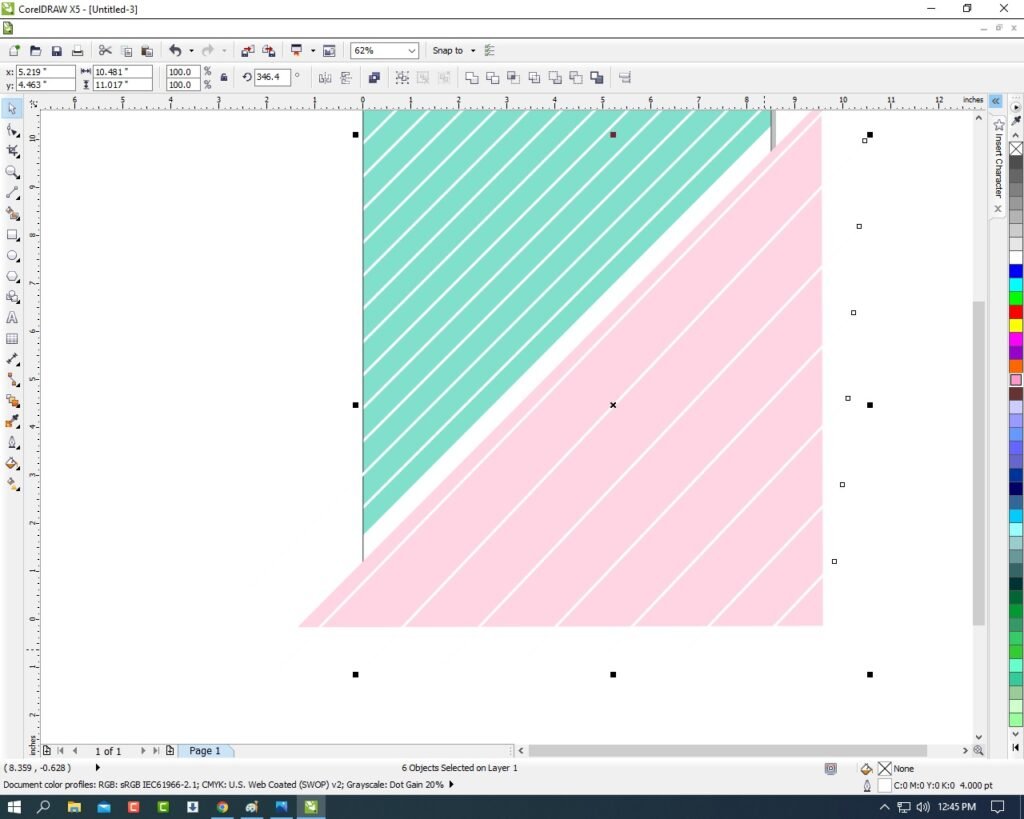
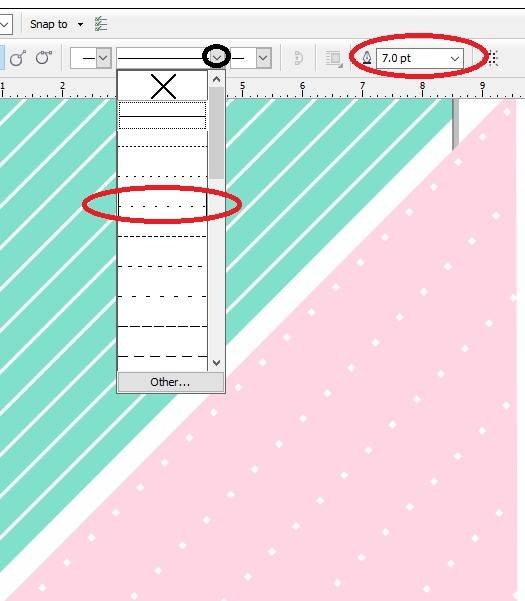
Line Style Option Click करे Or Color Change करे।
Navratri Banner Design in CorelDraw, Easy Method, Complete steps, Download practice File 212
CTRL+ D से Duplicate करे।
Navratri Banner Design in CorelDraw, Easy Method, Complete steps, Download practice File 213
Shift के साथ Shape को Select करे Or CTRL + G से shape को Group करे
CTRL + D से Duplicate करे Or Mirror Horizontally Option पर Click करे।
Navratri Banner Design in CorelDraw, Easy Method, Complete steps, Download practice File 214
CTRL + D से Duplicate करे Or Shape को Page पर Set करे।
Navratri Banner Design in CorelDraw, Easy Method, Complete steps, Download practice File 215
अब Image को Download करे।
Navratri Banner Design in CorelDraw, Easy Method, Complete steps, Download practice File 216
CTRL+ D से Image का Duplicate करे।
Menu bar > Effects Option > Power Clip > Place Inside Container पर Click करने के बाद
page पर Click करे।
Navratri Banner Design in CorelDraw, Easy Method, Complete steps, Download practice File 217
अब Image को Download करे Or Page पर set करे।
Navratri Banner Design in CorelDraw, Easy Method, Complete steps, Download practice File 218
Text Tool से Happy Navratri लिखेगे Or Font Style, Size, color Change करे।
Navratri Banner Design in CorelDraw, Easy Method, Complete steps, Download practice File 219
अब Logo Insert करे Or Page पर Set करे।
Navratri Banner Design in CorelDraw, Easy Method, Complete steps, Download practice File 220
अब CTRL + S Press करे Or File को Save करे।
Navratri Banner Design in CorelDraw, Easy Method, Complete steps, Download practice File 221
Navratri Card Design in CorelDraw, Simple Method, Step By Step, Download Source File
Hello! Friends Welcome to www.vedantsri.net In this Project I am going to Teach you How To Create Navratri Card Design in CorelDraw. In this Project, you can Learn How to Design Navratri cards in CorelDraw Application in Easy Method. Navratri Card Design in CorelDraw, Simple Method, Step By Step, Download Source File
Press Window + R to Open Run Dialogue Box > Type CorelDraw.
Navratri Card Design in CorelDraw, Simple Method, Step By Step, Download Source File 243
Press Ok.
Navratri Card Design in CorelDraw, Simple Method, Step By Step, Download Source File 244
Press CTRL + N to Open New Page Window.
Navratri Card Design in CorelDraw, Simple Method, Step By Step, Download Source File 245
Press Ok.
Navratri Card Design in CorelDraw, Simple Method, Step By Step, Download Source File 246
Mention the page Size.
Navratri Card Design in CorelDraw, Simple Method, Step By Step, Download Source File 247
Double Click on Rectangle Tool. Navratri Card Design in CorelDraw, Simple Method, Step By Step, Download Source File
Navratri Card Design in CorelDraw, Simple Method, Step By Step, Download Source File 248
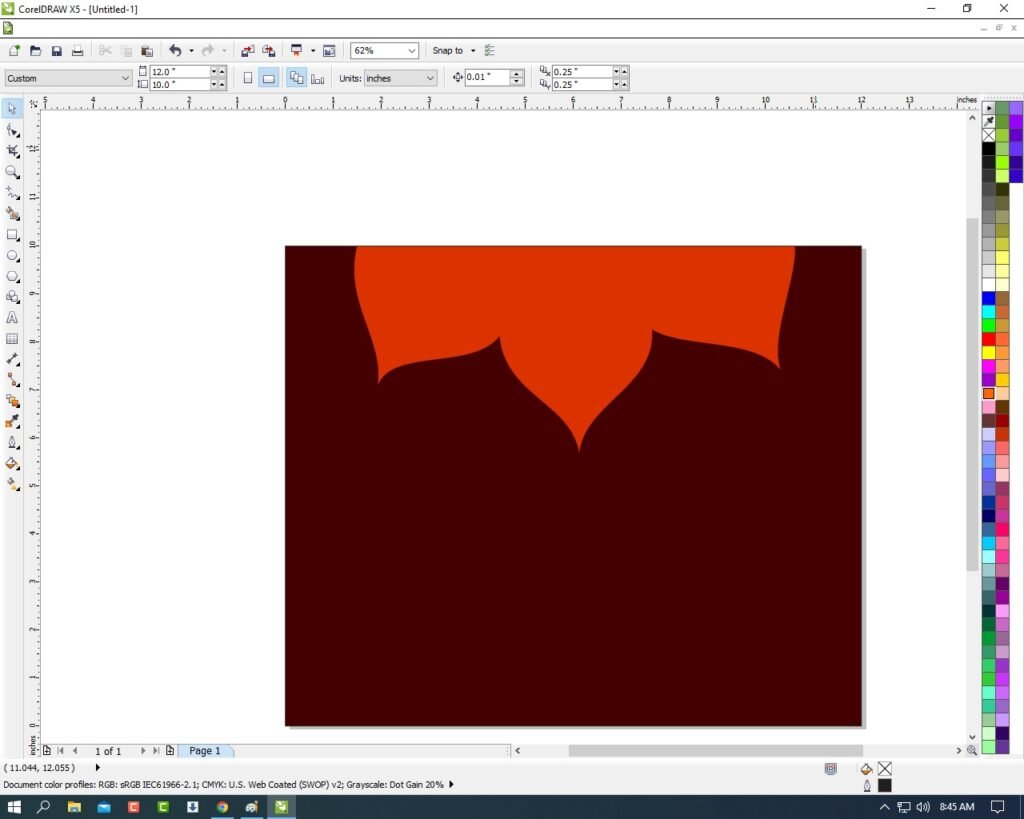
Fill Red Color on the Page. Navratri Card Design in CorelDraw, Simple Method, Step By Step, Download Source File
Navratri Card Design in CorelDraw, Simple Method, Step By Step, Download Source File 249
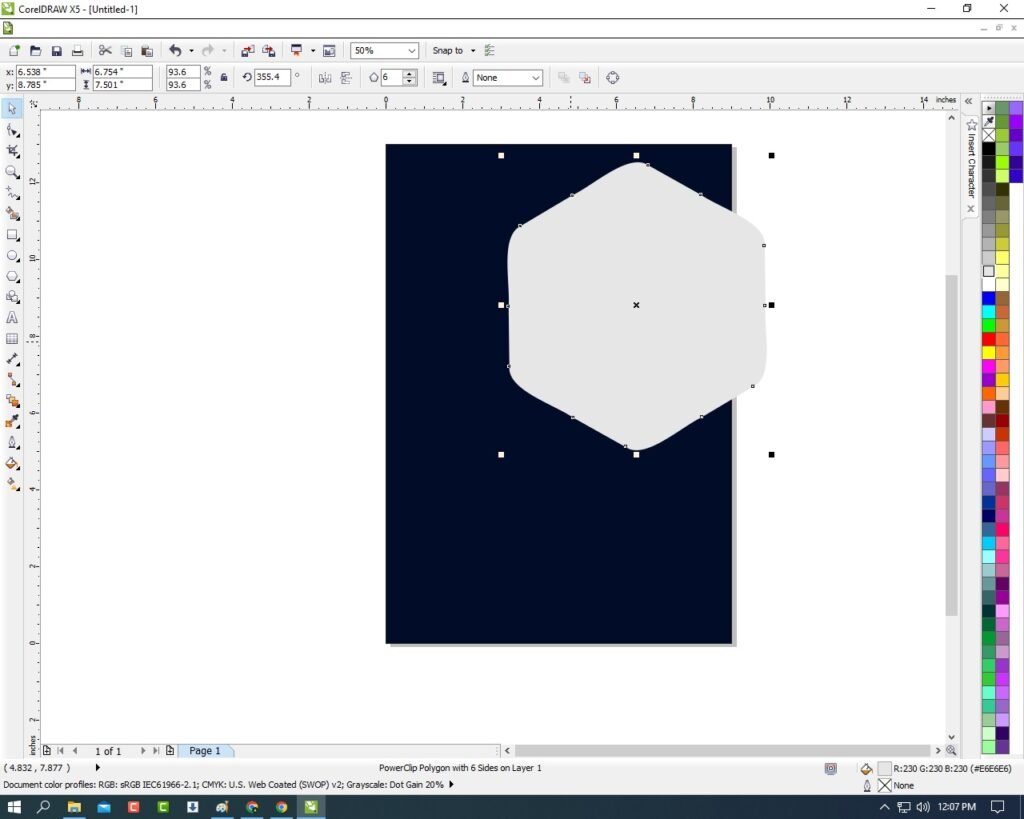
Draw Polygon Shape.
Navratri Card Design in CorelDraw, Simple Method, Step By Step, Download Source File 250
Press F10 > CTRL + Q > Make a New Shape Design Like this.
Navratri Card Design in CorelDraw, Simple Method, Step By Step, Download Source File 251
Click at Pick Tool > Fill Any Color on Polygon Shape.
Navratri Card Design in CorelDraw, Simple Method, Step By Step, Download Source File 252
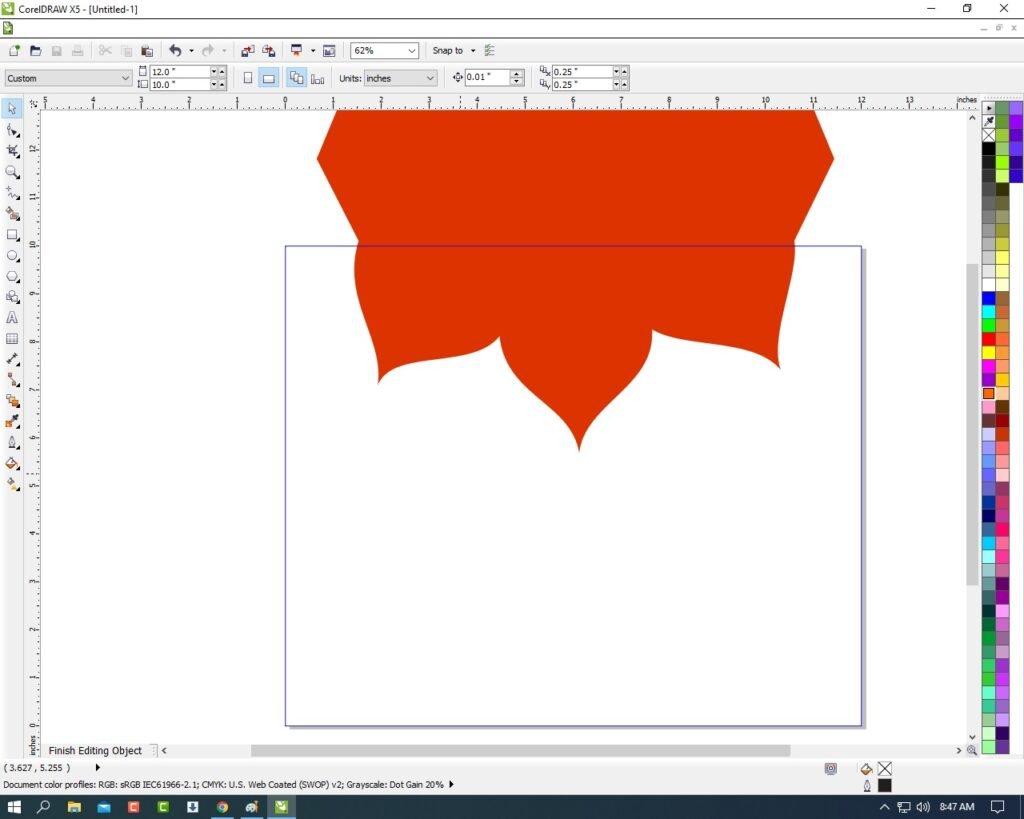
Select Polygon Shape > Go to Effect Tool > Click On PowerClip Option > Click Place Inside Container Option.
Navratri Card Design in CorelDraw, Simple Method, Step By Step, Download Source File 253
Then Click on Page > You can see Extra Polygon aria are Clip in the Page.
Navratri Card Design in CorelDraw, Simple Method, Step By Step, Download Source File 254
Then Press CTRL + Double Click at page > Go to Page Backword aria.
Navratri Card Design in CorelDraw, Simple Method, Step By Step, Download Source File 255
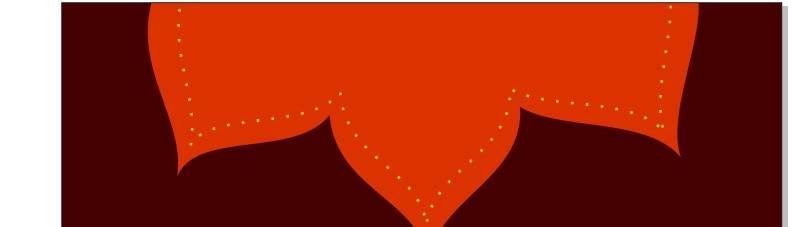
Select the Polygon shape > Press CTRL + D to Duplicate this shape > No Fill > Outline 3pt.
Navratri Card Design in CorelDraw, Simple Method, Step By Step, Download Source File 256
Then CTRL + Double Click Out of the Page area.
Navratri Card Design in CorelDraw, Simple Method, Step By Step, Download Source File 257
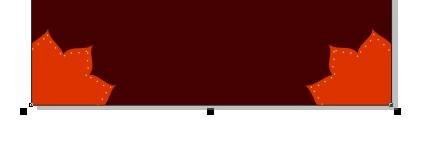
Make Same Design Create corner at Page.
Navratri Card Design in CorelDraw, Simple Method, Step By Step, Download Source File 258
Then Insert a Picture Like This.
Navratri Card Design in CorelDraw, Simple Method, Step By Step, Download Source File 259
Insert Many Background Removed Pictures to Look Very Creative Card Design As I Will Show.
Navratri Card Design in CorelDraw, Simple Method, Step By Step, Download Source File 260
Then Go the text Tool and Type Happy Navratri.
Navratri Card Design in CorelDraw, Simple Method, Step By Step, Download Source File 261
Insert your company or Institute LOGO.
Navratri Card Design in CorelDraw, Simple Method, Step By Step, Download Source File 262
I have Completed this Project, I hope you guys have understood all the Steps.
Navratri Card Design in CorelDraw, Simple Method, Step By Step, Download Source File
Visiting Card Design in CorelDraw, Easy, and Innovative, Download Source File
Hello! Friends Welcome to www.vedantsri.net In this Project I am going to Teach you How To Create Visiting Card in CorelDraw. In this Project, you can Learn How to Design Visiting Card in CorelDraw Application an Easy Method.
Press Windows + R on Keyboard.
To Open Run Dialog Box.
Visiting Card Design in CorelDraw
Type coreldrw in Run Dialog Box > As a Run Command
Visiting Card Design in CorelDraw, Easy, and Innovative, Download Source File 289
Click on Ok.
Click on New Blank Document.
Visiting Card Design in CorelDraw
Fill in all Information > Regarding document.
Visiting Card Design in CorelDraw
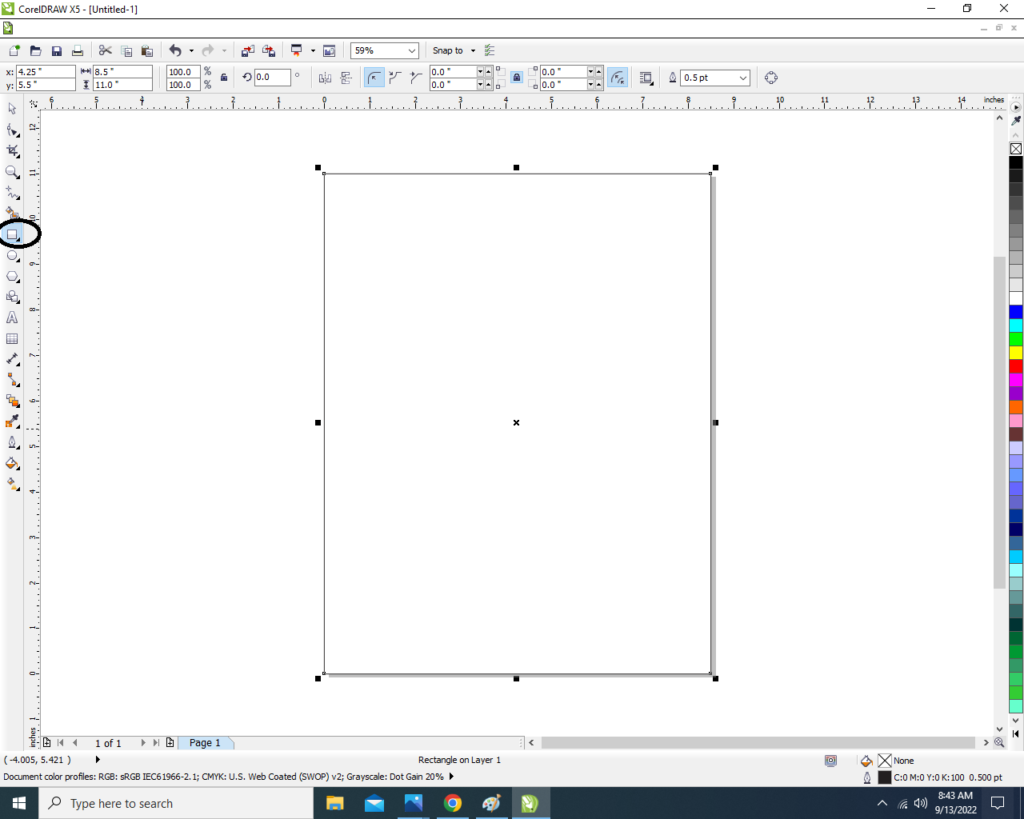
Click on Rectangle tool > From tool Option.
Visiting Card Design in CorelDraw, Easy, and Innovative, Download Source File 290
Draw Two rectangles> like this.
Visiting Card Design in CorelDraw, Easy, and Innovative, Download Source File 291
Select Both Rectangles > Change Color > From Color Palate.
Visiting Card Design in CorelDraw, Easy, and Innovative, Download Source File 292
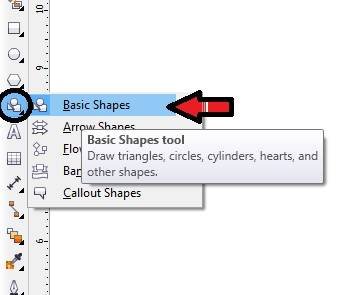
Click at the Basic Shape tool.
Visiting Card Design in CorelDraw, Easy, and Innovative, Download Source File 293
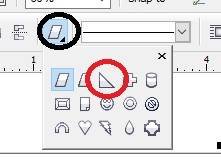
Select triangle shape > From here.
Visiting Card Design in CorelDraw, Easy, and Innovative, Download Source File 294
Draw this at Page > Change Color > From Color Palate.
Visiting Card Design in CorelDraw, Easy, and Innovative, Download Source File 295
Select Triangle > Remove Background > from here.
Visiting Card Design in CorelDraw, Easy, and Innovative, Download Source File 296
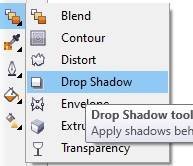
Click at Blend Tool > Select Drop Shadow > like this.
Visiting Card Design in CorelDraw, Easy, and Innovative, Download Source File 297
Apply like this.
Visiting Card Design in CorelDraw, Easy, and Innovative, Download Source File 298
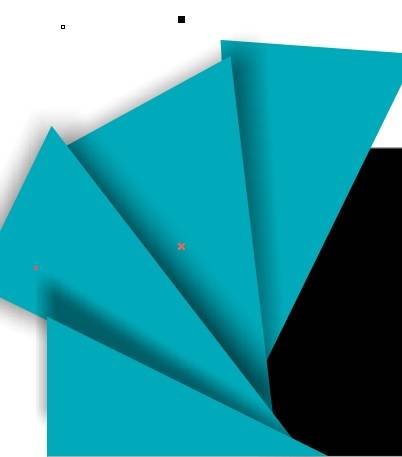
Select Triangle > Press Ctrl + D > Duplicate > Duplicate Triangle One by One > Set like this.
Visiting Card Design in CorelDraw, Easy, and Innovative, Download Source File 299
Press Ctrl + G > To Group >Triangles > Set in second Rectangle > like this.
Visiting Card Design in CorelDraw, Easy, and Innovative, Download Source File 300
Select both Grouped Triangle > Click at effect Menu > Click at Power Clip Option > Click at Place inside Container option.
Visiting Card Design in CorelDraw, Easy, and Innovative, Download Source File 301
Something like this appear.
Visiting Card Design in CorelDraw, Easy, and Innovative, Download Source File 302
Draw a Rectangle > At first Rectangle > like this.
Visiting Card Design in CorelDraw, Easy, and Innovative, Download Source File 303
Fill black Color > At Rectangle > Click at Blend Tool > Select Transparency Tool.
Visiting Card Design in CorelDraw, Easy, and Innovative, Download Source File 304
Apply like this.
Visiting Card Design in CorelDraw, Easy, and Innovative, Download Source File 305
Then Duplicate > Transparency Rectangle > Set in Second Rectangle.
Put LOGO of an institution > like this.
Visiting Card Design in CorelDraw, Easy, and Innovative, Download Source File 306
Click at Text tool >Type Institution Name > At Rectangle > like this.
Visiting Card Design in CorelDraw, Easy, and Innovative, Download Source File 307
Give Contact Information > Press Ctrl + F11 > To Open Character window > like this.
Visiting Card Design in CorelDraw, Easy, and Innovative, Download Source File 308
Select Characters > According to need > Change in White Color > Decrease Size of Characters.
Visiting Card Design in CorelDraw, Easy, and Innovative, Download Source File 309
Type Matter Regarding > Contact Information > Like this.
Visiting Card Design in CorelDraw, Easy, and Innovative, Download Source File 310
Now Visiting Card is Ready.
Visiting Card Design in CorelDraw, Easy, and Innovative, Download Source File 311
Poster Design in CorelDraw, Simple and Easy Method Step By Step, Download Source File
Hello! Friends Welcome to www.vedantsri.net In this Project I am going to Teach you How To Create Poster Design in CorelDraw. In this Project, you can Learn How to Design a Poster in CorelDraw Application an Easy Method. (Poster Design in CorelDraw, Simple, and Easy Method Step By Step, Download Source File)
Press Window + R to Open Run Dialogue Box > Type CorelDraw.
Poster Design in CorelDraw, Simple and Easy Method Step By Step, Download Source File 345
Press OK.
Poster Design in CorelDraw, Simple and Easy Method Step By Step, Download Source File 346
Click On New Blank Document.
Poster Design in CorelDraw, Simple and Easy Method Step By Step, Download Source File 347
Press OK.
Poster Design in CorelDraw, Simple and Easy Method Step By Step, Download Source File 348
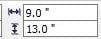
Then Mention the Page Size.
Poster Design in CorelDraw, Simple and Easy Method Step By Step, Download Source File 349
Double-click on Rectangle Tool.
Poster Design in CorelDraw, Simple and Easy Method Step By Step, Download Source File 350
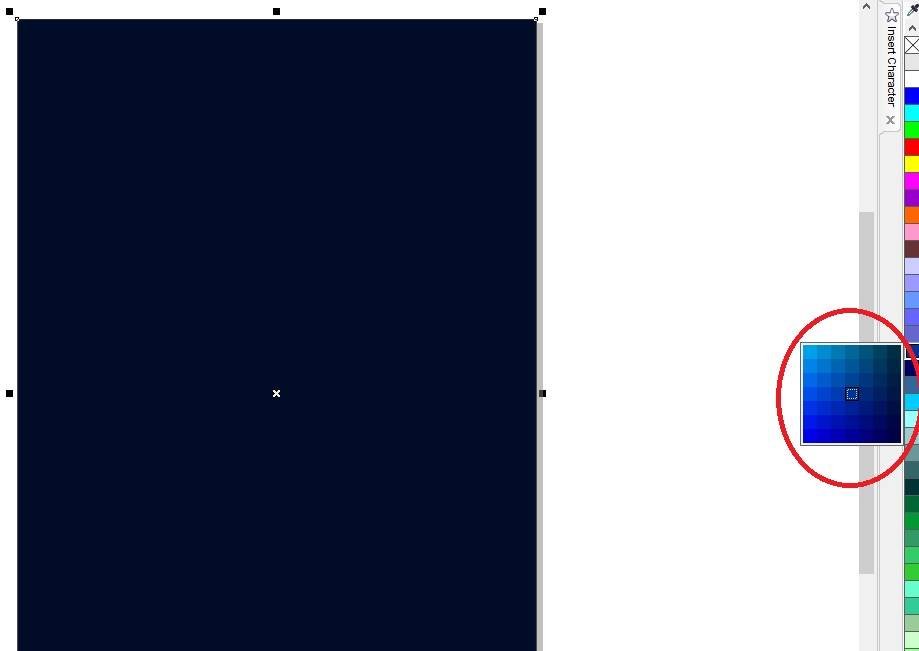
Fill Blue color at page.
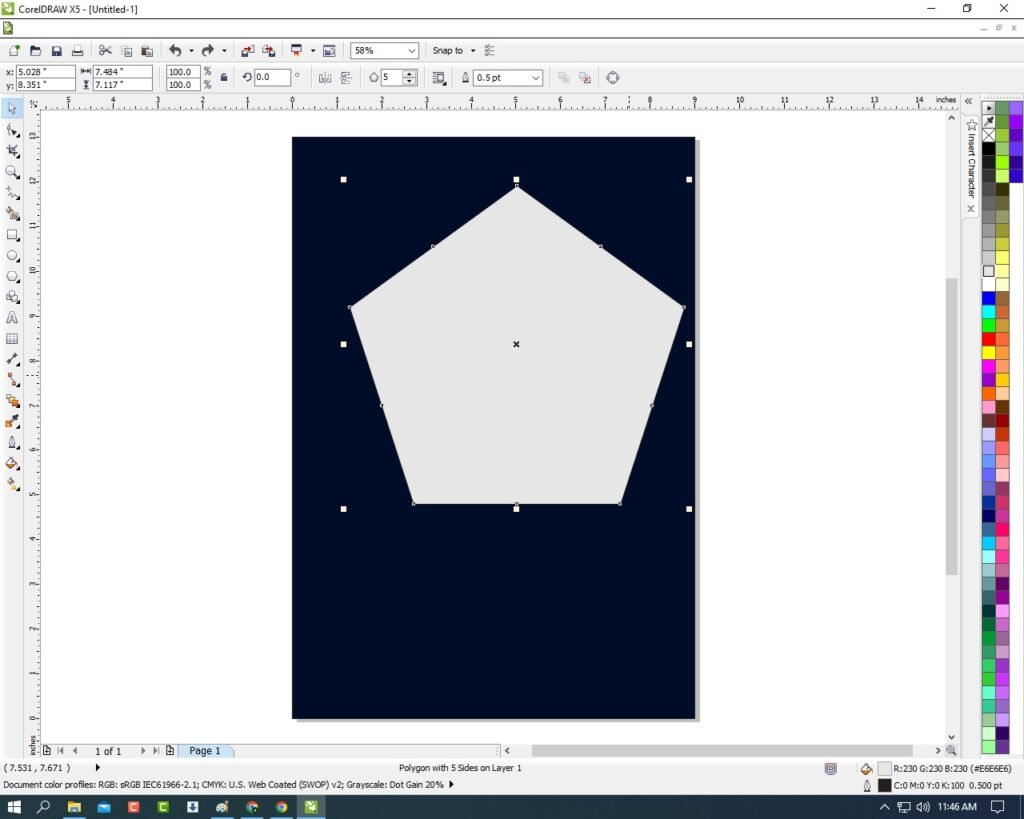
Poster Design in CorelDraw, Simple and Easy Method Step By Step, Download Source File 351
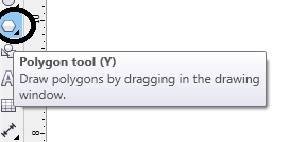
Go to Polygon Tool > Press Shift and Draw at Page.
Poster Design in CorelDraw, Simple and Easy Method Step By Step, Download Source File 352Poster Design in CorelDraw, Simple and Easy Method Step By Step, Download Source File 353
Then Click On Point & Sides Option > 6.
Poster Design in CorelDraw, Simple and Easy Method Step By Step, Download Source File 354
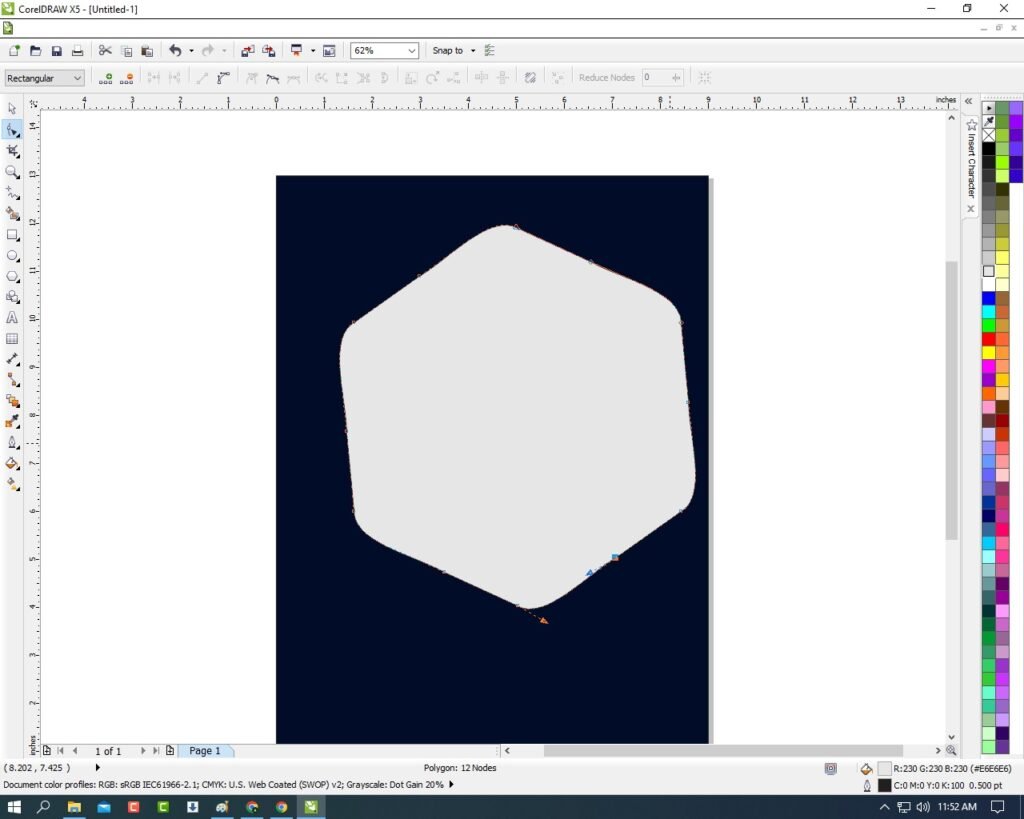
Press F10 & Select the Points > and Curve it > Like This.
Poster Design in CorelDraw, Simple and Easy Method Step By Step, Download Source File 355
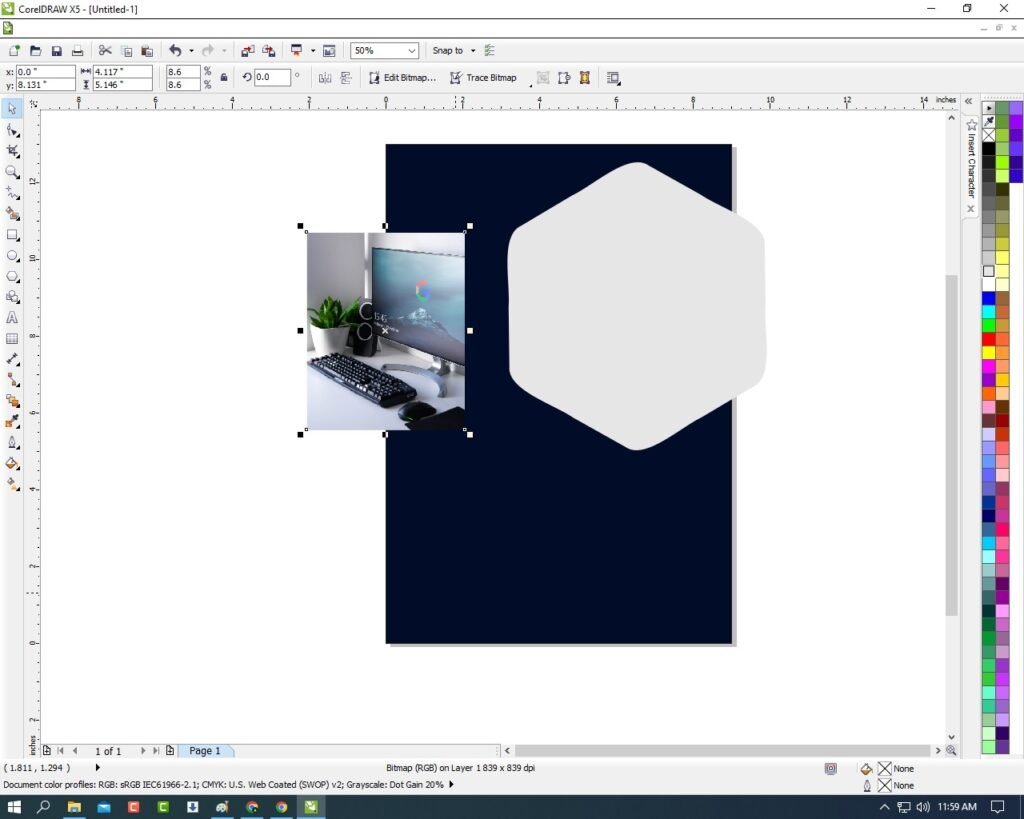
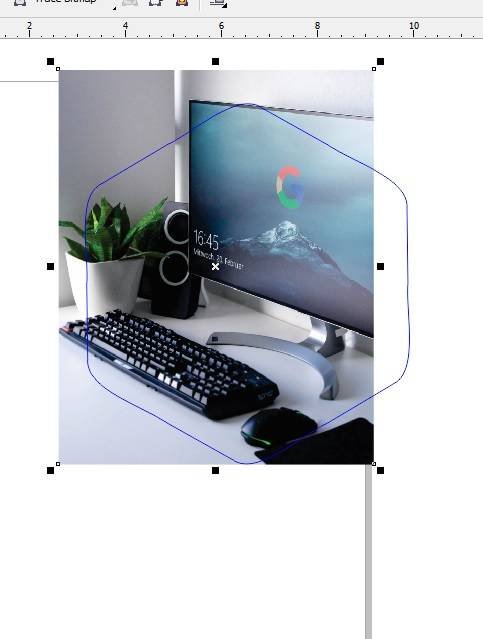
Then Insert the picture on the Shape > Shrink it with Shift + F2 > grab the Corner and Shorten.>.
Poster Design in CorelDraw, Simple and Easy Method Step By Step, Download Source File 356
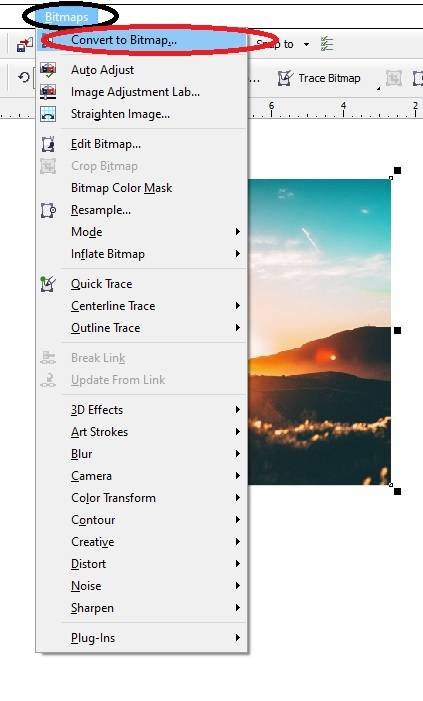
Then Select the Picture > Go to Bitmaps Menu > Click on Convert to Bitmaps Option > Press Ok.
Poster Design in CorelDraw, Simple and Easy Method Step By Step, Download Source File 357
Then select the Picture > Go to Effect Menu > Click on PowerClip Option > Click Place Inside Container.
Poster Design in CorelDraw, Simple and Easy Method Step By Step, Download Source File 358
Click at page > Picture will Disappear.
Poster Design in CorelDraw, Simple and Easy Method Step By Step, Download Source File 359
Press CTRL + Double Click at page > fix this Picture Like This.
Poster Design in CorelDraw, Simple and Easy Method Step By Step, Download Source File 360
Then Press CTRL + Double Click at Out of the Page Aria.
Poster Design in CorelDraw, Simple and Easy Method Step By Step, Download Source File 361
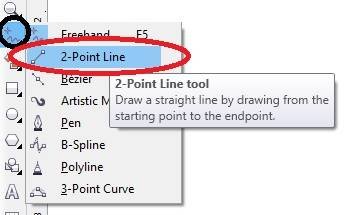
Go to Freehand Tool > Click 2-Point line Option.
Poster Design in CorelDraw, Simple and Easy Method Step By Step, Download Source File 362
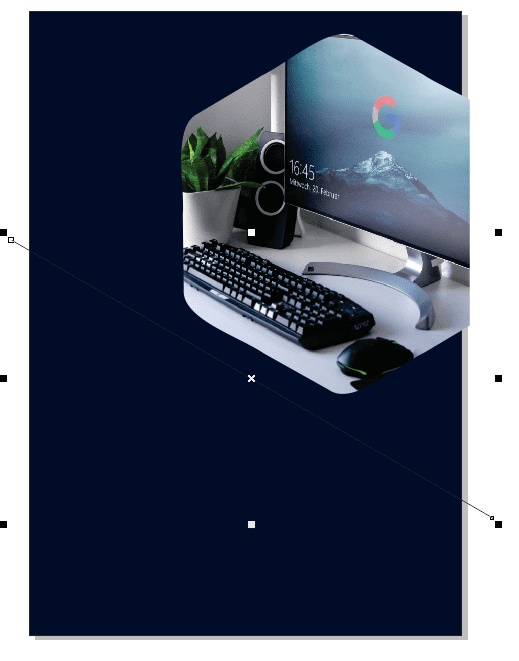
Press Shift and Draw it Like This.
Poster Design in CorelDraw, Simple and Easy Method Step By Step, Download Source File 363
Go to Pen Tool > Outline 3pt > Fill yellow color in Outline .
Poster Design in CorelDraw, Simple and Easy Method Step By Step, Download Source File 364
Draw Rectangle > Fill any color in Rectangle > No Outline.
Poster Design in CorelDraw, Simple and Easy Method Step By Step, Download Source File 365
Press F10 > Grab a Corner and Bring it Down.
Poster Design in CorelDraw, Simple and Easy Method Step By Step, Download Source File 366
Then Fix it > and PowerClip this shape like I will show.
Poster Design in CorelDraw, Simple and Easy Method Step By Step, Download Source File 367
Draw Polygon Shape > Fill any Color > No Outline.
Poster Design in CorelDraw, Simple and Easy Method Step By Step, Download Source File 368
Then apply Transparency > Select the Shape > Go to Blend Tool > Click Transparency option.
Poster Design in CorelDraw, Simple and Easy Method Step By Step, Download Source File 369
Apply like this.
Poster Design in CorelDraw, Simple and Easy Method Step By Step, Download Source File 370
Then Draw the Many Shape to Look Very Creative Like This.
Poster Design in CorelDraw, Simple and Easy Method Step By Step, Download Source File 371
Insert LOGO in your Company/Institute.
Poster Design in CorelDraw, Simple and Easy Method Step By Step, Download Source File 372
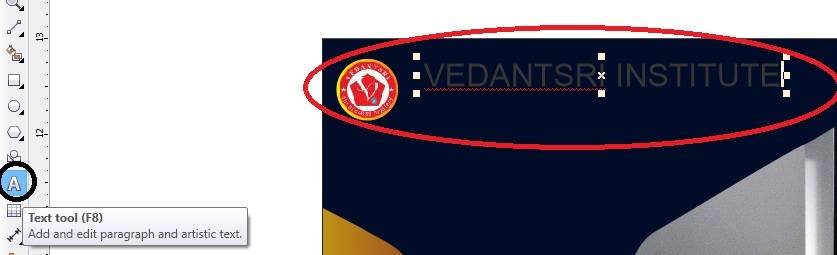
Then Go to Text Tool > Write Your Company or Institute Name.
Poster Design in CorelDraw, Simple and Easy Method Step By Step, Download Source File 373
Click on Pick tool To Apply Formatting on text.
Poster Design in CorelDraw, Simple and Easy Method Step By Step, Download Source File 374
Then Fill Personal & Professional Details of Your Company Or Institute.
Poster Design in CorelDraw, Simple and Easy Method Step By Step, Download Source File 375
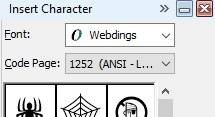
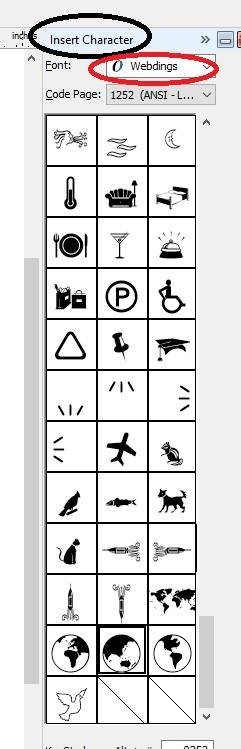
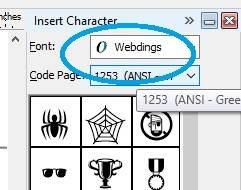
Press CTRL + F11 to Insert Character Window > Type Webding > Then Insert Many Character like I Insert Now.
Poster Design in CorelDraw, Simple and Easy Method Step By Step, Download Source File 376
I have Completed this Project, I hope you guys have understood all the Steps.
Poster Design in CorelDraw, Simple and Easy Method Step By Step, Download Source File 377
Pamphlet Design In CorelDraw, Easy Method, Complete Steps, Download Practice File
Hello Friends, welcome to Vedantsri.net In This Post, I am Going To Teach You How To Create a Pamphlet Design In CorelDraw. In This Project, You Can Learn How To Design a Pamphlet Design In CorelDraw Application an Easy Method. Pamphlet Design In CorelDraw, Easy Method, Complete Steps, Download Practice File
CorelDraw Open करने के लिए Window + R Press करके Run Box open करे।
Pamphlet Design In CorelDraw, Easy Method, Complete Steps, Download Practice File 397
Run Box मे Coreldrw Type करे।
Pamphlet Design In CorelDraw, Easy Method, Complete Steps, Download Practice File 398
Ok पर Click करके CorelDraw का Application Open करे.
Pamphlet Design In CorelDraw, Easy Method, Complete Steps, Download Practice File 399
CTRL + N Press करके New Page का Window Open होगा।
Pamphlet Design In CorelDraw, Easy Method, Complete Steps, Download Practice File 400
Ok पर Click करके CorelDraw का Main Page Open करे।
Pamphlet Design In CorelDraw, Easy Method, Complete Steps, Download Practice File 401
Rectangle tool पर Double Click करे। Pamphlet Design In CorelDraw, Easy Method, Complete Steps, Download Practice File
Pamphlet Design In CorelDraw, Easy Method, Complete Steps, Download Practice File 402
अब Shape मे Color Fill करे।
Pamphlet Design In CorelDraw, Easy Method, Complete Steps, Download Practice File 403
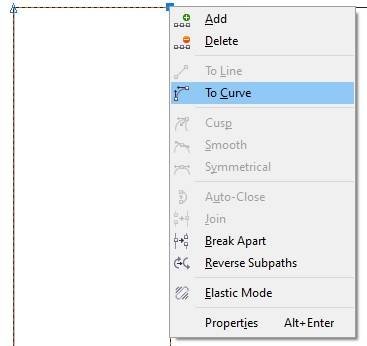
अब Rectangle Shape Draw करे Or F10 > CTRL + Q Press करे,
Shape के Line के बीच Right Click करे Or To Curve Option पर Click करे।
Pamphlet Design In CorelDraw, Easy Method, Complete Steps, Download Practice File 404
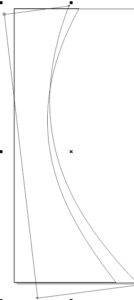
Shape को Curve करके CTRL + D से Shape को Duplicate बनाये
Outline Width 4.0 Pt. Or Outline का Color Change Color करे। Pamphlet Design In CorelDraw, Easy Method, Complete Steps, Download Practice File
Pamphlet Design In CorelDraw, Easy Method, Complete Steps, Download Practice File 405
अब Image Insert करे या Download करे Shift + F2 से Image का Size Set करे
Menu bar >Bitmaps Option par >Auto Adjust Option par Click करे।
Pamphlet Design In CorelDraw, Easy Method, Complete Steps, Download Practice File 406
Menu bar > Effects >Power Clip > Place Inside Container option Click करे
Shape पर Click करे।
Pamphlet Design In CorelDraw, Easy Method, Complete Steps, Download Practice File 407
Shape पर CTRL + Mouse से Left Click करे Or Image को Shape पर Set करे।
Pamphlet Design In CorelDraw, Easy Method, Complete Steps, Download Practice File 408
Shape के बाहर CTRL + Mouse से Left Click करे।
Pamphlet Design In CorelDraw, Easy Method, Complete Steps, Download Practice File 409
अब File से LOGO Insert करे या Google से Download करे।
Pamphlet Design In CorelDraw, Easy Method, Complete Steps, Download Practice File 410
2- Point line Tool से Shape Draw करे Or F10 > CTRL + Q Press करे
Shape के Line के बीच Right Click करे Or To Curve Option पर Click करे
Shape को Curve करे Or Smart Fill Tool से Shape को Fill करे
अब Shape मे Color Change करे।
Pamphlet Design In CorelDraw, Easy Method, Complete Steps, Download Practice File 411
RectangleTool से Shape Draw करे Or F10 Press करे
Round Corner Option Click करे।
Pamphlet Design In CorelDraw, Easy Method, Complete Steps, Download Practice File 412
अब VEDANTSRI लिखे Or Text tool से Detail Fill करे।
Pamphlet Design In CorelDraw, Easy Method, Complete Steps, Download Practice File 413
Basic Shape Tool > Arrow Shape पर Click कर
Arrow Shape मे Color Fill करे
CTRL+ D से Duplicate करे Or Page पर Shape को Set करे।
Pamphlet Design In CorelDraw, Easy Method, Complete Steps, Download Practice File 414
CTRL + S से Pamphlet Save करे।
Pamphlet Design In CorelDraw, Easy Method, Complete Steps, Download Practice File
Basic Poster Design in CorelDraw, Easy and Innovative, Download Source File.
Hello! Friends Welcome to www.vedantsri.net In this Project I am going to Teach you How To Create Poster Design in CorelDraw. In this Project you can Learn How to Design Poster in CorelDraw Application in Easy Method .
Press Windows + R in Keyboard.
To Open Run dialog Box.
Basis Poster Design in CorelDraw
Type coreldrw in Run Dialog Box > As a Run Command.
Basis Poster Design in CorelDraw
Press OK.
Click at New Blank Document .
Basis Poster Design in CorelDraw
Fill all Information > Regarding new document.
Basis Poster Design in CorelDraw, Easy, and Innovative, Download Source File. 442
Click at OK.
Click at Rectangle Tool.
Basis Poster Design in CorelDraw, Easy, and Innovative, Download Source File. 443
Double Click at Rectangle Tool > like this.
Basis Poster Design in CorelDraw, Easy, and Innovative, Download Source File. 444
Click at Page > Go To Color Palate > Change Color of Rectangle.
Basis Poster Design in CorelDraw, Easy, and Innovative, Download Source File. 445
Draw a Triangle > From Polygon Shape > Decrease Points > like this.
Basis Poster Design in CorelDraw, Easy, and Innovative, Download Source File. 446
Draw Like > Double Click at Triangle > Rotate like this > Set like this.
Basis Poster Design in CorelDraw, Easy, and Innovative, Download Source File. 447
Select Triangle > Change Color of Triangle > From Color Palate.
Basis Poster Design in CorelDraw, Easy, and Innovative, Download Source File. 448
Increase Size of Triangle > Remove Outline > From here.
Basis Poster Design in CorelDraw, Easy, and Innovative, Download Source File. 449
Select Triangle > Go To effect Menu > Click at Power Clip Option > Click at Place Inside Container .
Basis Poster Design in CorelDraw, Easy, and Innovative, Download Source File. 450
Something like this appear.
Basis Poster Design in CorelDraw, Easy, and Innovative, Download Source File. 451
Press Ctrl + Left Click of Mouse >To Edit Shape > Select Triangle > Press Ctrl + D > Duplicate > Decrease size of Triangle.
Basis Poster Design in CorelDraw, Easy, and Innovative, Download Source File. 452
Select Duplicated Triangle > Click at Blend Tool > Click at Drop Shadow Option.
Basis Poster Design in CorelDraw, Easy, and Innovative, Download Source File. 453
Apply like this > Decrease feather > From here.
Basis Poster Design in CorelDraw, Easy, and Innovative, Download Source File. 454
Change Color of Second Triangle > In White > From Color palate.
Basis Poster Design in CorelDraw, Easy, and Innovative, Download Source File. 455
Draw a Rectangle > Press F10 > Ctrl + Q >Shape a Rectangle > Like this.
Basis Poster Design in CorelDraw, Easy, and Innovative, Download Source File. 456
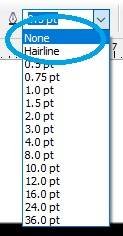
Select Rectangle > Increase Outline > From here > 12pt.
Basis Poster Design in CorelDraw, Easy, and Innovative, Download Source File. 457
Certificate Design In CorelDraw, Easy Method, Complete Steps, Download Practice Fill
Hello Friends, Welcome to Vedantsri.net In This Post I am Going To Teach You How To Create a Certificate Design In CorelDraw. In This Project, You Can Learn How To Design a Certificate Design In CorelDraw Application an Easy Method.
CorelDraw Open करने के लिए Window + R Press करके Run Box Open करे
Certificate Design In CorelDraw, Easy Method, Complete Steps, Download Practice Fill 484
Run Box मे Coreldrw Type करे।
Certificate Design In CorelDraw, Easy Method, Complete Steps, Download Practice Fill 485
अब Ok पर Click करके CorelDraw के Application को Open करे
Certificate Design In CorelDraw, Easy Method, Complete Steps, Download Practice Fill 486
अब CTRL + N Press करे New Page का Window Open होगा।
Certificate Design In CorelDraw, Easy Method, Complete Steps, Download Practice Fill 487
Ok par Click करके तथा CorelDraw का main page open करे
फिर Landscape Option पर Click करे। Certificate Design In CorelDraw, Easy Method, Complete Steps, Download Practice Fill
Certificate Design In CorelDraw, Easy Method, Complete Steps, Download Practice Fill 488
Rectangle Tool पर Double Click करे।
Certificate Design In CorelDraw, Easy Method, Complete Steps, Download Practice Fill 489
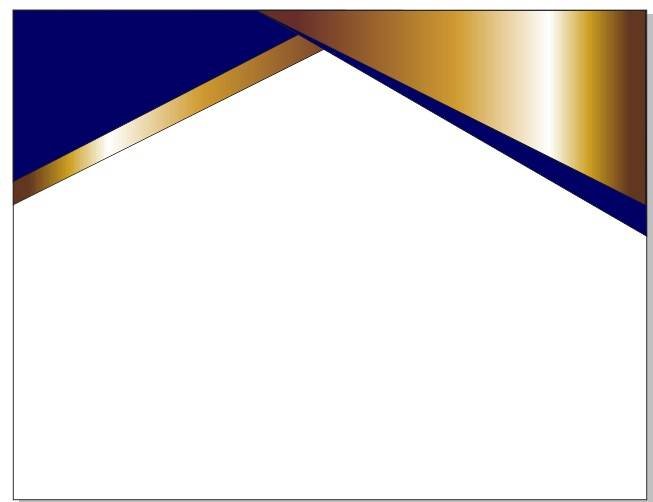
Basic Shape Tool > Triangle Shape Draw करे।
Certificate Design In CorelDraw, Easy Method, Complete Steps, Download Practice Fill 490
Triangle Shape पर F 10 > CTRL + Q Press करके Shape को Set करे
Shape मे Color Fill करे। Certificate Design In CorelDraw, Easy Method, Complete Steps, Download Practice Fill
Certificate Design In CorelDraw, Easy Method, Complete Steps, Download Practice Fill 491
CTRL + D Shape का Duplicate करे
Fill Tool > Fountain Fill Option पर Click करे।
Certificate Design In CorelDraw, Easy Method, Complete Steps, Download Practice Fill 492
अब Fountain Fill Window Open करे Or Golden Color Option पर Click करे
फिर Ok पर Click करे।
Certificate Design In CorelDraw, Easy Method, Complete Steps, Download Practice Fill 493
CTRL + Page Down से Shape को पहले Shape के पीछे भेजे।
Certificate Design In CorelDraw, Easy Method, Complete Steps, Download Practice Fill 494
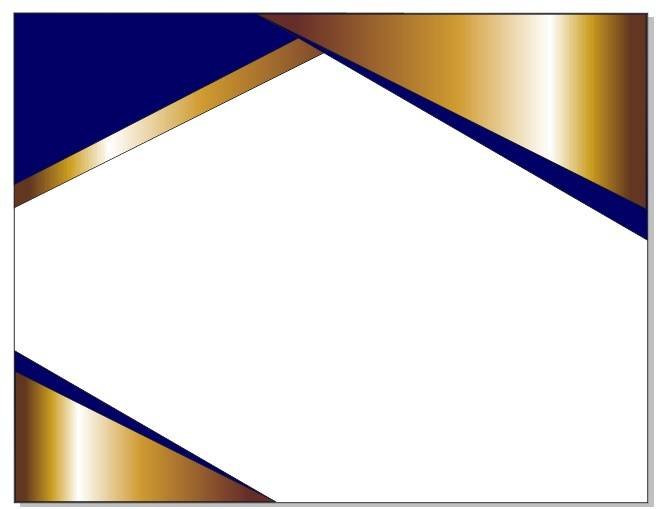
CTRL + D से Shape का Duplicate बनाये
F 10 > CTRL + Q Press करके Shape को Page पर set करे।
Certificate Design In CorelDraw, Easy Method, Complete Steps, Download Practice Fill 495
Shape को Shift के साथ Select करे Or CTRL + G से Group करे
CTRL + D से Shape का Duplicate बनाये Or Page पर Set करे।
Certificate Design In CorelDraw, Easy Method, Complete Steps, Download Practice Fill 496
Shape को Shift के साथ Select करे Or CTRL + G से Group करे
CTRL + D से Shape का Duplicate बनाये Or Page पर Set करे
Movement Key से Page पर Shape को Set कर सकते है ।
Certificate Design In CorelDraw, Easy Method, Complete Steps, Download Practice Fill 497
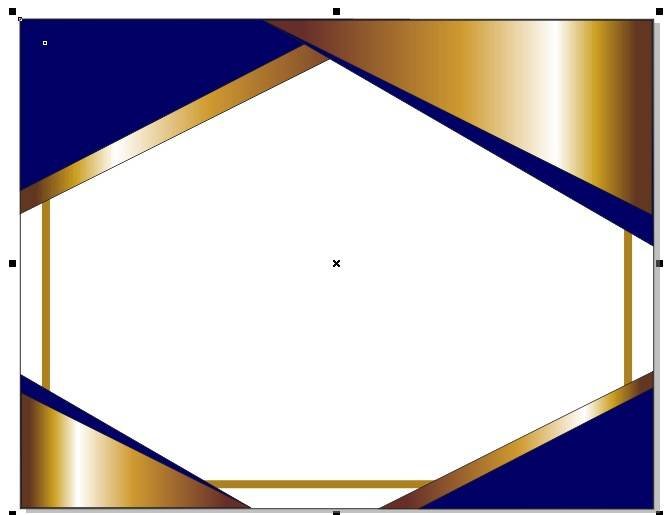
अब Rectangle Shape Draw करे Or Color Fill करे
CTRL + Page Down से Shape को सारे Shape के पीछे भेजे। Certificate Design In CorelDraw, Easy Method, Complete Steps, Download Practice Fill
Certificate Design In CorelDraw, Easy Method, Complete Steps, Download Practice Fill 498
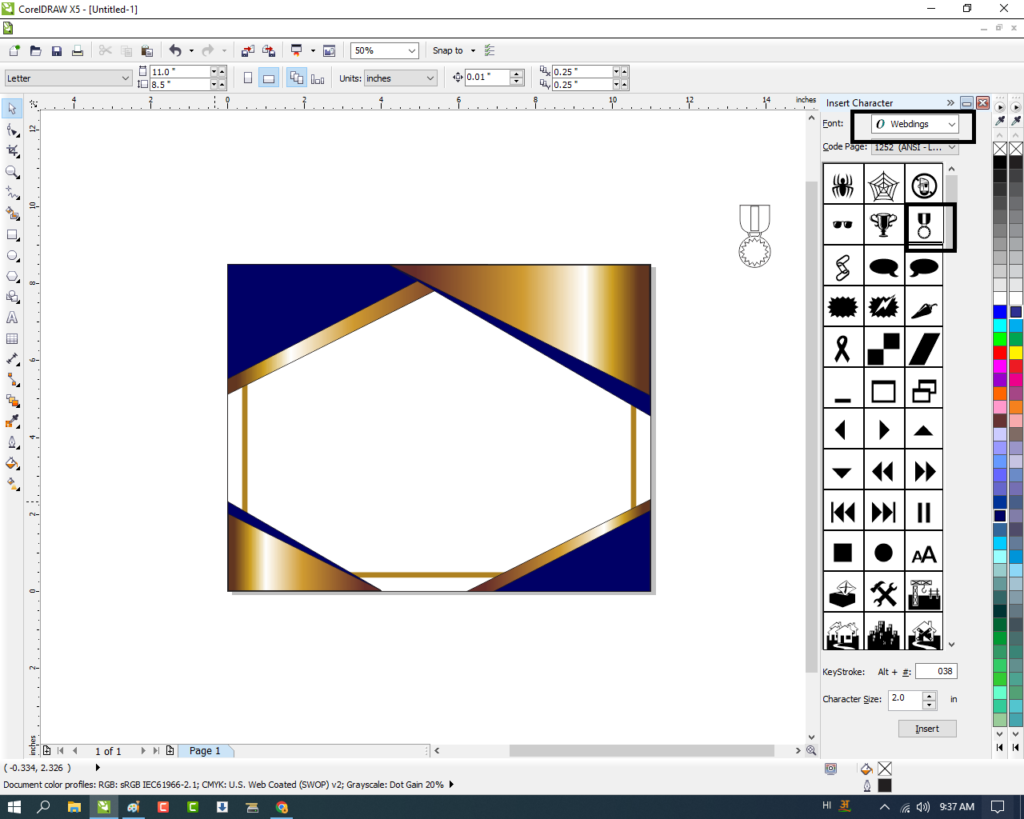
CTRL + F11 Press करे Or Webdings Option Click करे
Character Insert करे।
Certificate Design In CorelDraw, Easy Method, Complete Steps, Download Practice Fill 499
Shape का Color Change करे।
Certificate Design In CorelDraw, Easy Method, Complete Steps, Download Practice Fill 500
अब File से Logo insert करे Or Shape पर Set करे।
Certificate Design In CorelDraw, Easy Method, Complete Steps, Download Practice Fill 501
2 Point- Line Tool से एक Line draw करे Or CTRL + D से line Duplicate बनाये, Color Fill करे
Text tool से सारे Detail लिखे।
Certificate Design In CorelDraw, Easy Method, Complete Steps, Download Practice Fill
Brochure Design in CorelDraw, Step By Step Simple Method, Download Source File
Hello! Friends Welcome to www.vedantsri.net In this Project I am going to Teach you How To Create a Brochure Design in CorelDraw. In this Project, you can Learn How to Design a Brochure in CorelDraw Application an Easy Method.
Press Window + R to > Open Run Dialogue Box > Type coreldrw.
Brochure Design in CorelDraw
Press Ok.
Brochure Design in CorelDraw
Press CTRL + N to Open New Page Window.
Brochure Design in CorelDraw, Step By Step Simple Method, Download Source File 532
Press ok.
Brochure Design in CorelDraw
Double Click on Rectangle Tool.
Brochure Design in CorelDraw, Step By Step Simple Method, Download Source File 533
Then Draw Rectangle at Page > Double Click on shape to Rotate like this.
Brochure Design in CorelDraw, Step By Step Simple Method, Download Source File 534
Select the Rectangle > Press F10 > Grab a Corner and Bring it Down.
Brochure Design in CorelDraw, Step By Step Simple Method, Download Source File 535
Click on Pick Tool > Fill White Color in Rectangle Shape.
Brochure Design in CorelDraw, Step By Step Simple Method, Download Source File 536
Select the Rectangle Shape > Go to Effect Menu > Click on PowerClip Option > Click Place Inside Container.
Brochure Design in CorelDraw, Step By Step Simple Method, Download Source File 537
Click at page.
Brochure Design in CorelDraw, Step By Step Simple Method, Download Source File 538
Select the Page > Fill any Color.
Brochure Design in CorelDraw, Step By Step Simple Method, Download Source File 539
Then CTRL + Double Click at the Rectangle shape or Page.
Brochure Design in CorelDraw, Step By Step Simple Method, Download Source File 540
Select the Rectangle > Go to Pen Tool > No outline > CTRL + double Click at out of the Page Aria.
Brochure Design in CorelDraw, Step By Step Simple Method, Download Source File 541
Draw a New Rectangle Shape > Then Repeat same Process > Press F10 > Grab a Corner and Bring it Down.
Brochure Design in CorelDraw, Step By Step Simple Method, Download Source File 542
Select the Rectangle > Insert Picture > Picture are too Big Screen.
Brochure Design in CorelDraw, Step By Step Simple Method, Download Source File 543
Shrink it with Shift + F2 > grab the Corner and Shorten.
Brochure Design in CorelDraw, Step By Step Simple Method, Download Source File 544
Then Select the Picture > Go to Bitmaps Menu > Click on Convert to Bitmaps Option > Press Ok.
Brochure Design in CorelDraw, Step By Step Simple Method, Download Source File 545
Then select the Picture > Go to Effect Menu > Click on PowerClip Option > Click Place Inside Container > Then Click at the Page > Picture will Disappear.
Brochure Design in CorelDraw, Step By Step Simple Method, Download Source File 546
Then same Process > Double Click at the Rectangle & Fix Picture > Then Click CTRL + Double Click In Out of Page.
Brochure Design in CorelDraw, Step By Step Simple Method, Download Source File 547
Select the Rectangle > Go to Effect Tool > PowerClip > Place Inside Container > Click at Page.
Brochure Design in CorelDraw, Step By Step Simple Method, Download Source File 548
Draw a New Rectangle > and Repeat same Process.
Brochure Design in CorelDraw, Step By Step Simple Method, Download Source File 549
Draw Two Rectangle fill any color and clip in corner.
Brochure Design in CorelDraw, Step By Step Simple Method, Download Source File 550
Then Draw some Small Rectangle > Fill any Color > No Outline.
Brochure Design in CorelDraw, Step By Step Simple Method, Download Source File 551
Go to Text Tool > Type Your Company/Institute Name.
Brochure Design in CorelDraw, Step By Step Simple Method, Download Source File 552
Then Click on Pick Tool > Apply Color on Text and Change Font Style.
Brochure Design in CorelDraw, Step By Step Simple Method, Download Source File 553
Then Insert LOGO on Your Company/Institute.
Brochure Design in CorelDraw, Step By Step Simple Method, Download Source File 554
Then Go to Blend Tool > Click Option Drop Shadow > Apply any shape as Your wish.
Brochure Design in CorelDraw, Step By Step Simple Method, Download Source File 555
Apply Drop Shadow.
Brochure Design in CorelDraw, Step By Step Simple Method, Download Source File 556
Then Mention Your Personal Details Ex. Contact/website.
Brochure Design in CorelDraw, Step By Step Simple Method, Download Source File 557
I have Completed this Project, I hope you guys have understood all the Step.
Brochure Design in CorelDraw, Step By Step Simple Method, Download Source File 558
Invitation Card in CorelDraw, Simple Method to Create, Download Source File.
Hello! Friends Welcome to www.vedantsri.net In this Project I am going to Teach you How To Create an Invitation Card in CorelDraw. In this Project, you can Learn How to Design Invitation Cards in CorelDraw Application an Easy Method. (Invitation Card in CorelDraw, Simple Method to Create, Download Source File.)
Press Window + R To open Run Dialogue Box > Type CorelDraw.
Invitation Card in CorelDraw, Simple Method to Create, Download Source File. 589
Press Ok.
Invitation Card in CorelDraw, Simple Method to Create, Download Source File. 590
Then Press CTRL + N to Open New Page Window.
Invitation Card in CorelDraw, Simple Method to Create, Download Source File. 591
Press Ok.
Invitation Card in CorelDraw, Simple Method to Create, Download Source File. 592
Double Click on Rectangle Tool.
Invitation Card in CorelDraw, Simple Method to Create, Download Source File. 593
Then Fill White Color in the Rectangle Shape.
Invitation Card in CorelDraw, Simple Method to Create, Download Source File. 594
Then Go to Basic Shapes Tool > Click on Basic Tools Option.
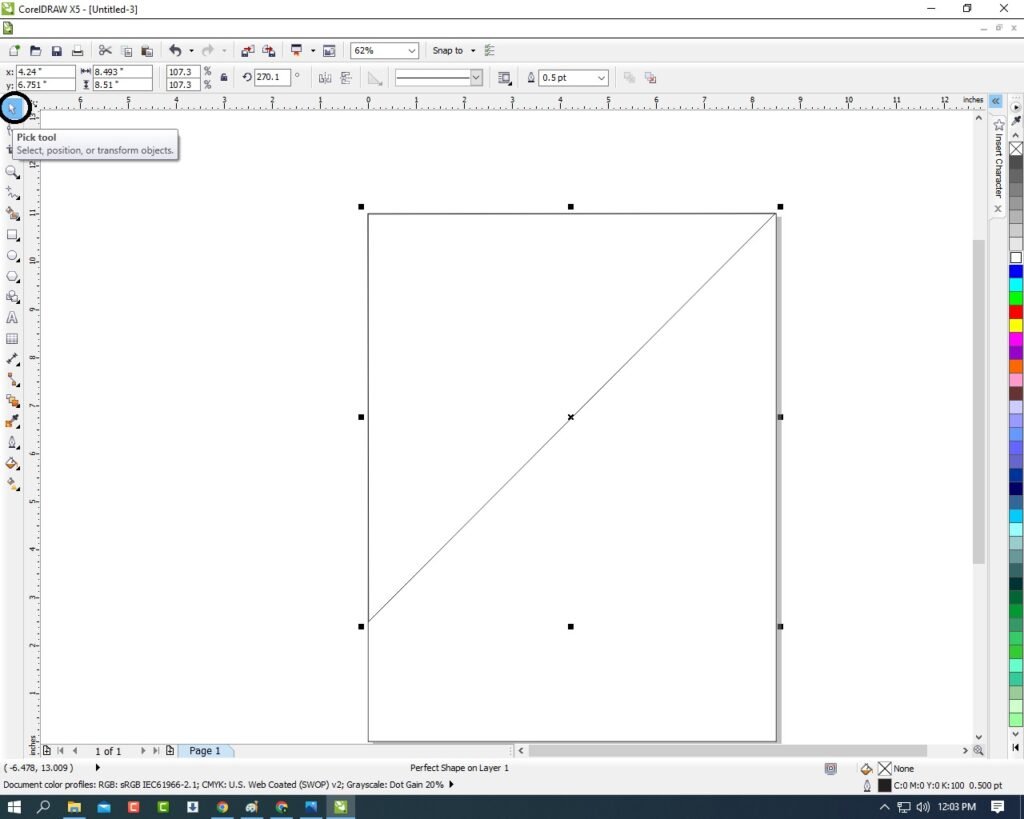
Invitation Card in CorelDraw, Simple Method to Create, Download Source File. 595
Click on Perfect Shape Option > Select Triangle.
Invitation Card in CorelDraw, Simple Method to Create, Download Source File. 596
Then Draw a Triangle on the page > Click on Pick Tool > Double Click On Triangle to Rotate the Shape > Fix Like This.
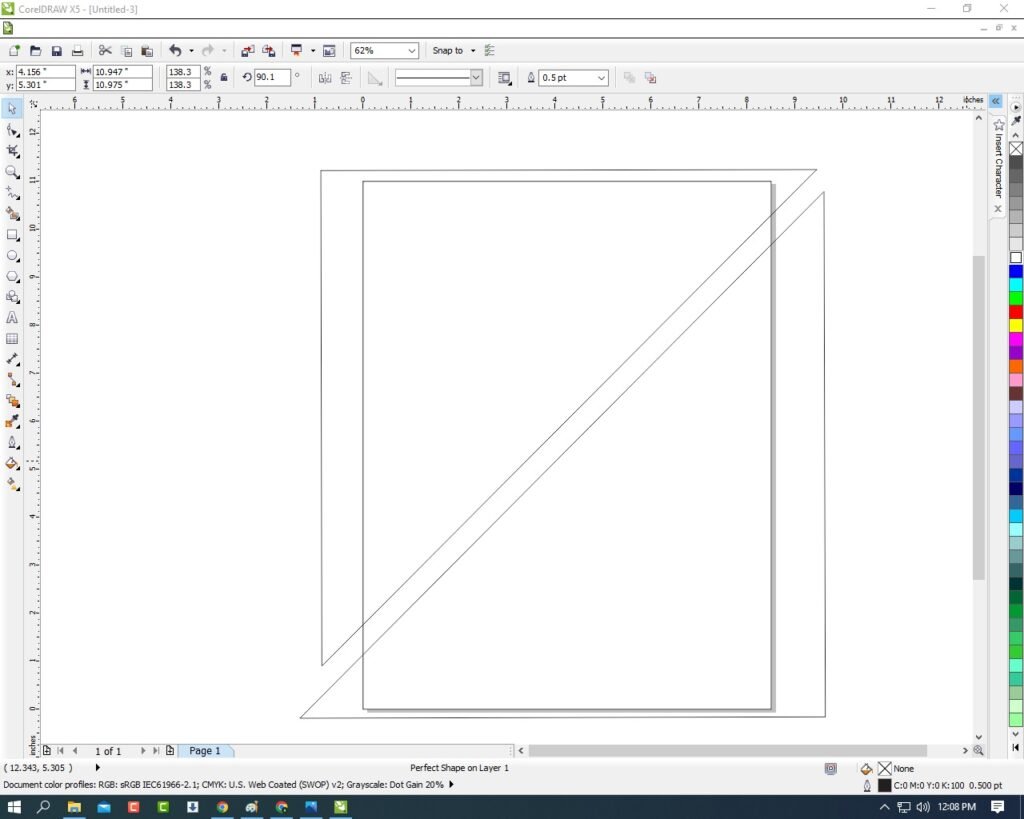
Invitation Card in CorelDraw, Simple Method to Create, Download Source File. 597
Select the Rectangle > Press CTRL + D to Duplicate > Then Fix Like This.
Invitation Card in CorelDraw, Simple Method to Create, Download Source File. 598
Fill any in both Triangle shapes.
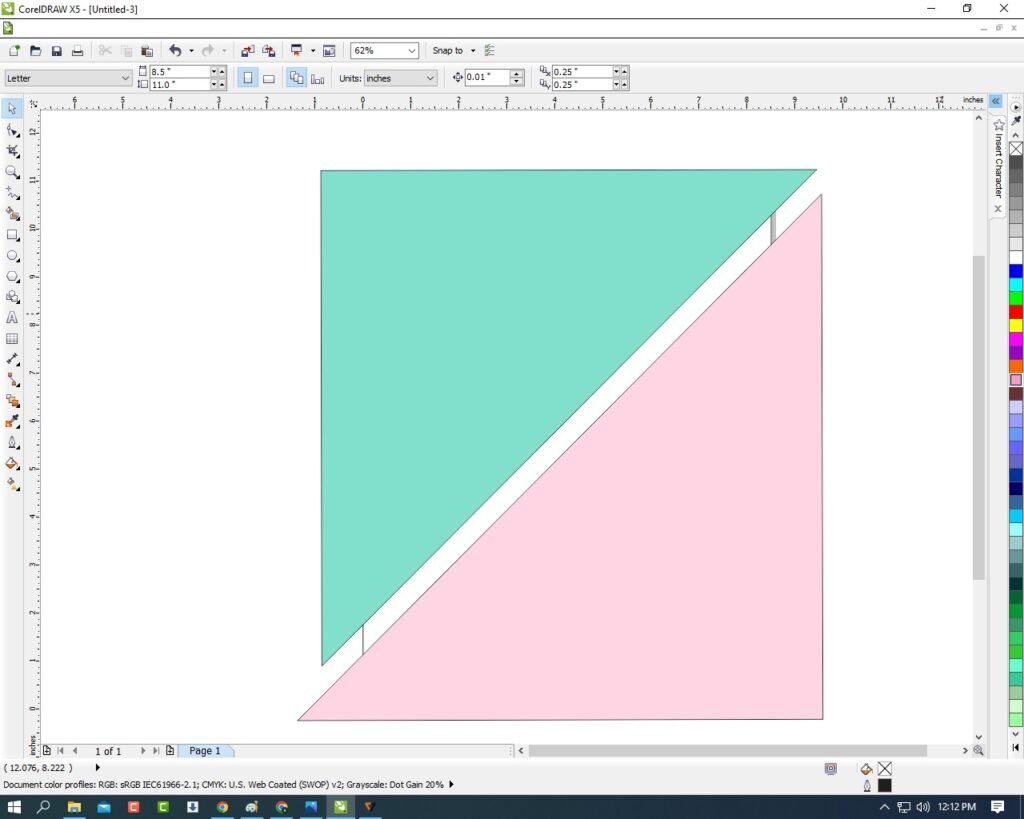
Invitation Card in CorelDraw, Simple Method to Create, Download Source File. 599
Press Shift Then Select Both Tringles> Go to Pen tool > No Outline.
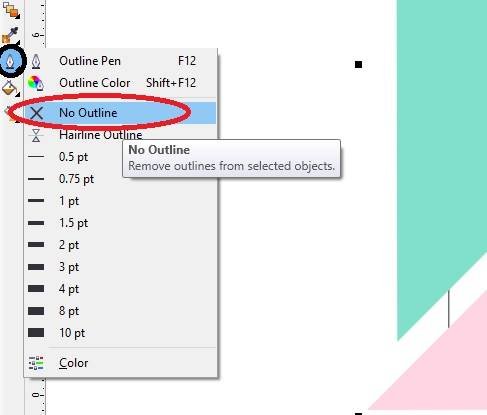
Invitation Card in CorelDraw, Simple Method to Create, Download Source File. 600
Then Go to Freehand Tool > Select 2-Point Line Option.
Invitation Card in CorelDraw, Simple Method to Create, Download Source File. 601
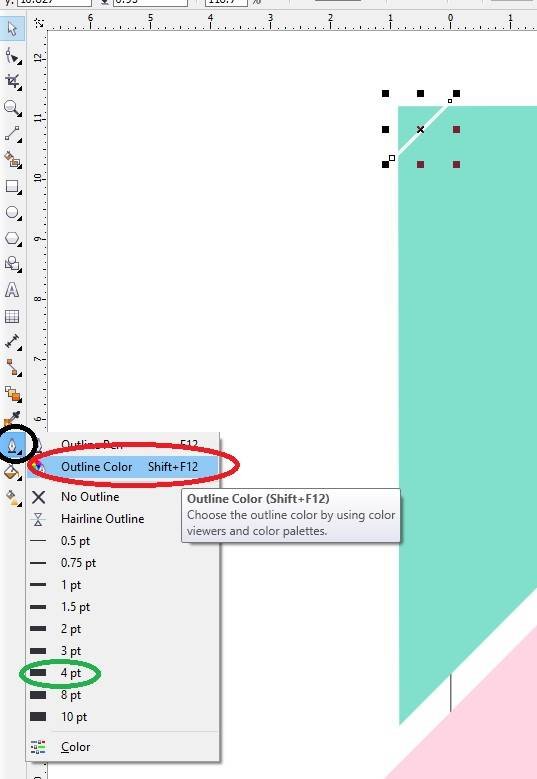
Press Shift and Draw the Line In Triangle > Outline 4pt > Fill White Color in Outline Like I show.
Invitation Card in CorelDraw, Simple Method to Create, Download Source File. 602
Then Press CTRL + D to Duplicates Like This.
Invitation Card in CorelDraw, Simple Method to Create, Download Source File. 603
Press Shift > Select all Lines.
Invitation Card in CorelDraw, Simple Method to Create, Download Source File. 604
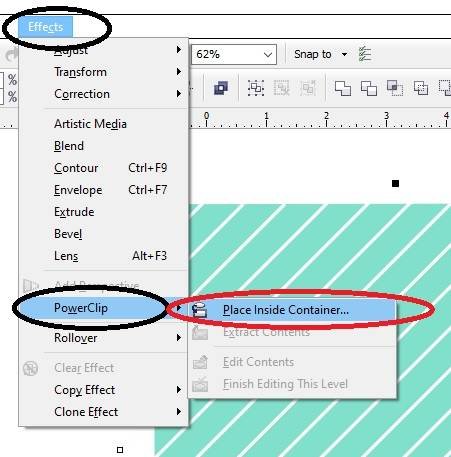
Then Go to Effect Menu > PowerClip > Place Inside Container.
Invitation Card in CorelDraw, Simple Method to Create, Download Source File. 605
Then Click at the Triangle Shape.
Invitation Card in CorelDraw, Simple Method to Create, Download Source File. 606
Then Select the triangle > Go to Effect tool > PowerClip > Place Inside Container > Click at the Page.
Invitation Card in CorelDraw, Simple Method to Create, Download Source File. 607
Then Repeat the same Process and draw Line at Second Triangle Shape.
Invitation Card in CorelDraw, Simple Method to Create, Download Source File. 608
Select all Lines > Go to Line Style Tool and make it like this.
Invitation Card in CorelDraw, Simple Method to Create, Download Source File. 609
Then Select the Lines > Go to Effect Tool > PowerClip > Place Inside Container > Click at Triangle Shape.
Invitation Card in CorelDraw, Simple Method to Create, Download Source File. 610
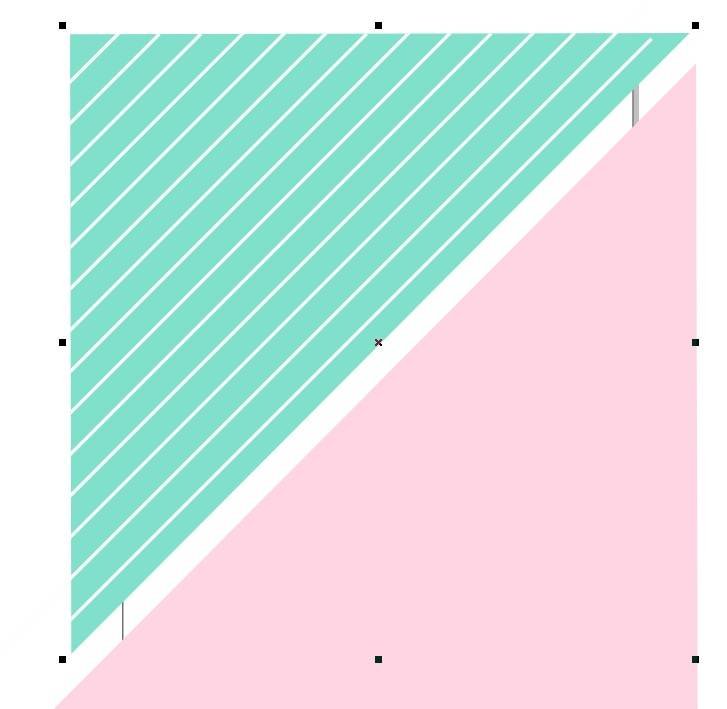
Then Select the triangle > Go to Effect Menu > PowerClip > Place Inside Container > Click On The Page.
Invitation Card in CorelDraw, Simple Method to Create, Download Source File. 611
Draw New Rectangle at Page > Fill White Color > No Outline.
Invitation Card in CorelDraw, Simple Method to Create, Download Source File. 612
Go to Text Tool and Write Your College/coaching/Institute Name.
Invitation Card in CorelDraw, Simple Method to Create, Download Source File. 613
Then Go to Pick tool > Fill any Color on Text.
Invitation Card in CorelDraw, Simple Method to Create, Download Source File. 614
Then fill in Details on Your Function in the Card.
Invitation Card in CorelDraw, Simple Method to Create, Download Source File. 615
Then Draw a Line Like This.
Invitation Card in CorelDraw, Simple Method to Create, Download Source File. 616
Then Go to Effect Menu > PowerClip > Place InsideContainer > Click On The Rectangle Shape.
Invitation Card in CorelDraw, Simple Method to Create, Download Source File. 617
Then Same Repeat the Process.
I have Completed this Project, I hope you guys have understood all the Step.
Invitation Card in CorelDraw, Simple Method to Create, Download Source File. 618
Template Design in CorelDraw, Easy Method, Complete Steps, Download Practice File
Hello Friend, Welcome to VedantSri.net In This Post I am Going To Teach You How To Create a Template Design in CorelDraw. In This Project, You can Learn How to Design a Template Design in CorelDraw Application In Easy Method. Template Design in CorelDraw, Easy Method, Complete Steps, Download practice File
CorelDraw open करने के लिए Window + R Press करके Run Box Open करे।
Template Design in CorelDraw, Easy Method, Complete Steps, Download practice File
Run Box मे Coreldrw type करे।
Template Design in CorelDraw, Easy Method, Complete Steps, Download practice File 634
अब Ok पर Click करके CorelDraw का Application Open करे
Template Design in CorelDraw, Easy Method, Complete Steps, Download practice File 635
अब CTRL + N Press करे New Page का Window open करे।
Template Design in CorelDraw, Easy Method, Complete Steps, Download practice File 636
अब Ok पर Click करे CorelDraw का main Page Open करे।
Template Design in CorelDraw, Easy Method, Complete Steps, Download practice File 637
Rectangle tool par Double Click करे।
Template Design in CorelDraw, Easy Method, Complete Steps, Download practice File 638
अब एक Polygon shape draw करे
Template Design in CorelDraw, Easy Method, Complete Steps, Download practice File 639
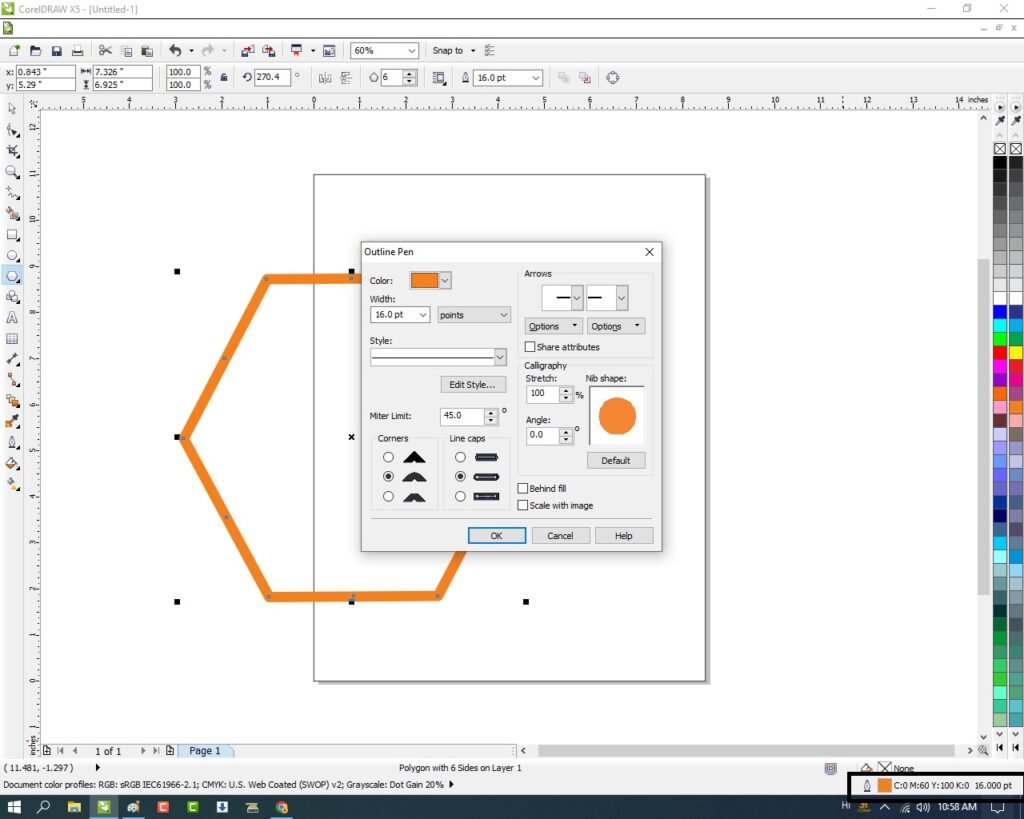
Outline pen Double Click करे
Outline Pen Window मे Shape का Color, Width Change करे।
Template Design in CorelDraw, Easy Method, Complete Steps, Download practice File 640
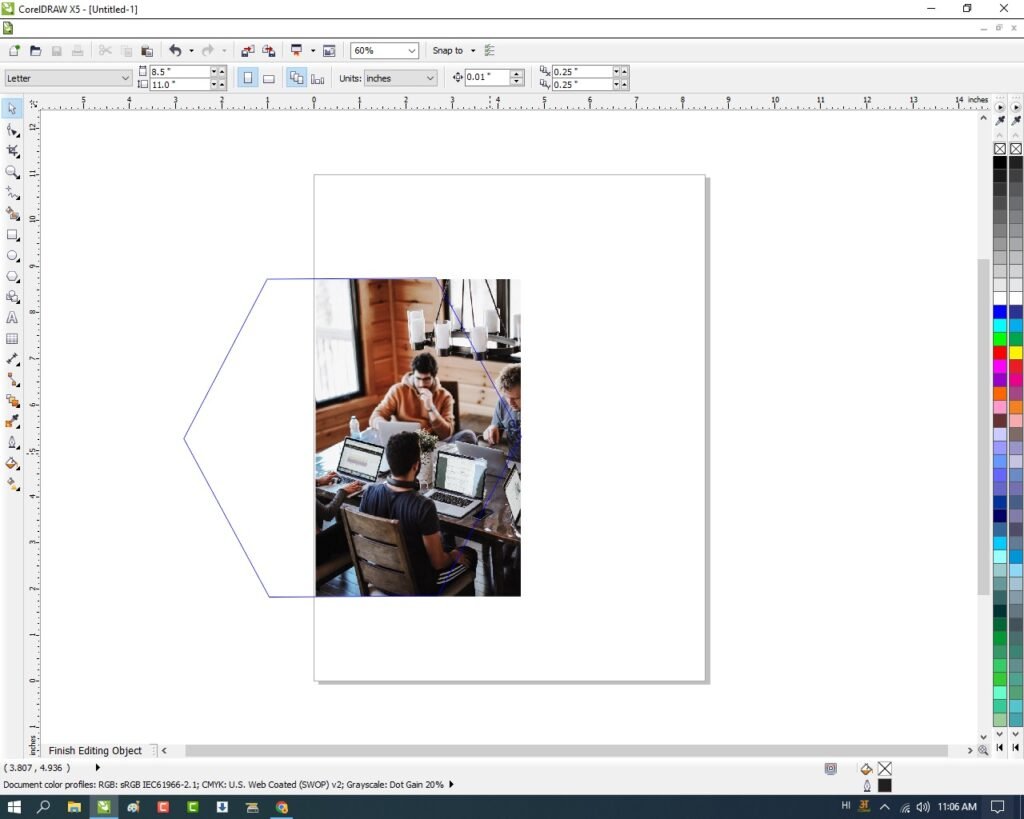
अब Photo Insert करे तथा Download करे
Menu bra > Bitmaps Option पर Click > Auto Adjust option पर click करे
Menu bar >Effects Option > Power Clip >Place Inside Container पर click करे
Shape पर Click करे
Shape पर CTRL + Mouse से Left Click करे।
Template Design in CorelDraw, Easy Method, Complete Steps, Download practice File 641
Image को shape पर set करे।
Template Design in CorelDraw, Easy Method, Complete Steps, Download practice File 642
Shape के बाहर CTRL + Mouse से Left Click करे
Menu bar >Effects Option > Power Clip >Place Inside Container पर click करे
Page पर Click करे।
Template Design in CorelDraw, Easy Method, Complete Steps, Download practice File 643
CTRL + D से Shape का Duplicate करे Shape मे Color Fill करे।
Template Design in CorelDraw, Easy Method, Complete Steps, Download practice File 644
Shape को Select करे
Menu bar >Effects Option > Power Clip >Place Inside Container पर click करे
Template Design in CorelDraw, Easy Method, Complete Steps, Download practice File 645
CTRL + D Shape का Duplicate Or Image Set करे
File से LOGO Insert करे Download कर सकते है।
Template Design in CorelDraw, Easy Method, Complete Steps, Download practice File 646
Basic Shape tool से Star Shape Draw करे Or Color Fill, CTRL + D से Shape का Duplicate करे
Text Tool से Detail Fill करे।
Template Design in CorelDraw, Easy Method, Complete Steps, Download Practice File
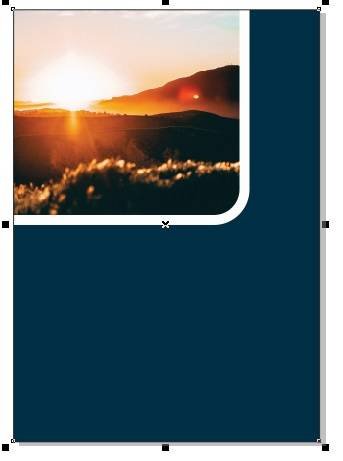
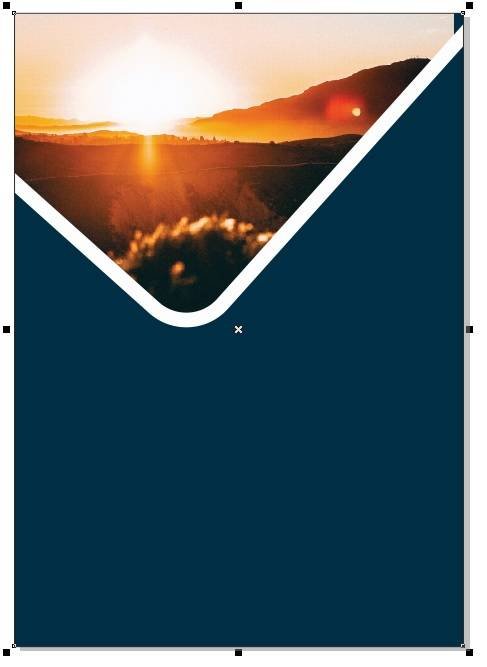
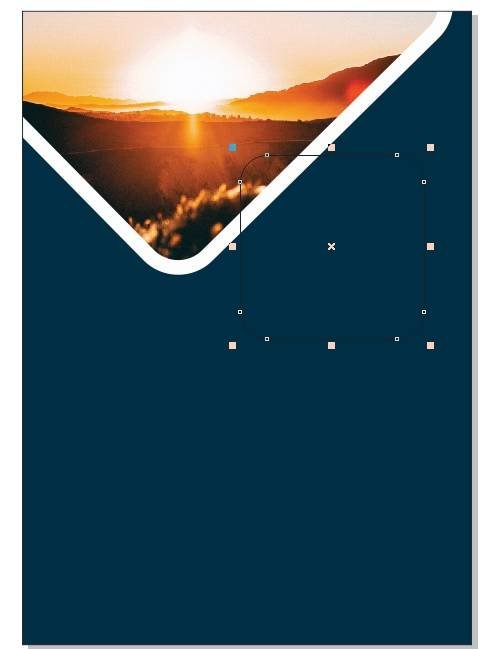
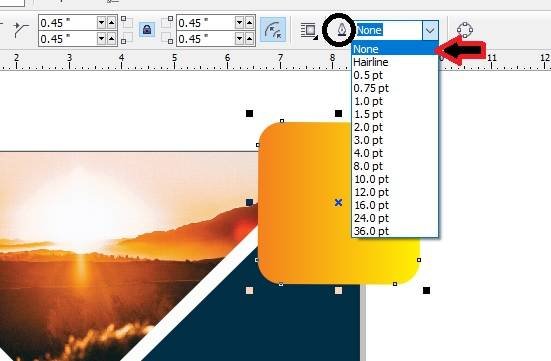
Visiting Card Design In CorelDraw, Simple Method, Download Source File.
Hello! Friends, welcome to www.vedantsri.net. In this Project, I am going to teach you How To Create a Visiting Card in CorelDRAW. In this Project, you can Learn How to design a Visiting Card in the CorelDRAW application in an Easy Method.
Press Windows + R > To Open Run Dialogue Box.
Visiting Card Design In CorelDRAW
Type coreldrw in the Run Dialogue Box > As a Run Command.
Visiting Card Design In CorelDRAW
Press OK.
Click on New Blank Document.
Visiting Card Design In CorelDRAW
Fill in all information > regarding the new document.
Flyer Design In CorelDraw, Easy and Simple Method, Download Flyer Vector Design
Hello! Friends Welcome to www.vedantsri.net In this Project I am going to Teach you How To Create a Flyer Design in CorelDraw. In this Project, you can Learn How to Design Flyers in CorelDraw Application in an Easy Method.
Press Window + R to Open Run Dialogue Box.
Type CorelDraw. Flyer Design In CorelDraw, Easy and Simple Method, Download Flyer Vector Design
Flyer Design In CorelDraw, Easy and Simple Method, Download Flyer Vector Design 713
Press Ok.
Flyer Design In CorelDraw, Easy and Simple Method, Download Flyer Vector Design 714
Press CTRL + N to Open the New page Window. Flyer Design In CorelDraw, Easy and Simple Method, Download Flyer Vector Design
Flyer Design In CorelDraw, Easy and Simple Method, Download Flyer Vector Design 715
Press ok.
Flyer Design In CorelDraw, Easy and Simple Method, Download Flyer Vector Design 716
Mention the page size, I will showing.
Flyer Design In CorelDraw, Easy and Simple Method, Download Flyer Vector Design 717
Then Double Click On Rectangle Tool.
Flyer Design In CorelDraw, Easy and Simple Method, Download Flyer Vector Design 718
Fill any Color on Page.
Flyer Design In CorelDraw, Easy and Simple Method, Download Flyer Vector Design 719
Then Draw a New Rectangle Shape on the Page.
Flyer Design In CorelDraw, Easy and Simple Method, Download Flyer Vector Design 720
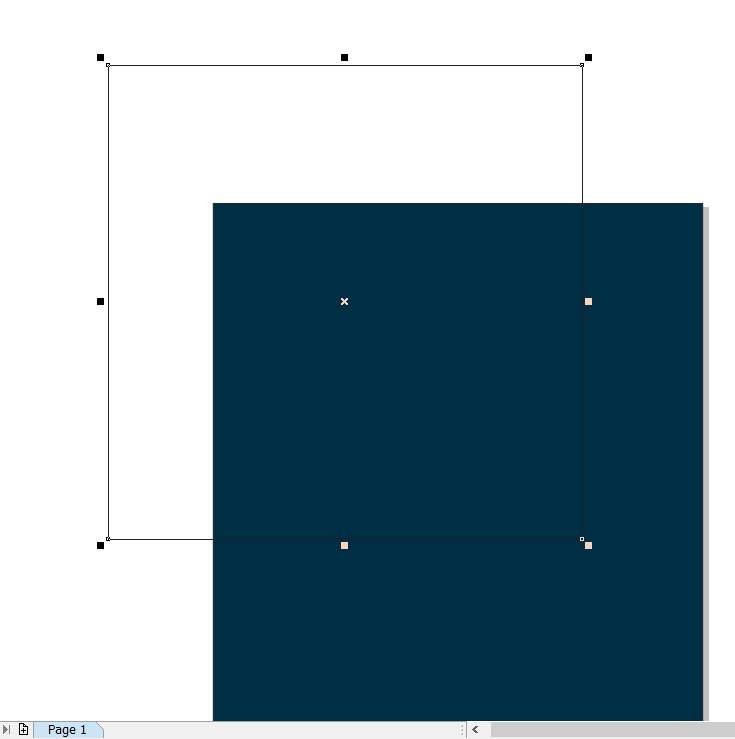
Select the Rectangle > Press F10 > Grab a Corner and Bring it Down.
Flyer Design In CorelDraw, Easy and Simple Method, Download Flyer Vector Design 721
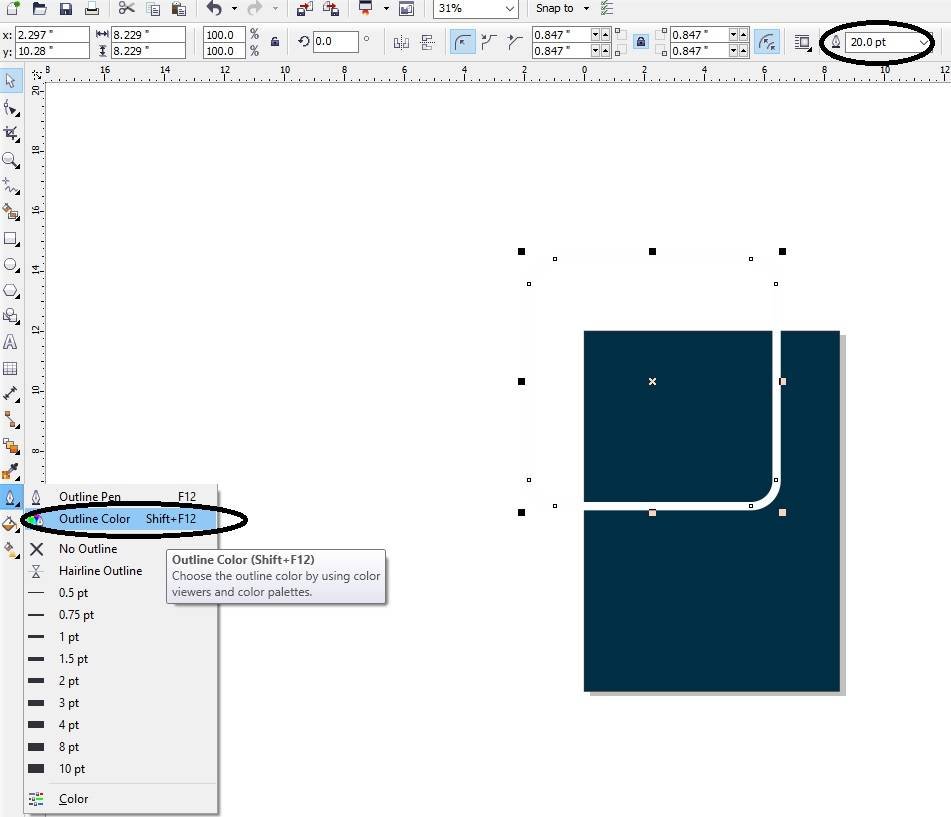
Press Space Bar > Go to Pen Tool > Outline20pt > Outline Color White.
Flyer Design In CorelDraw, Easy and Simple Method, Download Flyer Vector Design 722
Select the Rectangle > Insert Picture > You will see the Photo as too Big.
Flyer Design In CorelDraw, Easy and Simple Method, Download Flyer Vector Design 723
Shrink it with Shift + F2 > grab the Corner and Shorten.
Flyer Design In CorelDraw, Easy and Simple Method, Download Flyer Vector Design 724
Then Select the Picture > Go to Bitmaps Menu > Click on Convert to Bitmaps Option > Press Ok.
Flyer Design In CorelDraw, Easy and Simple Method, Download Flyer Vector Design 725
Then select the Image > Go to Effect Menu > Click on PowerClip Option > Click Place Inside Container.
Flyer Design In CorelDraw, Easy and Simple Method, Download Flyer Vector Design 726
Click on the Rectangle, Then Picture will Disappear.
Flyer Design In CorelDraw, Easy and Simple Method, Download Flyer Vector Design 727
Then CTRL + Double Click On Rectangle.
Flyer Design In CorelDraw, Easy and Simple Method, Download Flyer Vector Design 728
Fix the Picture on Shape > Then Press CTRL + Double Click on out of the page aria.
Flyer Design In CorelDraw, Easy and Simple Method, Download Flyer Vector Design 729
Then select the Rectangle > Go to Effect Menu > Click on PowerClip Option > Click Place Inside Container > Then Click at the Page.
Flyer Design In CorelDraw, Easy and Simple Method, Download Flyer Vector Design 730
Then Same Process > CTRL + Double Click at the Page > and Fix the Shape > Double Click to Rotate a Shape Like will I Show.
Flyer Design In CorelDraw, Easy and Simple Method, Download Flyer Vector Design 731
Then CTRL + Double Click at out of the Page.
Flyer Design In CorelDraw, Easy and Simple Method, Download Flyer Vector Design 732
Then Draw a New Rectangle Shape > Press F10 > Grab a Corner and Bring it Down.
Flyer Design In CorelDraw, Easy and Simple Method, Download Flyer Vector Design 733
Select the Rectangle > Go to Fill Tool > Click Fountain Fill Option & Fill Any Color As your Wish.
Flyer Design In CorelDraw, Easy and Simple Method, Download Flyer Vector Design 734
No Outline this Shape & Fix Like This.
Flyer Design In CorelDraw, Easy and Simple Method, Download Flyer Vector Design 735
Then select the Rectangle > Go to Effect Menu > Click on PowerClip Option > Click Place Inside Container > Then Click at the Page.
Flyer Design In CorelDraw, Easy and Simple Method, Download Flyer Vector Design 736
The Same Process > CTRL + Double Click at the Page > Select the Rectangle the Rectangle > Press CTRL + Page Down > Then CTRL + Double Click at Out of the Page.
Flyer Design In CorelDraw, Easy and Simple Method, Download Flyer Vector Design 737
Then Insert Your Company or Institute LOGO.
Flyer Design In CorelDraw, Easy and Simple Method, Download Flyer Vector Design 738
Go to Text Tool and Write Your Institute Or Company Name. Flyer Design In CorelDraw, Easy and Simple Method, Download Flyer Vector Design
Flyer Design In CorelDraw, Easy and Simple Method, Download Flyer Vector Design 739
Then Go to Pick Tool > Fill any Color In Text > and adjust & Fix Like This.
Flyer Design In CorelDraw, Easy and Simple Method, Download Flyer Vector Design 740
Then Draw New rectangle Repeat same Process. I will Showing
Flyer Design In CorelDraw, Easy and Simple Method, Download Flyer Vector Design 741
Then Type About Your Flyer.
Flyer Design In CorelDraw, Easy and Simple Method, Download Flyer Vector Design 742
Then Type Many Details About Your Company or Institute.
Flyer Design In CorelDraw, Easy and Simple Method, Download Flyer Vector Design 743
Draw a New Rectangle Shape > Fill Fountain Fill > No Outline this Shape.
Flyer Design In CorelDraw, Easy and Simple Method, Download Flyer Vector Design 744
Draw a New Rectangle Shape > Fill Fountain Fill > Press F10 > Grab a Corner and Bring it Down.
Flyer Design In CorelDraw, Easy and Simple Method, Download Flyer Vector Design 745
Then Type Your Contact Details.
Flyer Design In CorelDraw, Easy and Simple Method, Download Flyer Vector Design 746
I have Completed this Project, I hope you guys have understood all the Steps. Flyer Design In CorelDraw, Easy and Simple Method, Download Flyer Vector Design
Flyer Design In CorelDraw, Easy and Simple Method, Download Flyer Vector Design 747
Visiting Card Design In CorelDraw, Easy Method, Complete Steps, Download Practice File
Hello Friends, Welcome To VedantSri.net In This Post I am Going To Teach You How To Create Visiting Card Design In CorelDraw. In This project, You Can Learn How To Design Visiting Card Design In CorelDraw Application In Easy Method.
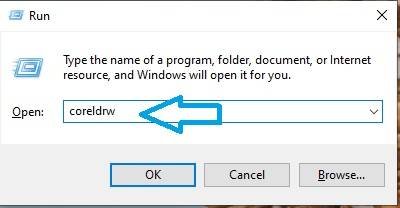
CorelDraw Open करने के लिए Windows + R Press करके Run Box Open करे
Visiting Card Design In CorelDraw
Run Box मे Coreldrw Type करे।
Visiting Card Design In CorelDraw,
अब Ok पर Click करके CorelDraw के Application को open करे।
Visiting Card Design In CorelDraw, Easy Method, Complete Steps, Download Practice File 763
अब CTRL + N Press करके New Page का Window Open करे।
Visiting Card Design In CorelDraw, Easy Method, Complete Steps, Download Practice File 764
अब Ok पर Click करके CorelDraw का main Page open करे।
Visiting Card Design In CorelDraw, Easy Method, Complete Steps, Download Practice File 765
Rectangle Tool पर Double Click करे
Visiting Card Design In CorelDraw, Easy Method, Complete Steps, Download Practice File 766
अब Freehand tool से एक Shape Draw करे।
Visiting Card Design In CorelDraw, Easy Method, Complete Steps, Download Practice File 767
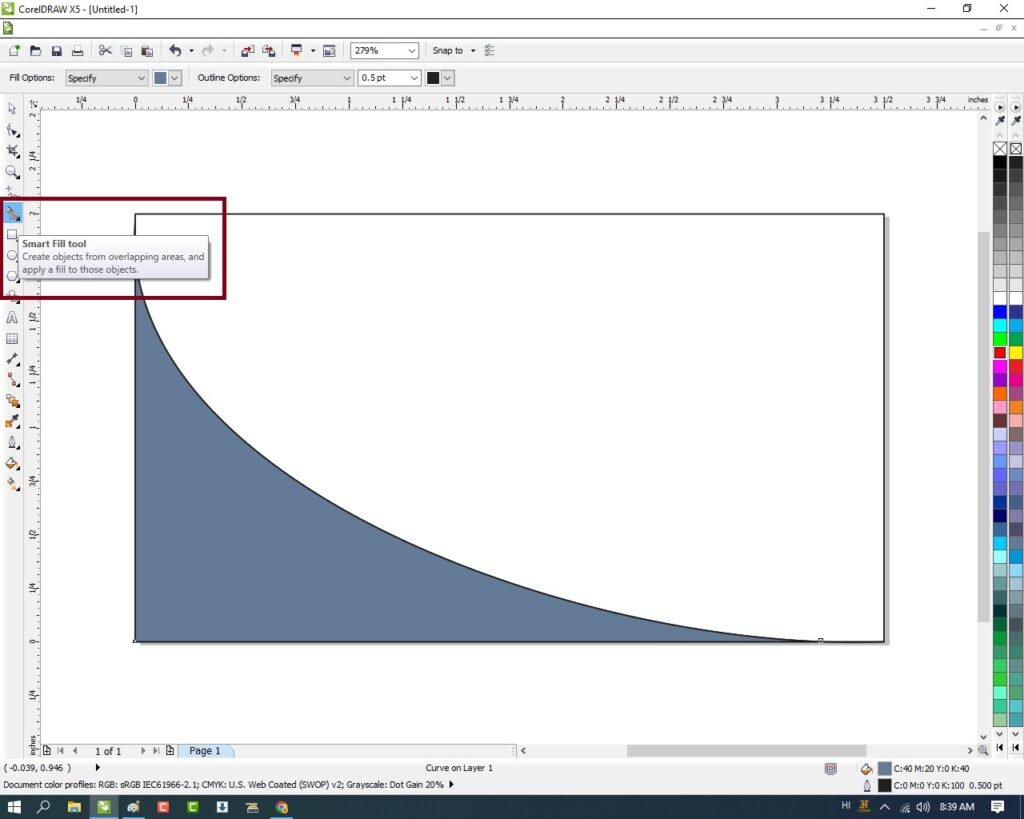
Smart Fill Tool से Shape को Fill करे।
Visiting Card Design In CorelDraw, Easy Method, Complete Steps, Download Practice File 768
Shape मे Color Fill करे।
Visiting Card Design In CorelDraw, Easy Method, Complete Steps, Download Practice File 769
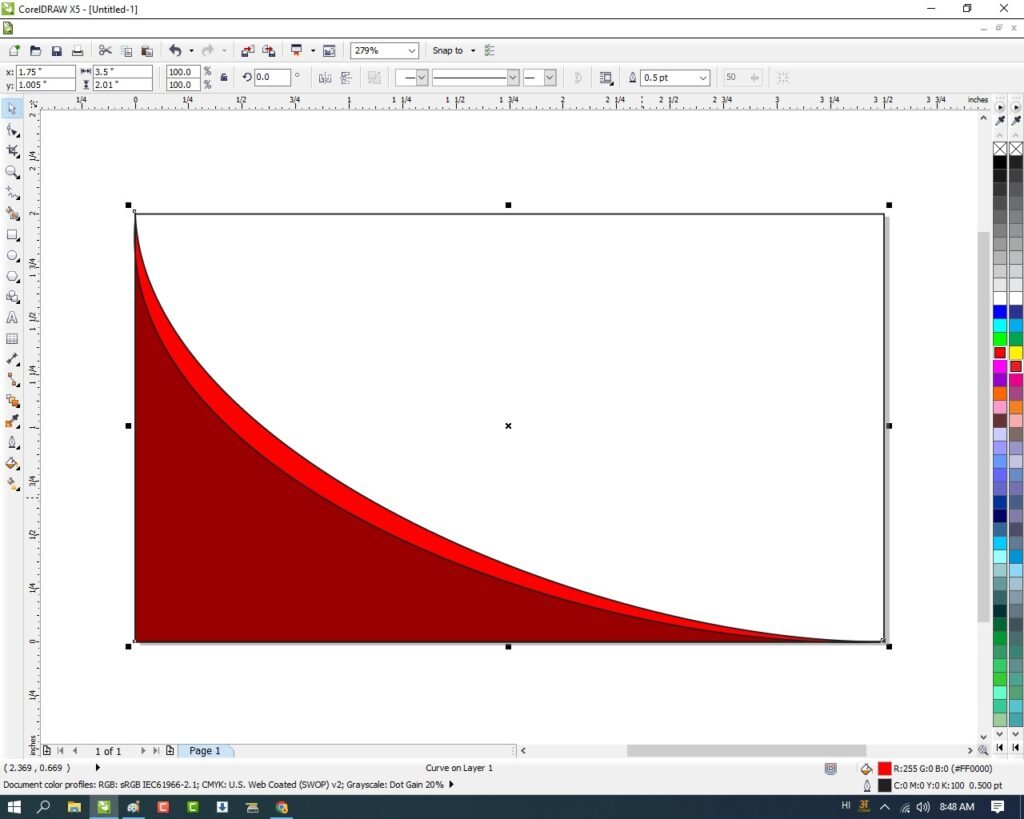
CTRL + D से Shape का Duplicate बनाये Or Color Change करे
CTRL + Page Down से पहले Shape के पीछे करे
Shape पर Set करने के लिए F10 > CTRL + Q Press करे।
Visiting Card Design In CorelDraw, Easy Method, Complete Steps, Download Practice File 770
Shape पर Click करके Shift के साथ Shape को Select करे
CTRL + G से shape को Group कर
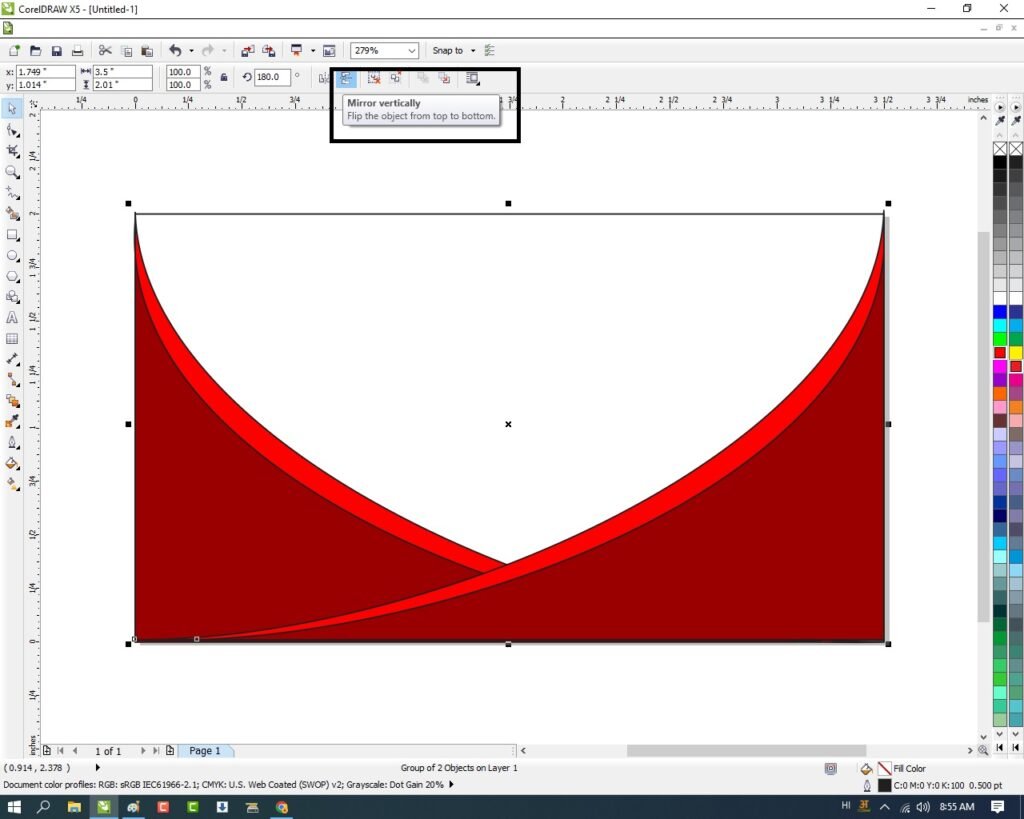
CTRL + D से Shape का Duplicate बनाये
Mirror vertically से Shape को Page पर Set करे।
Visiting Card Design In CorelDraw, Easy Method, Complete Steps, Download Practice File 771
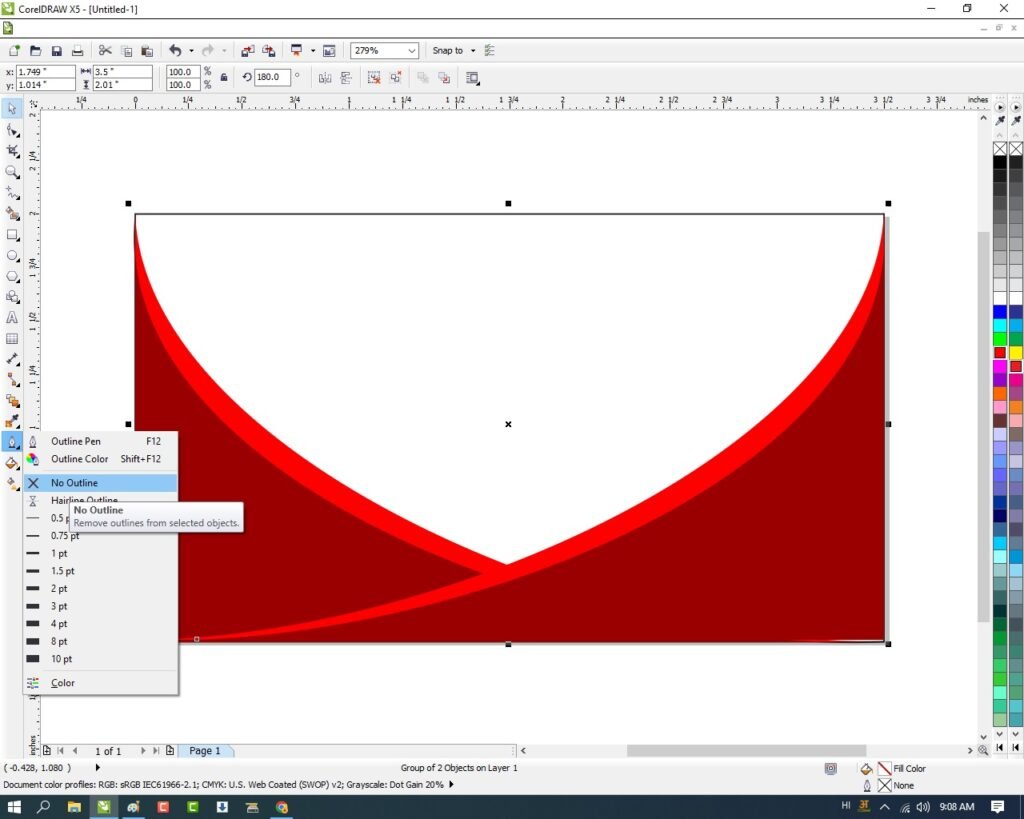
Shape को Select करके Outline pen tool > No Outline Option पर Click करे।
Visiting Card Design In CorelDraw, Easy Method, Complete Steps, Download Practice File 772
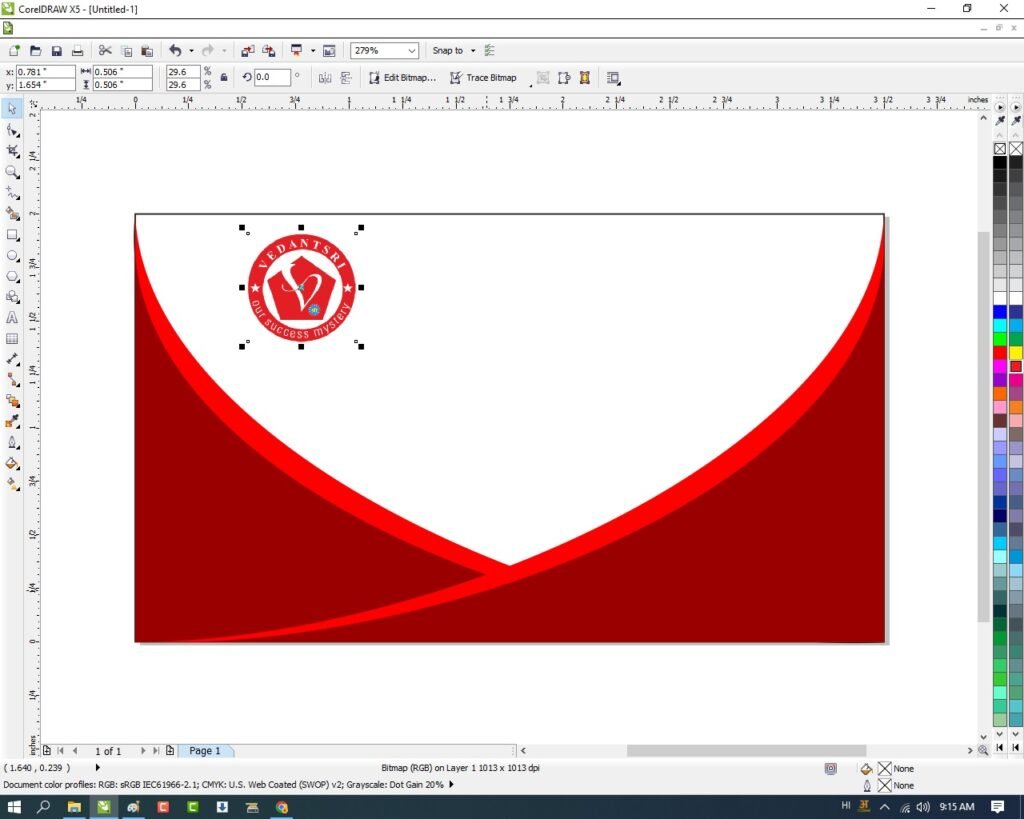
अब File से LOGO Insert करे Or Page पर Set करे।
Visiting Card Design In CorelDraw, Easy Method, Complete Steps, Download Practice File 773
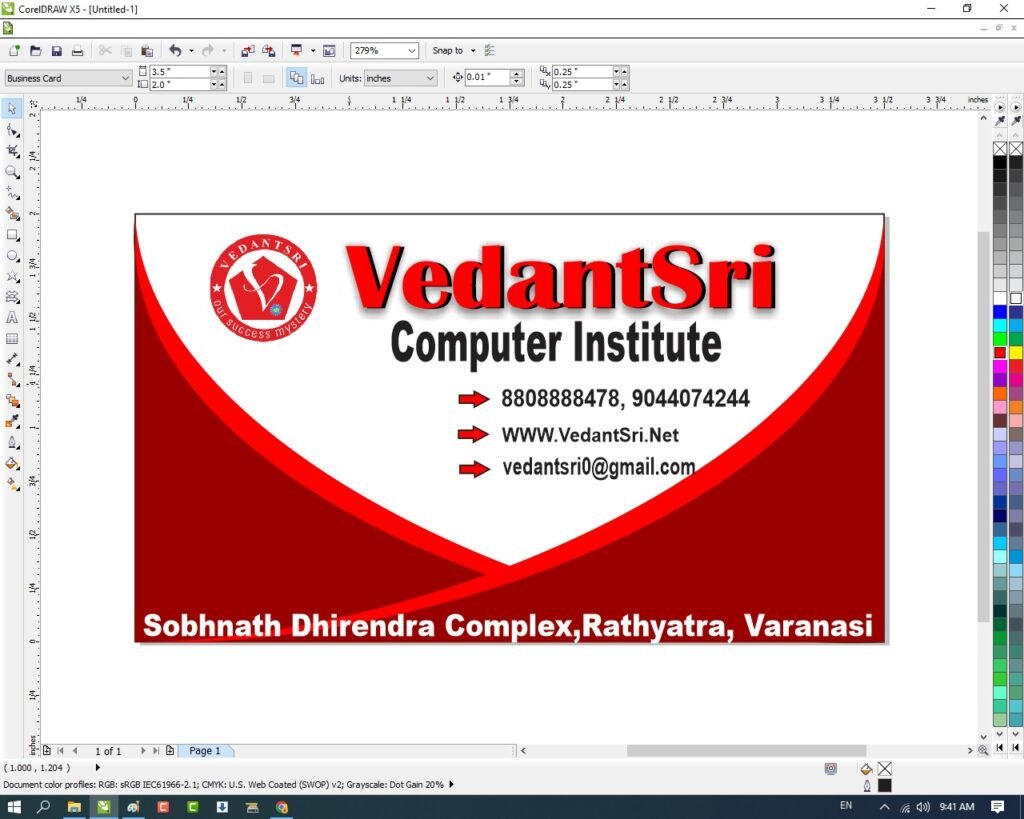
Text tool से VEDANTSRI लिखेगे Or Text का Font Style, Color Change करे
Blend Tool > Drop Shadow Tool से text पर Shadow Apply करे।
Visiting Card Design In CorelDraw, Easy Method, Complete Steps, Download Practice File 774
Text Tool से detail Fill करे।
Visiting Card Design In CorelDraw, Easy Method, Complete Steps, Download Practice File 775
Certificate Design in CorelDraw, Simple and Easy Method, Download Source File.
Hello! Friends Welcome to www.vedantsri.net In this Project I am going to Teach you How To Create a Certificate in CorelDraw. In this Project, you can Learn How to Design a Certificate in CorelDraw Application an Easy Method. (Certificate Design in CorelDraw, Simple and Easy Method, Download Source File.)
Press Windows + R on Keyboard.
To Open > Run Dialog Box.
Certificate Design in CorelDraw, Simple and Easy Method, Download Source File. 797
Type CorelDraw in Run Dialog Box > As a Run Command.
Certificate Design in CorelDraw, Simple and Easy Method, Download Source File. 798
Click on OK.
Click on New Blank Document.
Certificate Design in CorelDraw, Simple and Easy Method, Download Source File. 799
Fill all Information > Regarding Page.
Certificate Design in CorelDraw, Simple and Easy Method, Download Source File. 800
Double Click at Rectangle Tool > From Tool Option.
Certificate Design in CorelDraw, Simple and Easy Method, Download Source File. 801
Draw a Rectangle on the Page.
Certificate Design in CorelDraw, Simple and Easy Method, Download Source File. 802
Press F10 > Ctrl + Q > Click at To Curve Option > To Convert in Curve.
Certificate Design in CorelDraw, Simple and Easy Method, Download Source File. 803
Left Click at Bottom Corner of Rectangle > Click at To Curve > 2 nodes appear >like this.
Certificate Design in CorelDraw, Simple and Easy Method, Download Source File. 804
Click at Nodes One by One > Give shape > Like this.
Certificate Design in CorelDraw, Simple and Easy Method, Download Source File. 805
Click at Rectangle > Press Ctrl + D > to Duplicate Shape > Duplicate Rectangle > Set like this.
Certificate Design in CorelDraw, Simple and Easy Method, Download Source File. 806
Select Rectangle > One by One > Change Color of Rectangle > From Color Palate > Like this.
Certificate Design in CorelDraw, Simple and Easy Method, Download Source File. 807
Select Both Rectangles with Shift + Mouse Click > Click at Effect Menu > Click at Power Clip option > Click at Place Inside Container.
Certificate Design in CorelDraw, Simple and Easy Method, Download Source File. 808
Something like this appears.
Certificate Design in CorelDraw, Simple and Easy Method, Download Source File. 809
Draw a rectangle > Press F10 Shape Rectangle like this > Set like this > Select and Power Clip.
Certificate Design in CorelDraw, Simple and Easy Method, Download Source File. 810
Put LOGO on Certificate > Go to File Folder > Select Photo > Drag Photo to CorelDraw Application > Put at Page > like this.
Certificate Design in CorelDraw, Simple and Easy Method, Download Source File. 811
Draw a Circle > For Outer Design > Select Circle > Increase Outline from here.
Certificate Design in CorelDraw, Simple and Easy Method, Download Source File. 812
Change the Color of the Circle > Select LOGO and Outer Circle > Press Ctrl + G > To Group both.
Click on Text Tool > To type matter.
Certificate Design in CorelDraw, Simple and Easy Method, Download Source File. 813
Click on Page > Type Institution Name.
Certificate Design in CorelDraw, Simple and Easy Method, Download Source File. 814
Select Text > Change Font Style > From Font List > Increase or Decrease Size of Font From Font size.
Certificate Design in CorelDraw, Simple and Easy Method, Download Source File. 815
Type Matter > Regarding Certificate like this.
Certificate Design in CorelDraw, Simple and Easy Method, Download Source File. 816
Now Certificate is Ready
Certificate Design in CorelDraw, Simple and Easy Method, Download Source File. 817