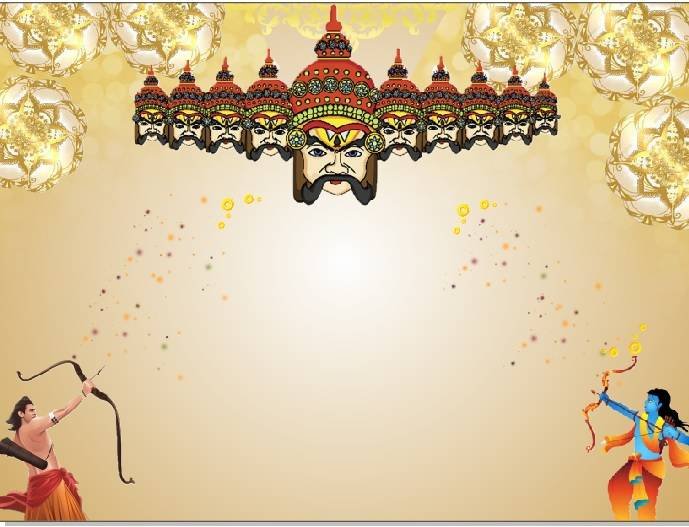
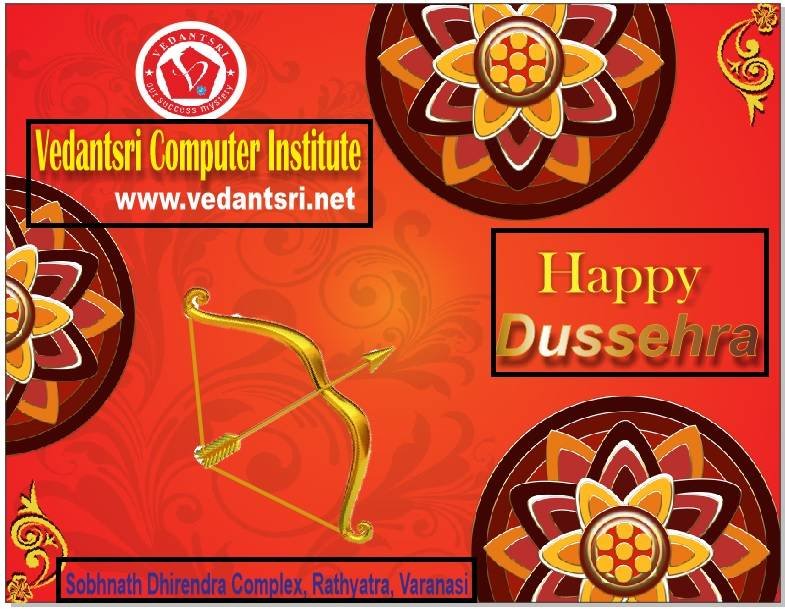
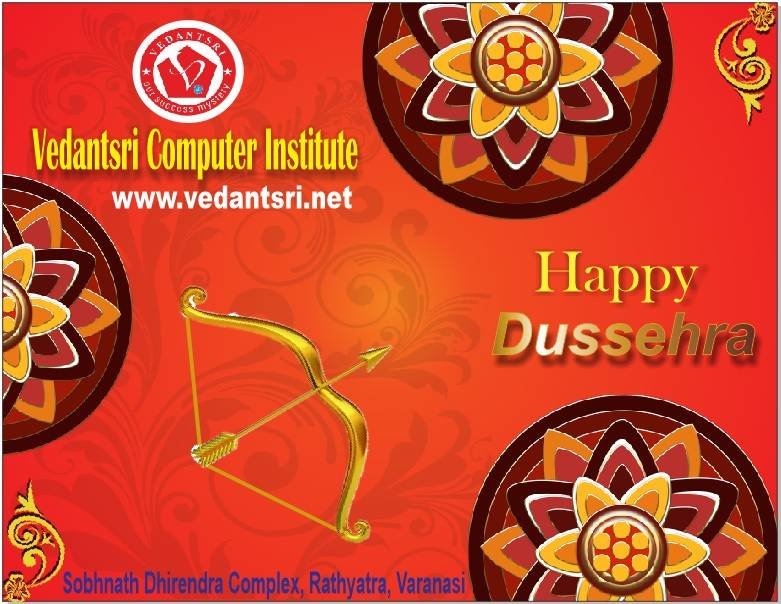
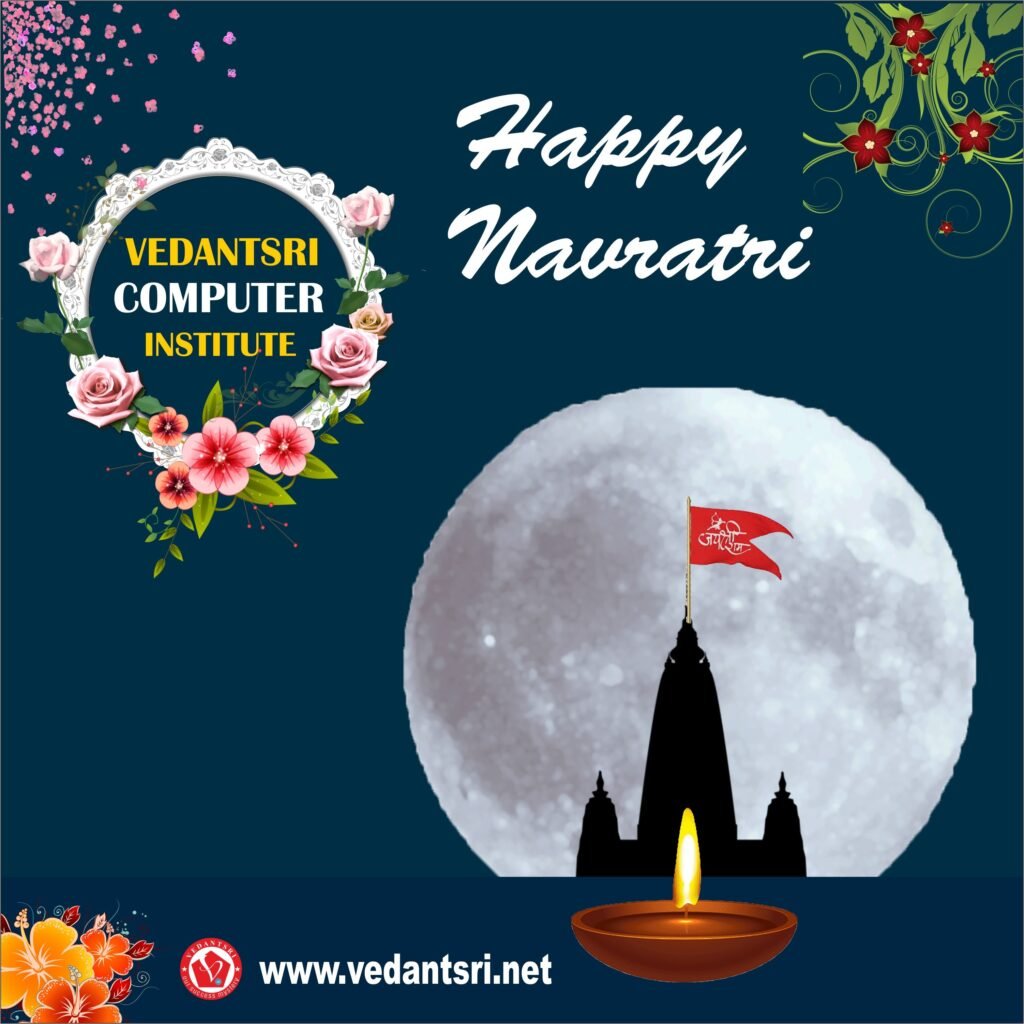
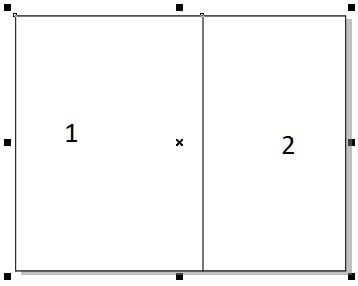
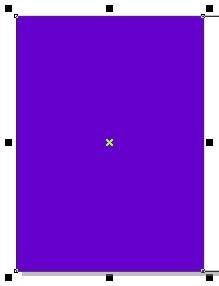
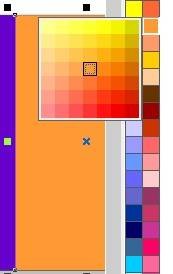
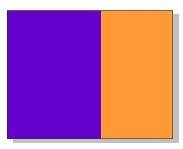
Offers Navratri Card in CorelDraw, Simple Method, Download Source File
Hello! Friends Welcome to www.vedantsri.net In this Project I am going to Teach you How To Create Offers Cards in CorelDraw. In this Project, you can Learn How to Design a Message Card in CorelDraw Application an Easy Method. Simple Method to Create a Beautiful Offers Card in CorelDraw. You Can also Download the Practice File in This Post. So Let’s Start This Project. Before Starting This Project I Request You Please Follow the Given Below Steps to Learn Properly. Offers Navratri Card in CorelDraw, Simple Method, Download Source File
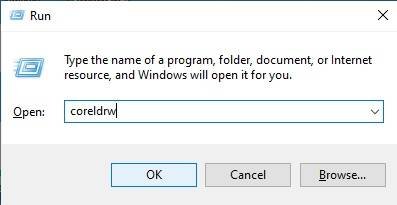
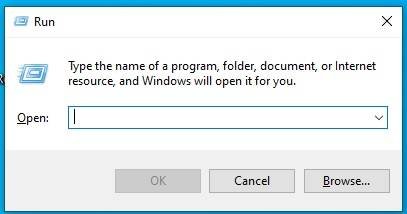
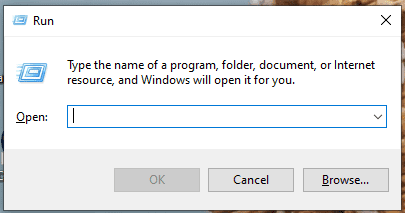
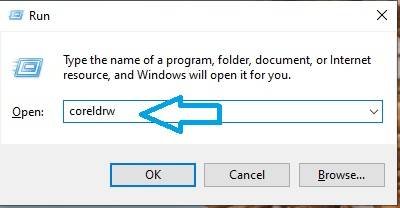
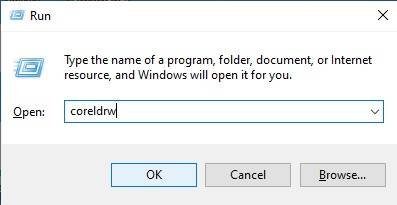
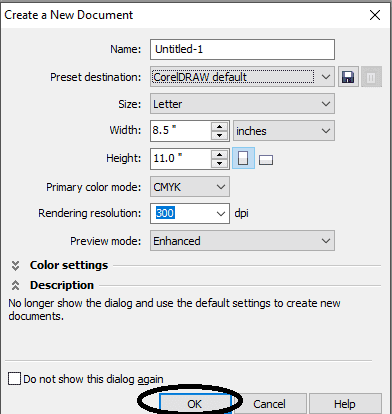
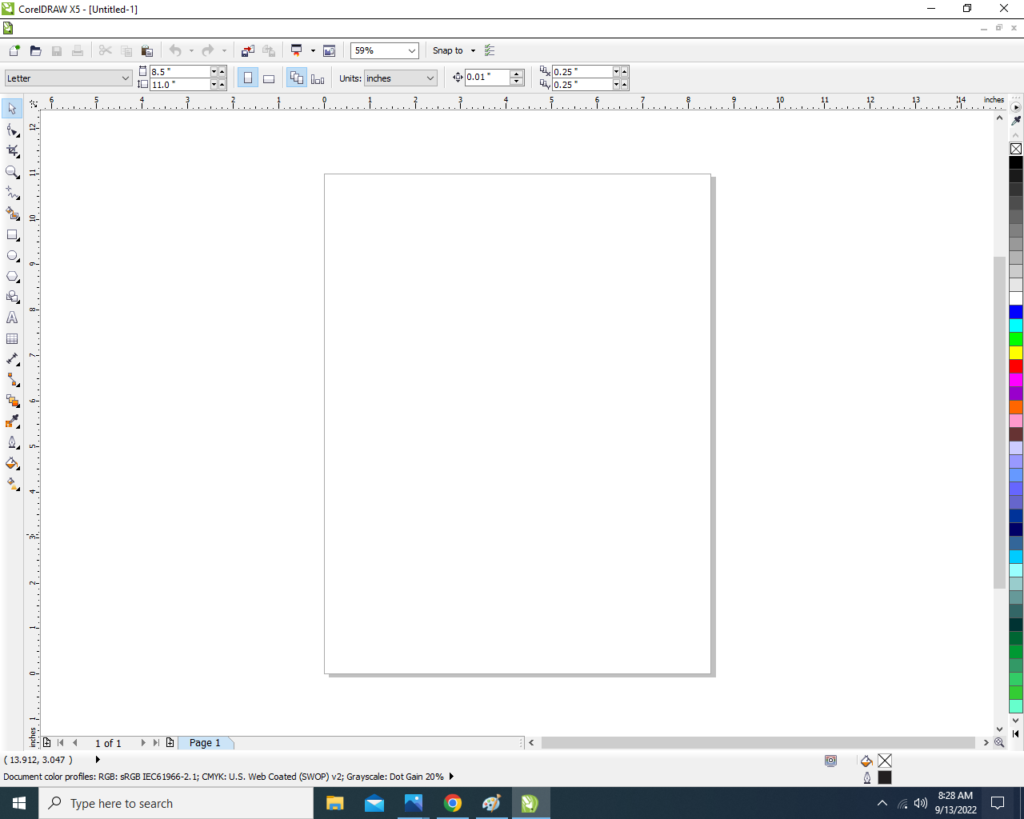
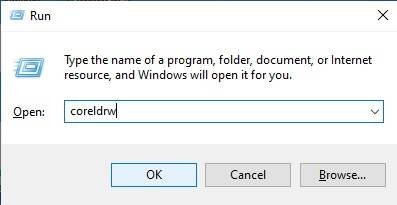
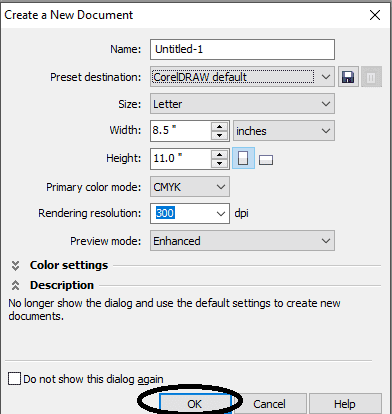
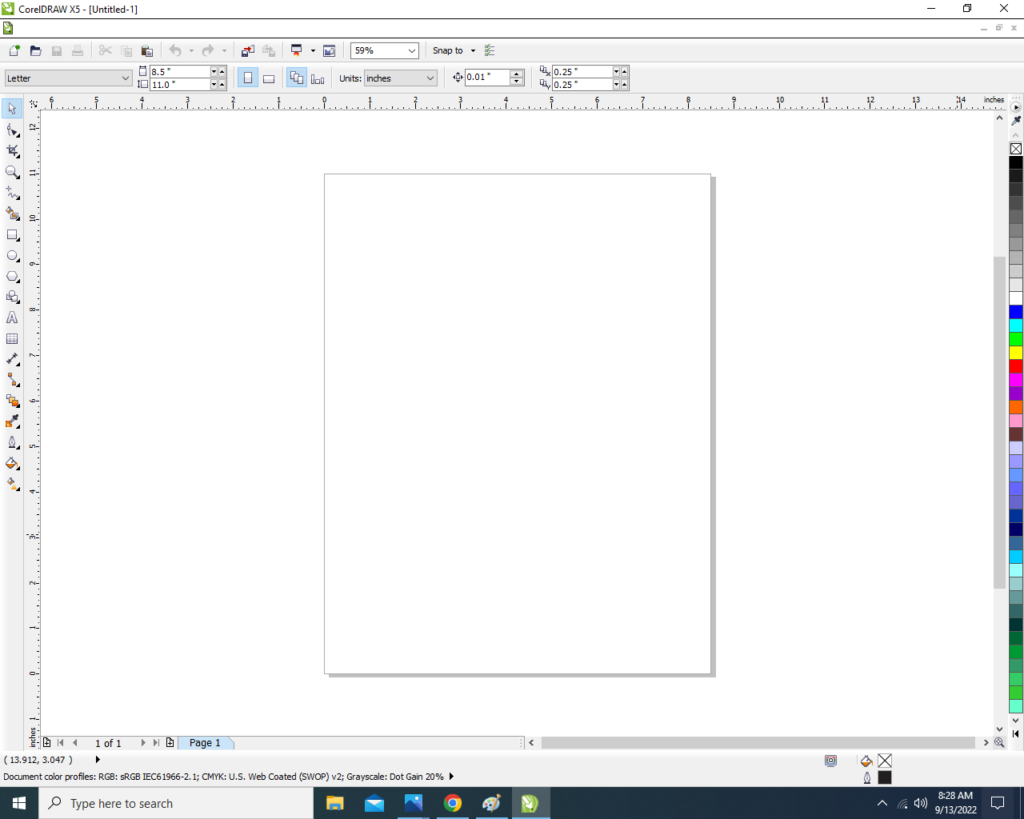
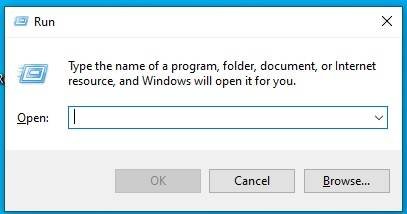
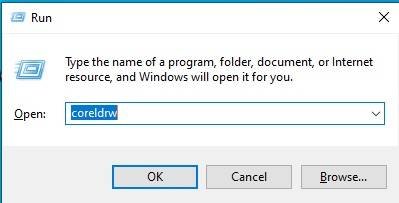
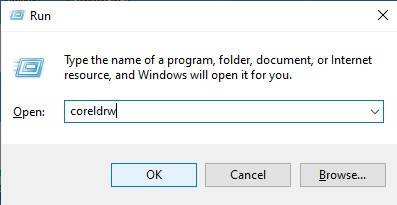
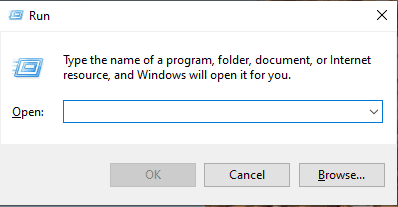
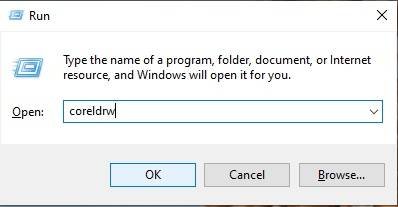
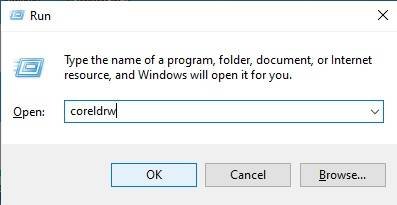
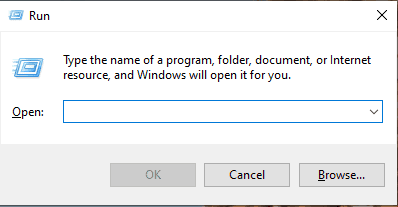
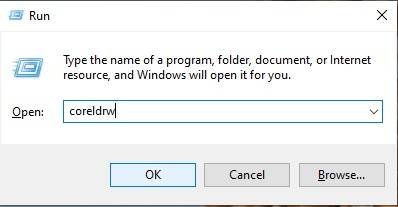
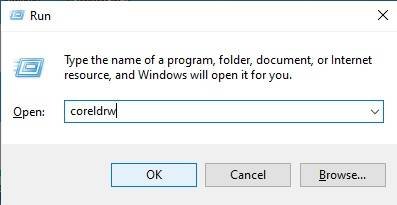
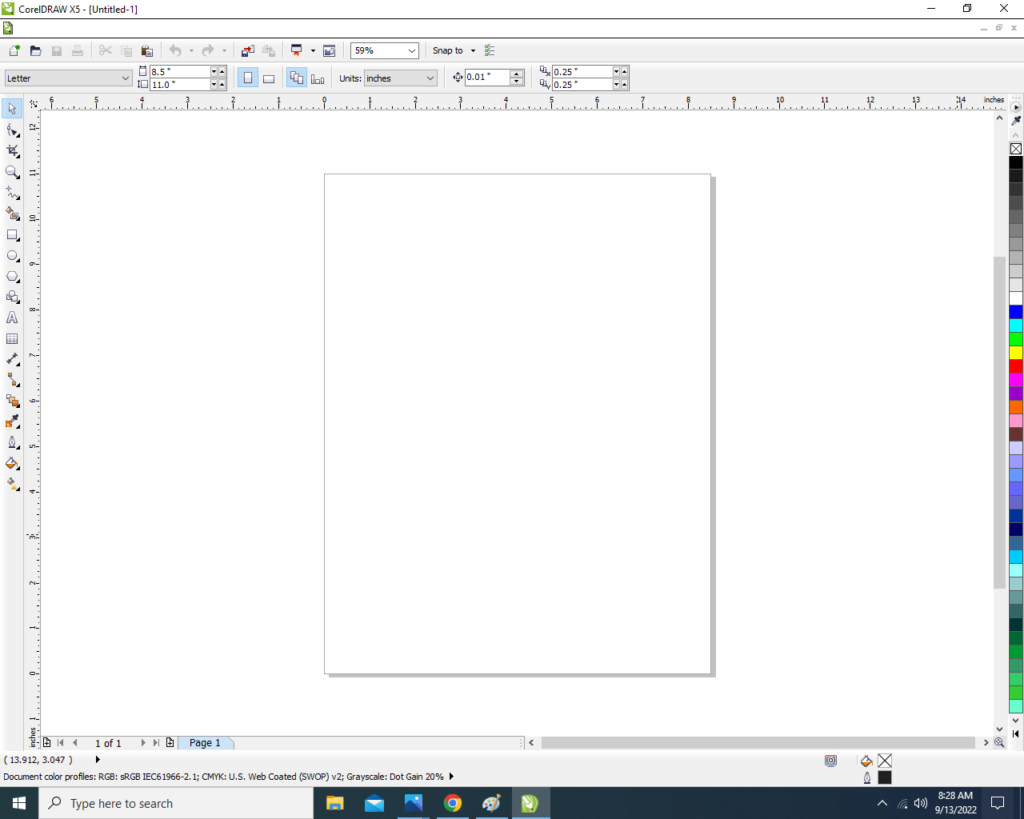
Press Window + R To Open Run Dialogue Box > Type CorelDraw.
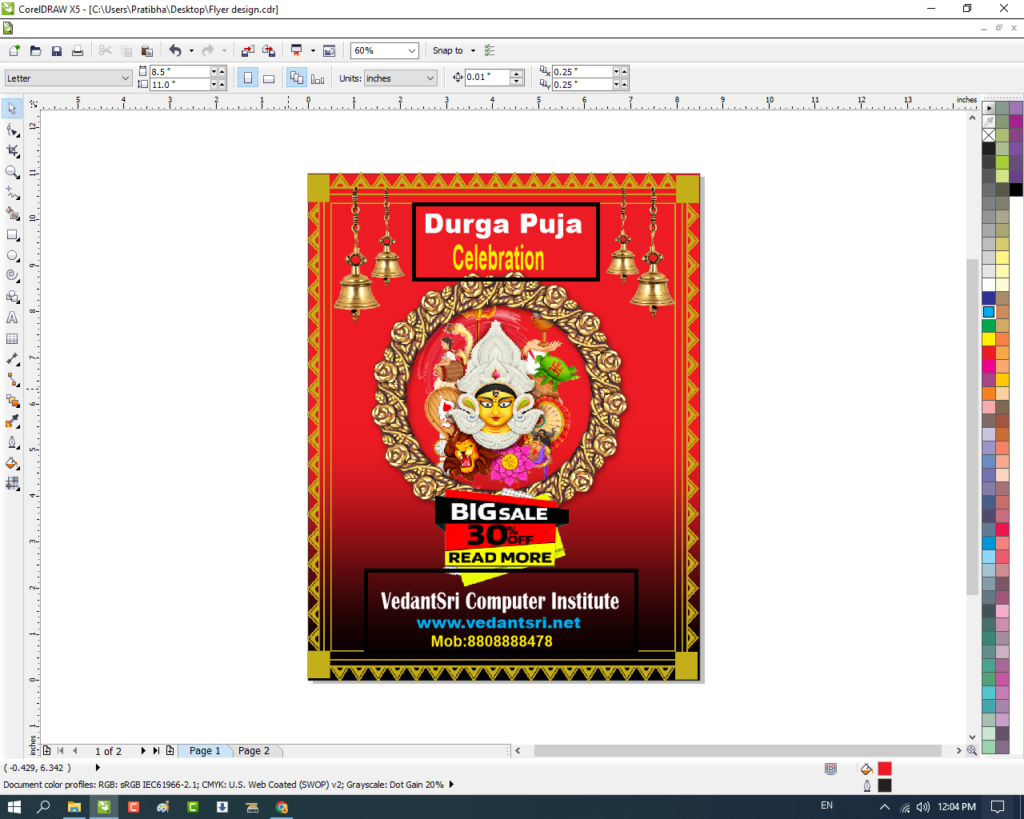
Durga Puja Template Design in CorelDraw, Effective and Innovative, Download Source File
Hello! Friends Welcome to www.vedantsri.net In this Project I am going to Teach you How To Design Durga Puja Template in CorelDraw. In this Project you can Learn How to make Basic Durga Puja Card in CorelDraw Application in Easy Method. You can also Download Practice File in this Post . So let’s Start this Project. Before Starting this Project I request you to Please Follow given below Steps to Learn Properly Step by step.
Press Windows + R in Keyboard.
To Open Run Dialog Box.
Durga Puja Template Design in CorelDraw
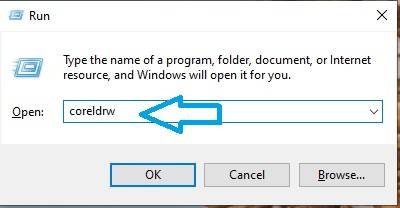
Type coreldrw in Run Dialog Box.
Durga Puja Template Design in CorelDraw
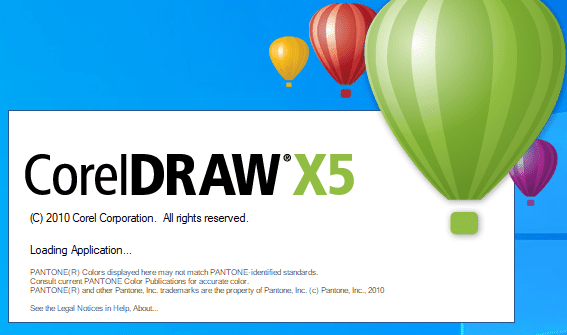
Click at OK.
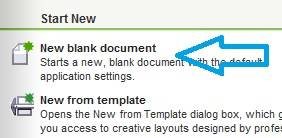
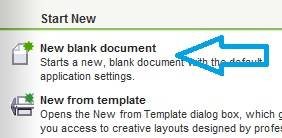
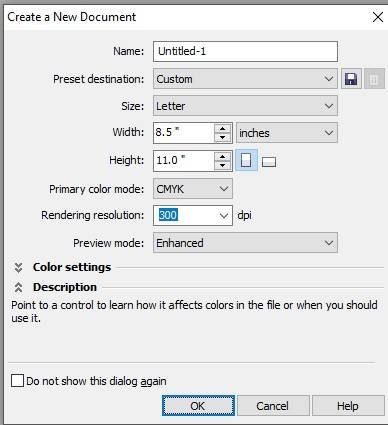
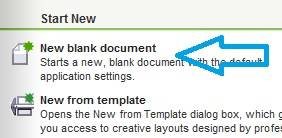
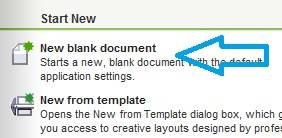
Click at New Blank Document.
Durga Puja Template Design in CorelDraw, Effective and Innovative, Download Source File 49
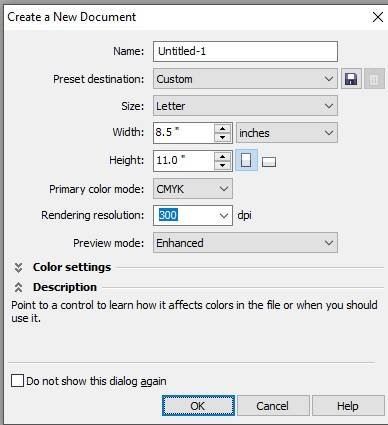
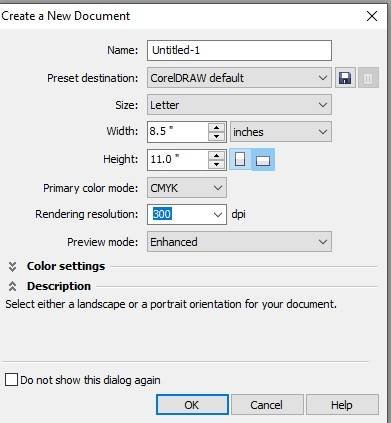
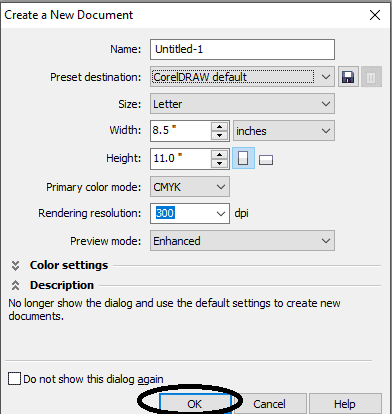
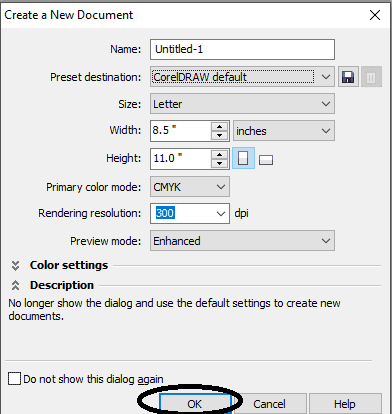
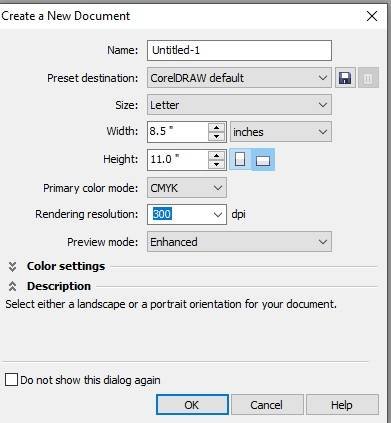
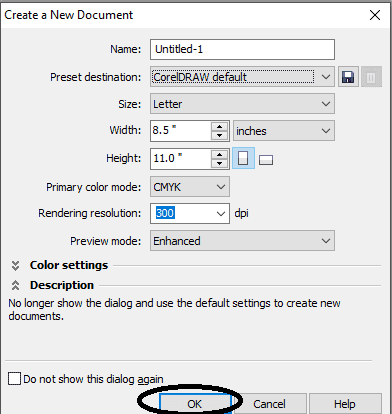
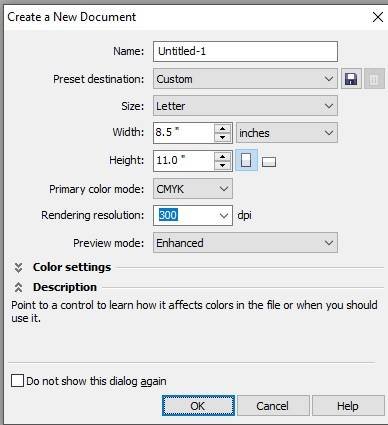
Fill all Information > Regarding Document.
Durga Puja Template Design in CorelDraw, Effective and Innovative, Download Source File 50
Click at OK.
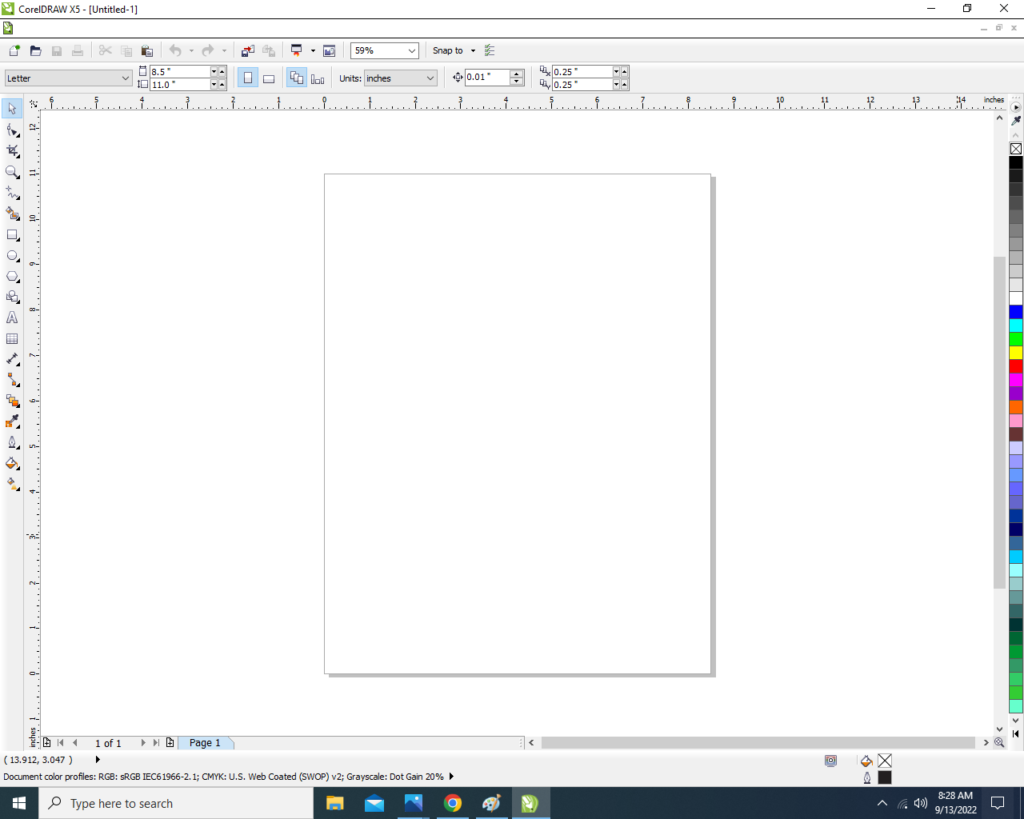
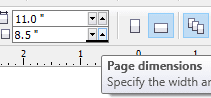
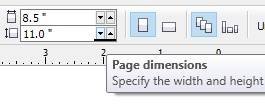
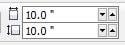
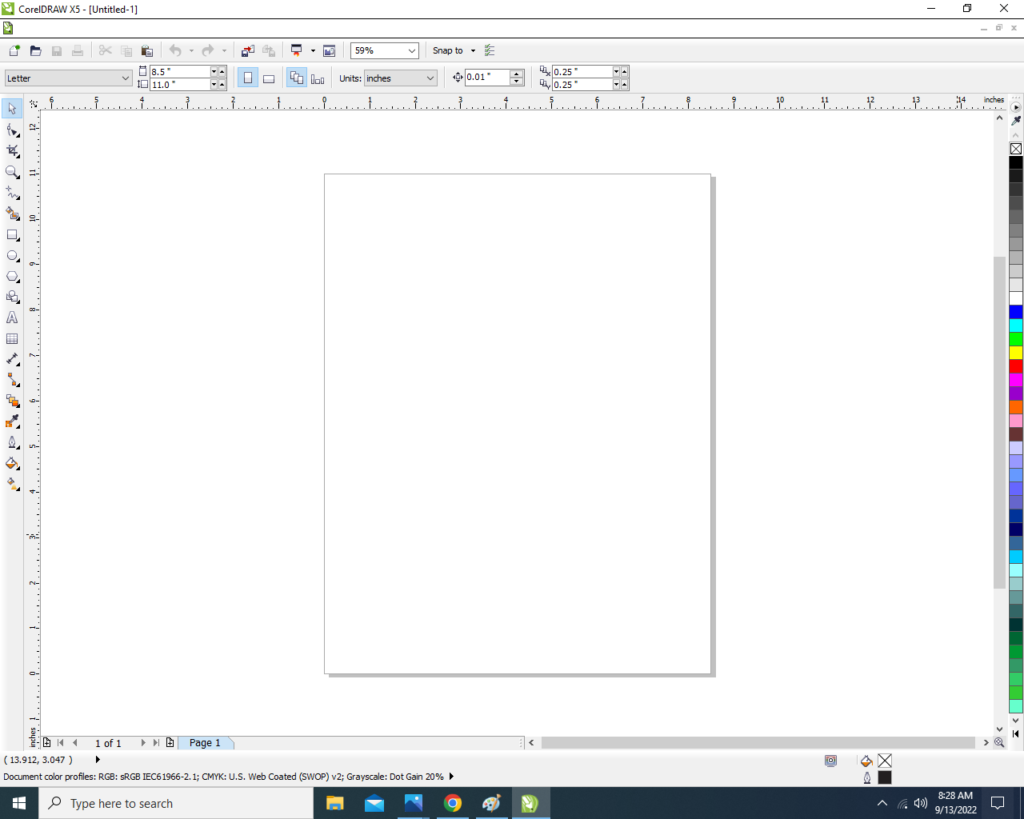
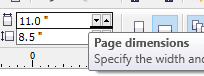
Define Page Dimension.
Durga Puja Template Design in CorelDraw, Effective and Innovative, Download Source File 51
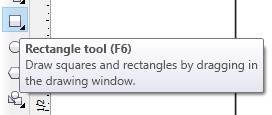
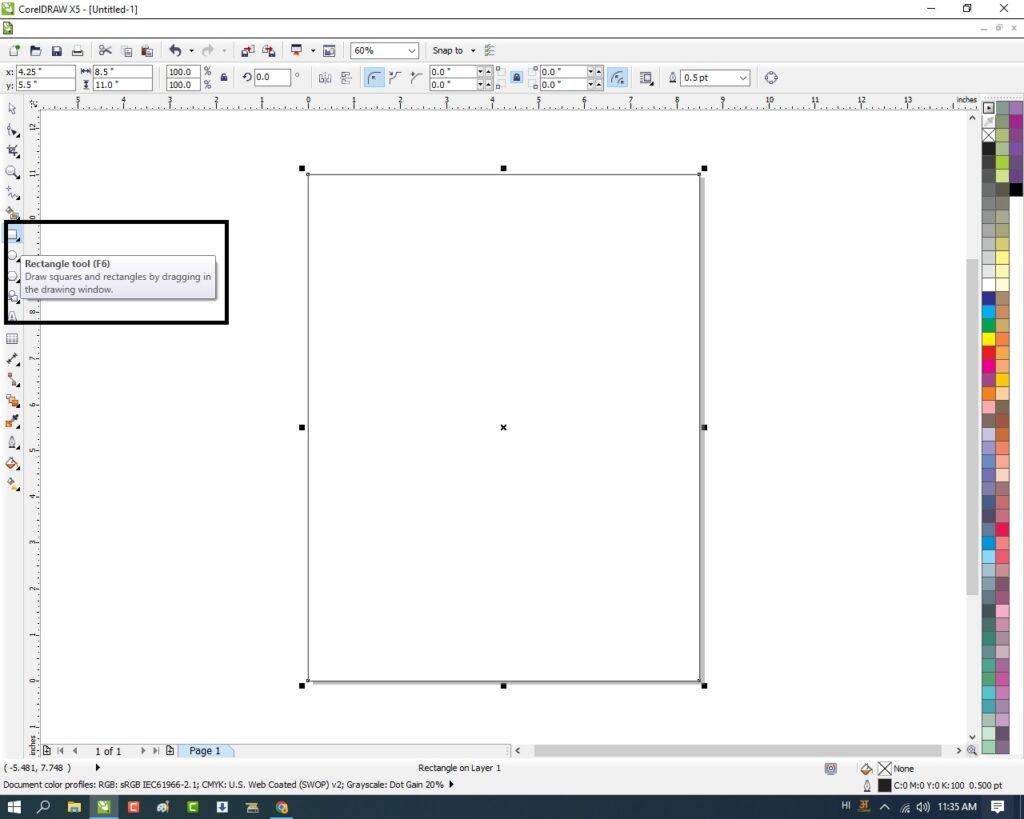
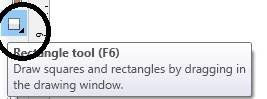
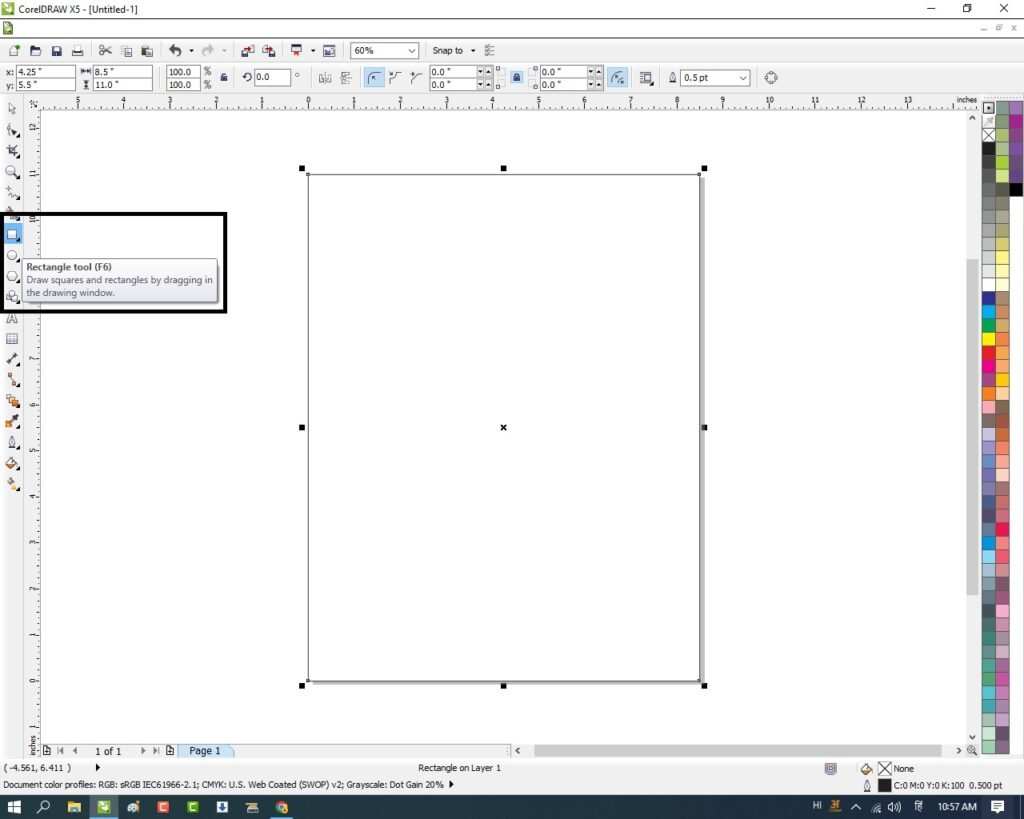
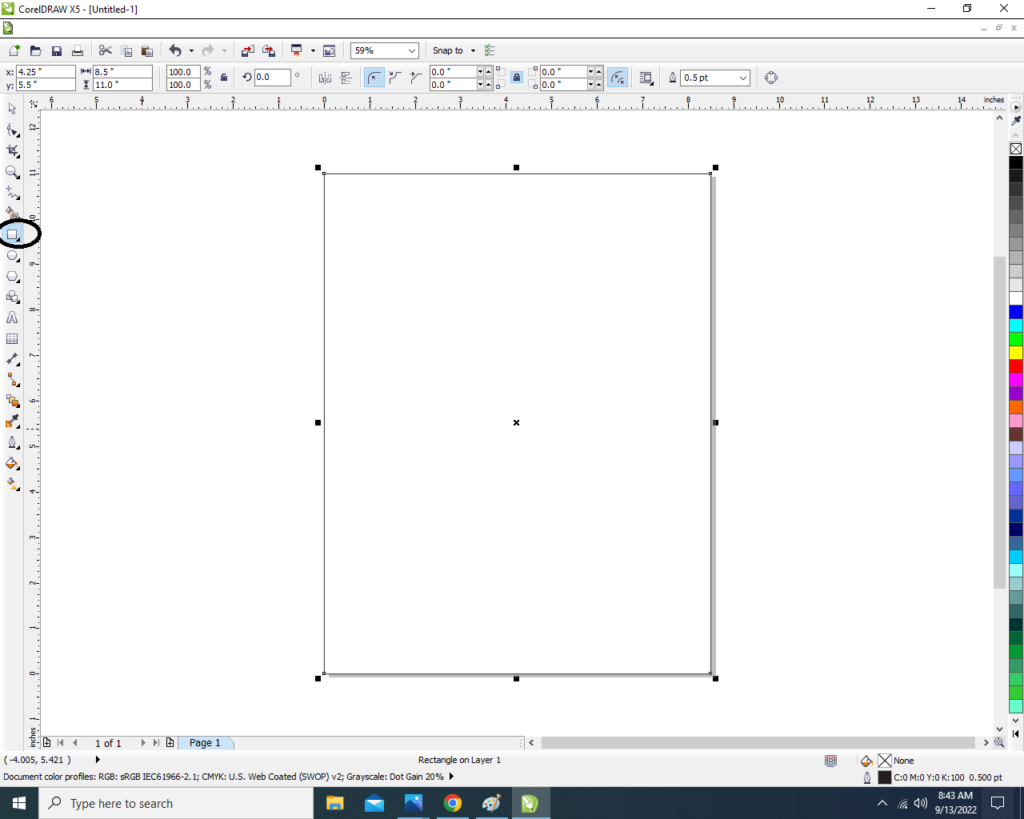
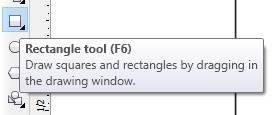
Go To Rectangle Tool.
Durga Puja Template Design in CorelDraw, Effective and Innovative, Download Source File 52
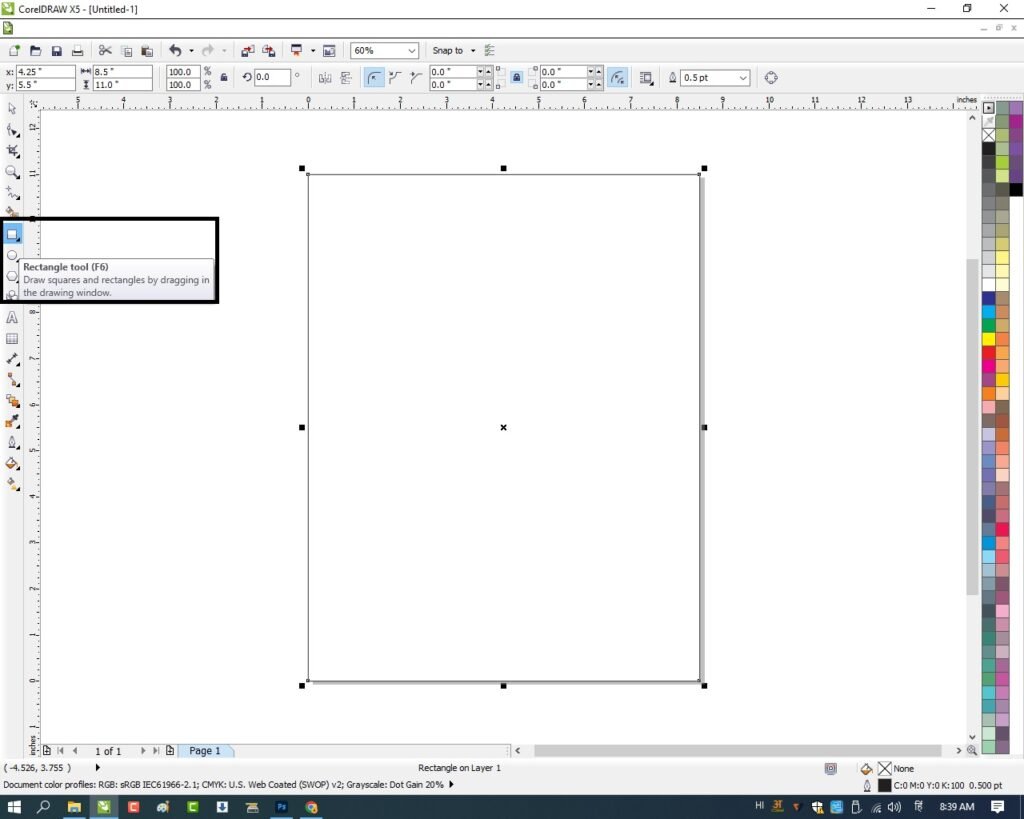
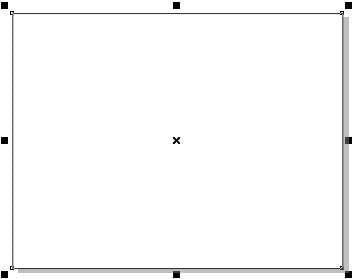
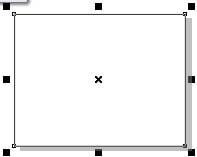
Double Click at Rectangle Tool > Something like this appear.
Durga Puja Template Design in CorelDraw, Effective and Innovative, Download Source File 53
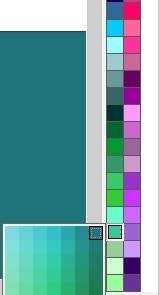
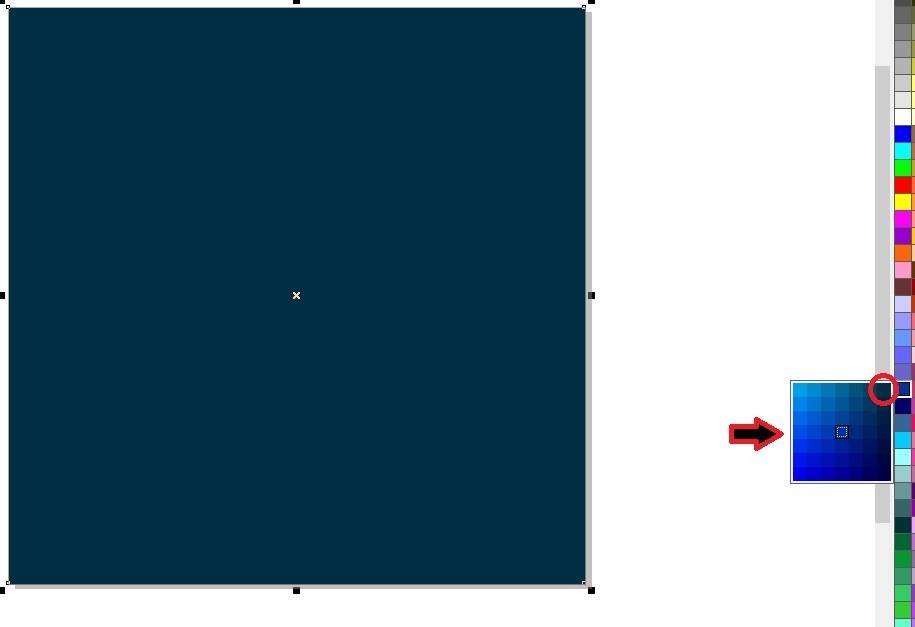
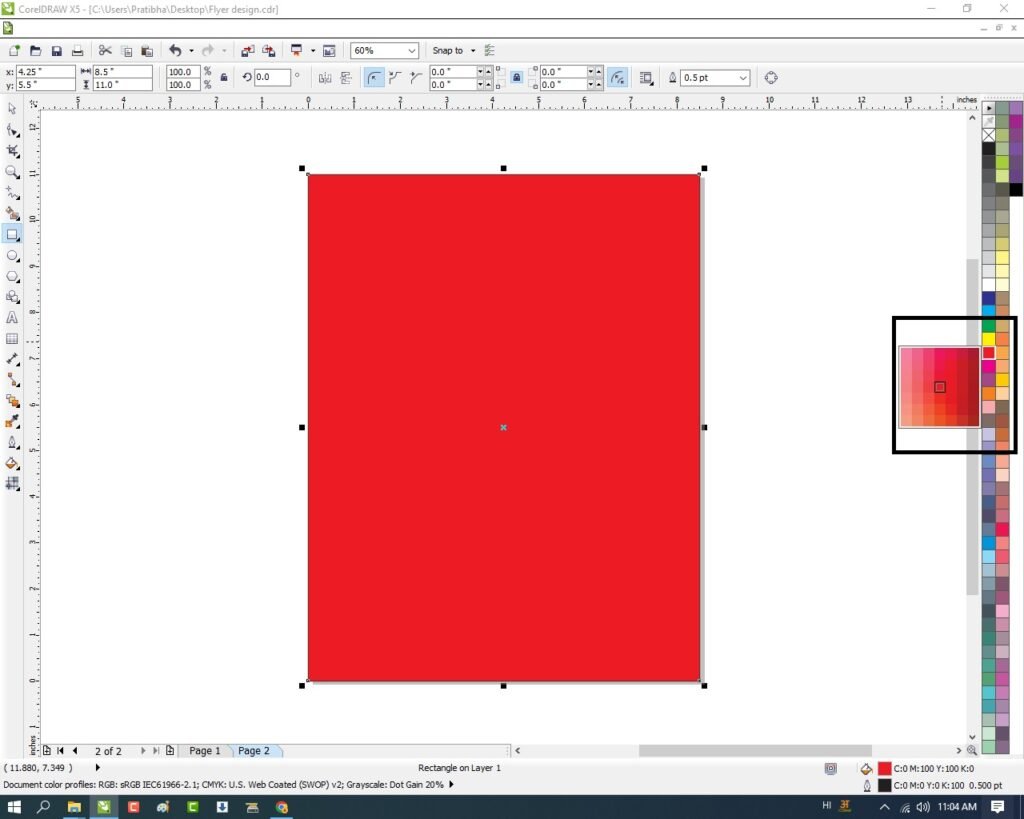
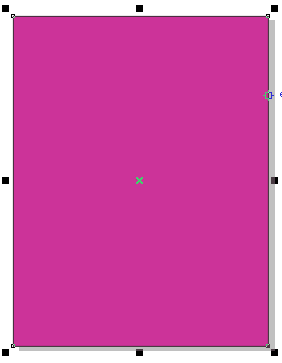
Click at Page > Go to Color Palate > Select Color > like this.
Durga Puja Template Design in CorelDraw, Effective and Innovative, Download Source File 54
Something like this appear.
Durga Puja Template Design in CorelDraw, Effective and Innovative, Download Source File 55
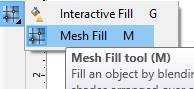
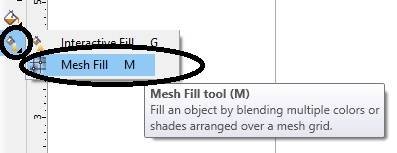
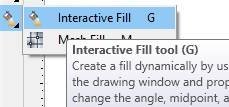
Click at Interactive Tool > Select Mesh Fill Option.
Durga Puja Template Design in CorelDraw, Effective and Innovative, Download Source File 56
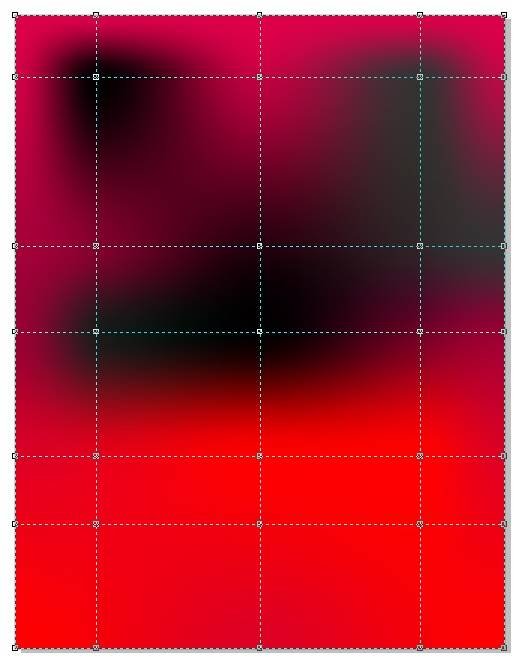
Something look like this > Click at Center Point > And Fill Different Color.
Durga Puja Template Design in CorelDraw, Effective and Innovative, Download Source File 57
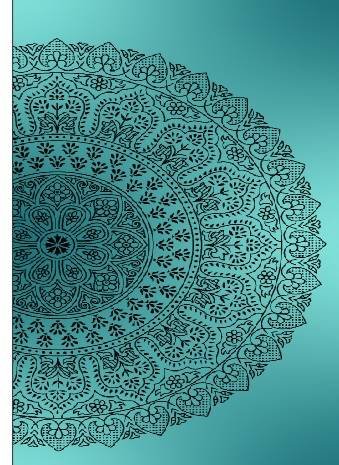
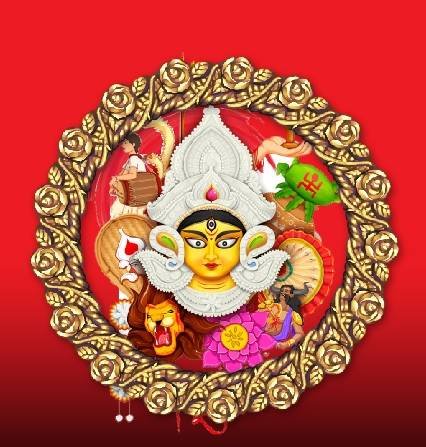
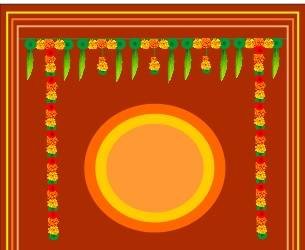
Insert Rangoli Png > At Page >From File Folder Like this.
Durga Puja Template Design in CorelDraw, Effective and Innovative, Download Source File 58
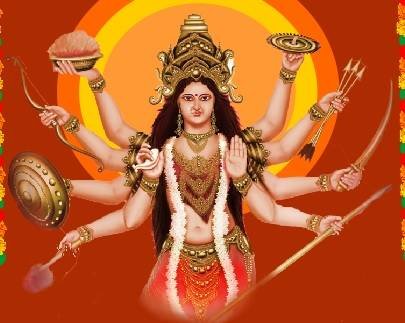
Insert Devi Maa Picture > Page Like this.
Durga Puja Template Design in CorelDraw, Effective and Innovative, Download Source File 59
Insert Discount Png > at Page >like this.
Durga Puja Template Design in CorelDraw, Effective and Innovative, Download Source File 60
Insert Some Different Design > At Top of Page > like this
Durga Puja Template Design in CorelDraw, Effective and Innovative, Download Source File 61
Insert Two Swastiks > In Both corners.
Durga Puja Template Design in CorelDraw, Effective and Innovative, Download Source File 62
Insert Two Lamps > In both Corners > like this.
Durga Puja Template Design in CorelDraw, Effective and Innovative, Download Source File 63
Insert a Clip art Design.
Durga Puja Template Design in CorelDraw, Effective and Innovative, Download Source File 64
Insert LOGO of an Institution.
Durga Puja Template Design in CorelDraw, Effective and Innovative, Download Source File 65
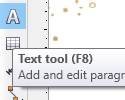
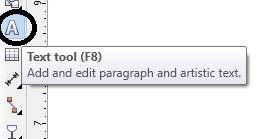
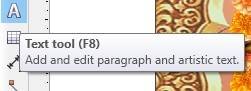
Click at Text tool > From Tool Option
Durga Puja Template Design in CorelDraw, Effective and Innovative, Download Source File 66
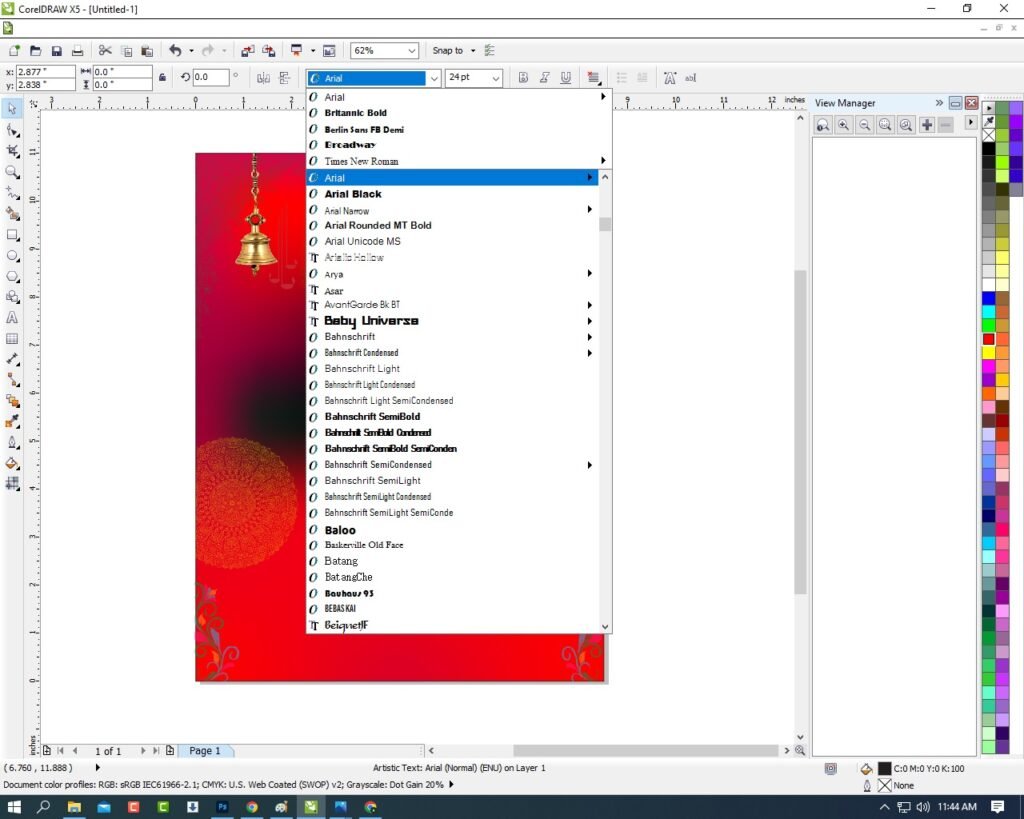
Type Institution Name > Institution Site > Change in White Color > From Color Palate.
Durga Puja Template Design in CorelDraw, Effective and Innovative, Download Source File 67
Navratri Card Design In CorelDraw, Easy Method, Complete Steps, Download Practice File
Hello Friends Welcome To VedantSri.net In This Post, I am Going To Teach you How to Create Navratri Card Design In CorelDraw. In This Project, You can Learn How to Design Navratri Card Design In CorelDraw Application an Easy Method. You Can also Download the Practice File in This Post. So Let’s start to Learn This Project, Before Starting I Request You to Please Follow Given below Step to Learn Properly Step by Step.
CorelDraw Open करने के लिए Window + R Press करके Run Box Open करे
Navratri Card Design In CorelDraw, Easy Method, Complete Steps, Download Practice File
Run Box मे coreldrw Type करे।
Navratri Card Design In CorelDraw, Easy Method, Complete Steps, Download Practice File 84
अब Ok पर Click करे CorelDraw का Application Open करे।
Navratri Card Design In CorelDraw, Easy Method, Complete Steps, Download Practice File 85
CTRL + N Press करके New Page का Window Open करे।
Navratri Card Design In CorelDraw, Easy Method, Complete Steps, Download Practice File 86
अब Ok पर Click करे CorelDraw का Main Page Open करे
Page की Size set करे
Rectangle Tool पर Double Click करे।
Navratri Card Design In CorelDraw, Easy Method, Complete Steps, Download Practice File 87
अब Shape मे Color fill करे।
Navratri Card Design In CorelDraw, Easy Method, Complete Steps, Download Practice File 88
अब Google से Image Download करे CTRL + D से Image का Duplicate करे
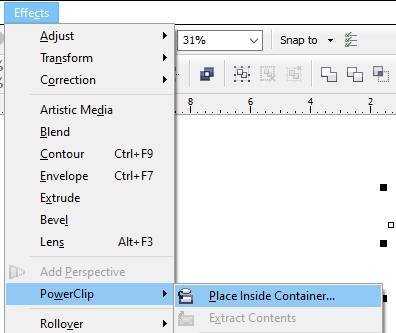
Menu Bar > Effects Option > Power Clip > Place Inside container पर Click करे।
Navratri Card Design In CorelDraw, Easy Method, Complete Steps, Download Practice File
अब Google से Image Download करे।
Navratri Card Design In CorelDraw, Easy Method, Complete Steps, Download Practice File 89
अब Google से Photo Download करे Page पर Set करे।
Navratri Card Design In CorelDraw, Easy Method, Complete Steps, Download Practice File 90
अब Google से Image Download करे CTRL + D से Image का Duplicate करे
Menu Bar > Effects Option > Power Clip > Place Inside container पर Click करे।
Navratri Card Design In CorelDraw, Easy Method, Complete Steps, Download Practice File 91
अब Background Image download करे।
Navratri Card Design In CorelDraw, Easy Method, Complete Steps, Download Practice File 92
अब Logo Insert करे Page पर Set करे।
Navratri Card Design In CorelDraw, Easy Method, Complete Steps, Download Practice File 93
अब Google से Image Download करे CTRL + D से Image का Duplicate करे
Menu Bar > Effects Option > Power Clip > Place Inside container पर Click करे।
Navratri Card Design In CorelDraw, Easy Method, Complete Steps, Download Practice File 94
अब Google से Image Download करे CTRL + D से Image का Duplicate करे
Menu Bar > Effects Option > Power Clip > Place Inside container पर Click करे।
Navratri Card Design In CorelDraw, Easy Method, Complete Steps, Download Practice File 95
अब Text Tool से Detail लिखे Font Style, Size, Color, Change करे।
Navratri Card Design In CorelDraw, Easy Method, Complete Steps, Download Practice File 96
CTRL + S से File Save करे।
Navratri Card Design In CorelDraw, Easy Method, Complete Steps, Download Practice File 97
Message Card in CorelDraw, Simple Method Step By Step, Download Source File
Hello! Friends Welcome to www.vedantsri.net In this Project I am going to Teach you How To Create a Message Card in CorelDraw. In this Project, you can Learn How to Design a Message Card in CorelDraw Application in Easy Method. Simple Method to Create a Beautiful Wishing Card in CorelDraw. You Can also Download the Practice File in This Post. So Let’s Start This Project. Before Starting This Project I Request You Please Follow the Given Below Steps to Learn Properly
Press Window + R to Open Run Dialogue Box > Type CorelDraw.
Message Card in CorelDraw, Simple Method Step By Step, Download Source File 112
Press Ok.
Message Card in CorelDraw, Simple Method Step By Step, Download Source File 113
Click New Blank Document.
Message Card in CorelDraw, Simple Method Step By Step, Download Source File 114
Press Ok.
Message Card in CorelDraw, Simple Method Step By Step, Download Source File 115
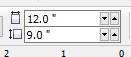
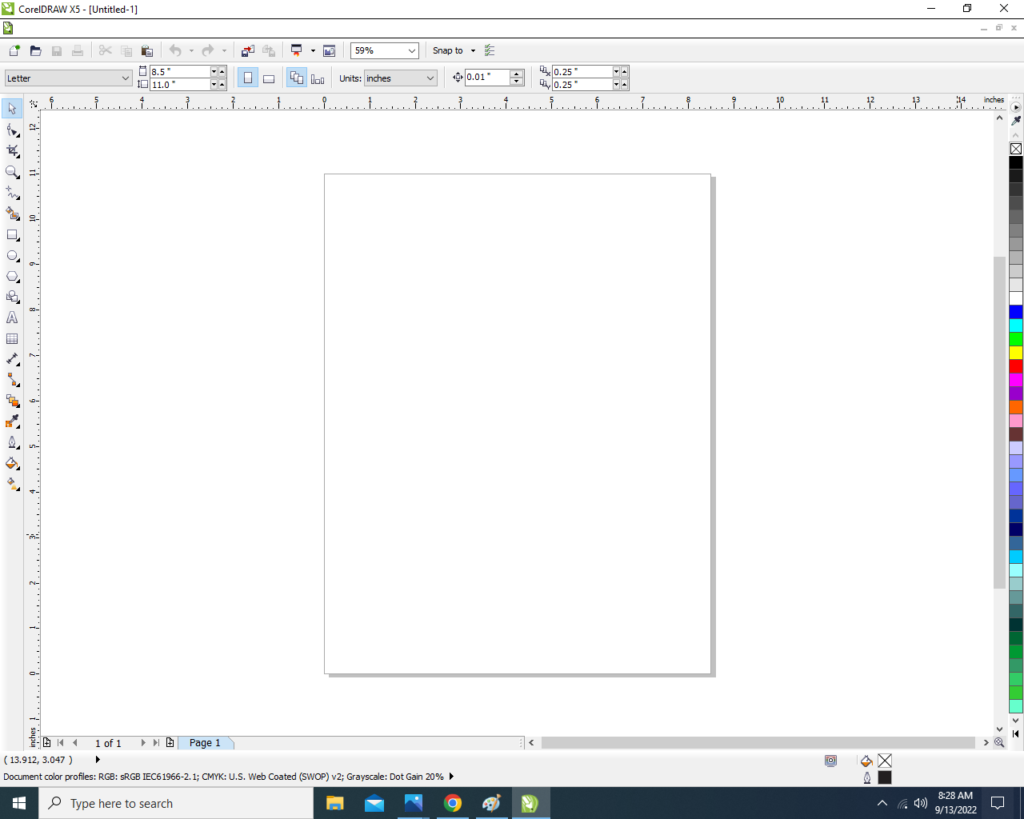
Mention Page Size > W- 7 > H-13.
Message Card in CorelDraw, Simple Method Step By Step, Download Source File 116
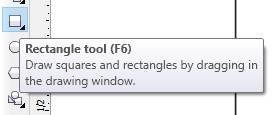
Double Click on Rectangle Tool.
Message Card in CorelDraw, Simple Method Step By Step, Download Source File 117
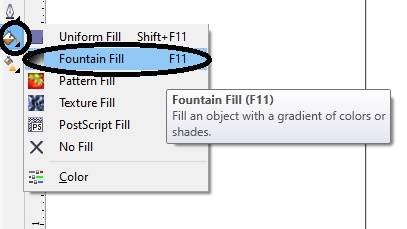
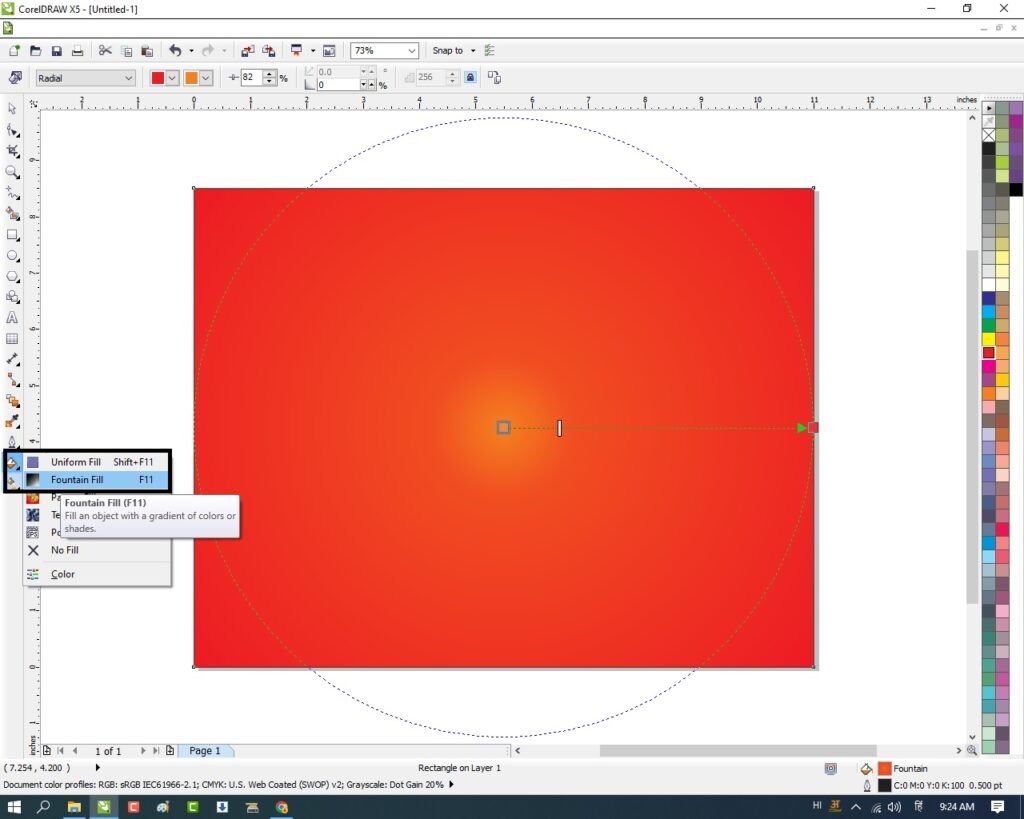
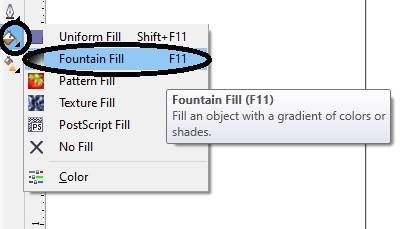
Go to Fill Tool > Click Fountain Fill Option.
Message Card in CorelDraw, Simple Method Step By Step, Download Source File 118
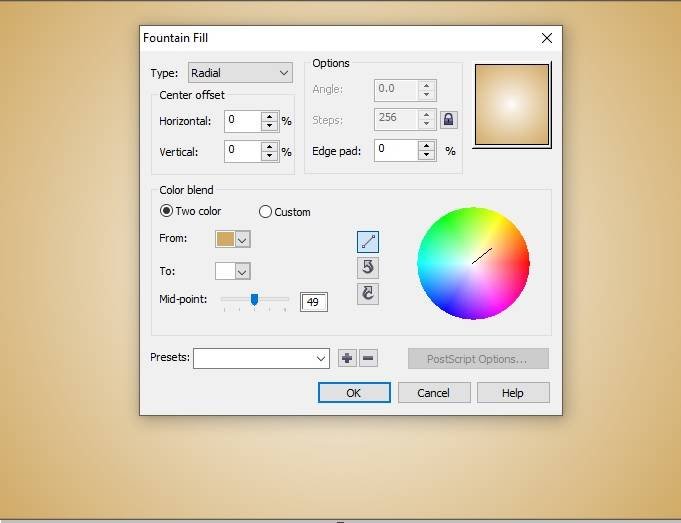
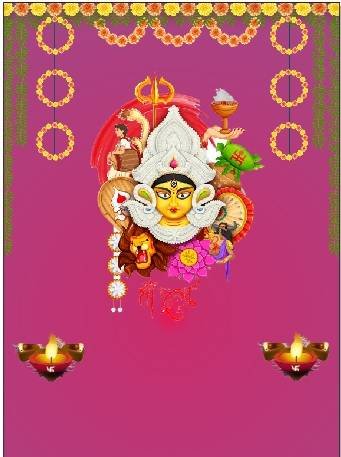
Fill any two Color at the Page.
Message Card in CorelDraw, Simple Method Step By Step, Download Source File 119
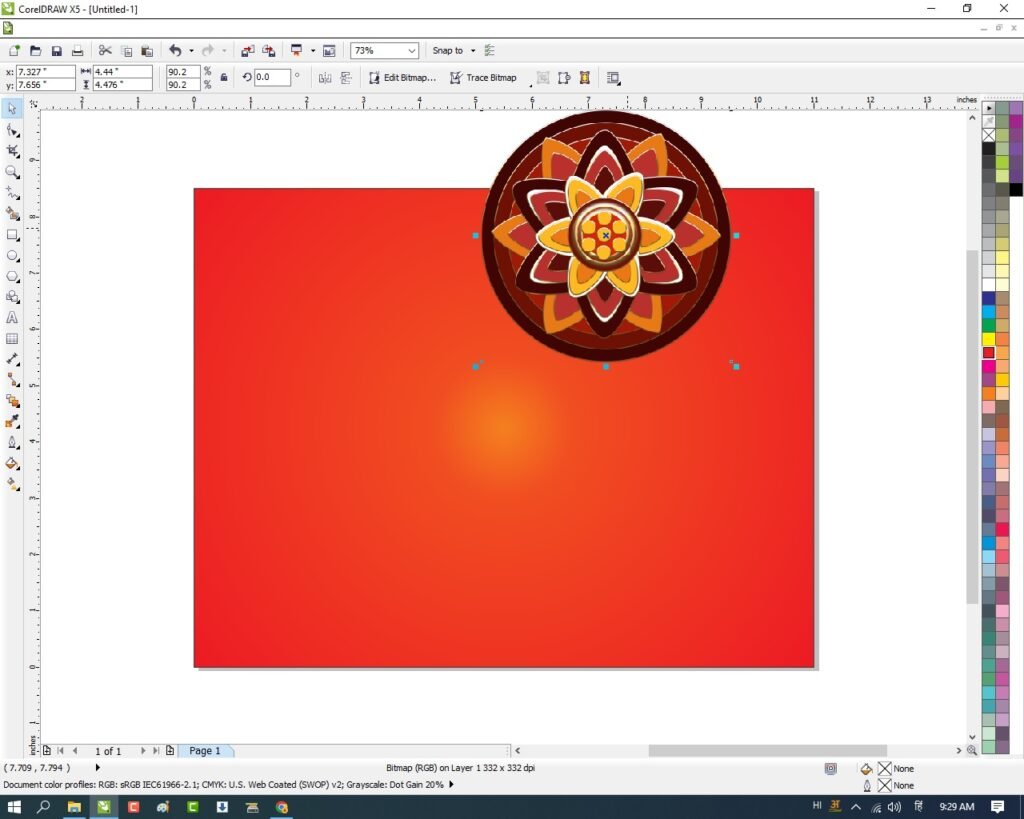
Insert Some Png Pictures and Designs.
Message Card in CorelDraw, Simple Method Step By Step, Download Source File 120
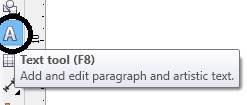
Go to Text Tool > Write Durga Pooja Then Apply Formatting on the Text.
Message Card in CorelDraw, Simple Method Step By Step, Download Source File 121
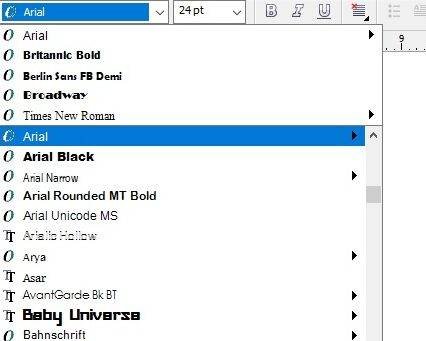
Type Some Lines > go to Pick Tool & Font List To Apply Formatting on the Text.
Message Card in CorelDraw, Simple Method Step By Step, Download Source File 122
Write wishes then Same apply Formatting on matter.
Message Card in CorelDraw, Simple Method Step By Step, Download Source File 123
Insert your Company/Institute LOGO & Name.
Message Card in CorelDraw, Simple Method Step By Step, Download Source File 124
I have Completed this Project, I hope you guys have understood all the Step.
Basic Durga Puja Card Design in CorelDraw, Easy and Innovative, Download Source File
Hello! Friends Welcome to www.vedantsri.net In this Project, I am going to Teach you How To Design Durga Puja Card in CorelDraw. In this Project, you can Learn How to make Basic Durga Puja Card in CorelDraw Application in Easy Method.
You can also Download the Practice File in this Post. So let’s start this Project. Before Starting this Project I request you to follow the steps below to Learn Properly Step by step.
Basic Durga Puja Card Design in CorelDraw Steps
Press Windows + R on Keyboard.
To Open Run Dialog Box.
Basic Durga Puja Card Design in CorelDraw, Easy and Innovative, Download Source File 147
Type coreldrw in Run Dialog Box > As a Run Command.
Basic Durga Puja Card Design in CorelDraw, Easy and Innovative, Download Source File 148
Click on OK.
Click on New Blank Document.
Basic Durga Puja Card Design in CorelDraw, Easy and Innovative, Download Source File 149
Fill in all Information > Regarding Document.
Basic Durga Puja Card Design in CorelDraw, Easy and Innovative, Download Source File 150
Click on OK.
Define Page Dimension.
Basic Durga Puja Card Design in CorelDraw, Easy and Innovative, Download Source File 151
Click on Rectangle Tool.
Basic Durga Puja Card Design in CorelDraw, Easy and Innovative, Download Source File 152
Double Click on Rectangle Tool.
Something appears like this
Basic Durga Puja Card Design in CorelDraw, Easy and Innovative, Download Source File 153
Click on Page > Go to Color Palate > Select Color.
Basic Durga Puja Card Design in CorelDraw, Easy and Innovative, Download Source File 154
Something like this appears.
Basic Durga Puja Card Design in CorelDraw, Easy and Innovative, Download Source File 155
Draw a Rectangle > Once again.
Select Rectangle > Increase Point >From Here.
Basic Durga Puja Card Design in CorelDraw, Easy and Innovative, Download Source File 156
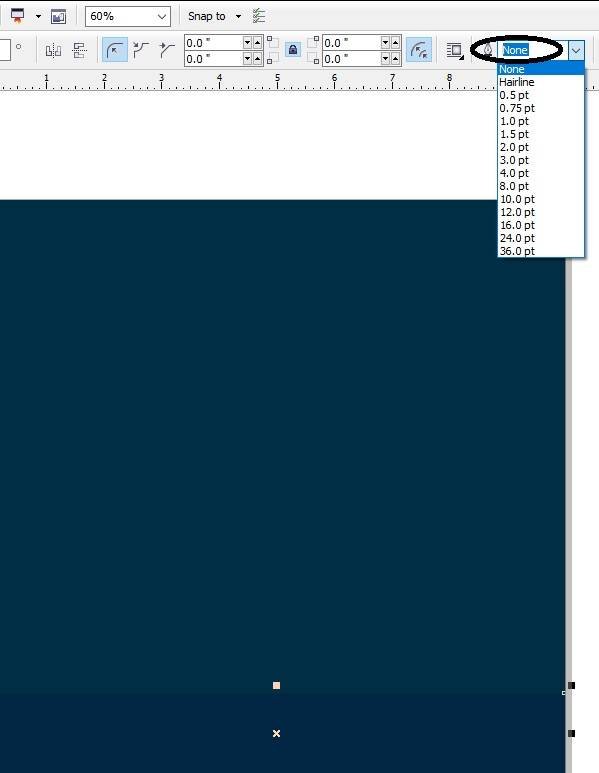
Change Outline Color > From here
Basic Durga Puja Card Design in CorelDraw, Easy and Innovative, Download Source File 157
Something like this appears.
Basic Durga Puja Card Design in CorelDraw, Easy and Innovative, Download Source File 158
Select Yellow Rectangle > Press Ctrl + C > Ctrl + V > Change Outline Color.
Basic Durga Puja Card Design in CorelDraw, Easy and Innovative, Download Source File 159
Insert Flower and Leave > At Page > From File Folder > like this.
Basic Durga Puja Card Design in CorelDraw, Easy and Innovative, Download Source File 160
Duplicate Flowers and leave > With Ctrl + D > Set like this.
Basic Durga Puja Card Design in CorelDraw, Easy and Innovative, Download Source File 161
Draw There Circles > Set like this > Change Color > From Color Palate.
Basic Durga Puja Card Design in CorelDraw, Easy and Innovative, Download Source File 162
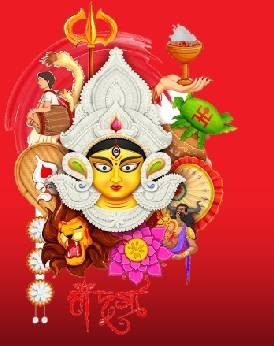
Insert Devi Maa Picture > At Page.
Basic Durga Puja Card Design in CorelDraw, Easy and Innovative, Download Source File 163
Insert Message Box > like this.
Basic Durga Puja Card Design in CorelDraw, Easy and Innovative, Download Source File 164
Click on the Text tool
Basic Durga Puja Card Design in CorelDraw, Easy and Innovative, Download Source File 165
Add a message in the message box > Insert LOGO of an Institution.
Basic Durga Puja Card Design in CorelDraw, Easy and Innovative, Download Source File 166
Type Institution Name > Institution Site.
Basic Durga Puja Card Design in CorelDraw, Easy and Innovative, Download Source File 167
Navratri Poster Design in CorelDraw, Easy Method, Complete Steps, Download Practice File
Hello, Friends welcome To VedantSri.net In This Post, I am Going To Teach you How to Create Navratri Poster Design in CorelDraw. In This Project, You can Learn How to Design Navratri Poster Design in CorelDraw Application an Easy Method. You Can also Download the Practice File in This Post. So Let’s start to Learn This Project, Before Starting I Request You to Please Follow Given below Step to Learn Properly Step by Step. (Navratri Poster Design in CorelDraw, Easy Method, Complete Steps, Download Practice File)
CorelDraw Open करने के लिए Window + R Press करे Run Box Open करे।
Navratri Poster Design in CorelDraw, Easy Method, Complete Steps, Download Practice File 179
Run Box मे coreldrw Type करे
Navratri Poster Design in CorelDraw, Easy Method, Complete Steps, Download Practice File 180
अब Ok पर Click करके CorelDraw का Application Open करे
Navratri Poster Design in CorelDraw, Easy Method, Complete Steps, Download Practice File 181
CTRL + N Press करके New Page का Window Open करे।
Navratri Poster Design in CorelDraw, Easy Method, Complete Steps, Download Practice File 182
अब Ok पर Click करे CorelDraw का Main Page open करे।
Rectangle Tool पर Double Click करे,
Navratri Poster Design in CorelDraw, Easy Method, Complete Steps, Download Practice File 183
अब Background Image Download करे
Menu Bar > Effects Option > Power Clip > Place Inside Container पर Click करे
Page पर Click करे CTRL + Mouse से Left Click करे Image को Page पर Set करे
page के बाहर CTRL + Mouse से Left Click करे।
Navratri Poster Design in CorelDraw, Easy Method, Complete Steps, Download Practice File 184
अब Png image Download करे
Menu bar > Bitmaps Option >Auto Adjust Option पर Click करे
Menu Bar > Effects Option > Power Clip > Place Inside Container पर Click करे
Page पर Click करे CTRL + Mouse से Left Click करे Image को Page पर Set करे
page के बाहर CTRL + Mouse से Left Click करे।
Navratri Poster Design in CorelDraw, Easy Method, Complete Steps, Download Practice File 185
अब Google से Photo Download करे Page पर Set करे।
Navratri Poster Design in CorelDraw, Easy Method, Complete Steps, Download Practice File 186
अब Png image Download करे CTRL + D से Image का Duplicate करके Page पर set करे।
Menu bar > Bitmaps Option >Auto Adjust Option पर Click करे
Menu Bar > Effects Option > Power Clip > Place Inside Container पर Click करे
Page पर Click करे CTRL + Mouse से Left Click करे Image को Page पर Set करे
page के बाहर CTRL + Mouse से Left Click करे।
Navratri Poster Design in CorelDraw, Easy Method, Complete Steps, Download Practice File 187
Text tool detail लिखे।
Navratri Poster Design in CorelDraw, Easy Method, Complete Steps, Download Practice File 188Navratri Poster Design in CorelDraw, Easy Method, Complete Steps, Download Practice File 189
Durga Puja Poster Design, Top 1 Best Effective and Innovative, Download Source File
Hello! Friends Welcome to www.vedantsri.net In this Project, I am going to Teach you How To Design Durga Puja Poster in CorelDraw. In this Project, you can Learn How to Design Durga Puja Poster in CorelDraw Application an Easy Method. You can also Download the Practice File in this Post. So Let’s Start this Project. Before Starting this Project I request you to Please Follow given below Steps to Learn Properly Step by step.
Press Windows + R on Keyboard.
To Open Run Dialog Box.
Durga Puja Poster Design
Type coreldrw in Run Dialog Box > As a Run Command
Durga Puja Poster Design
Click at OK.
Click at New Blank Document.
Durga Puja Poster Design
Fill all Information > Regarding New Document.
Durga Puja Poster Design
Click at OK.
Define Page Dimension.
Durga Puja Poster Design, Top 1 Best Effective and Innovative, Download Source File 212
Click at Rectangle Tool > From Tool Option.
Durga Puja Poster Design, Top 1 Best Effective and Innovative, Download Source File 213
Double Click at Rectangle
Something appear like this.
Durga Puja Poster Design, Top 1 Best Effective and Innovative, Download Source File 214
Draw Two more Rectangle > At page > like this.
Durga Puja Poster Design, Top 1 Best Effective and Innovative, Download Source File 215
Select One By One Rectangle > Change Color > From Color Palate
Durga Puja Poster Design, Top 1 Best Effective and Innovative, Download Source File 216Durga Puja Poster Design, Top 1 Best Effective and Innovative, Download Source File 217
Some thing like this appear.
Durga Puja Poster Design, Top 1 Best Effective and Innovative, Download Source File 218
Insert Picture of Devi Maa > From File Folder.
Durga Puja Poster Design, Top 1 Best Effective and Innovative, Download Source File 219
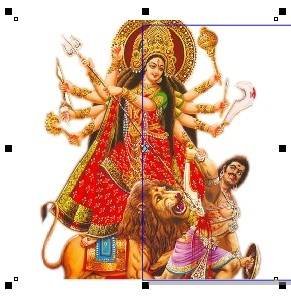
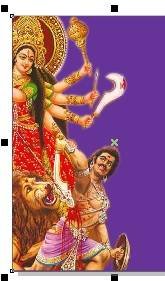
Select Picture > Go To Effect Menu > Select Power Clip Option > Select Place Inside Container Option.
Durga Puja Poster Design, Top 1 Best Effective and Innovative, Download Source File 220
Set like this > With Ctrl + Left Click of Mouse.
Durga Puja Poster Design, Top 1 Best Effective and Innovative, Download Source File 221
Draw a Circle > Press Ctrl + C, Ctrl + V > To Duplicate circle > And create Circle.
Durga Puja Poster Design, Top 1 Best Effective and Innovative, Download Source File 222
Draw a Half Circle > like this > Color from color palate.
Durga Puja Poster Design, Top 1 Best Effective and Innovative, Download Source File 223
Draw a petals > like this > Color petals in different Color.
Durga Puja Poster Design, Top 1 Best Effective and Innovative, Download Source File 224
Something looks like this.
Durga Puja Poster Design, Top 1 Best Effective and Innovative, Download Source File 225
Click at Text Tool > Type matter > Like this.
Durga Puja Poster Design, Top 1 Best Effective and Innovative, Download Source File 226Durga Puja Poster Design, Top 1 Best Effective and Innovative, Download Source File 227
Type Institution Name and Institution Site.
Durga Puja Poster Design, Top 1 Best Effective and Innovative, Download Source File 228
Now Durga Puja Poster is Ready.
Durga Puja Poster Design, Top 1 Best Effective and Innovative, Download Source File 229
Latest Navratri card in CorelDraw, Step By Step, Download Source File
Hello! Friends Welcome to www.vedantsri.net In this Project, I am going to Teach you How To Create Navratri Card in CorelDraw. In this Project, you can Learn How to Design Navratri cards in CorelDraw Application in Easy Method.
Press Window + R to Open Run Dialogue Box > Type coreldrw.
Latest Navratri card in CorelDraw
Press Ok.
Latest Navratri card in CorelDraw
Click New Blank Document.
Latest Navratri card in CorelDraw, Step By Step, Download Source File 246
Press ok.
Latest Navratri card in CorelDraw, Step By Step, Download Source File 247
Mention Page Size.
Latest Navratri card in CorelDraw, Step By Step, Download Source File 248
Double Click on Rectangle Tool.
Latest Navratri card in CorelDraw, Step By Step, Download Source File 249
Go to Fill Tool > Click on Fountain Fill Option.
Latest Navratri card in CorelDraw, Step By Step, Download Source File 250
Fill in any color on the Page As I will show.
Latest Navratri card in CorelDraw, Step By Step, Download Source File 251
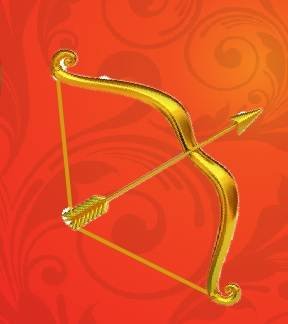
Then Insert Some Png Pictures.
Latest Navratri card in CorelDraw, Step By Step, Download Source File 252
Go to the Text tool.
Latest Navratri card in CorelDraw, Step By Step, Download Source File 253
Write Some Text As I Write Here > Go Pick Tool to apply Formatting on the Text.
Latest Navratri card in CorelDraw, Step By Step, Download Source File 254
Go to Font List Tool To Change Style.
Latest Navratri card in CorelDraw, Step By Step, Download Source File 255
Write More Lines in your Card.
Latest Navratri card in CorelDraw, Step By Step, Download Source File 256
Insert Your Company or Institute Name & LOGO.
Latest Navratri card in CorelDraw, Step By Step, Download Source File 257
Then again Insert Some Png pictures and Designs As I will Show.
Latest Navratri card in CorelDraw, Step By Step, Download Source File 258
I have Completed this Project, I hope you guys have understood all the Steps.
Latest Navratri card in CorelDraw, Step By Step, Download Source File 259
Dandiya Invitation Card in CorelDraw, Simple & Step By Step, Download Source File
Hello! Friends Welcome to www.vedantsri.net In this Project I am going to Teach you How To Create Dandiya Night Invitation Card in CorelDraw. In this Project, you can Learn How to Design Dandiya Night Invitation Card in Corel Application an Easy Method.
Press Window + R to Open Run Dialogue Box > Type CorelDraw.
Dandiya Invitation Card in CorelDraw, Simple & Step By Step, Download Source File 274
Press Ok
Dandiya Invitation Card in CorelDraw, Simple & Step By Step, Download Source File
Click on New Black Document.
Dandiya Invitation Card in CorelDraw, Simple & Step By Step, Download Source File 275
Press Ok.
Dandiya Invitation Card in CorelDraw, Simple & Step By Step, Download Source File 276
Mention Page Size.
Dandiya Invitation Card in CorelDraw, Simple & Step By Step, Download Source File 277
Double Click on Rectangle Tool.
Dandiya Invitation Card in CorelDraw, Simple & Step By Step, Download Source File 278
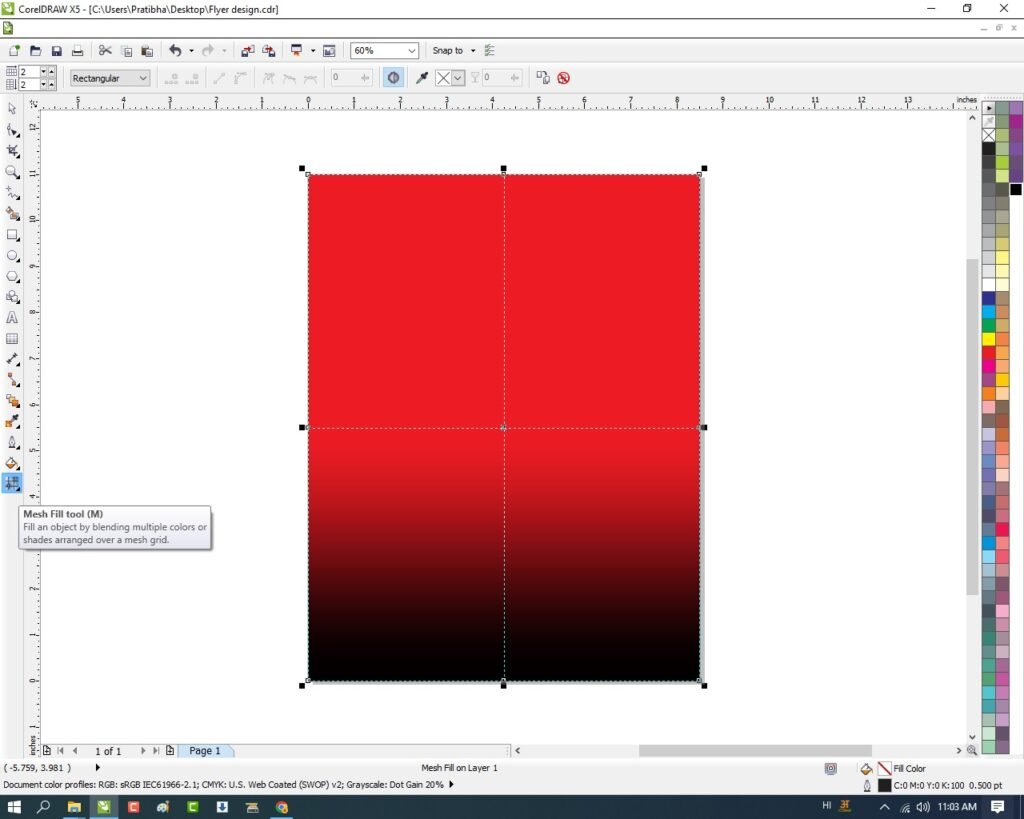
Go to Interactive Fill Tool > Click on Mesh Fill Option. Dandiya Invitation Card in CorelDraw, Simple & Step By Step, Download Source File
Dandiya Invitation Card in CorelDraw, Simple & Step By Step, Download Source File 279
Fill Like This.
Dandiya Invitation Card in CorelDraw, Simple & Step By Step, Download Source File 280
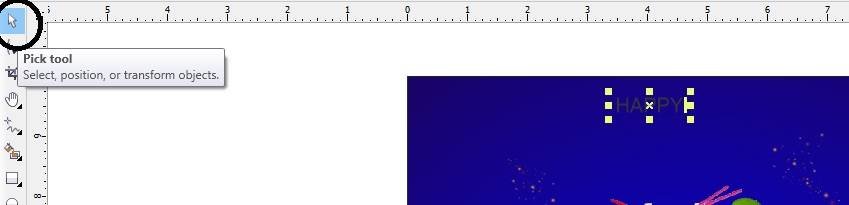
Click on Pick Tool.
Dandiya Invitation Card in CorelDraw, Simple & Step By Step, Download Source File 281
Then Insert Png Pictures.
Dandiya Invitation Card in CorelDraw, Simple & Step By Step, Download Source File
Go to Text Tool.
Dandiya Invitation Card in CorelDraw, Simple & Step By Step, Download Source File 282
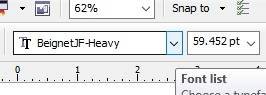
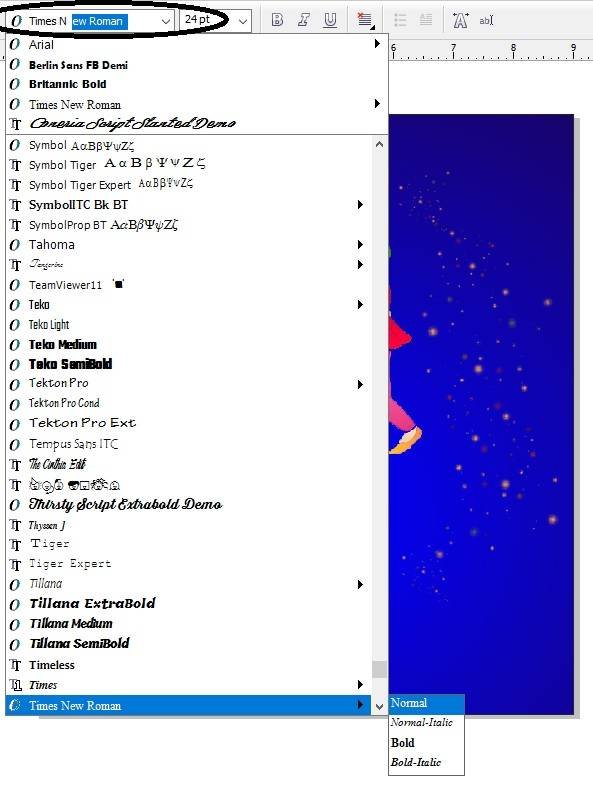
Write Some Lines & Fill Details > Go To Pick Tool > Apply Formatting > Change Font Style > Go to Font List. Dandiya Invitation Card in CorelDraw, Simple & Step By Step, Download Source File Dandiya Invitation Card in CorelDraw, Simple & Step By Step, Download Source File
Dandiya Invitation Card in CorelDraw, Simple & Step By Step, Download Source File 283
Fill in Details as I Fill.
Dandiya Invitation Card in CorelDraw, Simple & Step By Step, Download Source File 284
I have Completed this Project, I hope you guys have understood all the Steps.
Dandiya Invitation Card in CorelDraw, Simple & Step By Step, Download Source File
Navratri Banner Design in CorelDraw, Easy Method, Complete Steps, Download Practice File
Hello Friends welcome To VedantSri.net In This Post I am Going To Teach you How to Create Navratri Banner Design in CorelDraw. In This Project You can Learn How to Design Navratri Banner Design in CorelDraw Application in Easy Method. You Can also Download Practice File in This Post. So Let’s start to Learn This Project , Before Start I Request You to Please Follow Given below Step to Learn Properly Step by Step.
CorelDraw Open करने के लिए Window + R Press करे Run Box Open करे।
Navratri Banner Design in CorelDraw, Easy Method, Complete Steps, Download Practice File 297
Run Box मे coreldrw Type करे।
Navratri Banner Design in CorelDraw
अब Ok पर Click करके CorelDraw के Application को Open करे।
Navratri Banner Design in CorelDraw, Easy Method, Complete Steps, Download Practice File 298
CTRL + N Press करके New Page का Window Open करे।
Navratri Banner Design in CorelDraw, Easy Method, Complete Steps, Download Practice File 299
अब Ok पर Click करे CorelDraw का Main Page Open करे।
Landscape Option पर Click करे।
Rectangle tool पर Double Click करे।
Navratri Banner Design in CorelDraw, Easy Method, Complete Steps, Download Practice File 300
Shape मे Color Fill करे।
Navratri Banner Design in CorelDraw, Easy Method, Complete Steps, Download Practice File 301
अब Png Image को Google से Download करे Page पर Set करे।
Menu bar > Effects Option > Power Clip >Place Inside Container Option पर Click करे।
Page पर Click करे CTRL + Mouse से Left Click करे Image को Page पर Set करे।
Page के बाहर CTRL + Mouse से Left Click करे।
Navratri Banner Design in CorelDraw, Easy Method, Complete Steps, Download Practice File 302
अब Rectangle Shape Draw करे F 10,CTRL + Q Button Press करे
Shape Curve करे Png Image को Google से Download करे Shape पर Set करे।
Menu bar > Effects Option > Power Clip >Place Inside Container Option पर Click करे।
Page पर Click करे CTRL + Mouse से Left Click करे Image को Page पर Set करे।
Page के बाहर CTRL + Mouse से Left Click करे।
Navratri Banner Design in CorelDraw, Easy Method, Complete Steps, Download Practice File 303
अब image Download करे Page पर Set करे।
Navratri Banner Design in CorelDraw, Easy Method, Complete Steps, Download Practice File 304
अब Text Tool Detail Fill करे Font Style, Size,Color Change करे।
Navratri Banner Design in CorelDraw, Easy Method, Complete Steps, Download Practice File 305
अब Google से Photo Download करे Shape मे Set करे।
Navratri Banner Design in CorelDraw, Easy Method, Complete Steps, Download Practice File 306
अब CTRL + S से File save करे।
Navratri Banner Design in CorelDraw, Easy Method, Complete Steps, Download Practice File 307
Navratri Poster Design in CorelDraw, Top 1 Best Easy and Effective, Download Source File.
Hello! Friends Welcome to www.vedantsri.net In this Project, I am going to Teach you How To Design Navratri Poster in CorelDraw. In this Project, you can Learn How to Design Navratri Poster in CorelDraw Application in an Easy Method. You can also Download the Practice File in this Post. So Let’s Start this Project. Before Starting this Project I request you to Please Follow given below Steps to Learn Properly Step by step.
Press Windows + R in Run Dialog Box.
Navratri Poster Design in CorelDraw
Type coreldrw in Run Dialog Box > As a Run Command.
To Open CorelDraw Application.
Navratri Poster Design in CorelDraw
Click at OK.
Click at New Blank Document.
Navratri Poster Design in CorelDraw
Fill all Information > Regarding New Document.
Navratri Poster Design in CorelDraw
Click at OK.
Set Page Dimension.
Navratri Poster Design in CorelDraw
Click at Rectangle Tool > From Tool Option.
Navratri Poster Design in CorelDraw, Top 1 Best Easy and Effective, Download Source File. 335
Double Click at Rectangle.
Navratri Poster Design in CorelDraw, Top 1 Best Easy and Effective, Download Source File. 336
Click at Page > Go to Color Palate > Select color from here.
Navratri Poster Design in CorelDraw, Top 1 Best Easy and Effective, Download Source File. 337
Something like this Appear.
Navratri Poster Design in CorelDraw, Top 1 Best Easy and Effective, Download Source File. 338
Click at 2D Point Line.
Draw One line > Press F10 > Click at this Corner > Press Left Click of Mouse > Select Option > To Curve.
Navratri Poster Design in CorelDraw, Top 1 Best Easy and Effective, Download Source File. 339
Then Curve > like this.
Navratri Poster Design in CorelDraw, Top 1 Best Easy and Effective, Download Source File. 340
Set like this > At Page.
Navratri Poster Design in CorelDraw, Top 1 Best Easy and Effective, Download Source File. 341
Then Duplicate Line > With Ctrl + D > To Duplicate > and set like this.
Navratri Poster Design in CorelDraw, Top 1 Best Easy and Effective, Download Source File. 342
Select Both Lines > Go to Effect Menu > Click at Power Clip Option > Click at Place inside Container.
Navratri Poster Design in CorelDraw, Top 1 Best Easy and Effective, Download Source File. 343
Click at Polygon Tool > Draw Polygon
Navratri Poster Design in CorelDraw, Top 1 Best Easy and Effective, Download Source File. 344
Decrease Points > From Here.
Navratri Poster Design in CorelDraw, Top 1 Best Easy and Effective, Download Source File. 345
Then Polygon > Convert into Triangle Shape.
Navratri Poster Design in CorelDraw, Top 1 Best Easy and Effective, Download Source File. 346
Change Color > From Color palate > Duplicate Triangle > Change in Different Color > Set Like this.
Navratri Poster Design in CorelDraw, Top 1 Best Easy and Effective, Download Source File. 347
Insert Devi Maa Picture > At page > From File Folder Like This.
Navratri Poster Design in CorelDraw, Top 1 Best Easy and Effective, Download Source File. 348
Insert Light Lamps > From File Folder > In both Corner like this.
Navratri Poster Design in CorelDraw, Top 1 Best Easy and Effective, Download Source File. 349
Insert Kalash > At page > like this.
Navratri Poster Design in CorelDraw, Top 1 Best Easy and Effective, Download Source File. 350
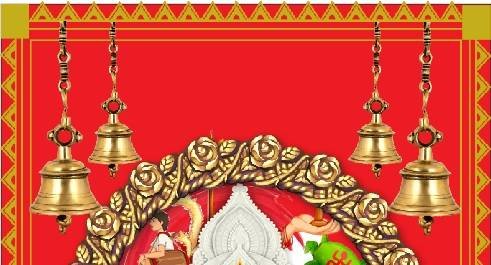
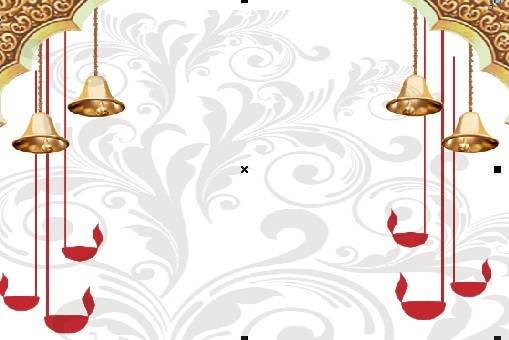
Insert Bell > At Top Corners > Like this.
Navratri Poster Design in CorelDraw, Top 1 Best Easy and Effective, Download Source File. 351
Click at Text Tool > From tool Option.
Navratri Poster Design in CorelDraw, Top 1 Best Easy and Effective, Download Source File. 352
Type Matter > At Page > Like This
Navratri Poster Design in CorelDraw, Top 1 Best Easy and Effective, Download Source File. 353
Insert LOGO of an Institution > Give Design in both Sides of logo.
Navratri Poster Design in CorelDraw, Top 1 Best Easy and Effective, Download Source File. 354
Type Institution Name and Institution Site.
Navratri Poster Design in CorelDraw, Top 1 Best Easy and Effective, Download Source File. 355
Now Design is Ready.
Navratri Poster Design in CorelDraw, Top 1 Best Easy and Effective, Download Source File. 356
Navratri Invitation card In CorelDraw, Easy Method, complete Steps, Download Practice File
Hello Friends welcome To VedantSri.net In This Post I am Going To Teach you How to Create Navratri Invitation Card in CorelDraw. In This Project You can Learn How to Design Navratri Invitation Card in CorelDraw Application in Easy Method. You Can also Download Practice File in This Post. So Let’s start to Learn This Project , Before Start I Request You to Please Follow Given below Step to Learn Properly Step by Step.
CorelDraw Open करने के लिए Window + R Press करे Run Box Open करे।
Navratri Invitation Card In CorelDraw
Run Box मे coreldrw Type करे।
Navratri Invitation Card In CorelDraw, Easy Method, complete Steps, Download Practice File 372
अब Ok पर Click करे CorelDraw के Application Open करे।
Navratri Invitation Card In CorelDraw, Easy Method, complete Steps, Download Practice File 373
CRTL + N Press करे New Page का Window open करे।
Navratri Invitation Card In CorelDraw, Easy Method, complete Steps, Download Practice File 374
अब Ok पर Click करे तथा CorelDraw का main Page open करे।
Page की Size Set करे
Rectangle Tool पर Double Click करे।
Navratri Invitation Card In CorelDraw, Easy Method, complete Steps, Download Practice File 375
Rectangle Shape को Fill करे।
Navratri Invitation Card In CorelDraw, Easy Method, complete Steps, Download Practice File 376
अब Png image को Google से Download करे
CTRL + D से Image का Duplicate करे Page पर set करे।
Navratri Invitation Card In CorelDraw, Easy Method, complete Steps, Download Practice File 377
अब Png image को Google से Download करे
Image को select करे Shift के साथ CTRL + G से Image को Group करे
CTRL + D से Image का Duplicate करे Page पर set करे page पर Set करे।
Navratri Invitation Card In CorelDraw, Easy Method, complete Steps, Download Practice File 378
Ellipse Shape Tool से Shape Draw करे , Outline को None करे
Fountain Fill > Radial option पर Click करे Shape को Fill करे।
Navratri Invitation Card In CorelDraw, Easy Method, complete Steps, Download Practice File 379
अब Png image को Google से Download करे
Navratri Invitation Card In CorelDraw, Easy Method, complete Steps, Download Practice File 380
अब Google से Photo Download करे Page पर Set करे
Navratri Invitation Card In CorelDraw, Easy Method, complete Steps, Download Practice File 381
अब Png image को Google से Download करे Page पर Set करे।
Navratri Invitation Card In CorelDraw, Easy Method, complete Steps, Download Practice File 382
अब Arrow Shape Draw करे Color Fill करे
File से Logo Insert करे Page पर set करे
Navratri Invitation Card In CorelDraw, Easy Method, complete Steps, Download Practice File 383
अब Text Tool से Detail fill करे Font Style, size, ColorChange करे।
Navratri Invitation Card In CorelDraw, Easy Method, complete Steps, Download Practice File 384
अब CTRL + S से File को Save करे।
Navratri Invitation Card In CorelDraw, Easy Method, complete Steps, Download Practice File 385
Navratri Template in CorelDraw, Step By Step Simple Method, Download Source File
Hello! Friends Welcome to www.vedantsri.net In this Project I am going to Teach you How To Create Navratri Template in CorelDraw. In this Project, you can Learn How to Design Navratri templates in CorelDraw Application an Easy Method. Navratri Template in CorelDraw, Step By Step Simple Method, Download Source File
Press Window + R to Open Run Dialogue Box > Type CorelDraw.
Navratri Template in CorelDraw, Step By Step Simple Method, Download Source File 399
Press Ok.
Navratri Template in CorelDraw, Step By Step Simple Method, Download Source File
Click New Blank Document Option.
Navratri Template in CorelDraw, Step By Step Simple Method, Download Source File 400
Then Press Ok.
Navratri Template in CorelDraw, Step By Step Simple Method, Download Source File 401
Mention Page Size. I will Show You.
Navratri Template in CorelDraw, Step By Step Simple Method, Download Source File 402
Double Click on Rectangle Tool.
Navratri Template in CorelDraw, Step By Step Simple Method, Download Source File 403
Then Fill Color at the page.
Navratri Template in CorelDraw, Step By Step Simple Method, Download Source File 404
Then Insert Png Pictures. like I Insert. I Will Showing
Navratri Template in CorelDraw, Step By Step Simple Method, Download Source File 405
Then Go to Text tool and Type Some Lines Like I will Write here.
Navratri Template in CorelDraw, Step By Step Simple Method, Download Source File 406
Then Go to Pick Tool to Apply Formatting on the Text.
Navratri Template in CorelDraw, Step By Step Simple Method, Download Source File 407
Press CTRL + K to Break Word > Change Font Style..
Navratri Template in CorelDraw, Step By Step Simple Method, Download Source File 408
Insert Your Company or Institute Logo.
Navratri Template in CorelDraw, Step By Step Simple Method, Download Source File 409
I have Completed this Project, I hope you guys have understood all the Steps.
Navratri Template in CorelDraw, Step By Step Simple Method, Download Source File
Navratri Banner Design in CorelDraw, Top 1 Best Easy and Effective, Download Source File
Hello! Friends Welcome to www.vedantsri.net In this Project, I am going to Teach you How To Design Navratri Banner in CorelDraw. In this Project, you can Learn How to Design Navratri Banner in CorelDraw Application an Easy Method. You can also Download the Practice File in this Post. So Let’s Start this Project. Before Starting this Project I request you to Please Follow given below Steps to Learn Properly Step by step.
Press Windows + R on Keyboard.
To open Run Dialog Box.
Navratri Banner Design in CorelDraw
Type coreldrw in Run Dialog Box > As a Run Command.
Navratri Banner Design in CorelDraw
Press OK.
Click at New Blank Document.
Navratri Banner Design in CorelDraw
Fill all information > Regarding New Document.
Navratri Banner Design in CorelDraw
Click at OK.
Change Page Dimension > From here.
Navratri Banner Design in CorelDraw
Click at Rectangle Tool > From Tool Option.
Navratri Banner Design in CorelDraw, Top 1 Best Easy and Effective, Download Source File 432
Double Click at Rectangle Tool > Something like this appear.
Navratri Banner Design in CorelDraw, Top 1 Best Easy and Effective, Download Source File 433
Click at page > Go to Color palate > Select Color > according to need.
Navratri Banner Design in CorelDraw, Top 1 Best Easy and Effective, Download Source File 434
Insert Flower at Page > From File Folder > Set Like this
Navratri Banner Design in CorelDraw, Top 1 Best Easy and Effective, Download Source File 435
Select all with Shift + Mouse Click.
Navratri Banner Design in CorelDraw, Top 1 Best Easy and Effective, Download Source File 436
Go To Effect Menu > Select Power Clip Option > Select Place Inside Container > like this.
Navratri Banner Design in CorelDraw, Top 1 Best Easy and Effective, Download Source File 437
Press Ctrl + Left Click of Mouse > Select all With Shift > Press Ctrl + G > To group all Flowers.
Navratri Banner Design in CorelDraw, Top 1 Best Easy and Effective, Download Source File 438
Press Ctrl + Left Click of Mouse > Comeback at page.
Insert leaf Picture at Page > From File Folder > Set like this
Navratri Banner Design in CorelDraw, Top 1 Best Easy and Effective, Download Source File 439
Insert Some Clipart > like this.
Navratri Banner Design in CorelDraw, Top 1 Best Easy and Effective, Download Source File 440
Insert light stand > In both corners like this.
Navratri Banner Design in CorelDraw, Top 1 Best Easy and Effective, Download Source File 441
Insert Picture of Devi Maa > Like this
Navratri Banner Design in CorelDraw, Top 1 Best Easy and Effective, Download Source File 442
Insert Kalash at Both Corners.
Navratri Banner Design in CorelDraw, Top 1 Best Easy and Effective, Download Source File 443
Click at Text Tool
Navratri Banner Design in CorelDraw, Top 1 Best Easy and Effective, Download Source File 444
Type matter like this.
Navratri Banner Design in CorelDraw, Top 1 Best Easy and Effective, Download Source File 445
Insert Logo of an Institution.
Navratri Banner Design in CorelDraw, Top 1 Best Easy and Effective, Download Source File 446
Type Institution Name > Institution Site.
Navratri Banner Design in CorelDraw, Top 1 Best Easy and Effective, Download Source File 447
Now Navratri Poster is Ready.
I hope, points are useful to you all.
Navratri Banner Design in CorelDraw, Top 1 Best Easy and Effective, Download Source File 448
Navratri Simple Poster Design in CorelDraw, Easy Method, Complete Steps, Download Practice File
Hello, Friends welcome To VedantSri.net In This Post I am Going To Teach you How to Create Navratri Poster Design in CorelDraw. In This Project, You can Learn How to Design Navratri Poster Design in CorelDraw Application an Easy Method.
CorelDraw Open करने के लिए Window + R Press करके Run Box Open करे।
Navratri Simple Poster Design in CorelDraw
Run Box मे Coreldrw Type करे।
Navratri Simple Poster Design in CorelDraw
अब Ok पर Click करके CorelDraw का Application को Open करे।
Navratri Simple Poster Design in CorelDraw
CTRL + N Press करके New Page का window Open करे।
Navratri Simple Poster Design in CorelDraw
अब Ok पर Click करे तथा CorelDraw का Main Page Open करे।
Rectangle Tool पर Double Click करे।
Navratri Simple Poster Design in CorelDraw
अब Fountain Fill Tool > Radial Option पर Click करे
Shape मे Color fill करे।
Navratri Simple Poster Design in CorelDraw, Easy Method, Complete Steps, Download Practice File 466
अब Png Image Google से Download करे
Menu Bar > Bitmaps option > Auto Adjust Option पर Click करे।
Menu bar > Effects Option > Power Clip > Place Inside container Option पर Click करे
Page Par Click करे CTRL + Mouse से Left Click करे
Image को page पर Set करने के बाद Page के बहर CTRL + Mouse से Left Click करे।
Navratri Simple Poster Design in CorelDraw, Easy Method, Complete Steps, Download Practice File 467
Ellipse Shape Draw करे, Color Fill करे, Outline None करे।
Menu Bar > Bitmaps option > Auto Adjust Option पर Click करे।
Menu bar > Effects Option > Power Clip > Place Inside container Option पर Click करे
Page Par Click करे CTRL + Mouse से Left Click करे
Image को page पर Set करने के बाद Page के बहर CTRL + Mouse से Left Click करे।
Navratri Simple Poster Design in CorelDraw, Easy Method, Complete Steps, Download Practice File 468
अब Png Image Google से Download करे
Menu bar > Effects Option > Power Clip > Place Inside container Option पर Click करे
Page Par Click करे CTRL + Mouse से Left Click करे
Image को page पर Set करने के बाद Page के बहर CTRL + Mouse से Left Click करे।
Navratri Simple Poster Design in CorelDraw, Easy Method, Complete Steps, Download Practice File 469
Rectangle Shape Tool से Shape Draw करे Distort Tool से Shape Create करे
Navratri Simple Poster Design in CorelDraw, Easy Method, Complete Steps, Download Practice File 470
Text too से Detail fill करे,Font Style, Size, Color Change करे।
Navratri Simple Poster Design in CorelDraw, Easy Method, Complete Steps, Download Practice File 471
अब Page पर Photo Insert करेंगे
Navratri Simple Poster Design in CorelDraw, Easy Method, Complete Steps, Download Practice File 472
Ellipse Shape Draw करे, Color Fill करे, Outline 8Pt करे।
File से Logo Insert करे Or Page पर Set करे।
Navratri Simple Poster Design in CorelDraw, Easy Method, Complete Steps, Download Practice File 473
Text too से HindiFont मे Detail fill करे,Font Style, Size, Color Change करे।
Navratri Simple Poster Design in CorelDraw, Easy Method, Complete Steps, Download Practice File 474
अब Png Image Google से Download करे CTRL + D से Image का Duplicate करे
Menu bar > Effects Option > Power Clip > Place Inside container Option पर Click करे
Page Par Click करे CTRL + Mouse से Left Click करे
Image को page पर Set करने के बाद Page के बहर CTRL + Mouse से Left Click करे।
Navratri Simple Poster Design in CorelDraw, Easy Method, Complete Steps, Download Practice File 475
अब Png Image Google से Download करे CTRL + D से Image का Duplicate करे
Menu bar > Effects Option > Power Clip > Place Inside container Option पर Click करे
Page Par Click करे CTRL + Mouse से Left Click करे
Image को page पर Set करने के बाद Page के बहर CTRL + Mouse से Left Click करे।
Navratri Wishes Card in CorelDraw, Easy and Simple, Download Source File
Hello! Friends Welcome to www.vedantsri.net In this Project I am going to Teach you How To Create Navratri Wishes Card in CorelDraw. In this Project, you can Learn How to Design Navratri Wishes cards in CorelDraw Application in Easy Method.
Press Window + R to Open Run Dialogue Box > Type CorelDraw.
Navratri Wishes Card in CorelDraw, Easy and Simple, Download Source File 495
Press OK.
Navratri Wishes Card in CorelDraw, Easy and Simple, Download Source File 496
Click New Blank Document.
Navratri Wishes Card in CorelDraw, Easy and Simple, Download Source File
Press OK.
Navratri Wishes Card in CorelDraw, Easy and Simple, Download Source File 497
Mention Page Size.
Navratri Wishes Card in CorelDraw, Easy and Simple, Download Source File 498
Double Click on Rectangle Tool.
Navratri Wishes Card in CorelDraw, Easy and Simple, Download Source File 499
Fill any Color on the Page.
Navratri Wishes Card in CorelDraw, Easy and Simple, Download Source File 500
Go to the Ellipse tool.
Navratri Wishes Card in CorelDraw, Easy and Simple, Download Source File 501
Press CTRL + Shift and Draw at Page> Fill white Color > No Outline > Fix Like this.
Navratri Wishes Card in CorelDraw, Easy and Simple, Download Source File
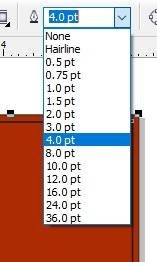
Then Select the Circle > Press CTRL + D to Duplicate this Shape > No Fill Color > Go to Pen Tool > Outline 4pt > Outline Color White.
Navratri Wishes Card in CorelDraw, Easy and Simple, Download Source File 502
Fix Like This Help of Movement Keys.
Navratri Wishes Card in CorelDraw, Easy and Simple, Download Source File
Press Shift Select Both Circles> Go to Effect Tool > Click on PowerClip Option > Click Place Inside Container Option.
Navratri Wishes Card in CorelDraw, Easy and Simple, Download Source File 503
Click at the page.
Navratri Wishes Card in CorelDraw, Easy and Simple, Download Source File 504
Then Insert Png Pictures.
Navratri Wishes Card in CorelDraw, Easy and Simple, Download Source File 505
Then Go to Text Tool > Write Some Lines.
Navratri Wishes Card in CorelDraw, Easy and Simple, Download Source File 506
Go to the Pick tool To apply Formatting this Text > Press CTRL + K To break the text.
Navratri Wishes Card in CorelDraw, Easy and Simple, Download Source File
Insert LOGO on your Company or Institute.
Navratri Wishes Card in CorelDraw, Easy and Simple, Download Source File 507
Insert some Clip Art Png.
Navratri Wishes Card in CorelDraw, Easy and Simple, Download Source File 508
I have Completed this Project, I hope you guys have understood all the Steps.
Navratri Wishes Card in CorelDraw, Easy and Simple, Download Source File
Navratri Basic Poster Design in CorelDraw, Top 1 Best Easy and Simple, Download Source File
Hello! Friends Welcome to www.vedantsri.net In this Project, I am going to Teach you How To Navratri Invitation Card Design in CorelDraw. In this Project, you can Learn How to Design Navratri Invitation Card in CorelDraw Application in Easy Method. You can also Download the Practice File in this Post. So let’s start this Project. Before Starting this Project I request you to Please Follow given below Steps to Learn Properly Step by step.
Press Windows + R on Keyboard.
To Open Run Dialog Box.
Navratri Basic Poster Design in CorelDraw
Type coreldrw in Run dialog Box > As a Run Command.
Navratri Basic Poster Design in CorelDraw
Press OK.
Click at New Blank Document.
Navratri Basic Poster Design in CorelDraw
Fill all Information > Regarding New Document.
Navratri Basic Poster Design in CorelDraw
Click at OK.
Define Page Dimension.
Navratri Basic Poster Design in CorelDraw, Top 1 Best Easy and Simple, Download Source File 529
Click at Rectangle tool > From Tool Option.
Navratri Basic Poster Design in CorelDraw, Top 1 Best Easy and Simple, Download Source File 530
Double Click at Rectangle Tool.
Navratri Basic Poster Design in CorelDraw, Top 1 Best Easy and Simple, Download Source File 531
Insert Picture > At Page > Go To File Folder > Drag Picture to CorelDraw Application > like This.
Navratri Basic Poster Design in CorelDraw, Top 1 Best Easy and Simple, Download Source File 532
Decrease size of Picture > With Shift + Mouse > like this.
Navratri Basic Poster Design in CorelDraw, Top 1 Best Easy and Simple, Download Source File 533
Select Picture > GO to Effect Menu > Click at Power Clip Option > Select Place Inside Container option.
Navratri Basic Poster Design in CorelDraw, Top 1 Best Easy and Simple, Download Source File 534
Press Ctrl + Left Click of Mouse > Set like this.
Navratri Basic Poster Design in CorelDraw, Top 1 Best Easy and Simple, Download Source File 535
Insert picture of pillars > Both Sides > From File Folder.
Navratri Basic Poster Design in CorelDraw, Top 1 Best Easy and Simple, Download Source File 536
Insert Picture of Flower > Like This.
Navratri Basic Poster Design in CorelDraw, Top 1 Best Easy and Simple, Download Source File 537
Insert Devi Picture at Page > like this.
Navratri Basic Poster Design in CorelDraw, Top 1 Best Easy and Simple, Download Source File 538
Insert Picture of Kalash > In both Corner > like this.
Navratri Basic Poster Design in CorelDraw, Top 1 Best Easy and Simple, Download Source File 539
Click at Text Tool > From Tool Option.
Navratri Basic Poster Design in CorelDraw, Top 1 Best Easy and Simple, Download Source File 540
Type Matter in Hindi Regarding > Navratri Poster > like This
Navratri Basic Poster Design in CorelDraw, Top 1 Best Easy and Simple, Download Source File 541
Insert Logo of an Institution >like this > Give Design > like this.
Navratri Basic Poster Design in CorelDraw, Top 1 Best Easy and Simple, Download Source File 542
Navratri Invitation Card Design in CorelDraw, Top 1 Best Simple and Easy, Download Source File
Hello! Friends Welcome to www.vedantsri.net In this Project, I am going to Teach you How To Navratri Invitation Card Design in CorelDraw. In this Project, you can Learn How to Design Navratri Invitation Card in CorelDraw Application in Easy Method. You can also Download the Practice File in this Post. So let’s start this Project. Before Starting this Project I request you to Please Follow given below Steps to Learn Properly Step by step.
Press Windows + R on Keyboard.
To Open Run Dialog Box.
Navratri Invitation Card Design in CorelDraw
Type coreldrw in Run Dialog Box > As a Run Command.
Navratri Invitation Card Design in CorelDraw
Click at OK.
Click at New Blank Document.
Navratri Invitation Card Design in CorelDraw
Fill all Information > Regarding Page.
Navratri Invitation Card Design in CorelDraw
Click at Ok.
Size of Page is
Navratri Invitation Card Design in CorelDraw, Top 1 Best Simple and Easy, Download Source File 559
Go to Rectangle Tool > From Tool Option
Navratri Invitation Card Design in CorelDraw, Top 1 Best Simple and Easy, Download Source File 560
Double Click at Rectangle Tool > Something like this appear.
Navratri Invitation Card Design in CorelDraw, Top 1 Best Simple and Easy, Download Source File 561
Click at Page > Go To Color Palate > Select Color > like this.
Navratri Invitation Card Design in CorelDraw, Top 1 Best Simple and Easy, Download Source File 562
Go to Interactive Tool > Select Option > Mesh Fill tool > Click at Centre Point > Fill light Color.
Navratri Invitation Card Design in CorelDraw, Top 1 Best Simple and Easy, Download Source File 563
Draw a Polygon Shape > Increase Point From Here > like this.
Navratri Invitation Card Design in CorelDraw, Top 1 Best Simple and Easy, Download Source File 564
Press F10 > Ctrl + Q > Click at Nodes
Navratri Invitation Card Design in CorelDraw, Top 1 Best Simple and Easy, Download Source File 565
Shape Like this.
Fill Color > From Color Palate.
Navratri Invitation Card Design in CorelDraw, Top 1 Best Simple and Easy, Download Source File 566
Put Picture One by One > like this.
Navratri Invitation Card Design in CorelDraw, Top 1 Best Simple and Easy, Download Source File 567
Go to Text Tool > add text > like this
Navratri Invitation Card Design in CorelDraw, Top 1 Best Simple and Easy, Download Source File 568
Add Some Photos > According to need.
Navratri Invitation Card Design in CorelDraw, Top 1 Best Simple and Easy, Download Source File 569
Now Invitation Card is ready
I hope, all steps are useful for you.
Navratri Invitation Card Design in CorelDraw, Top 1 Best Simple and Easy, Download Source File 570
Navratri Banner Design in CorelDraw, Easy Method, Complete steps, Download Practice Fill
Hello Friends welcome to VedantSri.net In This post I am Going To Teach You How To Create Navratri Banner Design in CorelDraw. In This Project You can Learn How to Design Navratri Banner Design n in CorelDraw in Easy Method.
CorelDraw Open करने के लिए Window + R Press करे Run Box Open करे।
Navratri Banner Design in CorelDraw
Run Box मे coreldrw Type करे।
Navratri Banner Design in CorelDraw
अब Ok पर Click करके CorelDraw का Application Open करे।
Navratri Banner Design in CorelDraw, Easy Method, Complete steps, Download Practice Fill 585
CTRL + N Press करे CorelDraw का Window Open होगा।
Navratri Banner Design in CorelDraw, Easy Method, Complete steps, Download Practice Fill 586
अब Ok पर Click करे तथा CorelDraw का Main Page करे।
Rectangle Tool Double Click करे।
Navratri Banner Design in CorelDraw, Easy Method, Complete steps, Download Practice Fill 587
Fountain FillTool > Radial Option पर Click करे Or Shape को Fill करे।
Navratri Banner Design in CorelDraw, Easy Method, Complete steps, Download Practice Fill 588
अब Google से Image Download करे।
Menu bar > Effects Option > Power Clip > Place Inside Container Option पर Click करे।
Page पर Click करे Or Image पर CTRL + Mouse से left Click करे
Image को page पर Set करे Page के बाहर CTRL + Mouse से left Click करे।
Navratri Banner Design in CorelDraw, Easy Method, Complete steps, Download Practice Fill 589
CTRL +D से Image का Duplicate करे।
Menu bar > Effects Option > Power Clip > Place Inside Container Option पर Click करे।
Page पर Click करे Or Image पर CTRL + Mouse से left Click करे
Image को page पर Set करे Page के बाहर CTRL + Mouse से left Click करे।
Navratri Banner Design in CorelDraw, Easy Method, Complete steps, Download Practice Fill 590
अब Google से Image Download करे। Or Page पर Set करे।
Navratri Banner Design in CorelDraw, Easy Method, Complete steps, Download Practice Fill 591
अब Google से Image Download करे। Or Page पर Set करे।
Navratri Banner Design in CorelDraw, Easy Method, Complete steps, Download Practice Fill 592
अब Text tool से DURGA POOJA लिखेगे Or Font Style, Size, Color change करे।
Navratri Banner Design in CorelDraw, Easy Method, Complete steps, Download Practice Fill 593
अब Spiral Shape Draw करे Or CTRL + D से Duplicate करे।
Navratri Banner Design in CorelDraw, Easy Method, Complete steps, Download Practice Fill 594
अब Text Tool से VedantSri Institute, Detail लिखे Or Font Style, Size, Color change करे।
Navratri Banner Design in CorelDraw, Easy Method, Complete steps, Download Practice Fill 595
CTRL + S File को Save करे।
Navratri Banner Design in CorelDraw, Easy Method, Complete steps, Download Practice Fill 596
Navratri Banner Design in CorelDraw, Step by Step, Download Source File
Hello! Friends Welcome to www.vedantsri.net In this Project, I am going to Teach you How To Create Banner Navratri Design in CorelDraw. In this Project, you can Learn How to Design Navratri Banner in CorelDraw Application an Easy Method.
Press Window + R to Open Run Dialogue Box > Type CorelDraw.
Banner Navratri Design in CorelDraw, Top 1 Best Step by Step, Download Source File 617
Press OK.
Banner Navratri Design in CorelDraw, Top 1 Best Step by Step, Download Source File 618
Click New Blank Document.
Banner Navratri Design in CorelDraw, Top 1 Best Step by Step, Download Source File 619
Press Ok.
Banner Navratri Design in CorelDraw, Top 1 Best Step by Step, Download Source File 620
Mention the Page Size.
Banner Navratri Design in CorelDraw, Top 1 Best Step by Step, Download Source File 621
Double Click on Rectangle Tool.
Banner Navratri Design in CorelDraw
Go to Fill Tool > Click Fountain Fill Option.
Banner Navratri Design in CorelDraw, Top 1 Best Step by Step, Download Source File 622
Then Fill Blue & Black Color at Page.
Banner Navratri Design in CorelDraw, Top 1 Best Step by Step, Download Source File 623
Then Go to Polygon Tool and Draw in page.
Banner Navratri Design in CorelDraw, Top 1 Best Step by Step, Download Source File 624
Press F10 > CTRL + Q > Then Fix Like This.
Banner Navratri Design in CorelDraw, Top 1 Best Step by Step, Download Source File 625
Then Go to Fill Tool > Click on Fountain Fill Options > Then Fill any color Like This.
Banner Navratri Design in CorelDraw, Top 1 Best Step by Step, Download Source File 626
Select the Shape > Press CTRL + D to Duplicate > Press Shift and Fix Like This.
Banner Navratri Design in CorelDraw, Top 1 Best Step by Step, Download Source File 627
Select the Both Shape > Go to Effect Menu > Click PowerClip Option > Place Inside Container.
Banner Navratri Design in CorelDraw, Top 1 Best Step by Step, Download Source File 628
Then Click at the Page.
Banner Navratri Design in CorelDraw, Top 1 Best Step by Step, Download Source File 629
Then Insert Png Pictures.
Banner Navratri Design in CorelDraw, Top 1 Best Step by Step, Download Source File 630
Go to Text tool.
Banner Navratri Design in CorelDraw, Top 1 Best Step by Step, Download Source File 631
Click on Pick Tool to Apply Formatting on the Text.
Banner Navratri Design in CorelDraw, Top 1 Best Step by Step, Download Source File 632
Then write Some Lines.
Banner Navratri Design in CorelDraw, Top 1 Best Step by Step, Download Source File 633
Insert LOGO on your Company/Institute.
Banner Navratri Design in CorelDraw, Top 1 Best Step by Step, Download Source File 634
I have Completed this Project, I hope you guys have understood all the Step.
Banner Navratri Design in CorelDraw, Top 1 Best Step by Step, Download Source File 635