MS PowerPoint Home Menu 4 Online Test
Durgakund 8808888478Rathyatra 9415802061दोनों शाखाएँ सोमवार–शनिवार सुबह 7 से रात 8 बजे तक खुली हैं। कोर्स की जानकारी के लिए Durgakund 8808888478 और Rathyatra 9415802061 पर सातों दिन, किसी भी समय कॉल कर सकते हैं।
| Pos. | Name | Score | Duration | Points |
|---|---|---|---|---|
| 1 | tk | 88 % | 4 minutes 18 seconds | 22 / 25 |
| 2 | Ria | 80 % | 3 minutes 36 seconds | 20 / 25 |
| 3 | Richa | 80 % | 6 minutes 18 seconds | 20 / 25 |
| 4 | Krishna | 44 % | 5 minutes 21 seconds | 11 / 25 |
| 5 | MArtam | 32 % | 2 minutes 53 seconds | 8 / 25 |
| 6 | Deepika | 20 % | 2 minutes 54 seconds | 5 / 25 |
| 7 | Shalu Kumar | 12 % | 2 minutes 55 seconds | 3 / 25 |
Useful Link:-PowerPoint Course Details, Fees, Duration, Scope, Syllabus, Admission, Institutes & Jobs
MS PowerPoint Home Menu 4 Online Test helps students understand important Home tab commands and practice PowerPoint MCQ questions. This guide explains slide management, text formatting, object selection, arrangement, grouping and editing tools with practical examples. Students can also practice important questions to check their MS PowerPoint Home Menu 4 Online Test knowledge.

MS PowerPoint Home Menu 4 Online Test: What Does Home Menu 4 Cover?
The MS PowerPoint Home Menu 4 Online Test focuses on commands used to edit, format, select and arrange presentation content. These commands help users manage slide objects, edit text and maintain a consistent presentation layout.
The PowerPoint Home tab contains several groups:
| Home Tab Group | Important Commands |
| Clipboard | Cut, Copy, Paste, Format Painter |
| Slides | New Slide, Layout, Reset, Section |
| Font | Font Style, Font Size, Bold, Italic, Underline |
| Paragraph | Bullets, Numbering, Alignment, Line Spacing |
| Drawing | Shapes, Arrange, Shape Styles |
| Editing | Find, Replace, Select |
These groups help users create and organize presentation content.
What Is an MS PowerPoint Online Test?
An MS PowerPoint Home Menu 4 Online Test is a multiple-choice practice quiz. It checks your knowledge of presentation commands, tools and their functions.
Students can use these tests to revise software features and prepare for computer-related examinations.
MS PowerPoint Home Menu 4 Online Test: How Does the Class Test and Revision Test Work?
The VedantSri test page provides two practice options.
- Class Test: Enter the requested mobile number and attempt the test. The result is available on the test dashboard.
- Revision Test: Practice Basic, Intermediate or Final questions. The system provides immediate right-or-wrong feedback.
Complete the Class Test first. The Revision Test becomes available after completing it. Revision attempts are not recorded as test marks.
Read every question carefully. Some PowerPoint commands have similar names but perform different functions.
MS PowerPoint Home Menu 4 Online Test: Important Home Tab Commands and Their Uses
The Home tab contains the basic tools needed to manage slides, edit text and organize objects. Understanding these commands makes presentation work easier.
MS PowerPoint Home Menu 4 Online Test: What Is the Use of Clipboard in PowerPoint?
The Clipboard group contains Cut, Copy, Paste and Format Painter commands.
| Command | Function |
| Cut | Removes selected content and places it on the Clipboard |
| Copy | Copies selected content |
| Paste | Inserts copied or cut content |
| Format Painter | Copies formatting from one object to another |
Follow these steps to use Format Painter:
- Select: Click the text or object whose formatting you want to copy.
- Choose: Open the Home tab.
- Click: Select Format Painter.
- Apply: Click the target text or object.
- Review: Check whether the formatting has been copied correctly.
Example: You have created a blue heading with bold text. Use Format Painter to apply the same formatting to another heading.
MS PowerPoint Home Menu 4 Online Test: What Is the Use of Slides Group?
The Slides group helps users create and manage presentation slides.
| Command | Function |
| New Slide | Adds a new slide |
| Layout | Changes the slide layout |
| Reset | Restores the placeholder positions of the selected layout |
| Section | Organizes slides into groups |
Follow these steps to add a new slide:
- Open the Home tab.
- Click New Slide.
- Open the drop-down arrow.
- Select a suitable slide layout.
- Enter the required content.
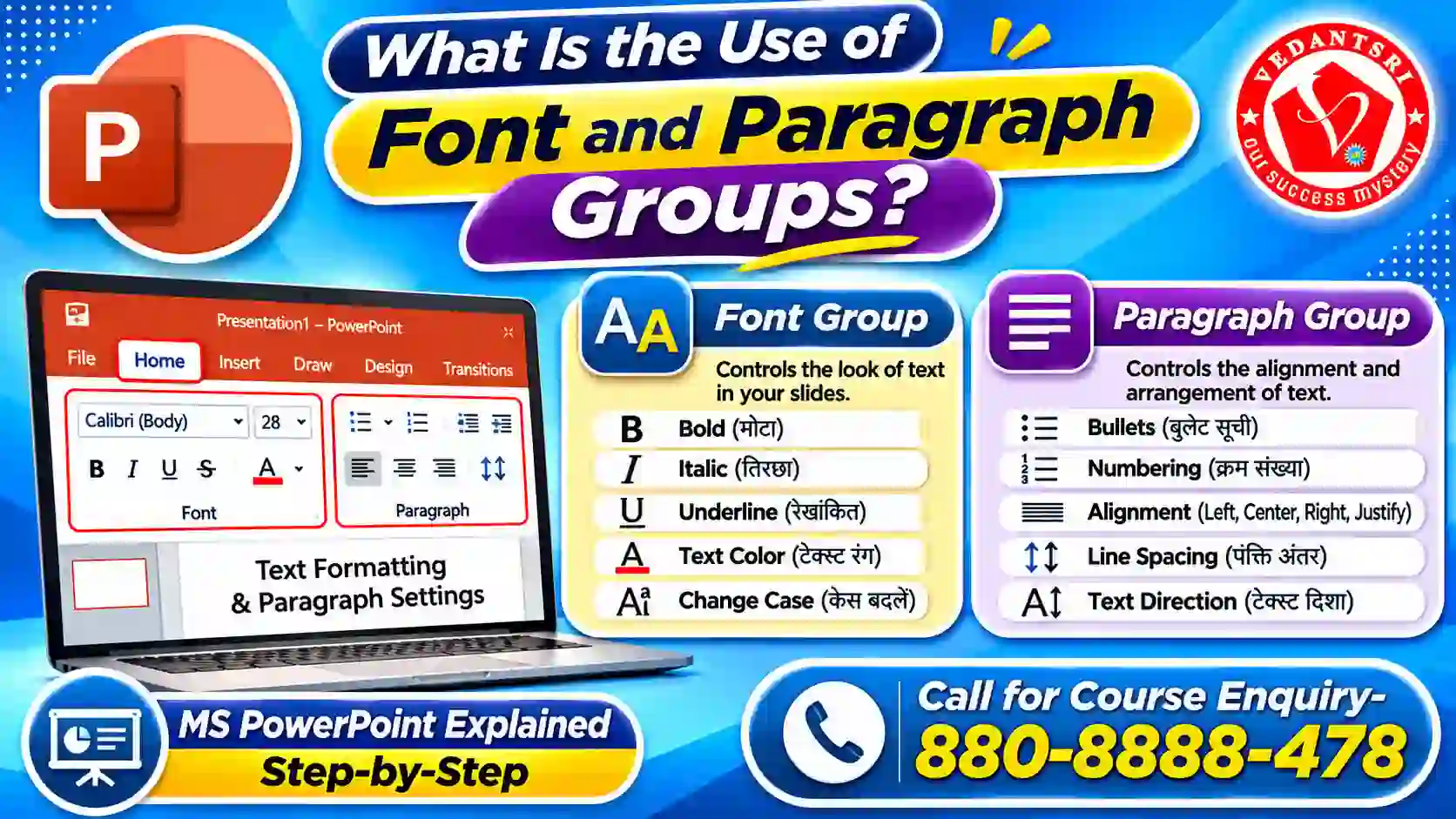
MS PowerPoint Home Menu 4 Online Test: What Is the Use of Font and Paragraph Groups?
The Font group controls text appearance. The Paragraph group controls text alignment and arrangement.
Important Font commands include:
- Font Name
- Font Size
- Bold
- Italic
- Underline
- Font Color
- Text Shadow
- Change Case
- Clear All Formatting
Important Paragraph commands include:
- Bullets
- Numbering
- Align Left
- Center
- Align Right
- Justify
- Line Spacing
- Text Direction
These commands help make presentation text clear and readable.
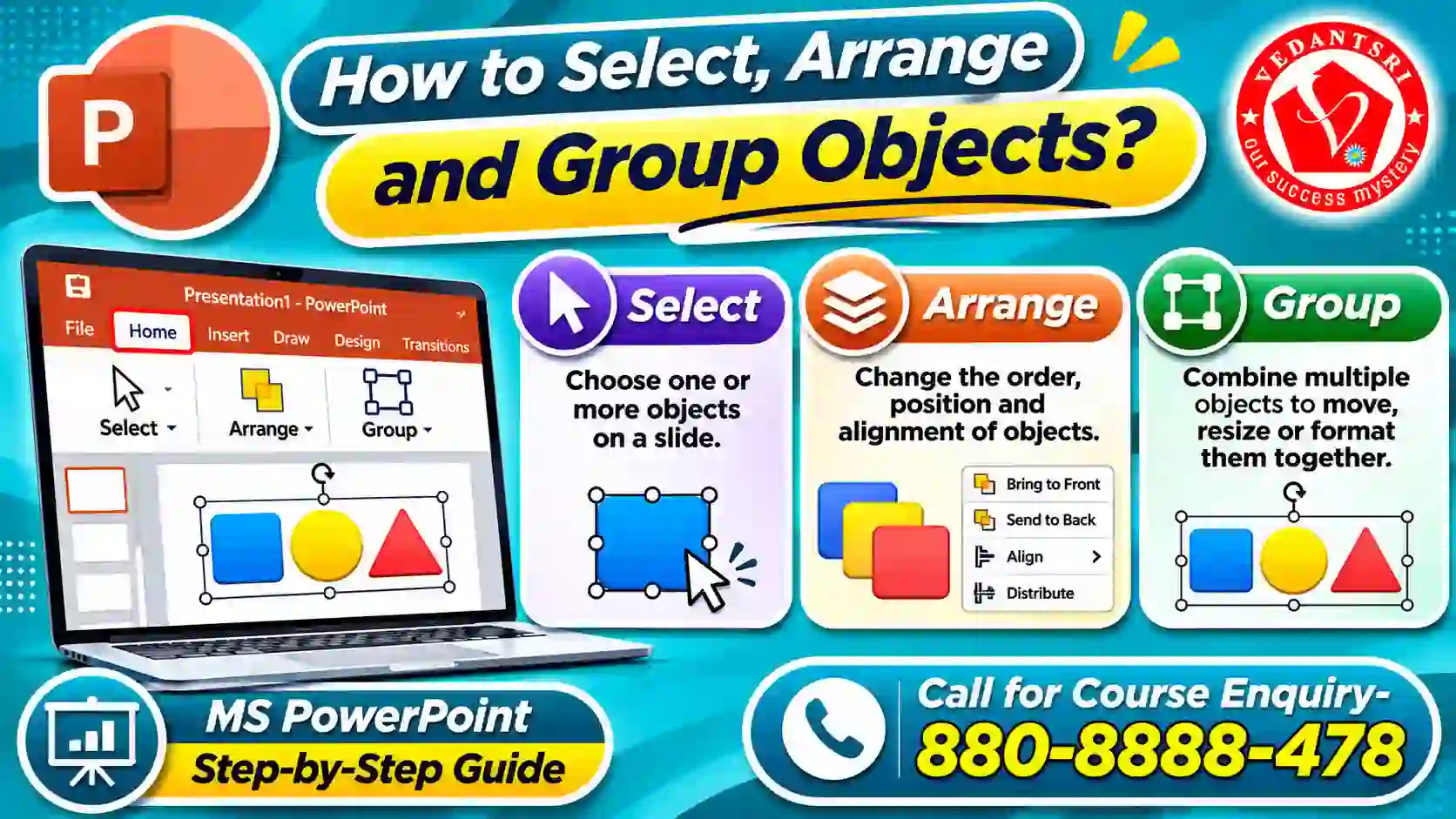
MS PowerPoint Home Menu 4 Online Test: How to Select, Arrange and Group Objects?
PowerPoint provides object selection and arrangement tools to organize pictures, shapes and text boxes. These tools help users create balanced and properly aligned slides.
MS PowerPoint Home Menu 4 Online Test: How to Select Multiple Objects in PowerPoint?
Follow these steps:
- Open your presentation.
- Select the first object on the slide.
- Press and hold Ctrl.
- Click the other objects you want to select.
- Release Ctrl after selecting the required objects.
- Check that all selected objects show selection handles.
You can also use Shift while selecting multiple objects in supported desktop workflows.
MS PowerPoint Home Menu 4 Online Test: How to Group Objects in PowerPoint?
Grouping combines multiple selected objects into one group. You can then move, resize or format them together.
Follow these steps:
- Select the first object.
- Hold Ctrl and select the other objects.
- Open the Home tab.
- Locate Arrange in the Drawing group.
- Select Group.
- Choose Group again if required.
You can also use the keyboard shortcut Ctrl + G.
To separate the objects again:
- Select the grouped object.
- Open Arrange.
- Select Group.
- Choose Ungroup.
Shortcut: Ctrl + Shift + G ungroups selected objects.
Practical Example: Suppose a slide contains a logo, company name and a decorative shape. Group these objects to move them together without changing their relative positions.
MS PowerPoint Home Menu 4 Online Test: What Is the Use of Align Objects?
Align helps position multiple objects evenly.
Common alignment options include:
| Option | Function |
| Align Left | Aligns objects along their left edges |
| Align Center | Aligns objects through their vertical centers |
| Align Right | Aligns objects along their right edges |
| Align Top | Aligns objects along their top edges |
| Align Middle | Aligns objects through their horizontal centers |
| Align Bottom | Aligns objects along their bottom edges |
To align objects:
- Select at least two objects.
- Open the Shape Format tab.
- Select Align.
- Choose Align Selected Objects or Align to Slide.
- Select the required alignment option.
- Review the position of the objects.
The exact location of Arrange and Align commands can differ between PowerPoint versions.
MS PowerPoint Home Menu 4 Online Test: What Is the Use of Selection Pane?
The Selection Pane displays a list of objects present on a slide. It helps users select, hide, show and manage objects that overlap.
Follow these steps:
- Open the Home tab.
- Find the Editing or Arrange area.
- Select the Selection Pane option.
- Review the list of slide objects.
- Select the required object.
- Use the visibility control to show or hide it.
- Change its position in the object list when required.
This feature is helpful when several pictures or shapes overlap.
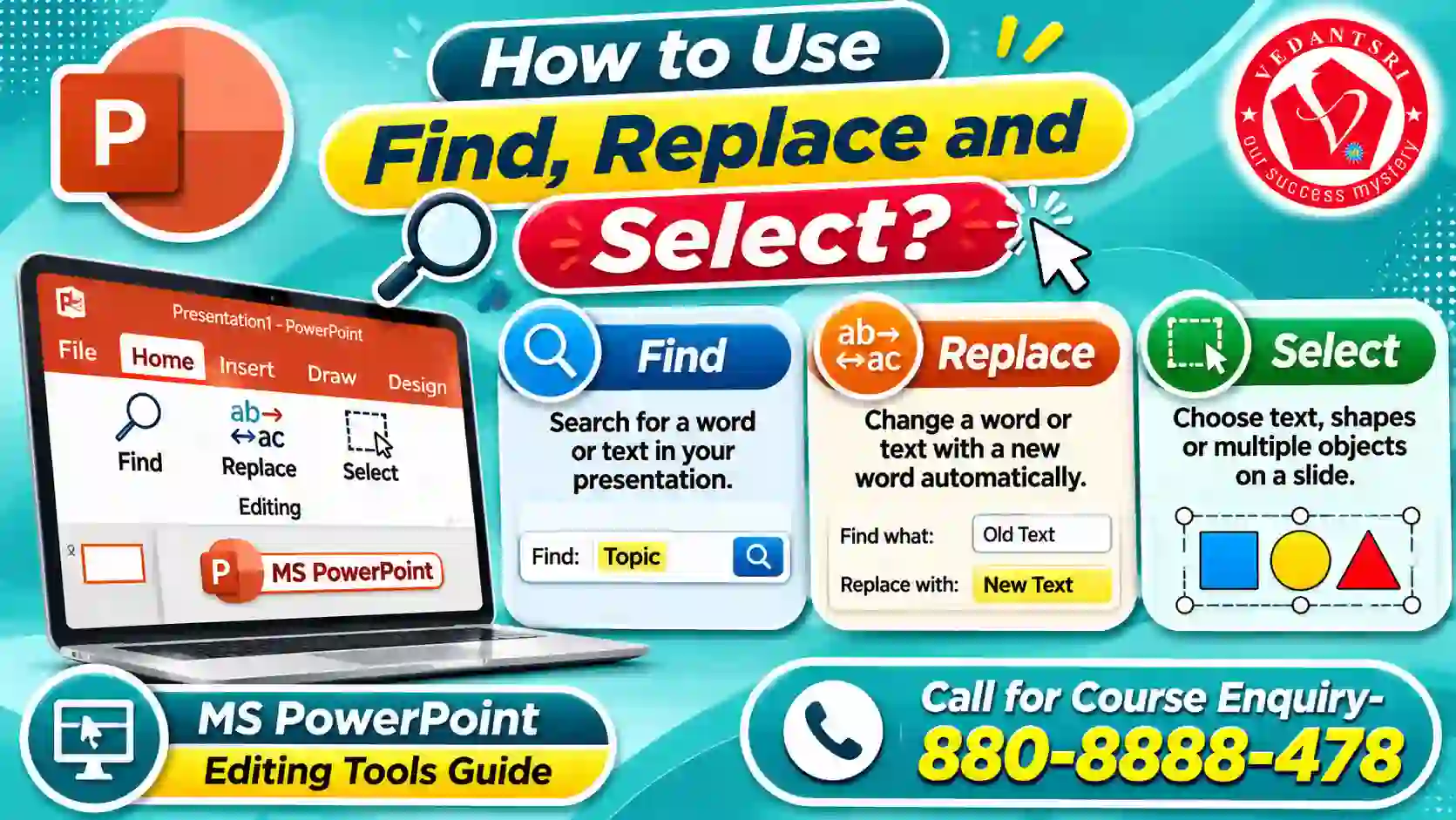
MS PowerPoint Home Menu 4 Online Test: How to Use Find, Replace and Select?
Find, Replace and Select are useful Editing commands. They help users manage text and objects in a presentation.
MS PowerPoint Home Menu 4 Online Test: How to Find Text in PowerPoint?
Find searches for a specific word or phrase in a presentation.
Follow these steps:
- Open your presentation.
- Select the Home tab.
- Locate the Editing group.
- Click Find.
- Enter the word or phrase.
- Select Find Next to locate the required text.
Shortcut: Ctrl + F opens the Find dialog box.
MS PowerPoint Home Menu 4 Online Test: How to Replace Text in PowerPoint?
Replace helps change repeated words or phrases throughout a presentation.
Follow these steps:
- Open the Home tab.
- Select Replace from the Editing group.
- Enter the existing word in Find What.
- Enter the new word in Replace With.
- Click Find Next to check an occurrence.
- Select Replace to change one occurrence.
- Select Replace All to change all matching occurrences.
Example: You have used the word Computer Training in several slides. You want to change it to Computer Education. Use Find and Replace instead of editing each slide manually.
Always review the presentation before selecting Replace All.
MS PowerPoint Home Menu 4 Online Test: What Is the Use of Select Objects?
Select Objects helps users select objects by drawing a selection box around them.
It is useful when several shapes or pictures are close together.
Follow these steps:
- Open the Home tab.
- Select the Select drop-down.
- Choose Select Objects.
- Draw a box around the required objects.
- Review the selected objects.
- Move, group or format them as required.
PowerPoint Online: Practical Example Using Home Menu Commands
Suppose you want to create a presentation about Computer Education. You need a title, three information boxes, a logo and a picture.
Follow this practical activity:
- Create: Open PowerPoint and add a new slide.
- Format: Select the title and apply Bold, Font Size and Font Color.
- Copy: Use Format Painter to copy the title formatting.
- Insert: Add three shapes for different information sections.
- Select: Select the three shapes using Ctrl.
- Arrange: Use Align to position the shapes properly.
- Group: Group related shapes and text objects.
- Edit: Use Find and Replace to correct repeated words.
- Review: Open the Selection Pane and check the object order.
- Save: Save the completed presentation.
This activity helps students understand how Home tab commands work together.
PowerPoint Online Test in Hindi: Important Home Menu Words
Students who search for a PowerPoint online test in Hindi can use the following meanings to understand important English commands.
| English Command | Simple Hindi Meaning |
| Clipboard | कॉपी और पेस्ट करने के टूल |
| Cut | हटाकर कॉपी करना |
| Copy | कॉपी करना |
| Paste | चिपकाना |
| Format Painter | फॉर्मेट की नकल करना |
| New Slide | नई स्लाइड |
| Layout | स्लाइड की व्यवस्था |
| Font | लिखावट की शैली |
| Bold | मोटा अक्षर |
| Italic | तिरछा अक्षर |
| Alignment | टेक्स्ट या ऑब्जेक्ट की स्थिति |
| Arrange | वस्तुओं की व्यवस्था |
| Group | कई वस्तुओं को एक साथ जोड़ना |
| Ungroup | ग्रुप को अलग करना |
| Find | खोजना |
| Replace | बदलना |
| Select | चुनना |
Learn the English command names because these are commonly used in the PowerPoint Ribbon.
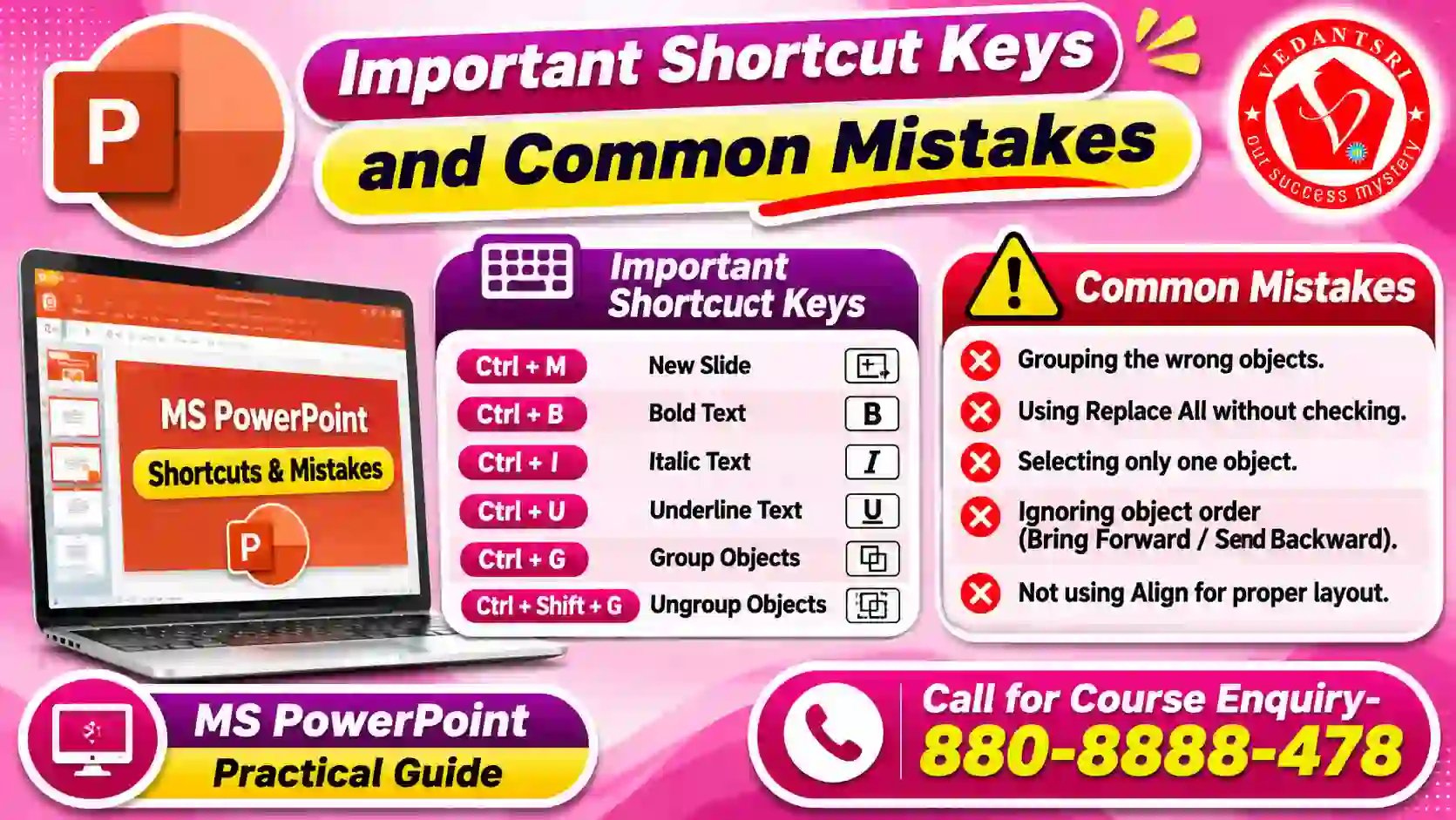
PowerPoint Test: Important Shortcut Keys and Common Mistakes
Shortcut keys help students’ complete presentation work faster. The following keyboard shortcuts are useful for PowerPoint on Windows.
| Shortcut Key | Function |
| Alt + H | Open Home tab |
| Ctrl + M | Insert a new slide |
| Ctrl + D | Duplicate selected object |
| Ctrl + G | Group selected objects |
| Ctrl + Shift + G | Ungroup selected objects |
| Ctrl + F | Find text |
| Ctrl + H | Replace text |
| Ctrl + C | Copy |
| Ctrl + V | Paste |
| Ctrl + X | Cut |
| Ctrl + Z | Undo |
| Ctrl + Y | Redo |
| Ctrl + B | Bold |
| Ctrl + I | Italic |
| Ctrl + U | Underline |
| F5 | Start slide show |
Common Mistakes While Using the MS PowerPoint Home Menu 4 Online Test
Mistake 1: Selecting Only One Object
Align and Group commands may not work correctly when only one object is selected.
Solution: Select two or more objects before using these commands.
Mistake 2: Grouping Unrelated Objects
Grouping the wrong objects can make later editing difficult.
Solution: Select only the objects that should move or resize together.
Mistake 3: Using Replace All Without Checking
Replace All can change every matching word in a presentation.
Solution: Use Find Next and check the result before replacing all occurrences.
Mistake 4: Confusing Shape Selection with Text Selection
Sometimes students select the text inside a shape instead of selecting the complete shape.
Solution: Click the shape border to select the complete object.
Mistake 5: Ignoring Object Order
An image or shape may cover another object.
Solution: Use Arrange, Bring Forward, Send Backward or the Selection Pane to manage object order.
Mistake 6: Applying Format Painter Incorrectly
Format Painter copies the selected formatting. It does not copy the original text.
Solution: Select the correctly formatted object first, then apply the copied formatting to the target object.
MS PowerPoint Home Menu 4 Online Test: 20 Practice Questions
Question 1. Which tab contains the Clipboard group in PowerPoint?
A. Insert
B. Home
C. Design
D. Review
Question 2. Which command removes selected content and places it on the Clipboard?
A. Copy
B. Paste
C. Cut
D. Format Painter
Question 3. What is the main use of Format Painter in PowerPoint?
A. Insert a picture
B. Copy formatting from one object to another
C. Delete text
D. Change slide layout
Question 4. Which shortcut key is used to insert a new slide in PowerPoint?
A. Ctrl + N
B. Ctrl + M
C. Ctrl + D
D. Ctrl + S
Question 5. Which command changes the arrangement of placeholders on a slide?
A. New Slide
B. Reset
C. Replace
D. Find
Question 6. Which keyboard shortcut applies Bold formatting to selected text?
A. Ctrl + B
B. Ctrl + I
C. Ctrl + U
D. Ctrl + E
Question 7. Which option is used to create a bulleted list in PowerPoint?
A. Numbering
B. Bullets
C. Align Right
D. Line Spacing
Question 8. Which alignment option places paragraph text in the centre?
A. Align Left
B. Align Right
C. Center
D. Justify
Question 9. Which command is used to change the position and order of objects on a slide?
A. Arrange
B. Replace
C. Paste
D. Find
Question 10. Which shortcut groups selected objects in PowerPoint for Windows?
A. Ctrl + Shift + G
B. Ctrl + G
C. Ctrl + M
D. Ctrl + H
Question 11. Which shortcut ungroups a selected group of objects?
A. Ctrl + G
B. Ctrl + D
C. Ctrl + Shift + G
D. Ctrl + Shift + M
Question 12. Which command is used to search for specific text in a presentation?
A. Replace
B. Find
C. Select
D. Arrange
Question 13. Which shortcut opens the Replace dialog box in PowerPoint for Windows?
A. Ctrl + F
B. Ctrl + H
C. Ctrl + R
D. Ctrl + P
Question 14. What is the main purpose of the Selection Pane?
A. Insert a new slide
B. Manage, select and show or hide slide objects
C. Change the slide background
D. Insert a chart
Question 15. Which command moves a selected object above other overlapping objects?
A. Send to Back
B. Bring to Front
C. Group
D. Ungroup
Question 16. Which key combination opens the Home tab through Ribbon Key Tips in PowerPoint for Windows?
A. Alt + N
B. Alt + H
C. Alt + G
D. Alt + K
Question 17. Which option in the New Slide drop-down menu allows you to choose a predefined slide structure?
A. Slide Layout
B. Format Painter
C. Replace
D. Selection Pane
Question 18. What does the Reset command do in PowerPoint?
A. Deletes the selected slide
B. Restores the selected slide’s placeholders to the positions and formatting of its layout
C. Closes the presentation
D. Changes the presentation theme
Question 19. Which feature organizes presentation slides into separate groups?
A. Font
B. Section
C. Format Painter
D. Replace
Question 20. What happens when you use Format Painter?
A. The original text is deleted
B. Only the selected object’s formatting is copied
C. A new slide is created
D. The selected object is grouped
MS PowerPoint Home Menu 4 Online Test: Correct Answers with Explanations
| Q. No. | Correct Answer | Explanation |
| 1 | B. Home | The Home tab contains Clipboard, Slides, Font and other editing tools. |
| 2 | C. Cut | Cut removes selected content and places it on the Clipboard. |
| 3 | B. Copy formatting | Format Painter copies formatting such as font style, colour and size. |
| 4 | B. Ctrl + M | Ctrl + M inserts a new slide. |
| 5 | B. Reset | Reset restores placeholders to the selected slide layout. |
| 6 | A. Ctrl + B | Ctrl + B applies Bold formatting. |
| 7 | B. Bullets | Bullets creates a bulleted list. |
| 8 | C. Center | Center alignment places paragraph text in the middle. |
| 9 | A. Arrange | Arrange provides object positioning, ordering and alignment options. |
| 10 | B. Ctrl + G | Ctrl + G groups selected objects. |
| 11 | C. Ctrl + Shift + G | This shortcut separates a selected group into individual objects. |
| 12 | B. Find | Find searches for specific words or phrases. |
| 13 | B. Ctrl + H | Ctrl + H opens the Replace dialog box. |
| 14 | B. Manage objects | Selection Pane helps select, hide, show and manage slide objects. |
| 15 | B. Bring to Front | Bring to Front moves an object above overlapping objects. |
| 16 | B. Alt + H | Alt + H opens the Home tab through Ribbon Key Tips. |
| 17 | A. Slide Layout | Slide Layout provides predefined placeholder arrangements. |
| 18 | B. Restore layout | Reset restores the selected slide’s placeholders to their layout settings. |
| 19 | B. Section | Sections organize slides into separate groups. |
| 20 | B. Copy formatting | Format Painter copies formatting without replacing the original text. |
FAQ
Is PowerPoint Home Menu 4 a separate tab?
No. Home Menu 4 is a topic-wise test section on this page. The actual software contains one Home tab with groups such as Clipboard, Slides, Font, Paragraph, Drawing and Editing.
Can I use PowerPoint Home Menu commands online?
Yes. PowerPoint for the web provides several Home tab commands through a browser. However, some advanced features and command locations may differ from the desktop version.
What is the difference between Group and Arrange?
Group combines selected objects so they can be handled together. Arrange controls object order, alignment, rotation and positioning on a slide.
Can I find and replace text in all PowerPoint slides?
Yes. Find and Replace can search presentation text and replace matching words or phrases. Review the result before using Replace All.
Which shortcut opens the Home tab in PowerPoint?
In PowerPoint for Windows, press Alt + H to open the Home tab through Ribbon Key Tips. The shortcuts may differ on other platforms and keyboard layouts.
Important link
- Visit at – https://www.corelclass.com
- Read Also it – https://msexcelclass.com/
- Also, Read- Tally Course Fees, Duration, Scope, Syllabus, Admission, Institutes
- Also Read – CCC Course Fees, Syllabus, Duration, Scope, Jobs, and Institute
- Important Link – DFA Course Fees, Syllabus, Duration, Scope, Jobs, and Institute
- Visit – https://mswordclass.com/
सीधे institute से — VedantSri Computer Institute, Varanasi
- दो अपनी branch, वाराणसी में — Durgakund (Kabir Nagar Road, Naria) और Rathyatra (Dhirendra Complex, Rathyatra Crossing). दोनों शाखाएँ सोमवार–शनिवार सुबह 7 से रात 8 बजे तक खुली हैं। कोर्स की जानकारी के लिए Durgakund 8808888478 और Rathyatra 9415802061 पर सातों दिन, किसी भी समय कॉल कर सकते हैं।
- 3,300+ admission — January 2023 से हमारे digital record में.
- 1,267 certificate जारी — हर certificate QR से vedantsri.net/certificate पर verify होता है.
- Classes हमारे अपने classroom और computer lab में होती हैं — admission से पहले आकर देख सकते हैं.
PowerPoint Questions with Answers
PowerPoint Questions with Answers – Set 7
- Which format is used to save a presentation as a document?Answer: PDF
- Which format is used to save a presentation as an outline?Answer: RTF
- What is the file extension for a PowerPoint Theme?Answer: thmx
- What is the file extension for an XML Paper Specification?Answer: xps
- What is the file extension for a Macro-enabled presentation?Answer: pptm
- What is the file extension for a Macro-enabled template?Answer: potm
- What is the file extension for a Macro-enabled show?Answer: ppsm
- Which format is used to save a presentation as a web page?Answer: HTML
- Which view is best for rearranging the order of slides?Answer: Slide Sorter View
- Which view is used to add and edit speaker notes?Answer: Notes Page View